> ## Documentation Index
> Fetch the complete documentation index at: https://docs.firmhouse.com/llms.txt
> Use this file to discover all available pages before exploring further.
# Veriff identity verification integration
> Connect Firmhouse to Veriff for identity verification, fraud protection, and KYC onboarding using their hosted document verification flow.
Veriff is a company that provides identity verification, fraud protection, and KYC onboarding solutions. Firmhouse has an officially supported integration with Veriff that connects to their hosted flow for identity and document verification.
To get started, you will first need to create an account at [Veriff](https://www.veriff.com). Veriff offers [self-service options](https://www.veriff.com/plans/self-serve) with fully automated identity checks, as well as [enterprise plans](https://www.veriff.com/plans/enterprise). After obtaining your account, follow the steps below to set up Veriff for your Firmhouse project.
## Create an Integration in Veriff
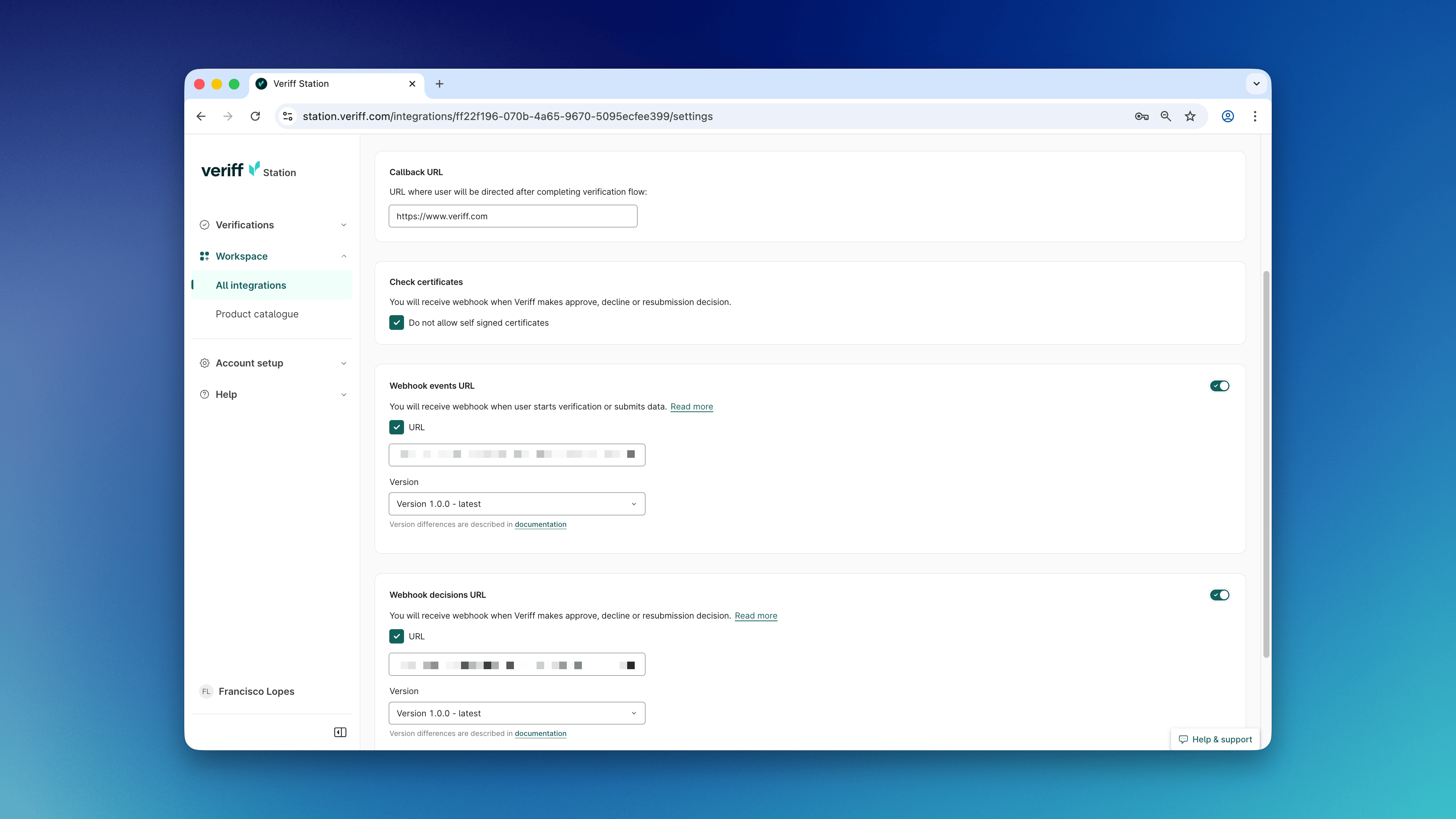
First, you need to create an Integration in your Veriff account. After creating the integration, you can obtain the necessary API credentials that you will need to set up the Veriff app in your Firmhouse project.
### Steps
1. Log in to your Veriff account
2. Click **Workspace** on the sidebar, and select **All integrations**
3. Click **Add integration**
4. Enter a name for the integration (for example, "Firmhouse")
5. Choose the integration type - you can choose **Test integration** or **Live integration**. With the **Test integration**, you can test how the flow works without being charged for verification checks, but you will need to change the status of each initiated identification check manually in your Veriff account. Learn more in Veriff’s [help center article](https://devdocs.veriff.com/docs/how-to-create-an-integration).
6. Click **Add integration** to complete the setup
The integration is now created. Keep the screen open to be able to copy and paste the credentials from Veriff to Firmhouse in the next step.
 ## Configure the Veriff App in Firmhouse
### Steps
1. In your Firmhouse project, go to **Apps** in the sidebar
2. Find the Veriff app card and click **Configure**
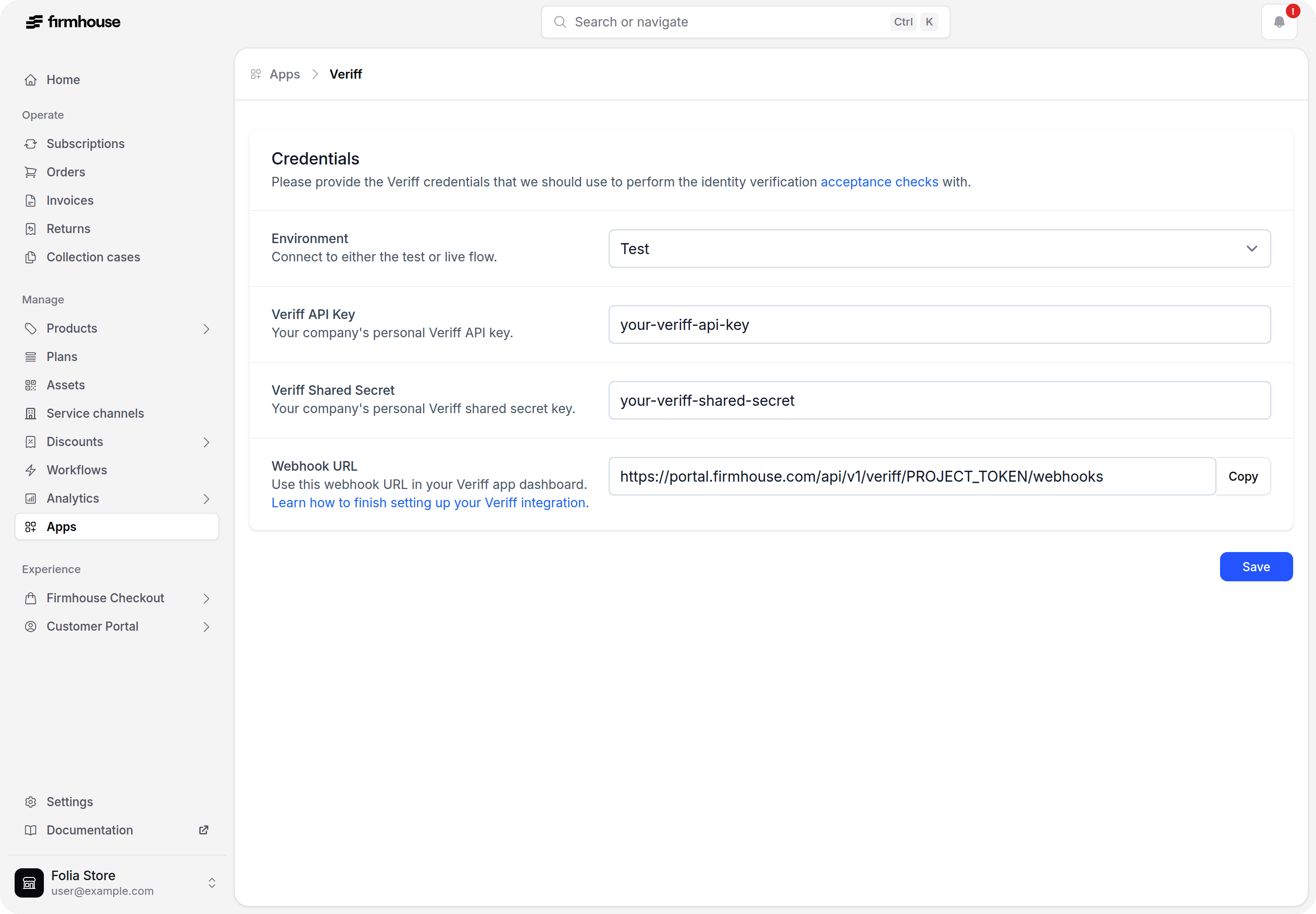
3. Select the **Environment** and enter your **Veriff API key** and **Veriff Shared Secret** - you can find these on the detail page of the integration in your Veriff account
4. Copy and paste the value from **Webhook URL** into the appropriate places in the Integration in your Veriff account
## Configure the Veriff App in Firmhouse
### Steps
1. In your Firmhouse project, go to **Apps** in the sidebar
2. Find the Veriff app card and click **Configure**
3. Select the **Environment** and enter your **Veriff API key** and **Veriff Shared Secret** - you can find these on the detail page of the integration in your Veriff account
4. Copy and paste the value from **Webhook URL** into the appropriate places in the Integration in your Veriff account
 ## Set Up an Acceptance Check for Veriff
Now that you have configured the connection between Firmhouse and Veriff, you can set up an acceptance check in Firmhouse. This way you can keep track of which customers completed verifying their identity via Veriff and thus manually or automatically accept the customer for their subscription or order.
Pending, completed, or failed acceptance checks will be visible from the Customer detail page after they signed up.
### Steps
1. Go to S**ubscription model**, under Settings in the sidebar
2. Next to **Activation strategy,** select **Manual activation**
3. Scroll to the bottom of the page, and press **Update project**
4. Go to **Acceptance checks** in the sidebar of your Firmhouse project
5. Click **New acceptance check**
6. On Acceptance check type, select **Identity verification**
7. Give the acceptance check a name (for example "Identity verified via Veriff")
8. Select **Veriff** from the Identity verification service provider dropdown
9. Click **Save acceptance check** to complete the setup
## Informing Your Customer to Perform Identity Verification
When your customers sign up and have made their initial payment, they need to be informed that you want to verify their identity before you onboard them to your subscription or send out their products.
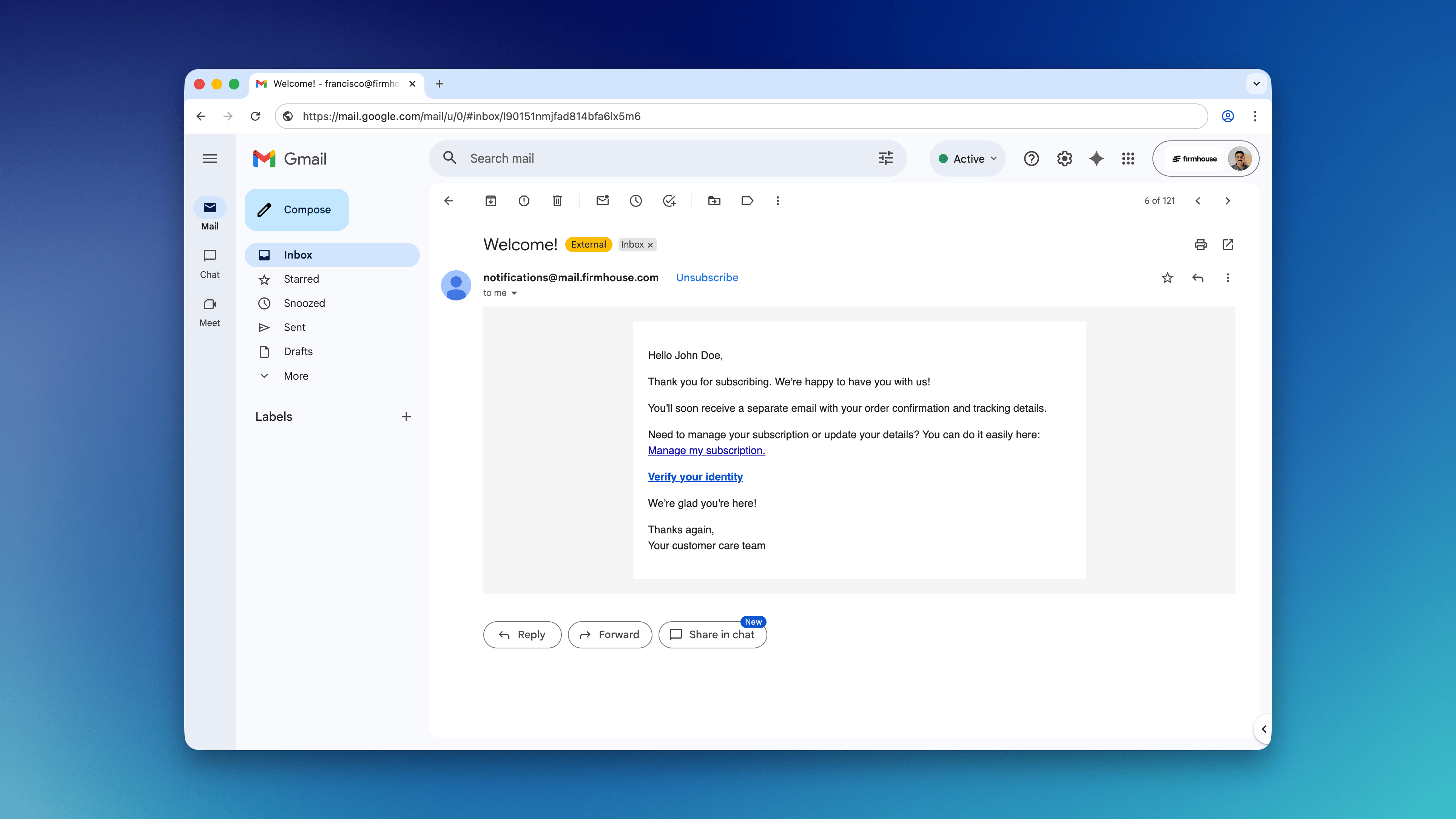
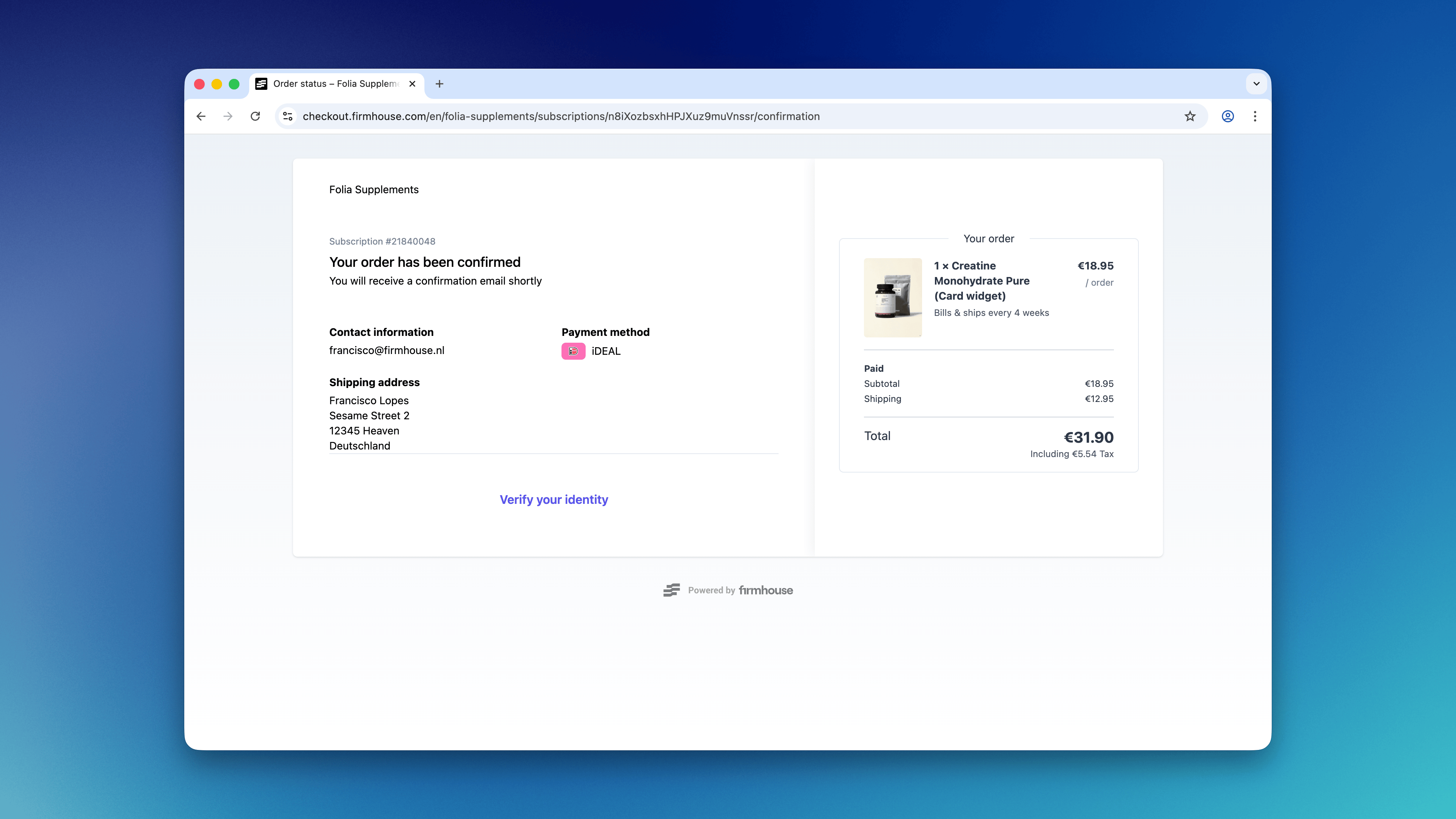
By adding a verification link to your customer communications, you can guide them directly to the identity verification flow. You can include this link in the signup confirmation email by adding additional instructions or display it on the thank you/confirmation page in Firmhouse Checkout.
To display a **Verify your identity** link, add the following code to the email or page content:
```html theme={null}
## Set Up an Acceptance Check for Veriff
Now that you have configured the connection between Firmhouse and Veriff, you can set up an acceptance check in Firmhouse. This way you can keep track of which customers completed verifying their identity via Veriff and thus manually or automatically accept the customer for their subscription or order.
Pending, completed, or failed acceptance checks will be visible from the Customer detail page after they signed up.
### Steps
1. Go to S**ubscription model**, under Settings in the sidebar
2. Next to **Activation strategy,** select **Manual activation**
3. Scroll to the bottom of the page, and press **Update project**
4. Go to **Acceptance checks** in the sidebar of your Firmhouse project
5. Click **New acceptance check**
6. On Acceptance check type, select **Identity verification**
7. Give the acceptance check a name (for example "Identity verified via Veriff")
8. Select **Veriff** from the Identity verification service provider dropdown
9. Click **Save acceptance check** to complete the setup
## Informing Your Customer to Perform Identity Verification
When your customers sign up and have made their initial payment, they need to be informed that you want to verify their identity before you onboard them to your subscription or send out their products.
By adding a verification link to your customer communications, you can guide them directly to the identity verification flow. You can include this link in the signup confirmation email by adding additional instructions or display it on the thank you/confirmation page in Firmhouse Checkout.
To display a **Verify your identity** link, add the following code to the email or page content:
```html theme={null}
Verify your identity
```
This link will direct the customer to the Veriff identity verification flow.
### Redirect to another page after verification
Use the `with_veriff_return_url` filter to send the customer to another HTTPS page after they finish the Veriff flow. You can use subscription variables to make the destination unique for each customer.
For example, this link sends the subscription token and locale to an external questionnaire:
```liquid theme={null}
{% capture post_verification_url %}https://example.com/questionnaire?identifier={{ subscription.token }}&locale={{ subscription.locale }}{% endcapture %}
Verify your identity
```
The redirect means that the customer has finished submitting the Veriff flow. Firmhouse receives the verification decision separately through Veriff's webhook, so the subscription's verification status may still be pending when the customer reaches the destination.