> ## Documentation Index
> Fetch the complete documentation index at: https://docs.firmhouse.com/llms.txt
> Use this file to discover all available pages before exploring further.
# Add your logo to the Firmhouse Checkout
> Brand the Firmhouse Checkout and Self Service Center with your logo and accent color so your customer-facing pages match your company's visual identity.
Brand the Firmhouse checkout with your logo to make it yours. You can upload your logo to Firmhouse to make the checkout page and the Self Service Center feel like they're yours.
## Upload your logo
### Steps
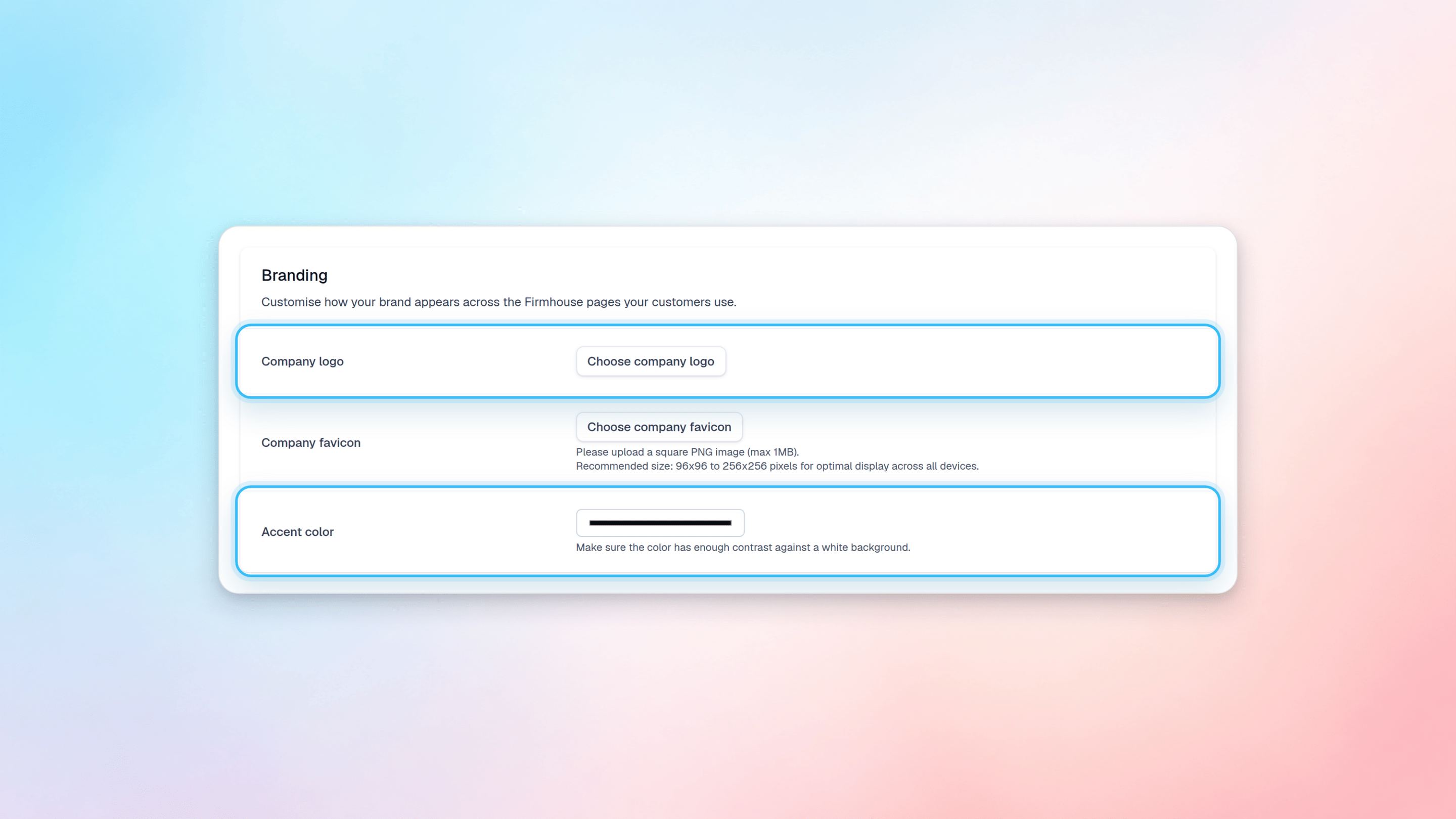
1. Navigate to **Settings > Your business** to configure your branding.
2. In the Branding section, upload a company logo. If the upload doesn't show right away, click on **Update project** to get the picture to load.
3. Select an accent color that fits your company's branding. This color is used in some areas of the Self Service Center.
 ## Configure the logo on the checkout page
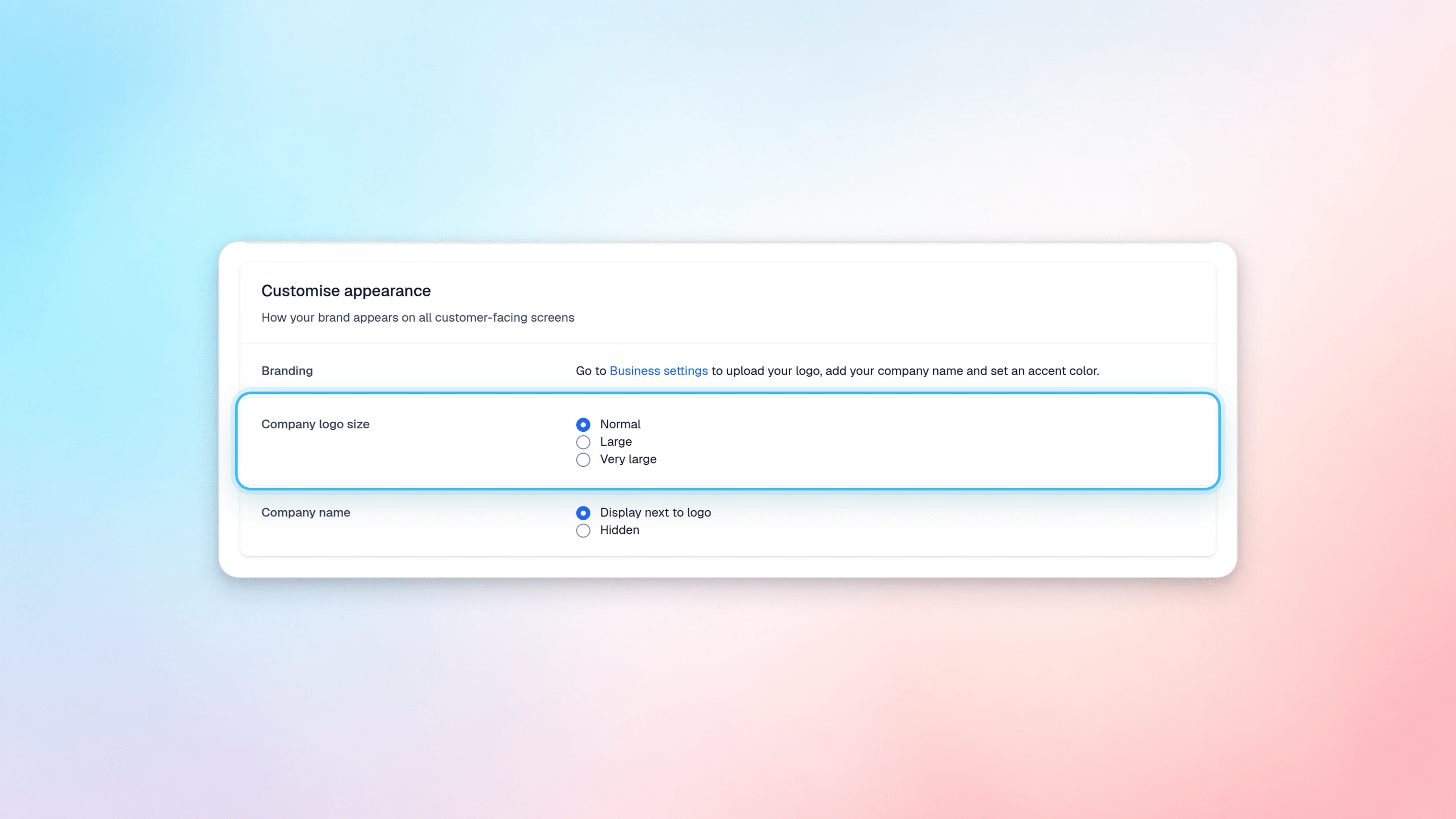
You can choose between three different sizes when displaying your logo on the checkout page: Normal, Large, and Very Large.
### Steps
1. Go to **Checkout > Preferences** and scroll down to **Customise Appearance**.
2. Choose your preferred logo size. This will update the logo on all customer facing screens such as checkout, manual invoice payment flow, update payment method, etc.
## Configure the logo on the checkout page
You can choose between three different sizes when displaying your logo on the checkout page: Normal, Large, and Very Large.
### Steps
1. Go to **Checkout > Preferences** and scroll down to **Customise Appearance**.
2. Choose your preferred logo size. This will update the logo on all customer facing screens such as checkout, manual invoice payment flow, update payment method, etc.
 To preview the checkout page, go to **Checkout > Adjust content** and click on **Preview Page**.