> ## Documentation Index
> Fetch the complete documentation index at: https://docs.firmhouse.com/llms.txt
> Use this file to discover all available pages before exploring further.
# Enable a shopping cart on checkout
> Enable the shopping cart in Firmhouse Checkout so customers can subscribe to multiple products or plans together in a single checkout transaction.
Out of the box, Firmhouse works as a one-click checkout, meaning that customers go straight to the checkout after selecting a product to subscribe to. This works great for shops where customers only subscribe to one product or plan at a time.
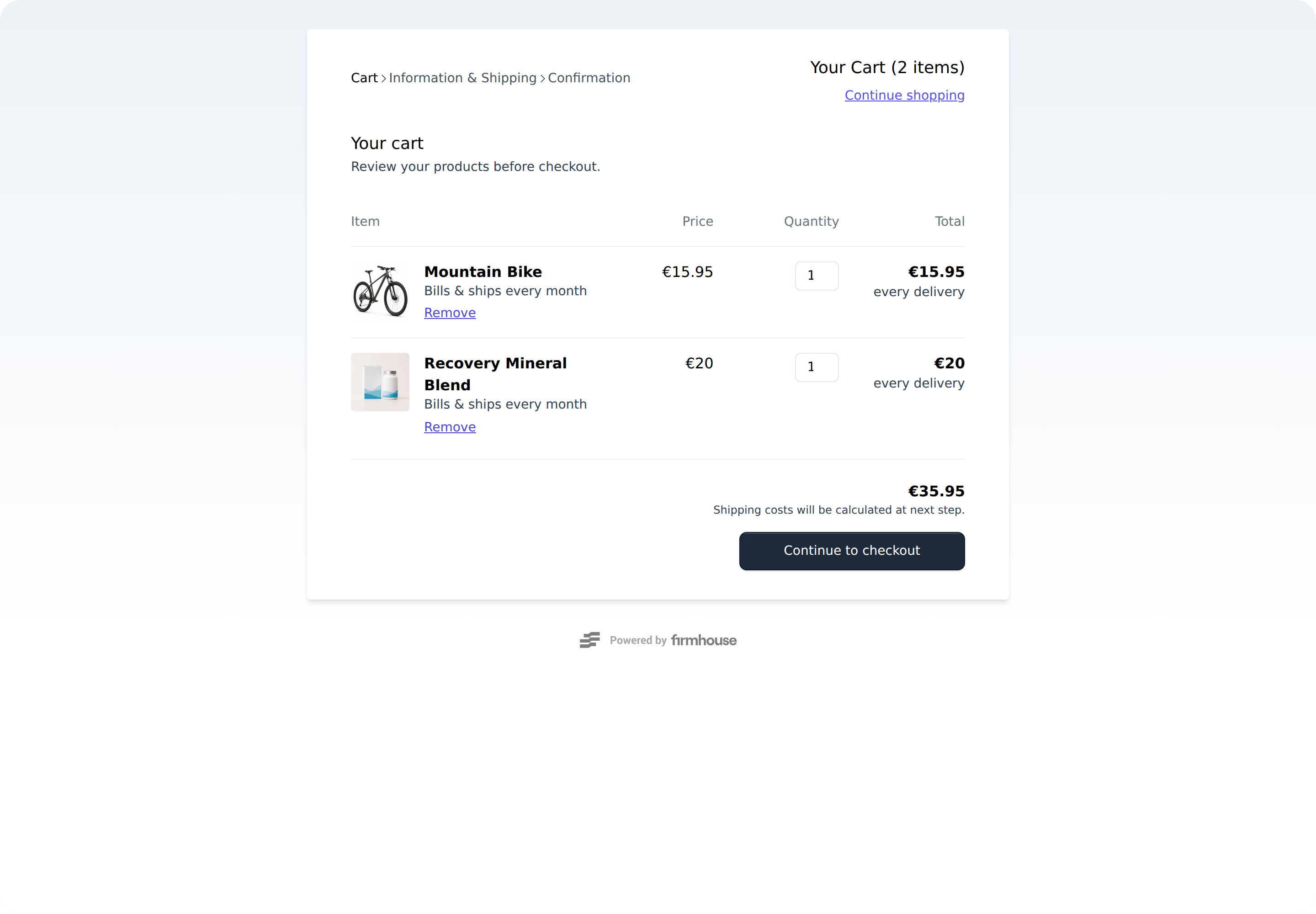
However, sometimes you want to offer traditional e-commerce cart functionality so that customers can add multiple products before going to checkout.
 ## Enabling the cart
### Steps
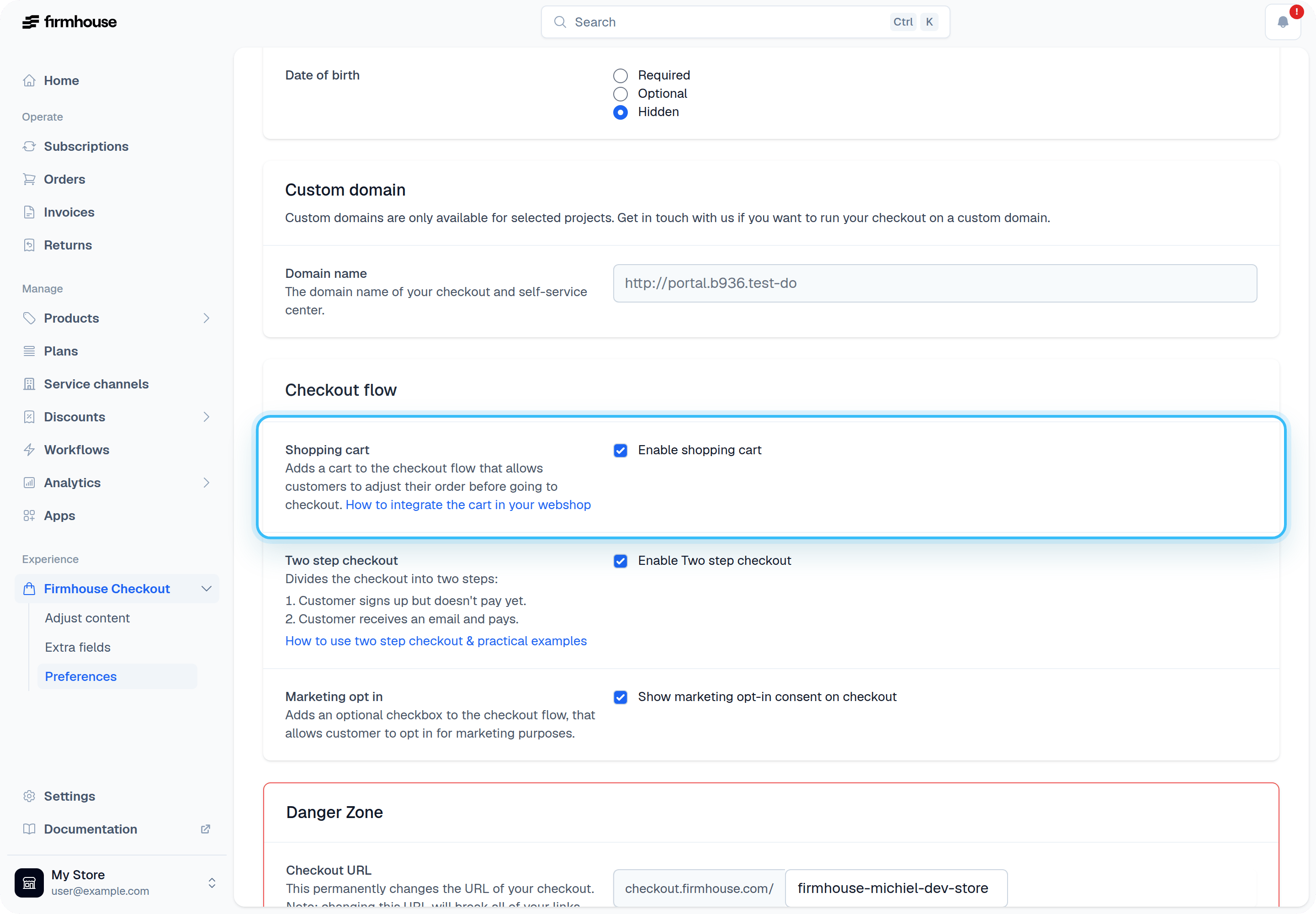
1. Go to **Checkout > Preferences** and scroll down to Checkout Flow.
2. Check the **Enable shopping cart** box.
3. Click **Update** to save your project settings.
## Enabling the cart
### Steps
1. Go to **Checkout > Preferences** and scroll down to Checkout Flow.
2. Check the **Enable shopping cart** box.
3. Click **Update** to save your project settings.
 Congratulations, you now have a cart!
## Integrating the cart into your store
The only thing left is to tell your web shop which product it should add to the cart when a customer clicks on your Buy button. You need to do this for every product in your shop, but it's a one-time setup.
### Steps
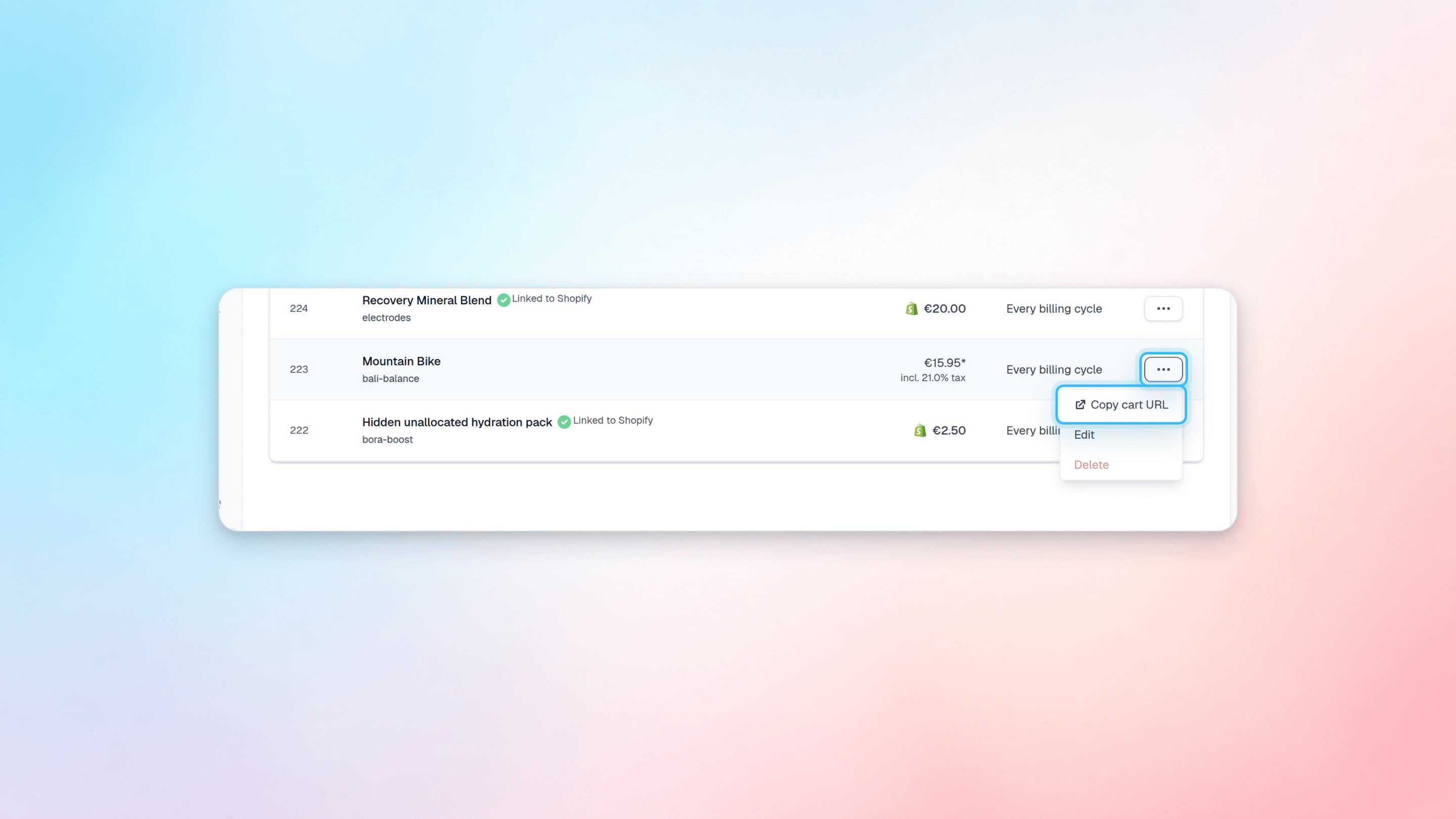
1. Go to **Products** and locate the product you want to configure.
2. Click on the three dots menu and select **Copy cart URL**.
3. The URL is now copied to your clipboard.
4. Go to your webshop and add that URL to your "Buy" button.
5. Repeat the process for every product in your web store.
Congratulations, you now have a cart!
## Integrating the cart into your store
The only thing left is to tell your web shop which product it should add to the cart when a customer clicks on your Buy button. You need to do this for every product in your shop, but it's a one-time setup.
### Steps
1. Go to **Products** and locate the product you want to configure.
2. Click on the three dots menu and select **Copy cart URL**.
3. The URL is now copied to your clipboard.
4. Go to your webshop and add that URL to your "Buy" button.
5. Repeat the process for every product in your web store.
 This works in the same way if you are using plans.
If you are looking to add several products (or plans) to the cart with one click, check out the [Advanced Checkout URLs](/configure/firmhouse-checkout/advanced-checkout-urls) article.
## Configuring your cart
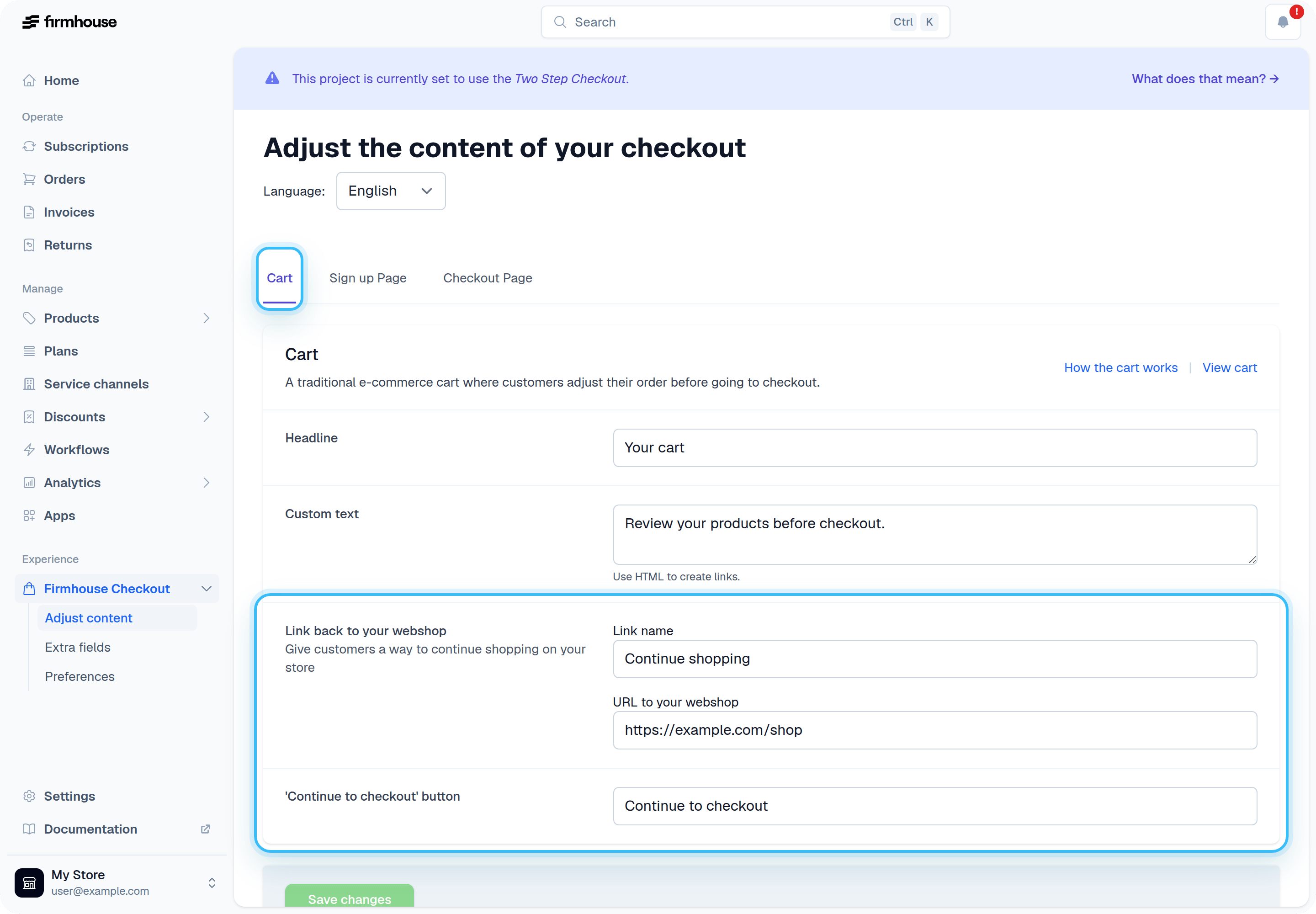
The cart works out of the box and doesn't need any configuration. There are two things you can adjust however:
1. Where a customer goes after clicking on "Continue Shopping"
2. The name of the button to go from Cart to Checkout
### Steps
1. Go to **Checkout > Adjust Content**.
2. Click on the **Cart** tab.
3. Configure the "Continue shopping" link and the "Continue to checkout" button text as needed.
4. Click **Save changes**.
This works in the same way if you are using plans.
If you are looking to add several products (or plans) to the cart with one click, check out the [Advanced Checkout URLs](/configure/firmhouse-checkout/advanced-checkout-urls) article.
## Configuring your cart
The cart works out of the box and doesn't need any configuration. There are two things you can adjust however:
1. Where a customer goes after clicking on "Continue Shopping"
2. The name of the button to go from Cart to Checkout
### Steps
1. Go to **Checkout > Adjust Content**.
2. Click on the **Cart** tab.
3. Configure the "Continue shopping" link and the "Continue to checkout" button text as needed.
4. Click **Save changes**.