> ## Documentation Index
> Fetch the complete documentation index at: https://docs.firmhouse.com/llms.txt
> Use this file to discover all available pages before exploring further.
# Picqer warehouse integration
> Connect Firmhouse to Picqer warehouse management to automatically push new subscription orders into your Picqer environment for fulfillment.
[Picqer](https://picqer.com/) is a warehouse management software for your webshop. This guide explains how to set up the integration so that new orders via Firmhouse will automatically be pushed to your Picqer environment.
The integration consists of two steps: connecting the app and linking your products.
## Connecting the App
### Steps
1. Navigate to **Apps** in the sidebar and find the Picqer integration
2. Enter your Picqer credentials:
* Your Picqer Domain (e.g., `yourcompany.picqer.com`)
* Your Picqer API Key
3. Save your credentials
4. Click the **Enable Picqer App** button on the right
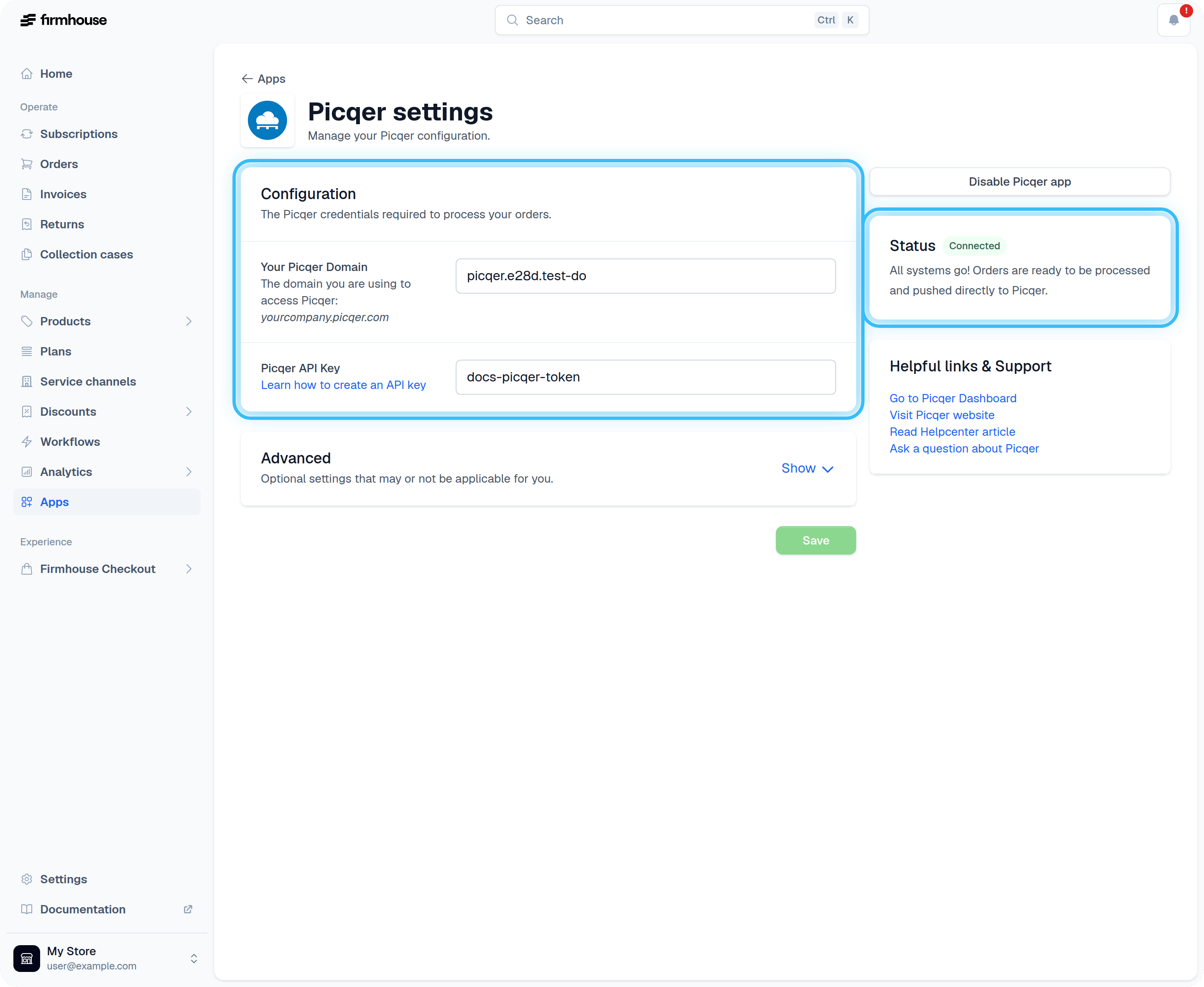 If everything went well, the status will show as *Connected*. If the status shows as *Not connected*, double check your [API Key](https://picqer.com/en/support/articles/api-keys) and Picqer domain.
## Linking Products
After connecting the app, you need to connect your Firmhouse products to those in Picqer.
### Steps
1. Navigate to a product in Firmhouse
2. Scroll all the way down to the **Picqer** section
3. Connect it to the corresponding Picqer product from the dropdown
If everything went well, the status will show as *Connected*. If the status shows as *Not connected*, double check your [API Key](https://picqer.com/en/support/articles/api-keys) and Picqer domain.
## Linking Products
After connecting the app, you need to connect your Firmhouse products to those in Picqer.
### Steps
1. Navigate to a product in Firmhouse
2. Scroll all the way down to the **Picqer** section
3. Connect it to the corresponding Picqer product from the dropdown
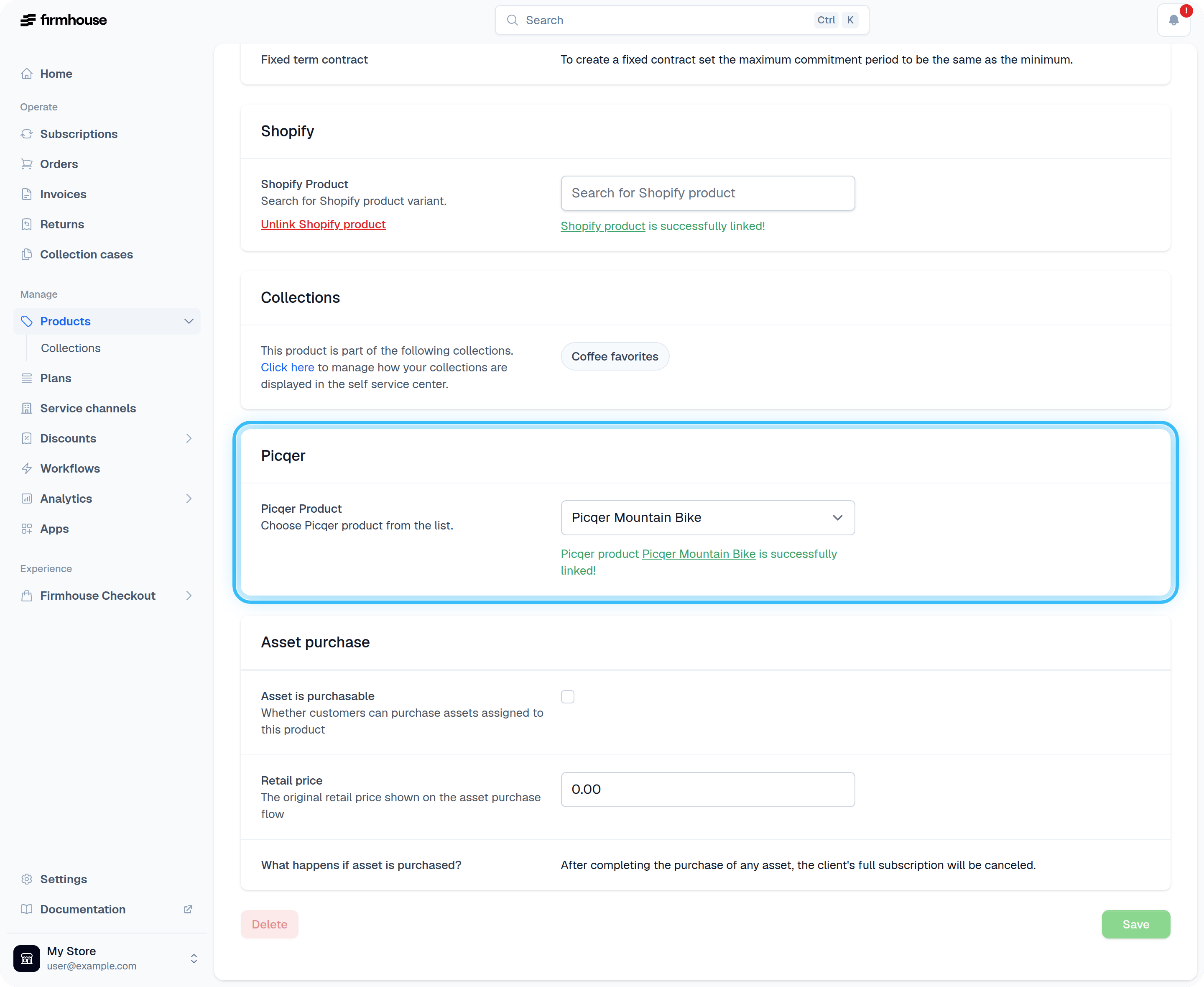 New orders for this product will now be pushed automatically to Picqer. You can recognize that a product is connected by going to the product overview, where connected products will show a Picqer indicator.
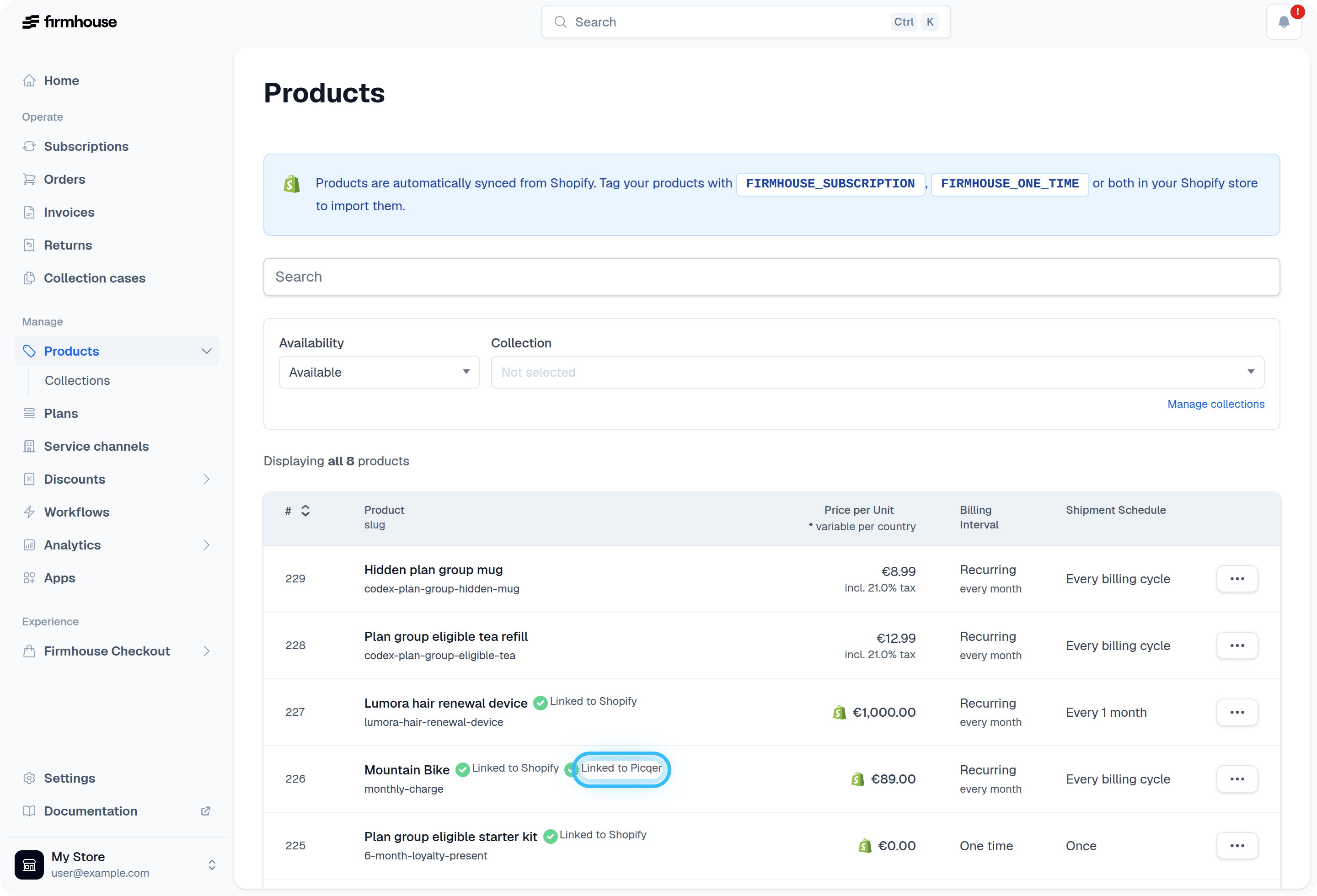 Repeat this step for every product you want to sync with Picqer.