> ## Documentation Index
> Fetch the complete documentation index at: https://docs.firmhouse.com/llms.txt
> Use this file to discover all available pages before exploring further.
# Automate purchase prices with Pipedream
> Use Firmhouse webhooks and Pipedream to automatically calculate and update purchase prices for assets, supporting Try and Buy and similar flows.
This article explains how to use webhooks and the developer integration service [Pipedream](https://pipedream.com) to automate calculating and updating the purchase price for assets assigned to subscriptions. The assigned purchase price is then used when offering a purchase flow, for example in a [Try & Buy](/use-cases/try-and-buy) setup.
## Create an Empty Pipedream Workflow
First, in Pipedream you'll create a placeholder workflow that has its own URL to receive webhook requests. Later you will add steps to this workflow which will calculate the purchase price and set it on the specific asset.
### Steps
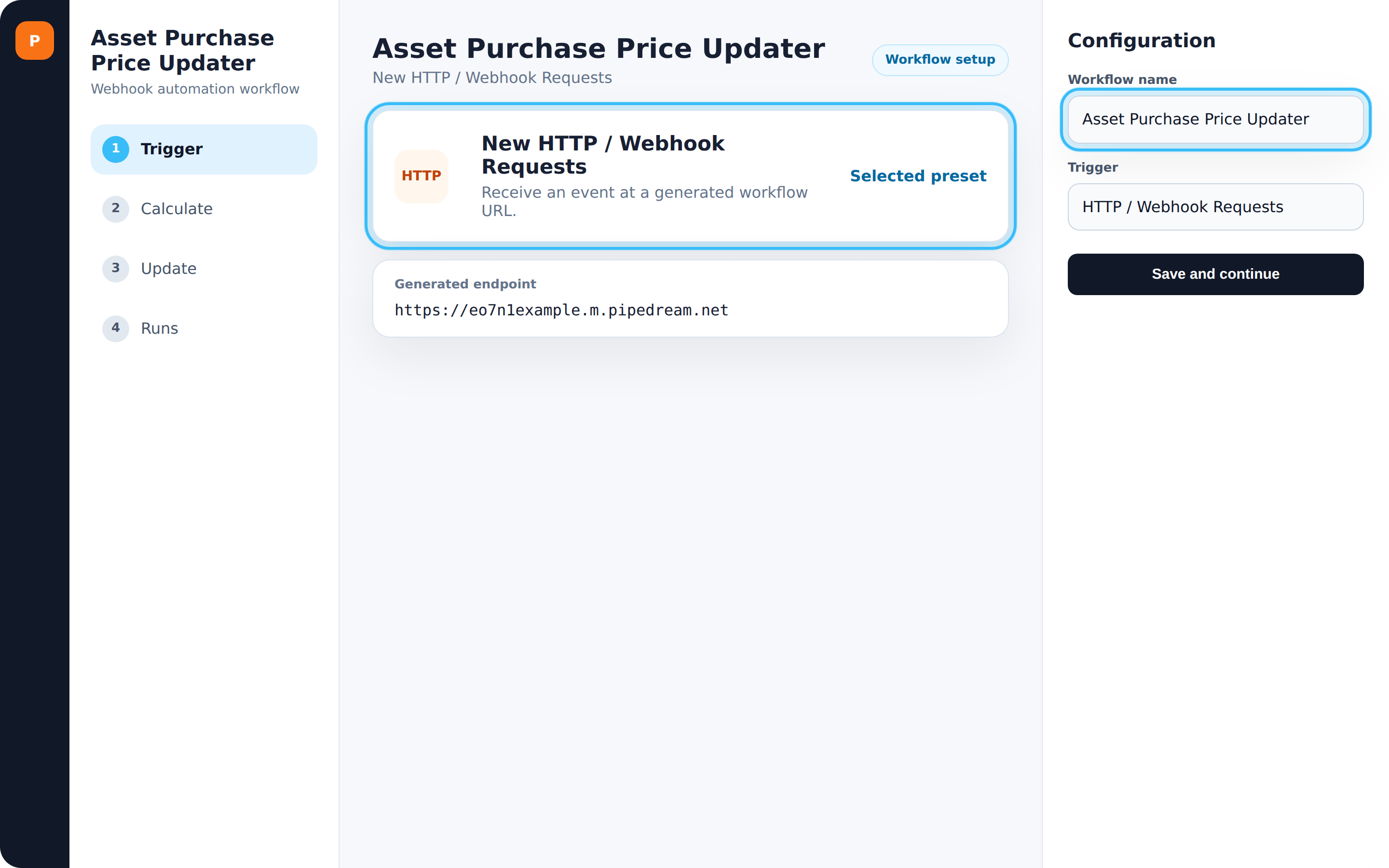
1. In Pipedream, click **New** to create a new workflow
2. On the right, choose **New HTTP / Webhook Requests** from the list of presets
3. On the top-left, rename your workflow from **Untitled workflow** to **Asset Purchase Price Updater**
4. Click **Save and continue**
You should now have a new empty Pipedream workflow created that is hosted on its own unique URL (something like `https://xxx.m.pipedream.net/`).
 ## Create Firmhouse Webhooks
Now that you have the empty Pipedream workflow placeholder on a URL, you can configure webhooks in Firmhouse and point them to Pipedream. You'll create two webhooks: one for when an asset is assigned to a customer, and one when a customer is charged for their periodic invoice.
### Create the Asset Assigned Webhook
### Steps
1. In Firmhouse, navigate to **Apps** in the sidebar
2. Find the **Webhooks** app and click **Configure**
3. Click **New outgoing webhook** on the top-right
4. Enter a name for the webhook, such as **Asset purchase - Asset assigned**
5. In the **Endpoint url** field, enter the URL obtained from creating the Pipedream workflow in the previous section
6. Leave **Authentication type** on **None**
7. From the **Event** dropdown, choose **Asset assigned**
8. In the **Template** field, paste the following snippet:
```json theme={null}
{
"invoicesCount": {{subscription.initial_or_recurring_invoices_count}},
"assetOwnershipIds": {{subscription.not_purchased_asset_ownership_ids | split:',' | join: ", "}},
"event": "asset_assigned"
}
```
9. Click **Save** to save the outgoing webhook
### Create the Invoice Invoiced Webhook
Repeat the above steps to create the second webhook with these changes:
* Enter a **Name** for the webhook: **Asset purchase - Invoice invoiced**
* From the **Event** dropdown, choose **Invoice invoiced**
* Keep **Authentication type** and the **Template** the same as for the Asset assigned webhook
## Add a Price Calculation Step in Pipedream
Return to the Pipedream workflow to add a step that calculates the purchase price for the customer to purchase their asset.
### Steps
1. In Pipedream, open your workflow and click **Edit** on the top-right if you're not in Edit mode
2. Click the **\[+]** button to add a new step
3. In the **Add a step** menu, choose the **Node** item
4. In the next step, choose the **Run Node code** option
5. In the code editor, clear out the existing content and paste in the contents from: [calculate\_asset\_purchase\_price\_from\_map.js](https://raw.githubusercontent.com/firmhouse/pipedream-actions/main/asset_purchase/calculate_asset_purchase_price_from_map.js)
6. Click **Test** to save the code and continue configuring your pricing
7. In the configuration pane, set **RecurringInvoicesCount** to `{{steps.trigger.event.body.invoicesCount}}`
8. In the **PricesMap** field, modify the mapping between the number of months and the purchase price you want to offer. There is already a default mapping with 5 months. You can update the prices, or add or remove months. The highest value will always be picked as purchase price if the customer's trial month exceeds what you've configured
## Create Firmhouse Webhooks
Now that you have the empty Pipedream workflow placeholder on a URL, you can configure webhooks in Firmhouse and point them to Pipedream. You'll create two webhooks: one for when an asset is assigned to a customer, and one when a customer is charged for their periodic invoice.
### Create the Asset Assigned Webhook
### Steps
1. In Firmhouse, navigate to **Apps** in the sidebar
2. Find the **Webhooks** app and click **Configure**
3. Click **New outgoing webhook** on the top-right
4. Enter a name for the webhook, such as **Asset purchase - Asset assigned**
5. In the **Endpoint url** field, enter the URL obtained from creating the Pipedream workflow in the previous section
6. Leave **Authentication type** on **None**
7. From the **Event** dropdown, choose **Asset assigned**
8. In the **Template** field, paste the following snippet:
```json theme={null}
{
"invoicesCount": {{subscription.initial_or_recurring_invoices_count}},
"assetOwnershipIds": {{subscription.not_purchased_asset_ownership_ids | split:',' | join: ", "}},
"event": "asset_assigned"
}
```
9. Click **Save** to save the outgoing webhook
### Create the Invoice Invoiced Webhook
Repeat the above steps to create the second webhook with these changes:
* Enter a **Name** for the webhook: **Asset purchase - Invoice invoiced**
* From the **Event** dropdown, choose **Invoice invoiced**
* Keep **Authentication type** and the **Template** the same as for the Asset assigned webhook
## Add a Price Calculation Step in Pipedream
Return to the Pipedream workflow to add a step that calculates the purchase price for the customer to purchase their asset.
### Steps
1. In Pipedream, open your workflow and click **Edit** on the top-right if you're not in Edit mode
2. Click the **\[+]** button to add a new step
3. In the **Add a step** menu, choose the **Node** item
4. In the next step, choose the **Run Node code** option
5. In the code editor, clear out the existing content and paste in the contents from: [calculate\_asset\_purchase\_price\_from\_map.js](https://raw.githubusercontent.com/firmhouse/pipedream-actions/main/asset_purchase/calculate_asset_purchase_price_from_map.js)
6. Click **Test** to save the code and continue configuring your pricing
7. In the configuration pane, set **RecurringInvoicesCount** to `{{steps.trigger.event.body.invoicesCount}}`
8. In the **PricesMap** field, modify the mapping between the number of months and the purchase price you want to offer. There is already a default mapping with 5 months. You can update the prices, or add or remove months. The highest value will always be picked as purchase price if the customer's trial month exceeds what you've configured
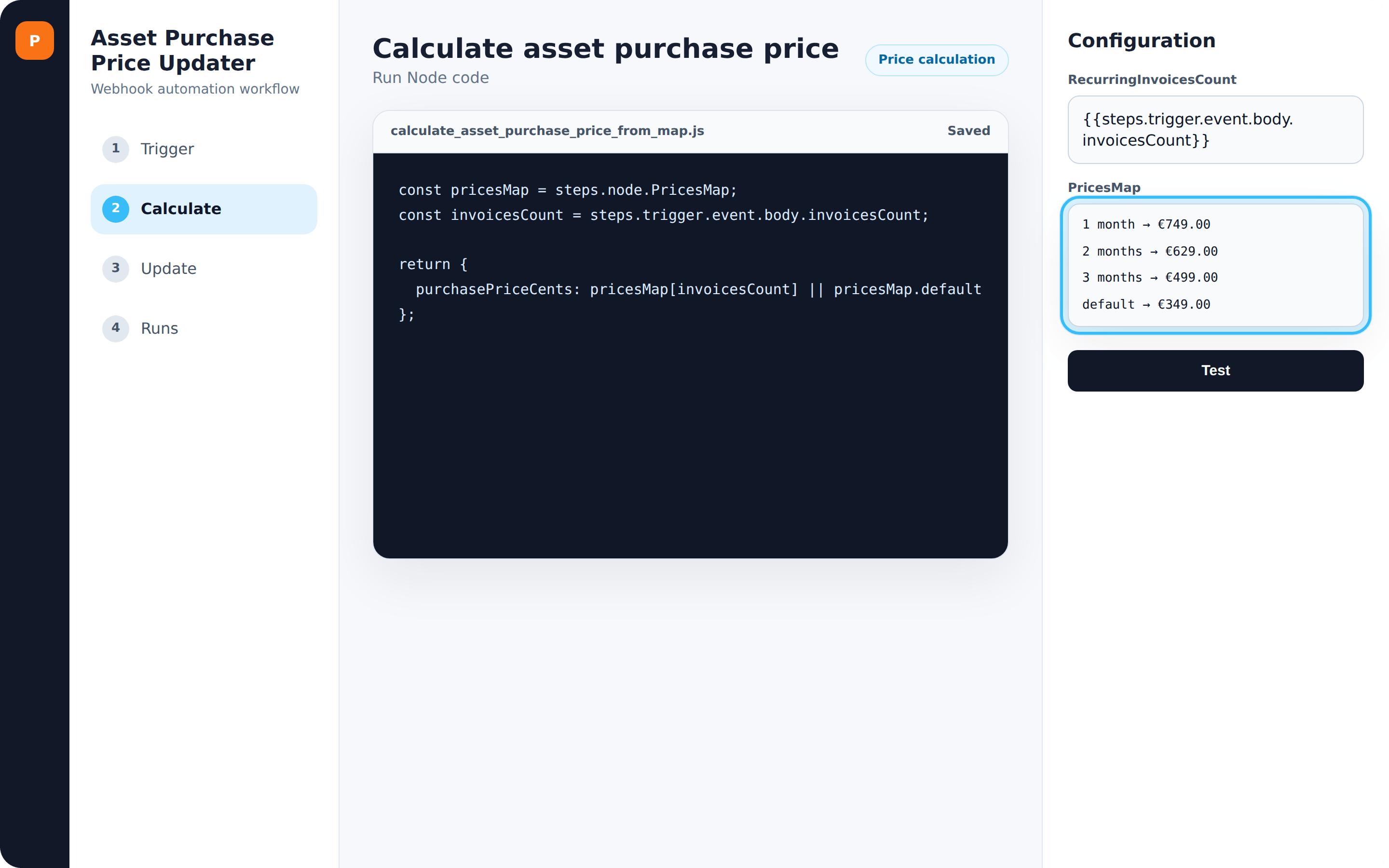 9. Press **Test** again to save the changes
You've now set up a basic price calculation step based on a mapping between the number of months (or recurring invoices) and the purchase price. If you need a different calculation method, you can build custom logic instead of using this standard step.
## Add a Price Updating Step in Pipedream
Add another step to the Pipedream workflow that calls the Firmhouse API to update the purchase price on the relationship between the asset and the subscriber.
### Steps
1. In Pipedream, open your workflow and click **Edit** on the top-right if needed
2. Click the **\[+]** button to add a new step
3. In the **Add a step** menu, choose the **Node** item
4. Choose the **Run Node code** option
5. In the code editor, clear out the existing content and paste in the contents from: [set\_asset\_purchase\_price.js](https://raw.githubusercontent.com/firmhouse/pipedream-actions/main/asset_purchase/set_asset_purchase_price.js)
6. Click **Test** to save the code and continue configuring this step
7. In the configuration pane, set **FirmhouseProjectAccessToken** to an Access Token with Write access type that you can generate in your Firmhouse project under **Settings > Integrations**
8. Leave the **FirmhouseApiUrl** field as is
9. Set **PurchasePriceCents** to `{{steps.node.purchasePriceCents}}`
10. Set **AssetOwnershipId** to `{{steps.trigger.event.body.assetOwnershipIds[0]}}`
9. Press **Test** again to save the changes
You've now set up a basic price calculation step based on a mapping between the number of months (or recurring invoices) and the purchase price. If you need a different calculation method, you can build custom logic instead of using this standard step.
## Add a Price Updating Step in Pipedream
Add another step to the Pipedream workflow that calls the Firmhouse API to update the purchase price on the relationship between the asset and the subscriber.
### Steps
1. In Pipedream, open your workflow and click **Edit** on the top-right if needed
2. Click the **\[+]** button to add a new step
3. In the **Add a step** menu, choose the **Node** item
4. Choose the **Run Node code** option
5. In the code editor, clear out the existing content and paste in the contents from: [set\_asset\_purchase\_price.js](https://raw.githubusercontent.com/firmhouse/pipedream-actions/main/asset_purchase/set_asset_purchase_price.js)
6. Click **Test** to save the code and continue configuring this step
7. In the configuration pane, set **FirmhouseProjectAccessToken** to an Access Token with Write access type that you can generate in your Firmhouse project under **Settings > Integrations**
8. Leave the **FirmhouseApiUrl** field as is
9. Set **PurchasePriceCents** to `{{steps.node.purchasePriceCents}}`
10. Set **AssetOwnershipId** to `{{steps.trigger.event.body.assetOwnershipIds[0]}}`
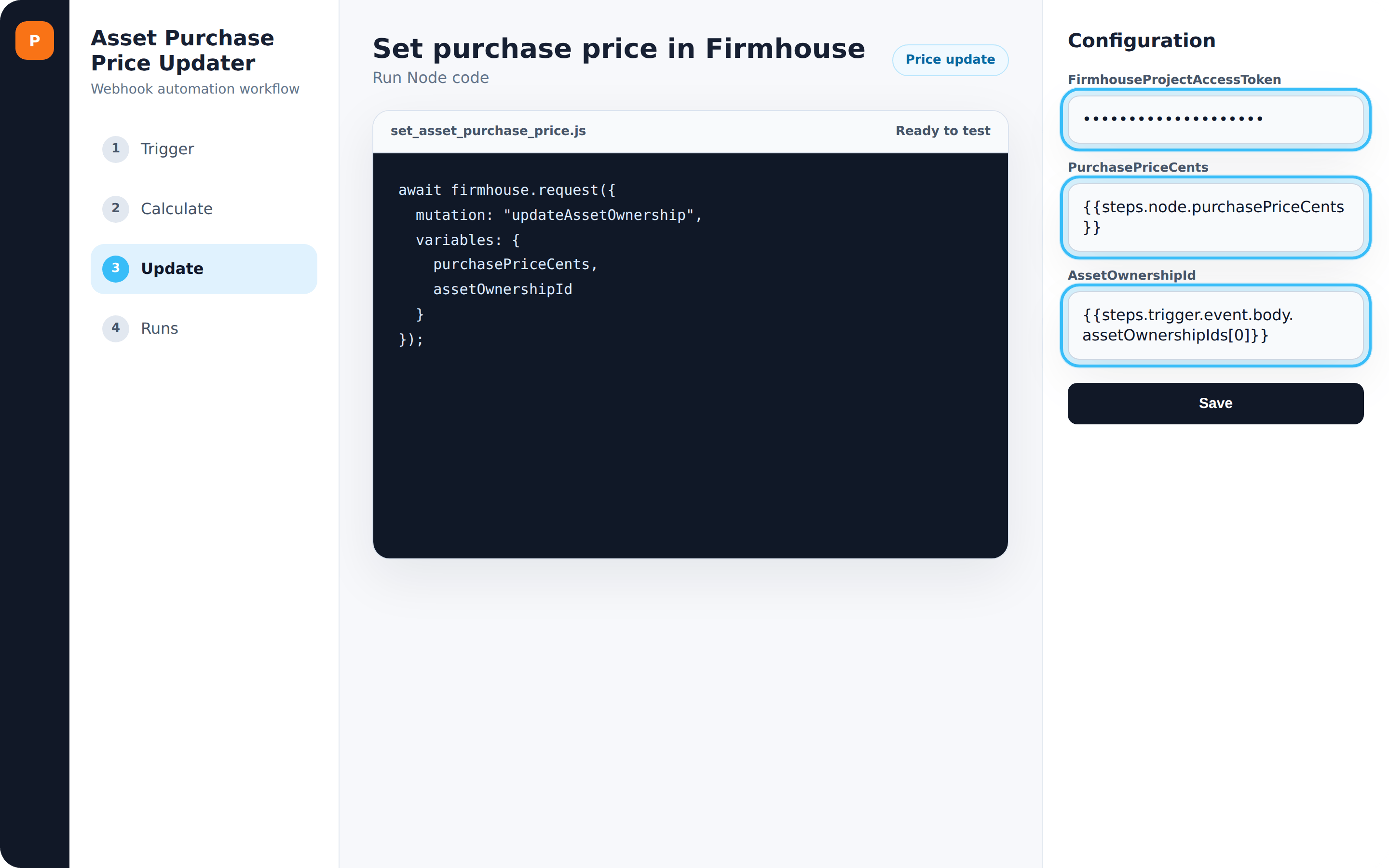 11. Click **Save** to store and test the configuration. At this point you may see error messages because the workflow was tested manually without the webhook variables
12. On the top-right in the Pipedream workflow editor, click **Deploy** and confirm the dialog that warns about errors
## Test and Confirm the Automation
Test the complete price updating setup to ensure everything works correctly.
### Steps
1. Create an asset for the product you want to offer a purchase flow for
2. Perform a checkout of your product as you normally would to create a test customer
3. Navigate to the new test customer in the Firmhouse portal and assign them the asset you just created
4. Go to the workflow in Pipedream to see if the webhook triggered an execution
11. Click **Save** to store and test the configuration. At this point you may see error messages because the workflow was tested manually without the webhook variables
12. On the top-right in the Pipedream workflow editor, click **Deploy** and confirm the dialog that warns about errors
## Test and Confirm the Automation
Test the complete price updating setup to ensure everything works correctly.
### Steps
1. Create an asset for the product you want to offer a purchase flow for
2. Perform a checkout of your product as you normally would to create a test customer
3. Navigate to the new test customer in the Firmhouse portal and assign them the asset you just created
4. Go to the workflow in Pipedream to see if the webhook triggered an execution
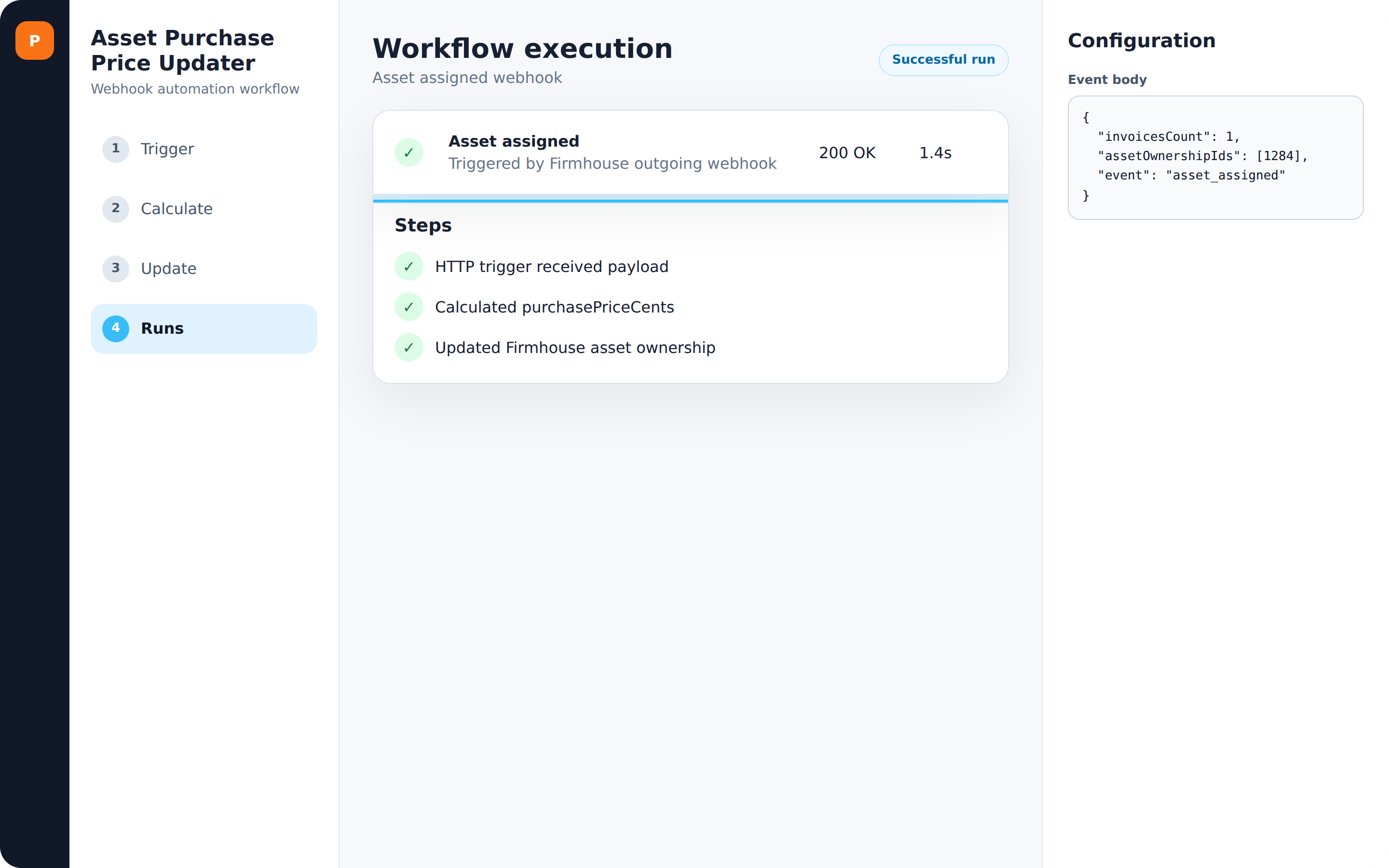 5. If everything went correctly, there should be a task execution with a green checkmark. If you see a red exclamation mark icon, something is not correctly set up in the workflow. If you don't see any task execution, the webhook may not be enabled or configured correctly
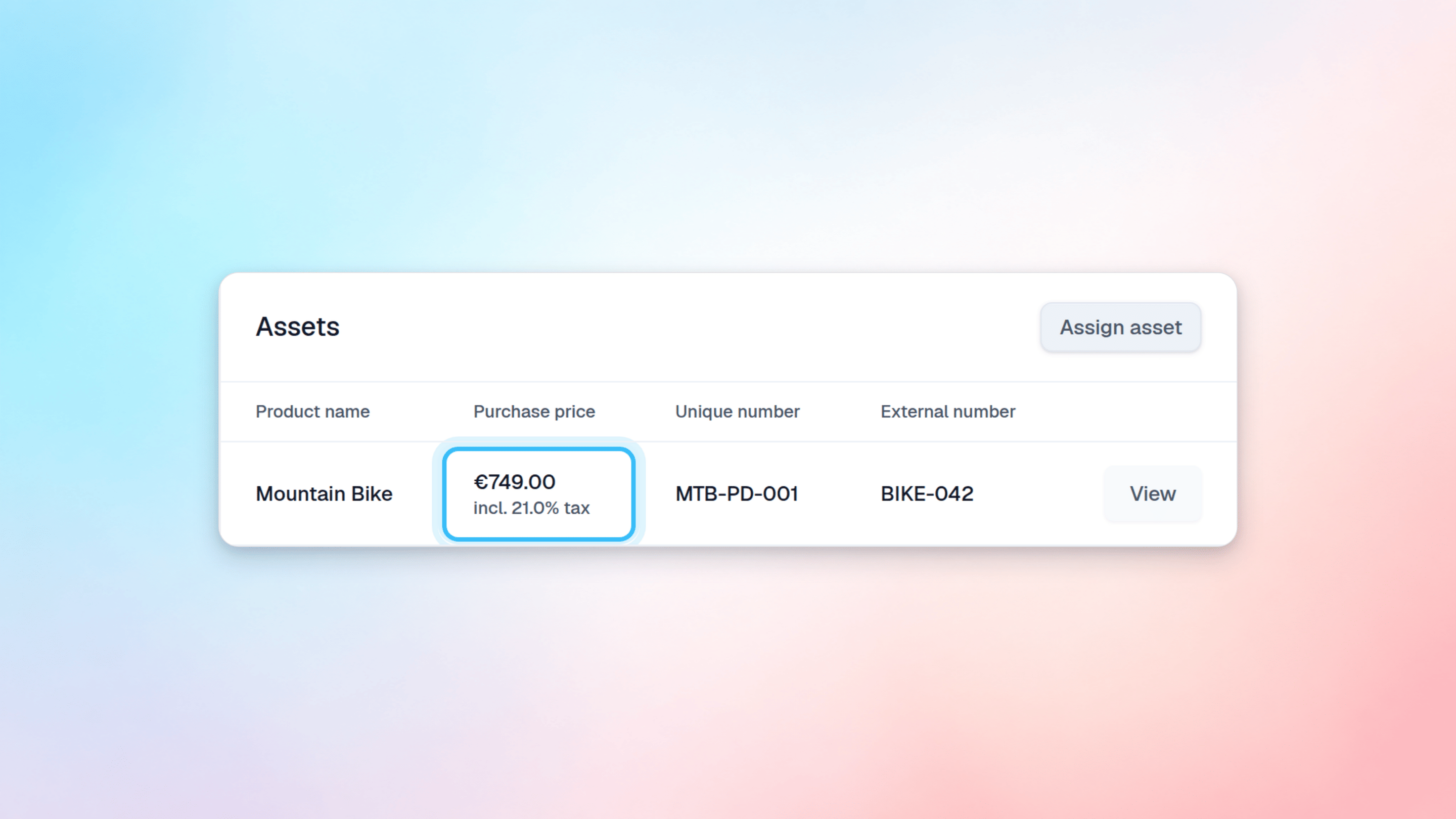
6. If successful, you should see the new purchase price visible in the assets overview on the customer
5. If everything went correctly, there should be a task execution with a green checkmark. If you see a red exclamation mark icon, something is not correctly set up in the workflow. If you don't see any task execution, the webhook may not be enabled or configured correctly
6. If successful, you should see the new purchase price visible in the assets overview on the customer
 If you encounter any issues, reach out to Firmhouse support for assistance.