> ## Documentation Index
> Fetch the complete documentation index at: https://docs.firmhouse.com/llms.txt
> Use this file to discover all available pages before exploring further.
# Configure outgoing webhooks
> Configure Firmhouse outgoing webhooks to send HTTP POST requests to your apps or third-party systems whenever subscription events occur.
Webhooks allow you to communicate with third-party applications or your own apps and systems by sending HTTP POST requests when specific events occur in Firmhouse. You can [view all available webhook events](https://developer.firmhouse.com/webhooks/overview) in the developer documentation.
## Setting up webhooks in Firmhouse
Creating a webhook in Firmhouse is a simple three-step process:
1. Get the webhook URL from the application you want the data sent to
2. Use that URL in the webhook section in Firmhouse
3. Set up what events you want your webhook to listen to and notify you about when it occurs
## Create a webhook in Firmhouse
### Steps
1. Navigate to **Apps** in the sidebar
2. Find the **Webhooks** app and click **Configure**
3. Click **New outgoing webhook** on the top-right
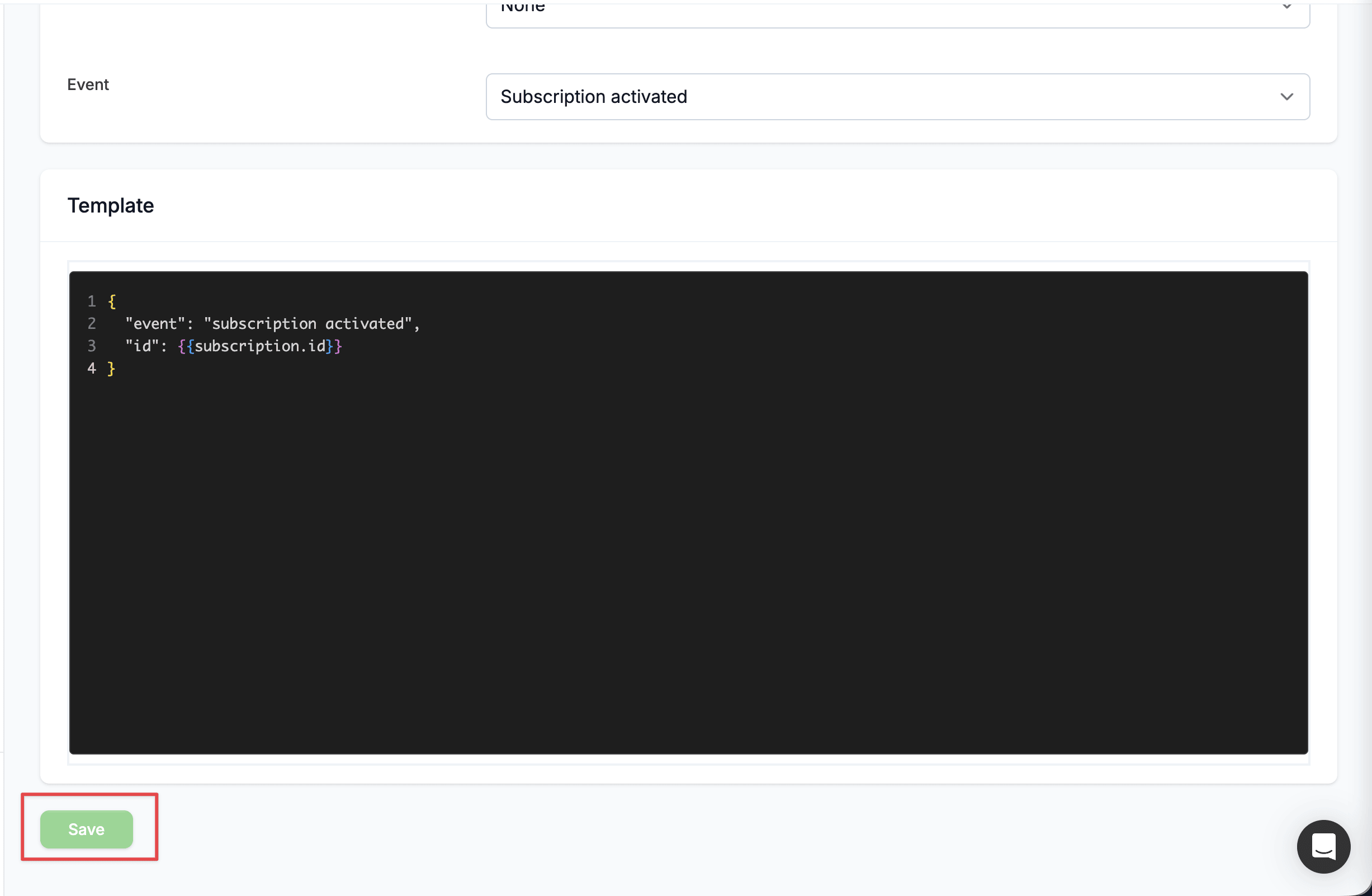
4. Enter a **Name** for the webhook, such as "Activated subscription"
5. In the **Endpoint url** field, enter the URL you want to receive the webhook. This is where the data will be sent once the webhook is triggered. The URL will receive an HTTP POST request when the selected event happens.
6. If you intend to use Basic authentication to secure your webhook, provide the **Username** and **Password** of the HTTP **Basic auth**, otherwise leave **Authentication type** on **None**
7. From the **Event** dropdown, select the event you want to be notified about (e.g., **Subscription activated**)
8. In the **Template** field, configure your payload using JSON format and Liquid tags. For example:
```json theme={null}
{
"event": "subscription activated",
"id": {{subscription.id}}
}
```
Learn more about Liquid tags in Firmhouse in the [developer documentation](https://developer.firmhouse.com/liquid/introduction).
9. Click **Save** to save the outgoing webhook
 ## Enable or disable a webhook
You can enable or disable your outgoing webhook temporarily without having to delete the webhook itself or its content.
### Steps
1. Navigate to **Apps** in the sidebar
2. Find the **Webhooks** app and click **Configure** to open a list of already saved outgoing webhooks
3. Click on the particular webhook you want to enable/disable and click **Edit**
4. To enable or disable the webhook, check or uncheck the **Enable** checkbox, respectively
5. Click **Save** to save the outgoing webhook
## Subscription discount webhook events
If you want to automate discount lifecycle handling for subscriptions, use these events:
* `subscription_discount_applied`: sent when a discount is first applied to a completed subscription.
* `subscription_discount_updated`: sent when an applied discount changes, including usage updates and deactivation (`active = false`).
* `subscription_discount_deleted`: sent when an applied discount is removed, including Shopify discount removals from the **Applied discounts** section.
These events use the subscription context in Liquid templates. For example:
```json theme={null}
{
"event": "{{event}}",
"subscription_id": {{subscription.id}}
}
```
## Order scheduled webhook event
Use `order_scheduled` to react when an order enters the scheduled state. This is useful when you want to trigger automations, notify external systems, or run follow-up processing in your own application.
Recommended template:
```json theme={null}
{
"event": "{{event}}",
"order_id": {{order.id}},
"shipment_date": "{{order.shipment_date}}",
"subscription_id": {{subscription.id}}
}
```
## Subscription upcoming billing webhook event
Use `subscription_upcoming_billing` when you want to run checks or automations before billing-cycle order generation.
* This event is available only for order-based projects with plan management enabled.
* Firmhouse evaluates eligible subscriptions every night at **01:00**.
* You can configure how many days before `subscribed_plan.next_billing_date` this event should fire in the webhook settings (**1-5 days**, default: **1 day**).
* By default, this webhook is also sent for paused subscriptions so you can remind your customers to resume their subscription when their planned order date is approaching. You can also turn off **Also send while subscription is paused** in the webhook settings if paused subscriptions should be fully skipped.
* By default, subscriptions marked as non-paying are skipped. Turn on **Also send while subscription is marked as non-paying** if you still want this webhook for subscriptions with unresolved payment issues.
## Upcoming order notice webhook event
Use `upcoming_order_notice` when you want to notify an external system before a subscription's upcoming order is created.
By default, this webhook is also sent for paused subscriptions when upcoming order notices are enabled for paused subscriptions in the email settings. Turn off **Also send while subscription is paused** in the webhook settings if this specific webhook should skip paused subscriptions.
## GraphQL bulk operation finished webhook event
Use `graphql_bulk_operation_finished` when your integration starts GraphQL bulk operations and should be notified when the JSONL result file is ready.
This event uses the `bulk_operation` Liquid object in the webhook template. See [GraphQL bulk operations](/developers/guides/run-graphql-bulk-operation-queries#use-the-finished-webhook) for the setup steps and recommended JSON template.
## Editing a webhook
Firmhouse allows you to edit the configuration of your webhooks.
### Steps
1. Navigate to **Apps** in the sidebar
2. Find the **Webhooks** app and click **Configure** to display a list of already saved outgoing webhooks
3. Click on the webhook that you want to edit and click on the **Edit** button
4. Make the necessary changes to the configuration fields of the webhook
5. Click **Save** to save the changes
## Send a test event
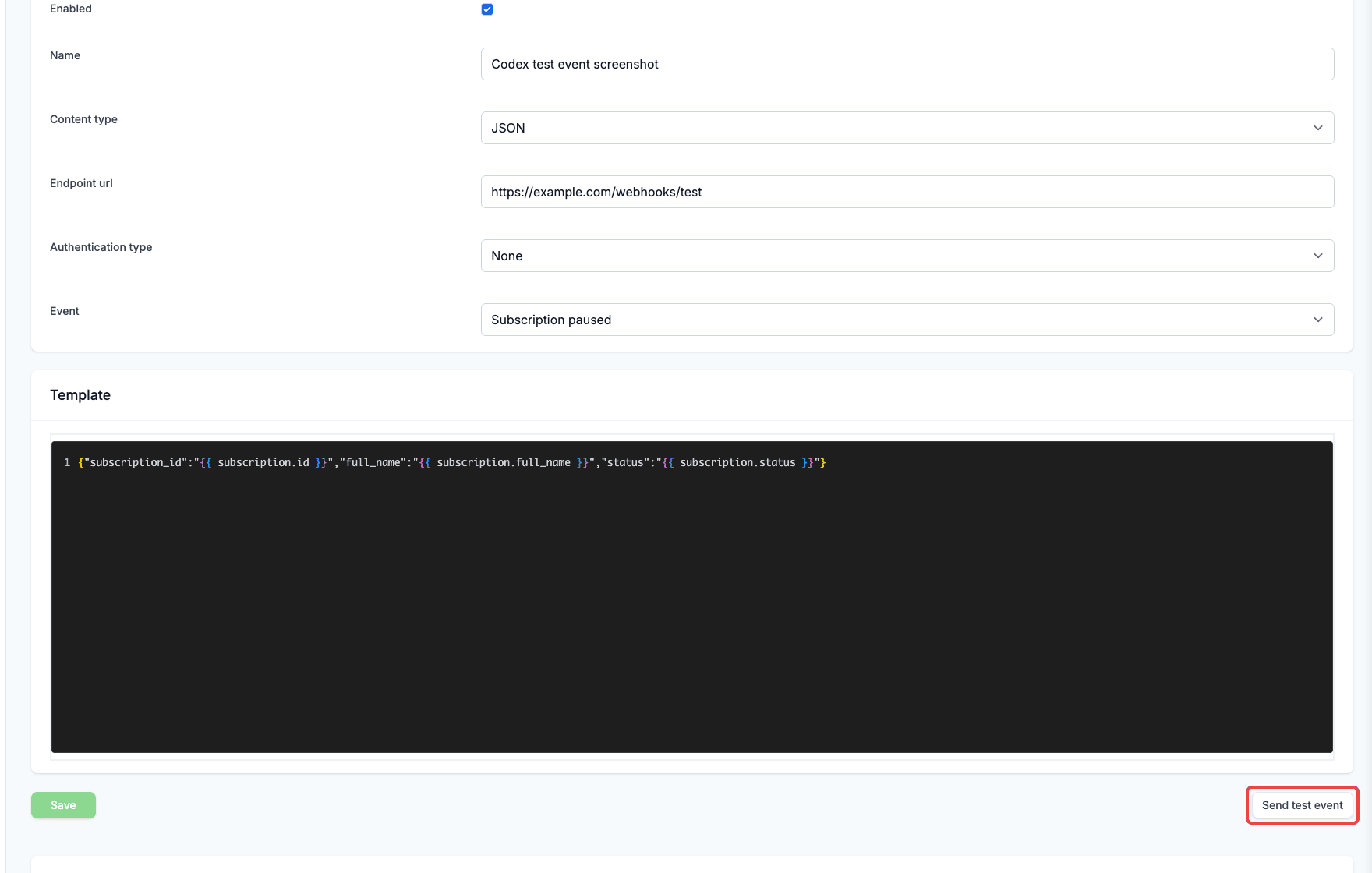
Use **Send test event** to check a saved outgoing webhook before waiting for a real customer event.
This action sends the saved webhook configuration with sample Firmhouse data and records the result in the **Webhook event log**. If you changed the template, content type, or any other setting on the page, click **Save** before sending a test event.
### Enable in New Features
This action is available while **Outgoing Webhook Test Events** is enabled from **New Features**.
### Steps
1. Navigate to **Apps** in the sidebar.
2. Find the **Webhooks** app and click **Configure**.
3. Open an existing outgoing webhook.
4. Review or update the webhook template.
5. Click **Save** if you made any changes.
6. Click **Send test event**.
7. Check the **Webhook event log** for the request body, response code, response body, duration, and attempt count.
## Enable or disable a webhook
You can enable or disable your outgoing webhook temporarily without having to delete the webhook itself or its content.
### Steps
1. Navigate to **Apps** in the sidebar
2. Find the **Webhooks** app and click **Configure** to open a list of already saved outgoing webhooks
3. Click on the particular webhook you want to enable/disable and click **Edit**
4. To enable or disable the webhook, check or uncheck the **Enable** checkbox, respectively
5. Click **Save** to save the outgoing webhook
## Subscription discount webhook events
If you want to automate discount lifecycle handling for subscriptions, use these events:
* `subscription_discount_applied`: sent when a discount is first applied to a completed subscription.
* `subscription_discount_updated`: sent when an applied discount changes, including usage updates and deactivation (`active = false`).
* `subscription_discount_deleted`: sent when an applied discount is removed, including Shopify discount removals from the **Applied discounts** section.
These events use the subscription context in Liquid templates. For example:
```json theme={null}
{
"event": "{{event}}",
"subscription_id": {{subscription.id}}
}
```
## Order scheduled webhook event
Use `order_scheduled` to react when an order enters the scheduled state. This is useful when you want to trigger automations, notify external systems, or run follow-up processing in your own application.
Recommended template:
```json theme={null}
{
"event": "{{event}}",
"order_id": {{order.id}},
"shipment_date": "{{order.shipment_date}}",
"subscription_id": {{subscription.id}}
}
```
## Subscription upcoming billing webhook event
Use `subscription_upcoming_billing` when you want to run checks or automations before billing-cycle order generation.
* This event is available only for order-based projects with plan management enabled.
* Firmhouse evaluates eligible subscriptions every night at **01:00**.
* You can configure how many days before `subscribed_plan.next_billing_date` this event should fire in the webhook settings (**1-5 days**, default: **1 day**).
* By default, this webhook is also sent for paused subscriptions so you can remind your customers to resume their subscription when their planned order date is approaching. You can also turn off **Also send while subscription is paused** in the webhook settings if paused subscriptions should be fully skipped.
* By default, subscriptions marked as non-paying are skipped. Turn on **Also send while subscription is marked as non-paying** if you still want this webhook for subscriptions with unresolved payment issues.
## Upcoming order notice webhook event
Use `upcoming_order_notice` when you want to notify an external system before a subscription's upcoming order is created.
By default, this webhook is also sent for paused subscriptions when upcoming order notices are enabled for paused subscriptions in the email settings. Turn off **Also send while subscription is paused** in the webhook settings if this specific webhook should skip paused subscriptions.
## GraphQL bulk operation finished webhook event
Use `graphql_bulk_operation_finished` when your integration starts GraphQL bulk operations and should be notified when the JSONL result file is ready.
This event uses the `bulk_operation` Liquid object in the webhook template. See [GraphQL bulk operations](/developers/guides/run-graphql-bulk-operation-queries#use-the-finished-webhook) for the setup steps and recommended JSON template.
## Editing a webhook
Firmhouse allows you to edit the configuration of your webhooks.
### Steps
1. Navigate to **Apps** in the sidebar
2. Find the **Webhooks** app and click **Configure** to display a list of already saved outgoing webhooks
3. Click on the webhook that you want to edit and click on the **Edit** button
4. Make the necessary changes to the configuration fields of the webhook
5. Click **Save** to save the changes
## Send a test event
Use **Send test event** to check a saved outgoing webhook before waiting for a real customer event.
This action sends the saved webhook configuration with sample Firmhouse data and records the result in the **Webhook event log**. If you changed the template, content type, or any other setting on the page, click **Save** before sending a test event.
### Enable in New Features
This action is available while **Outgoing Webhook Test Events** is enabled from **New Features**.
### Steps
1. Navigate to **Apps** in the sidebar.
2. Find the **Webhooks** app and click **Configure**.
3. Open an existing outgoing webhook.
4. Review or update the webhook template.
5. Click **Save** if you made any changes.
6. Click **Send test event**.
7. Check the **Webhook event log** for the request body, response code, response body, duration, and attempt count.
 If the template renders invalid Liquid, invalid JSON, or a blank regular webhook payload, Firmhouse does not send the test event. Update the template and try again.
For app-backed content types, such as **Shopify Flow trigger** and **Klaviyo metric**, Firmhouse wraps the rendered template into the same final request body used for real deliveries.
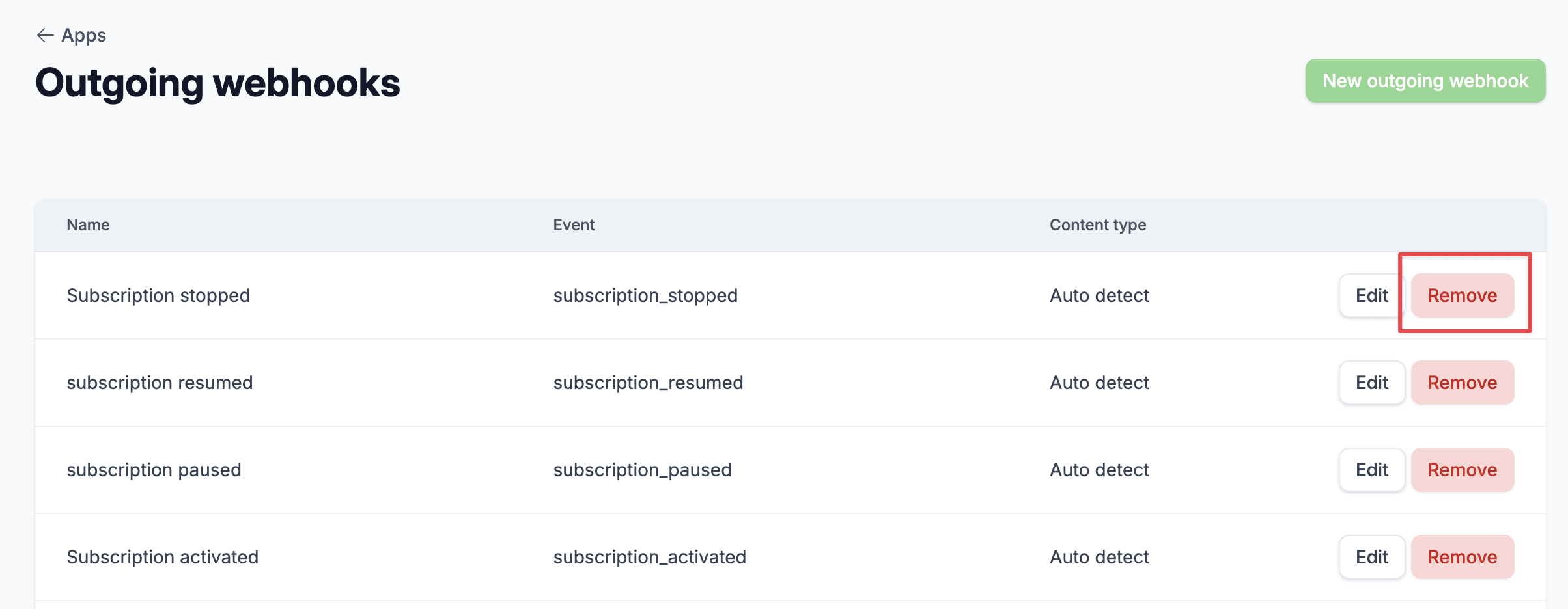
## Deleting a webhook
Firmhouse allows you to delete webhooks you no longer need.
### Steps
1. Navigate to **Apps** in the sidebar
2. Find the **Webhooks** app and click **Configure** to display a list of already saved outgoing webhooks
3. Click on the **Remove** button on the far right of the webhook that you want to delete
4. You will get a prompt "Are you sure you want to remove this outgoing webhook?", click **Ok** to confirm the delete action
If the template renders invalid Liquid, invalid JSON, or a blank regular webhook payload, Firmhouse does not send the test event. Update the template and try again.
For app-backed content types, such as **Shopify Flow trigger** and **Klaviyo metric**, Firmhouse wraps the rendered template into the same final request body used for real deliveries.
## Deleting a webhook
Firmhouse allows you to delete webhooks you no longer need.
### Steps
1. Navigate to **Apps** in the sidebar
2. Find the **Webhooks** app and click **Configure** to display a list of already saved outgoing webhooks
3. Click on the **Remove** button on the far right of the webhook that you want to delete
4. You will get a prompt "Are you sure you want to remove this outgoing webhook?", click **Ok** to confirm the delete action