> ## Documentation Index
> Fetch the complete documentation index at: https://docs.firmhouse.com/llms.txt
> Use this file to discover all available pages before exploring further.
# Support multiple languages
> Enable Dutch, German, French, Swedish, Polish, or English translations for Firmhouse customer-facing screens and emails to localize the experience.
The default language for all customer-facing screens and emails is set to English. Firmhouse also provides full translations for Dutch, German, French, Swedish, and Polish.
This article covers how to adjust the languages for all customer-facing screens and emails, translate the checkout flow, translate your emails, and link your webshop to the correct checkout URL.
## Change the available languages
### Steps
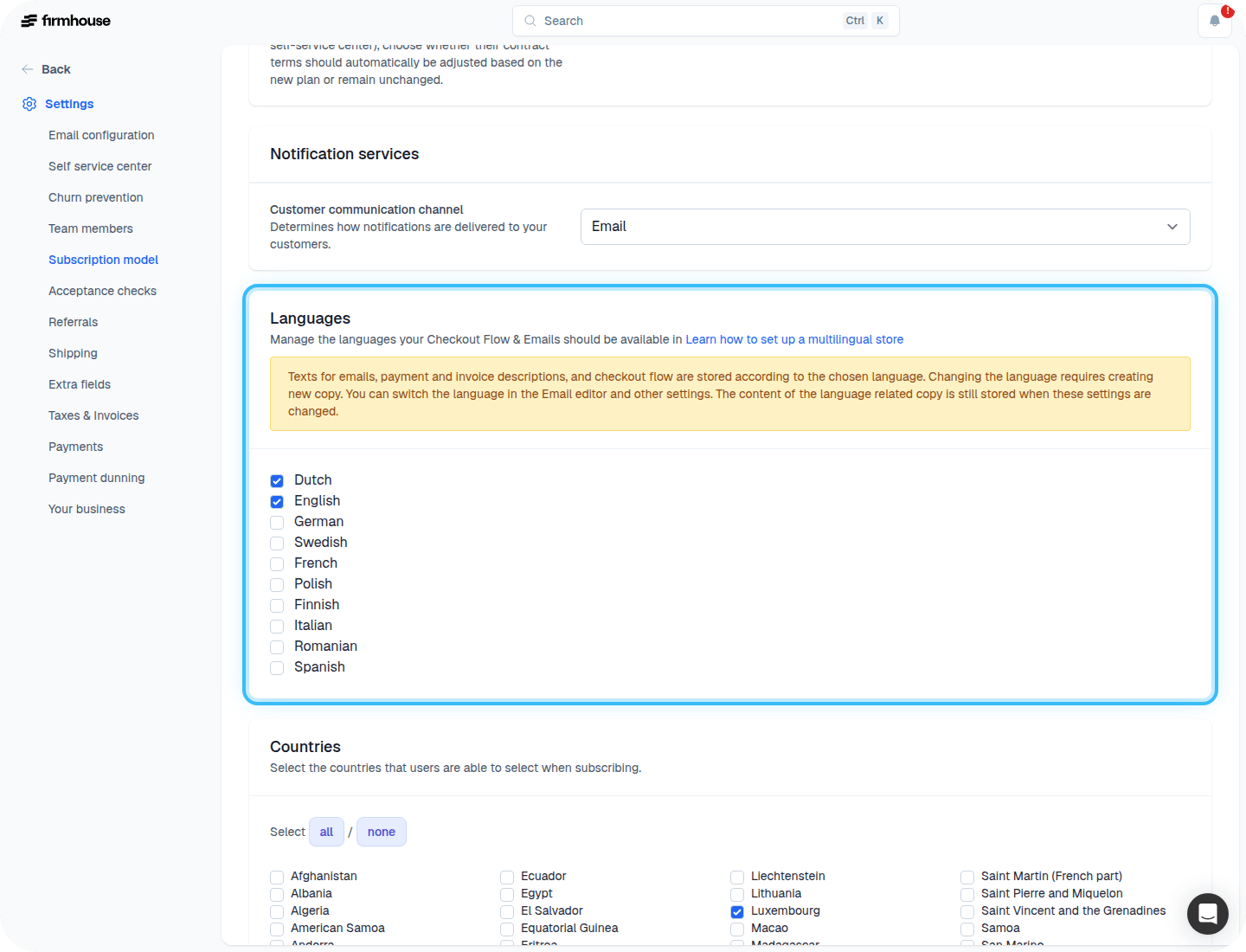
1. Go to **Settings > Subscription Model** and scroll down to the **Languages** section.
2. Select the languages you want to enable for your project by checking the appropriate boxes.
3. Save your changes.
 ## Adjust translations on your checkout flow
Most labels and buttons are automatically translated on your checkout flow. If you are using custom text, make sure to provide a translation for those as well.
There is a language switcher at the top of the page that allows you to choose which language to edit the page in.
### Steps
1. Go to **Checkout > Adjust Content**.
2. Use the **Language** dropdown at the top to select the language you want to edit.
3. Update any custom text fields with the appropriate translations.
4. Click **Save changes**.
## Adjust translations on your checkout flow
Most labels and buttons are automatically translated on your checkout flow. If you are using custom text, make sure to provide a translation for those as well.
There is a language switcher at the top of the page that allows you to choose which language to edit the page in.
### Steps
1. Go to **Checkout > Adjust Content**.
2. Use the **Language** dropdown at the top to select the language you want to edit.
3. Update any custom text fields with the appropriate translations.
4. Click **Save changes**.
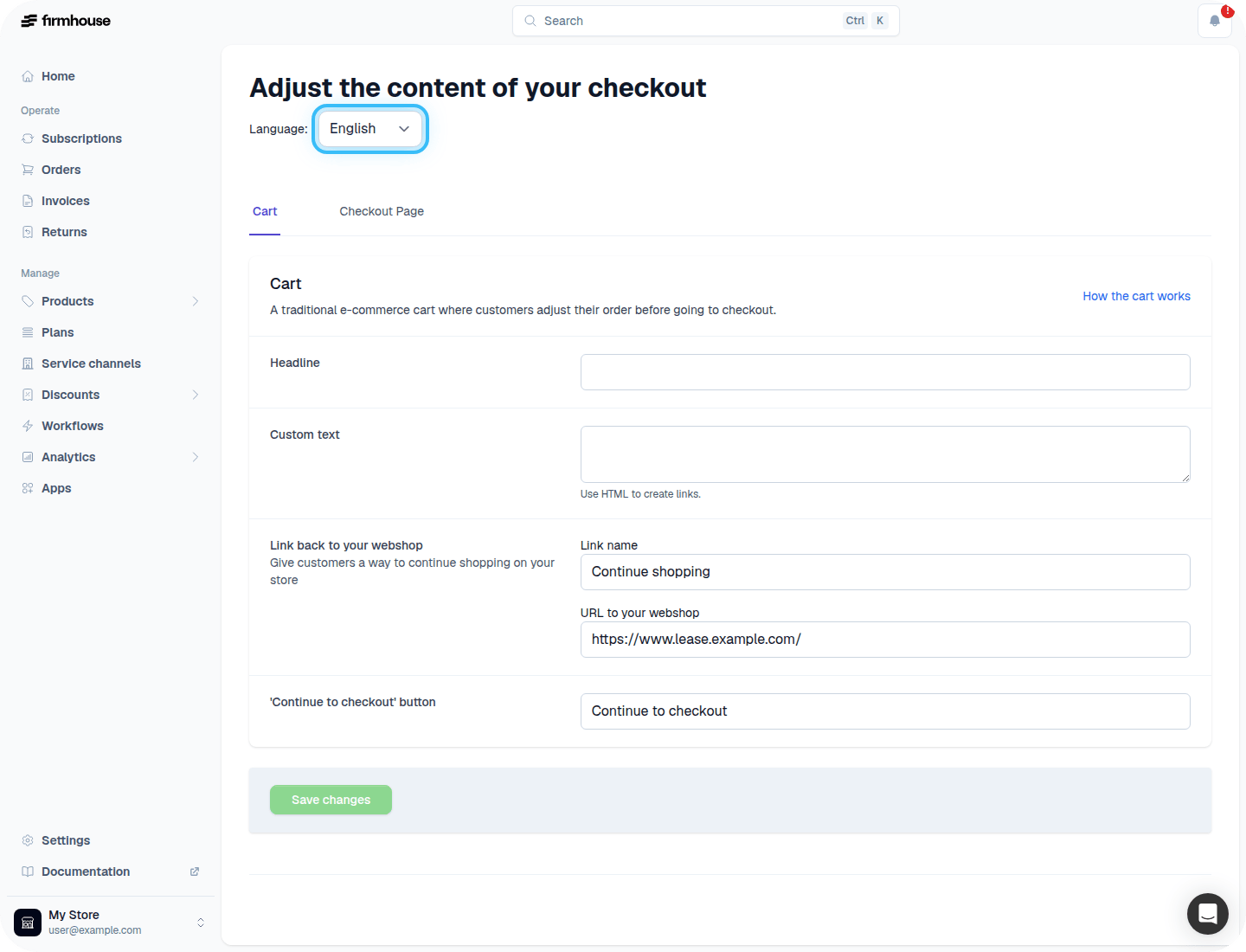 Note: The language switcher option only shows up if multiple languages are enabled on your project.
## Translate your emails
Emails are not automatically translated. You need to manually provide translations for each email template.
### Steps
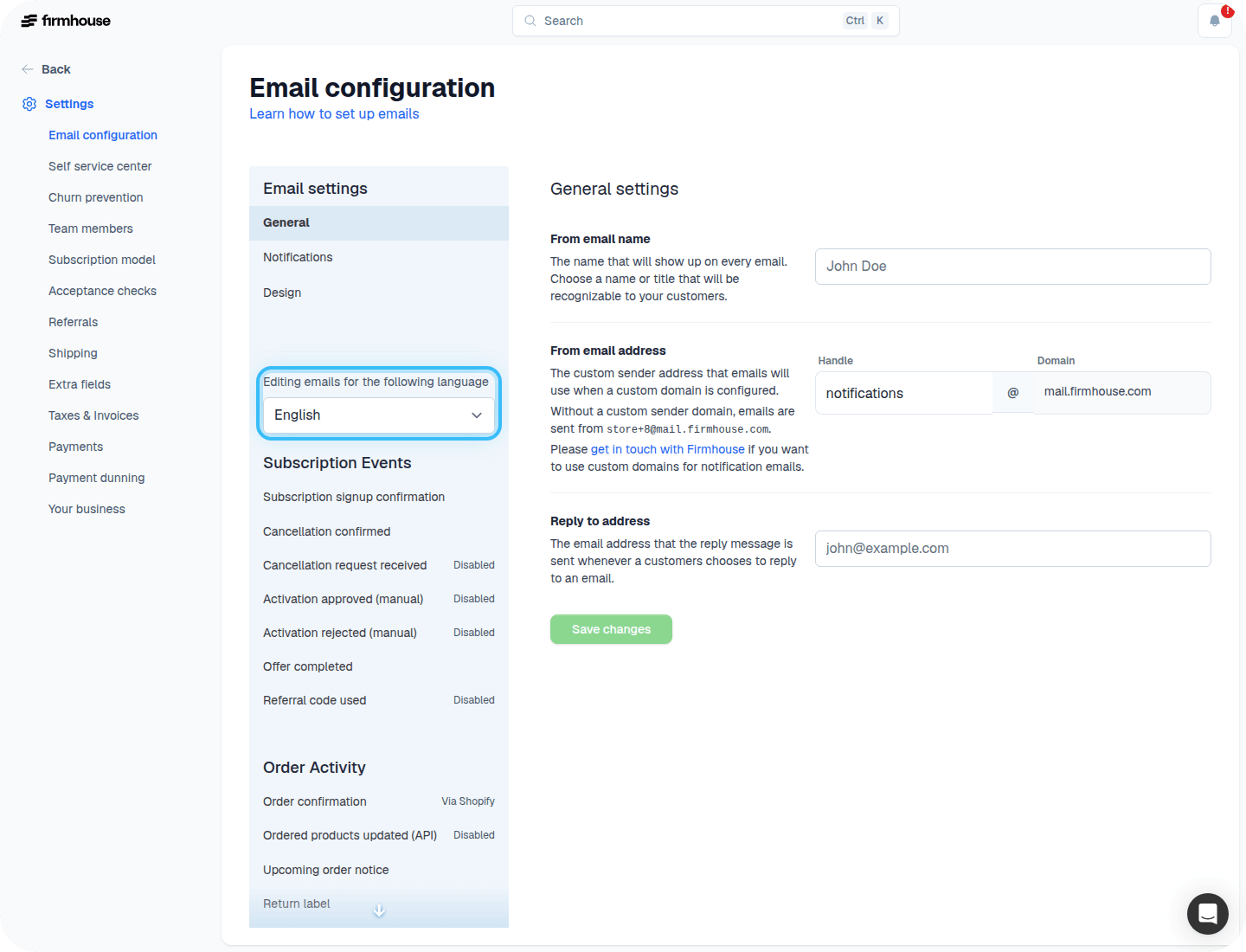
1. Go to **Settings > Email configuration**.
2. On the left side, you will see a language switcher.
3. Select the language you want to translate.
4. Go through every relevant email and provide a translation for it.
5. Save your changes.
Note: The language switcher option only shows up if multiple languages are enabled on your project.
## Translate your emails
Emails are not automatically translated. You need to manually provide translations for each email template.
### Steps
1. Go to **Settings > Email configuration**.
2. On the left side, you will see a language switcher.
3. Select the language you want to translate.
4. Go through every relevant email and provide a translation for it.
5. Save your changes.
 ## Link your webshop to the correct checkout URL
This step is important if your webshop runs in multiple languages. You need to ensure that customers are directed to the checkout in their preferred language.
### Steps
1. Go to **Checkout > Adjust Content**.
2. Make sure you have selected the right language using the language switcher.
3. Click on **Preview Page** to open the checkout in that language.
4. Copy the URL from your browser.
## Link your webshop to the correct checkout URL
This step is important if your webshop runs in multiple languages. You need to ensure that customers are directed to the checkout in their preferred language.
### Steps
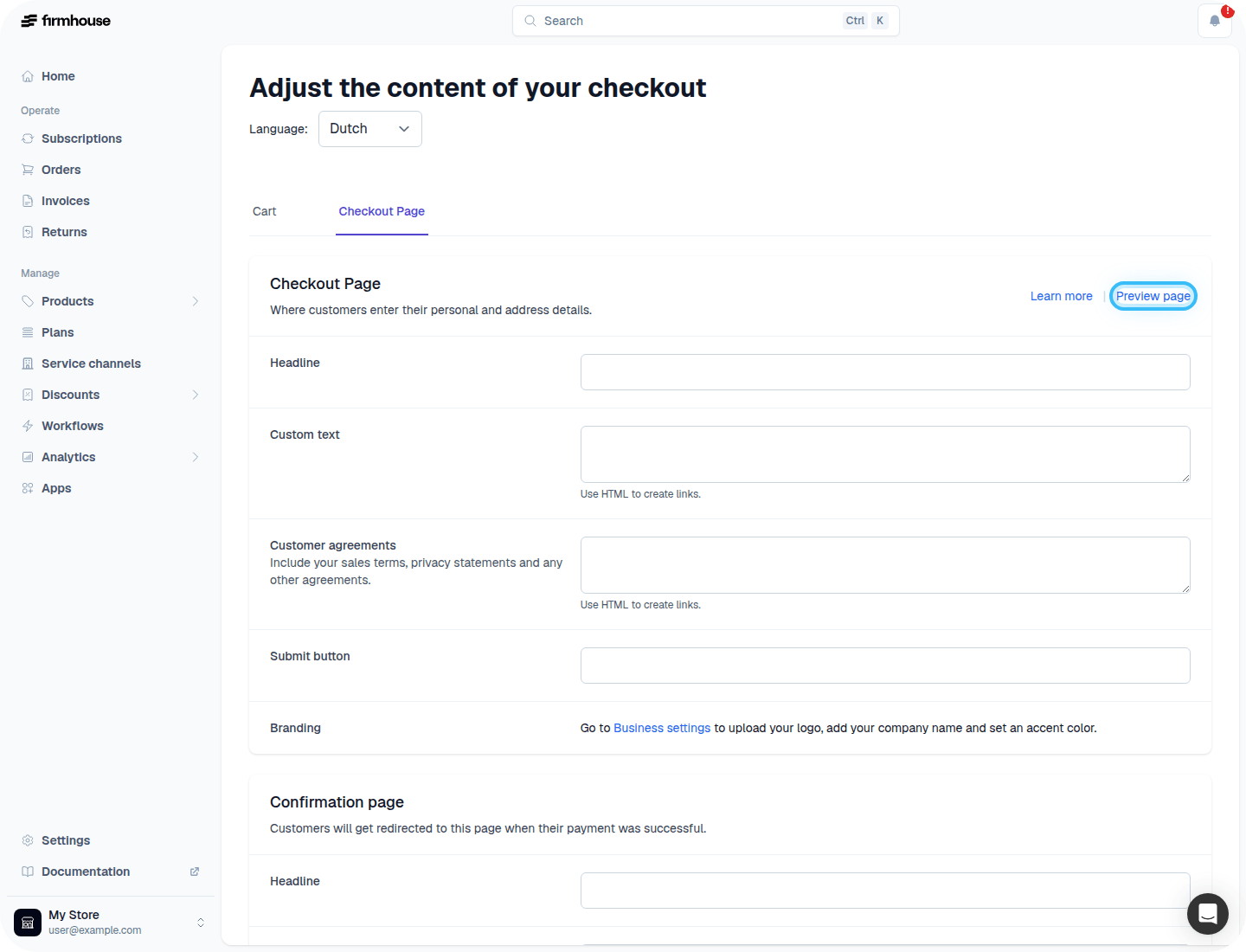
1. Go to **Checkout > Adjust Content**.
2. Make sure you have selected the right language using the language switcher.
3. Click on **Preview Page** to open the checkout in that language.
4. Copy the URL from your browser.
 The URL will look something like this:
```
https://checkout.firmhouse.com/nl/dunder-mifflin/subscriptions/new
```
Notice the language indicator in the URL: `/nl/` means that this page is set to Dutch, `/en/` would be English, and so on.
With this in mind, go through all existing links in your webshop that link to the Firmhouse checkout and adjust the URL so that it points to the right language for each version of your site.
The URL will look something like this:
```
https://checkout.firmhouse.com/nl/dunder-mifflin/subscriptions/new
```
Notice the language indicator in the URL: `/nl/` means that this page is set to Dutch, `/en/` would be English, and so on.
With this in mind, go through all existing links in your webshop that link to the Firmhouse checkout and adjust the URL so that it points to the right language for each version of your site.