> ## Documentation Index
> Fetch the complete documentation index at: https://docs.firmhouse.com/llms.txt
> Use this file to discover all available pages before exploring further.
# Translate selling plan names
> Translate Firmhouse selling plan names per language in the Shopify app so international subscribers see plan information in their local language.
When using the Firmhouse Shopify app, your customers see the name of the plan they are subscribed to. If you sell in multiple countries with different languages, you might want to translate these plan names for the languages your store supports.
The selling plans aren't present in the Shopify Translate & Adapt app, but they are easy to translate using the classic translation approach based on file exports.
### Steps
1. Navigate to your Shopify shop settings and find the **Languages** section.
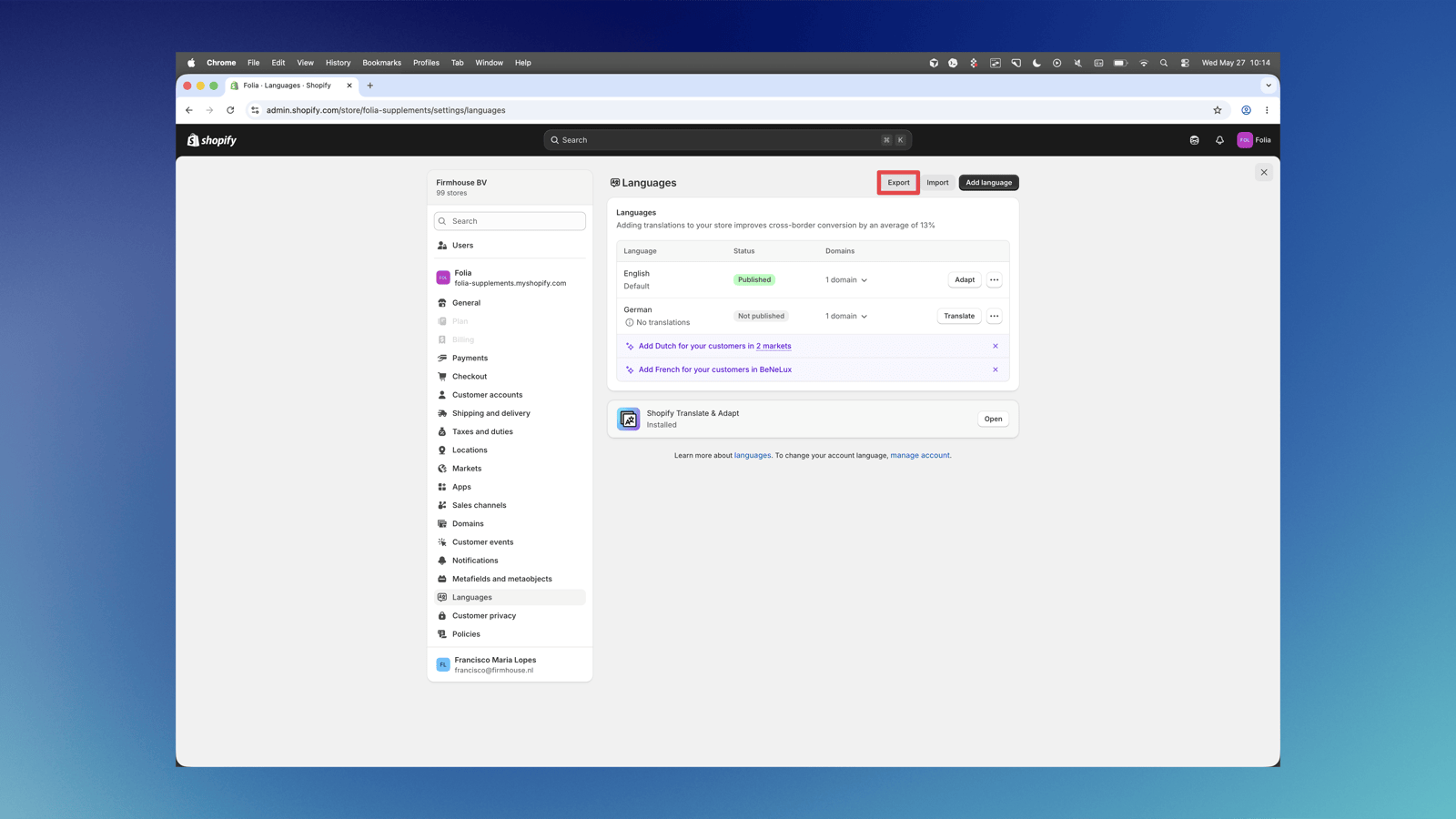
2. Click on **Export** in the top right corner of the screen.
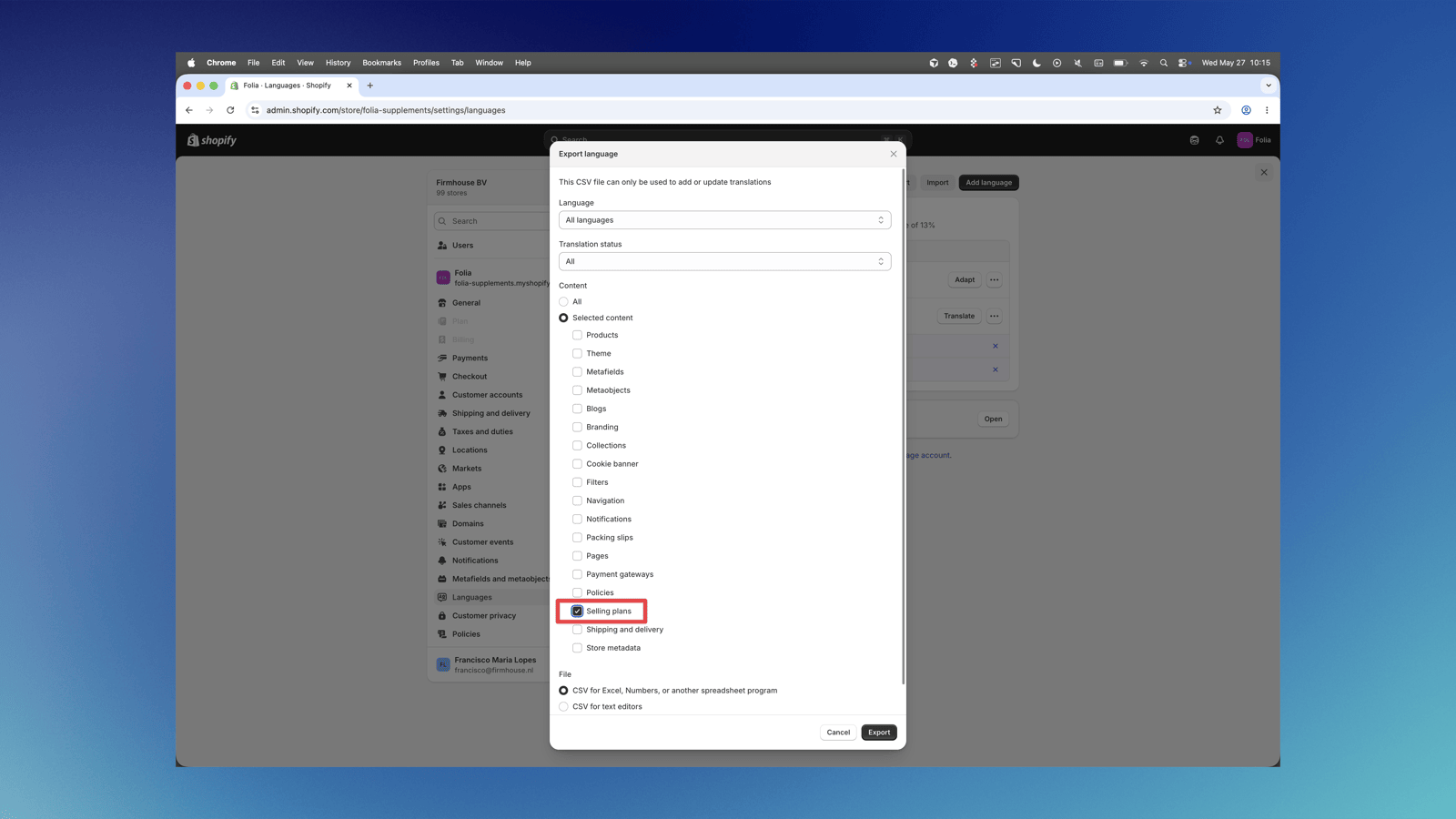
 3. A popup will appear where you should select the specific content you want to download. Select **Selling plans** from the content list.
 4. Download the CSV file and open it in a spreadsheet application.
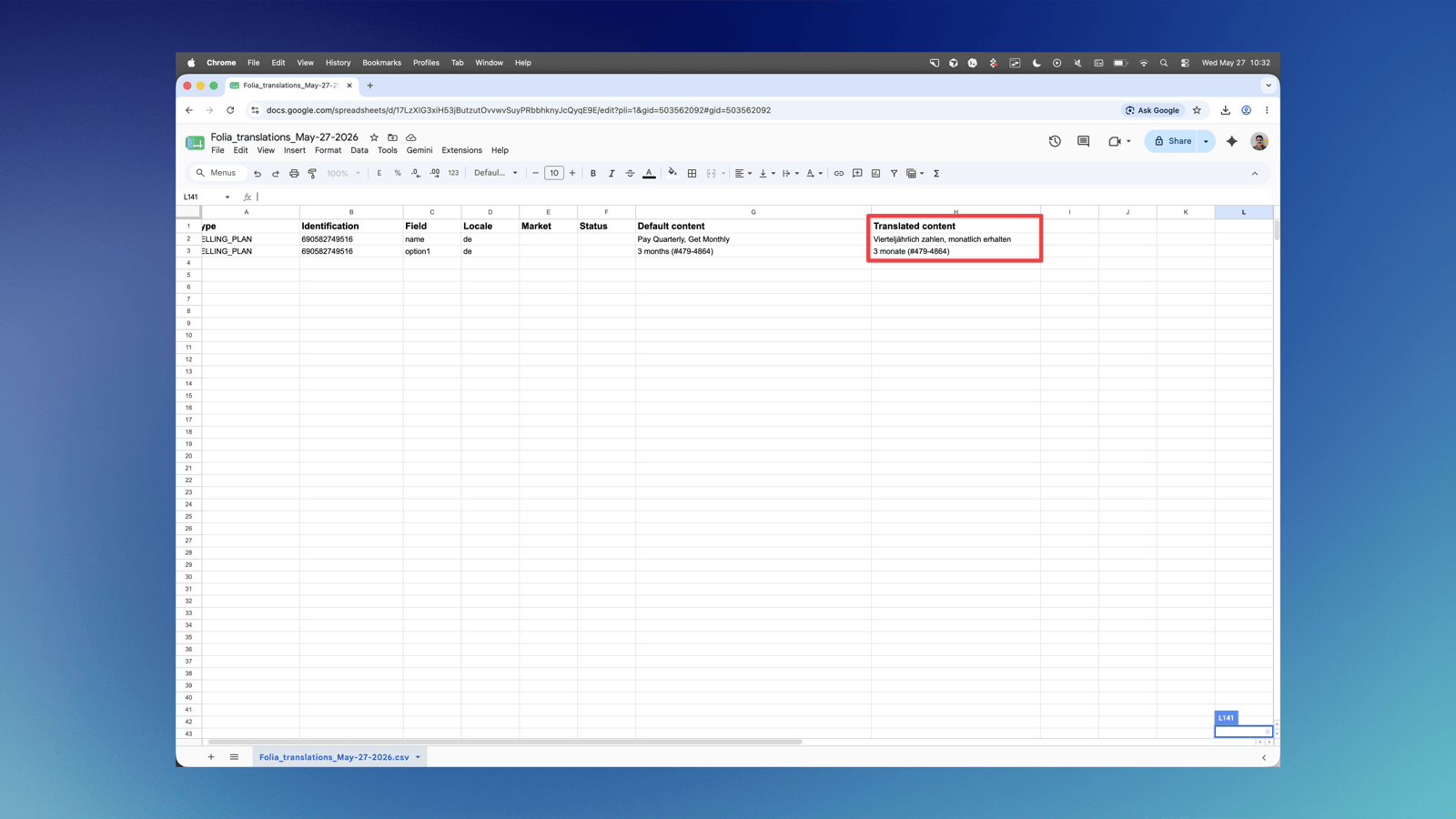
5. Fill in the **Translated content** column with your translations for each selling plan name.
4. Download the CSV file and open it in a spreadsheet application.
5. Fill in the **Translated content** column with your translations for each selling plan name.
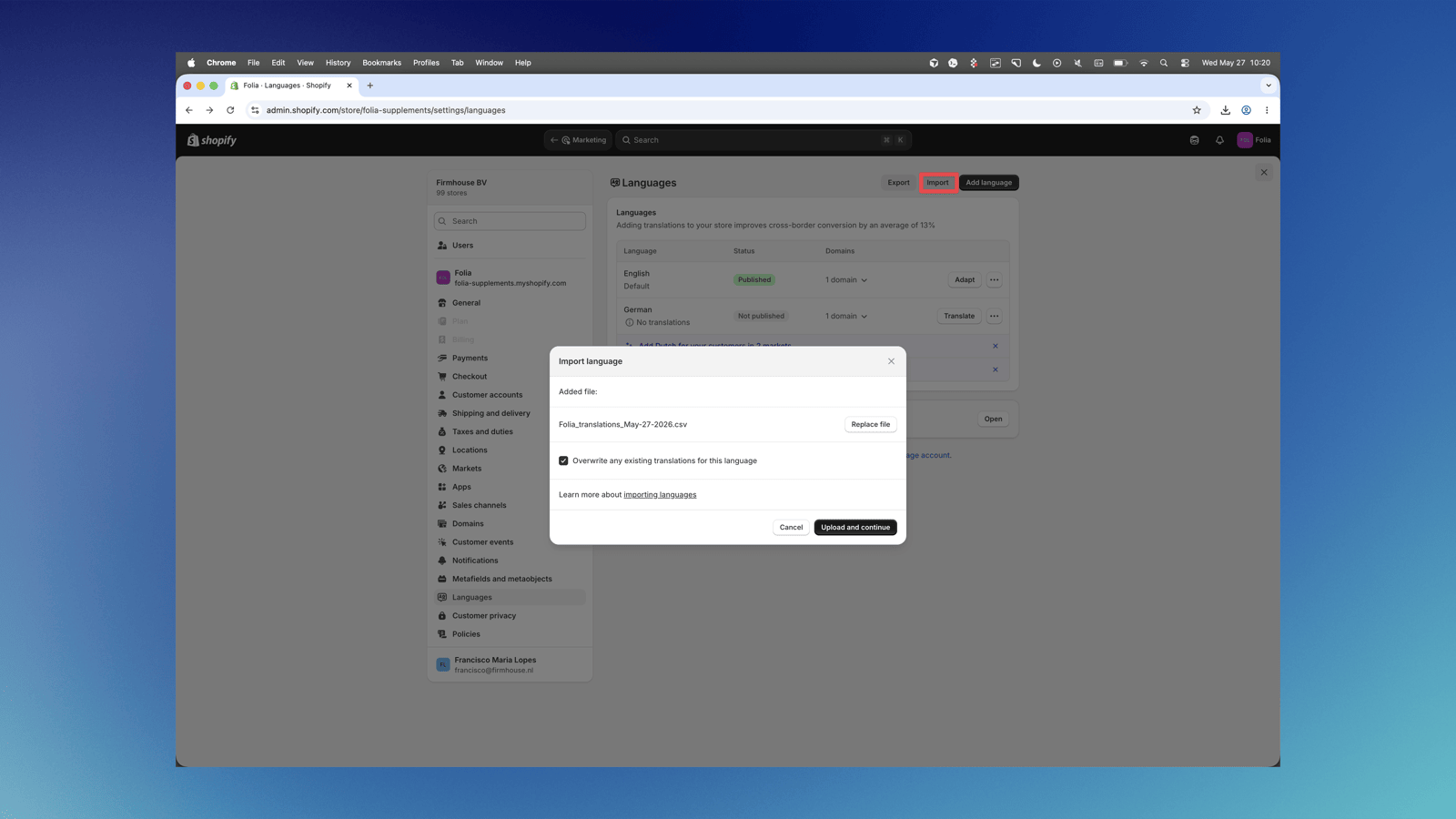
 6. Go back to the Languages section in Shopify and click **Import** to upload the translated file.
 After you finish your file import, the plan translations will be displayed in the PDP widget, cart, and checkout based on the language the customer is viewing your website in.
After checking out, the selling plan name is not exposed to the customer anywhere else, so no other translations are necessary.
After you finish your file import, the plan translations will be displayed in the PDP widget, cart, and checkout based on the language the customer is viewing your website in.
After checking out, the selling plan name is not exposed to the customer anywhere else, so no other translations are necessary.