> ## Documentation Index
> Fetch the complete documentation index at: https://docs.firmhouse.com/llms.txt
> Use this file to discover all available pages before exploring further.
# Enable product swap in the portal
> Let customers swap a product in their subscription for another variant or item directly from the Self Service Center, like changing flavor or color.
Product swap allows customers to change a product on their subscription for another option directly from the Self Service Center. For example, customers might swap a vanilla-flavored product for a chocolate variant, or switch to a completely different product from your catalog.
When customers swap a product, the price automatically updates to reflect the new product they select, ensuring their next order shows the correct amount.
## Enable the feature
Product swap is available for all order-based projects. To enable it for your customers:
### Steps
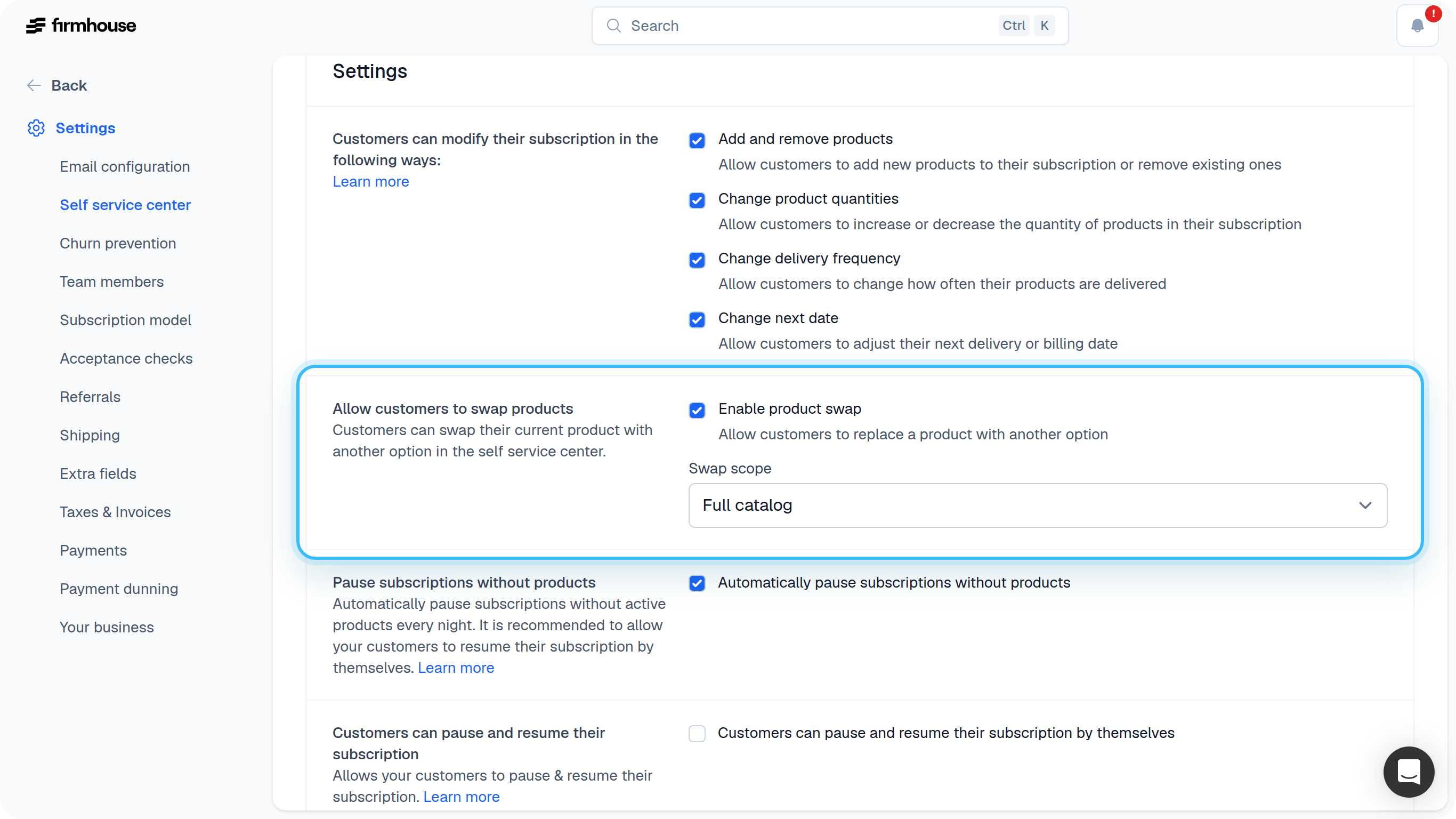
1. Go to **Settings > Self Service Center** in the sidebar
2. Scroll down to **Settings**
3. Check the box for "Allow customers to swap products"
4. Choose the swap scope:
* **Same product group**: Customers can only swap between products in the same product group (e.g., different flavors or sizes of the same product)
* **Full catalog**: Customers can swap to any available product in your catalog
5. Click **Update project**
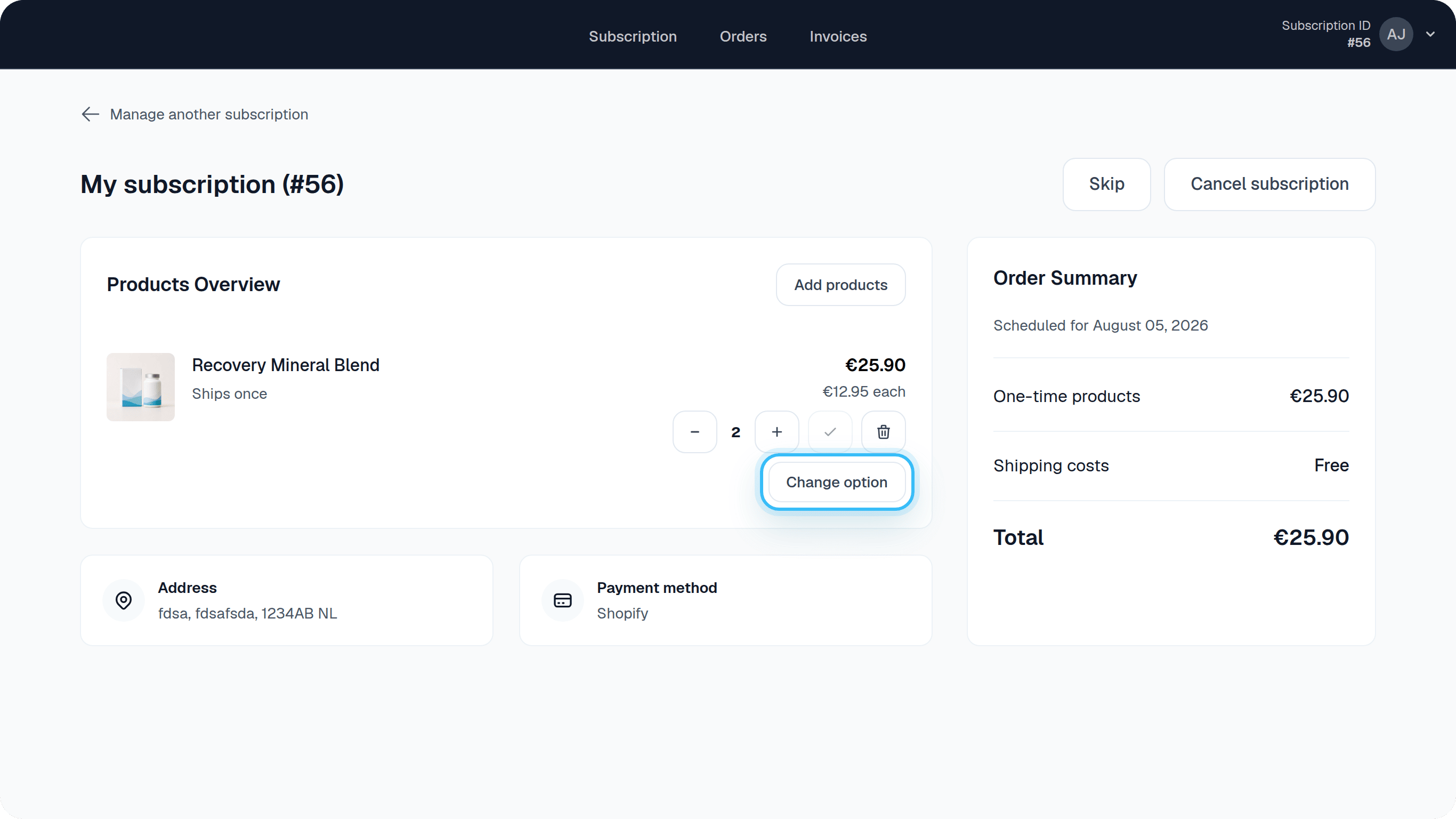
 Once enabled, customers will see a swap option next to their products in the Self Service Center.
 ## How product swap works
When a customer swaps a product:
1. They click the swap option next to the product they want to change
2. They see available products they can swap to (filtered by your swap scope setting)
3. They select the replacement product
4. The price automatically updates to the new product's price
5. The change applies to their next scheduled order
## Swap scope options
**Same product group** is ideal when you want customers to stay within variants of the same product (like different flavors, sizes, or colors). This works best when you've organized your products into product groups.
**Full catalog** gives customers more flexibility to swap to any product in your catalog. This is useful for merchants with smaller catalogs or when you want to give customers maximum choice.
## Frequently asked questions
### When does the swapped product take effect?
The swap applies to the customer's next scheduled order. The price update is immediate, so their next order will reflect the new product and its price.
### Can customers swap products that aren't available via Self Service Center?
No. Customers can only swap to products that are marked as available via Self Service Center. You can control which products are available by configuring product-level settings.
### Does product swap work with Shopify?
Yes! Product swap works with Shopify projects and supports product variants. Product groups are automatically created when you sync products from Shopify.
## How product swap works
When a customer swaps a product:
1. They click the swap option next to the product they want to change
2. They see available products they can swap to (filtered by your swap scope setting)
3. They select the replacement product
4. The price automatically updates to the new product's price
5. The change applies to their next scheduled order
## Swap scope options
**Same product group** is ideal when you want customers to stay within variants of the same product (like different flavors, sizes, or colors). This works best when you've organized your products into product groups.
**Full catalog** gives customers more flexibility to swap to any product in your catalog. This is useful for merchants with smaller catalogs or when you want to give customers maximum choice.
## Frequently asked questions
### When does the swapped product take effect?
The swap applies to the customer's next scheduled order. The price update is immediate, so their next order will reflect the new product and its price.
### Can customers swap products that aren't available via Self Service Center?
No. Customers can only swap to products that are marked as available via Self Service Center. You can control which products are available by configuring product-level settings.
### Does product swap work with Shopify?
Yes! Product swap works with Shopify projects and supports product variants. Product groups are automatically created when you sync products from Shopify.