> ## Documentation Index
> Fetch the complete documentation index at: https://docs.firmhouse.com/llms.txt
> Use this file to discover all available pages before exploring further.
# Enable new add products flow
> Switch to the new Add Product catalogue flow in the Self Service Center for an improved browsing and add-to-subscription experience for customers.
Enable the new Add Product catalogue flow in Self Service Center.
You can now let customers add **multiple products and quantities** to their subscription in one smooth flow directly from the Self Service Center (SSC).
This updated experience replaces the old "one product at a time" flow and makes it easier for customers to expand their subscription, while giving you more upsell opportunities with less friction.
## What's new?
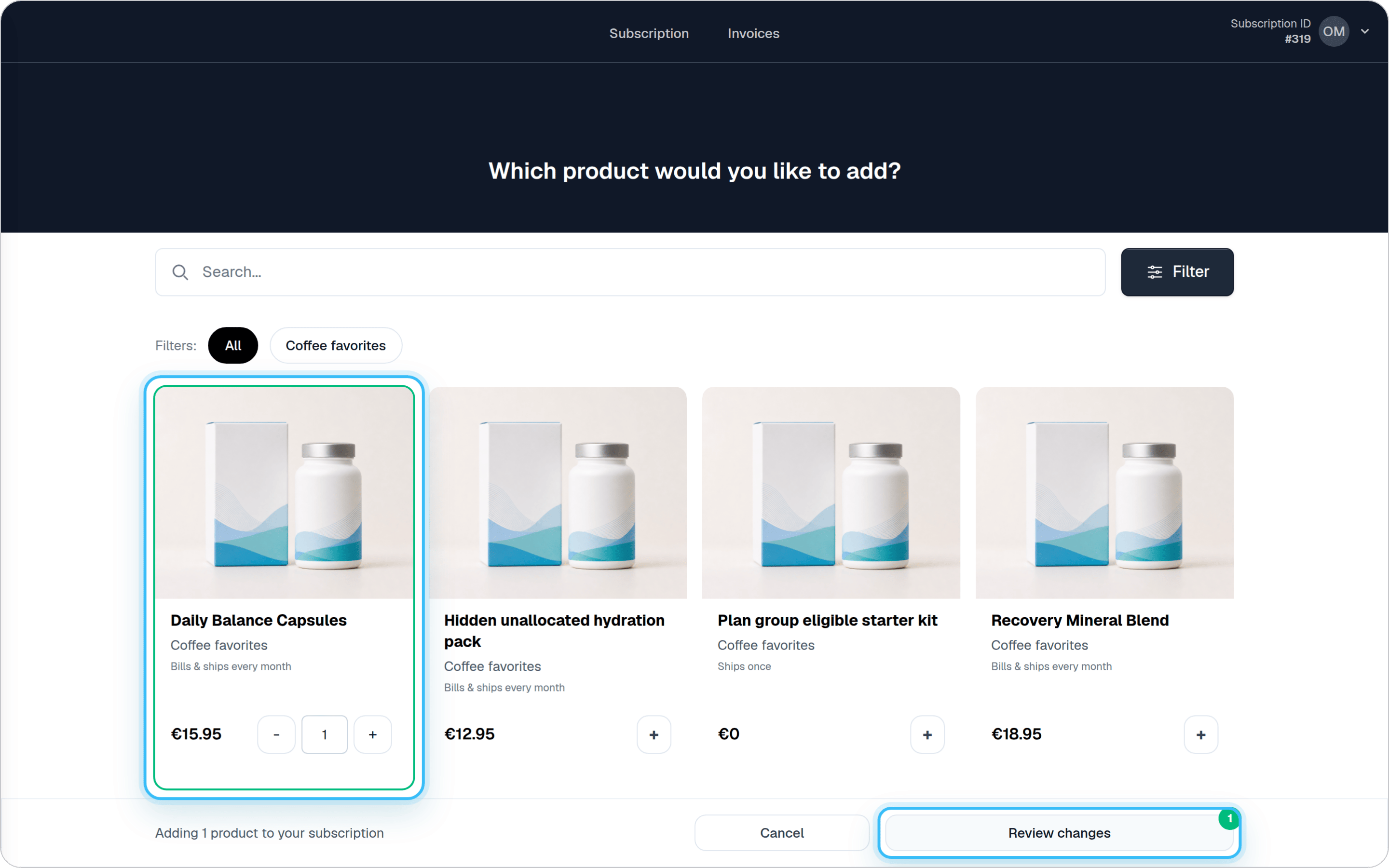
With the new add-products flow, customers can:
* Browse the full product catalog available to them
* Search products by name
* Add **multiple products and quantities** in one session
* Review all changes on a **clear confirmation screen**
* See totals and the **next shipment date** before confirming
Products are grouped by shipment type (i.e. recurring vs one-time), so customers always know what will ship when and how often.
## How it works for customers
### Steps
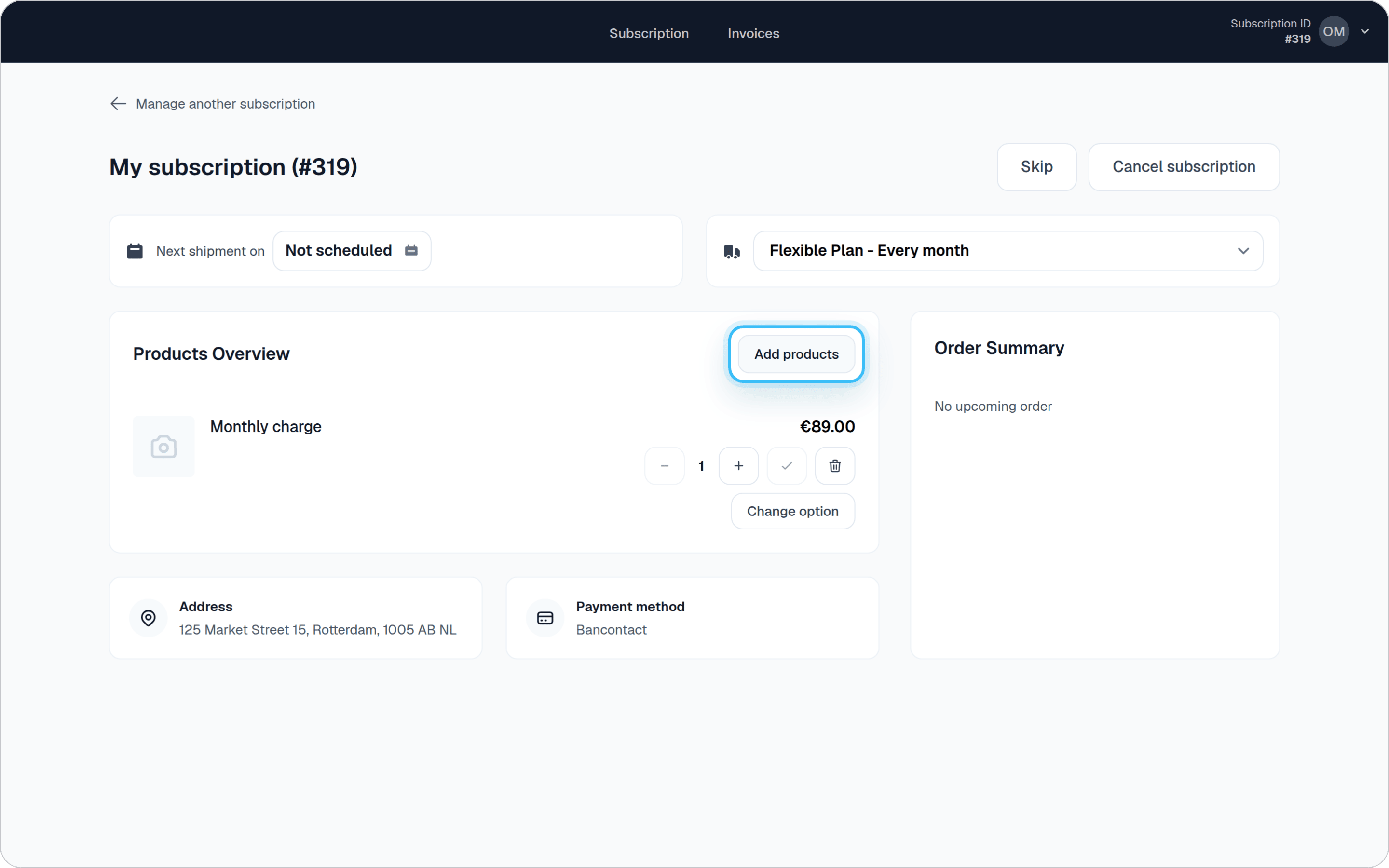
1. Customers click **"Add a product to your subscription"** in the Self Service Center.
 2. They select one or more products and adjust quantities.
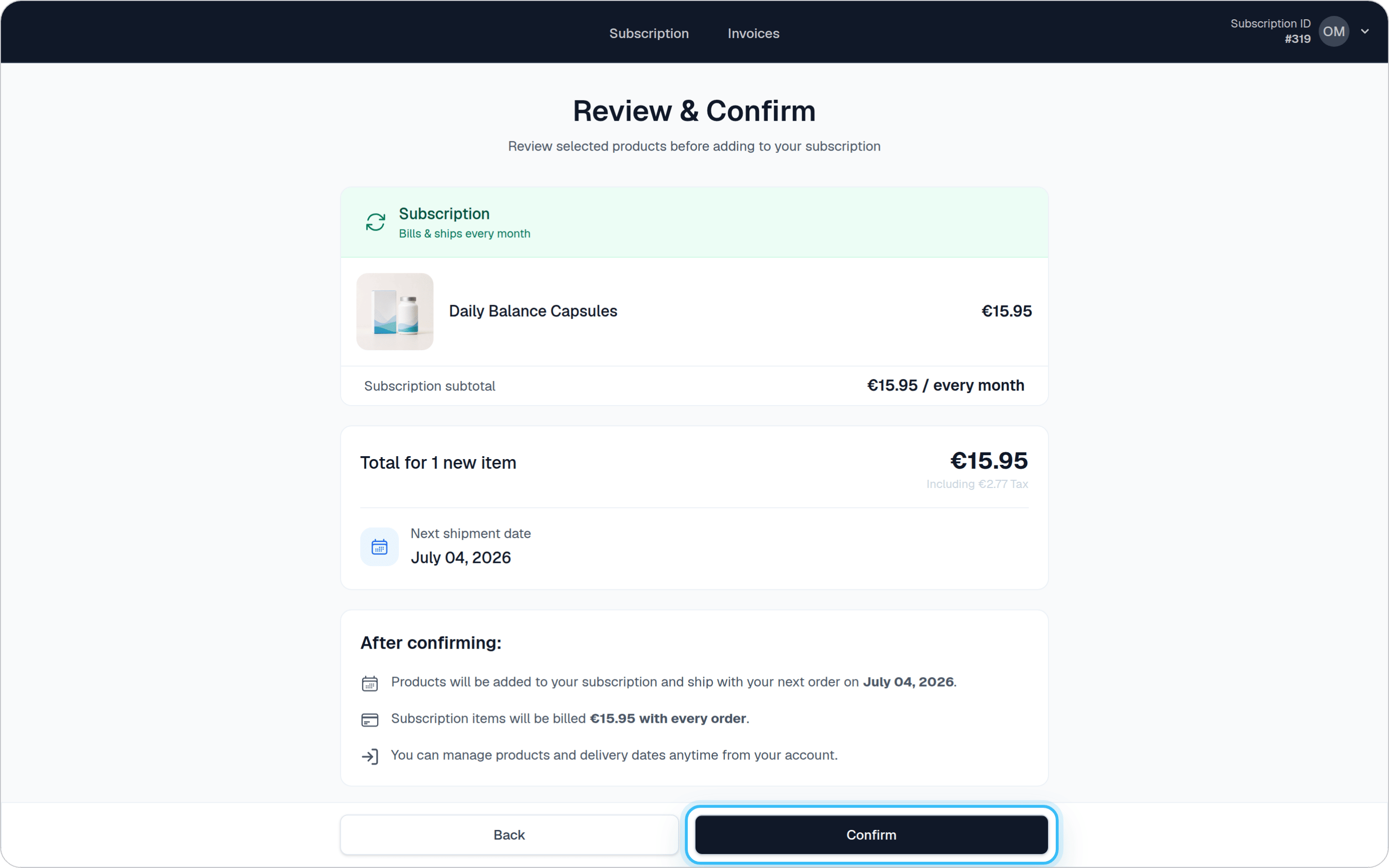
 3. A **Review & Confirm** screen shows:
* Which products will be added
* How they'll be shipped (recurring or one-time)
* The total cost and next shipment date
3. A **Review & Confirm** screen shows:
* Which products will be added
* How they'll be shipped (recurring or one-time)
* The total cost and next shipment date
 4. After confirming, the products are added and the customer is returned to their dashboard.
The entire flow happens in one place, without page-by-page product selection.
## Managing existing products
With the **New Self Service Center** enabled, customers with existing products on their subscription can also **manage their current products** using the same catalog interface.
When customers click the **"Manage products"** button (available when they have active products), they see:
* Their current products pre-selected with existing quantities
* The full product catalog to add more items
* The ability to adjust quantities or remove products
* A clear confirmation screen showing all changes
4. After confirming, the products are added and the customer is returned to their dashboard.
The entire flow happens in one place, without page-by-page product selection.
## Managing existing products
With the **New Self Service Center** enabled, customers with existing products on their subscription can also **manage their current products** using the same catalog interface.
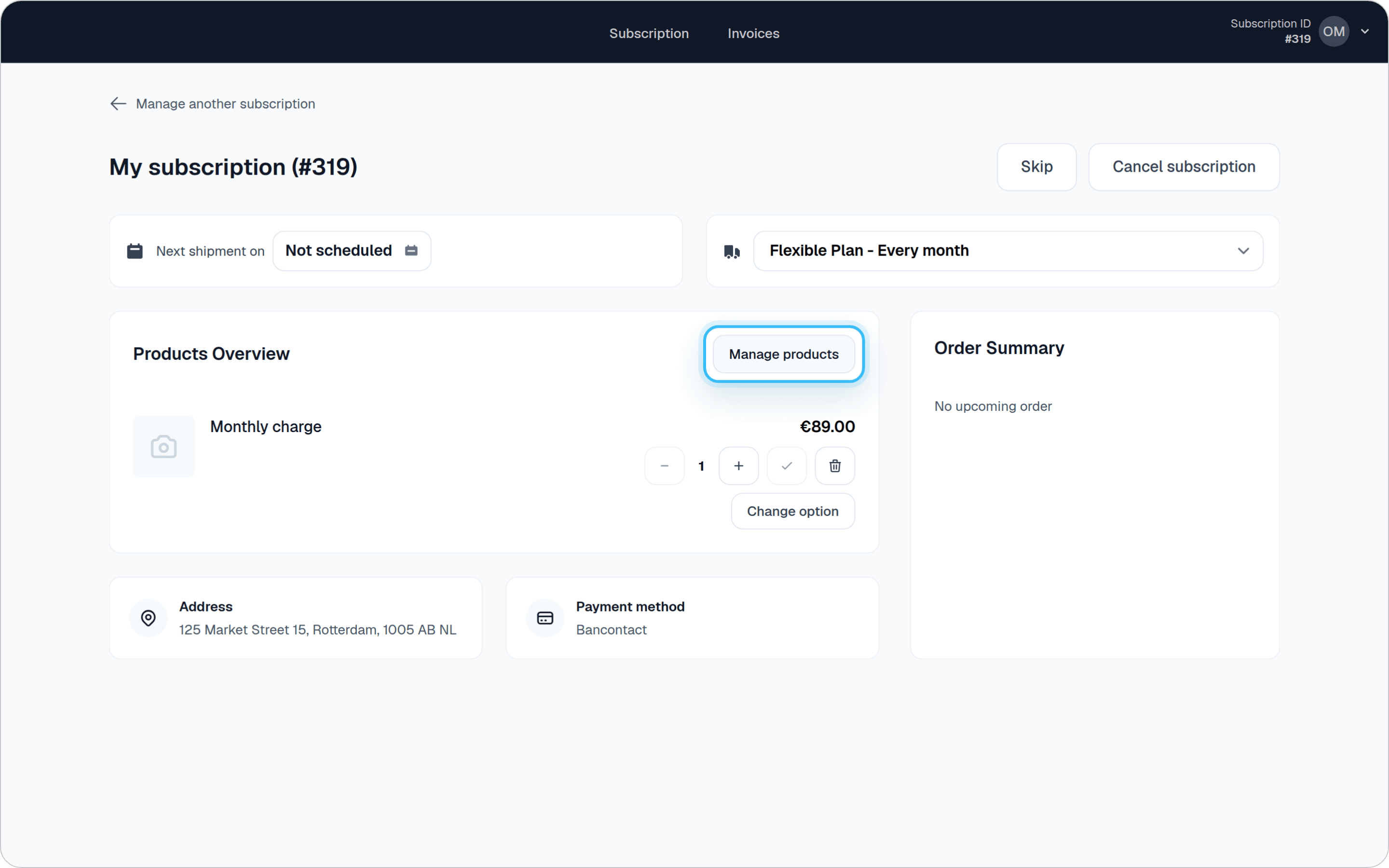
When customers click the **"Manage products"** button (available when they have active products), they see:
* Their current products pre-selected with existing quantities
* The full product catalog to add more items
* The ability to adjust quantities or remove products
* A clear confirmation screen showing all changes
 This gives customers a single, unified experience for both adding new products and modifying their existing subscription contents.
## How to enable this feature
### Steps
1. Go to **Portal > New Features**
2. Enable **New Add Products Flow in Self Service Center** toggle
This gives customers a single, unified experience for both adding new products and modifying their existing subscription contents.
## How to enable this feature
### Steps
1. Go to **Portal > New Features**
2. Enable **New Add Products Flow in Self Service Center** toggle
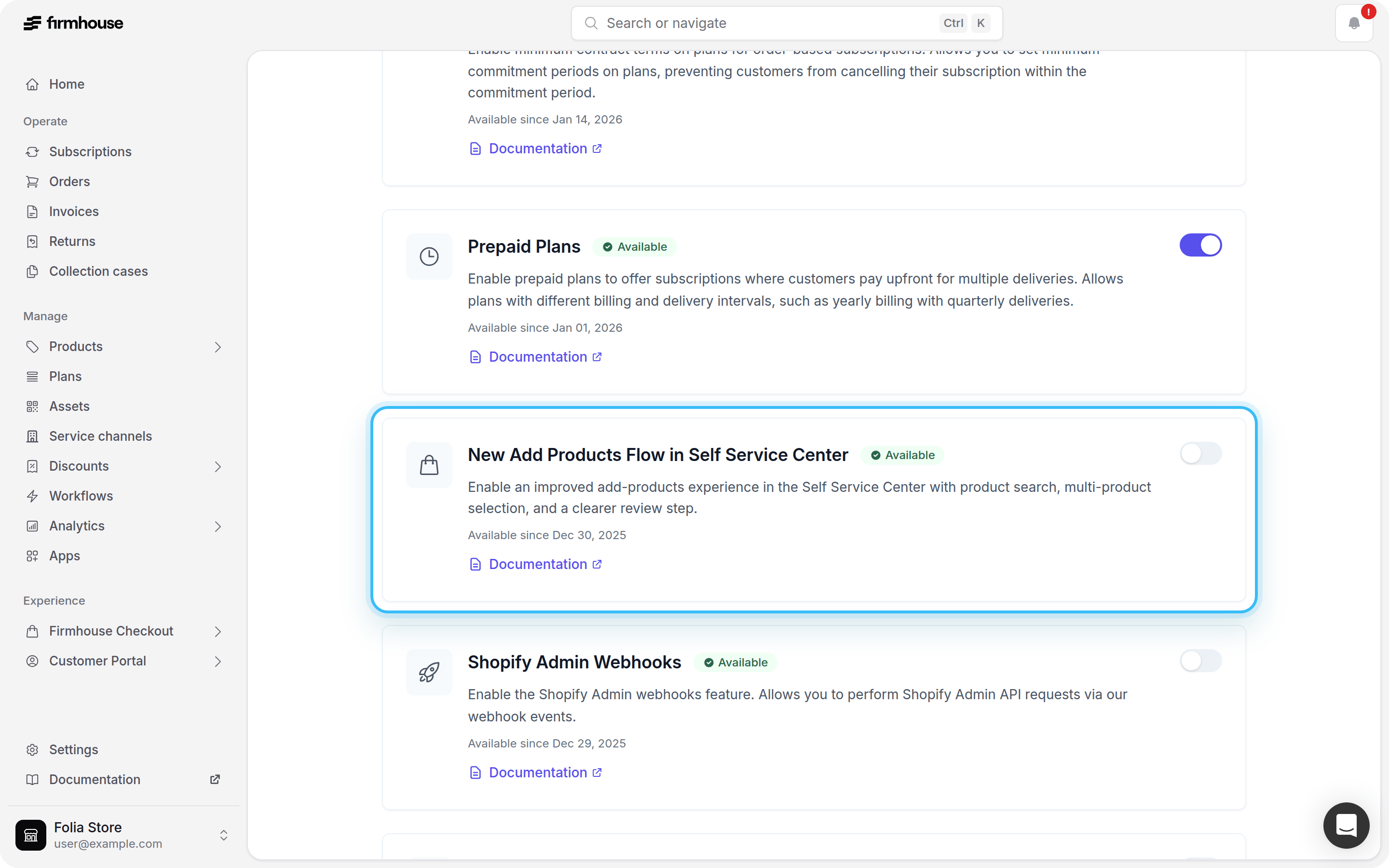 Once enabled, the new flow automatically replaces the old add-product experience.
If you don't see the "Add products to your subscription" button on the SSC dashboard, make sure the rest of the requirements are met as well:
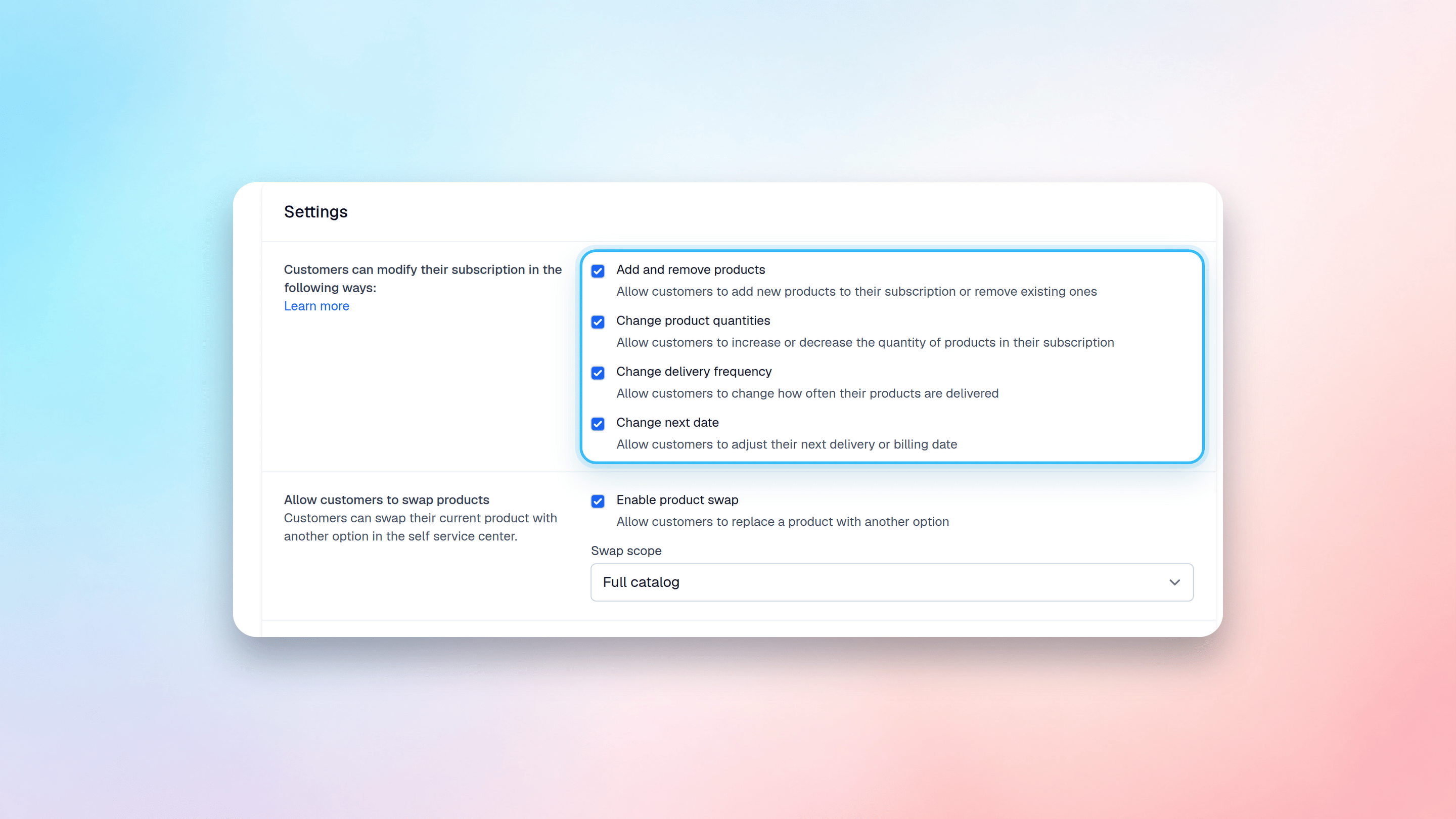
1. Go to **Portal > Settings > Self Service Center**
2. Enable **Allow customers to add products to their subscription**
Once enabled, the new flow automatically replaces the old add-product experience.
If you don't see the "Add products to your subscription" button on the SSC dashboard, make sure the rest of the requirements are met as well:
1. Go to **Portal > Settings > Self Service Center**
2. Enable **Allow customers to add products to their subscription**
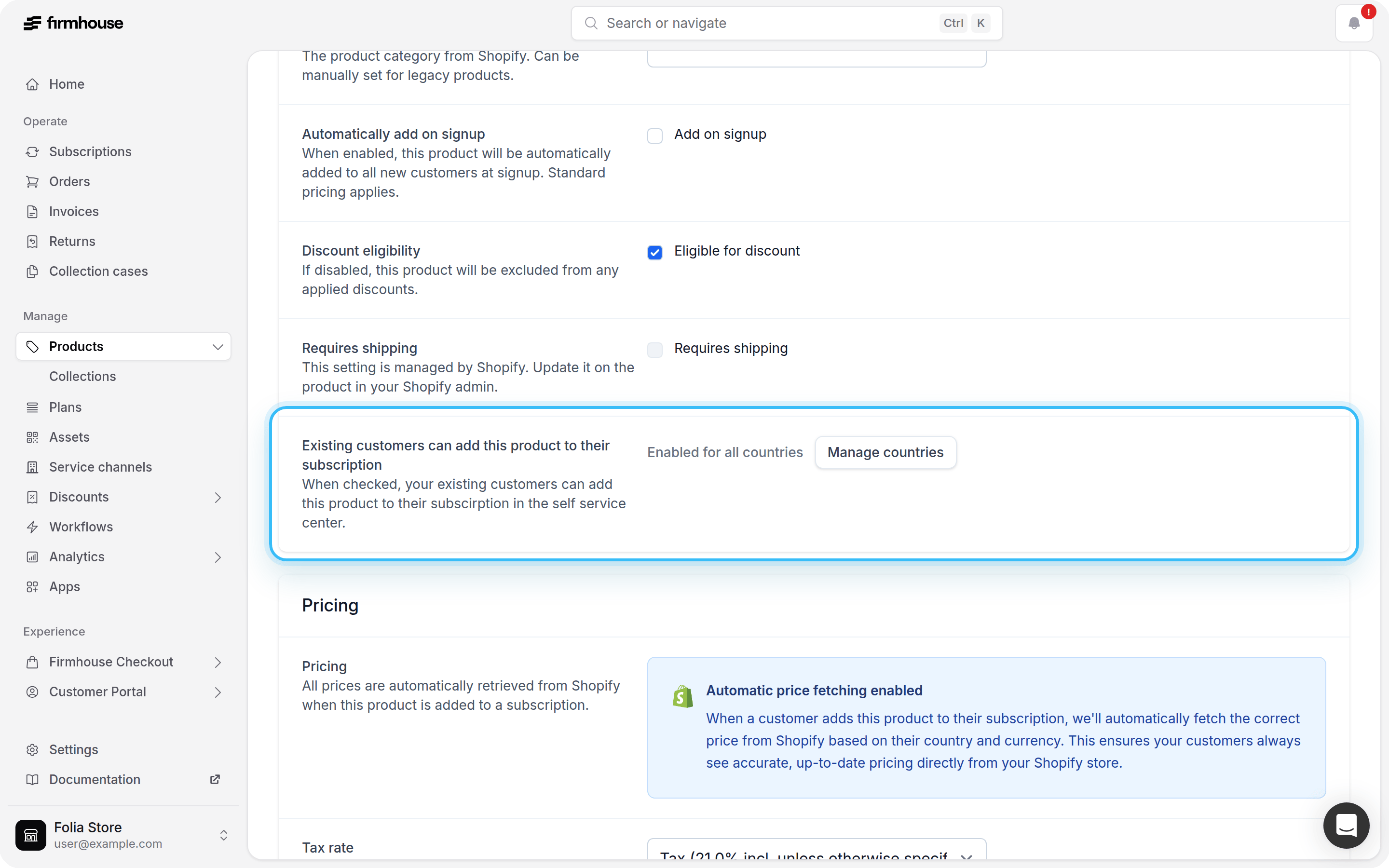
 3. Make sure products you want to offer are available in the SSC
 > **Using custom SSC code?** Please review the new pages before enabling this feature. Our support team is happy to help if needed.
## Why use this feature?
* **Increase average order value** by making it easy to add more products
* **Reduce support requests** by letting customers manage additions themselves
* **Improve customer experience** with a faster, clearer checkout-like flow
* **Encourage experimentation**, including one-time add-ons alongside subscriptions
## Shopify Collections
Firmhouse automatically syncs Shopify product collections to keep your product organization in sync with Shopify. When collections are created or updated in Shopify, Firmhouse will:
* Create collections in Firmhouse that match your Shopify collections
* Link products to their collections automatically
* Update collection names when they change in Shopify
* Remove products from collections when they're removed in Shopify
* Delete empty collections automatically
Collections are synced automatically via webhooks when collections are created or updated in Shopify, so you don't need to manually sync them.
When your project uses **Shopify Product Collections** and synced collections exist, the product catalog in both **Add product** and **Manage products** only shows products that are in collections where **Allow ordering products from this collection** is enabled.
Products are hidden from the catalog when:
* They are not in any synced Shopify collection
* They are only in collections where **Allow ordering products from this collection** is disabled
This collection rule is applied in addition to your existing eligibility rules, such as product SSC availability and plan eligibility.
The **Show as filter in product catalog** checkbox only controls whether a collection appears as a filter pill. It does not control ordering by itself.
### Enable in New Features
1. Go to **Portal > New Features**
2. Enable **Shopify Product Collections**
3. Go to **Products > Collections**
4. Enable **Allow ordering products from this collection** for the collections you want customers to order from
The **Collections** menu item is shown after **Shopify Product Collections** is enabled.
## What's coming next?
We're continuing to improve this flow. Upcoming enhancements include:
* More catalog browsing improvements
If you have questions or want help enabling this feature, feel free to reach out to our support team - we're happy to help!
> **Using custom SSC code?** Please review the new pages before enabling this feature. Our support team is happy to help if needed.
## Why use this feature?
* **Increase average order value** by making it easy to add more products
* **Reduce support requests** by letting customers manage additions themselves
* **Improve customer experience** with a faster, clearer checkout-like flow
* **Encourage experimentation**, including one-time add-ons alongside subscriptions
## Shopify Collections
Firmhouse automatically syncs Shopify product collections to keep your product organization in sync with Shopify. When collections are created or updated in Shopify, Firmhouse will:
* Create collections in Firmhouse that match your Shopify collections
* Link products to their collections automatically
* Update collection names when they change in Shopify
* Remove products from collections when they're removed in Shopify
* Delete empty collections automatically
Collections are synced automatically via webhooks when collections are created or updated in Shopify, so you don't need to manually sync them.
When your project uses **Shopify Product Collections** and synced collections exist, the product catalog in both **Add product** and **Manage products** only shows products that are in collections where **Allow ordering products from this collection** is enabled.
Products are hidden from the catalog when:
* They are not in any synced Shopify collection
* They are only in collections where **Allow ordering products from this collection** is disabled
This collection rule is applied in addition to your existing eligibility rules, such as product SSC availability and plan eligibility.
The **Show as filter in product catalog** checkbox only controls whether a collection appears as a filter pill. It does not control ordering by itself.
### Enable in New Features
1. Go to **Portal > New Features**
2. Enable **Shopify Product Collections**
3. Go to **Products > Collections**
4. Enable **Allow ordering products from this collection** for the collections you want customers to order from
The **Collections** menu item is shown after **Shopify Product Collections** is enabled.
## What's coming next?
We're continuing to improve this flow. Upcoming enhancements include:
* More catalog browsing improvements
If you have questions or want help enabling this feature, feel free to reach out to our support team - we're happy to help!