> ## Documentation Index
> Fetch the complete documentation index at: https://docs.firmhouse.com/llms.txt
> Use this file to discover all available pages before exploring further.
# Outstanding invoice reminder emails
> Enable the automated weekly Firmhouse email that reminds non-paying customers of their outstanding invoices and prompts them to pay manually.
You can set up an email that automatically reminds your non-paying customers of their outstanding invoices. This email is disabled by default and sends out once a week to every non-paying customer when enabled.
A customer is marked as non-paying when a recurring charge fails for any other reason than insufficient funds, or when the same payment fails 3 times due to insufficient funds.
## Step 1: Enable the email
### Steps
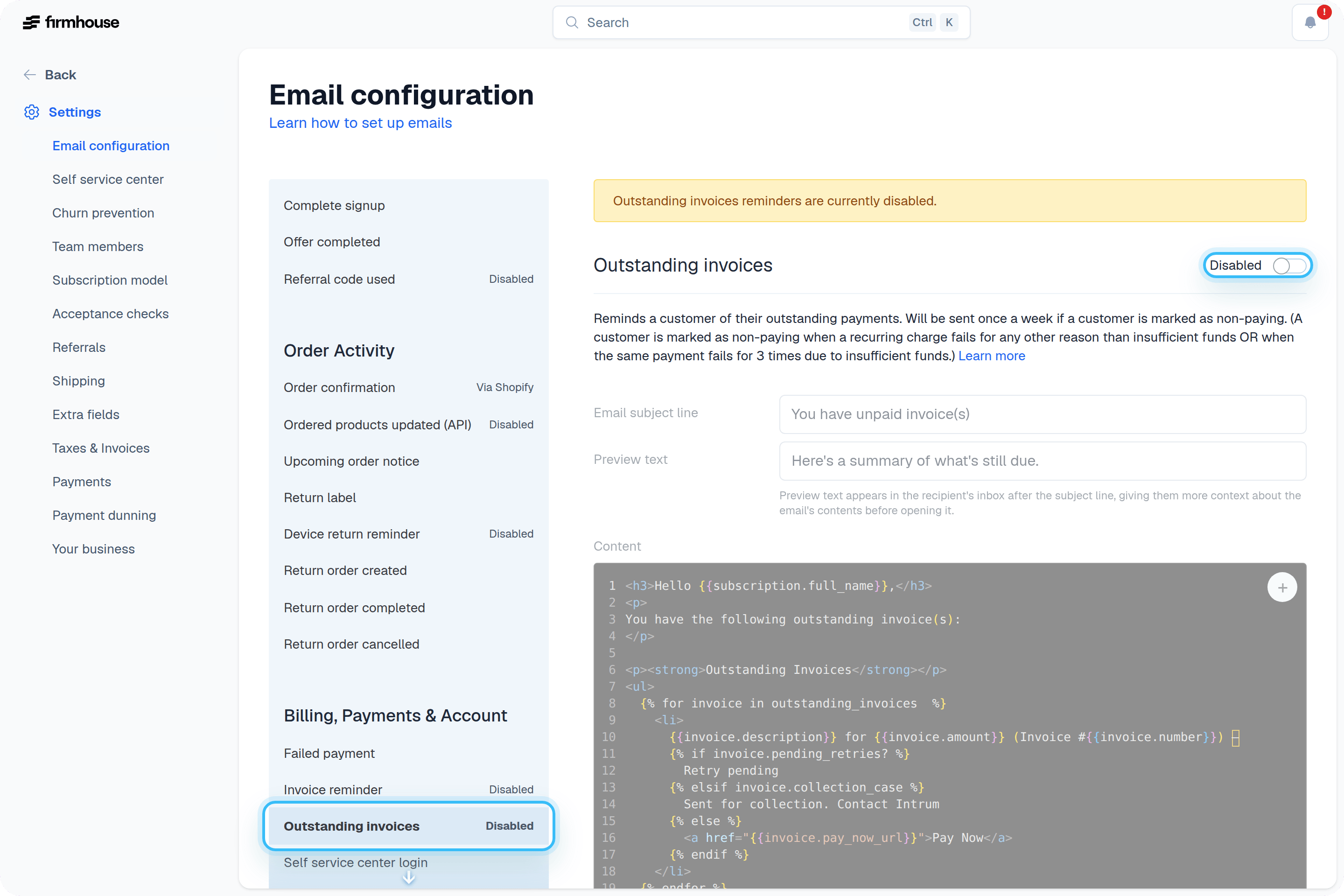
1. Navigate to **Settings > Email configuration** in the sidebar
2. Find the **Outstanding invoices** email under the **Payments** section
3. Toggle the email to **Enabled**
4. Click **Save**
 ## Step 2: Setting up the email
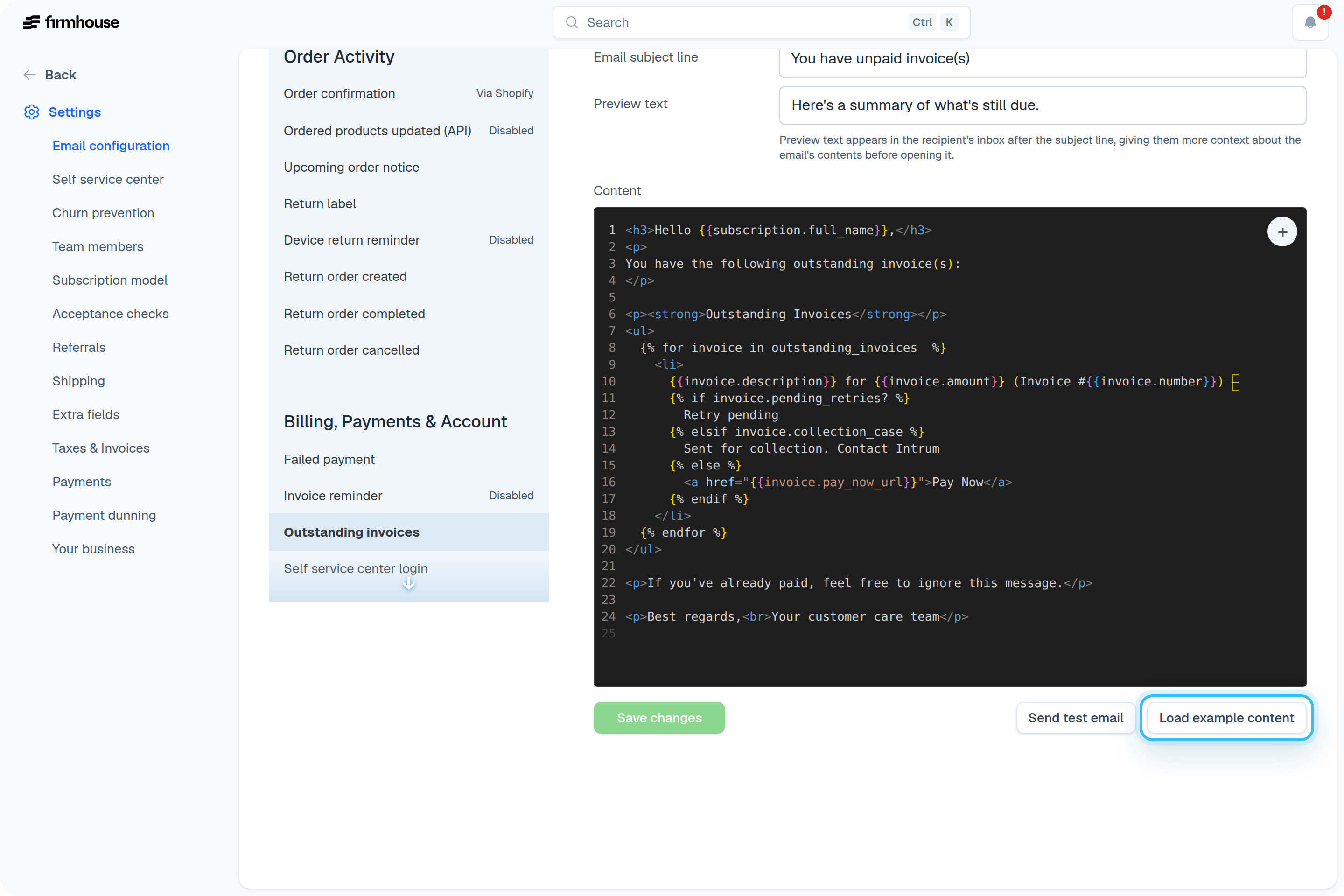
It's up to you what you want to include in the email. We recommend using the standard template by clicking the **Load example content** button.
### Steps
1. Click **Load example content** to load the standard HTML template
2. Customize the email subject line and content as needed
3. Use the **Send Test Email** button to preview how it looks
4. Click **Save** to save your changes
## Step 2: Setting up the email
It's up to you what you want to include in the email. We recommend using the standard template by clicking the **Load example content** button.
### Steps
1. Click **Load example content** to load the standard HTML template
2. Customize the email subject line and content as needed
3. Use the **Send Test Email** button to preview how it looks
4. Click **Save** to save your changes
 ## Customising your email
You can add and change as much as you want in this email. In order for the invoices and their payment links to show up properly, we advise you to not change anything in the `
## Customising your email
You can add and change as much as you want in this email. In order for the invoices and their payment links to show up properly, we advise you to not change anything in the `` element. You can rename the column labels, but the logic shouldn't be touched.
For example, if you need to change the "Amount" label, you can update it like this:
```html theme={null}
| Amount due |
```
## Advanced: Build it yourself
To retrieve outstanding invoices in your email template, you need to loop through `outstanding_invoices`. Here's a simple example that returns the invoice number of all outstanding invoices:
```liquid theme={null}
{% for invoice in outstanding_invoices %}
{{ invoice.number }}
{% endfor %}
```
Putting that information in a table would look like this:
```html theme={null}
| Invoice no. |
{% for invoice in outstanding_invoices %}
| {{ invoice.number }} |
{% endfor %}
```
## Supported attributes
The following attributes are available for outstanding invoices:
* `number` - The invoice number
* `amount` - The invoice amount
* `status` - The current status
* `pending_retries?` - Whether retries are pending
* `pay_now_url` - The URL for the customer to pay
* `created_at` - When the invoice was created
For more information about Liquid tags, see the [Dynamic Email Liquid Tags](/configure/customer-communication/liquid-tags) documentation.