> ## Documentation Index
> Fetch the complete documentation index at: https://docs.firmhouse.com/llms.txt
> Use this file to discover all available pages before exploring further.
# Order not created in Shopify
> Troubleshoot situations where Firmhouse generates a subscription order but the order is not created or synced through to your Shopify store.
This article helps you troubleshoot situations where an order is generated in Firmhouse but not pushed to your Shopify store.
## Situation
There is an order generated in Firmhouse, but it is not pushed to your Shopify store. You're trying to find out why the order was not pushed and how to push the order to Shopify again.
## Possible Causes
There are a few reasons why Firmhouse may be unable to generate the order in Shopify:
* The email address of the customer is incorrect, such as a typo or incorrect domain
* An API error or timeout occurred when Firmhouse tried to generate the order in Shopify
* One of the products in the order doesn't exist anymore in Shopify, or the linked Shopify product is no longer available there
For background on how product sync handles Shopify products that become unavailable, and why existing subscriptions need a separate review when products go out of stock, are archived, or are unpublished, see [Import and sync Shopify products](/shopify/importing-and-syncing-products#shopify-product-availability-and-existing-subscriptions).
## How to Solve
### Start by finding the affected orders
If you are not sure which orders failed to push yet, go to the **Orders** page first and use these filters:
* **Status**: `Confirmed`
* **Shopify order**: `Without order in Shopify`
This gives you a quick overview of all confirmed orders that still need attention before you inspect them one by one.
### Steps
1. Navigate to the **Notifications** page from the sidebar menu in the Firmhouse portal. This page shows all important notifications and error messages about what's happening in your Firmhouse project, including any errors when integrating with Shopify
2. Find the error message for the respective order. This should show you the reason why the order was not pushed to Shopify. If you cannot find the order or if the error message is unclear, please contact support for assistance
3. If the notification says that a product is missing or unavailable in Shopify, make the product available again in Shopify or relink the Firmhouse product to the correct Shopify product first
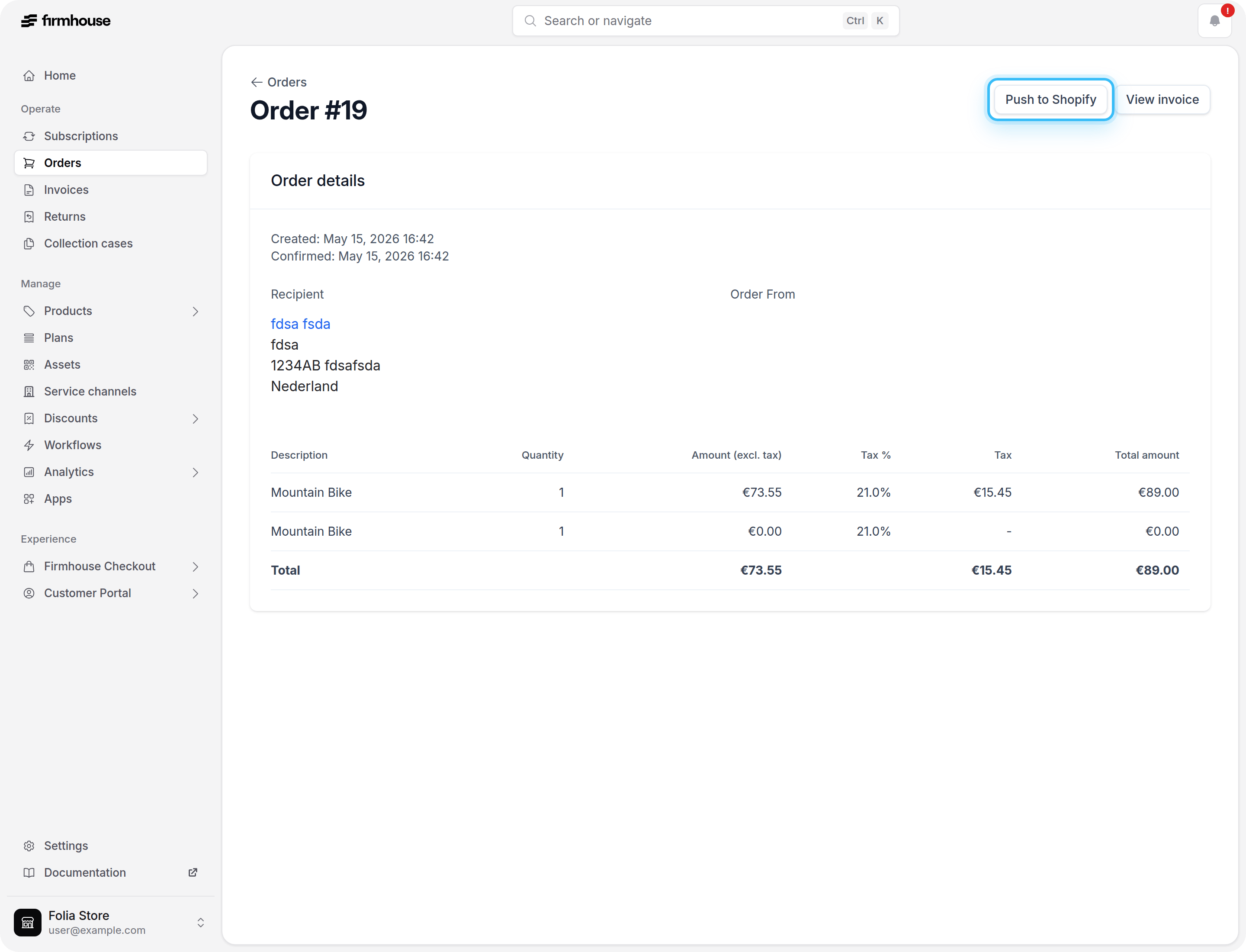
4. After resolving the issue, go to the order details page in Firmhouse. You can access this via the **Orders** menu in the sidebar, or by first going to the customer detail page and then clicking on the order from their order overview
5. Click the **Push to Shopify** button to push the order to Shopify
6. If you still get an error message after pushing, review the **Notifications** page again to see if the previous error was resolved or if a new error occurred
 ## Get Email Notifications for Errors
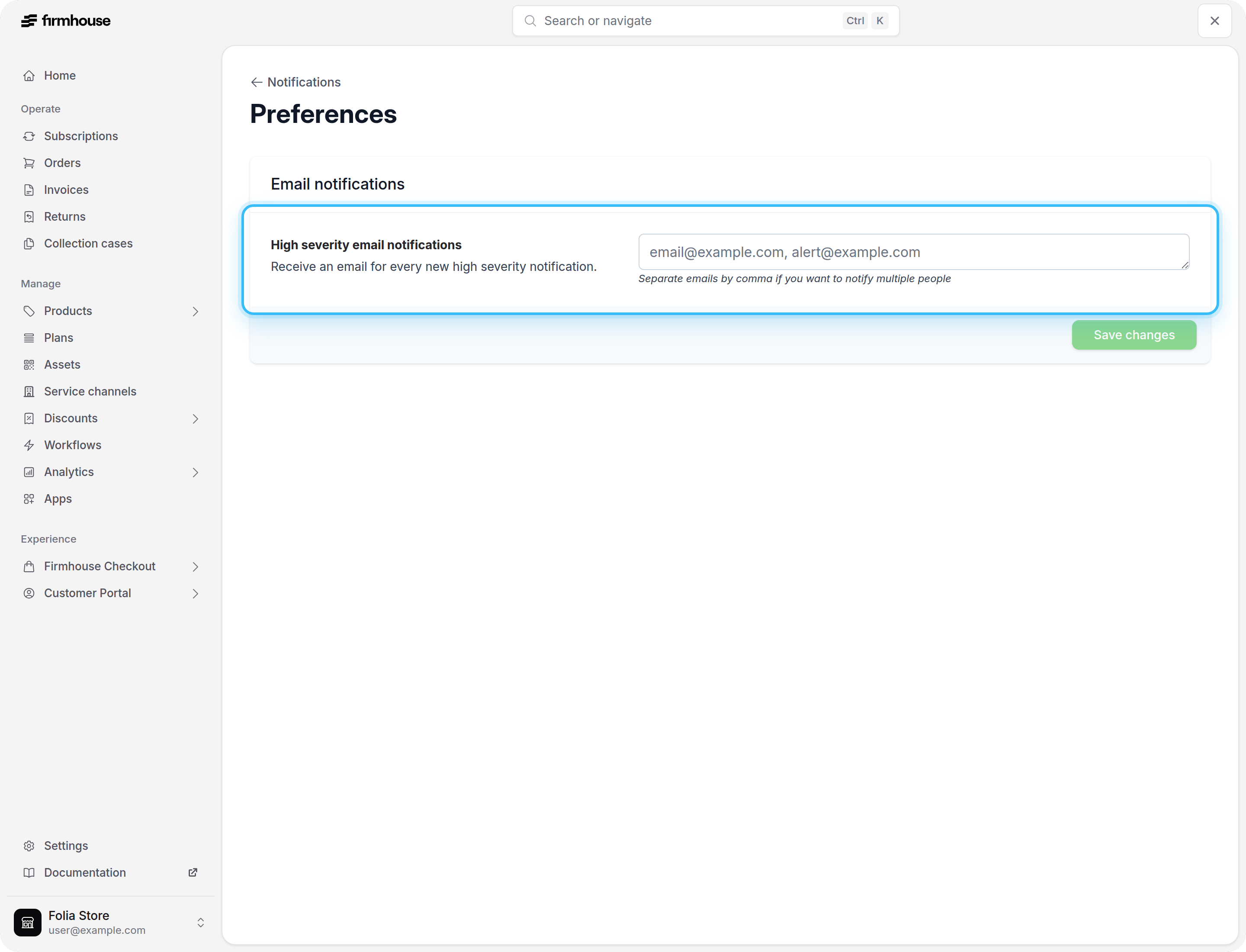
You can subscribe to critical **Notification** error messages via email. Go to the **Notifications** page and click **Manage preferences** in the top-right of the page. Here you can enter one or more email addresses that will be notified when there is an error in your Firmhouse project.
## Get Email Notifications for Errors
You can subscribe to critical **Notification** error messages via email. Go to the **Notifications** page and click **Manage preferences** in the top-right of the page. Here you can enter one or more email addresses that will be notified when there is an error in your Firmhouse project.