> ## Documentation Index
> Fetch the complete documentation index at: https://docs.firmhouse.com/llms.txt
> Use this file to discover all available pages before exploring further.
# Subscription First theme block
> Add the Firmhouse Subscription First theme block to Shopify product pages to promote specific subscription schedules and improve subscriber conversion.
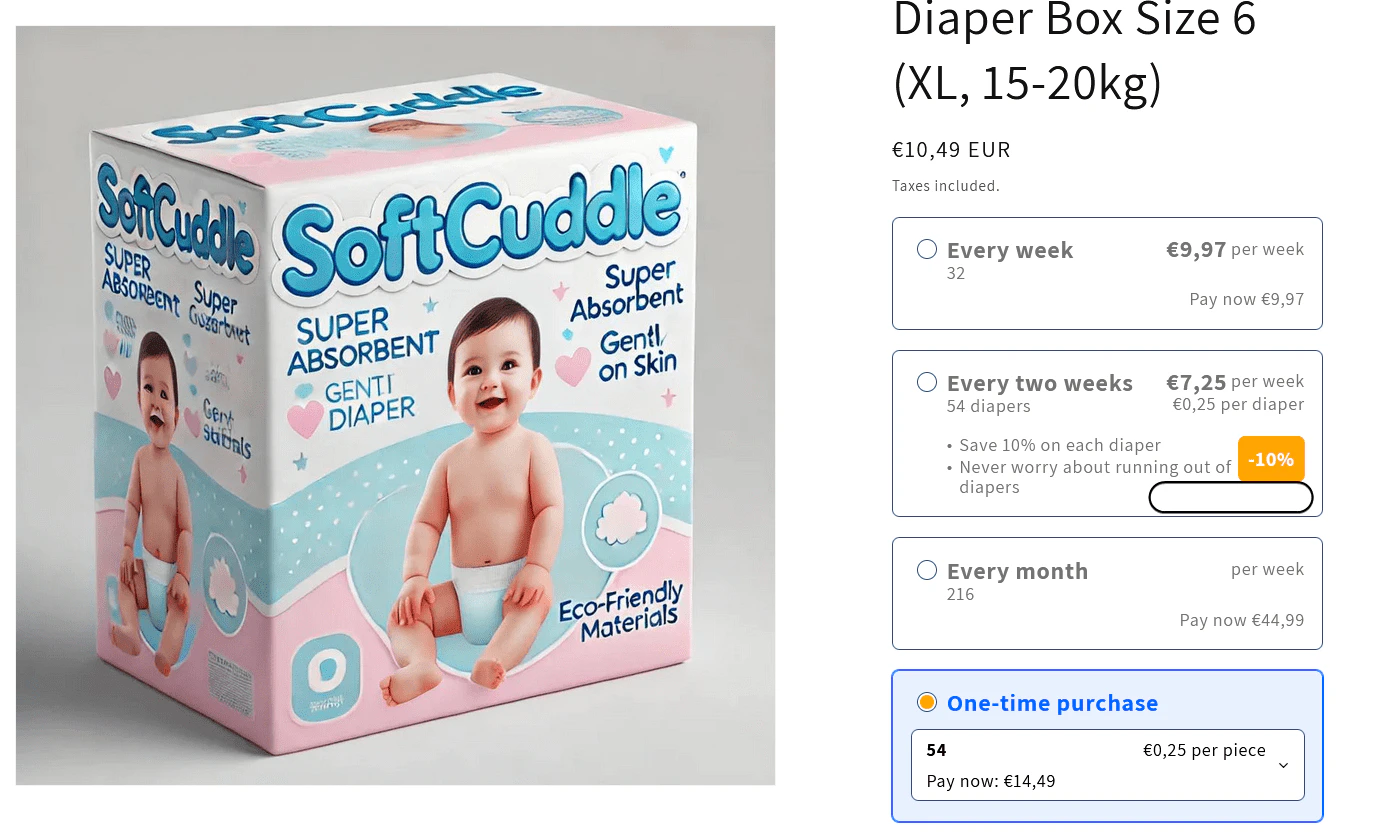
Firmhouse offers a **Subscription First** theme block to put on your product pages. This theme block promotes subscribing to specific subscription schedules that you want to promote for each product.
There are a few special benefits for using the **Subscription First** theme block as opposed to the regular **Subscription Options** theme block that Firmhouse and other Subscription apps also provide. You can guide your customer with picking the best subscription schedule that matches their periodic use, link subscription schedules to an appropriate size variant, and configure which Product Variants should show up in the One Time Purchase option and which should not.
## Getting Started
Setting up the **Subscription First** theme block involves a few more configuration steps than the more standard **Subscription Options** theme block. This article will guide you in setting up the basics and more advanced settings.
## Adding the Theme Block to Your Product Page
### Steps
1. Add the **Subscription First** theme block to your product page template. If you only want to sell certain products in a **Subscription First** fashion, you can create a new Product template and link the products you want to sell this way to use this specific template.
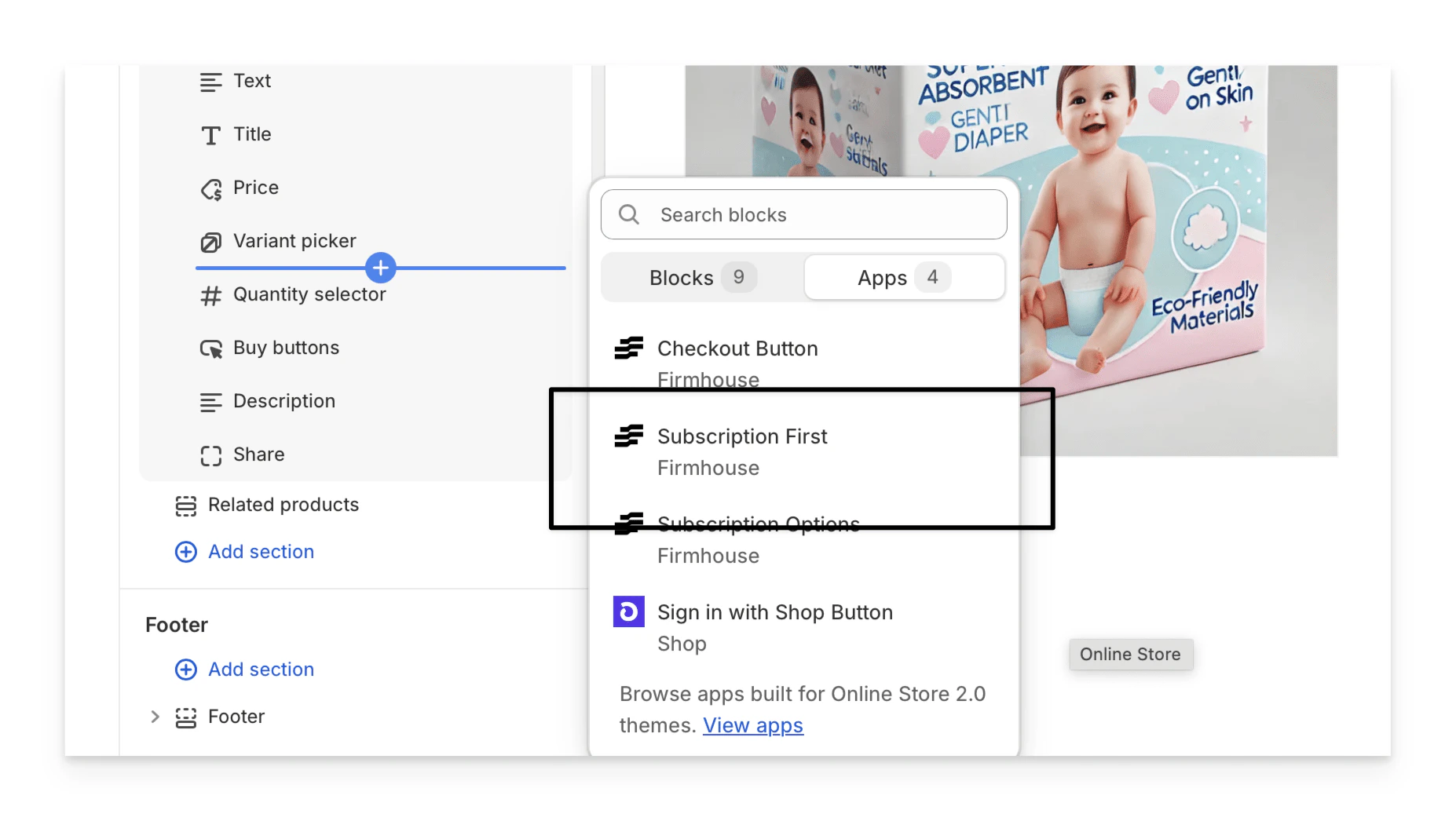 When you've just added the theme block without further configuration, it only shows the **One-time purchase** option by default. Don't worry, this is expected as we still have to configure which subscription options to show.
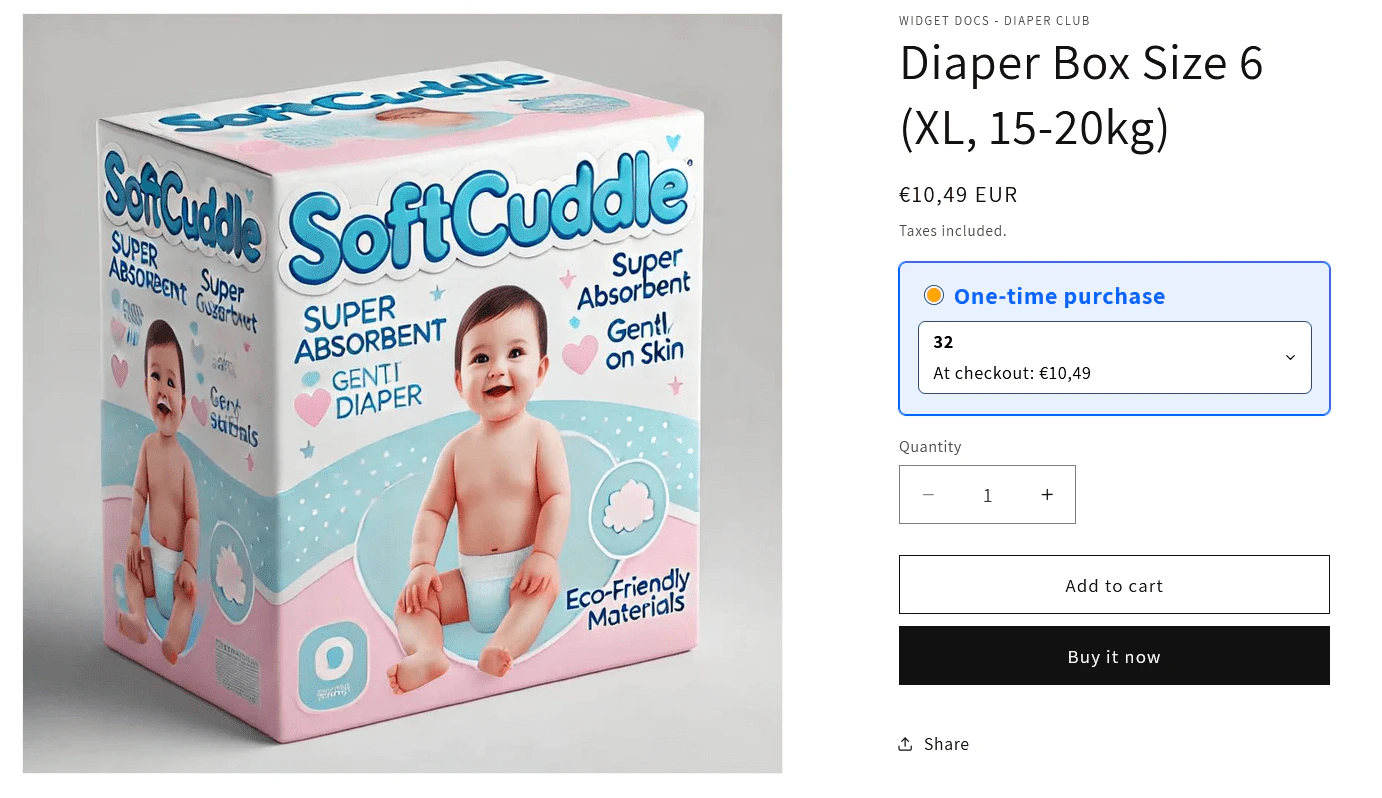 2. Remove or hide the **Variant picker** as the variant selection is managed by the **Subscription First** widget now.
## Creating a Product Metafield for Featured Subscription Variants
To have the right subscription schedules show up for each product, you need to define a Metafield.
### Steps
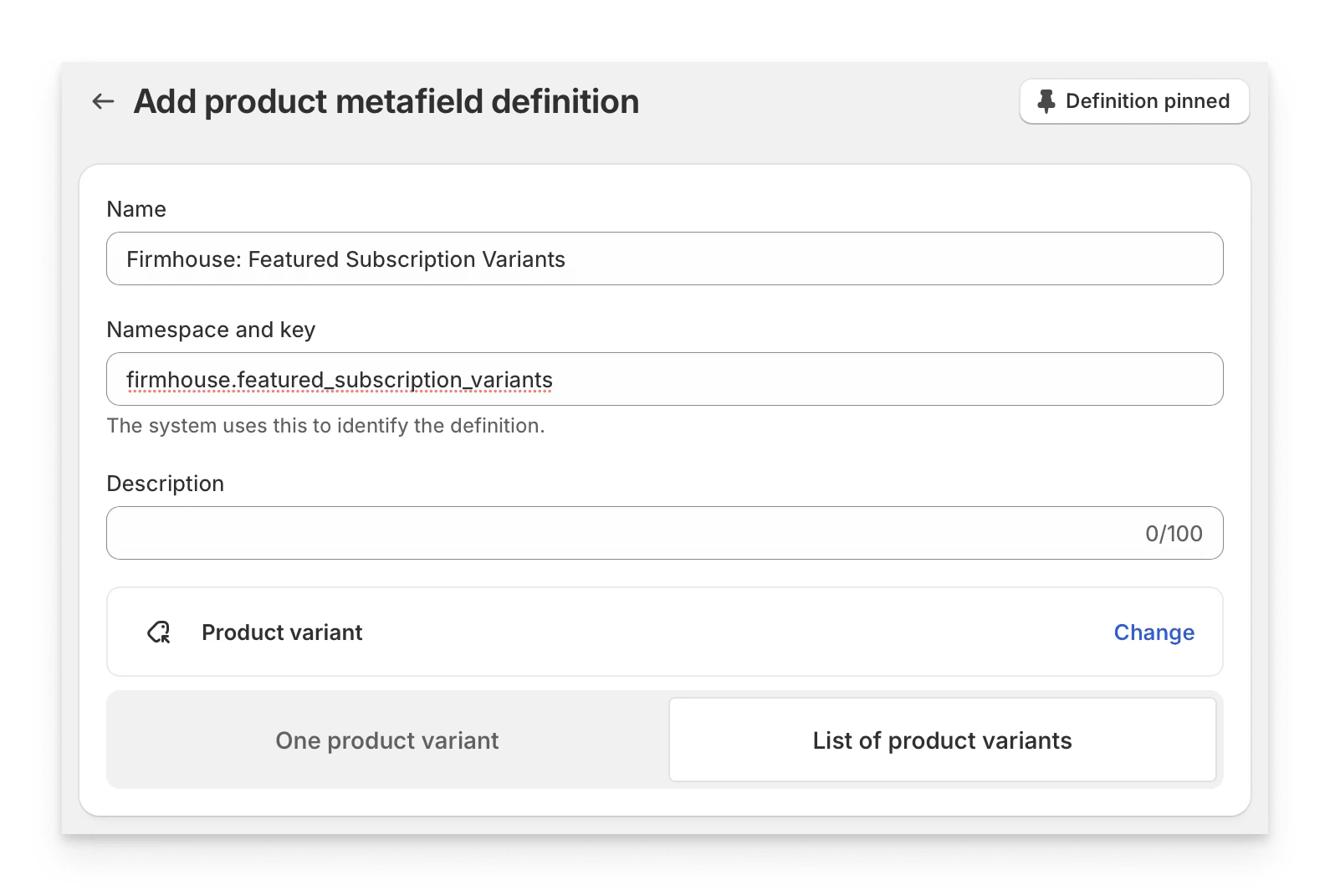
1. In your Shopify admin, go to **Settings > Custom Data > Products** and click **Add definition**.
2. Add the metafield with the following properties:
* **Name:** Firmhouse: Featured Subscription Variants
* **Namespace and Key:** `firmhouse.featured_subscription_variants`
* **Select Type:** Product Variant and then select **List of product variants**
2. Remove or hide the **Variant picker** as the variant selection is managed by the **Subscription First** widget now.
## Creating a Product Metafield for Featured Subscription Variants
To have the right subscription schedules show up for each product, you need to define a Metafield.
### Steps
1. In your Shopify admin, go to **Settings > Custom Data > Products** and click **Add definition**.
2. Add the metafield with the following properties:
* **Name:** Firmhouse: Featured Subscription Variants
* **Namespace and Key:** `firmhouse.featured_subscription_variants`
* **Select Type:** Product Variant and then select **List of product variants**
 ## Setting Subscription Variants on the Product
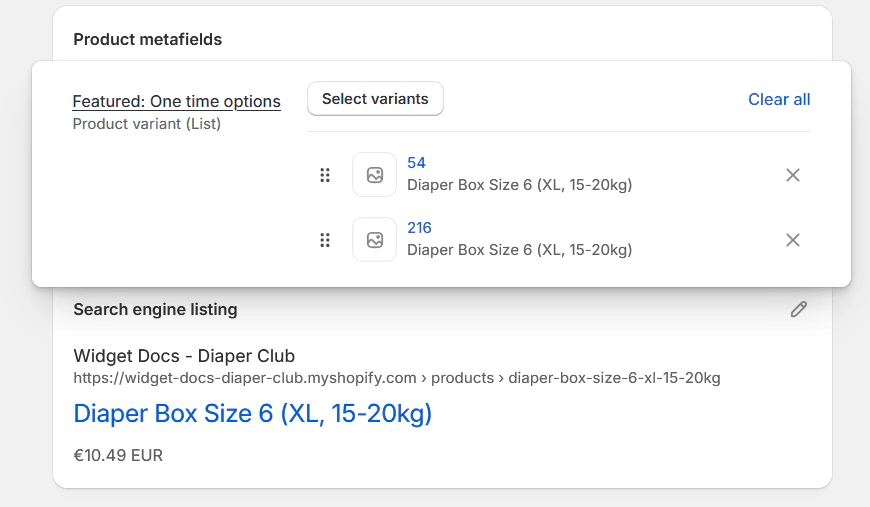
Now edit a Product in Shopify and select the variants that you want to show up as subscription options in the metafield. You will need to do this for every Product that you want to sell in a **Subscription First** way.
### Steps
1. On the Product edit form, scroll down to **Product metafields** and click the entry area next to the label.
## Setting Subscription Variants on the Product
Now edit a Product in Shopify and select the variants that you want to show up as subscription options in the metafield. You will need to do this for every Product that you want to sell in a **Subscription First** way.
### Steps
1. On the Product edit form, scroll down to **Product metafields** and click the entry area next to the label.
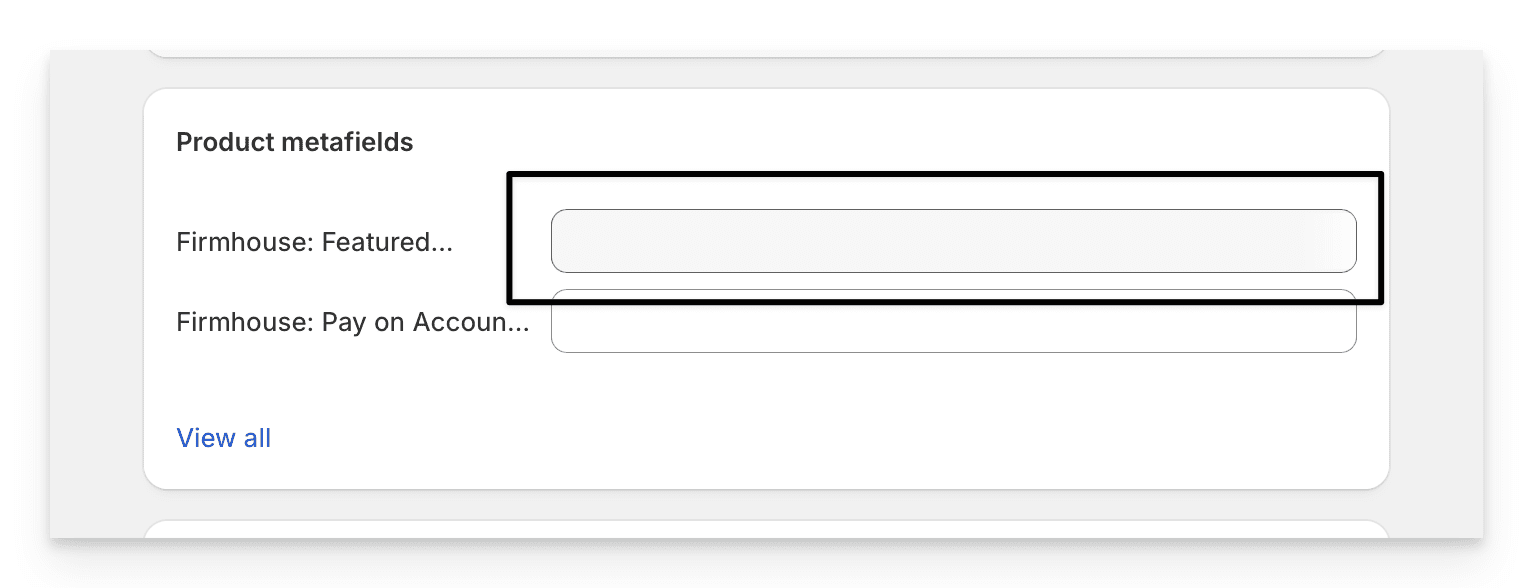 2. Click **Select variants**.
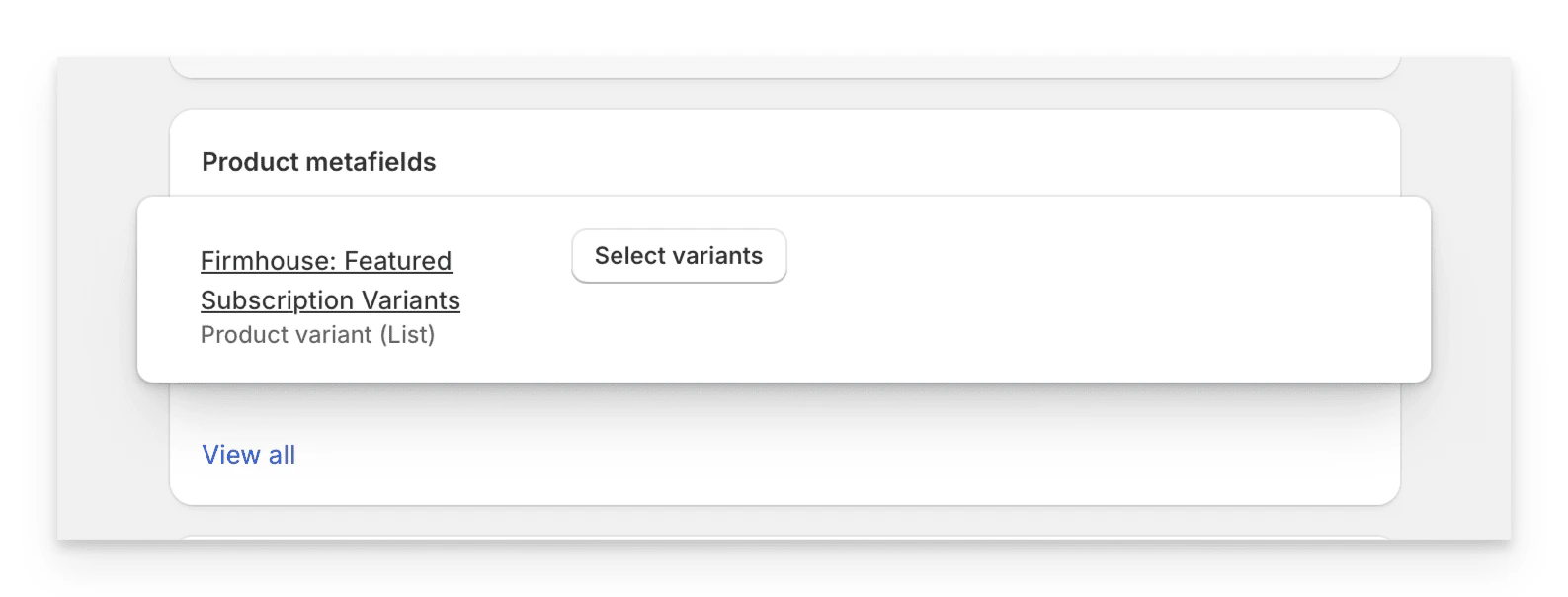 3. In the dialog that shows up, find the product you are currently editing and select which variants you want to make available as subscription options.
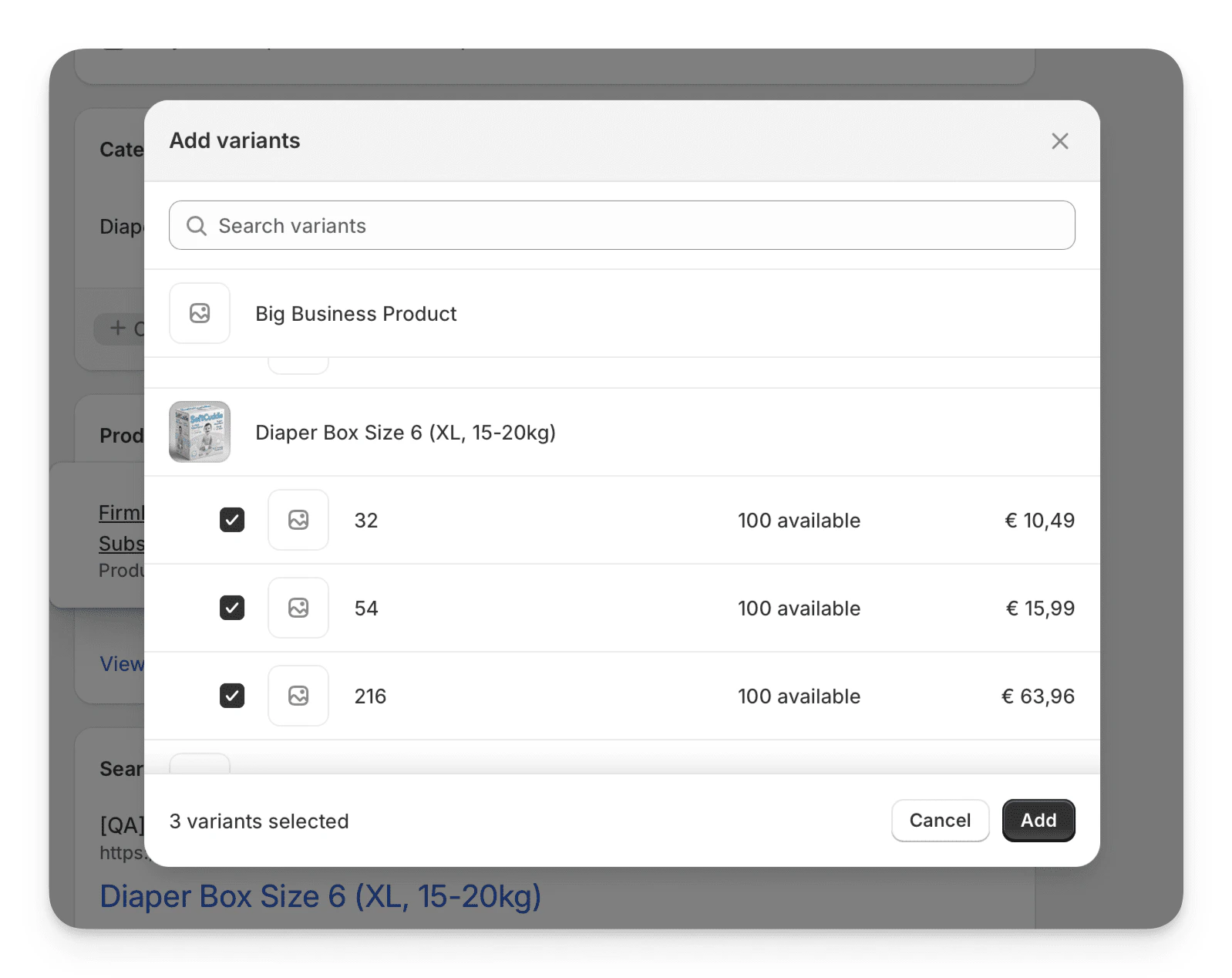 4. Click **Add** and the subscription variants for your products are set.
## Creating a Product Variant Metafield for Subscription Schedule
Now you need to create a metafield on Product Variant so that per variant you can set what the appropriate subscription schedule for that size option is.
### Steps
1. In your Shopify admin, go to **Settings > Custom Data > Variants** and click **Add definition**.
2. Add the metafield with the following properties:
* **Name:** Firmhouse Subscription Frequency
* **Namespace and Key:** `firmhouse.subscription_frequency`
* **Select Type:** Single line text
## Setting the Subscription Frequency Per Variant
The last step for the basic setup is to set the subscription frequency you want to link to the appropriate size variant of your product. For example, the "Every 2 weeks" subscription schedule should be linked to the "54 units" diaper box, and the "Every 2 months" schedule should be linked to the "216 units" diaper box.
### Steps
1. In Shopify, edit a product variant you want to assign to a subscription schedule.
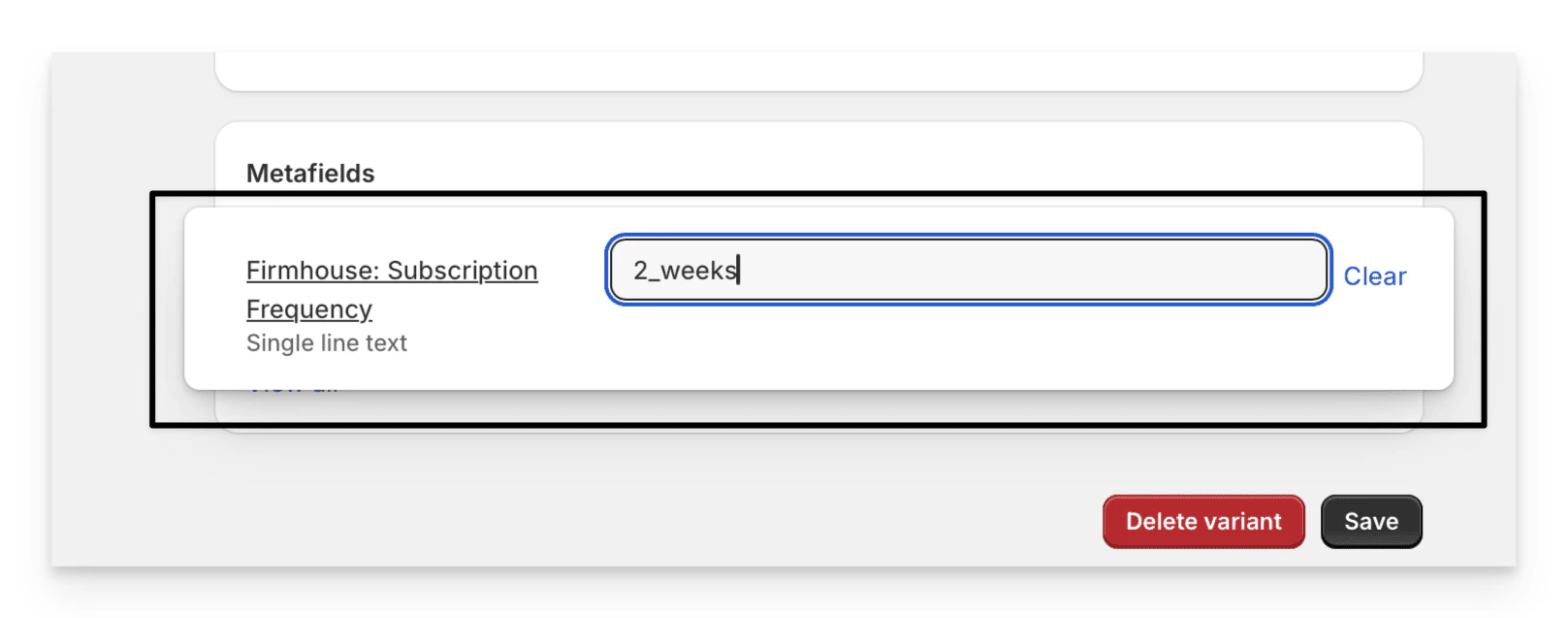
2. Scroll down to **Metafields** and edit the **Firmhouse: Subscription Frequency** metafield.
3. As the value, enter the subscription frequency in the following format: `_`, for example: `2_weeks` or `1_months`.
4. Click **Add** and the subscription variants for your products are set.
## Creating a Product Variant Metafield for Subscription Schedule
Now you need to create a metafield on Product Variant so that per variant you can set what the appropriate subscription schedule for that size option is.
### Steps
1. In your Shopify admin, go to **Settings > Custom Data > Variants** and click **Add definition**.
2. Add the metafield with the following properties:
* **Name:** Firmhouse Subscription Frequency
* **Namespace and Key:** `firmhouse.subscription_frequency`
* **Select Type:** Single line text
## Setting the Subscription Frequency Per Variant
The last step for the basic setup is to set the subscription frequency you want to link to the appropriate size variant of your product. For example, the "Every 2 weeks" subscription schedule should be linked to the "54 units" diaper box, and the "Every 2 months" schedule should be linked to the "216 units" diaper box.
### Steps
1. In Shopify, edit a product variant you want to assign to a subscription schedule.
2. Scroll down to **Metafields** and edit the **Firmhouse: Subscription Frequency** metafield.
3. As the value, enter the subscription frequency in the following format: `_`, for example: `2_weeks` or `1_months`.
 ### Matching Plans with Minimum Commitment (Optional)
If your selling plans include minimum commitment terms, you can make Subscription First match variants to the correct plans by configuring the minimum commitment metafield on the variant.
Create this Product Variant metafield in Shopify:
* **Name:** Firmhouse Minimum Commitment
* **Namespace and Key:** `firmhouse.min_commitment`
* **Type:** Single line text
Set the value in the same `_` format as frequency values, for example: `1_months`, `1_weeks`, or `4_months`.
When this value is set on a variant, Firmhouse uses the selling plan metadata minimum commitment to find a matching plan for that variant.
## Configuring One-Time Purchase Options (Optional)
By default, all product variants will be available as one-time purchase options. However, you can control which variants appear in the one-time purchase dropdown by creating and configuring a Featured One-Time Variants metafield.
### Steps
1. In your Shopify admin, go to **Settings > Custom Data > Products** and click **Add definition**.
2. Add the metafield with the following properties:
* **Name:** Firmhouse: Featured One-Time Variants
* **Namespace and Key:** `firmhouse.featured_one_time_variants`
* **Select Type:** Product Variant and then select **List of product variants**
### Matching Plans with Minimum Commitment (Optional)
If your selling plans include minimum commitment terms, you can make Subscription First match variants to the correct plans by configuring the minimum commitment metafield on the variant.
Create this Product Variant metafield in Shopify:
* **Name:** Firmhouse Minimum Commitment
* **Namespace and Key:** `firmhouse.min_commitment`
* **Type:** Single line text
Set the value in the same `_` format as frequency values, for example: `1_months`, `1_weeks`, or `4_months`.
When this value is set on a variant, Firmhouse uses the selling plan metadata minimum commitment to find a matching plan for that variant.
## Configuring One-Time Purchase Options (Optional)
By default, all product variants will be available as one-time purchase options. However, you can control which variants appear in the one-time purchase dropdown by creating and configuring a Featured One-Time Variants metafield.
### Steps
1. In your Shopify admin, go to **Settings > Custom Data > Products** and click **Add definition**.
2. Add the metafield with the following properties:
* **Name:** Firmhouse: Featured One-Time Variants
* **Namespace and Key:** `firmhouse.featured_one_time_variants`
* **Select Type:** Product Variant and then select **List of product variants**
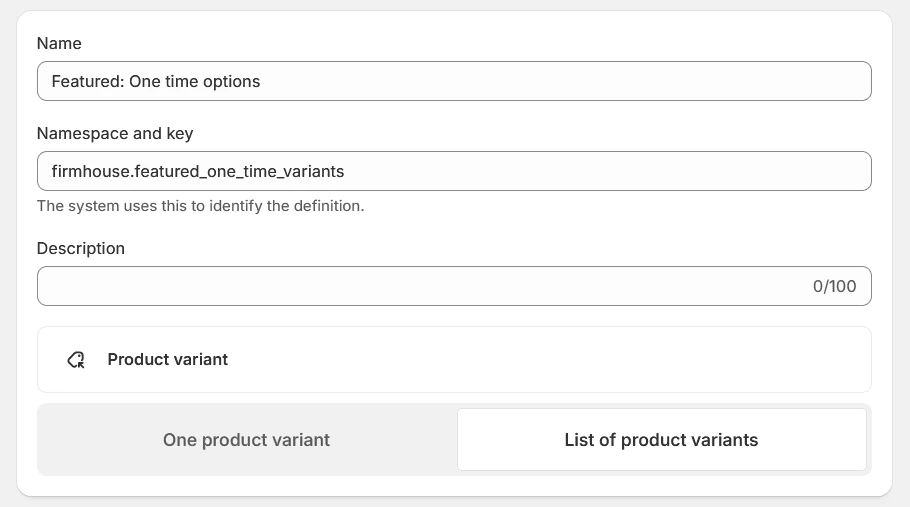 3. Edit your product and select which variants should appear as one-time purchase options. If you don't set this metafield, all variants will be available as one-time purchase options.
 ## Making Your Subscription Options More Informative
Here are some easy ways to give your customers more details about what they're subscribing to.
### Tell Customers What's in the Box
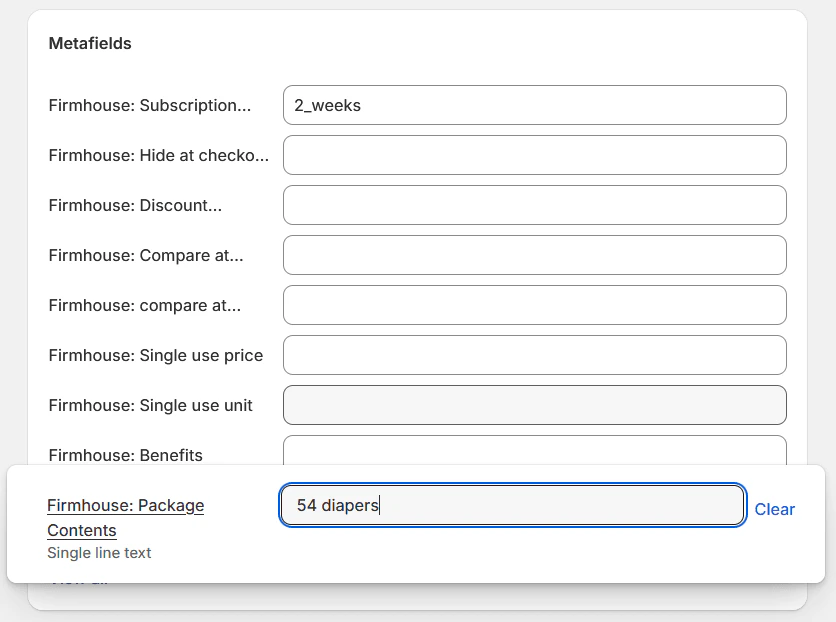
Create a simple variant metafield with the following properties:
* **Name:** Firmhouse: Package Contents
* **Namespace and Key:** `firmhouse.package_contents`
* **Type:** Single line text
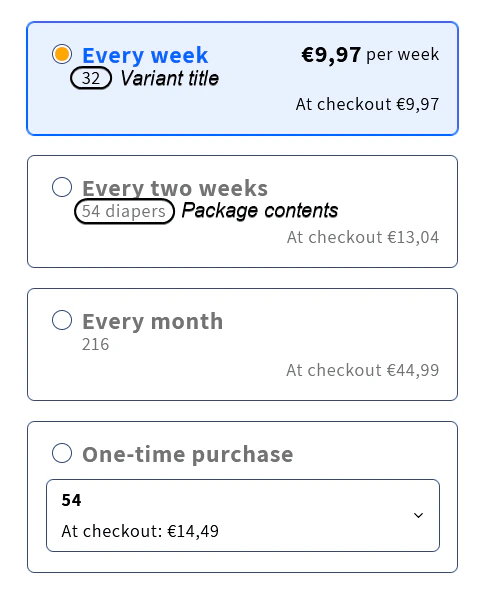
This shows customers exactly what they're getting in each package, instead of just showing the variant title.
## Making Your Subscription Options More Informative
Here are some easy ways to give your customers more details about what they're subscribing to.
### Tell Customers What's in the Box
Create a simple variant metafield with the following properties:
* **Name:** Firmhouse: Package Contents
* **Namespace and Key:** `firmhouse.package_contents`
* **Type:** Single line text
This shows customers exactly what they're getting in each package, instead of just showing the variant title.
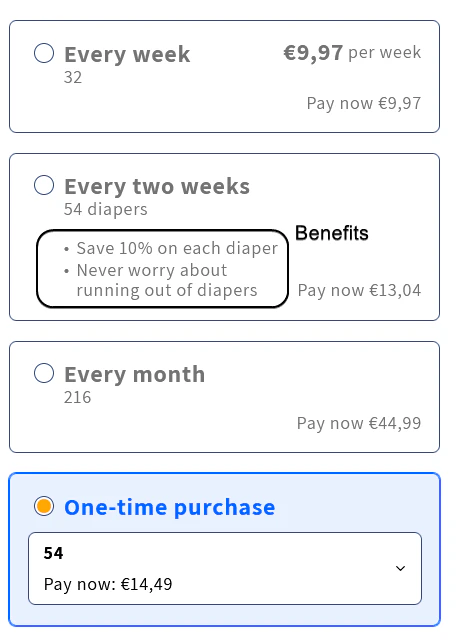
 ### Highlight the Perks of Subscribing
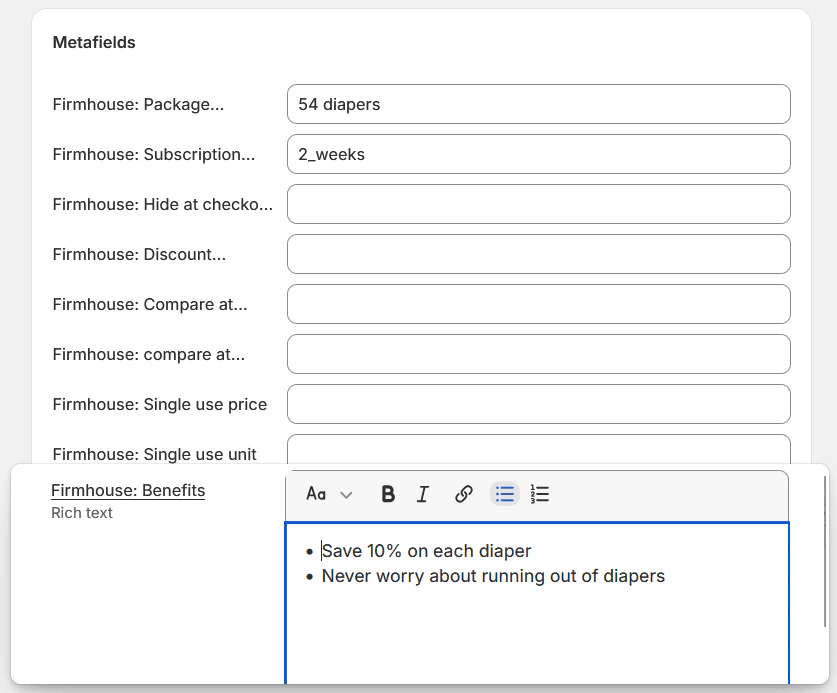
Create a variant metafield with the following properties:
* **Name:** Firmhouse: Benefits
* **Namespace and Key:** `firmhouse.benefits`
* **Type:** Rich text
This lets you add a nice list of perks that come with subscribing. It will show up right below the subscription description.
### Highlight the Perks of Subscribing
Create a variant metafield with the following properties:
* **Name:** Firmhouse: Benefits
* **Namespace and Key:** `firmhouse.benefits`
* **Type:** Rich text
This lets you add a nice list of perks that come with subscribing. It will show up right below the subscription description.
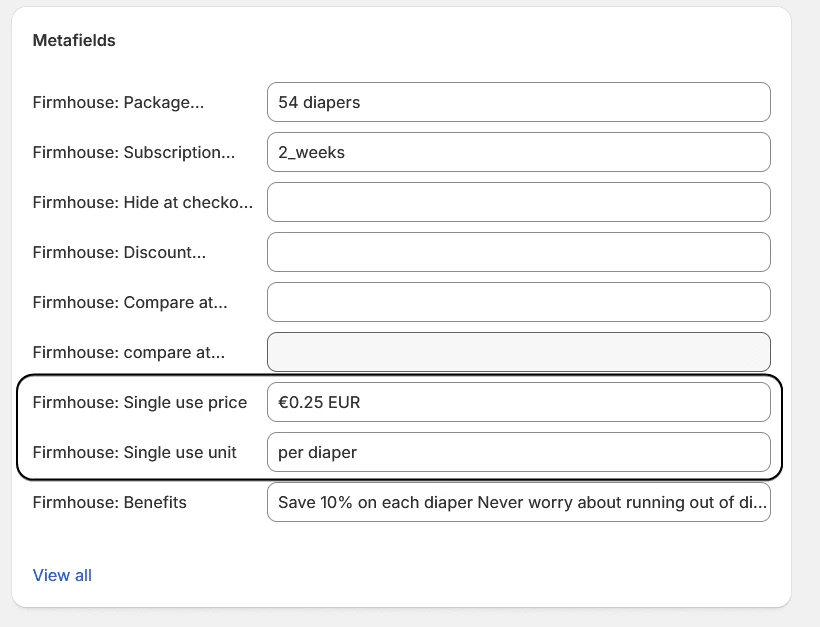
 ### Show the Value with Per-Unit Pricing
Set up these variant metafields:
**Single Use Price:**
* **Name:** Firmhouse: Single Use Price
* **Namespace and Key:** `firmhouse.single_use_price`
* **Type:** Money
**Single Use Unit (Optional):**
* **Name:** Firmhouse: Single Use Unit
* **Namespace and Key:** `firmhouse.single_use_unit`
* **Type:** Single line text
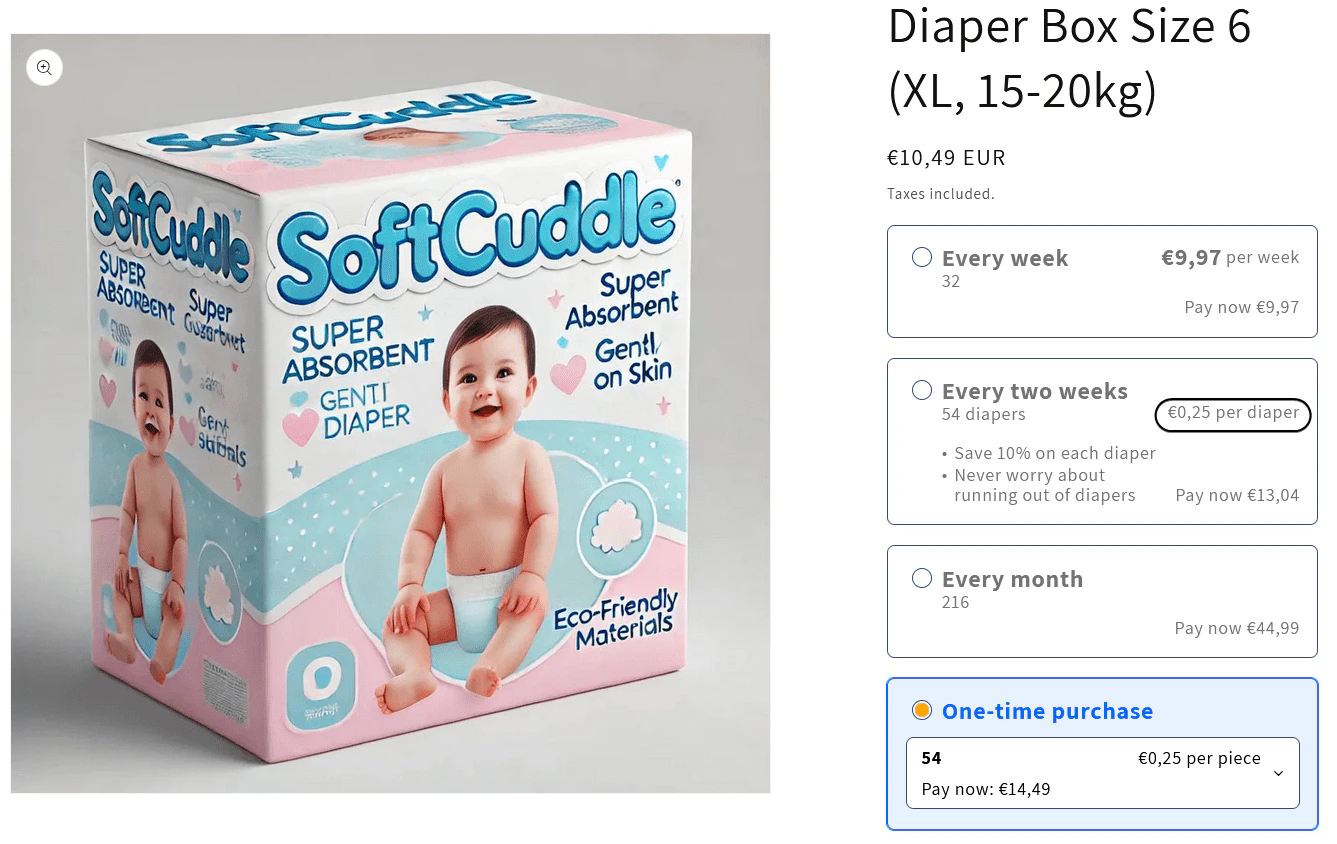
This helps customers see the value, like "\$1.25 per diaper" - making it easier to compare different options.
### Show the Value with Per-Unit Pricing
Set up these variant metafields:
**Single Use Price:**
* **Name:** Firmhouse: Single Use Price
* **Namespace and Key:** `firmhouse.single_use_price`
* **Type:** Money
**Single Use Unit (Optional):**
* **Name:** Firmhouse: Single Use Unit
* **Namespace and Key:** `firmhouse.single_use_unit`
* **Type:** Single line text
This helps customers see the value, like "\$1.25 per diaper" - making it easier to compare different options.
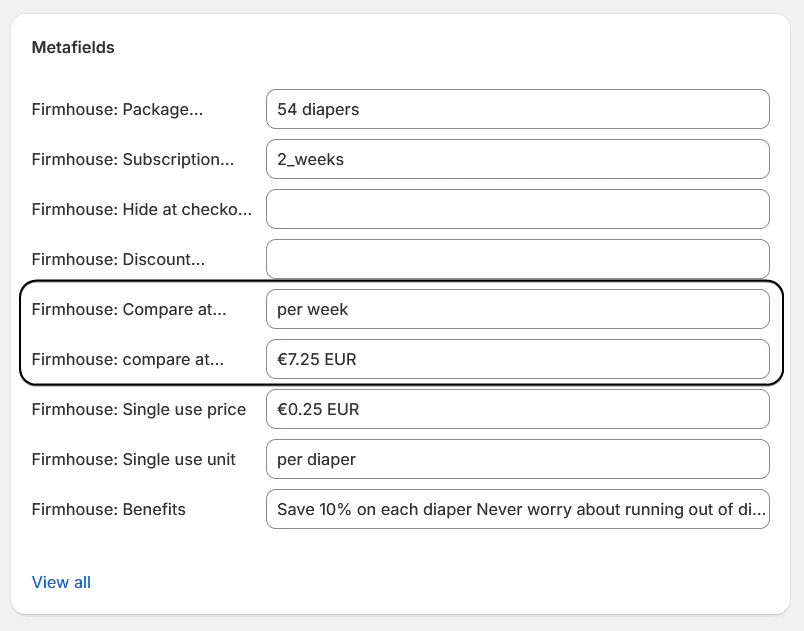
 ### Display Monthly/Weekly Value
Create these variant metafields:
**Compare At Frequency Price:**
* **Name:** Firmhouse: Compare At Frequency Price
* **Namespace and Key:** `firmhouse.compare_at_frequency_price`
* **Type:** Money
**Compare At Frequency Period (Optional):**
* **Name:** Firmhouse: Compare At Frequency Period
* **Namespace and Key:** `firmhouse.compare_at_frequency_period`
* **Type:** Single line text
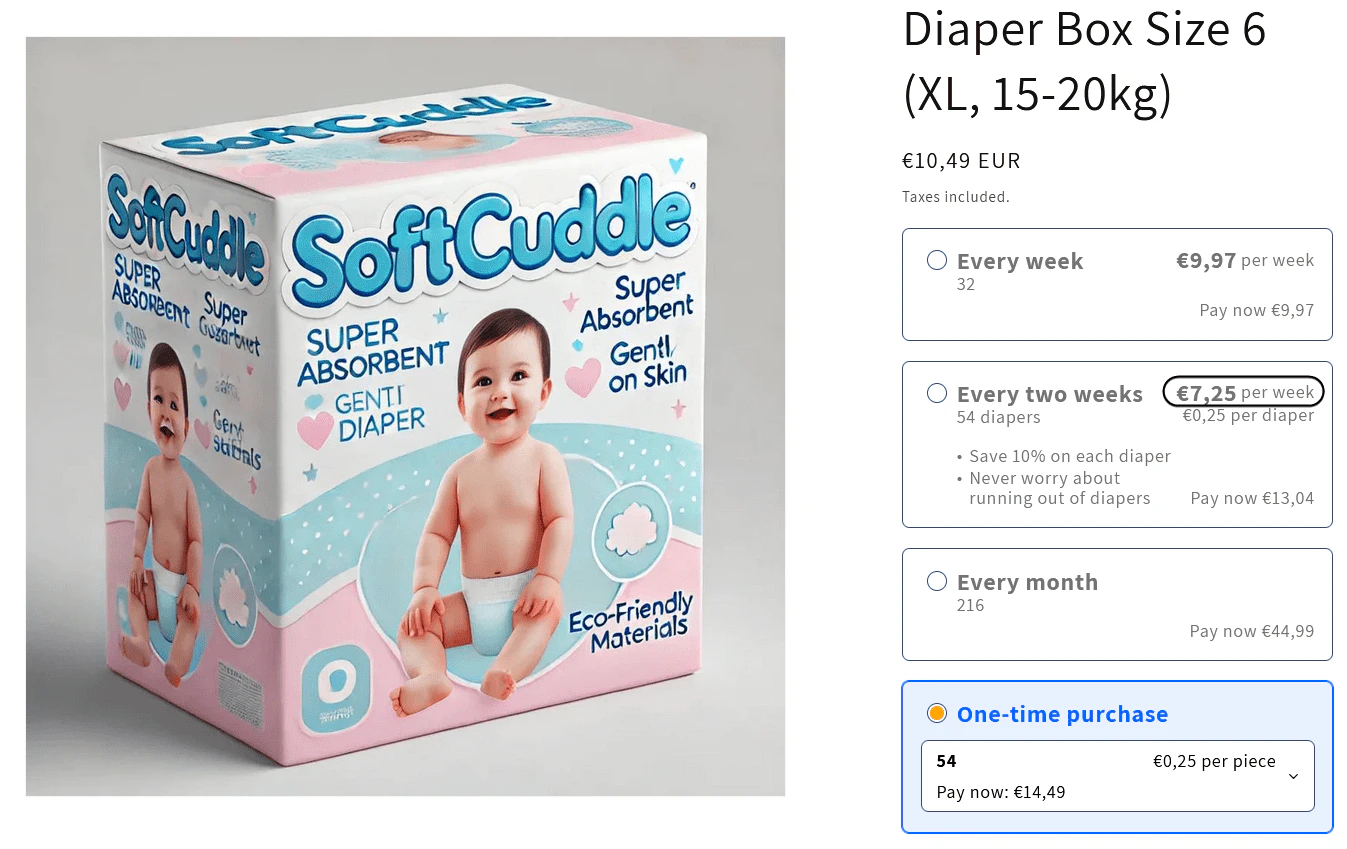
This shows customers what they're paying per time period (like "\$35 per month").
### Display Monthly/Weekly Value
Create these variant metafields:
**Compare At Frequency Price:**
* **Name:** Firmhouse: Compare At Frequency Price
* **Namespace and Key:** `firmhouse.compare_at_frequency_price`
* **Type:** Money
**Compare At Frequency Period (Optional):**
* **Name:** Firmhouse: Compare At Frequency Period
* **Namespace and Key:** `firmhouse.compare_at_frequency_period`
* **Type:** Single line text
This shows customers what they're paying per time period (like "\$35 per month").
 ### Show Off the Savings
Create a variant metafield with the following properties:
* **Name:** Firmhouse: Discount Comparison Price
* **Namespace and Key:** `firmhouse.discount_comparison_price`
* **Type:** Money
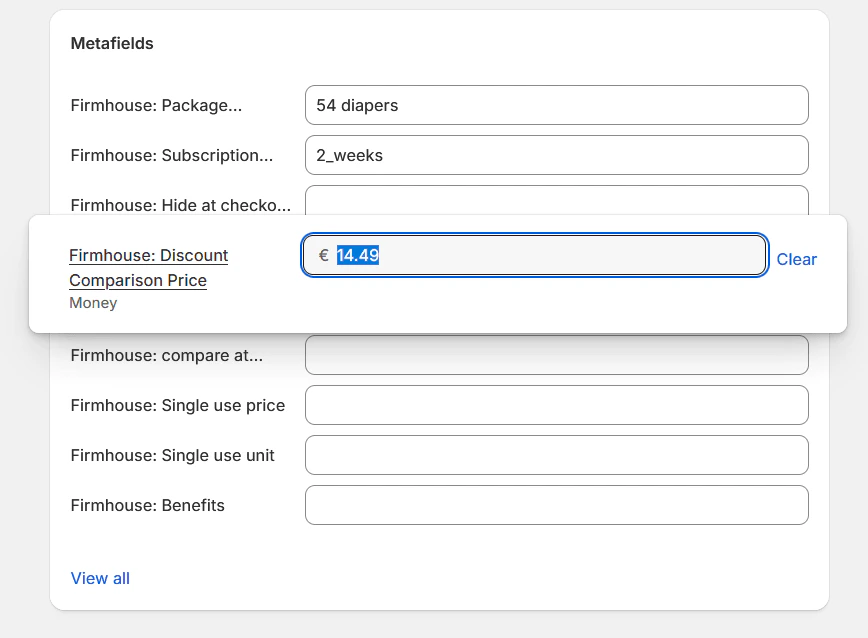
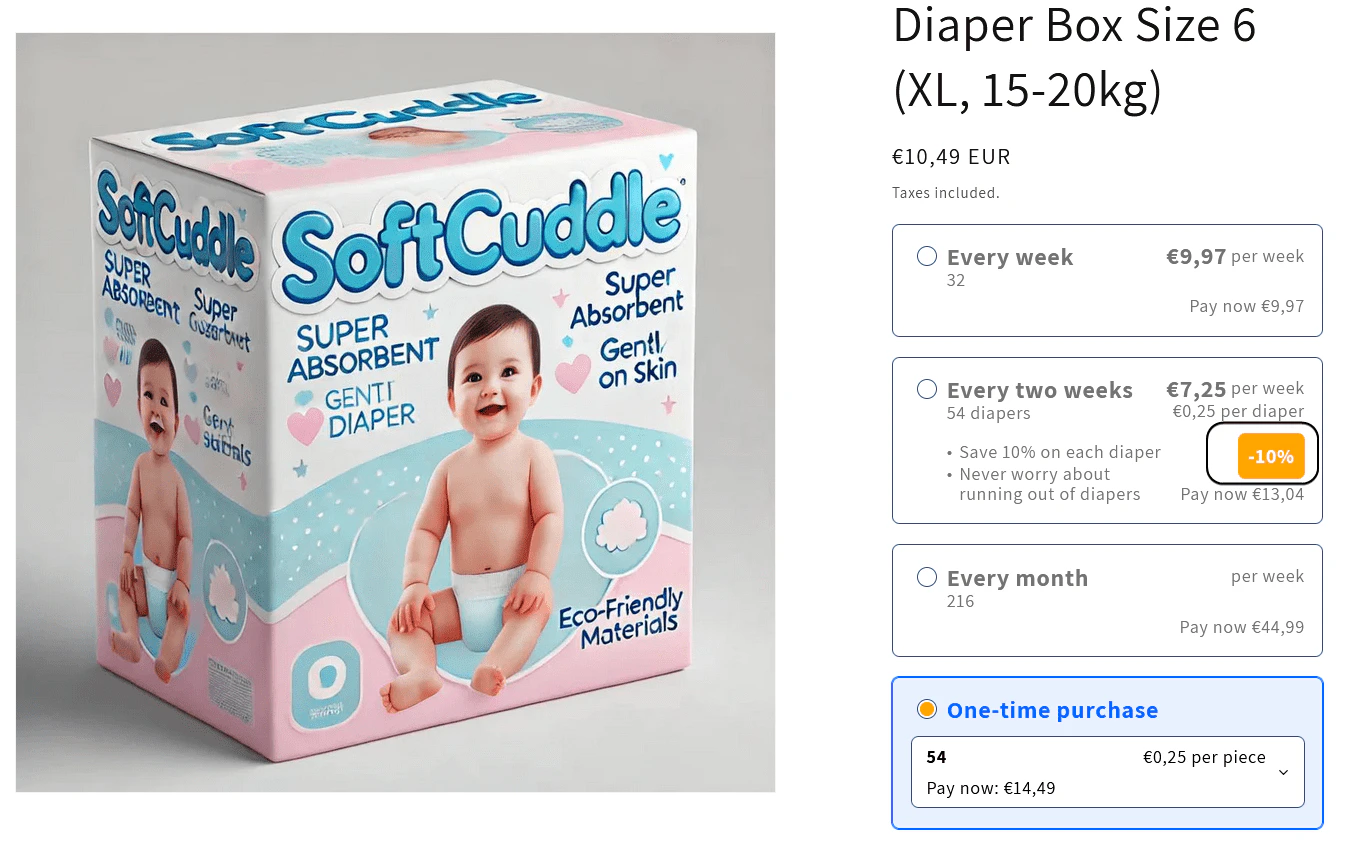
This automatically calculates and shows discount percentages, so customers can see how much they're saving by subscribing. The price here will be used as the base price for the discount calculation. Ensure that the price is set for the price point that you want to compare against.
### Show Off the Savings
Create a variant metafield with the following properties:
* **Name:** Firmhouse: Discount Comparison Price
* **Namespace and Key:** `firmhouse.discount_comparison_price`
* **Type:** Money
This automatically calculates and shows discount percentages, so customers can see how much they're saving by subscribing. The price here will be used as the base price for the discount calculation. Ensure that the price is set for the price point that you want to compare against.
 ### Keep It Clean by Hiding Checkout Prices
Create a variant metafield with the following properties:
* **Name:** Firmhouse: Hide At Checkout Price
* **Namespace and Key:** `firmhouse.hide_at_checkout_price`
* **Type:** True or false
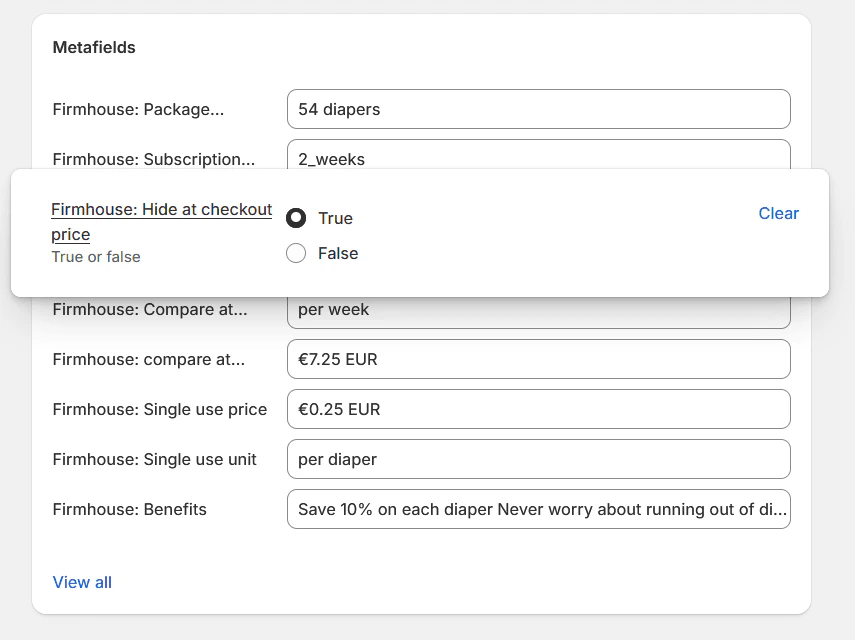
Set to `true` if you want to hide the "At checkout" price on subscription options for a cleaner look.
### Keep It Clean by Hiding Checkout Prices
Create a variant metafield with the following properties:
* **Name:** Firmhouse: Hide At Checkout Price
* **Namespace and Key:** `firmhouse.hide_at_checkout_price`
* **Type:** True or false
Set to `true` if you want to hide the "At checkout" price on subscription options for a cleaner look.
 ### One-Time Purchase Per-Unit Pricing
To show different per-unit pricing for one-time purchases than for subscription options, create these variant metafields:
**One-Time Purchase Single Use Price:**
* **Name:** Firmhouse: One-Time Purchase Single Use Price
* **Namespace and Key:** `firmhouse.otp_single_use_price`
* **Type:** Money
**One-Time Purchase Single Use Unit (Optional):**
* **Name:** Firmhouse: One-Time Purchase Single Use Unit
* **Namespace and Key:** `firmhouse.otp_single_use_unit`
* **Type:** Single line text
These metafields work like the subscription single\_use\_price and single\_use\_unit but apply only to one-time purchase options. If not set, the widget falls back to the subscription single\_use\_price and single\_use\_unit metafields. This lets you show different per-unit pricing for one-time purchases versus subscriptions.
## Customizing the Appearance and Behavior
The Subscription First theme block offers several customization options to match your store's design and functionality needs. In the theme editor, select the Subscription First block and you'll see these settings:
### Behavior Settings
* **Hide Quantity for Subscriptions:** When enabled, hides the quantity input for subscription options and always uses '1' as the quantity (Optional)
* **Hide One Time Select:** Hides the one-time product selection until the option is chosen (Optional)
* **Default to One Time Purchase:** When enabled, the one-time purchase option will be selected by default instead of the first subscription option (Optional)
### Content and Labels
* **Preferred Option Label:** Text to display on the badge for the preferred subscription option (Optional)
* **At Checkout Label:** Customize the "At checkout:" text that appears before the price (Default: "At checkout:")
* **One Time Purchase Label:** Customize the text for the one-time purchase option (Optional)
### Styling Options
The widget offers extensive styling options including base font size, option text color, option border color, option background color, selected option text color, selected option name text color, selected option background color, selected option border color, selected option border width, option hover border color, selected option radio color, preferred option badge text color, discount background color, discount text color, option border radius, and option border width.
Aside from these settings you can always use custom CSS to customize the widget even more.
### Advanced Settings
* **Featured Subscription Variants Key:** The metafield key for subscription variants (Default: `featured_subscription_variants`). If you would like to offer different variants for subscriptions on each market you can use a dynamic value here to use different metafields for each market.
* **Featured One Time Variants Key:** The metafield key for one-time purchase variants (Default: `featured_one_time_variants`). If you would like to offer different variants for subscriptions and one-time purchases in different markets, you can use dynamic values for both keys.
* **Quantity Selector:** CSS selector for the quantity input to hide when subscription is selected (Default: "quantity-input, quantity-selector, block-quantity-selector, .product-form\_\_quantity")
### One-Time Purchase Per-Unit Pricing
To show different per-unit pricing for one-time purchases than for subscription options, create these variant metafields:
**One-Time Purchase Single Use Price:**
* **Name:** Firmhouse: One-Time Purchase Single Use Price
* **Namespace and Key:** `firmhouse.otp_single_use_price`
* **Type:** Money
**One-Time Purchase Single Use Unit (Optional):**
* **Name:** Firmhouse: One-Time Purchase Single Use Unit
* **Namespace and Key:** `firmhouse.otp_single_use_unit`
* **Type:** Single line text
These metafields work like the subscription single\_use\_price and single\_use\_unit but apply only to one-time purchase options. If not set, the widget falls back to the subscription single\_use\_price and single\_use\_unit metafields. This lets you show different per-unit pricing for one-time purchases versus subscriptions.
## Customizing the Appearance and Behavior
The Subscription First theme block offers several customization options to match your store's design and functionality needs. In the theme editor, select the Subscription First block and you'll see these settings:
### Behavior Settings
* **Hide Quantity for Subscriptions:** When enabled, hides the quantity input for subscription options and always uses '1' as the quantity (Optional)
* **Hide One Time Select:** Hides the one-time product selection until the option is chosen (Optional)
* **Default to One Time Purchase:** When enabled, the one-time purchase option will be selected by default instead of the first subscription option (Optional)
### Content and Labels
* **Preferred Option Label:** Text to display on the badge for the preferred subscription option (Optional)
* **At Checkout Label:** Customize the "At checkout:" text that appears before the price (Default: "At checkout:")
* **One Time Purchase Label:** Customize the text for the one-time purchase option (Optional)
### Styling Options
The widget offers extensive styling options including base font size, option text color, option border color, option background color, selected option text color, selected option name text color, selected option background color, selected option border color, selected option border width, option hover border color, selected option radio color, preferred option badge text color, discount background color, discount text color, option border radius, and option border width.
Aside from these settings you can always use custom CSS to customize the widget even more.
### Advanced Settings
* **Featured Subscription Variants Key:** The metafield key for subscription variants (Default: `featured_subscription_variants`). If you would like to offer different variants for subscriptions on each market you can use a dynamic value here to use different metafields for each market.
* **Featured One Time Variants Key:** The metafield key for one-time purchase variants (Default: `featured_one_time_variants`). If you would like to offer different variants for subscriptions and one-time purchases in different markets, you can use dynamic values for both keys.
* **Quantity Selector:** CSS selector for the quantity input to hide when subscription is selected (Default: "quantity-input, quantity-selector, block-quantity-selector, .product-form\_\_quantity")