> ## Documentation Index
> Fetch the complete documentation index at: https://docs.firmhouse.com/llms.txt
> Use this file to discover all available pages before exploring further.
# Custom descriptions for subscription options
> Configure custom descriptions for each selling plan on the Subscription Options widget using a Shopify metaobject definition and per-plan entries.
The card layout on the Subscription Options widget supports configuring custom descriptions for each plan. This configuration uses a custom metaobject definition in Shopify. First, you need to create the metaobject definition, then add entries for each selling plan.
## Step 1: Create the Metaobject Definition
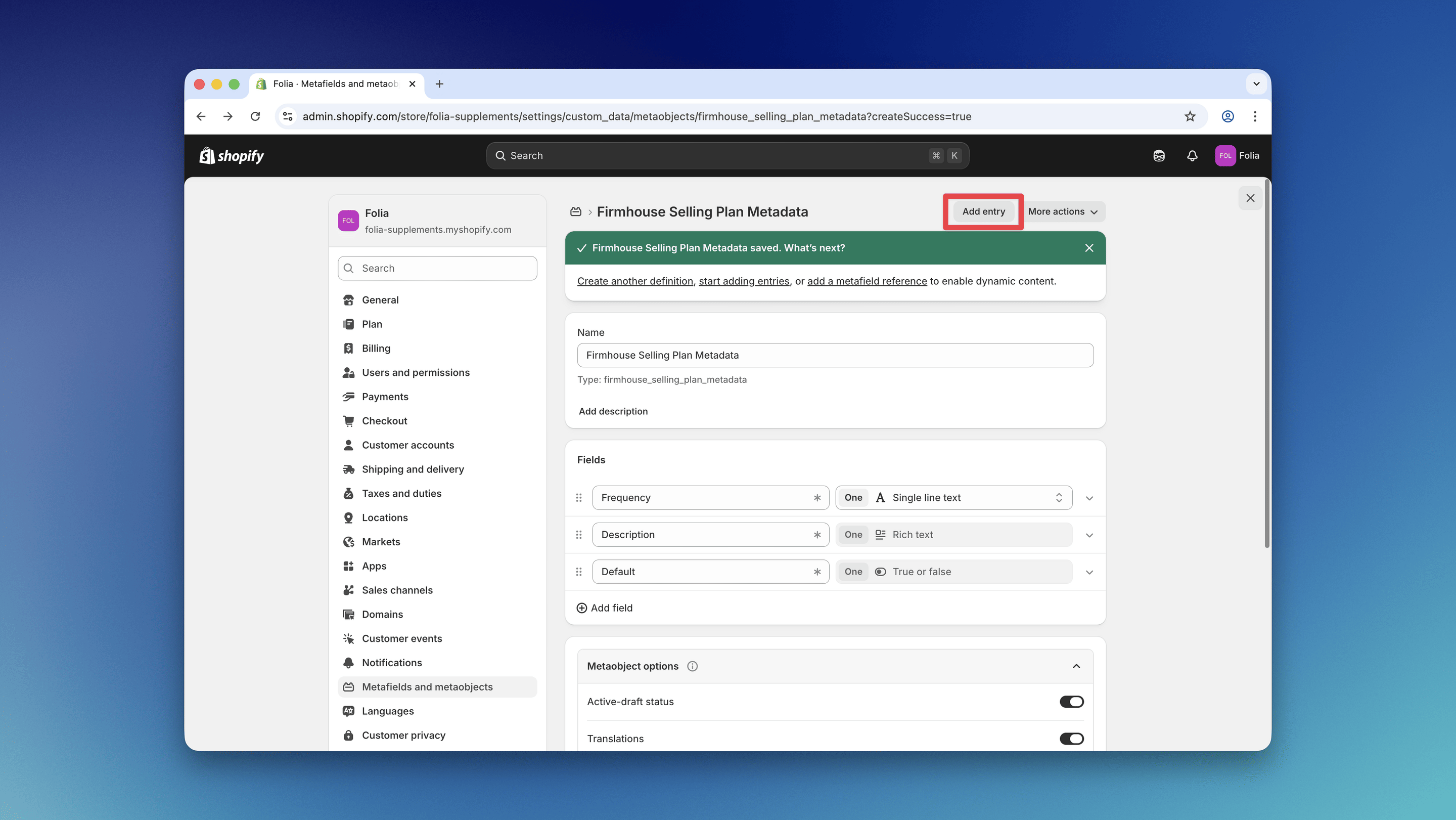
First, create a metaobject definition in your Shopify admin under Settings > Metafields and metaobjects > Metaobject definitions > add definition
* **Name:** `Firmhouse Selling Plan Metadata`
* **Type:** `firmhouse_selling_plan_metadata`
Then add these fields to the metaobject definition:
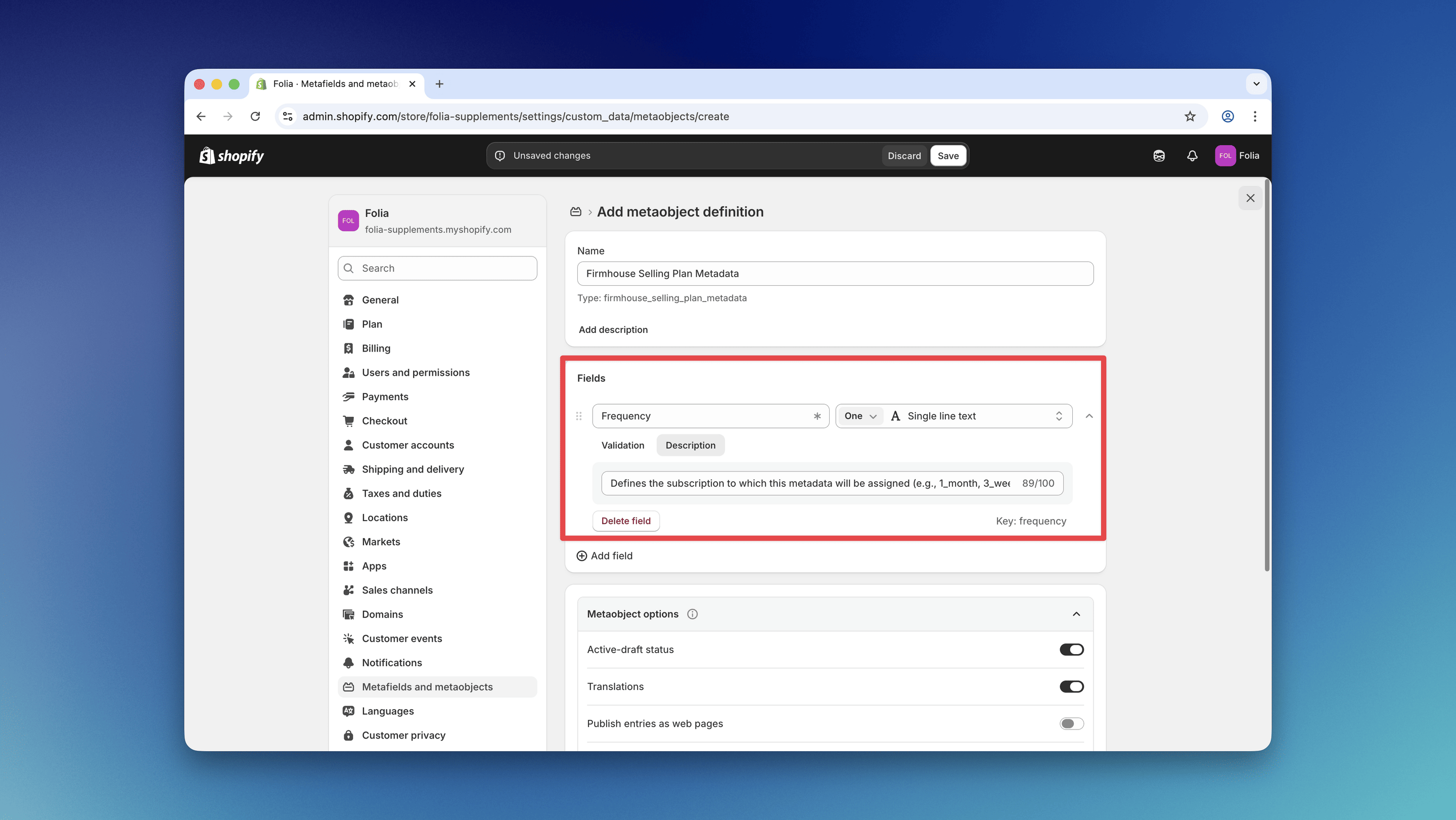
### Frequency Field
* **Type:** Single line text
* **Name:** Frequency
* **Key:** `frequency`
* **Description:** Defines the subscription to which this metadata will be assigned (e.g., 1\_month, 3\_weeks)
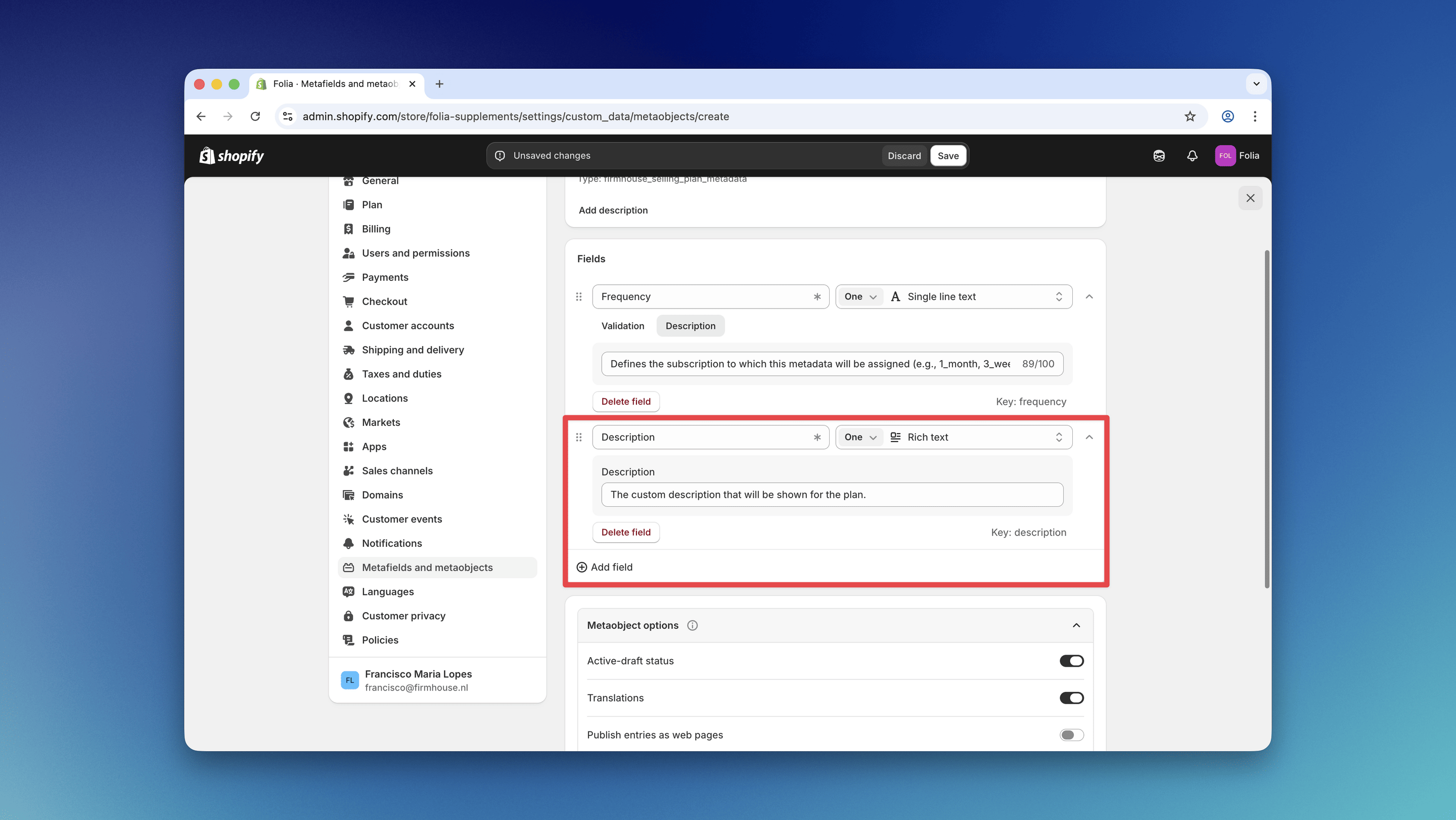
 ### Description Field
* **Type:** Rich text
* **Name:** Description
* **Key:** `description`
* **Description:** The custom description that will be shown for the plan.
### Description Field
* **Type:** Rich text
* **Name:** Description
* **Key:** `description`
* **Description:** The custom description that will be shown for the plan.
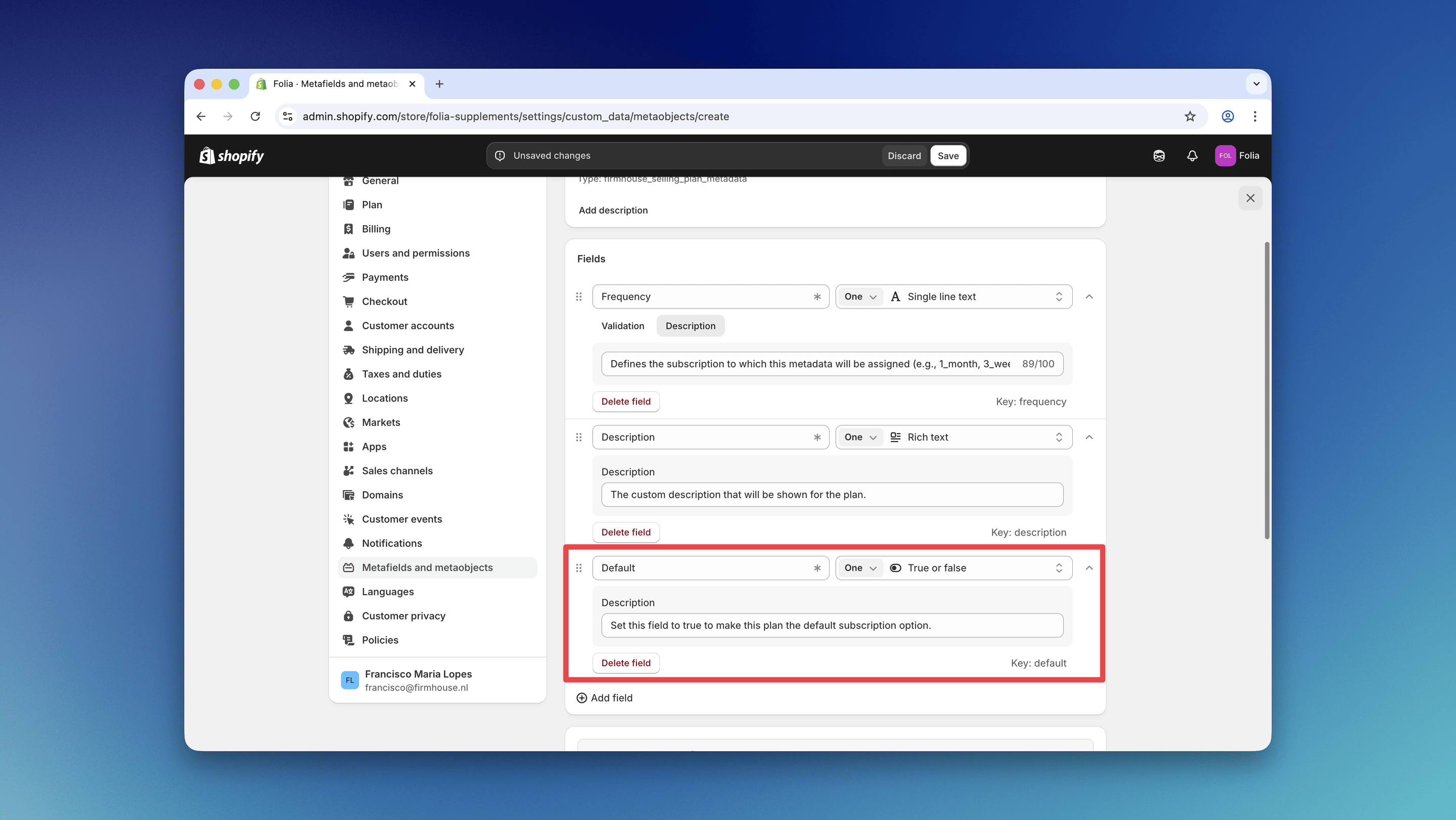
 ### Default Field
* **Type:** True or false
* **Name:** Default
* **Key:** `default`
* **Description:** Set this field to true to make this plan the default subscription option.
### Default Field
* **Type:** True or false
* **Name:** Default
* **Key:** `default`
* **Description:** Set this field to true to make this plan the default subscription option.
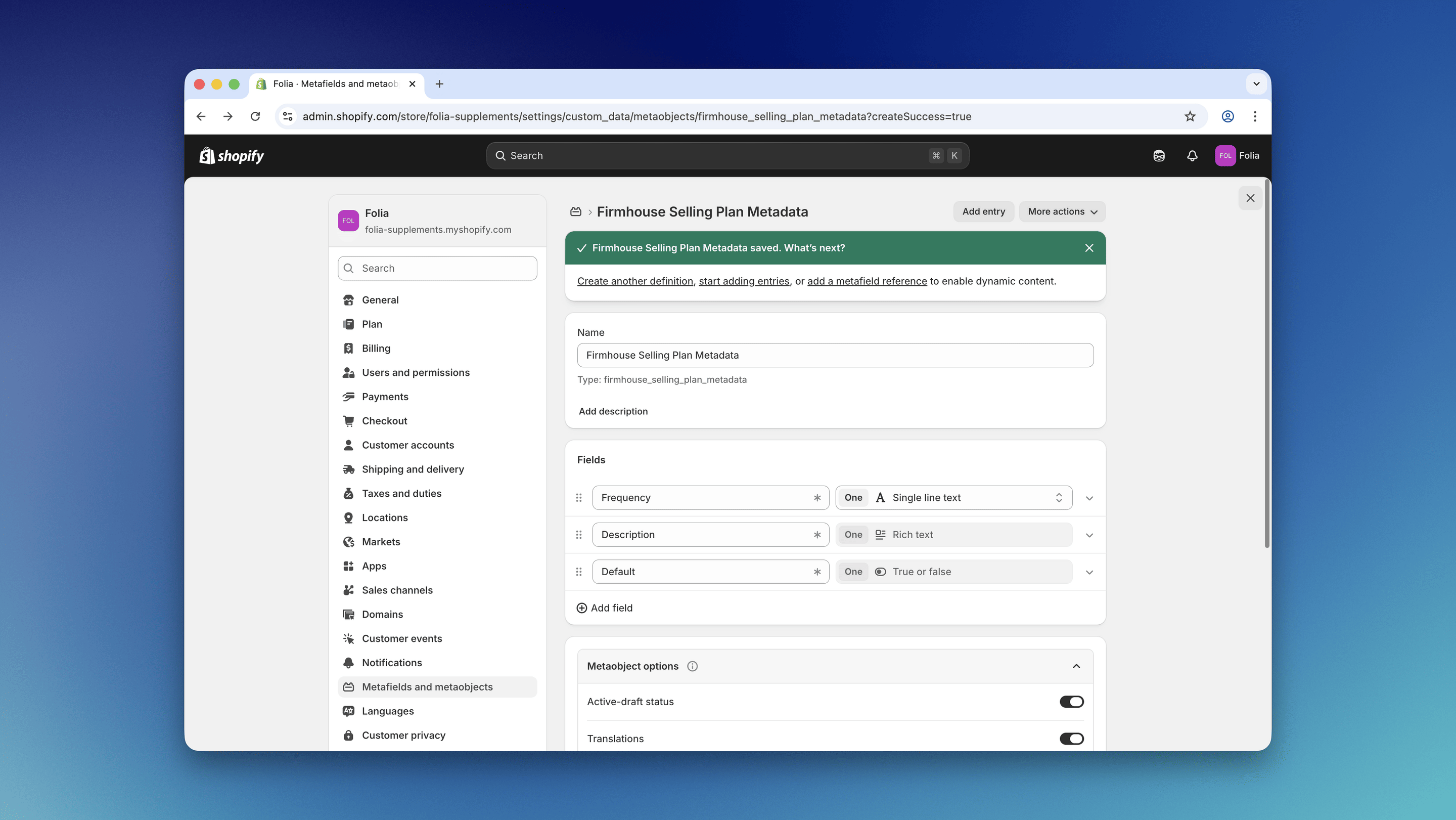
 After adding all fields, save the definition.
 ## Step 2: Create Metaobjects for Each Plan
Now that the metaobject definition is ready, you can start adding the configuration for each plan by clicking the **Add entry** button on the metaobject definition page.
## Step 2: Create Metaobjects for Each Plan
Now that the metaobject definition is ready, you can start adding the configuration for each plan by clicking the **Add entry** button on the metaobject definition page.
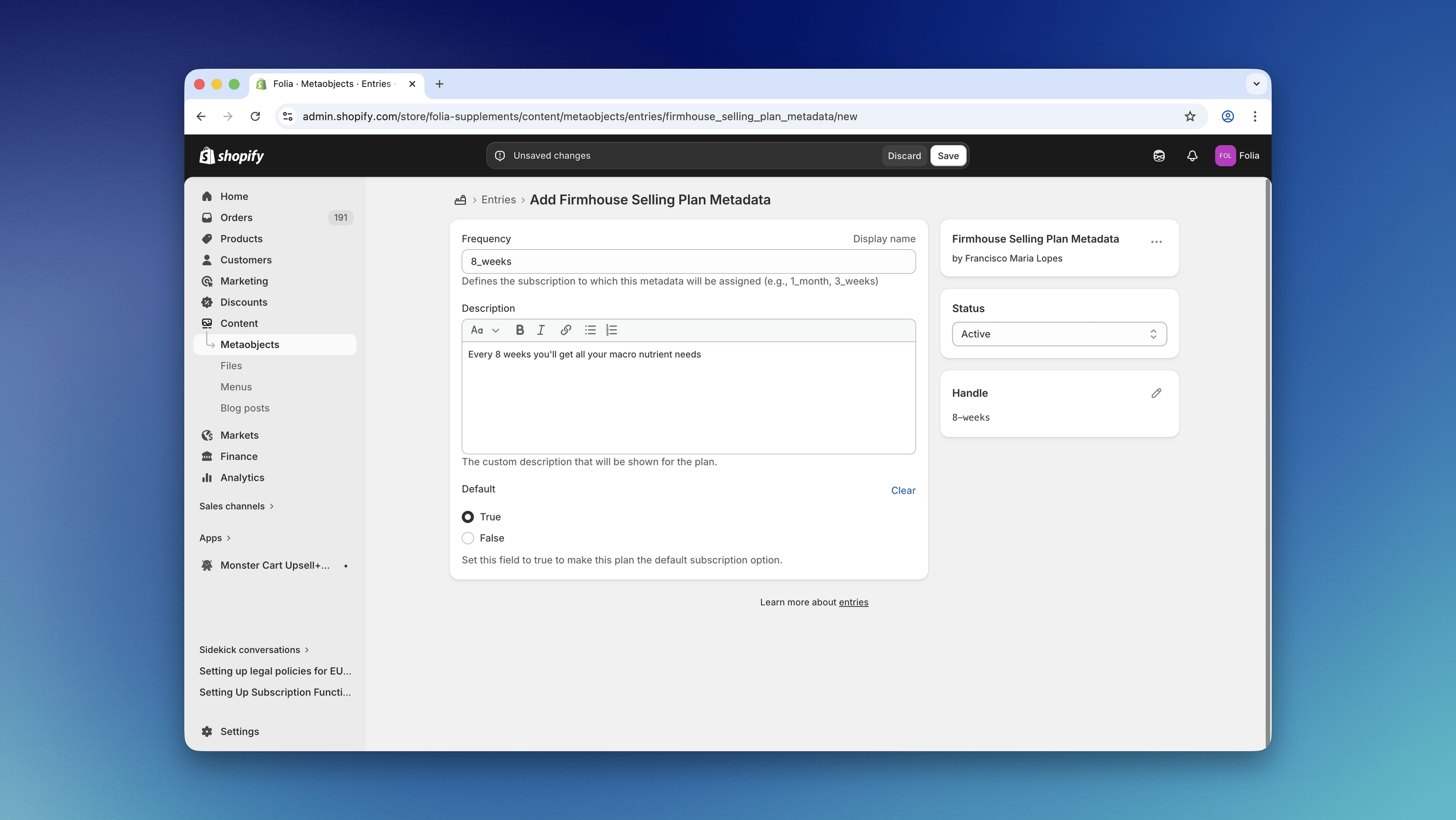
 In the frequency field, enter the frequency configured on Firmhouse for your plan in the format `_` (e.g., `1_week`, `2_months`, `15_days`, `1_year`). To create a default description for all options without a matching metaobject, use `default` as the frequency field value.
If you use `placeholder` as the frequency value, that description is shown when the placeholder option is visible on initial page load (with **Require plan selection confirmation** enabled).
In the frequency field, enter the frequency configured on Firmhouse for your plan in the format `_` (e.g., `1_week`, `2_months`, `15_days`, `1_year`). To create a default description for all options without a matching metaobject, use `default` as the frequency field value.
If you use `placeholder` as the frequency value, that description is shown when the placeholder option is visible on initial page load (with **Require plan selection confirmation** enabled).
 ## Step 3: Add the Metaobjects to Widget Configuration
You can now assign the metaobjects to the Subscription Options configuration.
### Steps
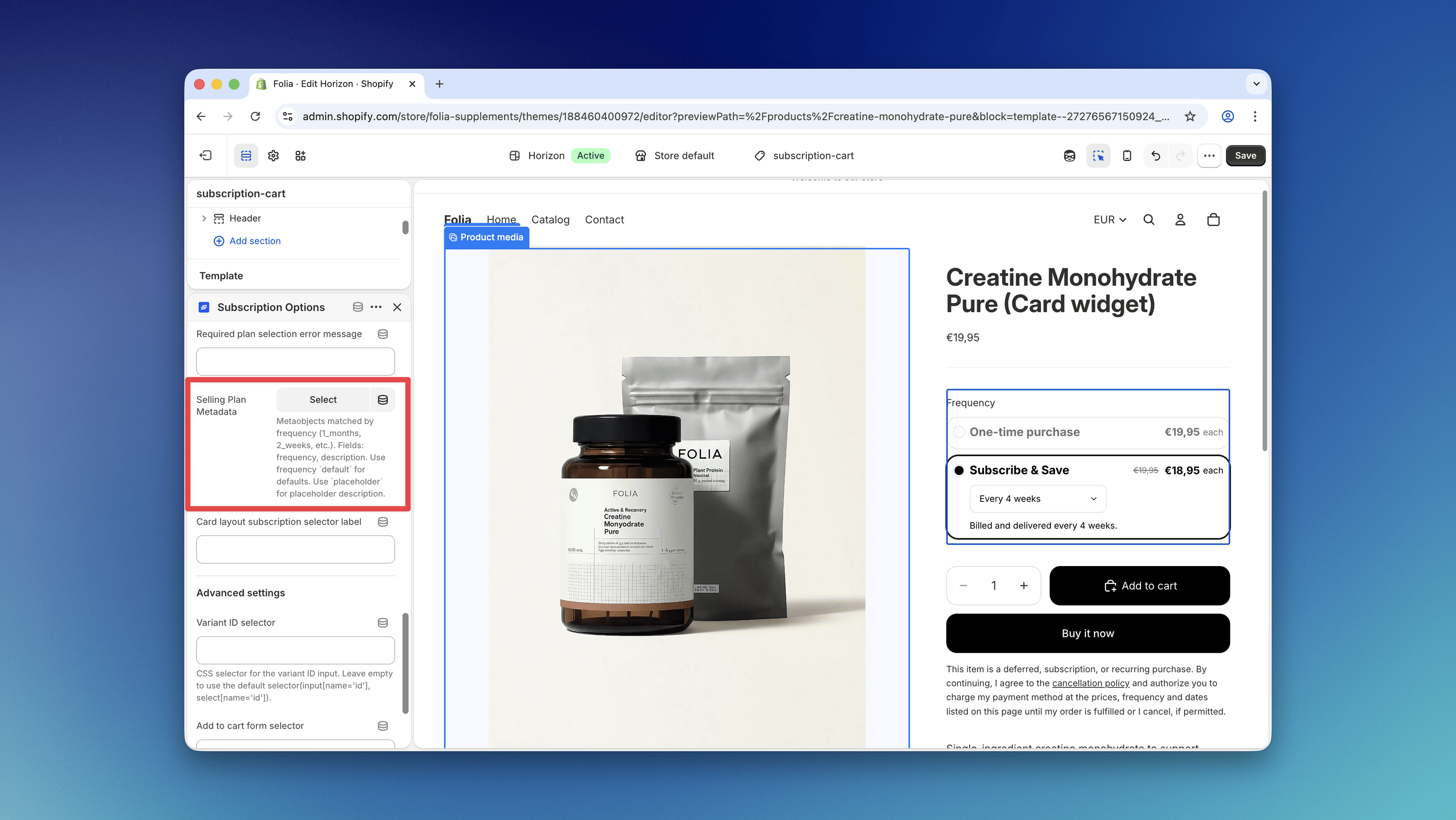
1. Go to the theme editor and open the Subscription Options widget settings.
2. Scroll down to the **Card Layout Settings** section.
3. Click the **Select** button next to the **Selling Plan Metadata** field.
4. Select all the options you have configured.
## Step 3: Add the Metaobjects to Widget Configuration
You can now assign the metaobjects to the Subscription Options configuration.
### Steps
1. Go to the theme editor and open the Subscription Options widget settings.
2. Scroll down to the **Card Layout Settings** section.
3. Click the **Select** button next to the **Selling Plan Metadata** field.
4. Select all the options you have configured.
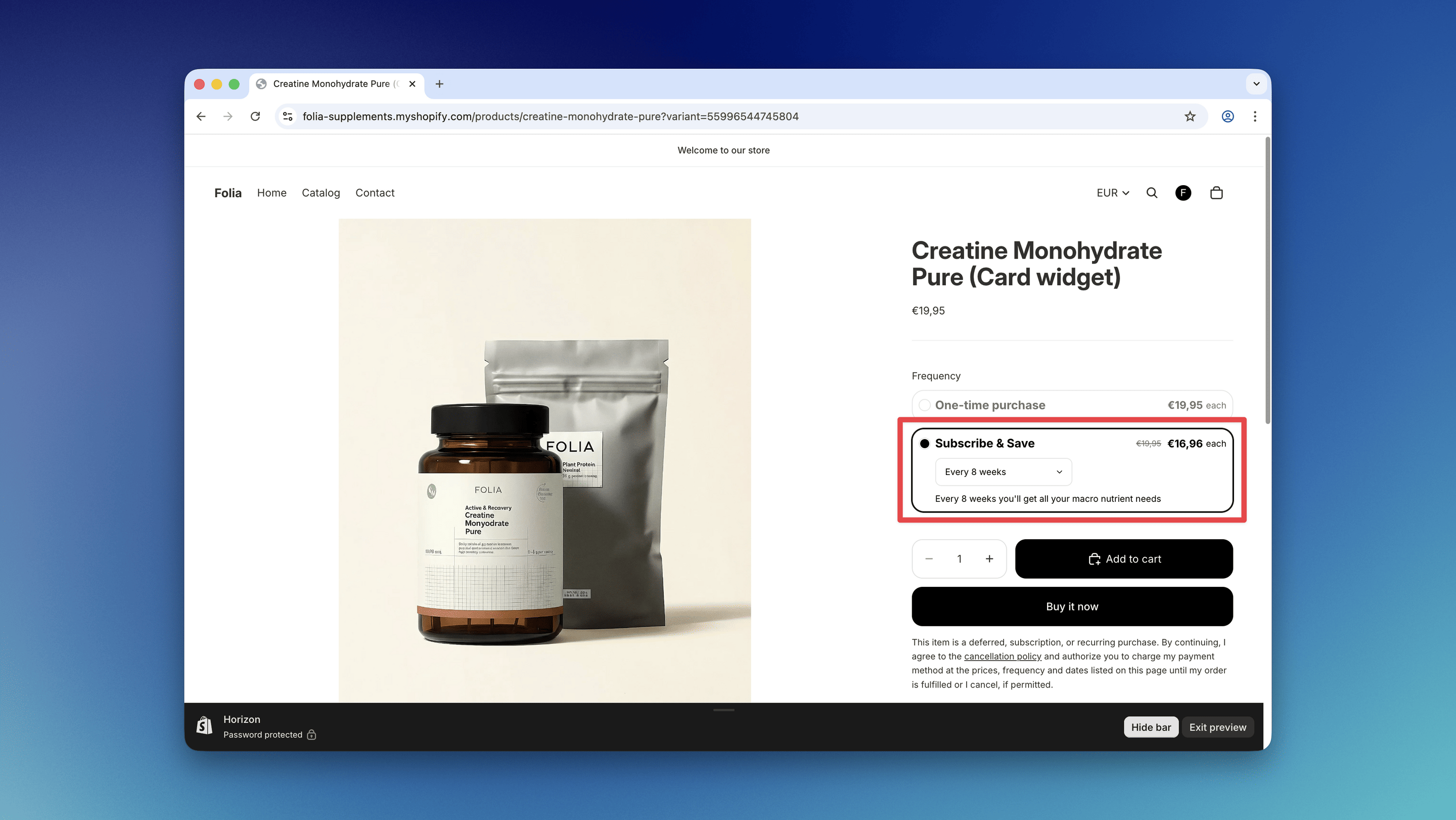
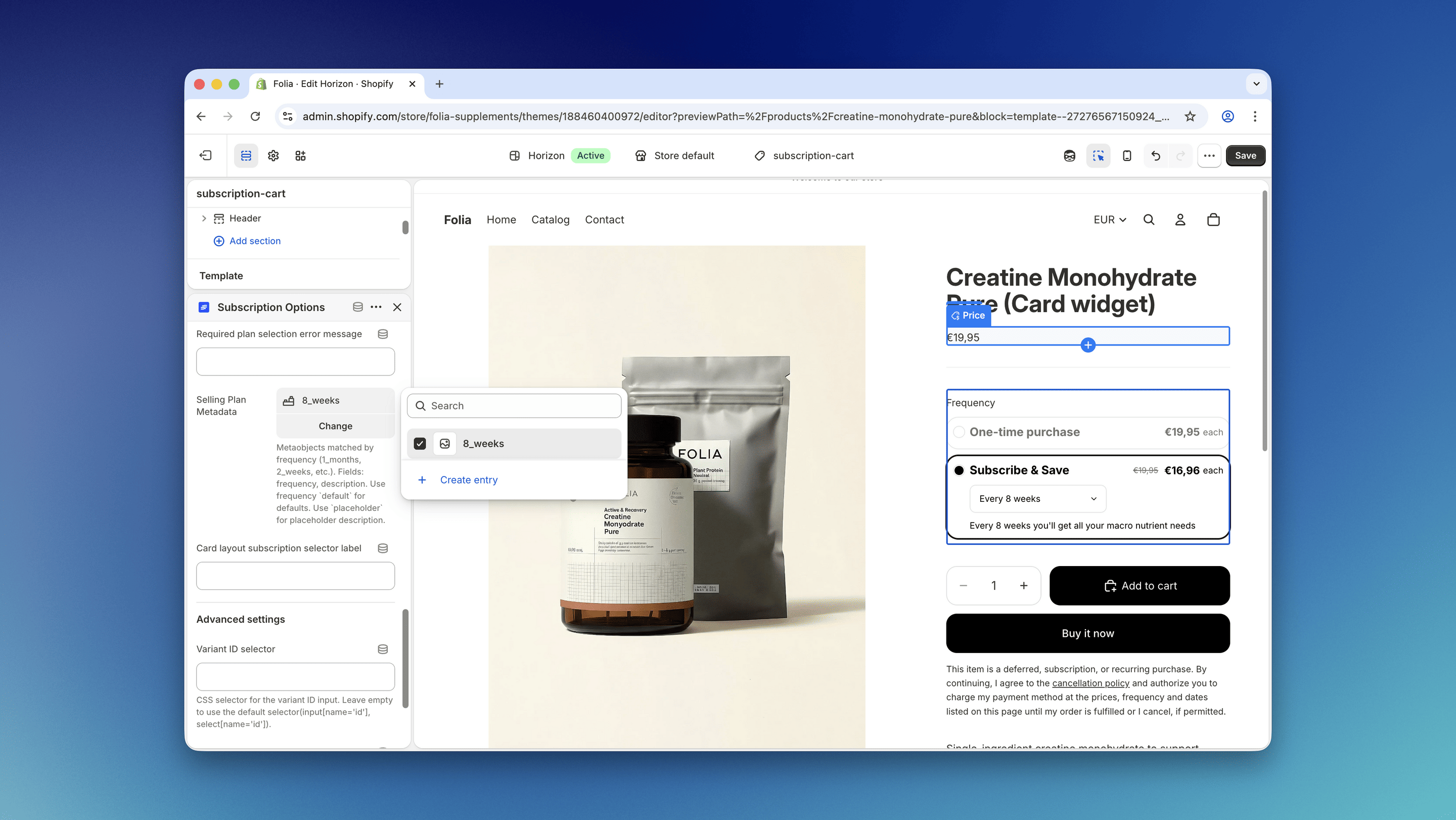 Once added, confirm that the descriptions appear for each option. If everything looks correct, you're all set!
 ## Optional: Require Explicit Plan Selection (Card Layout)
If you use the card layout, you can require customers to explicitly pick a plan before adding a subscription to cart.
### Steps
1. In the Shopify theme editor, open the **Subscription Options** block settings.
2. In **Card layout settings**, enable **Require plan selection confirmation**.
3. Optionally set:
* **Placeholder text**: shown as the first option in the frequency selector.
* **Plan selection error message**: custom error text shown when the customer tries to add to cart without selecting a plan.
### How it behaves
* The frequency selector starts with a placeholder option.
* If the customer clicks Add to cart while the placeholder is still selected, they will see:
* an inline error message in the subscription card (above the plan description)
* a red error highlight on the plan selector dropdown
* After a valid plan is selected, the error state is removed and Add to cart works normally.
## Step 4 (Optional): Translate Your Metaobject Content
If your store supports multiple languages, you can translate the metaobject content using the **Translate & Adapt** app.
### Steps
1. Go to the Metaobject translation section in the Translate & Adapt app.
2. From the top bar, select the **market** and **language** you want to translate the content for.
3. On the sidebar, select the metaobject you created for the widget metadata (for example, **Firmhouse Selling Plan Metadata**), and update the translations for each field (such as the **Description** field).
4. Save your changes and test on your storefront by switching to the translated language.
## Optional: Require Explicit Plan Selection (Card Layout)
If you use the card layout, you can require customers to explicitly pick a plan before adding a subscription to cart.
### Steps
1. In the Shopify theme editor, open the **Subscription Options** block settings.
2. In **Card layout settings**, enable **Require plan selection confirmation**.
3. Optionally set:
* **Placeholder text**: shown as the first option in the frequency selector.
* **Plan selection error message**: custom error text shown when the customer tries to add to cart without selecting a plan.
### How it behaves
* The frequency selector starts with a placeholder option.
* If the customer clicks Add to cart while the placeholder is still selected, they will see:
* an inline error message in the subscription card (above the plan description)
* a red error highlight on the plan selector dropdown
* After a valid plan is selected, the error state is removed and Add to cart works normally.
## Step 4 (Optional): Translate Your Metaobject Content
If your store supports multiple languages, you can translate the metaobject content using the **Translate & Adapt** app.
### Steps
1. Go to the Metaobject translation section in the Translate & Adapt app.
2. From the top bar, select the **market** and **language** you want to translate the content for.
3. On the sidebar, select the metaobject you created for the widget metadata (for example, **Firmhouse Selling Plan Metadata**), and update the translations for each field (such as the **Description** field).
4. Save your changes and test on your storefront by switching to the translated language.
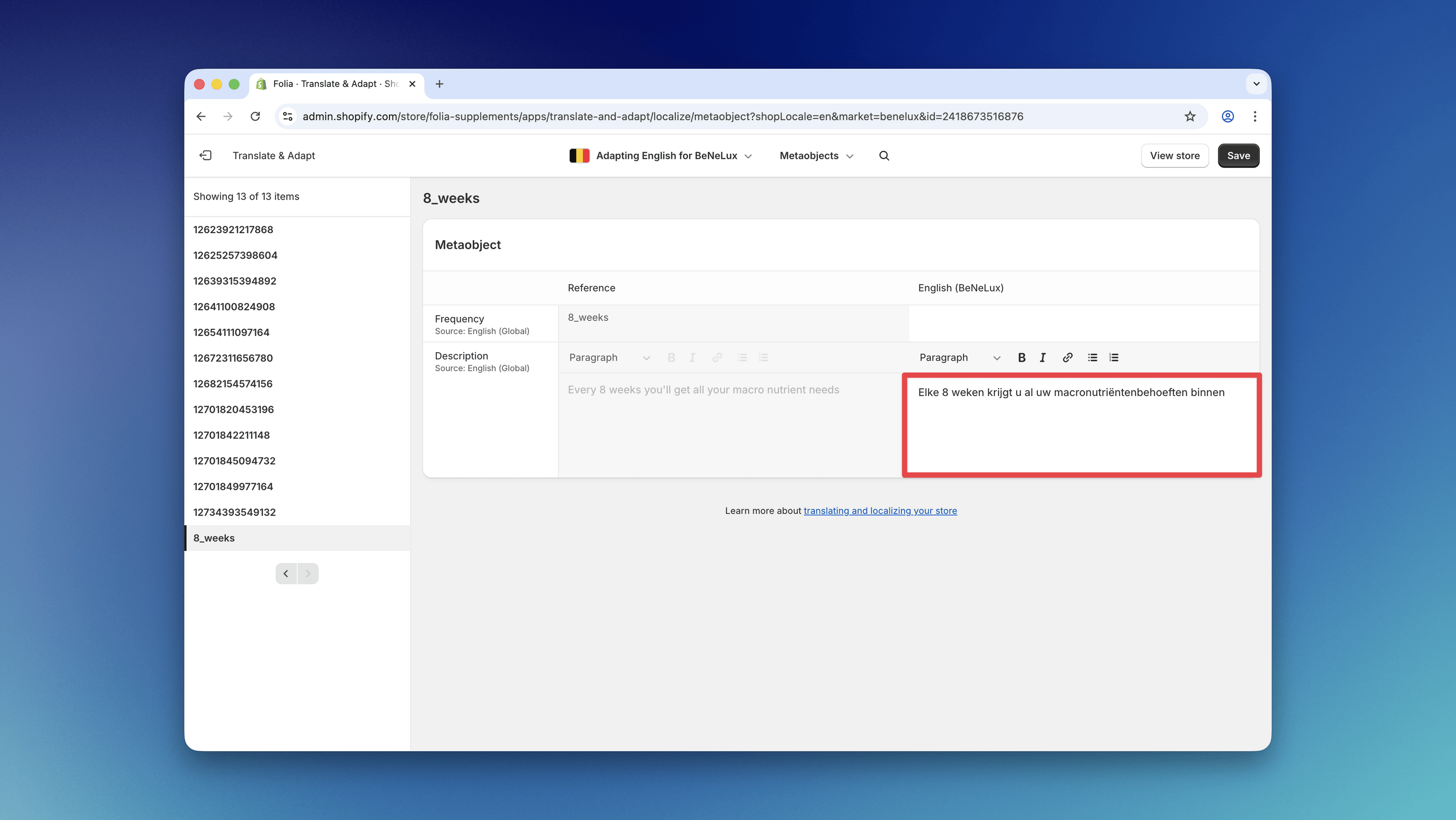 **Note:** Do not translate the frequency values like `2_months`, `4_months`, etc., otherwise the translation will not work correctly.