> ## Documentation Index
> Fetch the complete documentation index at: https://docs.firmhouse.com/llms.txt
> Use this file to discover all available pages before exploring further.
# Translate Subscription First widget labels
> Translate the Preferred Option Label and other text fields in the Firmhouse Subscription First Shopify theme block using translatable metaobjects and dynamic sources.
Text fields in the **Subscription First** theme block, such as **Preferred Option Label**, do not always appear as translatable theme content in Shopify Translate & Adapt. To translate these fields, create a translatable Shopify metaobject and connect its value to the relevant field as a dynamic source.
This guide uses **Preferred Option Label** as an example. You can follow the same process for other compatible text fields in the Subscription First block, including **At Checkout Label** and **One Time Purchase Label**.
This process translates labels configured in the **Subscription First** theme block. It does not translate selling plan names such as "1 month" or "12 months prepaid." For those, see [Translate selling plan names](/configure/international-and-markets/translate-selling-plans).
## Before you start
Make sure that:
* The target language has been added and published in Shopify.
* Shopify Translate & Adapt is installed.
* You know which product template contains the Subscription First block.
* You have a duplicate or unpublished theme on which you can test the change before applying it to your live theme.
## Step 1: Create a translatable metaobject definition
You only need to create this definition once. You can then add a separate entry for every Subscription First label that you want to translate.
1. In Shopify, go to **Settings > Metafields and metaobjects**.
2. In the **Metaobjects** section, open **Definitions** and click **Add definition**.
3. Enter `Firmhouse translations` as the definition name.
4. Add a field named `Value` and set its type to **Single line text**.
5. Under **Metaobject options**, enable **Translations**.
6. Save the definition.
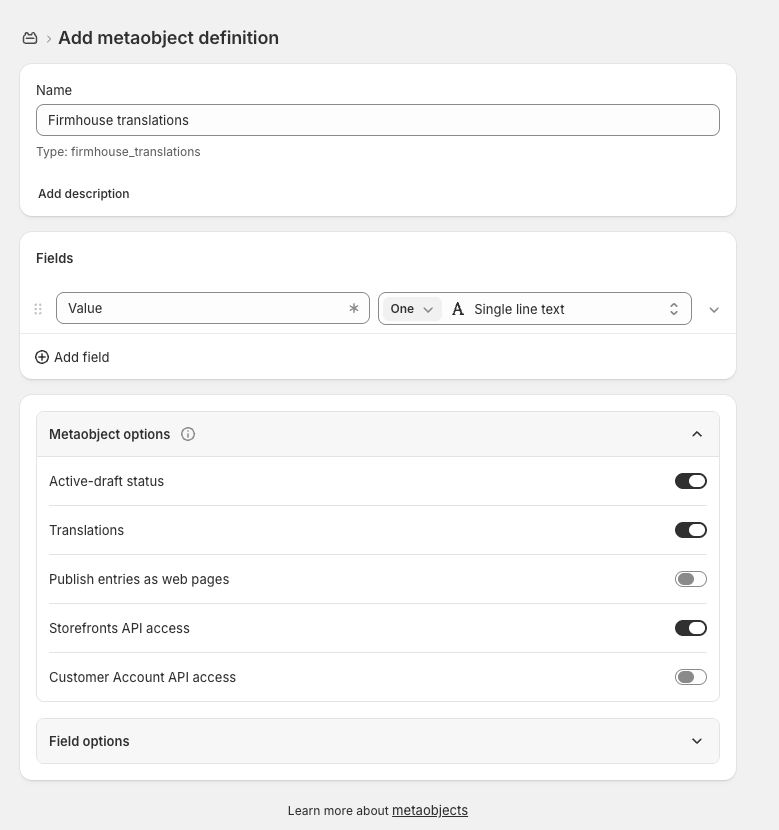 **Translations** must be enabled. Otherwise, entries created from this definition will not be available in Translate & Adapt.
## Step 2: Create an entry for the original label
Create one entry for each widget label that you want to translate.
1. Open the **Firmhouse translations** definition and click **Add entry**.
2. In **Value**, enter the original label exactly as it should appear in the store's default version. For example, enter `Meeste voordeel`.
3. Set the entry's status to **Active** and save the entry.
**Translations** must be enabled. Otherwise, entries created from this definition will not be available in Translate & Adapt.
## Step 2: Create an entry for the original label
Create one entry for each widget label that you want to translate.
1. Open the **Firmhouse translations** definition and click **Add entry**.
2. In **Value**, enter the original label exactly as it should appear in the store's default version. For example, enter `Meeste voordeel`.
3. Set the entry's status to **Active** and save the entry.
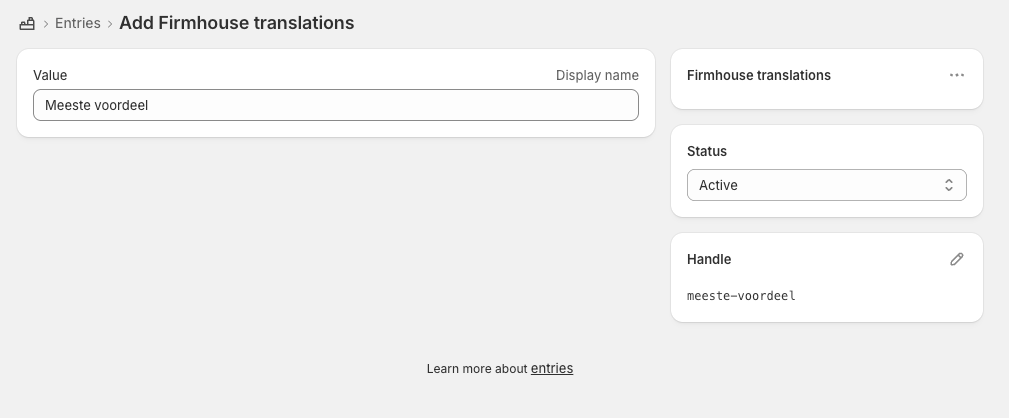 For additional widget labels, repeat these steps and create a separate entry for each one.
## Step 3: Add the translation in Translate & Adapt
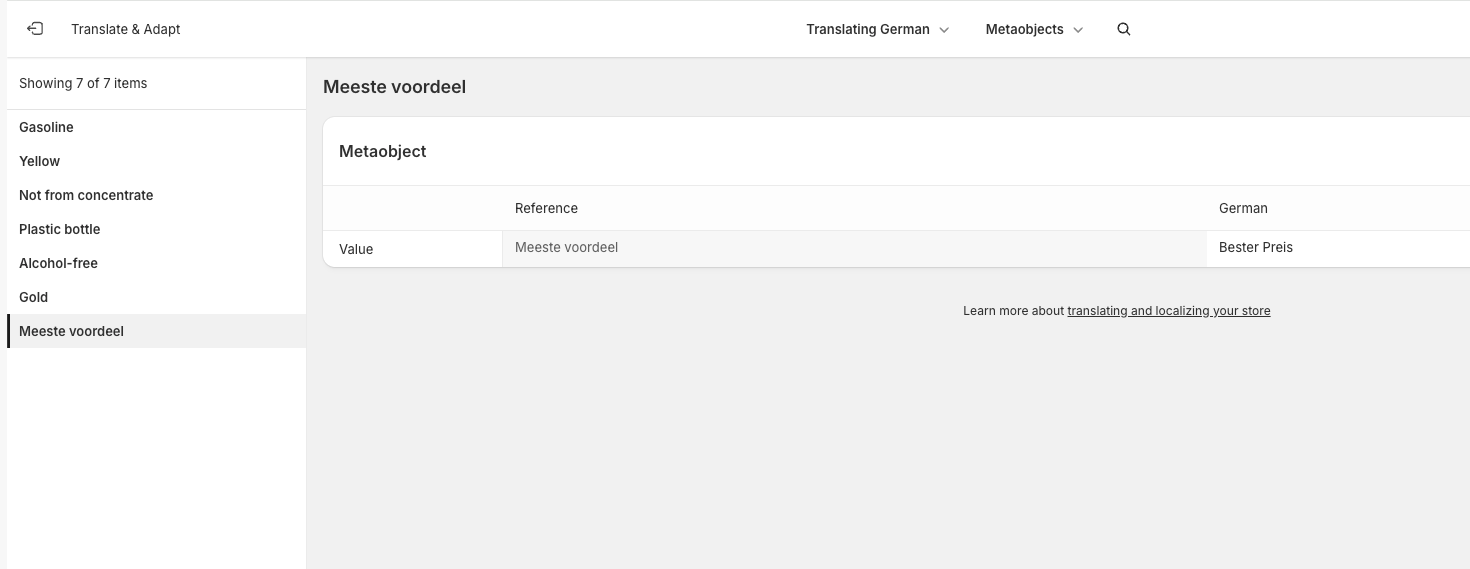
1. In Shopify, open **Apps > Translate & Adapt**.
2. Select the language that you want to translate into and open **Metaobjects**.
3. Select the **Firmhouse translations** entry that you created.
4. Enter the translated text in the target-language **Value** field. In this example, the original value `Meeste voordeel` is translated into German as `Bester Preis`.
5. Save the translation.
For additional widget labels, repeat these steps and create a separate entry for each one.
## Step 3: Add the translation in Translate & Adapt
1. In Shopify, open **Apps > Translate & Adapt**.
2. Select the language that you want to translate into and open **Metaobjects**.
3. Select the **Firmhouse translations** entry that you created.
4. Enter the translated text in the target-language **Value** field. In this example, the original value `Meeste voordeel` is translated into German as `Bester Preis`.
5. Save the translation.
 ## Step 4: Connect the entry to the Subscription First block
Start on a duplicate or unpublished theme so that you can verify the result before changing your live storefront.
1. Go to **Online Store > Themes**. Find the theme that you want to test and click **Customize**.
2. Open the product template used by the relevant product, then select the **Subscription First** app block in the template sidebar.
3. Under **Content and Labels**, locate **Preferred Option Label** and click the **Connect dynamic source** icon beside it.
Shopify may initially open the dynamic-source picker under **Closest > Product**. If this happens, click the back arrow shown in the screenshot.
## Step 4: Connect the entry to the Subscription First block
Start on a duplicate or unpublished theme so that you can verify the result before changing your live storefront.
1. Go to **Online Store > Themes**. Find the theme that you want to test and click **Customize**.
2. Open the product template used by the relevant product, then select the **Subscription First** app block in the template sidebar.
3. Under **Content and Labels**, locate **Preferred Option Label** and click the **Connect dynamic source** icon beside it.
Shopify may initially open the dynamic-source picker under **Closest > Product**. If this happens, click the back arrow shown in the screenshot.
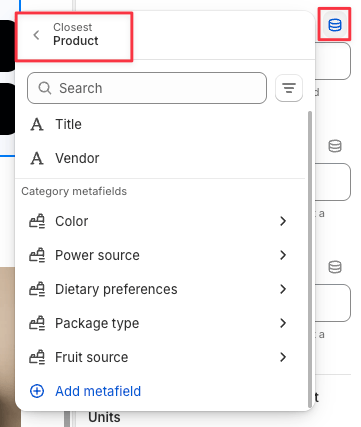 4. Under **From your store**, select **Metaobjects > Firmhouse translations > Meeste voordeel > Value**.
5. Save the theme.
The field is now connected to the translatable metaobject. Shopify uses the original value on the default storefront and the translated value when the corresponding translated storefront is opened.
## Step 5: Test the translation
1. Preview the product from the theme that you edited and confirm that the original label appears.
2. Switch to the target language or open the domain assigned to that language.
3. Confirm that the translated label appears in the Subscription First widget.
4. After verifying the result, repeat Step 4 on the live theme or publish the tested theme according to your normal theme-release process.
## Troubleshooting
### The original label still appears
* Confirm that you edited the product template assigned to the product.
* Confirm that you connected the dynamic source to the visible **Subscription First** block. A template can contain more than one Subscription First block, including hidden or older blocks.
* Reopen the field and verify that it is connected to **Firmhouse translations > \[entry name] > Value**, rather than containing manually entered text.
* Confirm that you saved the theme after connecting the dynamic source.
### Firmhouse translations does not appear in the picker
* Confirm that **Translations** is enabled on the metaobject definition.
* Confirm that the `Value` field uses the **Single line text** type.
* Confirm that the entry is **Active**.
* Reload the Shopify theme editor if it was already open when you created the definition or entry.
### The entry appears, but the translation does not
* Confirm that the translated **Value** was saved for the correct language in Translate & Adapt.
* Confirm that the target language is published and assigned to the expected Shopify Market or domain.
* Confirm that you are previewing the same theme and product template that you edited.
### Selling plan names are still untranslated
Selling plan names use a different translation process. Follow [Translate selling plan names](/configure/international-and-markets/translate-selling-plans) instead.
4. Under **From your store**, select **Metaobjects > Firmhouse translations > Meeste voordeel > Value**.
5. Save the theme.
The field is now connected to the translatable metaobject. Shopify uses the original value on the default storefront and the translated value when the corresponding translated storefront is opened.
## Step 5: Test the translation
1. Preview the product from the theme that you edited and confirm that the original label appears.
2. Switch to the target language or open the domain assigned to that language.
3. Confirm that the translated label appears in the Subscription First widget.
4. After verifying the result, repeat Step 4 on the live theme or publish the tested theme according to your normal theme-release process.
## Troubleshooting
### The original label still appears
* Confirm that you edited the product template assigned to the product.
* Confirm that you connected the dynamic source to the visible **Subscription First** block. A template can contain more than one Subscription First block, including hidden or older blocks.
* Reopen the field and verify that it is connected to **Firmhouse translations > \[entry name] > Value**, rather than containing manually entered text.
* Confirm that you saved the theme after connecting the dynamic source.
### Firmhouse translations does not appear in the picker
* Confirm that **Translations** is enabled on the metaobject definition.
* Confirm that the `Value` field uses the **Single line text** type.
* Confirm that the entry is **Active**.
* Reload the Shopify theme editor if it was already open when you created the definition or entry.
### The entry appears, but the translation does not
* Confirm that the translated **Value** was saved for the correct language in Translate & Adapt.
* Confirm that the target language is published and assigned to the expected Shopify Market or domain.
* Confirm that you are previewing the same theme and product template that you edited.
### Selling plan names are still untranslated
Selling plan names use a different translation process. Follow [Translate selling plan names](/configure/international-and-markets/translate-selling-plans) instead.