> ## Documentation Index
> Fetch the complete documentation index at: https://docs.firmhouse.com/llms.txt
> Use this file to discover all available pages before exploring further.
# Klaviyo v1
> Step-by-step guide to setting up Klaviyo with Firmhouse so you can send transactional email notifications to subscribers through your Klaviyo account.
Klaviyo v1 is the public API key integration for sending Firmhouse transactional email events to Klaviyo. This guide retains the setup, payload, and flow instructions for existing integrations.
For a new OAuth connection, start with [Getting started with Klaviyo](/integrations/klaviyo/getting-started). If you already use v1, follow [Migrate from Klaviyo v1 to Klaviyo v2](/integrations/klaviyo/getting-started#migrate-from-klaviyo-v1-to-klaviyo-v2). The lifecycle event sections below apply when the native integration is enabled.
## What Does the Integration with Klaviyo Do?
When enabled, Firmhouse sends a message to Klaviyo with metadata about an event. An event can be a new subscriber signing up, a new order getting created, etc. These events correspond with the same email templates that Firmhouse would send if Klaviyo was disabled.
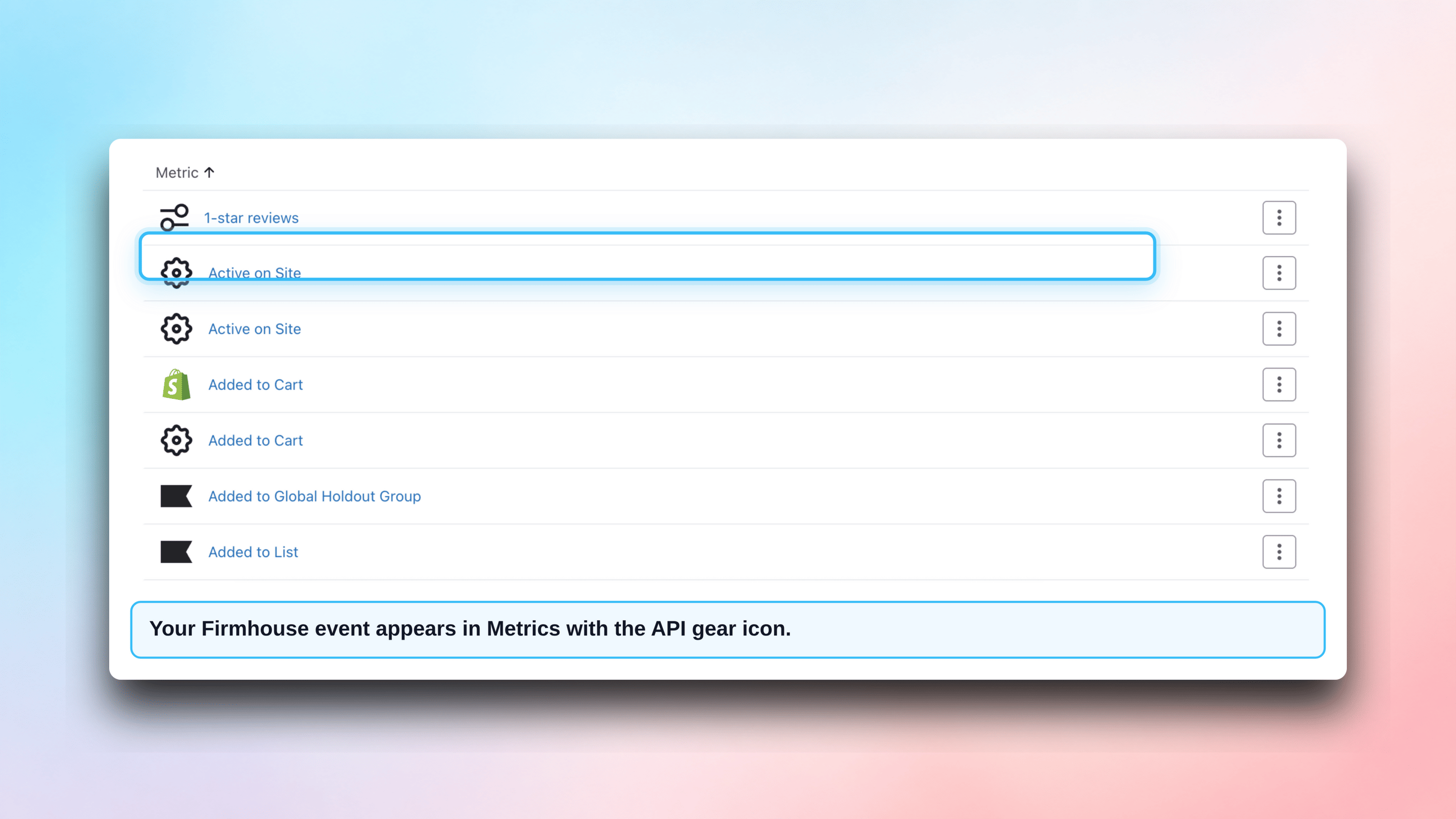
When an event is sent to Klaviyo, it's recorded as a "metric" there. To turn metrics into emails, you need to create flows in Klaviyo that run based on these metrics.
## Overview
Here's an overview of the steps to enable and set up Klaviyo:
1. In Firmhouse, go to **Apps** > **Klaviyo** > **Configure**
2. Enable your Klaviyo app
3. Add your Klaviyo API key
4. **Enable** the "Use Klaviyo events editor" checkbox (this will replace your existing email templates in the templates editor)
5. **Save** the settings (at this point, the Klaviyo connection is enabled in Test mode)
6. Edit the templates in Firmhouse
7. Test event triggers
8. Set up your flows in Klaviyo
9. Change the communication channel of the project from "Email" to "Klaviyo"
## Setting Up the Klaviyo App
### Open the Klaviyo App
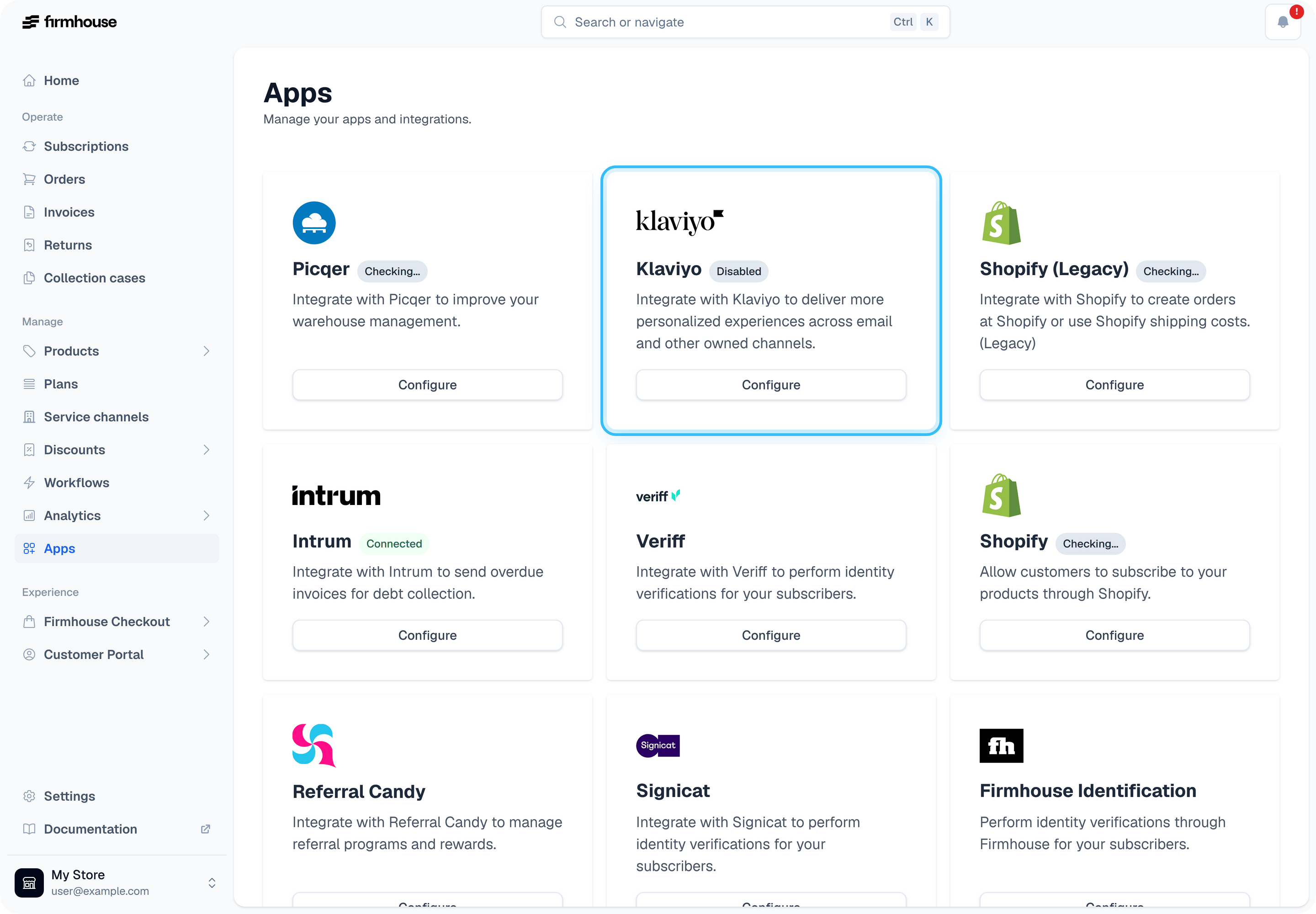
Go to the Klaviyo app in the Firmhouse menu: **Apps** > **Klaviyo** > **Configure**.
 ### Enable the Klaviyo App
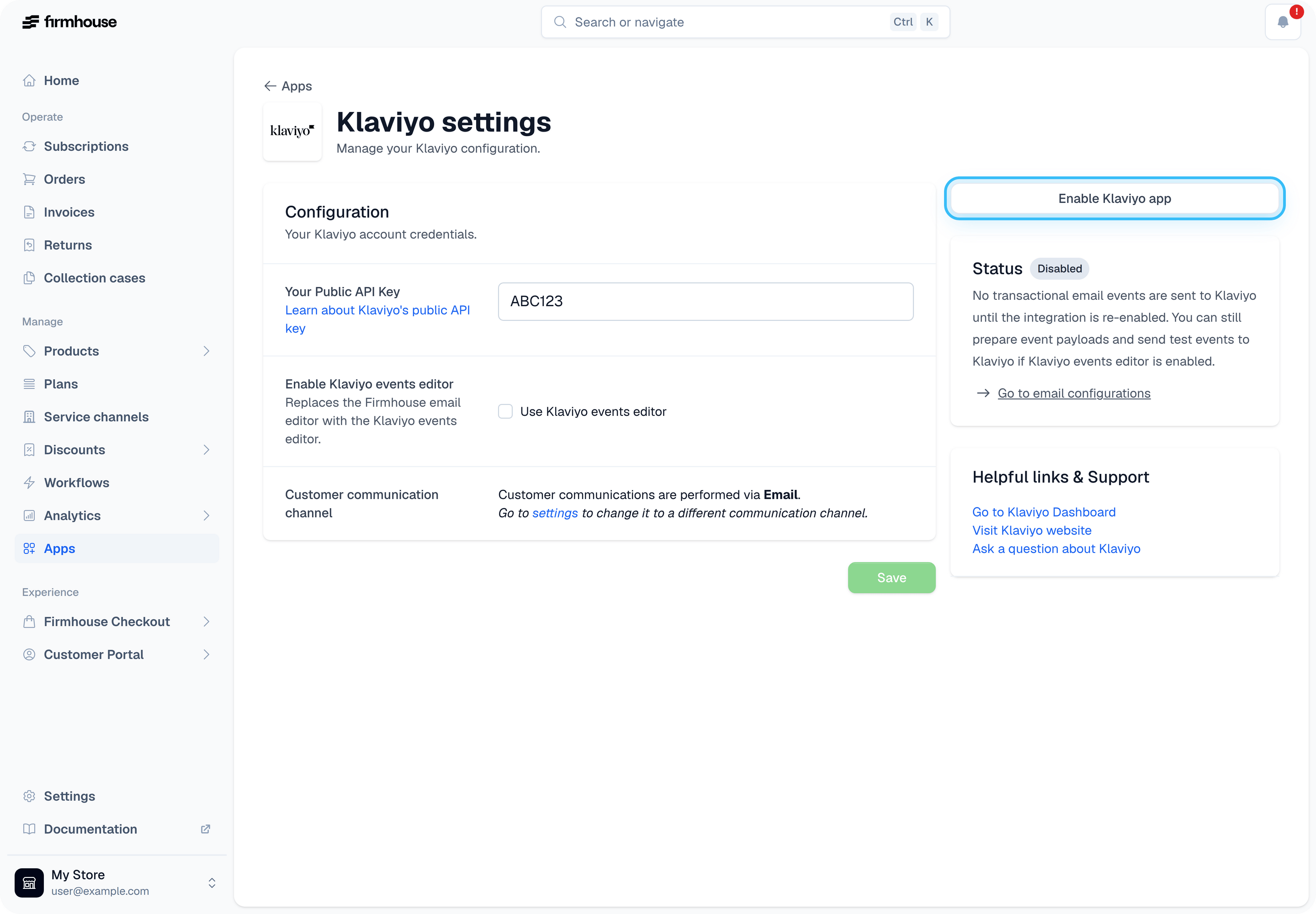
If you've previously tried to set up the app and then decided to disable it, you will need to enable it again by clicking on **Enable Klaviyo app**.
### Enable the Klaviyo App
If you've previously tried to set up the app and then decided to disable it, you will need to enable it again by clicking on **Enable Klaviyo app**.
 ### Add the Klaviyo API Key and Enable the Events Editor
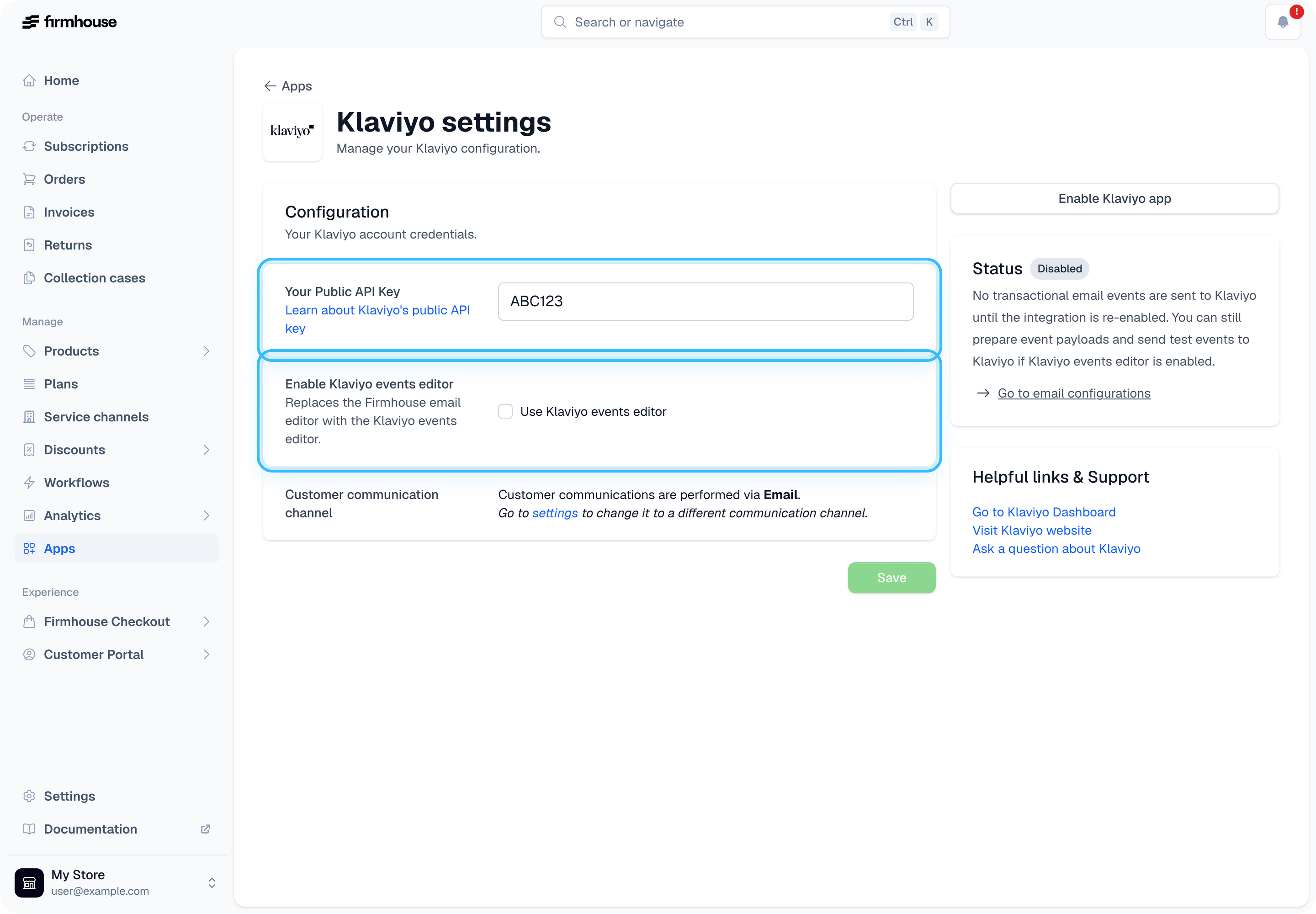
To link Firmhouse to Klaviyo, you will need your Klaviyo API key ([learn how to get it](https://help.klaviyo.com/hc/en-us/articles/115005062267-How-to-Manage-Your-Account-s-API-Keys)). After you enter the API key, select the checkbox **Use Klaviyo events editor**. This will enable the template editor for all the events that Firmhouse sends to Klaviyo.
When you're ready, click **Save**.
### Add the Klaviyo API Key and Enable the Events Editor
To link Firmhouse to Klaviyo, you will need your Klaviyo API key ([learn how to get it](https://help.klaviyo.com/hc/en-us/articles/115005062267-How-to-Manage-Your-Account-s-API-Keys)). After you enter the API key, select the checkbox **Use Klaviyo events editor**. This will enable the template editor for all the events that Firmhouse sends to Klaviyo.
When you're ready, click **Save**.
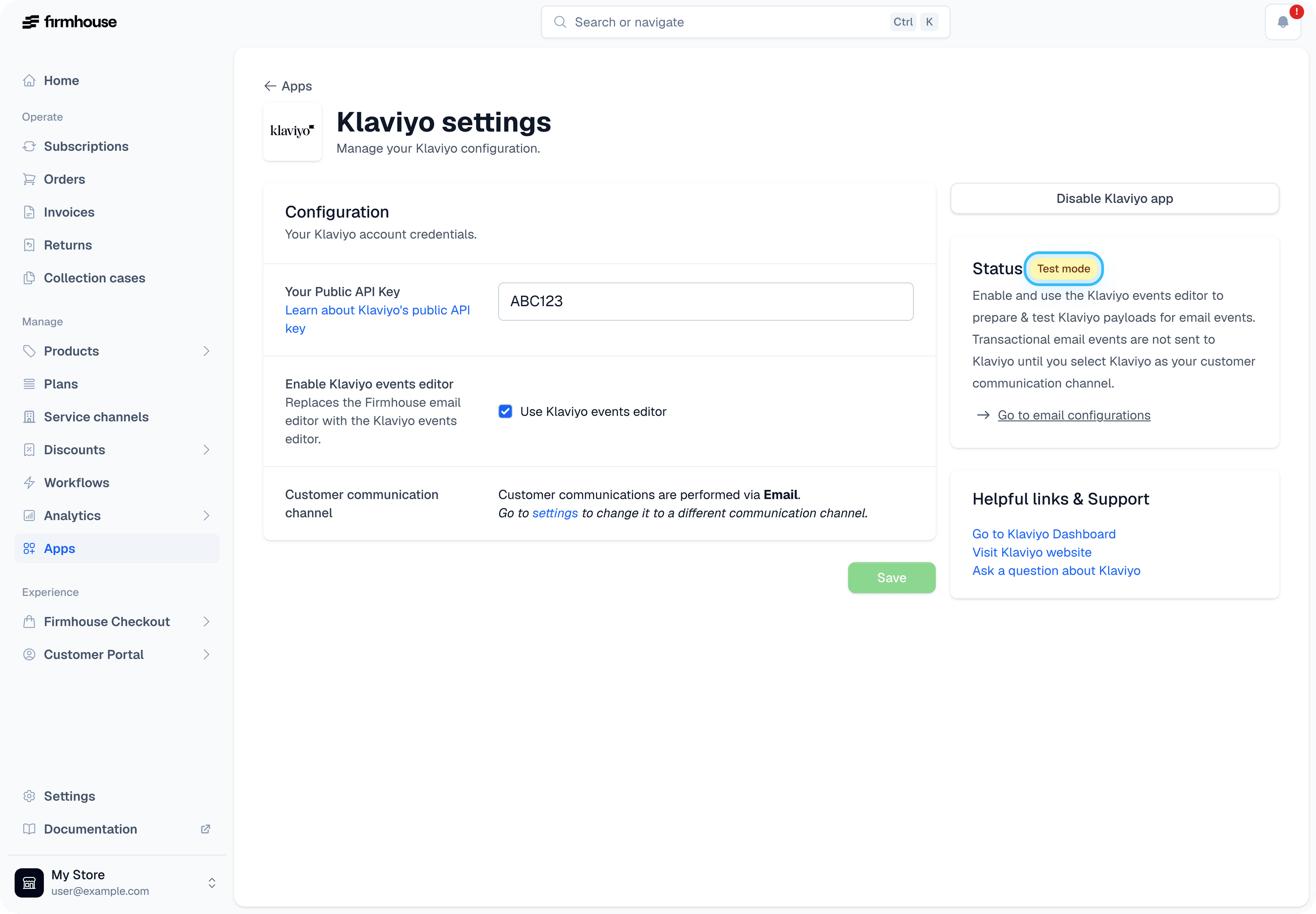
 **Test mode**: At this step, you should see the app **Status** show **Test mode**. This means the app and Klaviyo events editor are enabled, but the communication channel for the project is still set to emails. This gives you the opportunity to prepare and test the Klaviyo event template without disrupting your working email templates.
 ### Switch Back to Firmhouse Email Templates
When the Klaviyo events editor is enabled, the Email configuration page shows the Klaviyo event templates instead of the regular Firmhouse email content. This can make it look like the normal email body editor has disappeared.
If you want to edit the regular Firmhouse email templates again, go to **Apps** > **Klaviyo** > **Configure** and disable **Use Klaviyo events editor**. You can also use the link in the orange bar at the top of **Settings** > **Email configuration** to open the Klaviyo app settings.
After you save the change, return to **Settings** > **Email configuration**. The regular email content editor is shown again.
### Edit the Templates
Go to **Settings** > **Email configuration** to find all events Firmhouse can send to Klaviyo. The top bar will show if the Klaviyo integration is active or not.
### Switch Back to Firmhouse Email Templates
When the Klaviyo events editor is enabled, the Email configuration page shows the Klaviyo event templates instead of the regular Firmhouse email content. This can make it look like the normal email body editor has disappeared.
If you want to edit the regular Firmhouse email templates again, go to **Apps** > **Klaviyo** > **Configure** and disable **Use Klaviyo events editor**. You can also use the link in the orange bar at the top of **Settings** > **Email configuration** to open the Klaviyo app settings.
After you save the change, return to **Settings** > **Email configuration**. The regular email content editor is shown again.
### Edit the Templates
Go to **Settings** > **Email configuration** to find all events Firmhouse can send to Klaviyo. The top bar will show if the Klaviyo integration is active or not.
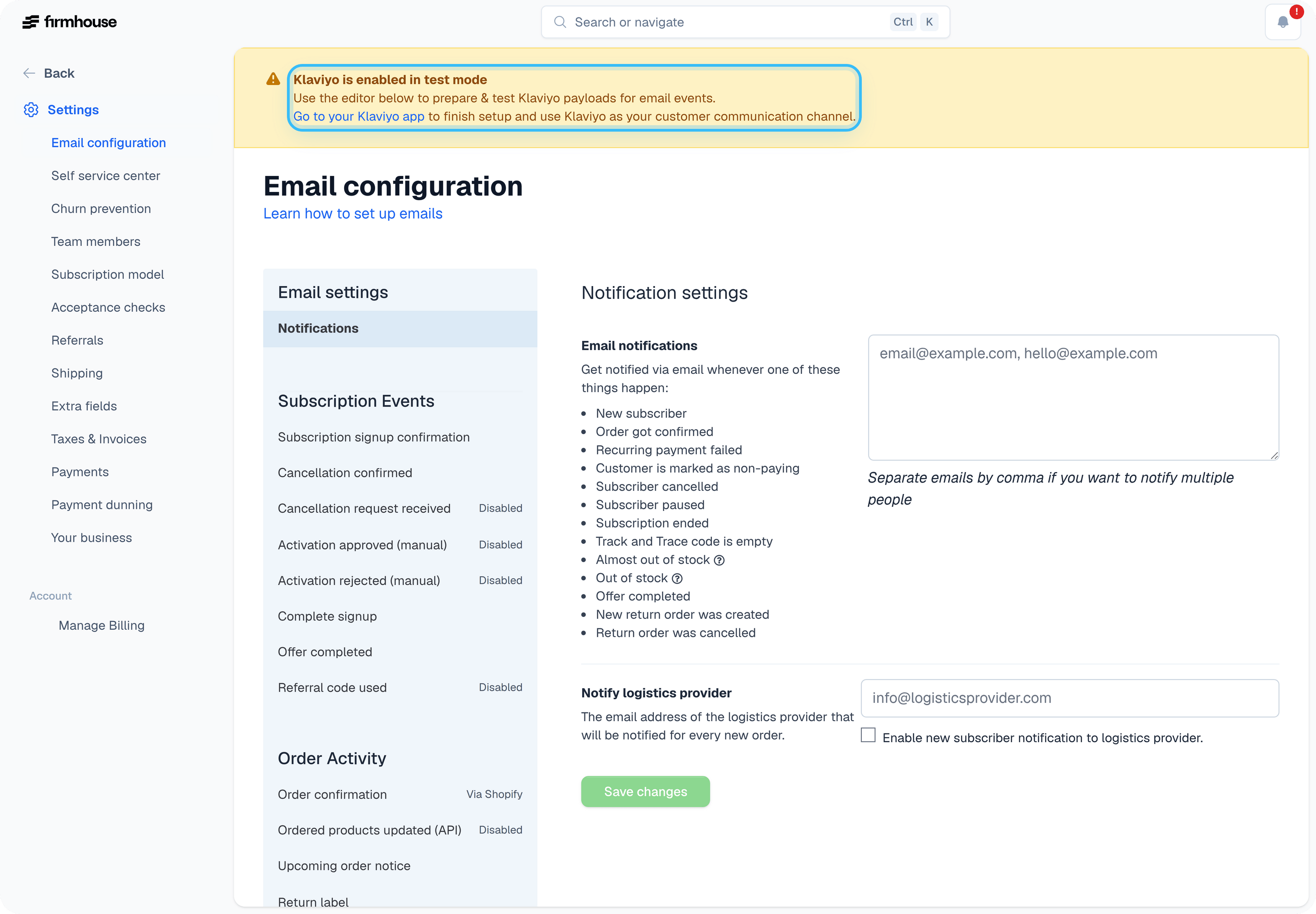 The key difference between Klaviyo and email templates is that Klaviyo templates need to be in valid [JSON](https://developer.mozilla.org/en-US/docs/Learn/JavaScript/Objects/JSON) format. When editing the templates, you can use the same Liquid tags that are used with email.
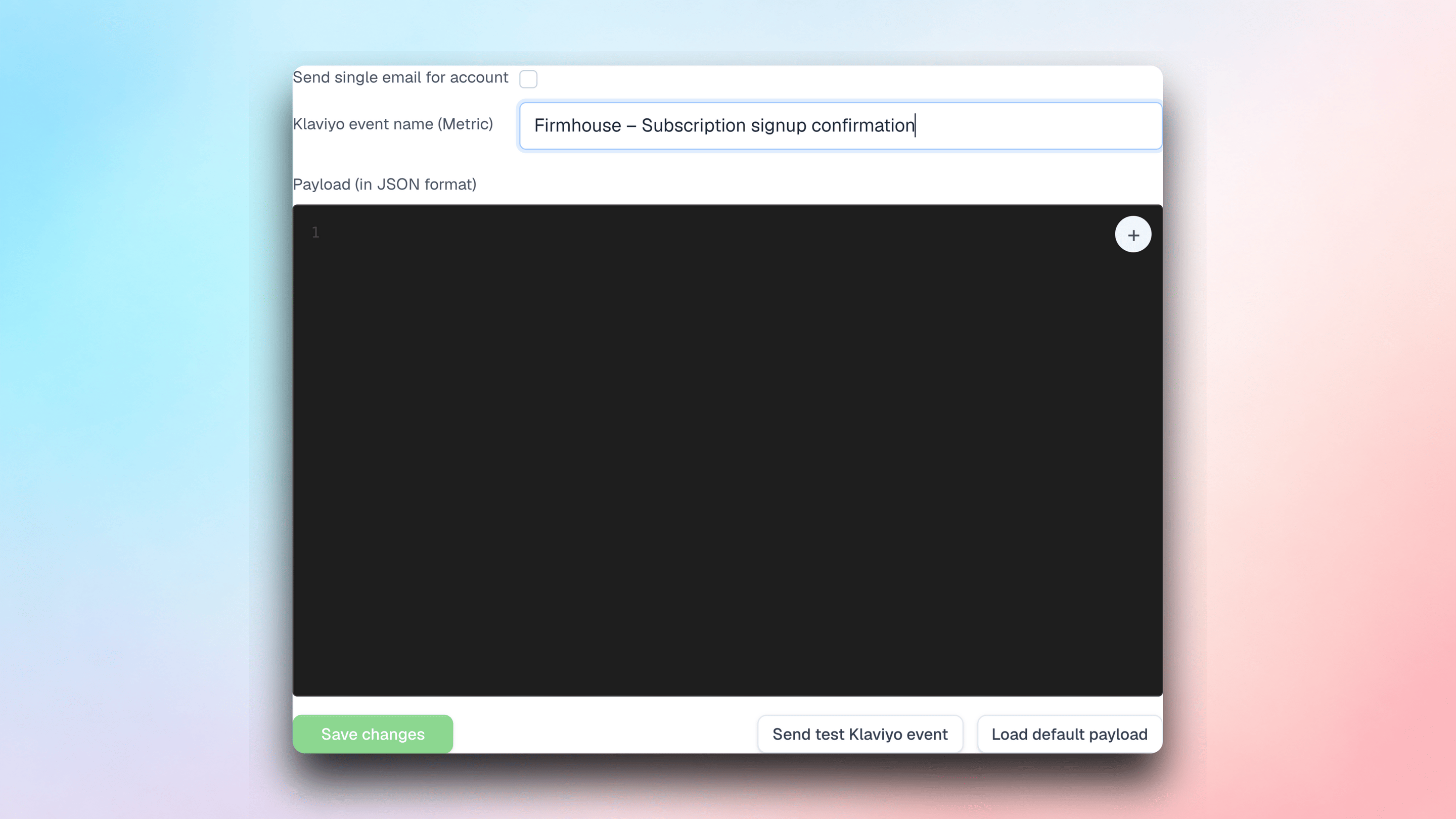
Set a Klaviyo event name for each event. Flows in Klaviyo use these metrics as a starting point, reading from the data in the template.
The key difference between Klaviyo and email templates is that Klaviyo templates need to be in valid [JSON](https://developer.mozilla.org/en-US/docs/Learn/JavaScript/Objects/JSON) format. When editing the templates, you can use the same Liquid tags that are used with email.
Set a Klaviyo event name for each event. Flows in Klaviyo use these metrics as a starting point, reading from the data in the template.
 ### Display products in upcoming-order lifecycle emails
The **Firmhouse: Upcoming order notice** lifecycle payload includes a `products` list. Use it as the collection for a repeating product block in Klaviyo. Each object contains `id`, `name`, `quantity`, `sku`, `image_url`, `shopify_product_id`, `shopify_variant_id`, and `shopify_image_url`.
Names, SKUs, and quantities come from the upcoming order's lines. `image_url` uses the Shopify image, falling back to the uploaded Firmhouse product image. Missing images and identifiers are `null`. Lines without a linked product still include their name and quantity. An order without lines has an empty list.
Existing properties such as `product_ids`, `product_names`, and `product_quantities` remain available. For an already enabled lifecycle event, open **Klaviyo settings**, choose **Review update** next to the upcoming order notice, review the template changes, and apply the update. Send a test event before using the list in your email. Saved templates are not changed automatically.
Upcoming-order offers also include `upsell_product` when the offer adds an upsell product. It contains the same product fields listed above, with the localized product name and the quantity offered. Other offer types have `upsell_product: null`. This is available in both the lifecycle `offers` list and the transactional `Offers` list. Existing templates that use the standard offer list receive the added details when the event is rendered.
### Reference a specific offer directly
Offer definitions get a stable slug from their internal name when created. For example, **Magnesium Upsell** becomes `magnesium_upsell`. Changing the internal name or translated title later keeps the slug. Duplicate internal names within a project receive a numeric suffix, such as `magnesium_upsell_1`.
New upcoming-order templates include these properties at the event root for each eligible offer:
```json theme={null}
{
"offer_magnesium_upsell_accept_url": "https://your-portal.example/offer-link",
"offer_magnesium_upsell_image_url": "https://your-store.example/magnesium.png",
"offer_magnesium_upsell_title": "Magnesium Upsell"
}
```
The title is localized for the subscriber. The image belongs to the offer's featured product and is `null` when no image is available. The accept URL is the same signed link used by the offer in the `offers` / `Offers` list. These properties are omitted when the offer is not eligible. If multiple eligible offers share a definition, the flat properties use the soonest-expiring offer; the list still contains every eligible offer.
For existing lifecycle events, use **Review update** in Klaviyo settings. For an existing transactional template, add this before the closing `}` of the event JSON, after its last property:
```liquid theme={null}
{% for field in subscription.promotional_offer_event_fields %}
,{{ field[0] | json_escape }}: {{ field[1] | json_escape }}
{% endfor %}
```
Send a test event to confirm the exact slug and property names before using them in a Klaviyo email.
### Keep existing metrics and payloads
Connecting the same Klaviyo account with OAuth keeps the event names and JSON payloads already saved under **Email configuration**. Existing Klaviyo flow triggers continue to use those metric names.
The **Lifecycle events** tab adds separate metrics for subscription changes such as pauses, plan changes, payments, and refunds. Turning on lifecycle events does not replace or migrate your transactional email events or custom Klaviyo metric webhooks. The lifecycle events start turned off so you can review their metric names and property keys before sending them.
If you want to use a lifecycle metric in a new Klaviyo flow:
1. Turn on one lifecycle event in Firmhouse.
2. Trigger or test that event and inspect its properties in Klaviyo.
3. Build and test a Klaviyo flow using the new metric.
4. Make the flow live only after the metric and message are correct.
Keep the existing transactional flow active unless you have separately confirmed that it is no longer needed. Lifecycle metrics represent additional Firmhouse events and are not automatic replacements for transactional email events.
### Upcoming order count and action links
New upcoming-order payloads include the number of confirmed and fulfilled orders for that subscription and the next order number. For example, five previous orders gives an upcoming order number of six. Pending, scheduled, draft, canceled, and snoozed orders do not count. The numbers are captured when the event payload is rendered, so later profile updates do not change the event's values.
| Transactional `upcoming_order` property | Lifecycle `Firmhouse: Upcoming order notice` property | Meaning |
| --------------------------------------- | ----------------------------------------------------- | ------------------------------------------------------------- |
| `ConfirmedOrdersCount` | `confirmed_orders_count` | Previous confirmed and fulfilled orders |
| `UpcomingOrderNumber` | `upcoming_order_number` | Previous count plus one |
| `PauseSubscriptionUrl` | `pause_subscription_url` | Open the pause flow; normal Customer Portal login is required |
| `SnoozeUpcomingOrderUrl` | `snooze_upcoming_order_url` | Signed link to confirm a one-week snooze |
| `SkipUpcomingOrderUrl` | `skip_upcoming_order_url` | Signed link to confirm skipping the upcoming order |
Use the event's order number in your Klaviyo email copy. Include action buttons only where the action is available for your customer's plan and your Customer Portal configuration. Opening a skip or snooze link shows a confirmation screen; it does not immediately change the subscription. These hotlinks expire after one week by default. Snooze currently moves the upcoming shipment by one week; adding a duration parameter does not select a different interval.
Existing saved payloads are preserved, including previously enabled lifecycle events. Add these properties to an existing transactional payload to use the new fields:
```liquid theme={null}
"ConfirmedOrdersCount": {{ subscription.confirmed_and_fulfilled_orders_count | json_escape }},
"UpcomingOrderNumber": {{ subscription.confirmed_and_fulfilled_orders_count | plus: 1 | json_escape }},
"PauseSubscriptionUrl": {{ subscription.pause_subscription_url | json_escape }},
"SnoozeUpcomingOrderUrl": {{ subscription.snooze_upcoming_order_url | ssc_hotlink | json_escape }},
"SkipUpcomingOrderUrl": {{ subscription.skip_upcoming_order_url | ssc_hotlink | json_escape }}
```
For a lifecycle payload, use the corresponding lowercase property names from the table. Keep the surrounding payload valid JSON and send a test event before updating your Klaviyo flow. See [snoozing and skipping orders](/subscription-management-portal/snoozing-and-skipping-orders) for setup instructions.
### Cancellation reason and feedback
Newly generated **Cancellation confirmed** payloads include `CancellationReason`. It contains the reporting title of the reason selected by the customer. The value is blank when the cancellation has no finalized customer cancellation reason, such as an admin cancellation without a selected reason.
For an existing customized payload, add the property manually:
```json theme={null}
"CancellationReason": {{ subscription.cancellation_reason | default: "" | json_escape }}
```
Free-text cancellation feedback is not guaranteed on **Cancellation confirmed** because customers can submit it after the cancellation event has already been sent. To send feedback to Klaviyo after it is saved, create a [Klaviyo metric webhook](/integrations/klaviyo/metric-webhooks) for the `churn_request_feedback_updated` event and use these metric properties:
```json theme={null}
{
"subscription_id": {{ subscription.id }},
"reason": {{ churn_request.reason_title | json_escape }},
"feedback": {{ churn_request.feedback | json_escape }},
"updated_at": {{ churn_request.updated_at | json_escape }}
}
```
### Test the Events
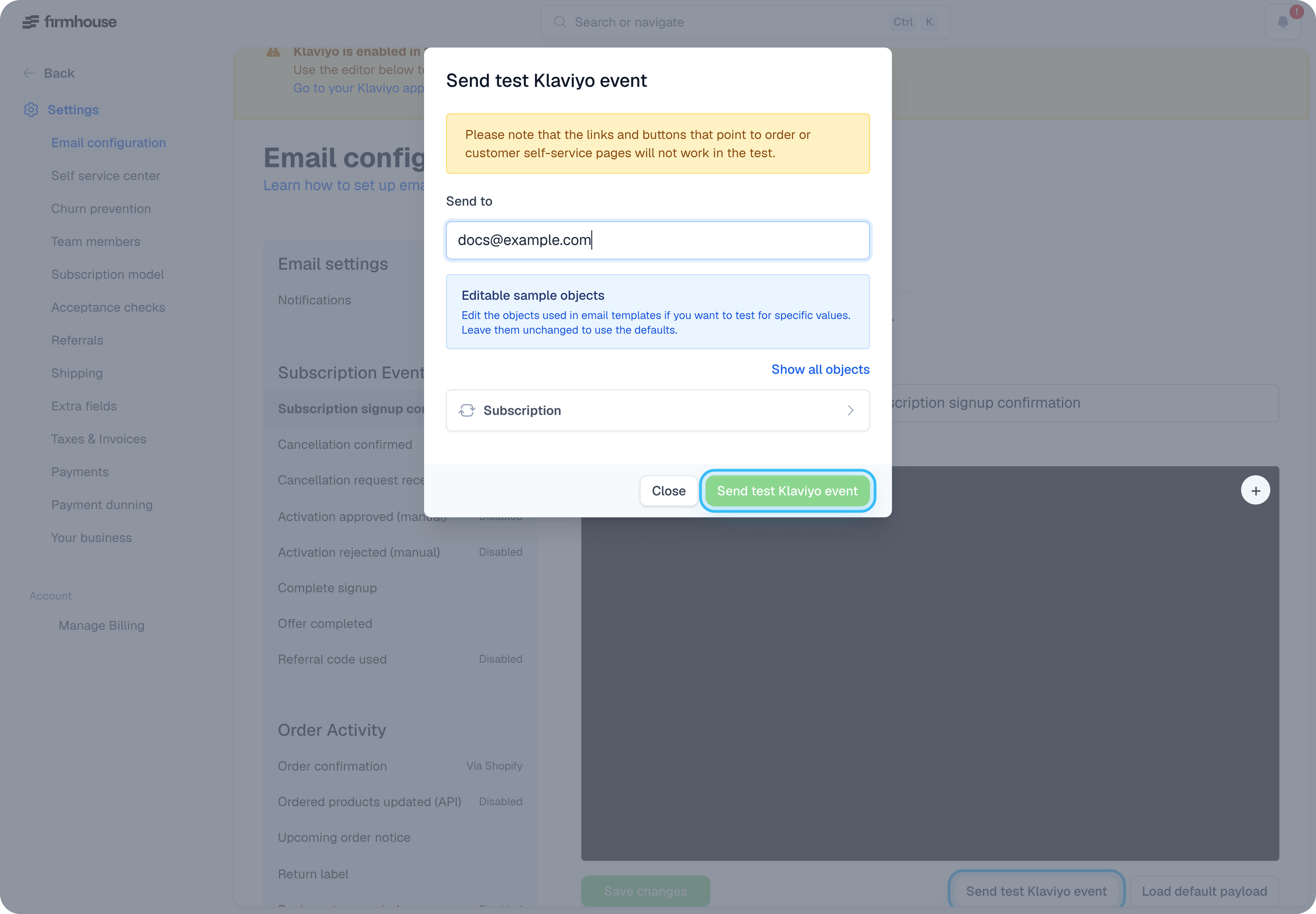
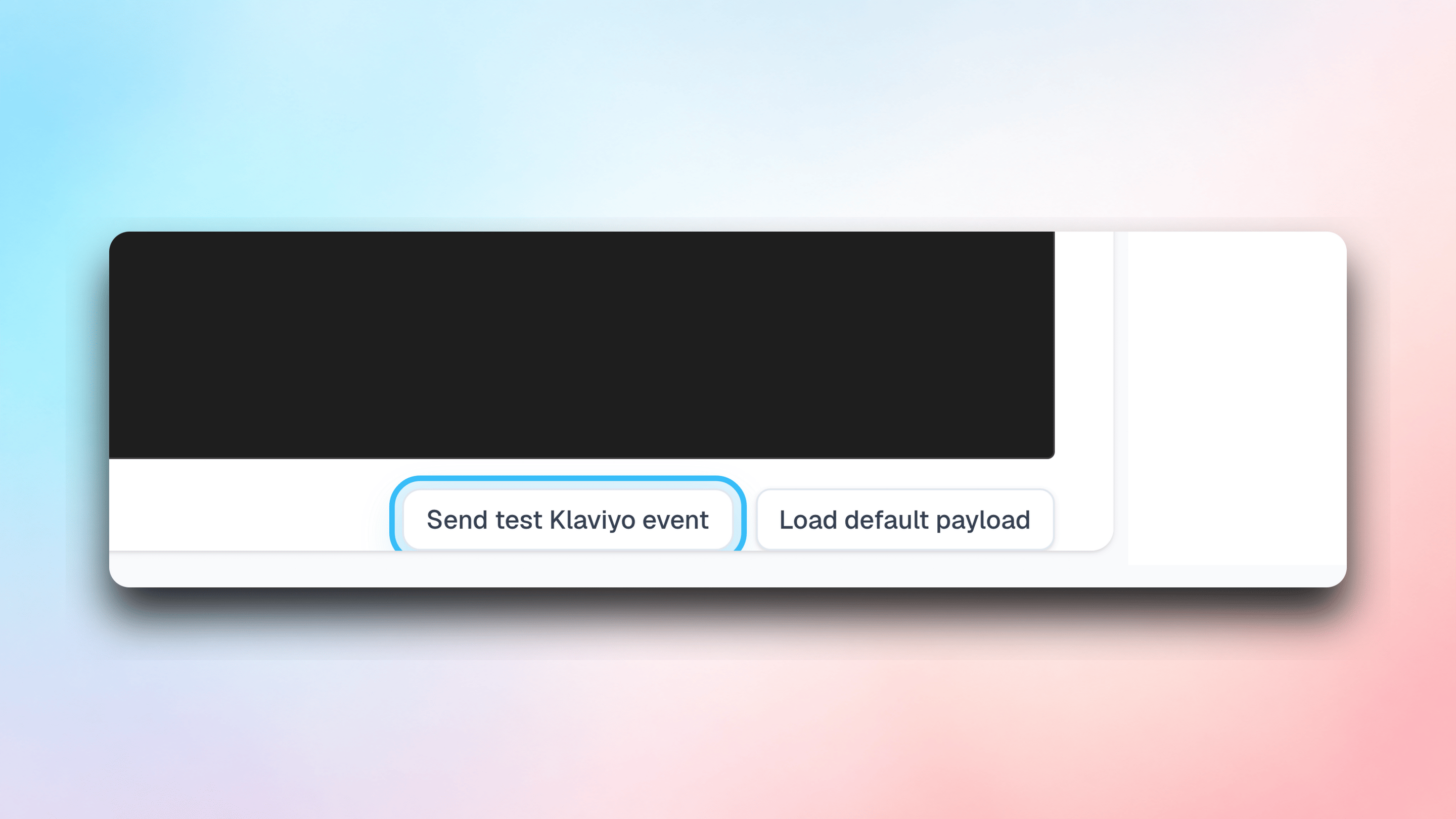
Test your events to make sure they are formatted correctly and contain the information you expect. Click on **Send test Klaviyo event**. Enter your email address in the pop-up and you will receive the event with some example data.
### Display products in upcoming-order lifecycle emails
The **Firmhouse: Upcoming order notice** lifecycle payload includes a `products` list. Use it as the collection for a repeating product block in Klaviyo. Each object contains `id`, `name`, `quantity`, `sku`, `image_url`, `shopify_product_id`, `shopify_variant_id`, and `shopify_image_url`.
Names, SKUs, and quantities come from the upcoming order's lines. `image_url` uses the Shopify image, falling back to the uploaded Firmhouse product image. Missing images and identifiers are `null`. Lines without a linked product still include their name and quantity. An order without lines has an empty list.
Existing properties such as `product_ids`, `product_names`, and `product_quantities` remain available. For an already enabled lifecycle event, open **Klaviyo settings**, choose **Review update** next to the upcoming order notice, review the template changes, and apply the update. Send a test event before using the list in your email. Saved templates are not changed automatically.
Upcoming-order offers also include `upsell_product` when the offer adds an upsell product. It contains the same product fields listed above, with the localized product name and the quantity offered. Other offer types have `upsell_product: null`. This is available in both the lifecycle `offers` list and the transactional `Offers` list. Existing templates that use the standard offer list receive the added details when the event is rendered.
### Reference a specific offer directly
Offer definitions get a stable slug from their internal name when created. For example, **Magnesium Upsell** becomes `magnesium_upsell`. Changing the internal name or translated title later keeps the slug. Duplicate internal names within a project receive a numeric suffix, such as `magnesium_upsell_1`.
New upcoming-order templates include these properties at the event root for each eligible offer:
```json theme={null}
{
"offer_magnesium_upsell_accept_url": "https://your-portal.example/offer-link",
"offer_magnesium_upsell_image_url": "https://your-store.example/magnesium.png",
"offer_magnesium_upsell_title": "Magnesium Upsell"
}
```
The title is localized for the subscriber. The image belongs to the offer's featured product and is `null` when no image is available. The accept URL is the same signed link used by the offer in the `offers` / `Offers` list. These properties are omitted when the offer is not eligible. If multiple eligible offers share a definition, the flat properties use the soonest-expiring offer; the list still contains every eligible offer.
For existing lifecycle events, use **Review update** in Klaviyo settings. For an existing transactional template, add this before the closing `}` of the event JSON, after its last property:
```liquid theme={null}
{% for field in subscription.promotional_offer_event_fields %}
,{{ field[0] | json_escape }}: {{ field[1] | json_escape }}
{% endfor %}
```
Send a test event to confirm the exact slug and property names before using them in a Klaviyo email.
### Keep existing metrics and payloads
Connecting the same Klaviyo account with OAuth keeps the event names and JSON payloads already saved under **Email configuration**. Existing Klaviyo flow triggers continue to use those metric names.
The **Lifecycle events** tab adds separate metrics for subscription changes such as pauses, plan changes, payments, and refunds. Turning on lifecycle events does not replace or migrate your transactional email events or custom Klaviyo metric webhooks. The lifecycle events start turned off so you can review their metric names and property keys before sending them.
If you want to use a lifecycle metric in a new Klaviyo flow:
1. Turn on one lifecycle event in Firmhouse.
2. Trigger or test that event and inspect its properties in Klaviyo.
3. Build and test a Klaviyo flow using the new metric.
4. Make the flow live only after the metric and message are correct.
Keep the existing transactional flow active unless you have separately confirmed that it is no longer needed. Lifecycle metrics represent additional Firmhouse events and are not automatic replacements for transactional email events.
### Upcoming order count and action links
New upcoming-order payloads include the number of confirmed and fulfilled orders for that subscription and the next order number. For example, five previous orders gives an upcoming order number of six. Pending, scheduled, draft, canceled, and snoozed orders do not count. The numbers are captured when the event payload is rendered, so later profile updates do not change the event's values.
| Transactional `upcoming_order` property | Lifecycle `Firmhouse: Upcoming order notice` property | Meaning |
| --------------------------------------- | ----------------------------------------------------- | ------------------------------------------------------------- |
| `ConfirmedOrdersCount` | `confirmed_orders_count` | Previous confirmed and fulfilled orders |
| `UpcomingOrderNumber` | `upcoming_order_number` | Previous count plus one |
| `PauseSubscriptionUrl` | `pause_subscription_url` | Open the pause flow; normal Customer Portal login is required |
| `SnoozeUpcomingOrderUrl` | `snooze_upcoming_order_url` | Signed link to confirm a one-week snooze |
| `SkipUpcomingOrderUrl` | `skip_upcoming_order_url` | Signed link to confirm skipping the upcoming order |
Use the event's order number in your Klaviyo email copy. Include action buttons only where the action is available for your customer's plan and your Customer Portal configuration. Opening a skip or snooze link shows a confirmation screen; it does not immediately change the subscription. These hotlinks expire after one week by default. Snooze currently moves the upcoming shipment by one week; adding a duration parameter does not select a different interval.
Existing saved payloads are preserved, including previously enabled lifecycle events. Add these properties to an existing transactional payload to use the new fields:
```liquid theme={null}
"ConfirmedOrdersCount": {{ subscription.confirmed_and_fulfilled_orders_count | json_escape }},
"UpcomingOrderNumber": {{ subscription.confirmed_and_fulfilled_orders_count | plus: 1 | json_escape }},
"PauseSubscriptionUrl": {{ subscription.pause_subscription_url | json_escape }},
"SnoozeUpcomingOrderUrl": {{ subscription.snooze_upcoming_order_url | ssc_hotlink | json_escape }},
"SkipUpcomingOrderUrl": {{ subscription.skip_upcoming_order_url | ssc_hotlink | json_escape }}
```
For a lifecycle payload, use the corresponding lowercase property names from the table. Keep the surrounding payload valid JSON and send a test event before updating your Klaviyo flow. See [snoozing and skipping orders](/subscription-management-portal/snoozing-and-skipping-orders) for setup instructions.
### Cancellation reason and feedback
Newly generated **Cancellation confirmed** payloads include `CancellationReason`. It contains the reporting title of the reason selected by the customer. The value is blank when the cancellation has no finalized customer cancellation reason, such as an admin cancellation without a selected reason.
For an existing customized payload, add the property manually:
```json theme={null}
"CancellationReason": {{ subscription.cancellation_reason | default: "" | json_escape }}
```
Free-text cancellation feedback is not guaranteed on **Cancellation confirmed** because customers can submit it after the cancellation event has already been sent. To send feedback to Klaviyo after it is saved, create a [Klaviyo metric webhook](/integrations/klaviyo/metric-webhooks) for the `churn_request_feedback_updated` event and use these metric properties:
```json theme={null}
{
"subscription_id": {{ subscription.id }},
"reason": {{ churn_request.reason_title | json_escape }},
"feedback": {{ churn_request.feedback | json_escape }},
"updated_at": {{ churn_request.updated_at | json_escape }}
}
```
### Test the Events
Test your events to make sure they are formatted correctly and contain the information you expect. Click on **Send test Klaviyo event**. Enter your email address in the pop-up and you will receive the event with some example data.
 ## Creating Klaviyo Flows
Once your event payloads are configured in Firmhouse, it's time to build the corresponding Klaviyo flows so your customers can receive their emails.
### Create Klaviyo Metrics
Each event and payload in Firmhouse will have a corresponding metric and mailing flow in Klaviyo. The easiest way to create the metrics is by sending a test event from Firmhouse to Klaviyo. Open your Firmhouse Email configuration page, select one of the templates, and click on **Send test event to Klaviyo**.
## Creating Klaviyo Flows
Once your event payloads are configured in Firmhouse, it's time to build the corresponding Klaviyo flows so your customers can receive their emails.
### Create Klaviyo Metrics
Each event and payload in Firmhouse will have a corresponding metric and mailing flow in Klaviyo. The easiest way to create the metrics is by sending a test event from Firmhouse to Klaviyo. Open your Firmhouse Email configuration page, select one of the templates, and click on **Send test event to Klaviyo**.
 After you send the test event, you should be able to see a new API metric in your Klaviyo dashboard:
 ### Create a New Flow
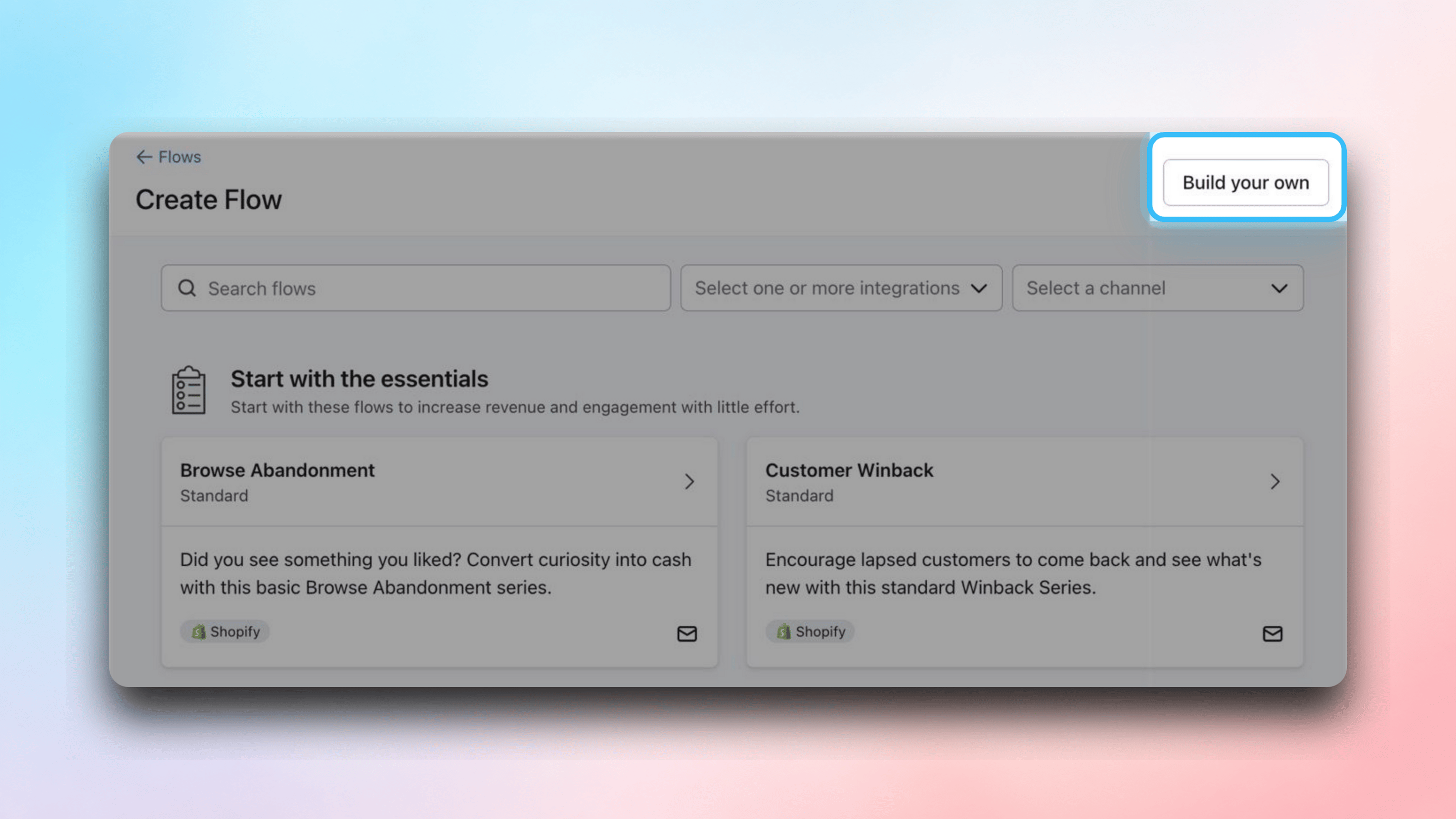
In your Klaviyo dashboard, navigate to Flows and select "Create flow". You'll need to select **Build your own** and provide a relevant name.
### Create a New Flow
In your Klaviyo dashboard, navigate to Flows and select "Create flow". You'll need to select **Build your own** and provide a relevant name.
 ### Configure the Flow Trigger
Link your new metric to this flow. You will find the metric in **Your metrics** section on the right side of the screen:
### Configure the Flow Trigger
Link your new metric to this flow. You will find the metric in **Your metrics** section on the right side of the screen:
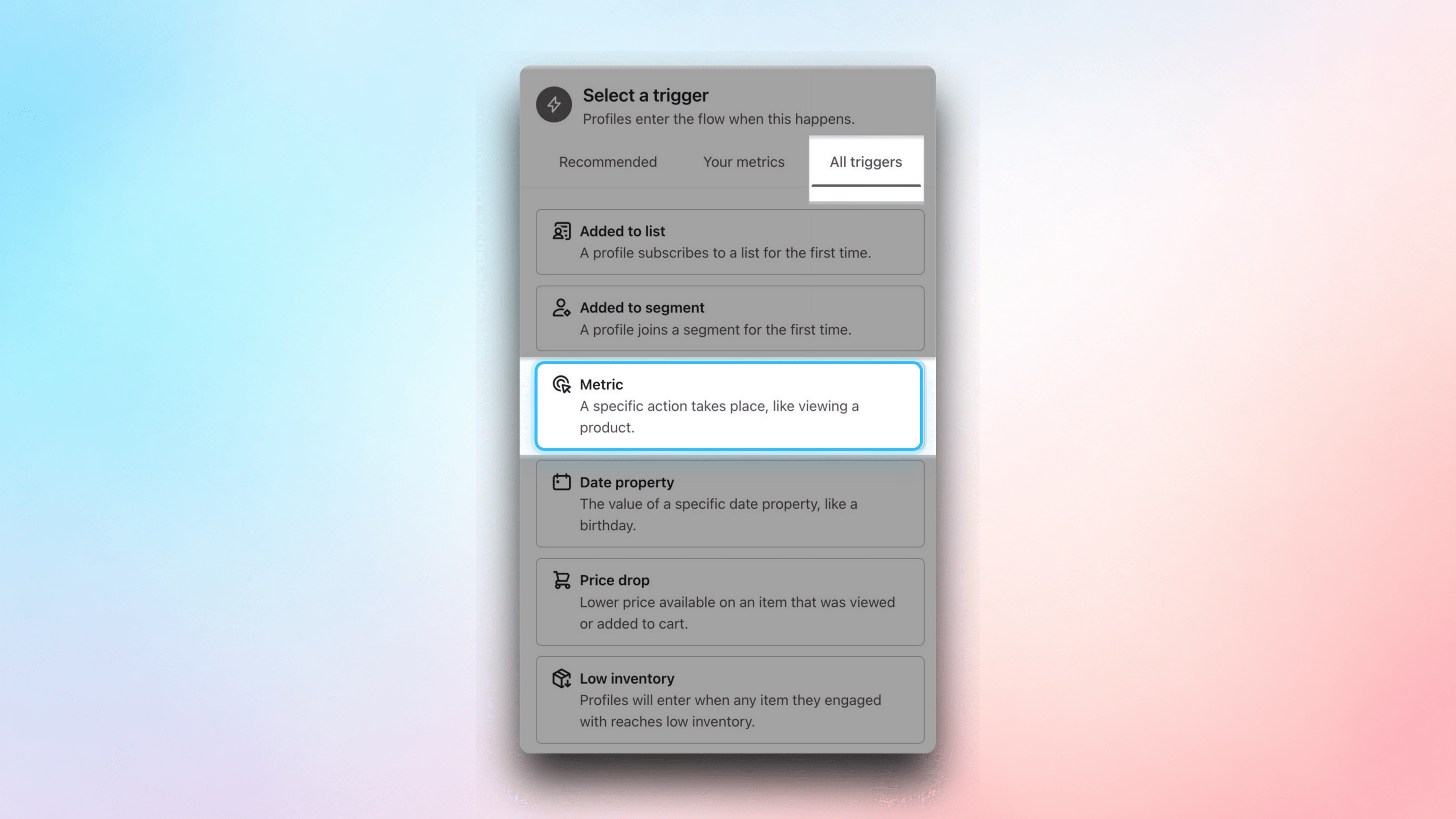 Once you select the trigger, you will be asked if you want to add any filters to it. You won't need to, so you can skip this step. **Confirm and save** the configuration.
### Add an Email to Your Flow
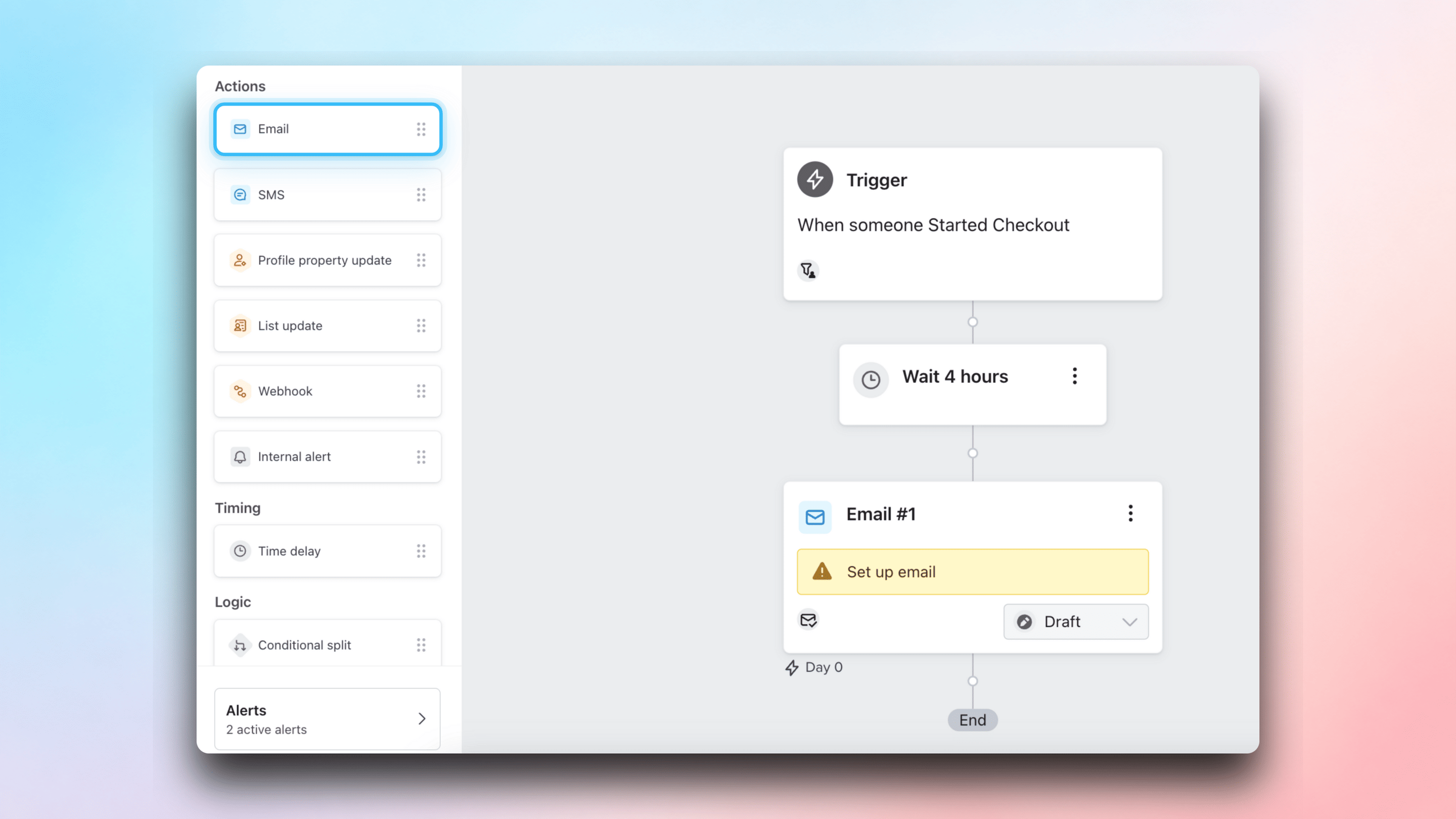
Drag and drop the email block from the left-hand menu and link it to your trigger.
Once you select the trigger, you will be asked if you want to add any filters to it. You won't need to, so you can skip this step. **Confirm and save** the configuration.
### Add an Email to Your Flow
Drag and drop the email block from the left-hand menu and link it to your trigger.
 The key configuration options are:
1. **Email name** - an internal value to help identify the template
2. **Subject line** - the subject customers will see in their inbox
3. **Preview text** - the preview text customers will see
4. **Skip recently emailed profiles** - make sure to disable this so all emails get sent
5. **Template** - select or build your email template
### Customize the Email Template
Select a template from the Klaviyo library or create your own. Klaviyo will open the email editor so you can adjust the content. Add your own images, branding and copy to make it your own.
The key configuration options are:
1. **Email name** - an internal value to help identify the template
2. **Subject line** - the subject customers will see in their inbox
3. **Preview text** - the preview text customers will see
4. **Skip recently emailed profiles** - make sure to disable this so all emails get sent
5. **Template** - select or build your email template
### Customize the Email Template
Select a template from the Klaviyo library or create your own. Klaviyo will open the email editor so you can adjust the content. Add your own images, branding and copy to make it your own.
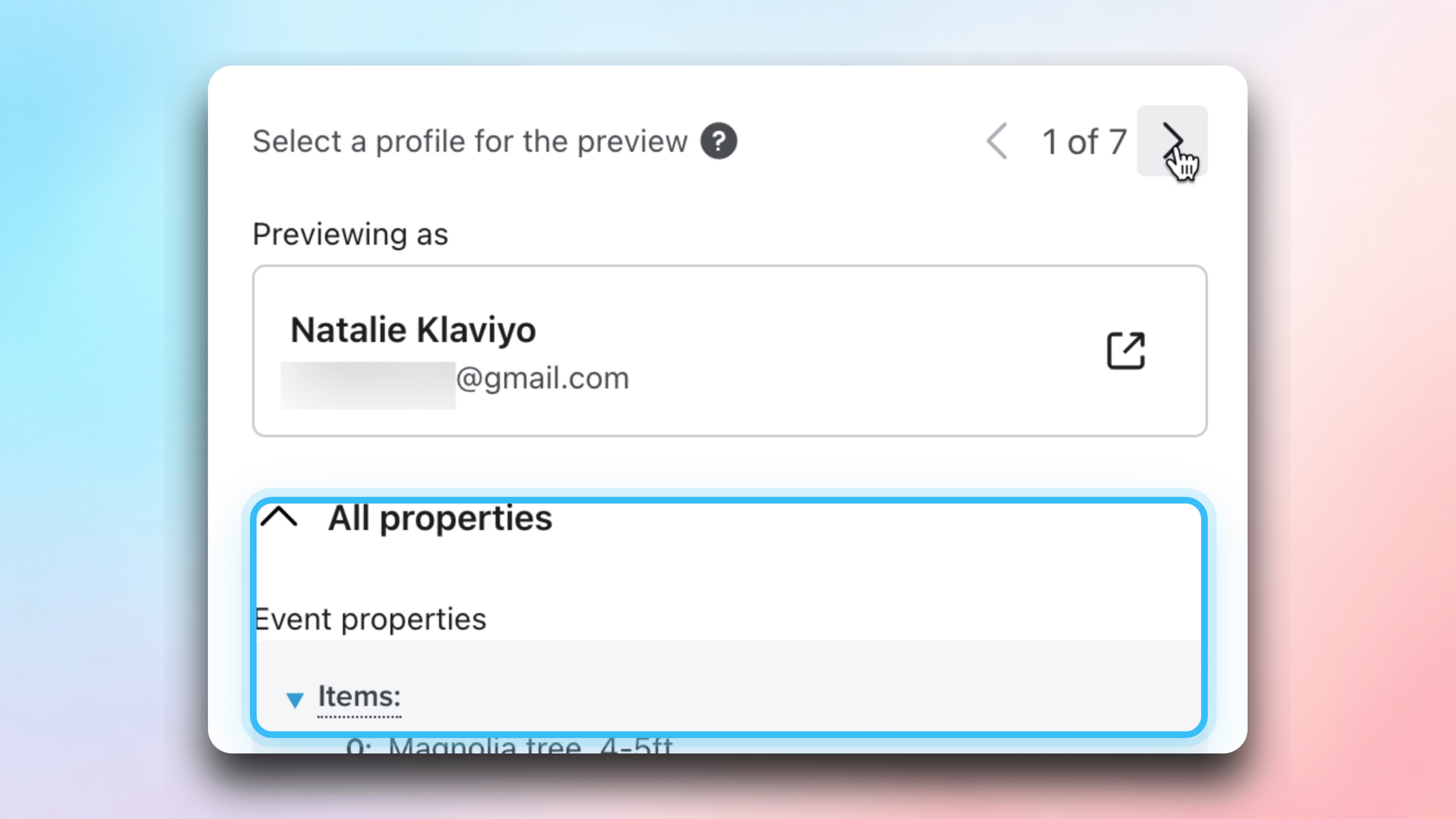
 Use the **Preview & test** menu to see your event properties and inject dynamic data into your email:
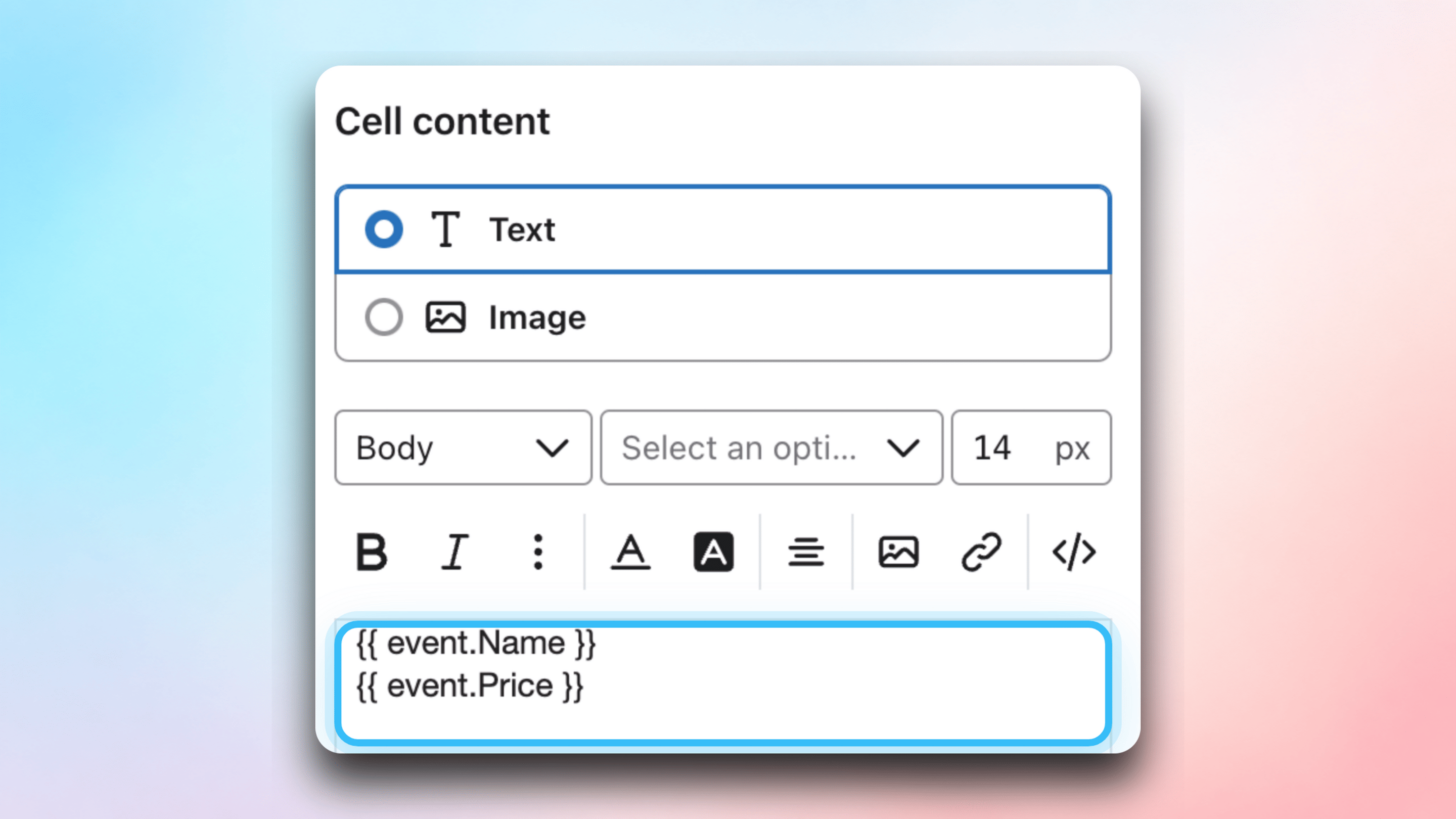
 #### Insert Simple Values
To make the email more personable, copy values from your trigger and paste them into the email template. For example, use the name property on the first email line.
#### Insert Simple Values
To make the email more personable, copy values from your trigger and paste them into the email template. For example, use the name property on the first email line.
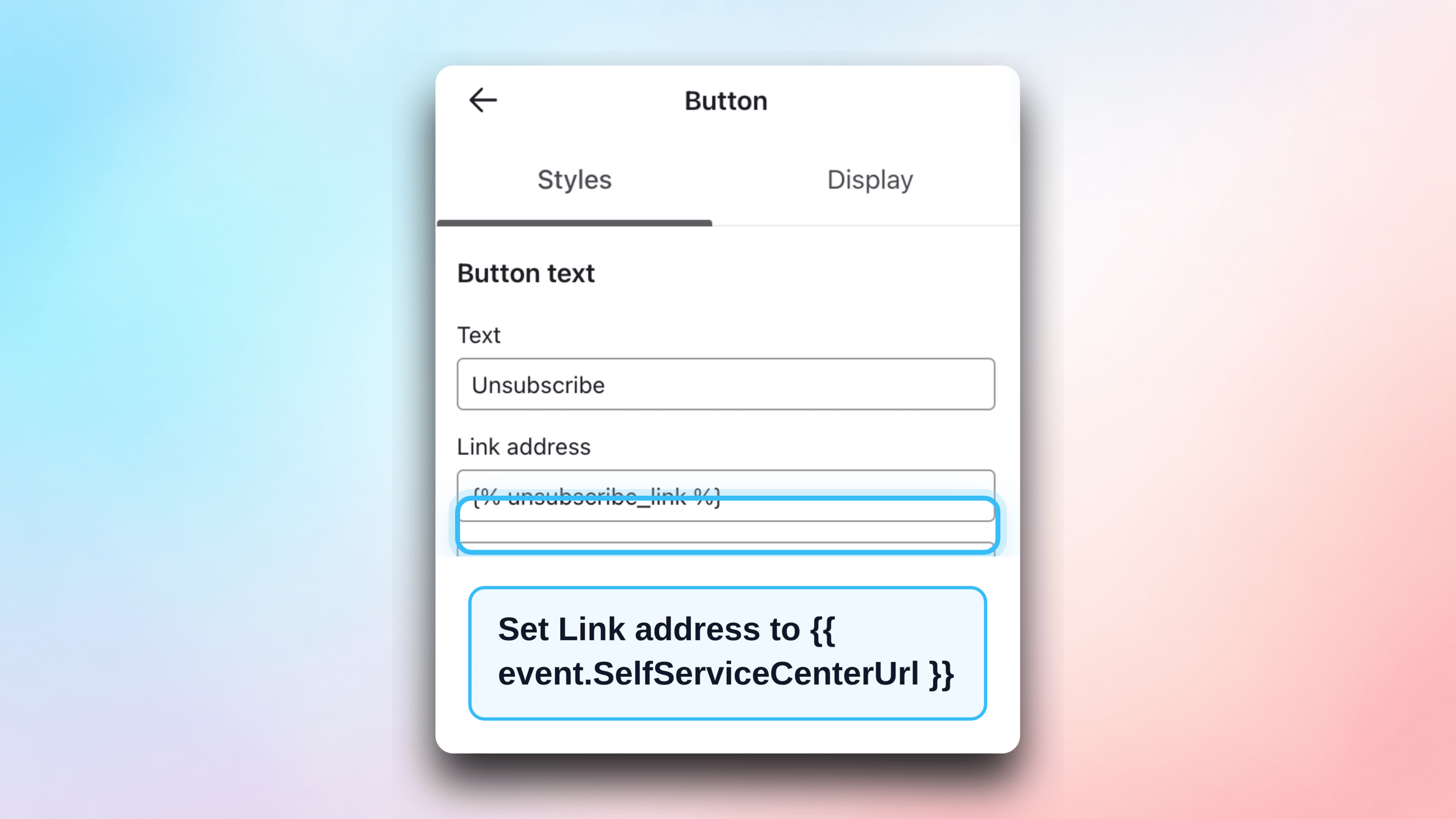
 #### Use URLs
Add buttons that send customers to the Self Service Center using the **SelfServiceCenterUrl** property:
#### Use URLs
Add buttons that send customers to the Self Service Center using the **SelfServiceCenterUrl** property:
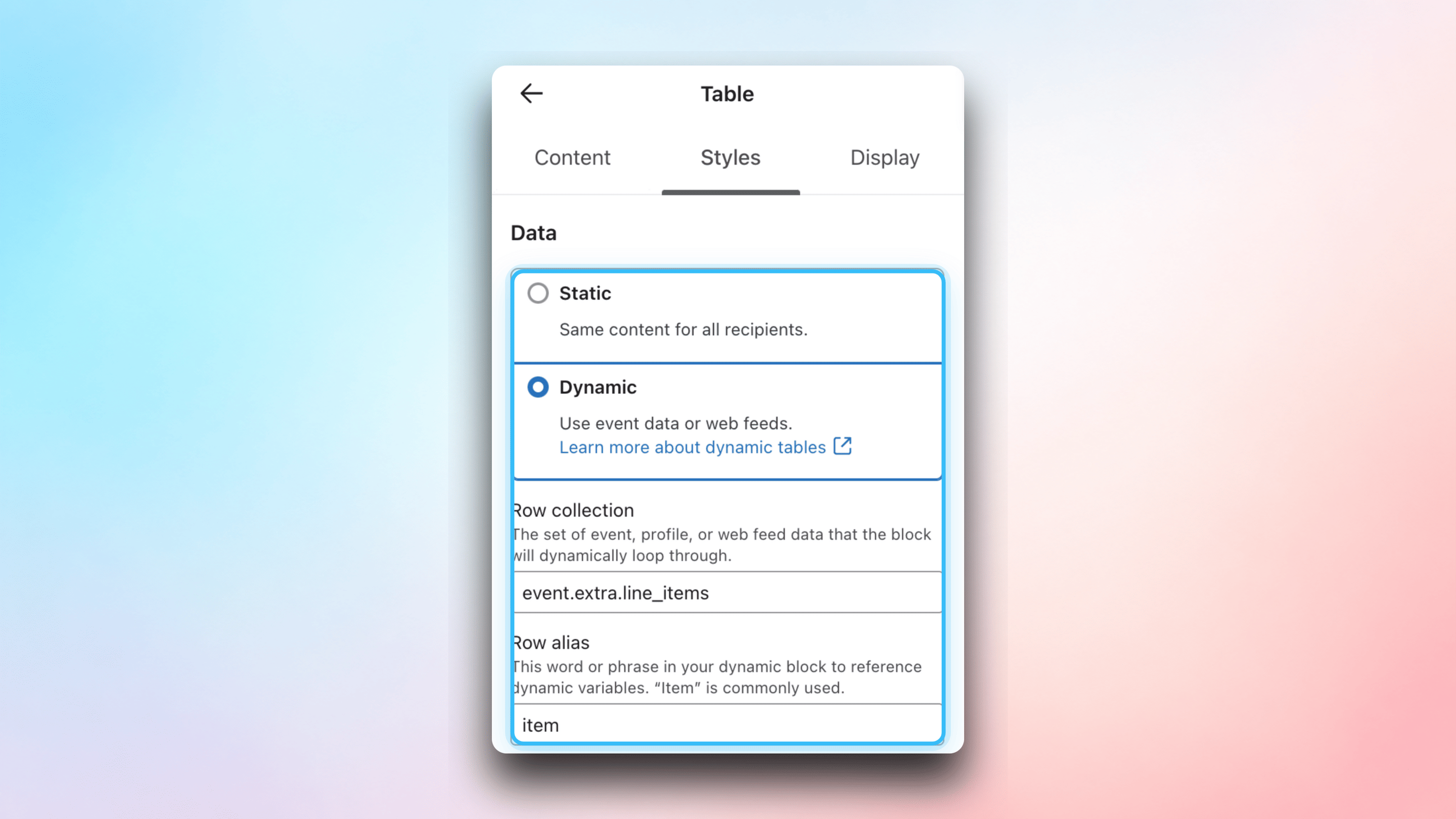
 #### Parse Event Property Lists
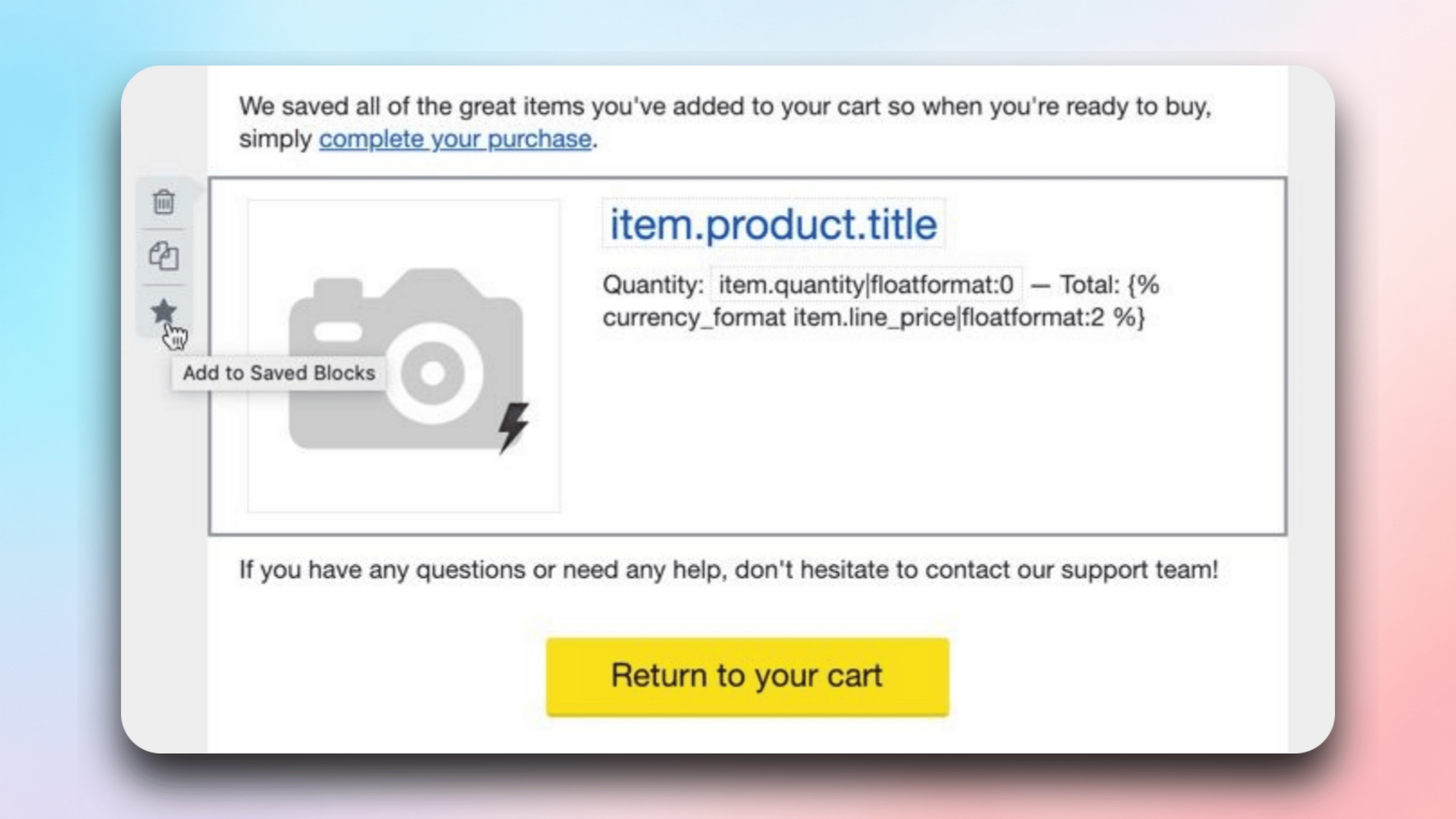
For complex properties like product lists, use the [Content repeat](https://help.klaviyo.com/hc/en-us/articles/4408802648731) function in Klaviyo to loop over all items.
#### Parse Event Property Lists
For complex properties like product lists, use the [Content repeat](https://help.klaviyo.com/hc/en-us/articles/4408802648731) function in Klaviyo to loop over all items.
 ## Go Live
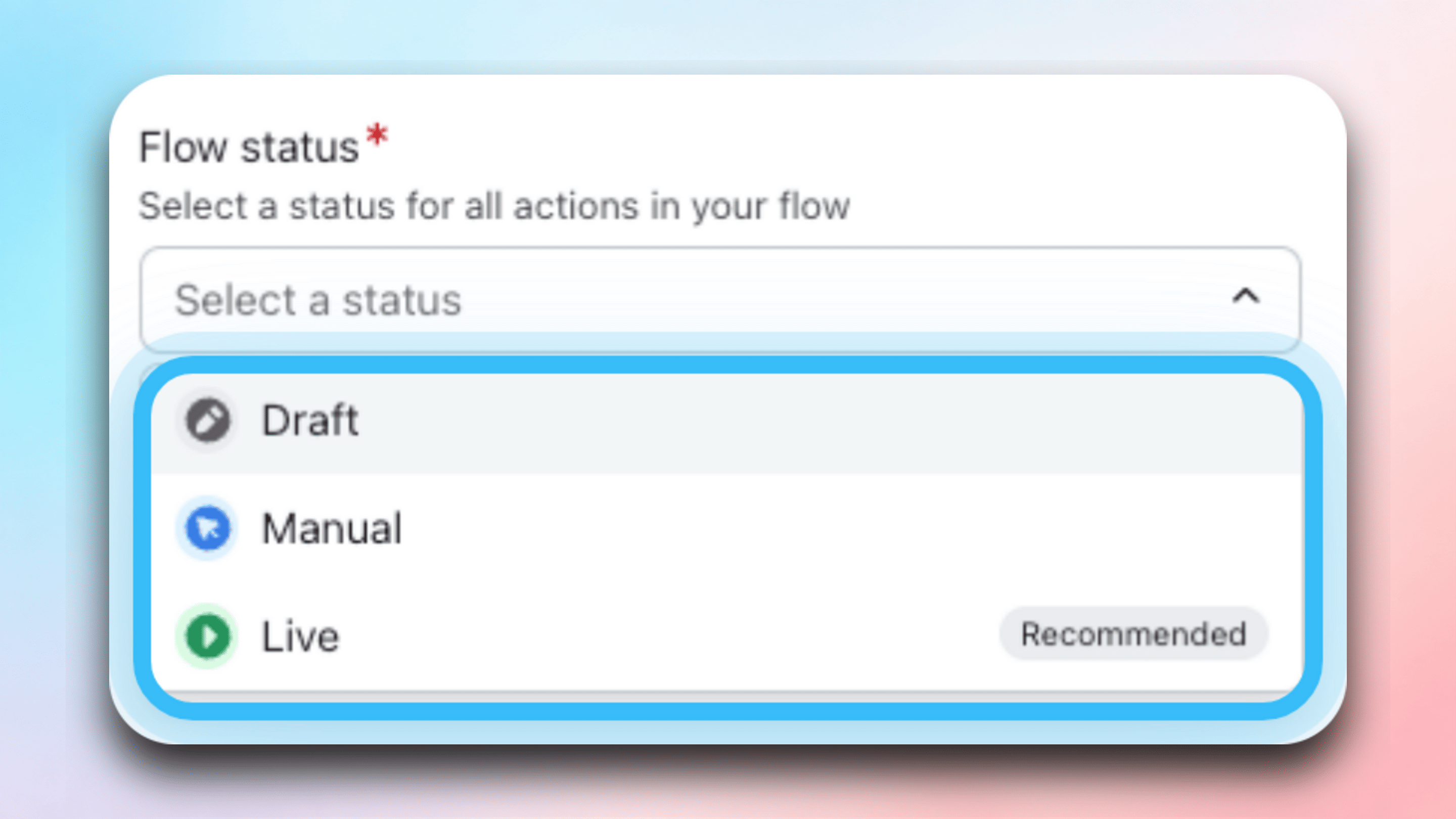
### Set Your Flow to Live
Once you've finished editing your template, change the status of the email or use the **Review and turn on** feature to let the flow be triggered by all events sent from Firmhouse.
## Go Live
### Set Your Flow to Live
Once you've finished editing your template, change the status of the email or use the **Review and turn on** feature to let the flow be triggered by all events sent from Firmhouse.
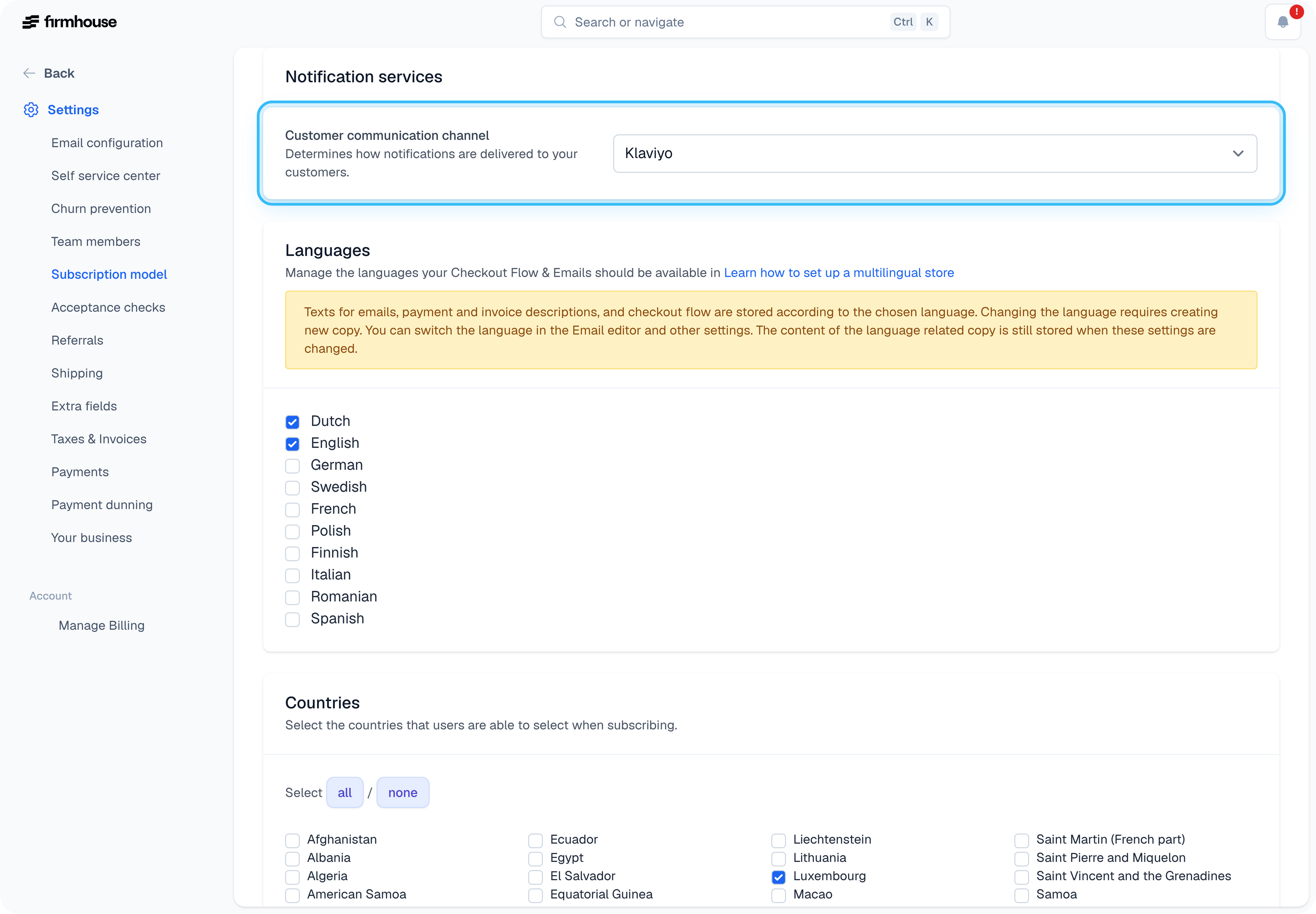
 ### Change the Communication Channel
When you're ready to complete the switch, go to **Settings** > **Subscription model** > **Notification services** and change the channel to **Klaviyo**. Scroll down and click **Update project**.
### Change the Communication Channel
When you're ready to complete the switch, go to **Settings** > **Subscription model** > **Notification services** and change the channel to **Klaviyo**. Scroll down and click **Update project**.
 ## Important: Mark Firmhouse Flows as Transactional
Klaviyo is primarily used to send marketing emails and allows subscribers to unsubscribe. An unwanted side-effect is that it can prevent transactional emails from being sent. To ensure all Firmhouse transactional emails are delivered, contact Klaviyo support and ask them to mark the flows containing Firmhouse emails as transactional.
See this [Klaviyo help article](https://help.klaviyo.com/hc/en-us/articles/360002727012-Guide-to-Transactional-Email) for more information.
## Troubleshooting
If events don't arrive in Klaviyo, the most likely cause is a problem with the JSON formatting of the template. This should show up as an error in your project **Notifications**. Try an online JSON validator to highlight where the problem is.
## Example email templates
The following examples contain JSON payloads that can be sent to Klaviyo instead of email. See [Getting started with Klaviyo](/integrations/klaviyo/getting-started) for a new OAuth connection. Existing transactional payloads also work with OAuth.
You can extend these examples yourself using the [Liquid tags](https://developer.firmhouse.com/liquid/email-template-overview) Firmhouse provides.
### Confirmation email
```json theme={null}
{%- capture ProductnamesListString -%}
{%- for product in subscription.products -%}
{"title": "{{product.title}}", "ProductImage": "{{product.product_image_url}}", "ProductPrice": "{{product.price}}"};
{%- endfor -%}
{%- endcapture -%}
{% assign ProductnamesList = ProductnamesListString | split:';' | join:"," %}
{
"Name": "{{subscription.name}}",
"ProductnamesList": [{{ProductnamesList}}],
"MarketingConsent": "{{subscription.marketing_opt_in_accepted?}}",
"InvoiceAmount": "{{invoice.amount_price}}",
"LoginUrl": "{{subscription.login_url}}"
}
```
### Upcoming order notice
```json theme={null}
{%- capture ProductnamesListString -%}
{%- for product in subscription.next_upcoming_products -%}
{"title": "{{product.title}}", "quantity": "{{product.quantity}}", "shipmentdate": "{{product.shipment_date}}", "outofstock": {{product.out_of_stock}}, "replaceurl": "{{product.replace_url | ssc_hotlink}}"};
{%- endfor -%}
{%- endcapture -%}
{% assign ProductnamesList = ProductnamesListString | split:';' | join:"," %}
{% assign OutOfStockProducts = subscription.next_upcoming_products | where: "out_of_stock" %}
{
"Name": "{{subscription.name}}",
"UpcomingProductsList": [{{ProductnamesList}}],
"HasOutOfStockProducts": {% if OutOfStockProducts.size > 0 %}true{% else %}false{% endif %},
"SelfServiceCenterUrl": "{{project.self_service_center_url}}"
}
```
The per-product `outofstock` field and the `HasOutOfStockProducts` flag are only `true` when [Shopify stock levels are enforced](/configure/subscription-options/skip-orders-with-unavailable-products), so Klaviyo flows can branch on them to warn customers about products that would cause their renewal to be skipped.
`subscription.next_upcoming_products` also includes active **Next order only** products. Their `shipmentdate` is empty because they inherit the next order's shipment date. After the order containing them is created, they are removed from the subscription and no longer appear in this collection.
The per-product `replaceurl` field links straight to the swap flow for that product in the customer portal. Piped through `ssc_hotlink`, it logs the customer in automatically, so one click in the Klaviyo email takes them to picking a replacement product. The hotlink is valid for one week from the moment the event is sent.
### Cancellation initiation email
```json theme={null}
{
"Name": "{{subscription.name}}"
}
```
### Cancellation confirmation email
```json theme={null}
{
"Name": "{{subscription.name}}"
}
```
### Billing cycle notification
```json theme={null}
{%- capture ProductnamesListString -%}
{%- for product in subscription.products -%}
{"title": "{{product.title}}", "ProductImage": "{{product.product_image_url}}", "ProductPrice": "{{product.price}}"};
{%- endfor -%}
{%- endcapture -%}
{% assign ProductnamesList = ProductnamesListString | split:';' | join:"," %}
{
"Name": "{{subscription.name}}",
"ProductnamesList": [{{ProductnamesList}}],
"InvoiceAmount": "{{invoice.amount_price}}",
"Paymentmethod": "{{subscription.payment_method}}",
"InvoiceUrl": "{{invoice.pay_now_url}}"
}
```
### Failed payment
```json theme={null}
{% assign failed_invoices = outstanding_invoices %}
{% assign failedInvoicesCount = failed_invoices | size %}
{%- capture failedInvoicesString -%}
{%- for invoice in failed_invoices -%}
{"number": "{{invoice.number}}", "amount": "{{invoice.amount_price}}", "statusCode":
"{{invoice.status_code}}", "statusTranslated": "{{invoice.status_translated}}",
"pendingRetriesBoolean": {{invoice.pending_retries?}},
"payNowUrl": "{{invoice.pay_now_url}}" };
{%- endfor -%}
{%- endcapture -%}
{% assign failedInvoicesList = failedInvoicesString | split:';' | join: ", " %}
{
"Name": "{{subscription.name}}",
"paymentAmount": "{{payment.amount_price}}",
"paymentPayNowUrl": "{{payment.pay_now_url}}",
"failedInvoicesCount": "{{failedInvoicesCount}}",
"failedInvoicesList": [{{failedInvoicesList}}]
}
```
### Manual charge notification
```json theme={null}
{%- capture ProductnamesListString -%}
{%- for product in subscription.products -%}
{"title": "{{product.title}}", "ProductImage": "{{product.product_image_url}}"};
{%- endfor -%}
{%- endcapture -%}
{% assign ProductnamesList = ProductnamesListString | split:';' | join:"," %}
{
"Name": "{{subscription.name}}",
"ProductnamesList": [{{ProductnamesList}}],
"Amount": "{{payment.amount_price}}",
"Description": "{{payment.description}}"
}
```
### Outstanding invoices
```json theme={null}
{% assign failed_invoices = outstanding_invoices %}
{% assign failedInvoicesCount = failed_invoices | size %}
{%- capture failedInvoicesString -%}
{%- for invoice in failed_invoices -%}
{"number": "{{invoice.number}}", "amount": "{{invoice.amount_price}}", "statusCode":
"{{invoice.status_code}}", "statusTranslated": "{{invoice.status_translated}}",
"pendingRetriesBoolean": {{invoice.pending_retries?}},
"payNowUrl": "{{invoice.pay_now_url}}" };
{%- endfor -%}
{%- endcapture -%}
{% assign failedInvoicesList = failedInvoicesString | split:';' | join: ", " %}
{
"Name": "{{subscription.name}}",
"failedInvoicesList": [{{failedInvoicesList}}]
}
```
`statusCode` is stable across subscription locales and is intended for conditions or merchant-owned translations in Klaviyo. `statusTranslated` is display text localized using the subscription's locale.
### Invoice reminder
```json theme={null}
{
"Name": "{{subscription.name}}",
"InvoiceAmount": "{{invoice.amount_price}}",
"InvoiceNumber": "{{invoice.number}}",
"InvoiceUrl": "{{invoice.pay_now_url}}",
"FinalReminder": "{{invoice_reminder.final_reminder}}",
"ReminderNumber": "{{invoice_reminder.reminder_number}}"
}
```
### Self service center login
```json theme={null}
{
"Name": "{{subscription.name}}",
"Login": "{{subscription.login_url}}"
}
```
## Additional Resources
* [Available Liquid tags](https://developer.firmhouse.com/liquid/email-template-overview) to provide dynamic content to Klaviyo
## Important: Mark Firmhouse Flows as Transactional
Klaviyo is primarily used to send marketing emails and allows subscribers to unsubscribe. An unwanted side-effect is that it can prevent transactional emails from being sent. To ensure all Firmhouse transactional emails are delivered, contact Klaviyo support and ask them to mark the flows containing Firmhouse emails as transactional.
See this [Klaviyo help article](https://help.klaviyo.com/hc/en-us/articles/360002727012-Guide-to-Transactional-Email) for more information.
## Troubleshooting
If events don't arrive in Klaviyo, the most likely cause is a problem with the JSON formatting of the template. This should show up as an error in your project **Notifications**. Try an online JSON validator to highlight where the problem is.
## Example email templates
The following examples contain JSON payloads that can be sent to Klaviyo instead of email. See [Getting started with Klaviyo](/integrations/klaviyo/getting-started) for a new OAuth connection. Existing transactional payloads also work with OAuth.
You can extend these examples yourself using the [Liquid tags](https://developer.firmhouse.com/liquid/email-template-overview) Firmhouse provides.
### Confirmation email
```json theme={null}
{%- capture ProductnamesListString -%}
{%- for product in subscription.products -%}
{"title": "{{product.title}}", "ProductImage": "{{product.product_image_url}}", "ProductPrice": "{{product.price}}"};
{%- endfor -%}
{%- endcapture -%}
{% assign ProductnamesList = ProductnamesListString | split:';' | join:"," %}
{
"Name": "{{subscription.name}}",
"ProductnamesList": [{{ProductnamesList}}],
"MarketingConsent": "{{subscription.marketing_opt_in_accepted?}}",
"InvoiceAmount": "{{invoice.amount_price}}",
"LoginUrl": "{{subscription.login_url}}"
}
```
### Upcoming order notice
```json theme={null}
{%- capture ProductnamesListString -%}
{%- for product in subscription.next_upcoming_products -%}
{"title": "{{product.title}}", "quantity": "{{product.quantity}}", "shipmentdate": "{{product.shipment_date}}", "outofstock": {{product.out_of_stock}}, "replaceurl": "{{product.replace_url | ssc_hotlink}}"};
{%- endfor -%}
{%- endcapture -%}
{% assign ProductnamesList = ProductnamesListString | split:';' | join:"," %}
{% assign OutOfStockProducts = subscription.next_upcoming_products | where: "out_of_stock" %}
{
"Name": "{{subscription.name}}",
"UpcomingProductsList": [{{ProductnamesList}}],
"HasOutOfStockProducts": {% if OutOfStockProducts.size > 0 %}true{% else %}false{% endif %},
"SelfServiceCenterUrl": "{{project.self_service_center_url}}"
}
```
The per-product `outofstock` field and the `HasOutOfStockProducts` flag are only `true` when [Shopify stock levels are enforced](/configure/subscription-options/skip-orders-with-unavailable-products), so Klaviyo flows can branch on them to warn customers about products that would cause their renewal to be skipped.
`subscription.next_upcoming_products` also includes active **Next order only** products. Their `shipmentdate` is empty because they inherit the next order's shipment date. After the order containing them is created, they are removed from the subscription and no longer appear in this collection.
The per-product `replaceurl` field links straight to the swap flow for that product in the customer portal. Piped through `ssc_hotlink`, it logs the customer in automatically, so one click in the Klaviyo email takes them to picking a replacement product. The hotlink is valid for one week from the moment the event is sent.
### Cancellation initiation email
```json theme={null}
{
"Name": "{{subscription.name}}"
}
```
### Cancellation confirmation email
```json theme={null}
{
"Name": "{{subscription.name}}"
}
```
### Billing cycle notification
```json theme={null}
{%- capture ProductnamesListString -%}
{%- for product in subscription.products -%}
{"title": "{{product.title}}", "ProductImage": "{{product.product_image_url}}", "ProductPrice": "{{product.price}}"};
{%- endfor -%}
{%- endcapture -%}
{% assign ProductnamesList = ProductnamesListString | split:';' | join:"," %}
{
"Name": "{{subscription.name}}",
"ProductnamesList": [{{ProductnamesList}}],
"InvoiceAmount": "{{invoice.amount_price}}",
"Paymentmethod": "{{subscription.payment_method}}",
"InvoiceUrl": "{{invoice.pay_now_url}}"
}
```
### Failed payment
```json theme={null}
{% assign failed_invoices = outstanding_invoices %}
{% assign failedInvoicesCount = failed_invoices | size %}
{%- capture failedInvoicesString -%}
{%- for invoice in failed_invoices -%}
{"number": "{{invoice.number}}", "amount": "{{invoice.amount_price}}", "statusCode":
"{{invoice.status_code}}", "statusTranslated": "{{invoice.status_translated}}",
"pendingRetriesBoolean": {{invoice.pending_retries?}},
"payNowUrl": "{{invoice.pay_now_url}}" };
{%- endfor -%}
{%- endcapture -%}
{% assign failedInvoicesList = failedInvoicesString | split:';' | join: ", " %}
{
"Name": "{{subscription.name}}",
"paymentAmount": "{{payment.amount_price}}",
"paymentPayNowUrl": "{{payment.pay_now_url}}",
"failedInvoicesCount": "{{failedInvoicesCount}}",
"failedInvoicesList": [{{failedInvoicesList}}]
}
```
### Manual charge notification
```json theme={null}
{%- capture ProductnamesListString -%}
{%- for product in subscription.products -%}
{"title": "{{product.title}}", "ProductImage": "{{product.product_image_url}}"};
{%- endfor -%}
{%- endcapture -%}
{% assign ProductnamesList = ProductnamesListString | split:';' | join:"," %}
{
"Name": "{{subscription.name}}",
"ProductnamesList": [{{ProductnamesList}}],
"Amount": "{{payment.amount_price}}",
"Description": "{{payment.description}}"
}
```
### Outstanding invoices
```json theme={null}
{% assign failed_invoices = outstanding_invoices %}
{% assign failedInvoicesCount = failed_invoices | size %}
{%- capture failedInvoicesString -%}
{%- for invoice in failed_invoices -%}
{"number": "{{invoice.number}}", "amount": "{{invoice.amount_price}}", "statusCode":
"{{invoice.status_code}}", "statusTranslated": "{{invoice.status_translated}}",
"pendingRetriesBoolean": {{invoice.pending_retries?}},
"payNowUrl": "{{invoice.pay_now_url}}" };
{%- endfor -%}
{%- endcapture -%}
{% assign failedInvoicesList = failedInvoicesString | split:';' | join: ", " %}
{
"Name": "{{subscription.name}}",
"failedInvoicesList": [{{failedInvoicesList}}]
}
```
`statusCode` is stable across subscription locales and is intended for conditions or merchant-owned translations in Klaviyo. `statusTranslated` is display text localized using the subscription's locale.
### Invoice reminder
```json theme={null}
{
"Name": "{{subscription.name}}",
"InvoiceAmount": "{{invoice.amount_price}}",
"InvoiceNumber": "{{invoice.number}}",
"InvoiceUrl": "{{invoice.pay_now_url}}",
"FinalReminder": "{{invoice_reminder.final_reminder}}",
"ReminderNumber": "{{invoice_reminder.reminder_number}}"
}
```
### Self service center login
```json theme={null}
{
"Name": "{{subscription.name}}",
"Login": "{{subscription.login_url}}"
}
```
## Additional Resources
* [Available Liquid tags](https://developer.firmhouse.com/liquid/email-template-overview) to provide dynamic content to Klaviyo