> ## Documentation Index
> Fetch the complete documentation index at: https://docs.firmhouse.com/llms.txt
> Use this file to discover all available pages before exploring further.
# Configure outgoing webhooks
> Configure Firmhouse outgoing webhooks to send HTTP POST requests to your apps or third-party systems whenever subscription events occur.
Webhooks allow you to communicate with third-party applications or your own apps and systems by sending HTTP POST requests when specific events occur in Firmhouse. You can [view all available webhook events](https://developer.firmhouse.com/webhooks/overview) in the developer documentation.
## Setting up webhooks in Firmhouse
Creating a webhook in Firmhouse is a simple three-step process:
1. Get the webhook URL from the application you want the data sent to
2. Use that URL in the webhook section in Firmhouse
3. Set up what events you want your webhook to listen to and notify you about when it occurs
## Create a webhook in Firmhouse
### Steps
1. Navigate to **Apps** in the sidebar
2. Find the **Webhooks** app and click **Configure**
3. Click **New outgoing webhook** on the top-right
4. Enter a **Name** for the webhook, such as "Activated subscription"
5. In the **Endpoint url** field, enter the URL you want to receive the webhook. This is where the data will be sent once the webhook is triggered. The URL will receive an HTTP POST request when the selected event happens.
6. If you intend to use Basic authentication to secure your webhook, provide the **Username** and **Password** of the HTTP **Basic auth**, otherwise leave **Authentication type** on **None**
7. If the receiving system requires a token or another custom HTTP header, add one header per line under **Custom HTTP headers**, for example `X-Webhook-Token: your-secret-token`. Firmhouse encrypts these values and hides them after saving. Firmhouse-managed request headers cannot be overridden.
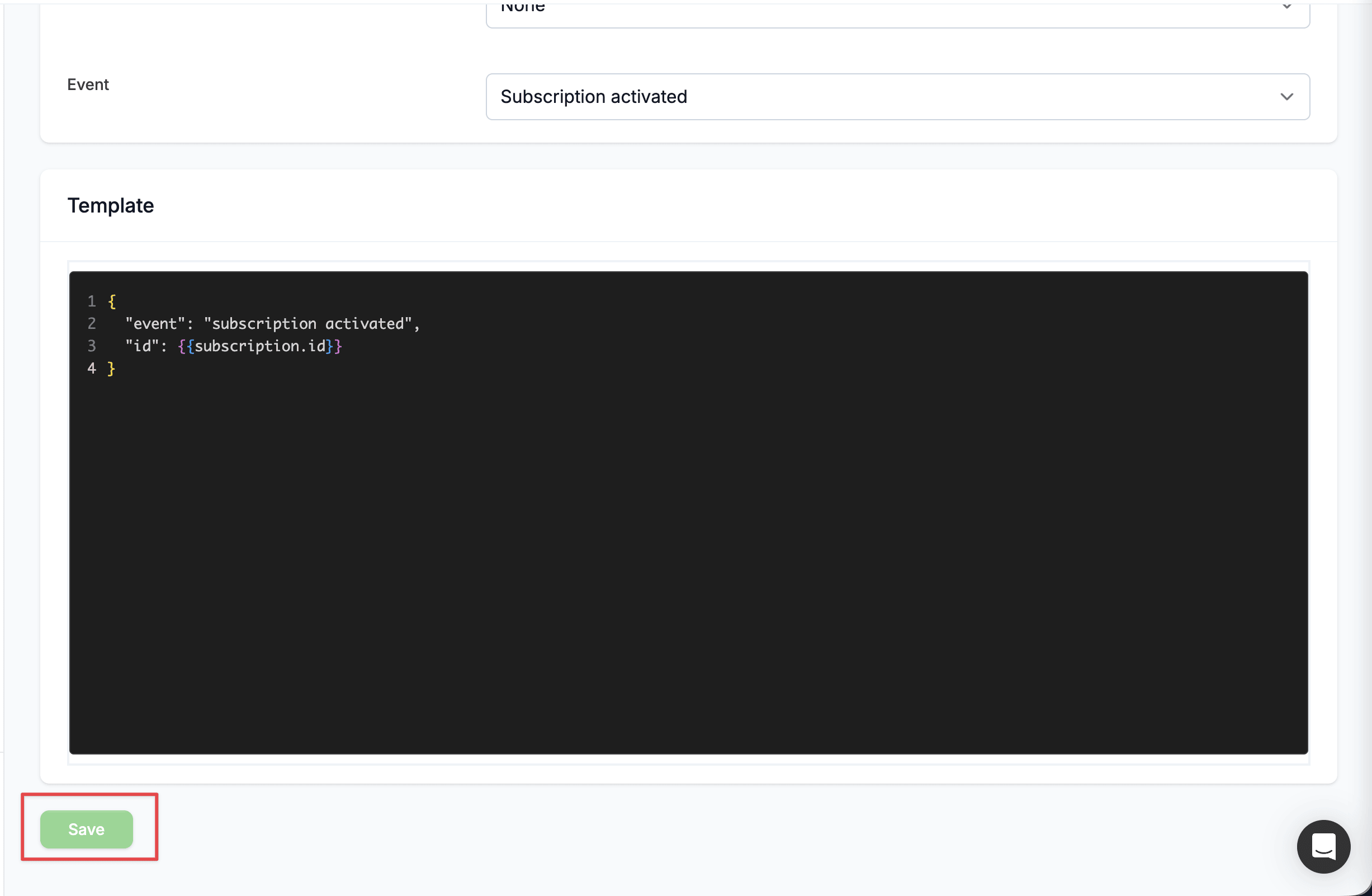
8. From the **Event** dropdown, select the event you want to be notified about (e.g., **Subscription activated**)
9. In the **Template** field, configure your payload using JSON format and Liquid tags. For example:
```json theme={null}
{
"event": "{{event}}",
"id": {{subscription.id}}
}
```
The `{{event}}` tag renders the name of the selected event (for example `subscription_activated`) and is available in every webhook template. Learn more about Liquid tags in Firmhouse in the [developer documentation](https://developer.firmhouse.com/liquid/introduction).
10. Click **Save** to save the outgoing webhook
 ## Prevent duplicate processing
Every webhook request includes an `Idempotency-Key` HTTP header. The same key is used when Firmhouse retries a delivery, so your receiving system can safely ignore a request it has already processed.
## Enable or disable a webhook
You can enable or disable your outgoing webhook temporarily without having to delete the webhook itself or its content.
### Steps
1. Navigate to **Apps** in the sidebar
2. Find the **Webhooks** app and click **Configure** to open a list of already saved outgoing webhooks
3. Click on the particular webhook you want to enable/disable and click **Edit**
4. To enable or disable the webhook, check or uncheck the **Enable** checkbox, respectively
5. Click **Save** to save the outgoing webhook
## Subscription discount webhook events
If you want to automate discount lifecycle handling for subscriptions, use these events:
* `subscription_discount_applied`: sent when a discount is first applied to a completed subscription.
* `subscription_discount_updated`: sent when an applied discount changes, including usage updates and deactivation (`active = false`).
* `subscription_discount_deleted`: sent when an applied discount is removed, including Shopify discount removals from the **Applied discounts** section.
These events use the subscription context in Liquid templates. For example:
```json theme={null}
{
"event": "{{event}}",
"subscription_id": {{subscription.id}}
}
```
## Churn request lifecycle webhook events
Use churn request lifecycle events to follow a customer's cancellation or pause journey independently from subscription state changes:
* `churn_request_initiated`: sent once when a new cancellation or pause flow starts. Revisiting the same active flow does not send it again.
* `churn_request_prevented`: sent when the customer accepts a winback offer instead of completing the requested cancellation or pause.
* `churn_request_completed`: sent approximately five minutes after the requested cancellation or pause is completed, allowing time for completion-page feedback to be saved before the payload is generated.
* `churn_request_feedback_updated`: sent approximately five minutes after free-text feedback is saved for a completed or prevented request.
Every event provides both `churn_request` and `subscription` Liquid objects. The churn request fields are:
* `churn_request.id`: the stable request ID.
* `churn_request.flow`: `cancellation` or `pause`.
* `churn_request.status`: `initiated`, `prevented`, or `completed`.
* `churn_request.reason_title` and `churn_request.reason_description`: the selected reason, when available.
* `churn_request.follow_up_action`: the selected action (`pause_subscription`, `skip_next_order`, `offer_discount`, or `cancel`). It is blank on an initiated request until the customer selects a reason.
* `churn_request.feedback`: the saved free-text feedback, when available.
* `churn_request.created_at`: when the request started.
* `churn_request.updated_at`: when the request, including its feedback, was last updated.
The `flow`, `status`, and `follow_up_action` fields distinguish similar outcomes. For example, a cancellation request prevented by a pause has `flow: cancellation`, `status: prevented`, and `follow_up_action: pause_subscription`. A customer who completes the dedicated pause flow has `flow: pause` and `status: completed`.
### Example lifecycle payloads
Configure one outgoing webhook for each event you need. These examples show representative rendered payloads; use the matching Liquid variables in your webhook template.
`churn_request_initiated`:
```json theme={null}
{
"event": "churn_request_initiated",
"churn_request_id": 4812,
"subscription_id": 205,
"flow": "cancellation",
"status": "initiated",
"reason": "",
"follow_up_action": "",
"feedback": ""
}
```
`churn_request_prevented` for a cancellation-flow pause winback:
```json theme={null}
{
"event": "churn_request_prevented",
"churn_request_id": 4812,
"subscription_id": 205,
"flow": "cancellation",
"status": "prevented",
"reason": "I have too much product",
"follow_up_action": "pause_subscription",
"feedback": ""
}
```
`churn_request_completed` for a standalone pause flow:
```json theme={null}
{
"event": "churn_request_completed",
"churn_request_id": 4813,
"subscription_id": 205,
"flow": "pause",
"status": "completed",
"reason": "Going on holiday",
"follow_up_action": "cancel",
"feedback": ""
}
```
`churn_request_feedback_updated`:
```json theme={null}
{
"event": "churn_request_feedback_updated",
"churn_request_id": 4813,
"subscription_id": 205,
"flow": "pause",
"status": "completed",
"reason": "Going on holiday",
"follow_up_action": "cancel",
"feedback": "I will restart after the summer"
}
```
For example, the feedback webhook template can be configured as:
```json theme={null}
{
"event": "churn_request_feedback_updated",
"churn_request_id": {{ churn_request.id }},
"subscription_id": {{ subscription.id }},
"flow": {{ churn_request.flow | json_escape }},
"status": {{ churn_request.status | json_escape }},
"reason": {{ churn_request.reason_title | json_escape }},
"follow_up_action": {{ churn_request.follow_up_action | json_escape }},
"feedback": {{ churn_request.feedback | json_escape }},
"updated_at": {{ churn_request.updated_at | json_escape }}
}
```
If the customer abandons the flow, only `churn_request_initiated` is sent. Terminal events are generated once per status transition. Outgoing webhook delivery remains retryable; use `churn_request.id` together with the event name for one-time lifecycle events.
Feedback payload generation is delayed by approximately five minutes. If feedback is edited more than once during that window, each queued delivery renders the latest saved feedback and `updated_at`; intermediate revisions are not delivered separately. Use `churn_request.id`, the event name, and `churn_request.updated_at` to deduplicate deliveries of that latest state.
These events do not replace `subscription_cancellation_initiation`, `subscription_cancellation_confirmation`, or `subscription_paused`; existing subscription-state webhooks continue to behave as before.
## Subscription paused webhook event
Use `subscription_paused` to react when a customer pauses their subscription. The subscription context exposes the pause details, so you can tell a temporary pause (the customer chose an automatic resume date) from an indefinite one and see the reason and winback offer behind it.
Recommended template:
```json theme={null}
{
"event": "{{event}}",
"subscription_id": {{subscription.id}},
"paused_until": "{{subscription.paused_until}}",
"pause_reason": "{{subscription.pause_churn_request.reason_title}}",
"winback_offer": "{{subscription.pause_churn_request.follow_up_action}}",
"feedback": "{{subscription.pause_churn_request.feedback}}"
}
```
* `subscription.paused_until` is set when the customer paused for a fixed period and is blank for an indefinite pause. A present value means the customer already has a resume date, which is useful for excluding them from reactivation campaigns.
* `subscription.pause_churn_request` exposes the customer's most recent finalized pause request when you use [pause reasons and winback offers](/configure/activation-and-cancellation/cancellation-feedback-prevention): the winback offer taken (`follow_up_action`), the reason (`reason_title`, `reason_description`), the customer's `feedback`, and the request `status`. Use `subscription.cancellation_churn_request` for the cancellation flow, or `subscription.latest_churn_request` for the most recent request across both flows.
See the [Liquid developer documentation](https://developer.firmhouse.com/liquid/introduction) for the full list of subscription fields.
## Subscription metadata updated webhook event
Use `subscription_metadata_updated` when your integration should react whenever a subscription's metadata changes.
This event uses the `subscription` Liquid object as usual. When the payload is generated from a tracked version, the template can also access `change_set.metadata.before` and `change_set.metadata.after` to compare the previous and new metadata values for each key.
Recommended template:
```json theme={null}
{
"event": "{{event}}",
"subscription_id": {{subscription.id}},
"metadata": {{subscription.metadata | json_escape}},
"profile_tag_before": {{change_set.metadata.before.profile_tag | default: "" | json_escape}},
"profile_tag_after": {{change_set.metadata.after.profile_tag | default: "" | json_escape}}
}
```
Use the `change_set` values when you need to branch on exactly what changed. If there is no previous value for a key, the corresponding `before` value is blank.
## Extra field answer updated webhook event
Use `extra_field_answer_updated` when your integration should react to a customer's extra field answer changing. The payload can access the answer that triggered the event and compare its previous and updated values:
```json theme={null}
{
"event": "{{event}}",
"subscription_id": {{subscription.id}},
"field": {{extra_field_answer.parameterized_name | json_escape}},
"previous_value": {{change_set.value.before | default: "" | json_escape}},
"updated_value": {{change_set.value.after | default: "" | json_escape}}
}
```
Use `extra_field_answer.parameterized_name` to identify the changed field. The existing subscription-wide `extra_field` values remain available when the integration also needs the current values of other fields.
## Order and invoice ready webhook event
Use `order_invoice_ready` when an integration needs both an order and its final invoice. Firmhouse sends this event only after the order is confirmed or fulfilled, the invoice is final, and the relationship between them is known. Credit invoices are excluded.
The event provides both `order` and `invoice` Liquid objects:
```json theme={null}
{
"event": "{{event}}",
"order_id": {{order.id}},
"invoice_id": {{invoice.id}}
}
```
Firmhouse uses the order and invoice IDs to prevent the same ready event from being delivered more than once for a webhook configuration. This covers cases where the order, invoice, and payment relationships become ready through separate updates.
## Order scheduled webhook event
Use `order_scheduled` to react when an order enters the scheduled state. This is useful when you want to trigger automations, notify external systems, or run follow-up processing in your own application.
Recommended template:
```json theme={null}
{
"event": "{{event}}",
"order_id": {{order.id}},
"shipment_date": "{{order.shipment_date}}",
"subscription_id": {{subscription.id}}
}
```
## Subscription upcoming billing webhook event
Use `subscription_upcoming_billing` when you want to run checks or automations before billing-cycle order generation.
* This event is available for order-based projects with plan support and opt-out order-based projects without plans.
* Firmhouse evaluates eligible subscriptions every night at **01:00**.
* You can configure how many days before the next billing date this event should fire in the webhook settings (**1-30 days**, default: **1 day**). For subscriptions without a plan, the next shipment date is also the next billing date, so Firmhouse uses the closest upcoming shipment.
* By default, this webhook is also sent for paused subscriptions so you can remind your customers to resume their subscription when their planned order date is approaching. You can also turn off **Also send while subscription is paused** in the webhook settings if paused subscriptions should be fully skipped.
* By default, subscriptions marked as non-paying are skipped. Turn on **Also send while subscription is marked as non-paying** if you still want this webhook for subscriptions with unresolved payment issues.
The `upcoming_billing_date` Liquid variable contains the future date that triggered the webhook. For subscriptions without a plan, it is the closest upcoming product shipment date.
The `order` Liquid object contains a preview of the next order.
Iterate over `order.order_lines` to access each line's `quantity` and `product`. Each product exposes:
* `available`: whether the product is available in Firmhouse
* `in_stock`: whether the product is in stock according to the latest automatic product sync
* `stock`: the latest stock quantity stored in Firmhouse
Use these fields to branch in an external automation when the upcoming order contains an unavailable or out-of-stock product. For example:
```json theme={null}
{
"event": "subscription_upcoming_billing",
"subscription_id": {{subscription.id}},
"upcoming_billing_date": "{{upcoming_billing_date}}",
"products": [
{%- for line in order.order_lines -%}
{
"id": {{line.product.id}},
"title": {{line.product.title | json_escape}},
"quantity": {{line.quantity}},
"available": {{line.product.available}},
"in_stock": {{line.product.in_stock}},
"stock": {{line.product.stock | json_escape}}
}{% unless forloop.last %},{% endunless %}
{%- endfor -%}
]
}
```
`in_stock` remains `true` for products that do not use Shopify stock tracking. See [Product availability & stock rules](/configure/subscription-options/skip-orders-with-unavailable-products#when-is-a-product-considered-out-of-stock) for the exact stock rules.
## Product stock availability webhook events
Firmhouse offers stock availability events at two levels:
* **Product level**: `product_out_of_stock` and `product_back_in_stock` are sent once per product when its stock availability changes, regardless of subscriptions. Deliveries include the `product` and `project` Liquid objects, like the `product_created` event.
* **Subscription level**: `subscription_product_out_of_stock` and `subscription_product_back_in_stock` are sent once for each affected subscription, so every delivery includes both the affected `product` and `subscription` Liquid objects.
All of these events are available when the **Product availability & stock rules** feature is enabled and your project uses automatic product sync, since stock availability is tracked through that sync. See [Use Shopify stock levels](/configure/subscription-options/skip-orders-with-unavailable-products#use-shopify-stock-levels) for how stock tracking works and [when a product is considered out of stock](/configure/subscription-options/skip-orders-with-unavailable-products#when-is-a-product-considered-out-of-stock) for the exact rules. Each event is sent only when the saved stock availability changes in the corresponding direction; further stock updates that do not change availability do not send another event.
Recommended template for the product-level events:
```json theme={null}
{
"event": "{{event}}",
"product_id": {{product.id}},
"product_title": {{product.title | json_escape}},
"product_sku": {{product.sku | json_escape}},
"stock": {{product.stock | json_escape}},
"project_id": {{project.id}}
}
```
For the subscription-level events, a subscription is considered affected when both of the following apply:
* The subscription is activated, paused, or in the process of being cancelled (cancellation in progress or pending cancellation). Draft, inactive, and cancelled subscriptions do not receive these events.
* The subscription currently contains the product as an active ordered product. Returned or owned products do not count.
If no subscription matches these conditions when the stock availability changes, no subscription-level webhook is sent.
Recommended template for the subscription-level events:
```json theme={null}
{
"event": "{{event}}",
"product_id": {{product.id}},
"product_title": {{product.title | json_escape}},
"product_sku": {{product.sku | json_escape}},
"stock": {{product.stock | json_escape}},
"subscription_id": {{subscription.id}}
}
```
A product used by multiple affected subscriptions produces a separate delivery for each subscription.
## Upcoming order notice webhook event
Use `upcoming_order_notice` when you want to notify an external system before a subscription's upcoming order is created.
By default, this webhook is also sent for paused subscriptions when upcoming order notices are enabled for paused subscriptions in the email settings. Turn off **Also send while subscription is paused** in the webhook settings if this specific webhook should skip paused subscriptions.
## Recurring order skipped webhook event
Use `recurring_order_skipped` to notify an external system when Firmhouse skips a recurring order or Shopify subscription billing attempt for one of the supported reasons below. Other skip paths do not emit this event, and customer-initiated skips from the customer portal are not included.
The event is available in webhook configuration when the **Product availability & stock rules** feature is enabled for your project.
The webhook includes the subscription context and a `recurring_order_skip.reason` value that explains why the order was skipped:
* `locked_license`: the Firmhouse project was locked, so order or billing-attempt creation could not continue.
* `nothing_to_ship`: there were no products to include in the recurring order.
* `minimum_amount_not_reached`: the recurring order did not meet the project's minimum order amount.
* `unavailable_product`: the subscription contains a product that is no longer available, and the project is configured to skip orders with unavailable products.
* `out_of_stock`: the subscription contains an available product that is out of stock, Shopify inventory tracking is enabled, and the project is configured to skip these orders.
* `product_quantity_out_of_range`: the subscription's product quantity did not meet the active plan's minimum or maximum product quantity rule.
When a customer email is sent for the skip, the same reason value is available as `{{recurring_order_skip.reason}}` in the native **Recurring order skipped** email. See [Supported customer emails overview](/configure/customer-communication/supported-emails-overview#order-and-shipping-emails) to enable and customize that email.
Recommended template:
```json theme={null}
{
"event": "{{event}}",
"subscription_id": {{subscription.id}},
"reason": "{{recurring_order_skip.reason}}"
}
```
You can also use this event with the **Shopify Flow trigger** content type to start a workflow when an order is skipped. See [Trigger Shopify Flow workflows](/integrations/shopify-flow-triggers#react-to-a-skipped-recurring-order).
## GraphQL bulk operation finished webhook event
Use `graphql_bulk_operation_finished` when your integration starts GraphQL bulk operations and should be notified when the JSONL result file is ready.
This event uses the `bulk_operation` Liquid object in the webhook template. See [GraphQL bulk operations](/developers/guides/run-graphql-bulk-operation-queries#use-the-finished-webhook) for the setup steps and recommended JSON template.
## Editing a webhook
Firmhouse allows you to edit the configuration of your webhooks.
### Steps
1. Navigate to **Apps** in the sidebar
2. Find the **Webhooks** app and click **Configure** to display a list of already saved outgoing webhooks
3. Click on the webhook that you want to edit and click on the **Edit** button
4. Make the necessary changes to the configuration fields of the webhook
5. Click **Save** to save the changes
## Send a test event
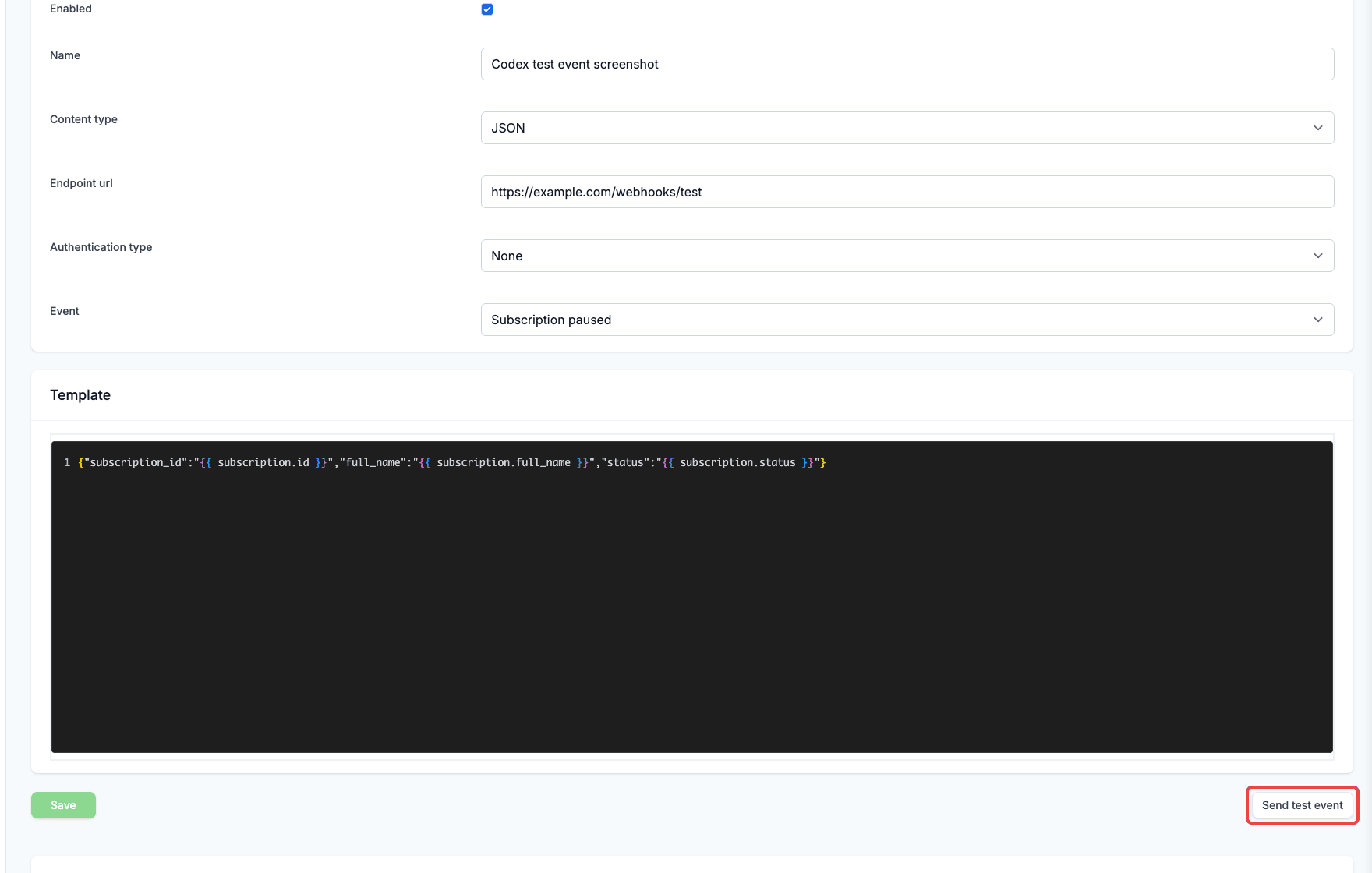
Use **Send test event** to check a saved outgoing webhook before waiting for a real customer event.
This action sends the saved webhook configuration with sample Firmhouse data and records the result in the **Webhook event log**. If you changed the template, content type, or any other setting on the page, click **Save** before sending a test event.
### Steps
1. Navigate to **Apps** in the sidebar.
2. Find the **Webhooks** app and click **Configure**.
3. Open an existing outgoing webhook.
4. Review or update the webhook template.
5. Click **Save** if you made any changes.
6. Click **Send test event**.
7. Check the **Webhook event log** for the request body, response code, response body, duration, and attempt count.
## Prevent duplicate processing
Every webhook request includes an `Idempotency-Key` HTTP header. The same key is used when Firmhouse retries a delivery, so your receiving system can safely ignore a request it has already processed.
## Enable or disable a webhook
You can enable or disable your outgoing webhook temporarily without having to delete the webhook itself or its content.
### Steps
1. Navigate to **Apps** in the sidebar
2. Find the **Webhooks** app and click **Configure** to open a list of already saved outgoing webhooks
3. Click on the particular webhook you want to enable/disable and click **Edit**
4. To enable or disable the webhook, check or uncheck the **Enable** checkbox, respectively
5. Click **Save** to save the outgoing webhook
## Subscription discount webhook events
If you want to automate discount lifecycle handling for subscriptions, use these events:
* `subscription_discount_applied`: sent when a discount is first applied to a completed subscription.
* `subscription_discount_updated`: sent when an applied discount changes, including usage updates and deactivation (`active = false`).
* `subscription_discount_deleted`: sent when an applied discount is removed, including Shopify discount removals from the **Applied discounts** section.
These events use the subscription context in Liquid templates. For example:
```json theme={null}
{
"event": "{{event}}",
"subscription_id": {{subscription.id}}
}
```
## Churn request lifecycle webhook events
Use churn request lifecycle events to follow a customer's cancellation or pause journey independently from subscription state changes:
* `churn_request_initiated`: sent once when a new cancellation or pause flow starts. Revisiting the same active flow does not send it again.
* `churn_request_prevented`: sent when the customer accepts a winback offer instead of completing the requested cancellation or pause.
* `churn_request_completed`: sent approximately five minutes after the requested cancellation or pause is completed, allowing time for completion-page feedback to be saved before the payload is generated.
* `churn_request_feedback_updated`: sent approximately five minutes after free-text feedback is saved for a completed or prevented request.
Every event provides both `churn_request` and `subscription` Liquid objects. The churn request fields are:
* `churn_request.id`: the stable request ID.
* `churn_request.flow`: `cancellation` or `pause`.
* `churn_request.status`: `initiated`, `prevented`, or `completed`.
* `churn_request.reason_title` and `churn_request.reason_description`: the selected reason, when available.
* `churn_request.follow_up_action`: the selected action (`pause_subscription`, `skip_next_order`, `offer_discount`, or `cancel`). It is blank on an initiated request until the customer selects a reason.
* `churn_request.feedback`: the saved free-text feedback, when available.
* `churn_request.created_at`: when the request started.
* `churn_request.updated_at`: when the request, including its feedback, was last updated.
The `flow`, `status`, and `follow_up_action` fields distinguish similar outcomes. For example, a cancellation request prevented by a pause has `flow: cancellation`, `status: prevented`, and `follow_up_action: pause_subscription`. A customer who completes the dedicated pause flow has `flow: pause` and `status: completed`.
### Example lifecycle payloads
Configure one outgoing webhook for each event you need. These examples show representative rendered payloads; use the matching Liquid variables in your webhook template.
`churn_request_initiated`:
```json theme={null}
{
"event": "churn_request_initiated",
"churn_request_id": 4812,
"subscription_id": 205,
"flow": "cancellation",
"status": "initiated",
"reason": "",
"follow_up_action": "",
"feedback": ""
}
```
`churn_request_prevented` for a cancellation-flow pause winback:
```json theme={null}
{
"event": "churn_request_prevented",
"churn_request_id": 4812,
"subscription_id": 205,
"flow": "cancellation",
"status": "prevented",
"reason": "I have too much product",
"follow_up_action": "pause_subscription",
"feedback": ""
}
```
`churn_request_completed` for a standalone pause flow:
```json theme={null}
{
"event": "churn_request_completed",
"churn_request_id": 4813,
"subscription_id": 205,
"flow": "pause",
"status": "completed",
"reason": "Going on holiday",
"follow_up_action": "cancel",
"feedback": ""
}
```
`churn_request_feedback_updated`:
```json theme={null}
{
"event": "churn_request_feedback_updated",
"churn_request_id": 4813,
"subscription_id": 205,
"flow": "pause",
"status": "completed",
"reason": "Going on holiday",
"follow_up_action": "cancel",
"feedback": "I will restart after the summer"
}
```
For example, the feedback webhook template can be configured as:
```json theme={null}
{
"event": "churn_request_feedback_updated",
"churn_request_id": {{ churn_request.id }},
"subscription_id": {{ subscription.id }},
"flow": {{ churn_request.flow | json_escape }},
"status": {{ churn_request.status | json_escape }},
"reason": {{ churn_request.reason_title | json_escape }},
"follow_up_action": {{ churn_request.follow_up_action | json_escape }},
"feedback": {{ churn_request.feedback | json_escape }},
"updated_at": {{ churn_request.updated_at | json_escape }}
}
```
If the customer abandons the flow, only `churn_request_initiated` is sent. Terminal events are generated once per status transition. Outgoing webhook delivery remains retryable; use `churn_request.id` together with the event name for one-time lifecycle events.
Feedback payload generation is delayed by approximately five minutes. If feedback is edited more than once during that window, each queued delivery renders the latest saved feedback and `updated_at`; intermediate revisions are not delivered separately. Use `churn_request.id`, the event name, and `churn_request.updated_at` to deduplicate deliveries of that latest state.
These events do not replace `subscription_cancellation_initiation`, `subscription_cancellation_confirmation`, or `subscription_paused`; existing subscription-state webhooks continue to behave as before.
## Subscription paused webhook event
Use `subscription_paused` to react when a customer pauses their subscription. The subscription context exposes the pause details, so you can tell a temporary pause (the customer chose an automatic resume date) from an indefinite one and see the reason and winback offer behind it.
Recommended template:
```json theme={null}
{
"event": "{{event}}",
"subscription_id": {{subscription.id}},
"paused_until": "{{subscription.paused_until}}",
"pause_reason": "{{subscription.pause_churn_request.reason_title}}",
"winback_offer": "{{subscription.pause_churn_request.follow_up_action}}",
"feedback": "{{subscription.pause_churn_request.feedback}}"
}
```
* `subscription.paused_until` is set when the customer paused for a fixed period and is blank for an indefinite pause. A present value means the customer already has a resume date, which is useful for excluding them from reactivation campaigns.
* `subscription.pause_churn_request` exposes the customer's most recent finalized pause request when you use [pause reasons and winback offers](/configure/activation-and-cancellation/cancellation-feedback-prevention): the winback offer taken (`follow_up_action`), the reason (`reason_title`, `reason_description`), the customer's `feedback`, and the request `status`. Use `subscription.cancellation_churn_request` for the cancellation flow, or `subscription.latest_churn_request` for the most recent request across both flows.
See the [Liquid developer documentation](https://developer.firmhouse.com/liquid/introduction) for the full list of subscription fields.
## Subscription metadata updated webhook event
Use `subscription_metadata_updated` when your integration should react whenever a subscription's metadata changes.
This event uses the `subscription` Liquid object as usual. When the payload is generated from a tracked version, the template can also access `change_set.metadata.before` and `change_set.metadata.after` to compare the previous and new metadata values for each key.
Recommended template:
```json theme={null}
{
"event": "{{event}}",
"subscription_id": {{subscription.id}},
"metadata": {{subscription.metadata | json_escape}},
"profile_tag_before": {{change_set.metadata.before.profile_tag | default: "" | json_escape}},
"profile_tag_after": {{change_set.metadata.after.profile_tag | default: "" | json_escape}}
}
```
Use the `change_set` values when you need to branch on exactly what changed. If there is no previous value for a key, the corresponding `before` value is blank.
## Extra field answer updated webhook event
Use `extra_field_answer_updated` when your integration should react to a customer's extra field answer changing. The payload can access the answer that triggered the event and compare its previous and updated values:
```json theme={null}
{
"event": "{{event}}",
"subscription_id": {{subscription.id}},
"field": {{extra_field_answer.parameterized_name | json_escape}},
"previous_value": {{change_set.value.before | default: "" | json_escape}},
"updated_value": {{change_set.value.after | default: "" | json_escape}}
}
```
Use `extra_field_answer.parameterized_name` to identify the changed field. The existing subscription-wide `extra_field` values remain available when the integration also needs the current values of other fields.
## Order and invoice ready webhook event
Use `order_invoice_ready` when an integration needs both an order and its final invoice. Firmhouse sends this event only after the order is confirmed or fulfilled, the invoice is final, and the relationship between them is known. Credit invoices are excluded.
The event provides both `order` and `invoice` Liquid objects:
```json theme={null}
{
"event": "{{event}}",
"order_id": {{order.id}},
"invoice_id": {{invoice.id}}
}
```
Firmhouse uses the order and invoice IDs to prevent the same ready event from being delivered more than once for a webhook configuration. This covers cases where the order, invoice, and payment relationships become ready through separate updates.
## Order scheduled webhook event
Use `order_scheduled` to react when an order enters the scheduled state. This is useful when you want to trigger automations, notify external systems, or run follow-up processing in your own application.
Recommended template:
```json theme={null}
{
"event": "{{event}}",
"order_id": {{order.id}},
"shipment_date": "{{order.shipment_date}}",
"subscription_id": {{subscription.id}}
}
```
## Subscription upcoming billing webhook event
Use `subscription_upcoming_billing` when you want to run checks or automations before billing-cycle order generation.
* This event is available for order-based projects with plan support and opt-out order-based projects without plans.
* Firmhouse evaluates eligible subscriptions every night at **01:00**.
* You can configure how many days before the next billing date this event should fire in the webhook settings (**1-30 days**, default: **1 day**). For subscriptions without a plan, the next shipment date is also the next billing date, so Firmhouse uses the closest upcoming shipment.
* By default, this webhook is also sent for paused subscriptions so you can remind your customers to resume their subscription when their planned order date is approaching. You can also turn off **Also send while subscription is paused** in the webhook settings if paused subscriptions should be fully skipped.
* By default, subscriptions marked as non-paying are skipped. Turn on **Also send while subscription is marked as non-paying** if you still want this webhook for subscriptions with unresolved payment issues.
The `upcoming_billing_date` Liquid variable contains the future date that triggered the webhook. For subscriptions without a plan, it is the closest upcoming product shipment date.
The `order` Liquid object contains a preview of the next order.
Iterate over `order.order_lines` to access each line's `quantity` and `product`. Each product exposes:
* `available`: whether the product is available in Firmhouse
* `in_stock`: whether the product is in stock according to the latest automatic product sync
* `stock`: the latest stock quantity stored in Firmhouse
Use these fields to branch in an external automation when the upcoming order contains an unavailable or out-of-stock product. For example:
```json theme={null}
{
"event": "subscription_upcoming_billing",
"subscription_id": {{subscription.id}},
"upcoming_billing_date": "{{upcoming_billing_date}}",
"products": [
{%- for line in order.order_lines -%}
{
"id": {{line.product.id}},
"title": {{line.product.title | json_escape}},
"quantity": {{line.quantity}},
"available": {{line.product.available}},
"in_stock": {{line.product.in_stock}},
"stock": {{line.product.stock | json_escape}}
}{% unless forloop.last %},{% endunless %}
{%- endfor -%}
]
}
```
`in_stock` remains `true` for products that do not use Shopify stock tracking. See [Product availability & stock rules](/configure/subscription-options/skip-orders-with-unavailable-products#when-is-a-product-considered-out-of-stock) for the exact stock rules.
## Product stock availability webhook events
Firmhouse offers stock availability events at two levels:
* **Product level**: `product_out_of_stock` and `product_back_in_stock` are sent once per product when its stock availability changes, regardless of subscriptions. Deliveries include the `product` and `project` Liquid objects, like the `product_created` event.
* **Subscription level**: `subscription_product_out_of_stock` and `subscription_product_back_in_stock` are sent once for each affected subscription, so every delivery includes both the affected `product` and `subscription` Liquid objects.
All of these events are available when the **Product availability & stock rules** feature is enabled and your project uses automatic product sync, since stock availability is tracked through that sync. See [Use Shopify stock levels](/configure/subscription-options/skip-orders-with-unavailable-products#use-shopify-stock-levels) for how stock tracking works and [when a product is considered out of stock](/configure/subscription-options/skip-orders-with-unavailable-products#when-is-a-product-considered-out-of-stock) for the exact rules. Each event is sent only when the saved stock availability changes in the corresponding direction; further stock updates that do not change availability do not send another event.
Recommended template for the product-level events:
```json theme={null}
{
"event": "{{event}}",
"product_id": {{product.id}},
"product_title": {{product.title | json_escape}},
"product_sku": {{product.sku | json_escape}},
"stock": {{product.stock | json_escape}},
"project_id": {{project.id}}
}
```
For the subscription-level events, a subscription is considered affected when both of the following apply:
* The subscription is activated, paused, or in the process of being cancelled (cancellation in progress or pending cancellation). Draft, inactive, and cancelled subscriptions do not receive these events.
* The subscription currently contains the product as an active ordered product. Returned or owned products do not count.
If no subscription matches these conditions when the stock availability changes, no subscription-level webhook is sent.
Recommended template for the subscription-level events:
```json theme={null}
{
"event": "{{event}}",
"product_id": {{product.id}},
"product_title": {{product.title | json_escape}},
"product_sku": {{product.sku | json_escape}},
"stock": {{product.stock | json_escape}},
"subscription_id": {{subscription.id}}
}
```
A product used by multiple affected subscriptions produces a separate delivery for each subscription.
## Upcoming order notice webhook event
Use `upcoming_order_notice` when you want to notify an external system before a subscription's upcoming order is created.
By default, this webhook is also sent for paused subscriptions when upcoming order notices are enabled for paused subscriptions in the email settings. Turn off **Also send while subscription is paused** in the webhook settings if this specific webhook should skip paused subscriptions.
## Recurring order skipped webhook event
Use `recurring_order_skipped` to notify an external system when Firmhouse skips a recurring order or Shopify subscription billing attempt for one of the supported reasons below. Other skip paths do not emit this event, and customer-initiated skips from the customer portal are not included.
The event is available in webhook configuration when the **Product availability & stock rules** feature is enabled for your project.
The webhook includes the subscription context and a `recurring_order_skip.reason` value that explains why the order was skipped:
* `locked_license`: the Firmhouse project was locked, so order or billing-attempt creation could not continue.
* `nothing_to_ship`: there were no products to include in the recurring order.
* `minimum_amount_not_reached`: the recurring order did not meet the project's minimum order amount.
* `unavailable_product`: the subscription contains a product that is no longer available, and the project is configured to skip orders with unavailable products.
* `out_of_stock`: the subscription contains an available product that is out of stock, Shopify inventory tracking is enabled, and the project is configured to skip these orders.
* `product_quantity_out_of_range`: the subscription's product quantity did not meet the active plan's minimum or maximum product quantity rule.
When a customer email is sent for the skip, the same reason value is available as `{{recurring_order_skip.reason}}` in the native **Recurring order skipped** email. See [Supported customer emails overview](/configure/customer-communication/supported-emails-overview#order-and-shipping-emails) to enable and customize that email.
Recommended template:
```json theme={null}
{
"event": "{{event}}",
"subscription_id": {{subscription.id}},
"reason": "{{recurring_order_skip.reason}}"
}
```
You can also use this event with the **Shopify Flow trigger** content type to start a workflow when an order is skipped. See [Trigger Shopify Flow workflows](/integrations/shopify-flow-triggers#react-to-a-skipped-recurring-order).
## GraphQL bulk operation finished webhook event
Use `graphql_bulk_operation_finished` when your integration starts GraphQL bulk operations and should be notified when the JSONL result file is ready.
This event uses the `bulk_operation` Liquid object in the webhook template. See [GraphQL bulk operations](/developers/guides/run-graphql-bulk-operation-queries#use-the-finished-webhook) for the setup steps and recommended JSON template.
## Editing a webhook
Firmhouse allows you to edit the configuration of your webhooks.
### Steps
1. Navigate to **Apps** in the sidebar
2. Find the **Webhooks** app and click **Configure** to display a list of already saved outgoing webhooks
3. Click on the webhook that you want to edit and click on the **Edit** button
4. Make the necessary changes to the configuration fields of the webhook
5. Click **Save** to save the changes
## Send a test event
Use **Send test event** to check a saved outgoing webhook before waiting for a real customer event.
This action sends the saved webhook configuration with sample Firmhouse data and records the result in the **Webhook event log**. If you changed the template, content type, or any other setting on the page, click **Save** before sending a test event.
### Steps
1. Navigate to **Apps** in the sidebar.
2. Find the **Webhooks** app and click **Configure**.
3. Open an existing outgoing webhook.
4. Review or update the webhook template.
5. Click **Save** if you made any changes.
6. Click **Send test event**.
7. Check the **Webhook event log** for the request body, response code, response body, duration, and attempt count.
 If the template renders invalid Liquid, invalid JSON, or a blank regular webhook payload, Firmhouse does not send the test event. Update the template and try again.
For app-backed content types, such as **Shopify Flow trigger** and **Klaviyo metric**, Firmhouse wraps the rendered template into the same final request body used for real deliveries.
## Deleting a webhook
Firmhouse allows you to delete webhooks you no longer need.
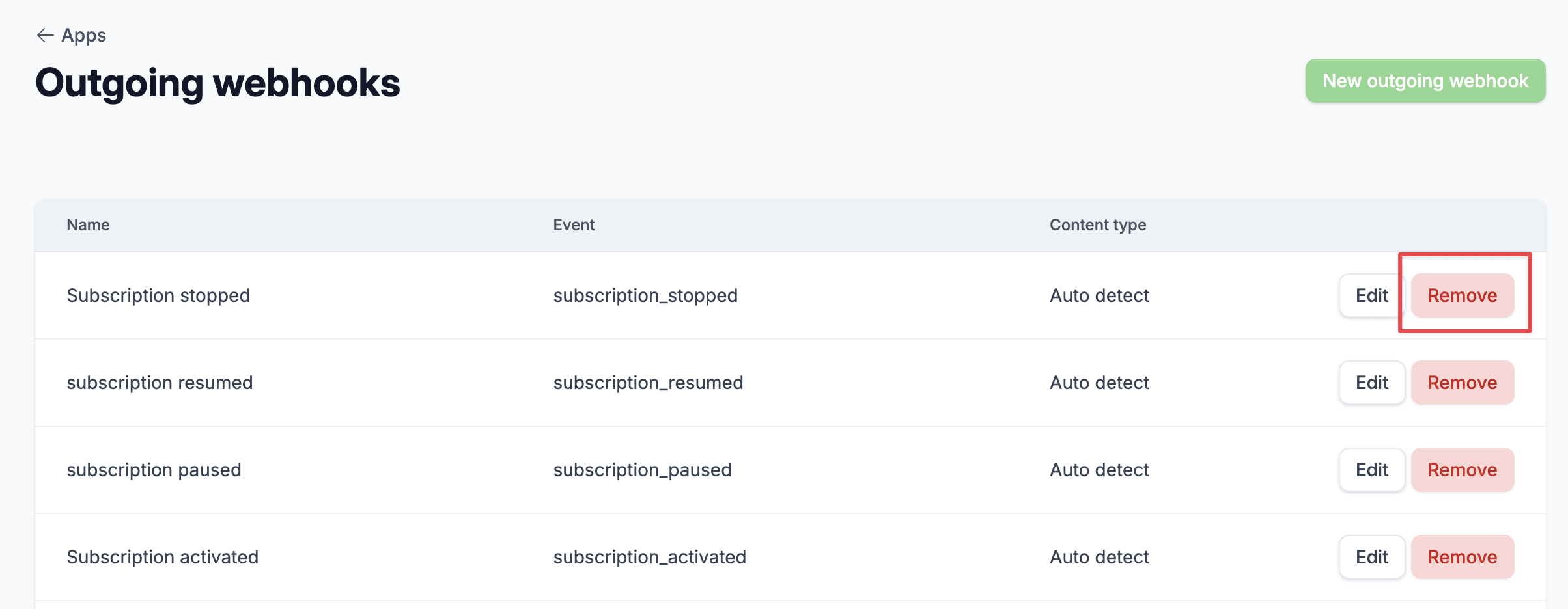
### Steps
1. Navigate to **Apps** in the sidebar
2. Find the **Webhooks** app and click **Configure** to display a list of already saved outgoing webhooks
3. Click on the **Remove** button on the far right of the webhook that you want to delete
4. You will get a prompt "Are you sure you want to remove this outgoing webhook?", click **Ok** to confirm the delete action
If the template renders invalid Liquid, invalid JSON, or a blank regular webhook payload, Firmhouse does not send the test event. Update the template and try again.
For app-backed content types, such as **Shopify Flow trigger** and **Klaviyo metric**, Firmhouse wraps the rendered template into the same final request body used for real deliveries.
## Deleting a webhook
Firmhouse allows you to delete webhooks you no longer need.
### Steps
1. Navigate to **Apps** in the sidebar
2. Find the **Webhooks** app and click **Configure** to display a list of already saved outgoing webhooks
3. Click on the **Remove** button on the far right of the webhook that you want to delete
4. You will get a prompt "Are you sure you want to remove this outgoing webhook?", click **Ok** to confirm the delete action