> ## Documentation Index
> Fetch the complete documentation index at: https://docs.firmhouse.com/llms.txt
> Use this file to discover all available pages before exploring further.
# Add, update, and delete assets
> Add, update, and delete assets in your Firmhouse project from the Assets menu, including how to link assets to specific products and variants.
You can add or update information about assets from the **Assets** menu in your project. An asset is always connected to a product, so make sure you have products in your project first before adding assets.
Assets can be added, updated, or deleted by any team member in your project.
## Adding an asset
### Steps
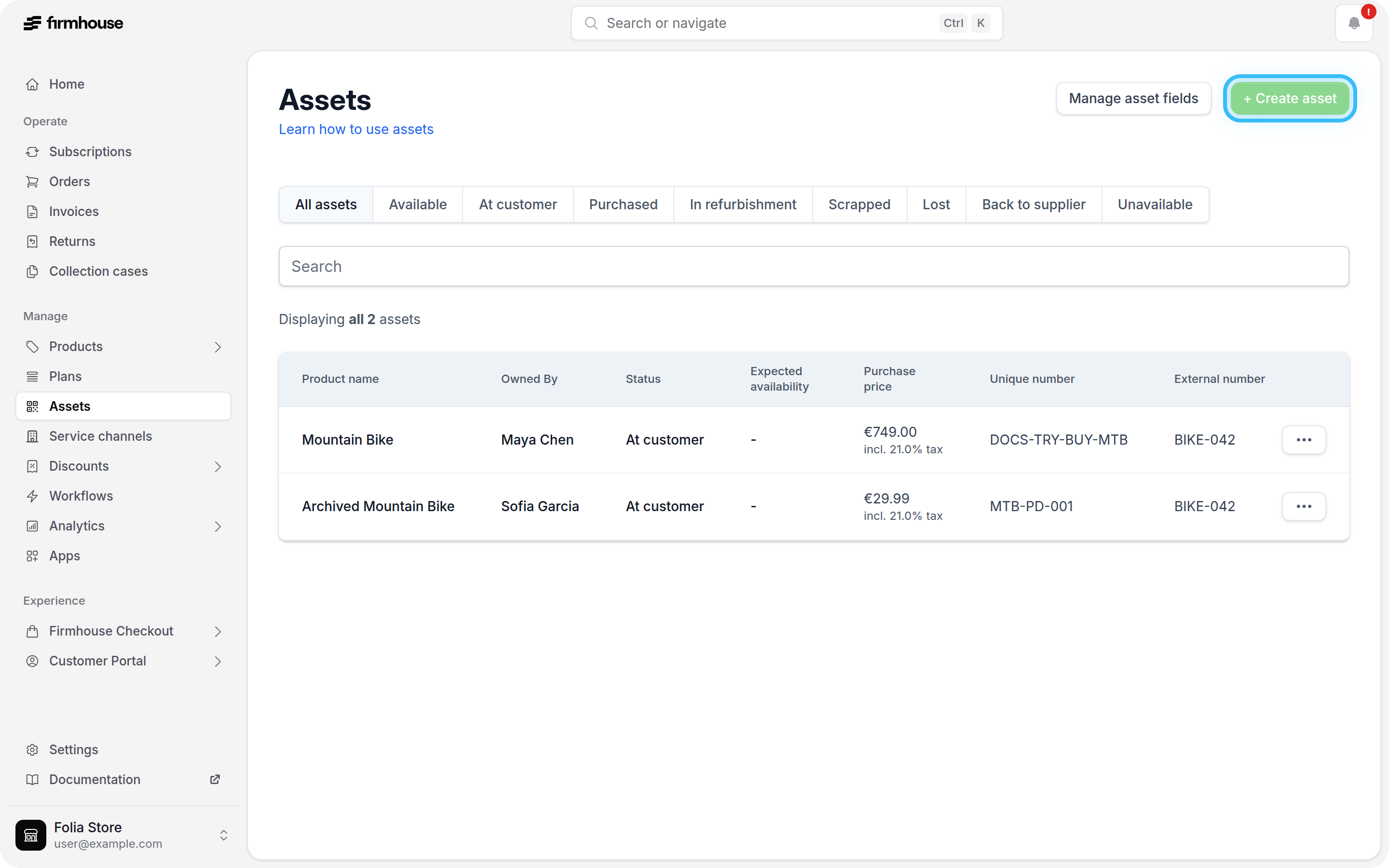
1. In your Firmhouse project, go to **Assets** in the sidebar
2. From the **Assets** overview, click **New asset**
3. Choose the product, and specify an internal number, an external number, and any additional details
4. Click **Create**
 ## Edit an asset
After you've created assets, you can edit them to change any information about them.
### Steps
1. In your Firmhouse project, go to **Assets** in the sidebar
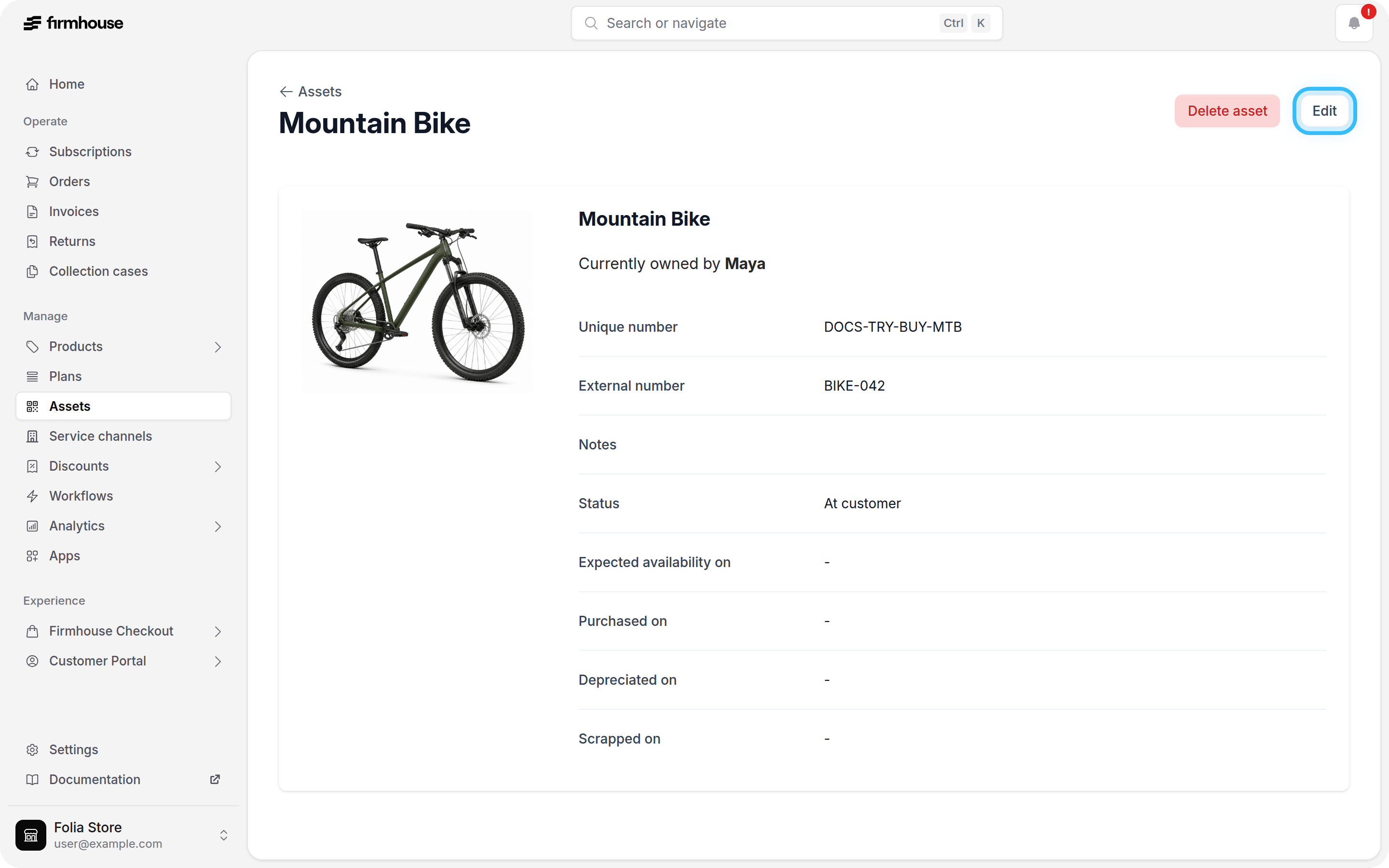
2. Click the row of the asset you would like to edit
3. On the asset detail page, click **Edit** in the top right
4. Modify any information on the asset
5. Click **Update**
## Edit an asset
After you've created assets, you can edit them to change any information about them.
### Steps
1. In your Firmhouse project, go to **Assets** in the sidebar
2. Click the row of the asset you would like to edit
3. On the asset detail page, click **Edit** in the top right
4. Modify any information on the asset
5. Click **Update**
 ## Delete an asset
You can delete assets from your project. When you delete an asset, it's permanently removed from your Firmhouse project. Deleted assets can't be restored. Keep in mind that when you delete an asset, any historic information about the asset is also permanently deleted from any reports or exports.
### Steps
1. In your Firmhouse project, go to **Assets** in the sidebar
2. Click the row of the asset you would like to delete
3. On the asset detail page, click **Edit** in the top right
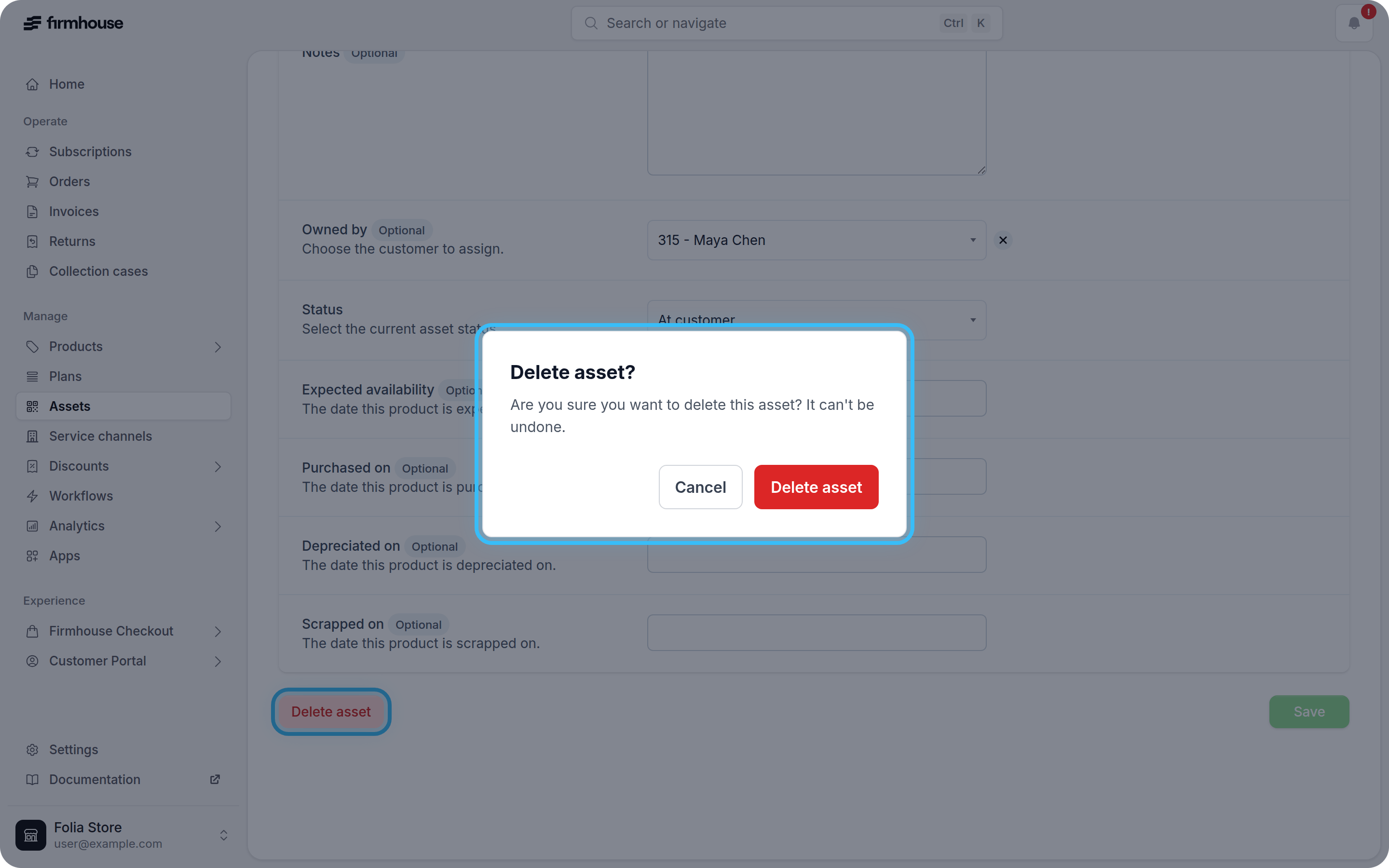
4. Click **Delete asset**
5. Confirm the deletion in the confirmation dialog
## Delete an asset
You can delete assets from your project. When you delete an asset, it's permanently removed from your Firmhouse project. Deleted assets can't be restored. Keep in mind that when you delete an asset, any historic information about the asset is also permanently deleted from any reports or exports.
### Steps
1. In your Firmhouse project, go to **Assets** in the sidebar
2. Click the row of the asset you would like to delete
3. On the asset detail page, click **Edit** in the top right
4. Click **Delete asset**
5. Confirm the deletion in the confirmation dialog