> ## Documentation Index
> Fetch the complete documentation index at: https://docs.firmhouse.com/llms.txt
> Use this file to discover all available pages before exploring further.
# Upload an image for an asset
> Upload an asset-specific image to a Firmhouse asset so you can visually identify each unique physical product in your project's asset list.
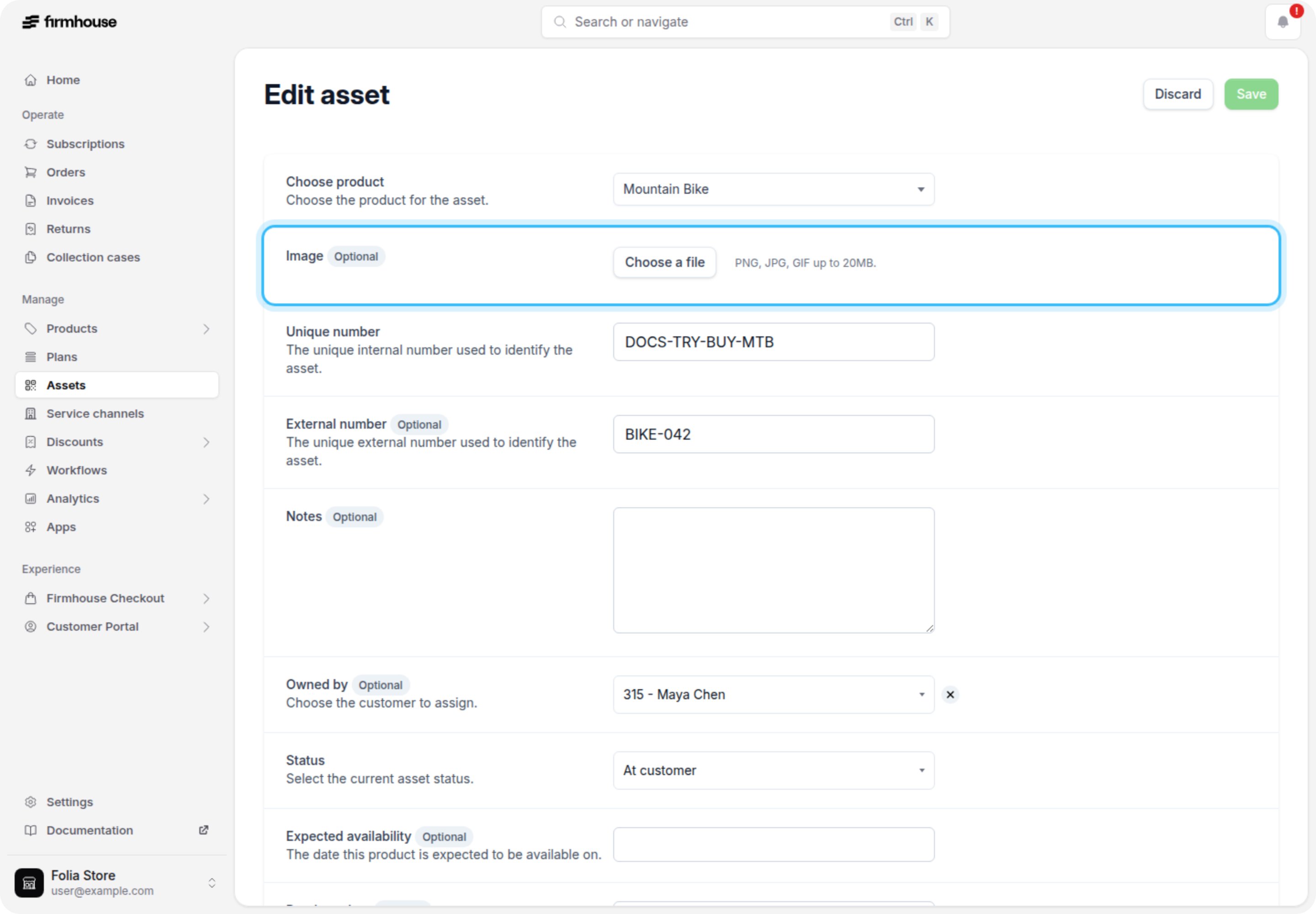
You can upload an asset-specific image for an asset. That way you can visually identify each individual asset in your Firmhouse project.
Just like editing assets, all **Team members** in your project can upload an image for an asset.
## Uploading an image for an asset
### Steps
1. In your Firmhouse project, go to **Assets** in the sidebar.
2. Click the row of the asset you want to upload an image for.
3. Click **Edit**.
4. Click **Choose a file** and select an image to upload. Allowed image formats are PNG, JPG, and GIF and up to 20MB in file size.
5. Click **Update**.
 ## Replacing an image for an asset
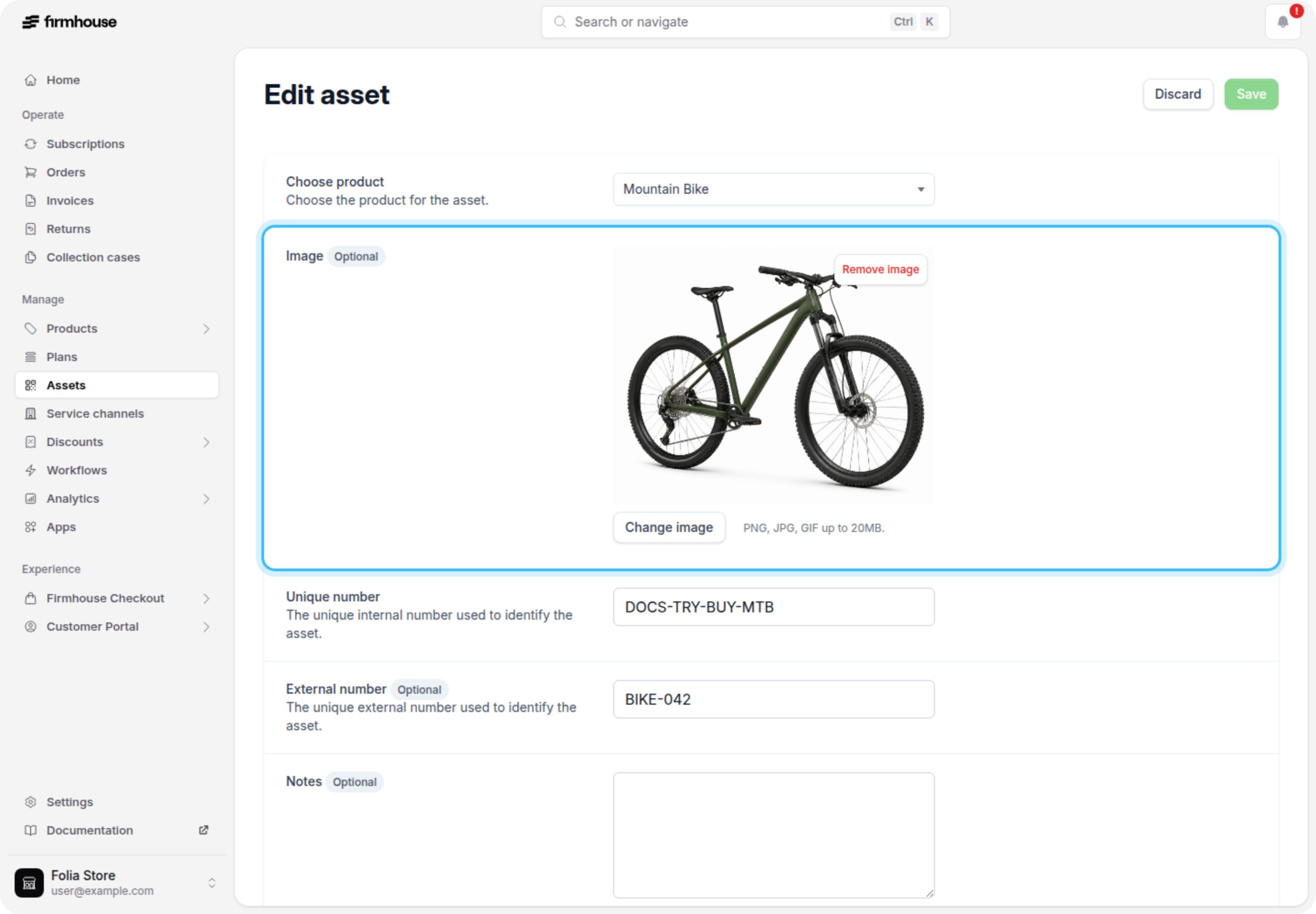
You can replace the image on an asset if the asset already has an image uploaded.
### Steps
1. In your Firmhouse project, go to **Assets** in the sidebar.
2. Click the row of the asset you want to upload an image for.
3. Click **Edit**.
4. Click **Change image** and select an image to upload. Allowed image formats are PNG, JPG, and GIF and up to 20MB in file size.
5. Click **Update**.
## Replacing an image for an asset
You can replace the image on an asset if the asset already has an image uploaded.
### Steps
1. In your Firmhouse project, go to **Assets** in the sidebar.
2. Click the row of the asset you want to upload an image for.
3. Click **Edit**.
4. Click **Change image** and select an image to upload. Allowed image formats are PNG, JPG, and GIF and up to 20MB in file size.
5. Click **Update**.