> ## Documentation Index
> Fetch the complete documentation index at: https://docs.firmhouse.com/llms.txt
> Use this file to discover all available pages before exploring further.
# Issue refunds to customers
> Issue full or partial refunds from the Firmhouse portal or your payment service provider account when customers need to be reimbursed for charges.
We support issuing a refund straight from the Firmhouse portal. You can also issue refunds via your Payment Service Provider account.
> **Note:** Issuing a refund for a payment does not automatically generate a credit note. See additional information at the bottom of this article.
## Issuing a refund for a payment
### Steps
1. In your Firmhouse project, find the customer you want to issue a refund for. You can do this from the **customer search**, the **customer overview**, or from an individual invoice.
2. On the customer detail page, scroll down to the section called **Payments**.
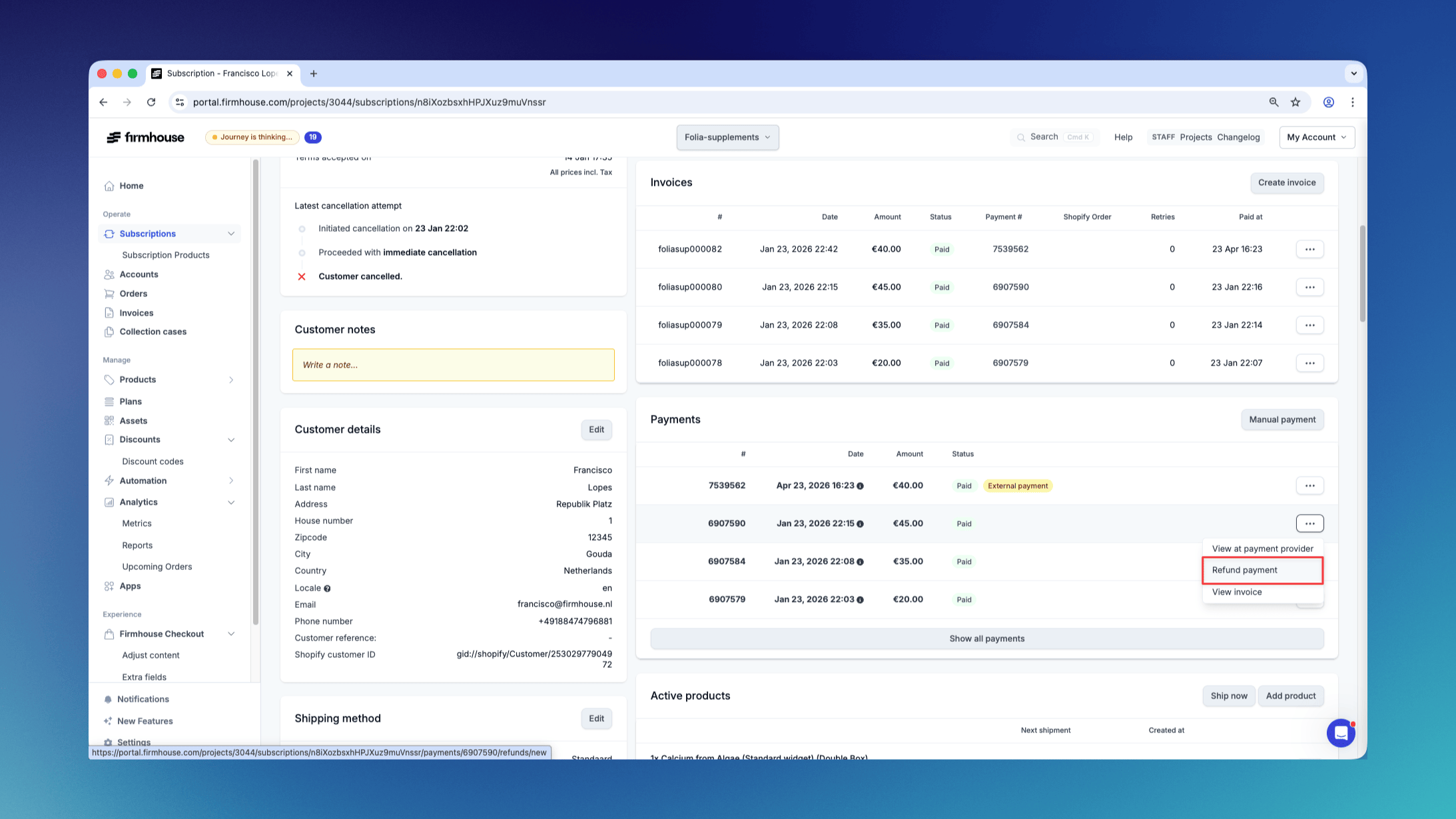
3. Find the payment you want to issue a refund for and click the button with the three horizontal dots to open the action menu for the payment.
4. Click **Refund payment**. This will open a dialog.
 5. In the dialog enter the amount and the reason for the refund.
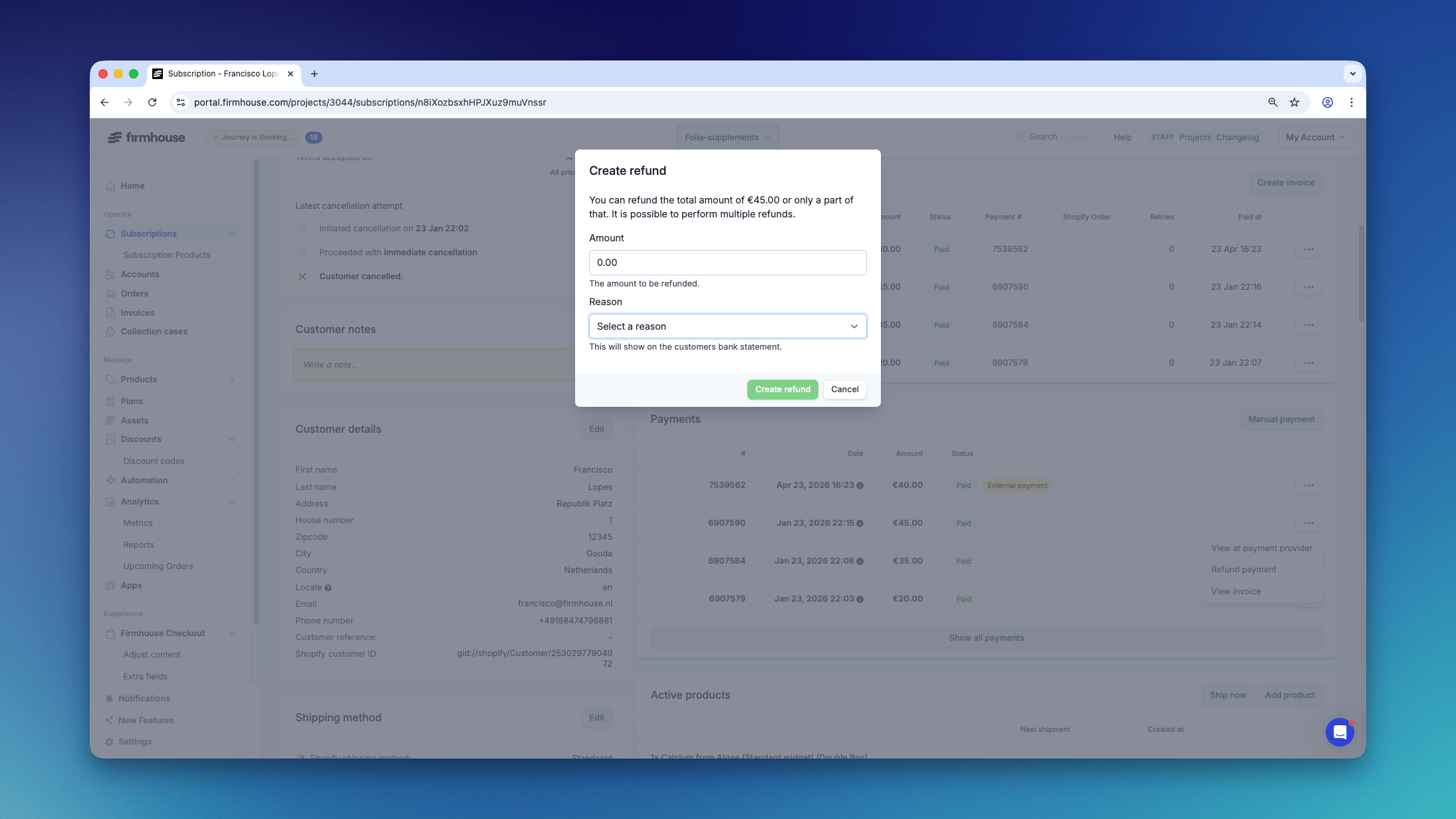 6. Click **Create refund**.
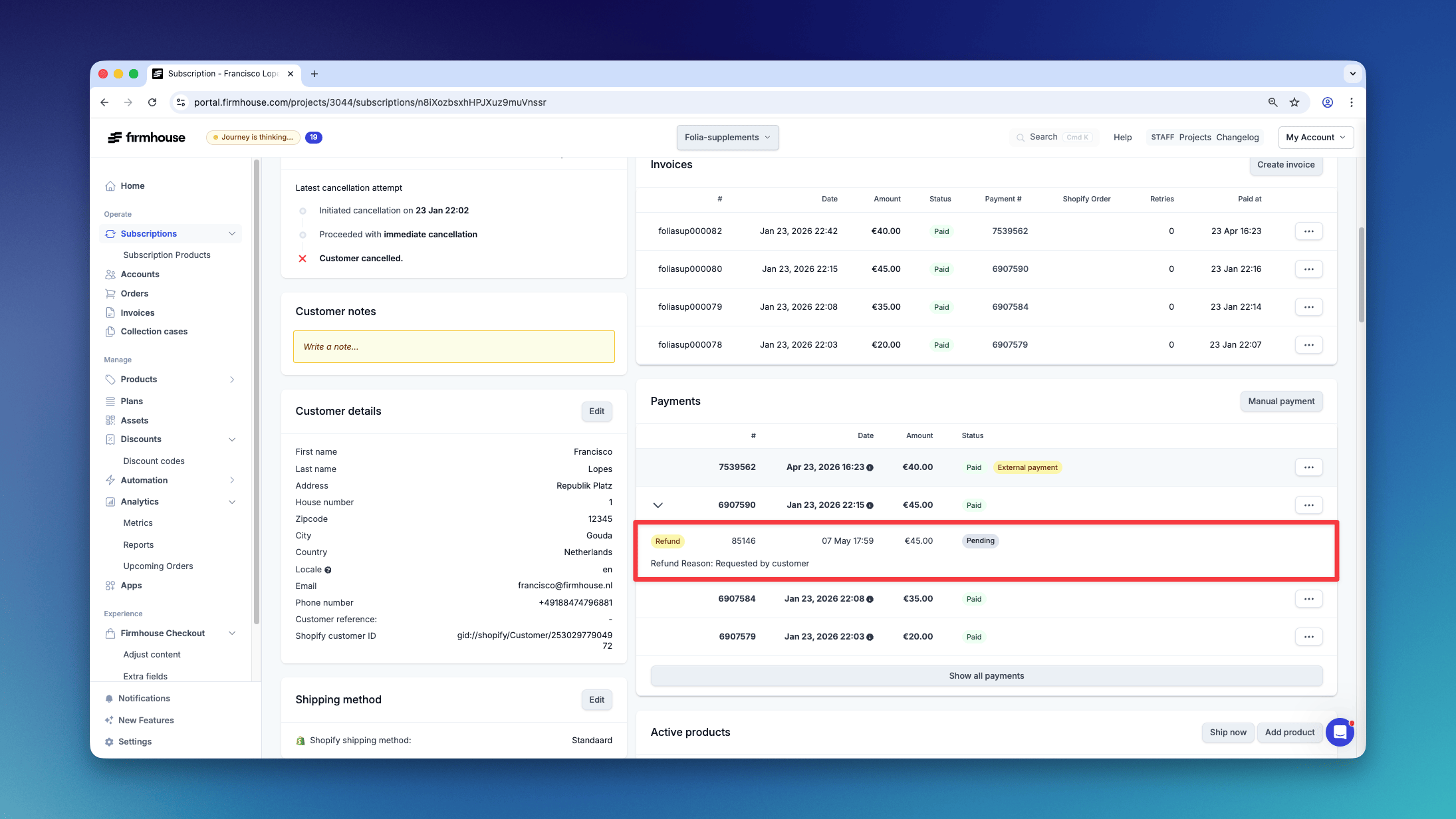
The refund has now been issued via the Payment Service Provider and will have the status **pending**. As soon as the refund has been successfully issued the status will change to **refunded**.
## Checking the status of a refund
If a refund has been issued you can monitor its status from the **Payments** overview on a customer detail page. The refund and its status will be visible after clicking the icon with the plus-sign \[+].
6. Click **Create refund**.
The refund has now been issued via the Payment Service Provider and will have the status **pending**. As soon as the refund has been successfully issued the status will change to **refunded**.
## Checking the status of a refund
If a refund has been issued you can monitor its status from the **Payments** overview on a customer detail page. The refund and its status will be visible after clicking the icon with the plus-sign \[+].
 ## Additional information on issuing refunds
### Refund time and other conditions for refunds
From the Firmhouse portal you can issue a refund with an amount up to the original transaction amount. It might take up to 10 working days before the issued refund lands on your customer's bank or credit card statement. There are also other limits that can apply. For example, you can only issue a refund for an iDEAL | Wero payment within the first 180 days after the original payment was made.
Please review the instructions from your Payment Service Provider with specific timelines and constraints.
### Refunding payments and crediting invoices
It is important to note that refunding a payment will at this moment not yet automatically generate a (partial) credit note. So before or after issuing a refund payment you will need to create a credit note to keep the revenue in your bookkeeping aligned.
## Additional information on issuing refunds
### Refund time and other conditions for refunds
From the Firmhouse portal you can issue a refund with an amount up to the original transaction amount. It might take up to 10 working days before the issued refund lands on your customer's bank or credit card statement. There are also other limits that can apply. For example, you can only issue a refund for an iDEAL | Wero payment within the first 180 days after the original payment was made.
Please review the instructions from your Payment Service Provider with specific timelines and constraints.
### Refunding payments and crediting invoices
It is important to note that refunding a payment will at this moment not yet automatically generate a (partial) credit note. So before or after issuing a refund payment you will need to create a credit note to keep the revenue in your bookkeeping aligned.