> ## Documentation Index
> Fetch the complete documentation index at: https://docs.firmhouse.com/llms.txt
> Use this file to discover all available pages before exploring further.
# Introduction to returns
> Introduction to managing product returns in Firmhouse, including return orders, statuses, and how returns flow from start to finish.
> **Note:** Returns are not enabled by default. First enable **Return Orders** in **Settings > New Features**.
If you offer a product rental subscription and a customer wants to cancel, you may want to get the product back. You can arrange this with Return Orders. This article explains where to view Return Orders and how to create them.
For more information about returns, see these related articles:
* [Manage Return Orders](/manage/returns/manage-return-orders)
* [Product Return Reminders](/manage/returns/product-return-reminders)
## Enable Return Orders
Enable return orders before using the flows in this article:
1. In your Firmhouse project, go to **Settings > New Features**.
2. Find **Return Orders**.
3. Click **Enable**.
After enabling Return Orders, the return order section appears on customer subscription pages.
For order-based projects, Return Orders must be enabled from **New Features** before return orders can be used in the portal, exposed in return-related email settings, or started by customers from the Self Service Center.
For order-based projects with plan support, enabling Return Orders also makes automatic returns on cancellation available in the subscription model settings.
For plan-based projects, return orders are available when returns are enabled for the project.
## Viewing Return Orders
To view all Return Orders for your project, click on **Returns** in the sidebar.
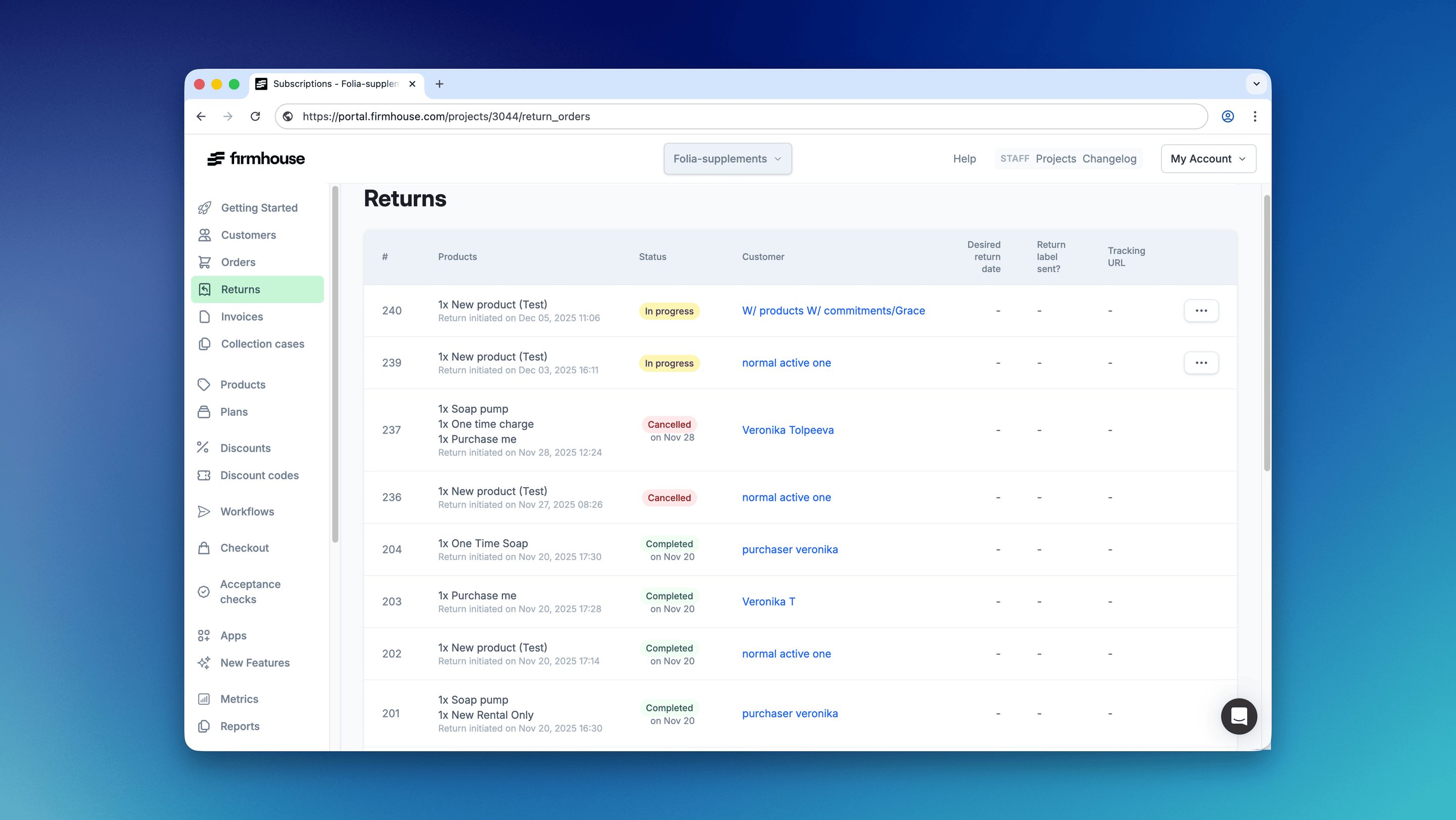 To view Return Orders for a specific customer, open that customer's subscription page and scroll down to the Return Orders section.
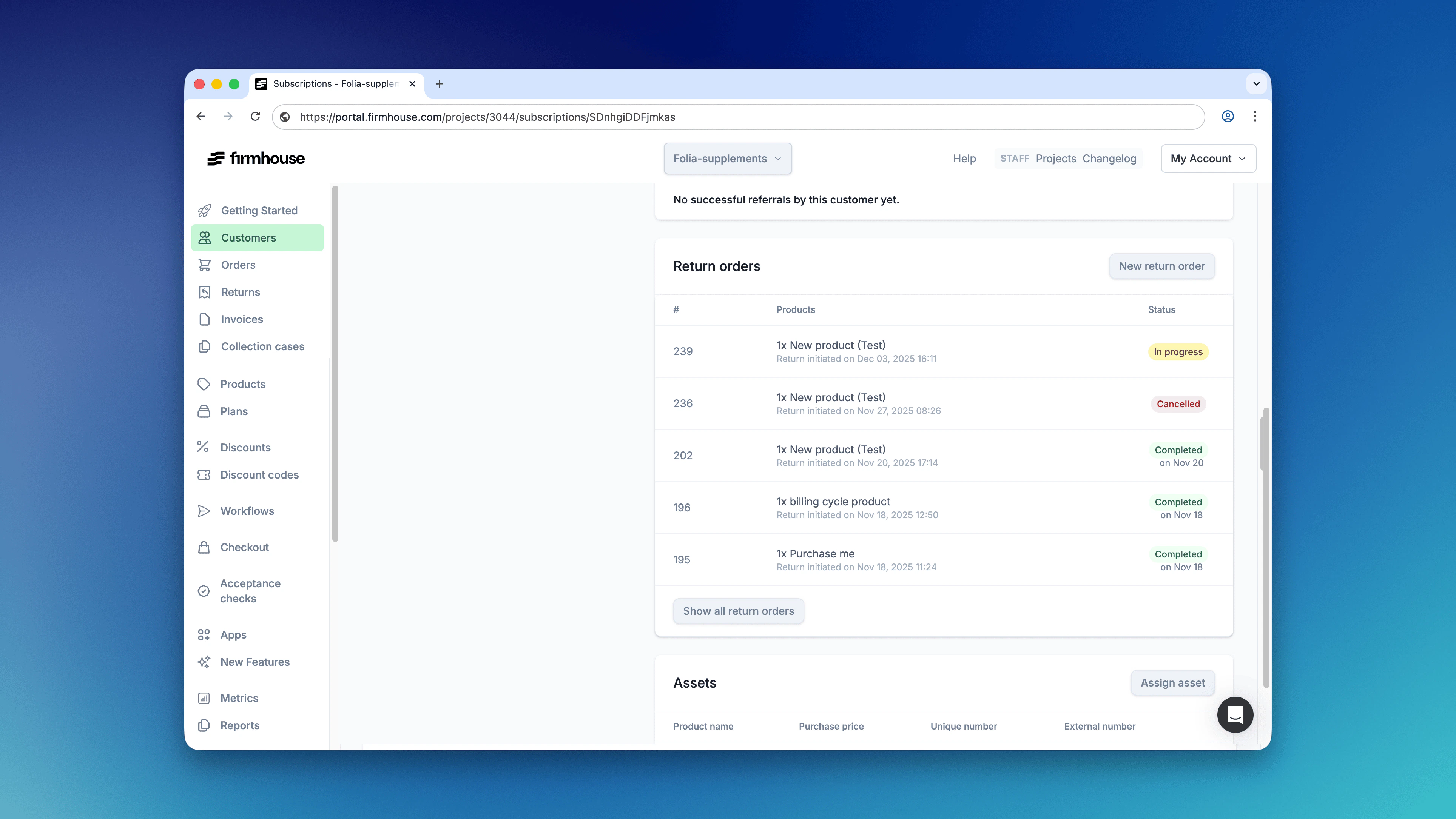 In both views, you can click on a Return to see all of its details, send shipping labels, complete the return, and more.
## Creating Return Orders
There are three ways to create Return Orders:
1. Automatically when **two-step cancellation** is enabled and a subscription is cancelled
2. Manually by you directly in the Firmhouse Portal or via [the API](https://developer.firmhouse.com/webhooks/overview)
3. Manually by the customer in the Self-Service Center
### Automatic Returns on Cancellation
Automatic returns let Firmhouse create a Return Order for all active products on the subscription when a cancellation is initiated.
For plan-based projects, automatic returns work together with **two-step cancellation**. You can find the **two-step cancellation** option in **Settings > Subscription Model**.
In both views, you can click on a Return to see all of its details, send shipping labels, complete the return, and more.
## Creating Return Orders
There are three ways to create Return Orders:
1. Automatically when **two-step cancellation** is enabled and a subscription is cancelled
2. Manually by you directly in the Firmhouse Portal or via [the API](https://developer.firmhouse.com/webhooks/overview)
3. Manually by the customer in the Self-Service Center
### Automatic Returns on Cancellation
Automatic returns let Firmhouse create a Return Order for all active products on the subscription when a cancellation is initiated.
For plan-based projects, automatic returns work together with **two-step cancellation**. You can find the **two-step cancellation** option in **Settings > Subscription Model**.
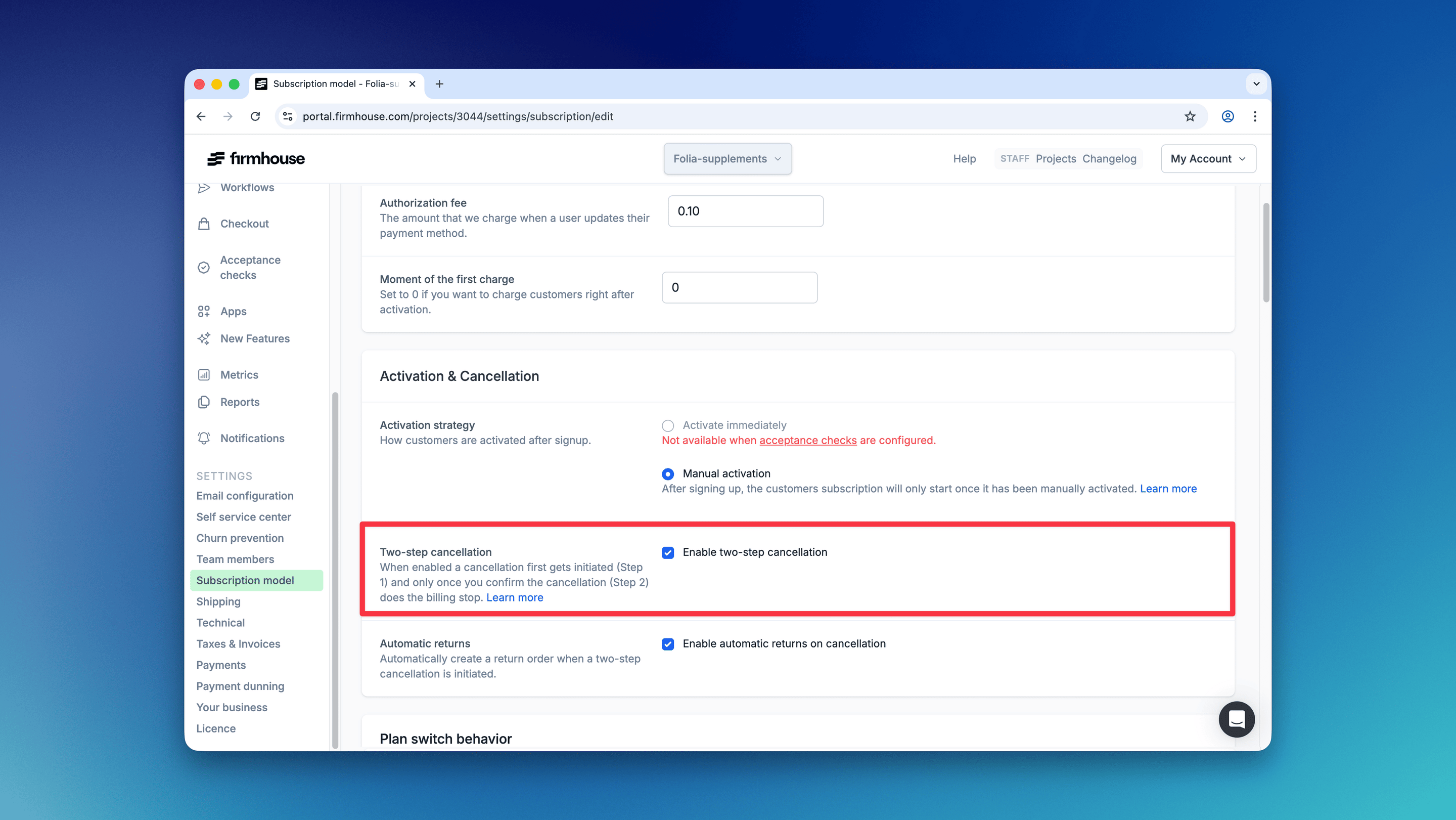 For order-based projects with plan support, first enable **Return Orders** in **Settings > New Features**. Then go to **Settings > Subscription Model** and enable **Automatic returns**.
This applies regardless of how the cancellation was initiated: by you in the Firmhouse Portal or API, or by the customer via the Self Service Center.
### Manually Creating a Return Order via Portal
You can manually create a Return Order for specific products in a subscription. This is useful when your customer wants to cancel and return one product but wants to keep the rest of their subscription intact.
#### Steps
1. In your Firmhouse project, go to **Customers** and find the customer you want to generate a return order for.
2. On the details page of the customer, scroll down and click **New return order** in the Return orders section.
3. In the dialog that opens, check one or more products you want to initiate a return for. Optionally increase the quantity if the customer is subscribed to more of the same product.
For order-based projects with plan support, first enable **Return Orders** in **Settings > New Features**. Then go to **Settings > Subscription Model** and enable **Automatic returns**.
This applies regardless of how the cancellation was initiated: by you in the Firmhouse Portal or API, or by the customer via the Self Service Center.
### Manually Creating a Return Order via Portal
You can manually create a Return Order for specific products in a subscription. This is useful when your customer wants to cancel and return one product but wants to keep the rest of their subscription intact.
#### Steps
1. In your Firmhouse project, go to **Customers** and find the customer you want to generate a return order for.
2. On the details page of the customer, scroll down and click **New return order** in the Return orders section.
3. In the dialog that opens, check one or more products you want to initiate a return for. Optionally increase the quantity if the customer is subscribed to more of the same product.
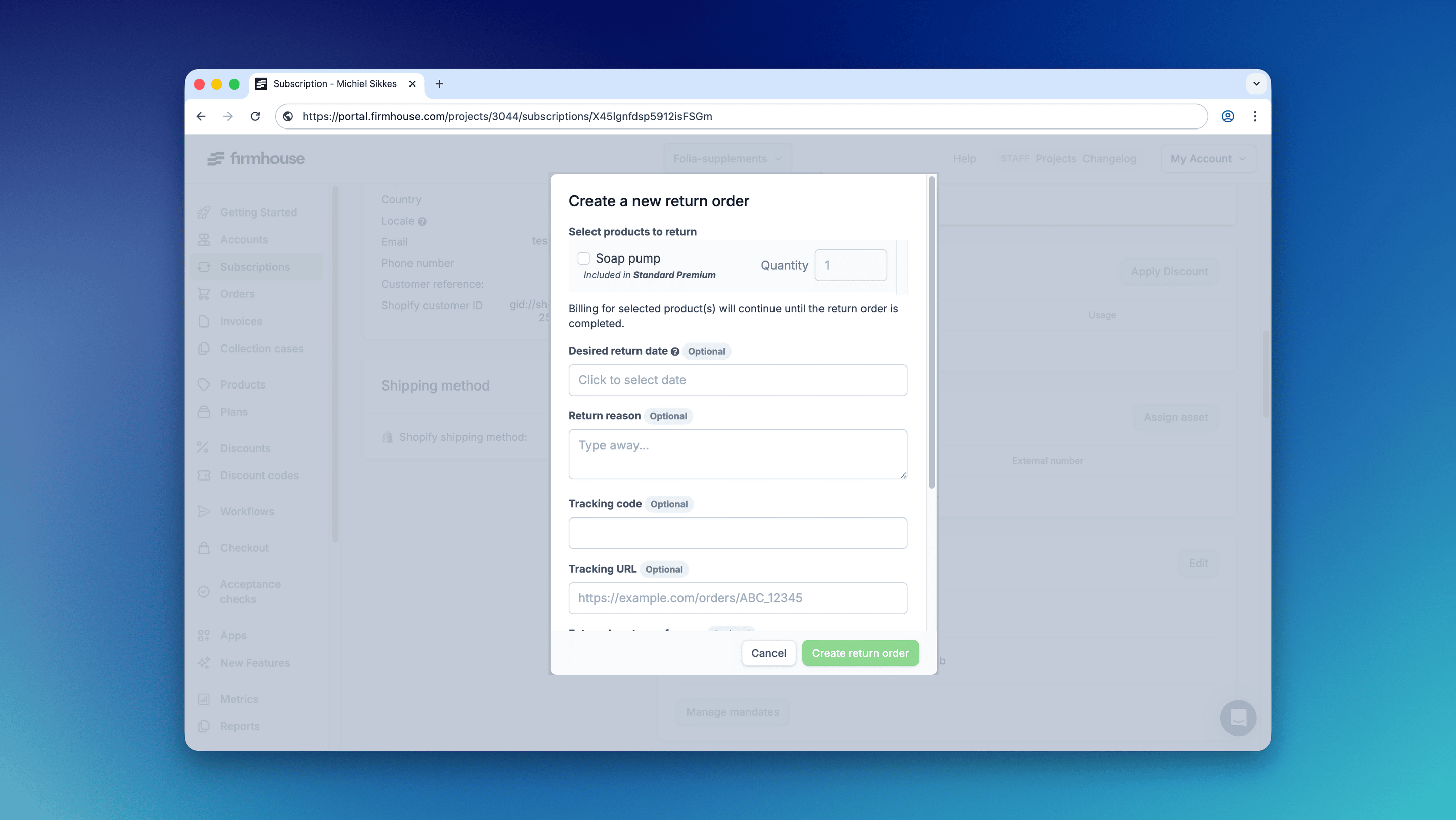 4. Fill out any of the optional fields. These are useful if you want to use these fields in email communication towards the customer, or in an integration with a webhook or an external returns app.
5. Click **Create return order**. You are now redirected to the created return order.
### Customer-Initiated Returns via Self Service Center
You can enable your customers to initiate returns for one or more of their active products via their Self Service Center.
For order-based projects, first enable **Return Orders** in **Settings > New Features**. Then enable Self Service Center returns in your Self Service Center settings.
See [Set up product returns in the Self Service Center](/configure/my-account-portal/set-up-product-returns) to learn more.
4. Fill out any of the optional fields. These are useful if you want to use these fields in email communication towards the customer, or in an integration with a webhook or an external returns app.
5. Click **Create return order**. You are now redirected to the created return order.
### Customer-Initiated Returns via Self Service Center
You can enable your customers to initiate returns for one or more of their active products via their Self Service Center.
For order-based projects, first enable **Return Orders** in **Settings > New Features**. Then enable Self Service Center returns in your Self Service Center settings.
See [Set up product returns in the Self Service Center](/configure/my-account-portal/set-up-product-returns) to learn more.