> ## Documentation Index
> Fetch the complete documentation index at: https://docs.firmhouse.com/llms.txt
> Use this file to discover all available pages before exploring further.
# Searching and filtering
> Search, filter, and save useful list views for subscriptions, orders, invoices, products, collection cases, and other list pages in Firmhouse.
Firmhouse list pages include search fields and filters to help you find the records you need. Use search when you know part of what you are looking for, such as a name, email address, order number, invoice number, or identifier. Use filters when you want to narrow a list by structured criteria such as status, date, amount, product, or plan.
 ## Search list pages
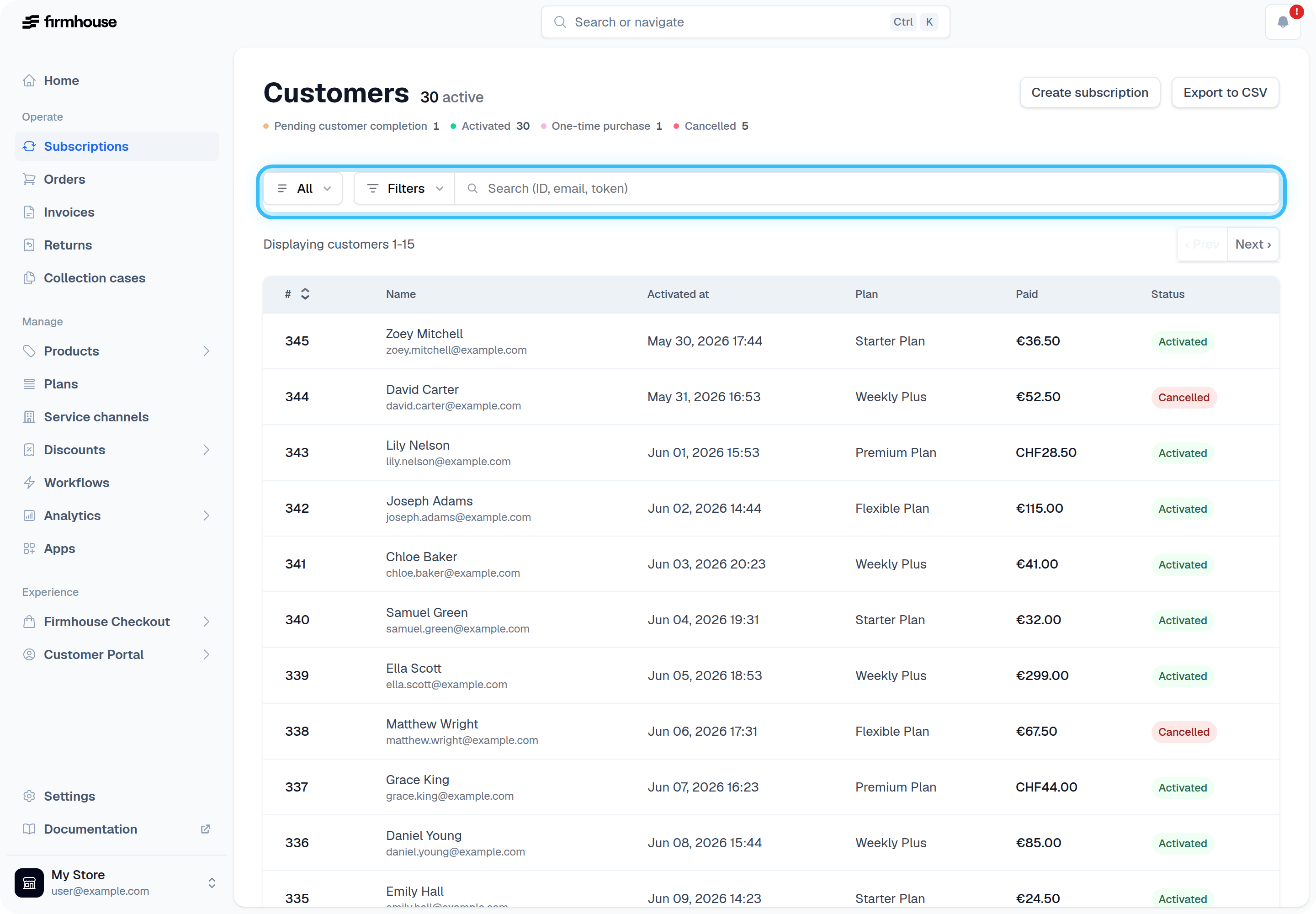
Most list pages in Firmhouse include a search field near the top of the page. Enter your search term and Firmhouse updates the list to show matching records. Clear the search field when you want to return to the full list.
Search is useful when you want to find a specific record quickly:
* **Subscriptions**: search by customer name, company name, email address, customer reference, subscription ID, or subscription token.
* **Orders**: search by order ID, subscription ID, track and trace code, or customer details from the related subscription.
* **Invoices**: search by invoice ID, invoice number, subscription ID, or customer details from the related subscription.
* **Accounts**: search for a subscription account when your project uses subscription accounts.
* **Products**: search the product list when you need to find a specific product.
* **Collection cases**: search collection cases when you need to find a specific customer, invoice, or case reference.
You can combine search and filters on pages that support both. For example, search for a customer email address on the Subscriptions page, then add a status or billing filter to narrow the results further.
## Where to use filters
Subscriptions, orders, invoices, products, and collection cases use a shared filter bar with saved views:
* **Subscriptions**: filter by status, plan, product, billing status, customer details, payment method, payment failures, unavailable products, activation date, and next billing date.
* **Orders**: filter by status, shipment date, order creation date, total costs, and Shopify order status when your project is connected to Shopify.
* **Invoices**: filter by status, invoice date, amount, pending retry, and overdue status.
* **Products**: filter by order availability, customer portal availability, order schedule when supported by your project, and collection when product collections are enabled.
* **Collection cases**: filter by status and creation date.
## Apply filters
Open the relevant list page and click **Filters** to narrow the list by structured criteria.
## Search list pages
Most list pages in Firmhouse include a search field near the top of the page. Enter your search term and Firmhouse updates the list to show matching records. Clear the search field when you want to return to the full list.
Search is useful when you want to find a specific record quickly:
* **Subscriptions**: search by customer name, company name, email address, customer reference, subscription ID, or subscription token.
* **Orders**: search by order ID, subscription ID, track and trace code, or customer details from the related subscription.
* **Invoices**: search by invoice ID, invoice number, subscription ID, or customer details from the related subscription.
* **Accounts**: search for a subscription account when your project uses subscription accounts.
* **Products**: search the product list when you need to find a specific product.
* **Collection cases**: search collection cases when you need to find a specific customer, invoice, or case reference.
You can combine search and filters on pages that support both. For example, search for a customer email address on the Subscriptions page, then add a status or billing filter to narrow the results further.
## Where to use filters
Subscriptions, orders, invoices, products, and collection cases use a shared filter bar with saved views:
* **Subscriptions**: filter by status, plan, product, billing status, customer details, payment method, payment failures, unavailable products, activation date, and next billing date.
* **Orders**: filter by status, shipment date, order creation date, total costs, and Shopify order status when your project is connected to Shopify.
* **Invoices**: filter by status, invoice date, amount, pending retry, and overdue status.
* **Products**: filter by order availability, customer portal availability, order schedule when supported by your project, and collection when product collections are enabled.
* **Collection cases**: filter by status and creation date.
## Apply filters
Open the relevant list page and click **Filters** to narrow the list by structured criteria.
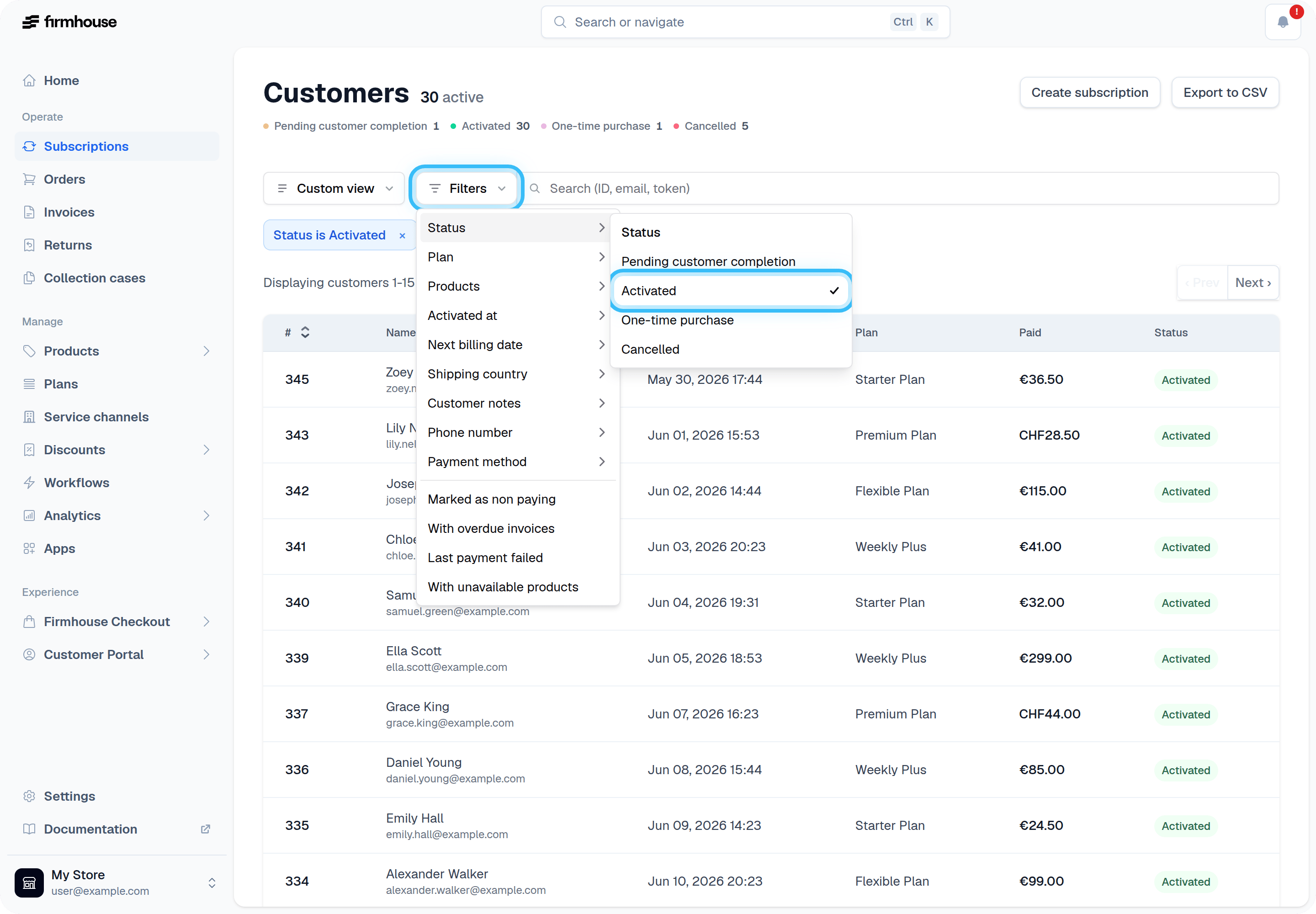 To apply filters:
1. Click **Filters**.
2. Select the filter you want to use.
3. Choose one or more values, enter a date range, or enter an amount range.
4. Repeat this for any other filters you need.
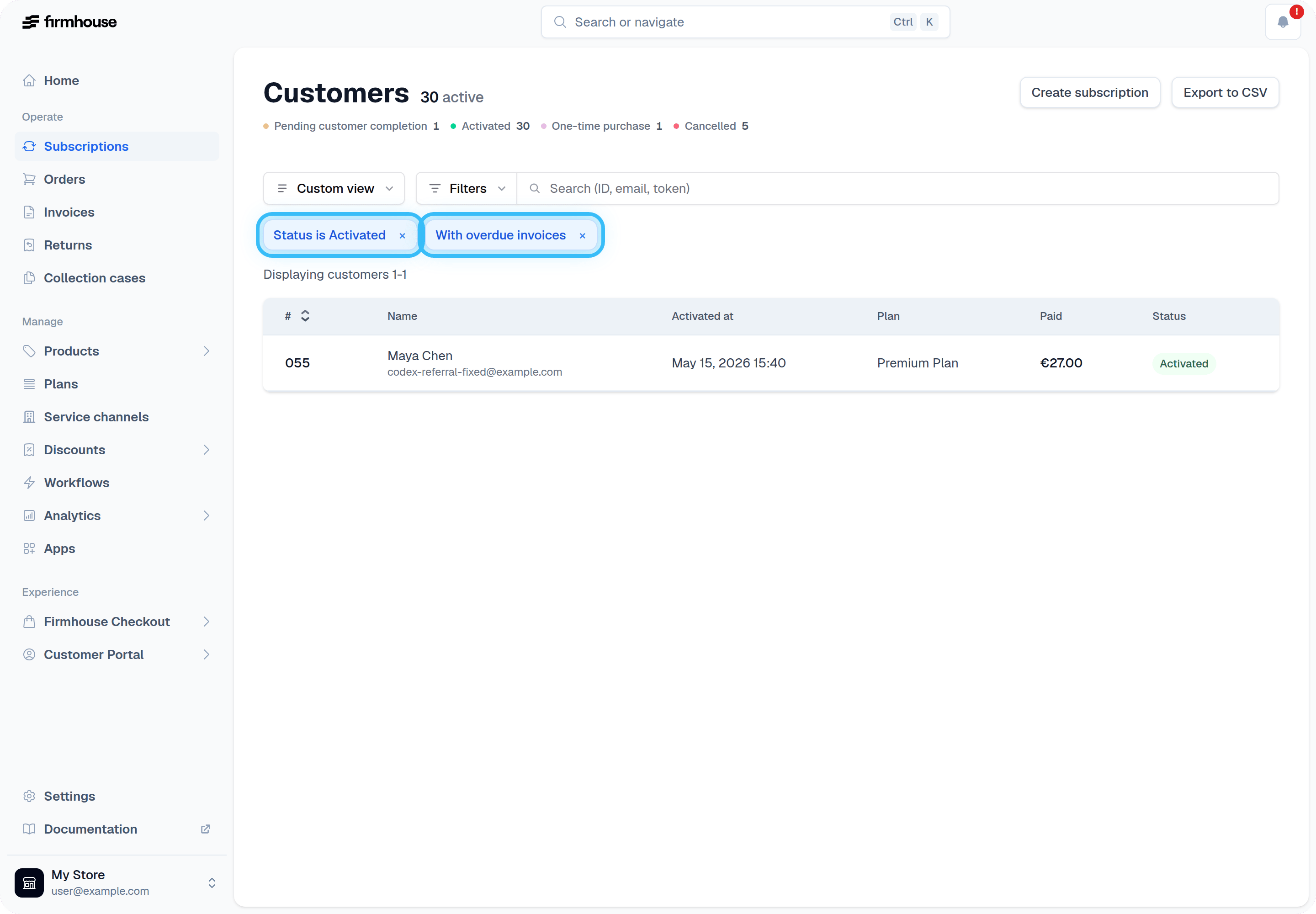
Active filters appear as chips below the filter bar. Remove a chip to clear that filter without resetting the rest of the list.
To apply filters:
1. Click **Filters**.
2. Select the filter you want to use.
3. Choose one or more values, enter a date range, or enter an amount range.
4. Repeat this for any other filters you need.
Active filters appear as chips below the filter bar. Remove a chip to clear that filter without resetting the rest of the list.
 ## Filter subscriptions
The Subscriptions page is useful for finding customers by lifecycle status, product, plan, billing problem, or customer detail.
Common examples:
* Use **Status** to find activated, paused, cancelled, or other subscription states.
* Use **Products** to find subscriptions that include one or more products.
* Use **Marked as non paying**, **With overdue invoices**, or **Last payment failed** to find customers that may need follow-up.
* Use **Activated at** or **Next billing date** to work with a specific time period.
* Use **Customer notes** or **Phone number** when you need to search details that are not part of the main search field.
## Filter orders
The Orders page helps you find orders by fulfillment state, date, amount, and Shopify creation state.
Common examples:
* Use **Status** to focus on pending, confirmed, cancelled, or fulfilled orders.
* Use **Shipment date** when preparing work for a specific delivery window.
* Use **Order created** to find orders created during a specific period.
* Use **Total costs** to find orders in a certain amount range and currency.
* Use **Shopify order** to find orders with or without a created Shopify order. This filter appears only when it applies to your project.
## Filter invoices
The Invoices page helps finance and support teams find invoices by payment state, date, amount, retries, and overdue status.
Common examples:
* Use **Status** to focus on paid, unpaid, failed, credited, or other invoice states.
* Use **Invoiced at** to find invoices from a specific period.
* Use **Amount** to find invoices in a certain amount range and currency.
* Use **Pending retry** to find invoices where Firmhouse is waiting for a retry attempt.
* Use **Overdue** to find invoices that need follow-up.
## Filter products
The Products page helps you review catalog setup and find products by availability or collection.
Common examples:
* Use **Available to order** to find products that customers can or cannot order.
* Use **Available in customer portal** to review which products customers can select in the portal.
* Use **Order schedule** to find products that ship every billing cycle, only once, or on a custom schedule. This filter appears only when it applies to your project.
* Use **Collection** to find products in a specific collection. When your project uses Shopify product collections for the portal, you can also find products that are not in any collection.
## Filter collection cases
The Collection Cases page helps finance and support teams review debt collection follow-up.
Common examples:
* Use **Status** to focus on open or closed collection cases.
* Use **Created at** to find collection cases opened during a specific period.
## Use predefined views
The view selector next to the filter bar contains predefined views for each list. These are built-in shortcuts such as **All**, status-based views, and other common list states.
Selecting a predefined view updates the list immediately. You can still add extra filters after selecting a predefined view. When the current filters no longer match one of the built-in views, the selector shows **Custom view**.
## Save your own views
Saved views store the current filters for the current list page. Subscriptions, orders, invoices, products, and collection cases each have their own saved views.
To save a view:
1. Apply the filters you want to reuse.
2. Open the view selector next to the filter bar.
3. Enter a name under **Save current filters**.
4. Click **Save view**.
## Filter subscriptions
The Subscriptions page is useful for finding customers by lifecycle status, product, plan, billing problem, or customer detail.
Common examples:
* Use **Status** to find activated, paused, cancelled, or other subscription states.
* Use **Products** to find subscriptions that include one or more products.
* Use **Marked as non paying**, **With overdue invoices**, or **Last payment failed** to find customers that may need follow-up.
* Use **Activated at** or **Next billing date** to work with a specific time period.
* Use **Customer notes** or **Phone number** when you need to search details that are not part of the main search field.
## Filter orders
The Orders page helps you find orders by fulfillment state, date, amount, and Shopify creation state.
Common examples:
* Use **Status** to focus on pending, confirmed, cancelled, or fulfilled orders.
* Use **Shipment date** when preparing work for a specific delivery window.
* Use **Order created** to find orders created during a specific period.
* Use **Total costs** to find orders in a certain amount range and currency.
* Use **Shopify order** to find orders with or without a created Shopify order. This filter appears only when it applies to your project.
## Filter invoices
The Invoices page helps finance and support teams find invoices by payment state, date, amount, retries, and overdue status.
Common examples:
* Use **Status** to focus on paid, unpaid, failed, credited, or other invoice states.
* Use **Invoiced at** to find invoices from a specific period.
* Use **Amount** to find invoices in a certain amount range and currency.
* Use **Pending retry** to find invoices where Firmhouse is waiting for a retry attempt.
* Use **Overdue** to find invoices that need follow-up.
## Filter products
The Products page helps you review catalog setup and find products by availability or collection.
Common examples:
* Use **Available to order** to find products that customers can or cannot order.
* Use **Available in customer portal** to review which products customers can select in the portal.
* Use **Order schedule** to find products that ship every billing cycle, only once, or on a custom schedule. This filter appears only when it applies to your project.
* Use **Collection** to find products in a specific collection. When your project uses Shopify product collections for the portal, you can also find products that are not in any collection.
## Filter collection cases
The Collection Cases page helps finance and support teams review debt collection follow-up.
Common examples:
* Use **Status** to focus on open or closed collection cases.
* Use **Created at** to find collection cases opened during a specific period.
## Use predefined views
The view selector next to the filter bar contains predefined views for each list. These are built-in shortcuts such as **All**, status-based views, and other common list states.
Selecting a predefined view updates the list immediately. You can still add extra filters after selecting a predefined view. When the current filters no longer match one of the built-in views, the selector shows **Custom view**.
## Save your own views
Saved views store the current filters for the current list page. Subscriptions, orders, invoices, products, and collection cases each have their own saved views.
To save a view:
1. Apply the filters you want to reuse.
2. Open the view selector next to the filter bar.
3. Enter a name under **Save current filters**.
4. Click **Save view**.
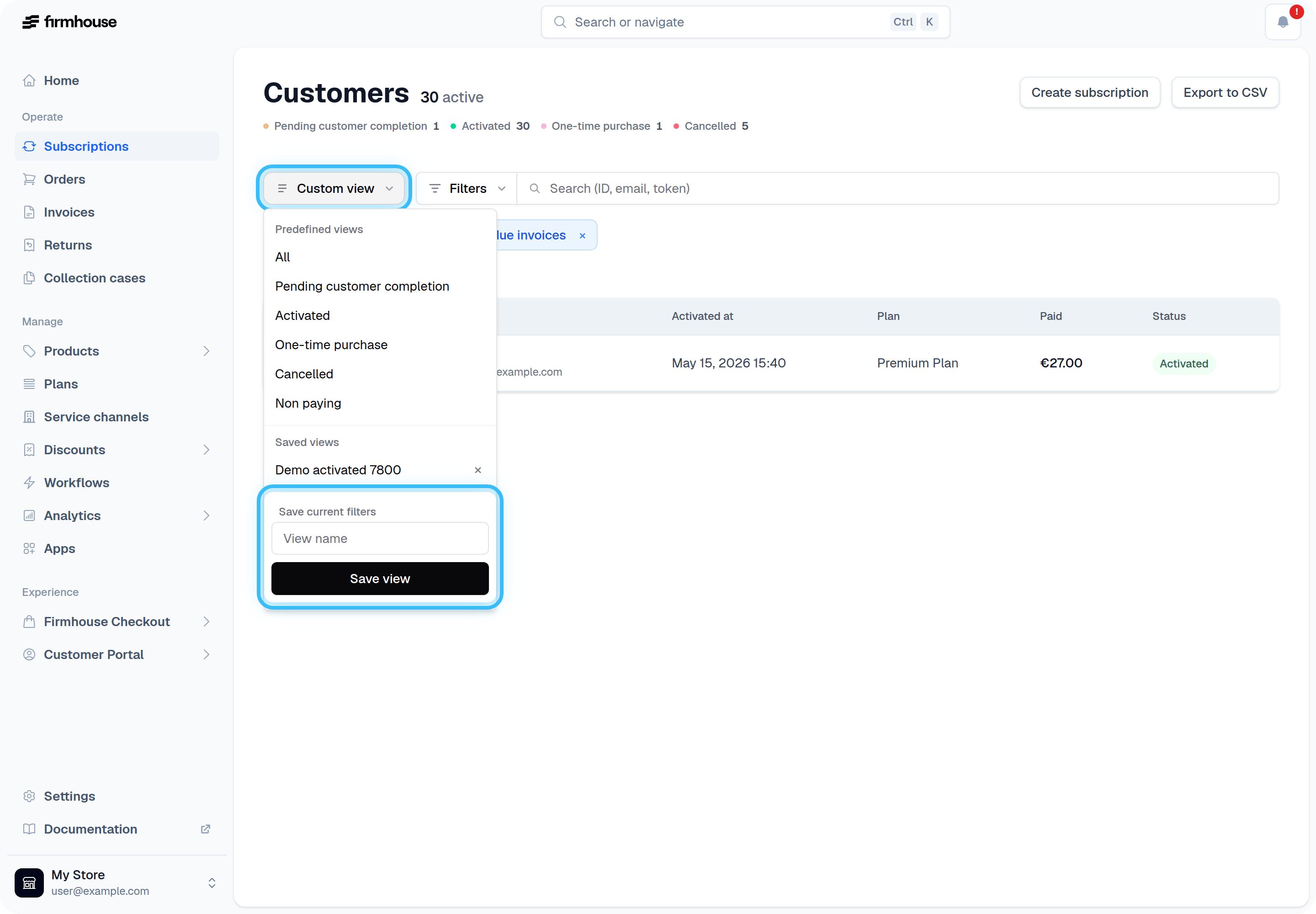 The saved view appears in the same menu under **Saved views**. Select it whenever you want to return to those filters.
When a saved view is selected, use the save icon next to it to update the view with your current filters. Use the remove icon to delete the saved view.
Saved date presets, such as this week or last 30 days, stay relative. When you reopen the saved view later, Firmhouse applies the preset again for the current date instead of freezing the original calendar dates.
## Related articles
* [Search and filter customers](/manage/subscriptions/searching-for-customers)
* [Manage and confirm orders](/manage/orders)
* [Send invoice payment links](/manage/invoices/invoice-payment-links)
The saved view appears in the same menu under **Saved views**. Select it whenever you want to return to those filters.
When a saved view is selected, use the save icon next to it to update the view with your current filters. Use the remove icon to delete the saved view.
Saved date presets, such as this week or last 30 days, stay relative. When you reopen the saved view later, Firmhouse applies the preset again for the current date instead of freezing the original calendar dates.
## Related articles
* [Search and filter customers](/manage/subscriptions/searching-for-customers)
* [Manage and confirm orders](/manage/orders)
* [Send invoice payment links](/manage/invoices/invoice-payment-links)