> ## Documentation Index
> Fetch the complete documentation index at: https://docs.firmhouse.com/llms.txt
> Use this file to discover all available pages before exploring further.
# Shopify Customer Account Extension
> Set up the Firmhouse Customer Account Extension for new Shopify customer accounts so subscribers can manage their subscription from the account order page.
# Setting Up the Customer Account Extension for Subscription Management
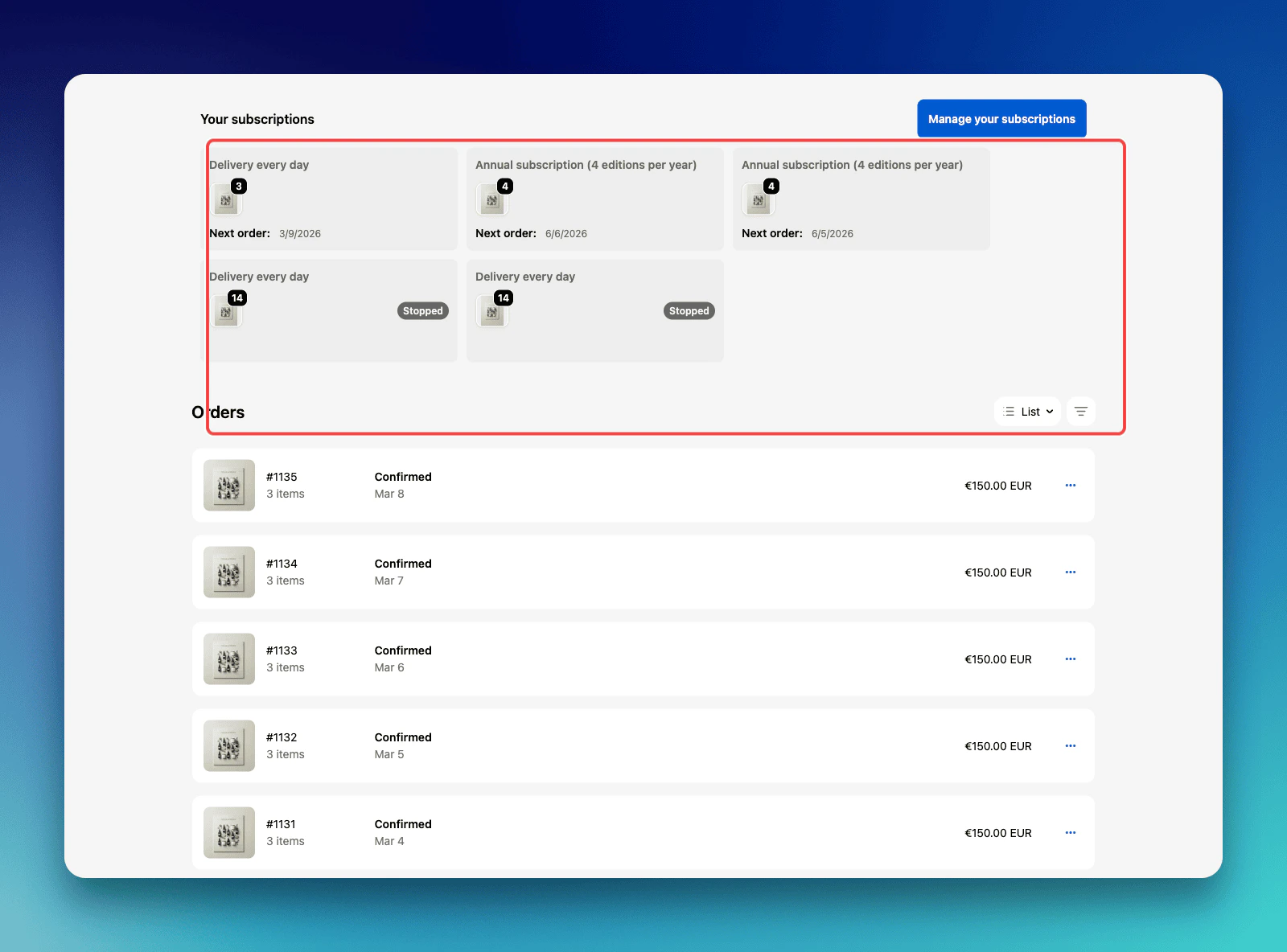
If you are using the new Shopify Customer accounts, which is the new standard and default for new stores, you can't use custom code to update those screens anymore. Firmhouse provides a widget for adding subscription management directly to the customer account order page, allowing customers to see all their subscriptions and access the Firmhouse Self Service Center.
## Getting started
Setting up the Customer Account Extension is straightforward and involves just a few steps in the Shopify checkout customization interface.
## Step 1: Navigate to Checkout Settings
### Steps
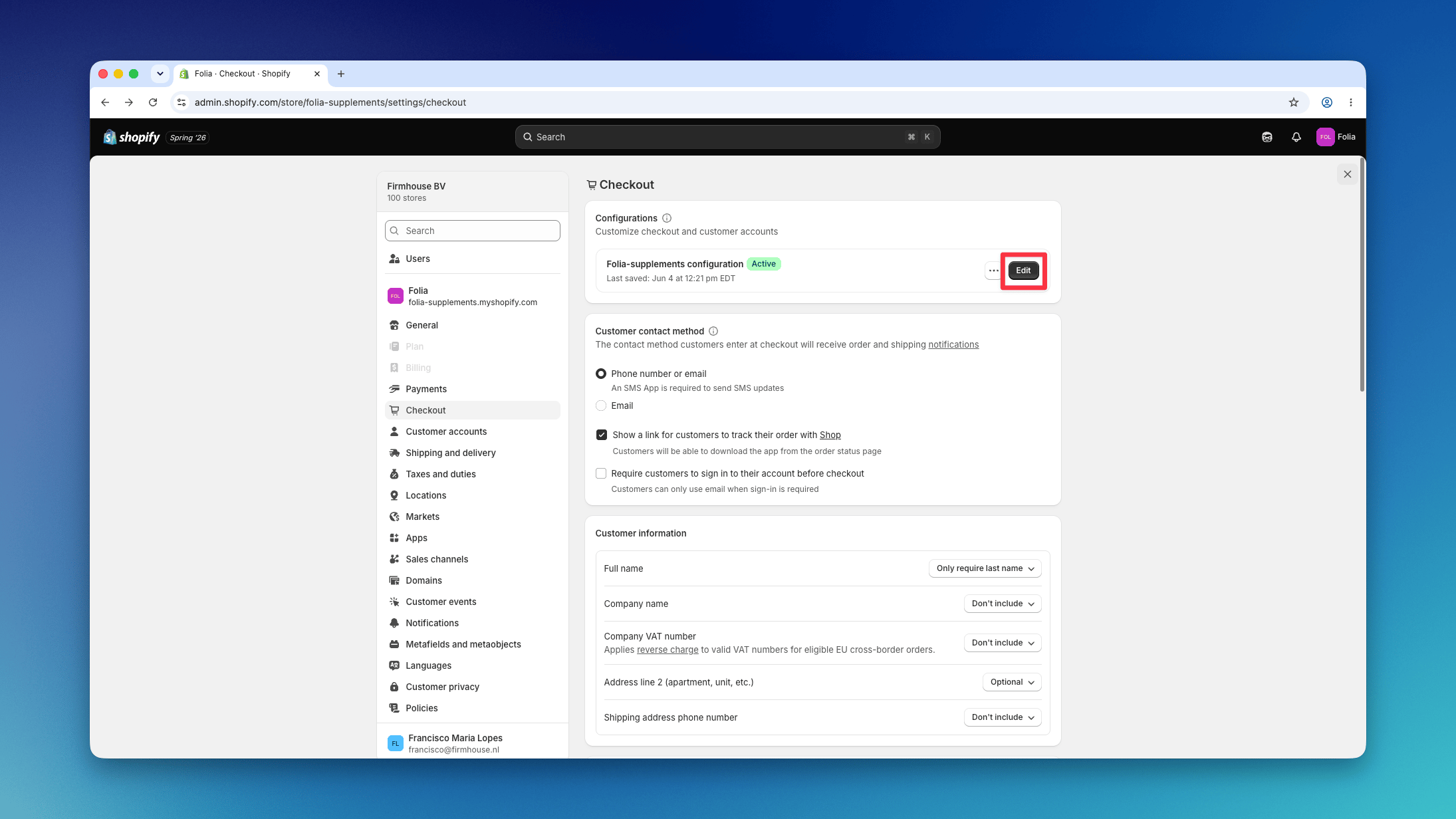
1. Go to **Settings > Checkout** in your Shopify admin
2. Click **Edit** on your current checkout configuration
 ## Step 2: Open the Orders Page
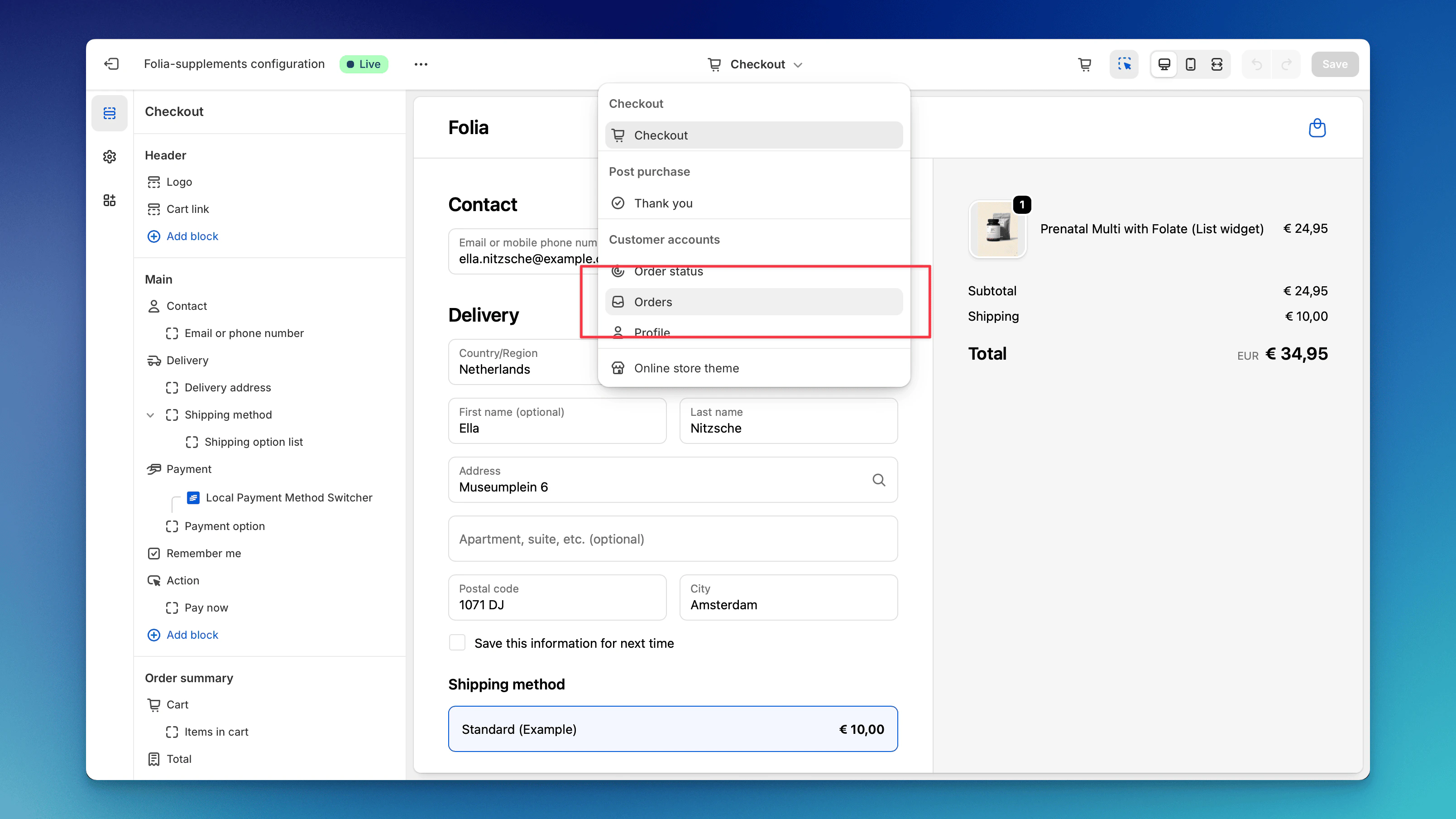
In the checkout customization interface, open the **Orders** page from the page selector in the left sidebar.
## Step 2: Open the Orders Page
In the checkout customization interface, open the **Orders** page from the page selector in the left sidebar.
 ## Step 3: Add the Firmhouse Subscription Widget
### Steps
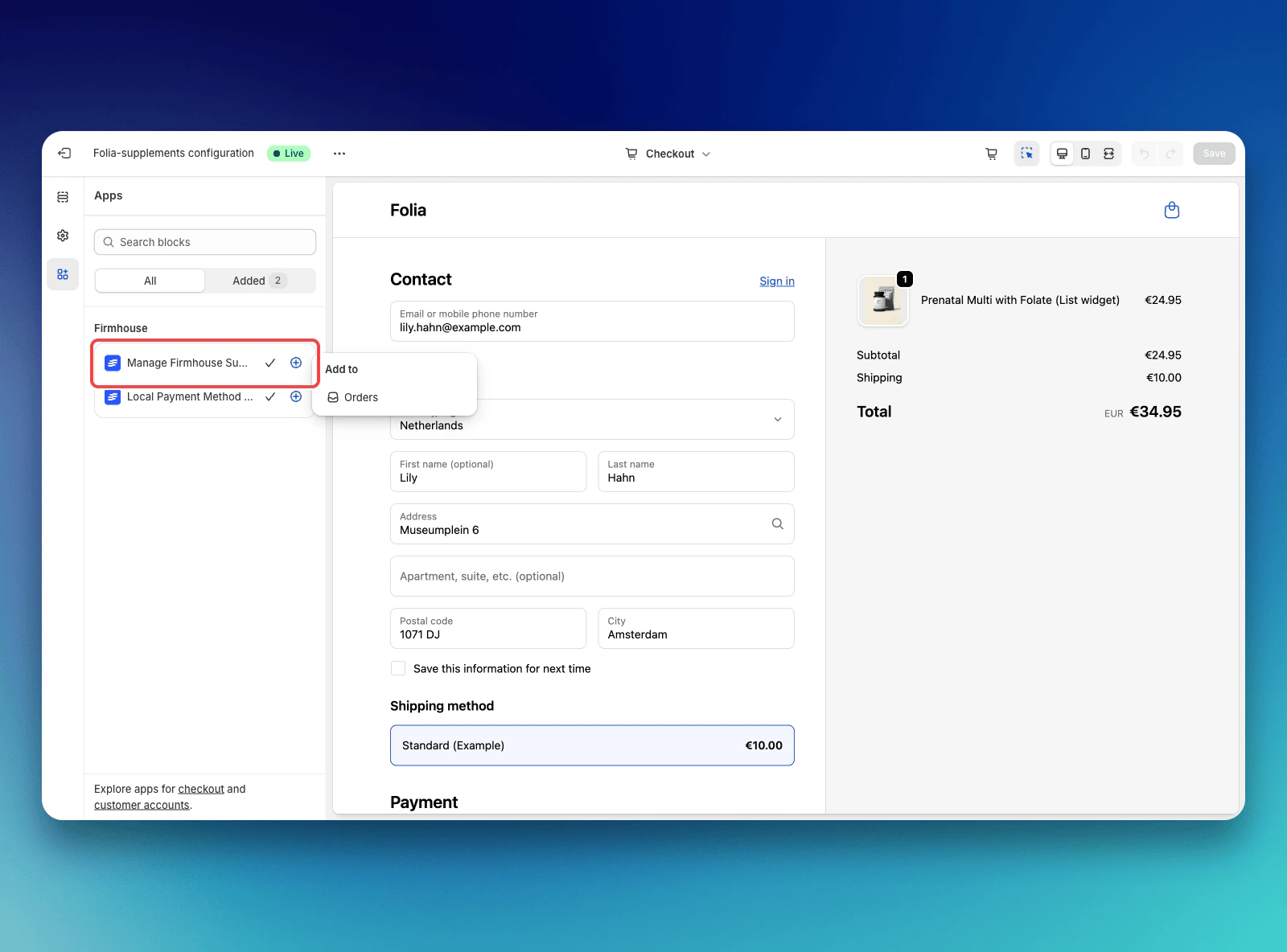
1. Open the **Apps** tab in the left sidebar
2. Find **Manage firmhouse subscription** in the list
3. Click on the **plus icon** (+) next to it
4. Select **Orders** from the popup menu
## Step 3: Add the Firmhouse Subscription Widget
### Steps
1. Open the **Apps** tab in the left sidebar
2. Find **Manage firmhouse subscription** in the list
3. Click on the **plus icon** (+) next to it
4. Select **Orders** from the popup menu
 ## Step 4: Preview and Save
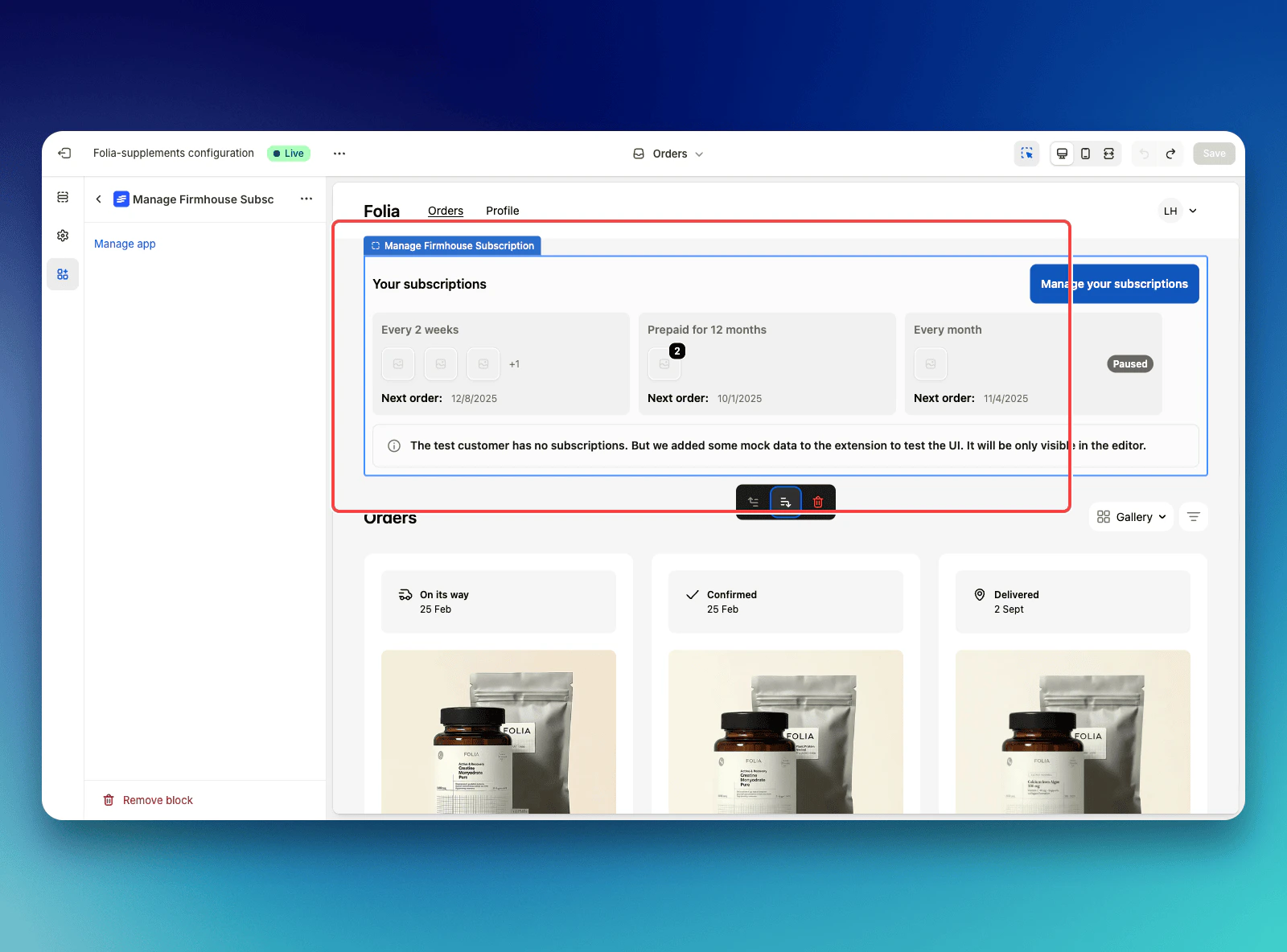
You will now be able to see a preview of the widget in the customization interface. Review the widget to ensure it appears as expected, then click **Save** to apply the changes. The widget is now active on your customer account order page.
## Step 4: Preview and Save
You will now be able to see a preview of the widget in the customization interface. Review the widget to ensure it appears as expected, then click **Save** to apply the changes. The widget is now active on your customer account order page.
 ## Step 5: Test the Widget
To verify that everything is working correctly:
### Steps
1. Go to your store and log in with an account that has an ongoing subscription
2. Navigate to the customer account area
3. You should see your subscriptions listed on the order page
4. Click on the **Manage your subscriptions** button to verify it leads directly to the Firmhouse Self Service Center
## Step 5: Test the Widget
To verify that everything is working correctly:
### Steps
1. Go to your store and log in with an account that has an ongoing subscription
2. Navigate to the customer account area
3. You should see your subscriptions listed on the order page
4. Click on the **Manage your subscriptions** button to verify it leads directly to the Firmhouse Self Service Center
 ## Automatic Translation
The widget will be translated automatically based on the language being used by the customer. No additional configuration is needed for multi-language support.
## Troubleshooting
If you don't see the widget after saving:
* Ensure you're logged in with a customer account that has active subscriptions
* Verify that the widget was saved correctly in the checkout customization interface
## Automatic Translation
The widget will be translated automatically based on the language being used by the customer. No additional configuration is needed for multi-language support.
## Troubleshooting
If you don't see the widget after saving:
* Ensure you're logged in with a customer account that has active subscriptions
* Verify that the widget was saved correctly in the checkout customization interface