# Access Management
Source: https://docs.firmhouse.com/agent-and-mcp/access-management
Learn who can use Oppy and Firmhouse MCP, and how project managers assign Agent seats.
Conversations opened from **Oppy** in the Firmhouse Portal sidebar and connections to Firmhouse MCP require an Agent seat for your project. Oppy in the Customer Portal editors and Workflow Builder is included on Advanced if you have permission to edit there. You do not need an Agent seat to use Oppy in these editors.
## Who can use Oppy from the sidebar and MCP
To use Oppy from the Portal sidebar or connect to Firmhouse MCP, you need:
* a Firmhouse user account
* access to the Firmhouse project
* an Agent seat assigned to you for that project
Agent seats are assigned per project. Having a seat in one project does not give you access to Oppy or Firmhouse MCP in another project.
## Customer Portal editor access
To use Oppy in the Customer Portal template and component editors, your project must be on **Advanced**, and you must have permission to edit the templates or components. You do not need an Agent seat. The visual editor requires **Customer Portal v2** to be enabled. Contact Firmhouse support to enable components for your project.
On other plans, users who can edit templates or components see “You don’t have access to Oppy yet” and are asked to upgrade their project to Advanced. If you do not have editing permission, ask a project manager for access. You can still edit manually, preview changes, review versions, and publish if the editor is enabled and you have permission to use it. Assigning an Agent seat does not change the plan requirement for Oppy in these editors.
## Workflow Builder access
To use Oppy to create or edit workflow drafts, Workflow Builder must be enabled for your project, your project must be on **Advanced**, and you must have permission to edit workflows. You do not need an Agent seat. Contact Firmhouse support if Workflow Builder is not available in your project.
On other plans, users who can edit workflows see “You don’t have access to Oppy yet” and are asked to contact Firmhouse support to get access. If you can view a workflow but cannot edit it, Oppy asks you to get workflow editing permission instead.
You can still create workflows from ready-made templates, edit them manually, publish, enable or disable them, review run history, and retry runs if Workflow Builder is enabled and you have the required permissions. Published workflows keep running if your plan changes or an Agent seat is removed. Losing access to Oppy prevents further requests to create or edit drafts with Oppy.
## Assign Agent seats
Project managers can assign Agent seats to other members of their project from the Oppy sidebar.
Managers can assign and remove seats when the sidebar is enabled even if they do not have a seat themselves.
1. Open your Firmhouse project.
2. Open **Oppy** from the Portal sidebar.
3. Open **Settings**.
4. Choose which project members should have an Agent seat.
5. Save the seat changes.
After a seat is assigned, that user can start and continue Oppy conversations for the project. They can also authorize a Firmhouse MCP connection from supported agent tools.
## Remove Agent access
Remove a user's Agent seat when they no longer need access to Oppy or Firmhouse MCP for a project.
1. Open **Oppy** from the Portal sidebar.
2. Open **Settings**.
3. Remove the Agent seat from the project member.
4. Save the seat changes.
Removing a seat stops that user from using Oppy from the Portal sidebar and Firmhouse MCP for the project. They can still use Oppy in the Customer Portal editors and Workflow Builder on Advanced if they have editing permission.
# Approving operations
Source: https://docs.firmhouse.com/agent-and-mcp/approving-operations
Learn how Oppy prepares operational changes for review before anyone runs them.
Oppy can help prepare operational work, but it does not run project-changing tasks by itself. When a task affects live business data, Oppy prepares the work for a person to review first.
## Prepared batch operations
For operational tasks, Oppy may create a batch operation. For example, if a product is going out of stock, you can ask Oppy to help replace it with another product for affected subscriptions.
In that workflow, Oppy prepares the batch operation and explains what it found. The batch operation is not executed by Oppy or through the Firmhouse MCP connection.
## Review before running
After Oppy prepares a batch operation:
1. Open the prepared batch operation in Firmhouse.
2. Review the affected records and proposed changes.
3. Check that the change matches what your team wants to do.
4. Run the batch operation with the button when you are ready.
This keeps operational changes human-reviewed while still letting Oppy do the research and preparation work.
# Connect your Agent
Source: https://docs.firmhouse.com/agent-and-mcp/connect-your-agent
Connect Claude, ChatGPT, Codex, or another MCP-capable agent to Firmhouse.
Firmhouse MCP lets an AI agent connect to Firmhouse through the [Model Context Protocol](https://modelcontextprotocol.io). Use it when you want an agent in Claude, ChatGPT, Codex, or another MCP-capable workspace to help with Firmhouse project context.
MCP support differs per agent product, but most remote MCP setup flows ask for the same information: a server URL, a connection type, and an authentication step.
## MCP server URL
Use the Firmhouse MCP server URL:
```text theme={null}
https://mcp.firmhouse.com/mcp
```
When your agent asks for the connection type, choose the remote HTTP or Streamable HTTP option. Some products call this `streamable-http`, `Streamable HTTP`, or simply a remote MCP server.
## Basic setup flow
In your agent or AI workspace:
1. Open the settings for tools, connectors, integrations, or MCP servers.
2. Add a new MCP server or connector.
3. Name the connection `Firmhouse`.
4. Set the server URL to `https://mcp.firmhouse.com/mcp`.
5. Choose the Streamable HTTP or remote MCP server type if the agent asks for one.
6. Use the authentication function available in the agent.
7. Sign in to Firmhouse when prompted.
8. Select the Firmhouse project and permission scope the agent may access.
9. Approve the connection.
After approval, return to your agent and confirm that Firmhouse tools are available. Start with a simple question to verify that the connection can read the selected project:
```text theme={null}
Can you give me the name of my project?
```
## Example configuration
Some agents let you configure remote MCP servers with JSON. The exact field names depend on the product, but the configuration usually looks similar to this:
```json theme={null}
{
"mcpServers": {
"firmhouse": {
"type": "streamable-http",
"url": "https://mcp.firmhouse.com/mcp"
}
}
}
```
Other agents use a visual setup flow instead of JSON. In that case, use the same values in the form: name the connection `Firmhouse`, use the Firmhouse MCP URL, select Streamable HTTP or remote MCP, and complete authentication through the agent.
## Authentication and permission scopes
Firmhouse MCP uses the authentication flow provided by your agent. The agent redirects you to Firmhouse, where you sign in and approve what the connection may access.
During authorization, select:
* the Firmhouse project this agent connection may use
* the permission scope you want to grant
* the Firmhouse user account that should own the connection
Only grant the scope the agent needs for the work you plan to do. If you are unsure which scope to choose, start with the most limited option available or contact Firmhouse support.
## One user, one project
Each Firmhouse MCP connection is scoped to a single Firmhouse user in a single Firmhouse project.
This means:
* the agent can only use Firmhouse data and tools for the project selected during authentication
* the connection acts on behalf of the Firmhouse user who approved it
* project access follows what that user is allowed to access in Firmhouse
If you want your agent to work with multiple Firmhouse projects, add multiple Firmhouse MCP connections. Create one connection per project, and give each connection a clear name such as `Firmhouse - Netherlands` or `Firmhouse - B2B project`.
## Troubleshooting
### The agent cannot connect
Check that the server URL is exactly:
```text theme={null}
https://mcp.firmhouse.com/mcp
```
Also confirm that the agent supports remote MCP servers. Some tools only support local command-based MCP servers.
### Authentication does not start
Use the authentication or authorization function built into your agent's MCP setup flow. Do not add a static bearer token unless Firmhouse support explicitly asks you to.
### You do not see the expected project
Firmhouse only shows projects available to the signed-in user. Confirm that you are signed in with the right Firmhouse account and that agent capabilities are enabled for that project.
### You need access to another project
Add a second Firmhouse MCP connection and select the other project during authentication. Each connection is project-specific.
# Working with Oppy
Source: https://docs.firmhouse.com/agent-and-mcp/firmhouse-agent
Learn how to start, manage, share, and open Oppy conversations in Firmhouse Portal.
Oppy is the AI assistant built into Firmhouse Portal. Use it to ask questions about your project, investigate operational work, and prepare changes with Firmhouse context.
When Oppy is enabled for your user account, you can start and manage conversations from inside the Portal.
To open conversations from **Oppy** in the Portal sidebar, you need an Agent seat. You can also use Oppy in the Customer Portal editors and Workflow Builder on Advanced if you have editing permission, without an Agent seat. Contact Firmhouse support if Workflow Builder is not available in your project. See [Access Management](/agent-and-mcp/access-management).
## Open Oppy and start a conversation
1. Open your Firmhouse project.
2. Open **Oppy** from the Portal sidebar.
3. Select **New conversation**.
4. Ask your question or describe the work you want help with.
Oppy uses the current Firmhouse project as context. Start with a concrete question, such as:
```text theme={null}
How many subscriptions will renew this week?
```
You can keep asking follow-up questions in the same conversation. Use a new conversation when you want to switch to a different topic or workflow.
## Use Oppy in Workflow Builder
Once **Workflow Builder** is enabled, you can use Oppy on Advanced if you have permission to edit workflows. You do not need an Agent seat.
1. Open your Firmhouse project and select **Workflows**.
2. Open an existing workflow and use its Oppy conversation to request a change, or select **New workflow**.
3. For a new workflow, describe the trigger, conditions, and desired action, then select **Draft with Oppy**.
4. Review the resulting draft before publishing and enabling it.
See [Workflow Builder](/configure/workflows/workflow-builder) for ready-made templates, publishing, and run history. To use Oppy in the Customer Portal, open the template or component editor; see [Customer Portal setup](/customer-portal-v2/quickstart).
## Remove a conversation
Remove conversations you no longer need from your Oppy history.
1. Open **Oppy** from the Portal sidebar.
2. Find the conversation you want to remove.
3. Open the conversation menu.
4. Choose the remove or delete option.
5. Confirm that you want to remove the conversation.
Removing a conversation only removes that conversation from the Oppy interface. It does not remove Firmhouse project data.
## Share or link a conversation
Share a conversation when you want a teammate or Firmhouse support to see the same context.
1. Open the conversation in Oppy.
2. Open the share or link option.
3. Copy the conversation link.
4. Send the link to the person who should join or review the conversation.
People can only open a shared conversation when they have access to the same Firmhouse project and the required Oppy permissions.
## Open a conversation full screen
Use full screen when you want more room for longer analysis, batch operation review, or a conversation with multiple people.
1. Open **Oppy** from the Portal sidebar.
2. Open the conversation you want to continue.
3. Select the full screen or expand option.
4. Continue the conversation in the full screen overlay.
You can return to the sidebar view when you want to keep Oppy available while working elsewhere in the Portal.
# Firmhouse Agent and MCP
Source: https://docs.firmhouse.com/agent-and-mcp/introduction
Use Firmhouse Agent and MCP capabilities to give your team faster answers, smoother operations, and AI assistance where they already work.

# Firmhouse Agent and MCP
Firmhouse Agent and MCP help your team understand your business, track performance, and perform operational duties with human review.
[Working with Oppy](/agent-and-mcp/firmhouse-agent)
[Connect to MCP](/agent-and-mcp/connect-your-agent)
Firmhouse AI is currently in early access. Get in touch with support if you're interested!
## Take a look at how Oppy works for you
## Why you'll want to work with Firmhouse Agent
### Save time and move fast
Work directly with project data instead of stitching together multiple tools, screens, and exports to answer one operational question.
[See usage examples](/agent-and-mcp/usage-examples)
### Private, secure, and compliant
Personal data and sensitive information stay protected when agents work with Firmhouse context or connect to MCP-capable AI tools.
[Read privacy and security](/agent-and-mcp/privacy-security)
### Human in the loop
Agents and MCP connections help prepare and explain work, without making unexpected changes before a person reviews the outcome.
[Learn about review steps](/agent-and-mcp/approving-operations)
### Multiplayer for teams
Multiple people can join a single conversation with Oppy, so your team can work together automatically.
[Learn how conversations work](/agent-and-mcp/firmhouse-agent)
# Privacy & Security
Source: https://docs.firmhouse.com/agent-and-mcp/privacy-security
Learn how Firmhouse protects sensitive data and scopes Oppy and MCP access.
Firmhouse AI is designed to help teams work with project context while protecting personal data and keeping access scoped to the right user.
## Personal data protection
Firmhouse makes sure that personal and sensitive data is not sent downstream to the LLM models used by Oppy or Firmhouse MCP.
Personal information is hidden or redacted before it reaches the model, including:
* email addresses
* customer notes
* billing addresses
* shipping addresses
The same protection applies when project information is sent through a Firmhouse MCP connection.
## User-scoped access
Oppy usage in the Firmhouse Portal and Firmhouse MCP connections are scoped to a specific user in a specific Firmhouse project.
Oppy and MCP only return information that the user's role is allowed to access in that project. If a user does not have access to certain project information in Firmhouse, Oppy and MCP should not return that information either.
# Usage examples
Source: https://docs.firmhouse.com/agent-and-mcp/usage-examples
Examples of operational tasks you can ask Oppy to help with in Firmhouse.
Use these examples as starting points for conversations with Oppy. Each example will be expanded with screenshots and videos as the workflows become available in the docs.
## Get a production forecast for the next 3 months
Ask Oppy to forecast what needs to be produced, packed, or prepared based on upcoming subscription orders. This helps operations teams plan inventory, production capacity, and fulfillment work before demand becomes urgent.
Example prompt:
```text theme={null}
Can you create a production forecast for the next 3 months?
```
## Replace a product going out of stock
Ask Oppy to help find subscriptions or upcoming orders affected by a product that is going out of stock. Oppy can help you understand the impact, prepare a replacement plan, and review what needs to change before you apply updates.
Example prompt:
```text theme={null}
Which subscriptions use [product name], and how can we replace it with [replacement product] before it goes out of stock?
```
## Learn how much revenue you made
Ask Oppy to summarize revenue over a period of time, explain what contributed to the result, and help you compare it with another period. This is useful when you want a quick operational answer before opening or exporting detailed reports.
Example prompt:
```text theme={null}
How much revenue did we make last month?
```
## Calculate customer LTV
Ask Oppy to help calculate customer lifetime value for a customer group, cohort, or project. Oppy can help turn subscription, invoice, and order context into a clearer view of long-term customer value.
Example prompt:
```text theme={null}
Can you calculate customer LTV for customers who started this year?
```
## Related articles
* [Working with Oppy](/agent-and-mcp/firmhouse-agent)
* [Connect your Agent](/agent-and-mcp/connect-your-agent)
# Audit logs for security events
Source: https://docs.firmhouse.com/billing-and-account/audit-logs
Track security events in Firmhouse with audit logs. Export to CSV or stream to Amazon S3, DataDog, or Splunk for SIEM integration.
Firmhouse supports tracking of important security-related events in an audit log. The audit log is browsable from the Firmhouse portal. You can also export logs into CSV or stream them to a supported SIEM via Amazon S3, DataDog, and Splunk.
## Setting up Audit Logs
The Audit Logs feature is configured and set up via our Enterprise onboarding services. Please get in touch with our team or your direct onboarding contact if you're interested or need help with this feature.
## Accessing Audit Logs
Any user that is a project manager of all projects in an Enterprise Tenant can access Audit Logs.
### Steps
1. Log into the Firmhouse portal via your own SSO portal or the designated SSO login URL for your Enterprise Tenant
2. From the **My Account** menu on the top-right, click **View audit Logs**

3. A new page will appear which gives you access to browse, search, and export audit logs to CSV
If you do not see the **Audit Logs** option in the My Account menu, it is possible that your user does not have the appropriate access rights, or that you are not logged into an Enterprise Tenant. Please get in touch with our team if you need help with accessing audit logs.
## Streaming Audit Logs to Your SIEM
Audit logs can be set up to stream to your SIEM. Our team can provide your IT or security team with an onboarding setup wizard to set up the connection.

Supported SIEM integrations include Amazon S3, DataDog, and Splunk.
# Change your Firmhouse password
Source: https://docs.firmhouse.com/billing-and-account/changing-your-password
Reset your Firmhouse account password from your profile settings to keep your merchant account secure and update your login credentials.
If you want to change your Firmhouse password, you can do so from your profile settings.
### Steps
1. Click on **Profile Settings** in the top right corner of the Firmhouse dashboard
2. Enter your current password
3. Enter the new password you want to use
4. Save your changes

## Password requirements
Your password must be longer than 10 characters. If you have trouble thinking of a good password or keep forgetting them, consider using a password manager like [1Password](https://1password.com/). macOS and iOS also have a native password manager built in.
# Open-source notices
Source: https://docs.firmhouse.com/billing-and-account/legal/open-source-notices
Acknowledgments and license notices for open-source components used in Firmhouse.
Firmhouse uses open-source software. We thank the authors and contributors who make these projects available. This page collects license notices for components used in the Firmhouse interface.
## Lucide icons
Firmhouse uses icons from [Lucide](https://lucide.dev). Lucide is distributed under the ISC license. Some icons originate from [Feather](https://feathericons.com) and carry an additional MIT license notice. Both notices are reproduced below from the [upstream license](https://lucide.dev/license), which identifies the Feather-derived icons.
### ISC license — Lucide
Copyright (c) 2026 Lucide Icons and Contributors
Permission to use, copy, modify, and/or distribute this software for any
purpose with or without fee is hereby granted, provided that the above
copyright notice and this permission notice appear in all copies.
THE SOFTWARE IS PROVIDED "AS IS" AND THE AUTHOR DISCLAIMS ALL WARRANTIES
WITH REGARD TO THIS SOFTWARE INCLUDING ALL IMPLIED WARRANTIES OF
MERCHANTABILITY AND FITNESS. IN NO EVENT SHALL THE AUTHOR BE LIABLE FOR
ANY SPECIAL, DIRECT, INDIRECT, OR CONSEQUENTIAL DAMAGES OR ANY DAMAGES
WHATSOEVER RESULTING FROM LOSS OF USE, DATA OR PROFITS, WHETHER IN AN
ACTION OF CONTRACT, NEGLIGENCE OR OTHER TORTIOUS ACTION, ARISING OUT OF
OR IN CONNECTION WITH THE USE OR PERFORMANCE OF THIS SOFTWARE.
### MIT license — Feather-derived icons
Copyright (c) 2013-present Cole Bemis
Permission is hereby granted, free of charge, to any person obtaining a copy
of this software and associated documentation files (the "Software"), to deal
in the Software without restriction, including without limitation the rights
to use, copy, modify, merge, publish, distribute, sublicense, and/or sell
copies of the Software, and to permit persons to whom the Software is
furnished to do so, subject to the following conditions:
The above copyright notice and this permission notice shall be included in all
copies or substantial portions of the Software.
THE SOFTWARE IS PROVIDED "AS IS", WITHOUT WARRANTY OF ANY KIND, EXPRESS OR
IMPLIED, INCLUDING BUT NOT LIMITED TO THE WARRANTIES OF MERCHANTABILITY,
FITNESS FOR A PARTICULAR PURPOSE AND NONINFRINGEMENT. IN NO EVENT SHALL THE
AUTHORS OR COPYRIGHT HOLDERS BE LIABLE FOR ANY CLAIM, DAMAGES OR OTHER
LIABILITY, WHETHER IN AN ACTION OF CONTRACT, TORT OR OTHERWISE, ARISING FROM,
OUT OF OR IN CONNECTION WITH THE SOFTWARE OR THE USE OR OTHER DEALINGS IN THE
SOFTWARE.
# Privacy statement
Source: https://docs.firmhouse.com/billing-and-account/legal/privacy-statement
How Firmhouse processes personal data under GDPR and Dutch AVG privacy legislation, including data handling for products, services, and contacts.
# Privacy Statement
## Introduction
At Firmhouse, we process your personal data in several places. For example when you leave your contact details on our website, but also when you're a user of one of our software products or client of our consultancy services.
In this privacy statement, you'll read where we process your personal data, how we go about it and what you can expect from us. If anything is unclear or you have questions, you can get in touch with us.
We take utmost care that your personal data is secure with us and that we confirm to European (GDPR) and Dutch (AVG) privacy legislation.
During the processing we conform to the requirements of the applicable data protection legislation. This means we:
* **clearly specify our purposes** before we process personal data, by using this Privacy Statement;
* **limit our collection of personal data** to only the personal data needed for legitimate purposes;
* first **ask for explicit permission** to process your personal data in cases where your permission is required;
* take **appropriate security measures** to protect your personal data and we demand the same from parties who process personal data on our behalf;
* **respect** your right to inspect, correct or delete your personal data held by us.
Firmhouse BV is the party responsible for all data processing. In this privacy statement, we will explain which personal data we collect and for which purposes. We recommend that you read it carefully.
## Third parties and subprocessors
We may provide your data to our partners and other software tools. These tools are being used by us to complete the goals we set out in this privacy policy. These partners may be based outside the EU. However, they make use of the European model clauses and have EU privacy shield certification. Where applicable, we've signed Data Processing Agreements with these partners so they are bound to the same rights and obligations as we have towards you under the European and Dutch privacy legislation.
Please refer to the articles below to understand which third party suppliers we use to process your data for which purpose.
## Cookies
Our websites and software products makes use of cookies. Cookies are small files in which we can store information, so that you do not have to fill that information again. We can also use them to see whether you are visiting us again.
## Where do we use your data?
We have several incoming channels in where we process your personal data. On our website, in our products, or when we get in touch with you through our other services.
The following headings list all the cases that we might use, collect, or process your personal data:
## On our website with contact form and chat
You can use our contact form and our chat functionality on our website to ask us questions or make any request.
For this purpose, we can use your IP address, email address, phone number, name and address details, and name of your company. We need this data because we can then get back in touch with you. We store this information until we are sure that you are satisfied with our response.
We have a newsletter to inform those interested of our products and/or services. Each newsletter contains a link with which to unsubscribe from our newsletter. Your e-mail address is automatically added to the list of subscribers. We store this information until you cancel your newsletter subscription.
### Cookies on our website
The first time you visit our website, we will show you a notification explaining our cookies. If you keep using our service, we assume that you do not object to these cookies.
You can disable the use of cookies through your browser setting, but some parts of our website may not work properly as a result of that.
We made arrangements with other parties who place cookies through our website. Nevertheless, we cannot fully control what they are doing with their cookies, so please read their privacy statements as well.
### Use of Google Analytics
We use Google Analytics to track visitors on our website and to get reports about how visitors use the website. We accepted the data processing agreement from Google. We don't allow Google to use information obtained by Analytics for other Google services, and we anonymize the IP addresses.
### Subprocessors
* [Front](https://frontapp.com/) — Our support and operations email inbox and chat system
* Google Analytics - For tracking visits on our website
* [Hubspot](https://www.hubspot.com/) - Our customer CRM
## Our newsletter
We have a newsletter that you can sign up for so you receive regular updates about our company and content that you might find interesting.
We use your email address to send you the occasional newsletter. After signing up, you need to confirm your newsletter subscription first. We store this information until you cancel your newsletter subscription.
### Subprocessors
* HubSpot - Our newsletter system
## Using our software products
When using one of our software products, we also process your personal data.
Our software products are:
* GoMonthly
* Airstrip
* Dispatch *(discontinued)*
* Formbox *(discontinued)*
Some of these products we offer directly (as Software as a Service) to you as end user. In other cases, the software is provided via an agreement we have with an organization or your employer. That organization or your employer will have provided access to an account for you.
When using our products, we use your IP address, name, email address, phone number, and if applicable your payment details to offer you access to our product's functionalities and offer you support when needed. We store this information until you close your account or on the request of your employer who owns your account.
### Use of Cookies
When using our products, we will use functional cookies to keep you logged in to our products and to track your activity within the product. If you keep using our products, we assume that you do not object to these cookies.
If you disable cookies via your web browser, it is possible that our products will not work in part, or not at all.
### Subprocessors
When you're using our products, your data might be transferred to one or multiple of the following subprocessors. We use these subprocessors as they are critical to us in offering you our product's core functionalities. Our products would not work without them and they are mostly technical infrastructure components and service providers that we depend on.
* [Front](https://frontapp.com/) - Our support and operations system
* [Intercom](https://intercom.com/) - Our support and operations system
* [Mailjet](https://mailjet.com/) - For sending you emails from inside our products
* [Postmark](https://postmarkapp.com/) - For sending you emails from inside our products
* [DigitalOcean](https://digitalocean.com/) - Where our applications and databases are hosted
* [Heroku by SalesForce](https://heroku.com/) - Where our applications and databases are hosted
* [Appsignal](https://appsignal.com/) - For receiving automatic bug reports when something goes wrong in our products
* [Aiven.io](https://aiven.io/) - For managing and maintaining our databases
* [Stripe](https://stripe.com/) - For storing your payment information and charging you on behalf of our customers
* [Mollie](https://mollie.com/) - For storing your payment information and charging you on behalf of our customers
* [Papertrail](https://papertrail.com/) - For application monitoring and logs
* [Active Ants](https://activeants.nl/) - For shipping physical products on behalf of our customers
* [Focum](https://www.focum.nl/) - For performing consumer acceptance checks on behalf of our customers
* [Google Suite](https://gsuite.google.com/) - For processing order information on behalf of our customers
* [Zapier](https://zapier.com/) - For processing order information on behalf of our customers
## As client/participant of our consultancy services
You can hire us to perform certain services for you. For this purpose, we can use your email address, phone number, name and address details, and name of your company. We need this data to send you training material, communicate schedules, and for sending you an invoice and registering you and your organization in our accounting systems.
### Subprocessors
* [Front](https://frontapp.com/) - Our support and operations system
* [Google Suite](https://gsuite.google.com/) - Our office collaboration tools like email, document processing, etc.
* [Hubspot](https://hubspot.com/) - Our customer CRM
* [Exact Online](https://exact.com/) - Our bookkeeping and accounting software
## Security
We take security measures to reduce misuse of and unauthorised access to personal data. These security measures include, but are not limited to:
* Certified data centers and hosting parties with data storage operated in the European Union;
* Encrypted end-user communication with our websites and products via SSL/TLS connections;
* Encrypted communication between components of our infrastructure via SSL/TLS connections;
* Data stored encrypted-at-rest in our database;
* Logging and warning systems in place for unauthorized access attempts or infrastructure tampering;
* Continuity and availability monitoring in place;
* Company policies that prevent the unnecessary and unencrypted communication of personal data;
## Changes to this Privacy Statement
We reserve the right to modify this statement. We recommend that you consult this statement on a regular basis, so that you remain informed of any changes.
When you're a user of one of our products, we will give you a notification the next time you log in after our privacy statement was updated.
## Inspection and Modification of your Data
You can always contact us if you have any questions regarding our privacy policy or wish to review, modify or delete your personal data.
You have the following right:
* Being informed on which personal data we have and what we are using it for;
* Inspection of the personal data that we keep from you;
* Having incorrect data corrected;
* Request to delete outdated personal data;
* Revoke your consent;
* Object to certain uses.
Please note that you always make clear who you are, so that we can assure we do not modify or remove the data from the wrong person.
## Complaints
If you think that we are not helping you in the right way, you have the right to lodge a complaint at the authority. For The Netherlands, this is the Autoriteit Persoonsgegevens.
## Contact details
Firmhouse BV
Stationsplein 45
3013AK Rotterdam
[privacy@firmhouse.com](mailto:privacy@firmhouse.com)
# Firmhouse service terms and legal agreements
Source: https://docs.firmhouse.com/billing-and-account/legal/service-terms
Overview of all legal terms that apply when using Firmhouse software or services, including data processing, master agreements, and policies.
This is an overview of all legal terms which might apply when you use our software or services.
* [Standard Terms & Conditions (pdf)](https://uploads-ssl.webflow.com/5d1d161d48b4e28f0c3a8f5c/5d1d161d48b4e2e4d03a9018_Firmhouse%20-%20Standard%20Terms%20%26%20Conditions.pdf)
* [End User Terms Of Service](https://www.firmhouse.com/terms)
* [Privacy Statement](https://www.firmhouse.com/privacy)
* [Open-source notices](/billing-and-account/legal/open-source-notices)
# Subprocessors of customer data
Source: https://docs.firmhouse.com/billing-and-account/legal/subprocessors
List of subprocessors Firmhouse uses to process customer data and personal information, including service categories, locations, and compliance details.
*Updated February 2024*
Firmhouse uses the following services and subprocessors to store your customer's data and offer additional functionality like sending emails.
Certain subprocessors are optional and will depend on which services and integrations are enabled in your Firmhouse project.
If you're looking for our privacy policy and subprocessors with regards to direct users of the Firmhouse platform or when contacting our support and sales teams, please refer to our [privacy policy](https://www.firmhouse.com/privacy).
## Standard Subprocessors
The following subprocessors are used by all Firmhouse projects:
* **Heroku** (hosting platform and databases)
* Amazon Web Services
* **Mailjet** (email service)
* **Appsignal** (logging service)
## Optional Subprocessors
Enabling optional modules in Firmhouse may result in the following subprocessors being used:
* **Stripe** (when using Firmhouse Payments / Stripe Connect)
* **Focum** (acceptance and credit checks)
* **Signicat** (identity verification)
* **Pipedream** (integration middleware)
* **WorkOS** (enterprise authentication and SSO)
* **Veriff** (identity verification)
* **Intrum** (invoice collection)
## Integration Subprocessors
You may need to define the following services as your own subprocessors in case you use any of their integrations and connections in your Firmhouse projects:
* Klaviyo
* Picqer
* Shopify
* Payment Service Providers (PSPs):
* Mollie
* Adyen
* Stripe
* Focum
* Signicat
* TaxJar
* Active Ants
* Intrum
# Optional third-party services in Firmhouse
Source: https://docs.firmhouse.com/billing-and-account/legal/third-party-services
Overview of optional third-party services available on the Firmhouse platform, including payment providers, identity verification, and integrations.
This article provides an overview of all third-party services Firmhouse provides on their platform.
The Firmhouse software platform may offer one or multiple third-party services to the customers it serves and their respective subscribers. Below is an overview of all available third-party services, including links to the applicable service terms.
## Stripe
Firmhouse can connect to Stripe accounts using one or more Stripe API keys. In such case the full Stripe Service Terms apply, unless the customer has a separate agreement in place with Stripe: [https://stripe.com/en-nl/legal](https://stripe.com/en-nl/legal)
### Stripe Connect
In case the customer is using a Stripe Connect account, the Stripe Connect Account Terms apply specifically: [https://stripe.com/en-nl/connect-account/legal](https://stripe.com/en-nl/connect-account/legal)
## Mollie
Firmhouse can connect to Mollie accounts using one or more Mollie API keys. In such case the Mollie User Agreement applies, unless the customer has a separate agreement in place with Mollie: [https://www.mollie.com/en/user-agreement](https://www.mollie.com/en/user-agreement)
## Focum
Firmhouse can connect to the Focum data platform for executing customer acceptance checks. In such case, the Focum Algemene Voorwaarden apply, unless the customer has a separate agreement in place with Focum: [https://portal.focum.nl/voorwaarden.html](https://portal.focum.nl/voorwaarden.html)
## Active Ants
Firmhouse can automate all fulfillment of goods and products using a native integration with the fulfillment services of Active Ants. In such case, the Active Ants Algemene Voorwaarden apply, unless the customer has a separate agreement in place with Active Ants: [https://activeants.nl/algemene-voorwaarden/](https://activeants.nl/algemene-voorwaarden/)
# Manage your Firmhouse account billing
Source: https://docs.firmhouse.com/billing-and-account/manage-account-billing
Find where your Firmhouse subscription is billed, manage invoices and payment details, and restore access after a Shopify billing freeze.
Your Firmhouse subscription is billed either through the **Firmhouse Billing Portal**, powered by Hyperline, or through **Shopify**. Check who collects your Firmhouse charge before updating payment details or paying an outstanding invoice.
This article covers your company's subscription to Firmhouse. Your customers' subscription payments are managed separately.
## Identify where your subscription is billed
| Where you find your Firmhouse charge | Who manages payment | Where to manage billing |
| - | - | - |
| A Firmhouse invoice in the Billing Portal | Firmhouse, through Hyperline | Open **Manage Billing** in Firmhouse. |
| An app charge on your Shopify bill | Shopify billing | Open **Settings > Billing** in your Shopify admin. |
## Firmhouse Billing Portal
Account members with the **owner** or **billing** role can access the Billing Portal via the Account page. Account **owners** can also grant or revoke access to other users. These account roles apply to the Firmhouse Billing Portal; Shopify billing access is managed in Shopify.
### Access your Account page
There are two ways to access your Account page.
**From the account menu in a project that is linked to your account:**
1. Navigate to your Firmhouse project.
2. Open the account menu showing your store name.
3. Click **Manage Billing**.
**From the Settings sidebar in a project that is linked to your account:**
1. Navigate to your Firmhouse project.
2. Under **Settings** in the sidebar click **Manage Billing**.

### Open the Billing Portal
Access your Account page and then click **Manage Billing**. This will open a new window with your billing portal. The billing portal gives you access to invoices, your Firmhouse Subscription plan, and updating your payment details.

### If a new project shows a 14-day trial
For subscriptions billed through Hyperline, Firmhouse billing is managed at the account level, while projects are linked to that billing account separately.
This means a newly created project can still show a **14-day trial** banner even when your company already has an active paid Firmhouse account. This usually happens when the new project was created before it was linked to the existing billing account.
**What to do:**
If this happens:
1. Confirm whether your company already has an active Firmhouse account and billing setup.
2. Contact Firmhouse support and share which new project should be linked to the existing billing account.
3. After the project is linked, the billing settings will sync over automatically.
If you are working with an external agency or developer, they can create the project for you, but you may still need to ask Firmhouse to connect that project to your existing billing account.
### Grant someone access
Account owners can grant or revoke others to manage the account. There are two roles that can be given:
* **Owner** - Can grant or revoke access to/from other users.
* **Billing** - Can access the Billing Portal.
1. Access your account page and find the **Account Members** section.
2. Select a user and a role.
3. Click **Grant access**.

### Revoking access
1. Access your account page and find the **Account Members** section.
2. Click **Remove** next to the user you wish to revoke access from.
> **Note:** Revoking access will not remove the user from any projects within your account. Removing only revokes account-level management access.
## Shopify-billed Firmhouse subscriptions
If your Firmhouse plan uses Shopify billing, Shopify collects the payment. Your recurring Firmhouse app fee and any usage-based charges are added to your Shopify bills. See [Shopify's guide to app charges](https://help.shopify.com/en/manual/your-account/manage-billing/billing-charges/types-of-charges/third-party-charges/app-charges).
To view these charges or manage your Shopify billing payment method, open **Settings > Billing** in your Shopify admin. To view your Firmhouse plan, open **Manage subscription** in the Firmhouse account menu.
### If a Shopify payment fails
Shopify retries failed collection. A failed payment alone does not lock your Firmhouse project: access remains available while Shopify retries, until Shopify reports the Firmhouse app subscription as frozen. Other access restrictions, such as a canceled subscription, still apply.
When Shopify freezes the app subscription because of unpaid Shopify bills, Firmhouse locks the project. New subscriptions and billing cycles/order generation are put on hold. The locked-license banner explains how to recover.
### Restore access after a Shopify billing freeze
1. Log in to Shopify as the **store owner**. If the store is frozen, follow the payment prompt shown when you log in; full Shopify admin access may be unavailable.
2. Pay **all outstanding Shopify invoices in full**, including any app charges. Paying only the Firmhouse charge is not enough to reactivate a frozen store.
3. Wait for Shopify to reactivate the store and report the Firmhouse app subscription as unfrozen. Firmhouse then restores access automatically when it next syncs the subscription status.
Firmhouse checks Shopify subscription status **once an hour**. After Shopify reports the subscription as unfrozen, allow up to about an hour for the next check, plus any background processing delay. Restoration is not immediate when you pay.
Follow [Shopify's frozen-store recovery guide](https://help.shopify.com/en/manual/your-account/manage-billing/billing-charges/frozen-store) for payment steps and any additional reactivation requirements.
If Shopify still shows your store as frozen after payment, contact Shopify Support. If Shopify has reactivated the store but Firmhouse remains locked after the next hourly check, contact Firmhouse support with your store URL and payment confirmation.
# Offboarding checklist for Firmhouse
Source: https://docs.firmhouse.com/billing-and-account/offboarding-checklist
Step-by-step offboarding checklist for what to do when you stop selling subscriptions through Firmhouse, including exports, cancellations, and data.
What to do when you stop offering via Firmhouse.
## Contract Information and First Steps
Before beginning the offboarding process, it's important to understand the contract terms and who to contact.
### Who to Contact
Contact your account manager or our Customer Experience team at [support@firmhouse.com](mailto:support@firmhouse.com) to initiate the process. All communication about terminating your contract should be in writing.
### Contract Terms
Contracts automatically renew for the same period as originally agreed upon (e.g., annual contracts renew for another year). A notice period of one month is required before the contract end date. Early termination requests will set the termination date to the regular contract end date. Written notice must be sent to either your account manager or our support team.
## Important Considerations Before Starting
### Timeline Planning
Set a clear end date for your service, create a timeline for all necessary actions, and plan a communication schedule with customers.
### Customer Management
Review active subscribers and decide whether to cancel or transfer subscriptions. Handle subscription cancellations and refunds through your payment provider, and ensure compliance with contractual notice periods.
### Product Management
If applicable (e.g., rentals, try & buy propositions), determine your product handling policy including return process, buyout options, keep product arrangements, and refund procedures.
### Data and Documentation
Request data exports including subscriber information, order history, payment records, and invoice documentation. Determine invoice accessibility for customers and plan for long-term record keeping.
### Payment Provider Considerations
Plan closure of your PSP account (Adyen, Mollie, or Stripe). Prepare for potential chargebacks, as SEPA direct debits can be charged back up to 13 months after payment. Maintain access to your PSP account for chargeback handling and document chargeback handling procedures.
### Technical Requirements
Review domain configurations including updating DNS settings, removing Firmhouse Checkout links, and updating website menus and email links. Handle custom domain email settings and review automated email systems.
### Contact Information Updates
Designate contacts for financial inquiries, technical support, and chargeback handling. Update customer service channels accordingly.
## Final Steps
### Customer Communication
Notify all customers of the service end date, required actions, timeline of changes, support contact information, and alternative service options (if applicable).
### Project Closure
Contact Firmhouse support for project archival, final data exports, and account closure confirmation.
## What Happens After Project Closure?
In the month after your contract ends, Firmhouse will send the last invoice. In that month after the contract ends, you can still access the Firmhouse project for archiving and exporting data if needed. After this month, access to the project will be revoked and the project with all its data will be scheduled for archival.
## Need Help?
Contact our support team at [support@firmhouse.com](mailto:support@firmhouse.com) for assistance with contract questions, project archival, data exports, special considerations, and timeline planning.
Keep records of all communications and actions taken during the offboarding process for future reference.
# Two-factor authentication for your account
Source: https://docs.firmhouse.com/billing-and-account/two-factor-authentication
Set up and use two-factor authentication on your Firmhouse account, including how to retrieve authentication codes when logging in to the portal.
This article shows you how to retrieve your authentication code when logging in to Firmhouse.
> **Note:** This article assumes that you have already set up Two Factor Authentication.
After entering your password and email address, you will be required to enter your authentication code.

### Steps
1. Open your authenticator app on your phone. This depends on which app you've used while setting up Two Factor Authentication. Most likely, you're either using [Google Authenticator](https://support.google.com/accounts/answer/1066447) or [Authy App](https://authy.com/download/).
2. Find the authentication code in the app. It will display a 6-digit code that refreshes periodically.

3. Enter the code in the Firmhouse login and click **Continue**. Make sure to enter it in time as depending on the app these codes get refreshed every 15 seconds.
## Change your 2 factor authentication device
It's possible you need to change the device where the 2FA is stored and calculated. When logged in to Firmhouse:
### Steps
1. Open the **My account** menu in the top right
2. Select **Change password**

On the Change password page, it's also possible to reset the 2 factor authentication.
# What's new in Firmhouse
Source: https://docs.firmhouse.com/changelog
Stay up to date with the latest Firmhouse product updates, improvements, and fixes.
**Read dates and times more clearly across tables**
October 23, 2026
## Read dates and times more clearly across tables
Dates now use one consistent format that always includes the year, so you can tell records from different years apart at a glance. Hover over a date to see its full details. Transaction, refund, and activity log tables also show the time alongside the date in 24-hour format, making it easier to reconcile payments and follow events within a day.

**Refund a payment's full amount with one click**
October 23, 2026
## Refund a payment's full amount with one click
Create a full refund without retyping the payment total. The refund dialog now has a **Full amount** button, shows the payment currency beside the amount, and uses clearer guidance throughout the process.
**Keep customer details in sync with a new webhook**
October 23, 2026
## Keep customer details in sync with a new webhook
Use the **Subscription customer details updated** webhook to keep connected systems in sync when a customer's name, contact details, date of birth, VAT number, locale, or customer reference changes. Webhook templates include the before and after values so you can respond only to the fields that changed.
See the [supported fields and a date-of-birth example](https://docs.firmhouse.com/integrations/webhooks#customer-details-updated-webhook-event).
**Keep charging virtual-only invoices for non-paying customers**
October 22, 2026
## Keep charging virtual-only invoices for non-paying customers
Keep billing virtual-only invoices even when automatic charging is disabled for non-paying customers. Enable **Continue charging non-paying customers for virtual products only** under **Settings → Payment dunning → Recurring payments**. Invoices that include physical products remain uncharged.
Eligibility is based on the product's **Requires shipping** setting when the invoice line is created, so later product edits do not change an existing invoice.
Learn how to [continue charging virtual products](https://docs.firmhouse.com/configure/payment-dunning/disable-charging-non-paying#continue-charging-virtual-products).
**Keep Shopify order details intact after payment recovery**
October 22, 2026
## Keep Shopify order details intact after payment recovery
Shopify orders now keep their delivery dates, timeslots, and other custom attributes when a failed payment is recovered, including after fulfillment. Firmhouse updates only the payment reference, so details already recorded on the order are not replaced with the subscription's current values.
**Resolve incomplete Adyen payment details with clearer guidance**
October 21, 2026
## Resolve incomplete Adyen payment details with clearer guidance
Adyen notifications about a missing `paymentMethod.type` now include concise, numbered troubleshooting steps, including notifications created before this update. The guidance explains what to share with Firmhouse, when to ask the customer to update their payment method, and what to check before retrying the payment.
**Label catalog choices as one-time or recurring**
October 21, 2026
## Label catalog choices as one-time or recurring
Make grouped choices with identical product names easier to distinguish in Customer Portal v2 catalogs. You can show localized **One time** and **Recurring** labels while keeping each delivery schedule visible below the product title. Existing templates keep their current labels.
See how to [label variants by purchase mode](https://docs.firmhouse.com/customer-portal-v2/components/catalog-template#label-variants-by-purchase-mode).
**Find the newest matching notifications first**
October 21, 2026
## Find the newest matching notifications first
Notification search now shows the newest matches first and keeps their order consistent across pages, including results created at the same time. Searches also match error details, payload contents, numeric error codes, and linked record IDs with or without a leading `#`.
**Resolve removed Shopify variants before orders fail**
October 20, 2026
## Resolve removed Shopify variants before orders fail
Firmhouse now sends a high-priority notification when a removed Shopify variant is still linked to products on active subscriptions. Open the product from the notification, select the correct existing Shopify variant, and save the change before future orders are affected.
**Limit Customer Portal collection swaps to recurring products**
October 20, 2026
## Limit Customer Portal collection swaps to recurring products
Keep one-time versions out of collection-based product swaps by adding `recurring_only=true` to the Customer Portal swap link alongside its `collection_id`. Existing swap links continue to show their usual choices.
**Find live projects faster with command search**
October 20, 2026
## Find live projects faster with command search
Find your live projects more easily with Cmd-K. Projects with live payment providers now appear ahead of demo projects in search results.
**See which Shopify variant is blocking an order**
October 20, 2026
## See which Shopify variant is blocking an order
When a missing Shopify variant prevents a draft order from being created, the notification now identifies the affected product, SKU, and Firmhouse product ID. Use the product link to select the correct existing Shopify variant, then retry the order after confirming it was not created manually in Shopify.
**Shopify Pay by Invoice payments now sync to Firmhouse**
October 20, 2026
## Shopify Pay by Invoice payments now sync to Firmhouse
When Shopify marks a recurring Pay by Invoice order as paid, Firmhouse now records the payment against its linked invoice, including outstanding and partially paid balances. This removes the need to reconcile those payments manually.
**Complete Shopify-collected refunds in Shopify**
October 20, 2026
## Complete Shopify-collected refunds in Shopify
Refund attempts for Shopify-collected payments now direct you to the matching Shopify order, where the refund must be completed. The Firmhouse refund dialog and GraphQL response provide the same guidance, including what to do when the order link is unavailable.
**Show customers their savings alongside product prices**
October 20, 2026
## Show customers their savings alongside product prices
Highlight discounts in your Customer Portal v2 product lists with a savings message alongside each price, such as “You save €3.00”. Choose the automatically translated message or customize the wording to suit your brand.
See the [product listing options](https://docs.firmhouse.com/customer-portal-v2/components/dashboard-template#product_listing) for setup and calculation details.
**Save separate billing addresses when the country is locked**
October 20, 2026
## Save separate billing addresses when the country is locked
Customers can reliably save a separate billing address in the Customer Portal when country-based pricing locks the country field. If no billing country was previously saved, it defaults to the subscription's country and remains locked.
The standard address form in Customer Portal v2 also displays validation errors and shows locked country names in the customer's language.
**Project access stays available while Shopify reconciles trial expiry**
October 20, 2026
## Project access stays available while Shopify reconciles trial expiry
Your project stays accessible after an approved Shopify App Pricing trial ends while Shopify reconciles its status. Access remains unlocked until Shopify reports a freeze or scheduled cancellation.
**Show delivery dates in the Customer Portal date picker**
October 15, 2026
## Show delivery dates in the Customer Portal date picker
Configure the Customer Portal date picker to show delivery dates using your project's delivery offset while Firmhouse saves the corresponding billing date. Enable `display_delivery_date: true` on the `simple_next_billing_date_with_confirm` Liquid tag; existing templates and admin date controls keep their current behavior.
**Monta pickup address matching gets a second chance**
October 15, 2026
## Monta pickup address matching gets a second chance
We now recheck the original Shopify order after importing a Monta pickup subscription. If the pickup address was not matched on the first attempt, Firmhouse tries again and only alerts you when it still cannot be verified after both checks.
**Stopped subscriptions stay stopped after payment replays**
October 15, 2026
## Stopped subscriptions stay stopped after payment replays
Stopped subscriptions now remain stopped when an old successful signup-payment callback is replayed. Firmhouse no longer reactivates the original subscription or creates a new recurring payment method unless you explicitly activate it.
**Prepaid follow-up shipping stays free**
October 15, 2026
## Prepaid follow-up shipping stays free
Prepaid follow-up shipments now keep free shipping when the subscription stores a zero-priced shipping rate. Positive shipping overrides still apply, while customers avoid unexpected charges on free prepaid shipments.
**Discount requirements stay editable after plans are archived**
October 15, 2026
## Discount requirements stay editable after plans are archived
Discount requirements remain editable after a required plan has been archived. The discount editor keeps the requirement visible, clearly labels the archived plan, and preserves it when you make unrelated changes.
**Billing-only renewals skip delivery charges**
October 15, 2026
## Billing-only renewals skip delivery charges
Billing-only rental and instalment renewals no longer add delivery charges when no new shipment is created. Firmhouse recognizes these renewals from their plan and delivery history, so customers are billed only for the items being renewed.
**Paid scheduled deliveries continue after a subscription stops**
October 15, 2026
## Paid scheduled deliveries continue after a subscription stops
Scheduled prepaid deliveries can continue to Shopify after a subscription stops when the related invoice was paid. This keeps a final paid delivery from being skipped while still blocking orders with unpaid, refunded, or charged-back invoices.
**Shopify native billing requires an available plan**
October 15, 2026
## Shopify native billing requires an available plan
Manual subscription creation now blocks invalid Shopify native billing selections when no plan is available and explains the requirement in the form. Direct imports with one-time-purchase customers enabled can remain planless, so adding recurring products later may still require a plan before activation.
**Completed one-time purchases stay read-only**
October 15, 2026
## Completed one-time purchases stay read-only
The Customer Portal now keeps completed one-time-purchase accounts read-only by preventing product changes, plan switches, and new shipment or billing dates. Customers can still view their product and plan details.
**Find products by tax rate**
October 14, 2026
## Find products by tax rate
See each product's assigned tax rate directly in the Products overview and filter the list by tax rate. This makes it easier to review which products use each tax category when you work with multiple tax rates.
**Open the matching Shopify order to complete a refund**
October 6, 2026
## Open the matching Shopify order to complete a refund
For paid or partially refunded Shopify-native subscription payments with a linked Shopify order, **Refund payment** now opens a dialog with a direct link to that order. Follow the link to complete the refund in Shopify.
**New tagged Shopify purchases appear in search reliably**
October 6, 2026
## New tagged Shopify purchases appear in search reliably
We fixed missing search results for newly imported Shopify purchases tagged `FIRMHOUSE_ONE_TIME`. These purchases now appear in the Subscriptions search when you look them up by ID, customer name, email, or token.
**Offer fixed-amount tiered discounts**
October 6, 2026
## Offer fixed-amount tiered discounts
Build quantity-based offers with a different fixed saving at each tier. Choose **Amount off** to subtract the tier's amount once, or **Amount off each** to apply it to every eligible unit. Both options are also available for **Buy X Get Y** rewards in Discount Templates.
Fixed-amount tiers support automatic discounts and discount codes at Shopify checkout and on recurring orders, provided the cart or recurring order uses the discount's configured currency. Tiered discounts are a preview feature; contact the Firmhouse team to enable them.
[Learn how to choose a fixed-amount discount](/configure/discounts/tiered-discounts#choose-how-a-fixed-amount-applies).
**Require a minimum spend for percentage order discounts**
October 6, 2026
## Require a minimum spend for percentage order discounts
Set a **Minimum cart amount** under **Requirement** on a percentage order discount to make it apply only when the order subtotal reaches your chosen threshold in the configured currency. This gives you a spend-based alternative to quantity tiers for recurring orders.
When you sync the discount to Shopify, the same minimum-spend requirement is enforced at Shopify checkout.
**Subscription discount choices match the subscription currency**
October 6, 2026
## Subscription discount choices match the subscription currency
The **Apply discount** picker now filters out fixed-amount discounts that use a different currency from the subscription. Percentage discounts remain available across currencies.
If a fixed-amount discount with a mismatched currency is submitted, the error now identifies the required subscription currency. Fixed amounts are not converted between currencies.
**Review and accept our Terms of Service when you install from the Shopify App Store**
October 5, 2026
## Review and accept our Terms of Service when you install from the Shopify App Store
When you install Firmhouse from the Shopify App Store, you'll now review and accept our current Terms of Service before continuing to your admin. We keep a record of who accepted and when, so you always have a clear record of consent for your store.
**Add subscriber names to your Forecast Shipment Date report**
September 30, 2026
## Add subscriber names to your Forecast Shipment Date report
The Forecast Shipment Date report now includes subscriber first, last, and full name fields for both ordered products and scheduled orders. Use them to personalize shipment communications or match report rows to customers without a separate lookup.
**Product catalog pages line up correctly when loading more items**
September 30, 2026
## Product catalog pages line up correctly when loading more items
When customers loaded more products in the additions or replacement catalog beyond the first page, those extra products could break out of the grid instead of lining up with the rest. Later pages now render inside the same grid as the first, so the catalog layout stays consistent no matter how many pages customers load.
**View deleted churn reasons in your churn reports**
September 29, 2026
## View deleted churn reasons in your churn reports
You can now delete a churn reason that's already used in past churn requests or cancellation flow activity without losing it from your churn history. The reason is archived instead: it disappears from your reasons list, the Customer Portal, and cancellation flow options for new selections, while your churn reports and exports keep showing its original name.
Reasons with no churn history are still deleted permanently, as before.
**Filter subscriptions by promotion**
September 28, 2026
## Filter subscriptions by promotion
You can now narrow the Subscriptions list down to a specific promotion. The new Discount filter searches by promotion name and matches every subscription it's applied to, including subscriptions where the promotion has since been deactivated.
The filter works together with your other subscription filters, and your selection stays in place as you page through the results.
[Filter subscriptions](https://docs.firmhouse.com/manage/searching-and-filtering#filter-subscriptions).
**Retry a failed script execution from its notification**
September 25, 2026
## Retry a failed script execution from its notification
Failed script execution notifications now include a **Retry script execution** button, so you can rerun the script for the same trigger without leaving the notification. Review the script's output in the linked outgoing webhook, make any needed fixes, and retry directly from there. The button disappears once the retry succeeds.
**Find which customers received an offer through the API**
September 25, 2026
## Find which customers received an offer through the API
You can now identify exactly which customers received, accepted, or declined a promotional offer through the API. Use `offerDefinitions` to discover your offer configurations, then filter `subscriptions` or `promotionalOffers` by offer, event type (issued, accepted, rejected, or viewed), and a date range, including subscriptions that have since cancelled. Viewed events reflect only offers where a first view was recorded, so treat that signal as partial rather than a complete view history. `promotionalOffers` also works without any offer filter, so you can pull the full offer history for a single subscription on its own.
[Query offer interactions through the API](https://docs.firmhouse.com/configure/activation-and-cancellation/promotional-offers#analyze-the-group-with-claude-or-oppy).
**Query a subscription's assigned assets through the API**
September 25, 2026
## Query a subscription's assigned assets through the API
You can now find which assets are currently assigned to a subscription through the API. Filter the `assets` query by `subscriptionId`, or fetch a subscription's assets directly through `getSubscription` or `subscriptions`. Only assets that are currently assigned are returned; assets that have been returned or unassigned are excluded automatically.
**Filter subscriptions by service channel**
September 24, 2026
## Filter subscriptions by service channel
You can now filter the Subscriptions overview by service channel directly from the filter menu, on projects that use service channels. Like any other filter, it appears as an active filter and carries through to saved views and CSV exports. Previously the only way in was through a service channel's own menu.
[Filter subscriptions by service channel](https://docs.firmhouse.com/manage/subscriptions/searching-for-customers#filters).
**Shared plan schedules stay in sync when editing a shipment date**
September 24, 2026
## Shared plan schedules stay in sync when editing a shipment date
Changing a recurring product's ship date directly, instead of through its subscribed plan, could quietly drift that product out of sync with the plan the rest of the subscription follows, which could then trigger an extra, unintended order a few days later. A product-only date change on a shared plan schedule is now blocked, pointing you to the subscribed plan instead, so the schedule stays in sync.
**Reliable Shopify sync when a selling plan's billing policy changes**
September 24, 2026
## Reliable Shopify sync when a selling plan's billing policy changes
Shopify doesn't allow an existing selling plan to switch between fixed and recurring billing or delivery. When a plan changed policy type this way, the update was previously rejected and the entire selling plan group, including its product associations, stopped syncing. Firmhouse now recreates the selling plan when its policy type changes instead of updating it in place, so the rest of your Shopify sync keeps working.
**Ensure correct invoice numbers in Mollie payment descriptions**
September 24, 2026
## Ensure correct invoice numbers in Mollie payment descriptions
Mollie payment descriptions now always show the real invoice number, instead of occasionally showing a placeholder like #000000 when an invoice was finalized before its number was assigned. Firmhouse now waits for the actual invoice number before updating Mollie, and repairs the stored description for any invoices this already happened to.
**Track retention outcomes from your own Customer Portal cancellation flows**
September 24, 2026
## Track retention outcomes from your own Customer Portal cancellation flows
If you've built a custom cancellation flow in Customer Portal v2, you can now record when it retains a customer so the outcome shows up in Firmhouse's Churn Prevention reporting. Two authenticated endpoints let your flow start or reuse a cancellation request and mark it as prevented with an optional feedback note, and a small `window.Firmhouse.churnRequests` helper handles the calls for you.
This only records the outcome after your own retention action succeeds. It doesn't change the subscription or apply anything on Firmhouse's behalf.
[Record a save in a fully custom cancellation flow](https://docs.firmhouse.com/configure/activation-and-cancellation/cancellation-feedback-prevention#record-a-save-in-a-fully-custom-cancellation-flow).
**Preview what Clear non-paying status actually does**
September 24, 2026
## Preview what Clear non-paying status actually does
The manual action to resolve a non-paying subscription is now called **Clear non-paying status**, and it shows a preview before you confirm. The preview explains that clearing the status only removes the flag and recovers any skipped products. It doesn't settle outstanding invoices, cancel queued reminder emails, or prevent a later payment failure from marking the subscription non-paying again. It also shows the next order Firmhouse will attempt.
[Clear a subscription's non-paying status](https://docs.firmhouse.com/configure/payment-dunning/non-paying-customer-status#manually-by-you).
**See when subscriptions were paused from the overview**
September 24, 2026
## See when subscriptions were paused from the overview
When you filter the Subscriptions overview to paused subscriptions, you can now see and sort by a **Paused at** column, so you don't need to open each subscription to check how long it's been paused.
**Correct tax treatment on Shopify renewal order prices**
September 24, 2026
## Correct tax treatment on Shopify renewal order prices
Shopify renewal orders with a price override could previously be priced incorrectly, because Firmhouse relied on a shop-wide tax setting instead of checking each order, which could make Shopify treat a net price as tax-inclusive and undercharge the customer. Firmhouse now checks the actual tax treatment of each renewal order before applying a price override, so the customer is always charged the correct total.
**More accurate payment failure details for invalid mandates**
September 24, 2026
## More accurate payment failure details for invalid mandates
When Mollie rejects a payment because it can't find a suitable mandate for the customer, Firmhouse now classifies it with the specific invalid-mandate reason instead of a generic payment failure. The `payment_failed` webhook also always includes the retry date now, instead of sometimes sending it empty.
**Order previews now work for external checkout subscriptions with promotions**
September 24, 2026
## Order previews now work for external checkout subscriptions with promotions
Order previews for subscriptions created through external checkout now load correctly when a percentage-based promotion is applied, instead of failing with an error.
**Clearer alerts with fewer repeated notifications**
September 23, 2026
## Clearer alerts with fewer repeated notifications
Notification errors are now easier to read in your admin and high-severity emails. Shopify shipping alerts name unavailable products so you can reconnect or replace them; **View full payload** remains available for technical details.
Bulk Shopify shipping-rate refreshes no longer send a separate failure email for every unresolved subscription. Those subscriptions stay in the review list, and notifications for renewals, order generation, billing attempts, and manual recovery are unchanged.
**Order release follows payment and subscription status**
September 23, 2026
## Order release follows payment and subscription status
If a payment retry succeeds after a subscription has been cancelled, the linked pending or snoozed order now stays pending. You receive an alert about the payment and can confirm the order manually if you choose to ship it.
For projects configured to confirm orders only after successful payment, Shopify billing attempts that exhaust their retries now leave the invoice as a draft without creating an order. Projects using immediate order confirmation keep their existing behavior.
**More reliable Ship now orders**
September 23, 2026
## More reliable Ship now orders
Using **Ship now** advances the shared shipping schedule correctly for single-product subscriptions, so the next regular shipment is not sent separately as an extra order.
Sending selected products from a multi-product subscription continues to create an extra order without changing the regular schedule, and now avoids creating a duplicate Shopify subscription.
**Add custom headers to outgoing webhooks**
September 23, 2026
## Add custom headers to outgoing webhooks
You can now add custom HTTP headers to an outgoing webhook, such as an authentication token your receiving system expects. Add one header per line under **Custom HTTP headers** when you configure the webhook. This works for standard HTTP, Shopify Admin, and Shopify Flow deliveries; Klaviyo metric webhooks don't support custom headers.
Header values are encrypted at rest and hidden once saved, so you'll need to reveal the field to edit them. Headers that Firmhouse manages itself, like the signature and content type, can't be overridden.
[Configure custom webhook headers](https://docs.firmhouse.com/integrations/webhooks#create-a-webhook-in-firmhouse).
**Recovered recurring orders keep their original shipment details**
September 23, 2026
## Recovered recurring orders keep their original shipment details
Recovering a recurring order after a Shopify shipping cost error now creates the order with its original date and products, helping you fulfill the shipment as planned.
**Offer Pay by Bank through Adyen**
September 23, 2026
## Offer Pay by Bank through Adyen
You can now offer **Pay by Bank** as a payment method through Adyen, on both hosted checkout and Sessions checkout. Turn it on in your Adyen payment method settings to let customers pay directly from their bank account.
This update also fixes the Shopify SEPA workaround, so bank details from a Pay by Bank payment now carry over correctly for later recurring charges, even when Adyen doesn't return an account holder name or BIC.
[Set up Pay by Bank with Adyen](https://docs.firmhouse.com/configure/payment-providers/using-adyen-as-payment-provider#offer-pay-by-bank).
**Clearer payment retries and recovery**
September 23, 2026
## Clearer payment retries and recovery
Payment recovery now handles more retry situations with clear next steps:
* Shopify retries finish with an actionable notification when the subscription contract cannot be billed. Subscriptions moved away from Shopify billing show guidance instead of leaving a pending retry.
* Customers paying by card can complete draft-invoice payments when the latest retry is still open. **View draft invoice** is available on open and failed retry rows in your admin.
* Failed-payment emails and Klaviyo notifications show Shopify retry amounts, invoices, and retry dates only once Shopify provides the real figures, avoiding misleading zero amounts.
Pending retries and provider-managed methods such as bank transfer keep their existing behavior.
**Churn feedback remains visible for archived subscriptions**
September 23, 2026
## Churn feedback remains visible for archived subscriptions
Review feedback from archived subscriptions in **Analytics > Metrics > Churn Prevention**, including the products recorded with that feedback. CSV exports continue to exclude archived subscriptions.
**Replace multiple subscription products in one API request**
September 23, 2026
## Replace multiple subscription products in one API request
The GraphQL API's `replaceSubscriptionProducts` mutation lets you replace up to 100 active products on a subscription in a single request, so several products on the same subscription can be swapped together instead of one call at a time.
Each replacement keeps its quantity, plan, and any custom price. Shipment cadence follows the retained interval settings, which can inherit the replacement product's frequency. If any product in the batch can't be replaced, none of the changes go through, and a successful batch triggers just one product-change notification rather than one per product.
[Replace subscription products through the API](https://docs.firmhouse.com/developers/guides/replace-subscription-products#replace-products).
**Manage and recover payment methods**
September 23, 2026
## Manage and recover payment methods
When you record a manual invoice payment for a subscription with an unhealthy payment method, **Store this payment method for future payments** is checked by default. A successful payment replaces the unhealthy method, helping the next recurring charge succeed.
Finance team members can also use **Clear payment method** directly. **Set to pay by invoice** remains limited to project managers.
**Offer your own snooze durations on upcoming-order links**
September 23, 2026
## Offer your own snooze durations on upcoming-order links
You can now choose which snooze durations customers see on an upcoming-order snooze link by adding a `snooze_options` parameter with comma-separated day counts, for example 7, 14, and 28. Links without this parameter keep the default seven-day option.
Each option also shows a duration hint next to its date, such as "+1 week" or "+2 weeks" for seven-day multiples, or the exact number of days otherwise, so customers can compare their choices at a glance.
[Configure custom snooze durations](https://docs.firmhouse.com/subscription-management-portal/snoozing-and-skipping-orders#offer-custom-snooze-durations).
**Let customers swap across your full product catalog**
September 23, 2026
## Let customers swap across your full product catalog
The **Swap scope** setting in your Customer Portal settings now lets you offer your entire product catalog for swaps, including catalogs with more than 100 available products.
Customers can search and browse paginated results to find a replacement product more easily.
[Choose your product swap scope](https://docs.firmhouse.com/configure/my-account-portal/enable-product-swap#swap-scope-options).
**More flexible Shopify order tags**
September 23, 2026
## More flexible Shopify order tags
You can now use payment details and full Liquid logic in custom Shopify order tags, including conditions, filters, and arithmetic. Tag orders by payment provider or method to help organize fulfillment and accounting exports.
The order tag editor includes syntax highlighting, autocomplete, and shortcuts to insert available fields.
[Configure custom Shopify order tags](https://docs.firmhouse.com/configure/shopify-order-tags#custom-tags).
**More reliable Customer Portal order details and quantity updates**
September 23, 2026
## More reliable Customer Portal order details and quantity updates
Customer dashboards and order details now load reliably, including orders containing deleted products. Order details retain the original product title, and upcoming-order previews display correctly in the Customer Portal and your admin.
Customers can also update product quantities in succession reliably. Quantity controls wait for each update to finish, keeping subscription details in sync with Shopify.
**Minimum invoice amounts apply to Shopify subscription discounts**
September 23, 2026
## Minimum invoice amounts apply to Shopify subscription discounts
Your configured minimum invoice amount for discounts now also applies to Shopify-billed subscriptions. Discounts stay in sync as subscription products change, with automatic retries if a billing attempt starts before the update is complete.
You receive a notification if Shopify reports a sync failure, so you can review the affected subscription.
[Set a minimum invoice amount for discounts](https://docs.firmhouse.com/configure/discounts/giving-discounts#optional-minimum-invoice-amount-floor).
**Create fixed-amount discounts in any Shopify store currency**
September 23, 2026
## Create fixed-amount discounts in any Shopify store currency
You can now create fixed-amount discounts in any currency your Shopify store supports, in addition to your project's existing currencies. The discount form automatically adds your Shopify store's available currencies to the list, so newly supported Shopify currencies show up without extra setup.
Percentage discounts are unaffected, since they already work independently of currency.
[Choose a fixed-amount discount currency](https://docs.firmhouse.com/configure/discounts/giving-discounts#fixed-amount-discount-currencies).
**Checkout prevents duplicate payments from overlapping attempts**
September 23, 2026
## Checkout prevents duplicate payments from overlapping attempts
When a customer submits checkout more than once for the same subscription—for example, from two browser tabs—only the first attempt can proceed while it is in progress. This prevents overlapping attempts from creating duplicate payments and orders. A new checkout can start once the original attempt finishes.
**Set a separate billing address for Shopify-native checkout subscriptions**
September 23, 2026
## Set a separate billing address for Shopify-native checkout subscriptions
If your project uses Shopify-native checkout, you can now set a billing address on a subscription that's different from its shipping address, the same option already available to non-Shopify projects. It's available from customer details in your admin, and in the Customer Portal.
Saving a billing address in Firmhouse doesn't change the customer's address in Shopify. Shopify checkout still controls the shipping address on its side.
[Manage separate billing details](https://docs.firmhouse.com/manage/subscriptions/viewing-customer-details#customer-details).
**Trace invoice and payment history through the API**
September 22, 2026
## Trace invoice and payment history through the API
The GraphQL API now exposes more detail about an invoice or payment's history. Invoices include a `chargedBackAt` timestamp alongside `paidAt`, so you keep a record of when an invoice was paid even after it's later charged back.
`Payment` now exposes `originalPayment`, `retriedPayment`, and an ordered `retryAttempts` list, making it easier to trace a payment's retries in either direction. Invoice line items also carry the full custom attributes from the originating Shopify order line, available in metadata as `shopify_custom_attributes`, which is useful if you tag Shopify order lines with details like the physical SKU behind a virtual billing product.
Existing invoices aren't backfilled with the new Shopify attributes, and normal product, pricing, and tax behavior is unchanged.
[Query payment and invoice history](https://docs.firmhouse.com/developers/guides/trace-payment-and-invoice-history#query-payment-history).
**Set free shipping thresholds per country**
September 22, 2026
## Set free shipping thresholds per country
You can now set a different free shipping threshold for each country instead of one threshold for your whole shop. For example, offer free shipping from €19 in the Netherlands and €35 in Belgium, or turn off threshold-based free shipping for specific countries entirely. Any country without an override keeps using your existing shop-wide threshold. You'll find this under **Settings > Shipping**.
Both shop-wide and country-specific thresholds are converted into the checkout currency before comparison, so customers checking out in another currency receive free shipping when their cart qualifies.
[Configure country-specific free shipping](https://docs.firmhouse.com/configure/free-shipping-shopify-native#country-specific-free-shipping).
**Send customers straight to the right Customer Portal page**
September 22, 2026
## Send customers straight to the right Customer Portal page
You can now link customers directly to a subscription by adding `subscription_id` to the Customer Portal login URL or passing it when generating a login token through the API. Customers must already have access to that subscription; invalid or inaccessible targets use the normal login flow.
Customers signing in through Shopify also arrive at their intended Customer Portal page after login.
[Link customers to a specific subscription](https://docs.firmhouse.com/developers/guides/self-service-center-token-login#target-one-of-the-customers-subscriptions).
**Customer content uses the correct language**
September 22, 2026
## Customer content uses the correct language
Emails, webhooks, Customer Portal pages, and other templated content now consistently use the language of the relevant subscription or request. This also keeps translated promotion names in the customer's language when templates use a fallback language setting.
**Smoother payments with Adyen checkout**
September 22, 2026
## Smoother payments with Adyen checkout
Adyen checkout now shows the payment methods available for the customer's country, currency, and amount, filtered by your configured selection. This restores eligible methods such as iDEAL and Bancontact; SEPA Direct Debit remains available for initial payments only.
Customers returning to an iDEAL payment after more than an hour now receive a fresh payment attempt, so they can continue without an expired-redirect error.
**Choose whether to bill when confirming an order**
September 22, 2026
## Choose whether to bill when confirming an order
When confirming an order in your admin, you can choose to confirm it only or **Confirm and process billing**. Billing runs only when you select that option and the order is eligible and has not yet been billed.
For API integrations, `confirmOrder` continues to confirm and bill eligible, unbilled orders. Setting the status to confirmed through `updateOrder` changes the status only.
**Add house number suffixes on any project**
September 22, 2026
## Add house number suffixes on any project
Every project can now record a house number suffix, such as "A" or "2 hoog," using the house number addition field in the API or subscription preferences in your Firmhouse Portal. Use `address2` for other additional address details.
**Maximum and fixed commitment terms for order-based plans**
September 22, 2026
## Maximum and fixed commitment terms for order-based plans
Order-based plans can now use maximum commitments and fixed terms, the same options already available for plan-based subscriptions. A calendar maximum ends the subscription once its configured term has run its course, while a billing-cycle maximum counts the paid signup invoice as the first cycle and each paid recurring invoice afterward toward the limit. If the subscription has a matching Shopify subscription contract, Firmhouse cancels that contract before ending the subscription.
You can turn on billing-cycle maximums for order-based plans from the New Features page in your admin.
[Configure plan contract terms](https://docs.firmhouse.com/manage/plans/contract-terms#configure-contract-terms-on-a-plan).
**Shopify orders carry their matching Firmhouse references**
September 22, 2026
## Shopify orders carry their matching Firmhouse references
Shopify orders now use their own Firmhouse order, invoice, subscription, and payment IDs, even when imported subscription metadata contains references from an earlier order. This helps you match orders with the correct records in Firmhouse.
Custom attributes you added yourself are preserved.
**Free shipping discounts apply correctly to Shopify draft orders**
September 22, 2026
## Free shipping discounts apply correctly to Shopify draft orders
Eligible customers now receive free shipping on Shopify draft orders for projects without a Shopify selling plan group, typically older projects not using Shopify's native subscription billing. Firmhouse-generated free shipping codes apply correctly, allowing these orders to proceed with the intended shipping discount.
**Turn off checkout availability for a product without hiding it elsewhere**
September 22, 2026
## Turn off checkout availability for a product without hiding it elsewhere
You can now turn off a product's availability in checkout separately from its availability in the Customer Portal. This is useful when you want to retire an old or direct checkout link for a product while keeping it available to existing customers, or while it stays visible in the Customer Portal.
The setting lives on the product itself and defaults to on, so nothing changes for your existing products until you turn it off.
[Manage product checkout availability](https://docs.firmhouse.com/configure/products/products#available-in-firmhouse-checkout).
**Required Extra Fields appear when creating subscriptions manually**
September 22, 2026
## Required Extra Fields appear when creating subscriptions manually
The manual subscription creation form in your admin now includes your project's required Extra Fields, so you can enter the necessary information and complete the subscription.
**More accurate and reliable upcoming-order notices**
September 22, 2026
## More accurate and reliable upcoming-order notices
Upcoming-order emails and webhooks now include active one-off add-ons alongside scheduled products, giving customers a complete preview of their next shipment. Add-ons leave the preview once the order is created.
Notices for other subscriptions continue to be sent even if one subscription encounters a processing error.
**Product ownership stays in sync with Shopify**
September 22, 2026
## Product ownership stays in sync with Shopify
When a customer takes ownership of a one-time product, the subscription's ownership status now stays aligned between Firmhouse and Shopify. Affected subscriptions pause when the last remaining product is owned, or continue with the other products kept in sync.
**Custom cancellation and pause pages can skip the extra confirmation step**
September 22, 2026
## Custom cancellation and pause pages can skip the extra confirmation step
If you've built a custom cancellation or pause page for Customer Portal v2 that already confirms the customer's choice, it can now complete the request directly instead of sending the customer through an additional Firmhouse confirmation step.
Standard, Firmhouse-hosted cancellation and pause flows are unchanged.


[Learn how to complete a custom cancellation flow without another confirmation](https://docs.firmhouse.com/configure/activation-and-cancellation/cancellation-feedback-prevention#complete-a-custom-cancellation-flow-without-another-confirmation).
**See cohort history all the way back to your project's start**
September 22, 2026
## See cohort history all the way back to your project's start
Cohort Analyses and Lifetime Value in Insights can now show data going all the way back to when your project started, instead of stopping after a fixed number of months.
Lifetime Value still opens on the last 12 months by default for speed. Use **Show all cohorts** to load the full history.
**Find subscriptions and cases by collections status**
September 22, 2026
## Find subscriptions and cases by collections status
You can now filter subscriptions by **Sent to collections**, alongside **Marked as non paying**, to find customers who still need follow-up.
Open a subscription's collections warning to see only its collection cases, or filter the Collection Cases list by subscription ID.
[Filter subscriptions by collections status](https://docs.firmhouse.com/manage/subscriptions/searching-for-customers#filters).
**Customer Portal template edits stay visible after saving**
September 22, 2026
## Customer Portal template edits stay visible after saving
Your Customer Portal template edits stay visible after saving, including when a validation error needs your attention.
**Show one clear reactivation offer in the Customer Portal**
September 21, 2026
## Show one clear reactivation offer in the Customer Portal
The Customer Portal dashboard no longer shows a duplicate reactivation prompt when a customer already sees a reactivation offer. When an eligible offer would reactivate a cancelled subscription or resume a paused one, the standard reactivation or resume prompt stays hidden until that offer is no longer available.
If you use a custom Customer Portal template, you can build the same behavior with the new `offer.reactivates_subscription` property on `subscription.eligible_promotional_offers`, so future reactivation campaigns hide the standard prompt automatically, without checking specific offer IDs or names.
[Learn more about the promotional offer Liquid tags](https://docs.firmhouse.com/customer-portal-v2/components/dashboard-template#promotional_offer).
**Clearer status for Script Execution webhooks**
September 21, 2026
## Clearer status for Script Execution webhooks
Script Execution webhook runs that succeed on the first try no longer show a misleading retry label. You can still check each run's Queued, Completed, or Failed status and view its output to see exactly what happened.
**View paused and cancelled subscriptions from the Customer Portal switcher**
September 17, 2026
## View paused and cancelled subscriptions from the Customer Portal switcher
Customers with only one active subscription can now open the subscription switcher in the Customer Portal to see their paused or cancelled subscriptions too. Logging in still takes them straight to their active subscription, so nothing changes about how customers land in the portal.
If your custom templates use `{{ subscription.subscription_selection_url }}`, that link now opens the switcher for manual selection by default, even for customers with only one active subscription.
**View subscribed products in churn feedback**
September 16, 2026
## View subscribed products in churn feedback
Churn Prevention feedback now shows each customer's current subscribed products alongside their feedback, so you can connect what customers say to specific products. Product names, quantities, IDs, and SKUs are included, with a **View all products** option for the full list. These reflect the subscription today, which may differ from what the customer had when they shared their feedback.
The cancellation feedback export includes the same product details, making it easier to spot patterns tied to specific products across many cancellations.
[Learn how to read the product details](https://docs.firmhouse.com/manage/reports/cancellation-feedback#reading-the-product-details).
**Exclude customers from an offer**
September 16, 2026
## Exclude customers from an offer
Offer eligibility conditions can now exclude customers, not just require a match. Each condition lets you choose to require it or to exclude customers when it matches.
Use this to keep prepaid customers out of an offer by excluding their plan, or to hide an offer from customers who already have the promoted product on their subscription.
[Learn about excluding subscriptions from an offer](https://docs.firmhouse.com/configure/activation-and-cancellation/promotional-offers#exclude-subscriptions-from-an-offer).
**Show product information when choosing a replacement**
September 14, 2026
## Show product information when choosing a replacement
You can now add a product information icon to your Customer Portal v2 replacement catalog through your custom template. With an information panel configured, customers can check details like ingredients before picking a replacement. The same setup also works for the add-products catalog.
[Learn about the catalog template](https://docs.firmhouse.com/customer-portal-v2/components/catalog-template).
**Fixed missing orders for anchored Shopify signups below the minimum**
September 14, 2026
## Fixed missing orders for anchored Shopify signups below the minimum
Paid Shopify signups for plans with anchors now import correctly even when the recurring portion of the order falls below your minimum order amount. Previously, these signups could leave a subscription with a paid invoice but no order in Firmhouse. Plans without anchors already worked correctly.
Your minimum order amount still applies to future recurring orders.
**Catalog variants now default to the cheapest option**
September 14, 2026
## Catalog variants now default to the cheapest option
When customers add or replace a grouped product in the Customer Portal without an existing selection, the catalog now starts with the cheapest available variant instead of the one with the lowest ID. Existing customer selections are preserved, and variants with the same price keep a stable, consistent order.
[Learn about the catalog template](https://docs.firmhouse.com/customer-portal-v2/components/catalog-template).
**Customize the Customer Portal orders overview and order pages**
September 11, 2026
## Customize the Customer Portal orders overview and order pages
You can now fully customize the Customer Portal orders overview and individual order pages using the dedicated `orders.liquid` and `order.liquid` templates, with full access to order, product, status, price, shipping, and invoice data in Liquid.
[Learn how to customize the orders overview](https://docs.firmhouse.com/customer-portal-v2/components/orders-template) and [individual order pages](https://docs.firmhouse.com/customer-portal-v2/components/order-template).
**Require a reason for team cancellations and pauses**
September 11, 2026
## Require a reason for team cancellations and pauses
You can now require your team to select a reason before cancelling or pausing a subscription from admin. Turn on **Require a reason when team members cancel or pause subscriptions** under **Settings > Subscription model** to make reason selection mandatory for both flows instead of optional.
Set up your cancellation and pause reasons first, and keep at least one active for each flow; the reason picker explains what is missing if the setting is turned on too early. When a pause is not about a customer reason, such as holding a subscription during a plan switch, an **Internal pause** option remains available alongside your configured reasons. A cancellation that is already in progress can still be confirmed without selecting another reason, and this setting does not change the Customer Portal, the API, or automated cancellations.


**Full order price breakdown available in Customer Portal v2 templates**
September 11, 2026
## Full order price breakdown available in Customer Portal v2 templates
Custom Customer Portal v2 templates can now read the full price breakdown of a customer's upcoming order, not just the final total. Product subtotal, discount, subtotal after discount, shipping, and the final amount are all available as separate template attributes.
This makes it possible to build custom messaging that reacts to a specific part of the order, such as a minimum order threshold based on the product subtotal rather than the amount after shipping is added. See the [Customer Portal dashboard component reference](https://docs.firmhouse.com/customer-portal-v2/components/dashboard-template#machine-readable-amounts) for the full list of available attributes.
**Keep subscriptions linked after a Shopify customer merge**
September 10, 2026
## Keep subscriptions linked after a Shopify customer merge
When you merge two customer profiles in Shopify, Firmhouse now moves any linked subscriptions to the surviving customer as soon as the merge completes. Shopify Flow triggers, order creation, and other customer-based automations keep working right away instead of pointing at the deleted profile until the next order.
Existing stores need to grant the additional `read_customer_merge` permission for this. Look for the **Update app permissions** prompt in your Shopify Subscriptions App settings and grant it to enable relinking.
**Readable subscription statuses in shipment forecast exports**
September 10, 2026
## Readable subscription statuses in shipment forecast exports
Shipment forecast CSV exports now show subscription statuses such as `activated` in plain text instead of numeric codes. This makes it easier to read and filter your forecast without having to look up what each code means.
**Recognize duplicate webhook deliveries**
September 10, 2026
## Recognize duplicate webhook deliveries
Every outgoing webhook request now includes an `Idempotency-Key` HTTP header that stays the same across automatic retries. Use it to recognize deliveries your integration has already processed, so you can avoid duplicate actions when a response is lost or a request needs to be retried.
[Learn how to prevent duplicate webhook processing](https://docs.firmhouse.com/configure/integrations/webhooks#prevent-duplicate-processing).
**Trigger integrations when an order and its invoice are ready**
September 10, 2026
## Trigger integrations when an order and its invoice are ready
Use the new **Order and invoice ready** webhook event when your integration needs both an order and its final invoice together. Firmhouse sends this event once the order is confirmed or fulfilled and its final invoice is available, so your `order` and `invoice` Liquid objects are both ready to use in the payload. Credit invoices are excluded.
[Learn how to configure the event](https://docs.firmhouse.com/configure/integrations/webhooks#order-and-invoice-ready-webhook-event).
**Configure percentage plan discount rounding**
September 10, 2026
## Configure percentage plan discount rounding
For projects without Shopify Subscriptions, you can now choose whether percentage plan discounts round per product unit or floor across the whole order line. Shopify-backed projects continue to use per-unit rounding. Line-level flooring helps keep your invoice totals aligned with external accounting systems that calculate discounts at the line level.


**Single active subscriptions log in directly to the dashboard**
September 4, 2026
## Single active subscriptions log in directly to the dashboard
When a customer has exactly one active subscription choice, they now land straight on their subscription dashboard after logging in to the Customer Portal, without a subscription chooser in the way. Older or inactive subscriptions and orders linked to the same email address are ignored for this, and subscriptions grouped under one account count as a single choice. Customers with more than one active subscription choice still see the chooser so they can pick which one to manage.
**Customize Shopify subscription frequency text**
September 4, 2026
## Customize Shopify subscription frequency text
You can now override the billing and delivery frequency text shown in the Shopify Subscription Options widget without losing its automatic checkout price. Separate placeholders for the billing and delivery cadence let you keep your own wording and translations around the recurring schedule.
[Learn how to customize the frequency description](https://docs.firmhouse.com/configure/shopify/subscription-options-javascript-overrides#customize-only-the-frequency-description).
**Shopify customers keep Customer Portal access after an email change**
September 3, 2026
## Shopify customers keep Customer Portal access after an email change
Customers who sign in through Shopify now reliably keep access to their subscription in the Customer Portal even after changing their email address. Firmhouse identifies their subscription by their stable Shopify customer ID first, while preserving email matching for older subscriptions that do not have that ID yet. This also prevents an email address from exposing a subscription that belongs to a different Shopify customer.
**Find target plans faster in checkout swap automations**
September 3, 2026
## Find target plans faster in checkout swap automations
When configuring a checkout product-swap automation, target plans are now grouped by plan group and each option shows its plan ID. This makes it easy to pick the right plan even when multiple plans share the same name.
**Retry failed notifications with a visible confirmation**
September 3, 2026
## Retry failed notifications with a visible confirmation
You can now reliably retry a failed recurring-order notification through a visible confirmation step. The warning explains that a retry may create and charge an order, and once confirmed, immediately shows that the retry is underway.
**Switch subscription plans and products together**
August 27, 2026
## Switch subscription plans and products together
You can now switch a subscription to a different plan and replace any products that are not available in the new plan in the same step. Firmhouse checks the subscription's current products against the new plan group and only asks you to choose a replacement for the ones that do not fit.
Products that are already compatible stay untouched, and the plan and product changes are saved together. Complimentary products stay free after being replaced.


[Learn how to change a customer's plan](https://docs.firmhouse.com/manage/subscriptions/change-plan#changing-a-customers-plan).
**Schedule upcoming billing webhooks up to 30 days ahead**
August 27, 2026
## Schedule upcoming billing webhooks up to 30 days ahead
You can now configure the **Subscription upcoming billing** webhook to fire between 1 and 30 days before the next billing date, up from a maximum of 5 days. Use the extra range to send earlier reminders or start an integration well before the charge.
This webhook is also now available for opt-out order-based projects without plans. For those subscriptions, Firmhouse uses the closest upcoming shipment as the next billing date.


[Learn how to configure the webhook and its payload](https://docs.firmhouse.com/configure/integrations/webhooks#subscription-upcoming-billing-webhook-event).
**Clearer reasons for failed Adyen payments**
August 27, 2026
## Clearer reasons for failed Adyen payments
Failed Adyen payments now record the reason they were refused. Common cases such as insufficient funds, an expired or blocked card, a failed 3D Secure authentication, or a payment the customer cancelled are recognised and shown on the payment itself, so you can tell at a glance what went wrong.
The failed payment notification names the reason as well, and the `payment.failure_reason_translated` tag shows it in your customer's own language in your email templates. Every reason is translated in all supported languages, and it is also available on the `Payment` type in the API as the `failureReason` field.


[Learn which notification tells customers about a failed payment](https://docs.firmhouse.com/configure/payment-dunning/overview-of-payment-dunning-options#failed-payment-notification).
**Give each language its own discount description**
August 26, 2026
## Give each language its own discount description
You can now write a separate public discount description for every language enabled in your project. New invoice lines always show the description that matches the subscription's language. In the Customer Portal, that description replaces the default discount label when a subscription has exactly one active discount; with multiple active discounts, the portal keeps using the default label.
Existing discounts keep working as before: languages without their own translation yet fall back to your original description.


**Add a private reason when you reject a subscription**
August 25, 2026
## Add a private reason when you reject a subscription
When you reject a subscription from the Firmhouse Portal, you can now add an optional internal reason. It stays private to your team and shows on the rejected subscription, making it easier to classify and report on rejections without exposing details to customers.
If you use the API, `rejectionReason` is available on `Subscription` and through the `updateSubscription` mutation so your integrations can set or read it. Subscriber and storefront API tokens cannot access this field.


**Control when Adyen payments are captured**
August 25, 2026
## Control when Adyen payments are captured
You can now choose whether Adyen credit card and Klarna signup payments are held until the subscription activates. Configure each payment method separately in your Adyen payment provider settings when you want to review a subscription before its initial payment is collected.
Existing behavior is unchanged by default: Klarna payments stay held until activation, and credit card payments continue to be captured immediately.


**Completing a return for your last Shopify product now asks you to cancel**
August 24, 2026
## Completing a return for your last Shopify product now asks you to cancel
Completing a return for the final active product on a live Shopify subscription used to fail, because a Shopify contract cannot be left without any lines. You now get a clear message asking you to cancel the subscription as part of the same return, and nothing changes until you confirm.
If you complete returns through the API, `completeReturnOrder` returns the same validation error with a null return order, so send `cancelSubscription: true` when the return covers every remaining active product.


[Learn how to complete a return order](/manage/returns/manage-return-orders#complete-a-return-order).
**Won Adyen chargebacks now restore payments automatically**
August 24, 2026
## Won Adyen chargebacks now restore payments automatically
When Adyen confirms that you won a chargeback dispute, Firmhouse now marks the payment paid again and recalculates the invoice automatically, so the subscription leaves its non-paying state without a manual correction. Reversals that Adyen still lists as pending stay charged back until the dispute is final.
[Learn how non-paying status is resolved automatically](/configure/payment-dunning/non-paying-customer-status#automatically-when-all-outstanding-invoices-are-paid).
**Loading a default Klaviyo payload no longer resets your metric name**
August 24, 2026
## Loading a default Klaviyo payload no longer resets your metric name
Using **Load default payload** on a Klaviyo email template now only replaces the JSON payload, keeping your configured Klaviyo metric name in place. Previously it also reset the metric name to the Firmhouse default, so events kept arriving under a new metric while you were still watching the old one.


**Customer Portal swaps can now include products already on another line**
August 24, 2026
## Customer Portal swaps can now include products already on another line
When a customer swaps or replaces a product in the Customer Portal, they can now choose a product that's already active on a different line of the same subscription. Previously that product was hidden from the list.
The product on the line they're changing stays excluded, and your existing availability, stock, and interval rules still apply.
[Learn how product swap works](/configure/my-account-portal/enable-product-swap#how-product-swap-works).
**Complimentary add-ons now reach already-scheduled prepaid orders**
August 24, 2026
## Complimentary add-ons now reach already-scheduled prepaid orders
Adding a free **Next order only** product to a prepaid subscription now places it directly into the next scheduled delivery when that delivery has already been generated. Previously it stayed on the subscription with no future order to attach to.
This applies to free products on prepaid deliveries you still manage locally. Chargeable products and Shopify-managed deliveries continue to use Ship now to create a separate order.
**See and manage applied Shopify discounts at a glance**
August 24, 2026
## See and manage applied Shopify discounts at a glance
The applied discounts table on a subscription is easier to scan: a green or red status dot shows whether a discount is active, and usage count and its recurring-cycle limit are combined into a single column. Removing a discount is now a visible trash icon instead of a text link tucked at the far edge of the table.
On smaller screens the table switches to a compact two-row layout so the remove action stays visible without scrolling sideways.
**Checkout stays reliable when Shopify shipping rates are busy**
August 24, 2026
## Checkout stays reliable when Shopify shipping rates are busy
Firmhouse now reuses a recent Shopify shipping calculation for five minutes when nothing about the order has changed, instead of recalculating it on every request. This reduces load on your Shopify shipping rates and keeps checkout responsive during busy periods.
If Shopify genuinely can't return shipping rates in time, customers now see a clear message asking them to try again, instead of a failed checkout.


[Learn when shipping costs are fetched from Shopify](/configure/shopify-shipping-rates#when-shipping-costs-are-fetched-from-shopify).
**Notify customers when a recurring order is skipped**
August 21, 2026
## Notify customers when a recurring order is skipped
You can now turn on a **Recurring order skipped** notification that lets customers know when their scheduled order wasn't placed and they weren't charged. The default message points them to the right next step, whether that's adding products if the order fell below the minimum amount, or swapping out anything unavailable or out of stock, and custom templates can use `{{recurring_order_skip.reason}}` to tailor their own copy. Each subscription gets at most one of these notifications per day. [Learn how to enable and customize the email](/configure/customer-communication/supported-emails-overview#order-and-shipping-emails).
The unavailable and out-of-stock reasons apply to projects that [skip orders with unavailable products](/configure/subscription-options/skip-orders-with-unavailable-products).


**Shopify subscription contracts stay in sync automatically**
August 21, 2026
## Shopify subscription contracts stay in sync automatically
Shopify-billed subscriptions now stay in sync automatically, including subscriptions imported into Firmhouse. Activating or resuming one creates its Shopify subscription contract if it doesn't exist yet, or reconciles the contract against the subscription's current billing lines if it already does.
**Upcoming order shipping costs now display correctly**
August 19, 2026
## Upcoming order shipping costs now display correctly
Upcoming order previews in the Customer Portal and admin no longer show **free shipping** when the shipping cost hasn't been calculated yet — that row now stays hidden until a real cost is available. Reloading a scheduled prepaid order also keeps its saved shipping and discount amounts.
**Customize translations in Customer Portal templates**
August 19, 2026
## Customize translations in Customer Portal templates
You can now edit translated copy directly in the Customer Portal template editor, for every language enabled in your project. Select any template text and choose **Create translation from selection** to make it translatable without writing Liquid translation tags by hand.
Translations are saved with each template version, so you can preview your design and copy together before publishing. [Learn about template translations](https://docs.firmhouse.com/customer-portal-v2/components/translations).


**Customize your Customer Portal login form text**
August 19, 2026
## Customize your Customer Portal login form text
You can now customize the submit button label and hint text on the Customer Portal v2 login form using the `submit_label` and `hint` options on the `{% login_form %}` tag. Leave `hint` blank to hide it entirely, so the login screen matches your brand's voice while Firmhouse continues to manage the secure login flow. [Learn how to customize the login form](https://docs.firmhouse.com/customer-portal-v2/components/login-template).


**Customize Customer Portal login and access screens**
August 18, 2026
## Customize Customer Portal login and access screens
You can now customize the login, email confirmation, and full-access-required screens in Customer Portal v2, using the `login.liquid` and `full_access_required.liquid` templates. Firmhouse continues to securely manage the login form itself, so you can adjust the surrounding layout and messaging without touching authentication. [See the template reference](https://docs.firmhouse.com/customer-portal-v2/components/overview#template-reference) for the available Liquid variables.
**Match Shopify percentage discount rounding**
August 18, 2026
## Match Shopify percentage discount rounding
Percentage discounts on Shopify-backed subscriptions now use the same per-unit rounding as Shopify checkout, so upcoming order previews and recurring orders stay aligned with the subscription contract, including cases where fractional cents previously caused a small difference.
**Add one-time products across plan groups**
August 18, 2026
## Add one-time products across plan groups
One-time products configured to ship only once are now available to customers from the Customer Portal regardless of their subscription's plan group, instead of being hidden outside the group they were added in. Recurring products remain correctly limited to the active plan group. [Learn how portal product availability works](https://docs.firmhouse.com/configure/my-account-portal/allow-customers-add-products).


**Use cancellation reasons in Klaviyo flows**
August 18, 2026
## Use cancellation reasons in Klaviyo flows
Cancellation-confirmed Klaviyo events now include the customer's selected cancellation reason, so you can segment customers and build reason-specific flows. Free-text feedback remains available through the `churn_request_feedback_updated` metric webhook. [Learn how to use cancellation data in Klaviyo](https://docs.firmhouse.com/configure/customer-communication/using-klaviyo#cancellation-reason-and-feedback).
**Clearer guidance for paused shipment dates**
August 18, 2026
## Clearer guidance for paused shipment dates
You can now see that no shipment will be created while a subscription is paused, even though its scheduled delivery date stays visible so the schedule is preserved. Shipment dates can still be changed, but they can no longer be cleared in a way that caused a technical error.


**Track your estimated monthly recurring revenue**
August 18, 2026
## Track your estimated monthly recurring revenue
You can now see Estimated MRR on the Metrics dashboard: a monthly run-rate built from the current recurring charges across your actively charging subscriptions, shown separately for each currency.
Weekly, monthly, multi-month, and yearly charges are converted to an average monthly amount excluding tax. Paused subscriptions, one-time products, and shipping stay out of the estimate. [Learn more about the calculation](https://docs.firmhouse.com/manage/reports/metrics-dashboard#estimated-monthly-recurring-revenue-mrr).

**Show product-scoped discounts correctly in the Customer Portal**
August 18, 2026
## Show product-scoped discounts correctly in the Customer Portal
Customers now see a promotional price in the Customer Portal only for products the promotion actually applies to. Promotions limited to specific required products no longer make unrelated products appear discounted.
**Include invoice references in the Payments report**
August 18, 2026
## Include invoice references in the Payments report
You can now include the invoice ID when exporting the Payments report, making it easier to reconcile each payment with its invoice. The export also now includes the complete final day of the date range you select.
**Load large Customer Portal catalogs faster**
August 18, 2026
## Load large Customer Portal catalogs faster
Customers can now start browsing large add-product and replacement catalogs immediately instead of waiting for every product to render. Firmhouse loads products progressively in responsive groups, keeping catalogs with thousands of products quick and usable.
**Record products a customer already owns**
August 18, 2026
## Record products a customer already owns
You can now choose **Already owned** when adding a product to a subscription. The product stays on the customer's record for reference without being shipped, billed, counted toward monthly value, or added to a Shopify subscription contract. [Learn about product behavior when adding products](https://docs.firmhouse.com/manage/subscriptions/add-remove-products#to-add-a-product).
**Use ordered product status and recurrence in Liquid**
August 18, 2026
## Use ordered product status and recurrence in Liquid
You can now use `ordered_product.status` and `ordered_product.recurring` in Liquid templates, so emails, webhooks, and Customer Portal templates can distinguish active, returned, and already-owned products and check whether an item recurs. [Learn how to use ordered product fields in Liquid](https://docs.firmhouse.com/configure/customer-communication/liquid-tags#ordered-product-status-and-recurrence).
**Compare before and after values in extra field webhooks**
August 18, 2026
## Compare before and after values in extra field webhooks
You can now see which extra field answer triggered an `extra_field_answer_updated` webhook and compare its previous and updated values. Use `extra_field_answer.parameterized_name`, `change_set.value.before`, and `change_set.value.after` in your webhook template. [See the webhook example](https://docs.firmhouse.com/configure/integrations/webhooks#extra-field-answer-updated-webhook-event).
**Send Shopify customers to a specific Customer Portal page**
August 18, 2026
## Send Shopify customers to a specific Customer Portal page
You can now send customers from Shopify directly to a specific page in the Firmhouse Customer Portal instead of the portal root. Add an encoded, relative `redirect_to` path to your `/a/firmhouse` bridge link, and Firmhouse preserves it through both single- and multi-subscription login. [Learn how to configure Shopify portal login](https://docs.firmhouse.com/configure/ssc-shopify-login#open-a-specific-self-service-center-page).
**Fix Shopify fulfillment matching from a notification**
August 18, 2026
## Fix Shopify fulfillment matching from a notification
When missing Shopify app permissions prevent Firmhouse from matching a fulfillment, you now get an actionable project notification. Choose **Update app permissions** to start Shopify's permission flow for the affected shop, then retry the fulfillment.
**Select an existing Mollie mandate for a subscription**
August 18, 2026
## Select an existing Mollie mandate for a subscription
You can now select an existing, valid Mollie mandate for a subscription instead of asking the customer to complete the payment-method flow again when they already authorized one.
Firmhouse updates the subscription's payment method and uses the selected mandate for future Mollie charges. [Learn how to select a mandate](https://docs.firmhouse.com/manage/subscriptions/update-payment-method#select-an-existing-mollie-mandate).
**Retry failed Shopify subscription imports yourself**
August 18, 2026
## Retry failed Shopify subscription imports yourself
When a Shopify subscription import fails, you now receive a project notification you can act on directly. After correcting the customer or order data in Shopify, choose **Retry subscription import** to import the missing subscription without contacting Firmhouse support.
**Review and merge related subscription accounts**
August 18, 2026
## Review and merge related subscription accounts
You can now review likely duplicate subscription accounts from **Accounts → Merge candidates**. Firmhouse groups suggestions by normalized email and compares customer, address, and payment details so you can decide with confidence which account to keep.
Nothing merges automatically, and no subscription is cancelled or recreated in the process. [Learn how to review merge suggestions](https://docs.firmhouse.com/manage/subscriptions/merge-subscription-accounts).
**Retry Shopify imports when contracts take too long**
August 17, 2026
## Retry Shopify imports when contracts take too long
You now also get a project notification when Shopify has not finished creating a subscription contract before Firmhouse's import retries run out. Once the Shopify order is ready, choose **Retry subscription import** from the notification to recover the missing subscription.


**Collection case details stay visible when Intrum is unreachable**
August 17, 2026
## Collection case details stay visible when Intrum is unreachable
We fixed an issue where the collection case page redirected you away when Intrum was slow or briefly unreachable. It now shows a retry notice instead, so your local case details and invoices stay visible while you wait to try again. [Learn about accessing collection cases](https://docs.firmhouse.com/configure/debt-collection/intrum#accessing-collection-cases).


**Keep future order addresses up to date**
August 12, 2026
## Keep future order addresses up to date
Changing a subscription's shipping address now automatically applies to every future scheduled order, including Shopify orders with native scheduled fulfillments. Past and already-fulfilled orders keep their original address.
**Let customers change their Shopify shipping method**
August 12, 2026
## Let customers change their Shopify shipping method
You can now let subscribers choose another currently available Shopify shipping method from the Customer Portal or Customer Portal v2. Turn on **Change shipping method** under **Settings > Self service center > Customer permissions** to make this available.
For stores using Shopify Delivery Options, customers can select shipping options only — pickup and local-delivery options remain unchanged.
**Find Integrations in settings on every plan**
August 12, 2026
## Find Integrations in settings on every plan
You can now find **Integrations** in settings regardless of your plan. If your current plan does not include integrations, Firmhouse explains that an upgrade is required and lets you contact support directly.


**Reactivate promotions after correcting usage**
August 12, 2026
## Reactivate promotions after correcting usage
You can now reactivate an inactive, times-based promotion while lowering its current usage below the maximum, right from the subscription's **Edit usage limits** screen — in one step, without reactivating a promotion that is still at its usage limit.


**Review invoice reminder delivery history**
August 12, 2026
## Review invoice reminder delivery history
You can now review every reminder sent for an invoice directly in its history, including the reminder number, scheduled date, and whether delivery was sent, skipped, queued, unconfirmed, scheduled, or not sent. [Learn more about invoice reminders](https://docs.firmhouse.com/configure/payment-dunning/outstanding-invoice-reminders#review-reminder-delivery).
**Clearer details for stopped subscriptions**
August 12, 2026
## Clearer details for stopped subscriptions
Stopped subscriptions now clearly show that no payment or shipment is upcoming. The customer details page no longer displays retained scheduling information as though another charge or shipment were still planned.


**Track chargeback rate over time**
August 12, 2026
## Track chargeback rate over time
You can now follow your rolling 30-day chargeback rate on the **Metrics** dashboard. The graph shows the share of completed payments that are currently charged back, grouped by when each payment was created, so you can compare payment cohorts over time. [Learn how the metric is calculated](https://docs.firmhouse.com/manage/reports/metrics-dashboard#chargeback-rate).
**Add references when marking invoices paid externally**
August 12, 2026
## Add references when marking invoices paid externally
You can now add an internal reference when marking an invoice as paid outside Firmhouse, such as a bank-transfer date, bank account, or bookkeeping reference.
The reference appears with the external payment in the portal and is never shown to the customer. [Learn how to mark an invoice paid externally](https://docs.firmhouse.com/manage/invoices/mark-invoices-paid-external#steps).
**Use exact Shopify totals for initial invoices**
August 11, 2026
## Use exact Shopify totals for initial invoices
Initial invoices imported from Shopify now use Shopify's exact charged line totals and allocated discounts, preventing one-cent reconciliation differences that could occur when recalculating a total from Shopify's rounded unit price.
**Simpler product cards when a product has only one option**
August 11, 2026
## Simpler product cards when a product has only one option
Product cards in the add-products and replacement catalogs no longer ask customers to pick from a list when a product has only one available option. The selector now only appears when there's an actual choice to make; products with multiple variants keep their existing selection experience.


[Learn about the catalog template](https://docs.firmhouse.com/customer-portal-v2/components/catalog-template).
**Ship an individual product without changing your shipment schedule**
August 11, 2026
## Ship an individual product without changing your shipment schedule
You can now use **Ship now** on an individual subscription product — including products marked **Next order only** — to create an extra order containing just that product. The product's shipment date and the subscription's next billing date stay exactly where they were.
Use **Ship now** at the top of the Active products section instead when you want to ship every active product and pull the whole billing cycle forward.


[Learn how to ship products immediately](https://docs.firmhouse.com/manage/orders#ship-products-immediately).
**Shopify Pay by Bank retries now activate the subscription**
August 10, 2026
## Shopify Pay by Bank retries now activate the subscription
Retrying the first payment on a Shopify Pay by Bank subscription no longer leaves the customer stuck inactive. When the retry succeeds, Firmhouse now marks the Shopify order as paid so Shopify's own paid-order flow activates the subscription as expected.
We also fixed a related mix-up: customers who cancel Pay by Bank and complete checkout with Apple Pay or another card are no longer mistaken for Mollie Pay by Bank payments, which was causing false payment-not-found errors.
**Auto-refresh the order summary in Customer Portal v2**
August 7, 2026
## Auto-refresh the order summary in Customer Portal v2
The `{% next_order_price_overview %}` component in Customer Portal v2 dashboard templates supports two new options: `auto_refresh` and `auto_refresh_delay`. With `auto_refresh: true`, the order summary reloads itself after the configured delay (3 seconds by default) — once after the dashboard loads and again after each product or discount change — with a loading spinner covering the summary until the refreshed totals arrive.
Use it when prices can still change a few seconds after the order summary renders, for example while shipping costs are recalculated in the background.


[Learn more about the dashboard template options](https://docs.firmhouse.com/customer-portal-v2/components/dashboard-template).
**Track Shopify inventory and skip orders with out-of-stock products**
August 7, 2026
## Track Shopify inventory and skip orders with out-of-stock products
For Shopify-connected projects with automatic product sync, Firmhouse can now track each product's Shopify inventory level and treat it as out of stock once its tracked quantity runs out, without changing the product's own availability setting. To get started, enable **Product availability & stock rules** from the **New Features** page in your account menu, then turn on **Treat out-of-stock Shopify products as unavailable for new orders** under **Settings → Subscription model** to hide out-of-stock products from the customer portal's add and swap flows. When your order creation behavior for unavailable products is set to **Skip order and advance billing date**, recurring orders or Shopify billing attempts that include an out-of-stock product move to the next cycle instead of failing. Products with untracked inventory or a "continue selling when out of stock" policy in Shopify always stay in stock.
Customers already subscribed to an affected product see a clear "Out of stock" badge on their dashboard and in the admin's Active Products list, and the default upcoming order notice email now warns them ahead of their renewal with a one-click link to swap the product. You can filter out-of-stock products from the admin's products and subscriptions overviews, and outgoing webhooks fire whenever a product goes out of stock or comes back in stock, so you can trigger your own notifications.
[Learn more about using Shopify stock levels](https://docs.firmhouse.com/configure/subscription-options/skip-orders-with-unavailable-products#use-shopify-stock-levels).
**Let customers reorder one-time products**
August 5, 2026
## Let customers reorder one-time products
Customers can now reorder select one-time products from the Customer Portal after their previous order has shipped — handy for consumables like filters, refills, or recycling bags that need restocking from time to time. Once a customer places a new order, the product becomes unavailable again until that order ships, while earlier purchases stay visible in their order history.
Enable **Customers can reorder this product after it ships** on each product you want to offer this way. Hardware, starter kits, gifts, and other genuinely one-time items stay limited to a single purchase per subscription unless you turn this on.

[Learn how to configure repeat ordering for one-time products](https://docs.firmhouse.com/configure/firmhouse-checkout/one-time-products#allow-customers-to-reorder-a-one-time-product).
**Shopify subscription payments now follow your dunning flow**
August 5, 2026
## Shopify subscription payments now follow your dunning flow
Shopify subscription payments that fail from insufficient funds are now retried through your Firmhouse dunning flow — up to three times, two days apart — while invoice reminders wait for the retries to finish. If a retry succeeds, billing continues through Shopify as usual. If it still fails, Firmhouse creates the invoice for the correct amount so the customer can pay it and your configured invoice reminders can take over.
[Learn more about payment dunning](https://docs.firmhouse.com/configure/payment-dunning/overview-of-payment-dunning-options).
**Send test outgoing webhook events**
August 5, 2026
## Send test outgoing webhook events
You can now send a manual test event for any outgoing webhook. The test uses your saved webhook configuration with sample Firmhouse data and records the request and response in the **Webhook event log**, making it easy to check a template, endpoint, Shopify Flow trigger, or Klaviyo metric setup without waiting for a real customer event.
For **Klaviyo metric** webhooks, test events use the same request format as production deliveries and send to `john.doe-klaviyo-test@firmhouse.com` so they're easy to find in Klaviyo.


[Read the outgoing webhook documentation](https://docs.firmhouse.com/configure/integrations/webhooks#send-a-test-event).
**Send outgoing webhook events directly to Klaviyo**
August 5, 2026
## Send outgoing webhook events directly to Klaviyo
You can now configure outgoing webhooks to deliver as **Klaviyo metrics**, using your connected Klaviyo app credentials. Send any supported Firmhouse webhook event to Klaviyo — including events without a matching Firmhouse email type, such as subscription status changes. The webhook name becomes the Klaviyo metric name, and the webhook template becomes the metric properties.
A healthy connected Klaviyo app is required to use this feature.


[Read the Klaviyo metric webhooks documentation](https://docs.firmhouse.com/configure/integrations/klaviyo-metric-webhooks).
**Mark subscriptions as Stopped instead of churned**
August 4, 2026
## Mark subscriptions as Stopped instead of churned
You can now enable a **Stop subscription** action in a project's Subscription settings. Once turned on, activated and paused subscriptions can be marked **Stopped** from their status menu — useful for wrapping up an instalment plan, asset buyout, gifted period, or another expected end without counting it as churn.
Team members need permission to use the action, and a confirmation explains the immediate billing impact before anything changes. A stopped subscription can always be reactivated later.


**See unavailable products at a glance in a subscription**
August 4, 2026
## See unavailable products at a glance in a subscription
Each product listed in a subscription's active products section now shows when it's unavailable or out of stock, so you can spot what's blocking a shipment without opening the product page.


**Scheduled orders only include active products**
August 4, 2026
## Scheduled orders only include active products
Scheduled orders for anchor-date plans and prepaid renewals now only include a subscription's active products. One-time products that were already shipped, or that were returned, are no longer pulled into newly generated orders.
**Ship now automatically includes pending next-order add-ons**
August 4, 2026
## Ship now automatically includes pending next-order add-ons
Products marked **Next order only** can no longer be shipped on their own. Use **Ship now** on a regular subscription product when you need the order right away — any pending next-order-only add-ons are now included automatically. The updated **Ship now** modal lists everything the order will include, so you can see the full contents before confirming.


[Learn how one-off add-ons are included in orders](https://docs.firmhouse.com/manage/orders#automatic-inclusion-of-one-off-add-ons).
**Paused subscriptions no longer skew the shipment forecast**
August 4, 2026
## Paused subscriptions no longer skew the shipment forecast
The Forecast Report by Shipment Date now excludes paused subscriptions by default, so the forecast isn't thrown off by shipment dates that keep rolling forward while a subscription is paused. Need them anyway? Tick the new **Include paused subscriptions** checkbox to bring them back into the report.


**Use the event name in webhook templates**
August 3, 2026
## Use the event name in webhook templates
Webhook templates can now use the `{{event}}` Liquid tag to identify the event being sent. The event name is available in deliveries, test events, and the template preview, making it easier to reuse templates while tailoring their content to events such as `subscription_activated` or `payment_succeeded`.
**Split Shopify checkout products into separate subscriptions**
August 3, 2026
## Split Shopify checkout products into separate subscriptions
Products bought in one Shopify checkout now stay in the subscriptions where they belong. For example, monthly coffee that can be cancelled at any time can become a separate subscription from monthly filters with a three-month minimum commitment. Customers can then manage each subscription independently.
For most merchants, nothing changes: products with the same plan rules continue to stay together. Advanced storefronts can also separate products by a checkout value such as a chosen shipment date.
[Learn how to split Shopify checkout products into separate subscriptions](https://docs.firmhouse.com/configure/shopify/split-checkout-subscriptions).
**Send one-off subscription messages through GraphQL**
July 29, 2026
## Send one-off subscription messages through GraphQL
Send a Liquid message to a specific subscription with the new `sendSubscriptionNotification` GraphQL mutation. Use it for purpose-specific messages such as delivery instructions, manual-review outcomes, or one-off customer exceptions. Firmhouse routes the message through the project's configured customer communication channel, so the same integration can send a standard Firmhouse email or create a Klaviyo event.
[Learn how to send a subscription message](https://docs.firmhouse.com/developers/guides/send-bespoke-subscription-notifications).
**Include upcoming payments in subscription exports**
July 28, 2026
## Include upcoming payments in subscription exports
Add **Upcoming payment** to subscription exports for order-based projects to see the next scheduled charge amount. This references the same next-order calculation as the portal, including the products due next, their quantities, discounts, shipping, and tax.
**Track subscription churn on the Metrics dashboard**
July 27, 2026
## Track subscription churn on the Metrics dashboard
See subscription churn as cancellations from the last 30 days divided by actively charging subscriptions. The trend graph shows how that percentage changes over time, helping you understand whether retention is improving.


[Learn how churn rate is calculated](https://docs.firmhouse.com/manage/reports/metrics-dashboard#churn-rate).
**Spot non-paying subscriptions at a glance**
July 27, 2026
## Spot non-paying subscriptions at a glance
Subscriptions marked as non-paying now show an indicator beside their current status in the **Subscriptions** overview. Your team can identify payment issues without opening each subscription or applying a separate filter.

**Find subscriptions with no upcoming shipment**
July 27, 2026
## Find subscriptions with no upcoming shipment
Use the **Missing future shipment date** filter to find active subscriptions that do not have another shipment scheduled. This helps operations and support teams catch stalled schedules before a customer reports a missing delivery.


[Learn how to check subscriptions with no upcoming shipment](https://docs.firmhouse.com/manage/searching-and-filtering#check-subscriptions-with-no-upcoming-shipment).
**Reactivate cancelled subscriptions**
July 23, 2026
## Reactivate cancelled subscriptions
Recover a cancelled subscription without creating a replacement. Customers can reactivate in Customer Portal v2, while merchants can reactivate from the Firmhouse Portal or connect the flow to custom workflows through the GraphQL API.
When a new billing date is needed, choose when billing resumes. Plan-based subscriptions can restart today, while order-based and Shopify subscriptions can restart tomorrow at the earliest.


[Learn more about reactivating subscriptions](https://docs.firmhouse.com/manage/subscriptions/reactivating-a-subscription).
**Track cancellation and pause journeys with webhooks**
July 23, 2026
## Track cancellation and pause journeys with webhooks
Connect integrations to four new outgoing webhook events for cancellation and pause journeys: `churn_request_initiated`, `churn_request_prevented`, `churn_request_completed`, and `churn_request_feedback_updated`. Their Liquid payloads include the request, flow, lifecycle status, selected reason, winback action, and customer feedback.
Completion and feedback events are sent after a short delay so feedback submitted on the completion page can be included. Existing subscription cancellation and pause webhooks continue to work as before.
[Learn more about churn request lifecycle webhook events](https://docs.firmhouse.com/configure/integrations/webhooks#churn-request-lifecycle-webhook-events).
**Push scheduled orders to Shopify from the admin**
July 22, 2026
## Push scheduled orders to Shopify from the admin
You can now push scheduled orders to Shopify directly from Firmhouse, without using the API. Open the order page or the order actions menu on the customer's subscription, then select **Push to Shopify**.


**Control plan and product availability**
July 22, 2026
## Control plan and product availability
You can now mark plans and products as unavailable from their settings in every project. This prevents new signups or product additions while keeping them available to existing subscriptions.
For projects with automatic Shopify product sync, product availability continues to follow the Shopify product status and Firmhouse product tags. Firmhouse identifies the setting as managed by Shopify.


**Apply eligible discounts after checkout**
July 22, 2026
## Apply eligible discounts after checkout
Tiered automatic discounts can now be applied after checkout when a subscription later meets the discount conditions. Customers can receive the eligible discount after products are added, even if their subscription did not qualify during checkout.


**Choose when orders are confirmed**
July 21, 2026
## Choose when orders are confirmed
Order-based projects can now confirm orders immediately on the scheduled shipment date, or keep them pending until payment succeeds. The setting is available under **Settings → Payment dunning** and also applies when you use **Ship now**.


[Learn more about confirming orders after payment](https://docs.firmhouse.com/configure/payment-dunning/ship-orders-when-paid).
**More subscription lifecycle timestamps in Liquid**
July 21, 2026
## More subscription lifecycle timestamps in Liquid
Custom templates and webhook payloads can now use `subscription.paused_at`, `subscription.paused_until`, `subscription.rejected_at`, and `subscription.stopped_at`. These timestamps make it easier to tailor messages and automations to a subscription's current lifecycle state.
For fixed-period pauses, `paused_until` contains the automatic resume date; it remains blank when a subscription is paused indefinitely. The other fields record when the subscription entered their respective states.
**Show the Checkout Button Injector for selected currencies**
July 21, 2026
## Show the Checkout Button Injector for selected currencies
Multi-currency stores can now choose which cart currencies display the Checkout Button Injector. Add comma-separated currency codes such as `EUR,CHF`, or leave the setting empty to keep the checkout route available for every currency.
[Learn more about enabling the Checkout Button Injector for selected currencies](https://docs.firmhouse.com/configure/shopify/checkout-button-injector#enable-for-currencies).
**Edit customer emails faster in the redesigned editor**
July 20, 2026
## Edit customer emails faster in the redesigned editor
Managing customer emails is now faster and easier in a redesigned two-pane editor. Browse emails by activity with clear on/off states, then edit the selected email without navigating a long list of templates.
Each language version saves independently, and a searchable Liquid variables panel makes personalization easier. Test-email and example-content actions stay close at hand, while an unsaved-changes warning helps protect work in progress. Klaviyo-connected projects keep their event and JSON payload workflow in the same refreshed layout.


**Understand why a tiered discount is inactive**
July 16, 2026
## Understand why a tiered discount is inactive
Applied tiered discounts remain visible on subscription details when the subscription no longer meets a tier's requirements. The discount is clearly marked as deactivated with an explanation, so merchants can see why it is not currently applied.
**Switch projects easily on large accounts**
July 15, 2026
## Switch projects easily on large accounts
The project switcher now stays compact for accounts with access to many projects. It shows up to five projects, then provides a clear link to the complete project list with the number of additional projects available.
**Select command palette results reliably with the mouse**
July 15, 2026
## Select command palette results reliably with the mouse
Moving the pointer over command palette results now updates the active selection. The highlighted result always matches the page or action that will open when clicked.


**Navigate the admin portal with a consistent new layout**
July 14, 2026
## Navigate the admin portal with a consistent new layout
The admin portal now has a consistent page layout with breadcrumb navigation, sticky headers, and table footers that keep key actions, status notices, result counts, and pagination within reach while you work.
Subscription and invoice views also show status counts directly in the view switcher, while refreshed buttons and spacing make pages easier to scan across the portal.
**Search projects from the command palette**
July 13, 2026
## Search projects from the command palette
Search for projects directly from the command palette and jump to the right workspace faster. Matching projects are ordered by when you last visited them, keeping the projects you use most close at hand.
**Pause and resume links open smoothly in Customer Portal**
July 10, 2026
## Pause and resume links open smoothly in Customer Portal
Customers can open pause and resume links directly in Customer Portal without extra URL tokens. This keeps the subscription journey clean and consistent.
**Navigate the admin faster on mobile**
July 9, 2026
## Navigate the admin faster on mobile
The mobile admin top bar now includes the same search and navigation entry point as desktop. Open the command palette alongside notifications to search records or jump directly to common project pages without opening the sidebar first.


**Find unavailable products in admin filters**
July 8, 2026
## Find unavailable products in admin filters
Merchants can continue finding products in subscription filters after those products become unavailable. Unavailable products remain clearly labeled, so merchants can recognize them immediately in active, saved, and shared filters.
**Trigger recovery workflows when subscriptions become non-paying**
July 8, 2026
## Trigger recovery workflows when subscriptions become non-paying
Merchants can respond faster to payment issues with a new `subscription_marked_non_paying` webhook event. Use it to start timely recovery workflows as soon as the status changes.
The same event is available as a Shopify Flow trigger for projects using Firmhouse Flow triggers.
**Target Shopify discounts by customer segment**
July 8, 2026
## Target Shopify discounts by customer segment
Merchants can offer Shopify checkout discounts to selected customer segments, making promotions more relevant for groups such as VIP or churn-risk customers. Everyone outside the chosen segments remains ineligible for the discount.
**Remove subscription products in bulk**
July 8, 2026
## Remove subscription products in bulk
Merchants can remove selected products from active subscriptions in one batch, making product delisting faster when no replacement is needed. Shopify synchronization and commitment checks remain consistent with removals from an individual subscription.
Learn more in the [subscription products documentation](https://docs.firmhouse.com/manage/subscriptions/add-remove-products).
**Keep product availability aligned with Shopify deletions**
July 8, 2026
## Keep product availability aligned with Shopify deletions
When a product is deleted in Shopify, Firmhouse now updates the matching product automatically. Products are archived when possible or kept clearly unavailable when active subscriptions still depend on them, helping merchants maintain an accurate catalog without manual cleanup.
Learn more in the [Shopify product sync documentation](https://docs.firmhouse.com/shopify/importing-and-syncing-products).
**Clearer contract details for order-based projects**
July 7, 2026
## Clearer contract details for order-based projects
Order-based projects now show contract details that match their actual commitment terms. When no maximum commitment is configured, customers no longer see an inapplicable contract end date.
**See period totals directly in Insights graphs**
July 7, 2026
## See period totals directly in Insights graphs
Merchants can now see a summed total for the selected period directly on Insights trend graphs. Cancellation, signup, order, and revenue reporting is easier without manually adding daily values.
Learn more in the [metrics dashboard documentation](https://docs.firmhouse.com/manage/reports/metrics-dashboard).
**See VAT exemption status on subscription details**
July 7, 2026
## See VAT exemption status on subscription details
Merchants can see a customer's VAT exemption status directly on subscription details. This makes B2B tax checks quicker after information such as a VAT number is added or corrected after checkout.
**Consistent product access for Firmhouse checkouts**
July 7, 2026
## Consistent product access for Firmhouse checkouts
Projects using Firmhouse checkout now follow their intended product-access settings. Product availability stays consistent with each merchant's checkout configuration instead of adopting Shopify-specific access rules.
**Set ordered product type when adding products through GraphQL**
July 7, 2026
## Set ordered product type when adding products through GraphQL
The `createOrderedProductV2` GraphQL mutation now accepts the ordered product type. API integrations can choose whether a newly added product should be recurring or a one-off add-on without switching to a separate mutation.
Learn more in the [storefront app guide](https://docs.firmhouse.com/developers/guides/creating-a-storefront-app).
**Prevent stale Adyen payment responses from being reused**
July 7, 2026
## Prevent stale Adyen payment responses from being reused
Firmhouse now ignores stale Adyen payment responses when a checkout switches payment methods or retries an active payment. This prevents an older response from being reused for a different payment attempt.
**Fix Adyen invoice error notifications**
July 7, 2026
## Fix Adyen invoice error notifications
Adyen invoice charges now handle error notification details more reliably. This prevents payment-processing errors from producing confusing or incomplete invoice error notifications.
**Workflows can update plan commitment dates**
July 6, 2026
## Workflows can update plan commitment dates
Script execution workflows can now update a subscription plan's minimum commitment, maximum commitment, and grace cancellation dates. This makes it possible to automate cases like 6-month commitment cycles with monthly billing, where workflows already update related subscription dates but also need to keep commitment dates in sync.
Learn more in the [script execution documentation](https://docs.firmhouse.com/configure/workflows/script-execution).
**Skip usage tracking for capped order promotions**
July 6, 2026
## Skip usage tracking for capped order promotions
Order promotions that are already capped no longer record extra usage when scheduled orders are generated. This prevents valid one-time-per-customer Shopify discounts from blocking subscription creation after the checkout order has already used the discount.
**Skip failed-payment notifications for on-session payment attempts**
July 6, 2026
## Skip failed-payment notifications for on-session payment attempts
Firmhouse no longer sends failed-payment notifications for on-session payment attempts that are still being handled in checkout. This avoids confusing emails while the customer is actively completing the payment.
**Send accurate order values for SEPA renewal Shopify orders**
July 6, 2026
## Send accurate order values for SEPA renewal Shopify orders
Shopify orders created for SEPA renewals now receive the correct order values from Firmhouse. This keeps Shopify order totals aligned with the Firmhouse invoices behind those renewals.
**Send accurate order values for prepaid follow-up Shopify orders**
July 6, 2026
## Send accurate order values for prepaid follow-up Shopify orders
Shopify follow-up orders for prepaid subscriptions now receive the correct prorated order values from Firmhouse, instead of only showing shipping costs. This keeps Shopify and connected accounting exports aligned with the prepaid subscription invoices behind those shipments.
**Cancel orders after a failed payment from the admin portal**
July 3, 2026
## Cancel orders after a failed payment from the admin portal
Merchants can now cancel a pending order directly from Firmhouse after its payment fails, when the order should no longer be shipped or retried.
Firmhouse cancels the order and failed payment, then creates a credit invoice for the failed invoice. This helps teams clean up orders that will not be retried and can clear non-paying status once no other outstanding invoices remain.
Learn more in the [orders documentation](https://docs.firmhouse.com/manage/orders).
**Split imported Shopify subscriptions by order line attribute**
July 3, 2026
## Split imported Shopify subscriptions by order line attribute
Merchants can now split imported Shopify subscriptions using a configurable order-line custom attribute. This keeps products with the same selling plan in separate Firmhouse subscriptions when their attribute values differ—for example, when each line has its own shipment date.
Leave the setting empty to keep the existing import behavior. Learn more in [Shopify app settings](https://docs.firmhouse.com/configure/shopify/shopify).
**Allow replacements between product variants**
July 2, 2026
## Allow replacements between product variants
Customers can now replace a subscription product with another variant from the same Shopify product group.
Previously, the replacement flow hid the whole product group when one variant was already selected. It now only excludes the current variant, so the other available variants remain selectable.
**Fix Shopify products page empty state for unavailable products**
July 2, 2026
## Fix Shopify products page empty state for unavailable products
Shopify-connected projects now only show the Products empty state when there are truly no products.
If all products are unavailable, the page stays on the regular products list with filters visible, so merchants can switch the availability filter and find the products they need.
**Control Shopify scheduled order holds**
July 2, 2026
## Control Shopify scheduled order holds
Merchants using Shopify Subscriptions can now disable fulfillment holds for scheduled Shopify orders from the app configuration.
Holding scheduled Shopify orders stays enabled by default, so existing setups keep working the same way. Disable the setting when your Shopify fulfillment flow should handle scheduled orders without Firmhouse placing a hold.
Learn more in [Shopify app settings](https://docs.firmhouse.com/configure/shopify/shopify).
**Configure shipment recovery after non-paying status is resolved**
July 2, 2026
## Configure shipment recovery after non-paying status is resolved
Payment Dunning settings now let merchants with plan-based projects, or order-based projects with plan support, choose whether missed products should ship immediately, whether only recently missed products should ship immediately, or whether recently missed products should be scheduled for tomorrow once a subscription's payment issue is resolved. Merchants can also configure how many days after a subscription becomes non-paying still counts as recent.
For longer non-paying periods, missed products resume from their next regular shipment date instead of sending an old shipment right away. This helps merchants recover recent missed orders while avoiding surprise shipments after a long payment gap.
**Ordered product metadata on Shopify line items**
July 2, 2026
## Ordered product metadata on Shopify line items
Ordered product metadata is now sent to Shopify as line item custom attributes when Firmhouse creates Shopify orders. This helps teams pass product-level details such as bundle, profile, or fulfillment metadata through to Shopify order lines.
For native Shopify subscriptions, editing ordered product metadata also updates the matching Shopify subscription contract line, so future Shopify billing attempts keep the same metadata in sync.
**Script Execution can update ordered product metadata**
July 1, 2026
## Script Execution can update ordered product metadata
Script Execution workflows can now update metadata on active ordered products.
The new `update_ordered_product_metadata` action lets scripts store product-specific values such as fulfillment metadata, warehouse or ERP references, and configuration copied from order events directly on the subscribed item. This makes it easier to connect Script Execution workflows with downstream processes that need item-level context instead of only subscription-level data.
Read more in the docs: [Script Execution](https://docs.firmhouse.com/configure/workflows/script-execution).
**Report generation progress for large exports**
July 1, 2026
## Report generation progress for large exports
Large reports now give clearer feedback while Firmhouse prepares the export. Instead of waiting on an open-ended spinner, merchants can see when a report is being generated and follow progress for larger exports from the **Generated reports** table.
This makes long-running reports feel less like a black box: merchants can refresh the page without losing progress, understand that the export is still moving forward, and download the file once it is ready.
We've also updated the [Generate reports and exports](https://docs.firmhouse.com/manage/reports/generating-reports) documentation with what to expect when larger reports take longer to prepare.
**Export large GraphQL query results with bulk operations**
June 30, 2026
## Export large GraphQL query results with bulk operations
Integrations can now use GraphQL bulk operations to run large connection-based queries in the background and download the completed result as a JSONL file.
This helps with exports, reporting jobs, and external syncs where a normal paginated API request is not the right fit. Firmhouse can also send a `graphql_bulk_operation_finished` webhook when the operation is ready. See the [GraphQL bulk operations guide](https://docs.firmhouse.com/developers/guides/run-graphql-bulk-operation-queries) for the supported query shape and JSONL processing tips.
**Customer Portal v2 minimum order amount warning**
June 30, 2026
## Customer Portal v2 minimum order amount warning
Customer Portal v2 now has a native minimum order amount warning for order-based projects. When the next order preview subtotal is below the configured minimum order amount, customers see a clear message explaining that the order needs more products before it can ship.
The default dashboard template includes the warning, and custom templates can place it with `{% minimum_order_amount_warning %}`. See the [dashboard template documentation](https://docs.firmhouse.com/customer-portal-v2/components/dashboard-template) for details.
**Keep anchor-based billing dates on cadence after order generation**
June 29, 2026
## Keep anchor-based billing dates on cadence after order generation
Anchor-based subscriptions now keep their next billing date on the expected cadence when recurring orders are generated.
This prevents the next billing date from moving an extra interval forward when a generated order's shipment date is adjusted before the billing date is recalculated.
**New invoice Liquid fields for order templates**
June 29, 2026
## New invoice Liquid fields for order templates
Order Liquid objects now include the related finalized invoice through `order.invoice`. When an order has an invoice, templates can use existing invoice fields from the order context, such as the invoice number, status, and customer-facing payment link.
This gives teams more flexibility in custom Liquid templates, including Customer Portal v2 order pages, order-based messages, and webhook payloads, without changing the default Customer Portal template.
**Assign plans to existing subscriptions**
June 29, 2026
## Assign plans to existing subscriptions
Teams can now add a plan to an existing subscription that does not have one yet, as long as the project supports plans.
This makes it easier to clean up subscriptions that were created before plans were required, without recreating the subscription or changing customer details. For one-frequency projects, recurring products must already ship on the billing cycle before a plan can be assigned.
**Warn when important notification emails are not configured**
June 26, 2026
## Warn when important notification emails are not configured
The Notifications page now shows a warning when a project has no email address configured for important alerts.
Merchants also see a small warning hint in the sidebar, making it easier to spot that high severity notifications are visible in Firmhouse but are not being sent by email yet.
**Show discount values on order previews**
June 26, 2026
## Show discount values on order previews
Customer Portal v2 and the admin portal now show the discount percentage or fixed amount when a single discount is applied to an upcoming payment or order preview.
This makes the customer's savings clearer before the order is placed. When multiple discounts apply, the label stays unchanged to avoid showing an ambiguous combined value.
**Project-specific default sender addresses for subscriber emails**
June 26, 2026
## Project-specific default sender addresses for subscriber emails
Transactional emails sent to subscribers now automatically use the project name and a project-specific `store+PROJECT_ID@mail.firmhouse.com` sender address whenever no custom sender domain is configured.
This gives every project a clear default sender without extra setup. Existing projects that only had a From handle configured, such as `notifications`, now also use the project-specific Firmhouse sender. Custom handles are only used together with a custom sender domain; without one, subscriber emails use the project-specific Firmhouse sender while any configured From name is still respected.
**Customer Portal dashboard exposes Shopify product IDs for templates**
June 26, 2026
## Customer Portal dashboard exposes Shopify product IDs for templates
The Customer Portal v2 dashboard `{% product_listing %}` and `{% product_listing_filtered %}` Liquid components now render `data-shopify-product-id` and `data-shopify-variant-id` on each ordered product row when those IDs are available. Custom dashboard templates can use these attributes to fetch Shopify product details without relying on title matching, which can break when Firmhouse and Shopify titles differ.
**Cancel Shopify orders in Firmhouse**
June 25, 2026
## Cancel Shopify orders in Firmhouse
When an order is cancelled in Shopify, the matching Firmhouse order is now marked as cancelled too.
This keeps order status in sync and helps teams avoid acting on orders that were already cancelled in Shopify.
**Filter products by order schedule**
June 25, 2026
## Filter products by order schedule
Merchants using order-based subscriptions with plan support can now filter Products by order schedule.
This makes it easier to find products that ship once, follow the billing cycle, or use a custom schedule.
**Keep signup-based billing dates when activating subscriptions**
June 24, 2026
## Keep signup-based billing dates when activating subscriptions
When teams activate subscriptions from the admin portal, the next billing date now keeps the cadence from the customer's signup date.
This fixes Shopify checkout subscriptions that are created before their first delivery and activated later, so the activation form shows the correct upcoming billing date instead of reusing an outdated signup-time date.
**Template editor confirmations now respect Cancel**
June 19, 2026
## Template editor confirmations now respect Cancel
Publishing, deleting, resetting, or starting from the default Customer Portal v2 template now stops correctly when you choose Cancel in the confirmation dialog.
This prevents accidental changes from going through after a merchant decides not to continue.
**Control payment retries per subscription**
June 19, 2026
## Control payment retries per subscription
Merchants can now choose whether failed payments should be retried for a specific subscription. Each subscription can use the project default, always allow automatic retries, or disable retries.
This helps teams handle higher-risk payment situations where repeated retry attempts can lead to costly chargebacks, while keeping normal retry behavior unchanged for everyone else.
**Split mixed Shopify fulfillment orders**
June 18, 2026
## Split mixed Shopify fulfillment orders
Shopify orders that contain both subscription items and regular one-off items now keep those items in separate fulfillment orders.
This prevents a scheduled subscription hold or reschedule from also blocking one-off items that should ship right away.
**Add dynamic dates to Shopify order tags**
June 18, 2026
## Add dynamic dates to Shopify order tags
Merchants using Shopify can now include Liquid date filters in the custom Shopify order tag setting. This makes it possible to generate tags like `18-06-26 firmhouse-plants` for recurring orders when they are created in Shopify.
The validation message now matches the Liquid syntax that can be saved, so tags using `date` filters can be configured from the Shopify (Legacy) configuration page.
**Filter invoices by payment status**
June 18, 2026
## Filter invoices by payment status
Merchants can now see invoice counts by payment status and overdue state directly on the Invoices page and click a filter to update the list.
This makes it quicker to find invoices that need attention, such as failed, pending, or open invoices.
**Fix hidden variant selector across the Customer Portal catalog**
June 16, 2026
## Fix hidden variant selector across the Customer Portal catalog
Catalog templates that set `hide_variant_selector` now hide variant options everywhere in the Customer Portal catalog, including both the add-products and replacement flows.
**Search subscriptions by customer details in GraphQL**
June 16, 2026
## Search subscriptions by customer details in GraphQL
Merchants and integrations can now search the GraphQL `subscriptions` connection by customer details such as name, email, token, customer reference, or company name.
This makes it easier to find the right customer record in phone-driven support and logistics workflows without needing the subscription ID first.
**Keep anchor-based signup orders on the right cadence**
June 16, 2026
## Keep anchor-based signup orders on the right cadence
Anchor-based Shopify signups now allow the next delivery anchor when its billing cutoff date is today, while still skipping deliveries scheduled for today.
This keeps anchored plans on the correct cadence when customers sign up on an anchor cutoff date.
**Customer Portal v2 replacements keep quantity by default**
June 15, 2026
## Customer Portal v2 replacements keep quantity by default
Customer Portal v2 replacement flows now focus on swapping the product while keeping the existing quantity. Customers can select a replacement or remove their selection, but they no longer change the quantity during replacement.
Templates can also hide replacement prices from the catalog and confirmation step with `hide_replacement_price` on `product_listing_filtered`. See the [dashboard template documentation](https://docs.firmhouse.com/customer-portal-v2/components/dashboard-template) for details.
**Configure Intrum settings per country**
June 11, 2026
## Configure Intrum settings per country
Merchants using Intrum can now override key Intrum settings per country, while keeping one default value for all other countries.
This makes it easier to use the right creditor reference, credentials, service, and customer type for each market. Password values are masked by default in the admin and can be revealed when needed.
**Show empty state in filtered product listing component**
June 10, 2026
## Show empty state in filtered product listing component
The Customer portal v2 `product_listing_filtered` liquid tag now supports a `show_empty_state` parameter. When set to `true`, the component renders even when there are no matching products, allowing you to display a custom empty state message to customers.
By default the parameter is `false`, preserving the existing behaviour where the component is hidden when the product list is empty.
**Block Firmhouse checkout while keeping the Customer Portal available**
June 10, 2026
## Block Firmhouse checkout while keeping the Customer Portal available
Projects can now disable the Firmhouse checkout without turning off the Customer Portal. This is disabled by default for Shopify installations, helping those merchants keep the Customer Portal available while blocking checkout pages and cart endpoints that should no longer be used.
When Firmhouse checkout is disabled, admin checkout shortcuts are hidden too, so product and plan menus no longer point merchants to blocked checkout or cart URLs.
**Confirm orders through the GraphQL API**
June 10, 2026
## Confirm orders through the GraphQL API
Merchants and integrations can now confirm an order through the GraphQL API with the new `confirmOrder` mutation.
The mutation uses the same confirmation flow as the admin action, records the confirmation timestamp, and returns the updated order with validation errors when confirmation cannot be completed.
**Customer Portal v2 dashboard pause and resume actions**
June 9, 2026
## Customer Portal v2 dashboard pause and resume actions
The default Customer Portal v2 dashboard now includes pause and resume actions for eligible subscriptions when subscription pausing is enabled for the project.
Active subscriptions show a pause callout near the subscription products, while paused subscriptions show a clear paused state with a resume action near the top of the dashboard. On mobile, the pause action stays compact and appears with the other subscription actions.
See the [dashboard template documentation](https://docs.firmhouse.com/customer-portal-v2/components/dashboard-template) for the Liquid tag and customization options.
**Hide Firmhouse invoice numbers for Shopify customers**
June 9, 2026
## Hide Firmhouse invoice numbers for Shopify customers
Merchants using Shopify Subscriptions can now hide Firmhouse invoice numbers from customer-facing invoice lists.
When this setting is enabled, customers see the Shopify order reference instead of the Firmhouse invoice number where one is available. The Firmhouse invoice number stays available internally and on the invoice detail page.
**Group Customer Portal products by shipment schedule**
June 9, 2026
## Group Customer Portal products by shipment schedule
Customer Portal v2 dashboard templates can now split active products into recurring and one-time groups with the `product_listing_filtered` tag. This makes it easier to build dashboards where subscription products and one-time products are shown separately.
The filter is optional and based on the product's shipment schedule, so existing filtered product lists keep working unless `shipment_schedule` is added.
**Control upcoming order notice webhooks for paused subscriptions**
June 8, 2026
## Control upcoming order notice webhooks for paused subscriptions
Merchants can now choose whether upcoming order notice webhooks should also be sent for paused subscriptions.
The option is enabled by default, so existing webhooks keep their current behavior. Merchants can turn it off per webhook when paused subscriptions should be skipped.
**Delete Customer Portal template versions**
June 7, 2026
## Delete Customer Portal template versions
Merchants can now delete saved Customer Portal Liquid template versions from the template editor when they are no longer needed.
Published versions are protected from deletion, so merchants need to publish another version first before removing an older live version.
**Clear paused date when cancelling subscriptions**
June 6, 2026
## Clear paused date when cancelling subscriptions
Cancelling a paused subscription now clears its paused date at the same time. This keeps cancelled subscriptions from showing stale pause information.
**Control upcoming billing webhooks for paused subscriptions**
June 6, 2026
## Control upcoming billing webhooks for paused subscriptions
Merchants can now choose whether subscription upcoming billing webhooks should also be sent for paused subscriptions.
The option is enabled by default, so existing webhooks keep their current behavior. Merchants can turn it off per webhook when paused subscriptions should be skipped.
**More reliable next billing date updates**
June 5, 2026
## More reliable next billing date updates
Merchants can now update a subscription's next billing date even when unrelated subscription details need attention.
The customer portal also shows clearer validation feedback when a date change cannot be saved.
**Script Execution can mutate recurring orders before confirmation**
June 4, 2026
## Script Execution can mutate recurring orders before confirmation
Script Execution workflows can now mutate recurring orders before they are confirmed.
Projects can use scripts to confirm an order, skip it, or update its order lines by adding, removing, or replacing products before the order continues through the normal recurring order flow.
Read more in the docs: [Script Execution](https://docs.firmhouse.com/configure/workflows/script-execution).
**Forecast reports can exclude non-paying customers**
June 4, 2026
## Forecast reports can exclude non-paying customers
Forecast reports now include an option to exclude customers marked as non-paying.
This helps merchants compare their regular forecast against a more conservative view that leaves out subscriptions that are currently not paying.
**Customer Portal v2 add products opens the new catalog**
June 4, 2026
## Customer Portal v2 add products opens the new catalog
Customer Portal v2 now always sends customers to the newer catalog-style add products flow, so they get the same browsing experience without needing an extra feature flag enabled.
**Stale Adyen redirects no longer overwrite paid payments**
June 4, 2026
## Stale Adyen redirects no longer overwrite paid payments
Adyen redirect callbacks that arrive after a payment already succeeded no longer change the payment back to failed or cancelled.
This keeps invoices and orders in the correct paid state when an old customer redirect is received after the successful payment update.
**Show the latest retried payment status in payment history**
June 4, 2026
## Show the latest retried payment status in payment history
The subscription payment history now shows the latest retry attempt as the main payment row.
When an original payment failed but a retry later succeeded, merchants can immediately see the successful status without expanding the retry history first.
**Option to recalculate plan billing dates during API activation**
June 3, 2026
## Option to recalculate plan billing dates during API activation
The API activation mutation can now recalculate the subscribed plan's next billing date from the activation date when needed.
This gives API integrations a way to keep delayed activations aligned with the expected billing cycle length while leaving the default activation behavior unchanged. See [Activate a subscription with a recalculated billing date](https://docs.firmhouse.com/developers/guides/activate-subscription-with-recalculated-billing-date) in the developer docs for setup details.
**Search notifications by message content**
June 3, 2026
## Search notifications by message content
Merchants can now search project notifications by words in the notification message, not only by notification or subscription ID.
This makes it easier to find related payment, integration, or order issues when the exact record ID is not at hand.
**Keep paused anchor-based plans on correct cadence**
June 2, 2026
## Keep paused anchor-based plans on correct cadence
Paused anchor-based subscriptions now skip to the next full billing cycle instead of rescheduling to the closest available anchor date.
**Create SEPA mandates via GraphQL API**
June 2, 2026
## Create SEPA mandates via GraphQL API
You can now create SEPA Direct Debit mandates for existing subscriptions through the GraphQL API with the new `createSepaMandate` mutation.
This helps backend integrations attach known SEPA mandate details to subscriptions without manual admin work. The mutation updates the subscription payment method to SEPA Direct Debit when mandate creation succeeds and returns a validation error when the subscription's payment provider does not support SEPA mandate creation.
**Upcoming order notices for rescheduled shipments**
June 1, 2026
## Upcoming order notices for rescheduled shipments
When enabled in Email configuration, Firmhouse can now send an upcoming order notice when an active product is rescheduled into the upcoming order notice window.
In the admin shipment date form, teams can still skip the notice for special cases where they plan to contact the customer another way.
**Preview Customer Portal template packages**
May 29, 2026
## Preview Customer Portal template packages
Customer Portal template editors can now preview the latest saved versions of all templates together before publishing. The preview runs in the current browser for one hour, shows a preview banner when it differs from the live portal, and makes it easier to review changes that span multiple portal pages.
The Customer Portal Agent can also share the package preview link, rename saved template versions, and publish a confirmed template version from chat. See the [Customer Portal templates documentation](https://docs.firmhouse.com/customer-portal-v2/components/overview) for details.
**Fixed next delivery date in Shopify customer accounts**
May 29, 2026
## Fixed next delivery date in Shopify customer accounts
Shopify customer accounts now show the customer-facing delivery date for anchor-based subscriptions. This keeps the subscription card aligned with the Customer Portal when billing happens a few days before delivery.
**Customer Portal template updates can set version titles**
May 27, 2026
## Customer Portal template updates can set version titles
Developers using the GraphQL API can now pass a `title` to `updateSelfServiceCenterTemplate`. The mutation still saves and publishes the template body in one step, and the new title is stored on the published template version so it is easier to recognize later in Firmhouse.
See the [Customer Portal templates documentation](https://docs.firmhouse.com/customer-portal-v2/components/overview) for details.
**Preview unpublished Customer Portal templates**
May 27, 2026
## Preview unpublished Customer Portal templates
Customer Portal template versions can now be previewed before they are published. This lets teams open a saved draft in the portal, including its generated styling, and check the result before making it visible to customers.
This builds on Customer Portal template versioning, where templates can be saved as drafts, given clear titles, reviewed later, and published only when ready. See the [Customer Portal templates documentation](https://docs.firmhouse.com/customer-portal-v2/components/overview) for details.
**Customer Portal template versioning**
May 26, 2026
## Customer Portal template versioning
Customer Portal templates can now be saved as versions before they are published. This lets teams prepare template changes, give versions clear titles, review older drafts, and publish a chosen version only when it is ready for customers.
The template editor also makes it clearer what customers currently see, and templates can be reset to the Firmhouse default without deleting saved versions. Developers can manage versions through the GraphQL API with `saveSelfServiceCenterTemplateVersion`, `publishSelfServiceCenterTemplateVersion`, and `resetSelfServiceCenterTemplateToDefault`.
See the [Customer Portal templates documentation](https://docs.firmhouse.com/customer-portal-v2/components/overview) for details.
**Clearer progress and details for generated reports**
May 26, 2026
## Clearer progress and details for generated reports
Generated reports now show clearer progress while exports are being prepared. The generated reports table shows row-based progress, an estimated time to finish, and the filters and fields used for the export without expanding the row or hiding the action buttons.
Once a report is ready, the table shows how many rows were exported and keeps the download and delete actions available in the same row. Filters and fields are shown as compact pills, with longer values available on hover.
**Customer Portal v2 shows public discount description**
May 26, 2026
## Customer Portal v2 shows public discount description
When a subscription has one active discount, Customer Portal v2 shows that promotion's public description in the order summary instead of a generic label. Merchants can set this label in a new **Public description** field on Discounts. Multiple active discounts, or a promotion without a public description, still use the default discount label.
**Notifications are now visible on subscription details**
May 22, 2026
## Notifications are now visible on subscription details
Subscription detail pages now show related **Notifications** above the audit log.
This gives support teams a quicker way to spot payment, order, and invoice errors that are linked to a subscription without opening separate project error pages first. Each error includes the key details and links back to the related records, making subscription troubleshooting easier from one place.
**Keep Firmhouse discounts in sync when removing Shopify discounts from subscriptions**
May 22, 2026
## Keep Firmhouse discounts in sync when removing Shopify discounts from subscriptions
When an applied discount is removed from a Shopify subscription, we now also clean up the matching Firmhouse applied promotion and unused discount code (if any).
This keeps subscription discounts consistent after admin portal changes, and the order preview now recalculates correctly once a Shopify promotion is removed.
**Customer Portal v2 shows shipment schedules for legacy subscriptions**
May 19, 2026
## Customer Portal v2 shows shipment schedules for legacy subscriptions
Customers managing legacy subscriptions without a plan can now see each product's shipment frequency on the Customer Portal v2 dashboard and update the next shipment date for each active product directly from the product row.
The product-level controls are only shown when the subscription has no plan and the product is not following a plan schedule, keeping plan-based subscriptions on the existing shared date controls.
**Hide empty Customer Portal v2 plan cards for subscriptions without a subscribed plan**
May 19, 2026
## Hide empty Customer Portal v2 plan cards for subscriptions without a subscribed plan
The Customer Portal v2 dashboard no longer shows empty delivery date and delivery frequency cards for subscriptions that do not have a subscribed plan.
**Rental subscription guide**
May 13, 2026
## Rental subscription guide
We've published a new [Rental subscriptions](https://docs.firmhouse.com/use-cases/rental) guide in our documentation.
The guide explains how to set up rental propositions for durable physical products with monthly billing and minimum rental periods. It covers two common setup scenarios:
* A small rental catalog where each product can have its own exact monthly prices per commitment period.
* A large rental catalog where each rental product uses its Shopify product price as the monthly rental price, with Firmhouse plans applying percentage or fixed-amount discounts for longer commitments.
Use it when helping merchants decide how to structure rental products, plan groups, commitment periods, and recurring Shopify billing products.
**Edit grace cancellation dates from subscriptions**
May 13, 2026
## Edit grace cancellation dates from subscriptions
Teams can now adjust the grace cancellation end date directly from a subscription, making it easier to extend a customer’s try-out period or account for delayed shipments.
The GraphQL API also accepts `graceCancellationEndsAt` on `updateSubscribedPlan`, so integrations can keep the grace cancellation date aligned with admin portal changes.
**Choose the ReferralCandy campaign used by Firmhouse**
May 12, 2026
## Choose the ReferralCandy campaign used by Firmhouse
ReferralCandy integrations can now be configured with a specific Campaign ID when you have multiple campaigns. When no campaign is selected, Firmhouse keeps using ReferralCandy's default campaign selection.
[Read the ReferralCandy setup documentation](https://docs.firmhouse.com/configure/referrals/referralcandy-setup).
**Set a minimum invoice amount for order discounts**
May 12, 2026
## Set a minimum invoice amount for order discounts
Order discount promotions can now keep invoices above a configured minimum amount. Firmhouse still applies the discount, but caps it so the final invoice total does not drop below the configured floor.
This is separate from the existing minimum order amount rule, which only decides whether a discount is eligible to apply based on the checkout subtotal.
**Current Customer Portal v2 locale is now available in Liquid templates**
May 11, 2026
## Current Customer Portal v2 locale is now available in Liquid templates
Custom Customer Portal v2 Liquid templates can now use the current rendered portal locale through the `locale` variable.
This makes it easier to customize text or conditional template sections based on the language the customer is currently viewing, instead of relying on the subscription's stored locale.
For example:
```liquid theme={null}
{% case locale %}
{% when "nl" %}
Volgende levering overslaan
{% when "de" %}
Nächste Lieferung überspringen
{% else %}
Skip next delivery
{% endcase %}
```
**Ensure configured billing cadence for anchor-based plans**
May 11, 2026
## Ensure configured billing cadence for anchor-based plans
For anchor-based plans with cutoff days, next billing dates now follow the plan’s configured billing interval after each order.
This prevents billing from drifting to anchor frequency while still using anchors to schedule shipments and cutoff timing.
**Customers can choose a prepaid renewal payment date in the Customer Portal**
May 8, 2026
## Customers can choose a prepaid renewal payment date in the Customer Portal
The Customer Portal now gives customers with an upcoming prepaid renewal a clearer renewal flow.
Customers see the prepaid renewal reminder on the Customer Portal v2 dashboard, where it is placed alongside the main subscription details instead of spanning the full page. From the Customer Portal v2 renewal options page, customers can either keep the automatic prepaid renewal as-is or update the renewal payment date without changing their renewal option.
The date picker updates the prepaid renewal payment date directly from the renewal flow, while regular prepaid dashboard date changes remain unavailable outside this context.
**Customer Portal v2 respects delivery frequency change settings**
May 8, 2026
## Customer Portal v2 respects delivery frequency change settings
Customer Portal v2 now respects project settings and subscription restrictions when showing delivery frequency changes. When customers cannot switch frequency, the dashboard shows their current delivery frequency in a read-only state instead of offering a selector.
**Customer Portal v2 dashboard now includes a ReferralCandy sharing banner**
May 8, 2026
## Customer Portal v2 dashboard now includes a ReferralCandy sharing banner
The default Customer Portal v2 dashboard template now includes a ReferralCandy banner when a subscription has a personal ReferralCandy invite link.
Customers can open their ReferralCandy invite page from the dashboard or copy their personal sharing link directly. When Firmhouse can determine the configured advocate reward for the subscription, the banner also shows the reward amount. Otherwise, it falls back to a generic referral message.
Custom dashboard templates can use `subscription.referral_candy.url` and `subscription.referral_candy.advocate_reward_discount` to add a similar referral block.
**Customer Portal v2 dashboards now have a dedicated state for prepaid subscriptions**
May 7, 2026
## Customer Portal v2 dashboards now have a dedicated state for prepaid subscriptions
Customer Portal v2 dashboard templates now better reflect what customers can do when their subscription is on a prepaid plan by default. You can also also use `subscription.on_prepaid_plan?` to tailor prepaid dashboard states in your custom Liquid template.
For prepaid subscriptions, the dashboard no longer shows customer actions that are not available for prepaid plan type, such as skipping deliveries, changing the next billing date, swapping, replacing, deleting or changing changing product quantities.
Address and payment method cards show the customer information in read-only state.
**Edit subscription metadata in admin**
May 6, 2026
## Edit subscription metadata in admin
Teams can open **Edit** in the Metadata section of a subscription detail page to update supported metadata, including Shopify shipping notes.
**Clarified shipment vs billing dates in admin subscription details**
May 1, 2026
## Clarified shipment vs billing dates in admin subscription details
Subscription details now clearly separate shipment and billing timing for all subscriptions with plans.
* We now show both **Next shipment** and **Next billing** for anchor-based plans.
* We updated the date-change modal wording to use consistent **billing** labels for billing-based cases, and shipment wording where the date is truly shipment-based.
**Edit commitment dates from the admin portal and API**
May 1, 2026
## Edit commitment dates from the admin portal and API
Teams can now adjust plan and product commitment dates directly from a subscription, making contract corrections and extensions straightforward.
For products with commitments, the contract-term labels now open the edit flow when the product is eligible. The GraphQL API also accepts commitment end dates on subscription plan and ordered product updates, so integrations can keep those dates aligned with portal changes.
**Keep subscription assets linked to the right product**
April 23, 2026
## Keep subscription assets linked to the right product
Asset updates through the API now reliably preserve the subscription owner while linking the asset to the intended ordered product. Invalid reassignments continue to return a clear validation error, keeping asset data consistent.
**Prepare for upcoming subscription billing with a new webhook**
April 22, 2026
## Prepare for upcoming subscription billing with a new webhook
Order-based projects with plan management can now use the `subscription_upcoming_billing` webhook to prepare customer communications or operational workflows before the next charge. Choose a lead time from one to five days; Firmhouse checks eligible subscriptions nightly.
**Customer Portal v2 dashboard now shows a payment issue banner for non-paying subscriptions**
April 22, 2026
## Customer Portal v2 dashboard now shows a payment issue banner for non-paying subscriptions
The Customer Portal v2 dashboard now shows a dedicated banner when a subscription is marked as non-paying, explaining what happens next and linking customers to their invoices to settle the outstanding payments.
When recurring orders are disabled for non-paying subscriptions, the banner explicitly states that new recurring orders will not be created until the payment issue is resolved.
For custom Customer Portal v2 templates, the `{% non_paying_banner %}` tag also supports optional customizations:
```liquid theme={null}
{% non_paying_banner
title: "We couldn't process your payment."
message: "Please settle your open invoices to avoid interruption."
paused_orders_message: "Until this is resolved, new recurring orders will not be created."
view_invoices_label: "View invoices"
render_icon: true
%}
```
**Subscription audit log now includes extra field answer changes**
April 22, 2026
## Subscription audit log now includes extra field answer changes
Updates to subscription extra field answers are now visible in the subscription audit log so it's now easy to view history of all changes.
**Case-insensitive email matching for Shopify customer account extension**
April 22, 2026
## Case-insensitive email matching for Shopify customer account extension
The **Shopify customer account extension** now matches subscriptions to the logged-in customer even when the email stored on the subscription and the email returned by Shopify differ only by letter casing (for example `customer@example.com` vs `Customer@Example.com`).
Before this fix, those addresses were treated as different, so customers could see an empty subscription list in the extension even though their subscription used the same address with different capitalization.
**More filters for subscription products batch operations**
April 20, 2026
## More filters for subscription products batch operations
Subscription product batch operations now support extra filters for subscription status, products without a custom price, and an Added At date range.
The selected filters also stay in place when you use select all matching or start a batch operation, so it is easier to review and process the right set of subscription products in one go.


**Refresh outdated Shopify draft orders from Firmhouse**
April 20, 2026
## Refresh outdated Shopify draft orders from Firmhouse
Teams can now recreate an outdated Shopify draft from the Firmhouse order page so checkout uses the latest order details. Firmhouse removes the old draft and queues an up-to-date replacement in Shopify.
The option only appears when the draft is past a safe age and the order is not already being sent to Shopify, so you are less likely to interrupt work in progress.
**Added order\_scheduled outgoing webhook event**
April 15, 2026
## Added order\_scheduled outgoing webhook event
Firmhouse now supports a new `order_scheduled` outgoing webhook event.
This event is triggered whenever an order enters the `scheduled` state, including new orders created as scheduled and existing orders that transition to scheduled later.
**Full Shopify checkout support for Pay by Bank and Trustly through Mollie**
April 14, 2026
## Full Shopify checkout support for Pay by Bank and Trustly through Mollie
Pay by Bank and Trustly are now fully supported for subscription checkouts on Shopify when you use Mollie as your payment provider.
This makes it easier to offer more local bank-based payment methods in Shopify checkout while keeping the recurring subscription flow working correctly.
**Added subscription discount applied, updated, and deleted webhook events**
April 14, 2026
## Added subscription discount applied, updated, and deleted webhook events
Three outgoing webhook events are now available: `subscription_discount_applied`, `subscription_discount_updated`, and `subscription_discount_deleted`.
Use `subscription_discount_applied` when a discount is first added to a completed subscription. Use `subscription_discount_updated` for subsequent discount changes, including deactivation (`active=false`) and usage updates. Use `subscription_discount_deleted` when a discount is removed, including Shopify subscription discount removals from the Applied discounts section.
**Bundles & Boxes documentation**
April 9, 2026
## Bundles & Boxes documentation
We've published a new [Bundles & Boxes](https://docs.firmhouse.com/use-cases/bundles-and-boxes) guide in our documentation. It explains how to set up a box builder proposition using three Firmhouse features:
* **[Tiered Discounts](https://docs.firmhouse.com/configure/discounts/tiered-discounts)** — automatically increase discounts when customers add more items to their subscription.
* **[Fixed Bundle Sizes](https://docs.firmhouse.com/manage/plans/fixed-bundle-sizes)** — configure minimum and maximum product quantities on a plan so orders are only generated when the box is complete.
* **[Billing Cutoff & Delivery Anchors](https://docs.firmhouse.com/manage/plans/billing-cutoff-and-delivery-anchors)** — set fixed delivery dates and a deadline for customers to finalize their selection.
The guide also includes developer guidance for building a custom bundle picker on a Shopify storefront and explains how Firmhouse's individual-component approach to bundles works.
**Shopify shipping rate selection now prefers the best available match**
April 8, 2026
## Shopify shipping rate selection now prefers the best available match
When Firmhouse refreshes shipping costs for a subscription, it now keeps the best matching Shopify shipping rate instead of dropping the selection when there is a low-confidence title match.
For subscriptions with no previous shipping-rate title to compare against, the first available rate is still used as a safe default.
**Products page now uses dropdown filters for availability and collections**
April 8, 2026
## Products page now uses dropdown filters for availability and collections
The admin portal **Products** page now uses compact dropdown filters instead of filter-pill rows for both **Availability** and **Collection**.
This keeps the page UI consistent and easier to use, while preserving the same filtering behavior.
**Pay by invoice now cleanly migrates Shopify subscriptions**
April 8, 2026
## Pay by invoice now cleanly migrates Shopify subscriptions
Support teams can now switch native Shopify subscriptions to **Pay by invoice** from the payment method update flow.
When this happens, we now try to cancel the Shopify contract and still continue the migration to Firmhouse billing if Shopify returns an error. Any Shopify cancellation error is logged as a project notification so teams can follow up without blocking the customer move.
**iDEAL and Bancontact checkout button skips Shop Pay**
April 6, 2026
## iDEAL and Bancontact checkout button skips Shop Pay
When shoppers used the iDEAL or Bancontact subscription checkout button on a Shopify storefront, Shopify could still send them into the Shop Pay accelerated flow—even when they were already logged in to Shop Pay. That made it impossible to reach the standard Shopify checkout where local payment methods (iDEAL, Bancontact) show up as expected.
That same button now opens regular Shopify checkout with Shop Pay skipped, including for customers who are signed in to Shop Pay, so they can choose local payment methods instead of being routed through Shop Pay.
This applies to the SEPA Plan Support theme extension. Available payment options continue to follow each store's payment settings.
**Workflows now also run on order confirmation**
April 3, 2026
## Workflows now also run on order confirmation
Journeys and workflows now evaluate on both **subscription activation** and **order confirmation** events.
This means a workflow can start when a subscription is activated, and it can also run again when a later order is confirmed. Existing Journey instances are reused, so the workflow executes on the new event without creating a duplicate Journey instance for the same subscription.
Any workflows that are currently active in a merchant project will now also run on order confirmation events.
**One-off add-ons are now included in the next order preview calculations**
April 3, 2026
## One-off add-ons are now included in the next order preview calculations
Next order preview now includes active **one-off add-on** product lines, counted as part of the **one-time** subtotal. Customers see amounts that match what will be charged on the upcoming order correctly.
**Configure Shopify Flow triggers from outgoing webhooks**
April 1, 2026
## Configure Shopify Flow triggers from outgoing webhooks
You can now configure **Shopify Flow trigger** deliveries directly from the Firmhouse outgoing webhooks UI.
This allows merchants to enable Flow triggers per webhook event and send their own trigger payload values through the existing outgoing webhook setup.
Previously, a common workaround was to listen to Shopify’s **order created** trigger and add a fixed delay before checking whether Firmhouse metadata or tags had been added to that order.
With this update, merchants can trigger flows directly from Firmhouse webhook events instead. This makes Flow automations easier to implement and less brittle, because they are no longer dependent on timing assumptions or fixed wait periods.
**Product search keeps availability and collection filters**
April 1, 2026
## Product search keeps availability and collection filters
On the admin products index, search could drop or misapply your availability and collection filters compared to what the filter pills showed.
Search now keeps those filters applied correctly when you search.
**Shopify selling plans now include bundle size as an extra option when configured**
April 1, 2026
## Shopify selling plans now include bundle size as an extra option when configured
When Shopify plans in a plan group have a minimum bundle size configured, Firmhouse now adds that bundle size as an extra option on both the Shopify Selling Plan Group and the individual Shopify Selling Plans. For example, a storefront can now receive option pairs like `Delivery Frequency` and `Minimum bundle size` instead of only the frequency.
This is mainly relevant for merchants and developers who use Shopify selling plan groups and selling plan options in custom storefront logic or theme integrations. It makes plan combinations with the same frequency but different bundle sizes distinct in Shopify, and keeps the option data closer to the actual plan setup in Firmhouse.
**Exempt Shopify subscriptions now keep shipping free on generated orders**
March 31, 2026
## Exempt Shopify subscriptions now keep shipping free on generated orders
Subscriptions that are marked as exempt from shipping costs already stay shipping-free in Firmhouse, even when the selected Shopify shipping rate would normally charge shipping.
Firmhouse now also applies a free shipping discount code during order generation so the Shopify order matches that exemption and shows free shipping too.
**Merchants can now share an authorization payment link to recover stuck Shopify subscriptions**
March 31, 2026
## Merchants can now share an authorization payment link to recover stuck Shopify subscriptions
Merchants can now copy an authorization payment link from the admin when a Shopify subscription needs a little extra help moving forward.
This is designed for support moments where the Shopify contract payment method cannot be updated, or when a customer wants to move from Shopify billing to a local payment method in Firmhouse. Once the verification payment succeeds, the subscription continues in Firmhouse with the customer's local payment method.
**Faster, smoother report exports**
March 27, 2026
## Faster, smoother report exports
CSV reports now prepare related information more efficiently, helping larger exports complete more smoothly when they include subscriptions, plans, invoices, or project settings.
**Keep cart quantities correct after iDeal or Bancontact checkout**
March 27, 2026
## Keep cart quantities correct after iDeal or Bancontact checkout
Customers who return to their cart from an iDeal or Bancontact checkout now keep the intended item quantities, even when other Shopify apps update the cart at the same time. Firmhouse processes the related cart changes in sequence to prevent duplicate line items.
**Collections management moved to a separate admin page**
March 26, 2026
## Collections management moved to a separate admin page
Shopify **Product Collections** settings have a dedicated **Collections** page under **Products** in the project sidebar. Manage which collections customers can order from in one clear place, next to your product catalog.
The **Collection** link on the Products page points to the new page for quick access. If you use this feature, follow the updated steps in [Allow customers to add products](https://docs.firmhouse.com/configure/my-account-portal/allow-customers-add-products#using-shopify-collections-to-control-orderable-products).
**Filter products that are not in any collection on the Products page**
March 26, 2026
## Filter products that are not in any collection on the Products page
When your project uses **Shopify product collections** for the portal, the admin **Products** page now includes a **Not in any collection** filter next to your other collection filters. Use it to quickly list products that are not part of any synced collection—handy for housekeeping and for catching products that would not be orderable in the Customer Portal through those collection rules.
It works together with search and availability filters like the other collection pills.
**Keep Shopify collection membership synchronized**
March 26, 2026
## Keep Shopify collection membership synchronized
Product collection membership now stays aligned with Shopify even when several collection changes arrive close together. This keeps collection-based catalog availability current without manual correction.
**Ensure firmhouse-order-id is synced on initial Shopify orders**
March 25, 2026
## Ensure firmhouse-order-id is synced on initial Shopify orders
Initial Shopify subscription orders now consistently include their `firmhouse-order-id` custom attribute. This makes the related order and invoice easier to identify across Firmhouse and Shopify.
**Show only orderable collection products in the customer catalog**
March 25, 2026
## Show only orderable collection products in the customer catalog
For projects using Shopify Product Collections, the Customer Portal now offers products only when they belong to a collection with **Allow ordering products from this collection** enabled.
This is applied in addition to existing eligibility checks like product availability in the Customer Portal and plan eligibility. If the Shopify collections feature is disabled for a project, or if no collections are synced yet, catalog behavior remains unchanged.
Read more in the docs: [New add products flow in Self Service Center](https://docs.firmhouse.com/configure/my-account-portal/new-add-products-flow).
**Manage scheduled orders via GraphQL API**
March 25, 2026
## Manage scheduled orders via GraphQL API
You can now manage scheduled orders through the GraphQL API with two new mutations: `cancelScheduledOrder` and `rescheduleScheduledOrder`.
This lets integrations cancel scheduled orders or move their shipment date without using the admin portal, while keeping behavior in sync with existing scheduled-order flows.
**Add Back to Supplier and Unavailable asset statuses**
March 25, 2026
## Add Back to Supplier and Unavailable asset statuses
You can now mark assets as **Back to supplier** or **Unavailable** in the admin asset status filters.
This makes it easier to separate items returned to the supplier from assets that are lost or no longer usable on our side.
**Set a display label for extra fields**
March 24, 2026
## Set a display label for extra fields
Extra fields now support a dedicated `display_name`.
This lets you keep an internal field name for operational use, while showing a cleaner label to customers in checkout and Customer Portal flows.
**See one-off add-ons across the Customer Portal and admin portal**
March 23, 2026
## See one-off add-ons across the Customer Portal and admin portal
Merchants and customers can now see active one-off add-ons alongside other subscription products in both the **Customer Portal** and admin portal. Once an add-on has shipped and is removed from the subscription, it no longer appears.
**Customer Portal v2 dashboards now show a dedicated cancelled subscription state**
March 19, 2026
## Customer Portal v2 dashboards now show a dedicated cancelled subscription state
Customer Portal v2 dashboard templates now include a simple dedicated cancelled-subscription state.
When a subscription is cancelled, customers now see a clear cancelled status with localized messaging and cancellation date instead of the active-subscription controls and product management blocks.
This keeps the dashboard state consistent with the subscription lifecycle and avoids showing actions that are no longer relevant after cancellation.
**Replace product flow in Customer Portal v2 dashboard is now available as opt-in**
March 19, 2026
## Replace product flow in Customer Portal v2 dashboard is now available as opt-in
The Customer Portal v2 dashboard replace-product action is now opt-in: customers will only see it when their project theme explicitly enables it.
Use `show_replacement_button` on `product_listing` and `product_listing_filtered` to turn the button on; it still renders only when replacement options exist for that line item.
**Delete unused discounts from the admin edit screen**
March 19, 2026
## Delete unused discounts from the admin edit screen
Merchants can now delete unused discounts directly from the discount edit screen in the admin.
If a discount has already been used, is linked to discount codes or plans, or is configured for referrals, the delete button stays visible but disabled so it is clearer why that discount cannot be removed.
**Update payment method from Shopify draft invoice page**
March 18, 2026
## Update payment method from Shopify draft invoice page
Customers can now update their payment method directly from the public invoice page when a Shopify subscription payment fails. If a draft invoice charge doesn't go through (e.g. card declined or expired), the invoice page shows clear options: retry the payment right away, or send themselves an email with a link to update their card in Shopify. After updating their payment method, they return to the invoice page and retry—no need to contact support or hunt for a separate payment settings page.
The flow works the same for any failure reason, with a straightforward layout that highlights the retry action and keeps the "need to update your card?" option easy to find. We've also added translations for all supported languages.
**Display product images with accented filenames reliably**
March 17, 2026
## Display product images with accented filenames reliably
Product images whose filenames contain accented characters now load reliably instead of returning an access error. This keeps catalog and subscription visuals available without requiring merchants to rename existing files.
**Subscription options card layout now supports required plan selection**
March 17, 2026
## Subscription options card layout now supports required plan selection
The Subscription Options widget card layout now supports a required plan selection flow with a placeholder option in the plan selector.
When **Require plan selection confirmation** is enabled, customers must select a plan before they can subscribe. Until a plan is selected, clicking **Add to cart** shows an inline error message in the subscription card and highlights the plan selector.
After a valid plan is selected, the error state is cleared and checkout can continue normally.
You can configure this flow with the **Required plan selection placeholder text** and **Required plan selection error message** block settings.
**Show skipped timestamps in subscription email overview**
March 17, 2026
## Show skipped timestamps in subscription email overview
The subscription email overview now shows `Skipped at ` (in italic) when an email notification has `skipped_at` set.
This makes it clear that an email was intentionally skipped (for example through `SKIP_EMAIL`) instead of simply not sent.
If an email notification has neither `sent_at` nor `skipped_at`, the table still shows `Not yet sent`.
**Access extra field answer and field IDs in subscription Liquid templates**
March 16, 2026
## Access extra field answer and field IDs in subscription Liquid templates
Subscription Liquid templates now expose a new `subscription.extra_fields_v2` array that includes each extra field answer with both its answer ID and related extra field ID.
This makes it easier to build integrations that need stable identifiers in addition to values, while keeping the existing `subscription.extra_fields` mapping available for simple key/value lookups.
**Clear feedback when a Shopify product cannot be removed**
March 15, 2026
## Clear feedback when a Shopify product cannot be removed
When a subscription product cannot be removed from Shopify, Firmhouse now shows the reason clearly so teams know what to resolve next.
Admins now see the underlying Shopify error details when available, which makes it easier to understand why the removal failed and what to fix next.
**Remove Shopify subscription products even when line data is missing**
March 15, 2026
## Remove Shopify subscription products even when line data is missing
Merchants can now remove an ordered product from a Shopify subscription when its stored Shopify line ID is missing. Firmhouse safely completes the local update instead of leaving the product stuck on the subscription.
When there is no Shopify line to remove, Firmhouse now completes the local removal instead of failing the action.
**See payment retry progress immediately**
March 15, 2026
## See payment retry progress immediately
The payments table now refreshes as soon as a retry starts and prevents another retry while the current attempt is processing. Teams get immediate feedback and avoid accidental duplicate payment attempts.
The admin now updates immediately after a retry starts, and the same payment can no longer be retried multiple times by accident.
**Protect checkouts while payments are processing**
March 15, 2026
## Protect checkouts while payments are processing
Checkout reset actions are now unavailable while a payment is still processing, keeping the active payment flow intact and reducing the risk of conflicting payment attempts.
This prevents unnecessary checkout rebuilds and avoids edge cases where orders or invoices could go missing during confirmation.
**Search project records from the command palette**
March 12, 2026
## Search project records from the command palette
You can now search a project's subscriptions, orders, invoices, products, and plans from anywhere in the admin. Open the command palette with **Cmd+K** or the **Search** button, type a few characters, and jump directly to the matching record.
Results are grouped by type and include details such as email addresses, formatted numbers, and SKUs. Search stays scoped to the current project, so the results remain relevant.
**Manage Shopify free shipping app discount from Shipping settings**
March 11, 2026
## Manage Shopify free shipping app discount from Shipping settings
Previously, merchants had to contact Firmhouse support to enable the Shopify free shipping discount for subscription products. Now they can enable and manage that discount themselves directly from Shipping settings.
**Skip showing plan switch option for subscriptions without a plan**
March 9, 2026
## Skip showing plan switch option for subscriptions without a plan
The Customer Portal and Customer Portal v2 dashboards no longer show the plan switch block for subscriptions without a plan, so the view no longer breaks if the flow is enabled for legacy subscriptions without a plan assigned.
**Manual order confirmation for order-based projects**
March 5, 2026
## Manual order confirmation for order-based projects
You can now manually confirm pending orders from the admin portal interface. The "Confirm" action is available on the order detail page and in the order dropdown on a customer’s subscription when an order is pending.
This helps when an order-based project has a pending order that needs to be confirmed manually—for example after resolving a payment issue or completing manual processing.
Previously it only appeared for plan-based projects; it now appears for all project types. See [Manual order confirmation](https://docs.firmhouse.com/manage/orders#manual-order-confirmation) in the docs for more details.
**Hide duplicate iDeal | Wero when iDeal is shown at checkout**
March 5, 2026
## Hide duplicate iDeal | Wero when iDeal is shown at checkout
When both iDeal and iDeal | Wero payment methods were available during one-time purchase checkouts on Shopify, customers would see both options—which are essentially the same payment method. We now display only the first available method and hide the later one, so only one option is shown. This makes the payment selection less confusing.
**Allow merchants to add products to subscriptions outside the assigned plan group**
March 5, 2026
## Allow merchants to add products to subscriptions outside the assigned plan group
When adding a product to a subscription from the admin portal, merchants can now select and add products that are not allocated to the subscription's plan group. Previously, only plan-group-eligible products appeared in the search. The same exception is now supported for `createOrderedProductV2` mutation with `skipPlanGroupCheck: true` option.
Products outside the plan group are labeled "Not eligible for this subscription's plan" in the product search dropdown. When a user selects such a product, a warning explains that customers cannot add it in the Customer Portal, but it can still be added manually. The warning includes a link to update plan group eligibility if needed.
This gives merchants flexibility to add one-off or exceptional products without changing plan group configuration or guides them to adjust assignment if necessary.
**Customer Portal v2 swap button now follows swap scope and project setting**
March 5, 2026
## Customer Portal v2 swap button now follows swap scope and project setting
We aligned swap button visibility in Customer Portal v2 with the same swap eligibility rules used by the swap flow itself.
This includes two fixes:
* **Swap scope alignment**: for projects using `full_catalog`, the Customer Portal v2 "Change option" button now appears when any swap-eligible product exists, even if there are no alternatives in the current product group.
* **Project setting alignment**: Customer Portal v2 now also respects the **Allow customers to swap products** setting (`self_service_center_product_swap_enabled`). If this setting is disabled, the swap button is hidden.
This removes cases where the button was hidden even though swapping was allowed (or shown when swapping was disabled), and keeps Customer Portal v2 behavior consistent with the swap controller and legacy Customer Portal logic.
**Subscription options and subscription first widgets now support HTML in Shopify currency format**
March 4, 2026
## Subscription options and subscription first widgets now support HTML in Shopify currency format
Both the subscription options and subscription first theme widgets now properly render HTML tags in the Shopify currency format. Previously, HTML (e.g. for bold text, strikethrough, or custom styling) would appear as raw markup instead of being rendered. Merchants can now use HTML in their currency format settings and have it display correctly in the theme preview and on the storefront.
**Updated iDEAL payment method to iDEAL | Wero branding**
March 4, 2026
## Updated iDEAL payment method to iDEAL | Wero branding
All user-facing references to "iDEAL" have been updated to "iDEAL | Wero" to reflect the new payment method branding. This includes display names, descriptions, tooltips, onboarding copy, and documentation across all supported languages. The payment method icon has also been replaced with the official iDEAL | Wero lockup.
**Subscription First block now supports matching variants by commitment period via variant metafields**
March 2, 2026
## Subscription First block now supports matching variants by commitment period via variant metafields
The Subscription First theme block now supports matching variants to selling plans that include minimum commitment terms. This is done by configuring the **Firmhouse Minimum Commitment** variant metafield (`firmhouse.min_commitment`). When set on a variant (e.g. `12_months`), the block matches it to plans whose minimum commitment period matches this value.
This is particularly useful for rental merchants where variants represent different minimum commitment periods (e.g. 3 months, 12 months) and the variant's price reflects the monthly amount to pay. By setting the minimum commitment metafield on each variant, the block automatically links each variant to the correct selling plan.
Plan metadata (including minimum commitment) is synced to Shopify. See the [Subscription First setup documentation](https://docs.firmhouse.com/configure/shopify/subscription-first-theme-block) for full configuration steps.
**Important:** After deploying this update, you must **force-sync your plans** via the Shopify subscriptions settings (Sync Plans button) so the minimum commitment data is included in the plan metadata synced to Shopify. Without re-syncing, the commitment matching will not have the data it needs.
**Scheduled orders filter on Orders page**
February 27, 2026
## Scheduled orders filter on Orders page
The **Orders** page in the admin now includes a **Scheduled** status filter tab. You can quickly filter for orders with the scheduled status, in the same way you filter by Confirmed, Pending, Fulfilled, or Cancelled.
The Scheduled tab is only shown when the project has scheduled orders.
**Products available to order now respect plan group eligibility**
February 27, 2026
## Products available to order now respect plan group eligibility
When a subscription has an active plan that belongs to a plan group, the products available to order (including add and swap flows in the Customer Portal) are now filtered to only include products allocated to that plan group. This prevents customers from adding or swapping to products that are incompatible with their current plan.
If the subscription has no plan or the plan has no plan group, behavior remains unchanged.
**Price column and subscription links in subscription products batch operations**
February 26, 2026
## Price column and subscription links in subscription products batch operations
In subscription product batch operations, the table now shows a Price column and each subscription ID links directly to the subscription details page.
This makes it faster to validate pricing context and jump into a subscription when reviewing large product lists.
**Keep repeated Shopify line items separate on subscriptions**
February 26, 2026
## Keep repeated Shopify line items separate on subscriptions
Shopify subscriptions can now include the same product more than once while preserving each line item's quantity, metadata, and identity. Firmhouse creates a separate ordered product for every Shopify contract line, keeping fulfillment and subscription management accurate.
Subscription creation now correctly handles each Shopify line item as a separate subscription ordered product, matching by line item ID first, then metadata, and falling back to product-only matching. This fix is scoped to Shopify flows and does not affect other subscription creation paths (i.e. legacy Firmhouse checkout).
**Retry failed payments via GraphQL API**
February 26, 2026
## Retry failed payments via GraphQL API
You can now retry failed payments through the GraphQL API with the new `retryFailedPayment` mutation.
This helps you recover failed charges directly from your own systems without manual steps in the dashboard.
When a payment cannot be retried, the API now returns a clear validation error so your integration can handle it gracefully.
**Refund payments by invoice ID in GraphQL**
February 26, 2026
## Refund payments by invoice ID in GraphQL
The `refundPayment` GraphQL mutation now supports `invoiceId` as an alternative lookup key.
If you provide `id` (payment ID), that value is used and `invoiceId` is ignored. If you only provide `invoiceId`, the API looks up the latest refundable paid payment for that invoice, which also covers payment retry flows where the final paid attempt has a different payment ID.
If neither `id` nor `invoiceId` is provided, the mutation returns a validation error.
**Human-readable shipping rates in audit log**
February 26, 2026
## Human-readable shipping rates in audit log
Shipping rate changes in the subscription audit log now display human-readable values like the shipping title and price instead of raw encoded identifiers.
This makes it much easier to review shipping rate changes when looking at subscription history in the admin.
**Set subscriptions to Pay by invoice from payment method updates**
February 25, 2026
## Set subscriptions to Pay by invoice from payment method updates
Support teams can now set a subscription to **Pay by invoice** directly from the payment method update flow in admin.
This helps when a customer should move to invoice-based billing but doesn’t complete a payment method update link themselves. This option is only available for projects where the Shopify Subscriptions app is configured, and it is hidden when the subscription is already on Pay by invoice.
Note: this currently does not support native Shopify subscription contracts (`shopify_subscription`), so the action is hidden for those subscriptions.
**Ordered product type option in Add product form**
February 25, 2026
## Ordered product type option in Add product form
When adding products to a subscription in the admin, you can optionally set the product as "One-off add-on". For one-off add-ons, the shipment date field is no longer available since these products are automatically included in the next order and then removed from the subscription.
This makes it easier to add one-off add-ons manually without needing to pick an arbitrary shipment date. See [One-off add-on products](https://docs.firmhouse.com/configure/products/products#one-off-add-on-products) in the docs for more details.
**Sync Shopify products that share the same name**
February 25, 2026
## Sync Shopify products that share the same name
Shopify product sync now completes reliably when multiple products have the same or similar names. Firmhouse assigns each product a unique identifier during creation and updates, so the full catalog stays synchronized without naming conflicts.
**Import archived Shopify products as unavailable via automatic product sync**
February 24, 2026
## Import archived Shopify products as unavailable via automatic product sync
Merchants can now enable an "Import archived products" setting in the Shopify Subscriptions app configuration. When enabled, archived Shopify products received via webhook will be created in the Firmhouse product catalog and marked as unavailable. If disabled (by default), archived products are silently skipped during creation to avoid polluting Firmhouse product catalog with unnecessary products.
This gives merchants an option to import products if needed for historical or other integration needs.
**Skip adding mandatory products for Shopify Checkout subscriptions**
February 24, 2026
## Skip adding mandatory products for Shopify Checkout subscriptions
We now skip automatically adding mandatory products for customers who sign up via Shopify Checkout, since these products aren’t visible during checkout.
Additionally, when “Automatically add on signup” is enabled, we now show a clear note explaining that this setting does not apply to subscriptions created through Shopify Checkout.
**Shopify plan fixed discounts no longer create negative product prices**
February 23, 2026
## Shopify plan fixed discounts no longer create negative product prices
When a Shopify plan uses a fixed-amount discount that is higher than a product price, ordered product prices are now capped at €0 instead of becoming negative.
This prevents invalid negative order line prices from being sent to Shopify contracts.
**Order preview in Customer Portal and skip/snooze are now generally available as New Feature**
February 20, 2026
## Order preview in Customer Portal and skip/snooze are now generally available as New Feature
Customers can now preview their upcoming order in the Customer Portal before choosing to skip or snooze it. Merchants can enable these controls for any project from the New Features menu, giving customers clearer context and more control over their subscription schedule.
**Add invoice\_reminder\_sent webhook event**
February 20, 2026
## Add invoice\_reminder\_sent webhook event
A new outgoing webhook event `invoice_reminder_sent` is available. It fires when an invoice reminder email is sent, so you can react in your own systems—for example to track reminders or sync with a CRM. See [Invoice reminder sent](https://developer.firmhouse.com/webhooks/overview#invoice-reminder-sent) in the webhook documentation.
**Manual position sorting for Cancellation Reasons**
February 20, 2026
## Manual position sorting for Cancellation Reasons
You can now reorder Cancellation Reasons by dragging the handle on the left of each row. The order you set is used when showing reasons to customers in the Customer Portal, so you can put the most common or important options first.
**See accurate actors in audit logs**
February 20, 2026
## See accurate actors in audit logs
Audit logs now identify the responsible team member for administrative console changes instead of attributing them to **System**, giving teams a clearer and more dependable change history.
**Direct links for active products on subscription details**
February 20, 2026
## Direct links for active products on subscription details
In subscription details, Active and Inactive products sections now let you click the product title to jump straight to that product's edit page.
This keeps the same link look and hover behavior as product links on order details, so navigation is faster without changing the table's visual style.
**Applied promotions now auto-deactivate when usage is manually set to the maximum**
February 19, 2026
## Applied promotions now auto-deactivate when usage is manually set to the maximum
When editing an applied promotion's usage through the admin UI, setting the current usage equal to the maximum usage now automatically deactivates the promotion. Previously, this only happened when the promotion reached its limit through the normal order or invoice flow.
**Subscription first widget now works on any page with a product form**
February 19, 2026
## Subscription first widget now works on any page with a product form
The subscription first widget can now be used within a product form on any page, not just the product details page. This gives you more flexibility in where you surface subscription options—whether that's on collection pages, landing pages, or custom layouts—so customers can choose to subscribe or buy one-time from wherever they add products to cart.
**Allow to filter by all relevant subscription statuses for project**
February 19, 2026
## Allow to filter by all relevant subscription statuses for project
The Status filter on the subscriptions overview now only shows statuses that exist in your project. Statuses with zero subscriptions are hidden, so you see a shorter, relevant list. For example, if you only have Activated, One-time purchase, and Cancelled subscriptions, those are the only options in the filter.
**More dependable custom styling across customer experiences**
February 18, 2026
## More dependable custom styling across customer experiences
Custom utility classes now remain available across the Portal, Customer Portal, and checkout after the styling pipeline upgrade to Tailwind 4. Firmhouse also detects classes used in custom head and body content, helping merchant themes render consistently after updates.
**Reliable invoice processing for imported one-time purchases**
February 18, 2026
## Reliable invoice processing for imported one-time purchases
Invoices for imported customers with one-time purchase subscriptions now process reliably, keeping their payment records on track.
**Better timeout errors for GraphQL API requests**
February 18, 2026
## Better timeout errors for GraphQL API requests
GraphQL API requests that hit a server timeout now return a clearer, structured timeout response instead of a generic server error.
Timeout responses now use HTTP `408 Request Timeout` and include the `TIMEOUT` error code in GraphQL extensions, so API clients can detect timeout failures reliably and handle retries or fallbacks more predictably.
**Shopify order status filter on Orders page**
February 17, 2026
## Shopify order status filter on Orders page
The **Orders** page in the admin includes pills to filter whether an order exists in Shopify.
You can switch between **All**, **With order in Shopify**, and **Without order in Shopify** to quickly find orders that are still pending sync. Orders that still need to be pushed to Shopify — including those created as draft orders — appear under **Without order in Shopify**.
These pills are shown below the search bar for Shopify-connected projects (legacy or Subscriptions app). The pills are self-descriptive and shown without a separate Shopify label for a cleaner filter row.
**Referral banner and page in Customer Portal now available for fixed amount discounts**
February 17, 2026
## Referral banner and page in Customer Portal now available for fixed amount discounts
The referral banner in the Customer Portal now appears when you use fixed amount referral discounts, not only percentage-based ones. The default copy on the referral page has also been updated so it correctly describes fixed amount rewards.
**Automatic recovery for interrupted Mollie signups**
February 17, 2026
## Automatic recovery for interrupted Mollie signups
Paid Mollie signups on the legacy checkout can now recover automatically when checkout is interrupted, helping customers receive their order and subscription without waiting for manual support. Firmhouse restores the related payment and order data and resumes normal invoice and webhook processing when the records can be recovered safely.
**Updating next billing date from portal is now generally available**
February 13, 2026
## Updating next billing date from portal is now generally available
Changing a subscription’s next billing or shipment date is now available for all projects (for users with permission to update subscriptions).
We’ve also improved the modal to clearly explain the impact of the date change. For example, if applicable, the minimum commitment date or planned cancellation date will be updated based on your project setup.
**Keep one-time Shopify checkout choices intact**
February 13, 2026
## Keep one-time Shopify checkout choices intact
The Credit Card and PayPal checkout button now reliably keeps regular selling plans when redirecting customers to Shopify checkout. This also works when **Use Ajax API for cart updates** is disabled in the SEPA Plan Support app embed.
The checkout button injector now correctly converts SEPA subscription plans back to regular plans when the regular checkout button is used.
**Sync Shopify product type to Firmhouse**
February 12, 2026
## Sync Shopify product type to Firmhouse
Products now include a "Shopify product type" field that syncs the product type from Shopify's Product organization settings. This is useful for categorizing products.
The field is automatically populated during Shopify product sync and can also be manually edited in the admin product form for legacy products. It's available through the GraphQL API as well.
**Shopify line item custom attributes are now preserved on imported products**
February 11, 2026
## Shopify line item custom attributes are now preserved on imported products
When subscriptions or one-time purchases are created from Shopify orders, custom attributes on each Shopify line item are now copied into Firmhouse and stored on `ordered_products.metadata` as key-value pairs.
For developers, this metadata is available through the `OrderedProduct` `metadata` field in the GraphQL API, and in Customer Portal templates through `subscription.ordered_products` where each ordered product exposes `metadata`. In Customer Portal v2 components, this can be used directly for behavior like metadata-based filtering (for example with `ProductListingFilteredComponent` and `filter_by`/`filter_value`).
In the admin UI, this metadata is now shown on the subscription detail page in the Active products section, directly underneath each product title and price, so support teams can see line item context like delivery preferences or gift notes.
**Availability filter on products index**
February 11, 2026
## Availability filter on products index
The products index in the admin now has an availability filter. You can quickly switch between viewing all products, only available products, or only unavailable ones.
The filter works alongside the existing search and collection filters—when you change availability, your current search term and collection selection stay in place. By default, the list shows available products only, so you see the most relevant products first when opening the products index.
**Import one-time purchases from tagged products (Shopify Subscriptions)**
February 11, 2026
## Import one-time purchases from tagged products (Shopify Subscriptions)
You can now automatically import Shopify orders as one-time purchases when they contain products tagged with `FIRMHOUSE_ONE_TIME`. This is controlled by a new setting in the Shopify Subscriptions app configuration: "Import one-time purchases from tagged products".
When enabled, each time an order is created in Shopify that includes line items with the `FIRMHOUSE_ONE_TIME` tag (and no selling plan), a one-time purchase subscription is created in Firmhouse. This works well for add-on products, one-off purchases, or buyback items that you want to track alongside subscriptions.
The setting is disabled by default, so you can opt in per project when you're ready to use it.
**Keep subscription options in sync with dynamic product forms**
February 10, 2026
## Keep subscription options in sync with dynamic product forms
The subscription options widget now follows variant changes when a Shopify theme replaces the product form after the page loads. Customers continue to see the correct subscription choice and price as they switch variants.
**Upgraded code editor for templates and config in admin**
February 10, 2026
## Upgraded code editor for templates and config in admin
The code editor for HTML, JSON, and Liquid templates has been upgraded across the admin. You'll notice improved syntax highlighting, better formatting, and a smoother editing experience when working with Customer Portal content, preferences, webhook templates, Picqer config, and similar fields.
**Prevent duplicate product groups during Shopify sync**
February 9, 2026
## Prevent duplicate product groups during Shopify sync
Product groups are now unique per Shopify product per project. Now we ensure we don't create duplicate product groups which previously could sometimes result in variants of the same product grouped in separate product cards in the Customer Portal product catalog.
**Enhanced subscription filters with multiple status selection and additional options**
February 9, 2026
## Enhanced subscription filters with multiple status selection and additional options
The subscriptions overview now supports more flexible filtering options. You can select multiple subscription statuses at once using the new multi-select dropdown, making it easier to view subscriptions across different statuses in a single view.
Additionally, two new checkbox filters are available: "Marked as non paying" and "With overdue invoices". These filters can be combined with status filters to quickly find subscriptions that need attention, whether you're looking for payment issues or overdue invoices across any subscription status.
**Subscriptions can no longer have future signup dates**
February 5, 2026
## Subscriptions can no longer have future signup dates
Subscriptions now validate that the `signup_completed_at` date cannot be set to a future date. This makes sense in general since a signup can only be completed in the past or present, not in the future.
This validation also prevents unwanted side-effects like skewed metrics. A subscription with a future signup date was causing the metrics rollup to break, resulting in incomplete signup data in dashboards.
**Fresh Shopify prices are now fetched when creating orders**
February 4, 2026
## Fresh Shopify prices are now fetched when creating orders
When creating orders for subscriptions with Shopify prices enabled, the system now fetches fresh prices from Shopify before calculating order line amounts. This prevents orders from showing incorrect prices (like €0) when the Shopify price hasn't been cached yet.
This fix applies to ordered products that don't have a custom price set and where Shopify prices are enabled for the project.
**Company favicon now generally available**
February 4, 2026
## Company favicon now generally available
You can now upload a custom favicon for your project in the Branding settings. The favicon appears in browser tabs and bookmarks, helping customers identify your brand when they visit your checkout and Customer Portal.
To upload your favicon, go to **Settings > Your business** and scroll to the Branding section. Upload a square PNG image (max 1MB), with a recommended size of 96x96 to 256x256 pixels. Note that a custom favicon requires a custom domain to be set up for your project.
**Use the correct address in billing templates**
February 4, 2026
## Use the correct address in billing templates
Billing template fields now return the shipping address when a subscription uses the same address for billing and shipping. Templates can use the `bill_to_*` fields directly, while `different_billing_address` remains available when custom logic needs to distinguish the two cases.
**SEPA checkout now preserves cart line item properties**
February 3, 2026
## SEPA checkout now preserves cart line item properties
The SEPA checkout redirect flow now preserves cart line item properties when redirecting customers to checkout. Previously, any custom properties added to cart items (like gift messages, personalization options, or custom attributes) would be lost during the SEPA plan swap process.
Line item properties are now properly URL-encoded and included in the cart update URL, ensuring all custom data attached to cart items is maintained throughout the checkout flow.
**Find all subscription notifications in one search**
February 3, 2026
## Find all subscription notifications in one search
Searching notifications by subscription ID now returns every related notification, including messages primarily associated with an order. Teams can review the full communication history without needing to know how each notification was recorded.
**Update price when swapping products in the Customer Portal**
February 2, 2026
## Update price when swapping products in the Customer Portal
Swapping a product in the Customer Portal now refreshes the ordered product price based on the replacement. This keeps the price in sync with the new product without requiring any extra steps.
**Product swap now generally available in Customer Portal**
February 2, 2026
## Product swap now generally available in Customer Portal
Product swap is now generally available for all order-based projects. Customers can swap products in their subscription directly from the Customer Portal, choosing between different variants in the same product group or from your full catalog depending on your configuration.
You can enable this feature in **Settings > Self Service Center** by checking "Allow customers to swap products". When enabled, customers will see a swap option next to their products, and the price automatically updates to reflect the new product they select.
**Fixed price pricing strategy for plans**
February 2, 2026
## Fixed price pricing strategy for plans
You can now set a fixed price for products purchased on a plan, regardless of their original price. This is ideal for membership propositions where customers pay the same amount each billing cycle to access your services or products.
To use this, go to the Pricing strategy section when editing a plan and select "Fixed price". Then enter the amount you want to charge for all products on this plan.
**Cancellation reason available in Liquid templates**
January 30, 2026
## Cancellation reason available in Liquid templates
You can now access the cancellation reason in Liquid templates for webhooks and emails. This is useful when you want to customize your cancellation confirmation messages based on why the customer cancelled.
A new Liquid tag is available on the subscription object:
```liquid theme={null}
{{ subscription.cancellation_reason }}
```
The `cancellation_reason` returns the title of the churn reason selected by the customer.
**Add change set data to subscription address changed webhook**
January 29, 2026
## Add change set data to subscription address changed webhook
The subscription address changed webhook now includes a change set that exposes the before and after values for each updated attribute. This makes it easier to build precise notifications or audits without additional lookups.
You can iterate over the change set or access specific fields to show exactly what changed in webhook-based workflows.
Example liquid:
```
{{ change_set.name.before }} -> {{ change_set.name.after }}
{% for change in change_set.changes %}
{{ change.attribute }}: {{ change.before }} -> {{ change.after }}
{% endfor %}
```
**Minimum overdue invoices threshold for Intrum auto-collections**
January 29, 2026
## Minimum overdue invoices threshold for Intrum auto-collections
You can now set a minimum number of overdue invoices required before a subscription is automatically pushed to Intrum for debt collection. This helps reduce noisy or premature collection pushes by only sending accounts with a meaningful number of overdue invoices.
The new "Minimum overdue invoices" setting is available in the Intrum settings page when automatic invoice push is enabled. Set it to 3, for example, to only send subscriptions to Intrum once they have at least 3 eligible overdue invoices. Set to 0 to disable the threshold entirely.
If a subscription already has an active collection case, new eligible invoices will still be pushed regardless of the threshold setting. The "Push all overdue invoices" option continues to work as before: when enabled, once a subscription meets the threshold, all overdue invoices for that subscription will be sent together.
**Add product quantity and custom price when adding products to subscriptions**
January 29, 2026
## Add product quantity and custom price when adding products to subscriptions
You can now set the quantity and override the price when adding products to subscriptions from the admin interface. The add product form now includes quantity controls with increment/decrement buttons and an optional custom price field that lets you override the default product price for that specific order.
This makes it easier to add multiple units of a product or apply special pricing for individual orders without needing to modify the product's base price.
**Match Adyen transactions to Firmhouse payments more easily**
January 28, 2026
## Match Adyen transactions to Firmhouse payments more easily
Adyen merchant references now consistently include the Firmhouse payment ID, making reconciliation and payment lookup more dependable.
The merchant reference now always includes the payment ID, ensuring merchants can easily identify and reconcile payments with their corresponding Adyen charges.
**Create one correct order when activating on a shipment date**
January 27, 2026
## Create one correct order when activating on a shipment date
Manually activating a subscription on its planned shipment date now creates only the intended order. This keeps fulfillment accurate when activation happens exactly one billing cycle after signup.
We will no longer create automatic orders during manual activation if subscription already has an initial order, preventing duplicate order creation.
**Keep successful Adyen retries correctly marked as paid**
January 27, 2026
## Keep successful Adyen retries correctly marked as paid
Successful Adyen retries now remain paid even when an earlier failed-attempt webhook arrives afterward. Customers can switch payment methods after an unsuccessful attempt with confidence that Firmhouse will retain the final successful result.
**Manual subscription import now available**
January 26, 2026
## Manual subscription import now available
Merchants can now manually create subscriptions directly in the Firmhouse portal. The "Create subscription" button is now always visible in the subscriptions page, making it easy to import existing customers, handle phone orders, or set up subscriptions for customers who signed up through alternative channels.
Documentation for manually creating subscriptions is available in the product docs under Manage > Subscriptions.
**Default Shopify activation next billing date to tomorrow when needed**
January 23, 2026
## Default Shopify activation next billing date to tomorrow when needed
When activating Shopify subscriptions with a start date of today, we now default the next billing date to tomorrow. This is because Shopify contracts need a start date in the future.
Non-Shopify subscriptions still default the next billing date to the start date, so existing behavior stays the same.
**Auto-recovery for SEPA selling plans paid with Shopify Payments**
January 23, 2026
## Auto-recovery for SEPA selling plans paid with Shopify Payments
In edge cases, customers could checkout with SEPA selling plans using their credit card (via Shopify Payments). Previously, this would create a subscription without a Shopify contract, leaving it in an inconsistent state.
We've added an auto-recovery path that detects when a SEPA selling plan order was paid via Shopify Payments and automatically converts the subscription to a native Shopify subscription with a proper contract. This ensures these subscriptions are properly managed and billed through Shopify's subscription system.
The recovery happens automatically when the SEPA workaround job runs and detects that no payment can be found in the payment provider (because it was actually paid via Shopify Payments), and the original order used Shopify Payments as the gateway.
**Fix customer ID handling when switching Mollie payment provider accounts**
January 23, 2026
## Fix customer ID handling when switching Mollie payment provider accounts
When customers update their payment method and the system switches to a different Mollie payment provider account (for example, when their country changes), we now properly clear the old customer ID before creating a payment. This prevents errors where Mollie would reject the payment because it doesn't recognize the customer ID on the new account.
The system now creates a new Mollie customer for the new payment provider account and updates the subscription's customer ID when the payment is successfully processed. This ensures customers can seamlessly switch between different Mollie accounts without encountering payment errors.
**Clone subscription when importing**
January 23, 2026
## Clone subscription when importing
You can now clone an existing subscription when importing a new one using the `importSubscription` mutation. Pass `cloneFromSubscriptionId` to copy customer details like name, address, billing information, and contact details from the source subscription.
Any values you explicitly pass to the mutation will override the cloned values, so you can easily create variations of existing subscriptions. The cloned subscription will be associated with the same subscription account as the source subscription.
This is especially useful for merchants who want to create multiple subscriptions for the same customer with different products or plans.
**UI improvements the new Add Products Flow confirmation screen**
January 22, 2026
## UI improvements the new Add Products Flow confirmation screen
We made the confirmation action bar sticky, so the back and confirm actions stay visible while reviewing the summary.
We also shortened the confirm label and updated the total line to say “items” for clearer, more compact copy.
**Filter source products to recurring only in product swap automation**
January 20, 2026
## Filter source products to recurring only in product swap automation
When setting up product swap automations, the source product search now only shows recurring products. This makes it easier to find the right products to swap, since product swaps are typically used to replace recurring products with other products.
The target product selector still shows all products, so you can swap recurring products with any product type as needed.
**Product groups admin interface for non-Shopify merchants**
January 20, 2026
## Product groups admin interface for non-Shopify merchants
Non-Shopify merchants can now create and manage product groups directly from the admin interface. Product groups bundle variants of the same product together in the Customer Portal, making it easier for customers to see and compare different options.
You can access product groups from the sidebar, create new groups with a title, and assign products using the multi-product search selector. A product can only belong to one group at a time—if you assign it to a new group, it's automatically removed from the previous one.
For Shopify merchants, product groups continue to be automatically created and managed during product syncs, so no manual setup is needed.
**Fix default next billing date calculation during subscription activation**
January 19, 2026
## Fix default next billing date calculation during subscription activation
When activating a subscription, the default next billing date now correctly uses the subscription's plan's trial period to calculate the correct default start date, instead of using the reactivation logic (which rightfully uses the current date by default).
**Remove Shopify subscription discounts from admin portal**
January 19, 2026
## Remove Shopify subscription discounts from admin portal
Teams can now remove discounts from a Shopify subscription directly from its subscription detail page. Each discount in **Applied discounts** has a **Remove** action that updates the Shopify subscription contract.
This makes it easy to clean up discounts that were applied incorrectly or are no longer needed.
**Default multi-country taxes configuration for new Shopify stores**
January 19, 2026
## Default multi-country taxes configuration for new Shopify stores
New projects created from the Shopify app installation now get a multi-country tax rate with common EU VAT rates pre-configured instead of a static 21% Netherlands rate. The default includes rates for Netherlands (21%), Germany (19%), France (20%), Belgium (21%), Austria (20%), Spain (21%), and Italy (22%).
This means tax rates on Firmhouse-generated invoices are automatically applied based on the customer's country, reducing the need for manual tax rate configuration after installation. Note that for orders placed directly in Shopify, the Shopify tax engine still determines the applicable tax rates.
**Show warning when subscription next order is below minimum order amount**
January 19, 2026
## Show warning when subscription next order is below minimum order amount
We now display a warning banner on subscription detail pages when the next scheduled order's subtotal is below the project's minimum order amount. This helps you quickly identify why certain subscriptions haven't received orders yet—the order won't ship until the minimum threshold is reached.
The warning shows both the next order's subtotal and the required minimum amount, making it easy to see how much more needs to be added to the order before it can ship.
**Update Shopify payment method from admin**
January 16, 2026
## Update Shopify payment method from admin
Customer support can now update the payment method used for Shopify subscriptions directly from the admin portal. On the subscription detail page, a new "Payment method" section shows the current payment method (card brand, last 4 digits, expiry date) and lets you switch to any other payment method the customer has on file in Shopify.
**Keep cancellation offers available without an upcoming order**
January 13, 2026
## Keep cancellation offers available without an upcoming order
Customers can now continue through the cancellation flow even when their subscription has no products or next shipment date. Firmhouse offers the pause option in that situation instead of interrupting the experience.
**Product group API mutations for non-Shopify merchants**
January 13, 2026
## Product group API mutations for non-Shopify merchants
Product groups can now be created and managed via the GraphQL API, making them available to merchants who aren't using Shopify. Previously, product groups were only created automatically during Shopify product syncs.
You can now create product groups with `createProductGroup`, update them with `updateProductGroup`, and remove them with `destroyProductGroup`. When creating or updating a product group, you can optionally associate products by passing their IDs. Products can also be assigned to product groups using the `productGroupId` argument in `createProduct` and `updateProduct` mutations.
The `ProductGroup` type includes fields for `id`, `title`, `imageUrl`, `products`, and `project`. The `Product` type now also exposes a `productGroup` field so you can see which group a product belongs to.
**Payment retries continue even when invoice reminders are sent**
January 13, 2026
## Payment retries continue even when invoice reminders are sent
Payment retries for insufficient funds now continue even after invoice reminders are sent. Previously, sending an invoice reminder would cancel all scheduled retries, which prevented customers from being marked as non-paying and broke downstream processes like debt collection and non-paying customer overviews.
Customers can now manually pay their invoice when a retry is scheduled for a future date. However, manual payment is still blocked when a retry has already been initiated and is waiting for bank confirmation (like SEPA payments that take 1-2 days to process). If a customer pays manually, any scheduled retries are automatically cancelled.
**Fixed amount discounts now available for referral programs**
January 13, 2026
## Fixed amount discounts now available for referral programs
Referral programs can now use fixed amount discounts for both referee and referrer rewards. Previously, only percentage-based discounts were available for referral settings. This gives you more flexibility in how you reward referrals—for example, offering a flat €10 off instead of a percentage discount.
When you select a fixed amount discount, you'll see a warning reminding you to check that the discount doesn't exceed your product prices. This helps prevent accidentally creating orders that end up being free if the discount is larger than the order total.
**Review prices safely when changing a subscription country**
January 13, 2026
## Review prices safely when changing a subscription country
Teams can change a subscription country when country-specific pricing is enabled and receive a clear reminder to review the affected products and prices.
The warning only appears when the country is actually changed, and disappears if the admin changes it back to the original value. This helps prevent accidental price mismatches while still allowing necessary country updates when needed.
**Product type API field now reflects actual behavior**
January 12, 2026
## Product type API field now reflects actual behavior
The `productType` field in the GraphQL API now consistently reflects whether a product is recurring or one-time, regardless of project type.
For plan-based projects, it follows the configured product type. For order-based projects, it reflects the product's shipping schedule. Integrations can rely on one consistent value across project types.
**Find admin records faster with instant search**
January 12, 2026
## Find admin records faster with instant search
Searchable admin dropdowns now show results as soon as they open and offer smoother keyboard navigation across products, promotions, assets, and subscriptions.
Product results include price and product type at a glance, helping teams distinguish recurring and one-time products even when names are long.
**Activate subscriptions reliably across project configurations**
January 8, 2026
## Activate subscriptions reliably across project configurations
Subscription activation now completes reliably whether or not a project uses flexible billing cycles, one frequency for all products, or subscribed plans. The form submits the correct information for the fields available in each configuration.
**Adjust promotion usage directly from a subscription**
January 6, 2026
## Adjust promotion usage directly from a subscription
Teams can now edit discount usage limits and counters from the subscription view, making promotion corrections quicker and easier. Both times-based and value-based promotions are supported, with validation that keeps usage within the configured maximum.
Changes are reflected instantly via Turbo Stream updates, making it quick and easy to correct discount usage for subscriptions.
# Set up acceptance checks for customers
Source: https://docs.firmhouse.com/configure/acceptance-checks/setting-up-acceptance-checks
Run background and credibility checks on new subscribers to reduce fraud risk when offering expensive products like electronics or rental equipment.
Acceptance checks let you review or validate new signups before you activate a subscription. They are useful when you want to screen customers for fraud, financial risk, identity, or duplicate signups.
Firmhouse currently supports four types of acceptance checks:
* Manual
* Focum
* Identity verification
* Duplication
This article covers the following topics:
* Enabling acceptance checks for your project
* Creating acceptance checks
* Activating customers once your checks have been set up
## Enabling acceptance checks for your project
First you have to enable manual review for your project. Head over to **Subscription Model Settings** and scroll down to **Acceptance checks**. Make sure to set it up as follows:
Under **Activation Strategy**, select **Manual activation**.

Don't forget to press **Update project** in the top right.
This ensures that new customers remain inactive until you accept or reject them. Acceptance checks then help you decide whether a customer should be activated.
> **Good to know:**
>
> * Acceptance checks can run at different moments in the signup flow.
> * Focum acceptance checks can run either during signup or after signup and initial payment, depending on the timing option you choose.
> * Checks that run during signup are validated before the customer can complete signup and initial payment.
> * Checks that run after signup become visible on the customer details page after the customer has signed up and paid.
> * Even when you use automated checks, you still need to manually activate or reject customers.
See [Acceptance Checks](/configure/acceptance-checks/acceptance-checks) for more details on how acceptance checks work in Firmhouse.
## Creating your acceptance check
Once you have enabled acceptance checks, you will see a menu in the sidebar called **Acceptance checks**. There you can create your acceptance checks.

### Decide what kind of acceptance check to set up
First you want to decide what kind of check to create:

**Manual**: Choose this if you want to perform a manual acceptance check that can't be automated. A common example is checking whether a customer is on an internal blocklist. By setting it up inside Firmhouse, you can create an audit trail for every customer.
**Focum**: Use this if you want to perform an automated background or risk check through [Focum](https://www.focum.nl/).
**Identity verification**: Use this if you want a customer to verify their identity through a supported provider, such as Veriff or Signicat.
**Duplication**: Use this if you want to prevent duplicate signups based on a selected field and a maximum number of allowed duplicates.
### Setting up a manual acceptance check
There's not much you need to do here. Give the check a name and decide what **Acceptance value** should make the customer pass. Examples:
* "Is on internal blocklist?" -> Set to **No**
* "Passed manual screening?" -> Set to **Yes**

Press save and you're good to go.
### Setting up an acceptance check with Focum
When creating a Focum acceptance check, configure the following fields:
* **Focum credentials**: Connect to Focum by entering your username and password.
* **Focum environment**: Choose whether to use the **Test** or **Live** environment.
* **Focum result field**: Select the result field that should be checked. For customers from Belgium, using the **score** field is advised.
* **Score threshold**: Set the threshold that determines whether a customer passes the check. Depending on your configuration, this may be shown as **Maximum score** or **Minimum score** in the UI.
* **Acceptance check at signup**: Choose when the check should run.
The timing options are:
* **As part of the signup on submitting the signup form.** The customer will not be able to complete signup and initial payment if this check fails or cannot be validated.
* **After signup and initial payment.** The customer can complete signup first, and the acceptance check result will become visible on the customer details page afterwards.

> If you wish to use Focum, please reach out to Firmhouse Support to verify your configuration settings.
### Setting up an identity verification acceptance check
Before creating this check, make sure you have configured your identity verification provider in Firmhouse.
To set up an identity verification acceptance check:
1. Click **New acceptance check**
2. Select **Identity verification** as the acceptance check type
3. Give the check a clear name, such as `Identity verified`
4. Select your **Identity verification service provider**
5. Click **Save acceptance check**
Identity verification uses the credentials from your configured provider app, such as Veriff or Signicat. After signup and initial payment, the customer can complete the verification flow and the result will be shown on the customer details page.
If you are using Veriff, see [Veriff Identity Verification](./veriff-identity-verification) for the full provider setup.
### Setting up a duplication acceptance check
To set up a duplication acceptance check:
1. Click **New acceptance check**
2. Select **Duplication** as the acceptance check type
3. Give the check a clear name
4. Choose the **Duplication field** you want to validate
5. Set the **Maximum subscription duplicates**
6. Click **Save acceptance check**
Duplication checks are validated during signup. If the number of matching signups exceeds the maximum you configured, the customer will not be able to complete signup.
### Combining acceptance checks
You can add as many acceptance checks as you want. Every customer will have to pass all relevant acceptance checks before they can be activated.
If you combine checks with different timing, the checks configured for signup are validated during signup, while checks configured after signup are shown on the customer details page after the customer's initial payment.
In this example setup, there would first be an automated check performed by Focum. A customer will then have to pass an additional manual check before they can be activated:

> **Good to know:** If you add a new check, it will only be performed on new signups. Existing customers will not be affected.
### Removing an acceptance check
Use the **Remove** button to remove an acceptance check. Please note that doing so will also remove all previously gathered acceptance check values on customers.
## Activating customers
Once a new signup comes in, locate it in your **Customers** view. You can tell that a customer still needs review if the status is set to **Inactive**.
> **Pro tip:** Use the filter above the table to only display customers that are **Inactive**.

On the customer details page, scroll down to **Acceptance checks**. There you will see the outcome of each check, such as Focum results, identity verification results, duplication results, or manual checks.
Checks that run after signup may remain pending for a while. In that case, the customer stays inactive until the result comes in and you decide whether to activate or reject them.
If you have set up a manual check, you can perform that review here as well.
If all checks have passed, you will be able to activate the customer. In any other case, you can reject the customer.

See [Acceptance Checks](/configure/acceptance-checks/acceptance-checks) for more information.
# Veriff identity verification integration
Source: https://docs.firmhouse.com/configure/acceptance-checks/veriff-identity-verification
Connect Firmhouse to Veriff for identity verification, fraud protection, and KYC onboarding using their hosted document verification flow.
Veriff is a company that provides identity verification, fraud protection, and KYC onboarding solutions. Firmhouse has an officially supported integration with Veriff that connects to their hosted flow for identity and document verification.
To get started, you will first need to create an account at [Veriff](https://www.veriff.com). Veriff offers [self-service options](https://www.veriff.com/plans/self-serve) with fully automated identity checks, as well as [enterprise plans](https://www.veriff.com/plans/enterprise). After obtaining your account, follow the steps below to set up Veriff for your Firmhouse project.
## Create an Integration in Veriff
First, you need to create an Integration in your Veriff account. After creating the integration, you can obtain the necessary API credentials that you will need to set up the Veriff app in your Firmhouse project.
### Steps
1. Log in to your Veriff account
2. Click **Workspace** on the sidebar, and select **All integrations**
3. Click **Add integration**
4. Enter a name for the integration (for example, "Firmhouse")
5. Choose the integration type - you can choose **Test integration** or **Live integration**. With the **Test integration**, you can test how the flow works without being charged for verification checks, but you will need to change the status of each initiated identification check manually in your Veriff account. Learn more in Veriff’s [help center article](https://devdocs.veriff.com/docs/how-to-create-an-integration).
6. Click **Add integration** to complete the setup
The integration is now created. Keep the screen open to be able to copy and paste the credentials from Veriff to Firmhouse in the next step.

## Configure the Veriff App in Firmhouse
### Steps
1. In your Firmhouse project, go to **Apps** in the sidebar
2. Find the Veriff app card and click **Configure**
3. Select the **Environment** and enter your **Veriff API key** and **Veriff Shared Secret** - you can find these on the detail page of the integration in your Veriff account
4. Copy and paste the value from **Webhook URL** into the appropriate places in the Integration in your Veriff account

## Set Up an Acceptance Check for Veriff
Now that you have configured the connection between Firmhouse and Veriff, you can set up an acceptance check in Firmhouse. This way you can keep track of which customers completed verifying their identity via Veriff and thus manually or automatically accept the customer for their subscription or order.
Pending, completed, or failed acceptance checks will be visible from the Customer detail page after they signed up.
### Steps
1. Go to S**ubscription model**, under Settings in the sidebar
2. Next to **Activation strategy,** select **Manual activation**
3. Scroll to the bottom of the page, and press **Update project**
4. Go to **Acceptance checks** in the sidebar of your Firmhouse project
5. Click **New acceptance check**
6. On Acceptance check type, select **Identity verification**
7. Give the acceptance check a name (for example "Identity verified via Veriff")
8. Select **Veriff** from the Identity verification service provider dropdown
9. Click **Save acceptance check** to complete the setup
## Informing Your Customer to Perform Identity Verification
When your customers sign up and have made their initial payment, they need to be informed that you want to verify their identity before you onboard them to your subscription or send out their products.
By adding a verification link to your customer communications, you can guide them directly to the identity verification flow. You can include this link in the signup confirmation email by adding additional instructions or display it on the thank you/confirmation page in Firmhouse Checkout.
To display a **Verify your identity** link, add the following code to the email or page content:
```html theme={null}
```
This link will direct the customer to the Veriff identity verification flow.
### Redirect to another page after verification
Use the `with_veriff_return_url` filter to send the customer to another HTTPS page after they finish the Veriff flow. You can use subscription variables to make the destination unique for each customer.
For example, this link sends the subscription token and locale to an external questionnaire:
```liquid theme={null}
{% capture post_verification_url %}https://example.com/questionnaire?identifier={{ subscription.token }}&locale={{ subscription.locale }}{% endcapture %}
Verify your identity
```
The redirect means that the customer has finished submitting the Veriff flow. Firmhouse receives the verification decision separately through Veriff's webhook, so the subscription's verification status may still be pending when the customer reaches the destination.


# Subscription activation strategy
Source: https://docs.firmhouse.com/configure/activation-and-cancellation/activation-strategy
Configure when subscriptions activate after checkout in Firmhouse: automatic activation by default or manual activation for greater merchant control.
The activation strategy determines what happens after a customer completes checkout. By default, subscriptions are automatically activated immediately after checkout. However, you can configure Firmhouse to require manual activation, giving you control over when a subscription becomes active.
## Activation options
Firmhouse offers two activation strategies:
**Activate immediately (default)**: After signing up, the customer's subscription starts right away. Logistics processes begin and recurring billing is scheduled automatically.
**Manual activation**: The customer signs up and pays the initial amount, but the subscription remains inactive until you manually approve it. No logistics process or recurring billing happens until you activate the subscription.
## When to use manual activation
Manual activation is useful when you first want to perform a background check on your customer before charging or shipping your product, or when there is additional setup involved before you can charge your customer or ship your product.
## How manual activation works
When manual activation is enabled, the customer goes through your checkout flow and pays the initial amount, then gets added to Firmhouse as a subscriber with their status set to "inactive". No monthly or recurring fees get charged yet, and nothing gets shipped out. You must manually activate or reject the subscription before any product ships or any recurring fee gets charged.
## How to enable manual activation
By default your project is set to automatically approve any new subscribers. To change this, head to **Subscription Model** and scroll down to **Activation Strategy**. Set it to "Manual activation".

You also have the option to perform background checks first. See [Setting Up Acceptance Checks](../acceptance-checks/setting-up-acceptance-checks) for more information.
Don't forget to save! Your project is now set to manually activate customers.
## Accepting or rejecting a customer
Once a new customer signs up they will show up in your Customers overview. You will get the option to either Activate or Reject this customer.

Set the filter at the top to "Inactive" to only see customers that have yet to be accepted or rejected.
If you need more details about the customers, click on the record to go into its detail page. You will also be able to Activate or Reject the subscription there.


## Activating a customer
When you activate a customer, the logistics flow (if set up) will get initiated and the product starts to get shipped. Based on your payment setup, the customer will get charged, and the status will get set to "Activated".
### Optional: Notify the customer via email
By default, the customer won't get notified about being activated. To send an email whenever a customer gets activated:
### Steps
1. Go to "Email configuration" in the sidebar
2. Find the email "Activation confirmation"
3. Enable the email
4. Write the email that you would like to send out (click on "Load example content" to speed up the process)
Press save and you're done! Now every customer will receive an email once you accepted them.
## Rejecting a customer
When you reject a customer, the status will get set to "Rejected" and the customer will never get charged with any further payments.
After rejecting a customer, you need to refund the initial/first payment for the customer's subscription and notify the customer about the rejection (which can be done automatically).
### Refunding their initial payment
Currently, Firmhouse does not automatically refund payments. You will need to manually refund the customer at the payment provider or from the "Payments" section.

### Manually notify your customer about the rejection
You'll need to notify your customer about the rejection. Some merchants do this manually to add a personal note or answer questions the customer might have. A personal approach can be very beneficial and customer-friendly.
### Send an automated rejection email
By default, Firmhouse doesn't send any automated emails to your customer about their rejection. To set up an automated rejection email:
### Steps
1. Go to **Email configuration** in the sidebar under **Settings**
2. Find the email **Rejection**
3. Enable the email by enabling the option shown above the email designer
4. Design your email using the HTML email designer
Press Save and you're done! Now every customer will receive an email once you rejected them.
When setting up your rejection email, consider clicking "Load Example content" to display a template to customize, adding a simple way for your customers to contact you about the rejection, and mentioning that the refund for their payment might take a couple of days to arrive.
# Automatic anonymization after cancellation
Source: https://docs.firmhouse.com/configure/activation-and-cancellation/automatic-anonymization-after-cancellation
Automatically anonymize and archive cancelled subscriptions after a configurable delay to remove personal data while retaining historical records.
Use automatic anonymization to remove customer personal data from cancelled and stopped subscriptions after a configurable delay, while archiving the subscription so it no longer appears in the normal merchant subscription views.
## What it is
When enabled, Firmhouse automatically clears personal data such as:
* name
* email
* address
* payment details
The subscription is archived, so merchants no longer see it in the normal subscription list or detail view. The archived record remains available internally for historical reporting and reconciliation.
## Enable in New Features
1. In the Firmhouse Portal, open **New Features**.
2. Enable **Automatic anonymization after cancellation**.
3. Go to **Settings > Subscription** and open the **Data privacy** section.
4. Turn on **Enable automatic anonymization**.
5. Set the anonymization period in months or years.
6. Save the settings.
## How it works
* Cancelled and stopped subscriptions are anonymized after the configured period has passed, then archived.
* Already archived subscriptions are skipped.
* If you disable the feature in **New Features**, the data privacy settings section is hidden and the cleanup job stops processing projects with that flag disabled.
## Troubleshooting
* If the period is not saving as expected, check that the value is greater than `0`.
* If you do not see the settings section, make sure the feature is enabled in **New Features** for your project.
# Cancellation feedback and winback flows
Source: https://docs.firmhouse.com/configure/activation-and-cancellation/cancellation-feedback-prevention
Enable the Firmhouse cancellation flow to collect feedback, prevent immediate churn, and offer winbacks during the customer cancellation steps.
In Firmhouse, you can enable the Cancellation and Churn Prevention flow. This feature allows you to better collect feedback and prevent immediate churn by offering a winback during the cancellation steps in the subscription my account portal.
The new Cancellation Feedback and Prevention flow offers a few steps in the customer journey when cancelling:
1. Customer clicks cancel from their dashboard
2. Chooses from one of the predefined cancellation reasons (if available)
3. Gets offered a winback
4. Takes the winback offer or proceeds to cancel and gives feedback
## Enable the new Cancellation flow
### Steps
1. Go to your project in Firmhouse and click **New Features** from the sidebar.
2. On this page, enable **Cancellation Reasons and Winback Offers**.

Customer Portal v2 projects show **Churn prevention** under **Customer Portal** in the sidebar. Projects using the legacy portal show it under **Settings**.
If the Customer Portal v2 cancellation preview is enabled, open **Customer Portal > Cancellation** to arrange reason-specific responses and publish a flow. Until you publish, customers keep using the existing reason-and-feedback flow. New reasons added there are immediately available in the subscription account portal.
Each response can be limited to matching subscriptions with the same conditions used by Components, including current products, plan, completed deliveries, revenue, segment, status, and Shopify order tags. Responses are checked in order and skipped when their conditions do not match. Product selection uses search, so the builder does not load the full catalog for projects with many SKUs. Leave eligibility empty to make a response the fallback for everyone.
## Add a cancellation reason and winback offer
### Steps
1. In your Firmhouse project, go to **Customer Portal > Churn prevention**. For the legacy portal, go to **Settings > Churn prevention**.
2. Click **Add Reason**.
3. Fill out a **Reporting title**, which is the language-independent title of this reason to be used in reporting exports and dashboards.
4. Fill out the **Customer-facing cancellation reason**, which is the text that people will see in the Cancellation flow.
5. Under **What customers see**, choose an **Alternative action**: **Continue to cancellation**, offer to pause for 1–3 months, or offer to skip 1–3 orders.
6. Enable or disable the reason with the **Status** checkbox.
7. Click **Save**.

For reusable offers with customer targeting, benefits such as complimentary products or plan swaps, and optional minimum terms, see [Promotional offers](/configure/activation-and-cancellation/promotional-offers).
### Connect a promotional offer to a reason
When the Workflow Builder preview is enabled, **What customers see** lets you expand the promotional offers linked to a saved reason. Only offers with an explicit condition targeting this reason can appear during cancellation. Every other eligibility condition must still match the customer. If several offers qualify, the offer with the lowest priority number is checked first.
Expand **Linked offers** and choose an offer to review its conditions. To create one, check **Create an offer for this reason**, then choose **Save and create offer** to open a draft with that reason preselected. After saving the offer, you return to the reason. The list shows each offer’s status and omits archived offers.
An eligible promotional offer appears first. The configured pause or skip alternative is shown alongside it and remains available when no offer is available or the customer declines it. **Continue to cancellation** adds no pause or skip alternative; it does not disable promotional offers.
## Record a reason when cancelling or pausing for a customer
When your team performs the action from a customer's subscription page, the cancellation or pause form shows the active reasons configured for that flow. By default, selecting a reason is optional: select the reason the customer gave you, or leave it blank for an internal action where no customer reason should be recorded.
To require reasons for team actions:
1. Enable **Cancellation Reasons and Winback Offers** and **Pause Reasons and Winback Offers** in **New Features**.
2. Add at least one active reason for each flow in **Customer Portal > Churn prevention** (or **Settings > Churn prevention** for the legacy portal).
3. Go to **Settings > Subscription model** and enable **Require a reason when team members cancel or pause subscriptions**.
With this setting enabled, team members must select a configured reason before starting a cancellation. For pauses, they must select either a configured customer reason or **Internal pause (no reason)**. The initial **Select a pause reason** placeholder cannot be submitted. Cancellation notes alone do not satisfy the cancellation requirement. Confirming a cancellation that is already in progress does not ask for another reason.
Use **Internal pause (no reason)** for operational holds, such as a subscription switch. This option is available only to your team, including when no configured pause reasons are available. It saves a completed internal pause in subscription history and keeps the customer reason blank in Liquid and webhook data. It does not automatically suppress emails: an external email workflow can use the blank reason to exclude internal pauses.
The setting is off by default and applies only to team actions from the subscription page. Customer portal flows, API calls, and automated actions keep their existing behavior.
Only project managers and users with permission to update the project can change this setting. Both reason features must be enabled before turning it on. If either feature is later disabled, you can still turn the requirement off in Subscription model settings.
An admin-selected reason is included in churn history, reporting, Liquid templates, and webhook payloads. Because the customer does not see the portal flow, Firmhouse records the action as completed without presenting or reporting a winback offer.
Pause reasons are available in the admin pause form only while the **Pause Reasons and Winback Offers** preview is enabled.
## Start a cancellation or pause with a known reason
When another system already knows why a customer wants to cancel or pause, add the active reason ID to the flow URL as the `churn_reason_id` query parameter:
```text theme={null}
https://your-account-portal.example/self-service/subscription/churn_requests/new?churn_reason_id=123
```
For a pause, include both parameters:
```text theme={null}
https://your-account-portal.example/self-service/subscription/churn_requests/new?flow=pause&churn_reason_id=456
```
Firmhouse records the supplied reason, skips the reason selection and winback steps, and shows the customer a confirmation step. After the customer confirms, Firmhouse performs the cancellation or pause and takes them to the completion step. The subscription's normal eligibility rules still apply, including its status, cancellation strategy, commitment terms, and whether customer pausing is enabled.
Opening the link does not cancel or pause the subscription by itself. This makes the link safe to preview or retry and ensures the customer deliberately confirms the change.
The reason must be active, belong to the same Firmhouse project, and be configured for the requested flow. If the ID is invalid or does not meet these conditions, Firmhouse shows the normal reason selection instead. If the subscription is not eligible for the requested action, Firmhouse does not initiate the churn request and continues with the standard eligibility flow.
### Complete a custom cancellation flow without another confirmation
If your Customer Portal v2 template already asks the customer to confirm, submit that confirmation directly to `subscription.complete_churn_request_url`. This skips the Firmhouse confirmation page while keeping the change behind an authenticated, CSRF-protected `POST` request.
```liquid theme={null}
```
For a custom pause flow, add `` and use a reason configured for pauses.
Only use this endpoint for a customer action that has already presented a clear confirmation. A `GET` request never completes the change. Firmhouse still verifies that the reason is active and belongs to the current project and flow, and rechecks the subscription's cancellation or pause eligibility before applying it. An invalid reason returns the customer to the standard reason-selection flow.
### Record a save in a fully custom cancellation flow
If your Customer Portal v2 template handles retention actions outside the native Firmhouse flow, use `window.Firmhouse.churnRequests` to record the outcome through the customer's portal session. It handles the portal URL and CSRF token. Do not put a project access token in template JavaScript.
For other Customer Portal v2 JSON endpoints, `window.Firmhouse.request(url, { method, body })` provides the same authenticated, same-origin request handling. The churn methods use it and add the churn-request lifecycle checks.
Start a cancellation request when the customer enters your custom flow. An active cancellation reason ID is optional. Keep the returned request ID for this attempt.
```javascript theme={null}
const churnRequest = await window.Firmhouse.churnRequests.startCancellation({
churnReasonId: 123 // Replace with the chosen cancellation reason ID, or omit this field.
});
```
If the customer selects a reason later, call `startCancellation` again with that reason; it updates the initiated request. After an intentional **Keep plan** choice or a successful custom retention action, record prevention and await the response before showing a saved confirmation or leaving the page.
```javascript theme={null}
const saved = await window.Firmhouse.churnRequests.prevent({
id: churnRequest.id,
feedback: "I'll keep my plan"
});
// saved.status is "prevented".
```
The result has status `prevented` and follow-up action `custom_retention`. It contributes to **Analytics → Metrics → Churn Prevention** for the period when the request was created. Retrying `prevent` with the same request ID returns the existing outcome. A completed cancellation cannot be changed to prevented. The subscription must still be active or paused when you record the save.
Both methods return promises. If either rejects, do not show a saved confirmation. You can retry `startCancellation` while the request is initiated, or retry `prevent` with the same request ID if its result is uncertain.
Only record a save after the customer deliberately keeps the plan or a retention action succeeds. Navigating back, closing the page, or merely clicking through to a skip or postpone confirmation is not a saved outcome.
The portal endpoint only records the outcome. It does not change a plan, skip an order, pause a subscription, apply a discount, or undo a cancellation. Handle those changes separately and record prevention only after they succeed. If the customer proceeds to cancellation, use the authenticated confirmation flow described above.
## Pause Reasons and Winback Offers
The same churn prevention flow is available when customers pause their subscription. Instead of pausing immediately, the flow asks customers why they are pausing, can respond with a winback offer, and collects feedback after the pause.
### Enable
1. Go to your project in Firmhouse and click **New Features** from the sidebar.
2. On this page, enable **Pause Reasons and Winback Offers**.
Subscription pausing itself needs to be enabled in your customer portal settings for the pause button to appear.
### Add a pause reason
1. In your Firmhouse project, go to **Customer Portal > Churn prevention**. For the legacy portal, go to **Settings > Churn prevention**.
2. Click **Add reason** and set **Shown before** to **Customer pauses their subscription**.
3. Fill out the reason the same way as a cancellation reason. The **Alternative action** options are: **Continue to pause**, offer to pause for 1–3 months with an automatic resume date, and offer to skip 1–3 orders. Promotional offers are only shown during cancellation, so pause reasons do not show the promotional-offer section.
Pause reasons are only shown in the pause flow, and cancellation reasons only in the cancellation flow. The **Shown before** column on the Churn prevention page shows which flow each reason belongs to.
When a customer proceeds with pausing, they can leave feedback just like with cancellations. On the **Metrics > Churn Prevention** page, use the **Cancellations / Pauses** toggle to view prevention rates, winback breakdowns, and customer feedback for each flow separately.
## View Cancellation feedback and Winback results per customer
When a customer completes a Cancellation flow - either by taking a winback offer or by cancelling - their choices and feedback can be seen on the Customer detail page in the Firmhouse admin portal.

## View Cancellation and Churn Prevention metrics
In your Firmhouse project, navigate to **Metrics** in the sidebar. Then click the **Churn Prevention** tab to view aggregated metrics about cancellation reasons and winback offer acceptance rates.

## Export churn feedback
To export the reasons and feedback customers submitted during cancellation and pause requests:
1. In your Firmhouse project, go to **Analytics > Reports**.
2. Open **Churn feedback**.
3. Set **Created after** and **Created before** to choose the reporting period.
4. Under **Request type**, select **cancellation**, **pause**, or both. Both request types are selected by default.
5. Choose the fields to include and click **Generate report**.
The **flow** field identifies whether each exported row came from a cancellation or pause request. Only completed requests are included.
When **Pause Reasons and Winback Offers** is not enabled, this report is named **Cancellation feedback** and only includes cancellations. The **Request type** filter and **flow** field are available after enabling pause reasons.
# Promotional offers
Source: https://docs.firmhouse.com/configure/activation-and-cancellation/promotional-offers
Configure targeted offers that customers can accept during cancellation, from Customer Portal v2, or through a secure link sent by a workflow.
Promotional offers let you define a reusable retention or loyalty offer, choose which subscriptions qualify, and control what happens when a customer accepts it. Firmhouse saves the exact copy, benefit, and commitment shown to each customer, so later edits apply only to newly issued offers.
## Enable promotional offers
Promotional offers are part of the Workflow Builder preview.
1. In your Firmhouse project, open **New Features**.
2. Enable **Workflow Builder**.
3. Open **Offers** from the sidebar.
Projects without this preview enabled cannot open offer-management pages, show promotional offers, or issue them through GraphQL.
## Create an offer
1. Open **Offers** and select **New offer**.
2. Enter an internal name and choose whether the offer is a draft, active, or archived.
3. Set its priority and acceptance window. To let customers accept an offer after initially declining it, select **Allow customers to reconsider declined offers**. The offer remains available only while the customer is eligible and the acceptance window is open.
4. Add the customer-facing headline, explanation, and benefit summary for every language enabled on the project.
5. Add any eligibility conditions.
6. Choose one benefit and, optionally, a minimum term.
7. Save the offer and make it active when it is ready for customers.
Draft and archived offers are not issued. When several active offers match, Firmhouse uses their priority to select the first eligible offer.
## Choose who qualifies
You can target an offer using:
* Cancellation reason
* Subscription status
* Number of completed deliveries
* Revenue for the current subscription
* Current plan
* Current products
* Synchronized subscription segments
* Shopify order tags
For each condition, choose **Require this condition to match** or **Exclude when this condition matches**. Customers must meet every required condition. Matching any exclusion makes them ineligible. Create separate prioritized offers when you want to address alternative audiences. The segment condition is available only when the project has synchronized subscription segments.
Firmhouse checks eligibility again when the customer accepts. An expired offer or one that no longer applies cannot grant its benefit.
### Exclude subscriptions from an offer
In the **Eligibility** tab, add a condition and choose **Exclude when this condition matches**:
* **Exclude a prepaid plan:** Choose **Current plan**, then select the prepaid plan under **Plan is**. Add a separate exclusion for each plan. New prepaid plans are not excluded automatically.
* **Exclude subscriptions that already have a product:** Choose **Current products**, select **Has any of**, and choose the products. Having any selected product active on the subscription makes it ineligible.
The exclusion applies to the complete rule. For example, excluding **Current products → Has none of** makes subscriptions without those products ineligible. To exclude subscriptions that have the products, use **Has any of** with the exclusion choice, or keep **Has none of** as a required condition.
Issued offers keep the conditions saved when they were issued. Editing an offer's conditions generally affects newly issued offers only, but changing a cancellation-reason condition can also make an issued cancellation offer unavailable. Saved conditions are checked against the subscription's current state, so switching to an excluded plan or adding an excluded product can make an issued offer unavailable.
An excluded **Cancellation reason** allows the offer for other cancellation reasons. Offers with a cancellation-reason condition remain limited to cancellation flows; they do not appear in the regular portal where no cancellation reason exists.
### Target subscriptions using Shopify order tags
Choose **Shopify order tags** as a condition, then search and select one or more tags in the dropdown. The choices come from Shopify tags synchronized to this project's orders. For example, select `SUMMER_SALE` to target subscriptions with an order carrying that campaign tag. Tags already saved on the offer remain selected even if they no longer appear on an order.
A subscription qualifies when any of its orders has any of the entered tags. Tags match exactly, including capitalization. Orders from another subscription do not qualify it, even when both subscriptions use the same email address.
Firmhouse synchronizes tags from Shopify when an order is linked and when Shopify sends an order update. Removing a tag can make the offer unavailable, including for a link sent earlier. Previously linked orders need their tags synchronized before they can qualify; contact Firmhouse if historical campaign orders are missing tags.
For a campaign shown only in the second-order reminder, use the order number to control the email block. Add an order-count condition to the offer only if acceptance should also stop after that order.
## Choose the benefit
Each active offer has one benefit:
* Apply an existing active promotion
* Add a complimentary one-off product
* Swap a current product
* Switch to another plan in the same plan group
You can also add a minimum term in days, weeks, months, or years. Customers see this commitment before accepting. Products added as complimentary gifts keep their price and quantity locked.
## Show offers during cancellation
After a customer selects a cancellation reason, Firmhouse can show the first matching promotional offer before the normal churn-prevention action. The customer can accept or decline the offer, or choose the existing pause, skip, postponement, discount, or cancellation option shown with it.
In the offer editor’s **Eligibility** tab, add a **Cancellation reason** condition to show an offer during cancellation for that reason. The selected reason shows its configured alternative action and an **Edit cancellation reason** link. Offers without a cancellation-reason condition are not shown during cancellation.
You can also start from **Customer Portal → Churn prevention** (or **Settings → Churn prevention** for the legacy portal). Open a reason, check **Create an offer for this reason**, and choose **Save and create offer** to open a draft with that reason preselected. Save the offer to return to the reason. Existing offers can be edited from the same reason screen.
Only active, automatic offers are selected automatically during cancellation. Draft, archived, and manual offers are not. Inactive or deleted cancellation reasons cannot be selected by customers, and pause-flow reasons do not trigger promotional offers.
The reason’s **Alternative action** is independent of offer eligibility. Pause or skip remains available alongside an eligible promotional offer and when the offer is unavailable or declined. **Continue to cancellation** adds no pause or skip alternative; it does not prevent a promotional offer from appearing.
Accepted offers apply their configured benefit and optional minimum term, and record the churn request as prevented. Declining returns the customer to the normal cancellation flow. When **Allow customers to reconsider declined offers** is selected, customers can open the same eligible offer again and accept it before its acceptance window closes.
For the surrounding cancellation setup, see [Cancellation feedback and winback flows](/configure/activation-and-cancellation/cancellation-feedback-prevention).
## Share an offer outside cancellation
Workflow Builder and the GraphQL API can issue a customer-specific offer and return its plain acceptance URL. In a Liquid email or notification, pipe that URL through `ssc_hotlink` before sending it to a customer. Configure the project's public URL before sending offer links.
```liquid theme={null}
{% assign offer_url = "{{ steps.issue_offer.createPromotionalOffer.promotionalOffer.acceptUrl }}" %}
Review your offer
```
Opening the signed link authenticates the customer for that subscription with limited hotlink access. Customers who already have full Customer Portal access can also open the offer from their dashboard. An unsigned offer URL redirects to Customer Portal login. Accepting requires an explicit confirmation, so an email link scanner cannot accept the offer automatically. Reusing the same idempotency key returns the same issued offer instead of creating a duplicate.
See [Workflow Builder](/configure/workflows/workflow-builder#use-promotional-offers-in-workflows) for the workflow setup.
## Show offers in Customer Portal v2
The default Customer Portal v2 dashboard shows the highest-priority pending eligible offer. Custom dashboard templates can use `{% promotional_offer %}` or loop over `subscription.eligible_promotional_offers`.
See the [dashboard template reference](/customer-portal-v2/components/dashboard-template#promotional_offer) for Liquid examples.
## Review issued offers
Open a subscription in Firmhouse to review its issued promotional offers and their current status. An issued offer records whether it was viewed, accepted, rejected, or expired.
## Find customers by offer interaction
On **Offers**, click an offer's **issued**, **accepted**, or **declined** subscription count to open the matching Customers list. Each count represents distinct subscriptions: a subscription that received the same offer several times appears once in that list.
You can also open **Customers** and add these filters:
1. **Offer:** Choose the offer, including an archived offer with history.
2. **Offer interaction:** Choose **Issued**, **Accepted**, or **Declined**. Selecting only an offer defaults to **Issued**.
3. **Offer interaction date:** Optionally choose when the interaction happened. The dates include the whole selected day in Firmhouse's Amsterdam timezone.
**Accepted** means the offer was successfully accepted. **Declined** also includes choosing another action during cancellation; it does not include expiry, leaving the page, or an offer cancelled by the system. **Issued** means an offer instance was saved, not that an email was delivered or the customer saw it.
These filters use historical interactions across all revisions of the offer. A customer who accepted and later cancelled remains in the accepted group. Add a subscription status filter to inspect their current status. A subscription can appear in both accepted and declined groups if it received separate offers.
Use the existing customer export or save the filters as a view. Saved views run the filters again when opened. Fixed dates keep the same historical period; a preset such as **This month** moves with the calendar. Customer rows represent subscriptions, so a person with several subscriptions may have several rows.
### Analyze the group with Claude or Oppy
Connect your agent to [Firmhouse MCP](/agent-and-mcp/connect-your-agent), then ask:
> Find subscriptions that accepted \[offer name] between September 1 and September 30. Show their orders after acceptance and their current subscription status. For repeat acceptances, use the first acceptance in that period as the starting point and state that choice.
The GraphQL API provides `offerDefinitions` to find the offer, `subscriptions` for distinct subscriptions, and `promotionalOffers` for the matching offer instances and timestamps. Both connections accept `offerDefinitionId`, `offerEvent`, `offerEventSince`, and `offerEventUntil` as direct filter arguments. Queries do not issue offers or require tags. Use the same offer filters for the subscription list and offer history, and paginate both connections.
The API event `REJECTED` corresponds to **Declined** in the admin. Selecting only `offerDefinitionId` includes all issued offers, regardless of their current status. Event filters require an offer definition, and date filters require an explicit `offerEvent`. To retrieve issued-offer history without selecting a particular event or offer, query `promotionalOffers` without offer filters; optionally use `subscriptionId` to restrict it to one subscription.
For example, after finding the offer ID:
```graphql theme={null}
query OfferCohort(
$offerDefinitionId: ID!
$offerEvent: PromotionalOfferEvent!
$offerEventSince: ISO8601DateTime
$offerEventUntil: ISO8601DateTime
) {
subscriptions(
offerDefinitionId: $offerDefinitionId
offerEvent: $offerEvent
offerEventSince: $offerEventSince
offerEventUntil: $offerEventUntil
first: 50
) {
nodes { id subscriptionAccountId status }
pageInfo { endCursor hasNextPage }
}
promotionalOffers(
offerDefinitionId: $offerDefinitionId
offerEvent: $offerEvent
offerEventSince: $offerEventSince
offerEventUntil: $offerEventUntil
first: 50
) {
nodes { id subscriptionId acceptedAt definitionRevision benefit commitment }
pageInfo { endCursor hasNextPage }
}
}
```
```json theme={null}
{
"offerDefinitionId": "YOUR_OFFER_ID",
"offerEvent": "ACCEPTED",
"offerEventSince": "2026-09-01T00:00:00+02:00",
"offerEventUntil": "2026-10-01T00:00:00+02:00"
}
```
API date ranges include the start and exclude the end. Subscription results count subscriptions; offer history results count individual offer instances. The customer admin lists completed signups and customers pending completion; the API defaults to all non-draft subscriptions, so these populations can differ for incomplete signups. Group by `subscriptionAccountId` only when you want account-level analysis instead of subscription-level analysis.
Recorded `viewedAt` timestamps and the API's `VIEWED` filter have incomplete historical coverage. Some portal offers can be displayed without a saved offer record. An absent view timestamp does not prove the customer never saw the offer, and an issued count is not a shown count.
## Troubleshooting
* **Offers is missing from the sidebar:** Enable **Workflow Builder** under **New Features**.
* **No offer is shown:** Confirm that the offer is active, has not expired, and that every condition and selected benefit applies to the subscription.
* **A segment condition is unavailable:** Confirm that subscription segments have been synchronized for the project.
* **An offer hotlink cannot be created:** Configure the project's public URL, ensure the issuing project has Workflow Builder enabled, and apply `ssc_hotlink` to the returned acceptance URL in Liquid.
# Two-step cancellation flow
Source: https://docs.firmhouse.com/configure/activation-and-cancellation/two-step-cancellation-flow
Use the two-step cancellation flow to ensure product returns and outstanding payments are handled before a subscription is finally cancelled.
Ensure product returns and collect payments before cancelling a subscription.
> **Note:** The two-step cancellation flow is only available for projects with a rental product proposition. It is overridden by [Cancellation Strategy](../../manage/plans/cancellation-strategy).
When a customer wants to cancel their subscription, you want to make sure they return all products and pay any outstanding bills. You can use Firmhouse to add an additional step to the cancellation flow that allows you to keep track of customers with pending cancellations.
This feature is called the two-step cancellation flow and, once enabled, works like this:
1. Upon cancellation (either by customer or by you) the subscription's status changes to **Cancellation pending**. The customer will continue to receive recurring charges until the cancellation is confirmed.
2. The customer receives an email that you can customize. This is a great time to remind them of open bills or return instructions.
3. You can confirm the cancellation at any time (once you received back the goods and/or all bills have been paid).
4. Once confirmed, the billing stops and the customer receives a final cancellation confirmation email.
## Enable Two-step Cancellation Flow
You will find the setting in the **Subscription model** settings, under **Activation & Cancellation**.

## Set Up Cancellation Emails
There are two emails to keep in mind when using the two-step cancellation flow:
1. The email that gets sent after the cancellation got initiated
2. The email that gets sent after the cancellation has been confirmed

You can modify the contents of both emails in **Email Configuration**.
## Confirm Cancellations
When using the two-step cancellation flow, all cancellations are marked as **Cancellation pending** until you mark them as complete.
### Steps
1. Find all pending cancellations by going to **Customers** and click on the **Pending cancellation** filter.

2. To confirm a cancellation, click the subscription to open its page.
3. Select **Confirm cancellation** from the drop-down status options.


Once confirmed, the billing will stop and the customer will receive the **Cancellation confirmation** email.
## Related Articles
* [Cancelling a Subscription](../../manage/subscriptions/cancelling-a-subscription)
* [Cancellation Feedback and Prevention](cancellation-feedback-prevention)
* [Product Return Reminders](../../manage/returns/product-return-reminders)
# Define custom fields for assets
Source: https://docs.firmhouse.com/configure/assets/custom-asset-fields
Add custom fields to your Firmhouse assets to track damages, purchase dates, serial numbers, and any other attributes relevant to your stock.
You can define extra fields for your assets. This allows you to store extra information about the asset that you want to keep track of. You could for example keep track of visible damages per asset, or store when the asset was purchased and added to your stock.
Asset fields can be managed by **Project managers** only. Regular **Team members** can change the values of the fields per individual asset.
When creating an asset field you can give it a name, description, and a type. Here's what each of these fields do:
**Name** - Will appear when you create or edit an asset. This should be a short form name to quickly identify what this asset field is about.
**Description** - Will appear below the name when creating or editing an asset. This can contain a bit longer explanation on how the asset field should be used by you and your team.
**Type** - The type of the asset dictates what kind of values you can enter into the field when creating or editing an asset. Currently supported types are **single line**, **multi line**, or **date**.
## Adding an asset field
### Steps
1. In your Firmhouse project, go to **Settings > Asset fields** in the sidebar.
2. Click **New asset field** in the top right.
3. Give your field a name, description and a type.
4. Click **Create field**.
This field now becomes available when editing assets.
## Editing an asset field
### Steps
1. In your Firmhouse project, go to **Settings > Asset fields** in the sidebar.
2. Click **Edit** for the field you want to edit.
3. Update the field's name or type.
4. Click **Save changes**.
The new name will now appear on asset detail pages and on the asset edit pages.
## Deleting an asset field
An asset field can be permanently deleted when you have no use for it anymore.
**Warning:** Deleting a field will also *permanently* delete all stored values for that field on individual assets. Make sure you don't accidentally delete an important asset field with important information.
### Steps
1. In your Firmhouse project, go to **Settings > Asset fields** in the sidebar.
2. Click **Asset fields** under the **Assets** heading in the sidebar.
3. Click **Delete** for the field you want to delete.
4. Confirm the field deletion.
The deleted field will not appear on asset detail pages and on the asset edit pages anymore.
# Introduction to asset tracking
Source: https://docs.firmhouse.com/configure/assets/introduction-to-asset-tracking
Track unique physical products assigned to customers in Firmhouse with real-time visibility into which assets are in use, stored, or returned.
You can manage and track assets in your Firmhouse project so that you can keep a realtime overview of which unique physical products are currently in use by your customers.
Where you would use Product and SKUs to define pricing, the **Asset** is the representation of the actual unique physical product that is either in your warehouse, or in use in your customer's home or business. An asset usually has a very unique ID, QR code, or barcode so that you can identify it from other assets.
## Why track assets?
For lease, rental, and Product as a Service business models, tracking assets is very important. For example, tracking assets allows you to:
* Keep track of who currently owns an asset and when it will be returned at the end of the rental or lease period. Or if the asset is in stock and ready to be used by a new customer.
* Register the state of an asset. For example any damages or when an asset would need to be serviced or repaired.
* Organise refurbishment and reservation flows. So that you can plan when an asset will be returned by an existing customer, and can be made available as available stock for a future customer.
* Via the API more advanced exports are possible. When you link asset value and subscription revenues, you could report on depreciation or revenue earned per individual asset from the moment they were first put in use.
## In this section
**Managing assets**
* [Adding, updating, and deleting assets](/manage/assets/adding-updating-deleting-assets)
* [Uploading an asset image](/manage/assets/uploading-asset-image)
* [Assigning assets to customers](/manage/assets/assigning-assets-to-customers)
**Custom asset fields**
* [Custom Asset Fields](/configure/assets/custom-asset-fields)
# Configure checkout customer fields
Source: https://docs.firmhouse.com/configure/checkout/customer-fields
Show, hide, or require customer fields on Firmhouse Checkout to collect exactly the information you need from subscribers during signup.
When using Firmhouse Checkout there is a lot of flexibility in what fields you can show or not, and which fields should be optional or required. This article explains how to require, show, or hide certain checkout fields.
## Configure Your Checkout Fields
### Steps
1. In your Firmhouse project, navigate to **Checkout > Preferences** from the sidebar
2. Scroll down to the section **Customer fields**
3. For each field, select if you want to make the field **required**, **optional**, or **hidden**

## House number addition
Use **House number addition** for a suffix such as **A** or **2 hoog**. This keeps the addition separate from the house number. Use the secondary address line for other address details rather than combining the suffix with it.
Under **Checkout > Preferences > Customer fields**, set **House number addition** to required, optional, or hidden. You can configure **House number addition in billing address** separately. These fields are available for all projects; no New Features setting is needed.
On an existing subscription, the address editor shows the addition when the field is enabled or the customer already has a saved value.
## Special Fields
There are two special field settings which you will find at the top of the **Customer fields** list:
**Email confirmation field** allows you to ask your customer to enter their email address again. This is useful for preventing typos and mistakes in email addresses.
**Different shipping and billing address** gives your customer the option to provide separate billing and shipping addresses. When enabled, customers can specify a different address for billing purposes than where their products are shipped.

# Conditionally disable transactional emails
Source: https://docs.firmhouse.com/configure/customer-communication/conditionally-disable-emails
Disable specific Firmhouse transactional emails using toggles or conditions to match your communication strategy and avoid duplicate messaging.
Firmhouse supports a good range of transactional emails out of the box. While it's great to have all these flows enabled for better customer communication, not everyone wants to support all the flows. Most Firmhouse emails have the option to be disabled via a toggle, while others are marked as mandatory and therefore cannot be disabled via the UI.
In some cases, you might want to prevent specific Firmhouse emails from being sent. For example:
* For a client's first subscription order, you don't want to send a subscription signup confirmation email alongside the order confirmation email
* You don't want to send upcoming order emails to subscriptions with specific statuses, or who don't meet the required minimum order value
## Using the SKIP\_EMAIL Tag
In cases like these, you can insert `[SKIP_EMAIL]` in the email body, which will prevent the email from sending.
For more complex cases, you can also insert `[SKIP_EMAIL]` conditionally using Liquid tags. For example, here's how to skip emails for `paused` subscriptions:
```liquid theme={null}
{% if subscription.status == "paused" %} [SKIP_EMAIL] {% endif %}
```
Another use case is to skip sending the upcoming order email for subscribers who don't meet the minimum order amount:
```liquid theme={null}
{% if !order.minimum_order_amount_reached? %} [SKIP_EMAIL] {% endif %}
```
## Combining Conditions
Depending on the case, these conditions can be combined and other ones can be created. You can consult the [Dynamic Email Liquid Tags](liquid-tags) to explore which attributes can be used for creating the conditional logic.
# Customers not receiving emails
Source: https://docs.firmhouse.com/configure/customer-communication/customers-not-receiving-emails
Troubleshoot why customers may not receive emails sent from Firmhouse, including spam filters, blocked addresses, and email deliverability issues.
Sometimes your customers don't receive certain emails that originate from Firmhouse. This article helps you understand what the underlying issue might be and how you can resolve it.
## Common Reasons for Non-delivery
There are several reasons why a subscriber may not receive Firmhouse notification emails:
**The email address is not known to Firmhouse.** Either the customer made a typo when entering their email address (for instance `.con` instead of `.com`) or they used a different email address for signup (work vs personal).
**The email address is invalid.** This would mean the customer made a typo when registering their email address. Firmhouse is sending emails to this invalid email address, but they cannot be delivered. An example of a common typo would be `name@gmail.con` instead of `name@gmail.com`.
**The email bounces at our email provider.** There are several technical reasons that this happens. For instance, when an email address has bounced a few times previously, it will be blocked immediately and subsequent emails will not be sent.
**Previous emails were marked as spam.** When previous emails were sent correctly to a subscriber but marked as spam by the receiver, our mail system will not send subsequent emails. This is to prevent affecting the mail deliverability score of your sending domain.
**The notification template has errors.** Make sure the email notification you're sending has the correct template language. If the template fails to create a correct email due to typos or incorrect Liquid syntax, no mail will be sent for that email type.
## How to Resolve Email Delivery Issues
### Find the customer
In the [Firmhouse portal](https://portal.firmhouse.com) you can find a customer based on their email address, subscription ID (if known) or part of their name.
### Check email details
Under **Subscription details** the email address is shown. In the example below, it shows that the customer entered @gmai**ll**.com (double L) and therefore didn't receive any emails. Use the **Edit** button to correct the email address.

### Re-send email notification
If the customer contacted your customer support because they didn't receive an email, you can resend them via the subscription profile under **Email notifications**.

### Additional steps
If the issue persists after verifying the email address is correct, ask the customer to check their spam/junk folder. Contact Firmhouse support if the problem continues.
# Edit transactional email templates
Source: https://docs.firmhouse.com/configure/customer-communication/editing-emails
Edit Firmhouse transactional email templates directly in the portal to customize subject lines, content, and branding for your subscribers.
When running a subscription service and renting out your products, there are many instances where you have to notify your customer of something by sending out an email. In Firmhouse you can edit all these emails directly in the portal.
## Accessing email configuration
### Steps
1. Navigate to **Settings** → **Email configuration**.
2. In the navigation panel on the left, you'll see:
* **General settings** - Configure from email name, from email address, and reply-to address
* **Email event categories** - Organized by Subscription Events, Order Activity, and Billing, Payments & Account
3. Click on the specific email template you want to edit from the list (e.g., Subscription signup confirmation, Cancellation confirmed, Failed payment, Upcoming order notice).
4. The email editor will appear in the main content area.

5. In the editor, you can modify:
* Email subject line
* Preview text
* Content editor
6. Click **Save changes** to apply your updates.

## Adding system variables
You can add variables stored in the system like a customer's name, the monthly price of the product, and more to personalize your emails.
### Steps
1. In the email content editor, click on the **+** icon in the top-right of the editing screen.
2. Select the variable you want to insert from the list.

For a complete list of all the variables you can use in emails, see the [Dynamic Email Liquid Tags](liquid-tags) article.
## Testing your emails
If you want to make sure everything looks the way you want it to, you can send out a test email before going live.
### Steps
1. Click on **Send a test mail** at the bottom of the email editor.
2. Enter your email address in the popup.
3. Click **Send** to receive the test email in your mailbox.
4. Check whether everything looks fine before saving your changes.

# Email template tags reference
Source: https://docs.firmhouse.com/configure/customer-communication/email-template-tags
Practical examples of Firmhouse email template tags you can use to inject dynamic content like customer details, orders, and invoices into emails.
You can configure dynamic content of your emails sent out to your subscribers via the **Email Configuration** page under **Settings**. This article shows practical examples of template tags you can use to load dynamic relevant content into your email body.

For the complete list of available tags, see [Dynamic Email Liquid Tags](liquid-tags).
## Dynamic Tags
Tags are formatted with curly braces `{{ }}`. By using the correct variable name (e.g., `{{plan.name}}`) together with the curly braces, you can show relevant dynamic content to your customer. Depending on the email template, there are several categories of dynamic content available:
* **Plan**: Current customer plan information like `name` and `monthly_price`
* **Project**: Your `company` and `product` names
* **Subscription**: Subscriber details like `full_name` and `full_address`
* **Extra fields**: Optional extra fields added to your project like `date of birth`
The category tags look like: `{{plan.name}}`, `{{subscription.full_name}}`, `{{extra_fields.birthday}}`
Available tags depend on the type of email that is being sent and are available under the plus sign in the email configuration edit box.

Some template tags require a bit of HTML to make your emails look professional.
## Example: Cancellation URL
To configure a link like the URL to cancel a subscription, you can add some HTML to make a link more "human readable":
```html theme={null}
Cancel my subscription
```
The `{{subscription.cancellation_url}}` is the dynamic tag used and "Cancel my subscription" is the text that will be displayed to your customer.
## Example: Outstanding Invoices overview
You can display all outstanding invoices to your customer using the `outstanding_invoices` variable. To display all the invoices and create a separate line with the invoice data, use the `{% %}` braces (instead of just `{{ }}` for displaying data).
The basic structure is:
```liquid theme={null}
{% for invoice in outstanding_invoices %}
...display invoice data like {{invoice.amount}}...
{% endfor %}
```
Here's a complete example to display outstanding invoices with their amount, current status, and a link to pay:
```html theme={null}
```
## Example: Customize the recurring order skipped email by reason
The **Recurring order skipped** email exposes `{{recurring_order_skip.reason}}`. Use it to add instructions for a particular cause while keeping the rest of the email generic:
```liquid theme={null}
{% if recurring_order_skip.reason == "minimum_amount_not_reached" %}
Add products to your subscription so your next order meets the minimum amount.
Review your subscription and replace any products that are currently out of stock.
{% else %}
Review your subscription before the next scheduled order.
{% endif %}
```
The reason value is also available in the `recurring_order_skipped` outgoing webhook. See [Recurring order skipped webhook event](/integrations/webhooks#recurring-order-skipped-webhook-event) for every possible value.
## Example: Show content per plan
`{{plan.id}}` and `{{plan.slug}}` identify the subscription's plan. They are empty when the subscription has no plan. Use them to show plan-specific content, for example in the **Upcoming order notice** email:
```liquid theme={null}
{% if plan.slug == "starter-box" %}
Your next starter box is on its way.
{% else %}
Your next order is on its way.
{% endif %}
```
The same tags work in outgoing webhook templates.
## Example: Show text only after subscription is 90 days old
Sometimes you only want a piece of information to be available when a subscription has been running for some time. This can be useful for displaying extra services or motivating subscribers to re-order.
In this example, we calculate if the subscription is at least 90 days old, then only show the information for those subscribers:
```liquid theme={null}
{% assign contract_start = subscription.subscription_started_at | date: '%s' %}
{% assign three_months_ago = 'now' | date: '%s' | minus: 7776000 | date: '%s' %}
{% if three_months_ago > contract_start %}
YES! You are eligible for our service upgrade
{% else %}
Not yet a subscriber for three months
{% endif %}
```
The `{% assign %}` command creates a temporary variable and the pipe `|` puts this value through a "filter". The code works as follows:
* Set `contract_start` to the subscription start date, formatted as seconds since 1970 (the `%s` format)
* Set `three_months_ago` to the current date/time, formatted as seconds from 1970, subtract 7,776,000 seconds (60*60*24\*90), and format it again as a date in seconds
* The `{% if three_months_ago > contract_start %}` compares the two values and shows "yes" if the subscription is older than 90 days or "no" if younger
# Improve email deliverability
Source: https://docs.firmhouse.com/configure/customer-communication/improve-email-deliverability
Set up SPF, DKIM, and DMARC records to improve email deliverability and ensure Firmhouse emails sent on your behalf reach your customers' inboxes.
Make sure that the emails Firmhouse sends on your behalf are being delivered to your customers.
## First setup your custom sending domain for email
Before improving deliverability, you need to configure the emails that Firmhouse sends on your behalf. See [Email From and Reply To Addresses](./setup-email-from-addresses) for instructions on setting up your custom sending domain.
## Three DNS records needed
To improve the email delivery of the notifications that Firmhouse sends from your custom domain, these DNS records need to be applied: SPF, DKIM & DMARC.
When the sending email address is **[notification@subs.example.com](mailto:notification@subs.example.com)**, the following changes are needed:
### SPF
SPF is a TXT record on the subs.example.com domain. Firmhouse will provide you with the value of that TXT record.
### DKIM
DKIM is also a TXT record of which Firmhouse will provide the name and value. It will probably look like `default._domainkey.subs.example.com`.
### DMARC
This record, also a TXT record, will have to be added on `_dmarc.subs.example.com`.
The most basic value should be:
```
v=DMARC1; p=none;
```
You can also set up to receive delivery reporting. For more info on this, check the [DMARC documentation](https://www.mailhardener.com/kb/dmarc).
# Liquid tags for dynamic content
Source: https://docs.firmhouse.com/configure/customer-communication/liquid-tags
Use Liquid tags in Firmhouse email templates, webhooks, and payment descriptions to insert dynamic content like customer names and order details.
Firmhouse uses Liquid tags for dynamic content in email templates, webhooks, and payment descriptions. These tags allow you to personalize communications with customer-specific information like names, order details, and payment status.
## Available Tags
The complete list of available Liquid tags is maintained in our [developer documentation](https://developer.firmhouse.com/liquid/email-template-overview). This includes variables for:
* **Order** - Order amounts, status, tracking codes, confirmation URLs
* **Invoice** - Invoice numbers, amounts, payment URLs, status
* **Subscription** - Customer details, addresses, billing dates, payment methods
* **Payment** - Payment amounts, status, retry information, failure reasons
* **Product** - Product titles, prices, SKUs, images
* **Plan** - Plan IDs, slugs, names, prices, images
* **Project** - Your business/company details
## Using Liquid Tags
Tags are used in the format `{{object.attribute}}`. For example:
* `{{subscription.full_name}}` - Customer's full name
* `{{order.amount}}` - Order total with currency formatting
* `{{invoice.pay_now_url}}` - Link for customer to pay an invoice
Not all variables are applicable to every email type. For example, `{{order.track_and_trace_code}}` is only available in track and trace confirmation emails.
## Localized tag values
Localized Liquid values use the locale of the surface that renders the template:
* My Account Portal templates use the current language from the portal URL. This can differ from the subscription language when the visitor selects another portal language.
* Email templates, webhooks, payment descriptions, and other subscription-based templates use the subscription language.
Raw and localized properties remain separate. For example, `promotion.public_name` returns the original public description, while `promotion.localized_public_name` returns its translation for the rendering locale and falls back to the original description when that translation is blank.
## Ordered product status and recurrence
When iterating over `subscription.ordered_products`, use these fields to distinguish how each item behaves:
* `ordered_product.status` returns `active`, `returned`, or `owned`.
* `ordered_product.recurring` returns `true` when the product recurs and `false` for a one-off item.
For example:
```liquid theme={null}
{% for ordered_product in subscription.ordered_products %}
{% if ordered_product.status == "active" and ordered_product.recurring %}
{{ ordered_product.product.title }} renews with the subscription.
{% endif %}
{% endfor %}
```
## Extra Fields
If you have custom [Extra Fields](../extra-fields) configured, you can access them using `{{extra_field.field_name}}`. For example, if you have a birthday field: `{{extra_field.birthday}}`
## Learn More
For the complete and up-to-date list of all available Liquid tags, see the [Firmhouse developer documentation on Liquid](https://developer.firmhouse.com/liquid/email-template-overview).
# Set up email from addresses
Source: https://docs.firmhouse.com/configure/customer-communication/setup-email-from-addresses
Configure the sender name, sender handle, and reply-to address used by Firmhouse for automated customer emails so subscribers recognize your brand and reach support.
There are several emails that are sent out automatically from Firmhouse to customers. You want to make sure that customers recognize the email as being from you, and can send a reply to the right email address so you can pick up important support requests.
## Configuring Email Addresses
### Steps
1. Go to **Email configuration** in the menu on the left (underneath "Settings")
2. Go to the first section called **General**
3. Enter the name you want customers to see as the sender in the **From email name** box
4. Enter the sender handle in the **From email address** field. The handle is the part before the `@` sign. Firmhouse shows the domain next to it. Without a custom sender domain, emails are sent from `mail.firmhouse.com`.
5. Enter the email address that replies should be sent to in the **Reply to address** box. When customers reply to an automated email, their reply is addressed to this email address.
6. Click on the **Save changes** button at the bottom to confirm your changes

## Testing Your Emails
You can test how your emails look via the **Send test email** button under any email type. This allows you to verify that the From name, From address, and Reply-to address appear correctly before sending emails to customers.
If you want customer emails to use your own sender domain instead of `mail.firmhouse.com`, follow [Improve email deliverability](./improve-email-deliverability) after saving these settings.
# Supported customer emails overview
Source: https://docs.firmhouse.com/configure/customer-communication/supported-emails-overview
Complete list of transactional emails Firmhouse can send to your customers, including order confirmations, payment reminders, and cancellation notices.
Firmhouse supports a variety of different emails you can send to your customers depending on your subscription model and flow. Below is a list of all currently supported emails.
## Subscription Lifecycle Emails
**Confirmation Email** is sent automatically as soon as a subscriber signs up. This email cannot be configured to be disabled.
**Cancellation Confirmation Email** is sent when a customer initiates cancellation if you have the two-step cancellation flow configured. This email is triggered by either customer care or by the customer via self-service.
**Cancelled Email** is sent when a subscription is cancelled. If the two-step cancellation flow is configured, this email is sent once the device is confirmed to have been returned.
**End of Subscription Email** is sent when the "end of lease term" setting is configured for a Project. This email is used in Try & Buy propositions where a subscription is automatically cancelled when the customer reaches their final month after paying enough monthly terms for the full commercial retail price.
## Payment and Billing Emails
**Charge Notification Email** is sent every month for monthly lease models, or dynamically when a new order is triggered by the customer. This occurs when the payment is initiated for activated customers.
**Failed Payment Email** is sent after a customer has a failed payment. Firmhouse automatically retries the charge 3 times before sending this email. This needs to be enabled in your project Email Configuration settings.
**Outstanding Invoices Email** contains an overview of outstanding invoices when a customer is marked as "non-paying".
## Order and Shipping Emails
**Order Announcement Email** is triggered for "on demand" subscriptions when an item that can be replenished is ready. The customer can then accept, snooze, or decline the order.
**Order Confirmation Email** is sent when you accept an order previously announced via the Order Announcement email.
**Order Track & Trace Email** is sent when an order is shipped, including the Track & Trace code.
**Shipped Product Email** is sent when a Track & Trace code is entered on the Subscription detail page. Note that the Order Track & Trace email is preferred as this feature is now outdated.
**Recurring Order Skipped Email** is sent when Firmhouse cannot create a scheduled recurring order or Shopify subscription billing attempt because a product is unavailable or the order does not meet its minimum amount or product quantity rules.
This email is disabled by default. When enabled, it is sent through **Built-in Firmhouse email notifications**. Existing Klaviyo v1 setups send the configured event to Klaviyo instead. For the new integration, follow [Sending Emails through Klaviyo](/continue-your-project-setup/email-notifications#sending-emails-through-klaviyo).
To enable this notification:
1. Go to **Settings > Email configuration**.
2. Open **Order Activity > Recurring order skipped**.
3. Switch the email from **Off** to **On**.
4. Review the subject, preview text, and email content.
5. Click **Save changes**.
The default template confirms that no order was placed and no charge was made, and points the customer to the next step for the skip reason: adding products when the order is below the minimum amount, or replacing products that are unavailable or out of stock. Firmhouse sends at most one skipped-order email per subscription per day, regardless of the skip reason.
Test emails for this type use the `out_of_stock` reason, so they preview the availability-specific paragraph of the template.
Use `{{recurring_order_skip.reason}}` when the template should show different instructions for a specific skip reason. See [Email template tags reference](/configure/customer-communication/email-template-tags#example-customize-the-recurring-order-skipped-email-by-reason) for an example.
Customer-initiated skips from the customer portal do not send this email.
## Try & Buy Emails
**Buy Now Confirmation Email** is sent when someone confirms their device purchase on the purchase page. This serves as a receipt for their device purchase and is only applicable to Try & Buy subscription models.
**Purchase Offer Email** relates to the Buy Now Confirmation email. A Purchase offer can be triggered via the portal if purchasing price and options are configured in the project. This email contains an explanation of how and for what price the customer can purchase the device they currently have on lease.
## Returns and Feedback Emails
**Return Label Email** is sent to the customer with a return label attachment to instruct them how to return their device. If no return label is available, the Cancellation Confirmation email is used as an alternative with instructions to send back the device.
**Device Return Reminder Email** is sent one month after the cancellation of a subscription if the device has not been returned. This can be configured to be sent as often as needed after the 1 month period.
**Customer Feedback Email** is sent at the stated month if enabled.
**Customer Feedback Reminder** is sent as a reminder for customers to fill out their customer feedback if they haven't done so.
## Self Service Center Emails
**Self Service Center Login Email** is sent after the customer enters their email on the Self Service Center login page, triggering the generation of a temporary login token. Be sure to include the `{{subscription.login_url}}` liquid tag in this email, which provides the customer with a magic link for instant access to their account.
## Special Emails
**End of Project Email** is a one-time email sent to customers as part of an end-of-life project. This email is used for messages like "Thank you for participating in this pilot, we'll now cancel your billing, you can keep your device." Note that this is not immediately supported as generally available.
# Debt collection with Intrum
Source: https://docs.firmhouse.com/configure/debt-collection/intrum
Integrate Firmhouse with Intrum to automate dunning and debt collection for unpaid customer invoices across global markets and currencies.
Firmhouse has a partnership and automation integration with Intrum. Intrum is a global debt collection agency that can handle dunning and debt collection for invoices that remain unpaid by your customers.
> Get in touch with our support if you're interested in using Intrum's services for your invoices.
This article provides a brief overview of what the current Intrum integration supports and a few caveats with regards to data synchronisation and invoice statuses.
## Connecting with Intrum via the app
After our support team has activated the Intrum app in your Firmhouse project you can configure and enable the integration.
### Steps
1. In your Firmhouse project go to **Apps** in the main navigation.
2. Find the Intrum app and click **Configure**.
3. In the Intrum app configuration, enter **Creditor reference, Username, Password, Service, and Customer type**. Creditor reference, Username, and Password are provided to you by Intrum or Firmhouse. For **Service** you need to choose the right service type:
* **PreCollection** means that Intrum will send the required legal reminders first before starting a collection case.
* **Collection** will immediately start a debt collection case by Intrum, assuming you yourself have sent out any required legal reminders to the customer yourself or via the Firmhouse email reminder flows.
* Choose **International** or **Surveillance** if you were instructed by Intrum to do so.
4. Choose the setting from **Customer type**. This setting defines what kind of debt collection flow you want to run and if it is targeted at business customers or consumers. The legal requirements between business and consumers might differ. You can choose the option to **Automatically recognize** as well. Then Firmhouse will look if the Business Name and Customer Type = Business on the customer in Firmhouse.
5. Click **Save** to apply the changes and enable the Intrum integration.

## Enable due dates
The Intrum integration can only be used when Firmhouse is configured to set payment terms and due dates on invoices. You can configure and set payment terms via the following steps.
### Steps
1. In your Firmhouse project, go to **Settings > Payment dunning** from the main menu.
2. In the **Invoice payment terms and reminders** section enable and set the **Due date and payment terms**. Common payment terms are 14 days or 30 days.
3. Click **Save changes**.
From now on every Invoice generated will get a due date set according to the number of days configured in the **Payment term** setting. When an invoice becomes overdue, you can send the invoice for debt collection at Intrum.
## Enable automatic invoice sending in New Features
Automatic invoice sending is available after the Intrum app has been activated for your project.
1. In your Firmhouse project, open **New Features**.
2. Enable **Automatic Intrum Invoice Push**.
3. Go to **Apps**, find the Intrum app, and click **Configure**.
If you cannot see this feature in **New Features**, contact Firmhouse support.
## Configure automatic invoice sending
In the **Automatic invoice push to Intrum** section, enable **Enable automatic invoice push** and configure which invoices Firmhouse may send:
* **Send on weekdays** controls which days the automatic job runs.
* **Days overdue** sets the minimum number of days an invoice must be overdue. This condition always applies.
* **Minimum overdue invoices** sets how many eligible invoices a subscription must have before Firmhouse starts a collection case. Set this to `0` to disable the threshold.
* **Require completed reminders** waits until all invoice reminders configured in **Settings > Payment dunning** were successfully sent. The most recent successful reminder must also be at least five days old.
* **Filter by countries** limits automatic sending to subscriptions in the selected countries.
* **Invoice created after** excludes older invoices from automatic sending.
* **Push all overdue invoices** includes other overdue invoices for the same subscription when at least one invoice meets the eligibility criteria.
Click **Save** after configuring these settings.
### Require successfully sent reminders
Enable **Require completed reminders** when Firmhouse must send your configured invoice reminders before an invoice is sent to Intrum. This option works together with **Days overdue**: an invoice must satisfy both conditions.
Only successfully sent Firmhouse invoice reminder emails count. A skipped email does not count, and neither does a reminder handled only through a webhook. When **Push all overdue invoices** is enabled, every additional invoice must pass the same reminder check.
Before enabling this option, configure and enable automatic invoice reminders under **Settings > Payment dunning**. If automatic invoice reminders are not enabled, this option does not add a reminder restriction.
> [!NOTE]
>
> Older invoices may not have the delivery history required by this check. Use **Invoice created after** to choose a safe starting date for automatic collection, and review older invoices manually.
## Using a custom Extra Field for phone number
Firmhouse offers a standard field as part of Checkout and the Customer data model that contains the phone number. The phone number in Firmhouse needs to conform to the international phone number format.
However, due to historic reasons your (imported) data set might be different which prevents you from migrating the phone numbers from your database into the international phone number format.
If so, you can import the phone number data into an Extra Field and set its **Purpose** to **Phone number**. This way when sending a collection case to Intrum we will use the custom **Extra Field** for the debtor's phone number in case the primary standard Firmhouse field is empty.
## Sending invoices to Intrum
When an invoice stays unpaid and all configured reminders have been sent from Firmhouse, you can send an invoice for debt collection at Intrum. For older invoices without a complete reminder-delivery history, **Send to Intrum** becomes available after the expected reminder schedule has passed, followed by a five-day waiting period. If Firmhouse processed a reminder more recently, the five days start from that reminder instead.
### Steps
1. In Firmhouse, find an invoice by going to the Invoices overview from the main sidebar, or by navigating to a Customer detail page and finding their Invoices.
2. On an invoice row, open the contextual menu **\[...]** and click **Send to Intrum**.
3. You'll get a confirmation dialog with details of the invoice. Check the details and click **Send invoice** to confirm and have the invoice sent to Intrum.
If the dialog warns that Firmhouse cannot confirm all configured reminders were sent, verify that the required notices were delivered outside Firmhouse before continuing.

## Accessing collection cases
After enabling the Intrum app a new **Collection Cases** menu item will appear in your Firmhouse project main navigation. From here you can view all open and closed collection cases. Firmhouse will only show the collection cases that have been initiated from Firmhouse.
Click on a case to see the details and invoices, such as payment information and case status.
> Intrum may also provide reports and dashboards themselves for your business. Cases created outside of Firmhouse via Intrum directly will not show up in Firmhouse.
# Block discounts on Shopify subscription checkouts
Source: https://docs.firmhouse.com/configure/discounts/block-discounts-shopify-checkout-extension
Use the Firmhouse Shopify Checkout Extension to block discounts on local-payment subscription checkouts during signup.
Firmhouse provides a Shopify Checkout Extension named **Disallow all discounts for subscription products**. This rule targets Firmhouse's local-payment selling plans, used for iDEAL | Wero and Bancontact subscriptions. It prevents checkout from completing when one of those subscription lines is discounted, or when a cart-level discount is detected in a cart containing one of those lines.
Despite its name, the rule does not block discounts solely because a native Shopify subscription, such as a CC/PayPal subscription, is in the cart.
When customers pay for their subscriptions using local payment methods like Bancontact and iDEAL | Wero, Firmhouse uses special selling plans. However, Shopify doesn't recognize these special plans as subscriptions, which means discounts meant only for one-time purchases can still be applied to these subscriptions. The checkout extension prevents this by validating the cart at checkout.
> **Warning:** Do not enable this rule if you want to allow discounts on local-payment subscription products. A cart-level discount can also block a mixed cart containing one-time products and a local-payment subscription. Test your active promotions with mixed carts before enabling the rule.
## How to set it up
### Steps
1. Open your [Shopify admin](https://admin.shopify.com/settings/checkout) and go to **Settings > Checkout**
2. Scroll to the **Checkout rules** section
3. Click **Add rule** and select **"Disallow all discounts for subscription products"** under **Firmhouse**
4. Uncheck **"Allow all customers to complete checkout"** to ensure discounts won't slip through even if there's an error
5. Click **Save**, then click **Turn on** in the top right corner
Customers will see an error message if a discount triggers this rule on a cart containing a local-payment subscription. One-time-only carts are unaffected by the rule.

# Disable discounts on specific products
Source: https://docs.firmhouse.com/configure/discounts/disabling-discounts-per-product
Exclude individual products from any discount in Firmhouse so customers cannot apply discount codes or promotions to certain items in your catalog.
Learn how to exclude specific products from discounts.
By default, any active discount on an order or customer will apply to the full order or invoice amount and all products on it. However, you may want certain products to be excluded from discounts entirely.
## Disabling Discounts via the Firmhouse Portal
You can disable discounts for specific products directly in the Firmhouse portal.
### Steps
1. Navigate to **Products** in your Firmhouse portal.
2. Click on the product you want to edit.
3. In the product details section, find the **Discount eligibility** setting.
4. Uncheck the **Eligible for discount** checkbox.
5. Click **Save** to apply the changes.

When this setting is disabled, any discounts applied to an order will not affect the price of that specific product.
## Disabling Discounts via the API
You can also disable discounts for products programmatically using the Firmhouse GraphQL API. Use the [createProduct](https://developer.firmhouse.com/graphql/mutations/create-product) or [updateProduct](https://developer.firmhouse.com/graphql/mutations/update-product) mutation and set the **eligibleForDiscount** field to **false**.
### Example
```graphql theme={null}
mutation {
updateProduct(input: {
id: "your-product-id",
eligibleForDiscount: false
}) {
product {
id
eligibleForDiscount
}
}
}
```
## Shopify Product Sync
For Shopify-connected projects, you can also control discount eligibility during product sync by adding a metafield to your Shopify product variant. Set the `exclude_from_discount` metafield to `true` to automatically disable discount eligibility when the product is synced to Firmhouse.
## Related Articles
* [Giving Discounts to Your Customers](giving-discounts)
* [Managing Discount Codes](managing-discount-codes)
* [Block Discounts on Subscription Checkouts](block-discounts-shopify-checkout-extension)
# Discounts on Shopify Native Checkout
Source: https://docs.firmhouse.com/configure/discounts/discounts-on-shopify-checkout
Promotion options available at the Shopify Native Checkout for Firmhouse subscriptions, including discount codes, automatic discounts, and limits.
Choose your checkout promotion based on which purchases should receive a discount and whether that discount should continue on recurring orders.
## Background
Firmhouse uses a special type of selling plan to power checkouts with local payment methods. Shopify does not recognise this special selling plan type as a subscription selling plan. As a result, subscriptions with iDEAL | Wero and Bancontact are considered as one-time purchases by Shopify, making promotions at checkout a bit more complex to configure.
> **Using a third-party Shopify discount app?** Most third-party discount apps create one-time discounts that only apply to the first Shopify order. To make sure the same discount also applies to the recurring subscription orders, see [Apply third-party Shopify discounts to subscriptions](third-party-shopify-discount-apps.md).
## Checkout discounts and recurring discounts
A discount on the checkout order does not always carry over to recurring orders. For native Shopify subscriptions, configure **Recurring payments for subscriptions** on the Shopify discount to choose how many payments receive the discount.
Firmhouse imports supported Shopify order-level percentage and fixed-amount discount codes, preserving their recurring-cycle limit. It also supports product-scoped percentage discount codes when Shopify includes the eligible subscription lines in the subscription contract. Other product-scoped discounts and third-party app discounts may need a separate Firmhouse discount setup.
After a test checkout, check the subscription's **Applied discounts** and its next scheduled order in Firmhouse. Test native and local-payment checkouts separately if your store offers both.
## Discount Options at Checkout
### Site-wide Promotion
The most straightforward option for building a campaign is to offer a site-wide promotion at checkout. This would apply the discount you configure to both customers who check out with subscriptions and one-time purchase checkouts.
To configure this type of campaign, set the **Purchase type** to **"Both"** on the Shopify discount configuration page.

**Compatible Shopify discount types:**
* **Amount off products:** Automatic & Discount Code
* **Amount off orders:** Automatic & Discount Code
### Promotions for One-time Purchases
Most merchants offer their best price for subscriptions, and when running a campaign, they prefer only to offer checkout discounts to one-time purchase customers.
With this discount type, subscriptions remain at their current price point, and only customers checking out with one-time products get a discount.
This type of campaign can be configured with the **Purchase type "One-time purchase"** on the Shopify discount configuration page. Shopify treats Firmhouse's local-payment selling plans as one-time purchases, so this setting alone does not exclude iDEAL | Wero/Bancontact subscriptions.
To prevent discounts on those subscriptions, enable the [Disallow all discounts for subscription products](block-discounts-shopify-checkout-extension) checkout rule. Despite its name, this rule targets Firmhouse's local-payment selling plans. It blocks checkout when one of those subscription lines is discounted, or when a cart-level discount is detected in a cart containing one of those lines. It does not block a discount solely because a native Shopify subscription is in the cart.

**Compatible Shopify discount types:**
* **Amount off products:** Automatic & Discount Code
> **Warning:** If another campaign discounts a local-payment subscription line or applies a cart-level discount, the checkout rule can prevent the customer from completing checkout. Review active campaigns and their [Shopify discount combination settings](https://help.shopify.com/en/manual/discounts/discount-combinations), and test mixed carts containing subscriptions and one-time products.
### Promotions for CC/PayPal Subscriptions
Shopify's native **Subscription** purchase type targets native Shopify subscriptions, such as CC/PayPal subscriptions. It does not target Firmhouse's local-payment selling plans.
This type of campaign can be configured with the **Purchase type "Subscription"** on the Shopify discount configuration page.

**Compatible Shopify discount types:**
* **Amount off products:** Automatic & Discount Code
* **Amount off orders:** Automatic & Discount Code
Recurring behavior depends on the discount's Shopify settings and Firmhouse's support for that discount type. Product discounts are not necessarily limited to the checkout order: supported product-scoped percentage codes can carry over from the Shopify subscription contract. See [Checkout discounts and recurring discounts](#checkout-discounts-and-recurring-discounts) above.


> **Note:** A campaign configured with Shopify's **Subscription** purchase type will not discount iDEAL | Wero/Bancontact subscriptions. If your campaign should cover both checkout types, use a promotion that targets both selling-plan types, as described below.
### Promotions for All Subscriptions (CC/PayPal and iDEAL | Wero/Bancontact)
Firmhouse's [tiered discounts](tiered-discounts.md) can target subscription products with either native Shopify or local-payment selling plans. You can offer these discounts automatically or through a Firmhouse discount code synced to Shopify. Eligible discounts are also applied to the Firmhouse subscription, and the tier is recalculated when subscription quantities change.
> **Preview feature:** Tiered discounts must be enabled by the Firmhouse team on your project. Contact us to set them up.
Tiered discounts can also include one-time purchase gifts. Customers must have the eligible gift products in their cart; configuring a discount does not add the products automatically.
Third-party apps that target selling plans are another option for checkout promotions. Check whether their discounts carry over to recurring orders, and test both subscription checkout types before launching the campaign.
Do not enable the discount-blocking checkout rule if you want to allow discounts on local-payment subscription products.
# Discounts on subscriptions using discount codes
Source: https://docs.firmhouse.com/configure/discounts/discounts-on-subscriptions-using-discount-codes
Set up a manual tiered discount in Firmhouse so customers can enter a discount code for eligible subscription checkouts in Shopify.
Use a **manual tiered discount** when you want customers to enter a discount code that applies to a subscription checkout in Shopify.
This setup is useful when:
* the discount should only apply when a customer enters a code
* the discount should work on eligible subscription checkouts
* you want to control usage through a code instead of applying the discount automatically
> **Note:** Tiered Discounts is a preview feature. The Firmhouse team must enable Tiered Discounts for your project.
## 1. Create a manual tiered discount
1. Go to **Discounts** in your Firmhouse portal.
2. Create a new **Discount**.
3. Keep the discount set to **Manual**.
4. Enable **Enable discount tiers**.
5. Set **Limit discount per customer to** to the total number of orders for which the code should apply, including the signup order.
6. Under **Purchase type**, choose **Subscription only**.
7. Add a tier and set the **Minimum quantity** required for the cart to qualify.
8. In **Customer buys**, optionally add a product or collection scope if only certain products should count toward the tier.

## 2. Configure what the customer receives
1. In the tier, go to **Customer gets**.
2. Click **Edit** on the discount row.
3. Set the discount percentage you want to apply.
4. Under **Purchase type**, choose **Subscription only** so the discount is only applied to subscription lines.
5. If needed, use the **Products** or **Collections** fields to narrow which subscription products should actually receive the discount.
6. Save the tier discount.
> **Important:** The **Customer buys** section controls what qualifies the tier. The **Products** or **Collections** fields inside **Edit tier discount** control which item actually receives the discount.
## 3. Configure Shopify checkout behavior
1. In the **Shopify discounts** section, enable **Require selected plan** if the discount should only apply to specific selling plans, then select the eligible plan or plans.
2. In the **Combines with** section, enable **Product discounts**, **Order discounts**, or **Shipping discounts** if this discount should stack with other discounts in Shopify checkout.
## 4. Create the discount code
1. Go to **Discount Codes** in your Firmhouse portal.
2. Create a new discount code.
3. Enter the code customers should use at checkout.
4. Enter how many times the code can be used in **Number of times this code can be used in total**.
5. Select the manual tiered discount you created.
6. Save the discount code.
This discount code can be used at checkout in Shopify and in the Customer Portal for eligible purchases.
For the full discount code flow, see [Manage discount codes](./managing-discount-codes).
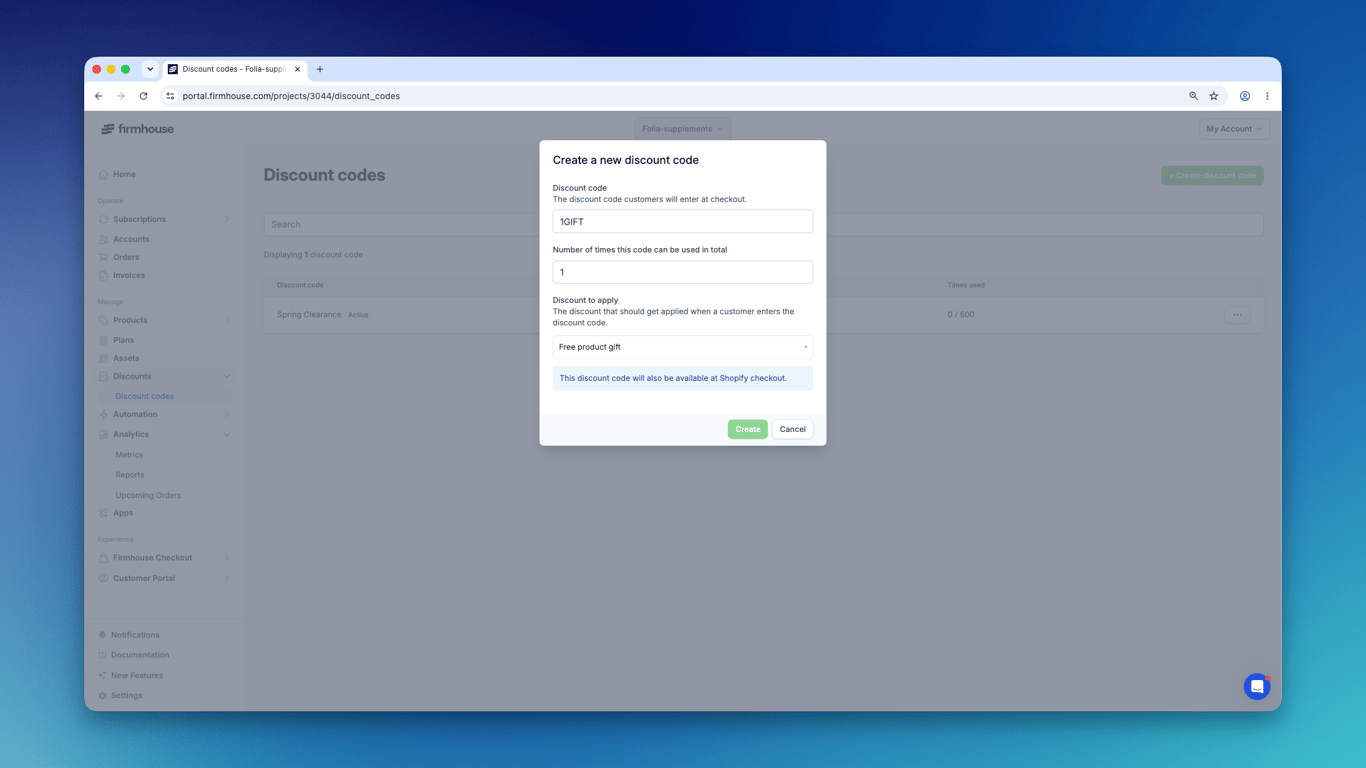
## 5. Confirm the discount is active
1. Go back to **Discounts**.
2. Open the tiered discount.
3. Review the tier and **Customer gets** configuration.
4. Confirm the discount is **Active** before sharing the code with customers.
## 6. Test the code in Shopify checkout
1. Add the qualifying subscription products to the Shopify cart.
2. Go to checkout.
3. Enter the discount code.
4. Confirm that the discount is applied to the eligible subscription line.
If the code should only work for one selling plan or one product, also test a checkout that should be excluded.
## Troubleshooting
### Shopify says the code is valid but not applicable
Check that:
* the cart contains products that qualify for the tier
* the checkout is using a subscription configuration that matches the discount setup
* the **Customer gets** discount is set to **Subscription only**
* the discount is not limited to different products or collections than the ones in the cart
* the discount is not limited to different selling plans than the one used in checkout
* the discount is active in Firmhouse and Shopify
* the code is linked to the correct manual tiered discount
### The discount applies without entering a code
The discount is probably set to **Automatic**. Edit the discount and keep it set to **Manual**, then link it to a discount code.
### The code works on one-time purchases too
Check the **Purchase type** setting on the discount. If it should only work for subscription checkouts, use **Subscription only** instead of **Both**.
### The code does not work for a specific subscription plan
Check whether the discount is restricted to selected selling plans or specific products, and confirm the checkout matches those rules.
## Related articles
* [Tiered discounts for multiple products](./tiered-discounts)
* [Manage discount codes](./managing-discount-codes)
* [Discounts on Shopify Native Checkout](./discounts-on-shopify-checkout)
# Offer a free product via a discount code
Source: https://docs.firmhouse.com/configure/discounts/free-product-via-discount-code
Set up a manual tiered discount in Firmhouse so customers can redeem a discount code for a free one-time purchase gift at Shopify checkout.
Use a manual tiered discount when you want customers to enter a discount code to receive a specific one-time purchase product for free.
> **Note:** Tiered Discounts is a preview feature. The Firmhouse team must enable the Tiered Discounts for your project.
> **Important:** The discount code does not add the free product to the cart. The customer must add the gift product to the cart themselves as a one-time purchase. If the product is missing from the cart, Shopify can show the code as valid but not applicable.
## 1. Create a manual Tiered Discount
1. Go to **Discounts** in your Firmhouse portal.
2. Create a new **Discount**.
3. Keep the discount **Manual**.
4. Enable **Enable discount tiers**.
5. Select the **Purchase type** for the products that should qualify for this tier:
* **Both**: subscription and one-time purchase products can qualify.
* **Subscription only**: only subscription products can qualify.
* **One-time purchase only**: only one-time purchase products can qualify.
6. Add a tier and set the **Minimum quantity** the cart must contain before the discount can become active.
7. Optionally add a product or collection scope to limit which products count toward the minimum quantity.
> **Important — choose how the free product is unlocked:** Tiered discounts work in two ways, and both make the product free once it's in the cart, and the tier's minimum quantity is met:
>
> * **Manual + discount code:** Keep the discount **Manual** and link a discount code to it. The free product is only unlocked when the customer enters that code at checkout.
> * **Automatic:** Set the discount to **Automatic** and no code is needed. The product becomes free for *any* customer whose cart qualifies, as soon as it's added and the minimum quantity is met.
For more about tier setup and activation, see [Tiered discounts for multiple products](./tiered-discounts).
## 2. Add the free product under Customer gets
1. In the tier, go to **Customer gets**.
2. Click **+ Add discount** and select **One-time product discount**.
3. Select the one-time purchase product or collection that customers can receive for free.
4. Set the quantity customers should receive.
5. Set the discount type to **free**.
6. Save the discount.
The **free** discount type applies a 100% discount to the matching one-time purchase cart line at Shopify checkout.
> **Important:** The gift must be a one-time purchase product. Do not select a subscription product as the free gift.
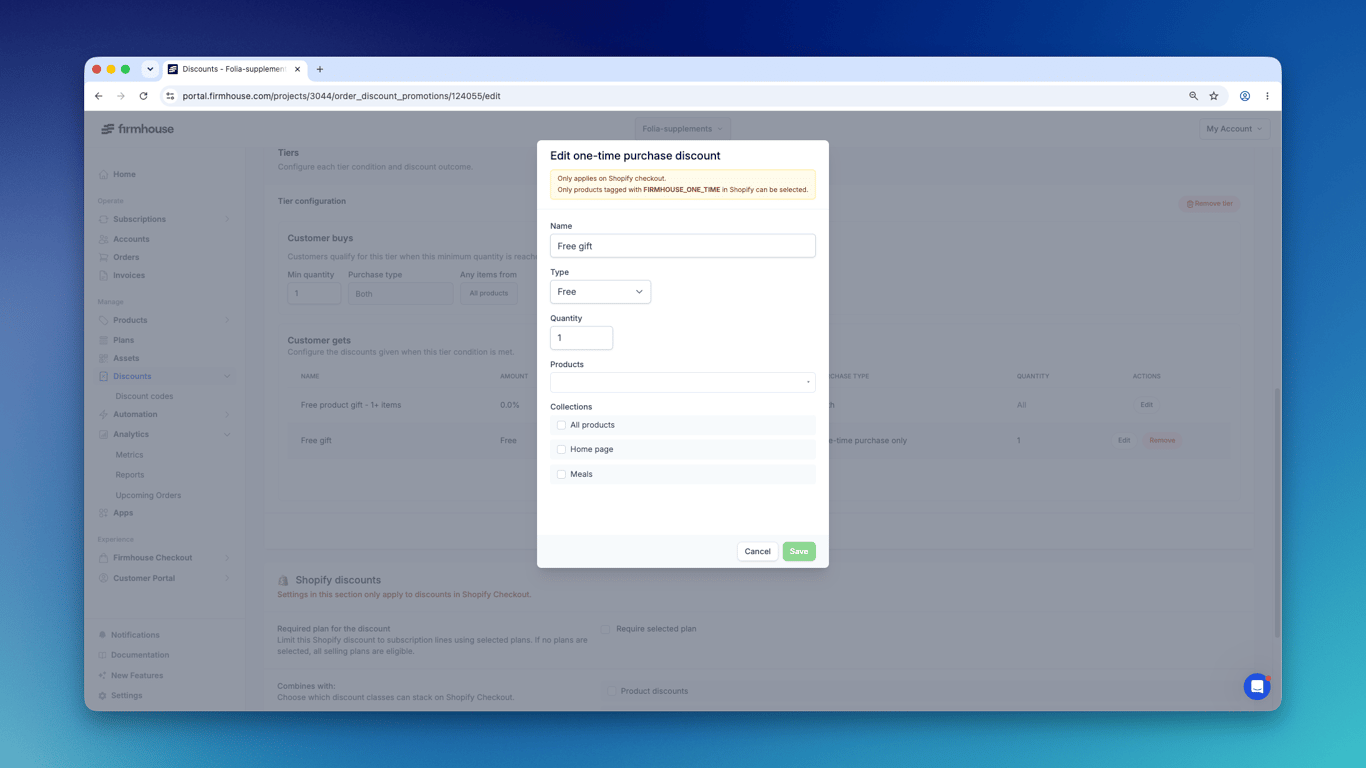
## 3. Create the discount code
1. Go to **Discount Codes** in your Firmhouse portal.
2. Create a new discount code.
3. Enter the code customers should use at checkout.
4. Select the manual tiered discount you created.
5. Save the discount code.
For the full discount code flow, see [Manage discount codes](./managing-discount-codes).

## 4. Confirm the discount is active
1. Go back to **Discounts**.
2. Open the tiered discount.
3. Review the tier and **Customer gets** configuration.
4. Confirm the discount is **Active** before sharing the code with customers.
## 5. Test the code in the Shopify checkout
1. Add the qualifying subscription products to the Shopify cart.
2. Add the gift product to the cart as a one-time purchase.
3. Go to checkout.
4. Enter the discount code.
5. Confirm that the gift product line is discounted to 100% off.
> **Important:** If the gift product is not already in the cart as a one-time purchase, Shopify can accept the code but show it as not applicable because there is no matching cart line to discount.
## Troubleshooting
### Shopify says the code is valid but not applicable
Check that:
* the customer added the gift product to the cart themselves
* the gift product is in the cart as a one-time purchase
* the gift product matches the product or collection configured under **Customer gets**
* the cart meets the tier's minimum quantity and product or collection scope
* the tiered discount is active in Firmhouse
### The discount applies without entering a code
The discount is probably set to **Automatic**. Edit the discount and keep it set to **Manual**, then link it to a discount code.
### The free product is not 100% off
Check the **Customer gets** row and make sure its discount type is **free**.
### Tiered Discounts are not visible in your project
Tiered Discounts is a preview feature. Ask the Firmhouse team to enable the Tiered Discounts for your project.
## Related articles
* [Tiered discounts for multiple products](./tiered-discounts)
* [Manage discount codes](./managing-discount-codes)
# Give discounts on subscriptions
Source: https://docs.firmhouse.com/configure/discounts/giving-discounts
Offer percentage or fixed discounts on initial and recurring payments in Firmhouse, including time-limited offers like 20% off the first three months.
Firmhouse allows you to give discounts to your customers that apply to both initial and recurring payments. For example, you could offer a 20% discount on the first 3 months of a subscription, or a 10% discount on the first two orders.
## How to give discounts
Discounts in Firmhouse work like this:
1. Create a discount
2. Apply it to a plan, to a customer, or create a discount code
### 1. Creating a discount
Click on "Discounts" in the sidebar. Here you can create, edit, activate and deactivate your discounts.

Creating a discount is straightforward. You give it an internal name, choose a percentage or fixed amount, and set the number of times the discount should apply.

> **Good to know:** If you enable the option to **Automatically apply to all customers**, the discount will be applied to all new subscriptions. During this time, subscribers will not be able to apply an additional discount code. You can deactivate the automatic discount at any time.
### Optional minimum invoice amount floor
When you create or edit a discount, you can optionally enable **Minimum invoice amount floor**. This lets you set a minimum invoice total that should remain after the discount is applied.
For example, if you set the floor to `99.00`, Firmhouse will reduce the discount when needed so the final invoice total does not drop below `99.00`.
Use this when you want to run a promotion but still keep a minimum charged amount on the invoice.
The floor also applies to Shopify-billed subscriptions. Firmhouse synchronizes the discount when subscription products change and retries synchronization if a billing attempt starts before it finishes. If Shopify reports a synchronization failure, review the notification for the affected subscription.
### Fixed-amount discount currencies
When creating a fixed-amount discount, choose from your project's currencies and the currencies supported by your connected Shopify store. Shopify currencies are added to the form automatically. Percentage discounts do not require a currency.
**Fixed-amount discounts apply only when the cart uses the same currency as the configured discount.** For example, a discount configured in `EUR` applies to a cart in `EUR`; it does not apply to a cart in `USD`. Recurring orders must also use the discount's configured currency.
For quantity-based offers, [tiered discounts](/configure/discounts/tiered-discounts) also support fixed amounts. Choose **Amount off** to subtract an amount once from the eligible items' total, or **Amount off each** to subtract it from each eligible unit. Set an amount for each tier and one currency for the discount.
### 2. Applying the discount
There are three ways to apply your newly created discount:
**Applying manually to a customer** *(Firmhouse Checkout and Shopify Checkout)*: This is the most common way to apply discounts. Click on "Customers" in the sidebar and find your customer. Click on it to open the subscriber's detail page. Scroll down to "Applied discounts" and click on "Apply discount".
**Automatic on a Plan** *(Firmhouse Checkout only)*: Go to "Plans" in the sidebar and edit the plan on which you would like to give a discount. Scroll down to "Discounts" and choose which discount should apply. If a customer signs up for that plan, the discount will be applied automatically.
**Via Discount Codes at Checkout** *(Firmhouse Checkout only)*: If you want customers to get a discount on checkout you can create discount codes that your customers can enter. See [Creating discount codes](managing-discount-codes) for more information. If you don't see the discount to apply, make sure the desired discount is activated and it's not set to automatically apply at checkout.
> **Using Shopify Checkout?** If you're using Shopify Checkout instead of Firmhouse Checkout, you can configure checkout promotions directly in Shopify. See [Discounts on Shopify Checkout](discounts-on-shopify-checkout) for more information.
## Editing a discount
To edit a discount, go to the **Discounts** view and click on **Edit** next to the discount you wish to edit. You can edit the discount type, percentage or fixed amount, currency, and **Limit discount per customer to** only if all of these conditions are met:
1. The discount is deactivated.
2. The discount has not been applied to any subscriptions yet.
3. The discount has no discount codes.
4. The discount is not assigned to any plans.
If the discount has already been applied to subscriptions, the only parameters you can edit are the **Discount name** and whether or not it's applied automatically. This is a design choice we made to maintain consistent information about a discount over time.
## Deactivating a discount
If you don't need a discount anymore you can simply deactivate it. You can do that on the Discounts view by clicking on **Deactivate** next to the desired discount.

If you have any questions about discount codes don't hesitate to contact us!
# Loyalty discounts by order number
Source: https://docs.firmhouse.com/configure/discounts/loyalty-discounts
Set up percentage discounts that change based on the customer's completed order number.
Use loyalty discounts when you want the discount percentage to change based on how many orders a customer has completed. This is useful for rewarding subscribers over time, or for campaigns where specific order numbers should receive a higher discount.
## Enable in New Features
Loyalty discounts are a preview feature.
To enable them:
1. Go to **New Features** in your Firmhouse project.
2. Enable **Loyalty Discounts**.
3. Go to **Discounts** and create or edit an order discount.
4. Enable **Loyalty discount**.
## Choose a discount pattern
Loyalty discounts support two patterns.
### Increase every order
Choose **Increase every order** when the discount should start at one percentage and increase after every completed order until it reaches a maximum.
Example setup:
* **Orders before loyalty discount starts**: `1`
* **Starting discount**: `2%`
* **Increase by**: `1%`
* **Maximum discount**: `20%`
With this setup, checkout order 1 receives no loyalty discount. Order 2 receives 2%, order 3 receives 3%, and the discount keeps increasing until it reaches 20%. After that, the 20% discount continues on future orders.
Set **Orders before loyalty discount starts** to `0` if the discount should start on the first completed order, including checkout. Set it to `1` if checkout should be skipped and the discount should start on the first recurring order.
### Specific order numbers
Choose **Specific order numbers** when only exact order numbers should receive a discount.
Example setup:
| Order number | Discount percentage |
| - | - |
| 1 | 20% |
| 2 | 30% |
| 5 | 50% |
With this setup, order 1 receives 20%, order 2 receives 30%, orders 3 and 4 receive normal price, order 5 receives 50%, and order 6 onward resumes normal price.
## Apply the discount
Loyalty discounts can be configured as automatic order discounts. When automatic application is enabled, Firmhouse applies the loyalty discount to eligible new subscriptions and tracks the customer's completed order count through the applied discount.
You can still use the usual eligibility settings where compatible, such as limiting the discount to specific products, collections, or plans.
## Shopify checkout behavior
For subscriptions created through Shopify Checkout, the Shopify checkout order is created before Firmhouse can apply this loyalty discount.
That means:
* The initial Shopify checkout order does not receive a Firmhouse loyalty discount.
* Firmhouse can apply the loyalty discount after the subscription is imported.
* The next subscription contract order can receive the configured next loyalty discount.
For Firmhouse Checkout and API-created subscriptions, Firmhouse calculates the first order, so loyalty discounts can apply from order 1 when configured to do so.
## Limitations and notes
1. Loyalty discounts are percentage-based order discounts.
2. Loyalty discounts are not combined with tiered discount settings.
3. Advanced checkout requirements are not supported together with loyalty discounts.
4. Missing rows in **Specific order numbers** mean the customer receives normal price for that order.
5. Cancelling an order rolls back the tracked order count for the applied loyalty discount.
# Manage discount codes
Source: https://docs.firmhouse.com/configure/discounts/managing-discount-codes
Create and manage discount codes in Firmhouse that customers can apply during checkout or when creating subscriptions through the Firmhouse API.
You can offer discounts that get activated on checkout by creating discount codes. A discount code can then be used by your customer on the checkout step or when creating a subscription via the Firmhouse API.
When creating a discount code you must choose which discount will get activated with the code. Discounts themselves are managed separately from discount codes. In practice, you will first create a discount and then create one or multiple codes that will activate a specific discount on checkout.
The reason why it is set up this way is so that you can also automatically or manually apply a certain discount for a customer without your customer having to use a code on checkout.
To learn how to create discounts and what discount options you have, please see [Giving discounts to your customers](giving-discounts).
## Creating a Discount Code
First of all, make sure you already have a discount available in your Firmhouse project. Discounts can be created via the **Discounts** sidebar menu.
### Steps
1. From your Firmhouse project, click **Discount Codes** in the sidebar or menu.
2. On the **Discount Codes** page, click the **Create discount code** button on the top-right.
3. In the **Discount code** field enter the text of the discount code that your customers will enter at checkout. Be aware that discount codes are currently **case sensitive**.
4. In the **Number of times this code can be used in total** field enter how many checkouts can use this code.
5. In the **Discount to apply** dropdown, select the Discount you want to activate with this code.
If the selected discount is a **manual tiered discount**, the same Firmhouse discount code is also available at Shopify checkout for eligible subscription checkouts.

## Checking Required Plans via the API
If you build a custom checkout or storefront, you can use the GraphQL API to check which plans a discount code is restricted to.
Use `getDiscountCode` and read the attached promotion's `requiredPlans` field. This field lists the plans configured under the discount's required-plan rules.
```graphql theme={null}
query GetDiscountCode($code: ID!) {
getDiscountCode(code: $code) {
code
promotion {
requiredPlans {
id
slug
name
}
}
}
}
```
When `requiredPlans` is empty, the attached discount does not have plan-specific requirements. The legacy `autoSelectPlan` field only reflects the optional single plan configured directly on the discount code.
## Removing or Disabling a Discount Code
Discount codes are automatically disabled when their usage limit has been reached. You can also fully disable and remove a discount code immediately.
### Steps
1. From your Firmhouse project, click **Discount Codes** in the sidebar or menu.
2. On the **Discount Codes** page, find the discount code you want to remove.
3. Click **Remove**
> When removing or disabling a discount code, the attached discount is not impacted. Customers that have the associated discount already active will keep that discount. You can also apply discounts to a customer manually, even if there are no (active) codes for it.
# Apply third-party Shopify discounts to subscriptions
Source: https://docs.firmhouse.com/configure/discounts/third-party-shopify-discount-apps
Some merchants use a third-party Shopify discount app (for example to give B2B customers with a specific tag a discount at checkout). These apps work great for giving the discount on the first Shopify order, but the discount usually does **not** automatically carry over to the recurring subscription orders that follow.
This article explains why that happens and how to make sure the same discount is applied on the Firmhouse subscription so it keeps working for all future orders.
## Why third-party app discounts don't always carry over
For a Shopify discount to also apply to the recurring subscription, it needs to be configured as a **subscription discount** in Shopify (a discount that is set up to apply to recurring orders, not only the first one).
Most third-party discount apps create one-time, automatic discounts that only apply at checkout. They don't include the recurring information that Firmhouse needs to extend the discount to renewals. The result: the customer gets the discount on their first Shopify order, but the matching subscription in Firmhouse has no applied discount, so all future orders are billed at full price.
A clear sign that this is what's happening: the discount shows up on the first Shopify order, but when you open the subscription in Firmhouse the **Applied discounts** section is empty.
## Apply the discount with Shopify Flow
The recommended workaround is to use Shopify Flow to call the Firmhouse API after checkout and apply a matching Firmhouse discount to the new subscription. This keeps everything in one place: the third-party app keeps applying the first-order discount in Shopify, and Shopify Flow makes sure Firmhouse adds the same discount to the subscription so it also applies to all future orders.
The setup is:
1. Create the recurring discount once in Firmhouse.
2. Get a Firmhouse Project Access Token.
3. Set up a Shopify Flow that runs after checkout, looks up the new subscription, and applies the Firmhouse discount to it.
### 1. Create the recurring discount in Firmhouse
Open **Discounts** in your Firmhouse portal and create the discount you want subscribers to get on every recurring order (for example, a 10% B2B discount). Activate it. See [Giving discounts to your customers](giving-discounts.md) for details.
You'll need this discount's **promotion ID** in the Shopify Flow step. You can find it by editing the discount in the portal and copying the ID from the page URL.
### 2. Get a Firmhouse Project Access Token
Shopify Flow will use a Project Access Token to authenticate calls to the Firmhouse API. See [API Access Tokens](/integrations/api-access-tokens) for how to create one. Use a **Write** access token.
### 3. Create the Shopify Flow
In Shopify Admin, open **Flow** and create a new workflow:
1. **Trigger:** *Order created* (or another event that matches when the third-party app applies its discount, for example *Customer tags added* for B2B-tag based flows).
2. **Condition (optional):** Add a condition that limits the workflow to the orders you want. For example, only run when the customer has a specific tag (`b2b`) or when a specific discount code or app is involved.
3. **First action — look up the Firmhouse subscription:** Add a *Send HTTP request* action that calls the Firmhouse API to find the subscription for this Shopify order:
* **URL:** `https://portal.firmhouse.com/graphql`
* **HTTP method:** `POST`
* **Headers:**
* `Content-Type: application/json`
* `X-Project-Access-Token: `
* **Body:**
```json theme={null}
{
"query": "query($shopifyId: String!) { getOrderBy(shopifyId: $shopifyId) { subscription { id } } }",
"variables": {
"shopifyId": "{{order.id}}"
}
}
```
In the response, the subscription ID is at `data.getOrderBy.subscription.id`. Save this for the next step using the standard Flow output mapping.
4. **Second action — apply the Firmhouse discount to the subscription:** Add another *Send HTTP request* action that calls the `applyPromotionToSubscription` mutation:
* **URL:** `https://portal.firmhouse.com/graphql`
* **HTTP method:** `POST`
* **Headers:** same as above.
* **Body:**
```json theme={null}
{
"query": "mutation($subscriptionId: ID!, $promotionId: ID!) { applyPromotionToSubscription(input: { subscriptionId: $subscriptionId, promotionId: $promotionId }) { appliedPromotion { id } errors { attribute message } } }",
"variables": {
"subscriptionId": "",
"promotionId": ""
}
}
```
After the Flow runs, the discount will appear under **Applied discounts** on the subscription in Firmhouse, and from then on it will also apply to every recurring order.
## Verify it worked
1. Place a test order that meets the third-party app's discount conditions (for example, a checkout with a customer that has the right tag).
2. In Firmhouse, open the new subscription and check the **Applied discounts** section — your discount should be listed there.
3. Look at the next scheduled order or invoice on the subscription to confirm the discount is calculated.
## Tips
* Create a separate Firmhouse discount (and a matching Flow branch) per customer segment if you offer different percentages.
* If the third-party app changes the discount it gives at checkout, update the matching Firmhouse discount accordingly so the recurring orders stay in sync.
* If you also want Firmhouse to enforce the same product or price requirements that an automatic discount would, add `validatePromotion: true` to the mutation input.
## Related articles
* [Giving discounts to your customers](giving-discounts.md)
* [Discounts on Shopify Checkout](discounts-on-shopify-checkout.md)
* [Use Shopify Flow Triggers](/integrations/shopify-flow-triggers)
* [API Access Tokens](/integrations/api-access-tokens)
# Tiered discounts for multiple products
Source: https://docs.firmhouse.com/configure/discounts/tiered-discounts
Set up percentage or fixed-amount tiered discounts that apply automatically or through discount codes when customers add more eligible products.
Use tiered discounts to automatically apply a higher discount when a customer has more eligible subscription products.
> **Note:** This is a preview feature that has to be enabled by the Firmhouse team on your project. Please get in touch if you'd like to set up Tiered Discounts.
## 1. Create a Tiered Discount in Firmhouse Portal
1. Go to **Discounts** in your Firmhouse portal.
2. Create a new **Discount** (or edit an existing one).
3. Enable **Enable discount tiers**.
4. Under **Discount tiers**, choose **Discount type**: **Percentage**, **Amount off**, or **Amount off each**. This type is shared by every tier.
5. For fixed-amount discounts, choose the currency. You can select from your project's currencies and those supported by your connected Shopify store.
6. Add one or more tiers:
* Set **Minimum quantity**.
* Set the percentage or fixed amount for that tier.
7. Optionally add a **Collection scope** to limit which products count toward the tier quantity.
8. Optionally select one or more **Customer segments** to limit the Shopify checkout discount to specific Shopify customer segments.
9. Save the discount.

### Choose how a fixed amount applies
* **Amount off** subtracts the tier's amount once from the eligible items' total. For example, a tier with a minimum quantity of `3` and an amount of `€5` gives €5 off in total.
* **Amount off each** subtracts the tier's amount from each eligible unit. With 3 eligible units and an amount of `€5`, the total discount is €15.
You can set a different amount at each quantity threshold. All fixed-amount tiers share one currency, and the discount cannot exceed the price of the eligible items. If you limit a tier's reward to specific products, collections, or a quantity, only those eligible reward items receive the discount.
**When you select Amount off or Amount off each, the discount applies only if the cart uses the same currency as the configured discount.** For example, a `EUR` discount applies to a cart in `EUR`; it does not apply to a cart in `USD`.
If you use **Discount Templates**, choose **Volume discount** and set the type and currency in **Tier ladder**. For **Buy X Get Y**, choose **Amount off** or **Amount off each** under **Customer gets**, then enter the amount and currency for the reward.
## 2. Choose how customers should receive the discount
Tiered discounts can work in two ways:
* **Automatic**: Enable **Automatic** so the discount applies as soon as the cart quantity matches a tier. Customers do not need to enter a code.
* **Manual with a discount code**: Keep the discount **Manual** if you want customers to enter a discount code at checkout. After saving the tiered discount, create a Firmhouse discount code for it from **Discount Codes**. The code is synced to Shopify, but it only becomes redeemable after the tiered discount is activated.
## Add one-time gifts to a tier
Each tier can also include one-time purchase gifts.
When you add a gift row to a tier, you can target:
* specific one-time purchase products
* one or more collections
If you target collections, Firmhouse uses the eligible one-time purchase products in those collections when the tier is applied.
## Test a tiered discount with a Shopify customer segment
You can use Shopify customer segments to test a tiered discount with a limited group before opening it to every customer.
1. Create a customer segment in Shopify that includes only your test customers.
2. Select that segment in the **Customer segment** field on the Firmhouse tiered discount.
3. Save and activate the tiered discount.
4. Test checkout with a customer account that belongs to the selected Shopify segment.
Only customers in the selected segment can receive the Shopify checkout discount. Remove the selected segment when you are ready to make the discount available to all eligible customers.
## 3. Discount Added as Deactivated
When you first create or save a tiered discount, it is added in a **deactivated** state. This allows you to review the configuration before making it available to customers.

## 4. Deactivated Discount Synced to Shopify
Firmhouse syncs tiered discounts to Shopify as automatic discounts. The deactivated discount is synced to Shopify and appears there in a disabled state, keeping the two systems in sync.

For manual tiered discounts, create the matching discount code after the discount itself is configured. Customers can redeem that code at checkout once the tiered discount has been activated.
## 5. Activate the Discount in Firmhouse Portal
When you are ready to make the tiered discount available to customers:
1. Go to **Discounts** in your Firmhouse portal.
2. Find the tiered discount and click **Activate**.

## 6. Activated Discount in Shopify
Once activated in Firmhouse, the discount becomes active in Shopify as well. Each tier is synced with its percentage or fixed amount, how that amount applies, minimum quantity, and collection targeting.

## 7. Discount Applied at Shopify Checkout
When customers add eligible subscription products to their cart and the quantity meets a tier threshold:
* **Automatic tiered discounts** are applied automatically at Shopify checkout.
* **Manual tiered discounts** are applied when the customer enters the Firmhouse discount code linked to that tiered discount.

### Explain a first-order offer at checkout
Shopify shows the automatic tier discount's **Label shown to customers** beneath the product at checkout. You can edit this text without changing the discount amount, automatic application, eligibility, or order limit. When customers redeem a code, Shopify may show the code instead.
For a monthly item priced at €26.95 with 30% off the first order, you can use "First €18.87, then €26.95 per month, per item". Leave the percentage and one-order limit as they are. Save the label, wait for it to sync to Shopify, then check a fresh checkout.
Prices in this label do not update automatically. Include them only if they are correct for every eligible product, plan, checkout currency, and quantity, including rounding. Update the text whenever those conditions change. If the offer covers different prices or currencies, use "30% off your first order; regular plan pricing applies afterward". These are per-item prices; the checkout total can also include shipping and other charges.
The label leaves Shopify's subscription pricing summary unchanged. If starting and renewal prices are the same, follow the [plan pricing guidance](/manage/plans/plan-pricing#first-order-promotions-in-shopify-checkout) to remove the misleading first-payment sentence.
## 8. Discount Shown on Subscription Page After Checkout
After checkout, the subscription appears in your Firmhouse portal. The subscription page shows the discount that was applied, including the tier and percentage or fixed amount.
**How the calculation works:** In this example, the subscription contains 5 eligible units. That quantity reaches the 5+ item tier, so the **Bundle Builder** discount applies 20% off.

## 9. Discount Tier Updates When Quantity Changes
When a customer adds, removes, or updates the quantity of subscription products, Firmhouse recalculates the active tier. If the quantity now qualifies for a different tier (higher or lower), the discount is updated accordingly:
* If the subscription drops below the first tier, the discount is removed.
* If the quantity qualifies for a different tier, the discount is updated to that tier's percentage or fixed amount.
The Firmhouse subscription page reflects the current discount state after any product changes.
**In this screenshot:** We updated the product quantity from 5 to 4. The subscription now qualifies for the 4+ item tier, so following orders receive 10% off instead of 20%.

## Limitations and Notes
1. Tiered discounts support **Percentage**, **Amount off**, and **Amount off each**. All tiers in the editor use the same type.
2. Tiered discounts can be configured as **automatic** or **manual with a discount code**.
3. Quantities are calculated from eligible products only.
4. If no tier matches, no tier discount is applied.
5. Shopify customer segments can be used to limit tiered discounts to specific customer groups. Leave the customer segment field empty to allow all customers.
6. Shopify automatic tier discounts are configured for both one-time purchase and subscription checkouts.
7. Fixed-amount tiers apply only when the cart or recurring subscription order uses the same currency as the configured discount. Use a percentage discount if you need one discount to work across currencies.
8. Fixed-amount tiers do not support a monetary value limit. [Loyalty discounts by order number](/configure/discounts/loyalty-discounts) remain percentage-based.
# Collect extra customer fields
Source: https://docs.firmhouse.com/configure/extra-fields
Define extra fields on Firmhouse Checkout to collect additional information from customers during signup, beyond the standard address and contact data.
By default, the Firmhouse Checkout and data model of every Subscription offers a range of standard fields like address information, email, phone number, etc. Some of these fields [can be made required, optional, or even fully hidden](/configure/checkout/customer-fields).
Sometimes, you want to store additional information about your customers that are not part of the standard fields that Firmhouse offers. For example, collecting customer's birthday to send them a gift or special birthday offer. Firmhouse supports collecting this data using **Extra Fields**. This article explains what kind of Extra Field options we offer, and how to manage them.
To start with, you can view your existing extra fields and create new ones by navigating to **Checkout > Extra fields & validations**.

## Extra Field Configuration Options
When attempting to create a new Extra field, you will have to configure several settings. Let's dive into each of them and their function.

### Field Types
Every extra field has a type. The type influences how the field is shown on Checkout or when editing through the Firmhouse Portal. It also dictates what type of information you need to pass on when setting a field via the API.
Currently supported types are:
* **Short text** - shows as single-line entry
* **Long text** - shows as multi-line text box
* **Date** - shows a date picker
* **Dropdown** - select from a list of pre-defined values
### Visibility
A field is either **Public** or **Internal**.
**Public** fields are automatically shown on Checkout. They can be entered and modified by the customer at this point.
**Internal** fields are private fields. They can only be seen and edited in the Portal or through an API key with write access.
### Prefill public field values from the checkout URL
On Firmhouse Checkout, a public extra field can be prefilled from a URL parameter when the key inside `extra_fields` matches the extra field name. This is useful when a quiz, form, campaign page, or other pre-checkout flow needs to pass a value into the subscription.
For example, if you create an extra field named `bmi`, you can send customers to checkout with `?extra_fields[bmi]=27` and Firmhouse stores that value on the subscription.
If the value should not be edited by customers, hide the field in your checkout custom code after it has been prefilled. Use one general-purpose extra field if you need to pass different kinds of custom values through the same flow.
### Required or Not
A field can be set to be required. If a field is required an error message will be displayed at Checkout if an empty value is entered. The API will also return a validation error message if the field is blank or not passed in.
### Purpose (Only with Certain Integrations)
When certain integrations are enabled on your project, you can set a field's **Purpose**.
The purpose setting is used to inform external or 3rd party integrations of what the content of the field means. This is useful when the field's name might be different or customized in a non-generic way. By setting the purpose there's a uniform way for external integrations to know for what use case the field is used so that integrations can explicitly look for the field's value depending on the use case.
Currently supported values are:
* Phone number
## Shopify app-enabled projects
If your project uses the Shopify app, extra fields can only be used to map Shopify order **Additional details** (`customAttributes`) to subscription data.
In Shopify app-enabled projects:
* create a field with the exact same name as the key in Shopify **Additional details**
* fields are used only for this mapping flow
* values are stored as internal long text by default
* the value is saved on the subscription when names match
### What this means in practice
For Shopify app-enabled projects, Firmhouse does **not** automatically render extra fields in these places:
* the Self Service Center
* the standard Shopify checkout
* the Firmhouse-managed parts of the Shopify storefront
If you want to collect something like a customer's date of birth, you need to capture it in Shopify first and pass it through as **Additional details** (`customAttributes`).
The most common setup is:
1. Add a custom field on the cart page or another storefront step before checkout.
2. Save that value into Shopify **Additional details** (`customAttributes`).
3. Create a Firmhouse extra field with the exact same name so Firmhouse can copy that value onto the subscription.
This means extra fields are useful for storing and syncing custom data on Shopify projects, but they are **not** customer-editable fields inside the Self Service Center.
## Create an Extra Field
### Steps
1. In your Firmhouse project, go to **Checkout > Extra fields & validations** from the sidebar.
2. From the **Extra fields** overview, click the **New extra field** button.
3. Give your field a name. This is how the field will appear on Checkout and Portal.
4. Set the field type, visibility, requirement, and if available its purpose and if you want the field to be sent to Shopify.
5. Click **Save extra field**.
Adding a **required extra field** when you already have customers will cause existing customers to also need to be updated with that extra field. Upon changing the details of an existing customer it's also required to fill out the new extra field with a value. This can for example be done in batch by creating a script that uses our API to update all existing subscribers with the new mandatory extra field.
## Edit an Extra Field
### Steps
1. In your Firmhouse project, go to **Checkout > Extra fields & validations** from the sidebar.
2. From the Extra fields overview, click **Edit** on the field you'd like to edit.
3. Change any of the settings of the field.
4. Click **Save extra field**.
Make sure to update any custom integrations when renaming an extra field if you are using its name. Typically you should be using the Extra Field's IDs to integrate so you don't have the problem that something breaks when renaming. Renaming the Extra Field also modifies how it shows up in exports and reports.
## Remove an Extra Field
### Steps
1. In your Firmhouse project, go to **Checkout > Extra fields & validations** from the sidebar.
2. From the Extra fields overview, click **Delete** on the field you'd like to delete. Confirm the removal in the dialog.
Historic values of the extra field removed will still remain present on the customer record. However, the field will not be treated as mandatory anymore and it will not be possible to edit the field's value in the portal.
# Add your logo to the Firmhouse Checkout
Source: https://docs.firmhouse.com/configure/firmhouse-checkout/add-logo-to-checkout
Brand the Firmhouse Checkout and Self Service Center with your logo and accent color so your customer-facing pages match your company's visual identity.
Brand the Firmhouse checkout with your logo to make it yours. You can upload your logo to Firmhouse to make the checkout page and the Self Service Center feel like they're yours.
## Upload your logo
### Steps
1. Navigate to **Settings > Your business** to configure your branding.
2. In the Branding section, upload a company logo. If the upload doesn't show right away, click on **Update project** to get the picture to load.
3. Select an accent color that fits your company's branding. This color is used in some areas of the Self Service Center.

## Configure the logo on the checkout page
You can choose between three different sizes when displaying your logo on the checkout page: Normal, Large, and Very Large.
### Steps
1. Go to **Checkout > Preferences** and scroll down to **Customise Appearance**.
2. Choose your preferred logo size. This will update the logo on all customer facing screens such as checkout, manual invoice payment flow, update payment method, etc.

To preview the checkout page, go to **Checkout > Adjust content** and click on **Preview Page**.
# Build advanced checkout URLs
Source: https://docs.firmhouse.com/configure/firmhouse-checkout/advanced-checkout-urls
Create custom Firmhouse Checkout URLs that pre-load multiple products, plans, and quantities so customers land on a ready-to-complete checkout.
Learn how to create links that lead to a checkout containing several products at the same time.
This article is for you if you want to create links that checkout or add multiple products to the cart at the same time. With the click of a button, you can add several products to the cart at the same time, checkout to a plan and one or more products, or checkout to several products at the same time.
To achieve this, you can use several powerful URL parameters. These work both on the checkout and the cart.
## Checkout to One or Several Products
```
products={product-slug}
```
Creates a checkout containing exactly the specified products. Quantity is always 1.
**Example:**
```
https://yourcheckouturl.com?products=honey-cookie-box,vanilla-strawberry-bar-box
```
This would create a checkout consisting of 1x Honey Cookie Box and 1x Vanilla Strawberry Bar Box.
## Checkout to One or Several Products and Set the Quantity
```
ordered_products[{id_number}]={quantity}
```
Creates a checkout containing exactly the specified products and offers a possibility to add quantity.
**Example:**
```
https://yourcheckouturl.com?ordered_products[15]=2&ordered_products[16]=3
```
This uses product IDs instead of slugs. You can find the ID next to the product name in the product overview (click on "Products" in the sidebar).
The URL above would checkout to 2x product with the ID 15 and 3x product with the ID 16.
## Add One or Several Products to the Cart
```
add_products={slug}
```
This is very useful if you are using a cart. It adds the desired products to the cart with a quantity of 1. Note that the quantity can always be adjusted by the customer.
**Example:**
```
https://yourcheckouturl.com/cart?add_products=toaster,microwave
```
This adds a toaster and a microwave to the cart.
## Add One or Several Products to the Cart and Set the Quantity
```
add_ordered_products[{id_number}]={quantity}
```
This is very useful if you are using a cart and want to set quantities.
**Example:**
```
https://yourcheckouturl.com/cart?add_ordered_products[15]=2&add_ordered_products[16]=3
```
This uses product IDs instead of slugs. You can find the ID next to the product name in the product overview (click on "Products" in the sidebar).
The URL above would add 2x product with the ID 15 and 3x product with the ID 16.
## Checkout to a Plan
```
plan=[plan-name]
```
This is only relevant if you are relying on plans. The plan slug can be used in combination with any of the slugs above.
**Add a plan and a product (with a quantity) to the cart:**
```
https://yourcheckouturl.com/cart?plan=standard&add_ordered_products[15]=2
```
**Checkout to a plan and two products:**
```
https://yourcheckouturl.com?plan=standard&products=toaster,microwave
```
Note that only one plan can be checked out to at the same time.
## Add Pre-filled Value for Extra Field
If you would like to have a value appear in one of the extra fields automatically when a customer opens the Checkout, you can add a URL parameter in the URL bar in the `extra_fields` attribute as a key/value combination. It is important to use the lowercased name of the extra field as the key in the `extra_fields` attribute.
Be aware that this still allows the customer to remove or edit the value on the Checkout form itself. You can potentially hide the field via custom JS or CSS if you do not want your customer to see or edit the field directly in the user interface.
**Example:**
```
https://yourcheckouturl.com?extra_fields[tracking_code]=11ad234f
```
# Add analytics and tracking scripts
Source: https://docs.firmhouse.com/configure/firmhouse-checkout/analytics-tracking-scripts
Add Google Analytics, Google Tag Manager, pixels, and other tracking scripts to the Customer Portal, Self Service Center, and Firmhouse Checkout.
Tracking scripts help you measure visits, checkout progress, purchases, campaign performance, and customer portal usage. In Firmhouse, where you add them depends on which customer-facing area you want to track.
You can add Google Analytics, Google Tag Manager, Google pixels, advertising pixels, support widgets, or other trusted third-party scripts to customer-facing Firmhouse pages.
Most merchants use a tag manager, such as Google Tag Manager, so tracking tags can be managed in one place without updating the Firmhouse project settings every time a marketing or analytics tag changes.
## Where you can add tracking scripts
Firmhouse supports tracking scripts in different customer-facing areas:
* **Customer Portal**: Add scripts directly in your Customer Portal page templates.
* **Self Service Center (legacy)**: Add scripts through the legacy Self Service Center custom code fields.
* **Firmhouse Checkout**: Add scripts to checkout pages, payment pages, payment status pages, and order confirmation pages.
Add the script to every area where you need tracking. For example, a checkout conversion pixel or Google Analytics checkout event belongs on Firmhouse Checkout, while a support widget for existing customers may belong in the Customer Portal or the legacy Self Service Center.
## Before you start
Only add scripts that you trust and actively maintain. Custom code can affect page loading, customer privacy, and checkout conversion.
**Please note:** Header and Body custom code fields are only available for Firmhouse projects that have a custom domain configured. This applies to the legacy Self Service Center and Firmhouse Checkout custom code setup. Customer Portal tracking is template-based instead.
## Customer Portal templates and custom code fields
Customer Portal and the legacy Self Service Center do not use the same setup:
* **Customer Portal** uses page templates.
* **Self Service Center (legacy)** and **Firmhouse Checkout** use **Header** and **Body** custom code fields.
## Add scripts to the Customer Portal
Use these steps when your project uses the new Customer Portal and you want tracking code to run on Customer Portal pages.
If you do not see **Customer Portal** in the sidebar yet, first enable **Customer Portal v2** in **New Features**. Then use the **Overview** page in the new Customer Portal settings to test with **Preview mode** or enable the new portal for all customers. See [Customer Portal quickstart](/customer-portal-v2/quickstart).
### Steps
1. In your Firmhouse project, open **Customer Portal > Templates**.
2. Open the page template where the script should run, such as `dashboard.liquid` or another relevant template.
3. Add the tracking snippet directly in the template using `
```
This script checks if the dataLayer is available, extracts the currency code and transaction total, and fires a Meta Pixel Purchase event with this data.
# Custom checkout domain on Cloudflare
Source: https://docs.firmhouse.com/configure/firmhouse-checkout/custom-checkout-domain-cloudflare
Configure Cloudflare for a custom Firmhouse Checkout domain, including disabling Rocket Loader and other optimizations that break checkout scripts.
When running Cloudflare in front of your custom Firmhouse Checkout domain, you need to disable certain Cloudflare optimizations that interfere with Firmhouse functionality. Specifically, Rocket Loader must be disabled for your checkout domain to ensure everything works correctly.
The simplest option is to disable Rocket Loader for the entire domain. If you need Rocket Loader elsewhere, use a Configuration Rule to disable it only for your Firmhouse checkout hostname.
## DNS proxying
Start with the checkout domain set to **DNS only** in Cloudflare. This lets the CNAME point directly to the Firmhouse-hosted application without Cloudflare proxying the traffic.
If you want to turn on Cloudflare proxying for the checkout domain, coordinate this with Firmhouse support first. Firmhouse needs to verify the custom domain mapping and certificate setup on the hosting side before proxied traffic is enabled. Turning on the proxy before that is confirmed can cause SSL or routing issues.
## Disabling Rocket Loader
### Steps
1. Go to your Cloudflare dashboard
2. Select your domain and navigate to **Speed** > **Settings**
3. Under **Content Optimization**, find **Rocket Loader** and switch it off

## Search engine indexing
Firmhouse serves a `robots.txt` file on connected custom checkout and Customer Portal domains. You can customize this file when you want search engines to crawl specific pages, such as a customer login page that should appear in search results.
Go to your custom domain settings in Firmhouse and update the `robots.txt` content for that domain. For example, if you want crawlers to access the index page on the connected domain, make sure your rules do not block the whole site with `Disallow: /`.
## Creating a Configuration Rule (Alternative)
If you want to keep Rocket Loader enabled for other parts of your site, you can create a configuration rule to disable it specifically for your checkout domain.
### Steps
1. Go to your Cloudflare dashboard
2. Select your domain and navigate to **Rules** > **Overview**
3. Click **Create rule** and choose **Configuration Rule**
4. Set the rule name, for example, "Disable Rocket Loader for Firmhouse checkout"
5. Under **If incoming requests match**, select **Custom filter expression** and configure **Hostname** to equal your checkout domain
6. Under **Then the settings are**, add **Rocket Loader** and switch it off
7. Save the rule as a draft or deploy it when you are ready

# Custom checkout form validations
Source: https://docs.firmhouse.com/configure/firmhouse-checkout/custom-form-validations
Add custom form field validations on the Firmhouse Checkout to limit who can sign up for your subscription based on rules you define per field.
Limit who can and cannot signup for your subscription with custom form field validations.
The Firmhouse payment page has some general rules in place to verify that your customers fill in all the required fields correctly, like an email address. Depending on your offering, it's possible you do not want everyone to be able to sign up. You might want to filter subscribers to meet your specific criteria, for example, when you only deliver your product in a specific geographic region.
## What are Custom Form Field Validations?
With custom form field validations you can define specific requirements for new customers. These validations check if the data entered by the customer are within the criteria you allowed. For instance area codes, whether a phone number is mobile, etc. During signup we will automatically verify this for you.
> **Please note:** This is an advanced feature powered by **Regular expressions (regex)**, so it may seem a little complicated to set up if you have not worked with regular expressions before. We will walk you through some examples in this article so you can create your own rules too. If you need further help, do not hesitate to reach out to our customer support.
Go to **Firmhouse Checkout** > **Extra fields**, then open **Custom validations**. Here you can create, edit, and delete a custom form field validation.

## Creating a New Validation
### 1. Select a Form Field
You can create a validation for any core field of the Firmhouse checkout page form:
* Zipcode
* Email
* Phone Number
* City
* Address
* House Number
### 2. Write a Regular Expression
Write a pattern that the user's input should match against. We support 3 regular expression options that you might need for more advanced patterns:
* **i** - ignore case
* **x** - ignore whitespace in the regular expression
* **m** - make dot match newlines in the regular expression
You can select multiple options or skip it if you do not need any of them.
### 3. Add an Error Message
Write some error text to let your users know why they cannot sign up to your subscription. You can create multiple validations for the same field and we will show error messages accordingly.
### 4. Test Your Regular Expression
We added a playground so you can test your regex when you are creating one. Go to the Playground section and enter some value you want to test and you will see if it is valid or not right away.
For example, the regex `^12345$` will match the value `12345` but will not match the value `12347`.

## Example Regular Expressions for Core Form Fields
### Zipcode
**To match a few zipcodes**, one of the options is to add your selected zipcodes in the following format:
```regex theme={null}
^(12345|12346|12347|23467)$
```
This creates a hard limitation to only allow these numbers.
> **TIP:** When building a regular expression, **start your regex with ^, end it with \$, and split values with |.**
>
> * `^` means the start of the string, so no additional characters are allowed before your value (12345 is allowed, 112345 is not)
> * `$` means the end of the string, so no additional characters are allowed after your value (12345 is allowed, 123451 is not)
**To match a big range of numbers** you can create a smarter regex:
```regex theme={null}
^(120[3-5][0-9][0-9])$
```
This will cover all the numbers in the range 120300 - 120599.
**Country-specific zipcode patterns:**
For the **United States**:
```regex theme={null}
^\b\d{5}\b(?:[- ]{1}\d{4})?$
```
This allows values in the format "NNNNN" or optionally "NNNNN-NNNN" where N is any number.
For **The Netherlands**:
```regex theme={null}
^\d{4}\s{0,1}[A-Za-z]{2}$
```
This allows values in the format "NNNN AA" where N is any number and AA are letters.
For **The United Kingdom**:
```regex theme={null}
^[A-Za-z]{1,2}\\d([A-Za-z]|\\d)\\d[A-Za-z]{2}$
```
This allows values in the format "A(A)N(A/N)NAA" where N is any number, A is a letter, and optional characters are in parentheses.
For **China**:
```regex theme={null}
^\d{6}$
```
This allows values in the format "NNNNNN" where N is any number.
### Email
You might want to only allow users with emails at a particular domain name:
```regex theme={null}
^.+@example.com$
```
* `.` (dot) means any character
* `+` (plus) means any amount of times
With this pattern, any amount of characters (more than 0) is allowed before "@example.com".
### Phone Number
You might need to allow users to register only with country-specific phone numbers. For example, US numbers with formats (123)123-1234 and 123-123-1234:
```regex theme={null}
^(\([0-9]{3}\)|[0-9]{3}-)[0-9]{3}-[0-9]{4}$
```
### City
If you want to limit your delivery area to specific cities, you can set up a simple regex. For example, to allow only users from Amsterdam and Rotterdam:
```regex theme={null}
^(Amsterdam|Rotterdam)$
```
### Address
If you want your customers to write their address from a specific address list:
```regex theme={null}
^(Green street|Main street)$
```
To make your regex **case insensitive** (to allow both "Green street", "green street" and "Green Street"), select the "ignore case" option when creating your validation.
If you want your customers to write their address in a specific format:
```regex theme={null}
^[a-zA-Z]+, \d+$
```
This will only allow addresses in the format: any amount of case-insensitive letter-characters (more than 0) followed by a comma, followed by a space, followed by any amount of digits.
### House Number
If you want to limit your delivery area to specific house numbers:
```regex theme={null}
^(11|15)$
```
This will allow only users with house number 11 or 15 to sign up.
```regex theme={null}
^(11-15)$
```
This will allow only users with house numbers in the range between 11 and 15 (inclusive) to sign up.
## Related Articles
* [Extra Fields](/configure/extra-fields)
* [Set Up Your Checkout Page](/configure/firmhouse-checkout/setup-checkout-page)
# Disable discount on initial payment
Source: https://docs.firmhouse.com/configure/firmhouse-checkout/disable-discount-initial-payment
Configure the Firmhouse Checkout to only collect a small initial payment without applying recurring discounts, useful for direct debit-only signups.
In some cases you want to only collect someone's direct debit permission via an initial payment of a small amount. For example, if you want someone to sign up but only start their subscription upon delivery of your services or products.
In this case, you don't want any discounts to be applied on this initial payment as would happen by default. Instead, you want a discount or discount code entered to take effect on your customer's first **real** recurring charge.
## Configuring the Setting
You can configure per **Plan** if you want any discounts to be applied on the initial payment.
### Steps
1. Go to **Plans** in the Firmhouse portal.
2. Create a new Plan or edit an existing Plan.
3. Under the **Pricing** section, find the **Skip discount on the initial payment** setting.
4. Enable this setting if you want any automatic discounts or entered discount codes to be skipped for signing up to this Plan.

When this setting is enabled, discounts will only apply starting from the first recurring charge, not the initial authorization payment.
# One-time e-commerce checkouts
Source: https://docs.firmhouse.com/configure/firmhouse-checkout/one-time-e-commerce-checkouts
Use Firmhouse Checkout for one-time e-commerce purchases alongside subscriptions, giving customers a consistent experience across all order types.
Firmhouse supports full one-time checkouts via Firmhouse Checkout. This allows you as a merchant to offer a consistent and holistic experience to all your customers, whichever way you choose to sell.
This article explains how one-time checkouts work and what to expect.
## Currently for Recurring Order Businesses Only
This feature is available for merchants using the "Smart Order-based" project type. Merchants with a rental, lease, or Product as a Service business model are not yet supported.
## One-Time Purchase Carts vs Subscription Carts
Technically, Firmhouse already supports full one-time purchase carts. However, they currently show up as subscriptions in the Firmhouse portal, analytics, etc. without a way to distinguish full subscription or hybrid checkouts from only one-time product checkouts.
With the one-time purchase feature enabled, carts that consist of only "one time shipment" products will be treated as one-time purchases. When at least one of the items in a cart is set to have a recurring order schedule, the cart is treated as a subscription.
## New "One-Time Purchase" Customer Status
Customers that check out a full one-time purchase cart get the new status **One-time purchase**. You can filter on this new status so that you can distinguish one-time purchases from regular subscriptions. Exports and API also reflect this new status as `one_time_purchase` or `ONE_TIME_PURCHASE`.

## Upgrading from One-Time Purchases is Currently Not Possible
When someone places an order as a one-time purchase, they cannot upgrade their initial order to a subscription. It is also not possible to add any products to their order via the Self Service Center.
We are considering designing flows so that when a customer places a one-time purchase, it becomes easy to upgrade or upsell those customers to getting a subscription. At the moment this is not possible yet without the customer doing a fully new Checkout that includes any desired subscription products.
## What Does It Look Like in the Self Service Center?
With the multi-accounts feature enabled in your Firmhouse project, combining subscriptions and one-time purchases looks as follows:

## Distinguishing Between One-Time and Recurring Payment Methods
Currently, we show the same payment methods to customers checking out a full one-time cart and to those who are checking out subscription products. The effect is that payment methods that are only suitable for one-time purchase payments are still hidden from the payment step.
We are exploring ways to make this customizable so that you can offer more payment methods to customers checking out one-time purchases.
# Set up one-time products
Source: https://docs.firmhouse.com/configure/firmhouse-checkout/one-time-products
Configure one-time products in Firmhouse that ship once instead of recurring, ideal for add-ons, accessories, and starter packs alongside subscriptions.
A big part of any modern e-commerce business is to support multiple ways of offering products. Firmhouse lets you set up products to be shipped **only once** in addition to setting up products to be shipped on a recurring basis.
This article explains how **ship only once** products behave when being ordered and how you can leverage them to support various use cases.
## How to Set Up a Product to Be Shipped Only Once
When creating or editing a Product in Firmhouse, you can configure various order generation and shipment settings in the **Logistics** section. In the Logistics section, you can set the product to be shipped **Only once**.

## One-Time Products Become Inactive After Order Generation
> **Note:** This is currently available only on Smart Order-based projects.
Whenever Firmhouse generates an order for an **only once** product, it will be removed as an active product from the customer. By default, the product will no longer be available in the Customer Portal and will not be taken into account for any shipping cost calculation. You can make selected consumables available to add again by enabling repeat ordering as described below.
In the Firmhouse Portal, these products will show up in the inactive products list and will get the status **owned**.

## Allow Customers to Reorder a One-Time Product
By default, an **only once** product can be ordered once per subscription. For consumables that customers may need again, such as filters, refills, or recycling bags, you can allow repeat ordering:
1. Open the product in the Firmhouse Portal.
2. Enable **Customers can reorder this product after it ships**.
3. Make sure the product is also available in the Customer Portal.
After an order is generated, the purchase remains in the inactive products history with the status **owned**. The product becomes available under **Add products** again. Previous owned or returned entries do not prevent another order; the product remains unavailable only while an active copy exists.
Enable this only for products that are safe to buy repeatedly. Leave it disabled for hardware, starter kits, gifts, and other products that should be limited to one purchase per subscription.
> [!NOTE]
>
> This setting differs from an SSCv2 **one-off add-on**. A one-off add-on lets a catalog product ship with the next generated order and then removes that addition. The repeat-order setting controls whether an **only once** product becomes available to add again after it has shipped.
## Use Cases for One-Time Products
### Traditional One-Time E-commerce Checkouts
By default, the **only once** setting on Firmhouse products will make them behave as you expect in a traditional e-commerce flow: the customer adds products to their cart, finishes checkout, and gets them delivered at home. So if a customer puts only **only once** products in their cart, it will behave as a traditional e-commerce order at checkout.
### Hybrid Carts with One-Time Products and Subscription Products
You can mix and match one-time products and subscriptions in one cart and checkout. This allows your customers to browse products from your regular product catalog and at the same time subscribe to products made available for subscriptions.
### Free or Premium Add-ons to Initial Order
Some merchants offer freebies or add-on products to an initial order as part of a campaign or as part of their default setup.
For example, when starting a subscription on washing cloths, a storage box can be added to the initial order. The one-time storage box is set as an **only once** product so that it only gets shipped on the first order. After the initial order is generated, the storage box is removed as an active product from a customer account or subscription.
### One-Time Additions or Upsells During a Subscription Lifetime
It's possible that your customer or you as a merchant would like to add a product to a subscription so it will be shipped out on their next order, but only once. Allow your customers to add these one-time products to their next orders as part of a campaign or because you want to make something right after you messed up an order.
You can also use this to offer a special selection of products as promotion during seasonal events such as the holiday season.
# Pre-fill Firmhouse Checkout fields
Source: https://docs.firmhouse.com/configure/firmhouse-checkout/pre-fill-checkout-fields
Pre-fill Firmhouse Checkout fields via URL parameters to save customers time, increase conversion rates, and personalize the subscription signup flow.
Save your customers time and increase conversion rates by filling the checkout fields in advance.
Time is valuable for both you and your customers. The less friction there is during checkout, the higher your conversion rate. That's why we offer the option to redirect customers to a checkout that has their data already loaded and ready to go.
So how does this work? It's simple.
## Create the subscription
First, you have to create a subscription using the `createSubscription` mutation. Include the customer's address and contact details, and maybe even Ordered Products. If needed, you can edit these details later with the `updateAddressDetails` mutation.
Make sure that you get the subscription's `token` from the mutation's response.
## Build the checkout URL
Now that the subscription is ready and you have the token, you can then redirect the customer to the checkout page. In the checkout URL, include the subscription's `token` as a `cart_token` attribute.
For example, if the token for the subscription is `abcde12345`, the checkout URL could look like this:
```
https://yourcheckouturl.com?products={product_slug}&cart_token=abcde12345
```
> The above example includes optional product slug, see [Build advanced checkout URLs](/configure/firmhouse-checkout/advanced-checkout-urls) for more information about how this works.
When the customer clicks on this link, they will be directed to the checkout page with all their data already loaded.
So next time you redirect a customer to our checkout, consider using this feature to make their experience even smoother. Happy selling!
# Redirect customers after checkout
Source: https://docs.firmhouse.com/configure/firmhouse-checkout/redirect-after-checkout
Send subscribers to a custom URL after completing the Firmhouse Checkout, useful for order confirmation pages, thank-you pages, or upsell flows.
You can send customers to any page after they completed the checkout. This can be useful if you have a custom order confirmation page on your webshop or if you want to upsell products.
All you need to do is add this snippet at the end of the Firmhouse checkout URL:
```
?return_url=https://yourdomain.com
```
## Example
```
https://checkout.firmhouse.com/en/my-project-name?return_url=https://firmhouse.com
```
When customers complete their checkout, they will be automatically redirected to the URL you specified in the `return_url` parameter.
# Set up a Firmhouse checkout page
Source: https://docs.firmhouse.com/configure/firmhouse-checkout/setup-checkout-page
Walk through creating a Firmhouse checkout page you can link to from your webshop so customers can subscribe to your products in just a few clicks.
Letting customers subscribe to your products is easy and doesn't require a lot of configuration. This guide walks you through creating a checkout page that you can link to from your webshop so that customers can subscribe to your products.
## Overview
Follow these steps to create a checkout page:
1. Create a product or a plan
2. Customise your checkout page
3. Configure a payment provider
## Step 1: Create a product or a plan
First you need to create a product or a plan that your customers can subscribe to. Firmhouse then automatically generates a payment page that you can link to from your webshop.
* [Learn how to create a product or plan checkout page](/configure/firmhouse-checkout/checkout-pages-products-plans)
Once you created a product or plan you can preview its payment page by clicking on "View checkout page" next to it.

> **Pro tip**: You can also create checkout pages that [combine different products and plans](/configure/firmhouse-checkout/advanced-checkout-urls).
## Step 2: Customise your checkout page
You are able to customise the text, your brand, and add additional form fields.

Click on **Checkout** in the main menu in order to:
* Adjust copy such as headlines and a customised confirmation message
* Customise the appearance by adding a logo and setting an accent color
* Link to your terms and conditions

### Extra fields
If you need more form fields you can go to **Checkout Flow > Extra fields & validation**. This can be useful if you need to collect additional details from your customer, like their date of birth or their driver's license number, for example. See [Extra Fields](/configure/extra-fields) for more information.
### Analytics and tracking
You can track visits, conversions, and other metrics in your checkout flow by using a tag manager. See [Add analytics and tracking scripts to Firmhouse Checkout](/configure/firmhouse-checkout/analytics-tracking-scripts) for setup instructions.
### Custom domain
Get in touch with us to run your checkout flow or Self Service Center on a custom domain. Available on all plans.
Firmhouse support will provide the DNS record that needs to be added for your domain, usually a `CNAME` record. After you add the record in your DNS provider, let us know so we can link the domain to the correct project.
If you want separate domains for production and testing environments, use separate subdomains for each project. For example:
* `subscriptions.example.com` for your production project
* `uat-subscriptions.example.com` for your UAT or test project
Avoid relying on a path such as `/uat` when you need the test environment to match your production URL structure. A separate subdomain keeps the path structure the same across environments.
## Step 3: Configure a payment provider
You're almost ready to collect payments. The last step is to configure a payment provider. Follow the link at the bottom of your payment page and set up your payment provider.

See [Payment Providers](/configure/payment-providers/using-adyen-as-payment-provider) for detailed setup instructions.
# Enable a shopping cart on checkout
Source: https://docs.firmhouse.com/configure/firmhouse-checkout/shopping-cart
Enable the shopping cart in Firmhouse Checkout so customers can subscribe to multiple products or plans together in a single checkout transaction.
Out of the box, Firmhouse works as a one-click checkout, meaning that customers go straight to the checkout after selecting a product to subscribe to. This works great for shops where customers only subscribe to one product or plan at a time.
However, sometimes you want to offer traditional e-commerce cart functionality so that customers can add multiple products before going to checkout.

## Enabling the cart
### Steps
1. Go to **Checkout > Preferences** and scroll down to Checkout Flow.
2. Check the **Enable shopping cart** box.
3. Click **Update** to save your project settings.

Congratulations, you now have a cart!
## Integrating the cart into your store
The only thing left is to tell your web shop which product it should add to the cart when a customer clicks on your Buy button. You need to do this for every product in your shop, but it's a one-time setup.
### Steps
1. Go to **Products** and locate the product you want to configure.
2. Click on the three dots menu and select **Copy cart URL**.
3. The URL is now copied to your clipboard.
4. Go to your webshop and add that URL to your "Buy" button.
5. Repeat the process for every product in your web store.

This works in the same way if you are using plans.
If you are looking to add several products (or plans) to the cart with one click, check out the [Advanced Checkout URLs](/configure/firmhouse-checkout/advanced-checkout-urls) article.
## Configuring your cart
The cart works out of the box and doesn't need any configuration. There are two things you can adjust however:
1. Where a customer goes after clicking on "Continue Shopping"
2. The name of the button to go from Cart to Checkout
### Steps
1. Go to **Checkout > Adjust Content**.
2. Click on the **Cart** tab.
3. Configure the "Continue shopping" link and the "Continue to checkout" button text as needed.
4. Click **Save changes**.

# Two-step signup for retail
Source: https://docs.firmhouse.com/configure/firmhouse-checkout/two-step-signup-retail
Use the two-step signup flow on Firmhouse Checkout for retail or in-store sign-ups, splitting customer details and payment across separate steps.
Two step checkout is currently in limited availability. Please get in touch with Firmhouse if you would like this feature enabled on your project.
Selling through a retail store channel is different from an online e-commerce style checkout. Customers may not always have their payment details or cards with them in the store, and you don't want customers to enter sensitive bank account details or credit card information on public store computers.
To provide a good signup and payment experience for selling subscriptions in a retail store, you can use the Firmhouse **two step checkout** signup strategy.
## How in-store signup works
With the two step checkout signup strategy enabled:
1. The customer comes to the store to browse, get advice, and select the product they would like to get on a subscription
2. On a shared computer or with help of a store employee, the customer enters their order details and confirms their subscription contract
3. The customer receives a link via email to confirm their order and make their initial subscription payment
4. Optional: Configured acceptance checks are performed
5. The store receives the paid order confirmation and starts arranging delivery of the order
## A note on acceptance checks
If you have acceptance checks enabled that are set to be performed **at signup**, these checks will be validated when a customer confirms their order on the second sign up step. The first order placement step will not perform any acceptance checks. In the case that a customer is rejected via acceptance checks, they will see a notice on the second step of the signup.
## Enabling two step checkout for your project
Enabling this signup strategy will switch your full project into **two step checkout**. In this mode, all customers that sign up will confirm and pay for their subscription via an email that gets sent to them. Changing the signup strategy can only be done by Project Managers.
### Steps
1. In your Firmhouse project, go to **Settings > Subscription Model** in the sidebar
2. In the section called **Sign up strategy**, check the **Enable two step checkout flow** option
3. Scroll to the bottom of the screen and click **Update project**

## Customise the complete signup email
With the two step checkout signup strategy enabled, all new customers that sign up will first receive an email with a link to complete their signup. They can use that link to pay for their initial subscription term and accept their contract.
### Steps
1. In your Firmhouse project, go to **Settings > Email configuration** in the sidebar
2. Under **Subscription lifecycle** heading, click **Complete signup**
3. Enter the **Email subject line** and **Content** of the email or use the **Load example content**
4. Click **Save**

## Customise the signup completion page
You can customise the copy of the page that customers will use to complete their signup and place their subscription order.
### Steps
1. In your Firmhouse project, go to **Checkout Flow** in the sidebar
2. Change any fields in the **Payment flow** section. You can use simple HTML tags if you want to link to external pages, email addresses, or phone numbers
3. Click **Update project**
## Viewing customers that did not complete their signup
All customers that have signed up but have not yet finished their signup will be visible under a filter called **Pending customer completion** on the **Customers** overview.
### Steps
1. In your Firmhouse project, go to **Customers** in the sidebar
2. Click **Pending customer completion** from the filters bar

## Finding the signup completion link for a customer
If you want to look up the signup completion link for a customer manually, you can do so from the customer detail page. This is useful if you want to remind a customer to complete their signup, or if a customer indicates they had problems receiving their email.
### Steps
1. In your Firmhouse project, go to **Customers** in the sidebar
2. Click **Pending customer completion** from the filters bar
3. Click on the customer you would like to look up the link for
4. Click **Second signup step** in the Subscription details section
5. The page to complete the signup will open in your browser. You can now copy and paste the link from your browser

# Free shipping for Shopify Native subscriptions
Source: https://docs.firmhouse.com/configure/free-shipping-shopify-native
Set up free shipping for subscription orders when using the Shopify Native Checkout with Firmhouse, including conditions and configuration steps.
Learn how to set up free shipping for subscriptions when using the Shopify Native Checkout.
Offering free shipping as a perk for your subscribers is possible with both the legacy checkout setup and the Shopify Native checkout integration. This article covers how to set up free shipping for subscriptions when using the Shopify Native checkout.
## How Free Shipping Works
For Shopify Native checkout, free shipping for subscriptions has two parts:
* The **Free shipping** threshold in Firmhouse controls whether subscription orders should be treated as free shipping orders.
* The **Free shipping for Subscription** discount creates the matching automatic free shipping discount in Shopify, so the Shopify checkout order also gets free shipping.
Both settings are available on the same Shipping settings page in Firmhouse.
You can set a default threshold and override both the threshold and eligibility per shipping country. For example, offer free shipping from €19 in the Netherlands, from €35 in Belgium, and disable threshold-based free shipping for Germany.
## Setup in Firmhouse
1. In Firmhouse, go to **Settings > Shipping**.
2. Under **Free shipping threshold**, click **Manage countries** and set the default value to `0`.
This makes subscription orders qualify for free shipping. If you only want to offer free shipping above a specific subscription order value, enter that threshold instead of `0`.
Add country overrides for different thresholds. Confirm your selections to return to Shipping settings.
3. If you use Shopify shipping rates, make sure **Take shipping rates from Shopify** is enabled.
4. Under **Free shipping eligibility**, click **Manage countries** if the threshold should not apply everywhere.
Free shipping is enabled for all countries by default. Add an override and disable it for each country where shipping should remain paid.
5. Click **Save changes** to save the threshold and country eligibility.
6. In the **Free shipping for Subscription** section, enable **Only apply after the free shipping threshold is reached**.
7. Click **Create free shipping discount**.
Firmhouse creates an automatic free shipping discount in Shopify for subscription products. After it is created, the status changes to **Discount is enabled on Shopify**.

## Requirements
Make sure your Shopify app permissions are up to date before creating the discount. You can check this in Firmhouse under **Apps > Shopify**.
Firmhouse needs the required Shopify permissions to create and manage the automatic free shipping discount in your Shopify store.
## Managing the Shopify Discount
After the discount is created, you can manage it from **Settings > Shipping** in Firmhouse.
* If the discount is active, the page shows **Discount is enabled on Shopify**.
* To stop applying it, click **Deactivate free shipping discount**.
* If the discount was deactivated, click **Activate discount** to enable it again.
Once done with the above steps, your free shipping setup for subscriptions should be complete.
## Country-specific free shipping
The **Free shipping eligibility** setting controls the Firmhouse order calculation, recurring Shopify subscription contracts, and the automatic Shopify checkout discount together.
To offer threshold-based free shipping only in selected countries:
1. Open **Manage countries** under **Free shipping threshold**. Set the default and add country overrides, such as `19` for the Netherlands and `35` for Belgium.
2. Open **Manage countries** under **Free shipping eligibility**.
3. Leave the default enabled and add disabled overrides for countries that must always use paid shipping, or disable the default and enable only the eligible countries.
4. Enable **Only apply after the free shipping threshold is reached** in the **Free shipping for Subscription** section.
5. Save the project and verify checkout with an eligible and an ineligible shipping address.
All amounts use the project currency and the existing before/after-discount calculation setting. A blank country threshold inherits the project default; `0` means no minimum order amount. Removing an override restores inheritance. Existing projects keep their current default threshold and eligibility.
Disabling country eligibility prevents the threshold from granting free shipping. Other shipping exemptions and free rates configured in Shopify still apply.
# Gift subscriptions on Shopify Checkout
Source: https://docs.firmhouse.com/configure/gift-subscriptions-shopify-checkout
Set up prepaid gift subscriptions in Firmhouse and Shopify so a customer can buy a fixed-duration subscription for someone else and ship it to a different address.
Use this setup when you want to sell a prepaid subscription as a gift through Shopify Checkout.
## Before you begin
Make sure you have:
* A subscription product synced from Shopify to Firmhouse and tagged with `FIRMHOUSE_SUBSCRIPTION`.
* Prepaid plans enabled in your Firmhouse project. See [Prepaid subscription plans](/configure/prepaid-plans).
* A supported recurring payment method enabled in Shopify. See [Supported subscription payment methods](/explained/supported-payment-methods).
## Shopify requirement for physical gifts
Set the Shopify product as a physical product so Shopify Checkout collects the recipient's shipping address.
If the product is set to `not a physical product`, Shopify Checkout will not collect a shipping address for the recipient. In that case, the buyer cannot enter a separate recipient address, and the gift will ship to the buyer's own address instead.

If you do not want to charge shipping for the gift subscription, set up free shipping separately. See [Free shipping for Shopify Native subscriptions](/configure/free-shipping-shopify-native).
## Set up a gift subscription
### 1. Create or choose the Shopify product
Use the Shopify product customers will buy as the gift subscription.
Make sure it:
* is tagged with `FIRMHOUSE_SUBSCRIPTION`
* is configured in Shopify as a product that `requires shipping` for physical gifts
### 2. Create the prepaid plan
In Firmhouse, create a prepaid plan for the gift duration, for example:
* 3 months prepaid
* 6 months prepaid
* 12 months prepaid
Choose the renewal behavior carefully:
* **Stop after the first billing cycle** ends the prepaid subscription automatically with no renewal. This is the right choice for most gift subscriptions.
* **Renew for the next billing cycle** continues the subscription under the same conditions after the prepaid period ends.
For setup details, see [Prepaid subscription plans](/configure/prepaid-plans) and [Shopify selling plans and selling plan groups](/shopify/selling-plans-and-groups).
### 3. Recipient shipping address and buyer billing details
In Shopify Checkout, the buyer enters the recipient's shipping address and can provide separate billing details. Firmhouse then imports those addresses from the Shopify order automatically.
### 4. Set up free shipping if needed
If the gift subscription should not charge shipping, set up free shipping for subscriptions.
This setup includes setting the **Free shipping** threshold in Firmhouse and creating the Shopify free shipping discount from the same shipping settings page.
See [Free shipping for Shopify Native subscriptions](/configure/free-shipping-shopify-native).
### 5. Test the checkout
Place a test order and confirm that:
* Shopify Checkout shows the shipping address fields
* the recipient's address can be entered as the shipping address
* the buyer can use separate billing details
* the prepaid plan behaves as expected
After the initial signup, open the subscription in Firmhouse and use **Ship now** at the top of the Active products section to simulate the next shipping cycle and confirm the prepaid setup behaves as expected.
# Country-specific subscription prices
Source: https://docs.firmhouse.com/configure/international-and-markets/country-specific-prices
Set different subscription prices per country in Firmhouse to support international expansion without creating duplicate products or stores.
Firmhouse allows you to set different prices for each country, providing greater flexibility when your store goes international and you need different price points for specific markets. This feature eliminates the need for multiple stores or duplicate products just to accommodate regional pricing differences.
> **Note:** This feature is available to all Pro and Enterprise customers. To activate it, please contact support through the chat widget.
> **Important:** This functionality is not fully compatible with the Minimum Order amount threshold or Advanced discount rules for minimum/maximum order amount options, which use the project default currency. Multi-currency options will follow at a later date.
## Using Shopify Markets
If you are using Shopify Markets, see [Shopify Markets](/configure/international-and-markets/shopify-markets). That article explains how to run international pricing through Shopify Markets, how Firmhouse uses those market-specific prices automatically, and what to expect when you transition an existing project to Shopify Markets.
## Setting Up Country-Specific Prices in the Portal
If you are not using Shopify Markets for international pricing, you can configure country-specific prices directly in Firmhouse.
### Steps
1. Contact Firmhouse support through the chat widget to request this feature be enabled for your project.
2. Once enabled, navigate to any of your Products and find the Pricing section. You will see a new **Country specific prices** option.

3. Click **Add new price** to select a price for each of the countries you want to support. You can add as many country-specific prices as needed.
### Viewing Products with Variable Prices
In your Product Overview, products that have variable pricing per country are indicated with an asterisk (\*) next to their price. This makes it easy to identify which products have country-specific pricing configured.

## Managing Prices via the API
You can also manage product prices per country programmatically using the GraphQL API. The [updateProduct](https://developer.firmhouse.com/graphql-api/api-reference/mutations/update-product) and [createProduct](https://developer.firmhouse.com/graphql-api/api-reference/mutations/create-product) mutations support adding, updating, or removing country-specific prices.
The supported arguments are `prices` (to add new price points) and `pricesDelete` (to remove existing price points). Each price requires two arguments: the country code and the amount in cents.
### Example: Setting or Updating Prices
```javascript theme={null}
const graphql = JSON.stringify({
query: `mutation updateProduct($input: updateProductInput!) {
updateProduct(input: $input) {
errors
product {
id
title
prices {
amountCents
countryCode
}
}
}
}`,
variables: {
input: {
id: 1234,
prices: [
{
countryCode: 'DE',
amountCents: 1200
},
{
countryCode: 'GB',
amountCents: 1000
}
]
}
}
});
```
## Important Details
When a customer hasn't selected a country, Firmhouse automatically determines their location using GeoIP to apply the appropriate country-specific price.
The system uses the native currency of each country for pricing. If you need dynamic currency handling, please contact support to discuss your requirements.
# Support multiple languages
Source: https://docs.firmhouse.com/configure/international-and-markets/multiple-languages
Enable Dutch, German, French, Swedish, Polish, or English translations for Firmhouse customer-facing screens and emails to localize the experience.
The default language for all customer-facing screens and emails is set to English. Firmhouse also provides full translations for Dutch, German, French, Swedish, and Polish.
This article covers how to adjust the languages for all customer-facing screens and emails, translate the checkout flow, translate your emails, and link your webshop to the correct checkout URL.
## Change the available languages
### Steps
1. Go to **Settings > Subscription Model** and scroll down to the **Languages** section.
2. Select the languages you want to enable for your project by checking the appropriate boxes.
3. Save your changes.

## Adjust translations on your checkout flow
Most labels and buttons are automatically translated on your checkout flow. If you are using custom text, make sure to provide a translation for those as well.
There is a language switcher at the top of the page that allows you to choose which language to edit the page in.
### Steps
1. Go to **Checkout > Adjust Content**.
2. Use the **Language** dropdown at the top to select the language you want to edit.
3. Update any custom text fields with the appropriate translations.
4. Click **Save changes**.

Note: The language switcher option only shows up if multiple languages are enabled on your project.
## Translate your emails
Emails are not automatically translated. You need to manually provide translations for each email template.
### Steps
1. Go to **Settings > Email configuration**.
2. On the left side, you will see a language switcher.
3. Select the language you want to translate.
4. Go through every relevant email and provide a translation for it.
5. Save your changes.

## Link your webshop to the correct checkout URL
This step is important if your webshop runs in multiple languages. You need to ensure that customers are directed to the checkout in their preferred language.
### Steps
1. Go to **Checkout > Adjust Content**.
2. Make sure you have selected the right language using the language switcher.
3. Click on **Preview Page** to open the checkout in that language.
4. Copy the URL from your browser.

The URL will look something like this:
```
https://checkout.firmhouse.com/nl/dunder-mifflin/subscriptions/new
```
Notice the language indicator in the URL: `/nl/` means that this page is set to Dutch, `/en/` would be English, and so on.
With this in mind, go through all existing links in your webshop that link to the Firmhouse checkout and adjust the URL so that it points to the right language for each version of your site.
# Shopify Markets with Firmhouse
Source: https://docs.firmhouse.com/configure/international-and-markets/shopify-markets
Use Shopify Markets to run international pricing for Firmhouse subscription products on Shopify, including currency and country-specific configuration.
Use Shopify Markets if you want to run international pricing for your Firmhouse products on Shopify.
Shopify Markets handles country-specific pricing natively in Shopify, and Firmhouse uses those market-specific prices automatically. This lets you manage international prices from Shopify without creating duplicate products or separate stores for each region.
## How Shopify Markets works with Firmhouse
Firmhouse uses the Shopify product data connected to your project. When a customer shops from a supported country, Shopify Markets determines the correct country and currency context, and Firmhouse pulls the matching Shopify price for that market.
This means your international pricing setup stays centralized in Shopify while Firmhouse follows those prices for supported Shopify-based subscription flows.
## How to set it up
1. Configure your markets in Shopify Markets.
2. Set the international prices for the countries or markets you want to support in Shopify.
3. Make sure those countries are available in your Shopify store setup.
4. Use the same Shopify products in Firmhouse that you want to sell with market-specific prices.
## How prices are displayed in the Firmhouse Customer Portal
If you use Shopify Markets with Firmhouse, the Firmhouse Customer Portal shows product prices in the customer's market currency.
Firmhouse uses the customer's subscription country to determine which Shopify market price to use. This means customers in different countries can see the price that belongs to their market instead of only your store's default currency.
To keep the Customer Portal fast, Firmhouse does not fetch every Shopify price again on every page load. Instead, Firmhouse refreshes Shopify prices when a customer opens a product detail page, starts an add-product flow, or checks available replacement or swap options.
Shopify market prices are cached for a short period of up to 5 minutes. In practice, this means price changes made in Shopify usually appear in the Customer Portal within a few minutes, or the next time the customer opens one of these product actions.
On overview pages, customers may briefly see the last stored price until they open a product action that triggers a fresh Shopify price lookup.
## Transitioning an existing project to Shopify Markets
If you enable Shopify Markets and add market-specific prices to an existing project, new signups through Shopify Checkout will start using the Shopify price and currency for that customer's market.
Existing subscriptions usually continue in the market and currency context they already signed up with. In practice, this means existing customers do not automatically move to a new market or currency just because you enabled Shopify Markets later.
If an existing customer needs to move to a different market or currency, the safest approach is usually to create a new subscription in that market. Firmhouse does not support normal in-place plan switches across currencies.
## When to use Shopify Markets
Use Shopify Markets if you already manage international pricing in Shopify and want Firmhouse to follow those prices automatically.
If you need to override product prices directly in Firmhouse instead, see [Country specific prices](/configure/international-and-markets/country-specific-prices).
# Translate selling plan names
Source: https://docs.firmhouse.com/configure/international-and-markets/translate-selling-plans
Translate Firmhouse selling plan names per language in the Shopify app so international subscribers see plan information in their local language.
When using the Firmhouse Shopify app, your customers see the name of the plan they are subscribed to. If you sell in multiple countries with different languages, you might want to translate these plan names for the languages your store supports.
The selling plans aren't present in the Shopify Translate & Adapt app, but they are easy to translate using the classic translation approach based on file exports.
### Steps
1. Navigate to your Shopify shop settings and find the **Languages** section.
2. Click on **Export** in the top right corner of the screen.

3. A popup will appear where you should select the specific content you want to download. Select **Selling plans** from the content list.

4. Download the CSV file and open it in a spreadsheet application.
5. Fill in the **Translated content** column with your translations for each selling plan name.

6. Go back to the Languages section in Shopify and click **Import** to upload the translated file.

After you finish your file import, the plan translations will be displayed in the PDP widget, cart, and checkout based on the language the customer is viewing your website in.
After checking out, the selling plan name is not exposed to the customer anywhere else, so no other translations are necessary.
# Let customers add products from the portal
Source: https://docs.firmhouse.com/configure/my-account-portal/allow-customers-add-products
Allow subscribers to add new products to their existing subscription through the Self Service Center without going through checkout again.
The self service center is the place where your customers can manage their subscription. This article explains how to set up your project so your customers can manage the products on their subscription, meaning customers can add new products to their subscription without having to go through checkout again, and customers can remove any products from their subscription.
Before proceeding, make sure you are familiar with the [self service center](/configure/my-account-portal/let-customers-manage-subscription).
## Enable the feature for your customers
By default your customers will not be able to manage the products on their subscription.
### Steps
1. Go to **Self Service Center** in the sidebar
2. Scroll down to **Settings**
3. Check the box for **Add and remove products**
4. Click **Update project**

Products that are available in SSC are now available for your customers to add.
If a subscription uses a plan group, recurring products must also belong to that plan group. Products configured to ship only once remain available across plan groups, so they do not need to be added to every plan group.
## Exclude certain products (optional)
In case you want to exclude certain products from being ordered via the Self Service Center, you can disable this on a per-product basis.
### Steps
1. Find the product you want to exclude
2. Scroll down to "Existing customers can add this product to their subscription"
3. Uncheck the box
4. Click **Save**

Once set up, customers will see a new button to add a product to their subscription in the Self Service Center.
To make a product available only to existing customers, leave **Existing customers can add this product to their subscription** enabled and turn off **Available in Firmhouse checkout**. New customers and old Firmhouse checkout links can no longer add it, while eligible subscribers can still select it in the Self Service Center.

## Using Shopify collections to control orderable products
If your project uses **Shopify Product Collections**, the Self Service Center only shows products from collections where **Allow ordering products from this collection** is enabled.
Products not assigned to any synced collection (or only assigned to collections where ordering is disabled) will not appear in the add/manage products catalog.
This is applied on top of your existing SSC product eligibility settings.
See [Configure collection visibility](/configure/my-account-portal/allow-customers-add-products#configure-collection-visibility) to learn how to manage collections and ordering settings in the admin.
### Configure collection visibility
1. Go to **Portal > New Features**
2. Enable **Shopify Product Collections**
3. Go to **Products > Collections**
4. Enable **Allow ordering products from this collection** for each collection customers can order from
The **Collections** menu item is shown after **Shopify Product Collections** is enabled.
## Frequently asked questions
### When is a newly added product billed and shipped?
The new product gets bundled with the customer's next shipment. That's also when it will be billed.
### I am using Shopify, can I use this feature as well?
Yes! This works with Shopify and also supports product variants. Get in touch with us if you want to use this in combination with Shopify.
### Can customers order a product as a one-off?
Customers order products with the shipment behavior you configure in Firmhouse. A recurring product remains recurring, while a product configured to ship only once is added for one shipment.
By default, a ship-once product can be ordered once per subscription. For consumables such as filters or refills, you can [allow customers to reorder the product after it ships](/configure/firmhouse-checkout/one-time-products#allow-customers-to-reorder-a-one-time-product). Previous owned or returned entries do not prevent another order; the product remains unavailable only while an active copy exists.
Customers can adjust shipment frequency for their recurring products (for example, change it from every 4 weeks to every 15 days). For one-off products, it is not possible to adjust frequency in the self service center.

### Can I prevent customers from removing their products?
No. Once you enable the option to let customers add products to their subscription, you also give them the option to remove products.
# Set up the customer service page
Source: https://docs.firmhouse.com/configure/my-account-portal/customer-service-page
Configure a customer service page in the Self Service Center with your contact channels, FAQs, and any other support information your subscribers need.
This article explains how to configure a customer service page in the Self Service Center. You'll learn how to set up your contact channels and add additional information such as FAQs or other important information.

## Enable the Customer Service Page
### Steps
1. Navigate to **Settings > Self Service Center**
2. Scroll down to the **Support page** section
3. Configure the following options:

### Message to Customers
This field is useful for adding important information about your subscription, deliveries, FAQs, and other relevant details. You can use HTML to style your text and create links.
Available HTML tags include:
* Bold: `This text is bold`
* Italic: `This text is italic`
* Links: `This is a link`
### Support Phone Number and Email Address
These two support channels will be visible to customers on the customer service page. Enter your support phone number and email address so customers can easily reach you.
Don't forget to save your changes after configuring these settings.
## Managing Multiple Languages
If you have multiple languages configured for your project, you will find a dropdown menu to select the language you want to edit.
**Important:** Make sure you fill out the fields for every language, otherwise customers might see an empty support page when viewing in their preferred language.

# Enable product swap in the portal
Source: https://docs.firmhouse.com/configure/my-account-portal/enable-product-swap
Let customers swap a product in their subscription for another variant or item directly from the Self Service Center, like changing flavor or color.
Product swap allows customers to change a product on their subscription for another option directly from the Self Service Center. For example, customers might swap a vanilla-flavored product for a chocolate variant, or switch to a completely different product from your catalog.
When customers swap a product, the price automatically updates to reflect the new product they select, ensuring their next order shows the correct amount.
## Enable the feature
Product swap is available for all order-based projects. To enable it for your customers:
### Steps
1. Go to **Settings > Self Service Center** in the sidebar
2. Scroll down to **Settings**
3. Check the box for "Allow customers to swap products"
4. Choose the swap scope:
* **Same product group**: Customers can only swap between products in the same product group (e.g., different flavors or sizes of the same product)
* **Full catalog**: Customers can swap to any available product in your catalog
5. Click **Update project**

Once enabled, customers will see a swap option next to their products in the Self Service Center.

## How product swap works
When a customer swaps a product:
1. They click the swap option next to the product they want to change
2. They see available products they can swap to (filtered by your swap scope setting)
3. They select the replacement product
4. The price automatically updates to the new product's price
5. The change applies to their next scheduled order
## Swap scope options
**Same product group** is ideal when you want customers to stay within variants of the same product (like different flavors, sizes, or colors). This works best when you've organized your products into product groups.
**Full catalog** lets customers choose from all eligible products, including catalogs with more than 100 available products. Customers can search for a replacement and browse paginated results. Product availability settings still determine which products they can select.
## Frequently asked questions
### When does the swapped product take effect?
The swap applies to the customer's next scheduled order. The price update is immediate, so their next order will reflect the new product and its price.
### Can customers swap products that aren't available via Self Service Center?
No. Customers can only swap to products that are marked as available via Self Service Center. You can control which products are available by configuring product-level settings.
### Does product swap work with Shopify?
Yes! Product swap works with Shopify projects and supports product variants. Product groups are automatically created when you sync products from Shopify.
# Let customers manage their subscription
Source: https://docs.firmhouse.com/configure/my-account-portal/let-customers-manage-subscription
Enable the Self Service Center so subscribers can log in and manage their subscription, including pausing, cancelling, and updating payment details.
The Firmhouse platform offers your subscribers a way to manage their subscription through the Self Service Center. It works out of the box with no configuration needed, and customers that signed up for your subscription will be able to log in and manage their subscription.

## What customers can do
Once logged in, your customers can:
* See a breakdown of their monthly costs
* Adjust the shipping date of their next order and update shipping frequency (for Smart order based subscriptions)
* Find all receipts
* View previous orders (for Smart order based subscriptions)
* Cancel their subscription
## How customers can access it
We recommend that you include the link to the Self service center in every email conversation. You will find the link in **Settings > Self Service Center**.

This will give you the log in link. Customers can log in using the same email address they used to sign up for your subscription. They don't need to create a password - login happens via email (magic link).
Copy the link and include it on your website or in any email conversation.
### Automatically add the login link in an email
You can include the link in any email that gets sent by Firmhouse. For example, if you want to include it in the welcome email that a customer receives after signing up, go to **Settings > Email configuration > Subscription signup confirmation**.

There you can include the link to your Self Service Center. You can also copy this code block directly into your email template:
```html theme={null}
Manage my subscription
```
## How to customize the Self service center
You are able to upload a logo and set an accent color. To do that, go to **Settings > Your Business** and scroll down to "Branding".
The logo will be shown at the top of the Self service center. The accent color is currently only being used on the log in screen.
For heavier customization requirements, please get in touch with us.
# Enable new add products flow
Source: https://docs.firmhouse.com/configure/my-account-portal/new-add-products-flow
Switch to the new Add Product catalogue flow in the Self Service Center for an improved browsing and add-to-subscription experience for customers.
Enable the new Add Product catalogue flow in Self Service Center.
You can now let customers add **multiple products and quantities** to their subscription in one smooth flow directly from the Self Service Center (SSC).
This updated experience replaces the old "one product at a time" flow and makes it easier for customers to expand their subscription, while giving you more upsell opportunities with less friction.
## What's new?
With the new add-products flow, customers can:
* Browse the full product catalog available to them
* Search products by name
* Add **multiple products and quantities** in one session
* Review all changes on a **clear confirmation screen**
* See totals and the **next shipment date** before confirming
Products are grouped by shipment type (i.e. recurring vs one-time), so customers always know what will ship when and how often.
## How it works for customers
### Steps
1. Customers click **"Add a product to your subscription"** in the Self Service Center.

2. They select one or more products and adjust quantities.

3. A **Review & Confirm** screen shows:
* Which products will be added
* How they'll be shipped (recurring or one-time)
* The total cost and next shipment date

4. After confirming, the products are added and the customer is returned to their dashboard.
The entire flow happens in one place, without page-by-page product selection.
## Link to one product from Klaviyo
The **Subscription activated** and **Order confirmed** lifecycle events include an authenticated `add_product_url`. Append a `product_gid` to send the customer straight to one eligible product:
```liquid theme={null}
{{ event.add_product_url }}&product_gid=gid://shopify/ProductVariant/1234567890
```
`product_gid` accepts either a Shopify variant GID (`gid://shopify/ProductVariant/...`) or a Firmhouse product GID (`gid://firmhouse/Product/...`). The customer opens a review page for that product and must confirm the addition before their subscription changes, so an email link scanner cannot add the product. The hotlink expires after one week by default.
The link is only generated when Customer Portal v2, **New Add Products Flow in Self Service Center**, and **Allow customers to add products to their subscription** are enabled. The product must also be available to that customer in the portal and compatible with their subscription. An ineligible product returns a not-found page.
## Managing existing products
With the **New Self Service Center** enabled, customers with existing products on their subscription can also **manage their current products** using the same catalog interface.
When customers click the **"Manage products"** button (available when they have active products), they see:
* Their current products pre-selected with existing quantities
* The full product catalog to add more items
* The ability to adjust quantities or remove products
* A clear confirmation screen showing all changes

This gives customers a single, unified experience for both adding new products and modifying their existing subscription contents.
## How to enable this feature
### Steps
1. Go to **Portal > New Features**
2. Enable **New Add Products Flow in Self Service Center** toggle

Once enabled, the new flow automatically replaces the old add-product experience.
If you don't see the "Add products to your subscription" button on the SSC dashboard, make sure the rest of the requirements are met as well:
1. Go to **Portal > Settings > Self Service Center**
2. Enable **Allow customers to add products to their subscription**

3. Make sure products you want to offer are available in the SSC

> **Using custom SSC code?** Please review the new pages before enabling this feature. Our support team is happy to help if needed.
## Why use this feature?
* **Increase average order value** by making it easy to add more products
* **Reduce support requests** by letting customers manage additions themselves
* **Improve customer experience** with a faster, clearer checkout-like flow
* **Encourage experimentation**, including one-time add-ons alongside subscriptions
## Shopify Collections
Firmhouse automatically syncs Shopify product collections to keep your product organization in sync with Shopify. When collections are created or updated in Shopify, Firmhouse will:
* Create collections in Firmhouse that match your Shopify collections
* Link products to their collections automatically
* Update collection names when they change in Shopify
* Remove products from collections when they're removed in Shopify
* Delete empty collections automatically
Collections are synced automatically via webhooks when collections are created or updated in Shopify, so you don't need to manually sync them.
When your project uses **Shopify Product Collections** and synced collections exist, the product catalog in both **Add product** and **Manage products** only shows products that are in collections where **Allow ordering products from this collection** is enabled.
Products are hidden from the catalog when:
* They are not in any synced Shopify collection
* They are only in collections where **Allow ordering products from this collection** is disabled
This collection rule is applied in addition to your existing eligibility rules, such as product SSC availability and plan eligibility.
The **Show as filter in product catalog** checkbox only controls whether a collection appears as a filter pill. It does not control ordering by itself.
### Enable in New Features
1. Go to **Portal > New Features**
2. Enable **Shopify Product Collections**
3. Go to **Products > Collections**
4. Enable **Allow ordering products from this collection** for the collections you want customers to order from
The **Collections** menu item is shown after **Shopify Product Collections** is enabled.
## What's coming next?
We're continuing to improve this flow. Upcoming enhancements include:
* More catalog browsing improvements
If you have questions or want help enabling this feature, feel free to reach out to our support team - we're happy to help!
# Set up product returns in the portal
Source: https://docs.firmhouse.com/configure/my-account-portal/set-up-product-returns
Activate self-service product returns in the Self Service Center so customers can initiate full or partial returns and reduce your support overhead.
Customers can initiate a (partial) return themselves through the Self Service Center. This should save you a lot of overhead in customer service work. You'll first need to activate the functionality from your Portal.
> **Note:** Returns are not enabled by default. First enable **Return Orders** in **Settings > New Features**.
This article is about how to enable self-service returns. For information about processing return orders, see [Introduction to Returns](/manage/returns/introduction-to-returns).
## Steps to activate the functionality in your Portal
First go to **Settings > New Features** and enable **Return Orders**. Then enable self-service returns in your Self Service Center settings.
For order-based projects, the **Return Orders** feature in **New Features** must be enabled before customers can start returns from the Self Service Center and before return order created or cancelled emails become available.
### Steps
1. In your Firmhouse project, go to **Self service center** in the sidebar (under **Settings**)
2. Within the **Self service center** overview, find the section **Self service center returns**. At the top you'll find a toggle - activate it by pressing it.

3. While still in the **Self Service Center Returns** section, you can configure the **Message to customers on the new return creation page**. This allows you to give your customer all the information they need for the return order to be successful (such as tips on how to return their product to you).

4. You can also configure the **Message to customers on the return summary page**. This allows you to remind your customer about all the steps involved, in case they return to this page at a later point.

## Steps for a customer to initiate Product Returns
Once logged into their Self Service Center, customers will see a "Return products" button that allows them to initiate a return.

### Selecting products to return
The functionality is flexible, allowing customers to decide whether to return one, multiple, or all products that they have. They can also leave a comment related to the return order to help you understand any further details.

### Keeping track of returns (as a customer)
Customers can check their Return Status from their Self Service Center. They can click "Return in progress" to see the current status, find their return label, and potentially cancel the return if they have a change of heart and wish to keep the product.


## Available emails related to product returns
You can find all of the customer-facing emails related to product returns under **Email configuration > Returns**. You can customize the message the customer receives for various return-related events.

Additionally, there are two notification emails you can receive as a merchant. You can find these under **Email configuration > Email Settings > Notifications**:
* Notification for each new return order that was created
* Notification for each return order that was cancelled
## Webhooks related to product returns
New variables are available to use in your templates for all return order events. Find more details in the [developer docs](https://developer.firmhouse.com/webhooks/overview).
# Pay on Account for B2B Shopify
Source: https://docs.firmhouse.com/configure/pay-by-invoice/pay-on-account-b2b
Offer Pay on Account as a payment method for B2B customers on Shopify, powered by Firmhouse with Mollie or Adyen and SEPA Direct Debit subscriptions.
With Firmhouse, you can add Pay on Account as a payment method to your Shopify store. Pay on Account is supported for merchants using Mollie or Adyen as payment provider with SEPA Direct Debit as the payment method.
When Pay on Account is turned on, eligible customers can place orders in Shopify without having to pay immediately at checkout. Firmhouse will take care of deducting the order amount from the bank account stored on your customer's B2B profile in Firmhouse.
> **Note:** Offering Pay on Account for B2B customers is currently incompatible with regular product subscriptions. Enabling the B2B feature will break subscription checkouts on your current Shopify store. It's advised to only enable Pay on Account on Shopify stores meant for B2B.
## How it works
The Pay on Account feature consists of a few components. You set up in Shopify and Firmhouse which payment method should serve as the Pay on Account payment method. On Shopify Checkout, only eligible customers can then select this payment method as their means of payment. They can place their order like normal and will not have to provide any payment at the moment of ordering.
Firmhouse will then automatically process any Shopify order that is placed with the configured pay on account payment method. All order lines will be copied to an invoice document generated in Firmhouse, and then a SEPA direct debit charge is initiated for the total order amount.
## Making a customer eligible for Pay on Account
There are two ways to enable pay on account for your customers:
1. By letting your customers check out a special "Pay on account" activation product with a small amount of €0.50. Firmhouse then takes care of creating the customer profile and stores their bank account number for future automatic debits.
2. By manually creating the customer as a Subscription in Firmhouse and entering their IBAN number, then setting a metafield `firmhouse.can_pay_on_account` on the Customer object in Shopify.
Option 1 is by far the smoothest experience for you and your customer. But if you want more control or if you already have a set of customers you want to import, option 2 could be the most viable route.
## Get started
First, enable the B2B feature on the Shopify app in Firmhouse. Go to **Settings > Apps > Subscriptions using Shopify > Configure** and click the tab **B2B**. If you do not see B2B as an option, please reach out to our support so we can enable the feature on your Firmhouse project.

### Steps
1. **Choose the name of the payment method**: Enter the desired name of the payment method you want to show on Shopify Checkout in the "Name of the Manual Payment Method in Shopify" field. Firmhouse will make sure that only this payment method will show up in Shopify Checkout for customers that you've made eligible. For example, you can choose a name such as "Pay on account (SEPA)", "Betalen op rekening (SEPA)", or "Zahlen auf rechnung (SEPA)".
2. **Create a custom payment method in Shopify**: In Shopify, go to **Settings > Payments**. Under **Manual payment methods**, add a new manual payment method by choosing **Create custom payment method** and give it the name you entered in the previous step in Firmhouse. Make sure the payment method you configured in Firmhouse exactly matches the payment method name you added in Shopify. Even if one character or space is different, Firmhouse cannot recognize pay on account orders from Shopify.
3. **Set up special "Pay on Account" activation product metafield**: First, create a Product metafield in Shopify. In your Shopify store go to **Settings > Custom Data > Products**. Click **Add definition** on the top-right and enter:
* Name: `Firmhouse: Pay on Account Activation`
* Namespace and key: `firmhouse.pay_on_account_activation`
* Select type: `True or false`
Click **Save** to save the metafield definition for products.
4. **Create the special Pay on Account activation Product**: Create a regular Product in your Shopify catalog and set the special metafield you created in the previous step. In Shopify, create a new regular Product:
* Name: For example, "Activate Pay on Account" (English) or "Betalen op rekening activeren" (Dutch)
* Price: €0.50 (suitable for iDEAL | Wero and Bancontact)
* Under Metafields set **Firmhouse: Pay on Account Activation** to **True**
Click **Save** to create the product.
5. **Share a direct link to Pay on Account activation with your customers** (optional): To make it easier for your customers to activate their Pay on Account option, you can create a [Cart permalink](https://shopify.dev/docs/apps/build/checkout/create-cart-permalinks) to a Shopify Checkout that already has the special Pay on Account activation Product in it. You can then create a button or link on your Shopify store to promote the option for your customers to activate their Pay on Account option.
You can build a cart permalink with the Variant ID of the Pay on Account activation product as follows:
```
https://myshopifystore.com/cart/:1
```
For example:
```
https://myshopifystore.com/cart/54151458718041:1
```
You can obtain the Variant ID of the product by going to the product page on your store and using **View source** in your browser and searching for `var meta` where you will find the variant id in the `variants` key.
# Disable charging non-paying customers
Source: https://docs.firmhouse.com/configure/payment-dunning/disable-charging-non-paying
Stop Firmhouse from triggering new charges on subscriptions marked as non-paying to avoid expensive chargeback fees on repeatedly failing accounts.
To prevent expensive chargeback fees, you can configure your Firmhouse project so that it will not attempt to trigger charges for subscriptions that have the **Non Paying** status.
Especially when using a payment method like SEPA direct debit, costs could add up to between €7.50 - €15 per initiated transaction if your customer turns out to be out of funds or the customer or bank deliberately declines your SEPA transaction.
When your project is configured in this mode, all billing and invoicing processes will still run as normal. Your customer will still get an email on every billing cycle, and Firmhouse will still generate an invoice in your project. From a revenue and service standpoint, the customer is still entitled to pay and the invoice will still be generated. The payment status of the invoice will be marked as "open" and will be treated as an outstanding invoice. Instead of charging the customer's payment method, Firmhouse will skip this step.
In this mode, Firmhouse will not initiate the transaction at the PSP during the billing cycle. Thus your customer will be required to pay for their invoices manually via payment link.
## How to Disable Automatic Charging
### Steps
1. From the **Settings** section in your Firmhouse project sidebar, go to **Payment Dunning**.
2. Scroll down to the **Non-paying status** section.
3. Under **Recurring payments**, disable the checkbox to **Attempt to charge non-paying customers**.

4. Click **Save changes**.
## Continue charging virtual products
You can make an exception for invoices containing only virtual products:
1. In **Settings → Payment Dunning → Non-paying status → Recurring payments**, disable **Attempt to charge non-paying customers**.
2. Enable **Continue charging non-paying customers for virtual products only**.
3. Click **Save changes**.
This exception is disabled by default. Its checkbox is only available when **Attempt to charge non-paying customers** is turned off. A virtual product has **Requires shipping** turned off in its product settings. Firmhouse uses the shipping requirement recorded when each invoice line was created, so later product edits do not change whether that invoice qualifies. Physical products elsewhere on the subscription do not affect the exception.
Invoices containing physical products remain uncharged, including invoices that mix physical and virtual products. Discounts and promotions do not prevent a virtual-only invoice from being charged. Invoices containing charges without an identifiable product, such as a standalone plan fee, do not qualify for the exception. Older invoice lines without a recorded shipping requirement do not qualify either.
## Adding Content to Your Email for Non-Paying Customers
Every billing cycle email will still be generated as normal. If the virtual-products exception is disabled, you can tell non-paying customers that their invoices will not be charged automatically.
If the exception is enabled, non-paying status alone does not mean the current invoice will remain uncharged: an eligible virtual-only invoice can still be charged. Use neutral wording that applies in either case when adding content with the `{{subscription.marked_as_non_paying?}}` Liquid tag:
```liquid theme={null}
{% if subscription.marked_as_non_paying? %}
We have been unable to collect one or more previous payments. Please review any outstanding invoices in your account.
{% endif %}
```
# Non-paying customer status explained
Source: https://docs.firmhouse.com/configure/payment-dunning/non-paying-customer-status
How the Firmhouse non-paying status works, when customers are flagged, the impact on orders and emails, and how to resolve outstanding payment issues.
The Non Paying status is used to indicate something is wrong with a customer's payments or their payment method. This status affects order generation, reporting, and email notifications. This article explains when customers are marked as non-paying, what happens when they are, and how to resolve the status.
## When is a Customer Marked as Non Paying?
A customer gets marked as Non Paying when any of the following situations occur on an automatic recurring order or invoice payment:
* The 3rd automatic retry attempt on a payment fails
* A payment was charged back, meaning the customer deliberately reverted or disputed a payment via their bank or card supplier
* A customer waited too long to approve an automatic debit in their bank or card app
* An automated system at the customer's bank or card provider rejected the payment
* A customer's payment method expired or was blocked
Your Payment Service Provider likely has more details on the payment when a chargeback occurred.
> **Note:** Customers will not be marked as non-paying when any of the above situations occur for a payment initiated via the **Manual payment** button in the Firmhouse portal.
The reason Firmhouse marks a customer as non-paying in these situations is that either you or the customer needs to take action to ensure future automatic charges will be paid.
## What Happens When a Customer is Marked as Non Paying?
When a customer is marked as Non Paying, several things occur:
Your configured internal project notification email addresses are notified that a customer became non-paying. If enabled, the customer will receive the **Failed payment** email notification. If enabled, the customer will also receive the **Outstanding invoices** email notification, which includes a list of all outstanding invoices they still need to pay.
Scheduled or recurring order generation will be stopped. This ensures you're not automatically shipping out products to a customer that may fail to pay. However, recurring billing and invoice creation will continue. New recurring invoices may immediately fail if there's a problem with the customer's payment method.
The customer will be visible under the **Non Paying** filter on the **Customers** overview, making it easy to identify and manage customers with payment issues.
## Resolving a Customer's Non Paying Status
There are two ways to resolve a customer's non-paying status:
### Automatically When All Outstanding Invoices Are Paid
Firmhouse automatically resolves non-paying customers when they've paid all their outstanding invoices. The non-paying status is automatically resolved when the following conditions are met:
* The customer has paid for all open or failed/charged back invoices
* A customer is allowed to still have pending invoices open
* No retries are scheduled for failed invoices
The non-paying status will not be automatically resolved when there are still invoices open that need to be paid (even if those invoices are just created and still within the payment terms), or when a customer updates their payment method without paying outstanding invoices.
### Orders in Shopify
If you have connected your project to Shopify and there is an unpaid invoice related to an order, when the non-paying customer pays it, the order will be created and pushed to Shopify.
### Manually by You
If the payment issue has already been handled but the status remains, open the customer in the portal and select **Clear non-paying status** from the message near the top of the customer detail page. Review the confirmation modal for outstanding invoices, the current and expected next billing dates, and any missed shipment dates that may move before confirming.
This clears the non-paying flag and can resume order generation or recover skipped products according to your Payment dunning settings. It does not pay or close outstanding invoices, cancel failed payments or pending orders, or cancel already queued emails. The outstanding-invoice email check runs daily. It selects subscriptions marked as non-paying with outstanding invoices and skips sending when an outstanding-invoice email was sent in the past week. If a later payment failure marks the customer as non-paying again, these emails can resume while invoices remain outstanding. Resolve the invoices and payment issue before using this action.
## Recover Skipped Products After Non Paying Status Is Resolved
For plan-based projects and order-based projects with plan support, you can decide what happens to plan-scheduled products that were skipped while a customer was Non Paying.
Recovery runs in both of these situations:
* **Automatic resolution:** Firmhouse resolves the status after all invoices requiring action have been paid or credited and no failed payment retries are still scheduled. Pending invoices that do not yet require action may remain.
* **Manual resolution:** A merchant selects **Clear non-paying status** on the customer page.
The same project-level recovery behavior is used in both situations. Updating a payment method without resolving the outstanding invoices does not run recovery.
### Choose a Recovery Behavior
Go to **Settings > Payment dunning**, choose a behavior under **Previously skipped products**, and save your changes:
| Recovery behavior | What happens when Non Paying status is resolved |
| - | - |
| **Resume on the next regular shipment** | Firmhouse does not create a recovery order. Each skipped product advances by its regular schedule until its shipment date is in the future. This is the default. |
| **Recover all skipped products immediately** | Firmhouse schedules every skipped product for today and starts one recovery order, no matter when each product was missed. |
| **Recover recently missed shipments immediately** | Firmhouse schedules products with shipment dates within the configured number of days for today and starts one recovery order. Older shipment dates advance by their regular interval until the next future date. |
| **Recover recently missed shipments in 3 days** | Firmhouse schedules products with shipment dates within the configured number of days for three days from now. When the project's email and ordering settings support it, Firmhouse queues the Upcoming order notice to give the customer a heads-up. Older shipment dates advance by their regular interval until the next future date. |
Firmhouse recovers skipped products together at most once per subscription. A customer with multiple subscriptions can receive one recovery order for each qualifying subscription. After that recovery, the products' regular schedules continue.
### Choose Which Missed Shipments to Recover
For either **recently missed shipments** behavior, use **Recover shipments missed in the last** to choose how old a skipped shipment date can be and still be included in the recovery order.
The default is 90 days. Firmhouse measures this separately for each product from its original missed shipment date:
* A product that should have shipped 60 days ago is included in the recovery order.
* A product that should have shipped 120 days ago is not included. Firmhouse repeatedly adds its regular interval to the missed date until it reaches the next future shipment date.
For a project where every product uses one shipment frequency, Firmhouse evaluates the subscription's single shared shipment date. All products remain together on the resulting shared date.
When that shared shipment date is missing, **Recover recently missed shipments in 3 days** sets it to three days after the Non Paying status is resolved. There is no original date to compare with the configured number of days in that case.
This setting only affects the two behaviors that mention recently missed shipments. **Recover all skipped products immediately** ignores it.
### Upcoming Order Notices for Recovery Orders
When **Recover recently missed shipments in 3 days** schedules a recovery order, Firmhouse queues one **Upcoming order notice** when the project's email, ordering, and communication-channel settings support it. For one-frequency projects with **Send Upcoming order notice when shipment date changes** enabled, the existing shipment-date-change scheduler handles the notice. Otherwise, recovery queues it directly instead of relying on the product's normal three- or seven-day interval timing.
A product that advances to its regular schedule exactly three days from now can use the same notice path.
The **Payment dunning** settings page shows the result for the project's current email and ordering settings:
* **Upcoming order notice is enabled:** the notice is enabled, the ordering strategy supports it, and the Email or Klaviyo delivery channel is available. Delivery is queued when recovery is scheduled.
* **No customer notice with the current email settings:** the email is disabled. The recovery order still waits three days.
* **No customer notice with the current ordering strategy:** the order-based project uses opt-in ordering, which does not support Upcoming order notices. The recovery order still waits three days.
* **No customer notice while Klaviyo is unavailable:** Klaviyo is the selected customer communication channel, but its app is not healthy.
* **No customer notice while customer communications are disabled:** the project does not currently have an active delivery channel.
Customer-specific delivery rules still apply when the notice is queued:
* **Upcoming order notice** must be enabled under **Settings > Emails**.
* Paused customers only receive it when **Also send while subscription is paused** is enabled.
* Firmhouse sends at most one Upcoming order notice to a customer per day.
* Order-based projects must use the opt-out ordering strategy that supports Upcoming order notices.
* A subscription on its final pending-cancellation cycle does not receive the notice.
* A stopped subscription can have its schedule recovered, but does not receive the notice.
For more information about payment dunning options, see [Overview of Payment Dunning Options](/configure/payment-dunning/overview-of-payment-dunning-options).
# Outstanding invoice reminder emails
Source: https://docs.firmhouse.com/configure/payment-dunning/outstanding-invoice-reminders
Enable the automated weekly Firmhouse email that reminds non-paying customers of their outstanding invoices and prompts them to pay manually.
You can set up an email that automatically reminds your non-paying customers of their outstanding invoices. This email is disabled by default and sends out once a week to every non-paying customer when enabled.
A customer is marked as non-paying when a recurring charge fails for any other reason than insufficient funds, or when the same payment fails 3 times due to insufficient funds.
For Shopify subscription payments, Firmhouse waits while automatic retries are scheduled. If the payment still fails after the retries, or the failure cannot be retried, Firmhouse creates the invoice with the correct amount. The invoice can then enter this reminder flow according to your configured payment term.
## Review reminder delivery
Open an invoice in the Firmhouse Portal to review its reminder history. Each reminder shows its sequence number, scheduled date, and delivery state.
* **Sent** means the reminder email has confirmed delivery evidence.
* **Skipped** means Firmhouse intentionally skipped the email.
* **Queued** or **Scheduled** means delivery is still pending.
* **Unconfirmed** identifies older reminder records without email delivery evidence.
* **Not sent** means no delivery was recorded.
Use this invoice-level history when you need to confirm which reminders were actually sent before following up with a customer or debt-collection partner.
## Step 1: Enable the email
### Steps
1. Navigate to **Settings > Email configuration** in the sidebar
2. Find the **Outstanding invoices** email under the **Payments** section
3. Toggle the email to **Enabled**
4. Click **Save**

## Step 2: Setting up the email
It's up to you what you want to include in the email. We recommend using the standard template by clicking the **Load example content** button.
### Steps
1. Click **Load example content** to load the standard HTML template
2. Customize the email subject line and content as needed
3. Use the **Send Test Email** button to preview how it looks
4. Click **Save** to save your changes

## Customising your email
You can add and change as much as you want in this email. In order for the invoices and their payment links to show up properly, we advise you to not change anything in the `
` element. You can rename the column labels, but the logic shouldn't be touched.
For example, if you need to change the "Amount" label, you can update it like this:
```html theme={null}
Amount due
```
## Advanced: Build it yourself
To retrieve outstanding invoices in your email template, you need to loop through `outstanding_invoices`. Here's a simple example that returns the invoice number of all outstanding invoices:
```liquid theme={null}
{% for invoice in outstanding_invoices %}
{{ invoice.number }}
{% endfor %}
```
Putting that information in a table would look like this:
```html theme={null}
Invoice no.
{% for invoice in outstanding_invoices %}
{{ invoice.number }}
{% endfor %}
```
## Supported attributes
The following attributes are available for outstanding invoices:
* `number` - The invoice number
* `amount` - The invoice amount
* `status` - The current status as English display text
* `status_code` - The stable, locale-independent status key, suitable for conditions and custom translations
* `status_translated` - The display status translated using the subscription's locale
* `pending_retries?` - Whether retries are pending
* `pay_now_url` - The URL for the customer to pay
* `created_at` - When the invoice was created
For more information about Liquid tags, see the [Dynamic Email Liquid Tags](/configure/customer-communication/liquid-tags) documentation.
# Overview of payment dunning options
Source: https://docs.firmhouse.com/configure/payment-dunning/overview-of-payment-dunning-options
Overview of payment failure reasons, dunning options in Firmhouse, and which customer notifications to enable to recover failed subscription payments.
This article describes payment failure reasons, ways to handle failed payments, and what notifications to use.
## Situations
There are various situations and reasons why recurring payments can fail. For some payment methods they are easier to recognize and handle than for others. The following aims to provide a summary per case so you can be informed on how these work for your business.
### Failing recurring payments
A common reason why recurring payments fail is that there's insufficient funds on a card or bank account. Firmhouse treats these failures as "normal" failures in the sense that there's a good chance that when retrying the payment a couple of days later, the problem may be resolved.
It's also possible a payment fails because a credit card expired, the bank account was shut down or blocked, or because the customer was deceased.
It's good to realize that sometimes even when your payment service provider (PSP) marks a payment as a chargeback, it is still because of insufficient funds on a bank account. This mostly happens with SEPA payments where chargebacks are sometimes needed to handle insufficient funds cases. Firmhouse is smart about this and treats chargebacks within a certain set of failure reasons as a normal payment failure.
### Chargebacks and disputes
Chargebacks are a different kind of failure that means something special is going on. A chargeback can typically mean either of two things:
1. The card company or bank of your customer automatically rejected or reverted the payment based on some security setting or other reason. Sometimes this also happens when the customer needs to explicitly approve every automatic debit in their bank interface or app, and they forget to do so within a certain timeframe.
2. The customer deliberately disputes the payment because they don't recognize it on their statement or because they disagree with your services. In some cases, the customer may be attempting fraud.
It's important to note that a **chargeback** status doesn't always mean the customer deliberately reverted the payment. It is a common misconception in our industry that a chargeback automatically means a customer is committing fraud or is unhappy. Firmhouse understands the difference in potential chargeback reasons and lets you handle them accordingly with its failed payment and dunning features.
### Non-paying customer status
According to the payment dunning settings in your Firmhouse project, your customers will automatically be marked with a **non-paying** status. Typically customers that fail a payment due to a **chargeback** will get marked as non-paying immediately. If you have automatic retries enabled in your project, customers will be marked as **non-paying** after 3 failed retry attempts.
This special **non-paying** status is used in several ways. Certain exports and overviews will expose this status so that you can easily get an overview of customers who are currently non-paying.
The non-paying status also has a special meaning in certain features. For example, recurring orders are not generated for customers that are currently in this status. And the **outstanding invoices** reminder email is only sent to customers with a **non-paying** status.
## Retry and dunning options
By default, payments that fail due to insufficient funds will be retried up to three times. Alternatively, it's possible to disable these retries and immediately mark the payment failed and subscriber as non-paying. This might make more sense if your subscription offer is more time sensitive.
If you want to send invoice reminders for overdue invoices, set the payment term and reminders in the **Payment dunning** menu. This is useful when you want to send overdue invoices to a collection agency after a certain period and for instance 3 reminders.
### Shopify subscription payments
Shopify subscription payments follow this dunning flow:
1. When a payment fails because of insufficient funds, Firmhouse tries again after two days if automatic retries are enabled.
2. Firmhouse retries up to three times. Invoice reminders wait while these retries are still scheduled.
3. If a retry succeeds, billing continues through Shopify as usual.
4. If the payment still fails after the retries, or the failure cannot be retried, Firmhouse creates an invoice with the correct amount.
5. The customer can pay that invoice manually. If you enabled payment terms and invoice reminders, your reminder schedule starts from this invoice.
## Reminders and email notifications
In case of a failed payment, three email notifications can be set up. For all these notifications, Liquid tags can be used to show the invoice details and payment links. In some cases it's also recommended to add the "update payment method" link, to allow a subscriber to link a new payment method.
### Failed payment notification
This notification is sent right away after a payment fails. It informs the subscriber of the failed payment and whether a retry is scheduled or they can pay directly.
### Outstanding invoices notification
A weekly notification sent to subscribers that are marked as non-paying. A list of all outstanding invoices is available in this email template.
### Invoice reminder
This notification requires the **payment terms** and **automatic reminders** to be enabled in the **Payment dunning** menu.
Based on the Payment dunning settings, this invoice reminder will be sent per overdue invoice. An example use case is to add a warning after the second reminder that extra collection costs will be added and the invoice will be given to a collection agency.
For this notification, the liquid tags `{{invoice_reminder.reminder_number}}` and `{{invoice_reminder.final_reminder}}` are available.
## Frequently asked questions
### Will all failed payments receive invoice reminders?
Invoice reminders are only sent when payment terms and automatic reminders are enabled in the **Payment dunning** menu.
Shopify subscription payments are handled differently from other payment methods: Firmhouse waits for the retry flow to finish. If no further retry will be made and the payment is still unsuccessful, Firmhouse creates the invoice and your configured reminder schedule can begin.
### What happens to invoice reminders when a paid invoice later becomes charged back?
When an invoice changes back to an overdue status, for example because a payment was charged back after it was first marked as paid, Firmhouse resumes the invoice reminder flow as long as payment terms and automatic reminders are enabled.
There are two possible situations:
* If the invoice never had a reminder before, Firmhouse creates the first reminder during the daily reminder scheduling run. That reminder can then be sent by the regular daily delivery run.
* If the invoice already had a reminder scheduled in the past, but the reminder was not sent because the invoice was paid at that moment, Firmhouse moves that pending reminder to today and queues it for delivery when the invoice becomes overdue again.
Invoices that were already sent for debt collection are not restarted in the reminder flow.
# Ship orders only when paid
Source: https://docs.firmhouse.com/configure/payment-dunning/ship-orders-when-paid
Keep recurring orders pending until payment succeeds, then confirm them and send them to Shopify.
New projects using Shopify Native Checkout default to **Paid payment** order confirmation. Firmhouse creates the recurring order on its scheduled shipment date, but keeps it pending until payment succeeds. While pending, the order is not sent to Shopify.
The order confirmation setting is available for order-based projects. You can choose:
* **Immediate** — Confirm the order on its scheduled shipment date. Payment may still be pending when the order is confirmed.
* **Paid payment** — Wait for successful payment before confirming the order. Some payment methods can take several days to confirm and may delay shipping.
## Change the order confirmation setting
1. Go to **Settings > Payment dunning**.
2. Under **Order confirmation settings**, choose **Immediate** or **Paid payment**.
3. Click **Save changes**.

This setting also applies when you use **Ship now**.
Changing the setting does not update orders that are already pending. If an existing pending order should be confirmed, open its order detail page and confirm it manually.
## How paid payment confirmation works
On the product's shipment date, Firmhouse creates a pending order. The order stays pending until the payment is successfully captured.

Once the payment is captured by your payment service provider, Firmhouse confirms the order and:
* Sends it to other platforms, such as Shopify
* Finalizes the invoice for the order
For a cancelled or otherwise permanently ended subscription, a successful payment retry only collects the outstanding payment. The linked pending or snoozed order stays unchanged. Firmhouse creates a high-severity project notification for the paid, unreleased order and emails your configured alert recipients. Review the order and release it separately if it should still be fulfilled.
Already-paid scheduled deliveries continue on their shipment dates even if the subscription has stopped or been cancelled. For example, a prepaid subscription can finish its billing commitment while monthly deliveries from that payment remain scheduled. These deliveries require a finalized, paid invoice with no refunds, chargebacks, or credit invoices. Orders that are cancelled themselves are not released. Plan-based projects that require activation still require the subscription to be activated before automatic confirmation.
## Let customers pay manually for an unpaid order
Depending on the configured retry logic within your project, Firmhouse will typically retry a failed payment three times in case of insufficient funds. You can review all payment dunning settings in the [Overview of Payment Dunning Options](/configure/payment-dunning/overview-of-payment-dunning-options) article.
If after retrying the payment still cannot be captured, the customer can pay for their order manually via a direct payment link. Firmhouse can automatically send a failed payment email with a direct payment link.
Include the `payment.pay_now_url` tag in your failed payment email template. See an example of such email below.

You can share the payment link with the customer by clicking **Show invoice payment link** in the order dropdown on a customer's subscription page.
## Manually confirm an order
If you've resolved a payment outside the normal flow—for example, the customer paid via bank transfer or you've processed payment manually—you can confirm the pending order yourself. Click **Confirm** in the order dropdown on a customer's subscription, or on the order detail page. See [Orders](/manage/orders) for more details.
## If an order is paid but later charged back
Because the payment was initially paid, there is an outstanding invoice. For these open invoices, you can use different reminder emails like the outstanding invoices email to follow up with customers.
## Old pending orders are automatically cancelled
Previous unpaid pending orders are automatically cancelled when a later recurring order is generated. This prevents duplicate orders from accumulating when payment issues occur. Changing the order confirmation setting itself does not cancel or confirm existing pending orders.
# Set up Adyen POS terminals
Source: https://docs.firmhouse.com/configure/payment-providers/adyen-pos-terminals
Configure Adyen Cloud POS terminals with Firmhouse for in-store subscription signups, including device pairing and payment provider setup steps.
Adyen Cloud PoS is currently only available as private preview. Please get in touch with Firmhouse support to get this feature enabled on your project and Adyen account.
To use an Adyen PoS Terminal with Firmhouse, a few additional settings need to be configured for the terminal in your Adyen merchant account configuration. This is on top of the normal [Firmhouse Adyen account configuration](using-adyen-as-payment-provider).
## Creating an Event URL to Firmhouse
To have your terminal pass certain events back to Firmhouse, you need to create an Event URL for each terminal you want to connect to Firmhouse.
### Steps
1. In your Adyen account, open **Point of sale** in the sidebar and click **Terminal settings**.
2. In the terminal **Settings** sidebar, click **Integrations**.
3. Under **Terminal API** find and click **Decrypted**.
4. Under **Event URLs** click **Add new**.
5. In the new empty row that appears click the **pencil icon button**.
6. In the **Edit URL** form that pops up enter `https://portal.firmhouse.com/api/v1/payment_status/adyen_pos?uuid=`. Firmhouse support can help you obtain the value for the UUID of your Firmhouse project.
7. Enter your merchant in the **Username** field.
8. Enter the HMAC key from the Webhook notification to Firmhouse as **Password**.
9. Keep **Public** as setting.
10. Click **Edit URL**.
## Confirm Terminal Settings in Adyen Portal
There are a few settings that need to be enabled on your Terminal via the Adyen portal to ensure Firmhouse can send instructions to your terminal via Adyen's APIs.
### Steps
1. Log into your Adyen portal.
2. From the sidebar, open the **In-person payments** section and click **Terminals**.
3. Find the terminal and ensure it has been **Boarded** and the latest activity indicator shows a green circle.
4. If not, ensure the terminal is turned on.
5. Then, check the settings and ensure the **Enable terminal API** and **Enable WebSockets** options are turned on.

## Trigger a Checkout Payment on a Terminal
To trigger the payment of a Checkout on a terminal you need to provide additional parameters to the `paymentUrl` that our API returns when creating a subscription via `createSubscription` or `createSubscriptionFromCart`.
To initiate the payment on a terminal you need to pass in the `payment_method=terminal` and `terminal_pos_id=XXX` parameters to the `paymentUrl`. You can find the `terminal_pos_id` in your Adyen dashboard when viewing a terminal. The Terminal ID looks something like `S1F1-00002342343234` or `V400m-23423432` depending on the brand and model of your terminal.
# Use Mollie as payment provider
Source: https://docs.firmhouse.com/configure/payment-providers/mollie/using-mollie-as-payment-provider
Connect Mollie as your Firmhouse payment provider for one-time and recurring subscription payments, with iDEAL, SEPA, credit card, and more support.
Mollie payments are the easiest to set up if you want to open a new payment provider account for your subscription project or if you already work with Mollie on your existing webshop.
## Linking Mollie to your Firmhouse Project
### Steps
1. First, [open a Mollie account](https://www.mollie.com/en) if you don't have one already.
2. Within Mollie, find the API keys in your dashboard by navigating to **Developers > API keys**. Here you'll see the Live API key and the Test API key of all your website profiles. Click on **Copy** to use the API keys.
3. In your Firmhouse project, navigate to **Settings > Payments**, select **Mollie**, and add your Mollie API key.
> [!WARNING]
>
> To let customers start a subscription with a one-time payment method such as **iDEAL | Wero** or **Bancontact**, you must also enable **SEPA Direct Debit** as a payment method in your Mollie dashboard, on the same profile you connect to Firmhouse. After the initial payment, Mollie creates a SEPA Direct Debit mandate for the customer's bank account, and Firmhouse uses that mandate to charge the recurring payments. Without SEPA Direct Debit enabled, no mandate is created and recurring payments will fail. See [Recurring charges for iDEAL and SEPA](/explained/recurring-charges-sepa) for details.

# Use Stripe as payment provider
Source: https://docs.firmhouse.com/configure/payment-providers/stripe/using-stripe-as-payment-provider
Connect Stripe as your Firmhouse payment provider using a Stripe API key, supporting recurring credit card payments and one-time subscription charges.
Firmhouse connects to Stripe payments using a Stripe API key. You can connect your subscription payments to the same account or open a new one to keep them separate.
## Setting Up Stripe
### Steps
1. [Locate an API key in your Stripe dashboard](https://support.stripe.com/questions/locate-api-keys-in-the-dashboard) or create a new public API key and secret API key.
2. Create a Stripe endpoint secret as described below.
## Creating a Webhook for All Events
Go to [https://dashboard.stripe.com/webhooks](https://dashboard.stripe.com/webhooks) and create a webhook that points to the URL that's shown in the Firmhouse portal. Stripe will then provide you with a "Stripe Endpoint Secret."
The webhook events to enable in Stripe are:
* `charge.succeeded`
* `charge.failed`
* `charge.pending`
* `charge.refunded`
* `charge.refund.updated`
* `charge.dispute.closed`
* `payment_intent.succeeded`
* `payment_intent.payment_failed`
* `source.chargeable`
* `source.failed`
## Configuring Stripe in Firmhouse
### Steps
1. In your Firmhouse project, navigate to **Settings > Payments**.
2. Select **Stripe** as your payment provider.
3. Select the currency you want to use.
4. Add your Stripe public API key.
5. Add your Stripe secret API key.
6. Add the Stripe endpoint secret from the webhook you created.
7. Enable the desired payment methods (iDEAL | Wero, credit cards, etc.).

# Use Adyen as payment provider
Source: https://docs.firmhouse.com/configure/payment-providers/using-adyen-as-payment-provider
Set up Adyen as your Firmhouse payment provider to accept one-time and recurring subscription payments with local methods and credit cards.
This article explains how to start accepting one-time and recurring payments on Firmhouse by using Adyen as Payment Service Provider.
First of all, make sure you're logged into the correct Adyen environment you want to connect to your Firmhouse project. If you want to perform test payments, you need to be in the **ca-test** environment. For live payments, you need to be in the **ca-live** environment.
## In Adyen: Create an API (Webservice) User
The first thing you need to do is create an API user so that Firmhouse can connect to your Adyen account.
### Steps
1. In your Adyen account go to **Developers > API credentials** in the main navigation (left sidebar on Desktop).
2. On the **API credentials** page, click the **Create credential** button to the top-right.
3. Keep the **User type** on **Webservice**.
4. You may want to enter **Firmhouse** in the **Notes** field so in the future you know that this API user is used by Firmhouse.
5. On the right section add **[https://checkout.firmhouse.com](https://checkout.firmhouse.com)** to **Allowed origins**.
6. (Optional) If your Firmhouse project has a custom domain enabled, also enter the custom domain here. For example **[https://checkout.mycompany.com](https://checkout.mycompany.com)**.
7. To the bottom of the page under **Roles**, make sure that **Checkout webservice role**, **Checkout encrypted cardholder data**, **Data Protection API**, **Merchant PAL Webservice role**, and **Merchant Recurring role** are present and enabled. If one of these roles is not available, contact your account owner or Adyen support to enable the roles for your merchant.
8. Then under **Accounts**, enable the submerchant(s) that you want to connect to your **Firmhouse** project.
9. Click **Save**. The Web Service User is now created but we're not yet finished on this screen.
10. Under the **Authentication** section click **Generate New API Key**.
11. Store the generated API key somewhere safe or temporary. You will need to copy-paste it into the Firmhouse payment provider settings in later steps below.
12. Click **Save Generated API Key** to save the generated key for this user.
13. Keep the screen open in next steps so you can copy paste the **Client key** under **Authentication** in the steps below.
## In Adyen: Enable Merchant Account
When creating the API credentials, make sure that the Merchant Account that needs to be used for the transactions is enabled at the bottom of the page when creating/managing the credentials.

Otherwise, if you only enable certain sub-merchants, it could be the case that you do not have all the access rights you need.
## In Adyen: Create a Webhook for Your Merchant
The second thing we're going to create is a webhook pointing towards Firmhouse. The webhook ensures that checking out a new subscription works and that any payment statuses for (recurring) payments are automatically communicated back from Adyen to your Firmhouse project.
### Steps
1. First, make sure you are switched to a Merchant Account in your Adyen account. You can do this via the accounts dropdown which is the first element in the main navigation.
2. Now navigate to **Developers > Webhooks** in the main navigation.
3. On the **Webhooks** page click the **(+) Webhook** button.
4. In the **Standard notification** row, click the **Add** button.
5. Ensure the webhook is **Enabled**.
6. In the **URL** field enter **[https://portal.firmhouse.com/api/v1/payment\_status/adyen](https://portal.firmhouse.com/api/v1/payment_status/adyen)**
7. Make sure **Method** is set to **JSON**.
8. Expand the **Additional Settings** section and click **Generate new HMAC key**.
9. Store the generated HMAC that appears somewhere safe or temporary. You will need this when we're going to configure the payment provider settings in Firmhouse in the next steps below.
10. Click **Save Configuration** all the way down on the page, below the **Test Notifications** settings.
## In Adyen: Look Up Your API URL Prefix
The final thing to do is to look up the **API URL** prefix for your Adyen company account. This is also a configuration value you need to enter in the next steps in Firmhouse.
### Steps
1. In your Adyen account main navigation go to **Developers > API URLs**.
2. Note down or copy the first part of the URLs you see with format **\[hexadecimal number]-\[company name]**. For example: **9223d2d452babf3d-FirmhouseBV**. This value needs to be pasted into the Firmhouse settings in next steps.
## In Adyen: Verify "Capture Delay" Setting
There's a setting in your Adyen merchant settings called **Capture delay**. If **Capture delay** is set to **manual** then payments initiated via credit card are never **captured**. This means that the payment will stay open until you manually capture the payment via your Adyen account.
For this reason we advise to always set this setting to **immediate** unless you are sure you have other processes in place to capture payments. Setting capture delay to **immediate** will ensure that as soon as Firmhouse initiates a payment, the money will immediately be collected from your customer's credit card or bank account.
## In Firmhouse: Configure Adyen as Payment Provider
Now that we've finished the setup in Adyen, we can configure everything we've set up in your Firmhouse project and enable Adyen as payment provider on your project.
### Steps
1. In your Firmhouse project, go to **Settings > Payments** in the navigation.
2. If not already selected, select **Adyen** from the payment provider list.
3. Select your desired **Currency**.
4. Select the correct **Adyen environment**. Test for **ca-test** and Live for **ca-live**.
5. In the **Adyen API key** field, enter the key you generated, saved, and (temporarily) stored in steps 10-12 of the first section of this article.
6. In the **Adyen client key** field, enter the **Client key** of the Webservice User you created in the first section of this article (step 13).
7. Enter your merchant account name in the **Adyen merchant account** field.
8. In the **Adyen live url prefix** enter the value with the **\[hexadecimal number]-\[company name]** format. On the Adyen test environment, you need to enter your merchant account name here.
9. In the **Adyen webhook key (HMAC key)** field enter the value you obtained in section two of this article when creating the Adyen webhook.
10. To limit Adyen's country-aware result, select the payment methods you want to offer under **Payment methods**. Leave all methods unselected to let Adyen determine availability.

### Offer different payment methods per country
Configure country-specific availability in your Adyen Customer Area. During checkout, Adyen first returns the methods available for the merchant account, country, currency, and amount. If you select payment methods in the Firmhouse payment provider configuration, Firmhouse limits the response to those methods. If you leave all methods unselected, Firmhouse does not add an account-level limit.
The Firmhouse selection is an optional maximum list shared by every country assigned to the payment provider. It cannot make a method appear when Adyen does not return it for the checkout country.
If you also need separate Firmhouse lists per country, create one Adyen payment provider configuration for each country or group of countries:
1. Go to **Settings > Payments**.
2. Create the additional Adyen payment provider configuration.
3. Select the countries and payment methods for that configuration.
You can reuse the Adyen credentials when the configurations use the same merchant account. A country can only be assigned to one payment provider configuration.
## Offer Pay by Bank
Let customers pay directly from their bank account through Adyen on Firmhouse hosted checkout. Pay by Bank is also supported by the Adyen Sessions integration when that checkout is enabled for your project.
1. Enable **Pay by Bank** for your merchant account in Adyen.
2. In Firmhouse, open **Settings > Payments** and edit the relevant Adyen configuration.
3. If you limit the available **Payment methods**, include **Pay by Bank** in that selection.
4. Test checkout with a supported country, currency, and amount.
Adyen determines whether Pay by Bank is available for each checkout. Selecting it in Firmhouse does not enable it on your Adyen merchant account or override Adyen's eligibility checks.
For Shopify subscriptions using Firmhouse's SEPA payment flow, bank details from the initial Pay by Bank payment can be used to set up subsequent SEPA Direct Debit charges. Shopify and Firmhouse must use the same Adyen merchant account, and the Adyen webhook must include the customer's IBAN. This is separate from enabling a payment method directly in Shopify's native checkout and is not native recurring Pay by Bank billing.
# Prepaid subscription plans
Source: https://docs.firmhouse.com/configure/prepaid-plans
Set up prepaid plans where customers pay for a fixed number of orders upfront and Firmhouse schedules the future deliveries automatically.
A prepaid subscription is a subscription where a customer pays for a number of orders up front. After checking out, those orders are already scheduled for delivery at future dates.
Prepaid subscriptions work especially well for:
* **Magazine and content subscriptions** — pay for an annual subscription, get an edition every 2 months.
* **Habitual food & health supplements** — buy a full year of daily doses for vitamins where usage is predictable.
## Benefits for merchants
* Earn revenue up front and pull cash forward.
* Stock and production become predictable — you already know what you need to ship months ahead of time, leading to more efficient purchasing and supply chain planning.
* No risk of chargebacks or failed payments for future recurring shipments.
* Let customers gift a fixed-period prepaid subscription to friends and family.
## Benefits for customers
* Get an additional discount by paying up front.
* Know exactly when products will ship, creating a sense of trust and predictability.
* Gift a subscription duration to someone, for example a year's worth of products shipped every 2 months.
## Create a prepaid subscription plan
First you need to create a plan group and one or multiple prepaid subscription plans for your products. In the following example, we'll create a prepaid subscription plan that costs €100/year and includes 4 deliveries — one every quarter.
### Create a plan group
1. In the Firmhouse Portal, click **Plans** from the sidebar.
2. Click **Create Plan Group**.
3. Give your new plan group a name such as **Prepaid Subscriptions**.
4. Add all products to the plan group that you want to sell on the same annual price point. For example: €100/yr for 4 deliveries of that product.
### Create a prepaid plan
1. Back on the **Plans** overview, click the **\[+]** button in the plan group you just created.
2. Give your plan a name, which will show up on your Storefront.
3. From the **Pricing strategy**, choose **Fixed price** and enter your annual subscription price as amount. For example **100** for €100 to be paid at Checkout and via direct debit on annual renewal.
4. Choose **Prepaid plan** for the **Plan mode**.
5. Choose **1 year** for the **Recurring charge moment** and **2 months** for the **Delivery cycle**. This means the payment is per year, and a delivery will happen every two months.
6. Choose **Renew for the next billing cycle** from **Prepaid commitment**. This means the subscription will automatically renew after one year.
7. Leave the contract terms empty.

## How prepaid plans show up on your store
A prepaid plan is not very different from a regular plan. If you're using the standard Firmhouse Subscription Options theme block on your Shopify store, it will display the prepaid option alongside your other plans.
In the cart:

And at Checkout:

## Order scheduling and fulfillment
After someone completes a prepaid subscription checkout, the order for the first delivery can be found in your Shopify order overview. All subsequent orders are already scheduled by Firmhouse and will show up with the status **Scheduled**. These orders are not created in Shopify yet — Firmhouse will create them in Shopify when the scheduled date arrives.
First order in Shopify:

Scheduled orders in Firmhouse:

## Prepaid subscription renewal and cancellation
Subscription orders are automatically renewed when the next charge date is reached. For an annual subscription plan, this would be exactly one year after checking out the subscription.
On the renewal date, another annual payment is attempted. After the payment succeeds, an invoice is generated, the first order of the new cycle is created in Shopify for fulfillment, and subsequent orders are scheduled on their appropriate future dates.
If customers cancel their subscription before the next renewal date, no new payment is attempted and no new orders will be scheduled.
## Moving to a regular plan after a prepaid term
By default, a prepaid subscription either renews on the same plan or stops at the end of its billing cycle, according to its commitment settings. You can instead choose an available non-prepaid plan that active prepaid subscriptions will move to after their paid period.
This setting is being rolled out per project. Contact Firmhouse support if **Plan after the prepaid period** is not visible yet.
To configure a rollover:
1. Open **Plans** and edit the prepaid plan.
2. Under **Prepaid commitment**, choose **Renew for the next billing cycle**.
3. Select the regular plan under **Plan after the prepaid period**.
4. Save the plan.
The destination must be an available non-prepaid plan in the same currency. On the next charge date, Firmhouse applies that plan's price, cadence, and commitment terms before billing. Active subscription products must also be available on the destination plan when the rollover runs. Shopify subscription contracts are updated to the same cadence.
Prepaid plans store the total product quantity for the whole paid cycle. At rollover, Firmhouse converts that total back to the quantity per shipment. For example, 12 units across 12 prepaid deliveries become one unit on each delivery of the regular plan. The destination plan determines how often those future deliveries occur. If the prepaid total cannot be divided evenly across its deliveries, the subscription stays on the prepaid plan so the quantity can be corrected.
This setting also applies to subscriptions that started directly on the prepaid plan, without an original regular subscription.
The plan-switch action and `updateSubscribedPlanV2` still take effect when called. They do not schedule a switch for the end of a prepaid term. The Customer Portal renewal options below are a separate way to return to an original regular subscription created through a prepaid upgrade.
## Let customers choose a prepaid renewal option
When Customer Portal v2 is enabled, customers on prepaid subscriptions can see a prepaid renewal block on their dashboard when their renewal date is coming up. The block links to a renewal options page where customers can:
* Keep renewing their prepaid subscription.
* Switch back to their original regular billing subscription when the prepaid period ends.
* Update the renewal payment date without changing their renewal option.
The renewal payment date picker uses the same date-change settings as the rest of the Customer Portal. To let customers update the renewal payment date, make sure **Allow customers to change their next shipment date** is enabled in the Customer Portal settings.
This renewal block only appears for prepaid subscriptions that were created from a regular subscription through a prepaid upgrade. Firmhouse uses the original subscription to show the regular billing option and to reactivate it when the customer chooses to switch back.
If you use a customized Customer Portal v2 dashboard template, include the `{% prepaid_renewal %}` tag where you want the renewal block to appear.
# Configure products in Firmhouse
Source: https://docs.firmhouse.com/configure/products/products
Create and configure products customers can select to set up a subscription in Firmhouse, including pricing, frequency, tax, shipping, and variants.
In configuring your subscription proposition, you'll need to create one or more products your customers can select from in order for them to set up their subscription.
## Creating a New Product
### Steps
1. Navigate to the **Products** tab in your Settings
2. Click **New product** to create a new product

## Finding Products
Use the filters on the Products overview to narrow down the list when a project has many products.
* **Availability**: show available products, unavailable products, or all products.
* **Stock status**: show products that are in stock or out of stock. Only appears when your project [treats out-of-stock Shopify products as unavailable for new orders](/configure/subscription-options/skip-orders-with-unavailable-products#use-shopify-stock-levels).
* **Order Schedule**: for order-based subscriptions with plan support, show products that ship once, follow the billing cycle, or use a custom schedule.
* **Collection**: for Shopify projects using product collections, show products from a specific collection.
## Product Details
### Product Name
Give your product a name so it's clear which product(s) your customer is choosing. If you have a plan-based subscription model, this helps clarify which product belongs to which plan.
### Product Identifier
The product identifier is important for your logistics. You can enter any kind of identifier in this field, such as a SKU, EAN, or UPC.
### Price
Set the individual cost of this product. This price determines the cost when the product is included in a plan or sold individually.
### Image
If you have an image of the product, you can upload it here. This image will be displayed when your customer is checking out and can be used in your email correspondence.

### Available to order
Use **Available to order** as the product's overall availability in Firmhouse. An unavailable product cannot be newly selected in Firmhouse checkout or in the Self Service Center.
If this setting is turned off, the product stays in Firmhouse but customers cannot newly order it. Existing subscriptions that already contain the product are not automatically changed.
For Shopify-linked products with **Automatic product syncing enabled**, this setting can be read-only. In that case, Shopify manages it through the product's status and Firmhouse product tags.
### Available in Firmhouse checkout
Use **Available in Firmhouse checkout** when the product should stay generally available but new customers should not be able to select it during Firmhouse signup. Turning this setting off also blocks the Firmhouse checkout API and direct or abandoned Firmhouse checkout links that contain the product. It does not affect external checkout imports such as Shopify.
This setting does not remove the product from existing subscriptions. To let existing customers add it through the Self Service Center, keep **Existing customers can add this product to their subscription** enabled.
## Logistics Settings
After configuring the basics, you'll need to determine the logistical settings for your product.
### Shipment Frequency
Configure how often the product will get shipped. Options include:
* **Only once** - Shipped only on sign up
* **Every month** - Shipped monthly
* **Every 2 weeks** - Shipped bi-weekly
* **Every 3 months** - Shipped quarterly
* Custom intervals
Determining how often the product will be shipped informs your logistics provider when to ship the product.

### Initial Shipment
Determine when to ship the initial product:
* **Immediately upon activation** - Ship as soon as the subscription is activated
* **After a predetermined time** - Wait a specific period before shipping
* **Ship manually** - Arrange the shipping on your own pace

## One-off Add-on Products
One-off add-on ordered products are products that get automatically included in orders when they're created, but don't have a shipment date since we don't know when they'll ship.
### How One-off Add-ons Work
When you add a one-off add-on product to a subscription:
* The product is automatically included in the next order that gets created for that subscription
* The product doesn't have a shipment date - it will be included whenever the next order is generated
* After an order containing the one-off add-on is created, the product is automatically removed from the subscription
* This works for both native subscriptions and Shopify contracts
### Use Cases
One-off add-ons are perfect for promotional items, make-up items when something went wrong with a previous order, seasonal additions, and upsells that customers requested or that you want to include as a one-time addition.
### Adding One-off Add-ons
You can add one-off add-on products to a subscription in two ways:
**From the admin:** When adding a product to a customer's subscription, select **One-off add-on** in the Product type dropdown. The product will be automatically included in the next order that's created for that subscription. See [Add or remove products from a subscription](/manage/subscriptions/add-remove-products) for more details.
**Via the API:** Use the `createOrderedProduct` mutation with the `orderedProductType` set to `ONE_OFF_ADDON`. The product will then be automatically included in the next order that's created for that subscription. To add a product that is outside the subscription's plan group (e.g., for manual overrides), use the `createOrderedProductV2` mutation with `skipPlanGroupCheck: true`.
## Product Groups
Product groups organize variants of the same parent product together in the self-service center. When customers browse products to add to their subscription, variants of the same product (like different sizes, colors, or flavors) are displayed together, making it easier for them to see and compare their options.
### How Product Groups Work
A product group represents a parent product and contains all its variants. For example, if you have a "Coffee Subscription" product with variants for different flavors (Vanilla, Chocolate, Caramel), all those variants belong to the same product group. In the self-service center, customers will see these variants grouped together, helping them understand they're choosing between different options of the same product.
### Creating and Managing Product Groups
#### For Shopify Users
If you're using Shopify, product groups can be created and managed when you sync products. Variants of the same Shopify product are grouped together, with the product group representing the parent Shopify product.
For new products, enable **Grouping and updating Shopify variants** in your sync settings. To group products that already exist in Firmhouse, enable both **Update existing products** and **Grouping and updating Shopify variants**. See [Importing and Syncing Products](/shopify/importing-and-syncing-products) for more details.
After enabling the **Product Groups Admin Interface** in **New Features**, go to **Product Groups** to review Shopify-managed membership. Shopify-linked products are read-only because their group follows the parent product in Shopify.
If available Shopify products are missing a group, the page shows how many products are affected and offers two repair options:
* **Repair missing group assignments** is the recommended option. It assigns only products that do not currently have a group and leaves existing assignments unchanged.
* **Rebuild all Shopify group assignments** places every available Shopify-linked product into the group for its current Shopify parent. Use this advanced option when existing assignments are incorrect, because it replaces any cross-product grouping of Shopify products.
These repairs only change product group assignments and group titles. They do not update product prices, SKUs, availability, images, shipping, or billing settings.
#### For Non-Shopify Users
If you're not using Shopify, you can create and manage product groups directly from the admin interface. This feature is currently available as a new feature that needs to be enabled first.
**To enable Product Groups Admin Interface:**
1. Navigate to **New Features** in your admin sidebar
2. Find "Product Groups Admin Interface" in the list
3. Click to enable the feature
Once enabled, you can create and manage product groups:
1. Navigate to **Product Groups** in your admin sidebar
2. Click **+ Create product group** to create a new group
3. Enter a title for the product group
4. Select the products that belong to this group using the product selector
**Important notes:**
* A product can only be part of one product group at a time
* If you assign a product to a new group, it will be automatically removed from its previous group
* Product groups help bundle variants together in the self-service center, making it easier for customers to choose between different options
You can also manage product groups through the Firmhouse GraphQL API using the `createProductGroup`, `updateProductGroup`, and `destroyProductGroup` mutations. For more information on using the API, see the [Developer Docs](https://developer.firmhouse.com).
# Customize the referral banner
Source: https://docs.firmhouse.com/configure/referrals/customize-referrals
Customize the referral banner, buttons, and page in the Self Service Center so your referral program matches your brand and motivates more shares.
If you have enabled Referrals, as well as the referral banner for the Self-Service Center, your customers will see a default referral banner and referrals page. Read on to learn how to customize the banner and buttons.


## Change the banner text
In the Referrals settings, you can adjust the text for the banner that appears in the SSC home page, as well as the text on the dedicated Referrals page. Note that you can use HTML to format the text to your liking.

## Add a custom style to match your brand
If you want to add some extra color to go with your recognizable branding, you can use custom code to apply CSS and JavaScript. To do this, go to **Settings** > **Self-Service Center** and scroll down to **Custom code**.
# Set up ReferralCandy referrals
Source: https://docs.firmhouse.com/configure/referrals/referralcandy-setup
Use the native ReferralCandy integration in Firmhouse to run influencer and referral campaigns with your existing subscription customer base.
With the native ReferralCandy integration in Firmhouse, you can run influencer and referral campaigns with your subscription customer base.
This guide explains how to set up a campaign in ReferralCandy that rewards your existing subscriber with a discount on their next order or multiple orders, whenever they refer a friend to your store.
## Discount-code Based vs ReferralCandy Native
The Firmhouse integration with ReferralCandy is native. That means that a reward is automatically applied on an Advocate's subscription in Firmhouse.
If you don't use our native integration with ReferralCandy, or if you are using a different referral/loyalty app on Shopify, then usually advocates get a discount code emailed to them. And then they need to apply that discount code to get a reward.
The native Firmhouse integration makes the experience much smoother: whenever an advocate refers a friend successfully, the reward is automatically added to their existing subscription.
## Configuring ReferralCandy in Firmhouse
You'll need to copy-paste a few things from ReferralCandy into Firmhouse to follow the next steps. So it's convenient if you keep two tabs or browser windows open to configure.
### Steps
1. In your Firmhouse project, go to **New Features** in the sidebar of your project.
2. Enable the **ReferralCandy Integration** feature by clicking the toggle.
3. Now go to **Apps** in the Firmhouse sidebar, find **ReferralCandy** and click **Configure**.
4. In a different tab or browser screen, go to **ReferralCandy** in your Shopify store, and navigate to the **Account** menu item. It may be that this is initially hidden under a "View more" link that you need to click.
5. On the **Profile** tab (this should automatically already be open), scroll down to the **API Tokens** section. There copy-paste the **API Access ID** and **API Secret ID** into the same fields in Firmhouse.
6. If your ReferralCandy account has multiple campaigns, copy the Campaign ID for the active campaign you want to use and paste it into the optional **Campaign ID** field in Firmhouse. This makes sure Firmhouse creates invite links and fetches rewards for the correct campaign.
7. After saving your API tokens and optional Campaign ID, in the ReferralCandy configuration settings in Firmhouse, create and/or choose the Discount you would like to automatically apply to the Advocate's subscription.
## Customer Portal referral banner
When the ReferralCandy app is enabled and configured, the default Customer Portal dashboard shows a referral banner for subscribers who have a ReferralCandy invite link.
The banner encourages customers to share their personal referral link and includes:
* A short referral message
* A **More info** button that opens the customer's ReferralCandy invite page
* A **Share my personal link** button that copies the customer's ReferralCandy invite link
If the advocate reward discount configured in Firmhouse is active and valid for the subscription, the banner message includes the discount amount. For example, it can show a percentage discount or a fixed amount discount. If Firmhouse cannot confidently determine the discount for that subscription, the banner uses a generic referral message instead.
This banner is part of the default Customer Portal v2 dashboard template. If you use a customized `dashboard.liquid` template, make sure your template includes the ReferralCandy banner markup or an equivalent custom block that uses `subscription.referral_candy.url`.
The banner is only shown when Firmhouse can fetch a personal invite link from ReferralCandy for the subscription. If the ReferralCandy campaign is stopped, paused, or has settings that prevent invite links from being created, ReferralCandy may not return a link and the banner will stay hidden. A referral code stored in Shopify is not enough for this banner; the Customer Portal uses the invite link returned by ReferralCandy through the Firmhouse integration.
## Setting Up a Referral Campaign in ReferralCandy
Let's now set up a campaign in ReferralCandy:
### Steps
1. In ReferralCandy, go to **Campaigns** from the menu and click **Create new Campaign**.
2. Choose **Refer-a-Friend**.
3. Under **Set Rewards** click **Advocate reward** and then **Edit reward**.
4. Then as **Give advocates a free gift** reward type choose **Custom**. This allows Firmhouse to process any advocate rewards generated by this campaign, and apply them to subscriptions.
5. Save the Advocate reward and go back to setting up the rest of your campaign.
6. Set up your remaining campaign settings as you see fit, such as the name, identifiers, expiry, target audience, and advocates, etc.
7. Activate your campaign and use the normal ReferralCandy features to promote your campaign to your existing customer base.
## How Are Rewards Awarded to Advocates?
Once you've gone through all the above steps, your referral campaign should be good to go! There are a few important things to know to make sure everything works as expected:
* Whenever a friend uses a discount code at checkout, ReferralCandy takes 6 hours (or more, depending on your settings) to unlock the reward for the advocate.
* Firmhouse checks every hour if there are new advocate rewards unlocked in ReferralCandy, and then applies the reward to the advocate's subscription. If there are multiple subscriptions, the reward is applied to the subscription that has the closest billing date from today.
* If a subscriber already has an advocate reward pending for their next order, any new advocate rewards will be automatically queued to be applied for their subsequent orders. This is done by increasing the usage limit of the discount applied on the subscription in Firmhouse.
## Where Can I See Which Rewards Are Active on a Subscription?
When a configured discount gets rewarded to an advocate subscription, you can find them on the Customer detail page in the Firmhouse portal under the section **Applied Promotions**.
## Troubleshooting
### Why is the referral banner not visible in the Customer Portal?
The Customer Portal referral banner is hidden when Firmhouse cannot fetch a personal invite link from ReferralCandy.
Check the following:
* The ReferralCandy app is enabled in Firmhouse.
* The API Access ID and API Secret ID are saved in the ReferralCandy app settings in Firmhouse.
* The ReferralCandy campaign is active and allows invite links to be created.
* If your ReferralCandy account has multiple campaigns, the **Campaign ID** in Firmhouse matches the active campaign you want to use.
* If you use a customized Customer Portal `dashboard.liquid` template, the template includes a ReferralCandy block that uses `subscription.referral_candy.url`.
If ReferralCandy returns an error such as "Campaign is stopped", activate or update the campaign in ReferralCandy and then reload the Customer Portal. If you have more than one campaign, also check that Firmhouse is configured with the Campaign ID of the active campaign.
### Why is a referral discount not applied to a referrer?
If a referral discount is not being applied to a referrer (advocate), the referral may have been flagged as suspicious by ReferralCandy's automated fraud prevention system. ReferralCandy has built-in mechanisms to detect and prevent fraudulent referrals, such as self-referrals or referrals from the same household.
To investigate this, you can check the **Fraud Center** in your ReferralCandy dashboard. The Fraud Center allows you to view and manage referrals that have been flagged as potentially fraudulent, and you can choose to approve or reject them based on your own assessment.
For more information on how ReferralCandy handles fraud detection and how you can manage suspicious referrals, see the following ReferralCandy documentation:
* [How to handle fraud](https://help.referralcandy.com/en/articles/6643979-how-to-handle-fraud) - Learn how to manage and monitor suspicious referrals in the Fraud Center
* [Automated fraud prevention mechanisms](https://help.referralcandy.com/en/articles/2457877-automated-fraud-prevention-mechanisms) - Understand ReferralCandy's built-in fraud prevention measures
* [Viewing Fraud History (Shopify)](https://help.referralcandy.com/en/articles/6644001-shopify-viewing-fraud-history) - Check fraud-related past actions you've taken against an advocate
# Set up the Firmhouse referral program
Source: https://docs.firmhouse.com/configure/referrals/referrals-setup
Enable Firmhouse referrals so subscribers can share unique discount codes with friends and both sides benefit when a new subscription is created.
Give your customers the possibility to share a unique discount code with their friends, so that they both benefit.
Firmhouse offers a referral feature that allows your customers to share referral discount codes with their friends. This is part of a future larger "Loyalty" feature set. You can find this functionality in the "Referrals" card within your Portal. It integrates seamlessly with the existing Discounts setup to keep things straightforward and flexible.
> **You can test this feature worry-free!** We've designed it so you can try it out without exposing it to all your customers. Enabling the feature doesn't make it visible to everyone; you'll need to confirm and save your settings at the end of the process. Take all the time you need to test!
## Pre-requisites
Referral programs use regular Firmhouse discounts. You can connect percentage-based or fixed-amount discounts, depending on the incentive you want to offer.
Referral discount codes only apply on **first-time orders** for the referee. Your customer (the referrer) gets the connected referrer discount **on their next billing** after a successful referral.
## Setting up Discounts for Referrals
With Referral programs, there are two parties: the referrer (your customer who gives out the referral code) and the referee (someone the customer knows who receives the referral code). We recommend setting up discounts for both parties, but you have the option to skip one of them.
## Setting up the Referrer Discount
### Steps
1. Head over to **Portal > Discounts** and hit **Create Discount**. Give it something easily recognizable for you (like "Referral Reward", you'll need this later on!).
2. Choose the discount type and amount that should be applied to the customer who referred another user on their next order. This can be a percentage discount or a fixed-amount discount.
3. Be aware that what you fill in at "Public description" is visible on your customer's invoice, so make it something user-friendly like "5% referral reward".
4. Leave "Automatically apply to all new customers" **unchecked**.
5. Hit Create and the referrer discount has been created.

## Setting up the Referee Discount
### Steps
1. Head over to **Portal > Discounts** and hit **Create Discount**. Give it something easily recognizable for you (like "Referral Code", you'll need this later on!).
2. Choose the discount type and amount that should be applied to the referred customer on their first order. This can be a percentage discount or a fixed-amount discount.
3. Be aware that what you fill in at "Public description" is visible on your customer's invoice, so make it something user-friendly like "10% referral discount code".
4. Leave "Automatically apply to all new customers" **unchecked**.
5. Hit Create and the referee discount has been created.

## Enabling Referrals
### Steps
1. You can find all settings for **Referrals** in **Settings > Referrals**. Enable the toggle to get started.

2. **Connect the Discounts** - In this section, you can connect the discounts you created in the previous steps. You can also set a limit to how many times a referral discount can be used (in other words, how many people your subscribers can refer). There's also an option to add a prefix to the referral codes. We recommend this to make the codes more recognizable. **For now, do not press "Generate referral codes for X subscribers"**.
Each subscription gets one referral code. The same code can be shared with multiple friends, up to the usage limit you configure in the referral settings. Firmhouse does not generate a new referral code for every referred friend.
When a referred customer signs up, Firmhouse applies the referrer reward discount that is active in **Settings > Referrals** at that moment. If you run a temporary campaign, update the referrer reward before the campaign starts and change it back after the campaign ends.

3. **Set up Referral Banner** - This is a call-to-action banner that will show up in the Self Service Center. It will appear only if referral codes were generated for the customer. Scroll down in **Settings > Referrals** to enable it and to customize the text that customers will see. You can customize the banner to match your brand and style.

4. **Generate the codes** - When you're sure everything is set up and works as intended, it's time to generate the codes.
> **Note:** If you're not ready to generate the codes yet, simply skip this and click **Save**. You can still adjust the selected discounts later. When you change the referee discount after referral codes were generated, Firmhouse can update the existing referral codes so they use the new discount.

## Updating existing referral codes after changing the referee discount
When you change the referee discount in **Settings > Referrals**, Firmhouse shows the option to **Update existing referral discount codes**. Select this before saving if you want existing generated referral codes to use the newly selected referee discount.
If you saved the settings without updating existing codes, go back to **Settings > Referrals**. When Firmhouse detects generated referral codes that still use a different referee discount, the **Existing referral codes** section appears. Click **Update existing referral codes** to start updating those codes in the background.
## Viewing the Referral Codes
After you save the Referral settings and click on the **Generate** button, the codes are generated in the background. If you have many customers, that may take a while. After a few minutes, you will see the codes in **Portal > Discount Codes**.

## Running a temporary referral promotion
If you want to temporarily increase or change the referral reward, create a new discount for the promotion period and connect it in **Settings > Referrals** when the campaign starts. Do not edit an existing referral discount that is already in use.
For example, if you normally reward referrers with 15% and want to run a one-month 30% campaign:
1. Create a new 30% referrer discount.
2. Connect the new discount in **Settings > Referrals** when the campaign starts.
3. Switch the referral settings back to the regular 15% discount when the campaign ends.
Customers who earned the temporary reward keep it for the orders it applies to. New referrals after you switch back use the regular discount again.
Native Firmhouse referrals do not support multiple parallel referral programs with different incentives for A/B testing. Use separate campaign tooling if you need to run parallel programs.
# BCC partners on customer emails
Source: https://docs.firmhouse.com/configure/service-channels/bcc-service-channel
Add a BCC email address to a Firmhouse Service Channel so partners receive a copy of every email sent to their attributed customers for support.
You can add an email address to a Service Channel so that it will get a BCC (blind carbon copy) of every email sent to each of its customers. This will help your Service Channel partners offer top-notch support, especially when they are the first point of contact for your customers.
**Important:** Please make sure that you've clearly communicated with your customers that your partner will also receive all the email communication about their subscription. Make sure your privacy policy and other terms & conditions are aligned on this.
## Add a BCC email address to a Service Channel
### Steps
1. In your Firmhouse project, go to **Service channels** in the sidebar.
2. Click the service channel you want to add an email to.
3. Enter the desired email address in the **BCC email** field.
4. Click **Save** to save the changes.

All emails sent to customers of this service channel will now be BCC'd automatically to the email you just added.
# Introduction to Service Channels
Source: https://docs.firmhouse.com/configure/service-channels/introduction-to-service-channels
Use Firmhouse Service Channels to co-brand the customer experience with distributors, retail stores, and partners and attribute sales to each channel.
With Service Channels, you can seamlessly work with distributors, retail stores, or other (online) partners that sell and/or service your products. Service Channels lets you co-brand customer experience, attribute sales and active subscriptions, and work together on providing your customers with the best customer support experience.
## Use cases for Service Channels
Here are two examples that are perfect for using Service Channels on Firmhouse:
**Retail stores.** If you're selling your products and subscriptions via partners in retail stores, you can have a Service Channel per retail store. All orders and subscriptions started are attributed to a store. This allows you to give a kick-back or referral fee to these stores. And you can opt-in to have all customer communication flow through the store as well as a first-line support channel.
**B2B2C setups.** Say you are a merchant that sells mobility solutions such as e-bikes. You can set up a Service Channel so you can offer your e-bikes to be used in a corporate mobility program of your customer. Each of your business customers becomes a Service Channel. And all the employees riding your e-bikes will become customers of a Service Channel. You can then choose if you want to charge your customer's employees directly, or if you send a lump-sum invoice to your business customers based on their usage.
# Use Shopify Delivery Options
Source: https://docs.firmhouse.com/configure/shopify-delivery-options
Keep recurring Shopify orders on the correct shipping, local delivery, or pickup option as products and addresses change.
Shopify Delivery Options let Firmhouse store the complete delivery choice for a subscription, including whether it is shipping, local delivery, or pickup. Firmhouse refreshes the available options when subscription products or the delivery address change and uses the selected option for future Shopify orders.
## Before You Enable Delivery Options
Make sure:
* Your Shopify app is connected and its requested permissions are up to date.
* **Take shipping rates from Shopify** is enabled under **Settings > Shipping**.
* Your Shopify shipping profiles return the expected options for your subscription products and delivery countries.
Enabling Delivery Options is currently staff-assisted. Firmhouse staff can start it from **Settings > Shipping > Shopify Delivery Options**. Enabling it preserves the existing shipping data, refreshes the available options whenever an order is generated, and schedules an immediate refresh for eligible existing subscriptions.
> [!NOTE]
>
> The immediate refresh is optional and safe to run again. If Shopify cannot return authoritative rates, subscriptions can continue with a complete saved Delivery Option. A legacy Shopify shipping rate is reused only when the unchanged rate was previously confirmed for the subscription's current currency.
## How Firmhouse Matches a Delivery Option
Firmhouse first tries to preserve the subscription's existing delivery choice. A stored Shopify shipping option can only match another shipping option, and a stored Shopify pickup option can only match another pickup option.
Some carrier apps, including Monta, expose both home delivery and carrier pickup points as Shopify **Shipping** options. Firmhouse also preserves the recognized carrier-level home-delivery or pickup intent when an exact carrier handle changes.
Within the same delivery type, Firmhouse looks for the following identifiers:
1. The same pickup location and option code, when location data is available.
2. A unique option with the same code.
3. A unique option with the same Shopify handle.
4. A unique Monta shipping identity, for stores using Monta.
5. The only available option of that delivery type.
For older subscriptions without a stored delivery type, Firmhouse only accepts a unique match based on the available location, code, or handle data.
## What Happens When There Is No Match
If Firmhouse cannot match the previous choice, it selects the cheapest safe option whose type is **Shipping** and saves that typed option on the subscription.
* Without a saved delivery choice, recognized carrier pickup-point options are excluded from automatic fallback. Firmhouse prefers an applicable home-delivery option instead.
* With a saved recognized carrier choice, fallback stays within the same home-delivery or pickup type.
* Shopify-native **Pickup** and **Local delivery** options are never selected as automatic fallbacks, even when they are free.
* Prices are compared as numbers in the presentment currency.
* Equal prices are resolved consistently by title, then code, then handle.
* If Shopify cannot return authoritative rates, Firmhouse can continue with a complete saved Delivery Option or an unchanged legacy Shopify shipping rate that was previously confirmed for the subscription's current currency by a successful refresh.
* Projects using Shopify Delivery Options block when Shopify returns no applicable option. Legacy Shopify shipping-rate projects preserve their existing behavior when Shopify returns an empty rate list: Firmhouse clears the saved rate and continues without a shipping line. A non-empty rate list that cannot be matched safely still blocks.
This fallback protects recurring deliveries from silently changing into pickup orders while still allowing subscriptions with missing legacy data to recover automatically.
## Recurring Order Generation
Before generating each recurring order, Firmhouse refreshes the available options using that order's actual products and shipping address. A newly matched or fallback option is saved before order generation continues. This also replaces stale provider handles as Shopify or a shipping app changes them.
If Shopify cannot return authoritative rates, Firmhouse continues only when the subscription has reliable saved shipping data. For legacy Shopify shipping rates, the unchanged saved rate must have been confirmed for the subscription's current currency by an earlier successful refresh. The underlying failure remains visible to Firmhouse for investigation. Projects using Shopify Delivery Options block if Shopify returns no applicable option. Legacy Shopify shipping-rate projects continue without a shipping line only when Shopify explicitly returns an empty rate list; they still block when Shopify returns candidates but none can be matched safely. When blocked, Firmhouse creates a notification with the destination, error details, and a retry action. No order, charge, or shipment-date change is made.
After fixing the Shopify configuration or choosing a delivery option on the subscription, the next order refreshes the option automatically. Staff can also use **Refresh all Delivery Options** under **Settings > Shipping**.
## Change a Subscription's Delivery Option
To review or change one subscription:
1. Open the subscription in Firmhouse.
2. Find **Shipping method** and click **Edit**.
3. Select one of the options currently returned by Shopify.
4. Click **Save**.
The available choices depend on the subscription's products and delivery address. If no choices appear, verify the Shopify shipping profiles, product connections, address, and app permissions.
## Use Delivery Options with the GraphQL API
Custom customer portals can read the saved option and ask Shopify for the options that currently apply to a subscription's products and delivery address:
```graphql theme={null}
query SubscriptionDeliveryOptions($token: ID!, $subscriptionId: ID!) {
getSubscription(token: $token) {
id
shopifyDeliveryOption {
code
handle
locationId
methodType
price {
amount
currencyCode
}
title
}
}
shopifyDeliveryOptions(subscriptionId: $subscriptionId) {
code
handle
locationId
methodType
price {
amount
currencyCode
}
title
}
}
```
To select an option, send its `code`, `handle`, `methodType`, and `locationId` back unchanged:
```graphql theme={null}
mutation UpdateSubscriptionDeliveryOption(
$id: ID!
$deliveryOption: ShopifyDeliveryOptionInput!
) {
updateShopifyDeliveryOption(
input: {
id: $id
deliveryOption: $deliveryOption
}
) {
subscription {
id
shopifyDeliveryOption {
handle
methodType
locationId
}
}
errors {
attribute
message
}
}
}
```
Use a **Write** project API token for the mutation. Pickup selections must include the `locationId` returned by Shopify. Firmhouse fetches the applicable options again before saving, rejects stale or modified option identities, and rolls the change back when the Shopify subscription contract cannot be synchronized. Do not construct delivery-option values or reuse options fetched for another subscription.
## Related Articles
* [Use Shopify shipping rates](/configure/shopify-shipping-rates)
* [Create API access tokens](/configure/integrations/api-access-tokens)
* [Free shipping for Shopify Native subscriptions](/configure/free-shipping-shopify-native)
# Shopify order tags and attributes
Source: https://docs.firmhouse.com/configure/shopify-order-tags
Identify orders generated through Firmhouse in your Shopify admin using order tags and attributes to make administration and reporting easier.
How to identify orders generated through Firmhouse in Shopify for easier administration.
## First or Recurring Order
Orders generated in Shopify via Firmhouse can be easily recognized. Firmhouse adds a tag to the order, either:
* `Firmhouse-First-Order` for the initial order on signup, or
* `Firmhouse-Recurring-Order` for all recurring orders
Additionally, we will tag the first **recurring subscription** order with `Firmhouse-First-Recurring-Order`. One-off purchases won't get this tag.
## Additional Details
Every order that is created in Shopify will have additional so-called "custom attributes", containing:
* `firmhouse-order-id`
* `firmhouse-invoice-id`
* `firmhouse-subscription-id`
These IDs correspond to the related Firmhouse Order, Invoice and Subscription. The custom attributes are often visible in the right sidebar when viewing an order.
## Extra Fields as Custom Attribute
It's also possible to mark certain Extra fields to be sent to Shopify as custom attributes. These will be added to all orders as custom attributes for that subscriber.

## Custom Tags
In certain situations, you might want to add additional tags or information to the Shopify Orders. Firmhouse has the "Shopify Order tag" option in the Apps > Shopify menu. Here you can add custom and even dynamic tags, using Liquid code.
The order's payment is available as `payment`. Use `payment.most_recent_attempt` when a retry may have used a different provider or payment method than the original payment. The following example adds tags such as `mollie-directdebit` to recurring Mollie orders created through Firmhouse's draft-order flow, but not to Shopify-native orders:
```liquid theme={null}
{%- assign current_payment = payment.most_recent_attempt -%}
{%- if current_payment.payment_provider == "mollie" and current_payment.shopify_native_payment == false -%}
{%- if payment.payment_type == "monthly" or payment.payment_type == "recurring" -%}
mollie-{{ current_payment.payment_provider_payment_method | default: "renewal" }}
{%- endif -%}
{%- endif -%}
```
Available payment values include `payment_type`, `payment_provider`, `payment_provider_payment_method`, and `shopify_native_payment`. If a Liquid rule produces no text, Firmhouse skips the custom tag.

# Use Shopify shipping rates
Source: https://docs.firmhouse.com/configure/shopify-shipping-rates
Configure Firmhouse to use your existing Shopify shipping rate configuration for subscription orders instead of managing rates in two places.
Use your Shopify shipping rates configuration for subscription orders.
When you install Firmhouse via the Shopify app, Shopify shipping rates are enabled by default. This means Firmhouse automatically uses the shipping rates you've configured in Shopify for all subscription orders. This guide explains how this integration works and when you might want to adjust it.
## Benefits of Using Shopify Shipping Rates
When Shopify shipping rates are enabled, you can take advantage of all the shipping rate rules you've set up in Shopify, including country-based shipping rates that apply different rates for different countries you're shipping to, product-based shipping rules that add or remove shipping based on which products are in an order, and free shipping thresholds that apply free shipping when certain products or the order value is above a certain amount.
## When Shipping Costs Are Fetched from Shopify
Firmhouse fetches shipping rates from your Shopify store at three important moments.
At checkout, Firmhouse fetches the shipping rate and costs when a customer opens the checkout page. This ensures customers see accurate shipping costs based on their location and cart contents.
At recurring order generation, whenever Firmhouse charges for and generates a new recurring order, it updates the shipping costs from your Shopify shipping rates. This means if you've changed your shipping rates in Shopify, the new rates will apply to future orders.
On subscription changes, when a customer updates their shipping address or the composition of their subscription products, Firmhouse recalculates shipping costs. This ensures that any price calculations for future orders are accurate in advance.
## Refreshing Missing Rates in Bulk
When active subscriptions are missing a Shopify shipping rate, **Settings > Shipping** shows a review list. The **Fetch new rates** action retries those subscriptions using their current products and delivery addresses.
The refresh can only store rates that Shopify currently returns as applicable. Subscriptions remain in the review list when their Shopify shipping profile, destination, products, or rate conditions still do not produce an applicable rate. Correct that Shopify configuration before retrying; Firmhouse does not charge shipping on recurring orders while a legacy Shopify shipping rate remains missing.
## Recover an order blocked by shipping costs
When Shopify shipping costs block an order, open the related project notification and expand its details. The message explains what needs attention; **View full payload** provides technical details if needed.
1. Check the subscription's delivery address and that Shopify has an applicable shipping rate for its products. If the alert identifies unavailable products, reconnect them to available Shopify variants or replace them on the subscription.
2. After correcting the setup, choose **Retry recurring order** in the notification and confirm. This can create and charge the order.
3. Check the subscription and notifications for the result. Recurring-order recovery uses the original captured shipment date and products so the overdue shipment can still be fulfilled.
Other shipping errors offer an action for the operation that failed, such as **Retry selected shipment**, **Retry Shopify billing attempt**, or **Retry shipping cost refresh**. Follow the action shown in that notification.
Bulk **Fetch new rates** refreshes do not send a separate failure email for every unresolved subscription. Check the review list under **Settings > Shipping** for subscriptions that still need attention.
## How the Right Shipping Rate Is Selected for Recurring Orders
> [!NOTE]
>
> This section describes the legacy Shopify shipping-rate selector. Projects using Shopify Delivery Options preserve typed shipping, local delivery, and pickup choices with stricter matching and a shipping-only fallback. See [Use Shopify Delivery Options](/configure/shopify-delivery-options).
When Firmhouse fetches available shipping rates from Shopify for a recurring order, product change, or address change, it applies the following selection logic in order. The first match wins.
### Step 1: Match by Shipping Rate Handle
Firmhouse first checks if the subscription already has a shipping rate handle stored from a previous order or checkout. If a rate with that exact handle exists in the available rates from Shopify, it is selected immediately.
This is the most reliable matching method because handles are unique identifiers assigned by Shopify to each shipping rate.
### Step 2: Match by Monta Shipper and Shipping Options
If your store uses [Monta](https://www.montapacking.nl/) for fulfillment, Monta embeds its own `shipper` and `shippingoptions` fields inside the shipping rate handle in Shopify. Firmhouse extracts these fields and compares them against the current subscription's shipping rate.
If a match is found based on the same Monta shipper and shipping options combination, that rate is selected. This ensures that even if Shopify regenerates handles, the correct Monta shipping method is preserved.
### Step 3: Fall Back to the Cheapest Available Rate
If neither the handle nor Monta fields produce a match, Firmhouse checks whether the subscription has a previously stored shipping rate title. On a brand new subscription with no saved handle, title, or price, Firmhouse picks the cheapest available shipping rate returned by Shopify. If saved data contains an unmatched handle or price but no title, Firmhouse selects only a unique same-price option in the subscription currency; otherwise it leaves the rate unresolved.
### Step 4: Match by Exact Title
If the subscription does have a previously stored shipping rate title, Firmhouse looks for an exact match (case-insensitive) among the available rates. If found, that rate is selected.
### Step 5: Match by Price
Firmhouse compares the previously saved price with current Shopify rates in the subscription currency. It selects a rate only when exactly one option has that price. This includes free shipping rates with a price of zero. Checking the price before partial titles prevents a generic saved title such as `Shipping` from selecting a more expensive rate such as `B2B Shipping`.
### Step 6: Match by Containing Title
If the saved price does not identify one rate, Firmhouse looks for a rate whose title contains the previously stored title and whose price still matches. For example, if a customer originally signed up with the shipping rate `DHL - Afhaalpunt` and your Shopify settings later expose the same-price rate as `Pickup Points | DHL - Afhaalpunt`, Firmhouse recognizes that the new rate contains the original title and selects it. When multiple same-price rates contain the original title, the shortest one is selected to avoid false matches.
### Step 7: Match by Similar Title
If the price and containing title do not identify one current rate, Firmhouse attempts to find the best matching rate by title similarity. This handles situations where shipping rate names change slightly over time in your Shopify configuration.
Firmhouse uses word-based similarity scoring. This compares individual words in the rate titles and selects a rate only when one option has the strongest non-zero overlap, accounting for both shared words and word order.
If Shopify returns shipping rates but multiple rates have the same saved price, or no rate matches by handle, Monta identity, title, or price, Firmhouse does not guess. The operation is blocked without creating an order or changing the shipment date, and the project receives a notification with a retry action.
If Shopify explicitly returns an empty shipping-rate list, Firmhouse preserves the legacy behavior: it clears the saved Shopify rate and continues without a shipping line. This is different from receiving rates that cannot be matched safely, which remains blocked.
If Shopify is temporarily unavailable, Firmhouse can continue with an unchanged saved legacy rate only when that exact rate was previously confirmed for the subscription's current currency by a successful Shopify refresh. Otherwise, the operation follows the same blocked notification and recovery flow.
## What Products Are Used for Calculating the Shipping Rate
Shipping costs are calculated based on the products that are included in the next order.
At checkout, shipping costs are based on all the products that should be shipped immediately. Any product set up as "ship later" will not be included in the shipping cost calculation.
For subscription changes and recurring order generation, shipping costs are based on all the products for the next immediate order. Products that have a shipping date later than the upcoming order will not be included in the shipping cost calculation.
## Exempting Individual Subscriptions from Shipping Costs
You can exempt specific subscriptions from shipping costs entirely. This is useful for VIP customers, promotional offers, or special circumstances where you want to provide free shipping to individual subscribers.
To exempt a subscription from shipping costs, go to the subscription in the Firmhouse portal, navigate to the Shipping method, click on Edit, and check the "Exempt from shipping costs" option.
## Let Customers Change Their Shipping Method
You can let customers choose another Shopify shipping rate for their subscription in the Self Service Center and Customer Portal v2.
1. Go to **Settings > Self Service Center**.
2. Under **Customers can modify their subscription**, enable **Change shipping method**.
3. Click **Save changes**.
Customers will see the shipping methods Shopify currently makes available for their subscription's delivery address and products. Firmhouse verifies their selection against those current options, refreshes the local shipping price, and updates the Shopify subscription contract when applicable.
The setting is only available when **Take shipping rates from Shopify** is enabled. If Shopify returns no shipping methods, the customer's existing shipping method remains unchanged.

When a subscription is exempt from shipping costs but the selected Shopify shipping rate would normally still show a shipping charge, Firmhouse can apply a free shipping discount code during order generation when the Shopify subscriptions app is configured and healthy. Firmhouse itself already keeps the order shipping-free. The discount code is there to make sure the generated Shopify order also shows free shipping.
## Free Shipping Thresholds
To use a free shipping threshold, you need to set up the order value ranges in Shopify correctly. For example, if you want to give customers free shipping from an order value of 30 euros and up, you would configure a shipping cost for all orders from 0 to 29.99 euros and add a free shipping line for all amounts of 30 euros and up.
Make sure shipping rates don't overlap in Shopify. Overlapping rates will create unpredictable results as Shopify may return a shipping rate to Firmhouse that should not be applied.
Shopify shipping zones can use different rates per country. Configure **Free shipping threshold** and **Free shipping eligibility** under **Settings > Shipping** to set a default threshold, override it per country, or disable threshold-based free shipping for individual countries. Country overrides use the project currency; blank thresholds inherit the default.
For Shopify Native checkout, see [Free shipping for Shopify Native subscriptions](/configure/free-shipping-shopify-native) to set up the matching Firmhouse threshold and automatic Shopify discount for subscription orders.
## Disabling Shopify Shipping Rates
If you prefer to use Firmhouse's built-in shipping methods instead of Shopify shipping rates, you can disable this setting.
To disable Shopify shipping rates, go to Settings then Shipping in your Firmhouse project sidebar. Under Settings, uncheck "Take shipping rates from Shopify" and click "Update project".
After disabling this setting, you'll need to configure shipping methods directly in Firmhouse under the Shipping Methods section.
# A/B test the Subscription First widget
Source: https://docs.firmhouse.com/configure/shopify/ab-test-subscription-first-widget
A/B test variant selections on the Firmhouse Subscription First widget using ABConvert, metafields, and a duplicated product template on Shopify.
To test different variant selections, merchants can create two sets of featured variants (A and B) and split traffic between them. This guide shows how to define new metafields for variant B, assign them to products and a new template, and then run an A/B test using ABConvert.
## Step 1: Add new metafield definitions for the B variant
In Shopify Admin, go to **Settings > Custom data > Products** and click **Add definition**. Create two new metafields for the B variant, similar to the original ones.
### Steps
1. Create a metafield for **Featured Subscription Variants (B)**:
* Name: `Firmhouse: Featured Subscription Variants (B)`
* Namespace and Key: `firmhouse.featured_subscription_variants_b`
* Type: *Product variant*, List of variants
2. Create a metafield for **Featured One-Time Variants (B)**:
* Name: `Firmhouse: Featured One-Time Variants (B)`
* Namespace and Key: `firmhouse.featured_one_time_variants_b`
* Type: *Product variant*, List of variants
These new metafields will hold the featured variants for the B version of your widget.
## Step 2: Set the featured variants on each product
Next, edit each product that will be part of the A/B test. In the product editor, scroll to **Metafields**.
### Steps
1. For **Subscription Variants (B)**: Click the entry next to **Firmhouse: Featured Subscription Variants (B)** and then **Select variants**. Pick which product variants to feature for subscriptions, and click **Add** to save.
2. For **One-Time Variants (B)**: Click the entry next to **Firmhouse: Featured One-Time Variants (B)** and select the variants to feature for one-time purchases.
3. Repeat this for all products in the test.
If you don't set the one-time metafield, all variants remain available as one-time options by default.
## Step 3: Create a new product template for variant B
In your theme, duplicate the existing product page template used for the Subscription First widget and assign your B-group products to this new template.
### Steps
1. In the theme editor for the B template, add or select the **Subscription First** block.
2. In the block's **Advanced settings** (or Content settings), set the keys to your new metafield keys:
* **Featured Subscription Variants Key:** `featured_subscription_variants_b`
* **Featured One Time Variants Key:** `featured_one_time_variants_b`

Note: The block settings use just the key names without the `firmhouse.` prefix.
These values link the widget to the B-variant metafields defined earlier. Save the template when done.
## Step 4: Run a Template Test in ABConvert
Now use the ABConvert app to split traffic between template A and B.
### Steps
1. **Create a new Template Test:** Go to **Create New Test** and choose **Template Test**.
2. **Configure the test:** Give it a name and set the traffic split (for example, 50/50).
3. **Select templates:** Choose your original product template as the control (A) and the new B template as the variant.
4. **Launch the test:** Start the test to activate it.
ABConvert will mark the test "Active" and begin directing visitors to either version A or B.
# Skip Shopify order confirmations for rental and instalment charges
Source: https://docs.firmhouse.com/configure/shopify/billing-order-emails
Configure Shopify billing products and the order confirmation subject to skip emails for rental and instalment charges that require no shipping.
Recurring rental payments and instalment charges can create Shopify orders without a new shipment. For example, a customer may already have received their rental item or be paying the remaining instalments for a delivered product.
To skip Shopify's order confirmation email for these charges, mark the Shopify billing products as not requiring shipping, then make the email subject conditional on whether the order requires shipping.
## Configure the billing products
In Shopify, open each product used only for rental or instalment charges without a shipment. Turn off the product's **Requires shipping** setting (`requires_shipping: false`) and save. Keep shipping enabled for products that are physically shipped.
For rental setups, see [Create a virtual billing product in Shopify](/use-cases/rental#3-create-a-virtual-billing-product-in-shopify) for the product setup steps.
## Update the Shopify order confirmation
1. In Shopify, go to **Settings > Notifications > Customer notifications > Order confirmation**, then select **Edit code**.
2. Replace the **Email subject** with:
```liquid theme={null}
{% if requires_shipping %}Order {{name}} confirmed{% endif %}
```
3. Save the notification template.
For an order that requires no shipping, this leaves the subject empty so Shopify skips the confirmation email. Orders that require shipping keep the subject **Order \[order number] confirmed**.
> [!WARNING]
>
> This condition skips confirmation emails for all orders that require no shipping, including digital products and services. If those purchases should still receive an order confirmation, customize the condition for your store so it excludes only the rental or instalment charges you want to skip.
An order containing any product that requires shipping still receives the confirmation. Check both a shipping order and an order containing only rental or instalment charges after making the change. If you sell digital products or services, also check that they receive the intended confirmation.
# Bridge unauthenticated Shopify visitors
Source: https://docs.firmhouse.com/configure/shopify/bridge-unauthenticated-visitors
Handle customers who reach the Self Service Center without a Shopify customer session, including the default Shopify login bridge and custom storefront redirect paths.
# What happens when customers aren't logged into Shopify
If you use [Shopify for Self Service Center login](/configure/ssc-shopify-login), customers reach the portal through a storefront URL on your domain (for example `/a/firmhouse`). That flow assumes they already have a Shopify customer session.
## When there is no Shopify session
If someone opens that URL **without** being logged into Shopify, we can't send them straight into the Self Service Center.
**Default:** customers are redirected to Shopify's customer login page and then back to `/a/firmhouse` after they log in. The default path is:
```text theme={null}
/customer_authentication/login?return_to=/a/firmhouse
```
If the bridge URL includes a valid relative `redirect_to` destination, the default login flow preserves it. After authentication, the customer continues to that Self-Service Center page instead of the home page. Full URLs and links to another domain are ignored.
**Optional custom redirect:** in your Shopify app settings, use the field **Unauthenticated redirect path** if you want a different storefront path. For example, use `/account/login` if your theme has a custom login or account page.
Leave the field **blank** to use the default Shopify customer login path.
If the path is set to exactly `/a/firmhouse`, customers stay on your storefront and see a short message asking them to log in to Shopify first, then try again. You can style that message with the `FH-SSO--not-logged-in` class—see **Styling error messages** under Option 1 in [Self-Service Center Login through Shopify](/configure/ssc-shopify-login).
Avoid paths that point back into the Firmhouse app proxy, such as `/a/firmhouse?next=1` or `/a/firmhouse/account`, because they can create a redirect loop.
## How this differs from “Self-service center unauthorised behavior”
Those settings are easy to mix up, but they apply at **different places**:
| Setting | Where it runs |
| - | - |
| **Self-service center unauthorised behavior** | The **Firmhouse** self-service login page, when someone has no session yet. “Redirect to Shopify login” sends them to the configured Shopify login bridge path on your store. |
| **Unauthenticated redirect path** | Your **storefront** at `/a/firmhouse`, when **Shopify** has no logged-in customer. By default, this sends customers to Shopify's customer login and then back to `/a/firmhouse`. |
So you are not choosing the same redirect twice: the first setting decides how **Firmhouse** starts the login; the unauthenticated redirect path decides what happens on the **store** if Shopify still does not see a customer session.
## Where to configure
The setting is in the project admin under your installed Shopify app (Shopify SSO and/or Shopify Subscriptions, depending on your setup), in the app configuration. Look for **Unauthenticated redirect path**.
## Related
* [Self-Service Center Login through Shopify](/configure/ssc-shopify-login) — how the `/a/firmhouse` link and SSO options work
# Configure the Checkout Button Injector
Source: https://docs.firmhouse.com/configure/shopify/checkout-button-injector
Use and troubleshoot the Firmhouse Checkout Button Injector for Shopify cart pages, cart drawers, and slide-out carts.
The Checkout Button Injector is a Firmhouse Shopify theme app embed for non-Shopify Plus stores. It finds the existing checkout button on your cart page, cart drawer, or slide-out cart, then adds the checkout buttons needed for local payment method subscription checkouts.
When you use local payment methods such as iDEAL | Wero, Bancontact, Pay by Bank, or Trustly for subscriptions, customers need a checkout path that is prepared for SEPA-compatible payment methods. The Checkout Button Injector adds that path by creating a local-payment checkout button next to, or instead of, the regular Shopify checkout button.
Shopify Plus stores normally do not need the Checkout Button Injector. On Shopify Plus, use the Local Payment Method Switcher checkout extension instead.
## When to enable it
Enable the Checkout Button Injector when all of the following apply:
* Your store is not on Shopify Plus
* You offer subscriptions with local payment methods on Shopify Checkout
* Customers check out from a cart page, cart drawer, or slide-out cart
* You want Firmhouse to add and manage the separate local-payment checkout button
If you built your own checkout button, cart drawer, headless storefront, or custom redirect flow instead of using the standard Firmhouse storefront extensions, follow the custom checkout guidance in [Shop Pay with SEPA subscriptions on Shopify Checkout](/troubleshooting/shop-pay-sepa-subscriptions-shopify-checkout#custom-checkout-buttons-and-storefront-flows).
## Enable the app embed
1. In Shopify Admin, go to **Online Store > Themes**
2. Click **Customize** for the active theme
3. Open **App embeds**
4. Enable **Checkout Button Injector**
5. Configure the settings for your theme or cart app
6. Click **Save**
After saving, test the cart page and any cart drawer or slide-out cart that customers can use to start checkout.
## Recommended setup
For most non-Shopify Plus stores, use:
* **Original Checkout Button Selector**: `button[name='checkout']`
* **Button Display Mode**: **Two buttons for subscription**
* **Regular Button Payment Icons**: `visa,master,paypal` (you can also use `american_express`, `apple_pay`, and `google_pay`)
* **SEPA Payment Icons**: `ideal,bancontact`
* **Hide buttons when cart is empty**: enabled
This keeps the normal checkout behavior for one-time purchases and adds a separate local-payment checkout button when the cart contains subscription products.
## Settings reference
### Original Checkout Button Selector
The CSS selector for the checkout button that Firmhouse should replace or use as the insertion point.
The default is:
```text theme={null}
button[name='checkout']
```
If your theme or cart app uses a different checkout button, update this selector. You can target multiple buttons by separating selectors with commas:
```text theme={null}
.upcart-checkout-button,button[name='checkout']
```
This is the most important troubleshooting setting. If the button replacement does not appear, the selector usually does not match the actual checkout button in the cart.
### Enable for currencies
Limits the Checkout Button Injector to carts that use specific currencies. Enter a comma-separated list of three-letter ISO currency codes, for example:
```text theme={null}
EUR,CHF
```
The comparison is case-insensitive and spaces are ignored. Leave this setting empty to enable the injector for every cart currency.
Use this setting when a multi-currency store should offer the local-payment checkout route only in selected markets. Test the cart in each configured currency and in at least one excluded currency after saving the app embed.
### Button Display Mode
Controls which buttons are shown for carts with and without subscription products.
**Always show two buttons** always shows both the regular checkout button and the local-payment checkout button.
**Replace with SEPA button for subscription** keeps the original checkout button for carts without subscriptions and shows only the local-payment checkout button for carts with subscriptions.
**Two buttons for subscription** keeps the original checkout button for carts without subscriptions and shows both the regular checkout button and the local-payment checkout button for carts with subscriptions. This is the recommended setting for most stores.
**Regular for normal, SEPA for subscription** hides the original checkout button, shows a Firmhouse-managed regular checkout button for carts without subscriptions, and shows only the local-payment checkout button for carts with subscriptions.
**Regular for normal, both for subscription** hides the original checkout button, shows a Firmhouse-managed regular checkout button for carts without subscriptions, and shows both Firmhouse-managed buttons for carts with subscriptions.
### Regular Button Content
The text or Liquid content for the regular checkout button. This button sends customers through the normal Shopify checkout path for credit card, PayPal, or one-time purchase checkouts.
### Regular Button Payment Icons
A comma-separated list of payment icons shown on the regular checkout button. The standard icon names are `visa`, `master`, and `paypal` (you can also use `american_express`, `apple_pay`, and `google_pay`).
For example:
```text theme={null}
visa,master,paypal
```
### Regular Button Additional Classes
Extra CSS classes added to the regular checkout button. Use this when your theme needs a specific class for button styling.
### SEPA Button Content
The text or Liquid content for the local-payment checkout button. This button sends customers through the checkout path used for local payment method subscriptions.
### SEPA Payment Icons
A comma-separated list of payment icons shown on the local-payment checkout button. Available icon names are `ideal` and `bancontact`.
For example:
```text theme={null}
ideal,bancontact
```
### SEPA Button Additional Classes
Extra CSS classes added to the local-payment checkout button. Use this when your theme needs a specific class for button styling.
### Show SEPA button before regular button
When enabled, the local-payment checkout button appears before the regular checkout button.
### Stop observing after first injection
Stops the button injector after it has found and replaced the first matching checkout button.
Only enable this if your cart button is rendered once and never re-rendered by the theme or cart app. Leave it disabled for cart drawers, slide-out carts, and apps that re-render cart contents after changes.
### Hide buttons when cart is empty
Hides the injected checkout buttons when the cart has no items. This is enabled by default.
## Troubleshooting
### The checkout button is not replaced
Check the **Original Checkout Button Selector** setting first.
The selector must match the checkout button that customers actually click. Some themes and cart drawer apps use a custom class or ID instead of `button[name='checkout']`.
If you use a cart drawer or slide-out cart, open the cart, inspect the checkout button, and add its selector to **Original Checkout Button Selector**. Keep the default selector too if your store also has a normal cart page:
```text theme={null}
.your-cart-drawer-checkout-button,button[name='checkout']
```
### The button appears on the cart page but not in the cart drawer
The cart drawer probably uses a different checkout button selector than the cart page. Add both selectors to **Original Checkout Button Selector**.
Also leave **Stop observing after first injection** disabled. Cart drawers often render after the page loads or re-render after a customer changes quantity.
### The checkout button is inside a Shadow DOM
Some cart apps render their cart drawer inside a Shadow DOM. CSS selectors configured in the Checkout Button Injector cannot cross this boundary, even when the selector matches the button shown in your browser's developer tools. In this situation, changing **Original Checkout Button Selector** will not make the injector reach the button.
To resolve this:
1. Check the cart app's settings for an option such as **Render cart in Shadow DOM** or **Render cart in isolated Shadow DOM**, and disable it when available.
2. Keep the **SEPA Plan Support** app embed enabled.
3. If the cart app cannot disable Shadow DOM but provides a custom JavaScript field that runs inside the cart drawer, use that field to send subscription checkout clicks to `window.firmhouse.sepaCheckout(event)`.
4. Preserve the cart app's original checkout handler for one-time purchases. Do not clone or replace its checkout button for every cart.
5. When the custom script handles the checkout routing, disable **Checkout Button Injector** to prevent two integrations from handling the same click.
The exact selector and subscription marker depend on the cart app. See [Compatible Shopify plugins](/explained/compatible-shopify-plugins) for tested app-specific instructions, including Upcart and Opus Cart Drawer.
### The button appears twice
The selector may match both a wrapper element and the checkout button itself, or the cart app may duplicate checkout buttons for desktop and mobile views.
Use a more specific selector that targets only the checkout button customers should click.
### The button styling looks different from the theme
Add the same theme button classes to **Regular Button Additional Classes** and **SEPA Button Additional Classes**.
If the original checkout button has multiple styling classes, copy those classes into the additional class fields.
### The local-payment button does not show for subscription carts
Confirm that the cart item has a subscription selling plan selected. The injector only switches to subscription behavior when Firmhouse detects selling plans in the cart.
Also make sure the [**SEPA Plan Support**](/configure/shopify/sepa-plan-support) app embed is enabled. This app embed helps Firmhouse map regular subscription selling plans to the local-payment selling plans needed for Shopify Checkout.
### Shop Pay still appears for local-payment subscription checkout
If you use the standard Checkout Button Injector, the local-payment checkout button includes the Shop Pay prevention parameter automatically.
If you use a custom checkout button or redirect, add `skip_shop_pay=true` to the local-payment checkout URL. See [Shop Pay with SEPA subscriptions on Shopify Checkout](/troubleshooting/shop-pay-sepa-subscriptions-shopify-checkout#custom-checkout-buttons-and-storefront-flows).
## Compatible cart apps
Some cart apps need a custom selector or a Shadow DOM workaround. See [Compatible Shopify plugins](/explained/compatible-shopify-plugins) for tested settings for apps such as Upcart, Opus Cart Drawer, and Monster Cart.
# Restrict checkout options with Shopify variant metafields
Source: https://docs.firmhouse.com/configure/shopify/checkout-validation-metafields
Use Firmhouse variant metafields to require a subscription, require a one-time purchase, or allow only specific Shopify selling plans.
The Firmhouse **Cart and checkout validation** rule can restrict how each Shopify product variant is purchased. The rule checks metafields on every variant in the cart and blocks checkout when the selected purchase option is not allowed.
This is useful when you do not want to use Shopify's product-wide setting to require a selling plan for every variant, but need to restrict only some variants. Firmhouse lets you apply validation to individual variants while leaving the other variants unrestricted.
## Available metafields
Create the following metafields as **Product variant** definitions in Shopify. The namespace is `firmhouse`.
| Namespace and key | Recommended type | When set | Result |
| - | - | - | - |
| `firmhouse.requires_subscription` | True or false | `true` | Blocks a one-time purchase. The variant must have a selling plan. |
| `firmhouse.requires_otp` | True or false | `true` | Blocks a subscription purchase. The variant must be bought as a one-time purchase. |
| `firmhouse.requires_selling_plans` | List of single-line text values | One or more full Shopify selling plan IDs | When the variant is bought as a subscription, blocks any selected selling plan that is not in the list. |
An unset metafield does not add a restriction. `firmhouse.requires_selling_plans` does not by itself require a subscription; combine it with `firmhouse.requires_subscription` when a variant must be a subscription and only specific selling plans are allowed.
Do not set both `firmhouse.requires_subscription` and `firmhouse.requires_otp` to `true` on the same variant. One blocks one-time purchases and the other blocks subscription purchases, leaving no valid purchase option.
> [!NOTE]
>
> Metafields must be defined for **Variants**, not Products. The validation reads the selected variant's values.
## Create the metafield definitions
1. In Shopify admin, go to **Settings > Metafields and metaobjects**.
2. In the **Metafields** section, select **Variants**.
3. Click **Add definition**.
4. Enter a descriptive name, such as `Requires subscription`.
5. Change **Namespace and key** to the exact value from the table, such as `firmhouse.requires_subscription`.
6. Select the recommended type from the table.
7. Click **Save**.
8. Repeat these steps for each restriction you need.
For `firmhouse.requires_selling_plans`, choose **Single line text**, then change **One value** to **List of values**. Add each allowed selling plan as its full Shopify global ID, for example `gid://shopify/SellingPlan/1234567890`.
## Set restrictions on a variant
1. In Shopify admin, go to **Products** and open the product.
2. Open the variant you want to restrict.
3. In the **Metafields** section, set the applicable Firmhouse values.
4. Click **Save**.
Repeat this for every variant that needs a restriction. If a product has several variants, values set on one variant do not apply to the others.
## Turn on the checkout rule
1. In Shopify admin, go to **Settings > Checkout**.
2. In **Checkout rules**, click **Add rule**.
3. Select the Firmhouse **Cart and checkout validation** rule.
4. Save the rule, then click **Turn on**.
The rule must be turned on before the metafields affect the cart or checkout.
## Test the validation
Test each configured variant in your storefront:
* For `firmhouse.requires_subscription`, try adding the variant without a selling plan. Checkout should be blocked.
* For `firmhouse.requires_otp`, try adding the variant with a selling plan. Checkout should be blocked.
* For `firmhouse.requires_selling_plans`, try one allowed and one unlisted selling plan. Only the unlisted plan should be blocked.
The error includes the product and variant title. Firmhouse uses the checkout language for supported translations and falls back to English for other languages.
## Troubleshooting
If checkout is not blocked, check that:
* the checkout rule is turned on in Shopify;
* the metafield definition belongs to **Variants**;
* the namespace and key match the table exactly;
* the metafield value is set on the variant being added to the cart; and
* every entry in `firmhouse.requires_selling_plans` is a full selling plan ID, not a selling plan group ID or display name.
## Related articles
* [Shopify app settings](/configure/shopify/shopify)
* [Shopify selling plans and selling plan groups](/shopify/selling-plans-and-groups)
* [Create custom metafield definitions in Shopify](https://help.shopify.com/en/manual/custom-data/metafields/metafield-definitions/creating-custom-metafield-definitions)
* [Configure Shopify checkout rules](https://help.shopify.com/en/manual/checkout-settings/checkout-customization)
# Build a custom subscription widget
Source: https://docs.firmhouse.com/configure/shopify/custom-subscription-widget
Build a custom subscription widget for Shopify product pages using Liquid tags and JavaScript, integrating with the Shopify Native Checkout flow.
There are many ways for theme developers to build custom user interfaces on product detail pages for projects integrated with the Shopify Native checkout. Building a custom subscription widget is not so much related to Firmhouse specifically, but rather requires utilizing the standard Liquid tags and development methods that Shopify offers.
This guide provides pointers and general directions for building custom subscription widgets.
## Basic Principle: Make Sure a Selling Plan is Added to the Cart
Firmhouse creates Selling Plans in Shopify for the products that you want to sell on subscription. Selling Plans are native to Shopify. To be able to checkout a subscription, a Selling Plan for a product needs to be added to the cart.
Your subscription widget should ultimately include either a **hidden input** field or a **radio button** that sets `name="selling_plan"` as part of your "add to cart" form. Set its value to the selected Shopify selling plan ID. This ensures the appropriate selling plan gets added to the cart when customers add products.
## Resources for Building Custom Widgets
The following guides explain how to fetch available selling plans on a Product Detail Page using Liquid, and how to use selling plan attributes to build a user interface:
* [Adding subscriptions to your theme](https://shopify.dev/docs/storefronts/themes/pricing-payments/subscriptions) (Shopify Developer Documentation)
* [Adding selling plan options to your Shopify product pages](https://developer.firmhouse.com/guides/setting-up-shopify-native-checkout/adding-selling-plan-options-to-your-shopify-product-pages) (Firmhouse Developer Documentation)
These resources cover the Liquid variables available for selling plans, how to render selling plan options, and best practices for subscription UI implementation.
# Kaching BXGY configuration example
Source: https://docs.firmhouse.com/configure/shopify/kaching-bxgy-configuration-example
Configure two matching Kaching and Firmhouse discount tiers for one subscription product.
This example uses one subscription product and one separate one-time purchase gift product. Customers can choose between:
* **Bar 1:** Receive 2 units with 20% off both units.
* **Bar 2:** Receive 5 units: pay full price for 3, get 2 free, and receive one free one-time purchase gift.
The matching configuration is:
* **Bar 1:** In Kaching, buy 1 at 20% off and get 1 at 20% off. In Firmhouse, set the minimum quantity to 2 and apply 20% off to quantity 2.
* **Bar 2:** In Kaching, buy 3 at full price, get 2 at 100% off, and add one gift. In Firmhouse, set the minimum quantity to 5, apply 100% off to quantity 2, and add one one-time purchase gift.
## Configure the offer in Kaching
1. In Kaching Bundles, create a bundle and select **Buy X, get Y (BXGY)** as the discount type.
2. Under **Products**, choose **Selected products** and select the single product for this offer.
3. Add two bars.
The Kaching overview should show the selected product and both bars:

### Configure Kaching Bar 1
Configure the first bar as follows:
* **Buy:** `1`
* **Buy price:** **Percentage off**
* **Buy discount per item:** `20%`
* **Get:** `1`
* **Get price:** **Percentage off**
* **Get discount per item:** `20%`
Use a customer-facing title such as **Buy 2 – 20% off**.

### Configure Bar 2: buy 3 and get 2 free plus a gift
Configure the second bar as follows:
* **Buy:** `3`
* **Buy price:** **Full price**
* **Get:** `2`
* **Get price:** **Percentage off**
* **Get discount per item:** `100%`
* **Gift:** Add the one-time purchase gift product
Use a customer-facing title such as **Buy 3 – Get 2 free** and make the gift clear in the bar.

## Create the matching discount in Firmhouse
Tiered discounts are a preview feature that must be enabled by the Firmhouse team for your project. If you do not see **Enable discount tiers**, contact Firmhouse before continuing. See [Tiered discounts for multiple products](/configure/discounts/tiered-discounts) for more information.
In Firmhouse, go to **Discounts** and create a discount with these settings:
1. Enter an internal discount name.
2. Enable **Enable discount tiers**.
3. Set **Limit discount per customer to** to **Unlimited**.
4. Set **Discount type** to **Automatic**.
Firmhouse uses the discount amount and the unlimited recurring-cycle limit to match the Kaching discount to the correct Firmhouse discount.
Under **Discount tiers**:
1. Set **Purchase type** to **Both**.
2. Under **Product scope**, select the same single product used in Kaching.
3. Set the tiers' **Discount type** to **Percentage** for this example. For a Kaching fixed-amount offer, use **Amount off each** and match the per-item amount, currency, and rewarded quantity; see [Use Kaching Bundles with Firmhouse](/configure/shopify/use-kaching-bundles-with-firmhouse#3-match-the-discount-configuration).
4. Add two tiers.

### Configure the Firmhouse tier for Bar 1
Configure the first tier as follows:
* **Minimum quantity:** `2`
* Under **Customer gets**, add a `20%` discount.
* Apply it to the same product.
* Set the discounted quantity to `2`.
This matches Kaching Bar 1 because both units receive 20% off.
### Configure the Firmhouse tier for Bar 2
Configure the second tier as follows:
* **Minimum quantity:** `5`
* Under **Customer gets**, add a `100%` discount.
* Apply it to the same product.
* Set the discounted quantity to `2`.
* Add the free gift as a one-time purchase gift with quantity `1`.
This matches Kaching Bar 2 because the customer pays full price for 3 units, receives 2 units free, and receives the gift once.

Review the two systems side by side before activating the offer. The qualifying quantities, discounted quantities, percentages, applicable product, and gift product must match.
Activate the Firmhouse discount and publish the Kaching bundle.
## Related articles
* [Use Kaching Bundles with Firmhouse](/configure/shopify/use-kaching-bundles-with-firmhouse)
* [Tiered discounts for multiple products](/configure/discounts/tiered-discounts)
# Enable the Shopify Checkout local payment method selector
Source: https://docs.firmhouse.com/configure/shopify/local-payment-method-selector
Enable and configure the new Firmhouse selector for local payment methods in Shopify Checkout.
The new Shopify Checkout local payment method selector lets customers switch between local payment methods and regular payment methods during a subscription checkout. You can choose the methods shown by default, set their order, and override the selection for individual countries.
This preview is intended for Shopify Plus stores. Non-Plus stores should use the [Checkout Button Injector](/configure/shopify/checkout-button-injector) instead.
## Before you begin
Make sure that:
* The Firmhouse Subscriptions app is installed and configured for the Shopify store.
* The payment methods you want to offer are enabled in Shopify and available for subscription purchases.
* Your local payment provider is configured in Firmhouse.
* The preview is enabled for your project. Contact Firmhouse support or your Firmhouse contact to request access.
For the complete payment-provider setup, see [Set up local payment methods on Shopify](/shopify/setup-local-payment-methods).
## Request access to the preview
The selector is currently available as a preview. Contact Firmhouse support through the chat widget or ask your Firmhouse contact to enable **New Shopify Checkout Local Payment Method Selector** for your project.
Once the preview is enabled through **New Features**, **Checkout Settings** appears under **Experience > Shopify Storefront** in Firmhouse.
## Choose and order payment methods
1. In Firmhouse, go to **Experience > Shopify Storefront > Checkout Settings**.
2. Under **Default order**, select the local payment methods that should appear by default.
3. Drag the selected methods into the order customers should see at checkout.
4. To use a different list for a country, select the country under **Country overrides**, turn on **Override default**, and choose and order its methods.
5. Select **Save checkout settings**.
You can also select **Credit card**. Credit card checkout does not create a SEPA direct debit mandate, so check how recurring charges will be collected before enabling it. A country without an enabled override uses the default selection.
Shopify decides which payment methods are available for a subscription purchase. Enabling a provider in Shopify does not guarantee that it will appear for a subscription cart. The selector and its payment customization require a Shopify Plus store.
## Add the selector to Shopify Checkout
1. In Shopify admin, go to **Settings > Checkout**.
2. Under **Configurations**, select **Customize** for the checkout configuration you want to edit.
3. In the checkout and accounts editor, select the **Checkout** page and open the **Apps** sidebar.
4. Add the **\[Preview] Local Payment Options for Subscriptions** app block to **Checkout**.
5. Select the app block and turn on **Additional payment methods are configured**. Only enable this after configuring at least one supported payment method in Shopify.
6. Place the block where customers should choose between local and regular payment methods.
7. Select **Save**.
## Test the checkout
Start a subscription checkout for each country configuration you use. Confirm that:
* The selector appears for the subscription checkout.
* The local payment methods appear in the configured order.
* Country overrides replace the default selection where enabled.
* Choosing regular payment methods still exposes the expected card or PayPal options.
If the selector does not appear, confirm that the store is on Shopify Plus, the preview is enabled for the project, the app block is added to the active checkout configuration, **Additional payment methods are configured** is turned on, and the cart contains a subscription product.
## Related articles
* [Set up local payment methods on Shopify](/shopify/setup-local-payment-methods)
* [Configure the Checkout Button Injector](/configure/shopify/checkout-button-injector)
# Order not created in Shopify
Source: https://docs.firmhouse.com/configure/shopify/order-not-created-in-shopify
Troubleshoot situations where Firmhouse generates a subscription order but the order is not created or synced through to your Shopify store.
This article helps you troubleshoot situations where an order is generated in Firmhouse but not pushed to your Shopify store.
## Situation
There is an order generated in Firmhouse, but it is not pushed to your Shopify store. You're trying to find out why the order was not pushed and how to push the order to Shopify again.
## Possible Causes
There are a few reasons why Firmhouse may be unable to generate the order in Shopify:
* The email address of the customer is incorrect, such as a typo or incorrect domain
* An API error or timeout occurred when Firmhouse tried to generate the order in Shopify
* One of the products in the order doesn't exist anymore in Shopify, or the linked Shopify product is no longer available there
For background on how product sync handles Shopify products that become unavailable, and why existing subscriptions need a separate review when products go out of stock, are archived, or are unpublished, see [Import and sync Shopify products](/shopify/importing-and-syncing-products#shopify-product-availability-and-existing-subscriptions).
## How to Solve
### Start by finding the affected orders
If you are not sure which orders failed to push yet, go to the **Orders** page first and use these filters:
* **Status**: `Confirmed`
* **Shopify order**: `Without order in Shopify`
This gives you a quick overview of all confirmed orders that still need attention before you inspect them one by one.
### Steps
1. Navigate to the **Notifications** page from the sidebar menu in the Firmhouse portal. This page shows all important notifications and error messages about what's happening in your Firmhouse project, including any errors when integrating with Shopify
2. Find the error message for the respective order. This should show you the reason why the order was not pushed to Shopify. If you cannot find the order or if the error message is unclear, please contact support for assistance
3. If the notification says that a product is missing or unavailable in Shopify, make the product available again in Shopify or relink the Firmhouse product to the correct Shopify product first
4. After resolving the issue, go to the order details page in Firmhouse. You can access this via the **Orders** menu in the sidebar, or by first going to the customer detail page and then clicking on the order from their order overview
5. Click the **Push to Shopify** button to push the order to Shopify
6. If you still get an error message after pushing, review the **Notifications** page again to see if the previous error was resolved or if a new error occurred

## Get Email Notifications for Errors
You can subscribe to critical **Notification** error messages via email. Go to the **Notifications** page and click **Manage preferences** in the top-right of the page. Here you can enter one or more email addresses that will be notified when there is an error in your Firmhouse project.

# Enable SEPA Plan Support
Source: https://docs.firmhouse.com/configure/shopify/sepa-plan-support
Enable the Firmhouse SEPA Plan Support app embed when you offer local payment methods for Shopify subscriptions.
Enable **SEPA Plan Support** when you offer local payment methods for Firmhouse subscriptions on Shopify. This includes iDEAL | Wero, Bancontact, Pay by Bank, Trustly, and other supported local payment methods.
## When to enable it
Enable the app embed when your store accepts local payment methods for subscriptions. Keep it enabled whether you use the Checkout Button Injector, the Shopify Plus Local Payment Method Switcher, or a supported custom cart integration.
You do not need SEPA Plan Support when your Shopify subscriptions only use the regular credit card or PayPal subscription checkout.
## Enable the app embed
1. In Shopify Admin, go to **Online Store > Themes**.
2. Click **Customize** for the active theme.
3. Open **App embeds**.
4. Enable **SEPA Plan Support**.
5. Keep the default settings.
6. Click **Save**.
Enable the app embed separately in every published or preview theme that you use for checkout testing.
## Complete the local-payment setup
* On a non-Shopify Plus store, also configure the [Checkout Button Injector](/configure/shopify/checkout-button-injector).
* On Shopify Plus, use the Local Payment Method Switcher in the checkout editor.
* If you use a third-party cart drawer, check the [Compatible Shopify plugins](/explained/compatible-shopify-plugins) guide for any additional setup.
After saving, test a subscription checkout with a local payment method on the storefront.
## Troubleshooting
If local-payment checkout is not available:
1. Confirm that **SEPA Plan Support** is enabled on the active theme.
2. Confirm that you clicked **Save** after enabling it.
3. Check that the subscription product and local payment methods are configured by following [Set up local payment methods on Shopify](/shopify/setup-local-payment-methods).
4. If you use a cart drawer, follow the [Checkout Button Injector troubleshooting guide](/configure/shopify/checkout-button-injector#troubleshooting).
## Related articles
* [Set up local payment methods on Shopify](/shopify/setup-local-payment-methods)
* [Configure the Checkout Button Injector](/configure/shopify/checkout-button-injector)
* [Compatible Shopify plugins](/explained/compatible-shopify-plugins)
# Shopify app settings
Source: https://docs.firmhouse.com/configure/shopify/shopify
Configure Shopify subscription behavior in Firmhouse, including scheduled order holds, checkout validation, and subscription splitting.
Use the Shopify app settings in Firmhouse to control how your Shopify subscription integration behaves after the app is installed.
## Where to configure
1. In Firmhouse, open your project.
2. Go to **Apps**.
3. Open the **Shopify Subscriptions** app.
4. Update the settings in the **Configuration** tab.
5. Click **Save**.
## Hold scheduled Shopify orders
The **Hold scheduled Shopify orders** setting controls whether Firmhouse puts scheduled Shopify fulfillment orders on hold until the scheduled order is confirmed in Firmhouse.
This setting is enabled by default. Keep it enabled when you want scheduled Shopify orders to stay out of fulfillment until their planned shipment moment.
Disable it only when your Shopify fulfillment setup should handle scheduled orders without Firmhouse placing a fulfillment hold.
## Split checkout products into separate subscriptions
The **Subscription split order line attribute** setting supports storefronts where products from one Shopify checkout need separate subscription lifecycles based on a custom line item value, such as a selected shipment date.
This optional setting is available by default and is not required for a standard Shopify subscription widget. See [Split Shopify checkout products into separate subscriptions](/configure/shopify/split-checkout-subscriptions) to understand when products stay together or become separate subscriptions and how to configure the storefront form.
## Validate purchase options at checkout
The Firmhouse **Cart and checkout validation** rule uses Shopify variant metafields to require a subscription, require a one-time purchase, or limit a variant to specific selling plans.
See [Restrict checkout options with Shopify variant metafields](/configure/shopify/checkout-validation-metafields) for the supported metafields and setup steps.
## Related articles
* [Shopify selling plans and selling plan groups](/shopify/selling-plans-and-groups)
* [Build a custom subscription widget](/configure/shopify/custom-subscription-widget)
* [Restrict checkout options with Shopify variant metafields](/configure/shopify/checkout-validation-metafields)
* [Split Shopify checkout products into separate subscriptions](/configure/shopify/split-checkout-subscriptions)
* [Order not created in Shopify](/configure/shopify/order-not-created-in-shopify)
# Split Shopify checkout products into separate subscriptions
Source: https://docs.firmhouse.com/configure/shopify/split-checkout-subscriptions
Understand when products from one Shopify checkout stay together and when Firmhouse creates separate subscriptions.
Normally, products bought together through Shopify Checkout become one Firmhouse subscription. Sometimes they need to be managed separately.
For example, a customer might buy monthly coffee that can be cancelled at any time and monthly filters with a three-month minimum commitment. Separate subscriptions let the customer pause, change, or cancel one without affecting the other.
For most merchants, nothing changes. Products with the same plan rules continue to stay together, and a standard Shopify subscription widget needs no extra configuration.
## When products become separate subscriptions
Firmhouse separates products when:
* Shopify already placed them on different subscription contracts;
* their selling plans have different minimum or maximum commitment rules; or
* they have different values for **Subscription split order line attribute**, when you have configured one.
Firmhouse reads the selling plan on each checkout line to find its commitment rules. In detail, it compares whether minimum and maximum commitments are enabled and, when present, their duration and unit.
The selling plan, billing interval, or delivery interval alone does not cause a split. Two products on different selling plans can stay together when their commitment rules and other details match. Products with the same monthly interval can split when one has a minimum commitment and the other does not.
Here are some common examples:
| Checkout | What Firmhouse creates | Why |
| - | - | - |
| Monthly coffee and monthly filters, both with the same commitment rules | One subscription | Their plan rules match |
| Monthly coffee with no minimum and monthly filters with a three-month minimum | Two subscriptions | Their commitment rules differ |
| Two boxes with different chosen shipment dates | Two subscriptions, when `Shipment date` is configured | Their configured checkout values differ |
When Shopify initially placed split products on one contract, Firmhouse creates a contract for each resulting subscription.
## Separate products by a checkout value
The optional **Subscription split order line attribute** setting is available by default. It is useful when the plan rules are the same but a choice made in your storefront should keep products separate, such as a shipment date, location, or recipient.
Configure a split attribute when:
* your storefront collects a value for each product added to the cart;
* products with different values need independent subscriptions; and
* those products can otherwise share the same Shopify contract and Firmhouse commitment settings.
Leave the setting empty when Shopify contracts and plan rules already produce the subscriptions you need.
## Configure the attribute in Firmhouse
1. In Firmhouse, go to **Apps**.
2. Open the **Shopify Subscriptions** app.
3. In **Configuration**, find **Subscription split order line attribute**.
4. Enter the Shopify line item property name, such as `Shipment date`.
5. Click **Save**.
Enter the Shopify line item property name, not one of the possible values. The property name is case-sensitive. Firmhouse ignores whitespace around the name, but using exactly the same spelling and capitalization in Firmhouse and Shopify is safest.
## Add the value to the Shopify product form
Add the line item property inside the existing Shopify product form that submits the product to the cart. Place it alongside the variant, selling plan, and quantity fields:
```liquid theme={null}
```
The text inside `properties[...]` must match **Subscription split order line attribute**. In this example, the configured name is `Shipment date`. A cart line can then contain a value such as `2026-08-14`. Lines with the same date stay together when their other plan details match; lines with different dates become separate subscriptions.
Do not create a second product form for this field. Shopify only attaches the property to the cart line when the field is submitted as part of the form that adds the product.
## Example with shipment dates
Suppose a customer checks out with these products:
| Product | Plan rules | Shipment date |
| - | - | - |
| Product A | Minimum 3 months | August 14 |
| Product B | Minimum 3 months | August 21 |
Because the `Shipment date` values differ, Firmhouse creates two subscriptions. If both values were August 14, the products would stay together.
Products that do not submit the configured property have no split value and stay grouped with other products that also have no value, provided their other grouping dimensions match.
This setting applies when Shopify orders are imported. It does not retroactively regroup existing subscriptions.
## Automations and integrations
One Shopify checkout can create more than one Firmhouse subscription. Make sure automations that change products, plans, or subscription status handle every resulting subscription instead of assuming that one checkout always creates one subscription.
If your integration stores Shopify subscription contract IDs, read the current contract ID from each Firmhouse subscription after import. Products that split from one shared Shopify contract receive separate contract IDs. Test a representative complex checkout before relying on the automation in production.
## Related articles
* [Shopify app settings](/configure/shopify/shopify)
* [Build a custom subscription widget](/configure/shopify/custom-subscription-widget)
* [Shopify selling plans and selling plan groups](/shopify/selling-plans-and-groups)
# Subscription First theme block
Source: https://docs.firmhouse.com/configure/shopify/subscription-first-theme-block
Add the Firmhouse Subscription First theme block to Shopify product pages to promote specific subscription schedules and improve subscriber conversion.
Firmhouse offers a **Subscription First** theme block to put on your product pages. This theme block promotes subscribing to specific subscription schedules that you want to promote for each product.
There are a few special benefits for using the **Subscription First** theme block as opposed to the regular **Subscription Options** theme block that Firmhouse and other Subscription apps also provide. You can guide your customer with picking the best subscription schedule that matches their periodic use, link subscription schedules to an appropriate size variant, and configure which Product Variants should show up in the One Time Purchase option and which should not.
## Getting Started
Setting up the **Subscription First** theme block involves a few more configuration steps than the more standard **Subscription Options** theme block. This article will guide you in setting up the basics and more advanced settings.
## Adding the Theme Block to Your Product Page
### Steps
1. Add the **Subscription First** theme block to your product page template. If you only want to sell certain products in a **Subscription First** fashion, you can create a new Product template and link the products you want to sell this way to use this specific template.

When you've just added the theme block without further configuration, it only shows the **One-time purchase** option by default. Don't worry, this is expected as we still have to configure which subscription options to show.

2. Remove or hide the **Variant picker** as the variant selection is managed by the **Subscription First** widget now.
## Creating a Product Metafield for Featured Subscription Variants
To have the right subscription schedules show up for each product, you need to define a Metafield.
### Steps
1. In your Shopify admin, go to **Settings > Custom Data > Products** and click **Add definition**.
2. Add the metafield with the following properties:
* **Name:** Firmhouse: Featured Subscription Variants
* **Namespace and Key:** `firmhouse.featured_subscription_variants`
* **Select Type:** Product Variant and then select **List of product variants**

## Setting Subscription Variants on the Product
Now edit a Product in Shopify and select the variants that you want to show up as subscription options in the metafield. You will need to do this for every Product that you want to sell in a **Subscription First** way.
### Steps
1. On the Product edit form, scroll down to **Product metafields** and click the entry area next to the label.

2. Click **Select variants**.

3. In the dialog that shows up, find the product you are currently editing and select which variants you want to make available as subscription options.

4. Click **Add** and the subscription variants for your products are set.
## Creating a Product Variant Metafield for Subscription Schedule
Now you need to create a metafield on Product Variant so that per variant you can set what the appropriate subscription schedule for that size option is.
### Steps
1. In your Shopify admin, go to **Settings > Custom Data > Variants** and click **Add definition**.
2. Add the metafield with the following properties:
* **Name:** Firmhouse Subscription Frequency
* **Namespace and Key:** `firmhouse.subscription_frequency`
* **Select Type:** Single line text
## Setting the Subscription Frequency Per Variant
The last step for the basic setup is to set the subscription frequency you want to link to the appropriate size variant of your product. For example, the "Every 2 weeks" subscription schedule should be linked to the "54 units" diaper box, and the "Every 2 months" schedule should be linked to the "216 units" diaper box.
### Steps
1. In Shopify, edit a product variant you want to assign to a subscription schedule.
2. Scroll down to **Metafields** and edit the **Firmhouse: Subscription Frequency** metafield.
3. As the value, enter the subscription frequency in the following format: `_`, for example: `2_weeks` or `1_months`.

### Matching Plans with Minimum Commitment (Optional)
If your selling plans include minimum commitment terms, you can make Subscription First match variants to the correct plans by configuring the minimum commitment metafield on the variant.
Create this Product Variant metafield in Shopify:
* **Name:** Firmhouse Minimum Commitment
* **Namespace and Key:** `firmhouse.min_commitment`
* **Type:** Single line text
Set the value in the same `_` format as frequency values, for example: `1_months`, `1_weeks`, or `4_months`.
When this value is set on a variant, Firmhouse uses the selling plan metadata minimum commitment to find a matching plan for that variant.
## Configuring One-Time Purchase Options (Optional)
By default, all product variants will be available as one-time purchase options. However, you can control which variants appear in the one-time purchase dropdown by creating and configuring a Featured One-Time Variants metafield.
### Steps
1. In your Shopify admin, go to **Settings > Custom Data > Products** and click **Add definition**.
2. Add the metafield with the following properties:
* **Name:** Firmhouse: Featured One-Time Variants
* **Namespace and Key:** `firmhouse.featured_one_time_variants`
* **Select Type:** Product Variant and then select **List of product variants**

3. Edit your product and select which variants should appear as one-time purchase options. If you don't set this metafield, all variants will be available as one-time purchase options.

## Making Your Subscription Options More Informative
Here are some easy ways to give your customers more details about what they're subscribing to.
### Tell Customers What's in the Box
Create a simple variant metafield with the following properties:
* **Name:** Firmhouse: Package Contents
* **Namespace and Key:** `firmhouse.package_contents`
* **Type:** Single line text
This shows customers exactly what they're getting in each package, instead of just showing the variant title.


### Highlight the Perks of Subscribing
Create a variant metafield with the following properties:
* **Name:** Firmhouse: Benefits
* **Namespace and Key:** `firmhouse.benefits`
* **Type:** Rich text
This lets you add a nice list of perks that come with subscribing. It will show up right below the subscription description.


### Show the Value with Per-Unit Pricing
Set up these variant metafields:
**Single Use Price:**
* **Name:** Firmhouse: Single Use Price
* **Namespace and Key:** `firmhouse.single_use_price`
* **Type:** Money
**Single Use Unit (Optional):**
* **Name:** Firmhouse: Single Use Unit
* **Namespace and Key:** `firmhouse.single_use_unit`
* **Type:** Single line text
This helps customers see the value, like "\$1.25 per diaper" - making it easier to compare different options.


### Display Monthly/Weekly Value
Create these variant metafields:
**Compare At Frequency Price:**
* **Name:** Firmhouse: Compare At Frequency Price
* **Namespace and Key:** `firmhouse.compare_at_frequency_price`
* **Type:** Money
**Compare At Frequency Period (Optional):**
* **Name:** Firmhouse: Compare At Frequency Period
* **Namespace and Key:** `firmhouse.compare_at_frequency_period`
* **Type:** Single line text
This shows customers what they're paying per time period (like "\$35 per month").


### Show Off the Savings
Create a variant metafield with the following properties:
* **Name:** Firmhouse: Discount Comparison Price
* **Namespace and Key:** `firmhouse.discount_comparison_price`
* **Type:** Money
This automatically calculates and shows discount percentages, so customers can see how much they're saving by subscribing. The price here will be used as the base price for the discount calculation. Ensure that the price is set for the price point that you want to compare against.


### Keep It Clean by Hiding Checkout Prices
Create a variant metafield with the following properties:
* **Name:** Firmhouse: Hide At Checkout Price
* **Namespace and Key:** `firmhouse.hide_at_checkout_price`
* **Type:** True or false
Set to `true` if you want to hide the "At checkout" price on subscription options for a cleaner look.


### One-Time Purchase Per-Unit Pricing
To show different per-unit pricing for one-time purchases than for subscription options, create these variant metafields:
**One-Time Purchase Single Use Price:**
* **Name:** Firmhouse: One-Time Purchase Single Use Price
* **Namespace and Key:** `firmhouse.otp_single_use_price`
* **Type:** Money
**One-Time Purchase Single Use Unit (Optional):**
* **Name:** Firmhouse: One-Time Purchase Single Use Unit
* **Namespace and Key:** `firmhouse.otp_single_use_unit`
* **Type:** Single line text
These metafields work like the subscription single\_use\_price and single\_use\_unit but apply only to one-time purchase options. If not set, the widget falls back to the subscription single\_use\_price and single\_use\_unit metafields. This lets you show different per-unit pricing for one-time purchases versus subscriptions.
## Customizing the Appearance and Behavior
The Subscription First theme block offers several customization options to match your store's design and functionality needs. In the theme editor, select the Subscription First block and you'll see these settings:
### Behavior Settings
* **Hide Quantity for Subscriptions:** When enabled, hides the quantity input for subscription options and always uses '1' as the quantity (Optional)
* **Hide One Time Select:** Hides the one-time product selection until the option is chosen (Optional)
* **Default to One Time Purchase:** When enabled, the one-time purchase option will be selected by default instead of the first subscription option (Optional)
### Content and Labels
* **Preferred Option Label:** Text to display on the badge for the preferred subscription option (Optional)
* **At Checkout Label:** Customize the "At checkout:" text that appears before the price (Default: "At checkout:")
* **One Time Purchase Label:** Customize the text for the one-time purchase option (Optional)
If your store supports multiple languages, see [Translate Subscription First widget labels](/configure/shopify/translate-subscription-first-widget-labels) to translate these fields using Shopify metaobjects and dynamic sources.
### Styling Options
The widget offers extensive styling options including base font size, option text color, option border color, option background color, selected option text color, selected option name text color, selected option background color, selected option border color, selected option border width, option hover border color, selected option radio color, preferred option badge text color, discount background color, discount text color, option border radius, and option border width.
Aside from these settings you can always use custom CSS to customize the widget even more.
### Advanced Settings
* **Featured Subscription Variants Key:** The metafield key for subscription variants (Default: `featured_subscription_variants`). If you would like to offer different variants for subscriptions on each market you can use a dynamic value here to use different metafields for each market.
* **Featured One Time Variants Key:** The metafield key for one-time purchase variants (Default: `featured_one_time_variants`). If you would like to offer different variants for subscriptions and one-time purchases in different markets, you can use dynamic values for both keys.
* **Quantity Selector:** CSS selector for the quantity input to hide when subscription is selected (Default: "quantity-input, quantity-selector, block-quantity-selector, .product-form\_\_quantity")
# Custom descriptions for subscription options
Source: https://docs.firmhouse.com/configure/shopify/subscription-options-custom-descriptions
Configure custom descriptions for each selling plan on the Subscription Options widget using a Shopify metaobject definition and per-plan entries.
The card layout on the Subscription Options widget supports configuring custom descriptions for each plan. This configuration uses a custom metaobject definition in Shopify. First, you need to create the metaobject definition, then add entries for each selling plan.
## Step 1: Create the Metaobject Definition
First, create a metaobject definition in your Shopify admin under Settings > Metafields and metaobjects > Metaobject definitions > add definition
* **Name:** `Firmhouse Selling Plan Metadata`
* **Type:** `firmhouse_selling_plan_metadata`
Then add these fields to the metaobject definition:
### Frequency Field
* **Type:** Single line text
* **Name:** Frequency
* **Key:** `frequency`
* **Description:** Defines the subscription to which this metadata will be assigned (e.g., 1\_month, 3\_weeks)

### Description Field
* **Type:** Rich text
* **Name:** Description
* **Key:** `description`
* **Description:** The custom description that will be shown for the plan.

### Default Field
* **Type:** True or false
* **Name:** Default
* **Key:** `default`
* **Description:** Set this field to true to make this plan the default subscription option.

After adding all fields, save the definition.

## Step 2: Create Metaobjects for Each Plan
Now that the metaobject definition is ready, you can start adding the configuration for each plan by clicking the **Add entry** button on the metaobject definition page.

In the frequency field, enter the frequency configured on Firmhouse for your plan in the format `_` (e.g., `1_week`, `2_months`, `15_days`, `1_year`). To create a default description for all options without a matching metaobject, use `default` as the frequency field value.
If you use `placeholder` as the frequency value, that description is shown when the placeholder option is visible on initial page load (with **Require plan selection confirmation** enabled).

## Step 3: Add the Metaobjects to Widget Configuration
You can now assign the metaobjects to the Subscription Options configuration.
### Steps
1. Go to the theme editor and open the Subscription Options widget settings.
2. Scroll down to the **Card Layout Settings** section.
3. Click the **Select** button next to the **Selling Plan Metadata** field.
4. Select all the options you have configured.


Once added, confirm that the descriptions appear for each option. If everything looks correct, you're all set!

## Optional: Require Explicit Plan Selection (Card Layout)
If you use the card layout, you can require customers to explicitly pick a plan before adding a subscription to cart.
### Steps
1. In the Shopify theme editor, open the **Subscription Options** block settings.
2. In **Card layout settings**, enable **Require plan selection confirmation**.
3. Optionally set:
* **Placeholder text**: shown as the first option in the frequency selector.
* **Plan selection error message**: custom error text shown when the customer tries to add to cart without selecting a plan.
### How it behaves
* The frequency selector starts with a placeholder option.
* If the customer clicks Add to cart while the placeholder is still selected, they will see:
* an inline error message in the subscription card (above the plan description)
* a red error highlight on the plan selector dropdown
* After a valid plan is selected, the error state is removed and Add to cart works normally.
## Step 4 (Optional): Translate Your Metaobject Content
If your store supports multiple languages, you can translate the metaobject content using the **Translate & Adapt** app.
### Steps
1. Go to the Metaobject translation section in the Translate & Adapt app.
2. From the top bar, select the **market** and **language** you want to translate the content for.
3. On the sidebar, select the metaobject you created for the widget metadata (for example, **Firmhouse Selling Plan Metadata**), and update the translations for each field (such as the **Description** field).
4. Save your changes and test on your storefront by switching to the translated language.

**Note:** Do not translate the frequency values like `2_months`, `4_months`, etc., otherwise the translation will not work correctly.
## Step 5 (Optional): Translate Widget Text Settings
In addition to the metaobject content, some built-in **Subscription Options** widget text settings also appear in **Translate & Adapt** and can be translated per language there.
This includes settings such as:
* **Subscribe And Save Text**
* **One Time Purchase Text**
* **Savings Text Format**
### Steps
1. Open **Translate & Adapt** in Shopify.
2. Select the language you want to translate.
3. Open the product template or section where the **Subscription Options** block is used.
4. Find the relevant widget text fields and add the translated values.
5. Save your changes and verify the widget on the translated storefront.

**Note:** Selling plan names follow a separate translation flow and are not translated through these widget text fields.
# Customize the Subscription Options widget
Source: https://docs.firmhouse.com/configure/shopify/subscription-options-javascript-overrides
Tailor Subscription Options widget labels and display values by Shopify variant, selling plan, quantity, language, or an exact combination.
Use JavaScript overrides when the standard Subscription Options block settings do not provide enough control for your storefront. You can customize displayed labels, descriptions, prices, per-item text, savings messages, and other presentation values for specific variants, selling plans, and quantities.
When neither an `overrides` nor a `translations` object is configured, the customization engine remains inactive and the widget keeps its standard behavior.
> [!WARNING]
>
> JavaScript overrides only change what the Subscription Options widget displays. They do not change product prices, selling plan prices, or discounts in the Shopify cart or checkout. Configure actual prices and discounts in Shopify or Firmhouse, then keep the displayed override values in sync.
## Before you start
This is an advanced theme customization intended for developers. You need the numeric Shopify variant and selling plan IDs that you want to target.
### Add a Custom Liquid block to the product page
1. In Shopify admin, go to **Online Store** > **Themes**.
2. Click **Customize** for your active theme.
3. Open the product detail page (PDP) template where you use the Subscription Options block.
4. In the product information section, click **Add block** and select **Custom Liquid**.
5. Move the Custom Liquid block above the Subscription Options block.
6. Add your JavaScript configuration between `` tags:
```html theme={null}
```
7. Click **Save**.
The Custom Liquid block must appear before the Subscription Options block so the configuration is available when the widget initializes.
## Add the configuration
The following example defines a fallback, a variant override, a selling plan override, a quantity override, and an exact variant, selling plan, and quantity combination:
```html theme={null}
```
Replace the example IDs with your Shopify IDs. Keep IDs in quotation marks so JavaScript treats them as exact string keys.
For one-time purchases, use `one-time-purchase` as the selling plan key.
## Understand override priority
The widget combines matching values in this order:
1. `default`
2. `variants[variantId]`
3. `sellingPlans[sellingPlanId]`
4. `variantSellingPlans[variantId][sellingPlanId]`
5. `quantities[quantity]`
6. `variants[variantId].quantities[quantity]`
7. `sellingPlans[sellingPlanId].quantities[quantity]`
8. `variantSellingPlans[variantId][sellingPlanId].quantities[quantity]`
More specific layers only need to contain the values they change. Values omitted from a combination continue to use the matching quantity, selling plan, variant, or default value.
As an alternative to the nested `variantSellingPlans` structure, exact combinations can be written as:
```js theme={null}
combinations: {
"45123456789012:9876543210": {
price: "€9.00"
}
}
```
An exact variant, selling plan, and quantity combination can also use the compact form:
```js theme={null}
quantityCombinations: {
"45123456789012:9876543210:2": {
price: "€16.00",
perItemPrice: "€8.00 per item"
}
}
```
## Select the product quantity input
The widget listens for `input`, `change`, and Shopify theme `quantity-selector:update` events from the product page's quantity input and reapplies matching overrides immediately. It recognizes quantity inputs inside these selectors by default:
```text theme={null}
quantity-input,
quantity-selector,
block-quantity-selector,
.product-form__quantity,
input[name="quantity"]:not([type="hidden"]):not([disabled]),
select[name="quantity"]:not([disabled])
```
If your theme uses different markup, set `quantityInputSelector` beside `overrides`. The selector can target the input itself or a wrapper containing an `input[name="quantity"]` or `select[name="quantity"]`:
```html theme={null}
```
If no matching quantity input is found, the widget uses quantity `1`.
## Available display values
Each display field has a plain-text key and a corresponding HTML key. Use the following keys in any override layer:
| Plain-text key | HTML key | Purpose |
| - | - | - |
| `optionName` | `optionNameHtml` | Selling plan or purchase option label |
| `optionText` | `optionTextHtml` | Complete content of a dropdown option |
| `cardOptionName` | `cardOptionNameHtml` | Subscription heading in the card layout |
| `description` | `descriptionHtml` | Plan description |
| `frequencyDescription` | `frequencyDescriptionHtml` | Billing and delivery frequency description while preserving the checkout price-per-item description |
| `price` | `priceHtml` | Displayed current price |
| `compareAtPrice` | `compareAtPriceHtml` | Displayed comparison price |
| `optionPrice` | `optionPriceHtml` | Complete price content in pill layouts |
| `perItemPrice` | `perItemPriceHtml` | Checkout price-per-item description |
| `perUnitText` | `perUnitTextHtml` | Unit content such as `each` or `per box` |
| `savingsText` | `savingsTextHtml` | Displayed savings badge or message |
| `discountAmount` | `discountAmountHtml` | Alias for the savings message |
When both versions of a field are provided, the HTML version takes precedence. The earlier aliases `optionHtml`, `perUnitHtml`, and `savingsHtml` remain supported for existing configurations.
Native dropdown options cannot render formatted HTML consistently. For dropdowns, the widget converts `optionTextHtml` or `optionNameHtml` to plain text. The same HTML values remain formatted in card, pill, description, price, and savings elements.
The `frequency` key is metadata used to associate the option with its delivery frequency rather than rendered content, so it accepts a plain string.
### Customize only the frequency description
Use `frequencyDescription` when you want to replace text such as **Billed and delivered every month** without replacing the checkout price-per-item description. The following placeholders are available:
| Placeholder | Example value | Description |
| - | - | - |
| `{billing_frequency}` | `month` | Localized billing cadence without words such as **every** or **elke** |
| `{delivery_frequency}` | `month` | Localized delivery cadence without words such as **every** or **elke** |
Plural cadences include their count, for example `3 months` or `3 maanden`. Keeping **every**, **elke**, or other surrounding grammar outside the billing and delivery placeholders lets you control the complete sentence in each translation.
```html theme={null}
```
The `default` override applies to every selling plan that renders a frequency description. You can still place the same field under `sellingPlans` when only one selling plan needs different wording.
For example, a monthly option keeps its dynamic checkout price and displays:
```text theme={null}
You will pay £10.00 for each item in checkout.
Billed every month. Delivered every month.
```
To show only the billing cadence, use `frequencyDescription: "Billed every {billing_frequency}."`. For Dutch storefronts, you can provide a translated override such as `frequencyDescription: "Elke {billing_frequency} gefactureerd."`.
Use `frequencyDescriptionHtml` instead when the replacement needs trusted HTML formatting. Placeholder values are escaped before they are inserted into HTML.
This override only applies when the widget has a built-in billing or delivery frequency description to replace. If both `description` and `frequencyDescription` resolve for the same option, `frequencyDescription` takes precedence so the checkout price remains visible.
> [!WARNING]
>
> HTML overrides are inserted into the storefront page. Only use hard-coded, trusted HTML. Do not insert customer-provided or other untrusted content.
## Add translations
Add a `translations` object beside `overrides`. Each locale accepts the same default, variant, selling plan, quantity, and combination structure:
```html theme={null}
```
The widget determines the active locale from the first available source:
1. `window.firmhouse.subscriptionOptions.locale`
2. `Shopify.locale`
3. The page's `` value
4. The customer's browser language
Language-level translations are applied before regional translations. For example, an `nl-NL` storefront uses the base overrides, then `nl`, then `nl-NL`. The normal default-to-quantity-combination priority still applies within those translations.
To force a specific locale for testing, add it to the configuration:
```js theme={null}
window.firmhouse.subscriptionOptions.locale = "nl-NL";
```
## Troubleshooting
### Overrides do not appear
* Confirm the configuration loads before `subscription-options.js`.
* Confirm the variant and selling plan IDs are numeric Shopify IDs without the `gid://shopify/...` prefix.
* Check that the configuration uses `window.firmhouse.subscriptionOptions` with the same capitalization shown in the examples.
* Verify that another theme script does not replace `window.firmhouse` after your configuration runs.
* If a quantity override does not appear, confirm `quantityInputSelector` matches the product's visible quantity input or its wrapper.
### The correct price appears in the widget but not at checkout
This is expected when the configured display value differs from Shopify. JavaScript overrides do not change checkout pricing. Update the product, selling plan, or discount configuration that controls the actual Shopify price.
### A translation does not appear
* Inspect `Shopify.locale` or the page's `` value to confirm the active locale.
* Use language keys such as `nl` for shared translations and regional keys such as `nl-NL` only for regional differences.
* Set `window.firmhouse.subscriptionOptions.locale` temporarily to test a locale directly.
## Related articles
* [Custom descriptions for subscription options](/configure/shopify/subscription-options-custom-descriptions)
* [Build a custom subscription widget](/configure/shopify/custom-subscription-widget)
# Translate Subscription First widget labels
Source: https://docs.firmhouse.com/configure/shopify/translate-subscription-first-widget-labels
Translate the Preferred Option Label and other text fields in the Firmhouse Subscription First Shopify theme block using translatable metaobjects and dynamic sources.
Text fields in the **Subscription First** theme block, such as **Preferred Option Label**, do not always appear as translatable theme content in Shopify Translate & Adapt. To translate these fields, create a translatable Shopify metaobject and connect its value to the relevant field as a dynamic source.
This guide uses **Preferred Option Label** as an example. You can follow the same process for other compatible text fields in the Subscription First block, including **At Checkout Label** and **One Time Purchase Label**.
> [!NOTE]
>
> This process translates labels configured in the **Subscription First** theme block. It does not translate selling plan names such as "1 month" or "12 months prepaid." For those, see [Translate selling plan names](/configure/international-and-markets/translate-selling-plans).
## Before you start
Make sure that:
* The target language has been added and published in Shopify.
* Shopify Translate & Adapt is installed.
* You know which product template contains the Subscription First block.
* You have a duplicate or unpublished theme on which you can test the change before applying it to your live theme.
## Step 1: Create a translatable metaobject definition
You only need to create this definition once. You can then add a separate entry for every Subscription First label that you want to translate.
1. In Shopify, go to **Settings > Metafields and metaobjects**.
2. In the **Metaobjects** section, open **Definitions** and click **Add definition**.
3. Enter `Firmhouse translations` as the definition name.
4. Add a field named `Value` and set its type to **Single line text**.
5. Under **Metaobject options**, enable **Translations**.
6. Save the definition.

> [!WARNING]
>
> **Translations** must be enabled. Otherwise, entries created from this definition will not be available in Translate & Adapt.
## Step 2: Create an entry for the original label
Create one entry for each widget label that you want to translate.
1. Open the **Firmhouse translations** definition and click **Add entry**.
2. In **Value**, enter the original label exactly as it should appear in the store's default version. For example, enter `Meeste voordeel`.
3. Set the entry's status to **Active** and save the entry.

For additional widget labels, repeat these steps and create a separate entry for each one.
## Step 3: Add the translation in Translate & Adapt
1. In Shopify, open **Apps > Translate & Adapt**.
2. Select the language that you want to translate into and open **Metaobjects**.
3. Select the **Firmhouse translations** entry that you created.
4. Enter the translated text in the target-language **Value** field. In this example, the original value `Meeste voordeel` is translated into German as `Bester Preis`.
5. Save the translation.

## Step 4: Connect the entry to the Subscription First block
Start on a duplicate or unpublished theme so that you can verify the result before changing your live storefront.
1. Go to **Online Store > Themes**. Find the theme that you want to test and click **Customize**.
2. Open the product template used by the relevant product, then select the **Subscription First** app block in the template sidebar.
3. Under **Content and Labels**, locate **Preferred Option Label** and click the **Connect dynamic source** icon beside it.
Shopify may initially open the dynamic-source picker under **Closest > Product**. If this happens, click the back arrow shown in the screenshot.

4. Under **From your store**, select **Metaobjects > Firmhouse translations > Meeste voordeel > Value**.
5. Save the theme.
The field is now connected to the translatable metaobject. Shopify uses the original value on the default storefront and the translated value when the corresponding translated storefront is opened.
## Step 5: Test the translation
1. Preview the product from the theme that you edited and confirm that the original label appears.
2. Switch to the target language or open the domain assigned to that language.
3. Confirm that the translated label appears in the Subscription First widget.
4. After verifying the result, repeat Step 4 on the live theme or publish the tested theme according to your normal theme-release process.
## Troubleshooting
### The original label still appears
* Confirm that you edited the product template assigned to the product.
* Confirm that you connected the dynamic source to the visible **Subscription First** block. A template can contain more than one Subscription First block, including hidden or older blocks.
* Reopen the field and verify that it is connected to **Firmhouse translations > \[entry name] > Value**, rather than containing manually entered text.
* Confirm that you saved the theme after connecting the dynamic source.
### Firmhouse translations does not appear in the picker
* Confirm that **Translations** is enabled on the metaobject definition.
* Confirm that the `Value` field uses the **Single line text** type.
* Confirm that the entry is **Active**.
* Reload the Shopify theme editor if it was already open when you created the definition or entry.
### The entry appears, but the translation does not
* Confirm that the translated **Value** was saved for the correct language in Translate & Adapt.
* Confirm that the target language is published and assigned to the expected Shopify Market or domain.
* Confirm that you are previewing the same theme and product template that you edited.
### Selling plan names are still untranslated
Selling plan names use a different translation process. Follow [Translate selling plan names](/configure/international-and-markets/translate-selling-plans) instead.
# Use Kaching Bundles with Firmhouse
Source: https://docs.firmhouse.com/configure/shopify/use-kaching-bundles-with-firmhouse
Configure a Kaching Bundles storefront widget to work with Firmhouse selling plans, local payment methods, and recurring discounts.
You can use a Kaching Bundles widget on your Shopify storefront while Firmhouse manages the subscriptions and recurring discounts.
The integration requires some additional setup. You need to enable the Firmhouse theme app embeds, show only Firmhouse selling plans in the Kaching widget, and keep the discount configuration in Kaching and Firmhouse aligned.
## Before you begin
Make sure that:
* Firmhouse is connected to your Shopify store.
* Your subscription products and selling plans have been synced to Shopify.
* The Kaching widget is configured wherever you want it to appear on your storefront.
* You have completed the [local payment method setup](/shopify/setup-local-payment-methods) if you offer subscription payments through iDEAL/Wero, Bancontact, or another supported local payment method.
## 1. Enable the Firmhouse app embeds
In Shopify Admin:
1. Go to **Online Store > Themes**.
2. Click **Customize** for the theme you want to update.
3. Open **App embeds**.
4. Enable **SEPA Plan Support**.
5. If your store is not on Shopify Plus, enable **Checkout Button Injector**.
6. Click **Save**.
The **SEPA Plan Support** app embed creates the additional selling-plan mapping needed for local payment method subscriptions. The **Checkout Button Injector** adds the local-payment checkout route to non-Shopify Plus storefronts.
See [Configure the Checkout Button Injector](/configure/shopify/checkout-button-injector) for its settings and troubleshooting guidance.
## 2. Confirm only Firmhouse selling plans are shown
The **SEPA Plan Support** app embed automatically hides non-Firmhouse selling plans from the Kaching subscription selector. You do not need to add custom Liquid or JavaScript to the page.
This works automatically when:
* The Kaching app embed is enabled.
* The Kaching subscription selector is displayed on the storefront.
* The selector contains Firmhouse selling plans.
Only Firmhouse selling plans remain available in Kaching. Firmhouse can then map the selected plan to the correct local-payment plan during checkout. The app embed also watches the Kaching widget for re-renders and hides any non-Firmhouse plans that are added again.
## 3. Match the discount configuration
Configure the same quantity thresholds, discount values, and eligible products in both Kaching and Firmhouse:
* Kaching controls the offer displayed in the widget and its matching Shopify checkout discount.
* Firmhouse controls the matching discount on the subscription and its recurring orders.
Firmhouse tiered discounts support percentages and fixed amounts. Kaching's **Buy X, get Y (BXGY)** editor applies monetary reductions as a **Discount per item**. To match that offer, choose **Amount off each** in Firmhouse and match the per-item amount, currency, eligible products, and rewarded quantity. Firmhouse's **Amount off** option subtracts an amount once from the eligible items' total and does not match Kaching's per-item reduction. **The fixed-amount discount applies only when the cart uses the same currency as the configured discount.** Recurring subscription orders must also use that currency.
Fixed total-price offers, such as **buy 2 for €30**, are still not supported. Change those tiers in Kaching to **Full price**, or replace them with a matching percentage or fixed-amount reduction that you can configure identically in Firmhouse.
Percentage discounts must use whole numbers, such as `10%` or `15%`. Floating-point percentages, such as `10.5%`, are not supported because Shopify does not allow them for discounts applied to subscription contracts after checkout.
A full-price quantity tier can include an additional free unit. For example, **buy 2 at full price and get 1 free** is supported. An additional free unit cannot be combined with a percentage discount in the same Kaching offer, so **buy 2 with 10% off and get 1 free** is not supported.
Kaching A/B tests that use different discount amounts for each variant are also not supported. If you run an A/B test, configure the same discount amount for both variants so the Kaching widget, Shopify Checkout, and recurring subscription orders remain consistent.
When you create the matching Firmhouse discount, set **Limit discount per customer to** to **Unlimited**. After saving, activate the Firmhouse discount so it applies to recurring orders. Firmhouse uses the discount amount and this unlimited recurring-cycle limit to match the Kaching discount to the correct Firmhouse discount.
### Supported discount examples
* **Percentage discount:** Buy 2 and save 10%. Configure the same quantity threshold and percentage in Firmhouse.
* **Multiple percentage tiers:** Buy 1 at full price, buy 2 and save 5%, or buy 3 and save 10%. Configure every tier identically in Firmhouse.
* **Fixed amount per unit:** Get €5 off each of 2 eligible units. In Firmhouse, select **Amount off each**, choose `EUR`, and configure a minimum quantity of `2` with an amount of `5` and a rewarded quantity of `2`. Match the same per-item amount and rewarded quantity in Kaching.
* **Full price:** Buy 2 at the regular unit price. Select **Full price** in Kaching and do not configure a discount for that tier in Firmhouse.
* **Full price with a free unit:** Buy 2 at full price and get 1 free. In Firmhouse, set the minimum quantity to `3` (2 purchased units plus 1 free unit) and apply a `100%` discount to 1 unit. Configure the same offer in Kaching.
* **A/B variants with the same discount:** Variant A and Variant B both offer 10% off when buying 2. The presentation can differ, but the discount amount must remain the same.
### Unsupported discount examples
* **Fixed total price:** Buy 2 for €30. Replace this with **Full price** or an equivalent percentage or fixed-amount reduction.
* **Floating-point percentage:** Buy 2 and save 10.5%. Use a whole-number percentage because Shopify does not allow floating-point percentages for discounts applied to subscription contracts after checkout.
* **Percentage discount with a free unit:** Buy 2 with 10% off and get 1 additional unit free. Use either the percentage discount or a full-price tier with the additional free unit.
* **A/B variants with different discounts:** Variant A offers 10% off and Variant B offers 15% off. Both variants must use the same discount amount.
Whenever you update the tiers, discount values, or how fixed amounts apply in Kaching, make the corresponding change to the [tiered discount in Firmhouse](/configure/discounts/tiered-discounts). Otherwise, the price shown in the widget can differ from the price charged at checkout or on recurring orders.
For a complete two-tier example with screenshots, follow [Configure a Kaching BXGY bundle and matching Firmhouse discount](/configure/shopify/kaching-bxgy-configuration-example).
## Test the setup
Test changes on an unpublished copy of your live theme before publishing it.
1. Open a storefront page with the Kaching widget.
2. Confirm that each subscription option appears only once.
3. Select each quantity tier and confirm that the widget shows the expected percentage, fixed-amount reduction, or full price.
4. Add a subscription product to the cart and confirm that the correct selling plan is selected.
5. Check that the expected checkout buttons appear for your payment method setup.
6. Complete a test order and confirm that the expected Kaching discount is applied at Shopify Checkout.
7. Open the subscription in Firmhouse and verify that the matching Firmhouse discount will apply to its recurring orders.
## Related articles
* [Compatible Shopify plugins](/explained/compatible-shopify-plugins)
* [Set up local payment methods on Shopify](/shopify/setup-local-payment-methods)
* [Configure the Checkout Button Injector](/configure/shopify/checkout-button-injector)
* [Tiered discounts for multiple products](/configure/discounts/tiered-discounts)
* [Kaching BXGY configuration example](/configure/shopify/kaching-bxgy-configuration-example)
# Self Service Center login through Shopify
Source: https://docs.firmhouse.com/configure/ssc-shopify-login
Let customers log into the Firmhouse Self Service Center using their existing Shopify storefront credentials for a seamless single sign-on experience.
Learn how your customers can log into their Self-Service Center using their Shopify credentials.
Your customers can log into their Firmhouse Self-Service Center (SSC) using their Shopify username and password. This functionality is included as part of the default Firmhouse Shopify app installation. There are three ways to set this up depending on your Shopify account type and theme.
## Option 1: Legacy Themes (Theme Code Edit)
This option is for merchants using Shopify legacy accounts and a theme that is compatible with the legacy account system.
To set up SSO login, you'll need to add a redirect link in your store by editing some HTML of your online store. There are two approaches depending on your needs:
1. Customers use **both** the Shopify account page and the Firmhouse SSC.
2. Customers **only** use the Firmhouse SSC.
Both approaches start with the same steps:
1. Log into your Shopify store admin page
2. Click on **Sales channels** > **Online Store**
3. For your **Current theme**, click on **Customize**
4. In the header click the **three dots** > **Edit code**
5. Find the file **customers/account.liquid** in the **templates** folder
Choose how you want to set up the redirect based on your preferred customer experience.
### Styling Error Messages
If a customer is redirected to `/a/firmhouse` but cannot be logged into the Firmhouse SSC (due to either their email not being found within your Firmhouse project or not being logged into their Shopify account), an error message will be displayed in English by default. We've added a unique `FH-SSO--not-logged-in` class to this error message, enabling you to easily target it with custom CSS and style it to seamlessly match your store's design.
If you configure an **Unauthenticated redirect path** in the Shopify app settings, visitors who are not logged into Shopify can be sent to that path on your store. See [What happens when customers aren't logged into Shopify](/configure/shopify/bridge-unauthenticated-visitors).
We also display a separate error message for technical issues, such as when the app is not correctly installed or configured. We've added a unique `FH-SSO--error` class to this message, allowing you to target and style it separately.
## Option 2: New-Style Themes and Accounts (Account Portal Extension)
This option is for merchants using new-style Shopify themes like Shopify Horizon and new-style Shopify accounts.
For these setups, you can add an extension in the account portal on the Orders page to show a "Manage Subscription" block to customers. When customers click this block, they will be automatically logged into the Firmhouse Self-Service Center.
This approach requires no theme code editing and provides a seamless experience for customers using the modern Shopify account system.

## Option 3: SSO Bridge URL (Universal)
As an alternative that works for all store types, you can point customers directly to the special Shopify SSO bridge URL:
```
https:///a/firmhouse
```
This URL will automatically log customers into the Firmhouse Self-Service Center regardless of whether your store is using legacy accounts or new-style accounts.
This is a good option if you want to include a direct link to subscription management in your emails, navigation menus, or other customer touchpoints.
### Open a specific Self-Service Center page
Add a URL-encoded `redirect_to` query parameter to send customers to a specific page in the Self-Service Center. For example, this link opens the subscription details page:
```
https:///a/firmhouse?redirect_to=%2Fsubscription%2Fedit
```
The destination must be a relative Self-Service Center path starting with `/`. Full URLs and links to another domain are ignored. Without `redirect_to`, customers continue to the Self-Service Center home page. When a customer needs to log into Shopify first, the default login flow preserves this destination and opens it after authentication.
If a customer opens this link **without** being logged into Shopify, see [What happens when customers aren't logged into Shopify](/configure/shopify/bridge-unauthenticated-visitors), including the default Shopify customer login redirect and optional custom storefront paths.
## Important
Firmhouse matches subscriptions to Shopify customers by email address. The email on the Firmhouse subscription must match the email on the Shopify customer account. If a merchant changes the email in one system but not the other, the customer will not be able to access their subscription through Shopify login.
## How to Test the Integration
After setting up one of the options above, you can test the integration by logging into your Shopify store with an email address that has an active subscription in Firmhouse. Once logged in, you should be able to access the Self-Service Center through whichever method you configured.
## Related
* [What happens when customers aren't logged into Shopify](/configure/shopify/bridge-unauthenticated-visitors) — default Shopify login redirect and optional custom storefront paths
# Contract terms for products
Source: https://docs.firmhouse.com/configure/subscription-options/contract-terms-for-products
Add minimum and maximum commitment terms, fixed terms, and grace cancellation periods to individual products to enforce subscription commitments.
You can add contract terms to your products with minimum and maximum commitments, fixed terms, and grace cancellation periods. The main use of this feature is to allow you to enforce minimum commitment terms on your products and prevent a customer from cancelling within a certain period.
Contract terms on products are available for monthly billed products in *Product as a Service* type projects (meaning your customers are subscribing to a plan).
## Types of contract terms
**Grace cancellation** provides a window of time where a customer can cancel without incurring any cancellation fees, for example. This might look like a 45-Day Money-Back Guarantee.
**Minimum commitments** allow you to create interesting offers that benefit you and your customers for the long term.
**Maximum commitments** allow you to automatically stop billing the customer after a certain time period is reached.
**Fixed contracts** give you additional flexibility to create contracts that run for a certain amount of time, can't be cancelled, and automatically expire.
## Configuring contract terms
You can find contract terms all the way at the bottom when creating a new product or editing an existing one.

### Minimum commitment
When a customer signs up for a contract with a 6-month commitment, they will not be able to cancel their subscription within that period after their subscription is activated. Only someone from your team will be able to force cancel a committed contract during this period.
An individual subscribed product also cannot normally be removed while its minimum commitment is active. A team member must first address the commitment for that product before removing it.
Your customer can cancel their subscription(s) at any moment within the grace cancellation period or at any moment outside of their commitment.
> Customers become eligible to cancel their subscription(s) 2 weeks prior to the end of their minimum commitment period to provide a "cancellation window" before the next billing cycle.
### The grace cancellation period
The grace cancellation period is used to allow for offering various types of return policies or sales guarantees. For example, if you want to offer a 30-day money-back guarantee or are required to offer a right of withdrawal according to local e-commerce legislation.
### Maximum commitment
Once the maximum commitment period is reached, the customer will not be billed anymore for this product. The plan a customer is subscribed to will remain active.
### Fixed contracts
You can achieve fixed contracts by setting the minimum terms to be the same as the maximum terms. For example, to create a fixed contract that runs for exactly one year, expires afterwards, and can't be cancelled within that time, set the minimum and maximum terms to 12 months.
## Frequently asked questions
### When do contract terms get applied and when does a term start?
Contract terms are stored as soon as a subscriber signs up. However, the actual term only starts once the subscriber is activated.
### Does the minimum commitment timeline start after the grace cancellation period has ended?
No, minimum commitment and grace cancellation periods are independent from one another and their timelines both start at the moment of customer activation. For example, if you set up contract terms for your product with a minimum commitment of 1 year and a grace cancellation period of 2 months, your customers would be eligible to cancel their subscription for the first 2 months and then not for 10 months after that.
### Do changes in product contract terms apply to existing subscribers?
At the moment, you can disable/enable or modify the products' configured contract terms at any time. The changes will then only be applied to new subscribers signing up.
### What happens when manually adding and removing products?
If a subscribed product is still under minimum commitment, Firmhouse blocks its removal. Depending on your project configuration, first change the product's commitment end date or clear **Enforce subscription commitments** in the product editor. You can then remove the product, which also removes its contract terms from the subscription.
See [Remove a Product Under Minimum Commitment](/manage/subscriptions/add-remove-products#remove-a-product-under-minimum-commitment) for the complete procedure and screenshots.
Manually adding a product recalculates its terms from the day the product was added, but you can adjust that date.
### What about products that are part of a plan?
A product's contract terms will be ignored in case it is part of a plan. Instead, the plan's contract terms are applied. See [Contract terms](/manage/plans/contract-terms) for more information.
# Minimum order amount
Source: https://docs.firmhouse.com/configure/subscription-options/minimum-order-amount
The minimum order amount feature lets you set a threshold that must be reached before an order can be processed.
> **Good to know:** The minimum order amount **includes taxes**, but **excludes discounts and shipping costs**. Set the amount to `0` if you want to allow orders of any amount.
You can use the minimum order amount to make sure that:
* customers using Firmhouse Checkout can only complete checkout once the threshold is met
* recurring orders are skipped until the threshold is met
## Setting it up in the Portal
You can configure the minimum order amount in **Settings > Subscription model > Minimum order amount**.

### Default minimum order amount
The **Default minimum order amount** is used for all orders unless a country-specific amount is configured for the subscription's country.
1. Go to **Settings > Subscription model**
2. Find the **Minimum order amount** section
3. Enter the default minimum amount
4. Click **Update project**
### Country specific minimum order amounts
If your project uses country-specific prices, you can also override the default minimum order amount per country.
1. In the same section, find **Country specific minimum order amounts**
2. Click **Add new minimum order amount**
3. Select the country you want to override
4. Enter the minimum amount for that country
5. Click **Update project**
If no country-specific amount is set for a country, the default amount is used.
See [Country specific prices](/configure/international-and-markets/country-specific-prices) for more information about per-country pricing in Firmhouse.
## The experience in Checkout
If you are using **Firmhouse Checkout**, customers will see a warning in the checkout price breakdown when the initial order total does not reach the configured minimum. In that case, checkout cannot be completed until the threshold is met.
If you are using **Shopify Checkout**, this checkout-specific warning is not shown there.
## The experience in the Self Service Center
If an active subscription's next order does not reach the minimum, the recurring order will be skipped until the threshold is met. Customers will see a warning in the Self Service Center so they know they need to add more products before the next order can go out.
If you allow customers to manage products on their own subscription, they can use the Self Service Center to add more products and reach the minimum order amount. See [Allow customers to add products](/configure/my-account-portal/allow-customers-add-products).

## The experience in the Firmhouse Portal
If a subscription's next scheduled order is below the configured minimum, Firmhouse shows a warning on the subscription detail page in the Portal.
The notification looks like this:
> **Next order below minimum amount**\
> The next order's subtotal of **€27.55** is below the minimum order amount of **€50.00**. The order will not be shipped until the minimum is reached.
The amounts shown in the warning depend on the subscription and the configured minimum order amount for that country.

## Emails
Firmhouse sends the **Upcoming order notice** email even when the minimum order amount has not been reached yet. In the email configuration for this email, Firmhouse shows a reminder that you can use Liquid tags to adjust the copy for orders that are still below the threshold.

You can use `{{project.minimum_order_amount}}` together with `{{order.minimum_order_amount_reached?}}` in your email templates to show different copy depending on whether the threshold has been met:
```liquid theme={null}
{% if order.minimum_order_amount_reached? %}
Your next order is scheduled to ship in 7 days.
{% else %}
Your order is scheduled for 7 days from now, but it's currently below the minimum of {{project.minimum_order_amount}}.
{% endif %}
```
See [Conditionally disable emails](/configure/customer-communication/conditionally-disable-emails) and [Liquid tags](/configure/customer-communication/liquid-tags) for more examples.
# Plan-based subscription model
Source: https://docs.firmhouse.com/configure/subscription-options/plan-based-subscription-model
Configure Firmhouse to use the plan-based subscription model, where customers subscribe to plans grouping products, frequencies, and pricing tiers.
When configuring your Firmhouse environment, one of the first items you'll need to configure is your subscription model. You'll find the option to configure this in your Settings.

## Authorization Fee
You'll first need to consider the amount you want to charge customers to verify their payment method. The authorization fee is used whenever your customer updates their payment method, or if you do not collect payment upon sign up.
We recommend setting this to 0.10 regardless of the currency. If you are using Stripe Connect, this needs to be set to a minimum of 0.50.
## Moment of the first charge
The second configuration option to consider is whether you will charge customers immediately upon sign up both an initial fee and their first monthly fee, or you want to offer a free month or two or three, or you want to charge customers right away upon sign up the same amount as their monthly fee.
This setting should be set to 0 only if you wish to charge your customer the monthly fee right after activation. For all other cases, this should be set at least to 1.
# Product availability & stock rules
Source: https://docs.firmhouse.com/configure/subscription-options/skip-orders-with-unavailable-products
Use product availability controls to decide how unavailable products affect recurring orders and which products customers can select in the customer portal.
Products can be unavailable because they are marked unavailable in Firmhouse or, for eligible Shopify-connected projects, because their Shopify inventory is out of stock.
## Configure product availability rules
This section appears only after the feature is enabled for your project.
1. Go to **New Features**
2. Enable **Product availability & stock rules**
3. Go to **Settings > Subscription model**
4. Find **Product availability & stock rules**
5. Choose how Firmhouse should handle orders containing unavailable products
6. Click **Update project**
## Choose the order creation behavior
When **Keep creating orders** is selected, Firmhouse keeps creating recurring orders and Shopify billing attempts even when a product in the next order is unavailable.
When **Skip order and advance billing date** is selected, Firmhouse checks the products in the next local order before creating the order or Shopify billing attempt.
If one of those products is unavailable:
* Firmhouse does not create the recurring order or Shopify billing attempt
* the subscription moves to the next cycle
* one-off add-ons included in the next order are checked too
With this behavior selected, manually creating an order from the admin with **Ship now** checks the products that would be included. Shipping all active products is blocked if any included product is unavailable. Shipping an individual product is blocked only when that selected product is unavailable. Firmhouse shows an error listing the unavailable products instead of creating the order.
## How Firmhouse determines availability
Firmhouse uses the product's availability in Firmhouse as the source of truth. This is the product availability shown and managed in the Firmhouse admin, or via making product unavailable in Shopify for projects with automatic product sync enabled.
## Use Shopify stock levels
For Shopify-connected projects with automatic product sync enabled you can additionally let Firmhouse respect Shopify inventory levels. This is useful when products stay active in Shopify and only their stock drops to zero. The setting is only available when your project uses automatic product sync, since stock levels are kept up to date by the sync.
The same **Product availability & stock rules** section also exposes this option:
1. Go to **New Features**
2. Enable **Product availability & stock rules**
3. Go to **Settings > Subscription model**
4. Find **Product availability & stock rules**
5. Check **Treat out-of-stock Shopify products as unavailable for new orders**
6. Click **Update project**
When enabled, the automatic product sync keeps each product's stock level up to date and marks a product as out of stock when its tracked Shopify inventory is depleted. Out-of-stock products:
* are excluded from the customer portal, so customers cannot add or swap to them
* are treated as unavailable by the order creation behavior above, so orders are skipped when **Skip order and advance billing date** is selected
* show an **Out of stock** label on the products page in the Firmhouse admin
* remain available when adding a product to an existing subscription in the Firmhouse admin, where the **Out of stock** label makes the stock status clear before selection
* show an **Out of stock** badge next to the product in the subscription's Active Products list in the Firmhouse admin and on the customer portal dashboard, for subscriptions that already contain the product. Themes rendering their own Liquid can use the `out_of_stock` attribute on the ordered product drop to render an equivalent badge in a customized dashboard template.
The product's availability set in Firmhouse is not changed; as soon as the product is back in stock in Shopify, it becomes orderable again after the next product sync.
Adding an out-of-stock product to a subscription from the admin does not override its stock status. The customer portal and recurring-order behavior continue to respect the Shopify inventory level.
### When is a product considered out of stock?
Firmhouse follows Shopify's own sellability rules: a product is marked out of stock only when Shopify itself would refuse to sell it. All of the following must apply to the product variant in Shopify:
* **Track quantity** is enabled for the variant
* **Continue selling when out of stock** is disabled for the variant
* the quantity sellable through online channels is zero or below — this counts inventory at locations that fulfill online orders, not the total across all locations. Note that availability shown to an individual customer can still differ when Shopify limits inventory by customer location, for example with Shopify Markets.
This means two per-variant Shopify settings can override the feature: products with untracked inventory, or with **Continue selling when out of stock** enabled, always remain in stock in Firmhouse — even when their inventory shows zero. If you want out-of-stock products to pause ordering, make sure quantity tracking is on and overselling is off for those variants in Shopify.
## Warn customers in the upcoming order notice
The default **Upcoming order notice** email warns customers when a product in their next order is out of stock, and marks the affected products in the order summary with a one-click **Swap this product** link. The link is a [hotlink](/subscription-management-portal/snoozing-and-skipping-orders): it logs the customer in automatically and opens the swap flow for that product in the customer portal, so they can pick a replacement before their renewal date and their order is not skipped.
New projects get this text out of the box. If you customized your upcoming order notice before this was added, you can add the same warning to your own template with Liquid:
```liquid theme={null}
{% assign out_of_stock_products = subscription.next_upcoming_products | where: "out_of_stock" %}
{% if out_of_stock_products.size > 0 %}
One or more products in your subscription are currently out of stock.
Swap them for another product before your renewal date,
otherwise your order may be skipped.
{% endif %}
```
And label each out-of-stock product inside the products loop, linking straight to its swap flow:
```liquid theme={null}
{% for product in subscription.next_upcoming_products %}
{{product.quantity}}x {{product.title}}
{% if product.out_of_stock %}
(out of stock)
{% if project.product_replacements_enabled? %}
Swap this product
{% endif %}
{% endif %}
{% endfor %}
```
The `project.product_replacements_enabled?` check makes sure the link only renders when the replacement flow is actually available in your customer portal, so customers are never sent to a page they cannot reach.
`product.replace_url` points to the replacement flow for that specific product, and the `ssc_hotlink` filter turns any customer portal URL into a login link that is valid for one week by default. Pass a custom [ISO 8601 duration](https://en.wikipedia.org/wiki/ISO_8601#Durations) to change the validity, for example `{{product.replace_url | ssc_hotlink: "P2W"}}` for two weeks.
If your project uses the variant swap flow instead — where customers exchange a product for another option, scoped to the same product group when **Product swapping** is configured that way — link to `product.swap_variant_url` instead:
```liquid theme={null}
Choose another option
```
Both URLs work with `ssc_hotlink`, so the customer lands directly in the flow without logging in. Use `replace_url` when customers should pick any replacement from the catalog (requires product changes to be enabled in the customer portal), and `swap_variant_url` when they should switch between variants of the same product. These are the same flows behind the replacement and swap buttons on the [dashboard product listings](/customer-portal-v2/components/dashboard-template).
The `out_of_stock` variable is only true when Shopify stock levels are enforced as described above, so the warning never shows for projects that don't use this feature. See [Edit transactional email templates](/configure/customer-communication/editing-emails) for how to edit the template.
## Get notified about stock changes
When Shopify stock levels are enforced, outgoing webhooks and the upcoming order notice email let you and your customers react at each stage of a product going out of stock:
* **When the product goes out of stock**: the `product_out_of_stock` and `subscription_product_out_of_stock` webhook events fire immediately, so you can trigger a customer notification (for example via Klaviyo) as soon as it happens.
* **Before the next renewal**: the `subscription_upcoming_billing` webhook exposes an `in_stock` field per product so you can branch on it in your own automations, and the default upcoming order notice email above already warns the customer directly.
* **At renewal, if the order is skipped**: the `recurring_order_skipped` webhook fires with `reason: out_of_stock`, so external systems and merchant-side automations know why the order didn't happen. If you enable the native **Recurring order skipped** email, Firmhouse also tells the customer that no order was placed and asks them to review their subscription.
See [Product stock availability webhook events](/integrations/webhooks#product-stock-availability-webhook-events), [Subscription upcoming billing webhook event](/integrations/webhooks#subscription-upcoming-billing-webhook-event), and [Recurring order skipped webhook event](/integrations/webhooks#recurring-order-skipped-webhook-event) for setup and payload details.
### Enable the recurring order skipped email
The skipped-order email is separate from the **Upcoming order notice**. The upcoming notice warns the customer before renewal; the skipped-order email confirms that Firmhouse did not create the order.
1. Go to **Settings > Email configuration**.
2. Open **Order Activity > Recurring order skipped**.
3. Switch the email from **Off** to **On**.
4. Customize the template if needed, then click **Save changes**.
Repeated skips send at most one email per subscription per day.
See [Supported customer emails overview](/configure/customer-communication/supported-emails-overview#order-and-shipping-emails) for the other skip reasons and delivery limits.
## Related articles
* [Configure products in Firmhouse](/configure/products/products)
* [Minimum order amount](/configure/subscription-options/minimum-order-amount)
* [Configure outgoing webhooks](/integrations/webhooks)
# B2B reverse VAT charging
Source: https://docs.firmhouse.com/configure/tax/b2b-reverse-vat
Set up 0% reverse VAT charging in Firmhouse for B2B customers located outside your country so they handle their own VAT submission and payment.
When selling to businesses it is common to charge a 0% reverse tax on your products and services if your customers are located outside of the country you are originated. Those businesses are then required to handle their own VAT submission and payment in their own country.
B2B 0% reverse VAT taxation can be set up by using additional settings when creating a Tax Rate.
## Create a B2B 0% Reverse Tax Rate
### Steps
1. In your Firmhouse project, go to **Taxes & Invoices** in the sidebar
2. Click **Create new tax rate**
3. Under **Rate**, enter the tax percentage and set the tax type to Exclusive
4. Then select from the **B2B origin country** dropdown the country you are based in and/or want to treat as origin. The dropdown will only show countries you've enabled for your project under **Settings > Subscription model** in your Firmhouse project.
5. Click **Save**
Now set this tax rate as the default for your project and make sure all your appropriate plans and products are also set to use this tax rate. See the article about [managing tax rates](managing-tax-rates) to learn how to do this.
## Sample Checkout with B2B 0% Reverse Tax in Action
The following example demonstrates how B2B reverse VAT works in practice:
* When the customer's country is set to the Netherlands (the country set as **B2B origin country** in the Tax Rate), taxes are applied normally
* When a customer signs up from Belgium (outside the origin country), no taxes are applied and the reverse charge mechanism takes effect

# Manage tax rates and categories
Source: https://docs.firmhouse.com/configure/tax/managing-tax-rates
Create and manage tax rates or categories in Firmhouse and apply them to products, plans, and a project-wide default for correct VAT calculation.
Firmhouse allows you to create as many tax rates or tax categories as you need. You can then apply tax rates to each of your products, plans, and have a project-wide default.
After creating a new project, Firmhouse automatically creates a default multi-country tax rate for you with a few European countries already configured. Be sure to review this tax rate and adjust it to your needs before going live.
## Creating a new tax rate
You will find your tax rates in **Settings > Taxes & Invoices** from the sidebar. This is where you can create new tax rates or edit existing ones.

## Tax types: Static, Dynamic, Exempt
When creating a new tax rate you have three options to choose from:
**Static**: Allows you to set a fixed tax rate. This rate is always the same every time it is applied and will not change depending on the customer's location or shipping country.
**Dynamic**: Calculates tax based on the customer's country. This allows you to specify different tax percentages for different countries, with a default rate for countries not explicitly configured.
**Exempt**: No tax will be added. Use this instead of creating a 0% tax record when no tax needs to be calculated.

## Treat price as inclusive or exclusive tax
A tax rate can be set to be treated as inclusive or exclusive. This setting can be used to treat the price you configure on your products, plans, or invoices as being exclusive or inclusive of tax already.
**Inclusive** is typically chosen for selling to consumers: The price that the customer pays never changes, regardless of which tax rate is applied.
**Exclusive** is typically used to sell to businesses. Or in countries where it's common to list prices before sales tax is applied.
The following example illustrates how the pricing differs, depending on whether the tax rate is set to be inclusive or exclusive of tax:

## Configure the tax rates for plans and products
After creating a tax rate you can now configure them to be used for products and plans.
### Steps
1. Go to your plans or products overview.
2. Open the contextual menu.
3. Choose edit on your plan or product.
4. Scroll down to the **Tax** configuration under the **Pricing** section.
5. Choose the appropriate tax rate from the dropdown.
6. Save the Plan or Product.

## Setting a default tax rate for manual payments/invoices
You now know how to set tax rates for products/plans. But there will be payments unrelated to those, such as [manual payments/invoices](/manage/invoices/mark-invoices-paid-external). These types of payments rely on the project-wide tax rate.
Go to **Settings > Tax & Invoices** and scroll down to "Tax". There you will find the setting to define which tax rate should apply to any other payments.

# Post-checkout product swap workflow
Source: https://docs.firmhouse.com/configure/workflows/post-checkout-product-swap
Use the Firmhouse post-checkout product swap workflow to automatically replace starter products in subsequent subscription orders after signup.
> **Note:** Contact Firmhouse Support to enable this feature for your project. This feature is only available for Advanced or higher tier merchants.
Firmhouse provides workflows that allow you to swap products in your customers' subscriptions automatically. The first workflow available is specifically designed to enable starter packages.
When you create this workflow, you add product mappings that define source products that will be swapped with target products. This product mapping affects all new subscriptions created after the workflow is enabled, as long as they have at least one of the source products you added to the workflow. Your customer will sign up, receive the source product in their first order, and then the target product in all subsequent orders.
After the products are swapped, prices are updated accordingly.
## Create your workflow
Follow these steps to create your workflow:
1. Ask the Firmhouse Support team to enable the Workflows feature for your project. Make sure to mention your project ID in your message. You can find this number in your portal URL.
2. Once the team enables the feature, you'll see a new tab on your left menu: **Workflows**. In the Workflows tab, click **Create new workflow**.
3. Currently, the only workflow available is the **Checkout Product Swap**. Click on it.
4. Give your workflow a meaningful name that will allow you to quickly recognize what it does in the future.
5. In the **Product Mappings** section, click **Add product mapping**.
6. Select your source product (the one present in the original subscription) and your target product (the one that will replace the product in the original subscription).
7. Add as many product mappings as you wish.
8. To ensure you can test your workflow internally before setting it live, add an email domain in the **Email Domain Filter** section. When a domain is assigned, only customers with this email domain will enter the flow upon signup.
> [!NOTE]
>
> For example, to verify the workflow internally at Firmhouse, you could add the domain `firmhouse.com` or `firmhouse.nl`. Adding domains like `google.com` is probably not ideal, since your clients may very well be using that as well. The domain has to match at least one subscriber. Don't forget to press enter so you see the pill with the email domain.
9. Click **Save workflow**. You're now ready to test it!
## Test your workflow
To test your workflow, create a new subscription with the following criteria:
* Use an email with the domain you added in the filter.
* Add one or more of the source products you added to your workflow.
Then verify the swap occurred:
1. On your Firmhouse portal, go to the **Customers** tab and choose the customer you created to run the test.
2. Scroll the Customer details page to see the active products.
3. If the swap hasn't happened yet, click **Journey** on the top left of your screen.
4. If it says the action was completed successfully, but you still see the original product as active, reload the page.
5. You should now see the target product as active instead of the source product.
## Enable the workflow for all customers
Once you confirm the flow works as expected, you can go ahead and remove the **Email domain filter** from the Workflow settings so the automation can apply to all signups.
# Script Execution workflow
Source: https://docs.firmhouse.com/configure/workflows/script-execution
Create a Script Execution workflow that runs custom JavaScript from outgoing webhook events or a weekly schedule and returns Firmhouse actions for automation.
Script Execution lets you run custom JavaScript from an outgoing webhook event or a weekly schedule. Your script receives subscription or project context as `input` and must return one or more supported Firmhouse actions.
> [!NOTE]
>
> Script Execution is currently a private beta feature. During the beta, Firmhouse staff needs to enable it for your project.
> **Note:** Contact Firmhouse Support to enable this feature for your project. This feature is only available for Advanced or higher tier merchants.
## What it is
Script Execution is useful when you need custom logic that is not covered by the standard workflow presets. An outgoing webhook can start the workflow when its selected event happens or at a configured weekly time. Instead of directly changing Firmhouse data from the script, your script decides which supported action Firmhouse should execute next.
The script:
* must contain valid JavaScript
* receives subscription or project context and trigger details as `input`
* must `return` an array of action objects
* cannot perform direct side effects in Firmhouse by itself
## Add a Script Execution workflow
1. Ask the Firmhouse support team to enable the **Script Execution** beta for your project.
2. Open your project in the Firmhouse portal.
3. In the sidebar, go to **Workflows**.
4. Click **Create new workflow**.
5. Choose **Script Execution**.
6. Enter a name for the workflow and optionally add a description.
7. Paste your JavaScript into the script editor.
8. Optionally, add **Input Parameters** (see below).
9. Click **Save workflow**.
10. In the sidebar, go to **Apps**.
11. Find the **Webhooks** app and click **Configure**.
12. Click **New outgoing webhook**.
13. Set **Content type** to **Script Execution**.
14. Select the Script Execution workflow you created.
15. Select the **Event** that should run the script.
16. Optionally, add a JSON **Template**. The rendered template is passed to the script as `input.trigger.payload`.
17. Make sure the webhook is enabled and click **Save**.
## Delay a signup workflow
This option is in a staff-managed preview. Firmhouse staff can enable **Script trigger
delays** for your project in **New Features**. It is off by default. Turning the feature
off skips delayed triggers, including executions still waiting; it does not run them immediately.
For **Subscription signed up**, **Subscription activated**, and **Order scheduled** events,
use **Run after** on the outgoing webhook to wait before running the script. Choose
**Immediately** (the default), or a delay of **1, 5, 10, 20, 30, or 60 minutes**.
For example, select **5 minutes** to let normal signup processing finish before adjusting
shipment or billing dates. Firmhouse builds the payload from current records after the
delay, rather than using dates captured when the event first occurred. Queue processing
can make execution start later than the selected delay.
Disabling or deleting the trigger before its delayed payload is generated cancels that
pending execution. Changing the delay affects new events; it does not reschedule events
already waiting. Delivery retries reuse the generated payload and do not wait again.
The event log appears once delivery begins. Manual test events run immediately.
Other event types, including **Order pre-confirmation**, must run immediately. A delay
does not guarantee that other processing succeeded: scripts should still check the
current order and subscription state before returning actions.
## Run a Script Execution workflow on a schedule
Use a scheduled Script Execution when the workflow should run once a week without waiting for a subscription event. Scheduled workflows run with project context rather than subscription context.
1. Create and save a Script Execution workflow.
2. In the sidebar, go to **Apps**.
3. Find the **Webhooks** app and click **Configure**.
4. Click **New outgoing webhook**.
5. Set **Content type** to **Script Execution**.
6. Select the Script Execution workflow you created.
7. Set **Event** to **Scheduled**.
8. Under **Repeats every**, select the weekday and time.
9. Make sure the webhook is enabled and click **Save**.
The time is evaluated in the `Europe/Amsterdam` timezone. The form displays `CET` or `CEST` as appropriate, and daylight saving time changes are applied automatically.
> [!NOTE]
>
> Scheduled runs are not connected to a subscription. They support the project-level actions `no_action` and `add_product_to_plan_group`. Actions that require subscription context cannot be returned from a scheduled run.
Use this side-effect-free script to test a schedule:
```javascript theme={null}
return [
{
function: "no_action",
arguments: {
reason: `Scheduled run for ${input.project.name} at ${input.trigger.scheduled_for}`
}
}
]
```
## Input Parameters
Input Parameters let you define key/value pairs that become available in your script. This lets you write a single reusable script and configure it differently per workflow — without editing JavaScript.
Your script receives the parameters in two forms:
* `input.params` — the raw array of parameter objects exactly as configured, e.g. `[{"key": "order_1", "type": "product", "value": "gid://..."}, ...]`. Use this when you need access to the full metadata (type, individual entries).
* `input.params_normalized` — a convenience hash that groups values by key, e.g. `{"order_1": "gid://...", "order_2": ["gid://...", "gid://..."]}`. Duplicate keys are automatically collected into arrays. Use this for simple key-based lookups.
To add parameters, expand the **Input Parameters** section on the workflow form, click **+ Add parameter**, enter a key and value, and save.
### Parameter types
Each parameter has a **Type** selector:
* **Text** (default) — Enter any plain text value. The value is always passed to your script as a string. If you need array-like behaviour, use a comma-separated or pipe-separated value and split it in your script (e.g. `"a,b,c".split(",")`).
* **Product** — Select a product from your catalog using a search autocomplete field. This makes it easy to deterministically reference a specific product in your input parameters without needing to look up its ID. The selected product's Global ID is stored and passed to your script as a string (e.g. `"gid://firmhouse/Product/123"`).
You can use the same key multiple times. For example, two rows with key `order_2` and type Product will appear as two separate entries in `input.params`. In `input.params_normalized`, they are grouped into an array: `input.params_normalized.order_2` → `["gid://firmhouse/Product/101", "gid://firmhouse/Product/102"]`.
## The script protocol
Your script must return an array. Each item in the array must be an object with:
* `function`
* `arguments`
For example:
```javascript theme={null}
return [
{
function: "no_action",
arguments: {
reason: `No follow-up action is needed for subscription signed up at ${input.signed_up_at}`
}
}
]
```
### Rules
* The script must use valid JavaScript syntax.
* The script must `return [...]`, not `{ actions: [...] }`.
* The returned value must be an array.
* Each action must be an object.
* `function` must be one of the supported function names listed below.
* `arguments` must be an object.
* Required arguments must be present.
* Extra arguments are rejected.
* Argument types must match the expected types.
## Copy-paste examples
### No-op / smoke test
Use this script to verify that the workflow executes successfully without changing the subscription.
```javascript theme={null}
return [
{
function: "no_action",
arguments: {
reason: `signed up ${input.signed_up_at}`
}
}
]
```
### Product swap example
Use this script as a starting point for a workflow that supports multiple source-to-target product mappings and returns one swap action for each matching current product.
```javascript theme={null}
const productMappings = [
{
source_product_id: "gid://firmhouse/Product/101",
target_product_id: "gid://firmhouse/Product/201"
},
{
source_product_id: "gid://firmhouse/Product/102",
target_product_id: "gid://firmhouse/Product/202"
}
]
const actions = productMappings.flatMap((mapping) => {
const matchingProduct = input.current_products.find((product) => {
return product.id === mapping.source_product_id
})
if (!matchingProduct) return []
return [
{
function: "swap_product_by_id",
arguments: {
current_product_id: matchingProduct.id,
new_product_id: mapping.target_product_id,
reason: `Swap ${matchingProduct.title} based on configured product mapping`
}
}
]
})
if (actions.length === 0) {
return [
{
function: "no_action",
arguments: { reason: "No configured source products were found on this subscription" }
}
]
}
return actions
```
### Promotion by confirmed orders count
Use this script when you want to apply different promotions after specific order milestones. In this example, one promotion is applied after 3 confirmed orders and another after 6 confirmed orders.
```javascript theme={null}
const promotionByConfirmedOrders = {
3: "gid://firmhouse/Promotion/301",
6: "gid://firmhouse/Promotion/302"
}
const promotionId = promotionByConfirmedOrders[input.confirmed_orders_count]
if (!promotionId) {
return [
{
function: "no_action",
arguments: {
reason: `No promotion configured for ${input.confirmed_orders_count} confirmed orders`
}
}
]
}
return [
{
function: "apply_promotion",
arguments: {
promotion_id: promotionId,
reason: `Apply the configured promotion after ${input.confirmed_orders_count} confirmed orders`
}
}
]
```
### Add a free one-off product on a configured order
Use this script when you want to add a free product to a specific upcoming order. The product is added as a one-off add-on, so it is included in that order only.
For example, to ship a loyalty reward with order 3, configure the workflow to add it on order 3. Script Execution runs after an order is confirmed, so the action is returned after order 2 is confirmed and prepares the subscription for order 3.
Configure the Input Parameters like this:
| Key | Type | Value |
| - | - | - |
| `product_to_add` | Product | The product to add for free |
| `add_on_order` | Text | The order number that should include the free product, e.g. `3` |
| `quantity` | Text | Optional quantity, e.g. `1` |
```javascript theme={null}
const params = input.params_normalized
const productId = params.product_to_add
const addOnOrder = Number.parseInt(params.add_on_order || "", 10)
const quantity = Number.parseInt(params.quantity || "1", 10)
const confirmedOrdersCount = input.confirmed_orders_count
const orderToPrepare = confirmedOrdersCount + 1
if (!productId) {
return [
{
function: "no_action",
arguments: {
reason: "No product_to_add configured."
}
}
]
}
if (!Number.isFinite(addOnOrder) || addOnOrder < 2) {
return [
{
function: "no_action",
arguments: {
reason: `Invalid add_on_order value: ${params.add_on_order}`
}
}
]
}
if (orderToPrepare === addOnOrder) {
return [
{
function: "add_gift_to_subscription",
arguments: {
product_id: productId,
quantity: String(Number.isFinite(quantity) && quantity > 0 ? quantity : 1),
reason: `Add configured free one-off product so it ships with order ${addOnOrder}.`
}
}
]
}
return [
{
function: "no_action",
arguments: {
reason: `No configured free product due for order ${orderToPrepare}.`
}
}
]
```
### Product sequence with revolving cycle
Some subscription businesses ship different products depending on where the subscriber is in their journey. For example, a health supplements brand might send a starter kit on the first order, then alternate between two different refill packs from order 2 onward. After the first checkout order and possible follow-up orders, you can configure a revolving cycle that spans multiple orders.
This script uses **Input Parameters** to configure which products belong to each order in the sequence. You do not need to edit the JavaScript — just set the parameters in the workflow form.
#### Real-world example
Imagine a supplements brand that works like this:
* The customer checks out with a **Starter Kit** (order 1).
* On order 2, the subscription switches to two refill products: **Refill Pack A** and **Refill Pack B**.
* On order 3, the subscription has only **Refill Pack A**.
* From order 4 onward, orders 2 and 3 keep repeating: the customer alternates between receiving both refill packs and just one.
To set this up, you configure the Input Parameters like this:
| Key | Type | Value |
| - | - | - |
| `order_1` | Product | Starter Kit |
| `order_2` | Product | Refill Pack A |
| `order_2` | Product | Refill Pack B |
| `order_3` | Product | Refill Pack A |
| `restart_from_order_2` | Text | `true` |
The resulting order sequence:
* Order 1 → Starter Kit (checkout order — already on subscription at signup)
* Order 2 → Refill Pack A + Refill Pack B (removes Starter Kit, adds both refills)
* Order 3 → Refill Pack A (removes Refill Pack B, keeps Refill Pack A)
* Order 4 → Refill Pack A + Refill Pack B (cycles back to order 2)
* Order 5 → Refill Pack A (cycles back to order 3)
* ...and so on
#### How the Input Parameters work
Each key follows the `order_X` format, where `X` is the order number. Set the type to **Product** and search for the product you want.
To add **multiple products to the same order**, add multiple rows with the same key (e.g. two rows both named `order_2`, each with a different product). The script collects all products for that order automatically.
`order_1` represents the **checkout order** — the products the customer receives at signup. These are already on the subscription, so the script does not add them. It uses `order_1` to know which products to remove when moving to `order_2`.
Add a key named `restart_from_order_X` (e.g. `restart_from_order_2`) with any value (e.g. `true`) to set where the revolving cycle begins. Once all configured orders have been fulfilled, the sequence loops back to this order number and repeats indefinitely.
#### The script
Paste this script into the Script Execution workflow. It reads the Input Parameters and handles add/remove automatically.
```javascript theme={null}
const params = input.params_normalized
const orderCount = input.confirmed_orders_count
const currentProducts = input.current_products || []
// Collect order_X keys and parse step numbers
const stepNumbers = Object.keys(params)
.filter(k => k.startsWith("order_"))
.map(k => parseInt(k.split("_")[1]))
.filter(n => !isNaN(n))
.sort((a, b) => a - b)
// Deduplicate step numbers (same key can appear in multiple rows)
const uniqueSteps = [...new Set(stepNumbers)]
if (uniqueSteps.length === 0) {
return [{ function: "no_action", arguments: { reason: "No order_X steps configured in input params" } }]
}
const maxStep = uniqueSteps[uniqueSteps.length - 1]
// Find restart_from_order_X key to determine revolving cycle start
let alternateFrom = uniqueSteps[0]
for (const key of Object.keys(params)) {
const match = key.match(/^restart_from_order_(\d+)$/)
if (match) {
alternateFrom = parseInt(match[1])
break
}
}
// The script runs after each order is confirmed.
// We prepare the subscription for the NEXT order.
// order_1 is the checkout order — its products are already on the subscription at signup.
// After order 1 is confirmed (orderCount=1), we swap to order_2 products, etc.
if (orderCount < 1) {
return [{ function: "no_action", arguments: { reason: "No confirmed orders yet" } }]
}
const nextOrder = orderCount + 1
// Determine which step to prepare for
let effectiveStep
if (nextOrder <= maxStep) {
effectiveStep = nextOrder
} else {
// Revolving cycle: loop from alternateFrom to maxStep
const cycleLength = maxStep - alternateFrom + 1
const offset = (nextOrder - alternateFrom) % cycleLength
effectiveStep = alternateFrom + offset
}
// Get the target product IDs for this step
// Supports both single values and arrays (from duplicate keys)
const stepKey = "order_" + effectiveStep
const rawTarget = params[stepKey]
const targetProductIds = Array.isArray(rawTarget) ? rawTarget : (rawTarget ? [rawTarget] : [])
if (targetProductIds.length === 0) {
return [{ function: "no_action", arguments: { reason: "No products defined for step " + effectiveStep } }]
}
const currentProductIds = currentProducts.map(p => p.id)
const actions = []
// Remove products that should no longer be on the subscription
for (const currentId of currentProductIds) {
if (!targetProductIds.includes(currentId)) {
actions.push({
function: "remove_product_from_subscription",
arguments: {
product_id: currentId,
reason: "Removing product not in order_" + effectiveStep + " of sequence"
}
})
}
}
// Add products that should be on the subscription but are not yet
for (const targetId of targetProductIds) {
if (!currentProductIds.includes(targetId)) {
actions.push({
function: "add_product_to_subscription",
arguments: {
product_id: targetId,
reason: "Adding product for order_" + effectiveStep + " of sequence"
}
})
}
}
if (actions.length === 0) {
return [{ function: "no_action", arguments: { reason: "Products already match order_" + effectiveStep } }]
}
return actions
```
## Supported functions
### `no_action`
Use this when the Journey should continue without making any subscription change right now.
Required arguments:
* `reason` (`string`)
Example:
```javascript theme={null}
return [
{
function: "no_action",
arguments: {
reason: "The subscription already matches the expected configuration."
}
}
]
```
### `swap_product_by_id`
Use this to replace one product on the subscription with another product.
Required arguments:
* `current_product_id` (`string`)
* `new_product_id` (`string`)
* `reason` (`string`)
Both product IDs must be Firmhouse product Global IDs.
Use the `firmhouse` namespace in these Global IDs, for example `gid://firmhouse/Product/123`. Do not use `gid://gomonthly/...`, because those IDs will not work in Script Execution workflows.
Example:
```javascript theme={null}
const currentProduct = input.current_products[0]
if (!currentProduct) {
return [
{
function: "no_action",
arguments: { reason: "No current product found." }
}
]
}
return [
{
function: "swap_product_by_id",
arguments: {
current_product_id: currentProduct.id,
new_product_id: "gid://firmhouse/Product/123",
reason: "Move the subscriber to the recurring refill product."
}
}
]
```
### `update_next_billing_date`
Use this to move the subscription's next billing date.
To also move an existing scheduled order's shipment date, use [`reschedule_scheduled_order`](#reschedule_scheduled_order) as a separate action.
Required arguments:
* `next_billing_date` (`string`, ISO date format `YYYY-MM-DD`)
* `reason` (`string`)
Example:
```javascript theme={null}
return [
{
function: "update_next_billing_date",
arguments: {
next_billing_date: "2026-05-15",
reason: "Align billing with the customer’s requested charge date."
}
}
]
```
### `update_plan_commitment_dates`
Use this to update the subscription plan's commitment dates. This is useful when a workflow needs to set, extend, or clear the plan's minimum commitment, maximum commitment, or grace cancellation dates.
Required arguments:
* `reason` (`string`)
Optional arguments:
* `minimum_commitment_ends_at` (`string`, ISO date or timestamp)
* `maximum_commitment_ends_at` (`string`, ISO date or timestamp)
* `grace_cancellation_ends_at` (`string`, ISO date or timestamp)
Pass an empty string for a date argument to clear that date.
Example:
```javascript theme={null}
return [
{
function: "update_plan_commitment_dates",
arguments: {
minimum_commitment_ends_at: "2026-12-31",
maximum_commitment_ends_at: "2026-12-31",
reason: "Align commitment dates with the renewed 6-month cycle."
}
}
]
```
### `apply_promotion`
Use this to apply a promotion to the subscription.
Required arguments:
* `promotion_id` (`string`)
* `reason` (`string`)
Example:
```javascript theme={null}
return [
{
function: "apply_promotion",
arguments: {
promotion_id: "123",
reason: "Apply the onboarding discount after activation."
}
}
]
```
### `deactivate_applied_promotion`
Use this to deactivate a specific promotion already applied to the subscription, for example when a customer no longer qualifies for a discount. This action requires subscription context and is not available in project-level or scheduled runs.
Required arguments:
* `applied_promotion_id` (`integer` or `string`) — the ID or GlobalID of the subscription's applied promotion record
* `reason` (`string`)
Use the **applied promotion ID**, not the `promotion_id` used by `apply_promotion`. The applied promotion must belong to the subscription running the workflow. An already-inactive applied promotion is left unchanged.
Example (replace `456` with the applied promotion ID):
```javascript theme={null}
return [
{
function: "deactivate_applied_promotion",
arguments: {
applied_promotion_id: 456,
reason: "The customer no longer qualifies for this discount."
}
}
]
```
You can also pass a numeric string such as `"456"`, or the applied promotion's GlobalID as returned by Firmhouse. A missing record, a record belonging to another subscription, or an invalid identifier causes the action to fail.
### `add_product_to_subscription`
Use this to add a product to the subscription.
Required arguments:
* `product_id` (`string`) — Firmhouse product Global ID
* `reason` (`string`)
Optional arguments:
* `quantity` (`string`) — defaults to `"1"` if not provided
Example:
```javascript theme={null}
return [
{
function: "add_product_to_subscription",
arguments: {
product_id: "gid://firmhouse/Product/123",
reason: "Add the refill product for this cycle."
}
}
]
```
### `add_gift_to_subscription`
Use this to add a free one-off product to the subscription. The product is added for the next order only and is removed from the subscription after that order is created.
Required arguments:
* `product_id` (`string`) — Firmhouse product Global ID
* `reason` (`string`)
Optional arguments:
* `quantity` (`string`) — defaults to `"1"` if not provided
Example:
```javascript theme={null}
return [
{
function: "add_gift_to_subscription",
arguments: {
product_id: "gid://firmhouse/Product/123",
quantity: "1",
reason: "Add the loyalty present for the next order."
}
}
]
```
### `add_one_off_product_to_subscription`
Use this to add a one-off product to the subscription with an optional custom price. The product is added for the next order only and is removed from the subscription after that order is created.
Required arguments:
* `product_id` (`string`) — Firmhouse product Global ID
* `reason` (`string`)
Optional arguments:
* `quantity` (`string`) — defaults to `"1"` if not provided
* `custom_price_cents` (`string` or `number`) — custom price in cents. Use `0` for a free product.
* `skip_billing_product_replacement` (`boolean`) — set to `true` when the subscription's plan uses a Shopify billing product, but this one-off product should use its own Shopify variant instead of the billing product variant.
Example:
```javascript theme={null}
return [
{
function: "add_one_off_product_to_subscription",
arguments: {
product_id: "gid://firmhouse/Product/123",
quantity: "1",
custom_price_cents: 500,
skip_billing_product_replacement: true,
reason: "Add a discounted sample for the next order."
}
}
]
```
### `remove_product_from_subscription`
Use this to remove a product from the subscription.
Required arguments:
* `product_id` (`string`) — Firmhouse product Global ID
* `reason` (`string`)
Example:
```javascript theme={null}
return [
{
function: "remove_product_from_subscription",
arguments: {
product_id: "gid://firmhouse/Product/123",
reason: "Remove the starter product after the bootstrap phase."
}
}
]
```
### `update_ordered_product_metadata`
Use this to replace the metadata object on an active ordered product. This is useful when a workflow needs to store data on the subscribed item itself, such as fulfillment metadata, external references, or configuration copied from an order event.
Required arguments:
* `ordered_product_id` (`string` or `integer`) — Firmhouse ordered product ID or Firmhouse ordered product Global ID
* `metadata` (`object`) — metadata to save on the ordered product
* `reason` (`string`)
The metadata object replaces the ordered product's existing metadata. Include any existing keys you want to keep.
Example: increment how many times each ordered product has been shipped. This assumes your webhook template includes each line's current ordered product metadata as `ordered_product_metadata`.
```javascript theme={null}
const orderLines = input.trigger.payload.order_lines || []
return orderLines
.filter((line) => line.ordered_product_id)
.map((line) => {
const metadata = line.ordered_product_metadata || {}
const timesShipped = Number(metadata.times_shipped || 0)
return {
function: "update_ordered_product_metadata",
arguments: {
ordered_product_id: line.ordered_product_id,
metadata: {
...metadata,
times_shipped: timesShipped + 1
},
reason: "Increment the shipped count on the ordered product."
}
}
})
```
### `confirm_order`
Use this to confirm an order that is awaiting confirmation. This is useful when a Script Execution workflow checks the order and decides it can continue.
Required arguments:
* `order_id` (`string` or `integer`) — Firmhouse order ID or Firmhouse order Global ID for the awaiting confirmation order
* `reason` (`string`)
Example:
```javascript theme={null}
return [
{
function: "confirm_order",
arguments: {
order_id: input.trigger.payload.order_id,
reason: "The order passed the configured checks."
}
}
]
```
### `trigger_order_workflow`
Use this to hand an order that is awaiting confirmation to another Script Execution workflow. For example, a stock-checking workflow can replace unavailable products, then trigger a second workflow to calculate shipping from the saved order totals and confirm or skip the order.
Set up the second workflow with an enabled outgoing webhook using the **Order workflow triggered** event and **Script Execution** content type. This event runs only when explicitly requested by this action. Select its outgoing webhook ID, rather than the automation ID.
Required arguments:
* `order_id` (`string` or `integer`) — Firmhouse order ID or order Global ID for an awaiting confirmation order on the current subscription
* `outgoing_webhook_id` (`string` or `integer`) — ID or Global ID of the enabled target webhook in the same project
* `reason` (`string`)
Return this as the last action, after all order-line changes. Do not combine it with `confirm_order` or `skip_order` in the same execution. The order stays awaiting confirmation until the second workflow handles it.
```javascript theme={null}
return [
{
function: "replace_order_line",
arguments: {
order_id: input.trigger.payload.order_id,
ordered_product_id: input.trigger.payload.ordered_product_id,
replacement_product_id: input.params_normalized.replacement_product_id,
reason: "Replace the unavailable product."
}
},
{
function: "trigger_order_workflow",
arguments: {
order_id: input.trigger.payload.order_id,
outgoing_webhook_id: input.params_normalized.shipping_workflow_webhook_id,
reason: "Calculate shipping after replacement pricing and discounts."
}
}
]
```
The target webhook's Liquid template is rendered from the saved order after preceding actions have completed. The original workflow's payload is not forwarded. For example, use this template to provide the second workflow with totals for shipping calculations:
```json theme={null}
{
"order_id": {{ order.id }},
"amount_cents": {{ order.amount_cents }},
"shipping_costs_cents": {{ order.shipping_costs_cents }},
"discount_cents": {{ order.discount_cents }}
}
```
Calculate the saved product total after discounts as `amount_cents - shipping_costs_cents`. Add `order.order_lines` to the template when shipping also depends on the final products, quantities, or product metadata. The second workflow can return `update_order_shipping_costs` followed by `confirm_order`, or return `skip_order`.
Each target webhook is dispatched at most once per order, so repeating the handoff does not start another execution. Failed target attempts can be retried from their webhook history. Invalid targets or payload templates leave the order awaiting confirmation; check the action history for the error.
### `skip_order`
Use this to skip an order that is awaiting confirmation.
Required arguments:
* `order_id` (`string` or `integer`) — Firmhouse order ID or Firmhouse order Global ID for the awaiting confirmation order
* `reason` (`string`)
Example:
```javascript theme={null}
return [
{
function: "skip_order",
arguments: {
order_id: input.trigger.payload.order_id,
reason: "The order should not be created for this cycle."
}
}
]
```
### `schedule_order`
Use this to move a confirmed order back to the scheduled state with a future shipment date. For example, an **Order confirmed** outgoing webhook can trigger a Script Execution workflow that delays fulfillment until a date chosen by your business rules.
Required arguments:
* `order_id` (`string` or `integer`) — Firmhouse order ID or Firmhouse order Global ID for a confirmed order on the current subscription
* `shipment_date` (`string`) — future shipment date in `YYYY-MM-DD` format
* `reason` (`string`)
The action only changes confirmed orders. Running it again after the order is already scheduled for the same date has no additional effect. If the order has a Shopify fulfillment order, Firmhouse also requests that Shopify use the new fulfillment date.
For an **Order confirmed** webhook, add an order ID to the webhook template:
```json theme={null}
{
"order_id": {{ order.id }}
}
```
The following example reads the shipment date from a Text input parameter named `shipment_date`:
```javascript theme={null}
return [
{
function: "schedule_order",
arguments: {
order_id: input.trigger.payload.order_id,
shipment_date: input.params_normalized.shipment_date,
reason: "Delay fulfillment until the configured shipment date."
}
}
]
```
### `reschedule_scheduled_order`
Use this to move a future scheduled order to an earlier or later shipment date. Both the current and new shipment dates must be in the future. Orders due today or overdue cannot be moved with this action because they may already be queued for processing. The order stays scheduled, and the subscription's next billing date is unchanged.
Required arguments:
* `order_id` (`string` or `integer`) — Firmhouse order ID or Firmhouse order Global ID for a scheduled order on the current subscription
* `shipment_date` (`string`) — future shipment date in `YYYY-MM-DD` format
* `reason` (`string`)
If the order has a linked Shopify fulfillment order, Firmhouse also requests a fulfillment-date update in Shopify. Repeating the action with the same shipment date leaves the stored date unchanged and retries Shopify synchronization.
The following example reads the scheduled order ID from the trigger payload and the target date from a Text input parameter named `shipment_date`. Configure the trigger payload to provide the ID of the scheduled order you want to move.
```javascript theme={null}
return [
{
function: "reschedule_scheduled_order",
arguments: {
order_id: input.trigger.payload.order_id,
shipment_date: input.params_normalized.shipment_date,
reason: "Move the scheduled order to the requested delivery date."
}
}
]
```
Use [`schedule_order`](#schedule_order) when the order is confirmed and needs to return to the scheduled state. Use [`update_next_billing_date`](#update_next_billing_date) separately when the subscription's billing date also needs to change.
If the action fails, check that the order belongs to the current subscription, is still scheduled for a future date, and that the requested date is a future date in `YYYY-MM-DD` format. When retrying, reuse the intended target date so the order is not moved by another interval.
### `add_order_line`
Use this to add a product line to an order that is awaiting confirmation.
Required arguments:
* `order_id` (`string` or `integer`) — Firmhouse order ID or Firmhouse order Global ID for the awaiting confirmation order
* `product_id` (`string` or `integer`) — Firmhouse product ID or Firmhouse product Global ID
* `reason` (`string`)
Optional arguments:
* `quantity` (`string` or `integer`) — defaults to `1` if not provided. Must be `1` or greater.
* `price_cents` (`string` or `integer`) — optional unit price in cents. Defaults to the product price when not provided. Use `0` for a free line.
Example:
```javascript theme={null}
return [
{
function: "add_order_line",
arguments: {
order_id: input.trigger.payload.order_id,
product_id: "gid://firmhouse/Product/123",
quantity: 1,
price_cents: 0,
reason: "Add a free sample to this order."
}
},
{
function: "confirm_order",
arguments: {
order_id: input.trigger.payload.order_id,
reason: "The order is ready after adding the sample."
}
}
]
```
### `remove_order_line`
Use this to remove a product line from an order that is awaiting confirmation. The line is selected by the ordered product ID behind that order line.
Required arguments:
* `order_id` (`string` or `integer`) — Firmhouse order ID or Firmhouse order Global ID for the awaiting confirmation order
* `ordered_product_id` (`string` or `integer`) — Firmhouse ordered product ID or Firmhouse ordered product Global ID for the order line to remove
* `reason` (`string`)
Example:
```javascript theme={null}
return [
{
function: "remove_order_line",
arguments: {
order_id: input.trigger.payload.order_id,
ordered_product_id: "gid://firmhouse/OrderedProduct/456",
reason: "Remove the product from this order because the customer is not eligible."
}
},
{
function: "confirm_order",
arguments: {
order_id: input.trigger.payload.order_id,
reason: "The order is ready after removing the ineligible product."
}
}
]
```
### `replace_order_line`
Use this to replace a product line on an order that is awaiting confirmation. This adds the replacement line before removing the original line, so the order is not left temporarily empty.
Required arguments:
* `order_id` (`string` or `integer`) — Firmhouse order ID or Firmhouse order Global ID for the awaiting confirmation order
* `ordered_product_id` (`string` or `integer`) — Firmhouse ordered product ID or Firmhouse ordered product Global ID for the order line to replace
* `replacement_product_id` (`string` or `integer`) — Firmhouse product ID or Firmhouse product Global ID for the replacement product
* `reason` (`string`)
Optional arguments:
* `quantity` (`string` or `integer`) — defaults to `1` if not provided. Must be `1` or greater.
* `price_cents` (`string` or `integer`) — optional unit price in cents. Defaults to the replacement product price when not provided. Use `0` for a free line.
Example:
```javascript theme={null}
return [
{
function: "replace_order_line",
arguments: {
order_id: input.trigger.payload.order_id,
ordered_product_id: "gid://firmhouse/OrderedProduct/456",
replacement_product_id: "gid://firmhouse/Product/789",
quantity: 1,
reason: "Replace the product with the customer's configured alternative."
}
},
{
function: "confirm_order",
arguments: {
order_id: input.trigger.payload.order_id,
reason: "The order is ready after replacing the product."
}
}
]
```
### `stop_journey`
Use this when the Journey has reached its end and should not continue for this subscription.
Required arguments:
* `stop_journey` (`boolean`)
* `reason` (`string`)
Example:
```javascript theme={null}
return [
{
function: "stop_journey",
arguments: {
stop_journey: true,
reason: "The workflow has completed all follow-up actions."
}
}
]
```
## What `input` contains
Firmhouse passes context into your script as `input`. The available fields depend on whether a webhook event or a schedule started the run.
### Event-triggered input
For an event-triggered run, Firmhouse passes the current subscription and outgoing webhook context. Most subscription fields follow a fixed structure. The webhook trigger context tells your script which event started the run and includes the rendered webhook payload.
The current `input` payload contains:
* `signed_up_at`
* `confirmed_orders_count`
* `confirmed_or_fulfilled_orders`
* `current_products`
* `current_promotions`
* `active_plan`
* `trigger` — outgoing webhook context for the event that started the script. `input.trigger.payload` contains the rendered webhook template, so its fields depend on what you include in that template.
* `params` — the raw array of Input Parameter objects you configured on the workflow (empty array `[]` when none are set). Each entry has `key`, `type`, and `value`.
* `params_normalized` — a convenience hash that groups `params` by key. Duplicate keys become arrays. Empty object `{}` when no parameters are set.
To start follow-up logic for a specific accepted churn-prevention offer, select the **Promotional offer accepted** event and include the `promotional_offer` and `churn_request` fields you need in the outgoing webhook template. The rendered values are available under `input.trigger.payload`. This event is offer-specific; the broader **Churn request prevented** event also fires for pause, skip, and legacy discount winbacks.
Example:
```json theme={null}
{
"signed_up_at": "2026-04-01T10:15:00Z",
"confirmed_orders_count": 1,
"confirmed_or_fulfilled_orders": [
{
"id": "gid://firmhouse/Order/1",
"order_lines": [
{
"id": "gid://firmhouse/OrderLine/1",
"product_id": 123,
"product_sku": "STARTER-001",
"quantity": 1
}
]
}
],
"current_products": [
{
"id": "gid://firmhouse/Product/123",
"product_id": 123,
"title": "Starter Product",
"sku": "STARTER-001",
"quantity": 1,
"instalment_original_product_id": 123,
"instalment_current_number": 1
}
],
"current_promotions": [
{
"created_at": "2026-04-01T10:15:00Z",
"id": "gid://firmhouse/AppliedPromotion/1",
"promotion_id": "gid://firmhouse/Promotion/1",
"title": "Welcome Discount",
"active": "true"
}
],
"active_plan": {
"subscribed_plan": {
"id": "gid://firmhouse/SubscribedPlan/1",
"next_billing_date": "2026-04-15",
"billing_cycle_interval_period": 1,
"billing_cycle_interval_unit": "months",
"delivery_cycle_interval_period": 1,
"delivery_cycle_interval_unit": "months",
"cancellation_strategy": "immediate"
},
"plan": {
"id": "gid://firmhouse/Plan/1",
"name": "Starter Plan",
"slug": "starter-plan",
"instalments": 3,
"billing_cycle_interval_period": 1,
"billing_cycle_interval_unit": "months",
"delivery_cycle_interval_period": 1,
"delivery_cycle_interval_unit": "months"
}
},
"trigger": {
"source": "outgoing_webhook",
"event": "order_pre_confirmation",
"outgoing_webhook_id": 42,
"referenceable_gid": "gid://firmhouse/Order/123",
"payload": {}
}
}
```
#### Field details
* `signed_up_at`
The subscription sign-up timestamp.
* `confirmed_orders_count`
The number of confirmed or fulfilled orders on the subscription.
* `confirmed_or_fulfilled_orders`
The confirmed or fulfilled orders, including their order lines.
* `current_products`
The currently active products on the subscription, including instalment-related fields:
`product_id`, `instalment_original_product_id`, and `instalment_current_number`.
* `current_promotions`
The promotions currently applied to the subscription.
* `active_plan`
Selected plan details for the subscription, including both `subscribed_plan` attributes and full `plan` attributes.
* `trigger`
Outgoing webhook context for the event that started the script. This includes `source`, `event`, `outgoing_webhook_id`, and `payload`. If the event is related to a specific record, it can also include `referenceable_gid`. The payload shape depends on the webhook template. The order pre-confirmation examples on this page assume your template includes an `order_id` field, which is then available as `input.trigger.payload.order_id`.
You can inspect the `input` object in your script and use the fields you need in your logic.
`input.params` contains the raw array of parameter objects you defined in the **Input Parameters** section of the workflow form. `input.params_normalized` provides the same data grouped by key for convenient lookups. See [Input Parameters](#input-parameters) for details on how to configure them.
### Scheduled input
For a scheduled run, Firmhouse passes project context instead of subscription context. `input.trigger.payload` is an empty object because no external webhook payload starts the run.
```json theme={null}
{
"project": {
"id": "gid://firmhouse/Project/123",
"name": "Example project"
},
"params": [],
"params_normalized": {},
"trigger": {
"source": "schedule",
"event": "scheduled",
"outgoing_webhook_id": 42,
"payload": {},
"scheduled_for": "2026-07-29T12:00:00+02:00"
}
}
```
The scheduled input contains:
* `project.id` — the project's Global ID
* `project.name` — the project name
* `params` and `params_normalized` — the workflow's configured Input Parameters
* `trigger.source` — always `schedule`
* `trigger.event` — always `scheduled`
* `trigger.outgoing_webhook_id` — the outgoing webhook that owns the schedule
* `trigger.payload` — an empty object
* `trigger.scheduled_for` — the intended execution time, including the Amsterdam UTC offset
## Investigate an execution
The **Automation Activity Log** preview must be enabled for your project. Ask Firmhouse staff to enable it under **New Features**.
1. Open **Workflows → Activity log**. If your project also has Workflow Builder, the legacy script workflows are under **Automations → Activity log**.
2. Search by customer name, email, or subscription ID.
3. Open **Filters** to narrow the results by automation, status, or start date. Results update automatically. The initial view covers today and the previous six days. You can choose earlier dates to find older retained records.
4. Select **View details** for a Journey activity.
Activity details show the available trigger, subscription, recorded input, console output, errors, total execution time, and returned actions. A script activity contains its recorded diagnostics. Individual Journey actions appear as separate activities with their own status. A script can return successfully while one of its actions fails.
Each newly recorded script run has its own activity, including runs started by existing automatic or manual retries. Output emitted before a script failure remains available when the execution provider returned it. Total execution time includes work performed before failure. Timing messages emitted by your script remain visible in console output.
The Type column distinguishes scripts, historical decisions, and individual action names. The list shows all history by default, newest first, with pagination. Counts reflect the active filters.
> [!NOTE]
>
> Older Journey activities may have less diagnostic information. Logs, timing measurements, and build logs that were never stored cannot be recovered. Details show the information available for each activity.
Access follows your project's permissions. Secret input parameter values and configured sensitive fields are filtered from the diagnostics. The existing Journey overview remains available.
## Troubleshooting
If the script does not save or does not run correctly, check the following:
* the script contains valid JavaScript
* the script returns an array
* every action includes `function` and `arguments`
* all required arguments are present
* there are no extra unsupported arguments
* the argument types match the required types
* scheduled scripts only return project-level actions
* the scheduled outgoing webhook is enabled
If the workflow still fails, contact Firmhouse support and include:
* your project ID
* the name of the workflow
* the script you saved
* the action you expected the script to return
## Related articles
* [Post-checkout Product Swap](/configure/workflows/post-checkout-product-swap)
# Build automated workflows
Source: https://docs.firmhouse.com/configure/workflows/workflow-builder
Create, review, and publish Firmhouse automations from ready-made templates or a description for Oppy.
Workflow Builder lets you automate subscription and order work inside Firmhouse. Start from a ready-made template when the outcome is common, or describe what you need and let Oppy prepare an editable draft.
Workflow Builder is currently in preview. Contact Firmhouse support to enable it for your project.
You can use Oppy to create and edit workflow drafts on **Advanced** if you have permission to edit workflows. You do not need an Agent seat.
On other plans, the Oppy area shows “You don’t have access to Oppy yet” and asks you to contact Firmhouse support to get access. You can still create workflows from ready-made templates, edit them manually, publish, enable or disable them, review run history, and retry runs if you have the required permissions. Published workflows keep running if your plan changes or an Agent seat is removed. Losing access to Oppy prevents further requests to create or edit drafts with Oppy.
## Create a workflow
1. Open **Workflows** from the Firmhouse sidebar.
2. Click **New workflow**.
3. Choose a template from **Grow**, **Retain**, or **Operate**, or enter a free-form description for Oppy on Advanced.
4. Review the draft steps, inputs, and trigger.
5. Test the workflow with representative data before publishing it.
6. Publish and enable the workflow when the result is correct.
Choosing a template creates a draft immediately. A free-form description starts an Oppy conversation so you can refine the workflow before publishing it.
## Find and review workflows
The workflow overview shows each workflow's trigger, status, run count, and latest update. Use search to find a workflow by name or description, and filter the list by active, draft, or inactive status.
Open a workflow to review its current draft, published version, and run history. A published workflow does not run until it is enabled.
## Use promotional offers in workflows
Workflow Builder can issue a configured promotional offer and pass the returned customer link into a notification. This is useful for retention and loyalty flows where each customer needs a unique, trackable offer link.
Create the offer definition under **Offers** before building the workflow. `createPromotionalOffer` returns a plain `acceptUrl`. In the following notification step, pipe it through `ssc_hotlink` so the customer can open it without first logging in:
```liquid theme={null}
{% assign offer_url = "{{ steps.issue_offer.createPromotionalOffer.promotionalOffer.acceptUrl }}" %}
Review your offer
```
Firmhouse reuses the original issued offer when the same idempotency key is retried.
See [Promotional offers](/configure/activation-and-cancellation/promotional-offers) for eligibility, benefits, Customer Portal placement, and acceptance behavior.
## Troubleshooting
* If **Workflows** is missing from the sidebar, ask Firmhouse to enable **Workflow Builder** for your project.
* If Oppy shows “You don’t have access to Oppy yet”, contact Firmhouse support to get access. Assigning an Agent seat does not change the plan requirement for Oppy in Workflow Builder. If Oppy says you need permission to edit workflows, ask a project manager for editing access.
* If a template does not fit, edit it manually. On Advanced with workflow editing permission, you can also start with a free-form description and tell Oppy the trigger, conditions, and intended action.
* If a workflow is not running, confirm that it is both published and enabled, then review its run history.
* If an offer action is unavailable, confirm that the project has Workflow Builder enabled and that an eligible offer definition exists.
# Configure business details
Source: https://docs.firmhouse.com/continue-your-project-setup/business-details
Configure your Firmhouse business information so your branding and company details appear correctly on checkout, the Self Service Center, and invoices.
Configure your business information in Firmhouse to ensure your branding and company details appear correctly across your checkout, Self-Service Center, and invoices.
Navigate to **Settings > Your business** to fill in these details.
## Branding
The first section on this configuration page is the Branding section. You should complete three actions here:
1. **Company Logo**: Choose a company logo to display on your checkout and Self-Service Center. If the upload doesn't show right away, click on "Update project" to get the picture to load.
2. **Company Favicon**: Upload a custom favicon (the small icon that appears in browser tabs) for your project. This requires a custom domain to be set up. Upload a square PNG image (max 1MB), recommended size is 96x96 to 256x256 pixels for optimal display across all devices.
3. **Accent Color**: Select an accent color that fits your company's branding. This color is used in some areas of the Self-Service Center.

## Public Business Information
The second section requests your public business information. You'll need to provide:
**Company Name**: This will be shown during checkout and in the Self-Service Center.
**Company Information**: This will be added to the invoices generated in Firmhouse. Make sure you enter all legally required fields here, based on the country that you're operating from.

# Configure email notifications
Source: https://docs.firmhouse.com/continue-your-project-setup/email-notifications
Choose between native Firmhouse transactional emails and the Klaviyo integration for sending customer notifications about orders and subscriptions.
Choose how your project sends customer emails in **Settings > Email configuration > General**, under **Customer emails > Send emails to customers with**.
## Sending Emails from Firmhouse
Select **Built-in Firmhouse email notifications (default)** to send transactional emails directly from Firmhouse. These include notifications about successful sign-ups, upcoming payments, and overdue invoices. You can edit the standard HTML email templates and insert customer data.
This option is great for teams who want to get things set up fast and without a hassle.
For more details on editing emails and using dynamic tags, see [Customer Communication](/configure/customer-communication/customer-communication).
## Sending Emails through Klaviyo
For the new integration:
1. [Install the Firmhouse Klaviyo app](/integrations/klaviyo/getting-started#install-the-firmhouse-klaviyo-app).
2. In **Apps > Klaviyo > Lifecycle events**, enable the events you need and configure and test the corresponding email flows in Klaviyo.
3. When your flows are ready to take over customer emails, choose **Email flows via the new Klaviyo integration** under **Send emails to customers with** and save your changes.
Installing the app leaves your existing email setting unchanged. You can keep **Built-in Firmhouse email notifications (default)** selected while using profile and segment synchronization. Check for overlapping messages before turning on Klaviyo flows.
### Existing Klaviyo v1 setups
The previous integration appears as **Custom Klaviyo metrics via the old Klaviyo integration**. If the native integration preview is not enabled, its label is **Custom Klaviyo metrics configured in Email configuration**. This option sends the notification events configured in **Email configuration**.
See [Klaviyo v1: transactional email setup](/integrations/klaviyo/klaviyo-v1) to maintain that setup, or [Migrate from Klaviyo v1 to Klaviyo v2](/integrations/klaviyo/getting-started#migrate-from-klaviyo-v1-to-klaviyo-v2) to move to the new integration.
# Configure languages and countries
Source: https://docs.firmhouse.com/continue-your-project-setup/languages-and-countries
Set the languages and countries your Firmhouse project supports so customers see localized checkout, emails, and Self Service Center content.
Configure which languages and countries your Firmhouse project supports to provide a localized experience for your customers.
## Languages
As a customer, having the full shopping experience in the language you're most comfortable with is always great. Firmhouse currently supports 10 languages you can choose from. Your selection will influence the languages available on:
* Firmhouse Checkout
* Email communications
* Self-Service Center
> **Note for Shopify Checkout users**: If you use Shopify Checkout, languages and translations are managed directly in Shopify. The language settings in Firmhouse only apply to Firmhouse Checkout, emails, and the Self-Service Center.
### Available Languages
Firmhouse currently supports the following languages:
* Dutch (nl)
* English (en)
* Finnish (fi)
* French (fr)
* German (de)
* Italian (it)
* Polish (pl)
* Romanian (ro)
* Spanish (es)
* Swedish (sv)
If you require a language that is not on this list, please contact support to see if it can be added.
### Enabling and Disabling Languages
To configure which languages are available for your customers, navigate to **Settings > Languages** in your Firmhouse project. From here, you can enable or disable languages for:
* **Emails**: Control which languages are available for transactional email communications
* **Self-Service Center**: Set the languages customers can choose from when managing their subscription
* **Firmhouse Checkout**: Define which languages are available on your Firmhouse Checkout page
## Countries
By setting up countries, you choose which countries you'd like to ship to. Your customers will have these options when updating their shipping addresses.
Navigate to your project settings to configure which countries you want to support for shipping.
> **Note for Shopify Checkout users**: If you use Shopify Checkout, Firmhouse will automatically accept any country that is available in your Shopify store. The country settings in Firmhouse are synchronized with your Shopify store's shipping zones.
For more advanced international configuration options, including country-specific prices and translating selling plans, see [International and Markets](/configure/international-and-markets/international-and-markets).
# Configure the My Account Portal
Source: https://docs.firmhouse.com/continue-your-project-setup/my-account-portal
Set up the Firmhouse My Account Portal (Self Service Center) so subscribers can view orders, update payment methods, pause, or cancel their subscription.
The My Account Portal (also known as the Self Service Center) is where your customers can manage their subscriptions. They can view their orders, update payment methods, change delivery dates, pause or cancel their subscription, and more.
For a complete overview of all the capabilities available to your customers, see the [Subscription Management Portal Overview](/subscription-management-portal/overview).
## For Shopify Merchants
If you're using Shopify, the recommended way to give customers access to the My Account Portal is through the Shopify Customer Account Extension. This adds a subscription management widget directly to the Shopify customer account page, providing a seamless experience for your customers.
If you haven't set this up yet, follow the guide: [Setting Up the Customer Account Extension](/shopify/customer-account-extension)
## For Non-Shopify Projects
For non-Shopify projects, customers can access the My Account Portal via a magic link sent to their email. You can find the login URL in **Settings > Self Service Center** in the Firmhouse portal. Include this link in your emails and on your website so customers can easily access their account.
Learn more: [Let Customers Manage Their Subscription](/configure/my-account-portal/let-customers-manage-subscription)
## Additional Configuration
For more configuration options such as enabling product changes, setting up returns, customizing the customer service page, and other advanced settings, see the articles under [Configure > My Account Portal](/configure/my-account-portal/let-customers-manage-subscription).
# Configure payment and order handling
Source: https://docs.firmhouse.com/continue-your-project-setup/payment-and-order-handling
Configure when Firmhouse ships orders relative to payment status and how failed subscription payments should be handled across your project.
Configure how Firmhouse handles payments and orders for your subscriptions. This includes deciding when to ship orders relative to payment status, and what should happen when a payment fails.
Navigate to **Settings > Payment dunning** to configure these settings.
## When Should Orders Be Shipped?
When working with subscriptions, you need to decide how you want to handle shipping for recurring orders in relation to payment status. This is especially important when using payment methods like SEPA Direct Debit, where payments can take 2 business days on average to reach their final state (and up to 2 weeks in certain periods).
You have two options:
**Ship the order immediately, on payment generation.** This results in the customer always getting their order on a predictable schedule, but exposes you as a merchant to the risk of sending stock without being paid.
**Ship the order on payment confirmation.** You can wait for the payment to be confirmed before shipping the order to the customer. This eliminates the risk of sending out stock without a payment, but it creates a poorer customer experience, since the orders will be shipped with a variable delay caused by the payment processing time.
There is no right or wrong approach here. Each business should choose for themselves what works best for their company size, industry, and customer base.
## What Happens When a Payment Fails?
When a payment fails, Firmhouse can automatically handle the situation for you. You have control over what happens next:
**Automatic retry**: Firmhouse can automatically retry the payment several times before taking further action. This gives customers a chance to resolve temporary payment issues (like insufficient funds) without manual intervention.
**Mark as non-paying**: After retries are exhausted (or immediately, if you prefer), Firmhouse marks the customer with a **non-paying** status. When a customer is marked as non-paying, further orders are blocked from being generated, so you don't ship products to a customer with payment issues.

## Invoice Payment Terms and Reminders
If you work with invoice payment terms, you can configure automatic reminders to ensure that your customers are aware of each outstanding invoice. This helps reduce the number of overdue payments and keeps your cash flow healthy.

For more advanced payment dunning options, see [Payment Dunning](/configure/payment-dunning/payment-dunning).
# Configure shipping methods
Source: https://docs.firmhouse.com/continue-your-project-setup/shipping-methods
Set up shipping methods in Firmhouse so the right shipping options are available to customers during the subscription checkout based on region.
Configure your shipping methods to ensure your customers have the right shipping options available during checkout.
## Shopify Shipping Rates
When working with Shopify, we advise you use the Shopify shipping rates to maintain a cohesive experience for your customers. This ensures that your shipping configuration stays synchronized between Shopify and Firmhouse.
For detailed instructions on setting up Shopify shipping rates, see [Shopify Shipping Rates](/configure/shopify-shipping-rates).
## Free Shipping for Subscriptions
You can also configure free shipping specifically for subscription orders. This is a common strategy to incentivize customers to subscribe rather than make one-time purchases.
For more information, see [Free Shipping for Subscriptions](/configure/free-shipping-shopify-native).
# Configure tax rates
Source: https://docs.firmhouse.com/continue-your-project-setup/tax-rates
Create tax rates and categories in Firmhouse, then apply them to products, plans, and a project-wide default to calculate VAT correctly per order.
Firmhouse allows you to create as many tax rates or tax categories as you need. You can then apply tax rates to each of your products, plans, and have a project-wide default.
After creating a new project, Firmhouse automatically creates a default multi-country tax rate for you with a few European countries already configured. Be sure to review this tax rate and adjust it to your needs before going live.
> **Note for Shopify Checkout users**: When using Shopify Checkout, Firmhouse relies on the Shopify tax calculation system for determining the correct tax percentage and calculation on any order generated. Shopify is in the lead for tax calculations in this scenario.
## Getting Started with Tax Rates
Navigate to **Settings > Taxes & Invoices** from the sidebar to view and manage your tax rates. This is where you can create new tax rates or edit existing ones.
## Tax Rate Types
When creating a new tax rate, you have three options to choose from:
**Static**: Allows you to set a fixed tax rate. This rate is always the same every time it is applied and will not change depending on the customer's location or shipping country.
**Dynamic**: Calculates tax based on the customer's country. This allows you to specify different tax percentages for different countries, with a default rate for countries not explicitly configured.
**Exempt**: No tax will be added. Use this instead of creating a 0% tax record when no tax needs to be calculated.
## Tax Rate Settings
For each tax rate, you can also configure:
**Inclusive vs Exclusive**: Choose whether the price you configure on your products and plans is inclusive or exclusive of tax. Inclusive is typically used for consumer sales, while exclusive is common for B2B sales.
**B2B Origin Country**: Optionally select an origin country for B2B scenarios. The tax rate will only be applied when the customer's shipping country matches the selected origin country; all other countries will be taxed at 0% (reverse VAT).
For more detailed information on managing tax rates, including how to configure tax rates for plans and products, see [Managing Tax Rates](/configure/tax/managing-tax-rates).
# Change product quantity for next order
Source: https://docs.firmhouse.com/customer-portal-v2/changing-product-quantity
Let customers change the quantity of products for their upcoming subscription order from Customer Portal v2.
Customers can change the quantity of a subscribed product directly from Customer Portal v2. The new quantity applies to their **next** order.
## Steps
1. The customer logs into Customer Portal v2 with the one-time login email.
2. Next to the product they want to change, they use the minus and plus buttons to select a new quantity.

3. After selecting the new quantity, they click the green check button to save it for their next order.

# Cancellation template components
Source: https://docs.firmhouse.com/customer-portal-v2/components/cancellation-template
Reference for the managed controls in Customer Portal cancellation templates.
Cancellation templates provide managed controls for collecting a reason and completing the configured follow-up action. Keep these tags in the corresponding templates so the cancellation flow can continue. Every step includes a direct way to cancel, so customers can always reach the cancellation confirmation.
## `{% cancellation_reasons %}`
Renders the project’s active cancellation reasons and the form for selecting one.
Used in: Cancellation reasons and Cancellation follow-up
```liquid theme={null}
{% cancellation_reasons %}
```
Set `show_context: false` when the template also renders `{% cancellation_summary %}`:
```liquid theme={null}
{% cancellation_reasons show_context: false %}
```
## `{% cancellation_follow_up %}`
Renders the follow-up action for the selected cancellation reason, such as cancellation, pausing, skipping an order, or accepting an offer.
Used in: Cancellation follow-up
```liquid theme={null}
{% cancellation_follow_up %}
```
This tag also accepts `show_context: false` when the template renders `{% cancellation_summary %}`.
## `{% cancellation_summary %}`
Renders a summary of the customer’s subscription: product images and names, the next delivery date and the date the customer became a subscriber. Facts without data are left out. When a cancellation template doesn’t include this tag, each step shows a compact product header instead.
Used in: Cancellation reasons and Cancellation follow-up
```liquid theme={null}
{% cancellation_summary %}
```
## Styling
Style the cancellation controls with Tailwind classes, like other Customer Portal components. Each class argument replaces the default classes for that part of the step, so include every class the part needs.
`{% cancellation_reasons %}` and `{% cancellation_follow_up %}` accept:
| Argument | Type | Default |
| - | - | - |
| `show_context` | Boolean | `true`. Set `false` when the template renders `{% cancellation_summary %}` |
| `card_classes` | String | Default step card classes |
| `choice_classes` | String | Default option classes, including the `has-checked:` state |
| `primary_button_classes` | String | Default primary button classes |
| `secondary_button_classes` | String | Default "No thanks" button classes |
| `link_classes` | String | Default "Keep my subscription" and "Cancel subscription" link classes |
`{% cancellation_summary %}` accepts `card_classes`.
```liquid theme={null}
{% cancellation_summary card_classes: "rounded-none border-0 bg-transparent p-0" %}
{% cancellation_reasons
show_context: false
card_classes: "rounded-none border border-stone-200 bg-white p-8"
choice_classes: "flex cursor-pointer items-center gap-3 rounded-none border border-stone-300 px-4 py-3 has-checked:border-[#7c4a2d] has-checked:bg-[#7c4a2d]/5"
primary_button_classes: "inline-flex min-h-12 items-center justify-center rounded-none bg-[#7c4a2d] px-6 font-semibold text-white hover:bg-[#6a3e25]"
%}
```
The text inside these controls is Customer Portal text. Change it per language with the template’s translations instead of replacing the controls.
# Catalog template
Source: https://docs.firmhouse.com/customer-portal-v2/components/catalog-template
Reference for Liquid tags supported in the Customer Portal product catalog template (catalog.liquid), grouped by default and optional usage.
`catalog.liquid` tags are grouped by default vs optional usage.
* Default components are already present in the shipped `catalog.liquid` template.
* Optional components can be added or used to replace parts of the default layout.
Shared page components are documented on [Shared page components](./common): `{% legacy_navbar %}`.
## Default components
## `{% additions_filter_aggregator %}`
```liquid theme={null}
{% additions_filter_aggregator %}
```
```html theme={null}
```
## `{% additions_form_wrapper %} ... {% endadditions_form_wrapper %}`
Block tag that wraps selected products in confirmation form.
```liquid theme={null}
{% additions_form_wrapper %}
...
{% endadditions_form_wrapper %}
```
```html theme={null}
```
## `{% additions_product_card %}`
| Parameter | Type | Default |
| - | - | - |
| `product` | Additions product drop | required |
| `exclude_main_product_name_from_variants` | Boolean | `true` |
| `hide_frequency_label` | Boolean | `false` |
| `use_variant_pills` | Boolean | `false` |
| `variant_label_format` | String: `"name"` or `"purchase_mode"` | `"name"` |
| `one_time_label` | String | localized `"One time"` |
| `recurring_label` | String | localized `"Recurring"` |
| `hide_variant_selector` | Boolean | `false` |
| `hide_price` | Boolean | `false` |
| `show_info_icon` | Boolean | `false` |
| `info_open_event` | String | `"ssc:product-info:open"` |
| `show_collection_title` | Boolean | `false` |
| `active_card_class` | String | `"ring-2 ring-emerald-500"` |
| `add_button_classes` | String | `"text-xs font-medium text-gray-700 bg-white border border-gray-300 rounded-xl flex items-center justify-center gap-1 px-3 h-10 hover:bg-gray-100 hover:text-gray-900"` |
| `increment_button_classes` | String | `"bg-white border border-gray-300 rounded-xl p-0 w-10 h-10 min-w-0 flex items-center justify-center hover:bg-gray-100"` |
| `decrement_button_classes` | String | `"bg-white border border-gray-300 rounded-xl p-0 w-10 h-10 min-w-0 flex items-center justify-center hover:bg-gray-100"` |
| `quantity_input_classes` | String | `"form-input w-12 h-10 text-center text-sm shadow-none"` |
```liquid theme={null}
{% additions_product_card product: product use_variant_pills: true show_info_icon: true %}
```
Set `show_info_icon: true` to show an information button on each product image in both the add-products and replacement catalogs. In replacement catalogs, customers can also inspect the product they are replacing. Opening product information does not select a replacement or change its quantity.
The button dispatches `ssc:product-info:open` on `window`. Your custom catalog template supplies the information panel and handles this event to display the dish description, ingredients, or other product details. Enabling the icon alone does not provide that content. If your template already handles this event for add-products cards, the same handler works for replacement cards.
The event's `detail` contains `productId` (the Firmhouse product ID), `shopifyProductId`, and `shopifyVariantId` for the selected variant. Shopify IDs are `null` when unavailable. Set `info_open_event` to use a different event name, and make sure your template listens for that name.
Set `hide_variant_selector: true` to render grouped products as a single card without variant pills or a dropdown, so customers add the product without choosing a variant. This applies to both the add-products and replacement catalogs, and it takes precedence over `use_variant_pills`.
### Label variants by purchase mode
When grouped products share the same name, set `variant_label_format: "purchase_mode"` together with `use_variant_pills: true`. This replaces the names in the choices with localized **One time** and **Recurring** labels in both the add-products and replacement catalogs. The defaults reuse the existing product-type translations with an initial capital.
```liquid theme={null}
{% additions_product_card product: product use_variant_pills: true variant_label_format: "purchase_mode" one_time_label: "Eenmalig" recurring_label: "Repeat" %}
```
Omit the custom labels to use the customer's language, or pass translated Liquid variables to customize them for multiple languages. Empty custom labels fall back to the localized defaults. Dynamic subscriptions classify products by whether they ship once or recurringly; plan-based subscriptions use the product's purchase type.
The exact delivery frequency stays in the existing description below the product title, controlled by `hide_frequency_label`. The default `"name"` keeps existing labels; purchase-mode labels take precedence over `exclude_main_product_name_from_variants`. This option changes labels, not product grouping, prices, availability, or delivery settings. Use it when purchase mode distinguishes your variants; two recurring variants will both use the recurring label.
Available variants are ordered by the customer's subscription price, cheapest first, including country overrides, Shopify pricing, and plan discounts, with the product ID breaking price ties. For a product without an existing selection, the first variant is selected by default in both catalogs. Existing customer selections are preserved.
In replacement catalogs, set `hide_price: true` to hide the card price. The default catalog template reads this from the replacement flow when the dashboard listing uses `hide_replacement_price: true`.
```html theme={null}
Oat Drink
Every 2 weeks
EUR 7.50
```
## `{% additions_lazy_page_frame %}`
Loads the next page of products when the bottom of the catalog scrolls into view. Place it directly after the product grid, as a sibling of the grid element, so each page renders as its own full-width responsive grid.
```liquid theme={null}
{% for product in products %}
{% additions_product_card product: product %}
{% endfor %}
{% additions_lazy_page_frame %}
```
The tag renders nothing when there are no more products.
## `{% additions_empty_state %}`
```liquid theme={null}
{% additions_empty_state %}
```
```html theme={null}
```
## Optional components
## `{% additions_shopify_filter_list %}`
Used mainly when composing a custom sidebar or filter layout.
| Parameter | Type | Default |
| - | - | - |
| `show_counts` | Boolean | `false` |
```liquid theme={null}
{% additions_shopify_filter_list show_counts: true %}
```
```html theme={null}
Diet
```
## `{% additions_sidebar_pane %} ... {% endadditions_sidebar_pane %}`
Block tag for custom side panel layouts.
| Parameter | Type | Default |
| - | - | - |
| `button_text` | String | `"Menu"` |
| `button_classes` | String | `"px-6 py-3 text-sm font-medium text-gray-700 bg-white border border-gray-300 rounded-xl hover:bg-gray-100 hover:text-gray-900"` |
| `slide_from` | String (`"left"`/`"right"`) | `"right"` |
| `sidebar_title` | String | `button_text` |
| `sidebar_id` | String | generated |
| `show_clear_filters` | Presence-based | shown when omitted |
# Shared page components
Source: https://docs.firmhouse.com/customer-portal-v2/components/common
Reference for Liquid tags shared across authenticated Customer Portal page templates.
These tags are reused across multiple page templates.
## `{% component 'component_key' %}`
Renders a reusable component. Every customer sees it. The component must exist in the same project as the template.
Used in: Dashboard, Orders, Order details, Catalog, Offer, Offer confirmation, Other pages, Cancellation reasons, Cancellation follow-up, and Subscription profile
```liquid theme={null}
{% component 'cancellation_reassurance' %}
```
Manage components under **Customer Portal → Components**.
## `{% placement 'placement_key' %}`
Renders the first component in a placement whose conditions match the current subscription. Placements are created in the visual editor with **+ Component**, which also adds the tag to the page. When no component matches, the tag renders nothing outside the visual editor.
Used in: Dashboard, Orders, Order details, Catalog, Offer, Offer confirmation, Other pages, Cancellation reasons, Cancellation follow-up, and Subscription profile
```liquid theme={null}
{% placement 'dashboard_hero' %}
```
## `{% workflow id: 44 %}`
Loads a Workflow Builder workflow into a Liquid variable without rendering markup. The variable is available only when the workflow has a published version; in the visual editor, the current draft is available for preview. Use its configured inputs to show products or other workflow details without copying them into the template.
Used in: Navigation, Dashboard, Orders, Order details, Catalog, Offer, Offer confirmation, Other pages, Cancellation reasons, Cancellation follow-up, and Subscription profile
| Parameter | Type | Default |
| - | - | - |
| `id` | Integer | None |
| `as` | String | `"workflow"` |
```liquid theme={null}
{% workflow id: 44 %}
{% if workflow %}
{% for input in workflow.inputs %}
{% if input.product %}
{{ input.product.title }}
{% endif %}
{% endfor %}
{% endif %}
```
## `{% navbar %}`
Renders the shared **Navigation** template (`navbar.liquid`). Edit its HTML, Liquid, and Tailwind classes once to style the navigation on every page that uses this tag.
Used in: Dashboard, Orders, Order details, Catalog, Offer, Offer confirmation, Subscription profile, Other pages, Cancellation reasons, and Cancellation follow-up
```liquid theme={null}
{% navbar %}
```
Standard Customer Portal V2 page templates continue to use `{% legacy_navbar %}`. To opt into the shared navigation, replace that tag with `{% navbar %}` on each page where you want to use it. The legacy tag remains supported. The new tag takes no parameters; configure the navigation in `navbar.liquid`.
The default has a light background, merchant branding, an active-page underline, and an account menu with logout. On mobile, the page links sit below the brand and account controls; a back link appears when the page provides one. It does not include an invoices link. To add one, include an anchor using `navigation.invoices_url` in the Navigation template.
On the subscription selection page, navigation shows merchant branding, support when enabled, and logout. It hides subscription-specific links and the account menu. On small screens, support and logout sit below the branding.
| Liquid field | Description |
| - | - |
| `navigation.links` | Dashboard, orders, and support links. Each has `key`, `url`, `label_key`, and `visible`. |
| `navigation.active_tab` | Current page key, such as `dashboard`, `orders`, `invoices`, or `support`. |
| `navigation.back_url` | Mobile back link, when the current page provides one. |
| `navigation.dashboard_url`, `navigation.orders_url`, `navigation.invoices_url`, `navigation.support_url` | Portal links for the current project and locale. |
| `navigation.account_details_url`, `navigation.switch_subscription_url` | Account details and subscription selection links. |
| `navigation.show_support`, `navigation.show_account_details` | Whether those links apply to the current project or subscription. |
| `navigation.subscription_selection` | Whether the customer is on the subscription selection screen. |
| `navigation.initials`, `navigation.id_label_key`, `navigation.switch_label_key` | Avatar initials and translation keys for account/subscription labels. |
| `project.company_name`, `project.company_logo_url` | Brand name and logo. |
| `subscription`, `multi_subscription_ssc`, `locale` | The current subscription, whether subscription switching is available, and current locale. |
Translate label keys with `| t` and escape dynamic HTML attributes with `| escape`. Navigation has its own versions, translations, and publishing controls. Portal previews use the selected navbar version; live pages use its published content. The Navigation template cannot contain `{% navbar %}`, `{% component %}`, or `{% placement %}`.
## `{% logout_button %}`
Renders a logout button with the form, DELETE method, and CSRF protection handled by Firmhouse. The label and confirmation message use the portal's translations by default.
Used in: Navigation, Dashboard, Orders, Order details, Catalog, Offer, Offer confirmation, Subscription profile, Other pages, Cancellation reasons, and Cancellation follow-up
```liquid theme={null}
{% logout_button button_classes: 'text-white hover:underline', form_classes: 'lg:hidden', data_controller: 'tracking', data_action: 'click->tracking#logout' %}
```
| Parameter | Description |
| - | - |
| `button_classes`, `form_classes` | CSS classes for the button and its form. |
| `label` | Custom button text. Defaults to the translated logout label. |
| `aria_label` | Optional accessible label for the button. |
| `confirmation` | Custom confirmation message; `false` removes it. Defaults to the translated logout confirmation. |
| `data_*` | Button data attributes, such as `data_controller`, `data_action`, or `data_tracking_id`. Underscores become hyphens in HTML. |
| `form_data_*` | Form data attributes. The form defaults to `data-turbo="false"`. |
## `{% legacy_navbar %}`
Shared top navigation.
Used in: Navigation, Dashboard, Orders, Order details, Catalog, Offer, Offer confirmation, Subscription profile, Other pages, Cancellation reasons, and Cancellation follow-up
| Parameter | Type | Default |
| - | - | - |
| `navbar_classes` | String | `"bg-gray-900 border-b border-gray-700"` |
| `link_classes` | String | `"text-white"` |
| `link_hover_classes` | String | `"hover:text-white hover:opacity-100"` |
| `show_invoices` | Boolean | `false` |
```liquid theme={null}
{% legacy_navbar link_classes: "text-gray-900 text-sm font-medium" %}
```
The invoices overview is hidden by default. Set `show_invoices` to include it in the navigation:
```liquid theme={null}
{% legacy_navbar show_invoices: true %}
```
```html theme={null}
```
## `{% shopify_storefront_access_token %}`
Outputs the project's Shopify Storefront API public access token. Use this to make client-side requests to the Shopify Storefront GraphQL API, for example to fetch product data or build custom product browsing experiences.
Returns an empty string when the Shopify subscriptions app is not configured for the project.
The token is cached for 1 hour to avoid repeated Shopify Admin API calls.
Used in: Navigation, Dashboard, Orders, Order details, Catalog, Offer, Offer confirmation, Subscription profile, Other pages, Cancellation reasons, Cancellation follow-up, and Shared head
```liquid theme={null}
```
## `{% shopify_store_domain %}`
Outputs the Shopify store domain (for example `my-store.myshopify.com`) configured for the Shopify app. Use this to build Shopify Storefront API endpoints or other store-specific URLs directly in your templates.
Returns an empty string when the Shopify app is not configured for the project.
Used in: Navigation, Dashboard, Orders, Order details, Catalog, Offer, Offer confirmation, Subscription profile, Other pages, Cancellation reasons, Cancellation follow-up, and Shared head
```liquid theme={null}
```
## `{% slide_out_pane %} ... {% endslide_out_pane %}`
Reusable slide-out pane for custom overlays across Customer Portal templates.
Used in: Navigation, Dashboard, Orders, Order details, Catalog, Offer, Offer confirmation, Subscription profile, Other pages, Cancellation reasons, and Cancellation follow-up
| Parameter | Type | Default |
| - | - | - |
| `slide_from` | String (`"right"`/`"bottom"`) | `"right"` |
| `pane_id` | String | `"slide-out-pane"` |
| `slide_out_percentage` | String (`"10"` ... `"90"`) | `"40"` |
```liquid theme={null}
{% slide_out_pane slide_from: "right", slide_out_percentage: "40", pane_id: "product-info-pane" %}
Select a product to see details.
{% endslide_out_pane %}
```
Manual API (no custom events required):
```html theme={null}
```
* `pane_id` maps to the pane DOM `id`.
* If omitted in API calls, the first registered slide-out pane is used.
## `{% subscription_files %}`
Lists files attached to the subscription that are visible to the customer. The component renders nothing when there are no customer-visible files.
Used in: Dashboard and Subscription profile
This component has no parameters.
```liquid theme={null}
{% subscription_files %}
```
```html theme={null}
```
## Translation Filter: `| t`
Use `| t` to translate strings from the `self_service_center` i18n namespace.
```liquid theme={null}
{{ 'dashboard.cancel_subscription' | t }}
{{ 'churn_requests.skip_next_order.skip_orders' | t: count: 2 }}
{{ 'dashboard.cancel_subscription' | t: locale: 'nl' }}
{{ 'dashboard.missing_key' | t: default: 'Cancel subscription' }}
```
* Keys are resolved under `self_service_center` (for example, `dashboard.cancel_subscription` maps to `self_service_center.dashboard.cancel_subscription`).
* `locale` is optional; when omitted, the current request locale is used.
* `default` is optional; when present, it is used as fallback for missing translations.
* If a translation key is missing and no `default` is provided, the original key string is returned.
* If required interpolation data is missing, the filter returns the original key with the missing argument name (for example, `churn_requests.skip_next_order.skip_orders (missing interpolation: count)`).
Interpolation requirement example:
```liquid theme={null}
{{ 'churn_requests.skip_next_order.skip_orders' | t }}
{{ 'churn_requests.skip_next_order.skip_orders' | t: count: 2 }}
```
# Dashboard template
Source: https://docs.firmhouse.com/customer-portal-v2/components/dashboard-template
Reference for Liquid tags supported in the Customer Portal dashboard template (dashboard.liquid), grouped by default and optional usage.
`dashboard.liquid` tags are grouped by default vs optional usage.
* Default components are already present in the shipped `dashboard.liquid` template.
* Optional components can be added or used to replace parts of the default layout.
Shared page components are documented on [Shared page components](./common): `{% legacy_navbar %}`.
## Delivery offset for custom timelines
`project.delivery_days_after_shipment_date` exposes the project's configured delivery offset as an integer number of days. It defaults to `0` when no offset is configured, so custom timelines can use the same setting as the delivery-date picker instead of hardcoding it.
```liquid theme={null}
{% assign delivery_offset_seconds = project.delivery_days_after_shipment_date | times: 86400 %}
```
This is an offset, not a calculated next delivery date. Apply it to the shipment date appropriate for your subscription setup; prepaid shipments and anchored schedules do not necessarily follow the next billing date.
## Default components
## `{% promotional_offer %}`
Shows an offer when the current subscription is eligible for one. If more than one offer applies, Firmhouse shows the
pending offer with the lowest priority number. The card includes the offer title, description, benefit, commitment when
present, and a link where the authenticated customer can review and accept or decline the offer.
The default `dashboard.liquid` template includes this tag. It renders only when Workflow Builder is enabled in
**New Features** and the subscription has an eligible offer that has not been accepted or declined.
```liquid theme={null}
{% promotional_offer %}
```
For a custom offer experience, loop over `subscription.eligible_promotional_offers` instead. The collection is sorted
by priority and exposes every pending eligible offer:
```liquid theme={null}
{% for offer in subscription.eligible_promotional_offers %}
{{ offer.title }}
{{ offer.description }}
View offer
{% endfor %}
```
Each offer also exposes `offer.reactivates_subscription`, a boolean that is `true` when accepting the offer reactivates
a cancelled subscription or resumes a paused one. Use it to hide a template's standard reactivation or resume prompt
when the displayed offer already performs that action, so campaigns do not show both at once:
```liquid theme={null}
{% assign displayed_offer = subscription.eligible_promotional_offers.first %}
{% unless displayed_offer.reactivates_subscription %}
{% subscription_reactivation_banner %}
{% endunless %}
```
## Pause and resume actions
The default `dashboard.liquid` template includes pause or resume action links when subscription pausing is enabled for the project and the current subscription state allows the action.
Use the same conditions in custom templates:
```liquid theme={null}
{% if project.self_service_center_subscription_pausing_enabled and subscription.allowed_to_pause? %}
{{ "dashboard.pause_subscription" | t: default: "Pause subscription" }}
{% endif %}
{% if project.self_service_center_subscription_pausing_enabled and subscription.allowed_to_resume? %}
{{ "dashboard.resume_subscription" | t: default: "Resume subscription" }}
{% endif %}
```
The action pages use the existing Customer Portal pause and resume confirmation flows.
## `{% subscription_pause_resume_banner %}`
Block-style pause or resume callout.
The default `dashboard.liquid` template includes this tag near the top of the dashboard for paused subscriptions, and below the shipment/frequency controls for active subscriptions. It renders when subscription pausing is enabled for the project and the current subscription can be paused or resumed. Active subscriptions show pause copy and a pause button. Paused subscriptions show paused-state copy and a resume button.
| Parameter | Type | Default |
| - | - | - |
| `pause_title` | String | `"Pause your subscription"` |
| `pause_message` | String | Dashboard pause hint translation |
| `pause_button_text` | String | `"Pause subscription"` |
| `resume_title` | String | `"Paused"` |
| `resume_message` | String | Dashboard resume hint translation |
| `resume_button_text` | String | `"Resume subscription"` |
| `show_title` | Boolean | `true` |
```liquid theme={null}
{% subscription_pause_resume_banner %}
```
```liquid theme={null}
{% subscription_pause_resume_banner pause_title: "Need a break?" pause_message: "Pause deliveries until you are ready again." %}
```
## `{% subscription_reactivation_banner %}`
Lets customers restart a cancelled subscription from Customer Portal v2. It appears only for cancelled subscriptions when **Customer Portal Subscription Reactivation** is enabled in **New Features**.
The current default `dashboard.liquid` template already includes this component. If your project uses a customized dashboard template, add the tag where customers should see the reactivation form:
```liquid theme={null}
{% if subscription.status == "cancelled" %}
{% subscription_reactivation_banner %}
{% endif %}
```
The component supports optional customer-facing text:
| Parameter | Type | Default |
| - | - | - |
| `title` | String | `"Restart your subscription"` |
| `message` | String | `"Continue receiving orders by reactivating this subscription."` |
| `button_text` | String | `"Reactivate subscription"` |
| `button_classes` | String | Default Customer Portal primary button classes |
```liquid theme={null}
{% subscription_reactivation_banner title: "Welcome back" button_text: "Restart deliveries" button_classes: "rounded-lg bg-green-700 px-5 py-3 text-white" %}
```
For subscriptions with a flexible billing cycle or one shipment frequency for all products, customers must select the next billing date before reactivating. Plan-based subscriptions can use today, except Shopify subscriptions. Order-based and Shopify subscriptions can use tomorrow at the earliest. Plan-based projects also explain that the charge is created during the night following the selected date.
After a successful reactivation, Firmhouse restores the subscription and clears its cancellation date. If the subscription cannot be reactivated, the customer stays on the dashboard and sees the reason.
For the complete reactivation workflow in the Firmhouse Portal, Customer Portal v2, and GraphQL API, see [Reactivate a subscription](/manage/subscriptions/reactivating-a-subscription).
## ReferralCandy banner
The default `dashboard.liquid` template includes a ReferralCandy banner when `subscription.referral_candy.url` is available for the current subscription.
The default banner:
* Links **More info** to the customer's ReferralCandy invite page (`subscription.referral_candy.url`)
* Copies the customer's ReferralCandy invite link from `subscription.referral_candy.url`
* Shows the configured advocate reward discount from `subscription.referral_candy.advocate_reward_discount` when Firmhouse can resolve a valid reward for the subscription
* Falls back to a generic translated message when the reward discount is unavailable
If you replace the default dashboard layout, add your own ReferralCandy block if you still want customers to see their personal referral link.
`subscription.referral_candy.url` is only available when Firmhouse can fetch an invite link from ReferralCandy for the subscription. If the ReferralCandy campaign is stopped, paused, or configured in a way that prevents invite links from being created, the value is blank and the default banner stays hidden.
```liquid theme={null}
{% assign referral_candy_url = subscription.referral_candy.url %}
{% if referral_candy_url %}
{% assign reward_discount = subscription.referral_candy.advocate_reward_discount %}
{% if reward_discount %}
{{ "dashboard.referral_candy_banner.message_with_discount" | t: discount: reward_discount }}
{% else %}
{{ "dashboard.referral_candy_banner.message" | t }}
{% endif %}
{% endif %}
```
## `{% prepaid_renewal %}`
Prepaid renewal notice and call to action.
The default `dashboard.liquid` template includes this tag. It renders a renewal block for prepaid subscriptions when the renewal date is coming up and the prepaid subscription was created from a regular subscription through a prepaid upgrade.
Customers can open the renewal options page from this block. On that page, they can keep renewing prepaid, switch back to the original regular billing subscription, or update the renewal payment date without changing their renewal option.
```liquid theme={null}
{% prepaid_renewal %}
```
```html theme={null}
Prepaid renewal coming up
Your prepaid subscription will renew on March 12, 2026
```
## `{% product_quantity_progress %}`
Progress and status widget for plan-based product quantity rules.
This component only renders when the active plan has a minimum and/or maximum product quantity configured.\
The default `dashboard.liquid` already includes this tag, and you can move or add it elsewhere in the template.
| Parameter | Type | Default |
| - | - | - |
| `rail_background_color` | String (CSS color) | `#E5E7EB` |
| `rail_fill_color` | String (CSS color) | `nil` (auto based on state) |
| `ready_fill_color` | String (CSS color) | `#16A34A` |
| `pending_fill_color` | String (CSS color) | `#F59E0B` |
| `over_limit_fill_color` | String (CSS color) | `#EF4444` |
Sample scenarios:
```liquid theme={null}
{% product_quantity_progress %}
```
```liquid theme={null}
{% product_quantity_progress rail_background_color: "#F3F4F6", ready_fill_color: "#16A34A", pending_fill_color: "#F59E0B", over_limit_fill_color: "#EF4444" %}
```
```liquid theme={null}
{% product_quantity_progress rail_background_color: "#E2E8F0", rail_fill_color: "#0EA5E9" %}
```
```html theme={null}
Add 2 more items to receive your upcoming order
3 / 5+
```
## `{% product_listing %}`
Main list of active ordered products.
Pass `show_recurring_product_frequency: true` to show a translated delivery frequency beneath recurring product names, including add-ons that follow the subscription plan. Products that follow the plan use the customer's subscribed cadence (the delivery cadence for prepaid plans); independently scheduled products use their own cadence. One-time items retain their once-only label, and this display option does not enable individual shipment-date editing. The default is `false`, preserving existing templates.
The option also works on `product_listing_filtered`, so you can enable it only for your add-ons:
```liquid theme={null}
{% product_listing_filtered filter_by: "group", filter_value: "Add-ons", show_recurring_product_frequency: true %}
```
When your project [treats out-of-stock Shopify products as unavailable for new orders](/configure/subscription-options/skip-orders-with-unavailable-products#use-shopify-stock-levels), a product on the list that has since gone out of stock automatically shows an **Out of stock** badge next to its title. Custom templates that render ordered products directly instead of through this tag can use the `ordered_product.out_of_stock` Liquid attribute to render an equivalent badge.
| Parameter | Type | Default |
| - | - | - |
| `show_delete_button` | Boolean | `true` |
| `refresh_on_remove` | Boolean | `false` |
| `show_recurring_product_frequency` | Boolean | `false` |
| `show_quantity_selector` | Boolean | `true` |
| `show_swap_button` | Boolean | `true` |
By default, removing a product updates its row and order totals inline. If your dashboard also shows recommendations or other sections that depend on the subscription's products, pass `refresh_on_remove: true` to reload the dashboard after a successful removal. This keeps those sections synchronized and shows a removal confirmation.
```liquid theme={null}
{% product_listing refresh_on_remove: true %}
```
This option applies to `product_listing`. Other templates keep their existing inline removal behavior.
To replace crossed-out prices with a savings line, pass `price_display: "savings"`. The default “You save %” message is translated automatically into the portal's language, with translations for all ten supported languages:
```liquid theme={null}
{% product_listing price_display: "savings" %}
```
The savings compare the full product price with the final displayed line price, including plan discounts, custom subscription pricing, and applicable promotions reflected in that price, for the current quantity. Country pricing, currency, tax treatment, and configured plan rounding are respected.
The message appears only for positive savings and updates after quantity changes. For one €20 product with a 15% plan discount, the English message displays “You save €3.00”. With an additional promotion reducing that line to €15.00, the message shows “You save €5.00”. With no positive savings, the existing price display is retained. Style the line with `[data-role="product-savings"]` in your template. Omitting `price_display` keeps the existing price display.
Optionally override the message with `savings_text`. Use `%{amount}` for the formatted savings amount:
```liquid theme={null}
{% product_listing price_display: "savings", savings_text: "You save %{amount} per delivery" %}
```
Custom text is not automatically translated; supply localized wording from your template when overriding the default. Omitted or blank text uses the built-in translation. Custom text is converted to a string, escaped, and preserved after updates.
The same options work with `product_listing_filtered`, including `shipment_schedule: "recurring"` when the wording should apply only to recurring products.
```liquid theme={null}
{% product_listing show_quantity_selector: false %}
```
```html theme={null}
Protein Bar Box
Quantity: 2
```
## `{% product_listing_filtered %}`
Filtered list of active ordered products. Shows the same **Out of stock** badge as `product_listing` above when applicable.
Use this tag when you want to split the dashboard product list into separate groups. If you do not pass a filter parameter, it renders the same active ordered products as the regular listing.
| Parameter | Type | Default |
| - | - | - |
| `shipment_schedule` | String (`"recurring"`/`"one_time_purchase"`) | `nil` |
| `filter_by` | String | `nil` |
| `filter_value` | String | `nil` |
| `title` | String | `nil` |
| `show_add_button` | Boolean | `false` |
| `show_delete_button` | Boolean | `true` |
| `show_quantity_selector` | Boolean | `true` |
| `show_swap_button` | Boolean | `true` |
| `show_replacement_button` | Boolean | `false` |
| `hide_replacement_price` | Boolean | `false` |
| `show_recurring_product_frequency` | Boolean | `false` |
| `show_empty_state` | Boolean | `false` |
`shipment_schedule` groups products by shipment schedule:
* `"recurring"` shows products that ship more than once.
* `"one_time_purchase"` shows products where the effective interval is `only_once`.
The filter is optional and only applies when `shipment_schedule` is passed.
```liquid theme={null}
{% product_listing_filtered shipment_schedule: "recurring", title: "Subscription products" %}
{% product_listing_filtered shipment_schedule: "one_time_purchase", title: "One-time products" %}
```
You can combine `shipment_schedule` with a metadata filter:
```liquid theme={null}
{% product_listing_filtered shipment_schedule: "recurring", filter_by: "group", filter_value: "Meals", title: "Recurring meals" %}
```
Set `show_replacement_button: true` when customers should be able to replace products from that list. Replacement flows only swap the selected product and keep the existing ordered product quantity. Use `hide_replacement_price: true` when the replacement catalog and confirmation page should not show replacement prices.
Both flows can also be opened directly from an email with a hotlink, using the ordered product Liquid attributes in transactional email templates:
* `{{product.replace_url | ssc_hotlink}}` opens the same replacement catalog as the replacement button, where the customer picks any available product as a replacement.
* `{{product.swap_variant_url | ssc_hotlink}}` opens the same options screen as the swap button, where the customer switches between variants of the product (scoped to the same product group when **Product swapping** is configured that way).
The `ssc_hotlink` filter logs the customer in automatically, so one click in the email lands them in the flow. See [Product availability & stock rules](/configure/subscription-options/skip-orders-with-unavailable-products) for a worked example that links out-of-stock products to these flows from the upcoming order notice.
```liquid theme={null}
{% product_listing_filtered shipment_schedule: "recurring", title: "Subscription products", show_replacement_button: true, hide_replacement_price: true %}
```
```html theme={null}
Subscription products
1x Tomato Soup
2x Wholegrain Bread
```
## `{% product_alternatives %}`
Offer eligible alternatives when a customer already has a product in a configured group. The tag assigns an array of available switches; it renders no markup. Groups with no current subscription product, or an unavailable alternative, are skipped.
Configure groups using Firmhouse product IDs in your dashboard template:
```liquid theme={null}
{% assign groups = "123:456:789,101:102" | split: "," %}
{% product_alternatives groups: groups %}
{% for swap in product_alternatives %}
Switch {{ swap.ordered_product.localized_title | escape }}
to {{ swap.replacement_product.localized_title | escape }}
{% endfor %}
```
Replace the example IDs with your own. Groups contain two or more products. For each current subscription line, the tag returns every eligible alternative from its group, excluding the current product and removing duplicate IDs. Alternatives follow the configured order. Keep each product in one group; if repeated across groups, the first matching group is used. You can also pass nested arrays (`[[123, 456, 789], [101, 102]]`) or a hash for two-product groups (`{"123": 456}`), for example from `project.metadata.product_groups`. Set `assign_to: "switches"` to use another result variable.
Each result contains `ordered_product` (the existing ordered-product Liquid object), `replacement_product` (the existing product Liquid object), `confirmation_url`, and `replacement_url`. The confirmation link opens the existing replacement confirmation page with the alternative selected.
To switch immediately from the dashboard, submit a POST form to `replacement_url` instead:
```liquid theme={null}
{% product_alternatives groups: groups %}
{% for swap in product_alternatives %}
{% endfor %}
```
This form uses the portal’s Turbo integration, which sends the CSRF token from the page’s meta tag. Keep Turbo enabled for this example. Clicking the button submits the change without a separate confirmation page and returns to the dashboard on success. Use a POST form, not a link, for `replacement_url`.
Both options preserve the current quantity and use the existing replacement behavior. This tag only offers switches between products configured with `interval_unit_of_measure: on_billing_cycle`. Current products and alternatives with one-time or independent day/week/month schedules are excluded, as are explicit one-off add-on lines and subscriptions on prepaid plans. It does not convert one-off purchases to recurring products. Labels, loading indicators, and suggestions after switching remain template customizations.
This uses **product replacement**, rather than the variant-swap picker. It requires Customer Portal v2, a dynamic-subscription project, product changes enabled, and **New Add Products Flow in Self Service Center** enabled in **New Features**. See [New Add Products Flow](/configure/my-account-portal/new-add-products-flow). Only active, customer-manageable lines are included. Alternatives must satisfy the existing project, country, plan-group, interval, collection-availability and stock rules. The confirmation and submission endpoints recheck eligibility. Group configuration controls the links shown; it does not grant access to otherwise unavailable products or restrict other replacement entry points.
## `{% recommended_products %}`
Assigns eligible products from a Firmhouse collection without rendering markup.
Use `collection_id` to select a collection belonging to the subscription's project,
`limit` to show up to 8 cards (default 4), and optionally `assign_to` to change
the result variable from `recommended_products`.
Products follow collection position order and retain the portal's availability,
stock, country and plan eligibility rules. Recommendations are empty when product
changes are disabled, the project is not dynamic, or the subscription is stopped,
prepaid, or a one-time purchase.
Each entry contains a standard `product` Liquid object, `in_subscription`,
`options` and `add_url`. Each option exposes `product_id`, `one_time`
and a formatted, tax-aware `price`, calculated by the existing addition flow.
Recurring products can offer both purchase modes using the same product ID.
One-time products offer only a one-time option. Separate catalog products are not
automatically paired. Products already active on the subscription have no add options.
`prices` contains the same one-unit purchase-mode prices even when the product is
already in the subscription. Use it for price presentation and keep `options`
for add buttons. `ordered_product` identifies the active line, and `remove_url`
is present when that line is customer-manageable. Submit a POST form to that URL
with `_method=delete` to remove it. Merchant-specific
required-product rules must also be applied to these removal controls.
`plan_discount_percentage` is populated only for an eligible recurring product
with a percentage plan discount, unless Shopify recurring pricing takes precedence.
Copy belongs in the template, for example
`in Repeat (−{{ recommendation.plan_discount_percentage }}%)`, or a translated
label using the percentage as an interpolation value. This describes the plan
discount, not the difference between purchase modes; actual one-time and recurring
prices can be equal under the subscription's pricing rules.
```liquid theme={null}
{% recommended_products collection_id: 123, limit: 4 %}
{% for recommendation in recommended_products %}
{% else %}
{% for option in recommendation.options %}
{% endfor %}
{% endif %}
{% endfor %}
```
These forms add immediately through the existing portal endpoint. Keep Turbo enabled:
it sends the CSRF token from the page's meta tag, so no hidden token field is needed.
Keep purchase-mode parameters intact when customizing the markup. Choose collection
IDs conditionally in Liquid to personalize recommendations; a missing or foreign
collection returns no products.
### Separate one-time and recurring products
When the same item has two catalog records, pass explicit `pairs` to combine them
into one card. Each pair is `one_time_product_id:recurring_product_id`; an array of
two IDs is also supported. The recurring product supplies the card's `product`
and plan-discount metadata. Each purchase option uses its own product's price and
`product_id`, so use `option.product_id` in the form as shown above.
```liquid theme={null}
{% assign recommendation_pairs = "101:102,201:202" | split: "," %}
{% recommended_products collection_id: 123, pairs: recommendation_pairs, limit: 4 %}
```
Both products must be eligible and in the selected collection. The first must be
a one-time product and the second recurring. Invalid or unavailable pairs keep
the existing separate-product behavior. Do not reuse a product in multiple pairs.
Cards follow the earlier of the two products' collection positions, and `limit` applies after pairing.
If either product is active on the subscription, the card has no add options.
For paired cards, iterate `active_products` to expose removal for every active
line, including when both records are present. Each entry has `ordered_product`
and an optional `remove_url`; retain your required-product rules when rendering it.
The singular `ordered_product` and `remove_url` remain available for existing templates.
```liquid theme={null}
{% for active in recommendation.active_products %}
{% if active.remove_url %}
{% endif %}
{% endfor %}
```
## `{% next_order_price_overview %}`
Core upcoming-order summary card.
| Parameter | Type | Default |
| - | - | - |
| `items` | String or Array | `recurring_subtotal,one_time_subtotal,discount,shipping,total` |
| `show_discount_code_entry` | Boolean | `true` |
| `auto_refresh` | Boolean | `false` |
| `auto_refresh_delay` | Number (seconds) | `3` |
When `show_discount_code_entry` is enabled, the component shows a discount code field below the order summary. Customers can enter an active Firmhouse discount code and apply it to their subscription. After a valid code is applied, the upcoming order totals refresh automatically.
### Automatic refresh
Set `auto_refresh: true` when order prices can still change a few seconds after the order summary renders, for example while shipping costs are recalculated in the background. The component then reloads itself once after `auto_refresh_delay` seconds. The refresh keeps the `items` and `show_discount_code_entry` settings of the original tag.
The delayed reload runs after the dashboard loads and again after each change to the upcoming order — a product quantity change, a removed product, or an applied discount code. A loading spinner covers the card from each trigger until the refreshed totals arrive. Each change schedules a single reload; quick consecutive changes are grouped into one.
```liquid theme={null}
{% next_order_price_overview auto_refresh: true, auto_refresh_delay: 5 %}
```
### Machine-readable amounts
When an upcoming order is available, the component exposes its price breakdown as integer cents on the component's root element. All amounts include tax. Use these attributes for custom template behavior instead of parsing localized currency text.
| Attribute | Amount |
| - | - |
| `data-order-price-overview-subtotal-amount-cents` | Product subtotal before discounts and shipping |
| `data-order-price-overview-discount-amount-cents` | Discount amount as a positive value |
| `data-order-price-overview-subtotal-after-discount-amount-cents` | Product subtotal after discounts and before shipping |
| `data-order-price-overview-shipping-amount-cents` | Shipping amount; omitted while shipping is not yet available, and `0` when shipping is free |
| `data-order-price-overview-final-amount-cents` | Final amount after discounts and shipping |
The attributes are available regardless of which rows you select with `items`, except for the shipping attribute while shipping is unavailable. The rendered total row also keeps `data-order-price-overview-total-amount-cents` with the final amount for backwards compatibility.
```html theme={null}
```
### Enable discount code entry
Turn on **Discount Codes in Customer Portal v2** in **New Features** for the project.
The default Customer Portal v2 dashboard currently renders this component with `show_discount_code_entry: false`. Remove that parameter or set it to `true` in your custom `dashboard.liquid` template if customers should be able to apply discount codes from the portal.
Firmhouse only shows the discount code field when the subscription does not already have an active promotion that blocks manual discount codes.
Accepted discount codes must meet these conditions:
* The discount code is active and has not reached its usage limit.
* The linked promotion is active and available for the customer's country.
* The subscription has no active manual discount, including a promotion that was applied by another discount code.
* Any active automatic discount on the subscription allows combining with manual discounts. In the discount settings, enable **Allow this automatic discount to be combined with manual discounts**.
* The code is not a referral discount code. Referral codes are intended for new customer signup and first-order discounts, not recurring orders for existing customers.
* For Shopify subscription contracts, the promotion should have simple rules to be synced to Shopify as a subscription contract discount. Codes for more complex Firmhouse-only advanced promotion rules are not supported yet.
If a subscription has an active manual discount, or an active automatic discount that does not allow combining with manual discounts, the discount code field stays hidden. Submitted discount codes are rejected with the existing active-discount message in the same situations.
When one promotion with a public description is active on the subscription, the discount row shows that public description. When multiple promotions are active, or the active promotion has no public description, the row keeps the generic discount label.
To control the customer-facing discount text, go to **Discounts**, open the order or billing cycle discount, and fill in **Public description**. Use wording that makes sense to customers, such as "10% off your next 2 orders".
```liquid theme={null}
{% next_order_price_overview items: "recurring_subtotal,shipping,total" show_discount_code_entry: false %}
```
```html theme={null}
Order summary
Recurring subtotalEUR 29.00
ShippingFree
TotalEUR 29.00
```
To show the discount code entry:
```liquid theme={null}
{% next_order_price_overview show_discount_code_entry: true %}
```
## `{% minimum_order_amount_warning %}`
Warning shown when the next order preview does not meet the project's minimum order amount.
The default `dashboard.liquid` template includes this tag before the product list. It renders a warning only when all of these conditions are true:
* The project is a dynamic subscription project.
* The subscription is active.
* Firmhouse can calculate the next order preview.
* The next order subtotal before shipping and discounts is below the configured minimum order amount for the subscription country.
When customers add, remove, or update products from Customer Portal v2, the warning refreshes automatically together with the order summary.
```liquid theme={null}
{% minimum_order_amount_warning %}
```
```html theme={null}
The minimum order amount is EUR 35.00
Your next expected order's subtotal before shipping and discounts is EUR 29.00 and is lower than the required minimum order amount.
```
The component uses the minimum order amount configured in **Settings > Subscription**. If you use country-specific minimum order amounts, Firmhouse uses the amount for the subscription's country.
## `{% add_product %}`
Secondary CTA to browse catalog and add products.
| Parameter | Type | Default |
| - | - | - |
| `size` | String (`"small"`/`"large"`) | `"large"` |
| `button_text` | String | `"Add product"` (`size: "large"`), `"Add products"` (`size: "small"`) |
```liquid theme={null}
{% add_product size: "small" button_text: "Add meal" %}
```
```html theme={null}
```
## Optional components
## `{% asset_purchase_offers %}`
Shows every asset on the subscription that the customer is currently eligible to purchase. The component renders nothing when no purchase offers are available.
This component has no parameters.
```liquid theme={null}
{% asset_purchase_offers %}
```
```html theme={null}
```
## `{% asset_purchase_offer %}`
Renders one asset purchase offer from an asset ownership Liquid object. Prefer `asset_purchase_offers` when Firmhouse should find and render every eligible offer automatically.
| Parameter | Type | Default |
| - | - | - |
| `asset_ownership` | Asset ownership Liquid object | `nil` |
| `blocked_by_outstanding_invoices` | Boolean | `false` |
```liquid theme={null}
{% for asset_ownership in subscription.asset_ownerships %}
{% asset_purchase_offer asset_ownership: asset_ownership, blocked_by_outstanding_invoices: false %}
{% endfor %}
```
```html theme={null}
```
## `{% non_paying_banner %}`
Displays an account warning when the subscription is marked as non-paying. It renders nothing for subscriptions in good payment standing.
| Parameter | Type | Default |
| - | - | - |
| `title` | String | Translated default title |
| `message` | String | Translated default message |
| `paused_orders_message` | String | Translated paused-orders message |
| `view_invoices_label` | String | Translated invoices link label |
| `render_icon` | Boolean | `true` |
```liquid theme={null}
{% non_paying_banner title: "Payment needed" render_icon: true %}
```
```html theme={null}
```
### Dynamic groups based on ordered product metadata
If your `filter_value` should adapt to subscriber-specific metadata (for example names like `"Veronika"` or `"Michiel"`), you can build the group list from `subscription.ordered_products` and then render `product_listing_filtered` in a loop.
#### How are dynamic values fetched?
You can do this directly in `dashboard.liquid`; no custom backend endpoint is required.
* `subscription.ordered_products` is available in SSCv2 Liquid context.
* Each `ordered_product` includes `metadata`.
* Reading `ordered_product.metadata.group` gives the current subscription's group value for that ordered product (or use `ordered_product.metadata.person` if your project still uses the legacy key).
* Pass `filter_by` with the same metadata key (`group` or `person`) that produced the value.
* Looping over ordered products lets you discover all group values present on the active subscription at render time.
So the template itself can fetch values for the **current subscription** and render sections dynamically.
If you need a list of possible groups that are **not yet present** on the subscription (for example, a global project-wide list), that is not available from this template context alone and should be handled outside the template (for example by pre-populating metadata values via your own flows).
In this pattern:
* hardcoded sections stay explicit (`Add-ons`, `Gifts`, `One-time extras`)
* dynamic sections include only metadata values currently present on the subscription
* hardcoded values are excluded from the dynamic loop
* exclusions and de-duplication are done case-insensitively (`downcase`)
```liquid theme={null}
{% assign excluded_groups_normalized = "add-ons|gifts|one-time extras" | split: "|" %}
{% assign seen_groups_normalized = "" %}
{% for ordered_product in subscription.ordered_products %}
{% assign group_name = ordered_product.metadata.group | strip %}
{% assign group_filter_key = "group" %}
{% if group_name == blank %}
{% assign group_name = ordered_product.metadata.person | strip %}
{% assign group_filter_key = "person" %}
{% endif %}
{% assign normalized_group_name = group_name | strip | downcase %}
{% if group_name != blank %}
{% unless excluded_groups_normalized contains normalized_group_name %}
{% capture marker %}|{{ normalized_group_name }}|{% endcapture %}
{% unless seen_groups_normalized contains marker %}
{% capture seen_groups_normalized %}{{ seen_groups_normalized }}{{ marker }}{% endcapture %}
{% assign group_title = group_name | capitalize %}
{% product_listing_filtered
filter_by: group_filter_key,
filter_value: group_name,
title: group_title,
show_add_button: true,
show_manage_button: false,
show_delete_button: false,
show_quantity_selector: false,
show_swap_button: false
%}
{% endunless %}
{% endunless %}
{% endif %}
{% endfor %}
{% product_listing_filtered filter_by: "group", filter_value: "Add-ons", title: "Add-ons", show_add_button: true, show_manage_button: false, show_delete_button: false, show_quantity_selector: false, show_swap_button: false %}
{% product_listing_filtered filter_by: "group", filter_value: "Gifts", title: "Gifts", show_add_button: true, show_manage_button: false, show_delete_button: false, show_quantity_selector: false, show_swap_button: false %}
{% product_listing_filtered filter_by: "group", filter_value: "One-time extras", title: "One-time extras", show_add_button: false, show_manage_button: false, show_delete_button: false, show_quantity_selector: false, show_swap_button: false %}
```
If your project stores group values under a different metadata key, replace `ordered_product.metadata.group` (and optional `ordered_product.metadata.person` fallback) with your key and pass that same key to `filter_by`.
### Shopify instalment progress from ordered products
If your Shopify subscription setup uses instalment billing, you can render progress directly from the ordered products in `dashboard.liquid`.
* `ordered_product.instalment_current_number` returns the current instalment number for that subscription line.
* `ordered_product.instalment_total_count` returns the total instalment count from the subscription's active plan.
* `subscription.active_plan.instalments` is also available when you want to render plan-level instalment details outside the ordered product loop.
Example:
```liquid theme={null}
{% if subscription.active_plan.instalments %}
{% for ordered_product in subscription.ordered_products %}
{% assign instalment_number = ordered_product.instalment_current_number | plus: 0 %}
{% if instalment_number > 0 %}
{{ ordered_product.localized_title }}
Instalment {{ instalment_number }} of {{ ordered_product.instalment_total_count }}
{% endif %}
{% endfor %}
{% endif %}
```
## `{% next_shipment_date %}`
Localized next shipment date text.
```liquid theme={null}
{% next_shipment_date %}
```
```html theme={null}
Next shipment on March 12, 2026
```
## `{% minimum_contract_duration %}`
Commitment/contract duration block.
| Parameter | Type | Default |
| - | - | - |
| `variant` | String (`"full"`, `"label"`, `"date"`) | `"full"` |
```liquid theme={null}
{% minimum_contract_duration variant: "label" %}
```
```html theme={null}
Committed until April 1, 2026
```
## `{% billing_and_shipping_breakdown %}`
Billing interval breakdown text.
```liquid theme={null}
{% billing_and_shipping_breakdown %}
```
```html theme={null}
Monthly billing, weekly delivery
```
# Order details template
Source: https://docs.firmhouse.com/customer-portal-v2/components/order-template
Reference for customizing an individual Customer Portal order page with order.liquid.
`order.liquid` controls the complete page for an individual customer-visible order. The Firmhouse default template includes the page heading, status, ordered products, price breakdown, and shipping address. Replace any of its markup to match your storefront.
Common tags are documented on [Common tags](./common): `{% legacy_navbar %}`.
## Page context
The template receives these page-specific variables:
| Variable | Description |
| - | - |
| `order` | The current [order Liquid object](https://developer.firmhouse.com/liquid/objects#order). |
| `orders_url` | URL of the orders overview for the current subscription and locale. |
| `page_title` | Localized title containing the order number. |
| `page_byline` | Localized ordered, scheduled, or shipped date summary for the order. |
Orders with the `awaiting_confirmation` status cannot be opened from the Customer Portal.
## Build an order details page
Use `order.order_lines` for the purchased products and the amount fields on `order` for the price summary:
```liquid theme={null}
{% endif %}
```
Product snapshot fields such as `order_line.product_title` remain available when the original product has been removed. Guard access to `order_line.product` when you use live product fields.
## Show the shipping address
`order.shipping_address_lines` contains the formatted address as an array so each line can be styled independently:
```liquid theme={null}
{{ "orders.shipped_to" | t | escape }}
{{ order.full_name | escape }}
{% for address_line in order.shipping_address_lines %}
{{ address_line | escape }}
{% endfor %}
```
Use `orders_url` for a link back to the orders overview. Use `order.invoice.pay_now_url` for a customer-facing link to the finalized invoice related to this order. `order.invoice` is empty when the order has no finalized invoice.
# Orders template
Source: https://docs.firmhouse.com/customer-portal-v2/components/orders-template
Reference for customizing the Customer Portal orders overview with orders.liquid.
`orders.liquid` controls the complete orders overview page. The Firmhouse default template includes the page heading, customer-visible orders, order lines, totals, statuses, links, and empty state. Replace any of its markup to match your storefront.
Use [`order.liquid`](./order-template) to customize the individual order page customers open from this overview.
Common tags are documented on [Common tags](./common): `{% legacy_navbar %}`.
## Page context
The template receives these page-specific variables:
| Variable | Description |
| - | - |
| `orders` | Customer-visible orders for the current subscription, newest first. Each item is an [order Liquid object](https://developer.firmhouse.com/liquid/objects#order). |
| `page_title` | Localized orders-page title. |
| `page_byline` | Localized supporting text for the orders page. |
Awaiting-confirmation orders are not included because customers cannot open them from the portal.
## Build an order listing
Loop through `orders` to control the complete card, table, or list markup. Each order contains its customer-facing URL and nested order lines:
```liquid theme={null}
{% if orders.size > 0 %}
{% for order in orders %}
Order #{{ order.id | escape }} — {{ order.status_translated | escape }}
{% endif %}
```
Use `order.status` for styling conditions and `order.status_translated` for the customer-facing label. `order.display_date` formats the date the order was created in the customer's locale.
## Link an order to its invoice
Finalized invoices are available through `order.invoice`. The legacy navbar hides the separate invoices overview by default, so you can provide invoice access alongside each order:
```liquid theme={null}
{% if order.invoice %}
View invoice
{% endif %}
```
`order.invoice` is empty when the order has no finalized invoice.
# Other template
Source: https://docs.firmhouse.com/customer-portal-v2/components/other-template
Reference for Liquid tags supported in Customer Portal custom-content and offer templates, grouped by default and optional usage.
These tags are available in `other.liquid`, `offer.liquid`, and `offer_confirmation.liquid`.
* Default components are already present in the shipped `other.liquid` template.
* Optional components can be added or used to replace parts of the default layout.
Shared page components are documented on [Shared page components](./common): `{% legacy_navbar %}`.
## Default components
## Page context
On the Customer Portal v2 order details page, `other.liquid` also receives an `order` object.
If the order has a finalized invoice, you can access it through `order.invoice` and reuse invoice fields such as the invoice number, status, and payment link.
```liquid theme={null}
{% if order.invoice %}
Pay invoice {{ order.invoice.number }}
{% endif %}
```
## `{% main_content %}`
Used in: Other pages, Offer, Offer confirmation, Cancellation reasons, and Cancellation follow-up
```liquid theme={null}
{% main_content %}
```
```html theme={null}
...
...
...
```
## Notes
* `{% main_content %}` returns an empty string if no `content_html` register is present.
# Building templates
Source: https://docs.firmhouse.com/customer-portal-v2/components/overview
Find, edit, preview, and publish Customer Portal templates.
Customer Portal templates control the pages and flows customers see in the new portal. You can edit templates from Firmhouse, save unpublished versions, preview all latest saved versions together, and publish a version when it is ready for customers.
Firmhouse provides default templates for every project. You only need to create saved versions for templates you want to customize.
## Open the template editor
You can find Customer Portal templates in your Firmhouse project.
1. Open **Customer Portal** in the main sidebar.
2. Click **Templates**.
3. Select the template you want to edit.
The template editor shows the Liquid template body and the saved versions for that template.
Firmhouse displays translatable copy directly in the editor instead of showing its underlying Liquid translation tag. Use the language selector in the editor to review and customize that copy for each language enabled in your project. See [Customize template translations](/customer-portal-v2/components/translations) for the complete workflow.
## Save a new version
When you save a template, Firmhouse creates a new saved version. Saved versions are not visible to customers until you publish one.
1. Open a template in **Customer Portal > Templates**.
2. Make your changes in the editor.
3. Add or update the version title when you want to make the version easier to recognize later.
4. Click **Save**.
Use the version selector to switch between saved versions of the same template.
## Preview template changes
Use **Preview latest package** when you want to test the latest saved version of every Customer Portal template together before publishing.
1. Open **Customer Portal > Templates**.
2. Open any template in the editor.
3. Click **Preview latest package**.
4. Continue from the preview confirmation page to the Customer Portal.
5. Open a customer login link in the same browser when you want to test a real subscription.
The package preview is enabled in your browser for one hour. During that hour, Customer Portal pages use the latest saved version of every template where one exists. Templates without a saved version continue using the live published version.
A preview banner appears at the bottom of Customer Portal pages when the previewed package differs from the live portal. Use **View live portal** from that banner, or disable the preview from the preview confirmation page, to return your browser to the live portal.
## Publish a version
Publishing a version makes it live for customers.
1. Open the template in **Customer Portal > Templates**.
2. Select the saved version you want customers to see.
3. Click **Publish**.
The templates overview shows which version is currently published. Publishing one template does not automatically publish other templates, so preview related changes together before publishing when your work spans multiple pages.
## Use the default template
Select **Firmhouse default** from the version selector when you want to view or edit the current default template. Saving your changes creates a new unpublished version; the Firmhouse default itself does not change.
When you want customers to immediately see the Firmhouse default template again, click **Reset**. Resetting does not delete saved versions. You can still return to an earlier saved version and publish it later.
## Template reference
Use the template reference pages when you need to see which Liquid tags and parameters are available for each template.
* [Shared page components](/customer-portal-v2/components/common)
* [Customize template translations](/customer-portal-v2/components/translations)
* [Dashboard template Liquid tags](/customer-portal-v2/components/dashboard-template)
* [Orders overview template Liquid reference](/customer-portal-v2/components/orders-template)
* [Order details template Liquid reference](/customer-portal-v2/components/order-template)
* [Catalog template Liquid tags](/customer-portal-v2/components/catalog-template)
* [Subscription profile template Liquid tags](/customer-portal-v2/components/subscription-profile-template)
* [Other template Liquid tags](/customer-portal-v2/components/other-template)
* [Login template components](/customer-portal-v2/components/login-template)
* [Full access required template](/customer-portal-v2/components/full-access-required-template)
# Subscription profile template
Source: https://docs.firmhouse.com/customer-portal-v2/components/subscription-profile-template
Reference for Liquid tags supported in the Customer Portal subscription profile template (subscription_profile.liquid), grouped by default and optional usage.
`subscription_profile.liquid` tags are grouped by default vs optional usage.
* Default components are already present in the shipped `subscription_profile.liquid` template.
* Optional components can be added or used to replace parts of the default layout.
Shared page components are documented on [Shared page components](./common): `{% legacy_navbar %}`.
## Default components
## `{% subscription_profile_personal_details %}`
```liquid theme={null}
{% subscription_profile_personal_details %}
```
```html theme={null}
```
## `{% subscription_profile_address %}`
```liquid theme={null}
{% subscription_profile_address %}
```
```html theme={null}
```
## `{% subscription_profile_payment_method %}`
```liquid theme={null}
{% subscription_profile_payment_method %}
```
```html theme={null}
```
## `{% subscription_profile_shipping_method %}`
Shows the subscription's current Shopify shipping method and lets the customer choose another rate that Shopify currently makes available for their address and products. The component only renders when **Change shipping method** is enabled under **Settings > Self Service Center**.
```liquid theme={null}
{% subscription_profile_shipping_method %}
```
```html theme={null}
```
# Customize template translations
Source: https://docs.firmhouse.com/customer-portal-v2/components/translations
Edit existing Customer Portal copy and create translations for custom template text in every project language.
You can customize the copy in Customer Portal templates for every language enabled in your project. Firmhouse shows translated copy directly inside the template editor, while preserving the Liquid translation tags that make the template switch languages for each customer.
Translations are saved with a template version. This lets you preview translated copy together with the matching template changes before you publish them.
## Edit translated copy
1. Open **Customer Portal > Templates**.
2. Select the template and saved version you want to edit.
3. Choose a language from the language selector at the top of the editor.
4. Edit the highlighted translated copy directly in the template.
5. Switch to another language and repeat the previous step as needed.
6. Click **Save template**.
The language selector contains the languages enabled in your project. If a translation has not been customized, the editor shows the Firmhouse default for that language.
When the same translation appears more than once in a template, editing one occurrence updates the other occurrences that use the same translation key.
## Make custom template text translatable
You can turn text that you added to a template into translated copy without writing a Liquid translation tag yourself.
1. Select the text in the template editor.
2. Right-click the selection.
3. Click **Create translation from selection**.
4. Choose each project language and enter the translated copy.
5. Click **Save template**.
Firmhouse creates the translation key and keeps the underlying Liquid in sync. You can also find **Create translation from selection** in the editor command palette.
Custom translations can contain placeholders such as `%{name}`. Keep the same placeholder in every language so Firmhouse can insert the correct customer or subscription value when the page renders.
## Preview and publish translations
Use **Preview latest package** to test the newest saved templates and their translations together. Check every language and the relevant Customer Portal pages before publishing.
When the copy is ready:
1. Return to **Customer Portal > Templates**.
2. Select the saved template version you tested.
3. Click **Publish**.
Publishing makes both the template and its translations live for customers. Other saved versions keep their own translations.
## Related articles
* [Building templates](/customer-portal-v2/components/overview)
* [Shared page components](/customer-portal-v2/components/common)
* [Customer Portal v2 quickstart](/customer-portal-v2/quickstart)
# Components
Source: https://docs.firmhouse.com/customer-portal-v2/conditional-content
Show reusable portal content, and choose who sees which component.
Components are reusable pieces of content for your Customer Portal. Add a component to a page, then choose which customers see it.
## Enable the preview
Components and the cancellation flow builder are available as a preview. Contact Firmhouse support to enable them for your project. You also need Customer Portal v2. Customers use the cancellation flow only after you publish it.
You can create and edit components with Oppy on **Advanced** if you have permission to edit components. You do not need an Agent seat. Once support has enabled components, you can edit them manually on other plans if you have editing permission.
## Create a component
1. Open **Customer Portal → Components** and choose **Create component**. Pick a starting point: **Text**, **Image and text**, **Video** or **Banner**. Oppy is open in the sidebar as soon as the component is created, so you can ask it to change anything.
2. Firmhouse names the component after your choice. Rename it at the top of the editor whenever you like. Firmhouse generates the template key from the name, for example `cancellation_reassurance`. The key stays fixed after creation.
3. Click any text on the canvas to edit it in place. Click a link, button, image or video to change where it points in a small popover right there, or choose **Remove** to take it out (an **Undo** appears for a few seconds). For images you can also upload a picture (JPG, PNG, WebP or GIF, up to 5 MB). Use **Add block** to add more content, and hover a block to move it up or down or remove it. None of this reloads the page, and nothing changes for customers until you save. Switch between the desktop and mobile icons at the top to see how the component looks on each screen size.
4. A block is just HTML. The starting points are plain HTML snippets, and plain HTML you paste into **Code** works the same way: its text, links, images and alt text automatically become editable on the canvas and translatable. Blocks that use Liquid logic such as `{% if %}` are not converted, so give their text translation tags yourself. Use the switch at the top to go from the **Visual** editor to **Code** when you need full control. Changes you make in **Code** show on the canvas when you switch back, and canvas changes are applied when you save. Oppy's changes appear as an unsaved draft until you save. Choose **Edit with Oppy** to iterate on the content and layout.
5. Save the component. The components overview shows a live preview of each component and which pages and cancellation flow use it. Pages and flows that only use it in an unpublished draft are marked **(draft)**. You can delete a component from there.
## Translate a component
If your project has more than one language, a language switcher appears at the top of the editor. Switch language and edit the text, links and images on the canvas. Switching never reloads the page or loses your unsaved edits. Anything you leave empty shows the text of your main language, which is the first language enabled for your project. A language's own text for a component takes priority over the page's translations.
Component content supports the usual `subscription`, `project`, `locale`, and `churn_request` Liquid context. Use unique translation keys with the `t` filter; translations for referenced components appear in the surrounding page's translation editor. Components cannot contain other component tags.
## Add a component to a page
Open **Customer Portal → Templates** and edit a page in the visual editor. Hover or select any part of the page and choose **+ Component** above or below it. Pick a component, and Firmhouse saves a new draft of the page with the component in place. Publish the draft to show it to customers.
Select an added component to choose who sees what at that spot:
* Add more than one component to show different customers different content.
* Add conditions to each component for the customer's products, plan, segment, subscription status, deliveries, revenue, Shopify order tags, or selected cancellation reason. Every condition must match.
* Components are checked from top to bottom, and the first match is shown. Drag a component by its handle to change the order, then save.
* A component without conditions is shown to everyone who did not match an earlier one. Components below it are never shown, and the panel marks them so you can fix the order.
* If nothing matches, customers see nothing.
Choose **Remove from page** to take the component out of the draft. The panel shows which component the preview subscription currently sees, and you can switch the preview subscription in the editor toolbar to check other customers. You can also select a component in the editor to edit it with Oppy.
Editing a component updates every page that shows it, so review where it is used before changing a component that is already live. The component editor lists and links to every page and cancellation flow that uses it, and warns you when customers currently see it.
Deleting a component removes it from every page, from the "who sees what" lists, and from your draft cancellation flow. Customers stop seeing it right away, including in a published cancellation flow.
You can also paste a component tag into a template yourself:
```liquid theme={null}
{% component 'cancellation_reassurance' %}
```
## Customize cancellation pages
The template library includes **Cancellation reasons** (`cancellation.liquid`) and **Cancellation follow-up** (`cancellation_follow_up.liquid`). Keep the corresponding control component in each layout:
```liquid theme={null}
{% cancellation_reasons %}
```
```liquid theme={null}
{% cancellation_follow_up %}
```
Place components before, after, or alongside these controls. Cancellation reasons remain available to customers independently of component conditions.
A selected-reason condition only matches after the customer chooses a reason and presses **Continue**. Selecting a radio button alone does not refresh the content. The initial reasons page has no selected reason.
Existing cancellation pages keep using the current **Other pages** layout until you publish the corresponding cancellation template. Disabling the preview feature restores that layout, hides components, and returns cancellation attempts to the existing journey. Cancellation permissions, offers, and completion actions continue to use the existing flow.
# Use Klaviyo segments in the Customer Portal
Source: https://docs.firmhouse.com/customer-portal-v2/integrate-klaviyo-data
Personalize Customer Portal v2 templates with enabled, synchronized segment membership using subscription.segments.
Use `subscription.segments` to personalize Customer Portal v2 for the logged-in customer's subscription. For example, show a VIP message or an add-product action to customers who belong to a Klaviyo segment synchronized into Firmhouse.
## Before you start
You need Customer Portal v2 enabled and access to **Customer Portal > Templates**.
1. [Install the Firmhouse Klaviyo app](/integrations/klaviyo/getting-started#install-the-firmhouse-klaviyo-app). In **Apps > Klaviyo > Configure**, open **Configuration** and check that **Account connection** shows the expected connected account. If **Connect Klaviyo** is missing, ask Firmhouse to enable the **Native Klaviyo integration** preview.
2. Create the audience you want to use in Klaviyo.
3. Open **Klaviyo segments** in Firmhouse and wait for automatic synchronization to import the segment list and memberships. There is no per-segment switch or **Sync all** control.
4. Click **Refresh** for the segment you want to use and wait for **Last synced** to update. Click the subscription count to check that your test subscription is included.
Firmhouse matches Klaviyo profiles to completed subscriptions by email address. One profile can match multiple subscriptions, so the Klaviyo profile count and Firmhouse subscription count can differ.
Segments with more than 100,000 Klaviyo profiles are not synchronized into Firmhouse. If a segment shows **Not synced** because of this limit, its memberships are unavailable in `subscription.segments` until its profile count falls to 100,000 or fewer and the next synchronization completes.
## Segment fields and types
`subscription.segments` is a list of `subscription_segment` objects representing the subscription's enabled memberships stored in Firmhouse. Each object exposes:
| Field | Type | Meaning |
| - | - | - |
| `id` | Number | The Firmhouse subscription segment ID. |
| `name` | String | The segment name synchronized into Firmhouse. |
| `source` | String | The segment's source, such as `"klaviyo"`. |
| `external_id` | String | The segment ID at its source. For Klaviyo segments, this is the Klaviyo segment ID. |
Filter by `source` when targeting Klaviyo membership. Use `external_id` for conditions that should keep working when a segment is renamed. The `id` field identifies the Firmhouse record and is different from the Klaviyo ID.
## Show content for a Klaviyo segment
Replace `SEGMENT_ID_FROM_KLAVIYO` with the ID displayed beside the segment in **Klaviyo segments**:
```liquid theme={null}
{% assign is_vip_member = false %}
{% for segment in subscription.segments %}
{% if segment.source == "klaviyo" and segment.external_id == "SEGMENT_ID_FROM_KLAVIYO" %}
{% assign is_vip_member = true %}
{% break %}
{% endif %}
{% endfor %}
{% if is_vip_member %}
Thanks for being a VIP customer.
{% endif %}
```
You can also match a segment by name. Update this condition if you rename the segment:
```liquid theme={null}
{% for segment in subscription.segments %}
{% if segment.source == "klaviyo" and segment.name == "VIP members" %}
Here is an extra recommendation for your next order.
{% break %}
{% endif %}
{% endfor %}
```
## Show a Customer Portal action
Combine the membership check with a Customer Portal component:
```liquid theme={null}
{% for segment in subscription.segments %}
{% if segment.source == "klaviyo" and segment.external_id == "SEGMENT_ID_FROM_KLAVIYO" %}
Add a VIP product to your next order
Choose an extra item and add it to your next shipment.
{% add_product size: "small" %}
{% break %}
{% endif %}
{% endfor %}
```
## Synchronization and preview
Portal pages read stored membership from Firmhouse. They do not request membership from Klaviyo on each page load, and segment membership does not use a 10-minute cache.
Scheduled synchronization runs hourly. Allow time for Klaviyo to update its audience and for Firmhouse to finish synchronizing it. For testing, check the customer's membership in Klaviyo, then use **Refresh** in Firmhouse and wait for **Last synced** to update before reloading the portal or template preview.
Template preview uses the same synchronized memberships. Opening preview does not refresh them.
Eligible segments synchronize automatically while the native integration is enabled and connected. Disconnecting the Klaviyo account removes synchronized Klaviyo segments. A segment deleted in Klaviyo is removed from Firmhouse on a subsequent synchronization.
## Troubleshooting
**The template does not show the expected content**
Check that the app is enabled and connected, the segment has finished synchronizing, and it includes the subscription you are previewing. Confirm the subscription completed signup and its email matches a profile in the Klaviyo segment. Compare the template's `source` and `external_id` with the segment in Firmhouse.
**A segment change is not visible in preview**
Check that Klaviyo has updated its membership, then click **Refresh** in Firmhouse. Wait for **Last synced** to update and reload preview. Changing a Klaviyo profile property alone does not immediately update membership stored in Firmhouse.
**Klaviyo is temporarily unavailable**
`subscription.segments` reads Firmhouse records, so portal rendering does not depend on a live Klaviyo API request. Existing stored membership can remain visible while synchronization is failing. Check the connection and synchronization status before relying on membership being current.
## Related articles
* [Getting started with Klaviyo](/integrations/klaviyo/getting-started)
* [Customer Portal quickstart](/customer-portal-v2/quickstart)
* [Building templates](/customer-portal-v2/components/overview)
* [Promotional offer conditions](/configure/activation-and-cancellation/promotional-offers)
# Customer Portal v2
Source: https://docs.firmhouse.com/customer-portal-v2/overview
A branded, customizable account portal for subscription customers.
Customer Portal v2
# Build amazing and unique customer membership experiences
Give subscribers a branded place to manage upcoming orders, invoices, products, delivery timing, and subscription details without sending them through a generic self-service flow.
[Start using Customer Portal](/customer-portal-v2/quickstart)
[Build templates and use components](/customer-portal-v2/components/overview)
Oot Customer Portal subscription dashboard
Previous portal sample
Next portal sample
Oot Customer Portal product detail overlay
Previous portal sample
Next portal sample
Boombrush Customer Portal subscription dashboard
Previous portal sample
Next portal sample
Show Oot dashboard portal sample
Show Oot product overlay portal sample
Show Boombrush dashboard portal sample
## Benefits and features
### Branded membership experiences
Placeholder copy for explaining how merchants can make the portal feel like part of their own storefront and membership program.
### Customer self-service
Placeholder copy for subscription, order, invoice, payment, and account actions customers can handle themselves.
### Flexible templates
Placeholder copy for Liquid templates, reusable components, and custom portal layouts.
### Preview before rollout
Placeholder copy for testing portal changes, previewing template packages, and publishing when ready.
### Shopify data and account entry
Placeholder copy for bringing Shopify storefront data, customer metafields, and account portal entry points into the experience.
### Built for subscriptions
Placeholder copy for recurring orders, delivery timing, product swaps, add-ons, and subscription lifecycle controls.
# Plan switching in Customer Portal v2
Source: https://docs.firmhouse.com/customer-portal-v2/plan-switching
Configure which plans customers can choose when they switch plans in Customer Portal v2.
Plan switching lets customers change the active plan on their subscription from Customer Portal v2. You can keep switching limited to the customer's current plan group, or allow customers to choose from all eligible plans in the project.
## What customers can switch to
The **Plan switch scope** setting controls which plans are available to customers in Customer Portal v2 and when admins change a subscription plan:
* **Current plan group**: customers can only switch to eligible plans in the same plan group as their current plan. This is the default.
* **All project plans**: customers can switch to eligible plans across the project, even when the target plan belongs to another plan group.
Firmhouse still excludes plans that are unavailable, prepaid, blocked for the customer's country, or already active on the subscription.
## Enable plan switching
Plan switching is available for projects that use order-based plan management.
1. Open **New Features** in Firmhouse.
2. Enable **Plan Switching in Self Service Center** for the project.
3. Open **Settings > Subscription model**.
4. Scroll to **Plan switch behavior**.
5. Choose a **Plan switch scope**:
* **Current plan group** to keep customers within their current plan group.
* **All project plans** to let customers switch to any eligible plan in the project.
## Rich plan selector in custom templates
The `simple_plan_switch_with_confirm` Liquid component uses a standard select by default. To show a compact button that opens a menu with the selected plan highlighted, opt into the rich variant in your dashboard template:
```liquid theme={null}
{% simple_plan_switch_with_confirm variant: "rich", label_format: "both" %}
```
`label_format` accepts `frequency` (the component default), `plan_name`, or `both`. You can also pass a translated `heading`; when omitted, the component uses its standard translated label.
The rich menu supports keyboard navigation and retains the existing confirmation step. It uses the same eligible plans and permissions as the standard selector. Existing templates keep their current appearance unless they opt in.
Plans can include a **Public description** below their label in the rich menu. This is a staff-enabled preview: ask Firmhouse to enable **Plan public descriptions** under **New Features** for your project. You can then edit this field and its translations in the plan editor. Missing translations fall back to the base description; empty descriptions are omitted. This field is separate from **Public name**.
## Contract terms and pricing
The same **Plan switch behavior** section controls what happens after the switch:
* **Contract terms** decides whether existing commitment terms are kept or restarted from the new plan.
* **Product prices** decides whether product prices stay as they are or update from the new plan's discount policy when Shopify subscriptions are configured.
The new plan price applies from the next regular billing moment. Switching plans does not immediately create a prorated charge.
## API behavior
By default, the `updateSubscribedPlanV2` GraphQL mutation uses the same project-level **Plan switch scope** setting and the same eligible-plan rules.
* When the scope is **Current plan group**, `updateSubscribedPlanV2` rejects switches to plans in another plan group.
* When the scope is **All project plans**, `updateSubscribedPlanV2` can switch the subscription to an eligible plan in another plan group.
For trusted automations such as Shopify Flow, pass `allowCrossPlanGroupSwitch: true` to switch across plan groups without changing the plans customers can choose in Customer Portal v2. This option requires a **write project access token**. Plans must still be eligible: unavailable, prepaid, country-blocked, and currently active plans remain excluded.
```graphql theme={null}
mutation {
updateSubscribedPlanV2(input: {
subscriptionId: "SUBSCRIPTION_ID"
planId: "TARGET_PLAN_ID"
allowCrossPlanGroupSwitch: true
}) {
subscribedPlan { id }
errors { attribute message }
}
}
```
Check both the top-level `errors` and `data.updateSubscribedPlanV2.errors` before treating the switch as successful. Authorization failures appear in the top-level `errors`; plan-switch validation failures appear in `data.updateSubscribedPlanV2.errors`. An HTTP 200 response can contain either, even when the plan did not change.
Use `switchSubscriptionPlan` only when you need a paid plan-switch offer that the customer accepts before the plan changes.
## Related articles
* [Customer Portal v2 quickstart](/customer-portal-v2/quickstart)
* [Shopify selling plans and selling plan groups](/shopify/selling-plans-and-groups)
* [Change a customer's subscription plan](/manage/subscriptions/change-plan)
# Quickstart
Source: https://docs.firmhouse.com/customer-portal-v2/quickstart
Enable, preview, test, and roll out Customer Portal v2 for a Firmhouse project.
Customer Portal v2 is available as a technical preview. Use this guide to enable the preview area, test the new portal, preview template changes, and roll it out to customers when your team is ready.
## Enable Customer Portal v2
You can enable the new portal from **New Features**.
You can use Oppy in the Customer Portal template editors on **Advanced** if you have permission to edit templates. You do not need an Agent seat. The visual editor requires **Customer Portal v2** to be enabled. On other plans, users who can edit templates see “You don’t have access to Oppy yet” and are asked to upgrade their project to Advanced. If you do not have editing permission, ask a project manager for access. You can still edit manually, preview changes, review versions, and publish if the editor is enabled and you have permission to use it.
1. Open **New Features** in Firmhouse.
2. Find **Customer Portal v2**, which is marked as **Preview**.
3. Enable the feature for your project.
When the feature is enabled, Firmhouse shows **Customer Portal** in the main sidebar.
Inside that sidebar entry, you currently get:
* **Settings** for portal availability, preview mode, Shopify token management, Shopify API proxy settings, and Firmhouse subscription metadata
* **Templates** for the Liquid template editor
* **Components** after Firmhouse support enables components for your project
## Test with preview mode
Preview mode sets a browser cookie for your project session.
* When enabled, pages in the Customer Portal render with the new experience.
* When disabled, pages render with the existing Self Service Center views.
* This does not change which portal your customers see.
To enable or disable preview mode:
1. Open **Customer Portal** in the main sidebar.
2. Open **Settings**.
3. In the **Preview mode** card, click **Enable preview** or **Disable preview**.
4. A new tab opens showing whether preview mode is enabled or disabled for your browser session.
5. Continue browsing any customer-facing portal page to validate the selected mode.
## Test with a real subscription
To test the customer experience with an existing subscription:
1. Open a subscription in the Firmhouse Portal.
2. Go to the subscription's description or details page.
3. Generate a **Self Service Center login** link.
4. Open that link in the same browser where preview mode was toggled.
This lets you test the new Customer Portal without changing the portal shown to other customers.
## Preview the latest template package
When you are editing templates, you can preview the latest saved version of every Customer Portal template together before publishing them.
To enable the package preview:
1. Open **Customer Portal > Templates**.
2. Open any template in the editor.
3. Click **Preview latest package**.
4. On the preview confirmation page, continue to the Customer Portal.
5. Open a customer login link in the same browser when you want to test real subscription pages.
The package preview is enabled by a browser cookie for one hour from the moment the preview link is opened. During that hour, Customer Portal pages use the latest saved version of every template where one exists. Templates without a saved version continue using the live version.
Opening the preview package link again refreshes the one-hour period. The preview only affects your browser. It does not change which portal your customers see or the published template versions.
When the previewed template package differs from the live portal, Firmhouse shows a preview banner at the bottom of Customer Portal pages. Use **View live portal** from that banner, or **Disable preview** on the preview confirmation page, to return your browser to the live portal.
## Enable for all customers
Enabling **Customer Portal v2** in **New Features** makes the new Customer Portal section available in your sidebar. It does not switch your project to the new portal immediately.
When you are ready to roll the new portal out to all your customers:
1. Open **New Features** in Firmhouse.
2. Enable **Customer Portal v2**.
3. Open **Customer Portal** in the main sidebar.
4. Open **Settings**.
5. In the **Portal availability** card, enable the setting for the new portal experience.
Once enabled, your customers see the new portal layout and navigation instead of the legacy Self Service Center.
The same page may also show:
* **Shopify storefront token** rotation when the Shopify subscriptions app is configured
* **Shopify API proxy** settings for allowed customer metafield keys
* **Firmhouse subscription metadata** settings for allowed top-level subscription metadata keys, using a space-separated list and double quotes around keys that contain spaces
## Migrating legacy Self Service Center content
When Customer Portal v2 is rolled out for a project, legacy **Settings > Self Service Center** content blocks no longer control the new customer-facing pages. Custom content that was previously configured in the legacy Self Service Center needs to be recreated in the Customer Portal template that renders that page.
For example, if you previously used a legacy Self Service Center promotion block on the dashboard, move that logic into **Customer Portal > Templates > `dashboard.liquid`**. Save a new template version, preview it with a real subscription, and publish the version when you are ready for customers to see the change.
## Related articles
* [Building templates](/customer-portal-v2/components/overview)
* [My Account Portal setup](/continue-your-project-setup/my-account-portal)
* [Subscription Management Portal overview](/subscription-management-portal/overview)
# Integrate data from Shopify
Source: https://docs.firmhouse.com/customer-portal-v2/shopify-storefront-and-metafields
Use Shopify Storefront API data and selected Shopify customer metafields inside Customer Portal v2 templates.
Customer Portal v2 templates can use Shopify data in two ways:
* Use Shopify's Storefront API from custom template JavaScript to fetch storefront product and collection data.
* Read and update selected Shopify customer metafields through the Firmhouse Shopify API proxy.
* Read and update selected Firmhouse subscription metadata keys through a same-origin Firmhouse endpoint.
Use these features when a portal page needs a richer storefront experience, personalized account fields, loyalty data, preferences, or other Shopify customer data that is not part of the standard Firmhouse subscription data.
## Before you start
These features are available when the Shopify subscriptions app is configured for the Firmhouse project.
You also need access to **Customer Portal** in the Firmhouse sidebar so you can manage Customer Portal v2 settings and edit templates.
## Use the Shopify Storefront API
Customer Portal v2 includes Liquid tags that output the Shopify store domain and the Storefront API public access token for the project.
Use these tags in a template when you want to make client-side requests to Shopify's Storefront GraphQL API:
```liquid theme={null}
```
You can then fetch products, collections, filters, or other Storefront API data from your custom template JavaScript.
```liquid theme={null}
```
The Storefront API token is a public Shopify storefront token. Do not use it for Shopify Admin API operations or for secret server-side credentials.
## Rotate the storefront token
Firmhouse caches the Storefront API token and exposes it to Customer Portal v2 templates with `{% shopify_storefront_access_token %}`.
To rotate the token:
1. Open **Customer Portal** in the Firmhouse sidebar.
2. Stay on the **Overview** page.
3. Find **Shopify storefront token**.
4. Click **Rotate token**.
Rotating the token invalidates the previous token. Review custom template JavaScript if you have copied the token outside the Customer Portal template system.
## Allow customer metafields
The Shopify API proxy only allows customer metafields that are explicitly listed in the Customer Portal settings.
To allow metafields:
1. Open **Customer Portal** in the Firmhouse sidebar.
2. Stay on the **Overview** page.
3. Find **Shopify API proxy**.
4. Enter allowed keys as a space-separated list in `namespace.key` format.
5. Save the settings.
For example:
```text theme={null}
custom.preferences custom.loyalty_tier
```
Only the listed keys can be read or updated from Customer Portal v2.
## Read a customer metafield
Customer Portal v2 templates include a `shopify_customer_metafields_url` Liquid variable. Use it as the same-origin endpoint for reading and updating allowed Shopify customer metafields.
This endpoint is scoped to the Shopify customer linked to the current subscription.
```liquid theme={null}
```
When the metafield exists, the response includes:
```json theme={null}
{
"namespace": "custom",
"key": "loyalty_tier",
"value": "gold",
"type": "single_line_text_field"
}
```
When the metafield does not exist yet, the response returns the requested namespace and key with `null` values.
## Update a customer metafield
Use a `PATCH` request to update an allowed customer metafield.
```liquid theme={null}
```
If you omit `type`, Firmhouse uses `single_line_text_field`.
## Troubleshooting
**The Storefront API token is empty**
Check that the Shopify subscriptions app is configured for the project.
**The metafield request returns forbidden**
Check that the metafield is listed under **Customer Portal > Overview > Shopify API proxy**. The allowed key must match the requested `namespace.key` exactly.
**The metafield request says no Shopify customer is linked**
The current Firmhouse subscription must be linked to a Shopify customer before Customer Portal v2 can read or update Shopify customer metafields.
**The update request fails**
Check that the request includes `namespace`, `key`, and `value`. For `PATCH` requests from custom JavaScript, also include the `X-CSRF-Token` header from the page's CSRF meta tag.
## Allow Firmhouse subscription metadata
Customer Portal v2 can also read and update selected keys from the Firmhouse subscription's own metadata.
To allow subscription metadata keys:
1. Open **Customer Portal** in the Firmhouse sidebar.
2. Stay on the **Overview** page.
3. Find **Firmhouse subscription metadata**.
4. Enter the allowed top-level keys as a space-separated list.
5. Wrap keys containing spaces in double quotes.
6. Save the settings.
For example:
```text theme={null}
profile_tag "_Delivery Date"
```
Only the listed top-level keys are exposed to Customer Portal v2.
## Read subscription metadata
Customer Portal v2 templates include a `firmhouse_subscription_metadata_url` Liquid variable. Use it as the same-origin endpoint for reading and updating the allowed subscription metadata keys.
```liquid theme={null}
```
The response includes only the configured keys:
```json theme={null}
{
"metadata": {
"profile_tag": "vip"
}
}
```
If no keys are configured, or if the configuration contains invalid unmatched quotes, the response returns an empty metadata object.
## Update subscription metadata
Use a `PATCH` request with a JSON `metadata` object to update one or more allowed keys. Firmhouse merges the submitted keys into the subscription's existing metadata and leaves other metadata keys unchanged.
```liquid theme={null}
```
Sending an empty `metadata` object is allowed and leaves the stored values unchanged.
## Troubleshooting subscription metadata
**A key is missing from the response**
Only keys listed in **Customer Portal > Overview > Firmhouse subscription metadata** are returned.
**The update request returns forbidden**
One or more submitted keys are not allowed for this project.
**The update request returns unprocessable entity**
Check that the request body includes a `metadata` object. Requests fail when `metadata` is missing, is not a JSON object, or the submitted values fail subscription metadata validation.
## Related articles
* [Building templates](/customer-portal-v2/components/overview)
* [Shared page components](/customer-portal-v2/components/common)
# Developer guides
Source: https://docs.firmhouse.com/developers/guides
Browse practical guides for building custom Firmhouse integrations and developer workflows.
Guides
# Developer guides
Practical examples for using Firmhouse APIs, Liquid, and webhooks with external e-commerce builds.
API integrations are available on the **Advanced plan or higher**.
Headless, Adobe, SFCC
Automation and webhooks
GraphQL API
React and Next.js storefronts
## Headless, Magento, Salesforce Commerce Cloud
Guides for connecting external e-commerce platforms and customer account experiences to Firmhouse.
Headless, Magento, Salesforce Commerce Cloud
### [Log customers into the Self Service Center with a token](/developers/guides/self-service-center-token-login)
Generate a Self Service Center login token by email address and redirect customers into their portal session.
GraphQL API
Self Service Center
Headless, Magento, Salesforce Commerce Cloud
### [Build a paid plan switch or upgrade flow](/developers/guides/switch-upgrade-plan-flow-requires-payment)
Let customers switch plans only after accepting an offer and completing an initial payment.
GraphQL API
Offers
Headless, Magento, Salesforce Commerce Cloud
### [Activate with a recalculated billing date](/developers/guides/activate-subscription-with-recalculated-billing-date)
Activate delayed subscriptions through the GraphQL API and recalculate the plan billing date from activation.
GraphQL API
Activation
## GraphQL API
Guides for working with Firmhouse data through the GraphQL API. For large exports that would otherwise run into query complexity or timeout limits, use GraphQL bulk operations.
GraphQL API
### [Run large queries with bulk operations](/developers/guides/run-graphql-bulk-operation-queries)
Start an asynchronous GraphQL query, track its status, and download connection results as JSONL.
GraphQL API
JSONL
GraphQL API
### [Replace subscription products in one request](/developers/guides/replace-subscription-products)
Swap several products together while keeping quantities and custom prices, with guidance on shipment cadence.
GraphQL API
Integration
GraphQL API
### [Trace payment and invoice history](/developers/guides/trace-payment-and-invoice-history)
Reconcile payment retries, chargeback timestamps, and Shopify invoice line attributes.
GraphQL API
Integration
## Automation and webhooks
Guides for reacting to Firmhouse events and keeping external workflows in sync with subscription activity.
GraphQL API
### [Send bespoke subscription messages](/developers/guides/send-bespoke-subscription-notifications)
Send purpose-specific Liquid messages through your project's configured email or Klaviyo channel.
Integration
GraphQL API
Automation and webhooks
### [Update discount amounts on each order](/developers/guides/update-discount-amount-on-each-order)
Use webhooks and GraphQL to increase a subscription discount after each confirmed order.
Webhooks
GraphQL API
## React and Next.js storefronts
Guides for building custom storefronts on top of Firmhouse using JavaScript frameworks and the GraphQL API.
React and Next.js storefronts
### [Create a storefront app](/developers/guides/creating-a-storefront-app)
Build a custom storefront flow with products, plans, carts, address details, and payment links.
GraphQL API
Checkout
# Activate a subscription with a recalculated billing date
Source: https://docs.firmhouse.com/developers/guides/activate-subscription-with-recalculated-billing-date
Use the Firmhouse GraphQL API to activate a subscription and recalculate the subscribed plan billing date from the activation date.
Use `activateSubscription` with `recalculateNextBillingDate: true` when your integration activates subscriptions after signup and wants the subscribed plan's next billing date to be based on the activation date.
This is useful for manual approval flows where a customer signs up first, but the subscription only starts after a later API activation. Without `recalculateNextBillingDate`, Firmhouse keeps the existing next billing date when it is already scheduled.
## Requirements
* A Firmhouse API access token with write access.
* An inactive subscription in the same Firmhouse project.
* A subscription setup where products follow the subscribed plan billing schedule.
## Activate and recalculate
Send a GraphQL request to the Firmhouse API and pass `recalculateNextBillingDate: true` to `activateSubscription`.
```graphql theme={null}
mutation ActivateSubscription($id: ID!, $recalculateNextBillingDate: Boolean) {
activateSubscription(input: { id: $id, recalculateNextBillingDate: $recalculateNextBillingDate }) {
subscription {
id
status
nextBillingDate
}
errors {
attribute
message
}
}
}
```
Use variables for the subscription ID and recalculation option:
```json theme={null}
{
"id": "123456",
"recalculateNextBillingDate": true
}
```
When `recalculateNextBillingDate` is true, Firmhouse recalculates the subscribed plan's next billing date from the activation date. When `recalculateNextBillingDate` is omitted or false, Firmhouse keeps the existing activation behavior.
## Example
If a customer signs up on May 28 and your integration activates the subscription on June 2, `recalculateNextBillingDate: true` can move the next billing date from the signup-based schedule to the activation-based schedule.
## Related
* [Generate API access tokens](/integrations/api-access-tokens)
* [Subscription activation strategy](/configure/activation-and-cancellation/activation-strategy)
* [API Reference](https://developer.firmhouse.com/graphql-api/api-reference)
# Show promotional offers in a headless portal
Source: https://docs.firmhouse.com/developers/guides/headless-promotional-offers
Configure offers through GraphQL or MCP and display currently eligible offers in your own customer portal.
Configure the offer and its eligibility rules in Firmhouse, then ask Firmhouse which offers to show for a subscription. Your portal does not need to reproduce the rules.
Call these APIs from your backend with a [project API access token](/integrations/api-access-tokens). Reading offers requires **Read** or **Write** access; creating and editing definitions requires **Write** access. Authenticate your customer and authorize access to the requested subscription in your own backend before querying. Keep the project token on the server.
## Create an offer definition
An offer definition describes the customer-facing copy, eligibility conditions, benefit, and any commitment. New definitions default to `DRAFT`. An `ACTIVE` definition with `AUTOMATIC` preparation becomes available to eligible subscriptions without sending emails or issuing offers in advance.
Creating and editing offer definitions through the API or MCP requires **Workflow Builder** to be enabled for your project. Contact the Firmhouse team if it is not available.
```graphql theme={null}
mutation CreateOffer($input: CreateOfferDefinitionInput!) {
createOfferDefinition(input: $input) {
offerDefinition { id slug status revision lockVersion }
errors { attribute message }
}
}
```
Example variables, using an existing promotion from the same project:
```json theme={null}
{
"input": {
"name": "Loyal customer discount",
"status": "ACTIVE",
"preparationMode": "AUTOMATIC",
"content": {
"en": { "title": "Thank you for staying with us", "description": "Save on your next delivery." }
},
"requirements": [
{ "attribute": "confirmed_order_count", "operator": "greater_than_or_equal", "value": 3 }
],
"benefit": { "type": "promotion", "promotion_id": 123, "label": "10% off your next delivery" },
"validityPeriodDays": 30
}
}
```
Include a title in the project's primary locale. Add other locales as needed. All requirements must match; an empty list targets every subscription for which the benefit and commitment apply. Benefits reference project records such as promotions, products, and plans; they do not create those records.
Requirement attributes include `subscription_status`, `confirmed_order_count`, `subscription_revenue`, `subscription_segment`, `current_plan`, `current_products`, and `shopify_order_tags`. Status values are `activated`, `paused`, and `cancelled`, using `equal`. Counts and revenue support `equal`, `greater_than_or_equal`, and `less_than_or_equal`. Revenue values are integer cents and require a `currency` key. Conditions requiring a cancellation reason or a chosen product need that interaction context and will not normally match a general portal listing.
Set `preparationMode` to `MANUAL` when an offer should appear only after explicit issuance. Issuance uses the existing `createPromotionalOffer` mutation, available with Workflow Builder enabled.
## Show eligible offers
```graphql theme={null}
query OffersForPortal($subscriptionId: ID!) {
eligiblePromotionalOffers(subscriptionId: $subscriptionId) {
id
offerDefinition { id slug }
definitionRevision
content
benefit
commitment
expiresAt
acceptUrl
}
}
```
The result follows Firmhouse's portal ordering and combines eligible issued offers with unissued automatic offers. An unissued offer has `id: null`; use the definition ID as its identity. Reading this list does not issue an offer or send a notification. Expiry is provisional for unissued offers and is set at issuance.
Use the customer's locale to select a title and description from `content`, falling back to the project's primary locale. `benefit` and `commitment` contain the terms of this particular offer. For issued offers, those terms retain their issuance snapshot, while `content` reflects the definition's current copy.
Direct the customer to `acceptUrl` to review and accept the offer through Firmhouse. The customer must authenticate as the matching subscription; the URL does not sign them in. Eligibility is checked again during acceptance. Acceptance entirely within your own portal is not provided by these operations.
## Read issued history
```graphql theme={null}
query IssuedOffers($subscriptionId: ID!, $after: String) {
promotionalOffers(subscriptionId: $subscriptionId, first: 20, after: $after) {
nodes { id status content benefit commitment expiresAt acceptedAt }
pageInfo { hasNextPage endCursor }
}
}
```
History includes offers that are no longer eligible. Use `eligiblePromotionalOffers` to decide what to display, rather than treating every issued offer as available.
## Edit or archive a definition
Read the definition with `offerDefinitions(id: ...)` or `offerDefinitions(slug: ...)`. Both return a connection; select the definition and its `lockVersion` under `nodes`:
```graphql theme={null}
query OfferToEdit($id: ID!) {
offerDefinitions(id: $id) {
nodes { id slug lockVersion }
}
}
```
Pass that version as `expectedLockVersion` to prevent overwriting another editor's changes.
```graphql theme={null}
mutation EditOffer($input: UpdateOfferDefinitionInput!) {
updateOfferDefinition(input: $input) {
offerDefinition { id status revision lockVersion }
errors { attribute message }
}
}
```
For example, archive with `{"input":{"id":"456","expectedLockVersion":0,"status":"ARCHIVED"}}`.
Omitted fields remain unchanged. Supplied JSON fields replace the complete field, including all translations or requirements. Use `[]` to clear requirements and `{}` to clear an optional commitment. Archiving retains offer history and cancels pending issued offers. If the lock version is out of date, read the definition again and review your changes before retrying.
## Configure offers through MCP
After [connecting your agent](/agent-and-mcp/connect-your-agent), ask:
> Prepare an automatic offer for subscriptions with at least three confirmed orders. Use our existing 10% promotion, show “Thank you for staying with us”, and make each issued offer valid for 30 days.
The agent can read definitions and eligible offers through project GraphQL queries, then prepare `createOfferDefinition` or `updateOfferDefinition` using the existing [operation approval flow](/agent-and-mcp/approving-operations). For creation, use the current `Project` as the operation subject, once. For editing, use the `OfferDefinition` and its current lock version. The changes take effect after approval.
# Replace subscription products in one request
Source: https://docs.firmhouse.com/developers/guides/replace-subscription-products
Swap up to 100 products on one subscription through GraphQL while retaining quantities, plans, and custom prices.
Use `replaceSubscriptionProducts` when several products on the same subscription need to change together—for example, replacing discontinued products with their successors.
## Requirements
* A [project API access token](/integrations/api-access-tokens) with write access.
* The subscription ID and the IDs of its active **ordered products**.
* Replacement catalog product IDs from the same project.
An ordered product ID identifies a product line on a subscription. It is different from the catalog product ID.
## Replace products
Send the mutation to the [GraphQL API](/developers/introduction) with these variables:
```graphql theme={null}
mutation ReplaceSubscriptionProducts(
$subscriptionId: ID!
$replacements: [OrderedProductReplacementInput!]!
) {
replaceSubscriptionProducts(input: {
subscriptionId: $subscriptionId
replacements: $replacements
}) {
orderedProducts {
id
quantity
product { id }
}
errors {
attribute
message
}
}
}
```
Example variables:
```json theme={null}
{
"subscriptionId": "123456",
"replacements": [
{ "orderedProductId": "1001", "productId": "2001" },
{ "orderedProductId": "1002", "productId": "2002" }
]
}
```
Replace these example IDs with records from your project. Each replacement retains the ordered product's quantity, plan, and any custom price. Without a custom price, the replacement product's price applies.
### Check the shipment cadence
Stored interval settings are retained, but the effective shipment cadence can change. When an ordered product uses the default interval, it inherits the replacement product's interval and unit. Explicit interval overrides remain effective unless the replacement product ships on the billing cycle; in that case, the subscription plan's delivery or billing cycle determines the cadence. Check these settings before replacing products with a different shipment frequency.
## Limits and results
* Replace up to **100 active ordered products on one subscription** per request.
* Include each ordered product ID only once.
* Changes are applied together. If a replacement fails validation, none of the batch is saved.
* Successful changes return the updated ordered products and an empty `errors` list. A successful batch with changes sends the usual product-change notification once.
* Replacing a product with itself makes no change; an empty replacement list also makes no change.
Check both the top-level GraphQL `errors` and the mutation's `errors`. Invalid counts, duplicate ordered product IDs, missing records, and authorization failures can produce top-level errors. Product validation failures return `orderedProducts: null` and validation messages.
For Shopify subscriptions, contract synchronization is scheduled after the changes are saved. A successful mutation confirms the Firmhouse changes, not completion of that background synchronization.
# Run large GraphQL queries with bulk operations
Source: https://docs.firmhouse.com/developers/guides/run-graphql-bulk-operation-queries
Use Firmhouse GraphQL bulk operations to export large connection-based query results as a JSONL file.
Use GraphQL bulk operations when your integration needs to read a larger set of Firmhouse records than a normal paginated API request should handle at once.
A bulk operation runs in the background and gives you a JSONL download URL when the operation completes. This is useful for exports, data warehouse syncs, reporting jobs, and other integrations where you want to process many records outside the request-response cycle of the GraphQL API.
For large exports, use bulk operations instead of increasing normal query size until the request reaches GraphQL query complexity or timeout limits.
## Requirements
* A Firmhouse API access token with write access to start the bulk operation.
* Read access to the data selected by the query.
* One active bulk operation at a time per project.
## Start a bulk operation
Call `bulkOperationRunQuery` with the GraphQL query you want Firmhouse to run.
```graphql theme={null}
mutation CreateBulkOperation {
bulkOperationRunQuery(input: {
query: """
query products {
products {
nodes {
id
title
}
}
}
"""
}) {
bulkOperation {
id
status
url
}
errors {
attribute
message
path
}
}
}
```
Always request and check `errors` in the response. Firmhouse can return query parse or validation messages there, for example when the query is malformed or uses an unsupported bulk operation shape. If `errors` is not empty, `bulkOperation` will be `null` and no background operation was created.
When the operation is accepted, the response contains a bulk operation with status `CREATED`. Store the `id`; you need it to check the operation later.
## Query rules
Bulk operation queries use the same Firmhouse GraphQL schema as regular API requests, but the top-level query shape is restricted so the result can be exported predictably.
Your query must:
* Be a `query` operation, not a mutation or subscription.
* Select exactly one top-level field.
* Use a top-level connection field, such as a field that returns `nodes` or `edges { node { ... } }`.
* Leave top-level pagination arguments to Firmhouse. Do not pass `first`, `last`, `before`, or `after` on the top-level connection.
* Not select more than five total connection fields in the query, including nested connections.
* Not select nested connections more than two connection levels below the top-level connection.
This works:
```graphql theme={null}
query {
products {
nodes {
id
title
}
}
}
```
This does not work because it passes pagination arguments on the top-level connection:
```graphql theme={null}
query {
products(first: 50) {
nodes {
id
title
}
}
}
```
Bulk operations export all records from the top-level connection. If you select a nested connection, that nested connection follows the normal GraphQL API pagination rules. For example, it returns up to the default page size unless you pass supported pagination arguments for that nested field. A bulk operation does not automatically walk through every page of nested connections.
To export assets currently assigned to one subscription, filter the top-level `assets` connection by `subscriptionId`:
```graphql theme={null}
query {
assets(subscriptionId: "123456") {
nodes {
id
internalNumber
status
}
}
}
```
The filter includes only assets with a current assignment to that subscription in your project. Returned or unassigned assets are excluded. The same `subscriptionId` argument works in a normal paginated `assets` query, where you can use `first` and `after` to read pages.
For a normal API request, you can also read current assets from a subscription:
```graphql theme={null}
query {
subscriptions(ids: [123456]) {
nodes {
id
assets(first: 100) {
nodes { id internalNumber status }
pageInfo { endCursor hasNextPage }
}
}
}
}
```
The same `assets` connection is available on `getSubscription`. Paginate the nested connection with its own `after` cursor if it has more pages. In a bulk operation, nested connections return only their requested page; use the top-level `assets(subscriptionId: ...)` query above when you need every asset for one subscription.
## Check the status
Use the `bulkOperation` query with the ID from `bulkOperationRunQuery`.
```graphql theme={null}
query BulkOperation($id: ID!) {
bulkOperation(id: $id) {
id
status
errorCode
createdAt
completedAt
url
}
}
```
Bulk operations can have these statuses:
* `CREATED`: the operation was created and is waiting to start.
* `RUNNING`: Firmhouse is reading the data.
* `COMPLETED`: the JSONL result file is ready and `url` is available.
* `FAILED`: the operation could not complete. Check `errorCode`.
## Download the JSONL result
When the status is `COMPLETED`, download the file from `url`.
The file is JSONL, also known as newline-delimited JSON. Each line is one complete JSON object from the selected connection:
```jsonl theme={null}
{"id":"1","title":"Starter box"}
{"id":"2","title":"Refill pack"}
```
JSONL is a good fit for bulk exports because the file does not need to be parsed as one large JSON array. Your integration can read one line, parse that line as JSON, process or store the record, and then move to the next line.
This matters for larger exports. Avoid loading the entire file into memory before parsing it. Instead, stream the response or downloaded file line by line.
For example, in Node.js you can process a downloaded file with a line reader:
```javascript theme={null}
import fs from "node:fs"
import readline from "node:readline"
const file = readline.createInterface({
input: fs.createReadStream("bulk_operation_123.jsonl"),
crlfDelay: Infinity
})
for await (const line of file) {
if (!line) continue
const record = JSON.parse(line)
// Store, transform, or send the record to your own system.
}
```
The same pattern applies in other languages: open the file as a stream, read one line at a time, parse each line, and handle failures in a way that lets you retry from your own last processed record.
## Use the finished webhook
Instead of polling until completion, you can subscribe to the `graphql_bulk_operation_finished` outgoing webhook event.
Create this webhook before you start the bulk operation if your integration should continue automatically when the result file is ready.
1. In Firmhouse, go to **Apps**.
2. Scroll to **Webhooks** and click **Configure**.
3. Click **New outgoing webhook**.
4. Enter a name, such as **GraphQL bulk operation finished**.
5. Enter the endpoint URL in your own system that should receive the completion notification.
6. Set **Content type** to **JSON**.
7. Select the **GraphQL bulk operation finished** event.
8. Add a JSON template that includes the bulk operation fields your integration needs.
9. Click **Save**.
Recommended template:
```json theme={null}
{
"bulk_operation": {
"id": "{{ bulk_operation.id }}",
"status": "{{ bulk_operation.status }}",
"error_code": "{{ bulk_operation.error_code }}",
"created_at": "{{ bulk_operation.created_at }}",
"completed_at": "{{ bulk_operation.completed_at }}",
"url": "{{ bulk_operation.url }}"
}
}
```
Firmhouse sends this webhook after a bulk operation reaches a final state. Use it to trigger the download step in your own system. If the operation failed, inspect `status` and `error_code` before retrying or starting a new operation.
The `url` value is only available when the operation completed successfully. Your webhook handler should check `status` before trying to download the JSONL file.
## Related
* [Generate API access tokens](/integrations/api-access-tokens)
* [Webhooks](/integrations/webhooks)
* [API Reference](https://developer.firmhouse.com/graphql-api/api-reference)
# Send bespoke subscription messages
Source: https://docs.firmhouse.com/developers/guides/send-bespoke-subscription-notifications
Use the Firmhouse GraphQL API to send purpose-specific Liquid messages through your project's configured customer communication channel.
Use `sendSubscriptionNotification` when your integration needs to send a message for a specific purpose that is not covered by one of your configured Firmhouse email templates.
For example, you can send delivery instructions after a particular product is ordered, explain the next step after a manual review, or notify one customer about an exception that applies to their subscription. Supply the subject and Liquid template with each request.
Delivery depends on **Send emails to customers with** in **Settings > Email configuration > General**:
* **Built-in Firmhouse email notifications (default)** (`email`): the subject becomes the email subject and the Liquid template is rendered inside the standard Firmhouse email layout.
* **Custom Klaviyo metrics via the old Klaviyo integration** (`klaviyo`): the subject becomes the event name and the Liquid template must render as a JSON event payload. Without the native integration preview, this option is labeled **Custom Klaviyo metrics configured in Email configuration**.
* **Email flows via the new Klaviyo integration** (`klaviyo_native`) or **Disable sending emails or custom Klaviyo metrics** (`disabled`): this mutation records the notification but does not deliver an email or Klaviyo event.
For a bespoke event through the new Klaviyo integration, use `sendSubscriptionKlaviyoEvent` as described below.
## Requirements
* A Firmhouse API access token with write access.
* The Firmhouse subscription ID for a subscription in the same project as the access token.
* **Built-in Firmhouse email notifications (default)** or the old Klaviyo integration selected for delivery. For the old integration, the Klaviyo app must also be enabled and ready to send events.
## Send a message
Call `sendSubscriptionNotification` with the subscription ID, subject, and Liquid template:
```graphql theme={null}
mutation SendSubscriptionNotification(
$subscriptionId: ID!
$subject: String!
$template: String!
) {
sendSubscriptionNotification(input: {
subscriptionId: $subscriptionId
subject: $subject
template: $template
}) {
subscription {
id
}
errors {
attribute
message
}
}
}
```
For an email project, variables can contain an HTML message with subscription Liquid variables:
```json theme={null}
{
"subscriptionId": "123456",
"subject": "Your delivery needs a little extra attention",
"template": "
Hi {{ subscription.first_name }},
We will contact you to arrange a suitable delivery time.
"
}
```
Firmhouse validates the subject and Liquid syntax before accepting the message. Always check `errors`; an empty list means the notification was accepted for processing, not that it was delivered. Delivery depends on the setting described above.
## Klaviyo v1 notification payloads
With **Custom Klaviyo metrics via the old Klaviyo integration** selected (the `klaviyo` setting), pass a template that renders as JSON instead of HTML:
```json theme={null}
{
"subscriptionId": "123456",
"subject": "Manual review completed",
"template": "{\"subscription_id\":\"{{ subscription.id }}\",\"result\":\"approved\"}"
}
```
This example applies only to the old integration's notification setting. Selecting **Email flows via the new Klaviyo integration** does not deliver this notification.
Installing the Klaviyo v2 app leaves your email setting unchanged. This mutation does not enable or configure v2 lifecycle events.
## Bespoke Klaviyo events, including v2
To send a Klaviyo event independently of the project's communication channel, use `sendSubscriptionKlaviyoEvent` with `subscriptionId`, `eventName`, and a `properties` JSON object. Klaviyo must be connected and enabled. See the [GraphQL API reference](https://developer.firmhouse.com/graphql-api/api-reference) for the mutation contract and [Getting started with Klaviyo](/integrations/klaviyo/getting-started#send-lifecycle-events) for separately configured lifecycle events.
## Related
* [Generate API access tokens](/integrations/api-access-tokens)
* [Liquid documentation](https://developer.firmhouse.com/liquid/introduction)
* [Email template Liquid variables](https://developer.firmhouse.com/liquid/email-template-overview)
* [GraphQL API reference](https://developer.firmhouse.com/graphql-api/api-reference)
# Trace payment and invoice history
Source: https://docs.firmhouse.com/developers/guides/trace-payment-and-invoice-history
Use GraphQL to reconcile payment retries, invoice chargebacks, and Shopify invoice line attributes.
Use payment history to reconcile a subscription's charges with your payment provider or accounting system. Authenticate with a [project API access token](/integrations/api-access-tokens) that can read payments.
## Query payment history
This query returns payments for one subscription, their original payment and retry attempts, and the associated invoice:
```graphql theme={null}
query PaymentHistory($subscriptionId: ID!, $after: String) {
payments(subscriptionId: $subscriptionId, first: 20, after: $after) {
nodes {
id
paymentId
paymentStatus
amountCents
currency
createdAt
retriedPayment { id }
originalPayment {
id
retryAttempts {
id
paymentId
paymentStatus
createdAt
}
}
invoice {
id
invoiceStatus
paidAt
chargedBackAt
invoiceLineItems {
id
description
metadata
}
}
}
pageInfo {
hasNextPage
endCursor
}
}
}
```
Example variables:
```json theme={null}
{ "subscriptionId": "123456", "after": null }
```
When `hasNextPage` is true, pass `endCursor` as `after` to retrieve the next page.
## Follow retries
* `originalPayment` returns the original payment, or the current payment itself when it is not a retry.
* `retriedPayment` returns the original payment for a retry; it is null for an original payment.
* Query `retryAttempts` on the original payment to get its attempts from oldest to newest.
* `paymentId` is the payment provider's reference, while `id` identifies the Firmhouse payment.
The original payment and its retries refer to the same invoice. Group records by `originalPayment.id` when reconciling a payment chain, rather than treating every retry as a separate invoice. Use each attempt's status to distinguish successful charges from failed or pending attempts.
## Read chargeback timestamps
`paidAt` remains available after an invoice is charged back. `chargedBackAt` records the most recent chargeback transition; it is not a full chargeback event history. Read `invoiceStatus` for the invoice's current status and consult your payment provider for the chargeback reason.
An invoice or timestamp can be null when it does not apply to the payment.
## Read Shopify line attributes
Shopify invoice line items can include `shopify_custom_attributes` inside their `metadata` JSON. These are the originating Shopify order line's custom attributes, useful for preserving external fulfillment or accounting references.
For example:
```json theme={null}
{
"shopify_custom_attributes": [
{ "key": "physical_sku", "value": "REFILL-250" }
]
}
```
Handle missing or empty metadata: existing invoices are not backfilled, and lines without Shopify custom attributes do not contain this key. These attributes provide context; they do not change product, price, or tax calculations.
# Developers
Source: https://docs.firmhouse.com/developers/introduction
Build with the Firmhouse API, Liquid templates, webhooks, and developer guides.
Developers
# Build with Firmhouse
Welcome to the new Firmhouse developer documentation. We are moving developer-focused content into this documentation site. Use this section for new developer guides while we build out the new developer documentation experience.
> [!NOTE]
>
> The main Firmhouse developer documentation is still available on [developer.firmhouse.com](https://developer.firmhouse.com). Use the links below to open the current GraphQL API, API reference, Liquid, email template, and webhook documentation while content is being moved over.
> [!NOTE]
>
> API integrations are available on the **Advanced plan or higher**.
> **[GraphQL API](https://developer.firmhouse.com/graphql-api/introduction)**
>
> Learn how to use the Firmhouse GraphQL API for backend integrations, headless storefronts, custom checkout flows, and customer self-service experiences.
> **[API Reference](https://developer.firmhouse.com/graphql-api/api-reference)**
>
> Deep-link into GraphQL objects, queries, mutations, input types, and payloads for building custom Firmhouse integrations.
> **[Liquid](https://developer.firmhouse.com/liquid/introduction)**
>
> Learn how Firmhouse uses Liquid to customize checkout, Self Service Center, webhooks, and customer-facing content.
> **[Email templates](https://developer.firmhouse.com/liquid/email-template-overview)**
>
> Find the available email template types and the Liquid objects you can use in each customer email.
> **[Webhooks](https://developer.firmhouse.com/webhooks/overview)**
>
> Receive event notifications from Firmhouse in your own systems and connect subscription activity to external workflows.
> **[Guides](/developers/guides)**
>
> Browse practical examples for building Firmhouse integrations and customer-facing developer workflows.
We will keep adding new guides here and move more developer content into this site over time. Browse the [developer guides](/developers/guides) as this collection grows.
# Compatible Shopify plugins
Source: https://docs.firmhouse.com/explained/compatible-shopify-plugins
List of Shopify plugins confirmed compatible with Shopify Native Checkout and Firmhouse subscriptions, plus how to request a compatibility review.
This article covers a list of Shopify plugins with which we have confirmed compatibility. If you're looking into using a plugin that is not in this list, please reach out for our team to advise on compatibility and potential extra steps.
## Cart Plugins
### Upcart—Cart Drawer Cart Upsell
[Upcart—Cart Drawer Cart Upsell](https://apps.shopify.com/upcart-cart-builder) is compatible with Firmhouse.
To make sure your setup works correctly:
1. Add `.upcart-checkout-button,button[name='checkout']` to the **Original Checkout Button Selector** setting on the Checkout Button Injector app embed.

2. Disable the [Render Cart in Shadow DOM](https://intercom.help/as-upcart/en/articles/126) setting for the Upcart Cart, under **Upcart → Settings → Advanced Settings**.
### Opus Cart Drawer Cart Upsell (now Ego Cart Drawer)
[Opus Cart Drawer Cart Upsell](https://apps.shopify.com/opus-cart-drawer-cart-upsell), now named Ego Cart Drawer, can render its checkout button inside a Shadow DOM. The Checkout Button Injector cannot reach elements inside that boundary with a CSS selector.
The simplest setup is to disable Shadow DOM isolation:
1. In the Opus settings, disable **Render cart in isolated Shadow DOM**.
2. Keep both **SEPA Plan Support** and **Checkout Button Injector** enabled in the Shopify theme editor.
3. Set **Original Checkout Button Selector** to:
```text theme={null}
#opus-checkout-btn-2 .cd-main-button,button[name='checkout']
```
4. Save the theme and test both a one-time cart and a subscription cart.
#### Keep Opus Shadow DOM isolation enabled
If you need to keep **Render cart in isolated Shadow DOM** enabled, use Opus's custom script support instead:
1. Keep the **SEPA Plan Support** app embed enabled.
2. Disable the **Checkout Button Injector** app embed so two integrations do not handle the same click.
3. In Opus, open **Cart Editor > Settings > Custom script**.
4. Add the following script after any existing Opus custom code:
Opus normally exposes the cart's `shadowRoot` to code in this field. The script also looks up the `#opus-shadow-container` host directly so it can stop safely if that convenience variable is unavailable.
```js theme={null}
(function () {
"use strict";
var BUTTON_SELECTOR = "#opus-checkout-btn-2 .cd-main-button";
var SUBSCRIPTION_SELECTOR = ".cd-product-item-selling-plan";
var root = typeof shadowRoot !== "undefined"
? shadowRoot
: document.querySelector("#opus-shadow-container")?.shadowRoot;
if (!root) {
console.error("Firmhouse checkout: Opus Shadow DOM not found.");
return;
}
function checkoutButtonFromEvent(event) {
return event.composedPath().find(function (element) {
return element?.matches?.(BUTTON_SELECTOR);
});
}
function cartContainsSubscription() {
return !!root.querySelector(SUBSCRIPTION_SELECTOR);
}
root.addEventListener("click", function (event) {
var button = checkoutButtonFromEvent(event);
// Keep Opus's original checkout behavior for one-time purchases.
if (!button || !cartContainsSubscription()) return;
if (typeof window.firmhouse?.sepaCheckout !== "function") return;
event.preventDefault();
event.stopImmediatePropagation();
button.disabled = true;
button.classList.add("disabled");
Promise.resolve(window.firmhouse.sepaCheckout(event)).catch(function (error) {
button.disabled = false;
button.classList.remove("disabled");
console.error("Firmhouse checkout failed:", error);
});
}, true);
})();
```
This intercepts only subscription checkout clicks. One-time purchases continue through Opus's original Shopify checkout behavior. After saving, test both a one-time cart and a subscription cart.
### Monster Cart Upsell+Free Gift
[Monster Cart Upsell+Free Gift](https://apps.shopify.com/monster-upsells) is compatible with Firmhouse.
To make sure your setup works correctly, add `#mu-checkout-button` to the **Original Checkout Button Selector** setting on the Checkout Button Injector app embed.

## Product Bundles for Subscriptions
### Bundles.app — Inventory Sync
[Bundles.app — Inventory Sync](https://apps.shopify.com/bundles) allows you to offer product bundles on subscription and is fully compatible with Firmhouse.
### Kaching Bundles
Kaching Bundles can be used to show quantity offers and subscription options across the Shopify storefront while Firmhouse manages the subscription and recurring discount. The integration requires Firmhouse app embeds, automatic non-Firmhouse plan filtering through **SEPA Plan Support**, and matching percentage or fixed-amount discount tiers in both systems. For Kaching BXGY fixed amounts, use **Amount off each** in Firmhouse and match the per-item amount, currency, and rewarded quantity.
Follow [Use Kaching Bundles with Firmhouse](/configure/shopify/use-kaching-bundles-with-firmhouse) for the complete setup.
## Add a Free Gift to the First Subscription Order
### EG Auto Add to Cart Free Gift
[EG Auto Add to Cart Free Gift](https://apps.shopify.com/gifter-cart-auto-inclu) allows you to add a free gift to the checkout order. Due to its capability to select products and selling plans configurations, this will enable you to add a free gift on subscription checkouts (and not on one-time purchases).
## Add an Additional Fee to the Checkout Order
### UpCharge Fees Addons Surcharge
[UpCharge Fees Addons Surcharge](https://apps.shopify.com/product-fees) allows you to add a one-time extra fee on the checkout order and is fully compatible with Firmhouse. Recurring orders will not get a surcharge.
# Recurring charges for iDEAL and SEPA
Source: https://docs.firmhouse.com/explained/recurring-charges-sepa
How recurring billing works in Firmhouse for iDEAL, Wero, Bancontact, SOFORT, and Klarna, including invoice and order generation and processing times.
Recurring billing can be complex, but Firmhouse simplifies the process of recurring payments, invoicing, and order creation for your subscription-based business. This article explains how recurring charges work, how invoices and orders are generated, and what you need to consider about payment processing times and risks.
Firmhouse supports your customers signing up and making their initial payment via iDEAL | Wero, Bancontact, SOFORT (now Klarna) and then charging subsequent payments automatically via SEPA Direct Debit.
## How It Works
You might wonder how this is possible, as these payment methods don't have any recurring logic available of their own.
What happens is that on the initial payment someone pays via iDEAL | Wero, Bancontact, or SOFORT (Klarna). When the initial payment succeeds, your Payment Service Provider will then generate/create a **mandate** for the bank account identified with the initial payment. Via SEPA Direct Debit protocols, the Payment Service Provider will then make subsequent charges via this generated **mandate** on your customer's SEPA bank account number. This allows for charging recurring payments automatically, while still signing up with a single-use payment method.
This only works when **SEPA Direct Debit** is enabled as a payment method in your Payment Service Provider account. If it is not enabled, the initial iDEAL | Wero, Bancontact, or Klarna payment still succeeds, but no mandate is created and the recurring charges cannot be collected.
Each Payment Service Provider handles SEPA Direct Debit slightly differently. Consult your configured payment provider if you have any questions:
* For Mollie: [https://www.mollie.com/payments/direct-debit](https://www.mollie.com/payments/direct-debit)
* For Stripe: [https://stripe.com/docs/payments/sepa-debit](https://stripe.com/docs/payments/sepa-debit)
* For Adyen: [https://docs.adyen.com/payment-methods/sepa-direct-debit](https://docs.adyen.com/payment-methods/sepa-direct-debit)
## Payment Processing Times and Chargebacks
Different payment methods have varying processing times and risk considerations.
**SEPA Direct Debit (including iDEAL | Wero)** payments can take several days to finalize, depending on the Payment Service Provider and how long it takes the SEPA network to confirm the payment status.
**Credit Cards** typically take 3-4 days to process.
**PayPal** payments are usually instant.
For all of the above, Firmhouse considers the date on which the payment was **initiated** as the effective payment date.
### Chargebacks
Dealing with chargebacks is a part of running an e-commerce business. It's normal to want to completely prevent them, but it's often more practical to focus on reducing their occurrence and impact.
You can reduce the impact of chargebacks by setting up a [payment dunning flow](/configure/payment-dunning/overview-of-payment-dunning-options). Another option is to configure your project to ship orders only when paid. This will make fraudulent chargebacks more difficult, but it can't eliminate them entirely.
## Billing and Order Creation Dates
For new subscriptions, the initial payment and order are processed immediately.
Recurring payments and orders are processed in batches twice a day at 03:30 AM UTC and 07:00 AM UTC.
The day on which Firmhouse creates the payment, invoice (and order if it's an Order-based project) depends on the project's type:
* **Order-based projects** use the ordered product's `shipmentDate`
* **Plan-based projects** use the subscription's `chargeDayOfTheMonth`
There are some exceptions to the above, such as projects configured to use the Native Shopify Checkout. In those cases, the `subscribedPlan`'s `nextBillingDate` is used.
To learn more about each of the above objects and properties, take a look at the [API documentation](https://developer.firmhouse.com/graphql-api/api-reference).
# Supported subscription payment methods
Source: https://docs.firmhouse.com/explained/supported-payment-methods
Overview of payment methods Firmhouse supports for recurring subscription payments, including credit cards, PayPal, iDEAL, SEPA, and other local methods.
## Payment methods on Shopify Checkout
Shopify natively supports **Credit Cards** and **PayPal** for subscription payments. However, Shopify does not support local European payment methods for recurring payments out of the box.
Firmhouse adds the ability for Shopify merchants selling subscriptions to accept local payment methods. This enables you to offer payment options that your European customers prefer and trust.
The following table shows which payment methods are available on Shopify Checkout:
| Payment Method | Shopify Native | Mollie | Adyen | Pay.nl |
| - | - | - | - | - |
| Credit Cards | Yes | - | Yes | - |
| PayPal | Yes | - | - | - |
| iDEAL \| Wero | - | Yes | Yes | Coming soon |
| Bancontact | - | Yes | Yes | Coming soon |
| Pay by Bank | - | Yes | Via Firmhouse SEPA flow | Coming soon |
| Trustly | - | Existing installations only | - | Coming soon |
| SEPA Direct Debit | - | Yes | Yes | Coming soon |
| Klarna | - | - | - | - |
**Note:** Klarna is unfortunately not possible at the moment due to Shopify not supporting this payment method for recurring payments.
**Adyen Pay by Bank:** Supported for Shopify subscriptions using Firmhouse's SEPA flow. The initial bank payment supplies details for subsequent SEPA Direct Debit charges; this is not native recurring Pay by Bank billing. Shopify and Firmhouse must use the same Adyen merchant account, and the Adyen webhook must include the customer's IBAN. See [Adyen Pay by Bank setup](/configure/payment-providers/using-adyen-as-payment-provider#offer-pay-by-bank).
### Mollie Shopify apps
To use Mollie as your local payment provider on Shopify Checkout, install the corresponding Mollie payment method apps:
* [Mollie - iDEAL](https://apps.shopify.com/mollie-ideal) — for iDEAL | Wero payments
* [Mollie - Bancontact](https://apps.shopify.com/mollie-bancontact) — for Bancontact payments
* [Mollie - Pay by Bank](https://apps.shopify.com/mollie-pay-by-bank) — for Pay by Bank payments
> **Trustly availability:** Firmhouse supports Trustly for stores that already have the Mollie Trustly app installed. The app is not currently available for new installations from the Shopify App Store.
To enable local payment methods for your Shopify store, follow the [Set up iDEAL | Wero, SEPA and other local payment methods](/shopify/setup-local-payment-methods) guide.
## Payment methods outside of Shopify Checkout
When not using Shopify Checkout (for example, with a custom storefront or headless setup), Firmhouse supports a much wider range of payment methods through three payment providers: **Mollie**, **Stripe**, and **Adyen**.
In this scenario, Firmhouse essentially supports all payment methods that these providers offer for recurring payments.
| Payment Method | Mollie | Stripe | Adyen |
| - | - | - | - |
| Credit Cards | Yes | Yes | Yes |
| Debit Cards (Visa Debit, Debit Mastercard) | Yes | Yes | Yes |
| iDEAL \| Wero | Yes | Yes | Yes |
| Bancontact | Yes | Yes | Yes |
| PayPal | Yes | Yes | Yes |
| SEPA Direct Debit | Yes | Yes | Yes |
| SEPA Bank Transfer | Yes | - | - |
| Pay by Bank | Yes | - | Yes |
| Trustly | Yes | - | - |
| Apple Pay | Yes | - | Yes |
| Google Pay | Yes | - | Yes |
| Pay by Invoice | Yes | Yes | Yes |
| Klarna Pay Now | - | - | Yes |
| Klarna Pay Later | - | - | Yes |
| Twint | - | - | Yes |
**Debit cards:** Visa Debit and Debit Mastercard are processed as regular card payments, so they work wherever card payments are enabled. No separate payment method needs to be activated. For details, see the documentation from [Mollie](https://www.mollie.com/nl/news/debit-mastercard-visa-debit), [Stripe](https://stripe.com/en-nl/resources/more/how-to-accept-online-payments-in-the-netherlands#credit-and-debit-cards), and [Adyen](https://docs.adyen.com/standard/integration/payment-method-setup).
For Adyen Pay by Bank, see [setup and availability](/configure/payment-providers/using-adyen-as-payment-provider#offer-pay-by-bank). Recurring charges use the configured recurring payment flow; customers do not repeat the initial bank checkout for every renewal.
# Generate API access tokens
Source: https://docs.firmhouse.com/integrations/api-access-tokens
Create and manage Firmhouse API access tokens to authenticate the GraphQL API, SDKs, and external integrations against your project's data.
You need to generate API access tokens if you are going to use Firmhouse via the GraphQL API, SDKs, or external libraries and tools. This article explains how to generate and remove API access tokens.
> [!NOTE]
>
> API integrations are available on the **Advanced plan or higher**.
For more information on using the API and integrating with Firmhouse, take a look at the [Developer Docs](https://developer.firmhouse.com).
## Creating an access token
### Steps
1. In your Firmhouse project, navigate to **Settings > Integrations** from the sidebar.
2. From the section called **Access Tokens**, click **Generate new token**.
3. Choose a desired **Expiration** (or no expiration) and choose the **Access type**. Choose **Storefront** if you're going to use this token in a client-side frontend library. Choose **Write** if you're going to use this token for backend systems integration. Choose **Customer Portal templates** if the token should only read and write Customer Portal templates.
4. Click **Create project access token**.
5. Click the hidden token to reveal the newly generated token. Or use the **Copy** button to put the generated token on your clipboard.

## Removing and revoking an access token
### Steps
1. In your Firmhouse project, navigate to **Settings > Integrations** from the sidebar.
2. In the section called **Access Tokens**, find the access token you want to remove/revoke and click **Remove**.
## Expired tokens
The API will return a **token not found** error message for both removed tokens and expired tokens. There is no distinction in what the API returns between removed and expired tokens.
# Getting started with Klaviyo
Source: https://docs.firmhouse.com/integrations/klaviyo/getting-started
Install the Firmhouse Klaviyo app to keep customer profiles up to date, use customer segments, and build flows around subscription activity.
> [!NOTE]
>
> Existing API-key connections keep working. Connect with OAuth from **Apps > Klaviyo > Configure** when you are ready to use the new integration.
Install the Firmhouse Klaviyo app to build customer segments, personalize messages, and trigger flows from subscription activity. Klaviyo v2 keeps your customer and subscription data up to date in Klaviyo and lets you choose which events to use in your flows.
## Migrate from Klaviyo v1 to Klaviyo v2
Already using the previous Klaviyo integration? Follow the [migration steps](#migration-steps) to install the new app and set up its features while keeping your existing flows working.
## What you can do with the new Klaviyo integration
| Feature | How you can use it |
| - | - |
| Customer profile synchronization | Keep subscription counts, statuses, plans, and products available for Klaviyo segments and flow conditions. |
| Additional profile properties | Add selected Firmhouse data, such as next billing dates and customer references, to Klaviyo profiles. |
| Lifecycle events | Trigger flows when subscriptions, orders, payments, and other records change. |
| Segment synchronization | Bring Klaviyo audiences into Firmhouse to filter subscriptions and target offers. |
| Customer Portal personalization | Use Klaviyo properties and segment membership in Customer Portal v2 templates. |
Firmhouse sends data and events; you create the segments, flows, and messages in Klaviyo. Installing the app does not create or publish Klaviyo flows.
## Install the Firmhouse Klaviyo app
1. In Firmhouse, open **Apps > Klaviyo > Configure**.
2. Click **Connect Klaviyo**. Account details are shown on the **Configuration** tab.
3. Sign in to the Klaviyo account you want to use and approve the requested access.
4. Return to Firmhouse. Check that **Account connection** confirms your account is connected and shows the expected account name.
Customer profiles and Klaviyo segments synchronize automatically while the native integration is enabled and connected. On a first connection with no legacy API key, legacy events editor, or existing managed lifecycle events, Firmhouse also enables all lifecycle events supported by your project. Existing installations and v1 migrations keep their event choices. Review existing Klaviyo flows before connecting a new project, then check the enabled events after connecting.
Installing the app does not change how Firmhouse sends customer emails. When your Klaviyo flows are tested and live, open **Settings > Email configuration > General** and select **Email flows via the new Klaviyo integration** under **Send emails to customers with**. See [Configure email notifications](/continue-your-project-setup/email-notifications). Profile synchronization and enabled lifecycle events also work while built-in Firmhouse emails remain selected; check for overlapping messages.
### Connection status and recovery
Open **Apps > Klaviyo > Configure** and check the account on **Configuration**:
| Status or notice | What to do |
| - | - |
| Connected | Confirm the expected Klaviyo account name. Enabled events and automatic synchronization can run. |
| Not connected | Click **Connect Klaviyo** and approve access. |
| Legacy setup | A public API key is configured without an OAuth connection. Connect with OAuth to use native profile and segment synchronization. |
| Reauthorization required | Click **Reauthorize Klaviyo** and approve access for the same account. Saved settings are retained. |
| Some features unavailable / Klaviyo permissions required | Click **Reauthorize Klaviyo** to grant required permissions. |
| More Klaviyo features available | Click **Update Klaviyo permissions** to grant additional permissions. Your current connection keeps working. |
| App disabled | Enable the app to resume events and synchronization. |
Firmhouse refreshes expiring OAuth tokens automatically. If access is revoked or the refresh token is rejected, reauthorize when prompted. Reauthorization is different from disconnecting the account: disconnecting removes synchronized segments from Firmhouse.
**Test mode** applies to legacy API-key setups preparing notification events before switching the email channel. It is not an OAuth sandbox mode. A connected native integration can send enabled lifecycle events independently of the email channel.
## Synchronize customer profiles
Firmhouse automatically synchronizes customer name, phone number, address, and subscription properties to Klaviyo while the native integration is enabled and connected.
Completed signups using the same email address in your project share one Klaviyo profile; email matching ignores letter case. Firmhouse combines their subscription properties on that profile. For example, if a customer has two active subscriptions—one for coffee and one for tea—their profile shows two current subscriptions and lists both products. Use event details when a flow needs information about one specific subscription.
### Standard properties
The **Profile properties** tab shows the standard properties. They are always included when profiles are synchronized and cannot be renamed or removed.
| Klaviyo property | Value |
| - | - |
| `firmhouse_subscription_count` | Number of completed subscriptions, including past subscriptions. |
| `firmhouse_first_subscription_products` | Distinct product names from the first subscription account, including products later removed. |
| `firmhouse_current_subscription_count` | Number of current subscriptions: active, paused, cancellation in progress, or pending cancellation. |
| `firmhouse_subscription_statuses` | List of distinct subscription statuses. |
| `firmhouse_current_plan_names` | List of distinct plan names on current subscriptions. |
| `firmhouse_current_product_names` | List of distinct product names on current subscriptions, including one-time products. |
| `firmhouse_current_recurring_product_names` | List of distinct recurring product names on current subscriptions. Excludes one-time purchases and one-off add-ons. |
| `firmhouse_current_recurring_product_ids` | List of distinct Firmhouse product IDs for recurring products on current subscriptions. Excludes one-time purchases and one-off add-ons. |
For example, build a Klaviyo segment where `firmhouse_current_subscription_count` is greater than zero to find customers with a current subscription. This includes paused subscriptions. Combine it with status conditions when your audience needs a narrower definition.
To find customers subscribed to a particular product, use `firmhouse_current_recurring_product_ids` containing its Firmhouse product ID. For example, a customer who bought deodorant once and subscribes to razors will match the razor product ID, but not the deodorant product ID. Product IDs stay the same when a product is renamed.
Recurring products include products charged or shipped repeatedly, including the default product in a product queue. Individual queue entries and one-off add-ons are excluded. These lists include paused subscriptions and are empty when no recurring products qualify.
Run **Synchronize all profiles** to populate these properties for existing customers before using them in a segment. Compare Klaviyo's profile count with unique customer email addresses in Firmhouse; several subscriptions can share one profile.
### Add optional properties
1. Open **Profile properties** and click **Add property**.
2. Enter **Property name in Klaviyo** and choose a predefined source under **Value to send**.
3. Click **Save profile properties**.
Available sources include current or historical subscription IDs, whether a current subscription exists, current plan and product IDs, Shopify variant IDs, customer references, next billing dates, and your project's ID, name, and currency. Firmhouse prefixes keys with `firmhouse_`; standard property keys are reserved.
Property values use the source's data type: counts and project IDs are numbers, subscription IDs and statuses are lists, and **Has a current subscription** is a boolean. This editor uses predefined sources rather than custom Liquid expressions. Liquid JSON templates are available separately for lifecycle event payloads.
Removing or renaming a configured key clears the old property's value on a subsequent profile synchronization. Review Klaviyo segments and flow conditions that use that key before changing it.
### Update existing customers
Subscription changes synchronize automatically. To populate existing customers or apply changed property mappings across them, open **Profile properties** and click **Synchronize all profiles**. Follow the progress shown beside the button, then inspect a known customer's profile in Klaviyo.
The synchronization processes completed signups with an email address. It updates profile data; it does not replay historical lifecycle events.
## Send lifecycle events
The **Lifecycle events** tab lets you choose which Firmhouse events become Klaviyo metrics. New v2-only connections enable all supported events automatically. Existing installations and v1 migrations keep their saved choices; reconnecting does not turn on every event. You can switch individual events on or off, or use **Enable all** and **Disable all**.
Available categories include subscriptions, plans, subscription products, orders, invoices, payments, returns, acceptance checks, collection cases, retention, offers and referrals, customer access, assets, and customer details. The events shown depend on your project's setup.
See [Available lifecycle events](/integrations/klaviyo/lifecycle-events) for the full list and the properties each event sends.
1. Open **Lifecycle events** and find the event you need.
2. Review the metric name and included properties, and check whether the event is enabled.
3. For a configured event, expand **Customize event payload** and click **Edit payload template** to inspect or customize its Liquid JSON. If a newer default is available, click **Load update into editor**, review it, then **Save changes**. Saved payloads are not silently replaced.
4. Send a test event where that control is available, or trigger the event with a test subscription.
5. Check the received metric and properties in Klaviyo before using it in a live flow.
The **Outstanding invoices** event has no test-event control. Trigger it with a test subscription that is marked as non-paying and has outstanding invoices, or rehearse your flow with the `sendSubscriptionKlaviyoEvent` GraphQL mutation. See [Outstanding invoices](/integrations/klaviyo/lifecycle-events#outstanding-invoices) for details.
If an event is already configured as a custom Klaviyo webhook, manage that existing webhook through [Klaviyo metrics via outgoing webhooks](/integrations/klaviyo/metric-webhooks).
### Build flows around events
Examples of flow starting points include:
| Metric | Possible flow |
| - | - |
| `Firmhouse: Subscription activated` | Welcome a customer after activation. |
| `Firmhouse: Subscription paused` | Explain what happens while a subscription is paused. |
| `Firmhouse: Payment failed` | Help a customer resolve a failed payment. |
| `Firmhouse: Upcoming order notice` | Remind a customer about an upcoming order and available actions. |
In Klaviyo, choose the received metric as the flow trigger, inspect its event properties, and design your message. Use event data for the subscription or order that triggered the flow and profile properties for the customer's current overall state. Test the flow before making it live, including any conditions that should stop a message when the customer's situation changes.
### Personalize event messages
The upcoming-order lifecycle payload includes a `products` list with names, quantities, SKUs, images, and product identifiers. It also includes order counts and Customer Portal action links. Offers can include product details and signed acceptance links when eligible.
Expand **Customize event payload** and click **Edit payload template** to review the payload, then use the actual test event to select variables in Klaviyo. Your saved payload may differ from the latest default.
## Bring Klaviyo segments into Firmhouse
Create your audience definitions in Klaviyo, then open **Klaviyo segments** in Firmhouse:
1. Wait for the automatic synchronization to import the segment list and its memberships.
2. Use **Refresh** to update a segment sooner, and check its **Last synced** status.
3. Click the subscription count to view the matching subscriptions.
Firmhouse matches segment profiles to completed subscriptions by email address. One Klaviyo profile can therefore correspond to multiple Firmhouse subscriptions, so the two membership counts can differ. Scheduled synchronization runs hourly; changes are not instantaneous.
Firmhouse checks each segment's Klaviyo profile count before synchronizing it. Segments with more than 100,000 profiles are shown as **Not synced** and their stored Firmhouse memberships are removed. If a segment later falls to 100,000 profiles or fewer, it joins the next synchronization automatically.
Eligible segments synchronize automatically; there is no per-segment switch or **Sync all** control. A segment removed in Klaviyo is removed from Firmhouse on a subsequent synchronization.
Use synchronized segments in [promotional offer conditions](/configure/activation-and-cancellation/promotional-offers). Projects with the separate **Klaviyo Segments in Analytics** preview can also filter cohort and lifetime value reporting by synchronized segments.
## Personalize the Customer Portal
Customer Portal v2 Liquid templates can use synchronized segment membership to show a message or product action to a specific audience, such as VIP customers.
Use `subscription.segments` for enabled memberships stored in Firmhouse. See [Use Klaviyo segments in the Customer Portal](/customer-portal-v2/integrate-klaviyo-data) for typed fields, examples, and synchronization steps. Template preview uses stored membership too; use **Refresh** and check **Last synced** before testing a segment change.
## Migration steps
Klaviyo v1 is the previous integration for sending Firmhouse email notification events to Klaviyo. The new Firmhouse Klaviyo app adds customer profile updates, segment synchronization, and events you can enable and configure individually.
Install the app in the **same Klaviyo account** to keep your existing metrics and flows in that account. Your saved transactional event names and JSON payloads remain in place. Migration does not require replacing them with lifecycle events.
### What changes
| Area | After installing the app |
| - | - |
| Installation | Install the Firmhouse app in your existing Klaviyo account. |
| Transactional event names and payloads | Existing saved values are preserved. |
| Customer communication channel | Your existing choice remains in place. |
| Event configuration | Configure and test v2 events from the **Lifecycle events** tab. The **Email configuration** editor remains part of v1. |
| Profile synchronization | Automatic while the native integration is enabled and connected, independently of the communication channel. |
| Lifecycle events | Existing event choices are preserved. Transactional events and custom webhooks are not migrated into lifecycle events. |
| Klaviyo segments | Available to synchronize into Firmhouse and use for subscription filtering and offer targeting. |
### 1. Prepare your existing setup
Before connecting, check:
* Which Klaviyo account the existing public API key belongs to.
* The metric names used by your active transactional flows.
* Your current customer communication channel and any custom Klaviyo metric webhooks.
* Any Zapier automation that writes Firmhouse profile data to Klaviyo. Compare its property keys with the new native properties before deciding whether to retire it.
Keep existing flows active during installation. Installing the app in a different Klaviyo account will not transfer that account's flow definitions or event history.
### 2. Install the app in the same Klaviyo account
1. Open **Apps > Klaviyo > Configure** in Firmhouse.
2. Click **Connect Klaviyo**.
3. Sign in to the existing Klaviyo account and approve access.
4. Confirm that Firmhouse shows the expected account name and that the account is connected.
If you see **Klaviyo permissions required**, use **Reauthorize Klaviyo** to approve the requested access. For **More Klaviyo features available**, use **Update Klaviyo permissions**.
### 3. Configure and test v2 events
1. Open **Apps > Klaviyo > Lifecycle events** and select an event you want to use.
2. Review its metric name and properties, and enable it if needed.
3. Expand **Customize event payload** and click **Edit payload template** to inspect or customize its payload.
4. Send a test event to an address you control where the test control is available, or trigger the event with a test subscription.
5. Inspect the received event in Klaviyo and build or adapt your flow using that metric and its properties.
The **Outstanding invoices** event has no test-event control. Trigger it with a test subscription that is marked as non-paying and has outstanding invoices, or rehearse your flow with the `sendSubscriptionKlaviyoEvent` GraphQL mutation. See [Outstanding invoices](/integrations/klaviyo/lifecycle-events#outstanding-invoices) for details.
V2 lifecycle metrics are separate from your existing v1 metrics. Keep existing v1 flows working while testing the new flow, and prevent overlapping messages before making it live. Installing the app preserves saved v1 event templates but does not convert them into v2 lifecycle events.
### 4. Populate profile properties
On **Configuration**, confirm that **Customer profiles** shows **Automatic sync enabled**. Review the standard properties and any additional mappings on **Profile properties**, then click **Synchronize all profiles** to update existing customers.
Check a customer with a known subscription in Klaviyo. If they have multiple subscriptions using the same email address, the profile properties aggregate them. Review segments and conditions accordingly: for example, the current subscription count includes paused subscriptions.
The full synchronization updates profile data. It does not send a history of lifecycle events or rebuild past flow activity. See the [profile property reference](/integrations/klaviyo/getting-started#standard-properties).
### 5. Adopt new features as needed
**Lifecycle events:** Review and enable events individually. Inspect a received event before creating a flow around it. Existing transactional flows and custom metric webhooks remain separate; enabling a similar lifecycle flow can otherwise send a second message for the same action.
**Segments:** Open **Klaviyo segments** after automatic synchronization has imported the segment list. Check the matching subscription counts and use **Refresh** when needed.
**Customer Portal:** Use Klaviyo profile data and segment membership to [personalize Customer Portal v2](/customer-portal-v2/integrate-klaviyo-data).
Profile and segment synchronization are automatic while the native integration is enabled and connected. You choose which lifecycle events and Klaviyo flows to use. Once your replacement email flows are tested and live, select **Email flows via the new Klaviyo integration** in **Settings > Email configuration > General**. Keep the legacy email channel until its replacement flows cover the notifications you need.
### Before retiring an old flow or automation
Verify the new behavior with a test customer, including payload properties, flow conditions, and actual message delivery. Replace one use case at a time. Keep required transactional notifications covered throughout the change.
Disconnecting the Klaviyo account removes synchronized Klaviyo segments from Firmhouse. A stored legacy public API key may still support legacy event delivery, but it cannot provide native profile or segment synchronization. Contact Firmhouse if you need help reverting the connection without disrupting your setup.
## Troubleshooting
**Authorization was revoked or cannot refresh:** Open **Apps > Klaviyo > Configure**, click **Reauthorize Klaviyo**, approve access for the same account, and confirm the connection is restored.
**New permissions are required:** Use **Reauthorize Klaviyo** for required permissions or **Update Klaviyo permissions** for additional features, then approve access for the same account.
**Profile properties are missing:** Check that the app is enabled and connected, that the customer completed signup with an email address, and that you are inspecting the matching Klaviyo profile. Run **Synchronize all profiles** for existing customers.
**A lifecycle metric is missing:** Check that the app is enabled and connected and that the event is enabled and available for your project. Existing installations may have events turned off. Inspect its payload and send a test where supported. Enabling an event does not replay earlier activity.
**A customized payload fails:** Open **Customize event payload > Edit payload template**, check the validation feedback, and correct the Liquid JSON. The rendered payload must be a JSON object. Check the received test event in Klaviyo before relying on its properties. For legacy transactional templates, use [Klaviyo v1 troubleshooting](/integrations/klaviyo/klaviyo-v1#troubleshooting).
**An email arrives twice:** Check whether multiple flows or notifications send a message for the same customer action.
**Segment membership looks stale:** Check the last synchronization time and use **Refresh** for the segment. Check its definition and membership in Klaviyo as well.
**Disconnecting the account:** Disconnecting removes synchronized Klaviyo segments from Firmhouse. Check flows, offers, and portal personalization before disconnecting.
## Related articles
* [Klaviyo v1: transactional email setup](/integrations/klaviyo/klaviyo-v1)
* [Klaviyo metrics via outgoing webhooks](/integrations/klaviyo/metric-webhooks)
* [Integrate Klaviyo data in Customer Portal v2](/customer-portal-v2/integrate-klaviyo-data)
# Klaviyo v1
Source: https://docs.firmhouse.com/integrations/klaviyo/klaviyo-v1
Step-by-step guide to setting up Klaviyo with Firmhouse so you can send transactional email notifications to subscribers through your Klaviyo account.
Klaviyo v1 is the public API key integration for sending Firmhouse transactional email events to Klaviyo. This guide retains the setup, payload, and flow instructions for existing integrations.
For a new OAuth connection, start with [Getting started with Klaviyo](/integrations/klaviyo/getting-started). If you already use v1, follow [Migrate from Klaviyo v1 to Klaviyo v2](/integrations/klaviyo/getting-started#migrate-from-klaviyo-v1-to-klaviyo-v2). The lifecycle event sections below apply when the native integration is enabled.
## What Does the Integration with Klaviyo Do?
When enabled, Firmhouse sends a message to Klaviyo with metadata about an event. An event can be a new subscriber signing up, a new order getting created, etc. These events correspond with the same email templates that Firmhouse would send if Klaviyo was disabled.
When an event is sent to Klaviyo, it's recorded as a "metric" there. To turn metrics into emails, you need to create flows in Klaviyo that run based on these metrics.
## Overview
Here's an overview of the steps to enable and set up Klaviyo:
1. In Firmhouse, go to **Apps** > **Klaviyo** > **Configure**
2. Enable your Klaviyo app
3. Add your Klaviyo API key
4. **Enable** the "Use Klaviyo events editor" checkbox (this will replace your existing email templates in the templates editor)
5. **Save** the settings (at this point, the Klaviyo connection is enabled in Test mode)
6. Edit the templates in Firmhouse
7. Test event triggers
8. Set up your flows in Klaviyo
9. Change the communication channel of the project from "Email" to "Klaviyo"
## Setting Up the Klaviyo App
### Open the Klaviyo App
Go to the Klaviyo app in the Firmhouse menu: **Apps** > **Klaviyo** > **Configure**.

### Enable the Klaviyo App
If you've previously tried to set up the app and then decided to disable it, you will need to enable it again by clicking on **Enable Klaviyo app**.

### Add the Klaviyo API Key and Enable the Events Editor
To link Firmhouse to Klaviyo, you will need your Klaviyo API key ([learn how to get it](https://help.klaviyo.com/hc/en-us/articles/115005062267-How-to-Manage-Your-Account-s-API-Keys)). After you enter the API key, select the checkbox **Use Klaviyo events editor**. This will enable the template editor for all the events that Firmhouse sends to Klaviyo.
When you're ready, click **Save**.

**Test mode**: At this step, you should see the app **Status** show **Test mode**. This means the app and Klaviyo events editor are enabled, but the communication channel for the project is still set to emails. This gives you the opportunity to prepare and test the Klaviyo event template without disrupting your working email templates.

### Switch Back to Firmhouse Email Templates
When the Klaviyo events editor is enabled, the Email configuration page shows the Klaviyo event templates instead of the regular Firmhouse email content. This can make it look like the normal email body editor has disappeared.
If you want to edit the regular Firmhouse email templates again, go to **Apps** > **Klaviyo** > **Configure** and disable **Use Klaviyo events editor**. You can also use the link in the orange bar at the top of **Settings** > **Email configuration** to open the Klaviyo app settings.
After you save the change, return to **Settings** > **Email configuration**. The regular email content editor is shown again.
### Edit the Templates
Go to **Settings** > **Email configuration** to find all events Firmhouse can send to Klaviyo. The top bar will show if the Klaviyo integration is active or not.

The key difference between Klaviyo and email templates is that Klaviyo templates need to be in valid [JSON](https://developer.mozilla.org/en-US/docs/Learn/JavaScript/Objects/JSON) format. When editing the templates, you can use the same Liquid tags that are used with email.
Set a Klaviyo event name for each event. Flows in Klaviyo use these metrics as a starting point, reading from the data in the template.

### Display products in upcoming-order lifecycle emails
The **Firmhouse: Upcoming order notice** lifecycle payload includes a `products` list. Use it as the collection for a repeating product block in Klaviyo. Each object contains `id`, `name`, `quantity`, `sku`, `image_url`, `shopify_product_id`, `shopify_variant_id`, and `shopify_image_url`.
Names, SKUs, and quantities come from the upcoming order's lines. `image_url` uses the Shopify image, falling back to the uploaded Firmhouse product image. Missing images and identifiers are `null`. Lines without a linked product still include their name and quantity. An order without lines has an empty list.
Existing properties such as `product_ids`, `product_names`, and `product_quantities` remain available. For an already enabled lifecycle event, open **Klaviyo settings**, expand **Customize event payload** for the upcoming order notice, and click **Edit payload template**. If an update is available, use **Load update into editor**, review it, then **Save changes**. Send a test event before using the list in your email. Saved templates are not changed automatically.
Upcoming-order offers also include `upsell_product` when the offer adds an upsell product. It contains the same product fields listed above, with the localized product name and the quantity offered. Other offer types have `upsell_product: null`. This is available in both the lifecycle `offers` list and the transactional `Offers` list. Existing templates that use the standard offer list receive the added details when the event is rendered.
### Reference a specific offer directly
Offer definitions get a stable slug from their internal name when created. For example, **Magnesium Upsell** becomes `magnesium_upsell`. Changing the internal name or translated title later keeps the slug. Duplicate internal names within a project receive a numeric suffix, such as `magnesium_upsell_1`.
New upcoming-order templates include these properties at the event root for each eligible offer:
```json theme={null}
{
"offer_magnesium_upsell_accept_url": "https://your-portal.example/offer-link",
"offer_magnesium_upsell_image_url": "https://your-store.example/magnesium.png",
"offer_magnesium_upsell_title": "Magnesium Upsell"
}
```
The title is localized for the subscriber. The image belongs to the offer's featured product and is `null` when no image is available. The accept URL is the same signed link used by the offer in the `offers` / `Offers` list. These properties are omitted when the offer is not eligible. If multiple eligible offers share a definition, the flat properties use the soonest-expiring offer; the list still contains every eligible offer.
For existing lifecycle events, use **Customize event payload > Edit payload template** in Klaviyo settings and review any available update before saving. For an existing transactional template, add this before the closing `}` of the event JSON, after its last property:
```liquid theme={null}
{% for field in subscription.promotional_offer_event_fields %}
,{{ field[0] | json_escape }}: {{ field[1] | json_escape }}
{% endfor %}
```
Send a test event to confirm the exact slug and property names before using them in a Klaviyo email.
### Keep existing metrics and payloads
Connecting the same Klaviyo account with OAuth keeps the event names and JSON payloads already saved under **Email configuration**. Existing Klaviyo flow triggers continue to use those metric names.
The **Lifecycle events** tab adds separate metrics for subscription changes such as pauses, plan changes, payments, and refunds. Turning on lifecycle events does not replace or migrate your transactional email events or custom Klaviyo metric webhooks. A v1 migration preserves existing event choices; a new v2-only connection enables supported lifecycle events automatically. Review metric names, property keys, and enabled events before making a Klaviyo flow live.
If you want to use a lifecycle metric in a new Klaviyo flow:
1. Turn on one lifecycle event in Firmhouse.
2. Trigger or test that event and inspect its properties in Klaviyo.
3. Build and test a Klaviyo flow using the new metric.
4. Make the flow live only after the metric and message are correct.
Keep the existing transactional flow active unless you have separately confirmed that it is no longer needed. Lifecycle metrics represent additional Firmhouse events and are not automatic replacements for transactional email events.
### Upcoming order count and action links
New upcoming-order payloads include the number of confirmed and fulfilled orders for that subscription and the next order number.
| Transactional `upcoming_order` property | Lifecycle `Firmhouse: Upcoming order notice` property | Meaning |
| - | - | - |
| `ConfirmedOrdersCount` | `confirmed_orders_count` | Previous confirmed and fulfilled orders |
| `UpcomingOrderNumber` | `upcoming_order_number` | Previous count plus one |
| `PlanId` | `plan_id` | ID of the subscription's plan; `null` when the subscription has no plan |
| `PlanSlug` | `plan_slug` | Slug of the subscription's plan; `null` when the subscription has no plan |
| `PauseSubscriptionUrl` | `pause_subscription_url` | Open the pause flow; normal Customer Portal login is required |
| `SnoozeUpcomingOrderUrl` | `snooze_upcoming_order_url` | Signed link to confirm a one-week snooze |
| `SkipUpcomingOrderUrl` | `skip_upcoming_order_url` | Signed link to confirm skipping the upcoming order |
Use the event's order number in your Klaviyo email copy. Include action buttons only where the action is available for your customer's plan and your Customer Portal configuration. Opening a skip or snooze link shows a confirmation screen; it does not immediately change the subscription. These hotlinks expire after one week by default. Snooze defaults to a one-week delay. To offer other durations, add `snooze_options` when building the URL in your payload; see [custom snooze durations](/subscription-management-portal/snoozing-and-skipping-orders#offer-custom-snooze-durations). A generic duration parameter does not change the interval.
Existing saved payloads are preserved, including previously enabled lifecycle events. Add these properties to an existing transactional payload to use the new fields:
```liquid theme={null}
"ConfirmedOrdersCount": {{ subscription.confirmed_and_fulfilled_orders_count | json_escape }},
"UpcomingOrderNumber": {{ subscription.confirmed_and_fulfilled_orders_count | plus: 1 | json_escape }},
"PlanId": {{ subscription.active_plan.id | json_escape }},
"PlanSlug": {{ subscription.active_plan.slug | json_escape }},
"PauseSubscriptionUrl": {{ subscription.pause_subscription_url | json_escape }},
"SnoozeUpcomingOrderUrl": {{ subscription.snooze_upcoming_order_url | ssc_hotlink | json_escape }},
"SkipUpcomingOrderUrl": {{ subscription.skip_upcoming_order_url | ssc_hotlink | json_escape }}
```
For a lifecycle payload, use the corresponding lowercase property names from the table. Keep the surrounding payload valid JSON and send a test event before updating your Klaviyo flow. See [snoozing and skipping orders](/subscription-management-portal/snoozing-and-skipping-orders) for setup instructions.
### Cancellation reason and feedback
Newly generated **Cancellation confirmed** payloads include `CancellationReason`. It contains the reporting title of the reason selected by the customer. The value is blank when the cancellation has no finalized customer cancellation reason, such as an admin cancellation without a selected reason.
For an existing customized payload, add the property manually:
```json theme={null}
"CancellationReason": {{ subscription.cancellation_reason | default: "" | json_escape }}
```
Free-text cancellation feedback is not guaranteed on **Cancellation confirmed** because customers can submit it after the cancellation event has already been sent. To send feedback to Klaviyo after it is saved, create a [Klaviyo metric webhook](/integrations/klaviyo/metric-webhooks) for the `churn_request_feedback_updated` event and use these metric properties:
```json theme={null}
{
"subscription_id": {{ subscription.id }},
"reason": {{ churn_request.reason_title | json_escape }},
"feedback": {{ churn_request.feedback | json_escape }},
"updated_at": {{ churn_request.updated_at | json_escape }}
}
```
### Test the Events
Test your events to make sure they are formatted correctly and contain the information you expect. Click on **Send test Klaviyo event**. Enter your email address in the pop-up and you will receive the event with some example data.

## Creating Klaviyo Flows
Once your event payloads are configured in Firmhouse, it's time to build the corresponding Klaviyo flows so your customers can receive their emails.
### Create Klaviyo Metrics
Each event and payload in Firmhouse will have a corresponding metric and mailing flow in Klaviyo. The easiest way to create the metrics is by sending a test event from Firmhouse to Klaviyo. Open your Firmhouse Email configuration page, select one of the templates, and click on **Send test event to Klaviyo**.

After you send the test event, you should be able to see a new API metric in your Klaviyo dashboard:

### Create a New Flow
In your Klaviyo dashboard, navigate to Flows and select "Create flow". You'll need to select **Build your own** and provide a relevant name.

### Configure the Flow Trigger
Link your new metric to this flow. You will find the metric in **Your metrics** section on the right side of the screen:

Once you select the trigger, you will be asked if you want to add any filters to it. You won't need to, so you can skip this step. **Confirm and save** the configuration.
### Add an Email to Your Flow
Drag and drop the email block from the left-hand menu and link it to your trigger.

The key configuration options are:
1. **Email name** - an internal value to help identify the template
2. **Subject line** - the subject customers will see in their inbox
3. **Preview text** - the preview text customers will see
4. **Skip recently emailed profiles** - make sure to disable this so all emails get sent
5. **Template** - select or build your email template
### Customize the Email Template
Select a template from the Klaviyo library or create your own. Klaviyo will open the email editor so you can adjust the content. Add your own images, branding and copy to make it your own.

Use the **Preview & test** menu to see your event properties and inject dynamic data into your email:

#### Insert Simple Values
To make the email more personable, copy values from your trigger and paste them into the email template. For example, use the name property on the first email line.

#### Use URLs
Add buttons that send customers to the Self Service Center using the **SelfServiceCenterUrl** property:

#### Parse Event Property Lists
For complex properties like product lists, use the [Content repeat](https://help.klaviyo.com/hc/en-us/articles/4408802648731) function in Klaviyo to loop over all items.

## Go Live
### Set Your Flow to Live
Once you've finished editing your template, change the status of the email or use the **Review and turn on** feature to let the flow be triggered by all events sent from Firmhouse.

### Change the Communication Channel
When you're ready to complete the switch, go to **Settings** > **Subscription model** > **Notification services** and change the channel to **Klaviyo**. Scroll down and click **Update project**.

## Important: Mark Firmhouse Flows as Transactional
Klaviyo is primarily used to send marketing emails and allows subscribers to unsubscribe. An unwanted side-effect is that it can prevent transactional emails from being sent. To ensure all Firmhouse transactional emails are delivered, contact Klaviyo support and ask them to mark the flows containing Firmhouse emails as transactional.
See this [Klaviyo help article](https://help.klaviyo.com/hc/en-us/articles/360002727012-Guide-to-Transactional-Email) for more information.
## Troubleshooting
If events don't arrive in Klaviyo, the most likely cause is a problem with the JSON formatting of the template. This should show up as an error in your project **Notifications**. Try an online JSON validator to highlight where the problem is.
## Example email templates
The following examples contain JSON payloads that can be sent to Klaviyo instead of email. See [Getting started with Klaviyo](/integrations/klaviyo/getting-started) for a new OAuth connection. Existing transactional payloads also work with OAuth.
You can extend these examples yourself using the [Liquid tags](https://developer.firmhouse.com/liquid/email-template-overview) Firmhouse provides.
### Confirmation email
```json theme={null}
{%- capture ProductnamesListString -%}
{%- for product in subscription.products -%}
{"title": "{{product.title}}", "ProductImage": "{{product.product_image_url}}", "ProductPrice": "{{product.price}}"};
{%- endfor -%}
{%- endcapture -%}
{% assign ProductnamesList = ProductnamesListString | split:';' | join:"," %}
{
"Name": "{{subscription.name}}",
"ProductnamesList": [{{ProductnamesList}}],
"MarketingConsent": "{{subscription.marketing_opt_in_accepted?}}",
"InvoiceAmount": "{{invoice.amount_price}}",
"LoginUrl": "{{subscription.login_url}}"
}
```
### Upcoming order notice
```json theme={null}
{%- capture ProductnamesListString -%}
{%- for product in subscription.next_upcoming_products -%}
{"title": "{{product.title}}", "quantity": "{{product.quantity}}", "shipmentdate": "{{product.shipment_date}}", "outofstock": {{product.out_of_stock}}, "replaceurl": "{{product.replace_url | ssc_hotlink}}"};
{%- endfor -%}
{%- endcapture -%}
{% assign ProductnamesList = ProductnamesListString | split:';' | join:"," %}
{% assign OutOfStockProducts = subscription.next_upcoming_products | where: "out_of_stock" %}
{
"Name": "{{subscription.name}}",
"UpcomingProductsList": [{{ProductnamesList}}],
"HasOutOfStockProducts": {% if OutOfStockProducts.size > 0 %}true{% else %}false{% endif %},
"SelfServiceCenterUrl": "{{project.self_service_center_url}}"
}
```
The per-product `outofstock` field and the `HasOutOfStockProducts` flag are only `true` when [Shopify stock levels are enforced](/configure/subscription-options/skip-orders-with-unavailable-products), so Klaviyo flows can branch on them to warn customers about products that would cause their renewal to be skipped.
`subscription.next_upcoming_products` also includes active **Next order only** products. Their `shipmentdate` is empty because they inherit the next order's shipment date. After the order containing them is created, they are removed from the subscription and no longer appear in this collection.
The per-product `replaceurl` field links straight to the swap flow for that product in the customer portal. Piped through `ssc_hotlink`, it logs the customer in automatically, so one click in the Klaviyo email takes them to picking a replacement product. The hotlink is valid for one week from the moment the event is sent.
### Cancellation initiation email
```json theme={null}
{
"Name": "{{subscription.name}}"
}
```
### Cancellation confirmation email
```json theme={null}
{
"Name": "{{subscription.name}}"
}
```
### Billing cycle notification
```json theme={null}
{%- capture ProductnamesListString -%}
{%- for product in subscription.products -%}
{"title": "{{product.title}}", "ProductImage": "{{product.product_image_url}}", "ProductPrice": "{{product.price}}"};
{%- endfor -%}
{%- endcapture -%}
{% assign ProductnamesList = ProductnamesListString | split:';' | join:"," %}
{
"Name": "{{subscription.name}}",
"ProductnamesList": [{{ProductnamesList}}],
"InvoiceAmount": "{{invoice.amount_price}}",
"Paymentmethod": "{{subscription.payment_method}}",
"InvoiceUrl": "{{invoice.pay_now_url}}"
}
```
### Failed payment
```json theme={null}
{% assign failed_invoices = outstanding_invoices %}
{% assign failedInvoicesCount = failed_invoices | size %}
{%- capture failedInvoicesString -%}
{%- for invoice in failed_invoices -%}
{"number": "{{invoice.number}}", "amount": "{{invoice.amount_price}}", "statusCode":
"{{invoice.status_code}}", "statusTranslated": "{{invoice.status_translated}}",
"pendingRetriesBoolean": {{invoice.pending_retries?}},
"payNowUrl": "{{invoice.pay_now_url}}" };
{%- endfor -%}
{%- endcapture -%}
{% assign failedInvoicesList = failedInvoicesString | split:';' | join: ", " %}
{
"Name": "{{subscription.name}}",
"paymentAmount": "{{payment.amount_price}}",
"paymentPayNowUrl": "{{payment.pay_now_url}}",
"failedInvoicesCount": "{{failedInvoicesCount}}",
"failedInvoicesList": [{{failedInvoicesList}}]
}
```
### Manual charge notification
```json theme={null}
{%- capture ProductnamesListString -%}
{%- for product in subscription.products -%}
{"title": "{{product.title}}", "ProductImage": "{{product.product_image_url}}"};
{%- endfor -%}
{%- endcapture -%}
{% assign ProductnamesList = ProductnamesListString | split:';' | join:"," %}
{
"Name": "{{subscription.name}}",
"ProductnamesList": [{{ProductnamesList}}],
"Amount": "{{payment.amount_price}}",
"Description": "{{payment.description}}"
}
```
### Outstanding invoices
```json theme={null}
{% assign failed_invoices = outstanding_invoices %}
{% assign failedInvoicesCount = failed_invoices | size %}
{%- capture failedInvoicesString -%}
{%- for invoice in failed_invoices -%}
{"number": "{{invoice.number}}", "amount": "{{invoice.amount_price}}", "statusCode":
"{{invoice.status_code}}", "statusTranslated": "{{invoice.status_translated}}",
"pendingRetriesBoolean": {{invoice.pending_retries?}},
"payNowUrl": "{{invoice.pay_now_url}}" };
{%- endfor -%}
{%- endcapture -%}
{% assign failedInvoicesList = failedInvoicesString | split:';' | join: ", " %}
{
"Name": "{{subscription.name}}",
"failedInvoicesList": [{{failedInvoicesList}}]
}
```
`statusCode` is stable across subscription locales and is intended for conditions or merchant-owned translations in Klaviyo. `statusTranslated` is display text localized using the subscription's locale.
### Invoice reminder
```json theme={null}
{
"Name": "{{subscription.name}}",
"InvoiceAmount": "{{invoice.amount_price}}",
"InvoiceNumber": "{{invoice.number}}",
"InvoiceUrl": "{{invoice.pay_now_url}}",
"FinalReminder": "{{invoice_reminder.final_reminder}}",
"ReminderNumber": "{{invoice_reminder.reminder_number}}",
"OrderStatus": {{invoice.order_status | json_escape}},
"ShopifyOrderId": {{invoice.order_shopify_id | json_escape}},
"PendingRetries": {{invoice.pending_retries? | json_escape}}
}
```
### Self service center login
```json theme={null}
{
"Name": "{{subscription.name}}",
"Login": "{{subscription.login_url}}"
}
```
## Additional Resources
* [Available Liquid tags](https://developer.firmhouse.com/liquid/email-template-overview) to provide dynamic content to Klaviyo
# Available lifecycle events
Source: https://docs.firmhouse.com/integrations/klaviyo/lifecycle-events
Browse Firmhouse lifecycle events and the properties they send to Klaviyo.
Find the events you can enable under **Apps > Klaviyo > Lifecycle events**, grouped by the same categories shown in Firmhouse. Each entry lists the default Klaviyo metric name, the Firmhouse event identifier, and the properties sent by default.
To get started, [install the Firmhouse Klaviyo app](/integrations/klaviyo/getting-started#install-the-firmhouse-klaviyo-app), review the enabled events, and send a test event where available. New v2-only connections enable all supported events automatically; existing installations keep their event choices. The events available to your project depend on its setup.
Lifecycle events use Firmhouse webhook events to record Klaviyo metrics. Their default payloads are specific to the Klaviyo integration and can differ from examples in the [developer webhook reference](https://developer.firmhouse.com/webhooks/overview). Use this page for Klaviyo metric names and properties.
## Properties included with every event
Every event includes these properties, alongside the event-specific properties listed below:
| Property | Description |
| - | - |
| `firmhouse_event` | The Firmhouse event identifier. |
| `subscription_id` | The subscription's ID. |
| `subscription_status` | The subscription's current status. |
Use these properties in your Klaviyo flows and messages. Customer profile properties are [documented separately](/integrations/klaviyo/getting-started#standard-properties).
Fields ending in `_cents` contain amounts in the currency's minor units—for example, `1099` means €10.99 for EUR. Values depend on the event's data, so inspect a test event before using a property in your message.
If you customized an event, its properties may differ. Expand **Customize event payload** and click **Edit payload template** to inspect them. When a newer default is available, use **Load update into editor**, review it, then **Save changes**. Loading an update does not change the saved payload until you save.
## Subscriptions
### Subscription cancellation initiation
**Klaviyo metric:** `Firmhouse: Subscription cancellation initiation`\
**Firmhouse event:** `subscription_cancellation_initiation`
Additional properties:
| Property | Description |
| - | - |
| `cancellation_started_at` | When cancellation was started. |
| `cancelled_at` | When the subscription was cancelled. |
| `planned_cancellation_date` | The planned cancellation date. |
| `cancellation_reason` | The reason for cancellation. |
| `remaining_orders_count` | The number of orders remaining before cancellation. |
| `final_order_date` | The date of the final order. |
### Subscription cancellation confirmation
**Klaviyo metric:** `Firmhouse: Subscription cancellation confirmation`\
**Firmhouse event:** `subscription_cancellation_confirmation`
Additional properties:
| Property | Description |
| - | - |
| `cancellation_started_at` | When cancellation was started. |
| `cancelled_at` | When the subscription was cancelled. |
| `planned_cancellation_date` | The planned cancellation date. |
| `cancellation_reason` | The reason for cancellation. |
| `remaining_orders_count` | The number of orders remaining before cancellation. |
| `final_order_date` | The date of the final order. |
### Subscription signed up
**Klaviyo metric:** `Firmhouse: Subscription signed up`\
**Firmhouse event:** `subscription_signed_up`
Additional properties:
| Property | Description |
| - | - |
| `plan_id` | The plan's ID. |
| `plan_name` | The plan's name. |
| `product_ids` | A list of product IDs. |
| `product_names` | A list of product names. |
| `product_skus` | A list of product SKUs. |
| `shopify_product_ids` | A list of Shopify product IDs. |
| `shopify_variant_ids` | A list of Shopify variant IDs. |
| `next_billing_date` | The next billing date. |
| `currency` | The currency. |
| `monthly_amount_cents` | The monthly subscription amount, in minor units. |
### Subscription activated
**Klaviyo metric:** `Firmhouse: Subscription activated`\
**Firmhouse event:** `subscription_activated`
Additional properties:
| Property | Description |
| - | - |
| `plan_id` | The plan's ID. |
| `plan_name` | The plan's name. |
| `product_ids` | A list of product IDs. |
| `product_names` | A list of product names. |
| `product_skus` | A list of product SKUs. |
| `shopify_product_ids` | A list of Shopify product IDs. |
| `shopify_variant_ids` | A list of Shopify variant IDs. |
| `next_billing_date` | The next billing date. |
| `currency` | The currency. |
| `monthly_amount_cents` | The monthly subscription amount, in minor units. |
| `add_product_url` | A link to add a product to the subscription. |
### Subscription address changed
**Klaviyo metric:** `Firmhouse: Subscription address changed`\
**Firmhouse event:** `subscription_address_changed`
Additional properties:
| Property | Description |
| - | - |
| `name` | The customer's full name. |
| `company_name` | The company name. |
| `address` | The street address. |
| `address2` | Additional address details. |
| `house_number` | The house number. |
| `zipcode` | The postal code. |
| `city` | The city. |
| `state` | The state or region. |
| `country` | The country. |
| `changes` | The fields changed by this event. |
### Subscription rejected
**Klaviyo metric:** `Firmhouse: Subscription rejected`\
**Firmhouse event:** `subscription_rejected`
Additional properties:
| Property | Description |
| - | - |
| `plan_id` | The plan's ID. |
| `plan_name` | The plan's name. |
| `product_ids` | A list of product IDs. |
| `product_names` | A list of product names. |
| `product_skus` | A list of product SKUs. |
| `shopify_product_ids` | A list of Shopify product IDs. |
| `shopify_variant_ids` | A list of Shopify variant IDs. |
| `next_billing_date` | The next billing date. |
| `currency` | The currency. |
| `monthly_amount_cents` | The monthly subscription amount, in minor units. |
### Subscription paused
**Klaviyo metric:** `Firmhouse: Subscription paused`\
**Firmhouse event:** `subscription_paused`
Additional properties:
| Property | Description |
| - | - |
| `paused_at` | When the subscription was paused. |
| `paused_until` | When the pause ends. |
| `pause_reason` | The reason for pausing. |
| `next_billing_date` | The next billing date. |
### Subscription resumed
**Klaviyo metric:** `Firmhouse: Subscription resumed`\
**Firmhouse event:** `subscription_resumed`
Additional properties:
| Property | Description |
| - | - |
| `paused_at` | When the subscription was paused. |
| `paused_until` | When the pause ends. |
| `pause_reason` | The reason for pausing. |
| `next_billing_date` | The next billing date. |
### Subscription stopped
**Klaviyo metric:** `Firmhouse: Subscription stopped`\
**Firmhouse event:** `subscription_stopped`
Additional properties:
| Property | Description |
| - | - |
| `stopped_at` | When the subscription was stopped. |
### Subscription approved
**Klaviyo metric:** `Firmhouse: Subscription approved`\
**Firmhouse event:** `subscription_approved`
Additional properties:
| Property | Description |
| - | - |
| `plan_id` | The plan's ID. |
| `plan_name` | The plan's name. |
| `product_ids` | A list of product IDs. |
| `product_names` | A list of product names. |
| `product_skus` | A list of product SKUs. |
| `shopify_product_ids` | A list of Shopify product IDs. |
| `shopify_variant_ids` | A list of Shopify variant IDs. |
| `next_billing_date` | The next billing date. |
| `currency` | The currency. |
| `monthly_amount_cents` | The monthly subscription amount, in minor units. |
### Subscription resolved non paying
**Klaviyo metric:** `Firmhouse: Subscription resolved non paying`\
**Firmhouse event:** `subscription_resolved_non_paying`
Additional properties:
| Property | Description |
| - | - |
| `marked_as_non_paying` | Whether the subscription is marked as non-paying. |
| `outstanding_amount` | The subscription's outstanding amount. |
| `currency` | The currency. |
### Subscription discount applied
**Klaviyo metric:** `Firmhouse: Subscription discount applied`\
**Firmhouse event:** `subscription_discount_applied`
Additional properties:
| Property | Description |
| - | - |
| `promotion_ids` | A list of applied promotion IDs. |
| `discount_codes` | A list of applied discount codes. |
| `next_order_discount_percentages` | The discount percentages applied to the next order. |
### Subscription discount updated
**Klaviyo metric:** `Firmhouse: Subscription discount updated`\
**Firmhouse event:** `subscription_discount_updated`
Additional properties:
| Property | Description |
| - | - |
| `promotion_ids` | A list of applied promotion IDs. |
| `discount_codes` | A list of applied discount codes. |
| `next_order_discount_percentages` | The discount percentages applied to the next order. |
### Subscription discount deleted
**Klaviyo metric:** `Firmhouse: Subscription discount deleted`\
**Firmhouse event:** `subscription_discount_deleted`
Additional properties:
| Property | Description |
| - | - |
| `promotion_ids` | A list of applied promotion IDs. |
| `discount_codes` | A list of applied discount codes. |
| `next_order_discount_percentages` | The discount percentages applied to the next order. |
### Subscription upcoming billing
**Klaviyo metric:** `Firmhouse: Subscription upcoming billing`\
**Firmhouse event:** `subscription_upcoming_billing`
Additional properties:
| Property | Description |
| - | - |
| `order_id` | The order's ID. |
| `order_status` | The order's status. |
| `shipment_date` | The shipment date. |
| `amount_cents` | The amount, in minor units. |
| `currency` | The currency. |
| `shipping_costs_cents` | Shipping costs, in minor units. |
| `discount_cents` | The discount amount, in minor units. |
| `product_ids` | A list of product IDs. |
| `product_names` | A list of product names. |
| `product_skus` | A list of product SKUs. |
| `shopify_product_ids` | A list of Shopify product IDs. |
| `shopify_variant_ids` | A list of Shopify variant IDs. |
| `shopify_image_urls` | A list of Shopify product image URLs. |
| `product_quantities` | A list of product quantities. |
| `tracking_codes` | The order's tracking codes. |
| `shopify_order_id` | The Shopify order ID. |
| `fulfilled_at` | When the order was fulfilled. |
### Subscription metadata updated
**Klaviyo metric:** `Firmhouse: Subscription metadata updated`\
**Firmhouse event:** `subscription_metadata_updated`
Additional properties:
| Property | Description |
| - | - |
| `metadata` | The subscription's additional metadata. |
| `changes` | The fields changed by this event. |
### Subscription marked non paying
**Klaviyo metric:** `Firmhouse: Subscription marked non paying`\
**Firmhouse event:** `subscription_marked_non_paying`
Additional properties:
| Property | Description |
| - | - |
| `marked_as_non_paying` | Whether the subscription is marked as non-paying. |
| `outstanding_amount` | The subscription's outstanding amount. |
| `currency` | The currency. |
## Plans
### Billing cycle skipped
**Klaviyo metric:** `Firmhouse: Billing cycle skipped`\
**Firmhouse event:** `billing_cycle_skipped`
Additional properties:
| Property | Description |
| - | - |
| `event_type` | The contract term event type. |
| `consumed_at` | When the contract term event was consumed. |
| `plan_id` | The plan's ID. |
| `plan_name` | The plan's name. |
| `invoice_id` | The invoice's ID. |
### Subscription plan changed
**Klaviyo metric:** `Firmhouse: Subscription plan changed`\
**Firmhouse event:** `subscribed_plan_plan_changed`
Additional properties:
| Property | Description |
| - | - |
| `plan_id` | The plan's ID. |
| `plan_name` | The plan's name. |
| `billing_cycle_interval` | The number of units between billing cycles. |
| `billing_cycle_unit` | The unit used for billing cycles, such as months. |
| `delivery_cycle_interval` | The number of units between deliveries. |
| `delivery_cycle_unit` | The unit used for delivery cycles, such as weeks. |
### Subscribed plan updated
**Klaviyo metric:** `Firmhouse: Subscribed plan updated`\
**Firmhouse event:** `subscribed_plan_updated`
Additional properties:
| Property | Description |
| - | - |
| `plan_id` | The plan's ID. |
| `plan_name` | The plan's name. |
| `billing_cycle_interval` | The number of units between billing cycles. |
| `billing_cycle_unit` | The unit used for billing cycles, such as months. |
| `delivery_cycle_interval` | The number of units between deliveries. |
| `delivery_cycle_unit` | The unit used for delivery cycles, such as weeks. |
## Subscription products
### Subscription product added
**Klaviyo metric:** `Firmhouse: Subscription product added`\
**Firmhouse event:** `ordered_product_created`
Additional properties:
| Property | Description |
| - | - |
| `ordered_product_id` | The subscription product's ID. |
| `ordered_product_status` | The subscription product's status. |
| `product_id` | The product's ID. |
| `product_name` | The product's name. |
| `product_sku` | The product's SKU. |
| `shopify_product_id` | The Shopify product ID. |
| `shopify_variant_id` | The Shopify variant ID. |
| `shopify_image_url` | The Shopify product image URL. |
| `quantity` | The product quantity. |
| `recurring` | Whether the product is recurring. |
| `price_cents` | The product price, in minor units. |
### Subscription product updated
**Klaviyo metric:** `Firmhouse: Subscription product updated`\
**Firmhouse event:** `ordered_product_updated`
Additional properties:
| Property | Description |
| - | - |
| `ordered_product_id` | The subscription product's ID. |
| `ordered_product_status` | The subscription product's status. |
| `product_id` | The product's ID. |
| `product_name` | The product's name. |
| `product_sku` | The product's SKU. |
| `shopify_product_id` | The Shopify product ID. |
| `shopify_variant_id` | The Shopify variant ID. |
| `shopify_image_url` | The Shopify product image URL. |
| `quantity` | The product quantity. |
| `recurring` | Whether the product is recurring. |
| `price_cents` | The product price, in minor units. |
### Subscription product removed
**Klaviyo metric:** `Firmhouse: Subscription product removed`\
**Firmhouse event:** `ordered_product_deleted`
Additional properties:
| Property | Description |
| - | - |
| `ordered_product_id` | The subscription product's ID. |
| `ordered_product_status` | The subscription product's status. |
| `product_id` | The product's ID. |
| `product_name` | The product's name. |
| `product_sku` | The product's SKU. |
| `shopify_product_id` | The Shopify product ID. |
| `shopify_variant_id` | The Shopify variant ID. |
| `shopify_image_url` | The Shopify product image URL. |
| `quantity` | The product quantity. |
| `recurring` | Whether the product is recurring. |
| `price_cents` | The product price, in minor units. |
### Subscription product out of stock
**Klaviyo metric:** `Firmhouse: Subscription product out of stock`\
**Firmhouse event:** `subscription_product_out_of_stock`
Additional properties:
| Property | Description |
| - | - |
| `product_id` | The product's ID. |
| `product_name` | The product's name. |
| `product_sku` | The product's SKU. |
| `shopify_product_id` | The Shopify product ID. |
| `shopify_variant_id` | The Shopify variant ID. |
| `shopify_image_url` | The Shopify product image URL. |
| `available` | Whether the product is available. |
| `in_stock` | Whether the product is in stock. |
### Subscription product back in stock
**Klaviyo metric:** `Firmhouse: Subscription product back in stock`\
**Firmhouse event:** `subscription_product_back_in_stock`
Additional properties:
| Property | Description |
| - | - |
| `product_id` | The product's ID. |
| `product_name` | The product's name. |
| `product_sku` | The product's SKU. |
| `shopify_product_id` | The Shopify product ID. |
| `shopify_variant_id` | The Shopify variant ID. |
| `shopify_image_url` | The Shopify product image URL. |
| `available` | Whether the product is available. |
| `in_stock` | Whether the product is in stock. |
## Orders
### Order confirmed
**Klaviyo metric:** `Firmhouse: Order confirmed`\
**Firmhouse event:** `order_confirmed`
Additional properties:
| Property | Description |
| - | - |
| `order_id` | The order's ID. |
| `order_status` | The order's status. |
| `shipment_date` | The shipment date. |
| `amount_cents` | The amount, in minor units. |
| `currency` | The currency. |
| `shipping_costs_cents` | Shipping costs, in minor units. |
| `discount_cents` | The discount amount, in minor units. |
| `product_ids` | A list of product IDs. |
| `product_names` | A list of product names. |
| `product_skus` | A list of product SKUs. |
| `shopify_product_ids` | A list of Shopify product IDs. |
| `shopify_variant_ids` | A list of Shopify variant IDs. |
| `shopify_image_urls` | A list of Shopify product image URLs. |
| `product_quantities` | A list of product quantities. |
| `tracking_codes` | The order's tracking codes. |
| `shopify_order_id` | The Shopify order ID. |
| `fulfilled_at` | When the order was fulfilled. |
| `add_product_url` | A link to add a product to the subscription. |
### Order pending
**Klaviyo metric:** `Firmhouse: Order pending`\
**Firmhouse event:** `order_pending`
Additional properties:
| Property | Description |
| - | - |
| `order_id` | The order's ID. |
| `order_status` | The order's status. |
| `shipment_date` | The shipment date. |
| `amount_cents` | The amount, in minor units. |
| `currency` | The currency. |
| `shipping_costs_cents` | Shipping costs, in minor units. |
| `discount_cents` | The discount amount, in minor units. |
| `product_ids` | A list of product IDs. |
| `product_names` | A list of product names. |
| `product_skus` | A list of product SKUs. |
| `shopify_product_ids` | A list of Shopify product IDs. |
| `shopify_variant_ids` | A list of Shopify variant IDs. |
| `shopify_image_urls` | A list of Shopify product image URLs. |
| `product_quantities` | A list of product quantities. |
| `tracking_codes` | The order's tracking codes. |
| `shopify_order_id` | The Shopify order ID. |
| `fulfilled_at` | When the order was fulfilled. |
### Order fulfilled
**Klaviyo metric:** `Firmhouse: Order fulfilled`\
**Firmhouse event:** `order_fulfilled`
Additional properties:
| Property | Description |
| - | - |
| `order_id` | The order's ID. |
| `order_status` | The order's status. |
| `shipment_date` | The shipment date. |
| `amount_cents` | The amount, in minor units. |
| `currency` | The currency. |
| `shipping_costs_cents` | Shipping costs, in minor units. |
| `discount_cents` | The discount amount, in minor units. |
| `product_ids` | A list of product IDs. |
| `product_names` | A list of product names. |
| `product_skus` | A list of product SKUs. |
| `shopify_product_ids` | A list of Shopify product IDs. |
| `shopify_variant_ids` | A list of Shopify variant IDs. |
| `shopify_image_urls` | A list of Shopify product image URLs. |
| `product_quantities` | A list of product quantities. |
| `tracking_codes` | The order's tracking codes. |
| `shopify_order_id` | The Shopify order ID. |
| `fulfilled_at` | When the order was fulfilled. |
### Upcoming order notice
**Klaviyo metric:** `Firmhouse: Upcoming order notice`\
**Firmhouse event:** `upcoming_order_notice`
Additional properties:
| Property | Description |
| - | - |
| `order_id` | The order's ID. |
| `order_status` | The order's status. |
| `shipment_date` | The shipment date. |
| `amount_cents` | The amount, in minor units. |
| `currency` | The currency. |
| `shipping_costs_cents` | Shipping costs, in minor units. |
| `discount_cents` | The discount amount, in minor units. |
| `product_ids` | A list of product IDs. |
| `product_names` | A list of product names. |
| `product_skus` | A list of product SKUs. |
| `shopify_product_ids` | A list of Shopify product IDs. |
| `shopify_variant_ids` | A list of Shopify variant IDs. |
| `shopify_image_urls` | A list of Shopify product image URLs. |
| `product_quantities` | A list of product quantities. |
| `tracking_codes` | The order's tracking codes. |
| `shopify_order_id` | The Shopify order ID. |
| `fulfilled_at` | When the order was fulfilled. |
| `products` | A list of products with their event details. |
| `confirmed_orders_count` | The number of confirmed and fulfilled orders. |
| `upcoming_order_number` | The upcoming order's number in the subscription. |
| `plan_id` | The ID of the subscription's plan. `null` when the subscription has no plan. |
| `plan_slug` | The slug of the subscription's plan. `null` when the subscription has no plan. |
| `payment_method_health_status` | The result of the payment method health check. |
| `payment_method_health_provider` | The payment provider checked. |
| `payment_method_health_reason` | The reason for the health check result. |
| `payment_method_health_checked_at` | When the payment method was checked. |
| `payment_method_health_expires_on` | The payment method's expiration date. |
| `update_payment_method_url` | A link to update the payment method. |
| `pause_subscription_url` | A link to pause the subscription. |
| `snooze_upcoming_order_url` | A link to snooze the upcoming order. |
| `skip_upcoming_order_url` | A link to skip the upcoming order. |
| `offers` | A list of eligible promotional offers with their event details. |
| `offer_ids` | A list of eligible promotional offer IDs. |
| `offer_count` | The number of eligible promotional offers. |
| `offer__accept_url` | A link to accept this eligible offer. |
| `offer__image_url` | The offer's featured product image URL, when available. |
| `offer__title` | The offer's title. |
The `products` list contains each order line's product details, including names, quantities, SKUs, and image URLs. The `offers` list contains eligible offers.
**Individual offer properties:** Firmhouse replaces `` with the offer's slug. For example, an eligible offer with the slug `add-coffee` adds these properties directly to the event:
| Example property | Description |
| - | - |
| `offer_add-coffee_accept_url` | The link to accept the add-coffee offer. |
| `offer_add-coffee_image_url` | The featured product's image URL. |
| `offer_add-coffee_title` | The offer's title, such as “Add coffee to your next order”. |
These properties appear only when the customer has an eligible offer. If multiple eligible offers share the same slug, these properties use the offer that expires soonest.
### Tracking code added
**Klaviyo metric:** `Firmhouse: Tracking code added`\
**Firmhouse event:** `tracking_code_added`
Additional properties:
| Property | Description |
| - | - |
| `order_id` | The order's ID. |
| `order_status` | The order's status. |
| `shipment_date` | The shipment date. |
| `amount_cents` | The amount, in minor units. |
| `currency` | The currency. |
| `shipping_costs_cents` | Shipping costs, in minor units. |
| `discount_cents` | The discount amount, in minor units. |
| `product_ids` | A list of product IDs. |
| `product_names` | A list of product names. |
| `product_skus` | A list of product SKUs. |
| `shopify_product_ids` | A list of Shopify product IDs. |
| `shopify_variant_ids` | A list of Shopify variant IDs. |
| `shopify_image_urls` | A list of Shopify product image URLs. |
| `product_quantities` | A list of product quantities. |
| `tracking_codes` | The order's tracking codes. |
| `shopify_order_id` | The Shopify order ID. |
| `fulfilled_at` | When the order was fulfilled. |
### Order scheduled
**Klaviyo metric:** `Firmhouse: Order scheduled`\
**Firmhouse event:** `order_scheduled`
Additional properties:
| Property | Description |
| - | - |
| `order_id` | The order's ID. |
| `order_status` | The order's status. |
| `shipment_date` | The shipment date. |
| `amount_cents` | The amount, in minor units. |
| `currency` | The currency. |
| `shipping_costs_cents` | Shipping costs, in minor units. |
| `discount_cents` | The discount amount, in minor units. |
| `product_ids` | A list of product IDs. |
| `product_names` | A list of product names. |
| `product_skus` | A list of product SKUs. |
| `shopify_product_ids` | A list of Shopify product IDs. |
| `shopify_variant_ids` | A list of Shopify variant IDs. |
| `shopify_image_urls` | A list of Shopify product image URLs. |
| `product_quantities` | A list of product quantities. |
| `tracking_codes` | The order's tracking codes. |
| `shopify_order_id` | The Shopify order ID. |
| `fulfilled_at` | When the order was fulfilled. |
### Order pre confirmation
**Klaviyo metric:** `Firmhouse: Order pre confirmation`\
**Firmhouse event:** `order_pre_confirmation`
Additional properties:
| Property | Description |
| - | - |
| `order_id` | The order's ID. |
| `order_status` | The order's status. |
| `shipment_date` | The shipment date. |
| `amount_cents` | The amount, in minor units. |
| `currency` | The currency. |
| `shipping_costs_cents` | Shipping costs, in minor units. |
| `discount_cents` | The discount amount, in minor units. |
| `product_ids` | A list of product IDs. |
| `product_names` | A list of product names. |
| `product_skus` | A list of product SKUs. |
| `shopify_product_ids` | A list of Shopify product IDs. |
| `shopify_variant_ids` | A list of Shopify variant IDs. |
| `shopify_image_urls` | A list of Shopify product image URLs. |
| `product_quantities` | A list of product quantities. |
| `tracking_codes` | The order's tracking codes. |
| `shopify_order_id` | The Shopify order ID. |
| `fulfilled_at` | When the order was fulfilled. |
### Recurring order skipped
**Klaviyo metric:** `Firmhouse: Recurring order skipped`\
**Firmhouse event:** `recurring_order_skipped`
Additional properties:
| Property | Description |
| - | - |
| `next_billing_date` | The next billing date. |
| `product_ids` | A list of product IDs. |
| `product_names` | A list of product names. |
| `shopify_image_urls` | A list of Shopify product image URLs. |
| `reason` | The reason for this event. |
### Order invoice ready
**Klaviyo metric:** `Firmhouse: Order invoice ready`\
**Firmhouse event:** `order_invoice_ready`
Additional properties:
| Property | Description |
| - | - |
| `invoice_id` | The invoice's ID. |
| `invoice_number` | The invoice number. |
| `invoice_status` | The invoice's status. |
| `amount_cents` | The amount, in minor units. |
| `currency` | The currency. |
| `invoiced_at` | When the invoice was issued. |
| `order_id` | The order's ID. |
| `line_item_descriptions` | A list of invoice line descriptions. |
| `line_item_types` | A list of invoice line types. |
| `line_item_quantities` | A list of invoice line quantities. |
## Invoices
### Invoice invoiced
**Klaviyo metric:** `Firmhouse: Invoice invoiced`\
**Firmhouse event:** `invoice_invoiced`
Additional properties:
| Property | Description |
| - | - |
| `invoice_id` | The invoice's ID. |
| `invoice_number` | The invoice number. |
| `invoice_status` | The invoice's status. |
| `amount_cents` | The amount, in minor units. |
| `currency` | The currency. |
| `invoiced_at` | When the invoice was issued. |
| `order_id` | The order's ID. |
| `line_item_descriptions` | A list of invoice line descriptions. |
| `line_item_types` | A list of invoice line types. |
| `line_item_quantities` | A list of invoice line quantities. |
### Invoice paid
**Klaviyo metric:** `Firmhouse: Invoice paid`\
**Firmhouse event:** `invoice_paid`
Additional properties:
| Property | Description |
| - | - |
| `invoice_id` | The invoice's ID. |
| `invoice_number` | The invoice number. |
| `invoice_status` | The invoice's status. |
| `amount_cents` | The amount, in minor units. |
| `currency` | The currency. |
| `invoiced_at` | When the invoice was issued. |
| `order_id` | The order's ID. |
| `line_item_descriptions` | A list of invoice line descriptions. |
| `line_item_types` | A list of invoice line types. |
| `line_item_quantities` | A list of invoice line quantities. |
### Outstanding invoices
**Klaviyo metric:** `Firmhouse: Outstanding invoices`\
**Firmhouse event:** `outstanding_invoices`
Additional properties:
| Property | Description |
| - | - |
| `invoice_ids` | A list of invoice IDs. |
| `invoice_numbers` | A list of invoice numbers. |
| `invoice_statuses` | A list of invoice statuses. |
| `invoice_amounts_cents` | A list of invoice amounts, in minor units. |
| `outstanding_invoice_count` | The number of outstanding invoices. |
| `currency` | The currency. |
#### When this event is sent
This event isn't sent in real time. Firmhouse runs a daily check and sends it for each subscription that is marked as [non-paying](/configure/payment-dunning/non-paying-customer-status) and has outstanding invoices. A subscription receives this event at most once every 7 days, so a customer who stays non-paying with unpaid invoices receives it again after a week.
This event is separate from the [Outstanding invoices email](/configure/payment-dunning/overview-of-payment-dunning-options#outstanding-invoices-notification). Turning on the lifecycle event doesn't send that email to your customers, and the event is still sent when the email is turned off.
#### Test this event
**Send test event** isn't available for this event. To trigger the event itself, use a test subscription that is marked as non-paying and has an outstanding invoice, then wait for the next daily check.
To rehearse your Klaviyo flow straight away, use the `sendSubscriptionKlaviyoEvent` GraphQL mutation with `eventName` set to `Firmhouse: Outstanding invoices` and `properties` containing the keys listed above: `invoice_ids`, `invoice_numbers`, `invoice_statuses`, `invoice_amounts_cents`, `outstanding_invoice_count`, and `currency`. This sends a bespoke event with the same metric name rather than triggering the lifecycle event. See [Bespoke Klaviyo events](/developers/guides/send-bespoke-subscription-notifications#bespoke-klaviyo-events-including-v2) in the developer guide.
### Invoice reminder sent
**Klaviyo metric:** `Firmhouse: Invoice reminder sent`\
**Firmhouse event:** `invoice_reminder_sent`
Additional properties:
| Property | Description |
| - | - |
| `invoice_id` | The invoice's ID. |
| `invoice_number` | The invoice number. |
| `invoice_status` | The invoice's status. |
| `amount_cents` | The amount, in minor units. |
| `currency` | The currency. |
| `reminder_number` | The invoice reminder number. |
| `final_reminder` | Whether this is the final invoice reminder. |
| `order_status` | The status of an unsubmitted pending order, when present; otherwise the latest related order. `null` when the invoice has no order. |
| `shopify_order_id` | The Shopify ID of the order represented by `order_status`; `null` when that order was not sent to Shopify. |
| `pending_retries` | Whether a payment retry is still in progress for the invoice. |
## Payments
### Payment failed
**Klaviyo metric:** `Firmhouse: Payment failed`\
**Firmhouse event:** `payment_failed`
Additional properties:
| Property | Description |
| - | - |
| `payment_id` | The payment's ID. |
| `payment_status` | The payment's status. |
| `payment_type` | The type of payment. |
| `failure_reason` | The reason the payment failed. |
| `amount_cents` | The amount, in minor units. |
| `currency` | The currency. |
| `attempts_count` | The number of payment attempts. |
| `scheduled_retry_on` | The scheduled date for the next payment attempt. |
| `invoice_id` | The invoice's ID. |
| `invoice_status` | The invoice's status. |
| `pay_now_url` | A link to pay now. |
### Payment succeeded
**Klaviyo metric:** `Firmhouse: Payment succeeded`\
**Firmhouse event:** `payment_succeeded`
Additional properties:
| Property | Description |
| - | - |
| `payment_id` | The payment's ID. |
| `payment_status` | The payment's status. |
| `payment_type` | The type of payment. |
| `amount_cents` | The amount, in minor units. |
| `currency` | The currency. |
| `invoice_id` | The invoice's ID. |
| `invoice_status` | The invoice's status. |
### Payment refunded
**Klaviyo metric:** `Firmhouse: Payment refunded`\
**Firmhouse event:** `payment_refunded`
Additional properties:
| Property | Description |
| - | - |
| `payment_id` | The payment's ID. |
| `payment_status` | The payment's status. |
| `payment_type` | The type of payment. |
| `amount_cents` | The amount, in minor units. |
| `currency` | The currency. |
| `invoice_id` | The invoice's ID. |
| `invoice_status` | The invoice's status. |
| `refund_ids` | A list of refund IDs. |
| `refund_statuses` | A list of refund statuses. |
| `refund_amounts_cents` | A list of refund amounts, in minor units. |
| `refund_reasons` | A list of refund reasons. |
## Returns
### Return order created
**Klaviyo metric:** `Firmhouse: Return order created`\
**Firmhouse event:** `return_order_created`
Additional properties:
| Property | Description |
| - | - |
| `return_order_id` | The return order's ID. |
| `return_order_status` | The return order's status. |
| `reason` | The reason for this event. |
| `desired_return_date` | The requested return date. |
| `returned_on` | The date the return was received. |
| `tracking_code` | The return's tracking code. |
| `external_reference` | The return's external reference. |
| `product_ids` | A list of product IDs. |
| `product_names` | A list of product names. |
| `shopify_image_urls` | A list of Shopify product image URLs. |
| `product_quantities` | A list of product quantities. |
### Return order completed
**Klaviyo metric:** `Firmhouse: Return order completed`\
**Firmhouse event:** `return_order_completed`
Additional properties:
| Property | Description |
| - | - |
| `return_order_id` | The return order's ID. |
| `return_order_status` | The return order's status. |
| `reason` | The reason for this event. |
| `desired_return_date` | The requested return date. |
| `returned_on` | The date the return was received. |
| `tracking_code` | The return's tracking code. |
| `external_reference` | The return's external reference. |
| `product_ids` | A list of product IDs. |
| `product_names` | A list of product names. |
| `shopify_image_urls` | A list of Shopify product image URLs. |
| `product_quantities` | A list of product quantities. |
### Return order cancelled
**Klaviyo metric:** `Firmhouse: Return order cancelled`\
**Firmhouse event:** `return_order_cancelled`
Additional properties:
| Property | Description |
| - | - |
| `return_order_id` | The return order's ID. |
| `return_order_status` | The return order's status. |
| `reason` | The reason for this event. |
| `desired_return_date` | The requested return date. |
| `returned_on` | The date the return was received. |
| `tracking_code` | The return's tracking code. |
| `external_reference` | The return's external reference. |
| `product_ids` | A list of product IDs. |
| `product_names` | A list of product names. |
| `shopify_image_urls` | A list of Shopify product image URLs. |
| `product_quantities` | A list of product quantities. |
## Acceptance checks
### Subscription acceptance check created
**Klaviyo metric:** `Firmhouse: Subscription acceptance check created`\
**Firmhouse event:** `subscription_acceptance_check_created`
Additional properties:
| Property | Description |
| - | - |
| `acceptance_check_id` | The acceptance check's ID. |
| `acceptance_check_name` | The acceptance check's name. |
| `acceptance_check_status` | The acceptance check's status. |
### Subscription acceptance check pending
**Klaviyo metric:** `Firmhouse: Subscription acceptance check pending`\
**Firmhouse event:** `subscription_acceptance_check_pending`
Additional properties:
| Property | Description |
| - | - |
| `acceptance_check_id` | The acceptance check's ID. |
| `acceptance_check_name` | The acceptance check's name. |
| `acceptance_check_status` | The acceptance check's status. |
### Subscription acceptance check accepted
**Klaviyo metric:** `Firmhouse: Subscription acceptance check accepted`\
**Firmhouse event:** `subscription_acceptance_check_accepted`
Additional properties:
| Property | Description |
| - | - |
| `acceptance_check_id` | The acceptance check's ID. |
| `acceptance_check_name` | The acceptance check's name. |
| `acceptance_check_status` | The acceptance check's status. |
### Subscription acceptance check rejected
**Klaviyo metric:** `Firmhouse: Subscription acceptance check rejected`\
**Firmhouse event:** `subscription_acceptance_check_rejected`
Additional properties:
| Property | Description |
| - | - |
| `acceptance_check_id` | The acceptance check's ID. |
| `acceptance_check_name` | The acceptance check's name. |
| `acceptance_check_status` | The acceptance check's status. |
## Collection cases
### Collection case created
**Klaviyo metric:** `Firmhouse: Collection case created`\
**Firmhouse event:** `collection_case_created`
Additional properties:
| Property | Description |
| - | - |
| `collection_case_id` | The collection case's ID. |
| `collection_case_status` | The collection case's status. |
| `case_number` | The collection case number. |
| `case_type` | The type of collection case. |
| `invoice_ids` | A list of invoice IDs. |
| `invoice_numbers` | A list of invoice numbers. |
| `invoice_statuses` | A list of invoice statuses. |
### Collection case open
**Klaviyo metric:** `Firmhouse: Collection case open`\
**Firmhouse event:** `collection_case_open`
Additional properties:
| Property | Description |
| - | - |
| `collection_case_id` | The collection case's ID. |
| `collection_case_status` | The collection case's status. |
| `case_number` | The collection case number. |
| `case_type` | The type of collection case. |
| `invoice_ids` | A list of invoice IDs. |
| `invoice_numbers` | A list of invoice numbers. |
| `invoice_statuses` | A list of invoice statuses. |
### Collection case closed
**Klaviyo metric:** `Firmhouse: Collection case closed`\
**Firmhouse event:** `collection_case_closed`
Additional properties:
| Property | Description |
| - | - |
| `collection_case_id` | The collection case's ID. |
| `collection_case_status` | The collection case's status. |
| `case_number` | The collection case number. |
| `case_type` | The type of collection case. |
| `invoice_ids` | A list of invoice IDs. |
| `invoice_numbers` | A list of invoice numbers. |
| `invoice_statuses` | A list of invoice statuses. |
## Retention
### Churn request initiated
**Klaviyo metric:** `Firmhouse: Churn request initiated`\
**Firmhouse event:** `churn_request_initiated`
Additional properties:
| Property | Description |
| - | - |
| `churn_request_id` | The cancellation or pause request's ID. |
| `churn_request_status` | The request's status. |
| `flow` | The flow used for the request. |
| `follow_up_action` | The follow-up action for the request. |
| `reason` | The reason for this event. |
| `feedback` | The customer's feedback. |
| `created_at` | When the record was created. |
| `updated_at` | When the record was last updated. |
### Churn request prevented
**Klaviyo metric:** `Firmhouse: Churn request prevented`\
**Firmhouse event:** `churn_request_prevented`
Additional properties:
| Property | Description |
| - | - |
| `churn_request_id` | The cancellation or pause request's ID. |
| `churn_request_status` | The request's status. |
| `flow` | The flow used for the request. |
| `follow_up_action` | The follow-up action for the request. |
| `reason` | The reason for this event. |
| `feedback` | The customer's feedback. |
| `created_at` | When the record was created. |
| `updated_at` | When the record was last updated. |
### Churn request completed
**Klaviyo metric:** `Firmhouse: Churn request completed`\
**Firmhouse event:** `churn_request_completed`
Additional properties:
| Property | Description |
| - | - |
| `churn_request_id` | The cancellation or pause request's ID. |
| `churn_request_status` | The request's status. |
| `flow` | The flow used for the request. |
| `follow_up_action` | The follow-up action for the request. |
| `reason` | The reason for this event. |
| `feedback` | The customer's feedback. |
| `created_at` | When the record was created. |
| `updated_at` | When the record was last updated. |
### Churn request feedback updated
**Klaviyo metric:** `Firmhouse: Churn request feedback updated`\
**Firmhouse event:** `churn_request_feedback_updated`
Additional properties:
| Property | Description |
| - | - |
| `churn_request_id` | The cancellation or pause request's ID. |
| `churn_request_status` | The request's status. |
| `flow` | The flow used for the request. |
| `follow_up_action` | The follow-up action for the request. |
| `reason` | The reason for this event. |
| `feedback` | The customer's feedback. |
| `created_at` | When the record was created. |
| `updated_at` | When the record was last updated. |
### Promotional offer issued
**Klaviyo metric:** `Firmhouse: Promotional offer issued`\
**Firmhouse event:** `promotional_offer_issued`
Sent when you send an offer from **Offers > Send**, either to one subscription or to all eligible subscriptions. The event includes a direct link that signs the customer in and opens the offer, valid until the offer expires. When Klaviyo is connected, Firmhouse turns this event on the first time you send an offer. Without Klaviyo or a webhook for this event, the offer is still issued and customers see it in their portal, but nothing is sent.
Additional properties:
| Property | Description |
| - | - |
| `promotional_offer_id` | The issued offer's ID. |
| `offer_definition_id` | The configured offer's ID. |
| `offer_definition_name` | The configured offer's name. |
| `offer_slug` | The stable identifier shared by all issued offers from this configuration. |
| `title` | The customer-facing offer title. |
| `description` | The customer-facing offer description. |
| `benefit_label` | What the customer receives. |
| `expires_at` | When the offer expires. |
| `accept_url` | A direct link where the customer can review and accept the offer. |
| `upsell_product` | The product and quantity for an upsell offer, otherwise `null`. |
### Promotional offer accepted
**Klaviyo metric:** `Firmhouse: Promotional offer accepted`
**Firmhouse event:** `promotional_offer_accepted`
Additional properties:
| Property | Description |
| - | - |
| `churn_request_id` | The cancellation request's ID. |
| `churn_request_status` | The request's status. |
| `flow` | The flow used for the request. |
| `reason` | The selected cancellation reason. |
| `promotional_offer_id` | The accepted issued-offer ID. |
| `offer_definition_id` | The configured offer's ID. |
| `offer_definition_name` | The configured offer's name. |
| `accepted_at` | When the offer was accepted. |
| `entry_point` | Where the offer was accepted. |
| `benefit` | The accepted benefit snapshot. |
| `commitment_snapshot` | The optional accepted commitment snapshot. |
## Offers and referrals
### Purchase offer completed
**Klaviyo metric:** `Firmhouse: Offer completed`\
**Firmhouse event:** `offer_completed`
This metric tracks an invoice-linked purchase offer after its invoice is paid, such as an asset purchase or plan change. It does not track acceptance of a churn-prevention promotional offer; use `promotional_offer_accepted` for that.
Additional properties:
| Property | Description |
| - | - |
| `offer_id` | The offer's ID. |
| `offer_status` | The offer's status. |
| `offer_type` | The type of offer. |
| `plan_id` | The plan's ID. |
| `plan_name` | The plan's name. |
| `invoice_id` | The invoice's ID. |
| `created_at` | When the record was created. |
| `expires_at` | When the offer expires. |
### Referral reward applied
**Klaviyo metric:** `Firmhouse: Referral reward applied`\
**Firmhouse event:** `referral_reward_applied`
Additional properties:
| Property | Description |
| - | - |
| `referral_code` | The subscription's referral code. |
## Customer access
### Login token created
**Klaviyo metric:** `Firmhouse: Login token created`\
**Firmhouse event:** `login_token_created`
Additional properties:
| Property | Description |
| - | - |
| `login_url` | A link for the customer to sign in. |
## Assets
### Asset assigned
**Klaviyo metric:** `Firmhouse: Asset assigned`\
**Firmhouse event:** `asset_assigned`
Additional properties:
| Property | Description |
| - | - |
| `asset_id` | The asset's ID. |
| `asset_status` | The asset's status. |
| `internal_number` | The asset's internal number. |
| `external_number` | The asset's external number. |
| `product_id` | The product's ID. |
| `product_name` | The product's name. |
| `product_sku` | The product's SKU. |
| `shopify_image_url` | The Shopify product image URL. |
## Customer details
### Extra field answer updated
**Klaviyo metric:** `Firmhouse: Extra field answer updated`\
**Firmhouse event:** `extra_field_answer_updated`
Additional properties:
| Property | Description |
| - | - |
| `extra_field_answer_id` | The extra field answer's ID. |
| `extra_field_id` | The extra field's ID. |
| `field_name` | The extra field's name. |
| `field_key` | The extra field's key. |
| `field_value` | The formatted value of the extra field. |
| `changes` | The fields changed by this event. |
## Related articles
* [Getting started with Klaviyo](/integrations/klaviyo/getting-started)
* [Klaviyo metrics via outgoing webhooks](/integrations/klaviyo/metric-webhooks)
# Klaviyo metrics via outgoing webhooks
Source: https://docs.firmhouse.com/integrations/klaviyo/metric-webhooks
Send Firmhouse outgoing webhook events directly to Klaviyo as metrics so you can use subscription events as triggers in flows and segmentation.
Send Firmhouse events directly to Klaviyo as metrics using outgoing webhooks.
Use this when you want Klaviyo flows for events that are not part of Firmhouse email notifications, such as subscription status changes.
For the native integration's ready-made event payloads, start with [Klaviyo v2 lifecycle events](/integrations/klaviyo/getting-started#send-lifecycle-events). Custom outgoing webhooks and lifecycle events are managed separately. Check existing webhooks before enabling a lifecycle event for the same action to avoid overlapping flows.
## Before you start
Make sure the Klaviyo app is enabled and connected with credentials that can send events. For a new connection, [install the Firmhouse Klaviyo app](/integrations/klaviyo/getting-started#install-the-firmhouse-klaviyo-app).
Custom Klaviyo metric webhooks deliver independently of the customer communication channel. You can keep Firmhouse email selected for transactional notifications.
## Create a Klaviyo metric webhook
1. Go to **Apps** in the sidebar.
2. Open **Webhooks** and click **Configure**.
3. Click **New outgoing webhook**.
4. Enter a **Name**. Firmhouse uses this as the Klaviyo metric name.
5. Set **Content type** to **Klaviyo metric**.
6. Choose the Firmhouse **Event** that should trigger the Klaviyo metric.
7. Add a JSON payload template.
8. Click **Save**.
## Template format
The template must render valid JSON. The JSON object becomes the Klaviyo metric properties.
Example:
```json theme={null}
{
"subscription_id": "{{ subscription.id }}",
"full_name": "{{ subscription.full_name }}",
"status": "{{ subscription.status }}",
"plan_name": "{{ subscription.active_plan.name }}"
}
```
If the template renders blank, Firmhouse sends an empty properties object.
## How delivery works
For **Klaviyo metric** webhooks:
* Firmhouse records the metric through the connected Klaviyo app credentials.
* The webhook **Name** becomes the Klaviyo metric name.
* The selected webhook **Event** controls when the metric is sent.
* Failed responses are retried automatically up to 3 attempts.
## Verify and troubleshoot
Open the webhook detail page and inspect **Webhook event log**:
* Request body
* Response code
* Response body
If a request fails, update your template and use **Resend**.
To send a manual test to Klaviyo, open the saved webhook and click **Send test event**. Firmhouse uses the saved template with sample subscription data, then sends the final Klaviyo event body through the connected Klaviyo app.
Klaviyo metric test events use the profile email `john.doe-klaviyo-test@firmhouse.com`. Search for this profile in Klaviyo to confirm that the test metric arrived. Klaviyo can accept events sent to example or fake-looking email domains without showing the event on a profile, so Firmhouse uses a Firmhouse-owned test address for manual Klaviyo metric tests.
## Related articles
* [Use Klaviyo to Send Email Notifications](/integrations/klaviyo/klaviyo-v1)
* [Adding, managing, and removing webhooks](/integrations/webhooks)
# Picqer warehouse integration
Source: https://docs.firmhouse.com/integrations/picqer-integration
Connect Firmhouse to Picqer warehouse management to automatically push new subscription orders into your Picqer environment for fulfillment.
[Picqer](https://picqer.com/) is a warehouse management software for your webshop. This guide explains how to set up the integration so that new orders via Firmhouse will automatically be pushed to your Picqer environment.
The integration consists of two steps: connecting the app and linking your products.
## Connecting the App
### Steps
1. Navigate to **Apps** in the sidebar and find the Picqer integration
2. Enter your Picqer credentials:
* Your Picqer Domain (e.g., `yourcompany.picqer.com`)
* Your Picqer API Key
3. Save your credentials
4. Click the **Enable Picqer App** button on the right

If everything went well, the status will show as *Connected*. If the status shows as *Not connected*, double check your [API Key](https://picqer.com/en/support/articles/api-keys) and Picqer domain.
## Linking Products
After connecting the app, you need to connect your Firmhouse products to those in Picqer.
### Steps
1. Navigate to a product in Firmhouse
2. Scroll all the way down to the **Picqer** section
3. Connect it to the corresponding Picqer product from the dropdown

New orders for this product will now be pushed automatically to Picqer. You can recognize that a product is connected by going to the product overview, where connected products will show a Picqer indicator.

Repeat this step for every product you want to sync with Picqer.
# Automate purchase prices with Pipedream
Source: https://docs.firmhouse.com/integrations/pipedream-purchase-price-automation
Use Firmhouse webhooks and Pipedream to automatically calculate and update purchase prices for assets, supporting Try and Buy and similar flows.
This article explains how to use webhooks and the developer integration service [Pipedream](https://pipedream.com) to automate calculating and updating the purchase price for assets assigned to subscriptions. The assigned purchase price is then used when offering a purchase flow, for example in a [Try & Buy](/use-cases/try-and-buy) setup.
## Create an Empty Pipedream Workflow
First, in Pipedream you'll create a placeholder workflow that has its own URL to receive webhook requests. Later you will add steps to this workflow which will calculate the purchase price and set it on the specific asset.
### Steps
1. In Pipedream, click **New** to create a new workflow
2. On the right, choose **New HTTP / Webhook Requests** from the list of presets
3. On the top-left, rename your workflow from **Untitled workflow** to **Asset Purchase Price Updater**
4. Click **Save and continue**
You should now have a new empty Pipedream workflow created that is hosted on its own unique URL (something like `https://xxx.m.pipedream.net/`).

## Create Firmhouse Webhooks
Now that you have the empty Pipedream workflow placeholder on a URL, you can configure webhooks in Firmhouse and point them to Pipedream. You'll create two webhooks: one for when an asset is assigned to a customer, and one when a customer is charged for their periodic invoice.
### Create the Asset Assigned Webhook
### Steps
1. In Firmhouse, navigate to **Apps** in the sidebar
2. Find the **Webhooks** app and click **Configure**
3. Click **New outgoing webhook** on the top-right
4. Enter a name for the webhook, such as **Asset purchase - Asset assigned**
5. In the **Endpoint url** field, enter the URL obtained from creating the Pipedream workflow in the previous section
6. Leave **Authentication type** on **None**
7. From the **Event** dropdown, choose **Asset assigned**
8. In the **Template** field, paste the following snippet:
```json theme={null}
{
"invoicesCount": {{subscription.initial_or_recurring_invoices_count}},
"assetOwnershipIds": {{subscription.not_purchased_asset_ownership_ids | split:',' | join: ", "}},
"event": "asset_assigned"
}
```
9. Click **Save** to save the outgoing webhook
### Create the Invoice Invoiced Webhook
Repeat the above steps to create the second webhook with these changes:
* Enter a **Name** for the webhook: **Asset purchase - Invoice invoiced**
* From the **Event** dropdown, choose **Invoice invoiced**
* Keep **Authentication type** and the **Template** the same as for the Asset assigned webhook
## Add a Price Calculation Step in Pipedream
Return to the Pipedream workflow to add a step that calculates the purchase price for the customer to purchase their asset.
### Steps
1. In Pipedream, open your workflow and click **Edit** on the top-right if you're not in Edit mode
2. Click the **\[+]** button to add a new step
3. In the **Add a step** menu, choose the **Node** item
4. In the next step, choose the **Run Node code** option
5. In the code editor, clear out the existing content and paste in the contents from: [calculate\_asset\_purchase\_price\_from\_map.js](https://raw.githubusercontent.com/firmhouse/pipedream-actions/main/asset_purchase/calculate_asset_purchase_price_from_map.js)
6. Click **Test** to save the code and continue configuring your pricing
7. In the configuration pane, set **RecurringInvoicesCount** to `{{steps.trigger.event.body.invoicesCount}}`
8. In the **PricesMap** field, modify the mapping between the number of months and the purchase price you want to offer. There is already a default mapping with 5 months. You can update the prices, or add or remove months. The highest value will always be picked as purchase price if the customer's trial month exceeds what you've configured

9. Press **Test** again to save the changes
You've now set up a basic price calculation step based on a mapping between the number of months (or recurring invoices) and the purchase price. If you need a different calculation method, you can build custom logic instead of using this standard step.
## Add a Price Updating Step in Pipedream
Add another step to the Pipedream workflow that calls the Firmhouse API to update the purchase price on the relationship between the asset and the subscriber.
### Steps
1. In Pipedream, open your workflow and click **Edit** on the top-right if needed
2. Click the **\[+]** button to add a new step
3. In the **Add a step** menu, choose the **Node** item
4. Choose the **Run Node code** option
5. In the code editor, clear out the existing content and paste in the contents from: [set\_asset\_purchase\_price.js](https://raw.githubusercontent.com/firmhouse/pipedream-actions/main/asset_purchase/set_asset_purchase_price.js)
6. Click **Test** to save the code and continue configuring this step
7. In the configuration pane, set **FirmhouseProjectAccessToken** to an Access Token with Write access type that you can generate in your Firmhouse project under **Settings > Integrations**
8. Leave the **FirmhouseApiUrl** field as is
9. Set **PurchasePriceCents** to `{{steps.node.purchasePriceCents}}`
10. Set **AssetOwnershipId** to `{{steps.trigger.event.body.assetOwnershipIds[0]}}`

11. Click **Save** to store and test the configuration. At this point you may see error messages because the workflow was tested manually without the webhook variables
12. On the top-right in the Pipedream workflow editor, click **Deploy** and confirm the dialog that warns about errors
## Test and Confirm the Automation
Test the complete price updating setup to ensure everything works correctly.
### Steps
1. Create an asset for the product you want to offer a purchase flow for
2. Perform a checkout of your product as you normally would to create a test customer
3. Navigate to the new test customer in the Firmhouse portal and assign them the asset you just created
4. Go to the workflow in Pipedream to see if the webhook triggered an execution

5. If everything went correctly, there should be a task execution with a green checkmark. If you see a red exclamation mark icon, something is not correctly set up in the workflow. If you don't see any task execution, the webhook may not be enabled or configured correctly
6. If successful, you should see the new purchase price visible in the assets overview on the customer

If you encounter any issues, reach out to Firmhouse support for assistance.
# Trigger Shopify Admin webhooks
Source: https://docs.firmhouse.com/integrations/shopify-admin-webhooks
Use Shopify Admin webhooks in Firmhouse to trigger Shopify Admin GraphQL calls in response to outgoing webhook events from your subscription project.
Shopify Admin Webhooks let you trigger Shopify Admin GraphQL calls from Firmhouse webhook events.
This is useful when you want to automate Shopify updates from lifecycle events in Firmhouse, for example adding tags when a subscription is activated.
## Requirements
Your Firmhouse project must have the Shopify subscriptions app configured. Shopify projects can then create outgoing webhooks with the **Shopify Admin** content type.
## Create a Shopify Admin webhook
1. Go to **Apps** in the sidebar.
2. Open **Webhooks** and click **Configure**.
3. Click **New outgoing webhook**.
4. Enter a **Name**.
5. Set **Content type** to **Shopify Admin**.
6. Choose an **Event**.
7. Add your payload template (see below).
8. Click **Save**.
## Template format
The template must render valid JSON with a top-level `query` field.
* `query` is required and must contain a GraphQL `query` or `mutation`.
* `variables` is optional.
Example:
```json theme={null}
{
"query": "mutation tagsAdd($id: ID!, $tags: [String!]!) { tagsAdd(id: $id, tags: $tags) { node { id } userErrors { field message } } }",
"variables": {
"id": "{{ subscription.shopify_customer_id }}",
"tags": ["subscription-active"]
}
}
```
If template validation fails, check that:
* The rendered payload is valid JSON.
* `query` exists at the top level.
* GraphQL syntax is valid.
## How delivery works
For **Shopify Admin** webhooks:
* Firmhouse sends the request to Shopify Admin GraphQL.
* The request is sent as `application/json`.
* `X-Shopify-Access-Token` is added automatically.
* `Http-Firmhouse-Signature` is included like other outgoing webhooks.
* Failed responses are retried automatically (up to 3 attempts).
## Verify and troubleshoot
Open the webhook detail page and inspect **Webhook event log**:
* Request body
* Response code
* Response body
If a request fails, fix the template/query and use **Resend**.
## Related articles
* [Adding, managing, and removing webhooks](/integrations/webhooks)
* [API access tokens](/integrations/api-access-tokens)
* [Shopify Admin GraphQL API docs](https://shopify.dev/docs/api/admin-graphql/latest)
# Trigger Shopify Flow workflows
Source: https://docs.firmhouse.com/integrations/shopify-flow-triggers
Use Shopify Flow triggers in Firmhouse to start Shopify Flow workflows from outgoing webhook events for subscription lifecycle automations.
Shopify Flow Triggers let you trigger Shopify Flow workflows from Firmhouse outgoing webhook events.
This is useful when you want to automate actions in Shopify without relying on timing-based workarounds in Flow.
## Enable the feature in New Features
Before this webhook type can be used, enable it in your project:
1. In Firmhouse, open your project.
2. Go to **New Features** in the sidebar.
3. Find **Shopify Flow Triggers**.
4. Enable the feature toggle.
After enabling, you can create outgoing webhooks with the **Shopify Flow trigger** content type.
## Create a Shopify Flow trigger webhook
1. Go to **Apps** in the sidebar.
2. Open **Webhooks** and click **Configure**.
3. Click **New outgoing webhook**.
4. Enter a **Name**.
5. Set **Content type** to **Shopify Flow trigger**.
6. Choose an **Event**.
7. Add your payload template (see below).
8. Click **Save**.
## Template format
The template must render valid JSON using the `custom_payload` key.
* `custom_payload` is expected to be an array of key/value objects.
* `key` must be a string.
* `value` must be a string.
* If the template renders blank, Firmhouse sends an empty `custom_payload` array.
Example:
```json theme={null}
{
"custom_payload": [
{
"key": "plan_name",
"value": "{{ subscription.active_plan.name }}"
},
{
"key": "status",
"value": "{{ subscription.status }}"
},
{
"key": "full_name",
"value": "{{ subscription.full_name }}"
},
{
"key": "next_billing_date",
"value": "{{ subscription.next_billing_date }}"
}
]
}
```
## React to a skipped recurring order
Choose **Recurring order skipped** as the webhook event to start a Flow workflow when Firmhouse skips a recurring order or Shopify subscription billing attempt for one of the supported reasons below. Other skip paths do not start this workflow. Include the skip reason in the custom payload so your workflow can handle each situation differently:
```json theme={null}
{
"custom_payload": [
{
"key": "subscription_id",
"value": "{{ subscription.id }}"
},
{
"key": "reason",
"value": "{{ recurring_order_skip.reason }}"
}
]
}
```
The `reason` value is one of:
* `minimum_amount_not_reached`
* `unavailable_product`
* `out_of_stock`
See [Configure outgoing webhooks](/integrations/webhooks#recurring-order-skipped-webhook-event) for when Firmhouse uses each reason.
## Why this is more reliable
A common workaround was to start from Shopify’s **order created** trigger and add a fixed delay before checking for Firmhouse tags or metadata.
With Shopify Flow Triggers in Firmhouse, you can trigger Flow directly from Firmhouse events instead. This is easier to configure and less brittle, because it does not depend on fixed wait times.
## How delivery works
For **Shopify Flow trigger** webhooks:
* Firmhouse sends a `flowTriggerReceive` mutation to Shopify Admin GraphQL.
* The request is sent as `application/json`.
* `X-Shopify-Access-Token` is added automatically.
* `Http-Firmhouse-Signature` is included like other outgoing webhooks.
* Failed responses are retried automatically (up to 3 attempts).
## Verify and troubleshoot
Open the webhook detail page and inspect **Webhook event log**:
* Request body
* Response code
* Response body
If a request fails, update your template and use **Resend**.
## Related articles
* [Adding, managing, and removing webhooks](/integrations/webhooks)
* [Use Shopify Admin Webhooks](/integrations/shopify-admin-webhooks)
* [Shopify Flow documentation](https://help.shopify.com/en/manual/shopify-flow)
# Configure outgoing webhooks
Source: https://docs.firmhouse.com/integrations/webhooks
Configure Firmhouse outgoing webhooks to send HTTP POST requests to your apps or third-party systems whenever subscription events occur.
Webhooks allow you to communicate with third-party applications or your own apps and systems by sending HTTP POST requests when specific events occur in Firmhouse. You can [view all available webhook events](https://developer.firmhouse.com/webhooks/overview) in the developer documentation.
## Setting up webhooks in Firmhouse
Creating a webhook in Firmhouse is a simple three-step process:
1. Get the webhook URL from the application you want the data sent to
2. Use that URL in the webhook section in Firmhouse
3. Set up what events you want your webhook to listen to and notify you about when it occurs
## Create a webhook in Firmhouse
### Steps
1. Navigate to **Apps** in the sidebar
2. Find the **Webhooks** app and click **Configure**
3. Click **New outgoing webhook** on the top-right
4. Enter a **Name** for the webhook, such as "Activated subscription"
5. In the **Endpoint url** field, enter the URL you want to receive the webhook. This is where the data will be sent once the webhook is triggered. The URL will receive an HTTP POST request when the selected event happens.
6. If you intend to use Basic authentication to secure your webhook, provide the **Username** and **Password** of the HTTP **Basic auth**, otherwise leave **Authentication type** on **None**
7. If the receiving system requires a token or another custom HTTP header, add one header per line under **Custom HTTP headers**, for example `X-Webhook-Token: your-secret-token`. Firmhouse encrypts these values and hides them after saving. Firmhouse-managed request headers cannot be overridden.
8. From the **Event** dropdown, select the event you want to be notified about (e.g., **Subscription activated**)
9. In the **Template** field, configure your payload using JSON format and Liquid tags. For example:
```json theme={null}
{
"event": "{{event}}",
"id": {{subscription.id}}
}
```
The `{{event}}` tag renders the name of the selected event (for example `subscription_activated`) and is available in every webhook template. Learn more about Liquid tags in Firmhouse in the [developer documentation](https://developer.firmhouse.com/liquid/introduction).
10. Click **Save** to save the outgoing webhook

## Prevent duplicate processing
Every webhook request includes an `Idempotency-Key` HTTP header. The same key is used when Firmhouse retries a delivery, so your receiving system can safely ignore a request it has already processed.
## Enable or disable a webhook
You can enable or disable your outgoing webhook temporarily without having to delete the webhook itself or its content.
### Steps
1. Navigate to **Apps** in the sidebar
2. Find the **Webhooks** app and click **Configure** to open a list of already saved outgoing webhooks
3. Click on the particular webhook you want to enable/disable and click **Edit**
4. To enable or disable the webhook, check or uncheck the **Enable** checkbox, respectively
5. Click **Save** to save the outgoing webhook
## Subscription discount webhook events
If you want to automate discount lifecycle handling for subscriptions, use these events:
* `subscription_discount_applied`: sent when a discount is first applied to a completed subscription.
* `subscription_discount_updated`: sent when an applied discount changes, including usage updates and deactivation (`active = false`).
* `subscription_discount_deleted`: sent when an applied discount is removed, including Shopify discount removals from the **Applied discounts** section.
These events use the subscription context in Liquid templates. For example:
```json theme={null}
{
"event": "{{event}}",
"subscription_id": {{subscription.id}}
}
```
## Churn request lifecycle webhook events
Use churn request lifecycle events to follow a customer's cancellation or pause journey independently from subscription state changes:
* `churn_request_initiated`: sent once when a new cancellation or pause flow starts. Revisiting the same active flow does not send it again.
* `churn_request_prevented`: sent when the customer accepts a winback offer instead of completing the requested cancellation or pause.
* `churn_request_completed`: sent approximately five minutes after the requested cancellation or pause is completed, allowing time for completion-page feedback to be saved before the payload is generated.
* `churn_request_feedback_updated`: sent approximately five minutes after free-text feedback is saved for a completed or prevented request.
* `promotional_offer_accepted`: sent when the customer accepts a configured promotional offer during a cancellation flow. Unlike `churn_request_prevented`, this event does not fire for pause, skip, or legacy discount winbacks.
The `promotional_offer_accepted` event is separate from `offer_completed`, which tracks an invoice-linked purchase offer after its invoice is paid.
Every event provides both `churn_request` and `subscription` Liquid objects. The churn request fields are:
* `churn_request.id`: the stable request ID.
* `churn_request.flow`: `cancellation` or `pause`.
* `churn_request.status`: `initiated`, `prevented`, or `completed`.
* `churn_request.reason_title` and `churn_request.reason_description`: the selected reason, when available.
* `churn_request.follow_up_action`: the selected action (`pause_subscription`, `skip_next_order`, `offer_discount`, `change_plan`, `snooze_order`, `content_retention`, `custom_retention`, or `cancel`). It is blank on an initiated request until the customer selects a reason.
* `churn_request.feedback`: the saved free-text feedback, when available.
* `churn_request.created_at`: when the request started.
* `churn_request.updated_at`: when the request, including its feedback, was last updated.
The `promotional_offer_accepted` event also provides a `promotional_offer` Liquid object with:
* `promotional_offer.id`: the accepted issued-offer ID.
* `promotional_offer.offer_definition_id` and `promotional_offer.offer_definition_name`: the configured offer that was accepted.
* `promotional_offer.status`, `promotional_offer.accepted_at`, and `promotional_offer.entry_point`: the acceptance state and origin.
* `promotional_offer.benefit` and `promotional_offer.commitment_snapshot`: the benefit and optional commitment snapshots that were actually accepted. `promotional_offer.commitment` remains a boolean indicating whether a commitment exists.
The `flow`, `status`, and `follow_up_action` fields distinguish similar outcomes. For example, a cancellation request prevented by a pause has `flow: cancellation`, `status: prevented`, and `follow_up_action: pause_subscription`. A customer who completes the dedicated pause flow has `flow: pause` and `status: completed`.
### Example lifecycle payloads
Configure one outgoing webhook for each event you need. These examples show representative rendered payloads; use the matching Liquid variables in your webhook template.
`churn_request_initiated`:
```json theme={null}
{
"event": "churn_request_initiated",
"churn_request_id": 4812,
"subscription_id": 205,
"flow": "cancellation",
"status": "initiated",
"reason": "",
"follow_up_action": "",
"feedback": ""
}
```
`churn_request_prevented` for a cancellation-flow pause winback:
```json theme={null}
{
"event": "churn_request_prevented",
"churn_request_id": 4812,
"subscription_id": 205,
"flow": "cancellation",
"status": "prevented",
"reason": "I have too much product",
"follow_up_action": "pause_subscription",
"feedback": ""
}
```
`promotional_offer_accepted` for a configured churn-prevention offer:
```json theme={null}
{
"event": "promotional_offer_accepted",
"churn_request_id": 4812,
"subscription_id": 205,
"flow": "cancellation",
"status": "prevented",
"reason": "Too expensive",
"promotional_offer_id": 730,
"offer_definition_id": 18,
"offer_definition_name": "Stay and save",
"offer_status": "accepted",
"accepted_at": "2026-09-21T12:00:00Z",
"entry_point": "cancellation",
"benefit": { "type": "promotion", "label": "25% off your next delivery" },
"commitment_snapshot": { "type": "minimum_term", "value": 3, "unit": "months" }
}
```
`churn_request_completed` for a standalone pause flow:
```json theme={null}
{
"event": "churn_request_completed",
"churn_request_id": 4813,
"subscription_id": 205,
"flow": "pause",
"status": "completed",
"reason": "Going on holiday",
"follow_up_action": "cancel",
"feedback": ""
}
```
`churn_request_feedback_updated`:
```json theme={null}
{
"event": "churn_request_feedback_updated",
"churn_request_id": 4813,
"subscription_id": 205,
"flow": "pause",
"status": "completed",
"reason": "Going on holiday",
"follow_up_action": "cancel",
"feedback": "I will restart after the summer"
}
```
For example, the feedback webhook template can be configured as:
```json theme={null}
{
"event": "churn_request_feedback_updated",
"churn_request_id": {{ churn_request.id }},
"subscription_id": {{ subscription.id }},
"flow": {{ churn_request.flow | json_escape }},
"status": {{ churn_request.status | json_escape }},
"reason": {{ churn_request.reason_title | json_escape }},
"follow_up_action": {{ churn_request.follow_up_action | json_escape }},
"feedback": {{ churn_request.feedback | json_escape }},
"updated_at": {{ churn_request.updated_at | json_escape }}
}
```
If the customer abandons the flow, only `churn_request_initiated` is sent. Terminal events are generated once per status transition. Outgoing webhook delivery remains retryable; use `churn_request.id` together with the event name for one-time lifecycle events.
Feedback payload generation is delayed by approximately five minutes. If feedback is edited more than once during that window, each queued delivery renders the latest saved feedback and `updated_at`; intermediate revisions are not delivered separately. Use `churn_request.id`, the event name, and `churn_request.updated_at` to deduplicate deliveries of that latest state.
These events do not replace `subscription_cancellation_initiation`, `subscription_cancellation_confirmation`, or `subscription_paused`; existing subscription-state webhooks continue to behave as before.
## Subscription paused webhook event
Use `subscription_paused` to react when a customer pauses their subscription. The subscription context exposes the pause details, so you can tell a temporary pause (the customer chose an automatic resume date) from an indefinite one and see the reason and winback offer behind it.
Recommended template:
```json theme={null}
{
"event": "{{event}}",
"subscription_id": {{subscription.id}},
"paused_until": "{{subscription.paused_until}}",
"pause_reason": "{{subscription.pause_churn_request.reason_title}}",
"winback_offer": "{{subscription.pause_churn_request.follow_up_action}}",
"feedback": "{{subscription.pause_churn_request.feedback}}"
}
```
* `subscription.paused_until` is set when the customer paused for a fixed period and is blank for an indefinite pause. A present value means the customer already has a resume date, which is useful for excluding them from reactivation campaigns.
* `subscription.pause_churn_request` exposes the customer's most recent finalized pause request when you use [pause reasons and winback offers](/configure/activation-and-cancellation/cancellation-feedback-prevention): the winback offer taken (`follow_up_action`), the reason (`reason_title`, `reason_description`), the customer's `feedback`, and the request `status`. Use `subscription.cancellation_churn_request` for the cancellation flow, or `subscription.latest_churn_request` for the most recent request across both flows.
See the [Liquid developer documentation](https://developer.firmhouse.com/liquid/introduction) for the full list of subscription fields.
## Subscription metadata updated webhook event
Use `subscription_metadata_updated` when your integration should react whenever a subscription's metadata changes.
This event uses the `subscription` Liquid object as usual. When the payload is generated from a tracked version, the template can also access `change_set.metadata.before` and `change_set.metadata.after` to compare the previous and new metadata values for each key.
Recommended template:
```json theme={null}
{
"event": "{{event}}",
"subscription_id": {{subscription.id}},
"metadata": {{subscription.metadata | json_escape}},
"profile_tag_before": {{change_set.metadata.before.profile_tag | default: "" | json_escape}},
"profile_tag_after": {{change_set.metadata.after.profile_tag | default: "" | json_escape}}
}
```
Use the `change_set` values when you need to branch on exactly what changed. If there is no previous value for a key, the corresponding `before` value is blank.
## Customer details updated webhook event
Use `subscription_customer_details_updated` when an existing customer's native first name, last name, salutation, company name, phone number, email, locale, VAT number, date of birth, or customer reference changes. Select **Subscription customer details updated** when configuring your webhook.
The event fires after the change is committed, once per subscription transaction. It does not fire for draft subscriptions, subscription creation, unchanged values, or changes to unrelated fields. Names, company names, salutations, and phone numbers also continue to trigger `subscription_address_changed`. For shipping and billing address changes, use `subscription_address_changed`. For custom extra fields, use `extra_field_answer_updated`.
The `subscription` object contains current customer details. The `change_set` object contains only the changed native customer fields, with their values before and after the transaction. For example, to react to setting, changing, or clearing the date of birth:
```liquid theme={null}
{% if change_set.date_of_birth %}
{
"event": "{{event}}",
"subscription_id": {{subscription.id}},
"previous_date_of_birth": {{change_set.date_of_birth.before | json_escape}},
"updated_date_of_birth": {{change_set.date_of_birth.after | json_escape}}
}
{% endif %}
```
An unset date of birth is `null`. Use `{{subscription.date_of_birth}}` to read the current date of birth in `yyyy-mm-dd` format. The same `change_set..before` and `change_set..after` structure works for `name`, `last_name`, `salutation`, `company_name`, `phone_number`, `email`, `locale`, `vat_number`, and `customer_reference`.
## Extra field answer updated webhook event
Use `extra_field_answer_updated` when your integration should react to a customer's extra field answer changing. The payload can access the answer that triggered the event and compare its previous and updated values:
```json theme={null}
{
"event": "{{event}}",
"subscription_id": {{subscription.id}},
"field": {{extra_field_answer.parameterized_name | json_escape}},
"previous_value": {{change_set.value.before | default: "" | json_escape}},
"updated_value": {{change_set.value.after | default: "" | json_escape}}
}
```
Use `extra_field_answer.parameterized_name` to identify the changed field. The existing subscription-wide `extra_field` values remain available when the integration also needs the current values of other fields.
## Order and invoice ready webhook event
Use `order_invoice_ready` when an integration needs both an order and its final invoice. Firmhouse sends this event only after the order is confirmed or fulfilled, the invoice is final, and the relationship between them is known. Credit invoices are excluded.
The event provides both `order` and `invoice` Liquid objects:
```json theme={null}
{
"event": "{{event}}",
"order_id": {{order.id}},
"invoice_id": {{invoice.id}}
}
```
Firmhouse uses the order and invoice IDs to prevent the same ready event from being delivered more than once for a webhook configuration. This covers cases where the order, invoice, and payment relationships become ready through separate updates.
## Order scheduled webhook event
Use `order_scheduled` to react when an order enters the scheduled state. This is useful when you want to trigger automations, notify external systems, or run follow-up processing in your own application.
Recommended template:
```json theme={null}
{
"event": "{{event}}",
"order_id": {{order.id}},
"shipment_date": "{{order.shipment_date}}",
"subscription_id": {{subscription.id}}
}
```
## Subscription upcoming billing webhook event
Use `subscription_upcoming_billing` when you want to run checks or automations before billing-cycle order generation.
* This event is available for order-based projects with plan support and opt-out order-based projects without plans.
* Firmhouse evaluates eligible subscriptions every night at **01:00**.
* You can configure how many days before the next billing date this event should fire in the webhook settings (**1-30 days**, default: **1 day**). For subscriptions without a plan, the next shipment date is also the next billing date, so Firmhouse uses the closest upcoming shipment.
* By default, this webhook is also sent for paused subscriptions so you can remind your customers to resume their subscription when their planned order date is approaching. You can also turn off **Also send while subscription is paused** in the webhook settings if paused subscriptions should be fully skipped.
* By default, subscriptions marked as non-paying are skipped. Turn on **Also send while subscription is marked as non-paying** if you still want this webhook for subscriptions with unresolved payment issues.
The `upcoming_billing_date` Liquid variable contains the future date that triggered the webhook. For subscriptions without a plan, it is the closest upcoming product shipment date.
The `order` Liquid object contains a preview of the next order.
Iterate over `order.order_lines` to access each line's `quantity` and `product`. Each product exposes:
* `available`: whether the product is available in Firmhouse
* `in_stock`: whether the product is in stock according to the latest automatic product sync
* `stock`: the latest stock quantity stored in Firmhouse
Use these fields to branch in an external automation when the upcoming order contains an unavailable or out-of-stock product. For example:
```json theme={null}
{
"event": "subscription_upcoming_billing",
"subscription_id": {{subscription.id}},
"upcoming_billing_date": "{{upcoming_billing_date}}",
"products": [
{%- for line in order.order_lines -%}
{
"id": {{line.product.id}},
"title": {{line.product.title | json_escape}},
"quantity": {{line.quantity}},
"available": {{line.product.available}},
"in_stock": {{line.product.in_stock}},
"stock": {{line.product.stock | json_escape}}
}{% unless forloop.last %},{% endunless %}
{%- endfor -%}
]
}
```
`in_stock` remains `true` for products that do not use Shopify stock tracking. See [Product availability & stock rules](/configure/subscription-options/skip-orders-with-unavailable-products#when-is-a-product-considered-out-of-stock) for the exact stock rules.
## Product stock availability webhook events
Firmhouse offers stock availability events at two levels:
* **Product level**: `product_out_of_stock` and `product_back_in_stock` are sent once per product when its stock availability changes, regardless of subscriptions. Deliveries include the `product` and `project` Liquid objects, like the `product_created` event.
* **Subscription level**: `subscription_product_out_of_stock` and `subscription_product_back_in_stock` are sent once for each affected subscription, so every delivery includes both the affected `product` and `subscription` Liquid objects.
All of these events are available when the **Product availability & stock rules** feature is enabled and your project uses automatic product sync, since stock availability is tracked through that sync. See [Use Shopify stock levels](/configure/subscription-options/skip-orders-with-unavailable-products#use-shopify-stock-levels) for how stock tracking works and [when a product is considered out of stock](/configure/subscription-options/skip-orders-with-unavailable-products#when-is-a-product-considered-out-of-stock) for the exact rules. Each event is sent only when the saved stock availability changes in the corresponding direction; further stock updates that do not change availability do not send another event.
Recommended template for the product-level events:
```json theme={null}
{
"event": "{{event}}",
"product_id": {{product.id}},
"product_title": {{product.title | json_escape}},
"product_sku": {{product.sku | json_escape}},
"stock": {{product.stock | json_escape}},
"project_id": {{project.id}}
}
```
For the subscription-level events, a subscription is considered affected when both of the following apply:
* The subscription is activated, paused, or in the process of being cancelled (cancellation in progress or pending cancellation). Draft, inactive, and cancelled subscriptions do not receive these events.
* The subscription currently contains the product as an active ordered product. Returned or owned products do not count.
If no subscription matches these conditions when the stock availability changes, no subscription-level webhook is sent.
Recommended template for the subscription-level events:
```json theme={null}
{
"event": "{{event}}",
"product_id": {{product.id}},
"product_title": {{product.title | json_escape}},
"product_sku": {{product.sku | json_escape}},
"stock": {{product.stock | json_escape}},
"subscription_id": {{subscription.id}}
}
```
A product used by multiple affected subscriptions produces a separate delivery for each subscription.
## Upcoming order notice webhook event
Use `upcoming_order_notice` when you want to notify an external system before a subscription's upcoming order is created.
By default, this webhook is also sent for paused subscriptions when upcoming order notices are enabled for paused subscriptions in the email settings. Turn off **Also send while subscription is paused** in the webhook settings if this specific webhook should skip paused subscriptions.
## Recurring order skipped webhook event
Use `recurring_order_skipped` to notify an external system when Firmhouse skips a recurring order or Shopify subscription billing attempt for one of the supported reasons below. Other skip paths do not emit this event, and customer-initiated skips from the customer portal are not included.
The event is available in webhook configuration when the **Product availability & stock rules** feature is enabled for your project.
The webhook includes the subscription context and a `recurring_order_skip.reason` value that explains why the order was skipped:
* `locked_license`: the Firmhouse project was locked, so order or billing-attempt creation could not continue.
* `nothing_to_ship`: there were no products to include in the recurring order.
* `minimum_amount_not_reached`: the recurring order did not meet the project's minimum order amount.
* `unavailable_product`: the subscription contains a product that is no longer available, and the project is configured to skip orders with unavailable products.
* `out_of_stock`: the subscription contains an available product that is out of stock, Shopify inventory tracking is enabled, and the project is configured to skip these orders.
* `product_quantity_out_of_range`: the subscription's product quantity did not meet the active plan's minimum or maximum product quantity rule.
When a customer email is sent for the skip, the same reason value is available as `{{recurring_order_skip.reason}}` in the native **Recurring order skipped** email. See [Supported customer emails overview](/configure/customer-communication/supported-emails-overview#order-and-shipping-emails) to enable and customize that email.
Recommended template:
```json theme={null}
{
"event": "{{event}}",
"subscription_id": {{subscription.id}},
"reason": "{{recurring_order_skip.reason}}"
}
```
You can also use this event with the **Shopify Flow trigger** content type to start a workflow when an order is skipped. See [Trigger Shopify Flow workflows](/integrations/shopify-flow-triggers#react-to-a-skipped-recurring-order).
## GraphQL bulk operation finished webhook event
Use `graphql_bulk_operation_finished` when your integration starts GraphQL bulk operations and should be notified when the JSONL result file is ready.
This event uses the `bulk_operation` Liquid object in the webhook template. See [GraphQL bulk operations](/developers/guides/run-graphql-bulk-operation-queries#use-the-finished-webhook) for the setup steps and recommended JSON template.
## Editing a webhook
Firmhouse allows you to edit the configuration of your webhooks.
### Steps
1. Navigate to **Apps** in the sidebar
2. Find the **Webhooks** app and click **Configure** to display a list of already saved outgoing webhooks
3. Click on the webhook that you want to edit and click on the **Edit** button
4. Make the necessary changes to the configuration fields of the webhook
5. Click **Save** to save the changes
## Send a test event
Use **Send test event** to check a saved outgoing webhook before waiting for a real customer event.
This action sends the saved webhook configuration with sample Firmhouse data and records the result in the **Webhook event log**. If you changed the template, content type, or any other setting on the page, click **Save** before sending a test event.
### Steps
1. Navigate to **Apps** in the sidebar.
2. Find the **Webhooks** app and click **Configure**.
3. Open an existing outgoing webhook.
4. Review or update the webhook template.
5. Click **Save** if you made any changes.
6. Click **Send test event**.
7. Check the **Webhook event log** for the request body, response code, response body, duration, and attempt count.

If the template renders invalid Liquid, invalid JSON, or a blank regular webhook payload, Firmhouse does not send the test event. Update the template and try again.
For app-backed content types, such as **Shopify Flow trigger** and **Klaviyo metric**, Firmhouse wraps the rendered template into the same final request body used for real deliveries.
## Deleting a webhook
Firmhouse allows you to delete webhooks you no longer need.
### Steps
1. Navigate to **Apps** in the sidebar
2. Find the **Webhooks** app and click **Configure** to display a list of already saved outgoing webhooks
3. Click on the **Remove** button on the far right of the webhook that you want to delete
4. You will get a prompt "Are you sure you want to remove this outgoing webhook?", click **Ok** to confirm the delete action

# Introducing Firmhouse
Source: https://docs.firmhouse.com/introducing-firmhouse
Start building subscription commerce with Firmhouse, including supported integrations, key concepts, and how to set up your first subscription project.

Documentation
# Introducing Firmhouse
Firmhouse is the foundation for sustainable commerce growth: repeat consumption, monetized smartly, with revenue that compounds. Your revenue. Now on autopilot.
> **[Get started on Shopify](/quick-install-shopify)**
>
> Install Firmhouse and launch subscriptions through Shopify Checkout.
> **[Customer Portal](/customer-portal-v2/overview)**
>
> Let customers manage subscriptions in a branded portal.
> **[Oppy, your Firmhouse Agent](/agent-and-mcp/introduction)**
>
> Work with Oppy, the Firmhouse Agent, and connect MCP-capable tools to Firmhouse project data.
> **[API docs](https://developer.firmhouse.com)**
>
> Build custom workflows with GraphQL, webhooks, and Liquid.
## Use cases
Firmhouse supports several subscription commerce models out of the box or through focused configuration.
> **[Subscribe & Save](/use-cases/subscribe-and-save)**
> **[Local Payment Methods](/use-cases/local-payment-methods-ideal-sepa)**
> **[Bundles & Boxes](/use-cases/bundles-and-boxes)**
> **[Try and Buy](/use-cases/try-and-buy)**
> **[Magazine Subscriptions](/use-cases/magazine-subscriptions)**
> **[More use cases](/use-cases/overview)**
# Add, update, and delete assets
Source: https://docs.firmhouse.com/manage/assets/adding-updating-deleting-assets
Add, update, and delete assets in your Firmhouse project from the Assets menu, including how to link assets to specific products and variants.
You can add or update information about assets from the **Assets** menu in your project. An asset is always connected to a product, so make sure you have products in your project first before adding assets.
Assets can be added, updated, or deleted by any team member in your project.
## Adding an asset
### Steps
1. In your Firmhouse project, go to **Assets** in the sidebar
2. From the **Assets** overview, click **New asset**
3. Choose the product, and specify an internal number, an external number, and any additional details
4. Click **Create**

## Edit an asset
After you've created assets, you can edit them to change any information about them.
### Steps
1. In your Firmhouse project, go to **Assets** in the sidebar
2. Click the row of the asset you would like to edit
3. On the asset detail page, click **Edit** in the top right
4. Modify any information on the asset
5. Click **Update**

## Change an asset's product through the API
Use the GraphQL `updateAsset` mutation with `productId` to move an asset to another catalog product in the same project. This is useful when returned rental stock becomes refurbished and needs to be linked to a refurbished product.
You need a [project API access token](/integrations/api-access-tokens) with write access. Include the asset ID, its internal number, and the target product ID:
```graphql theme={null}
mutation ReassignAssetProduct($id: ID!, $internalNumber: String!, $productId: ID!) {
updateAsset(input: {
id: $id
internalNumber: $internalNumber
productId: $productId
}) {
asset {
id
product { id }
}
errors {
attribute
message
}
}
}
```
`productId` is optional on `updateAsset`. Omit it when updating other asset details without changing the product. Supplying `null` does not remove the product; it returns a validation error.
Before reassigning an asset:
* Check that its internal and external numbers will be unique within the target product. You can supply new numbers in the same update if needed.
* Check its active **ordered-product link**, which identifies a product line on a customer's subscription. If that line references a different catalog product from the target, reassignment returns a validation error. The mutation does not change subscription products or billing.
* For returned assets, call `unassignAsset` or `unassignAssets` to end customer ownership before changing the catalog product. Setting the status to `in_refurbishment` alone does not end ownership. Returned ownership records and their historical ordered-product links are retained.
An asset assigned to a customer without an ordered-product link can change products while keeping its ownership. An active ordered-product link that already references the target product is also allowed.
On success, the mutation returns the updated asset and `errors: []`. An invalid target, number collision, or conflicting active ordered-product link returns `asset: null` and validation errors without saving any requested asset or custom-field changes. Also check top-level GraphQL `errors` for authorization failures and missing assets.
## Delete an asset
You can delete assets from your project. When you delete an asset, it's permanently removed from your Firmhouse project. Deleted assets can't be restored. Keep in mind that when you delete an asset, any historic information about the asset is also permanently deleted from any reports or exports.
### Steps
1. In your Firmhouse project, go to **Assets** in the sidebar
2. Click the row of the asset you would like to delete
3. On the asset detail page, click **Edit** in the top right
4. Click **Delete asset**
5. Confirm the deletion in the confirmation dialog

# Assign assets to customers
Source: https://docs.firmhouse.com/manage/assets/assigning-assets-to-customers
Assign and deassign assets to customers in Firmhouse to track which unique physical products are currently in use or returned for each subscriber.
You can assign and deassign assets from customers. This allows you to keep track of which asset is currently owned or used by which customer. Or you can indicate that the asset is not owned or in use by a customer anymore.
There are a couple of ways to assign and de-assign an asset from a customer. You can do so via the **Assets** overview, or you can do so from a **Customer** detail page.
## Assigning a Customer by Editing the Asset
You can assign an asset to a customer by editing the asset.
### Steps
1. In your Firmhouse project, go to **Assets** in the sidebar.
2. Click on the row of the **asset** you would like to assign the customer from.
3. On the **asset** detail page, click **Edit** in the top right.
4. Select a customer to assign to the asset from the **Owned by** dropdown.
5. Click **Update**.
## De-assigning a Customer by Editing the Asset
You can de-assign an asset from being owned by anyone by editing the asset.
### Steps
1. In your Firmhouse project, go to **Assets** in the sidebar.
2. Click on the row of the **asset** you would like to de-assign ownership from.
3. On the **asset** detail page, click **Edit** in the top right.
4. From the **Owned by** dropdown, select **-- Not assigned --**.
5. Click **Update**.
## Assigning an Asset from the Customer Detail Page
You can assign an asset straight from a Customer detail page. Assigning assets here allows you to quickly assign multiple assets to the customer.
**Please note:** only the assets with status **available** are eligible for assignment from the customer page.
### Steps
1. In your Firmhouse project, go to **Customers** in the sidebar.
2. Click on the row of the customer you want to assign an asset to.
3. On the customer detail page, scroll down to the **Assets** section.
4. Click the **Assign asset** button.
5. In the **Assign asset** dialog, find the asset you want to assign.
6. Click **Apply**.
# Edit custom field values on assets
Source: https://docs.firmhouse.com/manage/assets/editing-custom-field-values
Edit the values of custom asset fields on individual assets in Firmhouse to record condition, purchase price, and other unique-per-asset information.
When you've added any custom asset fields, you can fill them with the information for individual assets by editing the asset.
Asset custom field values can be set by all team members in your project. Only **Project managers** can manage custom asset fields.
## Editing custom field values
### Steps
1. In your Firmhouse project, go to **Assets** in the sidebar.
2. Click the row of the **Asset** you want to edit.
3. Click **Edit** in the top right.
4. Update the values of the custom fields in the form.
5. Click **Update**.
# Upload an image for an asset
Source: https://docs.firmhouse.com/manage/assets/uploading-asset-image
Upload an asset-specific image to a Firmhouse asset so you can visually identify each unique physical product in your project's asset list.
You can upload an asset-specific image for an asset. That way you can visually identify each individual asset in your Firmhouse project.
Just like editing assets, all **Team members** in your project can upload an image for an asset.
## Uploading an image for an asset
### Steps
1. In your Firmhouse project, go to **Assets** in the sidebar.
2. Click the row of the asset you want to upload an image for.
3. Click **Edit**.
4. Click **Choose a file** and select an image to upload. Allowed image formats are PNG, JPG, and GIF and up to 20MB in file size.
5. Click **Update**.

## Replacing an image for an asset
You can replace the image on an asset if the asset already has an image uploaded.
### Steps
1. In your Firmhouse project, go to **Assets** in the sidebar.
2. Click the row of the asset you want to upload an image for.
3. Click **Edit**.
4. Click **Change image** and select an image to upload. Allowed image formats are PNG, JPG, and GIF and up to 20MB in file size.
5. Click **Update**.

# Import existing customers and subscriptions
Source: https://docs.firmhouse.com/manage/customer-import/customer-import
Migrate existing customers and active subscriptions into Firmhouse during onboarding so you can transition your business without losing data.
Firmhouse can help you migrate existing customers and subscriptions from your previous system as part of your onboarding. This allows you to seamlessly transition your business to Firmhouse without losing your customer data.
## Availability
Customer and subscription imports are available as part of onboarding depending on your Firmhouse license. If you're interested in migrating your existing customer data to Firmhouse, please contact our team to discuss your migration needs.
## What Can Be Imported
Firmhouse can import the following data from your previous system:
* **Subscriptions** - Customer subscription records including contact details, addresses, billing information, and subscription status
* **Ordered Products** - Products associated with each subscription, including quantities, pricing, and shipment schedules
## How It Works
When you need to migrate customer data to Firmhouse, you'll prepare CSV files with your subscription and product data. Our team will then validate and import the data for you.
The process typically involves:
1. **Prepare your data** - Export your customer and subscription data from your previous system and format it according to our CSV specifications. Include the payment provider identifiers required to continue charging existing recurring payment methods.
2. **Send to Firmhouse** - Share your CSV files with our team for validation
3. **Review validation results** - We'll check for formatting errors, required fields, and data consistency, and let you know if any corrections are needed
Depending on the file format and data quality, this step may take a few rounds of review. This is a collaborative process: we can help with some reformatting, but we'll also need your active participation to clarify and correct the data.
4. **Import execution** - Once validation passes, we'll execute the import to create the records in Firmhouse
Once the files are final and approved, we'll schedule the import. We usually plan imports for the start of the week so that our team is available to address anything unexpected and avoid potential issues over the weekend.
For detailed information about the required fields and formats for preparing your CSV files, see the [Import File Formats](/manage/customer-import/import-file-formats) reference guide.
# CSV import file formats
Source: https://docs.firmhouse.com/manage/customer-import/import-file-formats
Reference for the CSV import file formats Firmhouse accepts for subscriptions and ordered products, including required fields and validation rules.
When migrating data into Firmhouse, you can import subscriptions and ordered products using CSV files. This guide documents the required fields, formats, and validation rules for each import type.
## Overview
Firmhouse supports two types of data imports:
1. **Subscriptions Import** - Import customer subscription records with their details, addresses, and billing information
2. **Ordered Products Import** - Import products associated with subscriptions (requires subscriptions to be imported first)
Both imports use CSV files with semicolon (`;`) separators. You can download empty templates directly from the import pages in the Firmhouse Portal.
## Subscriptions Import
The subscriptions import allows you to migrate customer subscription data from your previous system. Each row in the CSV represents one subscription.
> **Important:** Include the payment provider identifiers for subscriptions that must continue using an existing recurring payment method. For Mollie migrations, provide `customer_id`. For Adyen migrations, provide `adyen_shopper_reference`. You can optionally provide both `adyen_recurring_detail_reference` and `adyen_payment_method_variant` to select a specific saved payment method. When exporting from WooCommerce, these correspond to `shopperReference`, `recurringDetailReference`, and `adyenPaymentMethodVariant`.
### Identification Fields
| Field | Required | Format | Description |
| - | - | - | - |
| `imported_subscription_id` | Yes | String | The unique subscription identifier from your previous system. This prevents importing the same subscription twice and allows you to track which subscriptions have been migrated. Must be unique across all rows. |
| `imported_customer_id` | No | String | The unique customer identifier from your previous system. Used for reference and tracking purposes, but not required for the migration to work. |
| `customer_id` | For Mollie | String | The Mollie customer ID. Required when migrating a subscription with an existing Mollie recurring payment method. |
| `adyen_shopper_reference` | For Adyen | String | The Adyen shopper reference (`shopperReference`) used to identify the customer. This is sufficient to continue using the customer's existing Adyen recurring payment methods. |
| `shopify_customer_id` | No | String (`gid://shopify/Customer/[digits]`) | The Shopify customer ID if this subscription is linked to a Shopify customer. Used to sync customer data and orders between your subscription system and Shopify. |
| `stripe_customer_id` | No | String | The Stripe customer ID if you're using Stripe for payments. This links the subscription to the customer record in Stripe, allowing you to charge the customer through Stripe. |
### Customer Details
| Field | Required | Format | Description |
| - | - | - | - |
| `email` | Yes | Valid email address | The customer's email address. This is used for account access, order confirmations, and all customer communications. Must be a valid email format. |
| `name` | Yes | String | The customer's first name. Used for personalization in communications and shipping labels. |
| `last_name` | Yes | String | The customer's last name. Used for personalization in communications and shipping labels. |
| `company_name` | No | String | The company name if this is a business subscription. Leave empty for consumer subscriptions. |
| `phone_number` | No | String | The customer's phone number. Used for shipping notifications and customer support. Include country code if applicable. |
| `locale` | Yes | `nl`, `en`, `de`, `sv`, `fr`, `pl`, `fi`, `it`, `ro`, `es` | The language preference for customer communications, emails, and the self-service portal. Determines which language version of emails and notifications the customer receives. |
| `marketing_opt_in` | Yes | `true`, `false` | Whether the customer has consented to receive marketing emails and promotional communications. Set to 'true' if they opted in, 'false' if they opted out. Required for GDPR compliance. |
### Shipping Address
| Field | Required | Format | Description |
| - | - | - | - |
| `address` | Yes | String | The street address where products will be shipped. This is the primary shipping address for the subscription. |
| `house_number` | No | String | The house or building number. Some countries require this to be separate from the street address for proper address validation. |
| `house_number_addition` | No | String | Additional information for the address, such as apartment number, floor, or building unit. Examples: 'A', '2nd floor', 'Unit 5'. |
| `city` | Yes | String | The city where the customer is located. Used for shipping calculations and address validation. |
| `zipcode` | Yes | String | The postal or ZIP code. Format varies by country (e.g., '1234AB' for Netherlands, '12345' for US). Used for shipping and address validation. |
| `country` | Yes | ISO 3166-1 alpha-2 code (e.g., `NL`, `US`, `DE`) | The country code where the customer is located. This affects shipping costs, tax calculations, and currency. |
### Billing Address
All billing address fields are optional. Only fill these if the billing address is different from the shipping address. If left empty, the shipping address will be used for billing.
| Field | Required | Format | Description |
| - | - | - | - |
| `bill_to_company_name` | No | String | Company name for the billing address, if different from shipping address. |
| `bill_to_name` | No | String | First name for the billing address. |
| `bill_to_last_name` | No | String | Last name for the billing address. |
| `bill_to_address` | No | String | Street address for billing. |
| `bill_to_house_number` | No | String | House number for the billing address. |
| `bill_to_city` | No | String | City for the billing address. |
| `bill_to_zipcode` | No | String | Postal code for the billing address. |
| `bill_to_country` | No | ISO 3166-1 alpha-2 code (e.g., `NL`, `US`, `DE`) | Country code for the billing address. |
### Subscription Status and Dates
| Field | Required | Format | Description |
| - | - | - | - |
| `status` | Yes | `inactive`, `activated`, `paused`, `cancelled`, `stopped`, `one_time_purchase` | The current state of the subscription. 'activated' means the customer is active and being billed. 'paused' means temporarily stopped but will resume. 'cancelled' or 'stopped' means permanently ended. 'inactive' means the subscription exists but hasn't been activated yet. 'one\_time\_purchase' means a single purchase without recurring billing. |
| `signup_completed_at` | Yes | `YYYY-MM-DD HH:MM[+HH:MM]` | When the customer completed the signup process. This is the timestamp when they finished registration, not when they first started. Used to track customer journey and calculate subscription age. |
| `activated_at` | Yes | `YYYY-MM-DD HH:MM[+HH:MM]` | When the subscription became active and billing started. This is typically when the first payment was successful or when you manually activated the subscription. Used to calculate billing cycles and subscription duration. |
| `cancelled_at` | No | `YYYY-MM-DD HH:MM[+HH:MM]` | When the subscription was cancelled. Fill this if the status is 'cancelled' or 'stopped'. This date is used to determine when to stop billing and when access should end. |
| `stopped_at` | No | `YYYY-MM-DD HH:MM[+HH:MM]` | When the subscription was stopped. Fill this if the status is 'stopped'. Stopped subscriptions are permanently ended and cannot be reactivated, similar to cancelled subscriptions. |
| `paused_at` | No | `YYYY-MM-DD HH:MM[+HH:MM]` | When the subscription was paused. Only fill this if the status is 'paused'. Paused subscriptions temporarily stop billing but can be resumed later. |
| `paused_until` | No | `YYYY-MM-DD HH:MM[+HH:MM]` | When a paused subscription should automatically resume. If set, the subscription will automatically reactivate on this date. Leave empty if the pause is indefinite. |
| `marked_as_non_paying_at` | No | `YYYY-MM-DD HH:MM[+HH:MM]` | When the customer was marked as non-paying, typically due to payment failures. This helps track payment issues and may trigger dunning processes or account restrictions. |
### Plan and Billing
| Field | Required | Format | Description |
| - | - | - | - |
| `next_billing_date` | Yes | `YYYY-MM-DD` | The date when the next payment will be charged. This is calculated based on the billing cycle, but you can set it manually if needed. After each successful payment, this date automatically advances by the billing cycle interval. |
| `billing_cycle_interval` | Yes | Integer | The numeric part of the billing frequency. Combined with billing\_cycle\_interval\_unit, this determines how often the customer is charged. Example: if interval is '2' and unit is 'month', customer is billed every 2 months. |
| `billing_cycle_interval_unit` | Yes | `day`, `week`, `month`, `year` | The time unit for the billing cycle. Works together with billing\_cycle\_interval to define the billing frequency. For example, '1' month means monthly billing, '2' weeks means bi-weekly billing. |
| `shipping_costs_cents` | No | Integer | Shipping costs in cents (not dollars/euros). For example, 500 means \$5.00 or €5.00. Only needed if you're importing Shopify subscriptions with custom shipping costs. Leave empty to use default shipping rates. |
### Technical and Payment IDs
| Field | Required | Format | Description |
| - | - | - | - |
| `payment_method` | For Shopify billing | `shopify` | Set to `shopify` when Shopify should process recurring payments for this subscription. Also provide `shopify_customer_id`. When the subscription is activated or resumed, Firmhouse creates or synchronizes its Shopify subscription contract automatically. |
| `adyen_recurring_detail_reference` | No | String | The optional Adyen recurring detail reference (`recurringDetailReference`) for selecting a specific saved recurring payment method. Provide it together with `adyen_payment_method_variant`. |
| `adyen_payment_method_variant` | No | Adyen `paymentMethodVariant` (for example, `sepadirectdebit`, `visa`, or `mc`) | The optional Adyen payment method variant (`adyenPaymentMethodVariant`) for selecting a specific saved recurring payment method. Provide it together with `adyen_recurring_detail_reference`. |
| `shopify_payment_method_id` | No | `gid://shopify/CustomerPaymentMethod/[32 lowercase alphanumeric chars]` | The Shopify payment method ID (Global ID format). Only needed if this subscription is connected to Shopify and uses Shopify's payment processing. This links to the saved payment method in Shopify. |
| `stripe_payment_method_id` | No | String (e.g., `pm_1234...`) | The Stripe payment method ID. This is the saved payment method (card, bank account, etc.) that will be used for recurring charges. Only needed if using Stripe. |
| `stripe_mandate_id` | No | String | The Stripe mandate ID for SEPA Direct Debit or other mandate-based payment methods. This is the authorization that allows you to charge the customer's bank account. Only needed for SEPA or similar payment methods. |
## Ordered Products Import
The ordered products import allows you to add products to subscriptions that have already been imported. Each row in the CSV represents one product line item on a subscription.
Before importing ordered products, you must first import subscriptions using the Subscriptions Import.
### Subscription Reference
| Field | Required | Format | Description |
| - | - | - | - |
| `imported_subscription_id` | Yes | String | The ID of the subscription from the original system. Must match a subscription that was previously imported via the Subscriptions import. |
### Product Identification
You must provide at least one of the following product identifier fields. The system will use the first provided identifier to find the product.
| Field | Required | Format | Description |
| - | - | - | - |
| `shopify_variant_id` | No | `gid://shopify/ProductVariant/[digits]` | The Shopify variant ID (Global ID format) to identify the product. Use this if your product is synced from Shopify. |
| `product_id` | No | Integer | The Firmhouse product ID (numeric) to identify the product. Use this if you know the internal product ID in Firmhouse. |
| `sku` | No | String | The product SKU (Stock Keeping Unit) to identify the product. Use this if your products are identified by SKU. |
| `imported_product_id` | No | String | The product ID from your original system. Use this if you're migrating products and have mapped them using imported\_product\_id. |
### Product Details
| Field | Required | Format | Description |
| - | - | - | - |
| `quantity` | Yes | Integer | The quantity of the product to include in the subscription. This determines how many units of the product will be shipped per order. |
| `shipment_date` | No | `YYYY-MM-DD` | The date when the next shipment should be sent. If not provided, the subscription's next billing date will be used. |
| `interval` | No | Integer | The numeric part of the shipment interval. Combined with interval\_unit\_of\_measure, this determines how often the product is shipped. Example: if interval is '2' and unit is 'month', product ships every 2 months. |
| `interval_unit_of_measure` | No | `default`, `day`, `week`, `month` | The time unit for the shipment interval. Works together with interval to define shipping frequency. If not provided, defaults to the subscription's billing cycle. |
| `custom_price_cents` | No | Integer | A custom price override for this product in cents (not dollars/euros). For example, 500 means \$5.00 or €5.00. If not provided, the product's standard price will be used. |
## Validation and Import Process
When you upload a CSV file, Firmhouse performs validation before any data is imported:
1. **Format validation** - The CSV file is checked for proper formatting and required columns
2. **Field validation** - Each row is validated for required fields and correct data formats
3. **Reference validation** - For ordered products, the system validates that referenced subscriptions exist
Validation errors are reported for each problematic row, allowing you to fix issues and re-upload the file. No data is imported until you explicitly execute the migration after validation passes.
### Tips for Successful Imports
* Download the empty CSV template from the import page to ensure you have all the correct column headers
* Use semicolons (`;`) as field separators
* Ensure all required fields are filled in for each row
* Use the correct date and time formats as specified
* For ordered products, make sure all referenced subscriptions have been imported first
* Review validation errors carefully and fix all issues before executing the import
# Credit invoices fully or partially
Source: https://docs.firmhouse.com/manage/invoices/crediting-invoices
Generate full or partial credit notes for Firmhouse invoices to correct billing errors, issue refunds for canceled orders, or adjust subscription charges.
You can generate credit notes for invoices in Firmhouse, either for the full amount or a partial amount.
## Fully credit a single invoice
To generate a credit note for the full amount of an invoice, you can do so directly from the invoice detail page.
### Steps
1. Navigate to the invoice you want to credit
2. Click the **Create credit invoice** button in the upper right corner
3. Keep **Full remaining amount** selected
4. Optionally add a note and select **Create refund** if you also want to refund the payment
5. Click **Create credit invoice**

## Partially credit an invoice
If you only want to credit part of a paid invoice, you can select specific amounts from its line items.
### Steps
1. Navigate to the paid invoice you want to partially credit
2. Click **Create credit invoice**
3. Select **Partial amount**
4. Enter the credit amount for each line item you want to credit
5. Optionally add a credit invoice note
6. Click **Create credit invoice**

## Refunding payments
If you are looking for information on how to issue refunds to customers, please see [Issuing Refunds](/manage/payments/issuing-refunds).
# Send invoice payment links
Source: https://docs.firmhouse.com/manage/invoices/invoice-payment-links
Use Firmhouse invoice payment links to let customers pay outstanding invoices manually after a failed charge or for one-time costs like repairs.
Firmhouse offers several ways for your customers to pay for an invoice manually. This is useful when a charge on someone's credit card or bank account fails, or when you create an invoice manually for a customer to cover extra one-time costs like repairs or additional services.
Every invoice generated by Firmhouse has its own unique link. On this link, the customer can view their invoice and its payment status. If the invoice is unpaid, they can pay for it straight from the invoice page with their preferred payment method.
## Finding and Sharing Payment Links
In Firmhouse, you'll find an invoice section on the subscription detail page where you will find a button for failed payments labeled **Show invoice payment link**.

Clicking this button opens a modal that shows you a URL that can be shared with the customer.

## How Customers Access Invoice Payment Links
Customers can get invoice payment links in several ways:
* You copy-paste the link from your customer's detail page in the Firmhouse portal (as described above)
* From a link included in billing or failed payment email notifications
* From the Invoices overview in the Firmhouse Self Service Center
Invoice payment links keep working even after the related subscription has been archived. If the invoice is still unpaid, the customer can still open the same link and pay it there.
## Invoice Payment Page
When a customer opens an invoice payment link, they see the invoice details and a payment button if the invoice is unpaid. They are able to make a single payment that is outside of their regular subscription payments, and depending on the enabled payment method(s), can select a different bank or payment method for this specific payment.

### When Manual Payment is Available
Customers can manually pay their invoice even when automatic payment retries are scheduled for a future date. However, manual payment is temporarily blocked when a retry is pending, for example while waiting for bank confirmation. If the retry fails and the invoice remains unpaid, manual payment can become available again. A successful retry pays the invoice, so no further payment is needed.
If a customer pays manually while a retry is scheduled, the scheduled retry will be automatically cancelled to prevent duplicate charges.
### Pay a Shopify draft invoice
On the subscription's payment history, open the actions menu for an open or failed retry and choose **View draft invoice**, when available. You can share that invoice page with the customer to complete payment.
Customers paying by card can complete the draft-invoice payment while the latest retry is still **open**. An open retry is different from a **pending** retry that is already processing. Pending retries and provider-managed payments such as bank transfers keep their existing restrictions to avoid overlapping payments.
## Saving the Payment Method for Future Use
Customers can save a new payment method on their subscription when they pay for an invoice via payment link. They can do this by leaving **Store chosen payment method for future payments** checked.
When the subscription's payment method is marked unhealthy, this option is checked by default, including on manually created invoices. After a successful payment with the option selected, the new method replaces the unhealthy method for future recurring charges. The customer can uncheck it if they only want to pay this invoice.

When the button is clicked with this checkbox checked, Firmhouse will present your customer with the payment methods that support future recurring payments. When your customer then makes the payment, that payment method will automatically be used for future periodic orders and invoices.
This feature is available when using Mollie, Stripe, or Adyen as Payment Provider.
**Note:** If your customer reports a payment method missing from the options, it could be that the payment method doesn't support recurring payments. In that case, the customer should uncheck this option to pay for the invoice with a one-time payment method.
# Mark invoices paid externally
Source: https://docs.firmhouse.com/manage/invoices/mark-invoices-paid-external
Mark Firmhouse invoices as paid directly from the Portal when payments are made outside the platform, like bank transfers or in-person payments.
You can easily mark invoices as paid directly from the Portal, simplifying the management of payments made outside the Firmhouse platform.
## How It Works
### Steps
1. Navigate to the invoice overview on the subscription detail page
2. Find the dropdown menu for outstanding invoices and select **Mark invoice as paid**

3. Optionally add an internal reference, such as a bank-transfer date, bank account, or bookkeeping reference
4. Confirm that you want to mark the invoice as paid
## What Happens Next
Once you confirm the action:
**Paid Payment Recorded**: A "Paid" payment record is automatically generated, and the invoice is immediately marked as paid. This clearly reflects that the payment was made outside of Firmhouse.
**External Payment Label**: An "External payment" label is added to the payment record, making it clear that this payment was processed outside of the Firmhouse platform.
**Internal Reference**: When you add a reference, it appears with the external payment in the Firmhouse Portal. The reference is visible only to your team and is not shown to the customer.

This feature enhances transparency and gives you more control over your invoices, ensuring a smooth and efficient workflow when handling payments made through external channels.
# Charge a one-off payment
Source: https://docs.firmhouse.com/manage/one-off-payments
Create a one-off payment in Firmhouse to charge a customer for an ad-hoc cost outside their subscription, like an extra service or replacement part.
Sometimes you need to charge a customer for something outside of their regular subscription billing. Whether it's an additional service, a replacement part, or any other ad-hoc charge, you can create a one-off payment directly from the customer's profile.
## How to Charge a One-Off Payment
You can initiate a one-off payment from the Payment History section on any customer's details page.

### Steps
1. Navigate to the customer's details page in Firmhouse Portal.
2. Scroll down to the **Payment History** section.
3. Click the **Manual Payment** button in the top right corner of the section.
A dialog will appear where you can specify the amount and provide a description for the charge. The description you enter will appear on the customer's bank statement, so make it clear what the charge is for.

### Steps
1. Enter the amount you want to charge in the **Amount** field.
2. Add a description that explains what the charge is for (this will appear on the customer's bank statement).
3. Click **Create** to process the one-off payment.
Once created, the one-off payment will appear in the customer's payment history alongside their regular subscription payments.

# Manage and confirm orders
Source: https://docs.firmhouse.com/manage/orders
Manage and manually confirm pending orders in Firmhouse from the admin portal, useful after resolving payment issues or processing bank transfers.
## Manual order confirmation
When an order is pending (for example, waiting for payment or manual processing), you can confirm it manually from the admin portal. This is useful when you've resolved a payment issue outside the normal flow, completed manual processing, or the customer has paid via bank transfer.
### Where to find it
The **Confirm** action is available in two places:
* **Order detail page**: Open the order and click **Confirm** in the actions area
* **Subscription page**: In the orders table, use the dropdown menu on a pending order and select **Confirm**

This works for all project types—both plan-based and order-based (dynamic subscription) projects. For projects with [Paid payment order confirmation](/configure/payment-dunning/ship-orders-when-paid), you may also see **Show invoice payment link** in the dropdown when the customer can pay their invoice manually.
### Choose whether to process billing
The confirmation dialog defaults to **Confirm only**. This confirms the order without creating an invoice or attempting a payment, for example when you have already collected payment separately.
For an order-based order with no existing invoice or payment and an available billing method, you can also choose to process billing. The option describes what will happen:
* **Confirm and create invoice** for a free order or a subscription set to pay by invoice. No automatic payment is attempted.
* **Confirm and schedule payment** when your project uses a payment delay.
* **Confirm and attempt \[amount] payment** when payment will be attempted immediately.
Choose the appropriate option and click **Confirm order**. If the order already has an invoice or payment, confirmation keeps it as-is and does not create another invoice or retry the payment. Confirming can also trigger your configured fulfillment actions; review the dialog before continuing.
### Confirm orders through the API
Use `confirmOrder` when your integration should confirm an order and process billing if eligible. It queues billing for an order-based order with no existing invoice or payment and an available billing method. Use `updateOrder` with status `CONFIRMED` when you only want to update the status without starting billing.
## Cancel an order after a failed payment
When an order is still pending because its payment failed, you can cancel it from the admin portal. This is useful when the order should no longer be shipped or retried.
You can only cancel an order this way when its payment has failed and the order is still pending. Fulfilled or already cancelled orders cannot be cancelled this way.
The **Cancel order** action is available in two places:
* **Order detail page**: Open the order and click **Cancel order** in the actions area
* **Subscription page**: In the orders table, use the dropdown menu on a pending order with a failed payment and select **Cancel order**
Firmhouse cancels the order, cancels the failed payment, and creates a credit invoice for the failed invoice. If there are no other outstanding invoices or retryable payments, this can also clear the customer's non-paying status.
If the order also exists in Shopify, cancel or update the Shopify order separately.
## Shopify order cancellations
When an order is cancelled in Shopify, Firmhouse automatically marks the matching order as cancelled too. This keeps the order status aligned between Shopify and Firmhouse, so teams can avoid shipping or following up on orders that were already cancelled in Shopify.
Firmhouse only cancels orders that have not already been fulfilled. If the Firmhouse order is fulfilled or already has a fulfillment timestamp, it keeps its fulfilled status.
## Ship products immediately
From a customer's subscription page, you can create an order immediately in two ways:
* Use **Ship now** at the top of the Active products section to ship all active products and pull the subscription's billing cycle forward.
* Open an individual product's actions menu and select **Ship now** to create an order containing only that product. For an eligible recurring product on a non-Shopify subscription, select **Move the schedule forward** to replace its next recurring shipment or **Send an extra shipment** to leave its schedule unchanged. With **One frequency for all products**, the shared schedule can advance when the selection includes all products due to ship together, such as a subscription with one recurring product. Shipping only part of that group creates an extra shipment. Shopify individual shipments always leave the schedule unchanged.
You can ship a product marked **Next order only** individually in the same way. For Shopify subscriptions, Firmhouse charges the customer through Shopify before creating the order.
The confirmation shows which products will be included, whether the customer will be charged, and whether the shipment schedule will change. See [View customer subscription details](/manage/subscriptions/viewing-customer-details#ship-now) for the steps.
## Automatic inclusion of one-off add-ons
When orders are created, one-off add-on products are automatically included. These are products that have been added to a subscription with the one-off add-on type.
### How it works
* One-off add-on products are automatically pulled into regular subscription orders when they're created
* This happens for both native subscriptions and Shopify contracts
* The products don't need a shipment date - they're included whenever the next order is generated
* After the order is created, the one-off add-on is automatically removed from the subscription
### Order creation
Orders are created in several ways:
* **Scheduled orders**: When a subscription's scheduled shipment date arrives, an order is automatically created
* **Ship all active products**: When you manually pull the subscription's billing cycle forward
* **Shopify billing attempts**: When a Shopify subscription contract triggers a billing attempt
In all these cases, any one-off add-on products on the subscription will be automatically included in the order.
An individual product's **Ship now** action creates an order containing only the selected product. Other pending one-off add-ons are left for the next regular subscription order. Sending a one-off add-on by itself leaves the regular schedule unchanged. For recurring products, the schedule options depend on whether the shipment includes all products that share the schedule, as described above.
For Firmhouse-managed prepaid subscriptions, a complimentary **Next order only** product is added directly to the earliest scheduled order that has not yet been sent to Shopify. The next-order preview continues to show the actual earliest scheduled delivery. The prepaid delivery has already been paid, so products added this way must be marked **Free gift or included product**.
To charge for the product, add it as a one-off product and use its **Ship now** action to create a separate order. Use the same one-off shipment flow for native Shopify prepaid subscriptions because Shopify already manages their generated deliveries.
# Issue refunds to customers
Source: https://docs.firmhouse.com/manage/payments/issuing-refunds
Issue full or partial refunds from the Firmhouse portal or your payment service provider account when customers need to be reimbursed for charges.
We support issuing a refund straight from the Firmhouse portal. You can also issue refunds via your Payment Service Provider account.
For subscriptions connected to Shopify, always start from the customer's **Payments** section in Firmhouse and choose **Refund payment**. Firmhouse uses the individual payment to show the appropriate refund flow, even if the subscription's payment method has changed since that payment.
## Refunds for Shopify orders
| Where the payment was collected | Where to complete the refund |
| - | - |
| Shopify checkout, including the initial checkout payment for a SEPA subscription | Shopify. The Firmhouse dialog links to the matching Shopify order. |
| Native Shopify subscription billing | Shopify. The Firmhouse dialog links to the matching Shopify order. |
| Firmhouse, including recurring SEPA payments | Firmhouse. Enter the amount and reason in the refund form. |
A Shopify order does not always mean Shopify collected the payment. For example, Firmhouse can collect a recurring SEPA payment and then create the order in Shopify. Refunding that order in Shopify does not trigger a refund of the payment collected by Firmhouse.
When starting from Shopify, open the customer in Firmhouse and start from **Payments** to check the refund route for the individual payment.
If the Shopify refund dialog has no order link, find the original order in Shopify or contact support for help locating it. The payment cannot be refunded directly through Firmhouse.
Refunds completed in Shopify are not automatically reflected in Firmhouse payment and invoice statuses. Check the refund in Shopify before attempting another refund or making bookkeeping adjustments.
> **Note:** Issuing a refund for a payment does not automatically generate a credit note. See additional information at the bottom of this article.
## Issuing a refund for a Firmhouse-collected payment
The steps below apply to payments collected through Firmhouse. For Shopify-collected payments, choose **Refund payment** in Firmhouse and follow the dialog's link to complete the refund in Shopify. The Shopify dialog has no amount or reason form.
### Steps
1. In your Firmhouse project, find the customer you want to issue a refund for. You can do this from the **customer search**, the **customer overview**, or from an individual invoice.
2. On the customer detail page, scroll down to the section called **Payments**.
3. Find the payment you want to issue a refund for and click the button with the three horizontal dots to open the action menu for the payment.
4. Click **Refund payment**. This will open a dialog.

5. In the dialog enter the amount and the reason for the refund.

6. Click **Create refund**.
The refund has now been issued via the Payment Service Provider and will have the status **pending**. As soon as the refund has been successfully issued the status will change to **refunded**.
## Checking the status of a Firmhouse refund
If a refund has been issued you can monitor its status from the **Payments** overview on a customer detail page. The refund and its status will be visible after clicking the icon with the plus-sign \[+].
For a refund completed in Shopify, check its status on the original order in Shopify.

## Additional information on issuing refunds
### Refund time and other conditions for refunds
From the Firmhouse portal you can issue a refund with an amount up to the original transaction amount. It might take up to 10 working days before the issued refund lands on your customer's bank or credit card statement. There are also other limits that can apply. For example, you can only issue a refund for an iDEAL | Wero payment within the first 180 days after the original payment was made.
Please review the instructions from your Payment Service Provider with specific timelines and constraints.
### Refunding payments and crediting invoices
It is important to note that refunding a payment will at this moment not yet automatically generate a (partial) credit note. So before or after issuing a refund payment you will need to create a credit note to keep the revenue in your bookkeeping aligned.
# Billing cutoff and delivery anchors
Source: https://docs.firmhouse.com/manage/plans/billing-cutoff-and-delivery-anchors
Use plan anchors and cutoff days to set fixed delivery dates and let customers finalize their subscription selection before each scheduled delivery.
Use Plan Anchors and cutoff days to set fixed delivery dates and give your customers a deadline to finalize their subscription selection before each delivery. This is essential for box builder and meal prep propositions where you need to know the final order contents ahead of time.
## How it works
Plan Anchors let you define fixed dates in the year, month, or week when deliveries should happen. Combined with cutoff days, you create a clear cycle:
1. **Delivery anchors** define *when* orders are fulfilled — for example, every Monday, or on the 1st and 15th of each month.
2. **Cutoff days** define *how many days before* the delivery anchor a customer must have their selection finalized. After the cutoff, the order is locked in and prepared for fulfillment.
3. **Billing moment** can optionally be tied to the cutoff date, so customers are charged when their selection window closes rather than on the delivery date itself.
### Example
A weekly meal box delivers every Monday. With a cutoff of 3 days:
* Customers have until **Friday** to choose their meals for the following Monday's delivery.
* After Friday, the order is locked and billing occurs.
* On Monday, the box is delivered with the customer's chosen meals.
## Enable the Plan Anchors feature
> **Note:** This is a preview feature that is currently staff-only. Please reach out to Firmhouse sales or support to have this feature enabled on your project.
Once enabled by the Firmhouse team, you will see the Plan Anchors section when editing a plan.
## Configure delivery anchors and cutoff days
### 1. Set the anchor type on your plan
1. In the Firmhouse Portal, go to **Plans** from the sidebar.
2. Open the plan you want to configure, or create a new one.
3. In the **Plan Anchors** section, choose an **Anchor type**:
* **Weekday** — Anchors on specific days of the week (e.g. every Monday). The day value is 1 (Monday) through 7 (Sunday).
* **Month day** — Anchors on specific days of the month (e.g. the 1st and 15th).
* **Year day** — Anchors on specific day/month combinations (e.g. January 5, March 5, May 5). This is useful for bi-monthly or quarterly delivery schedules.
### 2. Add anchor dates
After selecting the anchor type, add one or more anchor dates:
* For **Weekday** anchors: Add the day number (1 = Monday, 7 = Sunday).
* For **Month day** anchors: Add the day of the month (1–31).
* For **Year day** anchors: Add day and month combinations.
For example, for a weekly Monday delivery, add a single weekday anchor with day `1`.
### 3. Set cutoff days
Configure the **Cutoff days before shipment date** field on your plan. This determines how many days before a delivery anchor the customer must have their selection finalized.
For example:
* Delivery anchor: Monday (weekday 1)
* Cutoff days: 3
* Result: Customers must finalize their selection by Friday (3 days before Monday).
### 4. Enable billing on cutoff (optional)
Enable the **Use cutoff days to determine billing moment** option if you want customers to be charged when the cutoff date is reached, rather than on the delivery date. This is useful when you need payment confirmation before preparing the order.
## Customer experience in the Self Service Center
When delivery anchors and cutoff days are configured, customers see in their Self Service Center:
* The **next delivery date** based on the configured anchors.
* A **countdown or deadline** showing when they need to finalize their selection.
* The ability to **add, remove, or swap products** in their subscription up until the cutoff date.
This creates a clear recurring rhythm where customers know exactly when to curate their box and when it will arrive.
## Combining with other bundle features
Billing Cutoff & Delivery Anchors works well in combination with:
* **[Product Quantity Rules](/manage/plans/product-quantity-rules)** — Ensure customers have the right number of items in their box before the cutoff deadline.
* **[Tiered Discounts](/configure/discounts/tiered-discounts)** — Reward customers with higher discounts for larger boxes.
See the [Bundles & Boxes overview](/use-cases/bundles-and-boxes) for more details on combining these features.
# Plan cancellation strategy
Source: https://docs.firmhouse.com/manage/plans/cancellation-strategy
Choose the cancellation behavior per subscription plan in Firmhouse, including immediate cancellation, end of period, or custom flows to fit your model.
You can choose how cancellations behave for each subscription plan. This gives you more flexibility and ensures the cancellation flow matches your business model.
## Cancellation strategies
### 1. Cancel immediately (current default behavior)
With this strategy:
1. Customers can start their cancellation process only after their minimum commitment period has expired
2. Cancellation is processed immediately:
* **Cancellation confirmed** email will be sent out
* **Subscription cancellation confirmation** webhook will be sent out (if configured)

### 2. Cancel at the end of the billing period
With this strategy, cancellation is scheduled for the end of the current billing cycle (or the end of the minimum commitment period if applicable):
1. Customers can start their cancellation process at any time (including during a minimum commitment period):
* **Cancellation request received** email will be sent out (if enabled)
* **Subscription cancellation initiation** webhook will be sent out (if configured)
2. The subscription will remain active until the end of the current billing cycle. When the billing cycle ends, it will be automatically cancelled:
* **Cancellation confirmed** email will be sent out
* **Subscription cancellation confirmation** webhook will be sent out (if configured)
Note: Cancellation completion will only take effect after the minimum contract duration has passed.

## How it works in practice
When a customer requests cancellation, the system calculates the correct cancellation date based on the plan's strategy. The subscription enters a **pending cancellation** state until that date is reached. The customer keeps access and continues being billed normally until the final billing cycle completes (if applicable). When the cancellation date arrives, the subscription status is automatically updated to **Cancelled**. Emails and webhooks are sent according to your existing notification settings.
Customers can view their cancellation process and status directly in the Self Service Center. They can also undo their cancellation request if they changed their mind.

## Important to know
This feature overrides the [Two-step cancellation flow](/configure/activation-and-cancellation/two-step-cancellation-flow).
Changing the cancellation strategy on a plan only affects **new subscribers**. Existing subscriptions will continue using the cancellation behavior that was active at the time they joined. If you'd like to apply a new cancellation strategy to existing subscribers, please contact the support team.
## Why use this feature?
Plan-level cancellation strategies help you ensure cancellation behavior matches the rules of each plan, give customers a clearer and more predictable cancellation experience, reduce manual work by automatically scheduling cancellations at the correct date, and prevent billing errors by clearly defining when a subscription should stay active or end.
# Plan contract terms
Source: https://docs.firmhouse.com/manage/plans/contract-terms
Configure minimum, maximum, or fixed contract terms for subscription plans in Firmhouse.
You can add contract terms to plans to control when customers may cancel and when subscriptions automatically end:
* A **minimum commitment** prevents customers from cancelling too early.
* A **maximum commitment** automatically stops the subscription after a set period.
* A **fixed term contract** uses the same period for both.
## Enable Contract Terms for Plans
For order-based projects, first enable plan contract terms:
1. Go to **New Features** in your project sidebar
2. Enable **Contract Terms for Plans**
Once enabled, you can configure contract terms when creating or editing a plan.
To set a maximum commitment by paid billing cycles, also go to **New Features** and enable **Maximum Commitment in Billing Cycles**. This is available for plan-based projects and order-based projects with plan support. When editing a plan, select **Billing cycles** as the maximum commitment unit and enter the number of cycles.
## Configure Contract Terms on a Plan
Set a commitment period in days, weeks, months, or years. When maximum billing-cycle commitments are enabled for your project, you can also set a maximum number of billing cycles.
### Minimum Commitment
When a customer signs up for a plan with a minimum commitment (for example, 6 months), they will not be able to cancel their subscription within that period after their subscription is activated. Only someone from your team will be able to force cancel a committed subscription during this period.
Customers become eligible to cancel their subscription 2 weeks prior to the end of their minimum commitment period, providing a cancellation window before the next billing cycle.
### Maximum Commitment
A maximum commitment automatically stops a subscription after the configured period.
For calendar units, the period starts when the subscription is activated. For **Billing cycles**, Firmhouse counts the paid initial subscription invoice as the first cycle, followed by each fully paid recurring billing-cycle invoice. Failed invoices do not count until they are paid, and payment retries for the same invoice do not add another cycle. Manually created and one-off invoices do not count.
When a maximum commitment is reached, Firmhouse stops the subscription and cancels its Shopify subscription contract when applicable.
### Fixed Term Contract
Set the minimum and maximum commitment to the same period. The customer cannot cancel before that period ends, and the subscription automatically stops afterward.
### Allowing Cancellation Requests During Commitment
If you want to allow customers to request cancellation even while they are still in their minimum commitment period, you can enable the [Cancellation Strategy](/manage/plans/cancellation-strategy) feature. With the "Cancel at the end of the billing period" strategy, customers can start their cancellation process at any time, and the cancellation will be scheduled for the end of their commitment period.
### Cancellation via Self Service Center
The Self Service Center takes any minimum commitment terms into account. If you're using the built-in Self Service Center, customers will automatically see their commitment status on their dashboard and will be informed when they are eligible for cancellation.
### Viewing a Customer's Commitment Details
You can view a customer's current commitment details in the **Plan** section of the Subscription detail page in your admin portal.
To correct or extend the dates for an individual subscription, select **Change** next to its commitment details. Team members, support agents, project managers, and Firmhouse admins can use this subscription-level editor. Access remains limited to subscriptions in projects where the user is a member; it does not grant access to change plan settings.
### Removing Individual Products Under Commitment
The subscription and the individual products on it can show different commitment states. Changing the subscription's minimum commitment does not necessarily clear the removal restriction for each product.
Before removing a committed product, open the subscription and check the product under **Active Products**. Depending on your project configuration, you can address the product commitment by:
* Clicking the product's **Minimum commitment** label and changing its end date.
* Opening **Edit** and clearing **Enforce subscription commitments**.
See [Remove a Product Under Minimum Commitment](/manage/subscriptions/add-remove-products#remove-a-product-under-minimum-commitment) for the complete procedure and screenshots.
## Frequently Asked Questions
### When does the minimum commitment start?
The minimum commitment period starts once the subscriber is **activated**, not when they sign up.
### Do changes to plan settings apply to existing subscribers?
No, changes to contract term settings only apply to **new** subscribers signing up after the change. Existing subscribers keep their original commitment terms.
### Does switching plans affect minimum commitment?
If you manually switch a customer's plan, their commitment terms won't change and will continue as they would if you didn't switch the plan.
### Why can't I remove a product under minimum commitment?
Before the product can be removed, its individual commitment may need to be addressed.
Check the product under **Active Products**. If you see a **Minimum commitment** label, click it and update the end date. If the label is not visible, open the product's actions menu, click **Edit**, and clear **Enforce subscription commitments**.
# Plan pricing
Source: https://docs.firmhouse.com/manage/plans/plan-pricing
Configure plan pricing strategies, recurring-only discounts, and product-specific plan groups in Firmhouse.
Use plan pricing when the subscription plan itself should define the price or discount that subscribers receive.
You can create and manage plans in the Firmhouse portal under **Plans**.
## Pricing strategies
Each plan has a pricing strategy. The available strategies are:
* **Percentage discount**: applies a percentage discount compared to the product price.
* **Absolute value**: subtracts a fixed amount from the product price.
* **Fixed price**: charges the same fixed amount for any product purchased on the plan.
Use **Fixed price** only when every product on the plan should use the same recurring price. For regular product subscriptions, percentage or absolute-value discounts are usually easier to maintain.
### Set different renewal pricing
Most plans use the same pricing for checkout and renewals. To use a different strategy from the second charge:
1. Enable **Separate starting and renewal pricing** under **Pricing strategy**.
2. Configure **Starting pricing** for the first charge.
3. Under **Renewal pricing**, choose a percentage discount, fixed amount discount, or fixed price from the second charge.
4. Save the plan and wait for its Shopify selling plan to synchronize.
For example, a plan can give 25% off at checkout and 10% off renewals. A starter product can also keep its regular checkout price and use a fixed renewal price.
The renewal strategy becomes the ordered product's custom price when Firmhouse imports the subscription, including subscriptions using the SEPA workaround. Later product or price changes take precedence.
Percentage discounts work in every checkout currency. Shopify converts fixed amounts and prices into the checkout currency. Market-specific fixed values are not supported.
### First-order promotions in Shopify checkout
Shopify uses the selling plan's pricing policies for its subscription summary. A separate automatic first-order promotion reduces the checkout price, but Shopify leaves that discount out of the "First payment … then …" text.
For example, an item on a €26.95 monthly plan costs €18.87 with a separate 30% first-order promotion. If the starting and renewal plan prices are both €26.95, Shopify can still show "First payment €26.95, then €26.95 every month" beside the discounted checkout price.
If the plan price stays the same, leave **Separate starting and renewal pricing** off. Once the selling plan syncs, Shopify shows "€26.95 every month" and removes the misleading first-payment sentence. Keep the automatic promotion and its one-order limit unchanged. If you also lower the starting plan price to €18.87, the promotion could discount that price again.
Use the automatic tier discount's [customer-visible label](/configure/discounts/tiered-discounts#explain-a-first-order-offer-at-checkout) to explain the first-order offer beneath the product. The recurring subtotal row stays as it is. After syncing, check the discounted item price, savings, and recurring subtotal in a fresh checkout. The per-item prices above exclude shipping and other charges.
## Applies to
The **Applies to** setting controls which products receive the plan pricing strategy:
* **Recurring only**: apply the strategy only to subscription products.
* **One-time purchases**: apply the strategy only to one-time products added to the subscription.
* **All**: apply the strategy to both subscription products and one-time products added to the subscription.
Choose **Recurring only** when subscribers should receive the plan discount only on their recurring subscription items. Choose **All** only when subscribers should also get the same discount on one-time add-ons in the Self Service Center.
## Product-specific pricing
When different products need different plan prices or discounts, create separate plan groups and assign the relevant products to each group.
For example, if UK products should have a 20% discount and French products should have a 30% discount, create separate products or product sets for each country and assign them to separate plan groups. A single plan cannot be restricted to only some countries while using the same products.
## Existing subscriptions
Changes to a plan's pricing strategy apply to new subscriptions that use that plan.
Existing subscriptions keep the plan configuration that was active when the customer signed up, unless you update those subscriptions separately.
## Related articles
* [Shopify selling plans and selling plan groups](/shopify/selling-plans-and-groups)
* [Give discounts on subscriptions](/configure/discounts/giving-discounts)
# Product Quantity Rules
Source: https://docs.firmhouse.com/manage/plans/product-quantity-rules
Use Product Quantity Rules to enforce minimum and maximum product counts on a subscription plan, skipping orders when the subscription falls outside the configured range.
Use Product Quantity Rules to enforce a minimum and/or maximum number of products on a subscription plan. When a subscription's total product quantity falls outside the configured range, Firmhouse will skip regular order generation until the customer adjusts their selection.
This is ideal for box builder propositions where customers must fill their box with an exact number of items before an order can be processed, for example a meal box that requires exactly 8 meals, or a smoothie bundle that needs at least 10 sachets.
## How it works
When you configure a minimum and/or maximum product quantity on a plan:
* **Minimum quantity** — Orders will not be generated until the customer has at least this many products in their subscription. The customer sees an indicator in the Self Service Center showing how many more items they need to add.
* **Maximum quantity** — Orders are also blocked when the subscription goes over this number of products. The indicator in the Self Service Center shows when the customer needs to remove items.
* **Exact quantity** — Set the minimum and maximum to the same number to require an exact box size, for example exactly 8 meals per week.
When the product quantity is outside the configured range, the regular order generation is skipped and the shipment dates are shifted forward automatically. As soon as the customer brings the quantity back into range, the next order will proceed as normal.
Leave a value empty, or set it to `0`, to disable that boundary.
## Enable in New Features
> **Note:** This is a preview feature that is currently staff-only. Please reach out to Firmhouse sales or support to have this feature enabled on your project.
Once enabled by the Firmhouse team, you will see the quantity range fields when editing a plan.
## Configure the quantity range on a plan
1. In the Firmhouse Portal, go to **Plans** from the sidebar.
2. Open the plan you want to configure, or create a new one.
3. In the **Rules** section, click **Configure**.
4. In **Item count requirement**, set the **minimum product quantity** and/or **maximum product quantity**.
5. Leave a value empty, or set it to `0`, if you do not want to apply that limit.
6. Click **Save**.
If you set both values, the maximum cannot be lower than the minimum.
### Example configurations
* **Exact box of 8**: Set both minimum and maximum to `8`. The customer must have exactly 8 products.
* **At least 10, no maximum**: Set minimum to `10` and maximum to `0`. The customer needs at least 10 products, but can add more.
* **Between 4 and 12**: Set minimum to `4` and maximum to `12`. The customer has flexibility within a range.
## Customer experience in the Self Service Center
When this feature is enabled, customers see an indicator on their subscription dashboard in the Self Service Center. This helps them understand whether their box is ready for the next order.
The indicator shows:
* How many products they currently have selected.
* The target quantity they need to reach or stay within.
* Whether their box is complete, below the minimum, or above the maximum.
For example:
* If the minimum is `10` and the customer has `7` items, the indicator will show that they need to add `3` more items.
* If the range is `4-12` and the customer has `13` items, the indicator will show that they need to remove `1` item.
## Combining with other bundle features
Product Quantity Rules works well in combination with:
* **[Tiered Discounts](/configure/discounts/tiered-discounts)** — Reward customers with higher discounts for filling larger boxes.
* **[Billing Cutoff & Delivery Anchors](/manage/plans/billing-cutoff-and-delivery-anchors)** — Give customers a deadline to finalize their box selection before each delivery.
See the [Bundles & Boxes overview](/use-cases/bundles-and-boxes) for more details on combining these features.
# Subscription plans for quantities
Source: https://docs.firmhouse.com/manage/plans/subscription-plans-for-quantities
Offer different subscription quantities (single, double, triple boxes) as separate selling plans using product variants and inventory sync apps.
In some subscription setups, you may want to offer different quantities (for example, single, double, or triple boxes) as separate subscription options, each with its own selling plan. This guide walks through how to configure this using product variants and an inventory sync app to keep stock levels consistent.
We'll use the Easify Inventory Sync app to synchronize inventory across variants so that stock levels always stay in sync, but other Bundle and Inventory sync apps have similar features to do that as well.
App used in this guide: [Easify Inventory Sync](https://apps.shopify.com/easify-inventory-sync)
## Step 1: Configure product variants and inventory
Start by configuring your product variants in Shopify.
### Steps
1. Open your product in the Shopify admin.
2. Before adding variants, take note of the current stock level of the product. This will be used as the base inventory for the setup.

3. Add the new package size variants to the product (e.g., Single Box, Double Box, Triple Box).

4. Set the stock level of the Single Box variant to match the original product's stock. For example, if the product previously had a stock level of 150, set the Single Box variant's inventory to 150.
The Double Box and Triple Box variants will have their stock levels managed automatically later through the inventory sync setup.

## Step 2: Create a bundle group in Easify Inventory Sync
Open the Easify Inventory Sync app and create a new bundle group.

### Steps
1. Write a title for your bundle group so it's easy to identify later. For example, since we're setting this up for a double box, we'll name it "2 Pack Box".
2. Click on "Manually select products".
3. Select the Single Box and Double Box variants you've just created.

4. Once the products are selected, set the Double Box variant as the master product. For the Single Box, enter 2 as the quantity per bundle.
This means that whenever an order for the Double Box is placed, the stock quantity of the Single Box will decrease by 2.
You'll also notice that in the Modified quantity column, the quantity of the Double Box is automatically set. For example, if you have 150 Single Box items in stock, the Double Box quantity will be set to 75. This value will automatically update whenever the stock level of the Single Box changes.

When you're done, click Save to create your first bundle group.
## Step 3: Repeat for the Triple Box variant
Next, repeat the same steps for the Triple Box:
### Steps
1. Create a new bundle group.
2. Select the Single Box and Triple Box variants.
3. Set the Triple Box as the master product.
4. Set the quantity per bundle of the Single Box to 3.
5. Save the bundle group once completed.

## Step 4: Assign selling plans to the correct variants
Now that the bundle groups are ready, we can assign the correct selling plans to each variant.
### Steps
1. Navigate to the Plans page in the Firmhouse Portal.
2. Create three separate selling plan groups for being able to assign separate plans to each variant. Ensure that you only select the variant for that selling plan group.

3. Once you've created all three selling plan groups, you can start creating the selling plans for each variant. To do this, click the + icon within a selling plan group to create a new selling plan.

Configure the plan frequency and the discount you would like to offer and click on Create.

4. Do the same for other selling plan groups, so that you have selling plans for each variant.

## Step 5: Check the product page (PDP)
After completing the setup, go to the product detail page (PDP) on your storefront.
If you already have the Subscription Options widget configured, you should be able to select between the Single, Double, and Triple Box variants and see the correct selling plans available for each variant.


## Alternative setup: Using the Subscription First widget
As an alternative to using the Subscription Options widget and having separate variant and subscription selectors, you can use the Subscription First widget. This widget allows customers to select the variant and selling plan together in a single flow, which can provide a clearer subscription-focused experience.
To set this up, follow the guide: [Setting up a Subscription First subscription selection Theme Block](/configure/shopify/subscription-first-theme-block)

# Change subscription product prices
Source: https://docs.firmhouse.com/manage/products/change-product-prices
Change product prices in Firmhouse and understand the impact on existing subscriptions for both Shopify Checkout and Firmhouse Checkout flows.
This article explains how to change the price of a product and what the effects are on existing subscriptions. The behavior differs depending on whether subscriptions were created via Shopify Checkout or Firmhouse Checkout.
## Price Changes for Shopify Checkout
For subscriptions created via Shopify Checkout, the price gets "locked" to the price that was active at the time of checkout. This means that when you update a product's price, existing Shopify Checkout subscribers will continue to pay their original price.
This locked price behavior ensures that customers who subscribed through Shopify Checkout maintain their original pricing terms, regardless of any subsequent price changes you make to the product.
### Batch Price Updates for Shopify Checkout Subscriptions
If you want to keep existing Shopify Checkout subscribers on their current prices, use **Subscription Products** to lock those prices in Firmhouse.
1. Go to **Subscription Products**.
2. Select the products whose existing subscription prices should be locked.
3. Use the batch action to lock the current prices for existing subscriptions.
New subscribers already get a locked price based on the price at checkout. Use the batch action when older subscriptions still need their current product prices locked after a migration or product-pricing change.
After changing a product price for new subscriptions, update the price in Shopify and sync the product to Firmhouse.
To verify prices for existing subscriptions, open an individual subscription and check the products on that subscription. For a broader check, use **Subscription Products** with a product filter, or export the **Forecast report by shipment date** with the `effective_price_cents` field selected.
## Price Changes for Firmhouse Checkout
For subscriptions created via Firmhouse Checkout, product price changes affect all subscribers by default. Each subscription gets the new price when the product price changes.
By default, Firmhouse takes the price of the underlying product for the billing cycle.
### Example
When a subscriber signs up for a monthly product at €25 on June 1st, their charge will be €25 on July 1st, August 1st, etc. This example excludes any discounts for clarity.
As a merchant, you update the price to €28 on August 24th. Each signup and recurring billing charge from that day on will pay €28. So our subscriber paid €25 on August 1st and will pay €28 on September 1st, reflecting the updated price.
## Override the Product Price Per Subscription
Regardless of checkout type, it's possible to give certain subscribers a custom price for their products. For instance, if you want to "guarantee" that a subscriber will always pay the same price (for example €25).
This is possible by setting a custom price in the portal, or by using the Firmhouse API when you create the subscription and setting the `customPriceCents` attribute with the [createOrderedProduct](https://developer.firmhouse.com/graphql-api/api-reference/mutations/create-ordered-product) mutation.
### Steps
1. Go to the subscription in the portal and find the **Active products** tab.
2. Select the context menu (three dots) next to the product you'd like to edit.
3. In the modal, find the **Custom price** element that allows you to define a price for this specific subscription.
Even if the price of the underlying product changes, your subscriber will still pay the "Custom price", no matter if the price is higher or lower.

# Assets report
Source: https://docs.firmhouse.com/manage/reports/assets
Generate an assets report in Firmhouse filtered by creation date, purchase date, and status, useful for stock audits and asset lifecycle tracking.
The **assets** report allows you to generate a report of all assets in your project. You can filter assets by their creation date, purchase date, and status.
## Parameters
The report accepts the following parameters:
**Created after** - Filter to only include assets created on or after this date.
**Created before** - Filter to only include assets created on or before this date.
**Purchased after** - Filter to only include assets purchased on or after this date.
**Purchased before** - Filter to only include assets purchased on or before this date.
**Asset status** - Filter by asset status. You can select multiple statuses. Available statuses include: available, assigned, purchased, depreciated, and scrapped.
## Available fields
The report includes the following fields:
* **subscription\_id** - The associated subscription ID (if assigned)
* **product\_id** - The associated product ID
* **serial\_numbers** - The serial numbers of the asset
* **internal\_number** - The internal asset number
* **external\_number** - The external asset number
* **notes** - Any notes associated with the asset
* **status** - The current status of the asset
* **expected\_availability\_on** - When the asset is expected to become available
* **purchased\_at** - When the asset was purchased
* **depreciated\_on** - When the asset was depreciated
* **scrapped\_on** - When the asset was scrapped
* **created\_at** - When the asset record was created
* **subscription\_name** - The name of the assigned customer
* **subscription\_last\_name** - The last name of the assigned customer
* **product\_name** - The name of the associated product
## FAQ
### What are assets used for?
Assets are typically used for rental or lease business models where you need to track physical items that are assigned to customers. This includes tracking serial numbers, availability, and the lifecycle of each asset.
### How are assets sorted?
Assets are sorted by creation date in descending order, with the most recently created assets appearing first.
### Can I track the full lifecycle of an asset?
Yes, the report includes fields for purchase date, depreciation date, and scrapped date, allowing you to track the complete lifecycle of each asset from acquisition to disposal.
# Cancellation feedback report
Source: https://docs.firmhouse.com/manage/reports/cancellation-feedback
Review cancellation feedback alongside current subscribed products, quantities, and identifiers, and export the details for analysis.
The **cancellation feedback** report allows you to generate a report of all completed cancellations along with the feedback provided by customers. This report is useful for understanding why customers are cancelling their subscriptions.
Open **Analytics → Reports → Cancellation feedback**, or select **Export to CSV** on the **Churn Prevention** metrics page. If pause reasons are enabled for your project, the report is called **Churn feedback** and also lets you include completed pause requests.
## Parameters
The report accepts the following parameters:
**Created after** - Filter by when the cancellation or pause request was created. Defaults to one month ago.
**Created before** - Limit results by the request creation date. Defaults to today.
**Request type** - When pause reasons are enabled, choose cancellation, pause, or both. Both are selected by default.
## Available fields
You can select the following fields:
* **subscription\_id** - The ID of the subscription
* **subscription\_name** - The name of the customer
* **subscription\_email** - The email address of the customer
* **subscription\_country** - The subscription’s country
* **current\_subscribed\_products** - Current active products, with total quantities, Firmhouse product IDs, and SKUs when available. Selected by default.
* **reason** - The cancellation or pause reason selected by the customer
* **feedback** - Any additional feedback text provided by the customer
* **created\_at** - When the request was created
* **flow** - Cancellation or pause; available when pause reasons are enabled
### Reading the product details
Each product appears on its own line within the **Current subscribed products** CSV cell, for example:
```text theme={null}
2x TEA-01: Green tea (#1234)
1x Herbal tea (#5678)
```
The SKU prefix appears only when your project is set to show SKUs with product titles. With that setting disabled, the same product appears as `2x Green tea (#1234)`. Quantities are added together for the same product. Products with the same name but different IDs stay separate. The export includes the full list, even when the preview on the Churn Prevention page is shortened.
## FAQ
### Are these the products the customer had when they shared feedback?
The product fields show the subscription’s active products and quantities when you generate the report. They are not a saved record from when the customer shared feedback. Owned and returned products are excluded, and later product changes can affect what appears in a new export.
Requests without active products still appear in the report. Their product text is blank.
### What cancellations are included?
Only completed requests are included. Requests that are still in progress or were not completed are excluded. When pause reasons are enabled, use **Request type** to include or exclude completed pause requests.
Feedback for archived subscriptions can still appear on the **Churn Prevention** page, including its product details. CSV exports exclude archived subscriptions, so the export can contain fewer entries than the page.
### How can I use this data?
This report helps you identify patterns in why customers are leaving. You can use this information to improve your product, adjust your pricing, or address common concerns that lead to cancellations.
### Are the cancellation reasons customizable?
Yes, you can configure custom cancellation reasons in your project settings. The reasons shown in this report will reflect whatever options were available to customers at the time of their cancellation.
# Discount code usage report
Source: https://docs.firmhouse.com/manage/reports/discount-code-usage
Generate a discount code usage report in Firmhouse showing revenue per discount code and currency, useful for evaluating promo and campaign performance.
The **discount code usage** report shows how much revenue each discount code generated, grouped by code and currency.
> This report is currently in **beta**. It is not enabled by default. Contact Firmhouse support to enable it for your account.
## Date filters
* **Invoice date from (start of day)** - Include invoices from this date onward. Defaults to one month ago.
* **Invoice date to (end of day)** - Include invoices up to this date. Defaults to today.
## What is included
* Finalized invoices inside the selected date range
* Only invoices dated on or after the date the discount code was applied
* Subscriptions with completed signup
* Regular invoices only (credit invoices are excluded)
## Available fields
* **discount\_code\_id** - Internal ID of the discount code
* **discount\_code** - Discount code text (for example, `WELKOM10`)
* **promotion\_id** - Internal ID of the linked promotion
* **promotion\_name** - Name of the linked promotion
* **currency** - Invoice currency
* **subscription\_count** - Number of unique subscriptions that used the code
* **redemption\_count** - Number of unique invoices where the code was used
* **total\_revenue\_excluding\_tax\_cents** - Net revenue excluding tax
* **total\_revenue\_including\_tax\_cents** - Net revenue including tax
* **product\_revenue\_excluding\_tax\_cents** - Product/subscription revenue excluding tax (before discount)
* **product\_revenue\_including\_tax\_cents** - Product/subscription revenue including tax (before discount)
* **shipping\_revenue\_excluding\_tax\_cents** - Shipping revenue excluding tax
* **shipping\_revenue\_including\_tax\_cents** - Shipping revenue including tax
* **discount\_amount\_including\_tax\_cents** - Total discount amount including tax
## How totals are calculated
* `total_revenue_including_tax_cents = product_revenue_including_tax_cents + shipping_revenue_including_tax_cents - discount_amount_including_tax_cents`
Discount amounts are shown as positive numbers in this report.
## FAQ
### Why do I see duplicate CSV headers like "Discount code"?
This is expected in some exports:
* The first **Discount code** column is `discount_code_id`
* The second **Discount code** column is `discount_code`
* **Promotion** is `promotion_id`
* **Promotion name** is `promotion_name`
### Is product revenue already discounted?
No. `product_revenue_*` is before discount. Discounts are listed separately in `discount_amount_*`, and the discount is subtracted in `total_revenue_*`.
# Forecast report by shipment date
Source: https://docs.firmhouse.com/manage/reports/forecast-shipment-date
Generate a forecast report of ordered products and scheduled orders by shipment date in Firmhouse for inventory planning and fulfillment operations.
The **forecast report by shipment date** allows you to generate a report of all ordered products and products from scheduled orders, filtered by their shipment date. This report is useful for planning inventory and fulfillment operations.
## Parameters
The report accepts the following parameters:
**Shipment dates after** - Filter to only include products with shipment dates on or after this date. Defaults to today.
**Shipment dates before** - Filter to only include products with shipment dates on or before this date. Defaults to one month from now.
## Available fields
The report includes the following fields:
* **subscription\_id** - The associated subscription ID
* **subscription\_email** - The customer's email address
* **subscription\_status** - The status of the subscription
* **product\_id** - The product ID
* **title** - The product title
* **quantity** - The quantity to be shipped
* **shipment\_date** - The scheduled shipment date
* **shopify\_variant\_id** - The Shopify variant ID (if applicable)
* **shopify\_product\_id** - The Shopify product ID (if applicable)
* **sku** - The product SKU
* **effective\_price\_cents** - The effective price in cents
* **effective\_interval** - The delivery interval for the product
* **effective\_interval\_unit\_of\_measure** - The unit of measure for the interval (days, weeks, months)
* **total\_amount\_excluding\_tax** - The total amount excluding tax
* **total\_amount\_including\_tax** - The total amount including tax
## FAQ
### What products are included in this report?
The report includes two types of products: active ordered products from subscriptions that have completed signup and are in an active state (activated, cancellation\_in\_progress, or pending\_cancellation), as well as products from scheduled orders.
### How can I use this report for inventory planning?
By filtering for upcoming shipment dates, you can see exactly which products need to be shipped and in what quantities. This helps you ensure you have sufficient inventory and can plan your fulfillment operations accordingly.
### What does the effective\_interval field show?
The effective\_interval field shows the real delivery interval for each product. It uses the plan's interval if the subscription is on a plan, otherwise it uses the product or ordered product's specific interval setting.
# Generate reports and exports
Source: https://docs.firmhouse.com/manage/reports/generating-reports
Generate and download exports from Firmhouse covering subscriptions, invoices, orders, refunds, and other data points for accounting and analysis.
Firmhouse offers various exports that you can generate and download. The available reports and exports are continuously updated based on customer feedback.
## Generating and downloading a report
### Steps
1. In your Firmhouse project, go to **Reports** in the sidebar.
2. Find the report you need and click **Get report**.
3. Fill out the input parameters for your report. Some are required and some are optional.
4. Choose the fields you want included in the report.
5. Click **Generate report**.
6. Wait for the report to be generated. Most reports only take a few seconds or minutes, while large reports with wide date ranges can take longer.
7. Follow the status under the **Generated reports** heading. Larger reports show progress while Firmhouse prepares the file.
8. A download button will appear when the report is ready.
9. Click **Download**.
Reports are automatically removed 24 hours after being created.
## Exporting filtered invoices
On the Invoices page, you can search invoices, select one or more invoice statuses, and (when overdue invoices exist) filter to overdue invoices. The invoice count at the top of the page shows how many finalized invoices are in the project.
The **Export invoices to CSV** button uses the filters currently applied to the invoice list. If you search for a customer, select invoice statuses, or filter to overdue invoices, the generated CSV will only include matching invoices.
## Following progress for larger reports
When a report needs more time, the generated reports table shows that the report is still being generated and displays progress once Firmhouse knows how much work is left. This gives you a clearer sense that the export is still running, instead of leaving you with only a loading spinner.
You can refresh the page while a report is being generated. Firmhouse keeps the progress and continues preparing the file.
The generated reports table also shows the selected filters for each export, so you can confirm which settings were used before downloading the file.
## Cancelling or deleting generated reports
* If a report is still running, you can use **Cancel** to stop generating it.
* If a report is already finished, you can still **Download** it until it expires.
* You can also delete a finished report earlier if you no longer need it in the list.
## When a report still takes a long time
Some reports can still take extended periods of time, such as 35 minutes or longer, especially when they cover a large date range or include a lot of data. If you need a smaller file sooner, try changing the report dates. Reducing the timespan reduces the file size and can greatly reduce processing time.
# Invoice lines report
Source: https://docs.firmhouse.com/manage/reports/invoice-lines
Generate a detailed invoice lines report in Firmhouse with individual line items from every invoice, useful for financial analysis and accounting.
The **invoice lines** report allows you to generate a detailed report of all individual line items from invoices in your project. This report is useful for detailed financial analysis and accounting purposes.
## Parameters
The report accepts the following parameters:
**Invoiced after** - Filter to only include invoice lines from invoices created on or after this date. Defaults to one month ago.
**Invoiced before** - Filter to only include invoice lines from invoices created on or before this date. Defaults to today.
## Available fields
The report includes the following fields:
* **id** - The unique identifier of the invoice line item
* **invoice\_id** - The associated invoice ID
* **invoice\_number** - The formatted invoice number
* **description** - The line item description
* **product\_id** - The associated product ID (if applicable)
* **line\_item\_type** - The type of line item
* **unit\_price\_cents** - The unit price in cents
* **invoice\_currency** - The currency of the invoice
* **quantity** - The quantity of items
* **tax\_percentage** - The tax percentage applied
* **amount\_including\_tax\_cents** - The line amount including tax in cents
* **invoiced\_at** - When the invoice was created
* **product\_sku** - The SKU of the associated product
* **product\_title** - The title of the associated product
* **product\_supplier** - The supplier of the associated product
* **amount\_including\_tax** - The line amount including tax
* **amount\_excluding\_tax** - The line amount excluding tax
* **total\_amount\_including\_tax** - The total amount including tax
## FAQ
### What invoice lines are included?
Only line items from finalized invoices are included. Line items from draft invoices or invoices without an invoice date are excluded.
### How are invoice lines sorted?
Invoice lines are sorted by creation date in descending order, with the most recent line items appearing first.
### Can I use this report for accounting purposes?
Yes, this report provides detailed line-item data that is useful for accounting reconciliation, tax reporting, and financial analysis.
# Invoices report
Source: https://docs.firmhouse.com/manage/reports/invoices
Generate an invoices report in Firmhouse filtered by invoice date and payment status, useful for accounting, reconciliation, and revenue reporting.
The **invoices** report allows you to generate a report of all invoices in your project. You can filter invoices by their invoice date and payment status.
## Parameters
The report accepts the following parameters:
**Invoiced after** - Filter to only include invoices created on or after this date. Defaults to one month ago.
**Invoiced before** - Filter to only include invoices created on or before this date. Defaults to today.
**Payment status** - Filter by invoice payment status. You can select multiple statuses. Available statuses include: open, paid, cancelled, pending, expired, failed, and charged\_back.
## Available fields
The report includes the following fields:
* **formatted\_number** - The invoice number
* **subscription\_id** - The associated subscription ID
* **invoiced\_at** - When the invoice was created
* **total\_amount** - The total invoice amount including tax
* **total\_tax\_amount** - The total tax amount
* **order\_id** - The associated order ID (if applicable)
* **total\_amount\_excluding\_tax** - The total amount excluding tax
* **full\_name** - The customer's full name
* **status** - The payment status of the invoice
* **description** - The invoice description
* **paid\_at** - When the invoice was paid (if applicable)
* **collection\_case\_id** - The debt collection case ID (if applicable, only visible when debt collection integration is enabled)
## FAQ
### What invoices are included?
Only finalized invoices are included in this report. Draft invoices are excluded.
### How are invoices sorted?
Invoices are sorted by invoice date in descending order, with the most recent invoices appearing first.
### Can I filter by multiple statuses?
Yes, you can select multiple payment statuses to include in your report. This allows you to, for example, export all unpaid invoices by selecting open, pending, expired, and failed statuses.
# Metrics dashboard
Source: https://docs.firmhouse.com/manage/reports/metrics-dashboard
Get an overview of how your subscription business is performing in the Firmhouse metrics dashboard, including MRR, churn, and growth KPI definitions.
Get an instant overview of how your business is performing with the Metrics dashboard. This page explains what you can find on the metrics dashboard and how certain KPIs are calculated.

Trend graphs show the selected period as a graph and include a total for the values in that period. Use the graph to spot the shape of the trend, and use the total when you need the summed result for the selected range, such as the total number of cancellations in the filtered period.
## Sections on the dashboard
You'll find separate sections for overview metrics, cohort analyses, Lifetime Value, and churn prevention.
**All Time** shows important KPIs relevant for your business for the full history of your business on Firmhouse.
**Right Now** shows how your business is doing right now in a birds-eye overview.
**Cohort Analyses** contains multiple cohort analyses and heat-maps, so you can see how your business is performing over time. This helps you understand what impact marketing campaigns, price changes, seasonality, or product changes may have.
**Lifetime Value** compares revenue, average lifetime value, and weighted lifetime value for monthly signup cohorts.
## Section: All time
**Count of all Historic Checkouts** is the number of all Checkouts that have been performed and recorded into Firmhouse since your business was on Firmhouse. This may also include imported data from before your time on Firmhouse. The number is the sum of all subscriptions and one-time purchases (if made through Firmhouse Checkout).
**Count of all historic One-time purchases** shows the count of all one-time Checkouts if you have the one-time purchase feature enabled in Firmhouse. These are Checkouts that do not include a subscription product.
**Total Revenue** is the sum of all invoiced revenue that is recorded as an Invoice in Firmhouse. This includes regular invoices and credit notes.
## Section: Right now
**Count of Subscriptions** is the count of all current active subscriptions, including paused but excluding cancelled subscriptions. This will also include "cancellation in progress" subscriptions because technically these customers are still billed until they are fully cancelled.
**Count of Actively charging** is the count of all actively charging subscriptions. This means they have an active subscription and active products in them and they are not paused.
**Count of Paused** is the count of all currently Paused subscriptions.
**Count of Non-Paying** is the count of subscriptions that currently have a problem with their payment method, or that failed to pay for an order or invoice even after various automatic retry attempts.
### Estimated monthly recurring revenue (MRR)
**Estimated MRR** shows the current recurring charges excluding tax from actively charging subscriptions, normalized to an average month. For example, a recurring charge billed every three months contributes one third of its charge amount to MRR. Amounts are shown separately for each currency.
Firmhouse roughly calculates this by converting every current plan and recurring product charge to a monthly equivalent, then adding those amounts together. A €10 weekly charge contributes about €43.50, a €90 charge every three months contributes €30, and a €120 yearly charge contributes €10. Product quantities are included in the recurring charge before it is converted.
The estimate excludes paused subscriptions, one-time products, and shipping. It uses current subscription and recurring product prices, so discounts applied later and future price or subscription changes are not included. Because Firmhouse creates invoices when payments are due, Estimated MRR will not exactly match invoiced revenue for a month.
### Churn rate
**Churn rate** shows cancellations from the last 30 days as a percentage of actively charging subscriptions. Each point in the churn rate graph uses a rolling 30-day window: it includes cancellations from that day and the previous 29 days, divided by the actively charging subscriptions on that day.
This means the churn rate can still be above 0% on a day with no new cancellations. Earlier cancellations continue to count until they fall outside the 30-day window. The percentage can also change when the number of actively charging subscriptions changes, even if there are no new cancellations that day.
### Chargeback rate
**Chargeback rate** shows the rolling 30-day share of completed payments that are currently charged back. Completed payments include payments that are paid, paid out, refunded, partially refunded, or charged back. Open, pending, failed, cancelled, and expired payment attempts do not count toward the rate.
Each payment is grouped by the date it was created. This means a later chargeback changes the historical rate for the period in which the original payment was created. Use the graph to compare payment cohorts over time. For reconciliation through the GraphQL API, query an invoice's `chargedBackAt` for the most recent chargeback transition and `paidAt` for its earlier paid timestamp. Check your payment service provider when you need the chargeback reason.
## Section: Cohort analyses
All cohort analyses and heat-maps are currently based off a monthly cohort. Support for other dimensions and filtering will be added in the future.
Use the year buttons above an analysis to view any year since your Firmhouse project was created. Each year is loaded separately, so selecting an older year does not slow down the initial dashboard view.
### How to read the cohort analyses and heatmaps
Vertically in the cohort table you see the months in the selected year, and for each month the total number of subscriptions signed up in that month. Horizontally the table shows the value and percentage of how many subscriptions of the given cohort match the criteria that the cohort analyses is about.
### Orders placed over time
This cohort analyses shows you how many subscriptions of each cohort continued to place orders every month. This is very similar to a typical Retention analyses, but this cohort analyses only takes subscriptions into account when they have actually placed at least one order in the given month after signup.
This analyses is useful to see if your customers keep ordering your products over time.
### Orders at cancellation
This cohort analyses shows you how many orders customers have placed before they decided to cancel. The analyses only includes cancelled customers. The higher the number, the better as the Customer Lifetime Value increases the more orders a customer has placed.
## Section: Lifetime Value
The Lifetime Value cohort table initially shows the most recent 12 monthly cohorts. Select **Show all cohorts** to reveal the history back to the month your Firmhouse project was created. Older rows load as you scroll so the initial page remains responsive.
## Section: Churn Prevention
Open **Analytics → Metrics → Churn Prevention** to review customer feedback for your selected period. The **Subscribed product(s)** column shows product names, total quantities, Firmhouse product IDs, and SKUs when available. For example, `2x TEA-01: Green tea (#1234)` means two units of product #1234, with SKU TEA-01.
**Cancellations prevented** counts cancellation-flow churn requests created in the selected period and finalized as prevented. **Total cancellation attempts** counts requests from that period finalized as either prevented or completed; requests still in progress are excluded. The prevention rate is prevented requests divided by finalized requests. Custom funnel events in GA4 or VWO are not counted unless the custom flow [records the save in Firmhouse](/configure/activation-and-cancellation/cancellation-feedback-prevention#record-a-save-in-a-fully-custom-cancellation-flow).
Long lists are shortened in the table. Select **View all products**, or click the feedback row, to open the full product list and feedback.
The SKU prefix follows your project’s setting for showing SKUs with product titles. When disabled, you see `2x Green tea (#1234)` instead.
These are the subscription’s active products and quantities today, excluding owned and returned products. They may differ from when the customer shared the feedback. A dash means the subscription has no active products to show.
Select **Export to CSV** to open the [feedback report](/manage/reports/cancellation-feedback), where you can export the full product details for further analysis.
# Order lines report
Source: https://docs.firmhouse.com/manage/reports/order-lines
Generate a detailed order lines report in Firmhouse with individual line items from every subscription order, useful for fulfillment and product analytics.
The **order lines** report allows you to generate a detailed report of all individual line items from orders in your project. This report provides granular data about each product in every order.
## Parameters
The report accepts the following parameters:
**Orders created after** - Filter to only include order lines from orders created on or after this date. Defaults to one month ago.
**Orders created before** - Filter to only include order lines from orders created on or before this date. Defaults to today.
## Available fields
The report includes the following fields:
* **id** - The unique identifier of the order line
* **order\_id** - The associated order ID
* **subscription\_id** - The associated subscription ID
* **invoice\_id** - The associated invoice ID
* **status** - The order status (numeric)
* **status\_label** - The order status label (pending, confirmed, snoozed, cancelled, fulfilled)
* **track\_and\_trace\_codes** - Tracking codes for the shipment
* **shipment\_date** - The scheduled or actual shipment date
* **order\_announcement\_sent\_at** - When the order announcement email was sent
* **order\_confirmation\_sent\_at** - When the order confirmation email was sent
* **created\_at** - When the order line was created
* **quantity** - The quantity of the product
* **title** - The product title
* **slug** - The product slug
* **sku** - The product SKU
* **name** - Customer first name
* **last\_name** - Customer last name
* **address** - Street address
* **house\_number** - House number
* **zipcode** - Postal code
* **city** - City
* **state** - State or province
* **country** - Country
* **salutation** - Customer salutation
* **email** - Customer email
* **phone\_number** - Customer phone number
* **amount\_including\_tax** - The line amount including tax
* **next\_billing\_date** - The next billing date for the subscription
* **formatted\_number** - The formatted invoice number
* **subscription\_active\_plan\_name** - The name of the active plan
* **ordered\_product\_type** - The type of ordered product
* **fulfilled\_orders** - Count of fulfilled orders for the subscription
* **subscription\_first\_applied\_code** - The first discount code applied to the subscription
* **queued\_products** - Count of queued products for the subscription
## FAQ
### What order lines are included?
Only order lines from completed signups are included. Draft orders and order lines from incomplete signups are excluded.
### How are order lines sorted?
Order lines are sorted by order creation date in descending order, with the most recent orders appearing first.
### What is the difference between the Orders report and Order Lines report?
The Orders report provides one row per order with summarized information, while the Order Lines report provides one row per product in each order. Use Order Lines when you need detailed product-level data.
# Orders report
Source: https://docs.firmhouse.com/manage/reports/orders
Generate an orders report in Firmhouse filtered by creation date for operational reporting on subscription order volumes and fulfillment timelines.
The **orders** report allows you to generate a report of all orders in your project. You can filter orders by their creation date.
## Parameters
The report accepts the following parameters:
**Orders created after** - Filter to only include orders created on or after this date. Defaults to one month ago.
## Available fields
The report includes the following fields:
* **id** - The unique order identifier
* **subscription\_id** - The associated subscription ID
* **payment\_id** - The associated payment ID
* **status** - The order status (pending, confirmed, snoozed, cancelled, fulfilled, draft)
* **track\_and\_trace\_codes** - Tracking codes for the shipment
* **shipment\_date** - The scheduled or actual shipment date
* **order\_announcement\_sent\_at** - When the order announcement email was sent
* **order\_confirmation\_sent\_at** - When the order confirmation email was sent
* **created\_at** - When the order was created
* **subtotal\_incl\_tax** - Subtotal including tax
* **subtotal\_excl\_tax** - Subtotal excluding tax
* **total\_tax** - Total tax amount
* **shipping\_costs** - Shipping costs including tax
* **shipping\_costs\_excl\_tax** - Shipping costs excluding tax
* **amount** - Total order amount
* **currency** - Order currency
* **formatted\_number** - The formatted order number
* **order\_lines\_json** - Order line items in JSON format
* **order\_lines\_quantity** - Quantities of order line items
* **order\_lines\_product** - Product names in the order
* **order\_lines\_sku** - SKUs of products in the order
* **full\_address** - Complete delivery address
* **full\_name** - Customer's full name
* **address** - Street address
* **house\_number** - House number
* **zipcode** - Postal code
* **city** - City
* **state** - State or province
* **country** - Country
* **email** - Customer email
* **phone\_number** - Customer phone number
## FAQ
### What orders are included?
Only orders from subscriptions that have completed signup are included. Draft orders and orders from incomplete signups are excluded.
### Can I include custom extra fields?
Yes, if you have configured extra fields for orders in your project, these will also be available in the report.
### How are orders sorted?
Orders are sorted by creation date in descending order, with the most recent orders appearing first.
# Outstanding invoices report
Source: https://docs.firmhouse.com/manage/reports/outstanding-invoices
Generate an outstanding invoices report in Firmhouse to see all unpaid, uncredited invoices and track which customers still owe payments at a glance.
The **outstanding invoices** report can be used to generate a report of all invoices that are outstanding up to that moment. An outstanding invoice is defined as not being paid and not being credited.

## Outstanding Invoices on Date
The **outstanding invoices on date** report can be used to generate a report of all invoices that were still open for payment on a specific historical date. This is useful for accounting and reconciliation purposes. If an invoice was paid or credited **after** the input date, the invoice will still show up as outstanding on that date since it was still unpaid at that point in time.
## FAQ
### Does the report contain credited invoices?
If an invoice was credited before or on the input date for generating the report, then the invoice will not be included in the report.
If an invoice was credited **after** the moment you clicked "Get Report", then the invoice will still be treated as outstanding and included in the report.
### Are partially credited invoices treated as outstanding?
Yes. Currently, Firmhouse only allows you to fully credit an invoice via the "credit invoice" feature. A partial refund/credit is usually created by manually creating a negative invoice for a lower amount than the original invoice. In this case, there is no technical link between the original invoice and the partial credit invoice. Thus the original invoice will still be treated as outstanding.
### What payment statuses are treated as "outstanding"?
Invoices with one of the following statuses are treated as outstanding:
* open
* cancelled
* pending
* expired
* failed
* charged back
Invoices that have been credited are not treated as outstanding.
# Refunds report
Source: https://docs.firmhouse.com/manage/reports/refunds
Generate a refunds report in Firmhouse listing every refund processed in your project, sorted by creation date with the most recent refunds first.
The **refunds** report allows you to generate a report of all refunds that have been processed in your project. The report is sorted by creation date with the most recent refunds first.
## Parameters
This report does not require any input parameters. It exports all refunds associated with your project.
## Available fields
The report includes the following fields:
* **id** - The unique identifier of the refund
* **payment\_provider\_object\_id** - The refund ID from your payment provider
* **payment\_id** - The associated payment ID
* **amount\_cents** - The refund amount in cents
* **amount\_currency** - The currency of the refund
* **status** - The current status of the refund
* **reason\_code** - The reason code for the refund
* **refunded\_at** - When the refund was processed
* **created\_at** - When the refund record was created
* **updated\_at** - When the refund record was last updated
* **tenant\_id** - The tenant identifier
* **payment\_provider** - The payment provider used (Mollie, Stripe, Adyen, etc.)
* **subscription\_id** - The associated subscription ID
* **subscription\_country** - The country of the subscription
## FAQ
### Which payment providers are supported?
The report includes refunds from all supported payment providers: Mollie, Stripe, Stripe Connect, and Adyen.
### How are refunds sorted?
Refunds are sorted by creation date in descending order, with the most recent refunds appearing first.
# Subscriptions report
Source: https://docs.firmhouse.com/manage/reports/subscriptions
Generate a subscriptions report in Firmhouse filtered by creation date and status to analyze your subscriber base and reporting on subscription cohorts.
The **subscriptions** report allows you to generate a report of all subscriptions in your project. You can filter subscriptions by their creation date and status.
## Parameters
The report accepts the following parameters:
**Subscriptions created after** - Filter to only include subscriptions created on or after this date. Defaults to one month ago.
**Subscriptions created before** - Filter to only include subscriptions created on or before this date. Defaults to today.
**Subscription status** - Filter by subscription status. You can select multiple statuses. Available statuses include: inactive, activated, cancelled, cancellation\_in\_progress, pending\_customer\_completion, paused, stopped, and rejected.
## Available fields
The report includes various subscription fields such as token, next billing date, billing cycle interval period, billing cycle interval unit, and all standard subscription fields configured for your project.
## FAQ
### What subscriptions are included in the report?
The report includes all subscriptions that are active or pending customers. Draft subscriptions and customer unsubscribed subscriptions are excluded by default.
### Can I export all subscription data?
Yes, you can select which fields to include in your export. The available fields include all standard subscription attributes as well as any custom fields configured for your project.
# Introduction to returns
Source: https://docs.firmhouse.com/manage/returns/introduction-to-returns
Introduction to managing product returns in Firmhouse, including return orders, statuses, and how returns flow from start to finish.
> **Note:** Returns are not enabled by default. First enable **Return Orders** in **Settings > New Features**.
If you offer a product rental subscription and a customer wants to cancel, you may want to get the product back. You can arrange this with Return Orders. This article explains where to view Return Orders and how to create them.
For more information about returns, see these related articles:
* [Manage Return Orders](/manage/returns/manage-return-orders)
* [Product Return Reminders](/manage/returns/product-return-reminders)
## Enable Return Orders
Enable return orders before using the flows in this article:
1. In your Firmhouse project, go to **Settings > New Features**.
2. Find **Return Orders**.
3. Click **Enable**.
After enabling Return Orders, the return order section appears on customer subscription pages.
For order-based projects, Return Orders must be enabled from **New Features** before return orders can be used in the portal, exposed in return-related email settings, or started by customers from the Self Service Center.
For order-based projects with plan support, enabling Return Orders also makes automatic returns on cancellation available in the subscription model settings.
For plan-based projects, return orders are available when returns are enabled for the project.
## Viewing Return Orders
To view all Return Orders for your project, click on **Returns** in the sidebar.

To view Return Orders for a specific customer, open that customer's subscription page and scroll down to the Return Orders section.

In both views, you can click on a Return to see all of its details, send shipping labels, complete the return, and more.
## Creating Return Orders
There are three ways to create Return Orders:
1. Automatically when **two-step cancellation** is enabled and a subscription is cancelled
2. Manually by you directly in the Firmhouse Portal or via [the API](https://developer.firmhouse.com/webhooks/overview)
3. Manually by the customer in the Self-Service Center
### Automatic Returns on Cancellation
Automatic returns let Firmhouse create a Return Order for all active products on the subscription when a cancellation is initiated.
For plan-based projects, automatic returns work together with **two-step cancellation**. You can find the **two-step cancellation** option in **Settings > Subscription Model**.

For order-based projects with plan support, first enable **Return Orders** in **Settings > New Features**. Then go to **Settings > Subscription Model** and enable **Automatic returns**.
This applies regardless of how the cancellation was initiated: by you in the Firmhouse Portal or API, or by the customer via the Self Service Center.
### Manually Creating a Return Order via Portal
You can manually create a Return Order for specific products in a subscription. This is useful when your customer wants to cancel and return one product but wants to keep the rest of their subscription intact.
#### Steps
1. In your Firmhouse project, go to **Customers** and find the customer you want to generate a return order for.
2. On the details page of the customer, scroll down and click **New return order** in the Return orders section.
3. In the dialog that opens, check one or more products you want to initiate a return for. Optionally increase the quantity if the customer is subscribed to more of the same product.

4. Fill out any of the optional fields. These are useful if you want to use these fields in email communication towards the customer, or in an integration with a webhook or an external returns app.
5. Click **Create return order**. You are now redirected to the created return order.
### Customer-Initiated Returns via Self Service Center
You can enable your customers to initiate returns for one or more of their active products via their Self Service Center.
For order-based projects, first enable **Return Orders** in **Settings > New Features**. Then enable Self Service Center returns in your Self Service Center settings.
See [Set up product returns in the Self Service Center](/configure/my-account-portal/set-up-product-returns) to learn more.
# Manage return orders
Source: https://docs.firmhouse.com/manage/returns/manage-return-orders
View, edit, and process return orders in the Firmhouse portal so you can track customer returns, update statuses, and reconcile returned products.
Learn how to view and edit return orders in Firmhouse.
> **Note:** Returns are not enabled by default. First enable **Return Orders** in **Settings > New Features**.
## View a return order
To view and edit a return order's details, you can access the return order via two ways:
**Via the Return Orders overview:**
### Steps
1. In your Firmhouse project, go to **Returns** in the sidebar.
2. Find your return order in the list and click it.
**Via customer details page:**
### Steps
1. In your Firmhouse project go to **Customers** and find the customer you want to generate a return order for.
2. On the details page of the customer, scroll down and find the **Return orders** section.
3. Click the return order you'd like to view.
## Complete a return order
When your customer returned their products to you, you can mark a return order as completed. Completing a return order automatically makes the products on the subscription inactive, making sure the customer is not invoiced or charged going forward.
If you complete a return order for the last remaining active products on a customer, you can also choose to immediately cancel the subscription and put it in the cancelled state.
### Steps
1. Open a return order via the Return Orders overview or via the customer details page (see above for instructions).
2. On the top-right click **Actions** and then from the menu click **Complete return order**.
3. In the confirmation dialog, optionally modify the date of when the products were received. If the return order contains the last remaining products on the subscription, you can also check the box to fully mark the subscription as cancelled.
4. Click **Mark as returned** to complete the return order.
5. When enabled, the **Return order completed** email will be sent so that your customer is informed that you've successfully received their products and stopped them from being billed.

## Send a return label
If the customer needs to print a return label to put on the return package, you can use Firmhouse to send it. First, make sure that the **Return label** email is set up under **Settings > Email Configuration**.
### Steps
1. Open a return order via the Return Orders overview or via the customer details page (see above for instructions).
2. On the top-right click **Actions** and then from the menu click **Send return label**.
3. In the dialog, choose a PDF file to use as return label.
4. Click **Send return label email**.
5. Firmhouse now sends out an email with the PDF attachment to your customer.
## Changing the products to be returned
If you want to change the products to be returned, you can change the products on the return order. You can remove products that shouldn't be returned, and add any additional products that should be returned. This is useful if your customer has reconsidered, or initiated a return for a product by mistake.
### Steps
1. Open a return order via the Return Orders overview or via the customer details page (see above for instructions).
2. You will see the products on the return order on the right in the **Products to be returned** list. Click the **Edit return order details** link to the bottom of the list.
3. In the **Make changes to this return order** dialog, check or uncheck the products that should be returned. Unchecking a product means that it will be removed from the return order after saving.
## Cancel a return order
Cancelling a return order is pretty straight-forward. Useful if a return was initiated by mistake or if your customer reconsidered.
### Steps
1. Open a return order via the Return Orders overview or via the customer details page (see above for instructions).
2. On the top-right click **Actions** and then from the menu click **Cancel return order**.
3. In the dialog, click **Yes, cancel**.

After cancelling, the return order is marked as **cancelled**. The products on the subscription will continue to be billed.
# Product return reminder emails
Source: https://docs.firmhouse.com/manage/returns/product-return-reminders
Send periodic email reminders to customers who have not yet returned their device or product, reducing missed returns for rental and similar use cases.
Send out periodic reminders for customers that haven't returned their device yet.
> **Note:** Return reminders are available for projects that use two-step cancellation and product returns. Returns are not enabled by default, so first enable **Return Orders** in **Settings > New Features**.
When one of your customers cancels their subscription to your Product as a Service or Try & Buy subscription, they need to return their device to successfully cancel the subscription with you.
When the "two step cancellation" option is enabled for your project, your customer will continue to be invoiced and charged until the product return is confirmed by you. Customers that have cancelled but haven't returned their device yet will be visible in the "Pending Cancellation" filter on the Customers overview of your project.
## Enabling Periodic Product Return Reminders
> **Important!** Before you enable this feature, make sure you configure the email reminder that gets sent out to your customer first! Otherwise you'll risk sending empty emails to existing customers. See the section below on configuring the email content.
To make sure people don't forget to return their device, you can turn on periodic email reminders on the **Settings > Email Configuration** page under the **Device return reminder email** heading.

## Reminder Schedule
The reminder schedule works as follows:
* The **initial reminder** is sent to the customer two weeks after the cancellation is initiated.
* After the initial reminder, we will continue to remind your customer **every week** until you have confirmed their device return.
## Configuring the Periodic Reminder Email Content
You can edit the content of the email that gets sent out as the periodic reminder for returning a customer's device.
### Steps
1. Go to **Settings > Email Configuration**.
2. Find the **Email Content** heading.
3. Select **Device return reminder** email from the dropdown to edit the subject and content of the email.

## Related Articles
* [Introduction to Returns](/manage/returns/introduction-to-returns)
* [Set Up Product Returns from Self Service Center](/configure/my-account-portal/set-up-product-returns)
# Searching and filtering
Source: https://docs.firmhouse.com/manage/searching-and-filtering
Search, filter, and save useful list views for subscriptions, orders, invoices, products, collection cases, and other list pages in Firmhouse.
Firmhouse list pages include search fields and filters to help you find the records you need. Use search when you know part of what you are looking for, such as a name, email address, order number, invoice number, or identifier. Use filters when you want to narrow a list by structured criteria such as status, date, amount, product, or plan.

## Search list pages
Most list pages in Firmhouse include a search field near the top of the page. Enter your search term and Firmhouse updates the list to show matching records. Clear the search field when you want to return to the full list.
Search is useful when you want to find a specific record quickly:
* **Subscriptions**: search by customer name, company name, email address, customer reference, subscription ID, or subscription token.
* **Orders**: search by order ID, subscription ID, track and trace code, or customer details from the related subscription.
* **Invoices**: search by invoice ID, invoice number, subscription ID, or customer details from the related subscription.
* **Accounts**: search for a subscription account when your project uses subscription accounts.
* **Products**: search the product list when you need to find a specific product.
* **Collection cases**: search collection cases when you need to find a specific customer, invoice, or case reference.
You can combine search and filters on pages that support both. For example, search for a customer email address on the Subscriptions page, then add a status or billing filter to narrow the results further.
## Where to use filters
Subscriptions, orders, invoices, products, and collection cases use a shared filter bar with saved views:
* **Subscriptions**: filter by status, plan, product, billing status, customer details, payment method, payment failures, unavailable products, activation date, cancellation date, next billing date, and subscriptions with no upcoming shipment.
* **Orders**: filter by status, shipment date, order creation date, total costs, and Shopify order status when your project is connected to Shopify.
* **Invoices**: filter by status, invoice date, amount, pending retry, and overdue status.
* **Products**: filter by order availability, customer portal availability, order schedule when supported by your project, and collection when product collections are enabled.
* **Collection cases**: filter by subscription ID, status, and creation date.
## Apply filters
Open the relevant list page and click **Filters** to narrow the list by structured criteria.

To apply filters:
1. Click **Filters**.
2. Select the filter you want to use.
3. Choose one or more values, enter a date range, or enter an amount range.
4. Repeat this for any other filters you need.
Active filters appear as chips below the filter bar. Remove a chip to clear that filter without resetting the rest of the list.

## Filter subscriptions
The Subscriptions page is useful for finding customers by lifecycle status, product, plan, billing problem, or customer detail.
Common examples:
* Use **Status** to find activated, paused, cancelled, or other subscription states.
* Use **Products** to find subscriptions that include one or more products.
* Use **Marked as non paying**, **With overdue invoices**, or **Last payment failed** to find customers that may need follow-up.
* Combine **Marked as non paying** with **Sent to collections** to separate customers whose invoices are already in a collection case from those that are not.
* Use **Missing future shipment date** to find active subscriptions that do not have another shipment scheduled.
* Use **Activated at**, **Cancelled at**, or **Next billing date** to work with a specific time period.
* Use **Customer notes** or **Phone number** when you need to search details that are not part of the main search field.
### Check subscriptions with no upcoming shipment
An active subscription can sometimes be left without an upcoming shipment after an order or billing problem. The customer still appears active, but no future order is scheduled. Without a review, the problem may only become visible when the customer notices that an expected delivery did not arrive.
Use the **Missing future shipment date** filter as an operational check to catch these subscriptions earlier:
1. Open the **Subscriptions** page.
2. Click **Filters**, then select **Missing future shipment date**.
3. Open each matching subscription and review its active products, recent orders, and payment history to understand why its schedule stopped.
4. Resolve the underlying problem first, then set the appropriate next shipment date when needed.
The filter includes active subscriptions where an active product has no shipment date, has a shipment due today, or has an overdue shipment date. A match does not always mean that something is wrong: one-off add-ons intentionally have no shipment date because they are included with the next order. Check the recurring products on the subscription before making changes.
## Filter orders
The Orders page helps you find orders by fulfillment state, date, amount, and Shopify creation state.
Common examples:
* Use **Status** to focus on pending, confirmed, cancelled, or fulfilled orders.
* Use **Shipment date** when preparing work for a specific delivery window.
* Use **Order created** to find orders created during a specific period.
* Use **Total costs** to find orders in a certain amount range and currency.
* Use **Shopify order** to find orders with or without a created Shopify order. This filter appears only when it applies to your project.
## Filter invoices
The Invoices page helps finance and support teams find invoices by payment state, date, amount, retries, and overdue status.
Common examples:
* Use **Status** to focus on paid, unpaid, failed, credited, or other invoice states.
* Use **Invoiced at** to find invoices from a specific period.
* Use **Amount** to find invoices in a certain amount range and currency.
* Use **Pending retry** to find invoices where Firmhouse is waiting for a retry attempt.
* Use **Overdue** to find invoices that need follow-up.
## Filter products
The Products page helps you review catalog setup and find products by availability or collection.
Common examples:
* Use **Available to order** to find products that customers can or cannot order.
* Use **Available in customer portal** to review which products customers can select in the portal.
* Use **Order schedule** to find products that ship every billing cycle, only once, or on a custom schedule. This filter appears only when it applies to your project.
* Use **Collection** to find products in a specific collection. When your project uses Shopify product collections for the portal, you can also find products that are not in any collection.
## Filter collection cases
The Collection Cases page helps finance and support teams review debt collection follow-up.
Common examples:
* Use **Subscription ID** to review only the collection cases for one subscription. The link from an open collection case warning on a subscription applies this filter automatically.
* Use **Status** to focus on open or closed collection cases.
* Use **Created at** to find collection cases opened during a specific period.
## Use predefined views
The view selector next to the filter bar contains predefined views for each list. These are built-in shortcuts such as **All**, status-based views, and other common list states.
Selecting a predefined view updates the list immediately. You can still add extra filters after selecting a predefined view. When the current filters no longer match one of the built-in views, the selector shows **Custom view**.
## Save your own views
Saved views store the current filters for the current list page. Subscriptions, orders, invoices, products, and collection cases each have their own saved views.
To save a view:
1. Apply the filters you want to reuse.
2. Open the view selector next to the filter bar.
3. Enter a name under **Save current filters**.
4. Click **Save view**.

The saved view appears in the same menu under **Saved views**. Select it whenever you want to return to those filters.
When a saved view is selected, use the save icon next to it to update the view with your current filters. Use the remove icon to delete the saved view.
Saved date presets, such as this week or last 30 days, stay relative. When you reopen the saved view later, Firmhouse applies the preset again for the current date instead of freezing the original calendar dates.
## Related articles
* [Search and filter customers](/manage/subscriptions/searching-for-customers)
* [Manage and confirm orders](/manage/orders)
* [Send invoice payment links](/manage/invoices/invoice-payment-links)
# Add or remove products on a subscription
Source: https://docs.firmhouse.com/manage/subscriptions/add-remove-products
Add or remove products on an existing customer subscription in Firmhouse, including add-ons and adjustments needed after a plan change.
This guide explains how to add or remove products to/from a customer's subscription. It covers two common use cases: adjusting products after a plan change, and adding additional products (add-ons) to an existing subscription.
> **Note:** Depending on your project configuration, the sidebar may show this page as **Subscriptions** or **Customers**. The functionality is the same in both cases.
## Adjust Products After a Plan Change
If a customer changed their plan (see [Change the active plan of a subscription](/manage/subscriptions/change-plan) for more details), you may also want to adjust the products that came with that plan change.
### Steps
1. Go to **Customers** and look for the customer
2. Scroll down to the **Active Products** section

A product already on the subscription that has since become unavailable or, when your project [treats out-of-stock Shopify products as unavailable for new orders](/configure/subscription-options/skip-orders-with-unavailable-products#use-shopify-stock-levels), gone out of stock, shows a red **Unavailable** or **Out of stock** label next to it in this list.
### To Add a Product
1. Click on **Add product** in the top right
2. Choose the product to add from the dropdown. You can search and select any available product in your project. Products that are not allocated to the subscription's plan group are labeled "Not eligible for this subscription's plan" in the search results. When you select such a product, a warning appears—you can still add it manually, but customers won't be able to add it themselves in the Self Service Center. If you need to make the product available to customers, you can [update the plan group eligibility](/shopify/selling-plans-and-groups) for that product.
When **Treat out-of-stock Shopify products as unavailable for new orders** is enabled, products with no Shopify stock remain available to staff in this dropdown and are labeled **Out of stock**. This lets you make an intentional exception for an existing subscription. Adding the product does not change its stock status: customers still cannot add or swap to it in the customer portal, and your configured [unavailable-product order behavior](/configure/subscription-options/skip-orders-with-unavailable-products) still applies.
3. Under **Product behavior**, choose how the product should be added:
* **Recurring product** — Uses the product's configured shipping schedule. When the selected product is configured as a one-time purchase, this option changes to **One-time product** and the product is billed and shipped once.
* **Next order only** — Ships once with the next order, then is automatically removed from the subscription.
* **Already owned** — Records a product the customer already owns, without future shipping or billing.
4. Set the **Quantity** (number of units per shipment).

For recurring products, the **Shipping date** field indicates the day that the order will get created. For one-off add-ons, this field is not required since the product is included whenever the next order is generated.
### To Remove a Product
1. Find the product under **Active Products**.
2. Open the actions menu next to the product.
3. Click **Remove** and confirm the removal.
Removing a product changes the subscription's recurring amount. It does not automatically initiate a return or another logistics process.
#### Remove a Product Under Minimum Commitment
Before removing a product from a subscription with a minimum commitment, you may need to address the commitment for that individual product. First, check the product under **Active Products**.
##### If You See a Minimum Commitment Label
Click the **Minimum commitment** label next to the product.

In the window that opens:
1. Set **Minimum commitment ends** to a date in the past.
2. Click **Save dates**.
3. Open the product's actions menu and click **Remove**.

##### If You Do Not See a Minimum Commitment Label
If the commitment is not shown next to the product in the overview:
1. Open the actions menu next to the product.
2. Click **Edit**.
3. Clear **Enforce subscription commitments**.
4. Click **Save changes**.
5. Open the actions menu again and click **Remove**.

> **Note:** The available option depends on your project and product configuration.
Only change a product's commitment when removing it is consistent with your agreement with the customer.
To remove products from multiple subscriptions at once, use [subscription product batch operations](/manage/subscriptions/batch-update-subscription-products). Firmhouse uses the same removal checks as the single-subscription action.
### To Mark a Product as Owned
For order-based subscriptions, you can mark ship-once one-time purchases as owned. You can also mark recurring products as owned when the subscription's plan has a **Shopify billing product**. Use this when a customer keeps a rental, for example as a promotional gift, and should stop paying for it.
A recurring rental's minimum commitment must have ended before you can mark it as owned. If you agree to waive the remaining commitment, update it first using the steps above.
1. Find the product under **Active Products**.
2. Open its actions menu and click **Mark as owned**.
3. Confirm that the product should be excluded from future billing and shipping.
The product moves to the inactive list and stays in history. Firmhouse clears its next shipment date and removes its contract line if the subscription uses Shopify Native. Other products, the subscription's status, and existing orders and invoices stay unchanged.
If Shopify synchronization fails, the product stays active and Firmhouse shows an error. Resolve that error before trying again.
## Informing the Customer
There is no automated email that informs the customer about a change in products. Make sure to contact the customer manually and confirm the change to their subscription.
# Update subscription products in bulk
Source: https://docs.firmhouse.com/manage/subscriptions/batch-update-subscription-products
Filter, review, and update products across multiple subscriptions with Firmhouse batch operations.
Subscription product batch operations let you make the same change across products on multiple subscriptions. Each operation runs in the background and shows which products were updated and which could not be changed.
## Enable in New Features
1. In the Firmhouse Portal, open **New Features**.
2. Find **Subscription Product Batch Operations**.
3. Enable the feature for your project.
The **Subscription Products** page then appears under **Subscriptions** in the sidebar.
## Select the products to update
1. Open **Subscriptions** > **Subscription Products**.
2. Search or filter the list to find the subscription products you want to change. To use **Set custom price**, select exactly one **Country** filter first.
3. Select individual products, select the visible page, or select all products that match the current filters.
4. Choose a batch operation.
5. Review the number of selected products, the operation settings, and the irreversible-change notice.
6. Start the operation only when the review page shows the intended selection and change.
## What each action does
| Action | What Firmhouse changes |
| - | - |
| **Replace products** | Replaces every selected subscription product with the product you choose. The quantity stays the same. Firmhouse sets the custom price to the replacement product's current price for that subscription. |
| **Remove products** | Removes every selected product from its subscription using the same checks as removing a product from a single subscription. |
| **Set custom price** | Requires exactly one **Country** filter. Sets the exact custom price you enter on every selected subscription product in that country. This overrides the normal product price for those subscription products. |
| **Lock current price** | Calculates each selected product's current price for its subscription and country, then stores that amount as its custom price. Later catalog price changes will not automatically change that stored custom price. Products that belong to a plan cannot use this action. |
## Changes cannot be automatically undone
Batch operations update products one by one. A completed change cannot be rolled back from the Portal.
If an operation only partly succeeds, the successful products stay changed while failed products are listed separately. Review the selection and operation settings carefully before you start.
## Follow the result
The result page shows the operation's progress and the number of completed and failed products. If a product fails, its error appears in the results. You can retry the failed products without running the operation again for products that already succeeded.
If the result is not what you expected, contact Firmhouse support from the Portal and include the batch operation number shown on the result page. This helps us investigate the exact operation and affected products.
## Related articles
* [Add or remove products on one subscription](/manage/subscriptions/add-remove-products)
* [Search and filter records](/manage/searching-and-filtering)
# Cancel a customer subscription
Source: https://docs.firmhouse.com/manage/subscriptions/cancelling-a-subscription
Cancel a customer subscription from the Firmhouse portal using the subscription status menu, including the effects on orders, invoices, and notifications.
Cancelling a customer's subscription can be done via the subscription status menu in the portal.
At the top right of the subscription details page, click on the current status (e.g., Activated) to open the dropdown menu. From there, select Cancel to cancel the subscription.

Once 'Cancel' is selected, a pop-up screen will show with the option to select reasons for the cancellation and also to confirm the cancellation.

## Cancel a stopped subscription
For a subscription with **Stopped** status, select **Cancel** from the same status menu. The subscription changes directly to **Cancelled**, preserving its activation and billing dates and creating no new charge. This also applies when two-step cancellation or cancellation at the end of the billing period is configured.
Use this when a completed subscription, such as one stopped after an asset purchase, needs to be recorded as cancelled. You do not need to reactivate it first. The usual cancellation notes, reasons, and option to skip the confirmation email are available. Existing open invoices and payment retries can still be collected.
Integrations can use the `cancelSubscription` GraphQL mutation for the same direct transition, without setting `skipTwoStepCancellation`.
## When a Product Needs to Be Returned
In the event a product needs to be returned:
1. The Firmhouse platform sends out an email to the customer with return instructions
2. The customer is then marked as "cancellation pending"

Once the device is confirmed to be returned (depending on your logistics provider), the cancellation process is complete.
## Customer Self-Service Cancellation
Customers can also cancel their subscription via the Self Service Center and a link in their monthly emails if this is enabled for the project.
# Change a customer's subscription plan
Source: https://docs.firmhouse.com/manage/subscriptions/change-plan
Change a customer's active subscription plan and map any products that are not available in the new plan group.
You can change a customer's active plan directly from the Firmhouse portal. Before saving, Firmhouse checks whether the subscription's current products are available in the new plan group.
Products that are already compatible stay on the subscription. If a product is not available in the new plan group, you can map it to a compatible replacement in the same modal.
## Changing a customer's plan
### Steps
1. Navigate to the subscription detail page for the customer whose plan you want to change.
2. In the **Subscription details** section, click **Switch Plan**.

3. In the modal, select a new plan from the **New plan** dropdown. Plans are grouped by plan group.

4. Review the current and new plan details. The preview shows changes to the billing or shipment frequency and, when configured, product prices.

5. If any current products are unavailable in the new plan group, choose a replacement for each one. The dropdown only shows compatible products, and the preview updates with the selected product and its new price.
6. Click **Switch Plan** to confirm the change.
The button remains disabled until every required replacement is selected. Firmhouse saves the plan and product changes together. If a replacement cannot be applied, nothing is changed. Complimentary products remain complimentary when replaced.
## Billing considerations
The new plan price will be charged on the next regular scheduled billing moment. For example, if a plan changes from €10/month to €20/month five days in advance of your regular billing moment, the regular billing moment will become €20.
## Informing the customer
There is no automated email that informs the customer about a change in plan. Make sure to contact the customer manually and confirm the change to their subscription.
# Manually create a subscription
Source: https://docs.firmhouse.com/manage/subscriptions/manually-creating-a-subscription
Create a subscription directly in the Firmhouse portal without checkout, useful for phone orders, imports, or alternative customer signup channels.
Sometimes you need to create a subscription directly in the Firmhouse portal rather than having a customer go through the checkout flow. This is useful for importing existing customers, handling phone orders, or setting up subscriptions for customers who signed up through alternative channels.
## Accessing the manual subscription form
Navigate to the Subscriptions page in your project and click the "Create subscription" button in the top right corner. This opens a form where you can enter all the details for a new subscription.
## Customer details
The first section captures essential information about the customer and their subscription status.
**Reference** is an optional field where you can enter a unique identifier for the subscription. This is useful when migrating customers from another system and you want to preserve their original customer ID.
**Email** is the customer's email address, which will be used for all subscription-related communications.
**Status** determines the initial state of the subscription. We recommend creating subscriptions in "inactive" status first, then activating them from the subscription detail page after all details are configured correctly. Available statuses include inactive, activated, paused, and cancelled.
**Locale** sets the preferred language for customer communications and the self-service center.
**Signup completed at** records when the customer originally signed up. This is required and helps maintain accurate subscription history.
**Activated at**, **Paused at**, **Cancelled at**, and **Stopped at** are optional date fields that let you backdate subscription lifecycle events when importing historical data.
**Terms and conditions accepted** records when the customer accepted your terms, which may be important for compliance purposes.
## Subscription details
If your project uses plans, you'll see a section to select which plan the subscription should be on. Only available, non-prepaid plans will appear in the dropdown.
## Extra fields
If your project has required Extra Fields, the form shows them in an **Extra fields** section. Fill in every field in this section before saving. The labels match the Extra Fields configured under **Firmhouse Checkout > Extra fields & validations**.
## Shipping information
Enter the customer's shipping address including company name (optional), first name, last name, street address, house number, city, zipcode, and country. Additional fields like house number addition, shipping notes, and secondary address line may appear depending on your project's checkout configuration.
## Billing information
If your project has separate billing address fields enabled, you can specify a different billing address by checking "Billing address is different from shipping address" and filling in the billing details.
## Shopify details
For projects connected to Shopify, you can enter the customer's Shopify Customer ID to link the subscription to their Shopify account. The ID should be in the format `gid://shopify/Customer/1234567890`. Linking a customer does not change how the subscription is billed. This ID is required when selecting Shopify native billing.
## Payment details
The payment section is optional during subscription creation. You have several options:
**Automatically determined** lets Firmhouse select the appropriate payment method based on your project settings.
**Pay by invoice** sets up the subscription for invoice-based billing.
**Shopify native billing** uses the customer's Shopify payment method. For recurring subscriptions, activation creates a Shopify subscription contract. Create the subscription with **Inactive** status, select an available, non-prepaid plan, and add the products before activation. This option requires a configured Shopify subscriptions app and a selectable plan, unless your project supports one-time purchase customers.
Projects with one-time purchase customers enabled can create a planless Shopify customer and add nonrecurring products before activation. These purchases do not need a subscription contract. If you add recurring products, assign a plan before activation.
For subscriptions billed through Firmhouse, including subscriptions created through Firmhouse hosted checkout or the SDK, select **Automatically determined** or **Pay by invoice**. You can still link the customer's Shopify Customer ID.
If you have payment provider accounts configured (such as Mollie, Stripe, or Adyen), you may see additional fields for entering payment tokens or mandate IDs. These allow you to link existing payment authorizations to the new subscription.
If you don't enter payment details during creation, you can send the customer a link to update their payment method after the subscription is created, either through the self-service center or via a direct link in an email.
## After creating the subscription
Once you save the subscription, you can open the subscription detail page to:
1. Add products to the subscription
2. Apply discount codes or promotions
3. Set up the billing schedule
4. Activate the subscription when everything is configured correctly
Remember that subscriptions created in inactive status won't generate orders or charges until they're activated.
# Merge related subscription accounts
Source: https://docs.firmhouse.com/manage/subscriptions/merge-subscription-accounts
Move related subscriptions into one subscription account so customer details, portal selection, and account-level behavior stay together.
If your project uses subscription accounts, Firmhouse can treat multiple subscriptions as belonging to the same customer account. The **Merge candidates** view helps you find likely duplicate accounts and compare them before moving their active and pending subscriptions into one existing destination account.
This is useful when the subscriptions really belong to the same customer, household, company, or billing relationship and should share account-level behavior.
This is useful when:
* A customer has duplicate account records.
* Subscriptions for the same customer were created separately.
* You want to clean up accounts after a migration, import, or backfill.
* Related subscriptions should appear under one account for a clearer customer view.
## Why merge accounts?
Merging related subscriptions into the same account helps keep customer management consistent:
* **Customer details stay aligned.** When contact, shipping, or billing details are updated on one subscription, Firmhouse can apply those details to the other subscriptions in the same account.
* **The customer portal is easier to understand.** When a customer has multiple active or paused subscriptions in the same account, the portal groups them under one account card so the customer can choose which subscription to manage.
* **Account status becomes more accurate.** Firmhouse recalculates the subscription account status from the subscriptions it owns. For example, an account with an active subscription is shown as active.
* **Payment dunning can follow the account.** If your Payment dunning settings apply non-paying status to all subscriptions in the account, marking or resolving non-paying status is checked across the account's subscriptions instead of only one subscription.
## Merge accounts
1. Go to **Accounts** in your Firmhouse project.
2. Click **Merge candidates**.
3. Open **Details** when you want to compare the customer, address, and recurring payment information.
4. Click **Review merge**.
5. Choose which account to keep.
6. Click **Merge accounts**.
After merging, the selected subscriptions are moved to the destination account. The original account records remain, but they no longer own those moved subscriptions. Existing subscriptions are not cancelled, recreated, or otherwise changed.
You can still use the checkboxes on the Accounts overview and click **Merge selected** when the accounts you need are not listed as candidates.
## Understand suggestions
Firmhouse groups candidate accounts by a normalized email address, then compares the details that help you decide:
* **Looks compatible** means the customer and address details match. Payment details either match or could not currently be verified.
* **Check differences** means one or more compared details differ, or moving the accounts could leave subscriptions behind.
* **Needs review** means customer or address details are incomplete.
Payment checks use exact provider-specific recurring payment references when available. When those details are unavailable, Firmhouse shows **Payment not verified** instead of treating the accounts as different. A shared payment provider customer, imported identifier, payment method type, or last four digits does not prove that payment details match.
## Choose the destination account
Pick the account that should become the main customer view after the merge. The other candidate accounts are emptied and their subscriptions move to the account you keep. Subscriptions are not cancelled.
It can be reasonable to merge accounts even when payment details could not be verified or another minor detail is ambiguous. Keep accounts separate when they represent gifts, different households, different customers, separate billing relationships, or subscriptions that should keep separate contact and address details. Firmhouse never merges a candidate group automatically.
# Pause and resume subscriptions
Source: https://docs.firmhouse.com/manage/subscriptions/pausing-and-resuming-subscriptions
Pause and resume customer subscriptions in Firmhouse manually, through the Self Service Center, or automatically based on rules you configure.
Firmhouse provides multiple ways to pause and resume subscriptions, giving you flexibility in how you manage customer accounts. You can pause subscriptions manually from the Portal, allow customers to pause their own subscriptions through the Self Service Center, set up automatic pausing for subscriptions without active products, or use the GraphQL API for programmatic control.
## Pausing a subscription from the Portal
To pause an active subscription, navigate to the subscription page in the Firmhouse Portal and select the "Pause subscription" button in the top right of the screen.

A confirmation modal will appear explaining the effects of pausing. During the pause, the customer will not be charged and no new orders will be generated. To resume the subscription, simply navigate to the subscription detail page and click the button to resume.

### Resuming a paused subscription
When a subscription is paused, a blue bar indicates the paused state on the subscription page. A "Resume" button appears that opens a confirmation modal when clicked.

## Pausing a subscription from the Self Service Center
This functionality is only available for smart Order-based projects.
### Steps
1. Enable the functionality for your customers by finding the **Customers can pause and resume their subscription** checkbox under Self service center settings.

2. The next time the customer visits their Self-Service Center, they will see the option to pause their subscription.

3. Once selected, they will be prompted to confirm pausing their subscription.

4. The subscription will be paused and the customer can return at any time to resume their subscription.

5. When the customer is ready to return, they can resume at any time. Clicking "Resume subscription" will show them when their subscription will be active again.

## Automatically pausing subscriptions without active products
This functionality is only available for smart Order-based projects.
When customers are enabled to manage their products by themselves, it's possible for them to remove all active products from their subscription. In this case, the subscription remains active even though there are no products left or future shipments scheduled, which can clutter analytics and make subscription management harder.
To prevent this, Firmhouse offers an option to automatically pause subscriptions without active products every night. This functionality is enabled by default for smart order-based projects created after November 13, 2024. For existing projects, you can opt-in and enable this functionality if you'd like to take advantage of it.
### Steps
1. Find the **Pause subscriptions without products** checkbox under Self service center settings.

Once enabled, subscriptions without any active products will automatically pause daily at 3:10 am. Products marked as inactive (owned/returned) or deleted from subscriptions are not considered active.
2. If auto-pausing is enabled, customers will see a message in their dashboard letting them know. If they add new products before the scheduled pause, the message will disappear and the subscription will remain active.

3. Paused subscriptions can be resumed through the usual SSC resume flow, provided you have the pause/resume option enabled.
## Pausing a subscription via API
Subscriptions can be paused via the `pauseSubscription` mutation. Please refer to the [developer documentation](https://developer.firmhouse.com/graphql-api/api-reference/mutations/pause-subscription) for more details.
## Billing and orders upon resuming a subscription
Once a subscription is paused, no orders or payments will be created. When the subscription is resumed, the next order will be scheduled while maintaining the original timeline, ensuring the schedule continues seamlessly.
## Notifications and events
### Outgoing webhooks
You can take advantage of **subscription paused** and **subscription resumed** webhooks to set up additional automations.
### Email notifications
#### Project events email notifications
If you have set up an email to receive project email notifications, you will receive an email when a subscription gets paused.

#### Upcoming order emails when paused
Upcoming order emails are also sent out to paused customers. You can use the `{{subscription.status}}` liquid tag to conditionally adjust the email content for this use case. For example:
```liquid theme={null}
{% if subscription.status == "paused" %}
Your subscription is paused! Resume in the next few days to receive this order in time!
{% endif %}
```
You can adjust the email content from the Email configuration settings.

# Reactivate a subscription
Source: https://docs.firmhouse.com/manage/subscriptions/reactivating-a-subscription
Restart a cancelled or stopped subscription from the Firmhouse Portal, Customer Portal v2, or GraphQL API.
Reactivation returns a cancelled or stopped subscription to the **Activated** status. You can reactivate a subscription for a customer in the Firmhouse Portal, let the customer reactivate it in Customer Portal v2, or build the action into an integration with the GraphQL API.
## Before reactivating
Review the subscription's active products and upcoming shipment dates before restarting it. Reactivation clears the cancellation date and resumes billing and order creation using the selected or recalculated next billing date.
The earliest available next billing date depends on the subscription:
* Plan-based subscriptions can restart today (except Shopify subscriptions).
* Order-based and Shopify subscriptions can restart tomorrow at the earliest.
* Subscriptions with a flexible billing cycle or one shipment frequency for all products require a next billing date.
## Reactivate from the Firmhouse Portal
1. Open the customer and select the cancelled or stopped subscription.
2. Open the subscription status menu in the top-right corner.
3. Select **Reactivate**.
4. Review the subscription and, when shown, choose the next billing date.
5. Confirm the reactivation.
If the **Reactivate** action is not shown, make sure the subscription is cancelled or stopped and that your user has permission to reactivate subscriptions.
## Let customers reactivate in Customer Portal v2
Enable **Customer Portal Subscription Reactivation** from **New Features** to let customers restart a cancelled subscription themselves.
The default Customer Portal v2 dashboard template already contains the reactivation component. Projects with a customized dashboard template must add the [`subscription_reactivation_banner` Liquid tag](/customer-portal-v2/components/dashboard-template#reactivate-cancelled-subscriptions).
Customers see the next billing date before confirming. When the subscription uses a flexible billing cycle or one shipment frequency for all products, they can choose a valid date.
## Reactivate with the GraphQL API
Use the `reactivateSubscription` mutation with a write API access token. Pass the subscription ID and, optionally, a next billing date.
```graphql theme={null}
mutation ReactivateSubscription($id: ID!, $nextBillingDate: ISO8601Date) {
reactivateSubscription(input: { id: $id, nextBillingDate: $nextBillingDate }) {
subscription {
id
status
nextBillingDate
}
errors {
attribute
message
}
}
}
```
Example variables:
```json theme={null}
{
"id": "123456",
"nextBillingDate": "2026-08-01"
}
```
When `nextBillingDate` is omitted, Firmhouse keeps the existing date if it is still valid or recalculates it to the next valid date. A successful mutation returns the activated subscription and an empty `errors` array. For validation failures, `subscription` is `null` and `errors` explains what needs to be corrected.
## Related articles
* [Cancel a customer subscription](/manage/subscriptions/cancelling-a-subscription)
* [Pause and resume subscriptions](/manage/subscriptions/pausing-and-resuming-subscriptions)
* [Generate API access tokens](/integrations/api-access-tokens)
* [`reactivateSubscription` API reference](https://developer.firmhouse.com/graphql-api/api-reference/mutations/reactivate-subscription)
# Search and filter customers
Source: https://docs.firmhouse.com/manage/subscriptions/searching-for-customers
Find and filter customer subscriptions in the Firmhouse Customers overview, including sorting, exporting lists, and opening a subscription's details.
The Customers page in Firmhouse gives you a comprehensive overview of all subscriptions. You can easily filter, sort and export lists of customers, or click on a subscription to view the full details about it.
Note: If your project has Subscription Accounts enabled, this page is called Subscriptions in the sidebar and page heading. Otherwise, it appears as Customers. The functionality described in this article is the same in both cases.

## Finding and filtering customers
There are a few ways to search for customers in Firmhouse.
### Using the search bar
Simply enter a name, company name, email address or subscription ID in the search bar to quickly find a specific customer.
### Filters
Use the filters below the search bar to refine the list of customers.
* **Status** — select one or more statuses to show only customers matching those statuses (e.g. Activated, Paused, Cancelled).
* **Plan** — select one or more plans to filter by. Only visible for plan-based projects.
* **Service channel** — select a service channel to show its subscriptions. Only visible when your project has service channels.
* **Marked as non paying** — check this box to show only customers that have been marked as non-paying.
* **With overdue invoices** — check this box to show only customers that have overdue invoices.
* **Sent to collections** — choose **Yes** to show customers with at least one invoice in a collection case, or **No** to show customers whose invoices have not been sent to collections.
* **Products** — search and select one or more products. This shows customers who have ordered any of the selected products at any time. The more products you select, the more customers will appear.
* **With out-of-stock products** — check this box to show only customers with at least one active product that is currently out of stock. This filter only appears when your project [treats out-of-stock Shopify products as unavailable for new orders](/configure/subscription-options/skip-orders-with-unavailable-products#use-shopify-stock-levels).

## Sorting
By default, the list of customers is sorted by ID. More recent subscriptions have a larger ID number, so this is the same as sorting them by creation date.
You can sort by these other columns: Name, Activated at date, and Marked as non-paying at date (only visible when filtering by Non-paying status).
To sort by a column, simply click on its title. Click it a second time to reverse the sort order.

## Export the list
When you're happy with the filtered and sorted list, you can quickly export it to a CSV file by clicking the "Export to CSV" button.

The generated report includes the full details about each customer, including country, discount codes used, custom fields, and many more data points.
# Remove a subscriber's personal data
Source: https://docs.firmhouse.com/manage/subscriptions/subscription-removal
Remove a subscriber's personal data from Firmhouse, either through self-service in the Portal or by emailing Firmhouse support to handle the removal.
When your subscriber reaches out to you to get their personal details removed from your project, there are two ways to do this: via self-service directly from the Portal, or by emailing Firmhouse to have it done for you. This article walks you through both approaches.
## Important nuances
**Cancelling vs. deleting a subscription:** Cancelling a subscription means the subscription stops, but all customer details remain on file. Deleting a subscription means all information is removed except as noted below.
**Anonymize vs. deletion for GDPR:** As a merchant, you can already anonymize "current" data by editing the customer details and changing the email address. For GDPR purposes, this is also considered removal.
**Data retention requirements:** Firmhouse keeps orders and invoices in accordance with local legislation of 7 years by default. Because of financial and bookkeeping reporting requirements, orders and invoices will remain available in your project and will still contain the subscriber's name and address.
## Deleting a subscription from the Portal
### Steps
1. Login to the Portal and find the customer whose subscription you wish to delete.
2. Scroll all the way to the bottom to find the **Danger Zone**.
3. Click the delete button to remove the subscription.

## Requesting removal via Firmhouse support
We recommend performing these steps yourself, but if this does not work from your end, you can request a data removal for a certain subscriber by email. Reach out to us using the chat bubble in the bottom-right corner and explain that you wish to remove a subscription from a customer, stating the subscription ID(s) that need to be removed.
Firmhouse will remove from the project:
* All personal data from a subscription, including name, address, and payment details
* All historical changes in a subscription
**Full data removal including orders and invoices:** If you want to have full data removal including orders and invoices, you can request that via support as well. Firmhouse is obliged to follow those requests, especially if you do not use Firmhouse for formal invoicing and orders and keep those in a separate system.
# Test and debug as a customer
Source: https://docs.firmhouse.com/manage/subscriptions/testing-as-customer
Generate a self-service login token from a Firmhouse subscription to view the Self Service Center as that customer and reproduce reported issues.
When you need to verify what a customer sees in the Customer Portal, you can create a self-service login token from their subscription detail page. This opens the Self-Service Center as that customer, so you can reproduce issues and check the full experience from their point of view.
## When to use this
This is useful when you want to:
* Reproduce an issue reported by a customer
* Check whether a portal setting or configuration works as expected
* Verify what actions are available for a specific subscription
* Test flows such as changing plans, updating payment methods, or managing products
## Create a self-service login token
1. Go to **Customers** in the Firmhouse portal.
2. Open the customer you want to test as.
3. On the customer’s **Subscription details** page, scroll down to **Self-Service Center logins**.
4. Click **Create login token**.
Firmhouse will generate a unique login link for that customer.
## Log in as the customer
1. In the **Self-Service Center logins** section, find the newly created login token.
2. Click the generated login link.
3. A new page will open and log you into the Customer Portal as that customer.
You can now review the portal exactly as the customer sees it.
## What to check
Common things to verify:
* Whether the customer can access the portal at all
* Which actions are available for the subscription
* Whether products, plans, prices, and invoices look correct
* How the portal behaves for paused, canceled, overdue, or active subscriptions
* Whether specific flows such as payment updates or product changes work as expected
## Important
Any changes you make while logged in as the customer affect the real subscription. Be careful when testing actions such as:
* Updating payment methods
* Changing plans
* Adding or removing products
* Canceling a subscription
## Security notes
* Each self-service login token is unique to one customer
* Login tokens expire after a limited time
* Token creation and usage are logged in Firmhouse
# Update a customer's payment method
Source: https://docs.firmhouse.com/manage/subscriptions/update-payment-method
Update a customer's payment method in Firmhouse through the Self Service Center or directly from the portal when subscribers need new card or bank details.
In some cases, customers will need or want to update their payment method. This can be done quickly through the Self-Service Center or with your help if you're not using the Self-Service Center.
## Update the payment method via the SSC
Customers can update their payment method by themselves in the SSC. The first step is to log into the Self-Service Center and navigate to **Personal details**.

On the account details page, customers should click the "Change" option in the Payment Method card:

This will open a payment update page where customers can update their payment method. Customers will be billed an authorization fee to complete the payment method update. The value of the authorization fee is configured in your **Subscription Model** settings.

## Provide a payment method link from the portal
Sometimes, you might need to help customers update their payment method. You can provide them a link directly to the payment method update page so they don't have to log in to SSC.
Navigate to the Customer page and find the Update button under **Subscription details > Payment method**.

This will open a popup with the link to the Update Payment Method page, which you can copy-paste and share directly with your customer:

> **Warning: This URL is unique per customer!** Ensure you don't share this link with anyone other than the customer for whom the link is generated in Firmhouse. If you share the same link with multiple customers, customers will pay for a subscription that isn't theirs.
Customers can then open this link and update their payment method.

## Recover an unhealthy payment method
If a customer's payment method is marked unhealthy, send them an [invoice payment link](/manage/invoices/invoice-payment-links#saving-the-payment-method-for-future-use) for an unpaid invoice. On supported payment providers, **Store chosen payment method for future payments** is checked by default. A successful payment with this option selected saves the new method for future charges.
## Clear a payment method
For subscriptions whose payment method is managed in Firmhouse, Finance team members and project managers can open **Subscription details > Payment method**, select **Clear**, and confirm the action. This option appears when a saved payment method is present. Shopify subscriptions instead show **Send update email**.
Clearing removes the saved payment method from the subscription. The next charge will fail until the customer adds a new method, so use **Update** to share a payment-method update link with them. Clearing does not switch the subscription to invoicing; **Set to pay by invoice** remains a project-manager action.
## Select an existing Mollie mandate
If the customer already has a valid Mollie mandate, you can select it without asking them to enter their payment details again. On the subscription page, choose **Choose** under **Subscription details > Payment method**, then choose **Use** next to the mandate.
Firmhouse updates the payment method shown on the subscription and uses the selected mandate for the Mollie subscription when applicable.
# View customer subscription details
Source: https://docs.firmhouse.com/manage/subscriptions/viewing-customer-details
View all the details about a specific customer and their subscription on the Firmhouse Customer detail page, including orders, invoices, and contact info.
The Customer detail page is accessed when clicking on a customer in the Customers overview. It shows you all the details about a specific customer and their subscription.
## Subscription details
The subscription details section displays all information about the customer's subscription, including the current status, how long they've been subscribed, and the total amount they've paid so far. You can see key dates like when they signed up, when their subscription was activated, and any cancellation-related timestamps if applicable.

If the subscription has contract terms, this section can also show dates such as:
* Minimum commitment
* Cancellation period
* Contract end date
You can use the **Change** link in this section to adjust the contract term dates for that subscription. Depending on the subscription, this can include the grace cancellation end date, minimum commitment end date, and contract end date.
## Customer details
This section contains all personal details about the customer, including their full name, email address, phone number, and complete address information (street, zipcode, city, and country). You can edit these details by clicking the Edit button.

For Shopify-native subscriptions, you can also select **Use different billing address** and save billing details separately from the shipping address. You do not need to enable Firmhouse Checkout. The billing address is used for Firmhouse invoices without changing existing address data until you save the form.
Updating customer details in Firmhouse does not update the customer's saved address in Shopify. If the customer also needs the new address in their Shopify account, update it in Shopify separately.
**Important:** If your project uses Shopify login for the Self-Service Center, the subscriber email in Firmhouse must match the customer email in Shopify. In case you update the subscriber email in Firmhouse, make sure to update the customer email in Shopify as well. Otherwise, the customer will no longer be able to access their subscription portal.
## Metadata
If the subscription has stored metadata, a **Metadata** section appears on the customer detail page.
If the section is visible, click **Edit** to update the metadata values shown there. Clearing a field and saving removes that value from the subscription metadata.
## Payment history
The payment history section shows an overview of all planned and completed payments by the customer. Each entry displays the date, amount, status (such as Paid or Pending), and the associated invoice reference.

## Invoices
Here you can find an overview of all invoices created for the customer. The table shows the invoice number, customer name, creation date, amount, payment status, number of retries, and whether a retry is pending.

## Active products
This section displays all the products a customer has subscribed to. You can:
* Ship all active products now and move the subscription's billing cycle forward
* Ship an individual recurring product now and, when it has its own schedule, choose whether to advance that schedule on non-Shopify subscriptions
* Add product to include an additional product in the subscription
* Edit the product to update: Quantity and Custom price (overriding the default product price)
* Remove the product from the customer’s subscription

### Ship now
Use **Ship now** at the top of the Active products section when you want to ship all active products and pull the customer's billing cycle forward. The confirmation shows the products in the order and the new next shipment date.
To create an order for one product, open that product's actions menu and select **Ship now**. The order contains only the selected product. For a recurring product with its own schedule on a non-Shopify subscription, select **Move the schedule forward** to replace its next recurring shipment, or **Send an extra shipment** to leave the schedule unchanged.
For non-Shopify subscriptions using **One frequency for all products**, you can move the shared schedule forward when the selection includes all products due to ship together, such as a subscription with one recurring product. Shipping only part of that group creates an extra shipment and leaves the shared schedule unchanged. Shopify individual shipments always leave the existing schedule unchanged. Review the confirmation to see the schedule effect before sending the order.
For Shopify subscriptions, Firmhouse charges the customer through Shopify before creating the order. For other subscription types, the confirmation explains whether the customer will be charged before you continue.
### One-off add-ons
One-off add-on products are automatically included in the next order when it's created. These products don't have a shipment date since they'll be included whenever the next order is generated. After an order containing a one-off add-on is created, the product is automatically removed from the customer's subscription.
This is useful when you want to add a product to a customer's next order without scheduling it for a specific date. For example, you might want to include a free sample or promotional item that should go out with their next scheduled shipment.
You can also use the product's **Ship now** action to create an order containing only that one-off add-on. Other active products and pending one-off add-ons are not included, and the subscription's existing shipment schedule does not change.
For Firmhouse-managed prepaid subscriptions, a complimentary **Next order only** product is added directly to the earliest scheduled order that has not yet been sent to Shopify. The next-order preview continues to show the actual earliest scheduled delivery. The prepaid delivery has already been paid, so products added this way must be marked **Free gift or included product**.
To charge for the product, add it as a one-off product and use its **Ship now** action to create a separate order. Use the same one-off shipment flow for native Shopify prepaid subscriptions because Shopify already manages their generated deliveries.
## Email history
The email history section shows all emails that have been planned or already sent to the customer. This includes confirmation emails, track and trace notifications, monthly charge reminders, order confirmations, and failed payment notifications. Click "Show full email history" to see the complete list.

# Manage team members
Source: https://docs.firmhouse.com/manage/team-members
Manage team member access to your Firmhouse project, including inviting users, assigning roles like owner or billing, and removing access when needed.
How to manage team member access to your project.
You might have a new person on your team that needs access to your project, needs more rights, or maybe someone is leaving your team and needs to be removed from your Firmhouse project. This can all be configured in the **Team members** setting tab.

## Add a Team Member
To add new team members, use the **Invite team member** button and provide their email address in the popup that opens.
Once sent, you can see the invitations in the **Team members** table and resend the invite if your team members miss it. You can also delete the invitation if you change your mind.

## Manage Team Member Roles
Once they join the project, by default, your team members will be added with the role **"Team member"**. This role gives them mostly viewing rights but no access to the project settings. In some cases, you'll need to update their role to increase their access, based on their responsibilities.

### Available roles
#### Support Agent
Support agents are limited to customer service functions. They can view subscriptions, orders, and invoices for troubleshooting and adjust commitment end dates for individual subscriptions. They have no configuration access and cannot modify project settings, products, or plans. Support agents also cannot export customer data or access reports.
#### Team Member
A team member can access most subscriber and customer management features, like viewing subscriptions, invoices, orders, modifying non-financial information, and adjusting commitment end dates for individual subscriptions. This is typically the role for most customer support users.
#### Finance Team Member
This person can do all what a regular Team member can do but also has access to refunding payments or initiating manual charges.
#### Project Manager
A project manager has access to all things related to subscriptions and also has access to all project settings.
## Remove a Team Member
To remove an active team member, use the **Edit** button next to their name in the **Team Members** tab, which will open the permissions popup. On the bottom left corner, click on the **Remove from project** button.

# Quick install Firmhouse on Shopify
Source: https://docs.firmhouse.com/quick-install-shopify
Step-by-step quick install guide for integrating Firmhouse with your Shopify store, including app install, configuration, and first-subscription setup.
All the steps you need to follow to integrate Firmhouse with your Shopify store.
This guide explains all the steps that you as a merchant (in combination with your agency/developer) need to do, to get started with selling subscriptions via Shopify Native Checkout powered by Firmhouse.
## Prerequisites
Before you begin, make sure you have:
* A Shopify store (could still be under development)
Let's get started with installing the Firmhouse App in your Shopify store!
## Step 1: Install the Firmhouse App in Your Shopify Store
1. Ensure you're logged into your Shopify store
2. Go to the [Firmhouse app on the Shopify app store](https://apps.shopify.com/firmhouse-recurring-commerce) and click **Install**
3. Verify and confirm the installation of the Firmhouse app on your store. Once installed, you will end up in the Firmhouse Portal, and you can continue with the next steps
In your Firmhouse project, you have a Getting Started menu with a video guide. The guide follows the same steps as this article, so you can also follow the video if that format works better for you.
## Step 2: Sync Your Products from Shopify to Firmhouse
You control which products and variants you want to offer for subscription. To sync your catalog, simply tag your products in Shopify:
* Tag subscription products with **`FIRMHOUSE_SUBSCRIPTION`**
* If you also want to offer one-time subscription add-ons in the Firmhouse Self Service Center, tag these products with **`FIRMHOUSE_ONE_TIME`**
When tagged, your products will automatically show up in the Products tab of the Firmhouse portal.
See [Automatically sync Shopify products](/shopify/automatic-product-sync) for details about synchronized fields, product and variant behavior, Shopify statuses, inventory, and changing or removing tags.
## Step 3: Create Your Subscription Plans in Firmhouse
In Firmhouse, go to **Plans** from the sidebar. Here, you can set up different **shipping frequencies** for your subscribers - for example, "Every 2 weeks" or "Every 2 months." These plans will appear as subscription options on the product page.
You can also set a **discount percentage** for each plan. This percentage determines the final product price for customers who subscribe to it.
If you want to offer the same selling plans for all your subscription products, you may create your plans in the Ungrouped plans section.
However, if you want to have specific plans apply to specific products (collections), we advise you to create **Selling plan groups** first, and then create plans for each group. For more details, see [How to work with selling plans and selling plan groups](/shopify/selling-plans-and-groups).
Once your plans are created, they will automatically sync to your Shopify store. Note that it may take a few seconds before the changes appear in Shopify.
You can then proceed with adding the "Add subscription to cart" interface on your product detail pages.
## Step 4: Add or Build Subscription Options on Your Product Detail Pages
Now it's time to add the subscription options to your product detail pages, so your customers can add them to their cart. There are two ways to do this:
1. Use one of the standard Firmhouse Subscription Options widgets (for Shopify 2.0 supported themes)
2. Build or modify your existing custom subscription widget
### Option 4.1: Add the standard Firmhouse Subscription Options widget (recommended)
1. In the Shopify theme editor, select the Product template page you want to edit. For example: **Products > Default product**
2. In the sidebar under **Template** in the **Product information**, click **Add block**
3. Switch to the **Apps** tab in the **Add block** section and click **Subscription Options** or **Subscription First** widgets
4. If you want, customize your widget to match your branding

### Option 4.2: Build a custom subscription widget
If you have specific wishes for your subscription widget that the Firmhouse standard widget does not cover, you can also build your own. See [Build or modify your existing custom subscription widget](/configure/shopify/custom-subscription-widget) for detailed instructions.
## Step 5: Verify Your Payment Methods
By default, Credit Card (via Shopify Payments, Adyen, or Stripe) and PayPal will work with Shopify Subscriptions out of the box if they are enabled in your store. Other payment service providers do not support credit card payments for recurring subscriptions on Shopify—see [Supported Payment Methods](/explained/supported-payment-methods) for more details.
If you're setting up a new store, enable these payment methods in your Shopify admin:
1. Go to **Settings > Payments** in your Shopify admin
2. Set up **Shopify Payments** (or connect **Stripe** or **Adyen** as your credit card provider)
3. Enable **PayPal** by connecting your PayPal account
In most existing stores, these payment methods will already be configured and ready to use for subscriptions.
### 5.1: Enable local payment methods for Europe
If you want to offer local payment methods like iDEAL | Wero, Bancontact, and SEPA Direct Debit, continue with the [Set up iDEAL | Wero, SEPA and other local payment methods](https://docs.firmhouse.com/shopify/setup-local-payment-methods) guide.
## Step 6: Test your first subscription checkout
We strongly advise creating at least one test subscription to verify that the connection with Firmhouse works as expected, and recurring payments are processed by the PSP.
After the initial payment, go to the **Subscriptions** page and open the new subscription. Scroll down to the **Active products** section and click **Ship now** to trigger a recurring order. If the payment succeeds, you're all set!

Remember to refund the test payments and cancel the subscription.
## Done!
Explore more ways to use Firmhouse:
* [**Compatible Shopify plugins**](https://docs.firmhouse.com/explained/compatible-shopify-plugins#compatible-shopify-plugins)
* [**View customer subscription details**](https://docs.firmhouse.com/manage/subscriptions/viewing-customer-details)
* [Configure shipping costs](https://docs.firmhouse.com/configure/shopify-shipping-rates)
* [Set up discounts in Shopify](https://docs.firmhouse.com/configure/discounts/discounts-on-shopify-checkout)
# Shopify or headless integration
Source: https://docs.firmhouse.com/shopify-or-headless
Choose between Shopify or headless integration paths to power subscription commerce with Firmhouse based on your technical and business requirements.
Firmhouse offers two main integration paths to power your subscription commerce business. Choose the approach that best fits your technical requirements and business needs.
## Shopify Integration
If you're running a Shopify store, the Shopify integration is the fastest way to get started with Firmhouse. This approach offers native checkout integration with Shopify's subscription selling plans, seamless product synchronization between Shopify and Firmhouse, support for both standard payment methods (Credit Card, PayPal) and local European payment methods (iDEAL | Wero, Bancontact, SEPA), and a customer account extension for subscription management.
The Shopify integration is ideal for merchants who want to leverage their existing Shopify infrastructure while adding powerful subscription capabilities.
## Headless Integration
For businesses with custom storefronts or those not using Shopify, Firmhouse provides a comprehensive headless solution. The headless approach includes:
> [!NOTE]
>
> Headless API integrations are available on the **Advanced plan or higher**.
* A **GraphQL API** for building your own product selection, cart, customer-details, and subscription flows. Use the [`createSubscription` mutation](https://developer.firmhouse.com/graphql-api/api-reference/mutations/create-subscription) to create a subscription and receive a hosted payment URL. Alternatively, use a cart-based flow: create a cart with [`createCart`](https://developer.firmhouse.com/graphql-api/api-reference/mutations/create-cart), add products with [`createOrderedProductV2`](https://developer.firmhouse.com/graphql-api/api-reference/mutations/create-ordered-product-v-2), and finalize the checkout with [`createSubscriptionFromCart`](https://developer.firmhouse.com/graphql-api/api-reference/mutations/create-subscription-from-cart) to obtain the payment URL.
* The **Firmhouse Checkout**, a ready-to-use hosted checkout page that supports [advanced checkout URLs](/configure/firmhouse-checkout/advanced-checkout-urls) for pre-filling products, quantities, plans, and extra fields via URL parameters.
For a complete walkthrough of building a custom storefront with the GraphQL API, including the cart-based checkout flow, see the [Creating a Storefront App](https://developer.firmhouse.com/guides/creating-a-storefront-app) guide in the [Firmhouse Developer Docs](https://developer.firmhouse.com).
The headless integration is ideal for businesses with custom-built storefronts or those using platforms other than Shopify. The product, cart, and customer-details experience can live in your storefront. The payment-method picker and payment processing use the hosted payment page returned by the API — Firmhouse-hosted for Adyen, or the provider's own checkout page for providers such as Mollie.
## Which Should You Choose?
Choose Shopify if you already have a Shopify store and want the quickest path to launching subscriptions. Choose Headless if you have a custom storefront or use a different e-commerce platform and can hand the payment step off to Firmhouse.
Both approaches give you access to the full Firmhouse platform for managing subscriptions, orders, invoices, and payments.
# Add products to Plan Groups
Source: https://docs.firmhouse.com/shopify/add-products-to-plan-groups
Add Shopify products to an existing plan group in the Firmhouse portal.
Add products to a plan group in the Firmhouse portal. The plans in that group are then available for the products you select.
To create a plan group or add plans to it, see [Shopify selling plans and selling plan groups](/shopify/selling-plans-and-groups).
## Add products to a plan group
1. Go to **Manage > Plans**.
2. Find the plan group you want to update and click **Manage group**.

3. Under **Products**, search for the product by name, SKU, or Firmhouse product ID.
4. Click **Select** next to the product.
5. Click **Save changes**.

The search starts after you enter at least two characters.
## Do not manage plan-group products in Shopify
We do not recommend adding products to a plan group from a product's configuration in Shopify. Add and remove products from the plan group in the Firmhouse portal instead.
## Related articles
* [Shopify selling plans and selling plan groups](/shopify/selling-plans-and-groups)
# Automatically sync Shopify products
Source: https://docs.firmhouse.com/shopify/automatic-product-sync
Learn how the Firmhouse Shopify app automatically creates and updates products from Shopify product tags.
The Firmhouse Shopify app can automatically create and update Firmhouse products when you change products in Shopify. Shopify becomes the source of truth for product details such as title, price, availability, and inventory. You do not need to start a product sync manually.
This automatic sync works for plan-based projects and order-based projects with plan support. In **Apps > Shopify > Product sync**, you can confirm that your project uses it when you see **Automatic product syncing enabled**.
> [!NOTE]
>
> If the Product sync page shows checkboxes for choosing how and what to sync, your project still uses the [legacy Shopify product sync](/shopify/importing-and-syncing-products). Contact Firmhouse if you want to discuss migrating an existing project to automatic product sync.
## Choose which products to sync
Add one or both of these tags to a **product** in Shopify:
| Shopify product tag | Product created in Firmhouse |
| - | - |
| `FIRMHOUSE_SUBSCRIPTION` | A recurring product. In an order-based project, it follows the subscription's billing cycle. |
| `FIRMHOUSE_ONE_TIME` | A product that is scheduled only once. |
| Both tags | Both a recurring product and a one-time product for every Shopify variant. |
Shopify product tags apply to every variant of the product. For example, if a Shopify product has three variants and both tags, Firmhouse creates six products: a recurring and a one-time product for each variant.
The automatic sync does not use the legacy `FIRMHOUSE_SHIPMENT_*` tags to create products. It supports products that are scheduled once or on the billing cycle. Configure the available billing frequencies with Firmhouse plans and Shopify selling plans instead of putting a custom shipment interval on an individual product.
## Sync a product
1. In Shopify admin, go to **Products** and open the product you want to sync.
2. Add `FIRMHOUSE_SUBSCRIPTION`, `FIRMHOUSE_ONE_TIME`, or both in the **Tags** section.
3. Set the product status to **Active** or **Unlisted**.
4. Save the product.
5. In Firmhouse, go to **Products** and verify that every expected variant and product type appears.
Firmhouse receives the Shopify update and processes every variant in the background. Most updates appear shortly after you save the product, but large product updates or Shopify API limits can cause a short delay.
## What is synchronized
For every tagged Shopify variant, Firmhouse synchronizes:
* Product and variant title
* Price
* SKU
* Variant image, or the product's featured image when the variant has no image
* Vendor and Shopify product type
* Whether the product requires shipping
* Inventory and in-stock status
* Shopify product status and Firmhouse availability
When a recurring product is created or updated, Firmhouse synchronizes its applicable Shopify selling plans.
Changes made to these fields in Shopify can overwrite their values in Firmhouse the next time the product is synchronized.
The product's separate **Available in Firmhouse checkout** and **Existing customers can add this product to their subscription** settings are managed in Firmhouse. Automatic product sync does not overwrite them. This lets an Active or Unlisted Shopify product remain available to existing subscribers while new Firmhouse checkouts reject it. Shopify checkout imports are unaffected.
## Understand tags and availability
For Active and Unlisted Shopify products, changing a tag updates the availability of the corresponding Firmhouse product:
* Adding a tag creates the matching product type if it does not exist and makes it available.
* Removing `FIRMHOUSE_SUBSCRIPTION` makes the corresponding recurring product unavailable.
* Removing `FIRMHOUSE_ONE_TIME` makes the corresponding one-time product unavailable.
* Replacing one tag with the other makes the old product type unavailable and creates or enables the new product type.
* Removing both tags makes both Firmhouse product types unavailable.
Firmhouse retains the product records and their connections to subscriptions and order history when products become unavailable or are archived. If you add a removed tag again while the Shopify product still exists, the matching Firmhouse product becomes available after the next sync.
### Availability in the Customer Portal
An unavailable product is excluded from the product choices customers see when they add, replace, or swap products in the Customer Portal. Customers cannot newly select that product while it is unavailable.
If the product is already on a subscription, it remains visible on that subscription. Making it unavailable does not automatically remove it, replace it, or change its next scheduled order. Whether Firmhouse should skip unavailable products when creating orders is configured separately with [Product availability controls](/configure/subscription-options/skip-orders-with-unavailable-products).
Availability is one of several Customer Portal filters. Making a product available does not guarantee that every customer can select it: its separate Customer Portal availability setting, country settings, collections, plan, compatible order schedule, and stock configuration can also affect whether it appears.
## Shopify product statuses
| Shopify status | Automatic sync behavior |
| - | - |
| **Active** or **Unlisted** | Tagged variants are created or updated and are available in Firmhouse. |
| **Draft** | New products are not created. Products that were synced previously are updated and made unavailable. |
| **Archived** | Existing products are made unavailable. New archived products are skipped unless **Import archived products** is enabled in the Shopify app settings; imported archived products remain unavailable. |
| **Deleted** | Firmhouse archives the matching products. Products that are still in use remain unarchived and are made unavailable. |
Deleting a variant has the same safe-archive behavior as deleting its Shopify product.
## Inventory and existing subscriptions
Firmhouse synchronizes Shopify's sellable online inventory. A product is marked out of stock when its tracked online inventory reaches zero. It remains in stock when Shopify does not track inventory or allows selling after inventory reaches zero.
Product tags, Shopify status, and inventory determine whether a product is available for new use. They do not automatically remove or replace that product on existing subscriptions. Review affected subscriptions separately before archiving a product or removing its tags.
## Common edge cases
### Both tags create what looks like a duplicate
This is expected. One Firmhouse product is recurring and the other is one-time. Remove the tag for the product type you do not want; that Firmhouse product will become unavailable.
### Only some variants should be synchronized
Shopify tags are set on the product and apply to all its variants. The automatic sync cannot select variants individually with these tags. Split the variants into separate Shopify products if they need different Firmhouse product types.
### A product does not appear in Firmhouse
Check that:
* The Shopify app settings show **Automatic product syncing enabled**.
* The tag is spelled exactly `FIRMHOUSE_SUBSCRIPTION` or `FIRMHOUSE_ONE_TIME`.
* The tag is on the Shopify product, not an individual variant.
* The product status is **Active** or **Unlisted**.
* The Shopify app is still connected and authorized.
Save the Shopify product again after correcting the configuration. If the product still does not appear, contact Firmhouse support with the Shopify product URL and your Firmhouse project name.
### A product is unavailable in Firmhouse
Confirm that its matching tag is still present and that the Shopify product is Active or Unlisted. If the product cannot be selected because it is out of stock, also check its sellable online inventory and inventory policy in Shopify.
## Related articles
* [Quick install Firmhouse on Shopify](/quick-install-shopify)
* [Selling plans and groups](/shopify/selling-plans-and-groups)
* [Order not created in Shopify](/configure/shopify/order-not-created-in-shopify)
# Shopify Customer Account Extension
Source: https://docs.firmhouse.com/shopify/customer-account-extension
Set up the Firmhouse Customer Account Extension for new Shopify customer accounts so subscribers can manage their subscription from the account order page.
# Setting Up the Customer Account Extension for Subscription Management
If you are using the new Shopify Customer accounts, which is the new standard and default for new stores, you can't use custom code to update those screens anymore. Firmhouse provides a widget for adding subscription management directly to the customer account order page, allowing customers to see all their subscriptions and access the Firmhouse Self Service Center.
## Getting started
Setting up the Customer Account Extension is straightforward and involves just a few steps in the Shopify checkout customization interface.
## Step 1: Navigate to Checkout Settings
### Steps
1. Go to **Settings > Checkout** in your Shopify admin
2. Click **Edit** on your current checkout configuration

## Step 2: Open the Orders Page
In the checkout customization interface, open the **Orders** page from the page selector in the left sidebar.

## Step 3: Add the Firmhouse Subscription Widget
### Steps
1. Open the **Apps** tab in the left sidebar
2. Find **Manage firmhouse subscription** in the list
3. Click on the **plus icon** (+) next to it
4. Select **Orders** from the popup menu

## Step 4: Preview and Save
You will now be able to see a preview of the widget in the customization interface. Review the widget to ensure it appears as expected, then click **Save** to apply the changes. The widget is now active on your customer account order page.

## Step 5: Test the Widget
To verify that everything is working correctly:
### Steps
1. Go to your store and log in with an account that has an ongoing subscription
2. Navigate to the customer account area
3. You should see your subscriptions listed on the order page
4. Click on the **Manage your subscriptions** button to verify it leads directly to the Firmhouse Self Service Center

## Automatic Translation
The widget will be translated automatically based on the language being used by the customer. No additional configuration is needed for multi-language support.
## Troubleshooting
If you don't see the widget after saving:
* Ensure you're logged in with a customer account that has active subscriptions
* Verify that the widget was saved correctly in the checkout customization interface
# Import and sync Shopify products (legacy)
Source: https://docs.firmhouse.com/shopify/importing-and-syncing-products
Use the legacy Firmhouse Shopify import and synchronization feature to bulk import and link Shopify products to their Firmhouse counterparts.
> [!WARNING]
>
> This page covers the **legacy Shopify product sync**, where you start a sync manually and choose which fields to import. If the Shopify app settings in your Firmhouse project show **Automatic product syncing enabled**, follow [Automatically sync Shopify products](/shopify/automatic-product-sync) instead.
If you have a large product catalog on Shopify it will be quite some work to manually create and link all these products to their counterpart in Firmhouse. To save you time and manual work, Firmhouse offers a Shopify import/synchronization feature.
Normally, Shopify products don't contain information about subscriptions, such as billing schedule. Firmhouse uses tags and metafields in Shopify to provide this information and create or update the products correctly in Firmhouse. This article explains how to add tags and metafields to your product and initiate an import.
## Understanding tags and metafields
Tags and metafields are used to provide information about how a product should appear in Firmhouse. They can be used both for creating new products as well as for updating existing products.
### Tags
In Shopify, tags are used to categorize a variety of objects. In this article we'll focus only on **product** tags but you can read about other uses in Shopify's article on [Creating and using tags in Shopify](https://help.shopify.com/en/manual/shopify-admin/productivity-tools/using-tags).
Most tags are valid only for specific project types (Plan-based or Smart order-based).
#### Tags for Plan-based projects
The following tags work with Plan-based projects:
* `FIRMHOUSE_ONE_TIME` - creates a one-time sale product in Firmhouse
* `FIRMHOUSE_SUBSCRIPTION` - creates a monthly/recurring product in Firmhouse
#### Tags for Smart-order-based projects
The following tags work with Smart order-based projects:
* `FIRMHOUSE_SHIPMENT_ONE_TIME` - creates a product that will be shipped only once
* `FIRMHOUSE_SHIPMENT_INTERVAL__` - creates a recurring product that will be shipped according to the specified interval (note that the `` part is plural and capitalized, e.g., `1_WEEKS`)
* `FIRMHOUSE_SHIPMENT_ON_BILLING_CYCLE` - creates a recurring product that aligns with the subscriber's unified shipment schedule (only relevant for setups where all recurring products are shipped together)
#### Tags for both project types
The following tags can be applied to both project types:
* `FIRMHOUSE_SUBSCRIPTION_DISCOUNT_` - applies a discount percentage to products with recurring shipping created via `FIRMHOUSE_SHIPMENT_INTERVAL` or the `shipment` metafield (products with one-time shipping will not be affected)
* `FIRMHOUSE_SHOPIFY_PRICE_FOR_ONE_TIME` - the price of the product or variant in Shopify will be used for one-time products, overriding the `subscription_price` metafield (use this tag together with the metafield to set different prices for one-time and recurring products)
### Tips for using tags
If a tag is applied to a Shopify product with multiple variants, the setting will be applied to all variants (can be overridden by variant metafields).
If multiple tags for shipment or billing are applied to a Shopify product, this will create multiple Firmhouse products. For example, adding both `FIRMHOUSE_SHIPMENT_ONE_TIME` and `FIRMHOUSE_SHIPMENT_INTERVAL_1_MONTHS` to a product will create a one-time product and a recurring product. If the Shopify product has variants, two Firmhouse products will be created for each variant.
### Metafields
Just like tags, metafields can be added to many kinds of objects. In this article we'll focus on **product** and **variant** metafields. You can read about other uses in Shopify's article on [Metafields](https://help.shopify.com/en/manual/custom-data/metafields). First, [learn how to create custom metafield definitions](https://help.shopify.com/en/manual/custom-data/metafields/metafield-definitions).
All metafields used by Firmhouse use the `firmhouse` namespace. After you create a metafield, it will be "pinned" by default, meaning it will be visible in products and variants and you can directly set a value for it.
The following metafields are available:
| Key | Type & Accepted values | Example | Details & limitations |
| - | - | - | - |
| shipment | Single line text `_` | `1_weeks` | - |
| subscription\_price | Decimal | `21.50` | Affects all types of products |
| subscription\_discount | Integer | `50` | Affects only recurring products |
| exclude\_from\_discount | Single line text `true` | `true` | Accepts only `true`. Setting it to `false` will not make the product eligible for discount if it was previously excluded. |
| billing | Single line text `one_time` or `subscription` | `one_time` | Works only in **plan-based** projects |
| max\_commitment | Single line text `_` | `2_years` | Works only in **plan-based** projects |
| min\_commitment | Single line text `_` | `3_months` | Works only in **plan-based** projects |
| grace\_period | Single line text `_` | `14_days` | Works only in **plan-based** projects |
Note that the `` part in metafields is plural and **not capitalized** (e.g., `1_weeks`).
### Tips for using metafields
Metafields can be applied to both products and variants. If the same metafield is applied to a product and a variant at the same time, the value of the variant metafield will take priority.
Metafields override tags. If you add a `FIRMHOUSE_SUBSCRIPTION_DISCOUNT` tag and a `subscription_discount` metafield simultaneously, the metafield will take priority. There's one exception to this: `FIRMHOUSE_SHOPIFY_PRICE_FOR_ONE_TIME` overrides metafields.
Do **not** use tags and metafields that set product schedules simultaneously. This can lead to new products being created every time you sync. For example, if you have a Smart order-based project and you add the tag `FIRMHOUSE_SHIPMENT_1_WEEKS` and the metafield `shipment` with value `2_months`, every time you sync a new Firmhouse product will be created because metafields take priority.
## Performing a product import or sync
### Steps
1. In your Firmhouse project, go to **Apps**.
2. Click **Configure** on the **Shopify** app.
3. Click on the **Product sync** tab.
4. Under Sync settings, select the desired options in the **How to sync** and **What to sync** sections.
5. Click on **Start syncing**.
6. A summary of the sync will be shown in the **Sync History** below. Here, you can view the changes and settings for a specific synchronization.

## Sync settings
The following sync settings are available:

**How to sync** options include creating new products, skipping products without Shopify tags, updating existing products, deleting products without Shopify tags, grouping and updating Shopify variants, and creating an asset for every product.
When you enable **Grouping and updating Shopify variants**, Firmhouse will automatically create product groups for variants of the same Shopify product. The product group represents the parent Shopify product, and all variants of that product are grouped together. This means that if you have a Shopify product with multiple variants (like different sizes or colors), all those variants will be grouped together in the self-service center, making it easier for customers to see and compare their options for the same product.
For products that already exist in Firmhouse, select both **Update existing products** and **Grouping and updating Shopify variants**. Grouping by itself applies to newly created products but does not change existing product records.
If existing products remain ungrouped, enable the **Product Groups Admin Interface** in **New Features**, then open **Product Groups**. Use **Repair missing group assignments** to assign only ungrouped products. The advanced **Rebuild all Shopify group assignments** option replaces every available Shopify product's current grouping with the grouping from its Shopify parent product.
**What to sync** options include product image, product title, product price, product SKU, product tax rate, shipping settings of the product, billing settings of the product, and commitment terms of the product.
We recommend selecting only the options you need for a specific import.
## Shopify product availability and existing subscriptions
Shopify inventory levels and product statuses do not automatically change existing Firmhouse subscriptions. If a Shopify product is out of stock, archived, unpublished, or in draft, Firmhouse can still create the next recurring order for an existing subscription as long as that subscription is linked to a Firmhouse product.
Run a product sync when products or variants change in Shopify. With **Create new products** and **Update existing products** enabled, Firmhouse updates the linked product data and can mark products that are no longer active in Shopify as unavailable. Shopify products that remain **Active** or **Unlisted** stay available in Firmhouse. Unavailable products cannot be added to new subscriptions from Firmhouse or the customer portal.
When a product is deleted in Shopify, Firmhouse receives the Shopify deletion webhook and updates matching Firmhouse products. Products are archived when they are safe to archive. If a product is still connected to active subscriptions or other usage, Firmhouse keeps the product and marks it unavailable instead.
Existing subscriptions need a separate review. If subscribers already have an unavailable or out-of-stock product, decide whether to pause those subscriptions, replace the product, remove the product, contact customers, or enable [Product availability & stock rules](/configure/subscription-options/skip-orders-with-unavailable-products) before the next renewal. A product sync updates the catalog connection, but it does not automatically change products that are already on active subscriptions.
If a recurring order was already created in Firmhouse but was not pushed to Shopify because a linked Shopify product is missing or unavailable, see [Order not created in Shopify](/configure/shopify/order-not-created-in-shopify).
# Shopify selling plans and selling plan groups
Source: https://docs.firmhouse.com/shopify/selling-plans-and-groups
How Firmhouse uses Shopify selling plans and selling plan groups to map subscription frequencies, plans, and discounts onto your Shopify products.
Learn how selling plans and selling plan groups work in Firmhouse with Shopify.
Selling plans are the objects used to power your subscription logic. They define the frequency of the customer's subscription, the discount applied to the product when bought on subscription with the plan compared to its one-time price, and the minimum commitment terms applied to the subscription when the customer signs up with the plan.
## Selling Plans
You can create and manage your plans in the Firmhouse portal under the **Plans** menu.

For each plan you create, you have several configuration options.

### Plan Identifier
The **Plan name** is used in the PDP widget of your Shopify store. The **Slug** is used as a plan identifier along with the plan ID.
### Pricing Strategy
The **Strategy** dictates the subscription discount compared to the one-off price. This can be defined in one of three ways:
* **Percentage** discount (e.g., 10% off for subscription)
* **Absolute value** (e.g., 5 EUR off subscriptions)
* **Fixed price** - used when you want to charge the same fixed price for any product purchased on the plan. We recommend using this option only for membership propositions where the customer pays the same amount recurrently to receive access to certain services.
In the pricing strategy, you can also set the **Applies to** property which dictates when the discount strategy is applied:
* **Recurring only** - only to subscription products
* **One-time purchases** - only to one-off items added to the subscription
* **All** - all products in the subscription will get a discount (whether they are a subscription product or one-time add-on)
### Products Shipment Frequency
The shipment frequency dictates how often the customer is charged and should receive an order.
### Anchor dates and cutoff days
If your plan uses anchor dates, Firmhouse schedules the first subscription order on the next available anchor date. For example, a weekly plan anchored to Monday creates orders for Mondays.
When you also use cutoff days, Firmhouse checks whether the billing date for that anchor has already passed. A future delivery can still be selected when its billing date is today, but deliveries scheduled for today are skipped.
For example, with a Monday delivery anchor and a 7-day cutoff:
* A customer who signs up on Monday, June 15, gets their first scheduled order on Monday, June 22.
* On a weekly plan, the next billing date is June 22.
* On a biweekly plan, the next billing date is June 29, one week before the following Monday delivery on July 6.
* A customer who signs up on Tuesday, June 16, gets their first scheduled order on Monday, June 29 because the June 22 billing cutoff date has already passed.
### Contract Terms
The contract terms define the period during which the customer cannot cancel their subscription to this specific plan.
> **Warning:** Any changes made to the plan configuration after customers have already signed up with the plan will only apply to NEW subscribers. Existing customers will continue their subscriptions according to the plan configuration in place at the moment of signup.
## Selling Plan Groups
For a simple subscription proposition where all products can be paired with every available plan (e.g., 15% off all subscriptions), simply creating plans in the **Ungrouped Plans** section is sufficient.

However, there are cases where you might want to define specific plans for specific products. For example, if you sell shampoo and soap in your store, you might want to offer a different discount for shampoo subscriptions as opposed to the soap discounts. Similarly, you might want the shampoo product collection to have access to a frequency selection different from the soap product collection.
In this situation, you would:
1. Create two plan groups: Shampoo and Soap
2. Create the plans with the discounts you want to offer for each collection
### Create a Selling Plan Group
To create a selling plan group, use the **Create Plan Group** button.

You will then be able to:
1. Configure the selling plan group name (not visible to the customers)
2. Search for products that should belong to the plan
3. Select the relevant products for the plan

In the newly created plan group, you can use the **+** button to create the selling plans that should apply to products in that group.

To add products to an existing plan group, see [Add products to Plan Groups](/shopify/add-products-to-plan-groups).
### When a subscription option disappears from a Shopify product
If a subscription option no longer appears on a Shopify product page after products or variants were changed, first check whether the visible Shopify variant still belongs to the correct selling plan group.
This can happen when a product is replaced, a subscription variant is removed, or a one-time-purchase variant is renamed to become the main product variant. The Firmhouse widget only shows the selling plans that are available for the selected Shopify variant. If the remaining variant is not included in the selling plan group, the product can look like it is no longer connected to Firmhouse.
To resolve this:
1. Open the selling plan group in Firmhouse.
2. Check which Shopify product or variant is selected for the group.
3. Add the current visible Shopify variant to the selling plan group.
4. Save the group and refresh the product page.
After the variant is included in the selling plan group again, the subscription option should reappear on the product page.
### Adding products outside the plan group (from the admin portal)
When a subscription has a plan that belongs to a plan group, customers can only add recurring products that are allocated to that plan group in the Self Service Center. Products configured to ship only once remain available across plan groups when **Existing customers can add this product to their subscription** is enabled. When adding recurring products from the admin portal, you can override the plan-group restriction and select any product, including those outside the plan group. Products outside the plan group are labeled in the product search, and a warning appears when you select one—you can still add it manually. See [Add or remove products from a subscription](/manage/subscriptions/add-remove-products) for details.
### Deleting a Plan
A plan can only be deleted when it has no active or pending subscribers. As long as customers are subscribed to a plan, the **Delete** option is disabled in the portal and the plan cannot be removed. This protects subscribers from having their plan configuration removed while their subscription is still running.
The same rule applies to selling plan groups: a plan group can only be deleted once every plan inside it can be deleted.
To remove a plan that still has subscribers, the subscriptions on it first need to end. There are two ways to reach this:
1. Wait for the existing subscriptions on the plan to end.
2. Cancel the affected subscriptions and have those customers sign up again on the correct plan. See [Cancelling a subscription](/manage/subscriptions/cancelling-a-subscription).
Once a plan has no more active or pending subscribers, it can be deleted.
### Hiding a Plan Without Deleting It
There are cases where you want a plan to stop appearing to customers but cannot delete it because it still has subscribers. In this situation, you can move the plan out of view instead of deleting it.
Plans in the **Ungrouped Plans** section apply to all of your subscription products, so an ungrouped plan is shown on every product. A plan inside a selling plan group only applies to the products assigned to that group.
To hide a plan from your storefront:
1. Create a new plan group and do not assign any products to it.
2. Move the plan into that empty plan group.
Use the drag handle on the left side of the plan row to move the plan into the empty group.

Because the plan group has no products, the plan is no longer connected to any product and stops appearing on your product pages. Existing subscriptions on the plan are not affected.
> **Note:** This change is applied to your Shopify storefront through a background sync and may take a short while to take effect.
## Where Are Selling Plans and Selling Plan Groups Visible?
**Selling plan groups** are only visible to you in the configuration pages, within Firmhouse and Shopify.
**Selling plan** information is also visible to customers. They will see the selling plan name in the widget on your PDP, cart, and checkout. You will want to give the plans suggestive names for this reason.
When one or more plans in the same Shopify selling-plan setup use contract terms, Shopify can also show a **Contract terms** option alongside the selling plan details. The value lists the configured minimum and/or maximum term for that plan.

Example of a selling plan name: "Pay Quarterly, Get Monthly" as shown to customers on the product page.
## Related Articles
* [Quick Install on Shopify](/quick-install-shopify)
* [Contract terms](/manage/plans/contract-terms)
# Set up local payment methods on Shopify
Source: https://docs.firmhouse.com/shopify/setup-local-payment-methods
Enable iDEAL, Wero, Bancontact, SEPA Direct Debit, Pay by Bank, Trustly, and other local payment methods on Shopify subscriptions powered by Firmhouse.
This guide explains how to enable local European payment methods like iDEAL | Wero, Bancontact, SEPA Direct Debit, Pay by Bank, Pay by invoice, Trustly, and SEPA Bank Transfer for your Shopify subscriptions powered by Firmhouse.
## Prerequisites
Before you begin, make sure you have:
* Completed the [Quick install on Shopify](/quick-install-shopify) guide
* A Mollie account with the following payment methods enabled:
* **iDEAL | Wero** and/or **Bancontact**
* **Pay by Bank** if you want to offer Pay by Bank in Shopify checkout
* **Trustly** if your store already has the Mollie Trustly app installed
* **SEPA Direct Debit** (mandatory for processing recurring payments)
> [!WARNING]
>
> iDEAL | Wero, Bancontact, Pay by Bank, and Trustly are one-time payment methods. After the first payment, Mollie creates a SEPA Direct Debit mandate for the customer's bank account, and Firmhouse uses that mandate for all recurring charges. If **SEPA Direct Debit** is not enabled on the Mollie profile connected to Firmhouse, no mandate is created and recurring payments will fail. See [Recurring charges for iDEAL and SEPA](/explained/recurring-charges-sepa) for details.
## Step 1: Enable required app embeds
In your Shopify theme editor, open **App embeds** and enable the supporting Firmhouse app embeds that your setup needs.
Enable these app embeds for local payment method subscriptions:
* [**SEPA Plan Support**](/configure/shopify/sepa-plan-support)
* **Product Price Sync**
If your store is not on Shopify Plus, also enable **Checkout Button Injector**. This is required to add the separate local-payment checkout path to the cart, so subscription carts can show both the regular checkout button and the iDEAL | Wero/Bancontact checkout button.
For app-embed setup and troubleshooting, see [Enable SEPA Plan Support](/configure/shopify/sepa-plan-support) and [Configure the Checkout Button Injector](/configure/shopify/checkout-button-injector).

## Step 2: Add a Checkout Button to power Local Payment Methods
Because Shopify doesn't fully support iDEAL | Wero, Bancontact, and SEPA for subscriptions, you'll need to adapt your cart and/or checkout to allow customers to take out subscriptions with these payment methods.
If you are not using the standard Firmhouse storefront extensions for the checkout buttons or local-payment checkout flow, make sure your custom implementation follows the Shop Pay prevention instructions for SEPA plans. Custom checkout buttons, cart drawers, headless storefronts, and other custom redirects must send local-payment subscription checkouts to Shopify Checkout with `skip_shop_pay=true`; otherwise customers can complete a SEPA-plan checkout with Shop Pay and the subscription may be created without a usable recurring payment method. See [Shop Pay with SEPA subscriptions on Shopify Checkout](/troubleshooting/shop-pay-sepa-subscriptions-shopify-checkout#custom-checkout-buttons-and-storefront-flows).
### Option 2.1: For non-Shopify Plus stores
If you're not on Shopify Plus, you will have to add **a second "Go to checkout button with iDEAL | Wero/Bancontact"** to your cart. With the 2-button setup, customers will have to decide from the cart page whether to pay with iDEAL | Wero/Bancontact or CC/PayPal when they reach the checkout page.
The **Checkout Button Injector** adds the local-payment checkout button to the cart page, cart drawer, or slide-out cart that customers use to start checkout. You can configure when to show the SEPA checkout button, the CC/PayPal checkout button and the regular Shopify checkout button.
We recommend you use the Button Display Mode **Two buttons for subscription**. This will ensure you show 2 buttons for subscription and mixed carts while keeping your existing button and checkout behavior for one-time purchases.
### Option 2.2: For Shopify Plus stores
If you are on a Shopify Plus plan, you do not need the Checkout Button Injector. Instead, you can add a custom checkout widget directly to your checkout. This widget, called the "Local Payment Method Switcher," allows your customers to toggle between two payment options during checkout:
1. **Local Payment Methods** like iDEAL | Wero and Bancontact
2. **Regular Payment Methods** such as credit cards and PayPal
Follow these steps to integrate the "Local Payment Method Switcher" app block:
1. From your Shopify admin, go to **Settings > Checkout**
2. In the **Configurations** section, click **Customize** next to the checkout configuration that you want to edit
3. In the **checkout and accounts editor**, ensure that the **Checkout page** is selected, and click the **apps icon** to access the Apps sidebar
4. Click the **+ Add app block** button next to "Local Payment Method Switcher"
5. In the popup, select **Checkout** to add it to the page
6. Customize the widget as needed
7. Click **Save**
This allows you to integrate Firmhouse's subscription options and enable payment methods like iDEAL | Wero and Bancontact directly in your checkout flow.
## Step 3: Configure your payment service providers for subscriptions
When powering subscriptions with Firmhouse on Shopify, you must make some changes to your Shopify payment settings and Firmhouse payments configuration. Once done, your customers will have three variations of the Shopify checkout that offer different payment methods, depending on what the customer is purchasing.
A standard setup will look like this:
* **Subscriptions with PayPal/Credit Card**: Customers checking out subscriptions with PayPal or Credit Card will use the standard Shopify checkout
* **Subscriptions with iDEAL | Wero/Bancontact**: Customers checking out subscriptions with local payment methods will use the Shopify checkout with Firmhouse-enabled local payment methods through Adyen or Mollie
* **One-time purchases**: Regular one-time purchases will use your standard Shopify checkout configuration
### In Shopify: Enable Mollie-iDEAL | Wero and/or Mollie-Bancontact as Additional Payment methods
In your Shopify Payments configuration, you need to add **Mollie-iDEAL | Wero** and/or **Mollie-Bancontact** as Additional Payment methods to support subscription checkouts with these payment methods.
1. From your Shopify admin, go to **Settings > Payments**
2. Scroll down to the **Additional payment methods** section
3. Click **Add payment methods**
4. Search for and enable **Mollie-iDEAL | Wero** and/or **Mollie-Bancontact**
5. Follow the prompts to connect your Mollie account
6. When connecting Mollie, make sure you use the same Mollie profile that is configured as the payment provider in Firmhouse
Enabling these additional payment methods won't make iDEAL | Wero and/or Bancontact show twice in your one-time purchase checkout.
### In Shopify: Install the Mollie Pay by Bank app
To offer **Pay by Bank** for subscription checkouts on Shopify, you also need to install the [Mollie Pay by Bank Shopify app](https://apps.shopify.com/mollie-pay-by-bank).
1. Open the [Mollie Pay by Bank app in the Shopify App Store](https://apps.shopify.com/mollie-pay-by-bank)
2. Install the app in the Shopify store that uses Firmhouse for subscriptions
3. Follow Mollie's [Shopify app installation guide](https://docs.mollie.com/docs/shopify-app-installation) to complete the setup
4. When prompted to connect Mollie, select the same Mollie profile that is configured in **Firmhouse > Settings > Payments**
Using a different Mollie profile in Shopify than the one linked in Firmhouse will break the subscription payment flow, so this matching setup is essential.
### Trustly availability on Shopify
Firmhouse supports **Trustly** for subscription checkouts on stores that already have the Mollie Trustly app installed. The app is not currently available for new installations from the Shopify App Store.
If your store already uses the Mollie Trustly app, make sure it is connected to the same Mollie profile that is configured in **Firmhouse > Settings > Payments**. Using a different profile will break the subscription payment flow. For a new store that needs a bank-based payment method, use the Mollie Pay by Bank setup above. Contact Mollie if you specifically need Trustly for a new installation.
### In Firmhouse: Add Mollie to your Firmhouse project
Configure your Mollie account as a payment provider in Firmhouse:
1. From the Firmhouse sidebar, under Settings go to **Payments**
2. Choose **Mollie** from the payment provider options if it is not already selected
3. Enter your Mollie live API key that you can copy-paste from your **Mollie** dashboard under the **\[...] More > Developers** menu
4. Click **Save**
## Testing SEPA Direct Debit
To verify that SEPA Direct Debit recurring payments are set up correctly, you don't have to wait for the next billing cycle. Follow these steps:
1. **Subscribe via the regular checkout flow** — go to your store and complete a subscription checkout using iDEAL | Wero or Bancontact.
2. **Check the mandate** — open the subscription in the Firmhouse Portal, go to the Mollie payment provider details, and confirm that a SEPA Direct Debit mandate was created.
3. **Trigger an immediate charge** — on the subscription's **Active products** overview, open a product's actions menu and click **Ship now**. This generates a charge and an extra order containing only that product using the SEPA Direct Debit mandate. The subscription's next billing date does not change.
## Done!
Go to your store, add a subscription option to the cart, and enjoy checking out the subscription products with iDEAL | Wero or Bancontact. The subscription should appear in the Customers overview in the Firmhouse Portal shortly after.
# Changing Plans and Frequencies
Source: https://docs.firmhouse.com/subscription-management-portal/changing-plans-and-frequencies
Learn how your customers can switch subscription plans through the Self Service Center and how contract terms are handled during plan changes.
Your customers can change their subscription plan directly through the Self Service Center, allowing them to upgrade, downgrade, or switch to a different plan within the same plan group. This guide explains how plan switching works from your customer's perspective and how contract terms are handled during the switch.
## How customers switch plans
When plan switching is enabled for your project, customers can change their subscription plan by following these steps in the Self Service Center:
1. The customer logs into the Self Service Center using their Shopify account or via a magic link sent to their email address.
2. From their subscription dashboard, they navigate to their current plan details.
3. They click on the option to change their plan, which displays all available plans they can switch to.
4. After selecting a new plan, they confirm the change.
The plan switch takes effect immediately, and the new plan's pricing will apply from the next billing cycle.
## Plan group requirements
Customers can only switch between plans that belong to the same plan group. Plan groups allow you to organize related plans together, such as different tiers of the same subscription offering (e.g., Basic, Standard, Premium). This ensures customers can only switch to plans that are logically related to their current subscription.
If you want to allow customers to switch between specific plans, make sure those plans are assigned to the same plan group in your project configuration.
## How contract terms are handled during plan switches
When a customer switches plans, the handling of minimum contract terms depends on your project's configuration. There are two possible behaviors controlled by the "Contract terms" setting in your project's subscription model settings.
### Option 1: Preserve existing contract terms (default)
By default, when a customer switches plans, their existing contract terms are preserved. This means:
* The customer's original commitment end date remains unchanged
* If they had 3 months remaining on their commitment before switching, they still have 3 months remaining after switching
* Only the plan itself, billing cycle, and delivery cycle are updated
This approach is useful when you want to honor the original commitment the customer made when they first subscribed, regardless of which plan they're on.
### Option 2: Reset contract terms based on new plan
When the "Apply and start contract terms from the new plan" option is selected, the contract terms are completely recalculated based on the new plan's settings. This means:
* The new plan's minimum commitment period is applied to the subscription
* The commitment end date is recalculated from the moment of the plan switch
* A new commitment period effectively starts when the customer switches plans
For example, if a customer switches to a plan with a 12-month minimum commitment, their new commitment period starts from the date of the switch, not from their original subscription date.
This approach is useful when you want each plan to enforce its own commitment terms, ensuring customers commit to the new plan's terms when they switch.
## Configuring contract term behavior
To configure how contract terms are handled during plan switches:
1. Go to **Settings** in your project sidebar in the Firmhouse portal.
2. Click on **Subscription model**.
3. Scroll down to the **Plan switch behavior** section.
4. Find the **Contract terms** setting and choose one of the following options:
* "Keep current contract terms of the customer (if any) unchanged" to preserve existing terms
* "Apply and start contract terms from the new plan (if any)" to reset terms based on the new plan
## Billing considerations
When a customer switches plans, the new plan's pricing takes effect from the next scheduled billing date. The switch itself does not trigger an immediate charge or proration. For example, if a customer switches from a €10/month plan to a €20/month plan five days before their next billing date, they will be charged €20 on that billing date.
## Cancellation eligibility
If your project uses minimum commitment terms, customers must still meet the cancellation requirements before they can cancel their subscription, regardless of any plan switches. The Self Service Center automatically displays the customer's commitment status and informs them when they become eligible for cancellation.
You can also configure how cancellations behave for each plan using cancellation strategies. For example, if you have enabled the "Cancel at the end of the billing period" strategy, customers can initiate a cancellation request at any time, and the actual cancellation will be scheduled for when their commitment period ends. Learn more about the available options in the [Cancellation Strategy](/manage/plans/cancellation-strategy) documentation.
# Change product quantity for next order
Source: https://docs.firmhouse.com/subscription-management-portal/changing-product-quantity
Let customers change the quantity of products for their upcoming subscription order from the Self Service Center without contacting support.
Learn how customers can change the quantity of products for their upcoming order.
The Firmhouse Self Service Center allows your customers to change the quantity of their subscribed products. When they change the quantity, the change will immediately be reflected on the **next** order.
## Steps
1. The customer logs into their Self Service Center with the one time login email.
2. Next to the product they want to change, they can click on **Adjust order**.

3. Then in the widget called **Adjust quantity** they can enter a new quantity that applies for their next order.

# View and pay invoices in the Self Service Center
Source: https://docs.firmhouse.com/subscription-management-portal/invoices-in-ssc
Let customers view their invoices and pay outstanding ones from the Invoices menu in the Self Service Center, including statuses and payment options.
When in the Self Service Center (SSC), customers can navigate to the Invoices menu. This shows a list of invoices for that subscription and their statuses.

## Invoice status examples
Below are some examples of different invoice statuses as they appear to customers:

### Credited invoice
A credited invoice appears as follows:

### Open invoice
An open invoice appears as follows:

### Pending invoice
A pending invoice appears as follows:

For more ways to handle your invoices, see [Invoice Payment Links](/manage/invoices/invoice-payment-links) which explains how to use unique payment links directly from the invoice page.
# Self Service Center overview
Source: https://docs.firmhouse.com/subscription-management-portal/overview
Overview of the Self Service Center, the Firmhouse customer portal where subscribers can independently manage their subscriptions, payments, and orders.
The Self Service Center (also known as the My Account Portal) is a customer-facing portal where your subscribers can manage their subscriptions independently. This reduces support overhead while giving customers the flexibility they expect from modern subscription services.
## Accessing the Self Service Center
For Shopify merchants, the recommended way to give customers access to the Self Service Center is through the Shopify Customer Account Extension. This adds a subscription management widget directly to the Shopify customer account page, allowing customers to view their subscriptions and access the Self Service Center seamlessly from their Shopify account.
Learn more: [Setting Up the Customer Account Extension](/shopify/customer-account-extension)
For non-Shopify projects or as an alternative access method, customers can log in via a magic link sent to their email address. You can find the login URL for your Self Service Center in **Settings > Self Service Center** in the Firmhouse portal. Include this link in your emails and on your website so customers can easily access their account.
Learn more: [Let Customers Manage Their Subscription](/configure/my-account-portal/let-customers-manage-subscription)
## Adding and Managing Products
Customers can add new products to their subscription or manage existing ones directly from the Self Service Center. When adding or managing products, they can browse your available catalog, select multiple items, adjust quantities, and review their changes before confirming.
With the **New Self Service Center** enabled, a new **"Manage products"** button becomes available that lets customers edit their current subscription contents using the same catalog interface. This provides a unified experience for both adding new products and modifying existing ones.
You can control which products are available for customers to add by configuring product-level settings. Products added through the Self Service Center are bundled with the customer's next scheduled shipment.
Learn more: [Allow Customers to Add Products](/configure/my-account-portal/allow-customers-add-products) | [New Add Products Flow](/configure/my-account-portal/new-add-products-flow)
## Changing Product Quantities
Customers can adjust the quantity of products in their subscription. When they change a quantity, the update applies to their next scheduled order. This is useful for customers who want to stock up or reduce their order size temporarily.
Learn more: [Changing Product Quantity](/subscription-management-portal/changing-product-quantity)
## Changing product options
When product swap is enabled, customers can swap a product on their subscription for another option (for example, a different variant in the same product group or another product from the catalog, depending on your configuration). The price automatically updates to the new product so the next order reflects the correct amount.
You can enable this feature in **Settings > Self Service Center** by checking "Allow customers to swap products". You can also configure whether customers can swap within the same product group only or choose from your full catalog.
Learn more: [Enable Product Swap](/configure/my-account-portal/enable-product-swap)
## Adjusting Delivery Frequency
Customers can change their delivery frequency by switching to a different plan within the same plan group. For example, they might switch from a monthly plan to a quarterly plan based on their consumption patterns. When plan switching is enabled, customers can browse available plans and select one that better fits their needs. You can configure how contract terms are handled during plan switches, either preserving the customer's existing commitment or applying the new plan's terms.
Learn more: [Changing Plans and Frequencies](/subscription-management-portal/changing-plans-and-frequencies)
## Changing the Next Delivery Date
Customers can reschedule their next delivery or billing date. This is helpful when they're traveling, already stocked up, or simply need to adjust their delivery timing.
## Snoozing and Skipping Orders
Customers can snooze their upcoming order by one week or skip it entirely. This applies to all products scheduled for the upcoming order moment. Snoozing and skipping can be done directly from the Self Service Center or via hotlinks in emails.
Learn more: [Snoozing and Skipping Orders](/subscription-management-portal/snoozing-and-skipping-orders)
## Pausing and Resuming Subscriptions
Customers can pause their subscription when they need a break and resume it when they're ready. This is a powerful retention tool that gives customers an alternative to cancelling outright.
Learn more: [Pausing and Resuming Subscriptions](/manage/subscriptions/pausing-and-resuming-subscriptions)
## Viewing Invoices and Payment History
Customers can view all their invoices and payment history in the Self Service Center. They can see invoice statuses (open, paid, credited) and access invoice details. This transparency helps customers understand their billing and reduces payment-related support requests.
Learn more: [Invoices in the Self Service Center](/subscription-management-portal/invoices-in-ssc)
## Initiating Product Returns
Customers can start a return request directly from the Self Service Center. They select which products to return, provide a reason, and track the return status. This self-service approach reduces the overhead of managing returns through customer support.
Learn more: [Set Up Product Returns](/configure/my-account-portal/set-up-product-returns)
## Cancelling Subscriptions
Customers can initiate a cancellation from the Self Service Center. Depending on your configuration, they may see retention offers or be asked for feedback before the cancellation is processed. You can configure cancellation strategies at the plan level to control when and how cancellations take effect.
Learn more: [Cancellation Strategy](/manage/plans/cancellation-strategy) | [Cancellation Feedback and Prevention](/configure/activation-and-cancellation/cancellation-feedback-prevention)
## Customer Service Page
You can add a dedicated customer service page to the Self Service Center with your support contact information, FAQs, and other helpful content. This gives customers easy access to help when they need it.
Learn more: [Customer Service Page](/configure/my-account-portal/customer-service-page)
## Custom Code and Tracking
You can add custom code to the Self Service Center for analytics tracking, support widgets, or other integrations. The custom code settings allow you to insert JavaScript and HTML into the header or body of the Self Service Center pages. This is useful for adding tools like Google Tag Manager, live chat widgets, or conversion tracking pixels.
To add custom code, go to **Settings > Self Service Center** and scroll to the **Custom code** section. Add your code to the **Header** field (for code that should appear in the ``) or the **Body** field (for code that should appear in the ``).
Learn more: [Analytics and Tracking Scripts](/configure/firmhouse-checkout/analytics-tracking-scripts)
## Customization
You can customize the Self Service Center appearance to match your brand by uploading a logo and setting an accent color in **Settings > Your Business**. For more advanced customization, you can add custom CSS and JavaScript through the custom code settings.
Learn more: [Let Customers Manage Their Subscription](/configure/my-account-portal/let-customers-manage-subscription)
# Snooze and skip upcoming orders
Source: https://docs.firmhouse.com/subscription-management-portal/snoozing-and-skipping-orders
Let customers snooze or skip an upcoming subscription order from the Self Service Center or directly from a hotlink in a Firmhouse email.
Customers can easily snooze or skip their upcoming order with the press of a button. This can be done from the Self Service Center or directly from a hotlink in an email.
## Enabling the feature
Before you can configure snoozing and skipping, you need to enable the **Order Preview in Self Service Center** feature from the **New Features** menu in your Firmhouse Portal. This will make the order preview widget in SSC visible to your customers and the snooze/skip options available in your Self Service Center configuration.
1. In the Firmhouse Portal, go to **New Features** in the sidebar.
2. Find **Order Preview in Self Service Center** and enable it.
3. Once enabled, proceed to configure the snooze and skip settings as described below.
## How does snoozing and skipping work?
Snoozing and skipping applies to all products scheduled to be shipped in the upcoming order moment. Products with a different shipment date than the earliest upcoming order are not impacted.
Customers have two options to postpone their upcoming order:
* Snooze the upcoming order date for 1 week
* Skip the next order they would normally get according to their regular order schedule
**What if there are products with varying frequencies in the subscription?**
If the subscription contains a combination of shipment frequencies, then the product with the smallest frequency is used to skip the next order. For example:
* Product A with frequency "every 2 weeks" and upcoming shipment date of 30 December 2024
* Product B with frequency "every 4 weeks" and upcoming shipment date of 30 December 2024
* Product C with frequency "every quarter" and upcoming shipment date of 5 January 2025
When **snooze a week** is chosen, then Product A and Product B's next shipment date will be moved to 6 January 2025 (7 days).
When **skip next order** is chosen, then Product A and B will both be moved forward 2 weeks to the 13th of January, as this is the smallest frequency (from Product A) in the upcoming order. This makes sure all expected products in the next order are still aligned and are skipped together to the next order moment.
Product C is not impacted because it does not have the same upcoming shipment date as Product A and B.
## Enable snoozing and skipping for the My Account
### Steps
1. From the sidebar in Firmhouse Portal go to **Settings > Self Service Center**.
2. Scroll down to the **Settings** area and enable **Can snooze and skip orders**.
3. Click **Update project**.
The snooze and skip options now show up in the Self Service Center and can be included in customer emails.
## Add snooze and skip hot-links to emails
You can include the following special hot-link Liquid tags in your email templates or Klaviyo payloads to let your customers immediately snooze or skip their upcoming order straight from their email.
The links immediately open in special dedicated screens for snoozing and skipping the upcoming order:


There is no need to be logged in to the Self Service Center when clicking these hot-links.
**Example email template snippet:**
The following example would add a "Snooze for a week" link and a "Skip order" link to your email. Both links bring the customer immediately into the snooze/skip screens in the Self Service Center.
```html theme={null}
```
## Offer custom snooze durations
Add `snooze_options` to the upcoming-order snooze URL to let customers choose from your preferred delays. For example, offer 7, 14, or 28 days:
```liquid theme={null}
{% assign snooze_url = subscription.snooze_upcoming_order_url | append: '?snooze_options=7,14,28' %}
Choose a later shipment date
```
Add the options before applying `ssc_hotlink`. This example starts from the Liquid URL above, which has no query string; use `&` instead of `?` when extending a URL that already has query parameters.
The link opens a confirmation page with a date and duration for each option. Customers choose an option and confirm before the shipment changes.
Options are whole numbers of days from **1 to 365**. Invalid values and duplicates are ignored, and only the first **10 distinct valid options** are used, in the supplied order. Without valid options, the link offers the default seven-day delay. Durations are measured from the upcoming shipment date, not from the day the customer opens the link.
For Klaviyo payloads, use the same URL construction and apply `json_escape` after `ssc_hotlink` when inserting the URL into JSON. Test the rendered link before updating a live email flow.
# Shop Pay with SEPA on Shopify Checkout
Source: https://docs.firmhouse.com/troubleshooting/shop-pay-sepa-subscriptions-shopify-checkout
Troubleshoot a Shop Pay failure case that affects SEPA-based subscription plans on Shopify Checkout when used with Firmhouse subscription products.
If you use Shopify Checkout together with SEPA-based subscription plans, Shop Pay can create a specific failure case that merchants should be aware of.
As of April 7, 2026, Firmhouse automatically hides Shop Pay on the checkout when a customer uses the two-button checkout setup (non-Plus stores) and proceeds via the "Check out with iDeal/Bancontact" button. This prevents customers from mistakenly completing a SEPA subscription signup with Shop Pay.
If you built your own checkout button, custom cart, or storefront flow instead of using the standard Firmhouse Checkout Button Injector, make sure your SEPA checkout redirect also includes Shopify's `skip_shop_pay=true` checkout parameter.
This article explains the original problem, what Firmhouse now does to prevent it, and how to recover subscriptions that were affected before this fix.
## Problem summary
The issue happens when all of the following are true:
* A customer adds a product with a SEPA-based subscription plan to their cart
* The customer proceeds to Shopify Checkout
* The customer is already logged into Shop Pay
* Shopify presents Shop Pay as the active or default payment method
In that situation, the checkout can still complete successfully. However, Shopify does not store Shop Pay as the recurring payment method for the subscription in this SEPA flow.
As a result, the subscription is created without a usable recurring payment method attached. The first sign of this usually appears later, when the next recurring payment is attempted and fails.
## Why this happens in Shopify Checkout
When a customer is already authenticated with Shop Pay, Shopify may preselect Shop Pay immediately during checkout.
That behavior happens on the Shopify side. For SEPA-based subscriptions, this can result in the initial checkout finishing with Shop Pay active, while no usable recurring payment method is saved onto the subscription itself.
If you want more background on how SEPA recurring payments work after the first checkout payment, see [Recurring Charges (SEPA)](/explained/recurring-charges-sepa) and [Local Payment Methods (iDEAL/SEPA)](/use-cases/local-payment-methods-ideal-sepa).
## How Firmhouse prevents this for two-button checkout setups
As of April 7, 2026, Firmhouse automatically hides Shop Pay on the Shopify Checkout page when the customer arrives through the "Check out with iDeal/Bancontact" button in a two-button checkout setup.
This applies to non-Plus Shopify stores that use a separate checkout button for local payment methods like iDeal or Bancontact alongside the standard "Buy now" or cart checkout button.
When a customer clicks the iDeal/Bancontact checkout button, Firmhouse ensures that Shop Pay is not presented as a payment option on the checkout page. This means the customer can only select a supported SEPA-compatible payment method, preventing the broken-mandate scenario described above.
## Custom checkout buttons and storefront flows
If your Shopify storefront uses a custom checkout button or custom cart flow, you need to apply the same prevention yourself when sending customers to Shopify Checkout for local payment method subscriptions.
For the checkout button that should lead customers to iDEAL | Wero, Bancontact, Pay by Bank, Trustly, or another SEPA-compatible local payment method, redirect customers to Shopify Checkout with `skip_shop_pay=true` in the URL:
```text theme={null}
/checkout?skip_shop_pay=true
```
If your checkout URL already contains query parameters, append it with `&` instead:
```text theme={null}
/checkout?discount=WELCOME&skip_shop_pay=true
```
Only use this parameter for the checkout path that is meant for local payment method subscriptions. Your regular credit card, PayPal, or one-time purchase checkout button can keep using the normal Shopify checkout URL.
This parameter prevents Shop Pay from being offered as the accelerated checkout option for that checkout session. Firmhouse's Shopify payment customization then limits the visible payment methods for SEPA workaround selling plans to the supported local payment methods.
The standard Firmhouse Checkout Button Injector already adds this parameter for the SEPA/local-payment checkout button. You only need to add it yourself when you have built your own checkout button, cart drawer, headless storefront, or custom redirect flow.
### Shopify Plus stores
For Shopify Plus stores that use a single checkout button, this automatic prevention is not yet available. Shopify Plus merchants still have three options:
#### Option 1: Use a separate local-payment checkout path
If your Shopify Plus store uses a custom cart or checkout choice before redirecting customers to Shopify Checkout, send customers who choose local payment methods to:
```text theme={null}
/checkout?skip_shop_pay=true
```
This gives the local-payment checkout path the same Shop Pay prevention as the standard two-button setup.
#### Option 2: Disable Shop Pay on your store
If you disable Shop Pay in Shopify, customers will no longer see it as a payment option during checkout.
That removes this specific failure mode for SEPA subscription signups and forces customers to choose another available payment method that can be used with the subscription.
#### Option 3: Keep Shop Pay enabled
If Shop Pay is important for conversion on your store, you may decide to keep it enabled.
In that case, some customers can still start a SEPA subscription through Shopify Checkout with Shop Pay selected. Those subscriptions may then be created in a broken state and require recovery later.
## What happens if a subscription was started with Shop Pay
If a subscription was started with Shop Pay before this fix, or on a Shopify Plus store where the automatic prevention is not yet available, the subscription may have no usable recurring payment method stored. In that case, the next recurring charge will fail.
This does not mean the subscription is permanently lost, but it does mean the customer needs to complete a recovery step so a supported recurring payment method can be attached.
## How Firmhouse helps recover affected subscriptions
Firmhouse already includes recovery flows that help merchants and customers resolve this situation.
### 1. Customer-facing recovery via the invoice payment page
When the recurring payment fails, you can notify the customer and direct them to the invoice payment page using `pay_now_url`.
This URL is already available in Firmhouse email templates and Klaviyo events. In practice, this usually means:
* Your default Firmhouse payment-failure emails already include the link
* Your Klaviyo flow can include the same link if you use Firmhouse events there
When the customer opens that link, they land on the invoice payment page and can complete the payment manually with one of the supported payment methods available through your linked payment provider setup.

When the customer completes that manual payment with a supported payment method, Firmhouse will also store that payment method for future recurring charges on the subscription. This means the payment is not only used to resolve the current failed invoice, but also to restore the subscription so later recurring orders can be charged successfully again.
For more context on invoice payment pages, see [Invoice Payment Links](/manage/invoices/invoice-payment-links) and [View and pay for invoices](/subscription-management-portal/invoices-in-ssc).
### 2. Admin-facing recovery via an authorization payment link
Firmhouse also includes an admin-side recovery option for supported provider setups.
To find this link in the Firmhouse Portal:
1. From the sidebar in the Firmhouse Portal, go to **Subscriptions** or **Customers**
2. Find and open the subscription you want to recover
3. In the **Payment method** section, click **Send update email**
4. In the modal, expand **Share an authorization payment link**
5. Copy the **Update payment method** link and send it to the customer by email or chat


From the Shopify subscription recovery flow in the Firmhouse Portal, merchants or support staff can copy an **Update your payment method** link and send it to the customer directly by email or chat.
When the customer opens that link, they are taken through a payment-method update flow where they complete a small authorization payment to verify the new payment method. That authorization amount is refunded immediately after the verification succeeds.
Once that verification payment is completed, Firmhouse can store the supported recurring payment method on the subscription again. This restores the broken payment setup so subsequent recurring orders can be charged successfully.
This option is specifically intended as a recovery tool and is available for payment-provider setups that support mandate creation through this flow.
## What merchants should configure now
Even with the automatic Shop Pay prevention in place for standard two-button setups, it is good practice to have your recovery communication ready in case any subscriptions were affected before the fix, or if you use a custom checkout flow that does not yet add `skip_shop_pay=true` to its local-payment checkout redirect.
We recommend that you:
1. Review your failed-payment and outstanding-invoice emails in Firmhouse
2. Confirm that your templates or Klaviyo flows include `invoice.pay_now_url`
3. Test the payment-failure path so your team knows what the customer will receive
4. Make sure the payment methods you want customers to use for recovery are enabled on your linked payment provider
If you need help updating your email templates, see [Dynamic Email Liquid Tags](/configure/customer-communication/liquid-tags) and [Outstanding invoice reminders](/configure/payment-dunning/outstanding-invoice-reminders).
## What Firmhouse is working on next
The automatic Shop Pay prevention for two-button checkout setups was released on April 7, 2026. Firmhouse is continuing to work on:
* Making Shop Pay prevention easier to apply in more custom Shopify checkout setups
* Proactively notifying customers that their payment method has become unavailable before the next recurring order is attempted, so they can correct it earlier
# Subscribers not receiving login emails
Source: https://docs.firmhouse.com/troubleshooting/subscribers-not-receiving-login-emails
Troubleshoot when subscribers report not receiving login emails for the Firmhouse Self Service Center, including common causes and resolution steps.
When your subscribers mention that they didn't receive their login emails, there are several things to check before investigating further.
## Initial checks with the customer
Ask your customer to verify the following:
1. **Correct email address**: Did they enter the correct email address? Firmhouse doesn't show errors for incorrect emails for privacy and security reasons.
2. **Spam folder**: Have they checked their spam box? Unfortunately, these emails could end up in spam.
3. **Email subject line**: Did you share the subject line of the email that's sent? Sometimes people expect something else and read over it.
## Check which setup sends login emails
Installing the Klaviyo v2 app does not automatically route login emails through Klaviyo. Check your project's customer communication channel and the flows configured to send login messages.
For a v2 lifecycle flow, open **Apps > Klaviyo > Lifecycle events** and check that **Login token created** is enabled. Its default metric is `Firmhouse: Login token created`. Inspect the configured payload and the received event on the customer's Klaviyo profile, then check the flow trigger and delivery status. See [Login token created](/integrations/klaviyo/lifecycle-events#login-token-created).
If Firmhouse sends your login emails, follow [Customers not receiving emails](/configure/customer-communication/customers-not-receiving-emails). Avoid enabling another login flow without checking whether it would send a duplicate.
## Troubleshooting Klaviyo v1 notification flows
The following checks apply when login notifications are routed through the Klaviyo notification channel using the v1 email configuration.
### 1. Check in Firmhouse
### Steps
1. Open the [Firmhouse portal](https://portal.firmhouse.com/).
2. Search for the subscription that mentioned they didn't receive an email.
3. Look at the bottom of the subscription page for the "Self service center logins" block.
4. If that box is not there (it's at the bottom), they didn't try to log in yet. This likely means the subscriber didn't enter the correct email address.
5. If that box is there, use its login records and timestamps to investigate the corresponding notification. A login record alone does not confirm that Klaviyo delivered an email.
### 2. Check in Klaviyo
If Firmhouse shows login attempts for a certain subscriber, you can find this email address as a Profile in Klaviyo.
On that profile, look for the metric configured for the login notification in your project's email configuration. Existing v1 setups commonly use `firmhouse-self-service-center`; use your saved event name if it differs.
**If there's a mismatch** (no metric where Firmhouse sent it), please contact Firmhouse support. That's an issue with the integration. We need exact email addresses and preferably timestamps for that.
**If the metric is shown on the Klaviyo profile**, there could be a few issues:
* No Klaviyo flow is triggered by the configured login notification metric.
* The email isn't marked as transactional at Klaviyo. See [Use Klaviyo to send email notifications to your customers](/integrations/klaviyo/klaviyo-v1) for more details on setting up transactional emails.
* Klaviyo may have "blocked" certain email addresses. Check on the Klaviyo profile if there's an email sent.
# Bundles & Boxes
Source: https://docs.firmhouse.com/use-cases/bundles-and-boxes
Build bundle or box builder subscriptions in Firmhouse where customers compose their own recurring box from your catalog, popular for food and lifestyle.
A bundle or box builder proposition lets your customers compose their own recurring box by picking individual items from your catalog. This model is popular with food, drinks, health, and lifestyle brands where customers want variety and control over what they receive each cycle.
Some examples of how merchants use Firmhouse to power bundle and box propositions:
* A freeze-dried smoothie brand where customers choose a pack size (e.g. 10, 20, 30, or 60 sachets), pick their favorite flavors, and subscribe for recurring deliveries at a lower per-unit price.
* A meal prep service where customers select how many meals they want per week (e.g. 4 to 20), choose their dishes from a weekly rotating menu, and must lock in their selection by Tuesday. Their box is then delivered the following Monday. This uses Firmhouse's [Billing Cutoff & Delivery Anchors](/manage/plans/billing-cutoff-and-delivery-anchors) to enforce the weekly deadline and fixed delivery day.
## Key features for bundles & boxes
Firmhouse offers three features that you can use individually or combine to build a complete box builder experience:
| Feature | What it does |
| - | - |
| [Tiered Discounts](/configure/discounts/tiered-discounts) | Automatically increases the discount when customers add more items to their subscription. |
| [Product Quantity Rules](/manage/plans/product-quantity-rules) | Enforces a minimum and/or maximum number of products per subscription, ensuring customers fill their box before an order is generated. |
| [Billing Cutoff & Delivery Anchors](/manage/plans/billing-cutoff-and-delivery-anchors) | Sets fixed delivery dates and a deadline for customers to finalize their box selection. |
## Combining the features
Each of these features can be used independently, but they become especially powerful when combined. Here are a few common setups:
### Volume-discounted box
Combine **Tiered Discounts** with **Product Quantity Rules** to let customers build a box where:
* The more items they add, the cheaper each item becomes (tiered discounts).
* A minimum quantity ensures the box is worth shipping, and an optional maximum prevents over-ordering (quantity range).
For example, a smoothie brand could offer 10% off for 10+ items, 15% off for 20+ items, and 20% off for 30+ items, while requiring at least 10 items per box.
### Fixed weekly meal box
Combine **Product Quantity Rules** with **Billing Cutoff & Delivery Anchors** to create a weekly box where:
* Customers must select exactly the right number of items for their plan (e.g. 8 meals per week).
* Orders are only generated when the box is complete.
* A cutoff date (e.g. Wednesday) gives customers until that day to finalize their selection before the box ships on a fixed delivery day (e.g. Monday).
### Full box builder
Use all three features together for the most complete setup:
* **Tiered Discounts** reward customers who choose larger boxes.
* **Product Quantity Rules** enforces the box size rules.
* **Billing Cutoff & Delivery Anchors** gives customers a window to curate their selection before each delivery.
## How Firmhouse handles bundles
It is important to understand that Firmhouse does **not** work with a virtual bundle parent product the way some other subscription solutions do. Instead, Firmhouse manages bundle sizes at the **Plan** level — each individual component of the bundle must be added to the cart and subscription as its own product with the appropriate selling plan.
This means:
* The plan defines the rules (minimum/maximum quantity, discounts, delivery schedule).
* Each item the customer picks is a separate product in the Shopify cart and in the Firmhouse subscription.
* Firmhouse checks whether the total number of individual products meets the plan's quantity requirements before generating an order.
You can still add a parent "box" product to the cart for cosmetic purposes (e.g. to show a single "Weekly Meal Box" line item), but for Firmhouse to correctly manage the subscription, **every individual bundle component must be added to the cart with the correct selling plan attached**.
## Building a bundle picker on your Shopify storefront
Firmhouse does not currently offer a theme extension or bundle builder UI out of the box. However, developers can build a custom "pick & bundle" experience directly on the Shopify storefront. Here is a recommended approach:
1. **Create a dedicated product template** — Set up a specific product page template in your Shopify theme for a virtual bundle product. This product represents the box that customers will fill.
2. **Show a product listing grid** — On that product page, display all available items the customer can pick from (e.g. a grid of meals, smoothies, or snacks). For time-based propositions like meal boxes, this could be presented as a calendar or weekly menu.
3. **Add items to a temporary bundle cart** — Let customers add individual items to a temporary on-page bundle cart. Show the selected items and quantities so customers can review their picks before adding to the Shopify cart.
4. **Add to Shopify cart in one call** — Offer an "Add to cart" button that adds all chosen items to the Shopify cart in a single API call, each with the appropriate selling plan attached. This ensures all products are linked to the correct subscription plan.
5. **Show a progress bar (optional)** — If you are using [Product Quantity Rules](/manage/plans/product-quantity-rules), consider building a progress bar that shows how many items the customer still needs to add to meet the minimum quantity, similar to the one Firmhouse displays in the Self Service Center.
This approach gives you full control over the look and feel of the bundle builder while Firmhouse handles the subscription logic, billing, and order generation on the back end.
## Getting started
Follow the detailed guides below to enable and configure each feature:
1. **[Tiered Discounts](/configure/discounts/tiered-discounts)** — Set up quantity-based automatic discounts that increase as customers add more products.
2. **[Product Quantity Rules](/manage/plans/product-quantity-rules)** — Configure minimum and maximum product quantities on a plan to enforce box sizes.
3. **[Billing Cutoff & Delivery Anchors](/manage/plans/billing-cutoff-and-delivery-anchors)** — Set fixed delivery dates and cutoff deadlines for subscription selections.
# Local payment methods with iDEAL and SEPA
Source: https://docs.firmhouse.com/use-cases/local-payment-methods-ideal-sepa
Use case for selling Firmhouse subscriptions in markets where customers prefer iDEAL, Wero, Bancontact, Pay by Bank, or SEPA Direct Debit payments.
Local Payment Methods are useful when you sell subscriptions in markets where customers prefer payment methods such as iDEAL | Wero, Bancontact, Pay by Bank, or SEPA Direct Debit instead of credit cards or PayPal.
Use this guide if you run a Shopify subscription store in Europe and want customers to start subscriptions with familiar local payment methods while Firmhouse handles the recurring payment flow afterward.
## What customers can do
With local payment methods enabled, customers can:
* Start a subscription through Shopify Checkout with a local payment method such as iDEAL | Wero or Bancontact.
* Complete the first payment using the method they recognize from regular ecommerce purchases.
* Continue their subscription through recurring SEPA Direct Debit payments where supported.
## How to set it up
Start with [Quick install on Shopify](/quick-install-shopify) to install Firmhouse, sync subscription products, create subscription plans, add subscription options to your product pages, and verify the standard checkout flow.
After the regular Shopify subscription setup works, continue with [Set up iDEAL | Wero, SEPA and other local payment methods](/shopify/setup-local-payment-methods). That guide walks through the payment-provider setup, Shopify checkout touchpoints, Firmhouse payment settings, and the SEPA Direct Debit test flow.
For background on which payment methods work in each setup, see [Supported Payment Methods](/explained/supported-payment-methods). For more detail on SEPA recurring charges after checkout, see [Recurring Charges (SEPA)](/explained/recurring-charges-sepa).
## Related articles
* [Quick install on Shopify](/quick-install-shopify)
* [Set up iDEAL | Wero, SEPA and other local payment methods](/shopify/setup-local-payment-methods)
* [Supported Payment Methods](/explained/supported-payment-methods)
* [Recurring Charges (SEPA)](/explained/recurring-charges-sepa)
* [Shop Pay with SEPA subscriptions on Shopify Checkout](/troubleshooting/shop-pay-sepa-subscriptions-shopify-checkout)
# Magazine subscriptions
Source: https://docs.firmhouse.com/use-cases/magazine-subscriptions
Run magazine subscriptions in Firmhouse using prepaid plans, including setups for fixed-issue prepayment and recurring auto-renewal scenarios.
You can run magazine subscriptions in Firmhouse with the prepaid plans capabilities. This article describes how to set up typical magazine subscription setups where:
* You have an edition coming out every 1 or 2 months, but people can pay annually. Or an edition comes out weekly and customers pay monthly or per 4 weeks.
* You can set up delivery/shipment anchors so that orders are always generated on fixed days of the week, month, or year, regardless of when people start their subscription. The order will then always be generated on the billing moment, but the fulfillment date will be correctly set on any of the configured anchors.
* You can add actual magazine edition SKUs to the future scheduled fulfillments and also show those in the Firmhouse account portal. This is done via API and Shopify Flow.
## Enable the Prepaid plans feature
Before you can set up magazine subscriptions with prepaid plans, you need to enable this feature in your Firmhouse Portal:
1. Log in to your Firmhouse Portal.
2. Navigate to the **New Features** page from the main menu.
3. Find the **Prepaid plans** toggle in the list of available features.
4. Enable the toggle to activate prepaid plans for your project.
Once enabled, you will have access to the prepaid plan options when creating subscription plans.
## Create a product for your magazine in Shopify
In Shopify, create a Product that can serve as the subscription product for your magazine subscription. Tag the product with `FIRMHOUSE_SUBSCRIPTION` as per our regular setup guides so that the product is synced to Firmhouse.
For example you could have a product "Magazine" which has its own Product Detail Page, potentially with a different template in Shopify so you can make a distinct page from other products on your store.
If you want to disable regular one time purchases for this project, you can do so after assigning it to a plan group (see next step). This way the product can then only be sold through a subscription.
## Set up the magazine product, and subscription plans with delivery anchors
In the Firmhouse Portal, go to Plans and create a Plan Group and give it a name, such as "Magazine Subscription". Through the Manage Products button, select the Magazine product you just created so that your magazine product is assigned to that plan group.
Create a Plan in the Plan Group for each option you want to offer. For example:
* Name: Annual
* Pricing strategy: Fixed price
* Fixed price: €96
* Plan mode: Prepaid plan
* Plan type: Recurring charge
* Billing cycle:
* Recurring charge moment: every 1 year
* Delivery cycle: every 2 months
* Prepaid commitment: Renew for the next billing cycle
In the Plan Anchors section add any delivery anchors that you want to set. If you have an edition of your magazine coming out every 2 months, and editions always go out on the 5th of the month, you can add the anchors:
* 5 January
* 5 March
* 5 May
* 5 July
* 5 September
* 5 November
This ensures that when someone signs up for their subscription, their orders are always "locked" to the anchors on this date.
Optionally, you can set up a number of "cut off days". For example, if you set that to 3 days it would mean that someone that signs up on the 3rd of January, would automatically get their first magazine the 5th of March. But if they sign up 30th of December, they would get their first magazine on January 5th.
## Set up the Subscription Options theme block on your product detail page
In the Shopify theme editor, you can add the standard Subscription Options theme block from the Firmhouse app to your product page, to show the various plans you configured. Your customers can add a subscription option to their cart, and pay for their subscription via Shopify Checkout. For detailed instructions on adding the theme block, see the [Quick install on Shopify](/quick-install-shopify) guide.
## What happens after Checkout: A scheduled order and fulfillment for each edition
When customers sign up for a prepaid subscription and you've set up a bunch of delivery anchors, then after Checkout Firmhouse and Shopify will automatically generate all the orders for the duration of the subscription period.
So if someone signs up for the annual plan as configured in the above samples, Firmhouse will generate 6 scheduled orders and will put the fulfillment date on the appropriate delivery anchors, starting with the closest delivery anchor that was available, taking the cutoff days into account.
Scheduled orders for a magazine subscription
## Scheduling the actual edition SKU on future orders
When checking out an annual subscription with a prepaid plan, Firmhouse and Shopify generate all the fulfillment up front. These fulfillments all have the "generic" magazine product SKU included that someone put in their cart at signup.
If you work with actual edition SKUs that need to be shipped, then you'll want to schedule those in the future as well. Either just in time before an order or fulfillment is due, or load up all future scheduled orders with the right edition SKUs (or placeholders of them) periodically or automatically whenever someone signs up for a subscription.
The added benefit of pre-loading all scheduled orders/fulfillments for a subscription with (placeholder) SKUs is that they will also be visible in the Firmhouse Subscription Management Portal for your customers.
## Update scheduled orders in Firmhouse with the right SKU
To update future scheduled orders with the appropriate SKU you can perform two steps via the Firmhouse API:
First, fetch all the `OrderLine` objects from all `scheduled` orders in the Firmhouse API for a given date range:
```bash theme={null}
curl https://portal.firmhouse.com/graphql \
-H "Content-Type: application/json" \
-H "X-Project-Access-Token: YOUR_PROJECT_ACCESS_TOKEN" \
-d '{"query": "
query GetScheduledOrderLineIds(
$from: ISO8601Date!,
$to: ISO8601Date!
) {
orders(
shipmentDateFrom: $from,
shipmentDateTo: $to,
first:50
) {
pageInfo {
hasNextPage
endCursor
}
nodes {
orderLines {
id
}
}
}
}
","variables":{"from":"2026-03-01","to":"2026-03-31"}}'
```
Then, per page of these results update all the returned order lines in bulk:
```bash theme={null}
curl https://portal.firmhouse.com/graphql \
-H "Content-Type: application/json" \
-H "X-Project-Access-Token: YOUR_PROJECT_ACCESS_TOKEN" \
-d '{"query": "
mutation BulkUpdateOrderLines(
$orderLines:[OrderLineUpdateInput!]!
) {
bulkUpdateOrderLines(
input:{ orderLines: $orderLines }
) {
orderLines {
id
product {
id
}
}
errors {
message
attribute
}
}
}
","variables":{"orderLines":[{"id": "ORDER_LINE_ID_1","productId": "NEW_PRODUCT_ID"},{"id": "ORDER_LINE_ID_2","productId": "NEW_PRODUCT_ID"}]}}'
```
## How the updated SKU gets added to Shopify orders
How the edition-specific SKU gets added to your Shopify fulfillment orders depends on the payment method used by your customers.
### SEPA/Local Payment Method subscriptions (automatic)
For subscriptions paid via SEPA or other local payment methods, Firmhouse entirely manages the order creation. When a scheduled fulfillment is due, Firmhouse will generate an order in Shopify just in time on the fulfillment date, with the right specific edition SKU already included as an order line. No additional setup is required.
### Native Shopify Subscriptions (Credit Card and PayPal)
For native Shopify Subscription contracts paid via Credit Card or PayPal, you need to set up a Shopify Flow to add the edition-specific SKU to the order when a fulfillment is ready. The Shopify Flow should include the following steps:
1. Trigger on the "Fulfillment order ready to fulfill" event.
2. Use the "Send HTTP request" action to call the Firmhouse GraphQL API with the `getOrderBy` query (see sample below) to look up the scheduled order and get the `shopifyVariantId` of the edition SKU.
3. Use the "Add order line item" action (included in default Shopify functionality) to add the product with the `shopifyVariantId` at €0 price to the prepaid Order.
4. Shopify will include the product on the FulfillmentOrder for your warehouse to pick.
#### Looking up the scheduled order by Shopify Fulfillment Order ID
When the "fulfillment order ready to fulfill" event fires in Shopify, you receive the Shopify Fulfillment Order ID. You can use this ID to look up the corresponding scheduled order in Firmhouse using the `getOrderBy` query:
```bash theme={null}
curl https://portal.firmhouse.com/graphql \
-H "Content-Type: application/json" \
-H "X-Project-Access-Token: YOUR_PROJECT_ACCESS_TOKEN" \
-d '{"query": "
query GetOrderByShopifyFulfillmentOrderId(
$shopifyFulfillmentOrderId: String!
) {
getOrderBy(
shopifyFulfillmentOrderId: $shopifyFulfillmentOrderId
) {
id
status
shipmentDate
orderLines {
id
product {
id
title
sku
shopifyVariantId
}
}
}
}
","variables":{"shopifyFulfillmentOrderId":"gid://shopify/FulfillmentOrder/1234567890"}}'
```
# Use Cases
Source: https://docs.firmhouse.com/use-cases/overview
Guides for common subscription commerce models you can build with Firmhouse, including subscribe and save, rental, magazines, and try and buy.

# Use Cases
Find the guide that best matches the subscription commerce model you want to run with Firmhouse.
> **[Subscribe & Save](/use-cases/subscribe-and-save)**
>
> Sell products on a recurring schedule with subscriber incentives such as discounts, rewards, or other recurring-customer benefits.
> **[Local Payment Methods (iDEAL/SEPA)](/use-cases/local-payment-methods-ideal-sepa)**
>
> Let European customers start subscriptions with familiar local payment methods such as iDEAL | Wero, Bancontact, Pay by Bank, and SEPA Direct Debit.
> **[Bundles & Boxes](/use-cases/bundles-and-boxes)**
>
> Let customers build their own recurring box by choosing individual items from your catalog each subscription cycle.
> **[Try and Buy](/use-cases/try-and-buy)**
>
> Let customers try a product first and purchase it later for a calculated price based on the product, asset, or subscription period.
> **[Rental Subscriptions](/use-cases/rental)**
>
> Rent out durable physical products with fixed monthly prices, minimum commitment periods, and virtual billing products for renewals.
> **[Magazine Subscriptions](/use-cases/magazine-subscriptions)**
>
> Sell recurring or prepaid magazine subscriptions where billing schedules and delivery dates align with fixed publication dates.
> **[Pay by Invoice](/use-cases/pay-by-invoice)**
>
> Offer subscriptions where customers receive an invoice instead of being charged automatically online.
> **[Pay on Account](/configure/pay-by-invoice/pay-on-account-b2b)**
>
> Support Shopify B2B customers that buy on account and settle invoices outside the checkout payment flow.
# Pay by Invoice
Source: https://docs.firmhouse.com/use-cases/pay-by-invoice
Offer a Pay by Invoice payment method in Firmhouse so customers receive an invoice with each subscription order instead of being charged automatically.
With the Pay by Invoice capabilities in Firmhouse, merchants can offer a "Pay by Invoice" payment method for their subscriptions. With this method enabled it means that upon subscription billing date, Firmhouse generates an open invoice and order. The merchant can then put that invoice in the box of the delivery to make sure that the customer can pay "outside" of an online payment system.
Pay by Invoice can be configured to work:
* Via Shopify Checkout. Useful in markets or industries where Pay by Invoice is more popular or where certain local recurring payment options are not available (e.g. Germany or older age segments).
* When manually creating subscriptions via Firmhouse Portal. Typically useful for phone or physical "on the street" sales.
## Requirements and caveats
* Works with Shopify Checkout if a custom payment method is added to the Shopify store and when SEPA workaround is enabled and with SEPA plans in the cart.
* Works with manually creating subscriptions via Firmhouse Portal.
* Doesn't work with Firmhouse Checkout.
## Set up "Pay by Invoice" manual payment method in Shopify stores
To start offering Pay by Invoice on Shopify Checkout, you need to create a manual payment method in Shopify called "Pay by Invoice". Do this in Shopify under **Settings > Payments > Manual payment methods**. When this payment method is created, it will show up in Shopify Checkout if the Checkout is set to local payment method mode. For regular one time purchase checkouts (no subscription products in the cart) the Pay by Invoice payment method will be automatically hidden.
To support Pay by Invoice subscription payments the Checkout needs to be in "local payment methods" mode. This can be done by using the Firmhouse Checkout Injector App embed or on Shopify Plus with the Firmhouse Local Payment Methods Checkout extension (see more about setting up local payment methods in Shopify).
## Use "Pay by Invoice" as payment method for manually created subscriptions
Pay by Invoice as payment method can also be set without the customer having to go through Shopify Checkout in the manual **Create subscription** feature in the Firmhouse Portal.
This is useful for example when doing phone sales or sales on the street when people are not on their browsers making an on-session payment. But instead are created by the merchant themselves so that the merchant can accept customers and those customers will then pay for their invoice every time they get their delivery.
To start using this, you can click **Create subscription** from the Customers overview in the Firmhouse Portal. And then choose **Pay by invoice** in the dropdown in the **Payment details** section. Choosing **Automatically determined** means that Firmhouse will attempt to charge whatever automatic recurring payment method is set on the customer at the moment of billing.
## Mark Shopify orders as paid or payment pending
You can configure if Firmhouse should automatically mark Shopify orders as **paid** immediately upon billing moment. Or if you want to manually mark them as paid later.
By default Firmhouse will *not* mark these orders immediately as paid so that you can mark them as paid via your own invoicing and money collection methods.
You can change this behaviour in **Apps > Shopify > Pay by Invoice > Mark orders as paid immediately**.
# Rental subscriptions
Source: https://docs.firmhouse.com/use-cases/rental
Set up rental subscriptions in Firmhouse for durable physical products with a fixed monthly price, minimum rental period, and one-time delivery.
Use this guide when you rent out durable physical products for a fixed monthly price and a minimum rental period. A rental setup is common for products that are shipped once at the start of the subscription, such as furniture, baby products, electronics, appliances, or other reusable products.
In a typical rental proposition, the customer chooses:
* The physical product or product variant they want to rent.
* A minimum rental period, such as 3, 6, 9, or 12 months.
* A monthly price that can be lower for longer commitments.
This article first explains the two most common rental setup scenarios. Use those scenarios to decide which structure fits your catalog. The step-by-step setup instructions are later in the article, after the scenarios and examples.
For rental cancellation and product return setup, see [Cancellation & returns](/use-cases/rental/cancellation-and-returns).
For Shopify stores, the right setup depends mostly on how many products you rent out:
* If you rent out only a few products, you can configure exact monthly prices for each product and rental period in Firmhouse.
* If you rent out a large catalog, it is usually easier to keep the monthly rental price on the Shopify rental product and let Firmhouse apply discounts for longer commitments.
## Terms used in this guide
You will see these Firmhouse and Shopify terms in the scenarios below:
* **Rental product**: The Shopify product or variant the customer chooses when they sign up for the rental.
* **Plan**: The subscription option the customer chooses, such as "3 months" or "12 months". The plan controls the billing frequency, minimum commitment, and pricing rule.
* **Plan group**: A set of plans that is connected to one or more rental products. Customers only see the plans that belong to the product they are viewing.
* **Fixed price**: A plan pricing strategy where the plan sets an exact monthly price.
* **Percentage** or **Absolute value** discount: Plan pricing strategies that discount the Shopify product price. **Absolute value** means a fixed amount off the monthly price.
* **Shopify billing product**: A virtual Shopify product used for recurring billing orders, so Shopify does not create a new fulfillment order for the physical rental item every month.
## Choose your setup
Use one of these structures. The details and setup steps for each option follow after this overview.
| Scenario | Best setup | When to use it |
| - | - | - |
| A few rental products | Configure exact monthly prices per rental product and rental period in Firmhouse | You rent out only a small number of products and each product needs its own exact monthly prices per commitment period. |
| Large rental catalog | Put the monthly rental price on separate Shopify rental products and use Firmhouse plan discounts for longer commitments | You rent out tens or hundreds of products and maintaining separate fixed prices per product and plan would become unmanageable. |
## Scenario 1: a few rental products
Use this structure when you only rent out a limited set of products:
1. Create one Shopify product for the physical item.
2. Keep Shopify variants only for real physical differences, such as size, color, or material.
3. Do not create Shopify variants for the rental period unless you have a specific storefront reason to do so.
4. In Firmhouse, connect that rental product to its own plan group.
5. Create one plan in that group for each minimum rental period, such as 3, 6, 9, or 12 months.
6. Use fixed prices on those plans when each commitment period needs an exact monthly price.
7. Configure a Shopify billing product on each plan so recurring billing moments use a virtual product instead of the physical product.
For example, a baby bed rental product could have two Shopify variants for the bed size:
* 60 x 120 cm
* 70 x 140 cm
The rental periods are then configured as Firmhouse plans:
| Plan | Minimum commitment | Fixed monthly price |
| - | -: | -: |
| 3 months | 3 months | €89 |
| 6 months | 6 months | €79 |
| 9 months | 9 months | €74 |
| 12 months | 12 months | €69 |
This works well for a small catalog because each plan can define the exact monthly rental price for that specific product.
## Scenario 2: a large rental catalog
Use this structure when you rent out many products:
1. Keep your regular one-time purchase products in Shopify for products customers can buy.
2. Create separate Shopify products for the rental versions of those products.
3. Set the monthly rental price as the Shopify product price on each rental product or variant.
4. Disable one-time purchases for the rental products in Shopify, so customers can only check out with a rental plan.
5. Create rental plans for the available minimum commitments.
6. Use **Percentage** or **Absolute value** discounts on the plans to reduce the monthly rental price for longer commitments. Use **Absolute value** when you want to give a fixed amount off the monthly rental price.
7. Configure a Shopify billing product on each plan so recurring billing moments use a virtual product instead of the physical rental product.
For example, a rental catalog could have separate Shopify products for the one-time purchase and rental version of the same physical item:
| Shopify product | Purpose | Shopify price |
| - | - | -: |
| Baby bed | One-time purchase | €499 |
| Baby bed rental | Rental subscription | €89/month |
The rental commitment plans then apply discounts to the monthly rental product price:
| Plan | Minimum commitment | Pricing strategy | Result for an €89/month rental product |
| - | -: | - | -: |
| 3 months | 3 months | No discount | €89/month |
| 6 months | 6 months | Percentage: 10% off | €80.10/month |
| 9 months | 9 months | Absolute value: €15 off | €74/month |
| 12 months | 12 months | Absolute value: €20 off | €69/month |
This keeps the rental price close to the product in Shopify. When you add or change rental products, you update the rental product price instead of creating new fixed-price plans for each product.
## Before you begin
Make sure you have:
* A Shopify store connected to Firmhouse.
* The rental products created in Shopify.
* Products syncing from Shopify to Firmhouse. See [Importing and syncing products](/shopify/importing-and-syncing-products).
* Access to plan groups and selling plans. See [Selling Plans and Selling Plan Groups](/shopify/selling-plans-and-groups).
* The **Minimum Contract Terms for Plans** feature enabled in Firmhouse. See [Contract terms](/manage/plans/contract-terms).
* The **Virtual Billing Product** feature enabled for the project. Contact Firmhouse support if you do not see the Shopify billing product setting on plans.
## Set up the Shopify products
### 1. Create or clean up the rental product
In Shopify, create the product that customers choose when they sign up for the rental.
If the product has real physical variants, keep those variants. For example, a bed can have size variants such as 60 x 120 cm and 70 x 140 cm.
If your current Shopify setup uses variants for the rental period, such as "3 months", "6 months", "9 months", and "12 months", remove those variants when possible. The rental period is easier to manage as Firmhouse plans because the plan already controls the visible subscription option, price, and minimum commitment.
For a small rental catalog, this can be the same physical product customers receive. The plan's fixed price controls the monthly rental price.
For a large rental catalog, create a separate rental product next to the regular one-time purchase product. Set the rental product's Shopify price to the standard monthly rental price, before any longer-commitment discount. Use Shopify's built-in purchase option settings or your theme setup to prevent the rental product from being bought as a regular one-time purchase.
### 2. Tag the rental product for Firmhouse sync
Add the `FIRMHOUSE_SUBSCRIPTION` tag to the Shopify product so it syncs to Firmhouse as a recurring product.
After tagging the product, run a product sync in Firmhouse:
1. In Firmhouse, go to **Apps**.
2. Click **Configure** on the Shopify app.
3. Open the **Product sync** tab.
4. Select the sync options you need.
5. Click **Start syncing**.
### 3. Create a virtual billing product in Shopify
Create a separate Shopify product that represents the recurring rental charge. This product is used for recurring billing orders after the first order.
Recommended setup:
1. Name the product clearly, such as "Rental charge" or "Monthly rental charge".
2. Use one variant unless you need multiple billing SKUs for reporting.
3. Mark it as a product that does not require shipping.
4. Set the product status to **Active**, then remove it from all sales channels under **Publishing**. This keeps the product available for Firmhouse sync without showing it on your Shopify storefront.
5. Add the `FIRMHOUSE_SUBSCRIPTION` tag so it can sync to Firmhouse.
6. Run the Firmhouse Shopify product sync again.
This virtual product prevents Shopify from creating recurring fulfillment work for the rental product every month. The first Shopify order still contains the rental product that needs to be shipped. Later billing moments use the virtual product.
To also skip Shopify order confirmation emails for these recurring charges, follow [Skip Shopify order confirmations for rental and instalment charges](/configure/shopify/billing-order-emails).
## Set up the Firmhouse plan group
### 1. Create plan groups for your rental setup
In Firmhouse:
1. Go to **Plans**.
2. Click **Create Plan Group**.
3. Give the group a clear internal name.
4. Use **Manage Products** to add the synced rental products or variants to the plan group.
For a small rental catalog, create one plan group per rental product. For example, create a "Baby bed rental" plan group and add only the synced baby bed rental product or variants.
For a large rental catalog, create a shared rental plan group when the same commitment options and discount structure apply to many rental products. Add the synced rental products to that group. This avoids creating separate plan groups and fixed-price plans for every product.
### 2. Create one plan per rental period
In the plan group, create one plan for each customer-facing rental period.
For a small rental catalog, use fixed prices on each plan:
1. Use a customer-facing plan name, such as "Rent for 3 months" or "3 months".
2. Set the billing frequency to the monthly rental billing cycle you want to charge.
3. Set the pricing strategy to **Fixed price**.
4. Enter the exact monthly price for that commitment period.
5. Set the minimum commitment to the matching rental period.
6. Select the synced virtual product in the **Shopify billing product** setting.
7. Save the plan.
Repeat these steps for each rental period you offer. For example:
| Plan name | Fixed price | Minimum commitment | Shopify billing product |
| - | -: | -: | - |
| 3 months | €89 | 3 months | Monthly rental charge |
| 6 months | €79 | 6 months | Monthly rental charge |
| 9 months | €74 | 9 months | Monthly rental charge |
| 12 months | €69 | 12 months | Monthly rental charge |
For a large rental catalog, keep the rental product price in Shopify and use plan discounts:
1. Use a customer-facing plan name, such as "Rent for 3 months" or "3 months".
2. Set the billing frequency to the monthly rental billing cycle you want to charge.
3. Set the pricing strategy to **Percentage** or **Absolute value**. Use **Absolute value** for a fixed amount off the monthly rental price.
4. Enter the discount that should apply for that commitment period.
5. Set the minimum commitment to the matching rental period.
6. Select the synced virtual product in the **Shopify billing product** setting.
7. Save the plan.
Repeat these steps for each rental period you offer. For example:
| Plan name | Discount | Minimum commitment | Shopify billing product |
| - | -: | -: | - |
| 3 months | None | 3 months | Monthly rental charge |
| 6 months | 10% off | 6 months | Monthly rental charge |
| 9 months | €15 off | 9 months | Monthly rental charge |
| 12 months | €20 off | 12 months | Monthly rental charge |
### 3. Check how the plans appear to customers
Selling plan names are visible to customers on the product page, in the cart, and at checkout. Use names that make the commitment and monthly price easy to understand.
For example:
* 3 months - €89/month
* 6 months - €79/month
* 9 months - €74/month
* 12 months - €69/month
## Show rental options on the Shopify product page
Use the Firmhouse Subscription Options theme block or your own custom selling plan selector to show the available rental periods on the product page.
If you use the standard Subscription Options theme block:
1. Open the Shopify theme editor.
2. Open the product template for the rental product.
3. Add the Firmhouse Subscription Options block.
4. Confirm that the four rental plans appear as subscription options.
5. Hide or remove one-time purchase options if the product should only be rented.
6. Test adding each rental period to the cart.
For a large rental catalog with separate one-time purchase and rental products, make sure the regular product page sends one-time purchases to the regular Shopify product and rental signups to the rental Shopify product with a selected selling plan. This keeps the one-time purchase price and the monthly rental price separate.
For detailed theme setup steps, see [Quick install on Shopify](/quick-install-shopify). If you use a custom storefront or custom product form, make sure the selected Shopify selling plan ID is submitted with the product. See [Custom subscription widget](/configure/shopify/custom-subscription-widget).
## What happens after checkout
When a customer checks out with the rental product:
1. The first Shopify order contains the physical product variant the customer selected.
2. Firmhouse activates the subscription with the selected plan.
3. The plan's minimum commitment controls when the customer can cancel.
4. Later billing moments use the configured virtual Shopify billing product instead of the physical product.
5. The recurring Shopify orders therefore represent billing charges and do not trigger shipment of another physical item.
## If you must keep rental periods as Shopify variants
Some merchants may need to keep rental periods as Shopify variants because of an existing storefront implementation or migration constraint.
This is possible, but it is more difficult to manage. In that setup, create a separate Firmhouse plan group per rental-period variant so each Shopify variant maps to the correct selling plan. This keeps the variant-to-plan mapping explicit, but it also means you need to maintain more plan groups and product assignments.
When you can choose the structure freely, prefer one of the two main setups in this guide: fixed-price plans per product for a small catalog, or separate rental products with plan discounts for a large catalog.
## Related articles
* [Quick install on Shopify](/quick-install-shopify)
* [Importing and syncing products](/shopify/importing-and-syncing-products)
* [Selling Plans and Selling Plan Groups](/shopify/selling-plans-and-groups)
* [Contract terms](/manage/plans/contract-terms)
* [Custom subscription widget](/configure/shopify/custom-subscription-widget)
# Cancellation & returns
Source: https://docs.firmhouse.com/use-cases/rental/cancellation-and-returns
Set up cancellation and product return flows for rental subscriptions, including return orders, customer self-service returns, cancellation strategies, and automatic return creation.
Use this guide when customers rent physical products that need to be returned when they cancel. A complete cancellation and returns setup can let customers request cancellation, create return orders, keep billing active while products are out, and finalize the cancellation after the products are returned.
Returns are not enabled by default. Decide which behavior you need, then enable the matching settings below.
## Setup overview
| What you need | Who can enable it today | Where to enable it |
| - | - | - |
| Return orders in the portal | Merchant | **Settings > New Features > Return Orders** |
| Customer-initiated returns | Merchant | **Settings > Self Service Center > Self service center returns** |
| Customers can cancel their own return orders | Merchant | **Settings > Self Service Center > Self service center returns** |
| Plan-level cancellation behavior | Merchant | **Settings > New Features > Plan-Level Cancellation Strategies**, then edit the plan |
| Automatic return order creation when a cancellation starts | Firmhouse support | Ask Firmhouse support to enable this for your project |
## Choose the flow
### Use return orders without changing cancellation behavior
Use this when you want to manage product returns manually, or when customers should be able to return products from the Self Service Center, but cancellation does not need to wait for the returned product.
1. Go to **Settings > New Features**.
2. Enable **Return Orders**.
3. To let customers start returns themselves, go to **Settings > Self Service Center** and enable **Self service center returns**.
4. If customers should be allowed to cancel in-progress return orders themselves, enable **Customers can cancel return orders by themselves**.
With this setup, you can create return orders from a customer subscription page and customers can create return orders from the Self Service Center when self-service returns are enabled.
### Make cancellation wait for returned products
Use this when the customer should keep being billed until the rented products are returned and the cancellation can be finalized.
1. Go to **Settings > New Features**.
2. Enable **Return Orders**.
3. Enable **Plan-Level Cancellation Strategies**.
4. Open the relevant plan and set **Cancellation strategy** to **Cancel at the end of the billing period**.
5. Ask Firmhouse support to enable **Automatic return creation** for your project.
6. To let customers start returns themselves, go to **Settings > Self Service Center** and enable **Self service center returns**.
When automatic return creation is enabled, Firmhouse creates a return order when a cancellation is initiated. The subscription remains active while products still need to be returned. After the products are confirmed as returned, the cancellation can be completed according to the plan's cancellation strategy.
## Merchant setup
### Enable Return Orders
1. Go to **Settings > New Features**.
2. Find **Return Orders**.
3. Click **Enable**.
After this is enabled, the Return Orders section appears on customer subscription pages and return orders can be created from the portal.
### Enable customer returns in the Self Service Center
1. Go to **Settings > Self Service Center**.
2. Enable **Self service center returns**.
3. Add the return instructions that customers should see after creating a return order.
4. Optional: enable **Customers can cancel return orders by themselves**.
5. Save the settings.
Customers can then select products to return from their Self Service Center.
### Configure cancellation behavior on plans
1. Go to **Settings > New Features**.
2. Enable **Plan-Level Cancellation Strategies**.
3. Go to **Plans**.
4. Open the plan used for the rental subscription.
5. In **Cancellation strategy**, choose one of:
* **Cancel immediately**: the cancellation is processed as soon as the customer is allowed to cancel.
* **Cancel at the end of the billing period**: the subscription enters pending cancellation and is finalized later.
6. Save the plan.
Use **Cancel at the end of the billing period** when the subscription should remain active while the return is still open.
## Ask Firmhouse support to enable automatic return creation
Automatic return creation is currently enabled by Firmhouse support.
Ask Firmhouse support to enable **Automatically create a return order when a cancellation is initiated** for your project.
Use this when a rental cancellation should automatically create a return order for active products. Without this setting, return orders can still be created manually or by the customer, but Firmhouse will not automatically create one when cancellation starts.
## Recommended checklist
For a rental proposition where cancellation should wait for product return:
1. Enable **Return Orders** in **Settings > New Features**.
2. Enable **Plan-Level Cancellation Strategies** in **Settings > New Features**.
3. Set the rental plan to **Cancel at the end of the billing period**.
4. Ask Firmhouse support to enable **Automatic return creation** for the project.
5. Enable **Self service center returns** if customers should create return orders themselves.
6. Review cancellation and return emails so customers receive the right instructions.
## Related articles
* [Rental subscriptions](/use-cases/rental)
* [Introduction to returns](/manage/returns/introduction-to-returns)
* [Manage Return Orders](/manage/returns/manage-return-orders)
* [Set up product returns from the Self Service Center](/configure/my-account-portal/set-up-product-returns)
* [Plan cancellation strategy](/manage/plans/cancellation-strategy)
# Subscribe & Save
Source: https://docs.firmhouse.com/use-cases/subscribe-and-save
Use the Subscribe and Save model in Firmhouse where customers buy products on a recurring schedule and receive a discount or subscriber-only incentive.
Subscribe & Save is the default subscription model for many merchants using Firmhouse. Customers buy products on a recurring schedule and receive an incentive for subscribing, such as a discount, reward, or other subscriber-only benefit.
Use this guide if you want to sell everyday replenishment products, consumables, or other products that customers reorder regularly. Common examples include coffee, supplements, personal care products, pet food, household goods, and other products where subscribing should feel easier or more valuable than buying one order at a time.
## What customers can do
With a Subscribe & Save setup, customers can:
* Choose a subscription option on your product page.
* Select a delivery or billing frequency, such as every month or every 2 weeks.
* Receive a subscription incentive, such as a percentage discount.
* Manage their subscription later in the customer portal, depending on the options you enable.
## How to set it up
For Shopify stores, start with [Quick install on Shopify](/quick-install-shopify). That guide walks you through installing Firmhouse, syncing products from Shopify, creating subscription plans, adding subscription options to product pages, and checking payment methods.
When you create plans in Firmhouse, you can define the available frequencies and set a discount percentage for customers who subscribe. For more detail on how plans are connected to Shopify products, see [How to work with selling plans and selling plan groups](/shopify/selling-plans-and-groups).
After the checkout flow works, continue with the project setup articles to configure customer communication, payment and order handling, shipping, tax, and the customer portal:
* [Email notifications](/continue-your-project-setup/email-notifications)
* [Payment and order handling](/continue-your-project-setup/payment-and-order-handling)
* [Shipping methods](/continue-your-project-setup/shipping-methods)
* [Tax rates](/continue-your-project-setup/tax-rates)
* [My Account portal](/continue-your-project-setup/my-account-portal)
## Related features
* [Giving discounts to your customers](/configure/discounts/giving-discounts)
* [Tiered discounts](/configure/discounts/tiered-discounts)
* [Let customers manage their subscription](/configure/my-account-portal/let-customers-manage-subscription)
# Try & Buy
Source: https://docs.firmhouse.com/use-cases/try-and-buy
Set up a Try and Buy flow in Firmhouse where customers subscribe for a few months and then convert to a one-time purchase of the product they tested.
Try and buy is a great way for having your customers try your product before they make their purchase decision. Typically this means that your customer first subscribes for a couple of months and after that they purchase your product through a purchase offer. You can make all this happen via Firmhouse.
## Before You Begin
Before setting up Try & Buy, make sure you have completed the regular Firmhouse project setup steps. This includes configuring your products, payment provider, and checkout flow. Once your basic subscription setup is working, you can use this guide to enable the Try & Buy feature, which allows your customers to purchase their device or asset for a calculated price directly through the My Account Portal.
> **Note:** A project manager can enable this feature from the **New Features** page in Firmhouse.
## Overview
To set up a try and buy with Firmhouse, a few things have to happen:
1. Create an asset for each customer as soon as you ship your product out
2. Define a formula or framework to calculate a customer's purchase price
3. Set up an automation that will set the purchase price for each individual asset and customer based on the formula
4. Enable Firmhouse's purchase offer flow, which customers will use to turn their trial subscription into a purchase
## Creating Assets for Each Customer
Assets are required to set up a try and buy purchase flow. This is because the purchase price for a customer is stored on an asset in Firmhouse. You can create assets in two ways.
### Manually Creating Assets
After your customer signs up, you can create an asset and assign it to the customer. See [Adding, Updating, and Deleting Assets](/manage/assets/adding-updating-deleting-assets) and [Assigning Assets to Customers](/manage/assets/assigning-assets-to-customers) to learn more about managing assets and assigning them to customers.
### Automatically Creating Assets
You can also create assets via the API. This way you don't have to manually create an asset for each customer, but you can have your warehouse management or order system take care of creating assets. See the [createAsset mutation](https://developer.firmhouse.com/graphql/mutations/create-asset) in the API documentation to learn more about creating an asset and immediately assigning it to a Subscription.
## Define a Formula or Framework for the Asset Purchase Price
After successfully trying out your product, your customers want to purchase them. In a try and buy model they can typically purchase the product they already have for a discounted calculated price.
The simplest formula could be: **retail price - months tried x amount**.
For example, if your product typically costs €800 over the counter, after three months you could offer your customer to purchase their product for €500. So the formula would be €800 - 3 x €100. You could decide on a minimum value as well so that the purchase offer will never be lower than €50, even after months of trying.
Another alternative is that you have fixed amounts per months tried, without conforming to a certain linear formula. This means you set up some kind of mapping table from the number of months someone tried to the purchase price you want to offer in that month.
For example:
| After month | Purchase price |
| - | - |
| 0 | €800 |
| 1 | €800 |
| 2 | €725 |
| 3 | €640 |
| 4 | €350 |
| 5 | €200 |
| 6+ | €50 |
The above formula or mapping table is currently not something you can configure directly in Firmhouse. The next section explains how to set up an external integration that will automatically update an asset's purchase price at every charge the customer gets.
## Set Up Automation to Calculate and Set an Asset Purchase Price
To allow your customer to go through the try and buy purchase flow, a purchase price needs to be set on the asset for the customer. This purchase price is used to show in the purchase offer flow that the customer can complete.
This means that on certain important events this purchase price needs to be recalculated and updated. For example, right after checkout or shipping, and on every recurring invoice generated.
You can write your own automation and build on top of Firmhouse webhooks and API to frequently recalculate and set the purchase price for a customer. Please see the [GraphQL API reference](https://developer.firmhouse.com/graphql/introduction) in the Firmhouse Developer Docs to learn how.
## Enable the Asset Purchase Flow
Enable **Asset Purchase** from the **New Features** page before configuring products.
### Steps
1. Open the account menu for your project and select **New Features**
2. Find **Asset Purchase** and enable it
3. For each product you'd like to offer as try and buy, enable the **Asset is purchasable** checkbox in the product edit page

Any asset with a purchase price set and a product marked as purchasable will show up in the customer's self service center as a purchase promotion.

The customer can then view the offer and choose to complete the payment with any payment method of their choice.

After completing the purchase, the subscription will be marked as **stopped** and the asset will be marked as **purchased**
## Apply a promotion to an asset purchase
You can configure a promotion to apply only to asset purchases and attach it to a subscription as part of a campaign. The promotion reduces the customer's asset purchase offer without changing recurring order previews.
Reviewing or revisiting the offer does not consume the promotion. Firmhouse records its usage only after the asset purchase invoice is paid, so an unpaid offer remains available until the customer completes the purchase or the promotion otherwise becomes unavailable.
