Finding and Sharing Payment Links
In Firmhouse, you’ll find an invoice section on the subscription detail page where you will find a button for failed payments labeled Show invoice payment link.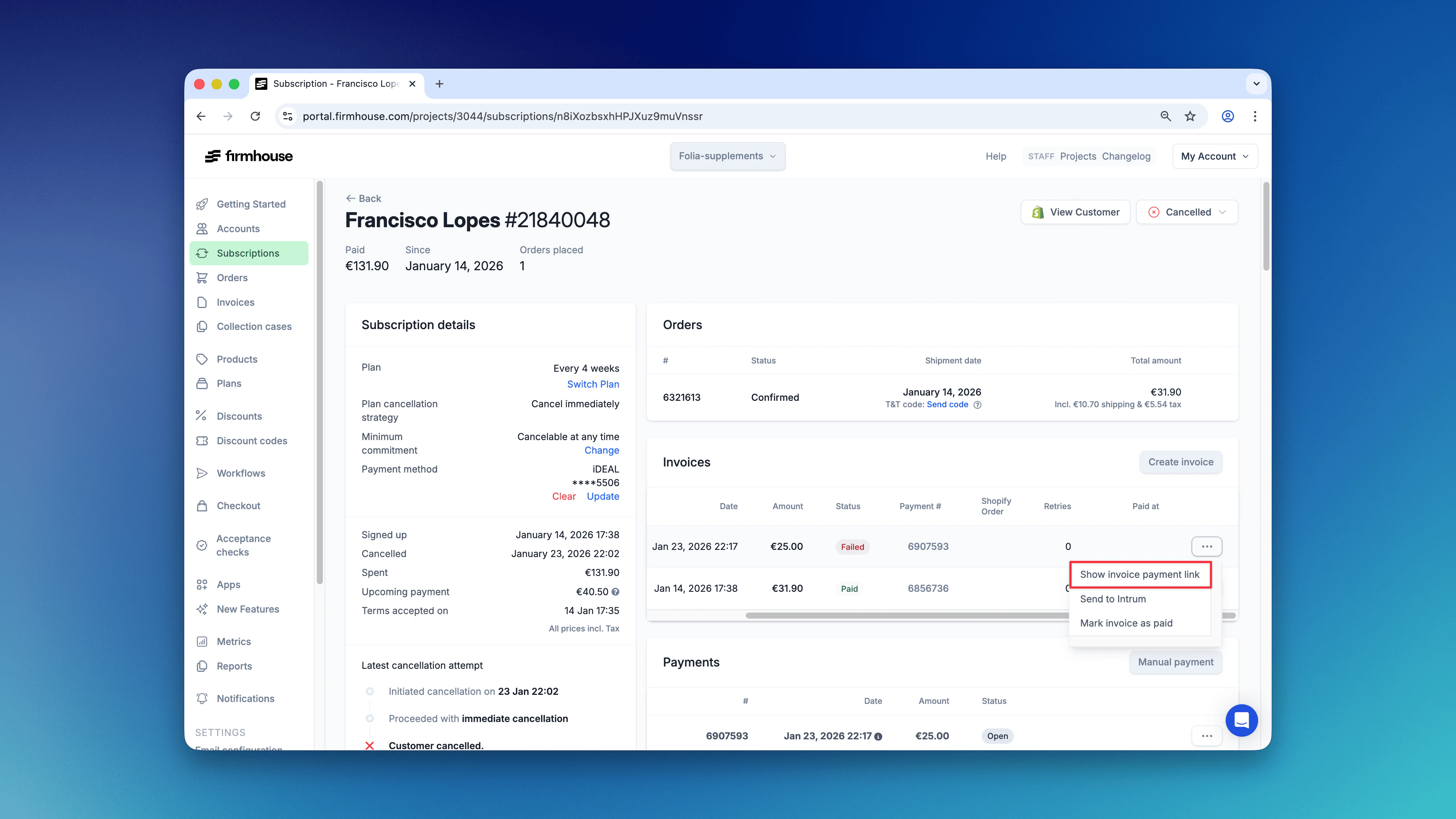
How Customers Access Invoice Payment Links
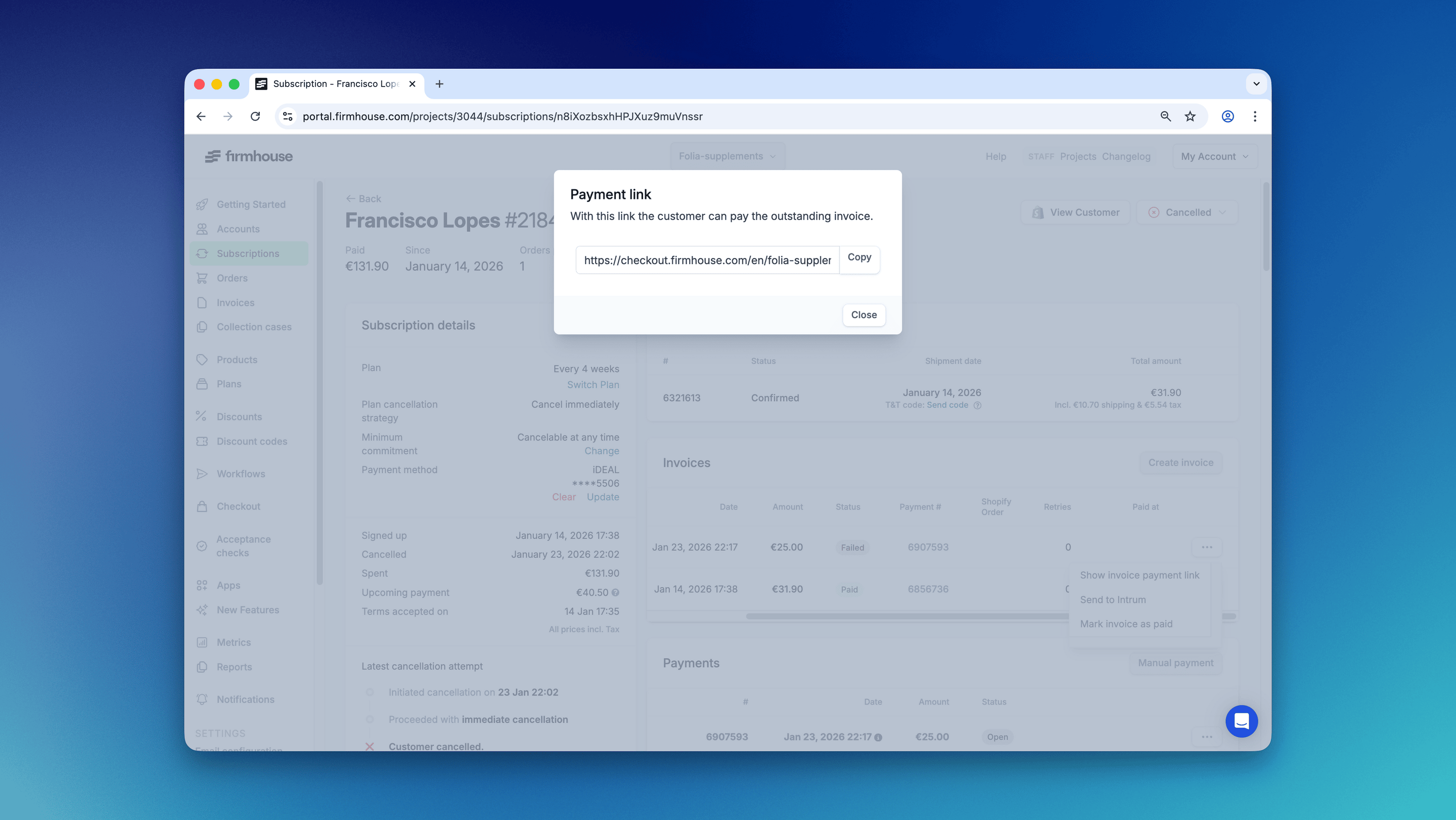
Customers can get invoice payment links in several ways:- You copy-paste the link from your customer’s detail page in the Firmhouse portal (as described above)
- From a link included in billing or failed payment email notifications
- From the Invoices overview in the Firmhouse Self Service Center
Invoice Payment Page
When a customer opens an invoice payment link, they see the invoice details and a payment button if the invoice is unpaid. They are able to make a single payment that is outside of their regular subscription payments, and depending on the enabled payment method(s), can select a different bank or payment method for this specific payment.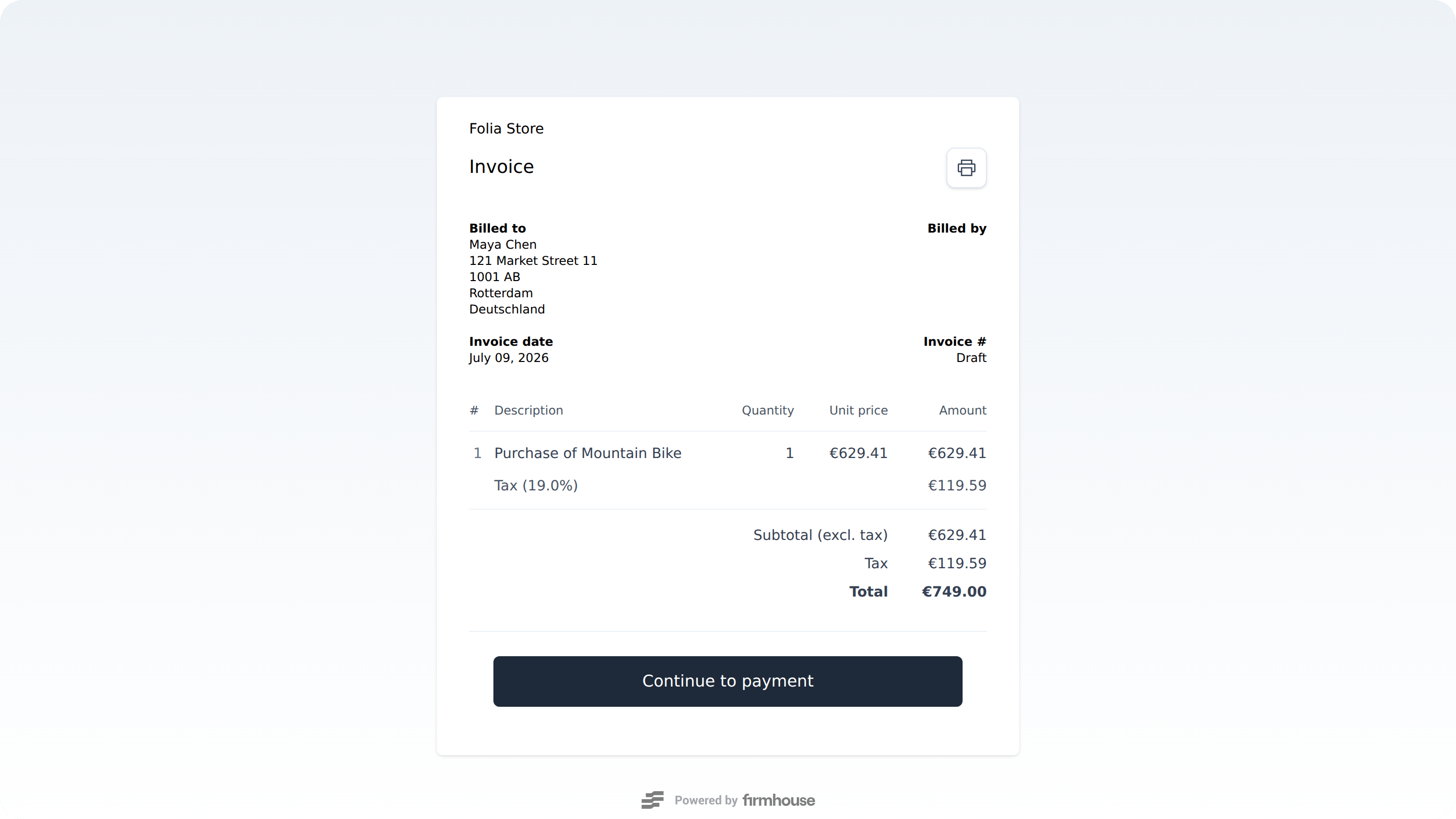
When Manual Payment is Available
Customers can manually pay their invoice even when automatic payment retries are scheduled for a future date. However, manual payment is temporarily blocked when a retry is pending, for example while waiting for bank confirmation. If the retry fails and the invoice remains unpaid, manual payment can become available again. A successful retry pays the invoice, so no further payment is needed. If a customer pays manually while a retry is scheduled, the scheduled retry will be automatically cancelled to prevent duplicate charges.Pay a Shopify draft invoice
On the subscription’s payment history, open the actions menu for an open or failed retry and choose View draft invoice, when available. You can share that invoice page with the customer to complete payment. Customers paying by card can complete the draft-invoice payment while the latest retry is still open. An open retry is different from a pending retry that is already processing. Pending retries and provider-managed payments such as bank transfers keep their existing restrictions to avoid overlapping payments.Saving the Payment Method for Future Use
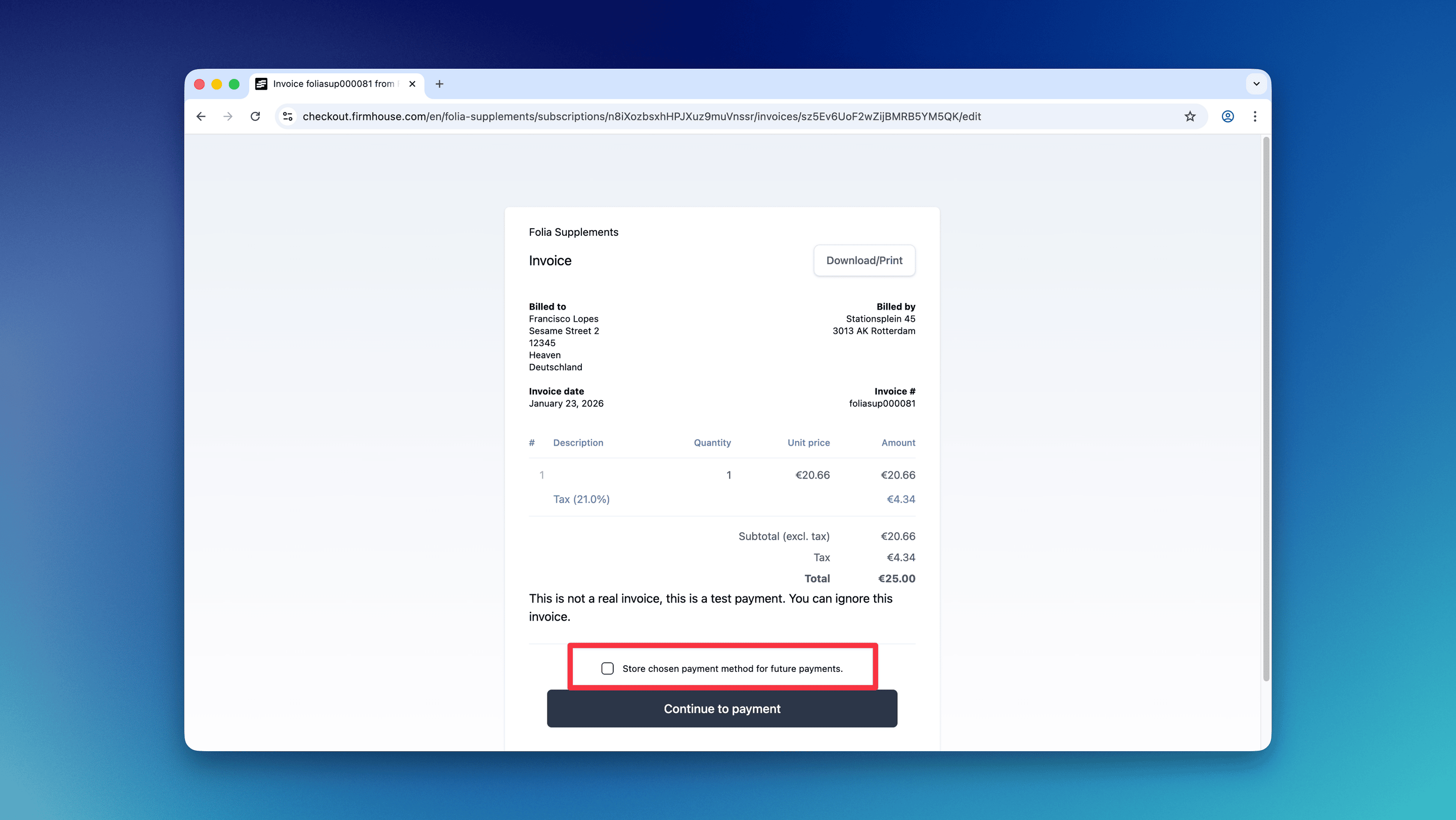
Customers can save a new payment method on their subscription when they pay for an invoice via payment link. They can do this by leaving Store chosen payment method for future payments checked. When the subscription’s payment method is marked unhealthy, this option is checked by default, including on manually created invoices. After a successful payment with the option selected, the new method replaces the unhealthy method for future recurring charges. The customer can uncheck it if they only want to pay this invoice.