

Prerequisites
Before you begin, make sure you have:- Completed the Quick install on Shopify guide
- A Mollie account with the following payment methods enabled:
- iDEAL | Wero and/or Bancontact
- Pay by Bank if you want to offer Pay by Bank in Shopify checkout
- Trustly if your store already has the Mollie Trustly app installed
- SEPA Direct Debit (mandatory for processing recurring payments)
Step 1: Enable required app embeds
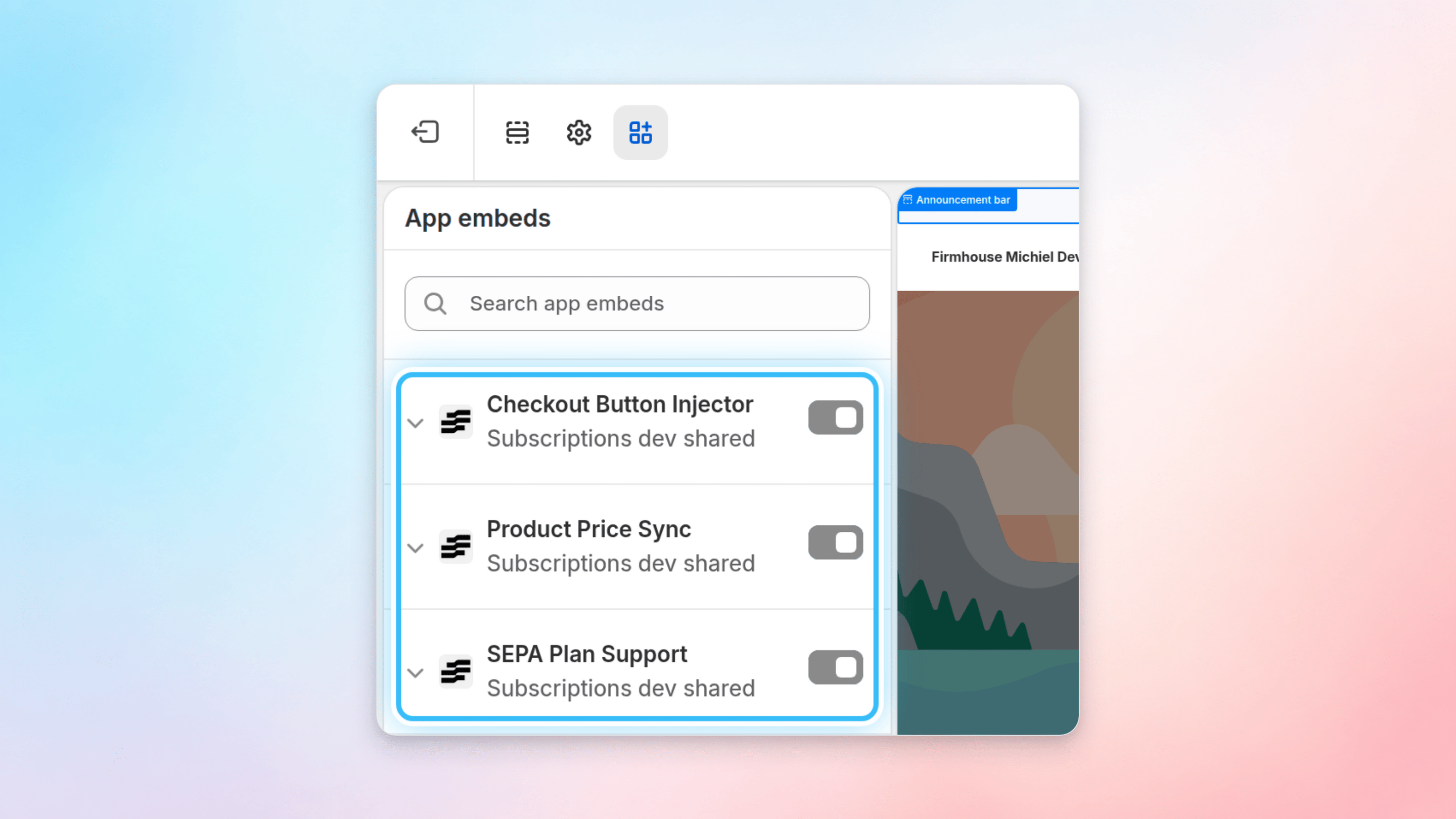
In your Shopify theme editor, open App embeds and enable the supporting Firmhouse app embeds that your setup needs. Enable these app embeds for local payment method subscriptions:- SEPA Plan Support
- Product Price Sync
Step 2: Add a Checkout Button to power Local Payment Methods
Because Shopify doesn’t fully support iDEAL | Wero, Bancontact, and SEPA for subscriptions, you’ll need to adapt your cart and/or checkout to allow customers to take out subscriptions with these payment methods. If you are not using the standard Firmhouse storefront extensions for the checkout buttons or local-payment checkout flow, make sure your custom implementation follows the Shop Pay prevention instructions for SEPA plans. Custom checkout buttons, cart drawers, headless storefronts, and other custom redirects must send local-payment subscription checkouts to Shopify Checkout withskip_shop_pay=true; otherwise customers can complete a SEPA-plan checkout with Shop Pay and the subscription may be created without a usable recurring payment method. See Shop Pay with SEPA subscriptions on Shopify Checkout.
Option 2.1: For non-Shopify Plus stores
If you’re not on Shopify Plus, you will have to add a second “Go to checkout button with iDEAL | Wero/Bancontact” to your cart. With the 2-button setup, customers will have to decide from the cart page whether to pay with iDEAL | Wero/Bancontact or CC/PayPal when they reach the checkout page. The Checkout Button Injector adds the local-payment checkout button to the cart page, cart drawer, or slide-out cart that customers use to start checkout. You can configure when to show the SEPA checkout button, the CC/PayPal checkout button and the regular Shopify checkout button. We recommend you use the Button Display Mode Two buttons for subscription. This will ensure you show 2 buttons for subscription and mixed carts while keeping your existing button and checkout behavior for one-time purchases.Option 2.2: For Shopify Plus stores
If you are on a Shopify Plus plan, you do not need the Checkout Button Injector. Instead, you can add a custom checkout widget directly to your checkout. This widget, called the “Local Payment Method Switcher,” allows your customers to toggle between two payment options during checkout:- Local Payment Methods like iDEAL | Wero and Bancontact
- Regular Payment Methods such as credit cards and PayPal
- From your Shopify admin, go to Settings > Checkout
- In the Configurations section, click Customize next to the checkout configuration that you want to edit
- In the checkout and accounts editor, ensure that the Checkout page is selected, and click the apps icon to access the Apps sidebar
- Click the + Add app block button next to “Local Payment Method Switcher”
- In the popup, select Checkout to add it to the page
- Customize the widget as needed
- Click Save
Step 3: Configure your payment service providers for subscriptions
When powering subscriptions with Firmhouse on Shopify, you must make some changes to your Shopify payment settings and Firmhouse payments configuration. Once done, your customers will have three variations of the Shopify checkout that offer different payment methods, depending on what the customer is purchasing. A standard setup will look like this:- Subscriptions with PayPal/Credit Card: Customers checking out subscriptions with PayPal or Credit Card will use the standard Shopify checkout
- Subscriptions with iDEAL | Wero/Bancontact: Customers checking out subscriptions with local payment methods will use the Shopify checkout with Firmhouse-enabled local payment methods through Adyen or Mollie
- One-time purchases: Regular one-time purchases will use your standard Shopify checkout configuration
In Shopify: Enable Mollie-iDEAL | Wero and/or Mollie-Bancontact as Additional Payment methods
In your Shopify Payments configuration, you need to add Mollie-iDEAL | Wero and/or Mollie-Bancontact as Additional Payment methods to support subscription checkouts with these payment methods.- From your Shopify admin, go to Settings > Payments
- Scroll down to the Additional payment methods section
- Click Add payment methods
- Search for and enable Mollie-iDEAL | Wero and/or Mollie-Bancontact
- Follow the prompts to connect your Mollie account
- When connecting Mollie, make sure you use the same Mollie profile that is configured as the payment provider in Firmhouse
In Shopify: Install the Mollie Pay by Bank app
To offer Pay by Bank for subscription checkouts on Shopify, you also need to install the Mollie Pay by Bank Shopify app.- Open the Mollie Pay by Bank app in the Shopify App Store
- Install the app in the Shopify store that uses Firmhouse for subscriptions
- Follow Mollie’s Shopify app installation guide to complete the setup
- When prompted to connect Mollie, select the same Mollie profile that is configured in Firmhouse > Settings > Payments
Trustly availability on Shopify
Firmhouse supports Trustly for subscription checkouts on stores that already have the Mollie Trustly app installed. The app is not currently available for new installations from the Shopify App Store. If your store already uses the Mollie Trustly app, make sure it is connected to the same Mollie profile that is configured in Firmhouse > Settings > Payments. Using a different profile will break the subscription payment flow. For a new store that needs a bank-based payment method, use the Mollie Pay by Bank setup above. Contact Mollie if you specifically need Trustly for a new installation.In Firmhouse: Add Mollie to your Firmhouse project
Configure your Mollie account as a payment provider in Firmhouse:- From the Firmhouse sidebar, under Settings go to Payments
- Choose Mollie from the payment provider options if it is not already selected
- Enter your Mollie live API key that you can copy-paste from your Mollie dashboard under the […] More > Developers menu
- Click Save
Testing SEPA Direct Debit
To verify that SEPA Direct Debit recurring payments are set up correctly, you don’t have to wait for the next billing cycle. Follow these steps:- Subscribe via the regular checkout flow — go to your store and complete a subscription checkout using iDEAL | Wero or Bancontact.
- Check the mandate — open the subscription in the Firmhouse Portal, go to the Mollie payment provider details, and confirm that a SEPA Direct Debit mandate was created.
- Trigger an immediate charge — on the subscription’s Active products overview, open a product’s actions menu and click Ship now. This generates a charge and an extra order containing only that product using the SEPA Direct Debit mandate. The subscription’s next billing date does not change.