Prerequisites
Before you begin, make sure you have:- A Shopify store (could still be under development)
Step 1: Install the Firmhouse App in Your Shopify Store
- Ensure you’re logged into your Shopify store
- Go to the Firmhouse app on the Shopify app store and click Install
- Verify and confirm the installation of the Firmhouse app on your store. Once installed, you will end up in the Firmhouse Portal, and you can continue with the next steps
Step 2: Sync Your Products from Shopify to Firmhouse
You control which products and variants you want to offer for subscription. To sync your catalog, simply tag your products in Shopify:- Tag subscription products with
FIRMHOUSE_SUBSCRIPTION - If you also want to offer one-time subscription add-ons in the Firmhouse Self Service Center, tag these products with
FIRMHOUSE_ONE_TIME
Step 3: Create Your Subscription Plans in Firmhouse
In Firmhouse, go to Plans from the sidebar. Here, you can set up different shipping frequencies for your subscribers - for example, “Every 2 weeks” or “Every 2 months.” These plans will appear as subscription options on the product page. You can also set a discount percentage for each plan. This percentage determines the final product price for customers who subscribe to it. If you want to offer the same selling plans for all your subscription products, you may create your plans in the Ungrouped plans section. However, if you want to have specific plans apply to specific products (collections), we advise you to create Selling plan groups first, and then create plans for each group. For more details, see How to work with selling plans and selling plan groups. Once your plans are created, they will automatically sync to your Shopify store. Note that it may take a few seconds before the changes appear in Shopify. You can then proceed with adding the “Add subscription to cart” interface on your product detail pages.Step 4: Add or Build Subscription Options on Your Product Detail Pages
Now it’s time to add the subscription options to your product detail pages, so your customers can add them to their cart. There are two ways to do this:- Use one of the standard Firmhouse Subscription Options widgets (for Shopify 2.0 supported themes)
- Build or modify your existing custom subscription widget
Option 4.1: Add the standard Firmhouse Subscription Options widget (recommended)
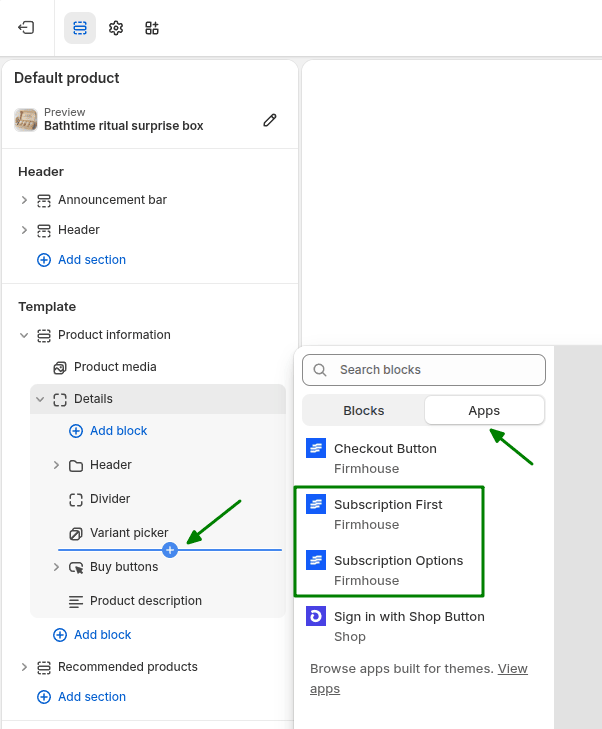
- In the Shopify theme editor, select the Product template page you want to edit. For example: Products > Default product
- In the sidebar under Template in the Product information, click Add block
- Switch to the Apps tab in the Add block section and click Subscription Options or Subscription First widgets
- If you want, customize your widget to match your branding
Option 4.2: Build a custom subscription widget
If you have specific wishes for your subscription widget that the Firmhouse standard widget does not cover, you can also build your own. See Build or modify your existing custom subscription widget for detailed instructions.Step 5: Verify Your Payment Methods
By default, Credit Card (via Shopify Payments, Adyen, or Stripe) and PayPal will work with Shopify Subscriptions out of the box if they are enabled in your store. Other payment service providers do not support credit card payments for recurring subscriptions on Shopify—see Supported Payment Methods for more details. If you’re setting up a new store, enable these payment methods in your Shopify admin:- Go to Settings > Payments in your Shopify admin
- Set up Shopify Payments (or connect Stripe or Adyen as your credit card provider)
- Enable PayPal by connecting your PayPal account
5.1: Enable local payment methods for Europe
If you want to offer local payment methods like iDEAL | Wero, Bancontact, and SEPA Direct Debit, continue with the Set up iDEAL | Wero, SEPA and other local payment methods guide.Step 6: Test your first subscription checkout
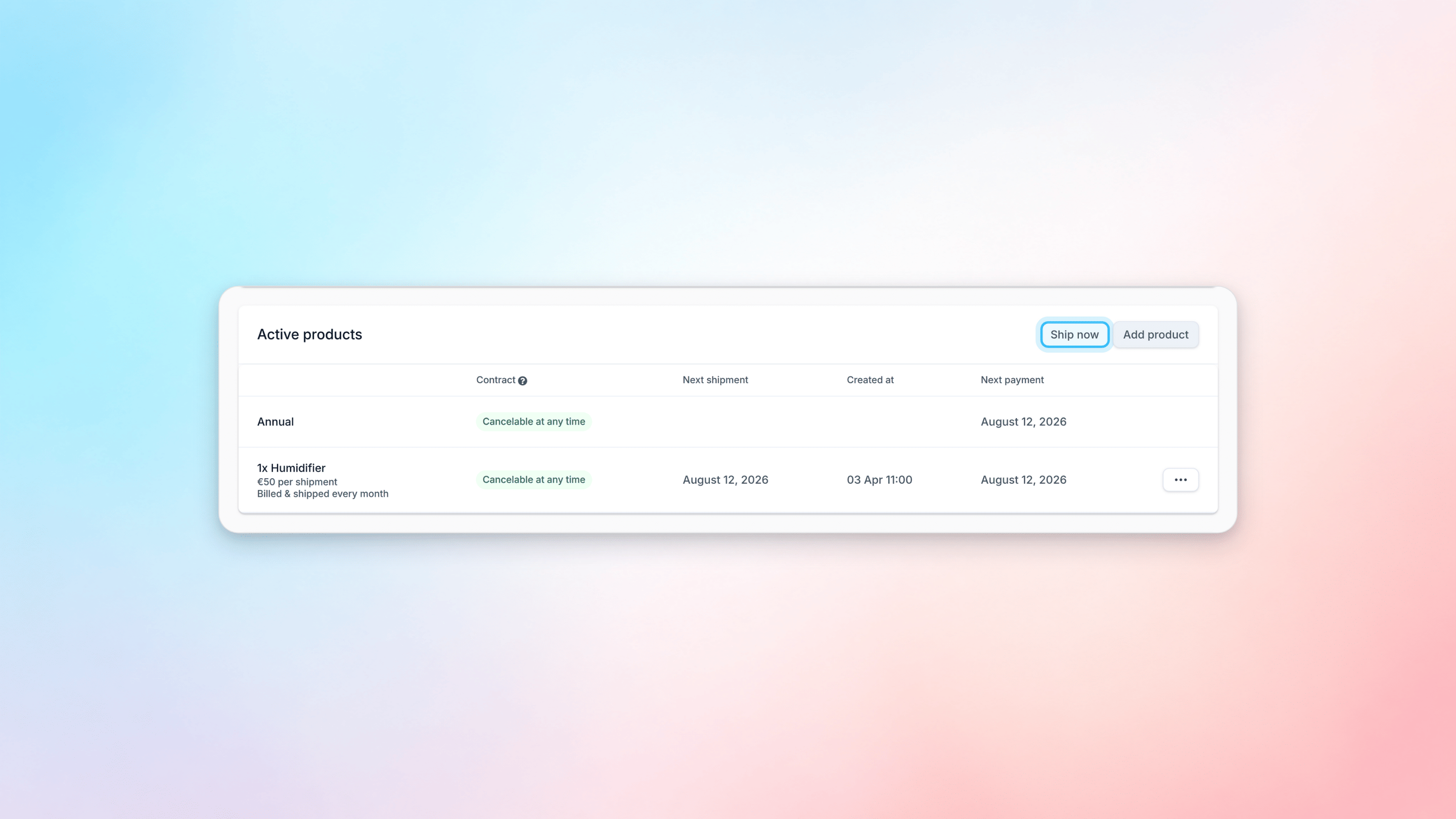
We strongly advise creating at least one test subscription to verify that the connection with Firmhouse works as expected, and recurring payments are processed by the PSP. After the initial payment, go to the Subscriptions page and open the new subscription. Scroll down to the Active products section and click Ship now to trigger a recurring order. If the payment succeeds, you’re all set!