

Option 1: Legacy Themes (Theme Code Edit)
This option is for merchants using Shopify legacy accounts and a theme that is compatible with the legacy account system. To set up SSO login, you’ll need to add a redirect link in your store by editing some HTML of your online store. There are two approaches depending on your needs:- Customers use both the Shopify account page and the Firmhouse SSC.
- Customers only use the Firmhouse SSC.
- Log into your Shopify store admin page
- Click on Sales channels > Online Store
- For your Current theme, click on Customize
- In the header click the three dots > Edit code
- Find the file customers/account.liquid in the templates folder
Styling Error Messages
If a customer is redirected to/a/firmhouse but cannot be logged into the Firmhouse SSC (due to either their email not being found within your Firmhouse project or not being logged into their Shopify account), an error message will be displayed in English by default. We’ve added a unique FH-SSO--not-logged-in class to this error message, enabling you to easily target it with custom CSS and style it to seamlessly match your store’s design.
If you configure an Unauthenticated redirect path in the Shopify app settings, visitors who are not logged into Shopify can be sent to that path on your store. See What happens when customers aren’t logged into Shopify.
We also display a separate error message for technical issues, such as when the app is not correctly installed or configured. We’ve added a unique FH-SSO--error class to this message, allowing you to target and style it separately.
Option 2: New-Style Themes and Accounts (Account Portal Extension)
This option is for merchants using new-style Shopify themes like Shopify Horizon and new-style Shopify accounts. For these setups, you can add an extension in the account portal on the Orders page to show a “Manage Subscription” block to customers. When customers click this block, they will be automatically logged into the Firmhouse Self-Service Center. This approach requires no theme code editing and provides a seamless experience for customers using the modern Shopify account system.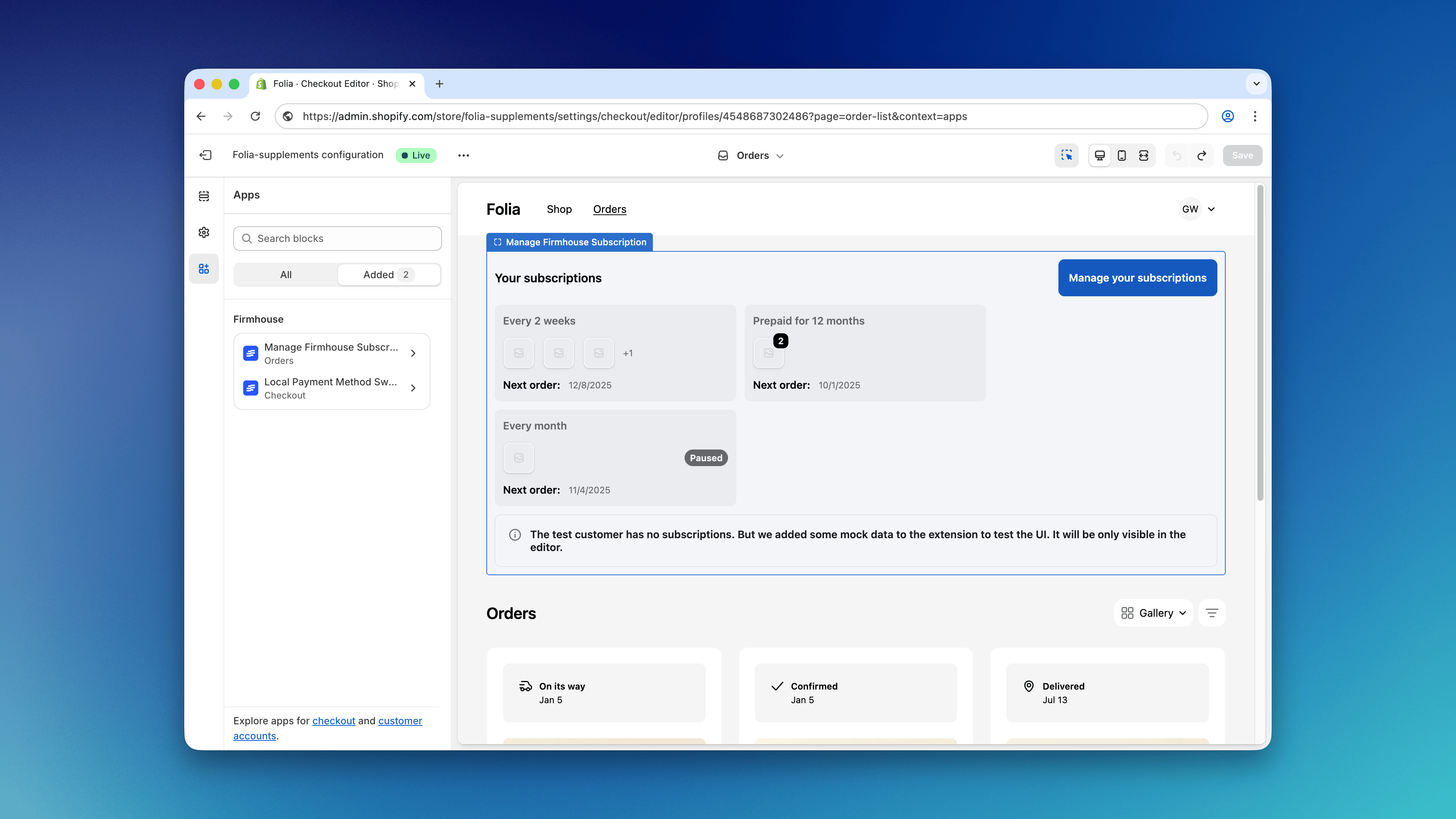
Option 3: SSO Bridge URL (Universal)
As an alternative that works for all store types, you can point customers directly to the special Shopify SSO bridge URL:Open a specific Self-Service Center page
Add a URL-encodedredirect_to query parameter to send customers to a specific page in the Self-Service Center. For example, this link opens the subscription details page:
/. Full URLs and links to another domain are ignored. Without redirect_to, customers continue to the Self-Service Center home page. When a customer needs to log into Shopify first, the default login flow preserves this destination and opens it after authentication.
If a customer opens this link without being logged into Shopify, see What happens when customers aren’t logged into Shopify, including the default Shopify customer login redirect and optional custom storefront paths.
Important
Firmhouse matches subscriptions to Shopify customers by email address. The email on the Firmhouse subscription must match the email on the Shopify customer account. If a merchant changes the email in one system but not the other, the customer will not be able to access their subscription through Shopify login.How to Test the Integration
After setting up one of the options above, you can test the integration by logging into your Shopify store with an email address that has an active subscription in Firmhouse. Once logged in, you should be able to access the Self-Service Center through whichever method you configured.Related
- What happens when customers aren’t logged into Shopify — default Shopify login redirect and optional custom storefront paths