

In Adyen: Create an API (Webservice) User
The first thing you need to do is create an API user so that Firmhouse can connect to your Adyen account.Steps
- In your Adyen account go to Developers > API credentials in the main navigation (left sidebar on Desktop).
- On the API credentials page, click the Create credential button to the top-right.
- Keep the User type on Webservice.
- You may want to enter Firmhouse in the Notes field so in the future you know that this API user is used by Firmhouse.
- On the right section add https://checkout.firmhouse.com to Allowed origins.
- (Optional) If your Firmhouse project has a custom domain enabled, also enter the custom domain here. For example https://checkout.mycompany.com.
- To the bottom of the page under Roles, make sure that Checkout webservice role, Checkout encrypted cardholder data, Data Protection API, Merchant PAL Webservice role, and Merchant Recurring role are present and enabled. If one of these roles is not available, contact your account owner or Adyen support to enable the roles for your merchant.
- Then under Accounts, enable the submerchant(s) that you want to connect to your Firmhouse project.
- Click Save. The Web Service User is now created but we’re not yet finished on this screen.
- Under the Authentication section click Generate New API Key.
- Store the generated API key somewhere safe or temporary. You will need to copy-paste it into the Firmhouse payment provider settings in later steps below.
- Click Save Generated API Key to save the generated key for this user.
- Keep the screen open in next steps so you can copy paste the Client key under Authentication in the steps below.
In Adyen: Enable Merchant Account
When creating the API credentials, make sure that the Merchant Account that needs to be used for the transactions is enabled at the bottom of the page when creating/managing the credentials.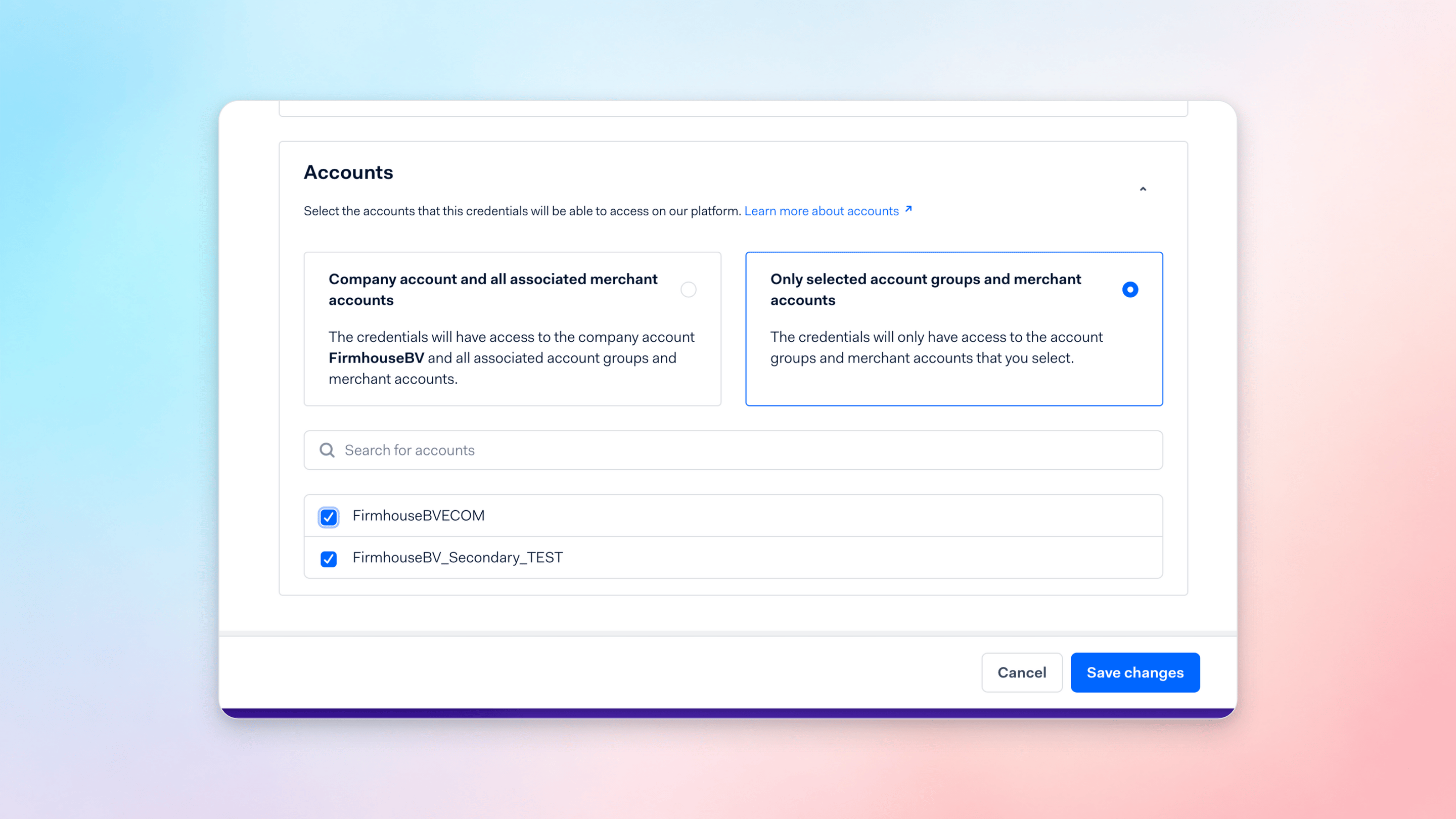
In Adyen: Create a Webhook for Your Merchant
The second thing we’re going to create is a webhook pointing towards Firmhouse. The webhook ensures that checking out a new subscription works and that any payment statuses for (recurring) payments are automatically communicated back from Adyen to your Firmhouse project.Steps
- First, make sure you are switched to a Merchant Account in your Adyen account. You can do this via the accounts dropdown which is the first element in the main navigation.
- Now navigate to Developers > Webhooks in the main navigation.
- On the Webhooks page click the (+) Webhook button.
- In the Standard notification row, click the Add button.
- Ensure the webhook is Enabled.
- In the URL field enter https://portal.firmhouse.com/api/v1/payment_status/adyen
- Make sure Method is set to JSON.
- Expand the Additional Settings section and click Generate new HMAC key.
- Store the generated HMAC that appears somewhere safe or temporary. You will need this when we’re going to configure the payment provider settings in Firmhouse in the next steps below.
- Click Save Configuration all the way down on the page, below the Test Notifications settings.
In Adyen: Look Up Your API URL Prefix
The final thing to do is to look up the API URL prefix for your Adyen company account. This is also a configuration value you need to enter in the next steps in Firmhouse.Steps
- In your Adyen account main navigation go to Developers > API URLs.
- Note down or copy the first part of the URLs you see with format [hexadecimal number]-[company name]. For example: 9223d2d452babf3d-FirmhouseBV. This value needs to be pasted into the Firmhouse settings in next steps.
In Adyen: Verify “Capture Delay” Setting
There’s a setting in your Adyen merchant settings called Capture delay. If Capture delay is set to manual then payments initiated via credit card are never captured. This means that the payment will stay open until you manually capture the payment via your Adyen account. For this reason we advise to always set this setting to immediate unless you are sure you have other processes in place to capture payments. Setting capture delay to immediate will ensure that as soon as Firmhouse initiates a payment, the money will immediately be collected from your customer’s credit card or bank account.In Firmhouse: Configure Adyen as Payment Provider
Now that we’ve finished the setup in Adyen, we can configure everything we’ve set up in your Firmhouse project and enable Adyen as payment provider on your project.Steps
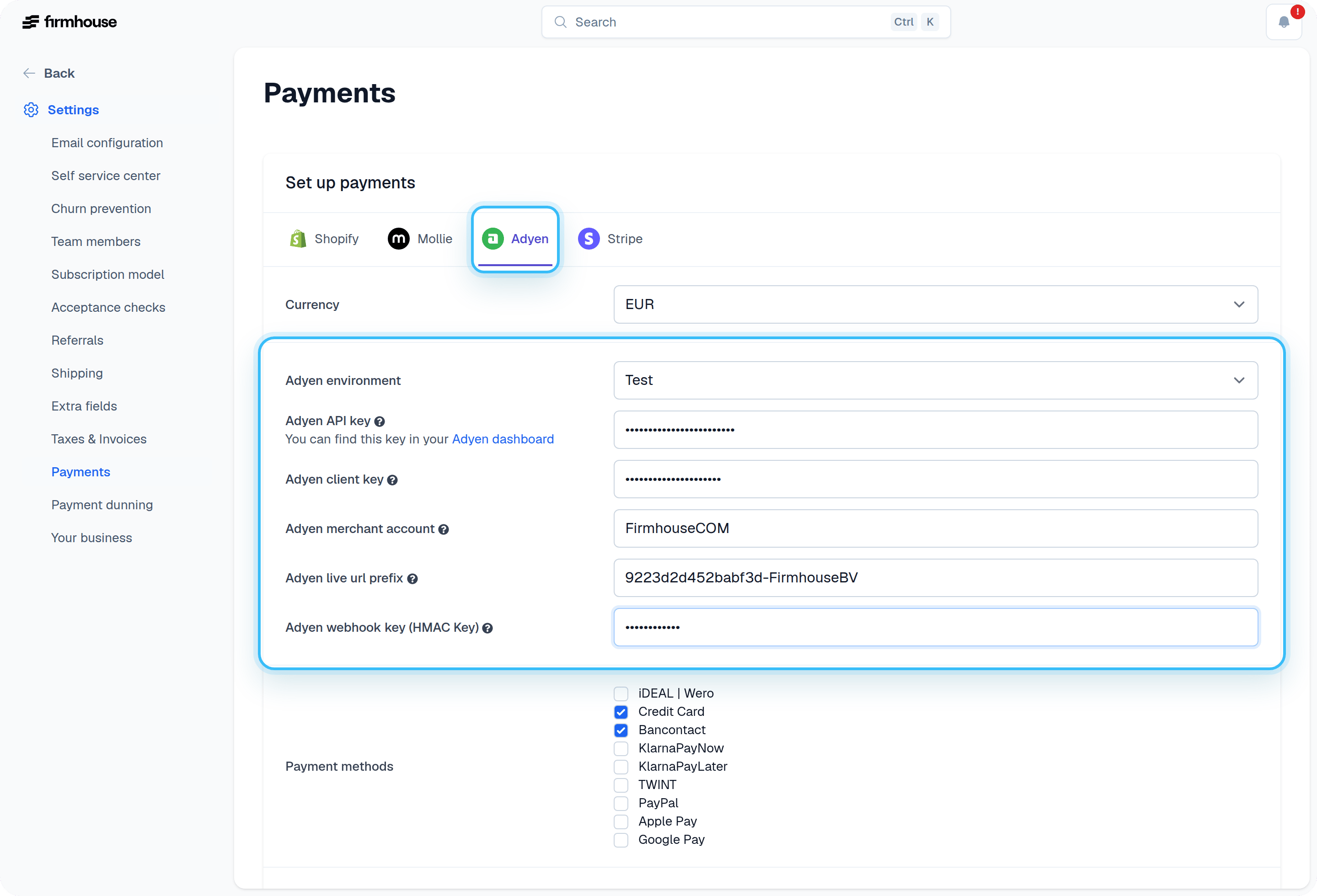
- In your Firmhouse project, go to Settings > Payments in the navigation.
- If not already selected, select Adyen from the payment provider list.
- Select your desired Currency.
- Select the correct Adyen environment. Test for ca-test and Live for ca-live.
- In the Adyen API key field, enter the key you generated, saved, and (temporarily) stored in steps 10-12 of the first section of this article.
- In the Adyen client key field, enter the Client key of the Webservice User you created in the first section of this article (step 13).
- Enter your merchant account name in the Adyen merchant account field.
- In the Adyen live url prefix enter the value with the [hexadecimal number]-[company name] format. On the Adyen test environment, you need to enter your merchant account name here.
- In the Adyen webhook key (HMAC key) field enter the value you obtained in section two of this article when creating the Adyen webhook.
- To limit Adyen’s country-aware result, select the payment methods you want to offer under Payment methods. Leave all methods unselected to let Adyen determine availability.
Offer different payment methods per country
Configure country-specific availability in your Adyen Customer Area. During checkout, Adyen first returns the methods available for the merchant account, country, currency, and amount. If you select payment methods in the Firmhouse payment provider configuration, Firmhouse limits the response to those methods. If you leave all methods unselected, Firmhouse does not add an account-level limit. The Firmhouse selection is an optional maximum list shared by every country assigned to the payment provider. It cannot make a method appear when Adyen does not return it for the checkout country. If you also need separate Firmhouse lists per country, create one Adyen payment provider configuration for each country or group of countries:- Go to Settings > Payments.
- Create the additional Adyen payment provider configuration.
- Select the countries and payment methods for that configuration.
Offer Pay by Bank
Let customers pay directly from their bank account through Adyen on Firmhouse hosted checkout. Pay by Bank is also supported by the Adyen Sessions integration when that checkout is enabled for your project.- Enable Pay by Bank for your merchant account in Adyen.
- In Firmhouse, open Settings > Payments and edit the relevant Adyen configuration.
- If you limit the available Payment methods, include Pay by Bank in that selection.
- Test checkout with a supported country, currency, and amount.