

Activation options
Firmhouse offers two activation strategies: Activate immediately (default): After signing up, the customer’s subscription starts right away. Logistics processes begin and recurring billing is scheduled automatically. Manual activation: The customer signs up and pays the initial amount, but the subscription remains inactive until you manually approve it. No logistics process or recurring billing happens until you activate the subscription.When to use manual activation
Manual activation is useful when you first want to perform a background check on your customer before charging or shipping your product, or when there is additional setup involved before you can charge your customer or ship your product.How manual activation works
When manual activation is enabled, the customer goes through your checkout flow and pays the initial amount, then gets added to Firmhouse as a subscriber with their status set to “inactive”. No monthly or recurring fees get charged yet, and nothing gets shipped out. You must manually activate or reject the subscription before any product ships or any recurring fee gets charged.How to enable manual activation
By default your project is set to automatically approve any new subscribers. To change this, head to Subscription Model and scroll down to Activation Strategy. Set it to “Manual activation”.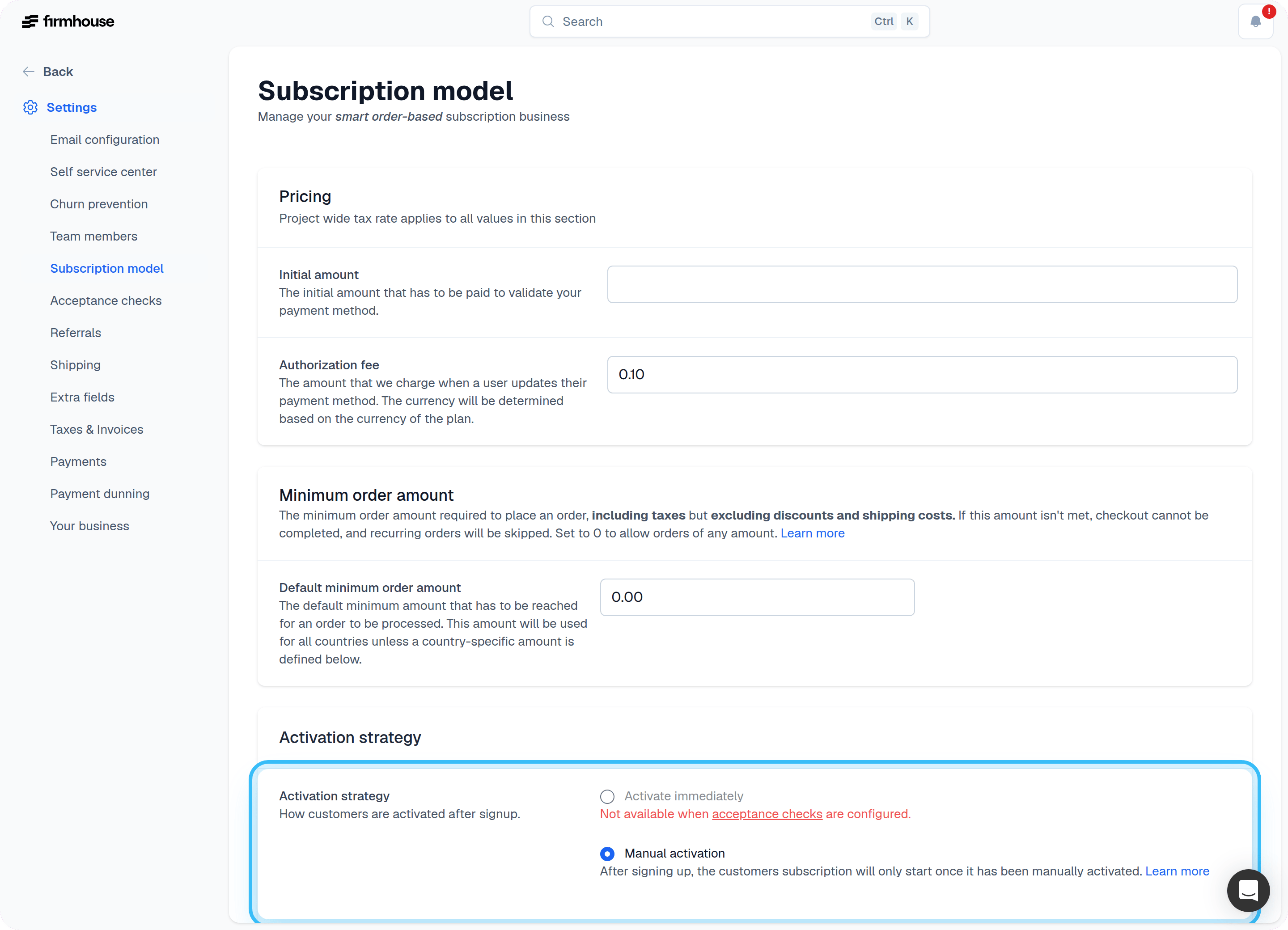
Accepting or rejecting a customer
Once a new customer signs up they will show up in your Customers overview. You will get the option to either Activate or Reject this customer.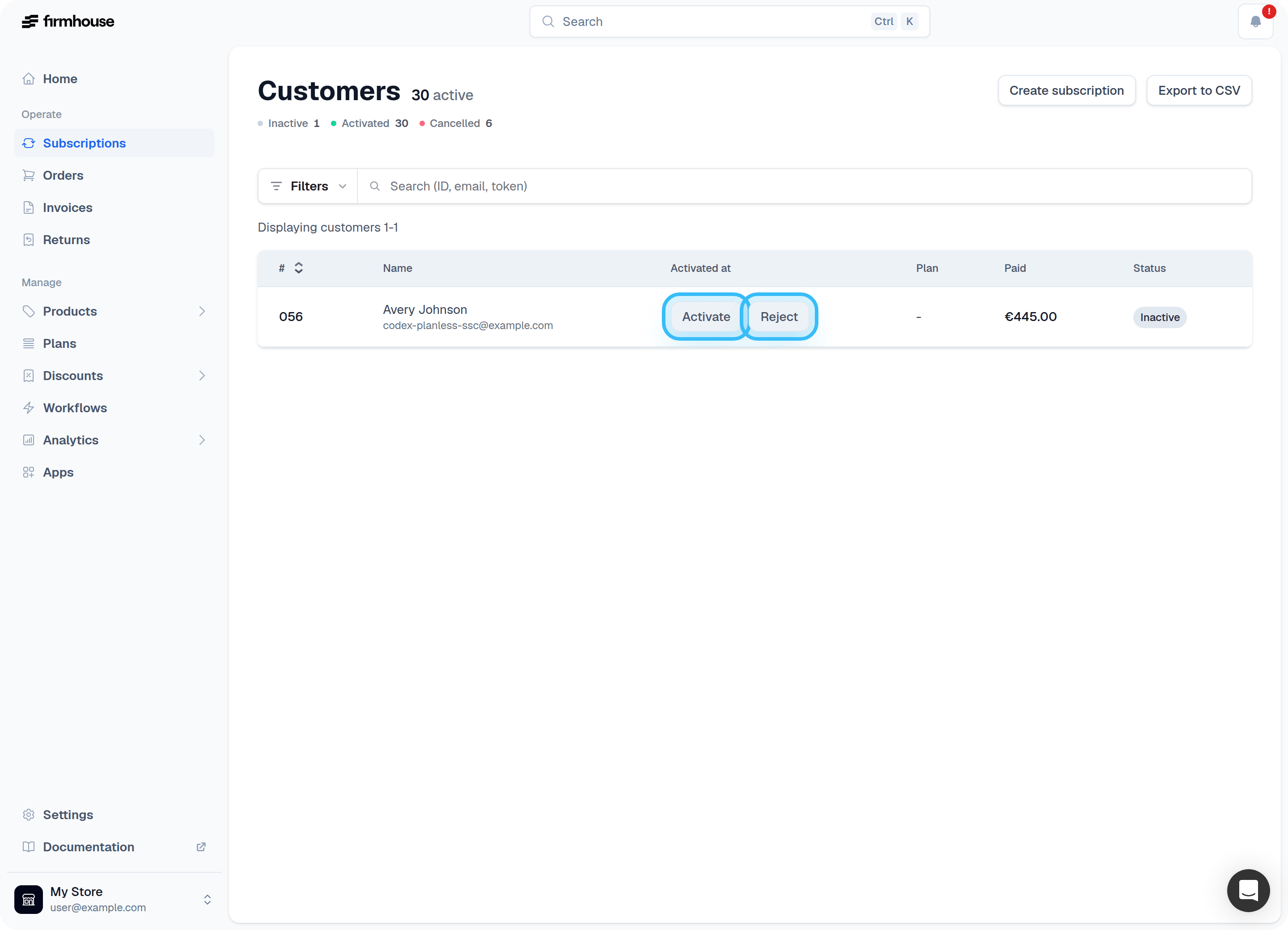
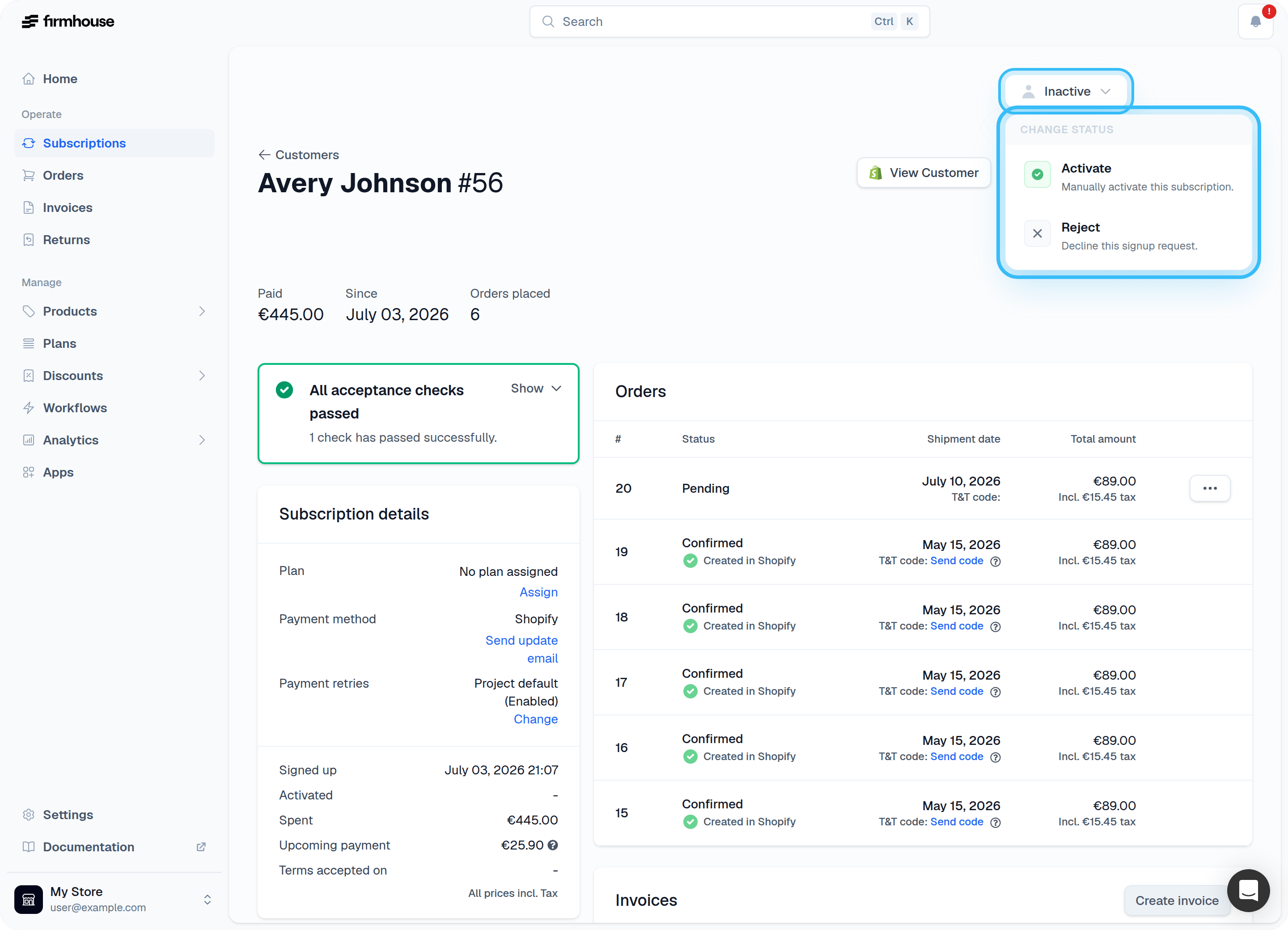
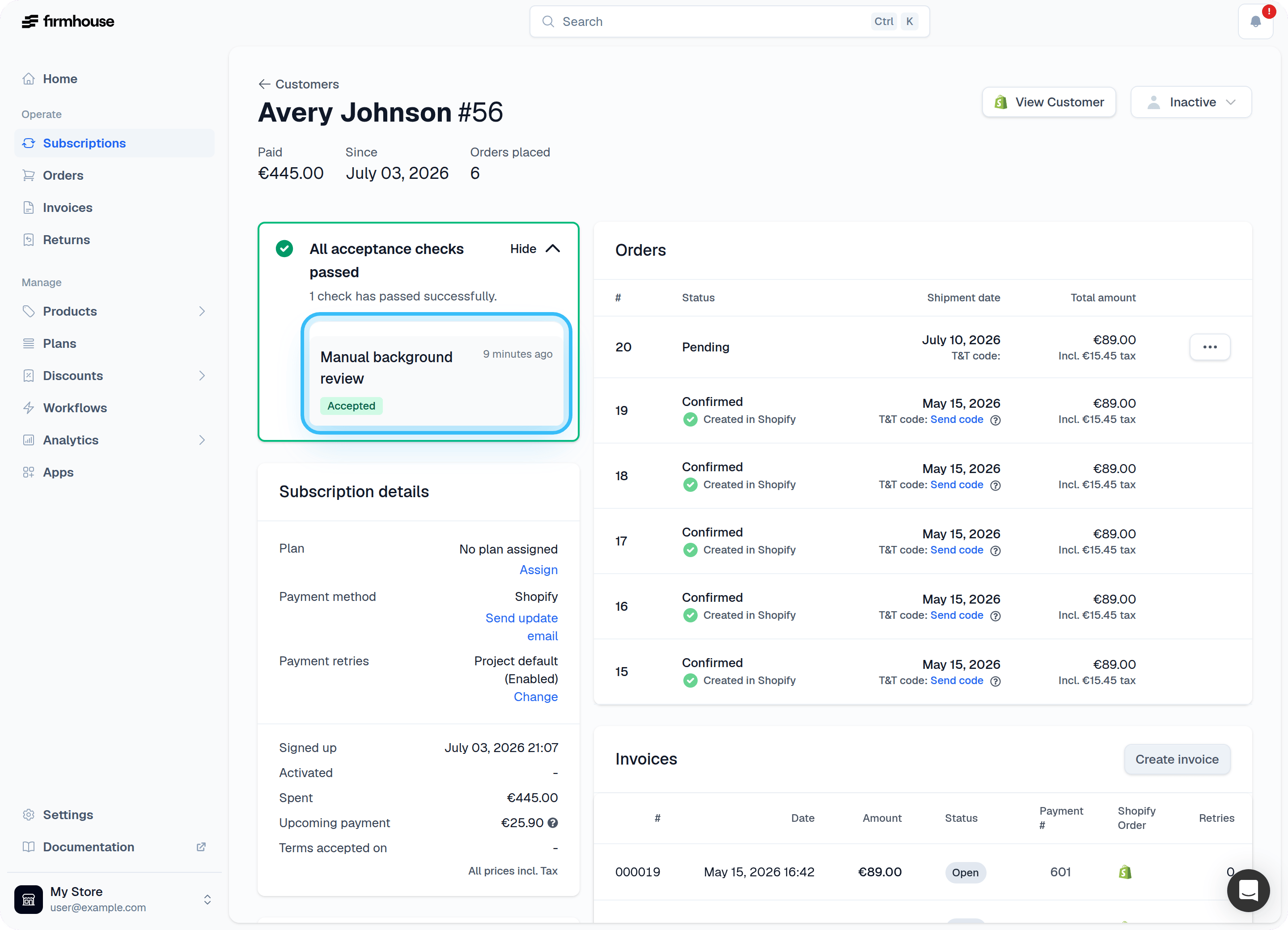
Activating a customer
When you activate a customer, the logistics flow (if set up) will get initiated and the product starts to get shipped. Based on your payment setup, the customer will get charged, and the status will get set to “Activated”.Optional: Notify the customer via email
By default, the customer won’t get notified about being activated. To send an email whenever a customer gets activated:Steps
- Go to “Email configuration” in the sidebar
- Find the email “Activation confirmation”
- Enable the email
- Write the email that you would like to send out (click on “Load example content” to speed up the process)
Rejecting a customer
When you reject a customer, the status will get set to “Rejected” and the customer will never get charged with any further payments. After rejecting a customer, you need to refund the initial/first payment for the customer’s subscription and notify the customer about the rejection (which can be done automatically).Refunding their initial payment
Currently, Firmhouse does not automatically refund payments. You will need to manually refund the customer at the payment provider or from the “Payments” section.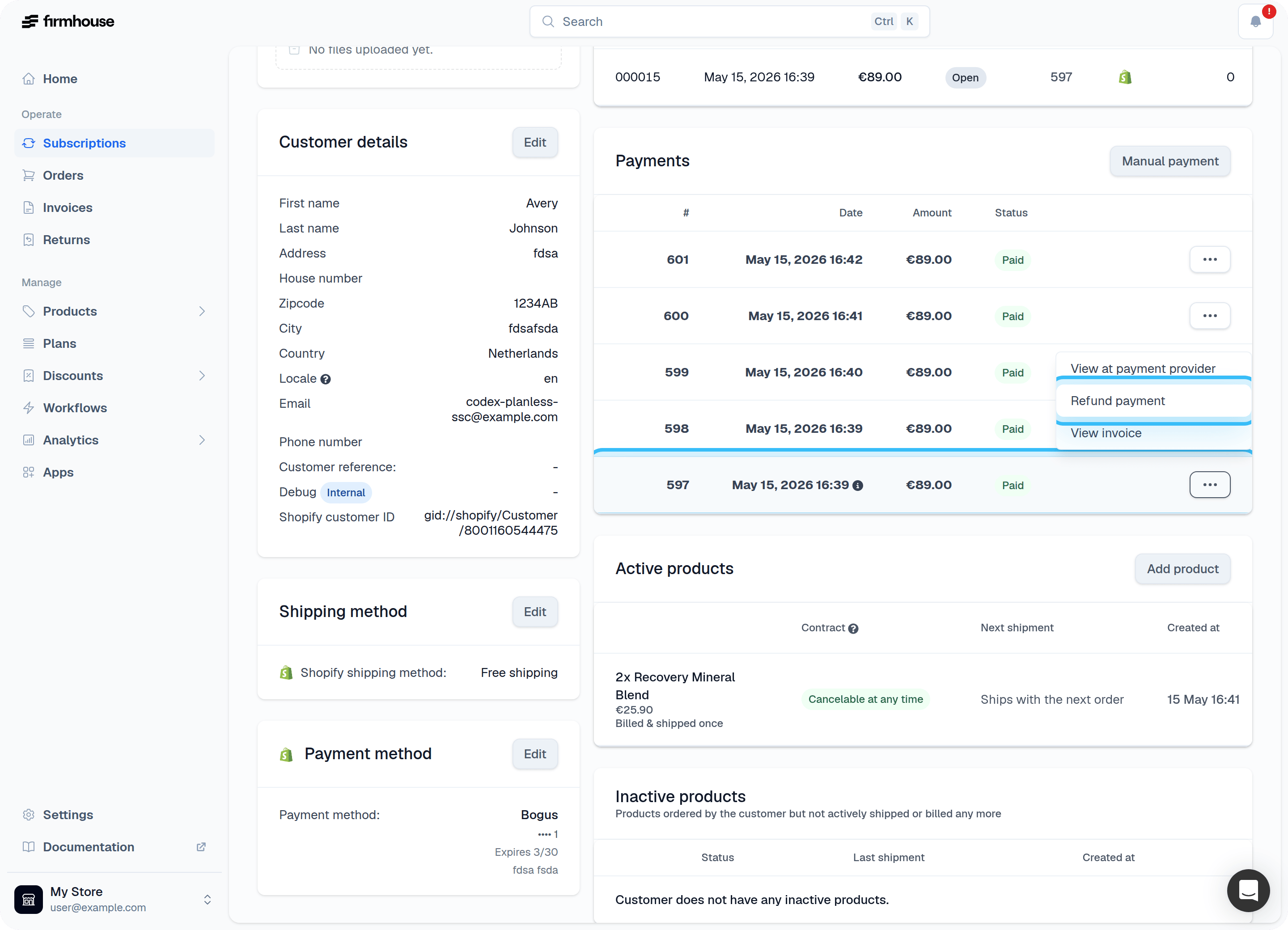
Manually notify your customer about the rejection
You’ll need to notify your customer about the rejection. Some merchants do this manually to add a personal note or answer questions the customer might have. A personal approach can be very beneficial and customer-friendly.Send an automated rejection email
By default, Firmhouse doesn’t send any automated emails to your customer about their rejection. To set up an automated rejection email:Steps
- Go to Email configuration in the sidebar under Settings
- Find the email Rejection
- Enable the email by enabling the option shown above the email designer
- Design your email using the HTML email designer