Accessing email configuration
Steps
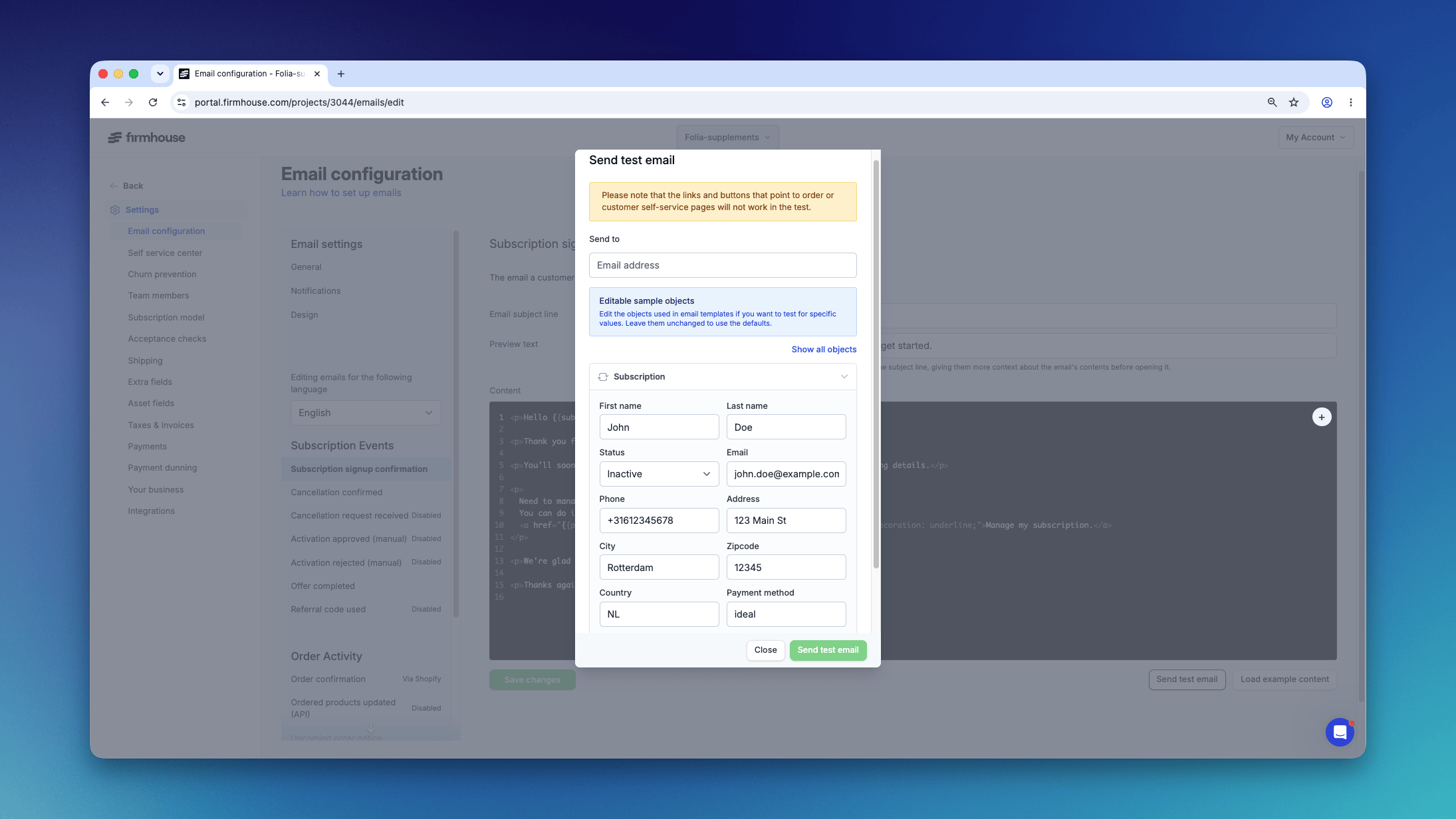
- Navigate to Settings → Email configuration.
- In the navigation panel on the left, you’ll see:
- General settings - Configure from email name, from email address, and reply-to address
- Email event categories - Organized by Subscription Events, Order Activity, and Billing, Payments & Account
- Click on the specific email template you want to edit from the list (e.g., Subscription signup confirmation, Cancellation confirmed, Failed payment, Upcoming order notice).
- The email editor will appear in the main content area.
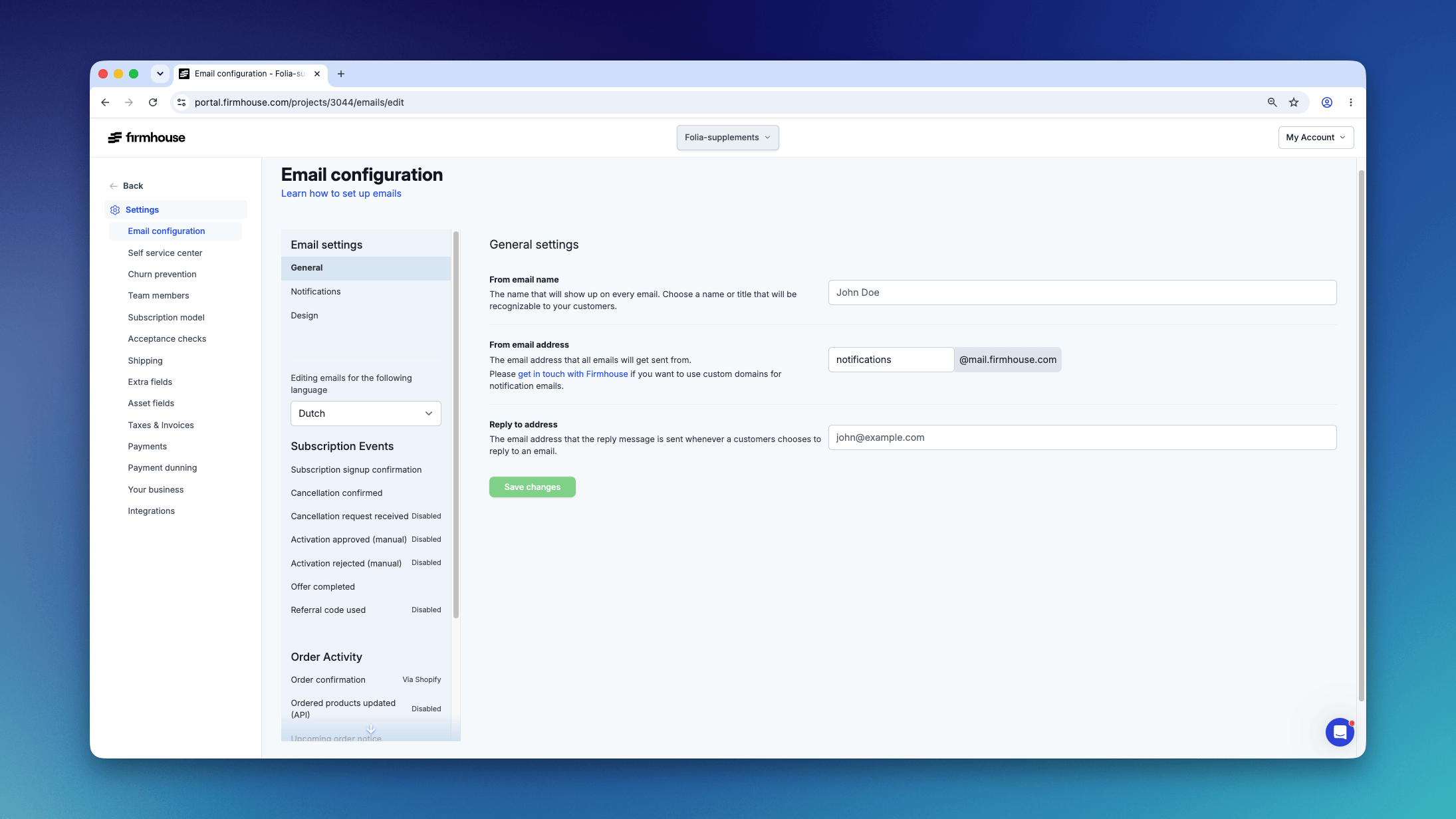
- In the editor, you can modify:
- Email subject line
- Preview text
- Content editor
- Click Save changes to apply your updates.
Adding system variables
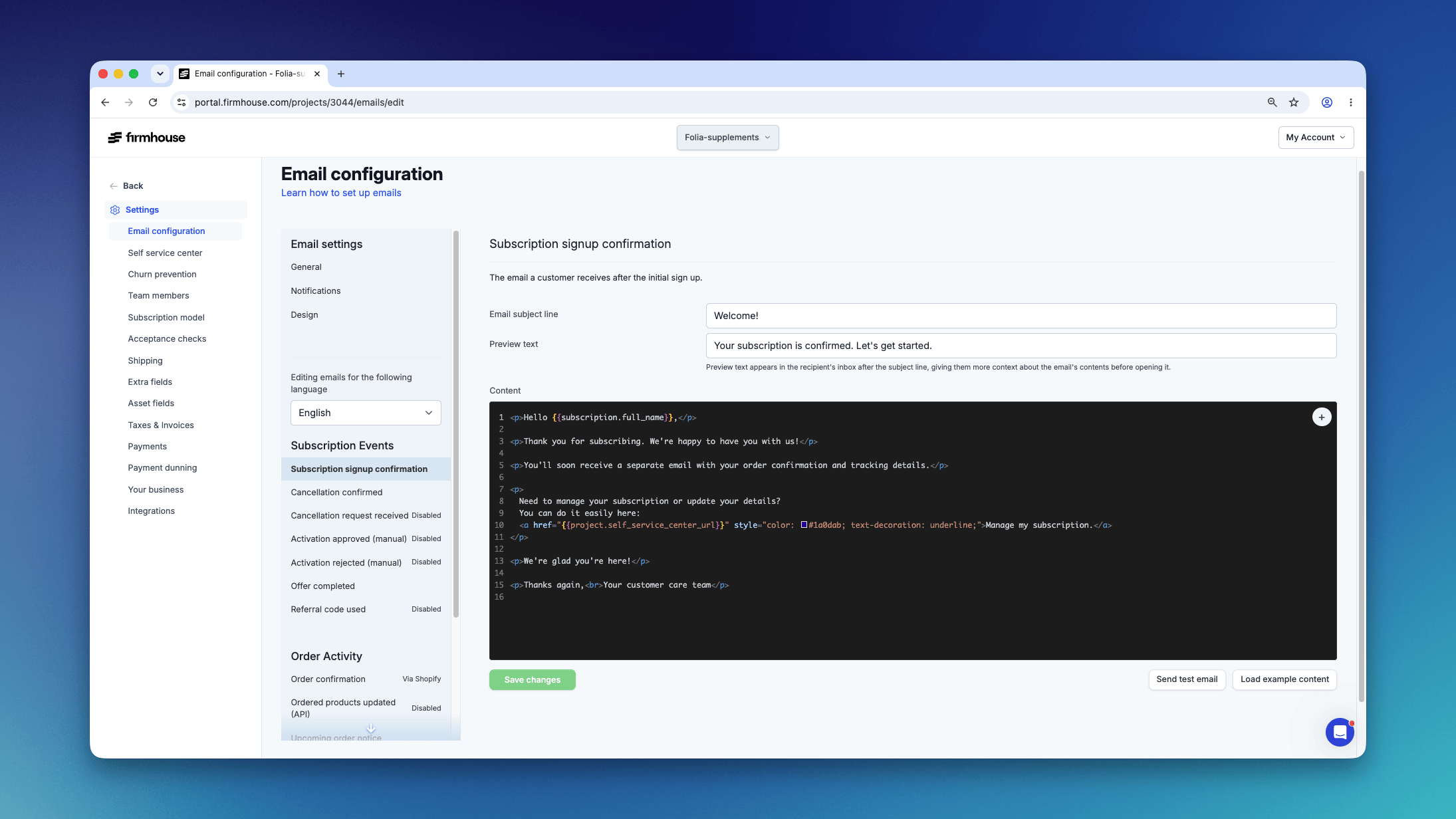
You can add variables stored in the system like a customer’s name, the monthly price of the product, and more to personalize your emails.Steps
- In the email content editor, click on the + icon in the top-right of the editing screen.
- Select the variable you want to insert from the list.
Testing your emails
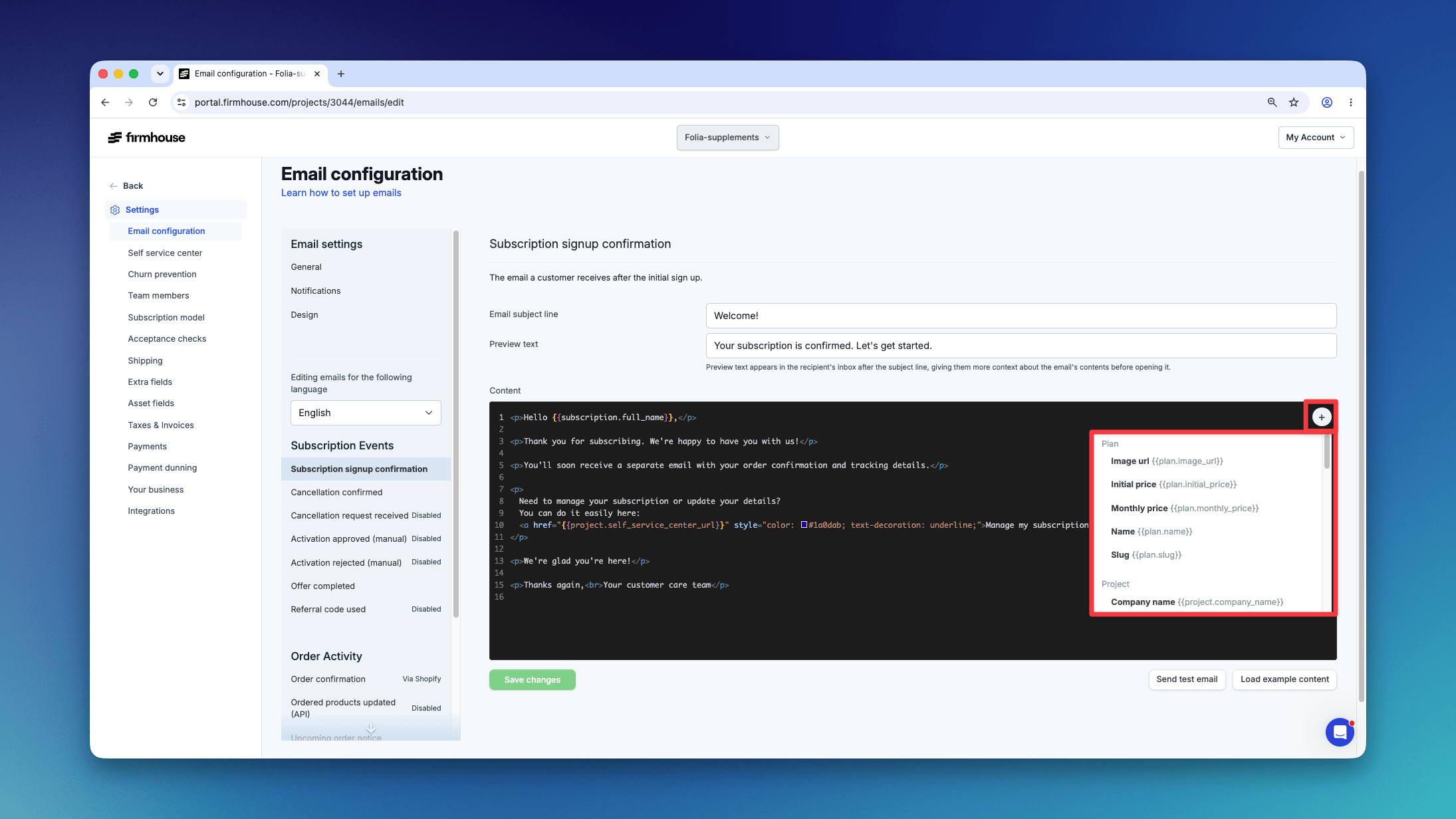
If you want to make sure everything looks the way you want it to, you can send out a test email before going live.Steps
- Click on Send a test mail at the bottom of the email editor.
- Enter your email address in the popup.
- Click Send to receive the test email in your mailbox.
- Check whether everything looks fine before saving your changes.