

Configuring Email Addresses
Steps
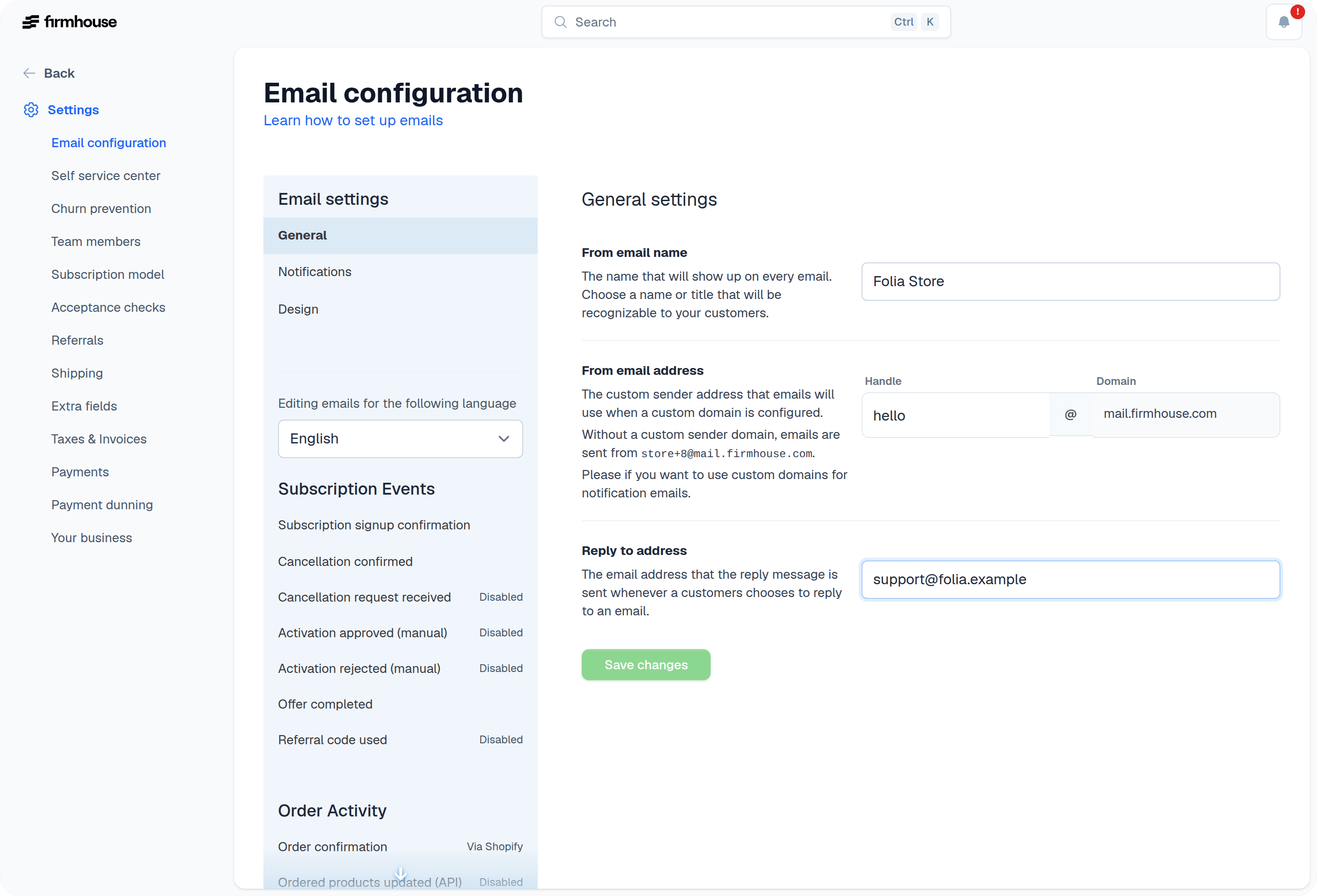
- Go to Email configuration in the menu on the left (underneath “Settings”)
- Go to the first section called General
- Enter the name you want customers to see as the sender in the From email name box
-
Enter the sender handle in the From email address field. The handle is the part before the
@sign. Firmhouse shows the domain next to it. Without a custom sender domain, emails are sent frommail.firmhouse.com. - Enter the email address that replies should be sent to in the Reply to address box. When customers reply to an automated email, their reply is addressed to this email address.
- Click on the Save changes button at the bottom to confirm your changes
Testing Your Emails
You can test how your emails look via the Send test email button under any email type. This allows you to verify that the From name, From address, and Reply-to address appear correctly before sending emails to customers. If you want customer emails to use your own sender domain instead ofmail.firmhouse.com, follow Improve email deliverability after saving these settings.