

What Does the Integration with Klaviyo Do?
When enabled, Firmhouse sends a message to Klaviyo with metadata about an event. An event can be a new subscriber signing up, a new order getting created, etc. These events correspond with the same email templates that Firmhouse would send if Klaviyo was disabled. When an event is sent to Klaviyo, it’s recorded as a “metric” there. To turn metrics into emails, you need to create flows in Klaviyo that run based on these metrics.Overview
Here’s an overview of the steps to enable and set up Klaviyo:- In Firmhouse, go to Apps > Klaviyo > Configure
- Enable your Klaviyo app
- Add your Klaviyo API key
- Enable the “Use Klaviyo events editor” checkbox (this will replace your existing email templates in the templates editor)
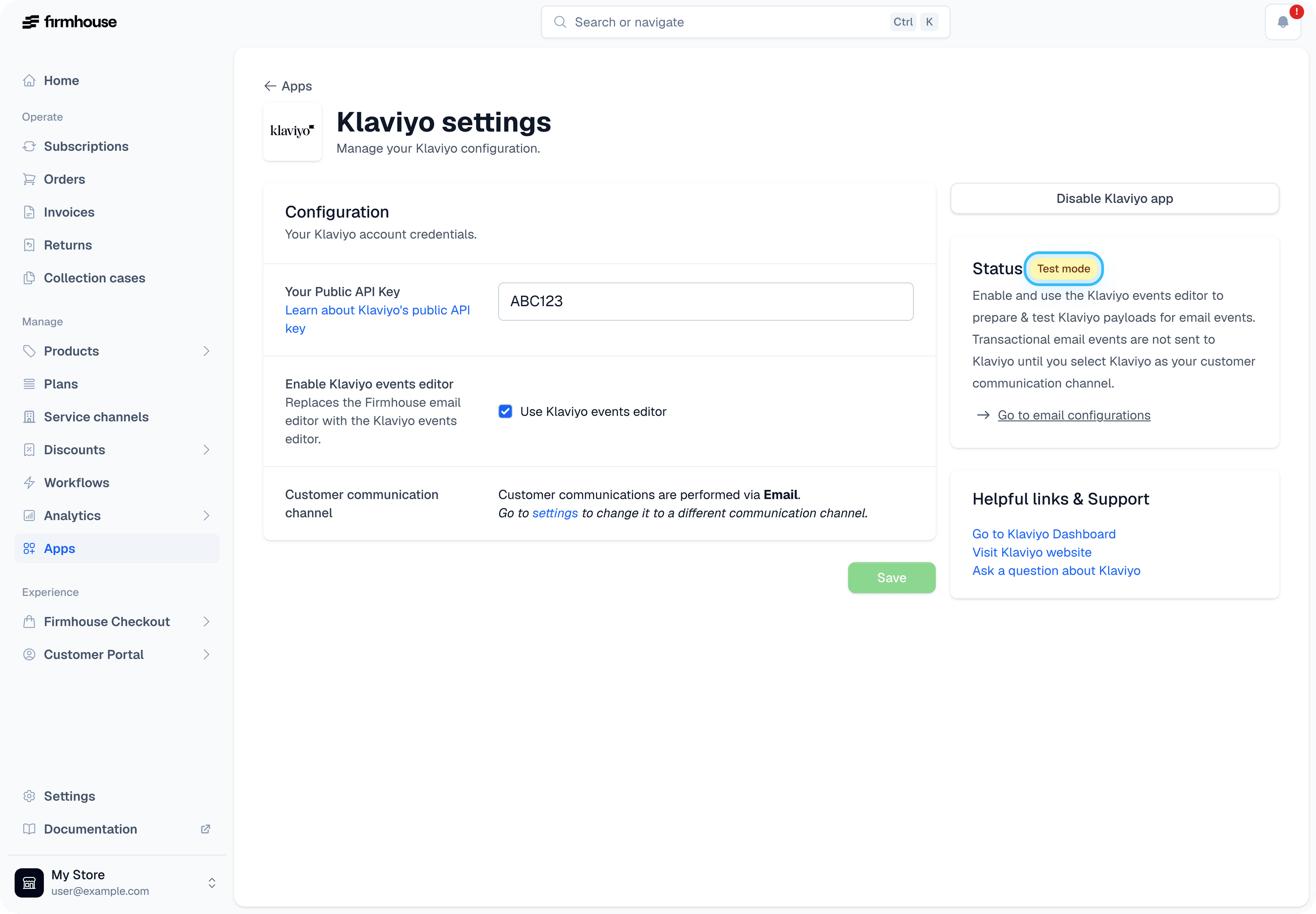
- Save the settings (at this point, the Klaviyo connection is enabled in Test mode)
- Edit the templates in Firmhouse
- Test event triggers
- Set up your flows in Klaviyo
- Change the communication channel of the project from “Email” to “Klaviyo”
Setting Up the Klaviyo App
Open the Klaviyo App
Go to the Klaviyo app in the Firmhouse menu: Apps > Klaviyo > Configure.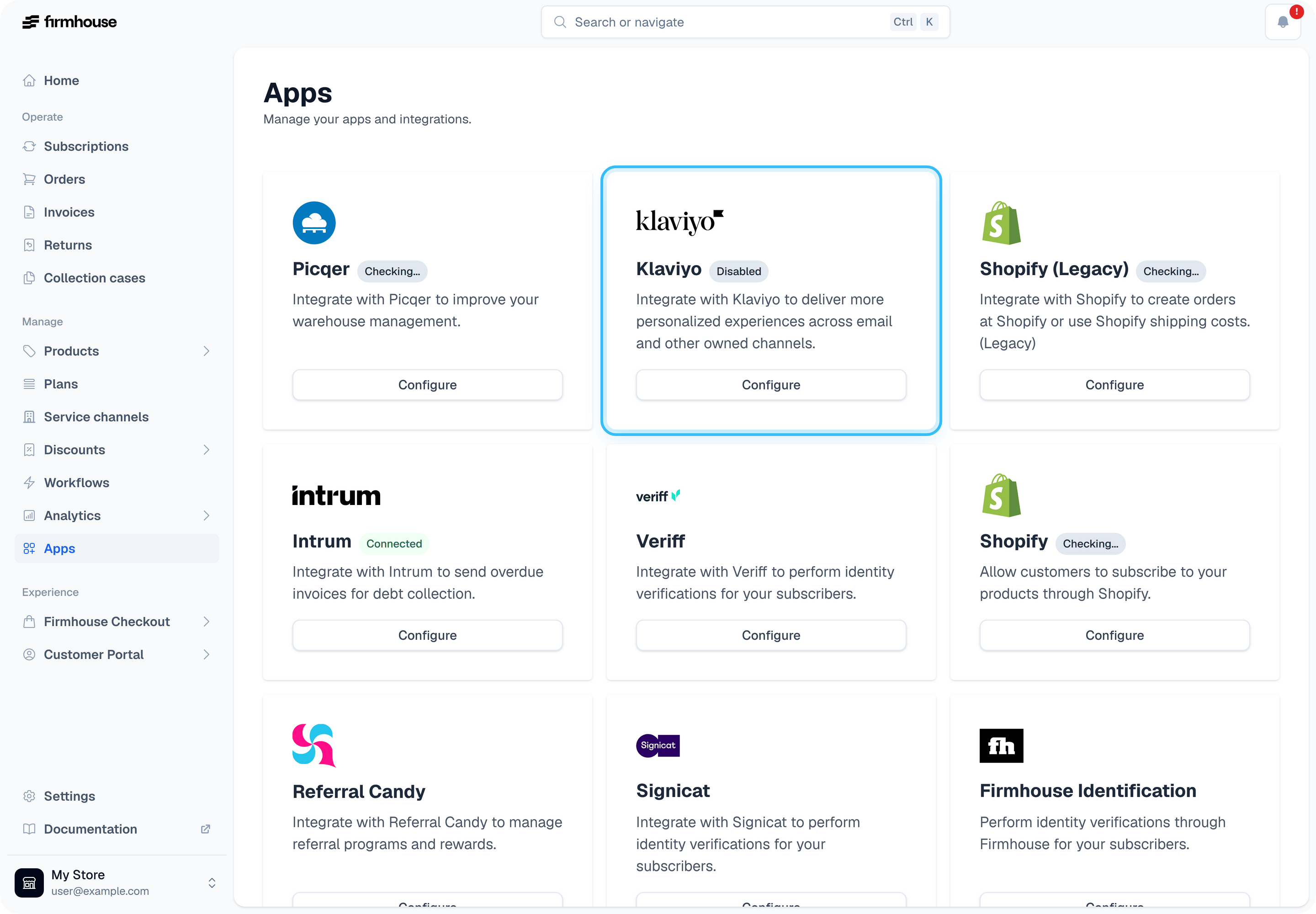
Enable the Klaviyo App
If you’ve previously tried to set up the app and then decided to disable it, you will need to enable it again by clicking on Enable Klaviyo app.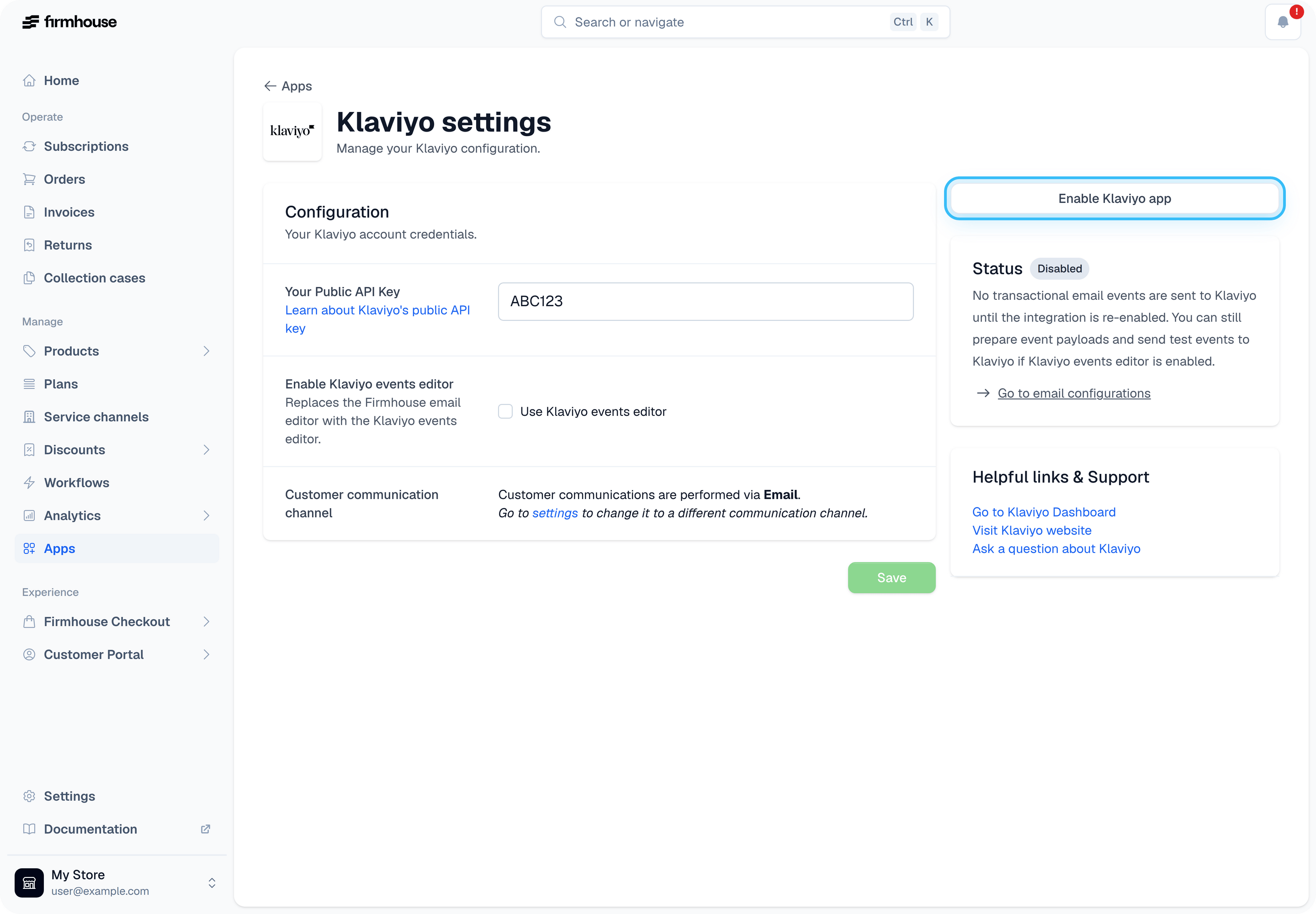
Add the Klaviyo API Key and Enable the Events Editor
To link Firmhouse to Klaviyo, you will need your Klaviyo API key (learn how to get it). After you enter the API key, select the checkbox Use Klaviyo events editor. This will enable the template editor for all the events that Firmhouse sends to Klaviyo. When you’re ready, click Save.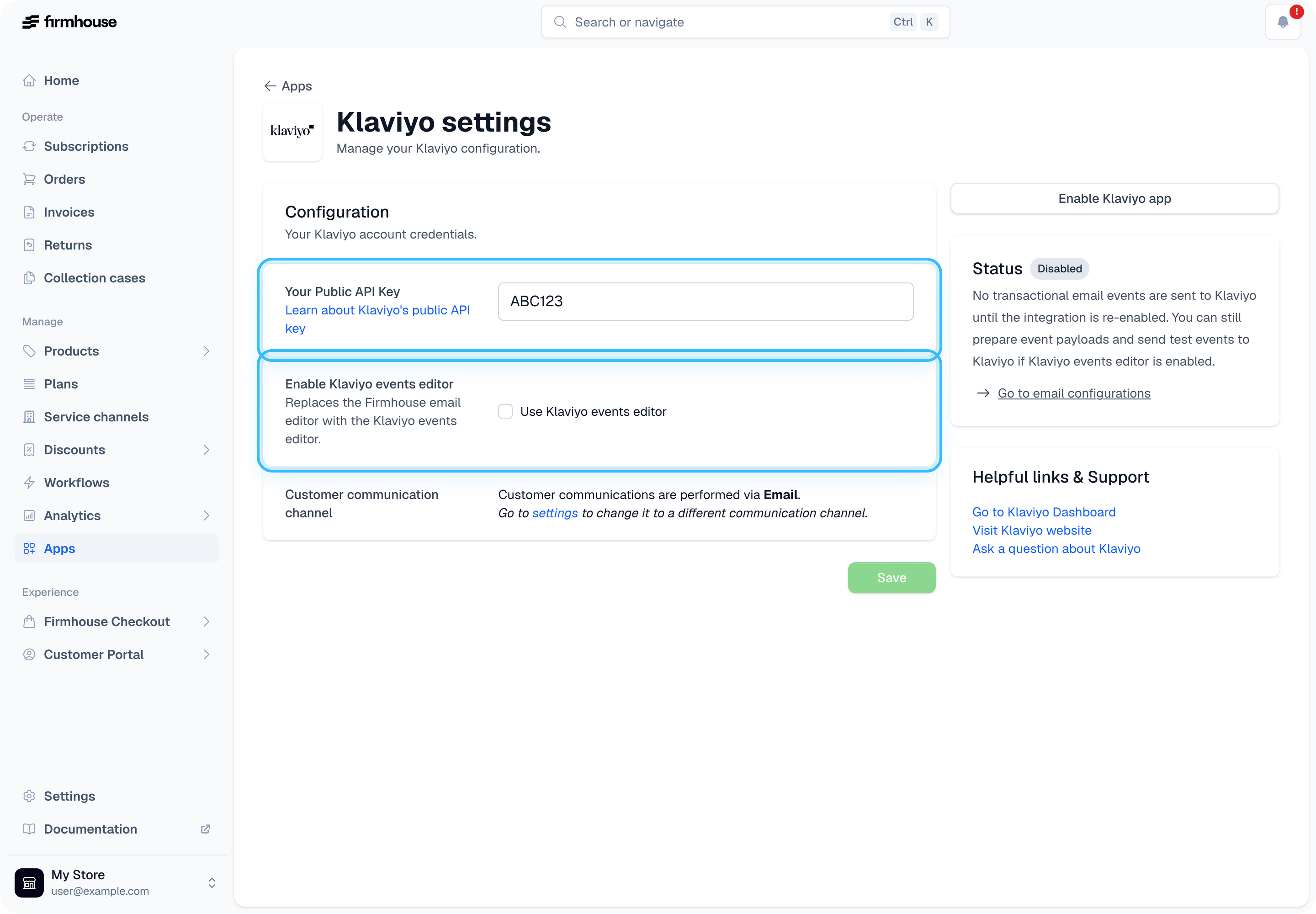
Switch Back to Firmhouse Email Templates
When the Klaviyo events editor is enabled, the Email configuration page shows the Klaviyo event templates instead of the regular Firmhouse email content. This can make it look like the normal email body editor has disappeared. If you want to edit the regular Firmhouse email templates again, go to Apps > Klaviyo > Configure and disable Use Klaviyo events editor. You can also use the link in the orange bar at the top of Settings > Email configuration to open the Klaviyo app settings. After you save the change, return to Settings > Email configuration. The regular email content editor is shown again.Edit the Templates
Go to Settings > Email configuration to find all events Firmhouse can send to Klaviyo. The top bar will show if the Klaviyo integration is active or not.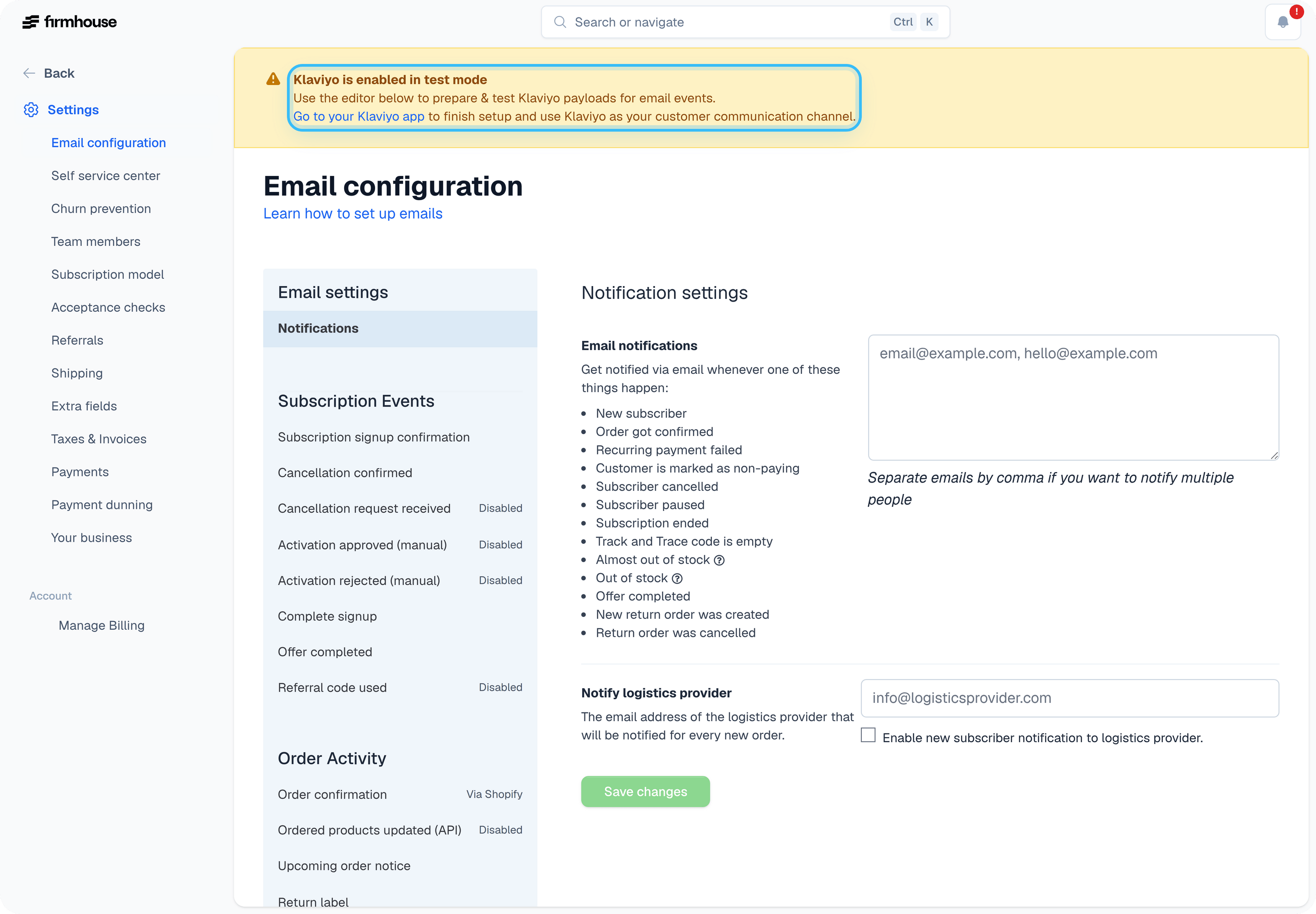
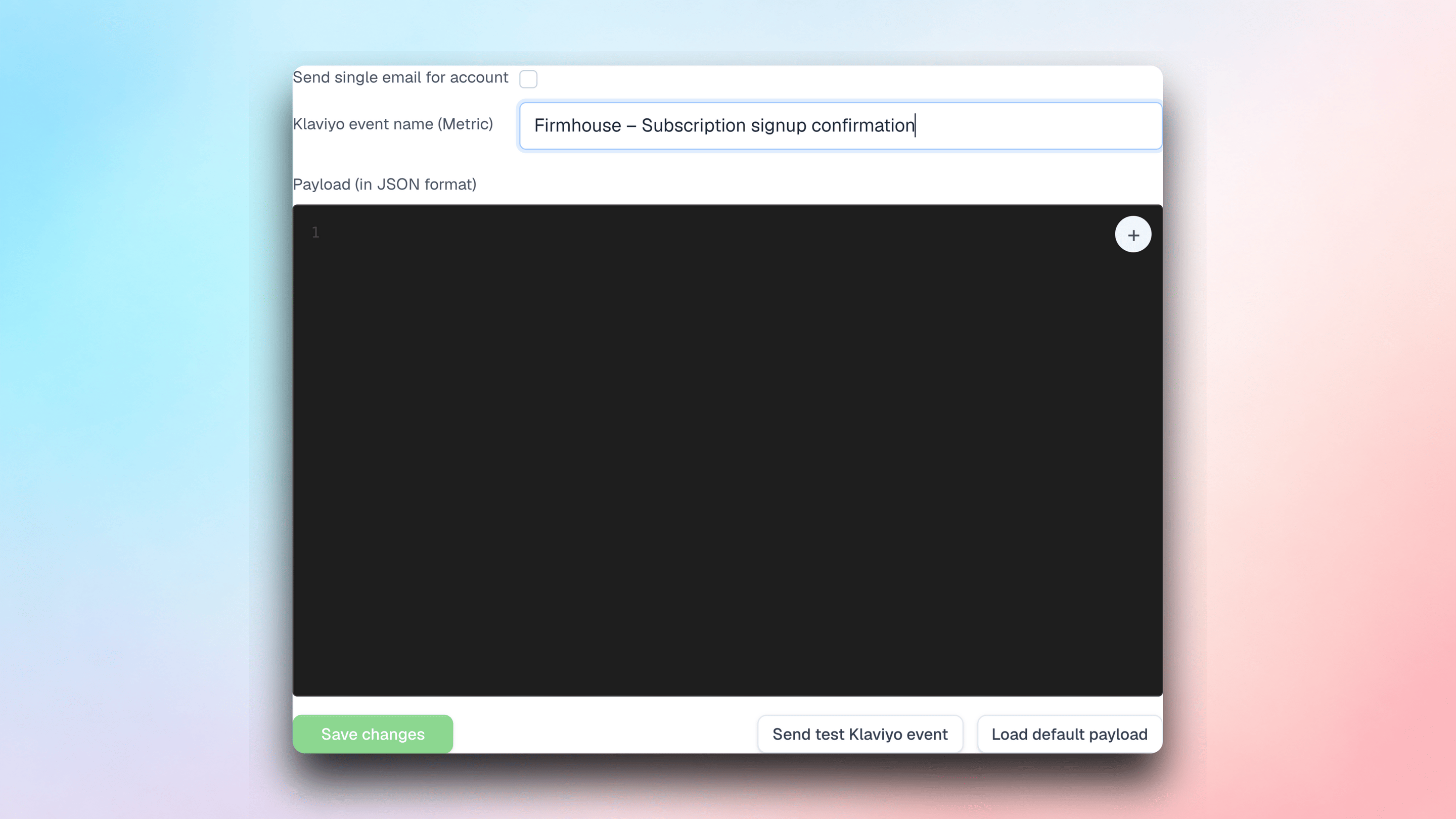
Display products in upcoming-order lifecycle emails
The Firmhouse: Upcoming order notice lifecycle payload includes aproducts list. Use it as the collection for a repeating product block in Klaviyo. Each object contains id, name, quantity, sku, image_url, shopify_product_id, shopify_variant_id, and shopify_image_url.
Names, SKUs, and quantities come from the upcoming order’s lines. image_url uses the Shopify image, falling back to the uploaded Firmhouse product image. Missing images and identifiers are null. Lines without a linked product still include their name and quantity. An order without lines has an empty list.
Existing properties such as product_ids, product_names, and product_quantities remain available. For an already enabled lifecycle event, open Klaviyo settings, expand Customize event payload for the upcoming order notice, and click Edit payload template. If an update is available, use Load update into editor, review it, then Save changes. Send a test event before using the list in your email. Saved templates are not changed automatically.
Upcoming-order offers also include upsell_product when the offer adds an upsell product. It contains the same product fields listed above, with the localized product name and the quantity offered. Other offer types have upsell_product: null. This is available in both the lifecycle offers list and the transactional Offers list. Existing templates that use the standard offer list receive the added details when the event is rendered.
Reference a specific offer directly
Offer definitions get a stable slug from their internal name when created. For example, Magnesium Upsell becomesmagnesium_upsell. Changing the internal name or translated title later keeps the slug. Duplicate internal names within a project receive a numeric suffix, such as magnesium_upsell_1.
New upcoming-order templates include these properties at the event root for each eligible offer:
null when no image is available. The accept URL is the same signed link used by the offer in the offers / Offers list. These properties are omitted when the offer is not eligible. If multiple eligible offers share a definition, the flat properties use the soonest-expiring offer; the list still contains every eligible offer.
For existing lifecycle events, use Customize event payload > Edit payload template in Klaviyo settings and review any available update before saving. For an existing transactional template, add this before the closing } of the event JSON, after its last property:
Keep existing metrics and payloads
Connecting the same Klaviyo account with OAuth keeps the event names and JSON payloads already saved under Email configuration. Existing Klaviyo flow triggers continue to use those metric names. The Lifecycle events tab adds separate metrics for subscription changes such as pauses, plan changes, payments, and refunds. Turning on lifecycle events does not replace or migrate your transactional email events or custom Klaviyo metric webhooks. A v1 migration preserves existing event choices; a new v2-only connection enables supported lifecycle events automatically. Review metric names, property keys, and enabled events before making a Klaviyo flow live. If you want to use a lifecycle metric in a new Klaviyo flow:- Turn on one lifecycle event in Firmhouse.
- Trigger or test that event and inspect its properties in Klaviyo.
- Build and test a Klaviyo flow using the new metric.
- Make the flow live only after the metric and message are correct.
Upcoming order count and action links
New upcoming-order payloads include the number of confirmed and fulfilled orders for that subscription and the next order number.
Use the event’s order number in your Klaviyo email copy. Include action buttons only where the action is available for your customer’s plan and your Customer Portal configuration. Opening a skip or snooze link shows a confirmation screen; it does not immediately change the subscription. These hotlinks expire after one week by default. Snooze defaults to a one-week delay. To offer other durations, add
snooze_options when building the URL in your payload; see custom snooze durations. A generic duration parameter does not change the interval.
Existing saved payloads are preserved, including previously enabled lifecycle events. Add these properties to an existing transactional payload to use the new fields:
Cancellation reason and feedback
Newly generated Cancellation confirmed payloads includeCancellationReason. It contains the reporting title of the reason selected by the customer. The value is blank when the cancellation has no finalized customer cancellation reason, such as an admin cancellation without a selected reason.
For an existing customized payload, add the property manually:
churn_request_feedback_updated event and use these metric properties:
Test the Events
Test your events to make sure they are formatted correctly and contain the information you expect. Click on Send test Klaviyo event. Enter your email address in the pop-up and you will receive the event with some example data.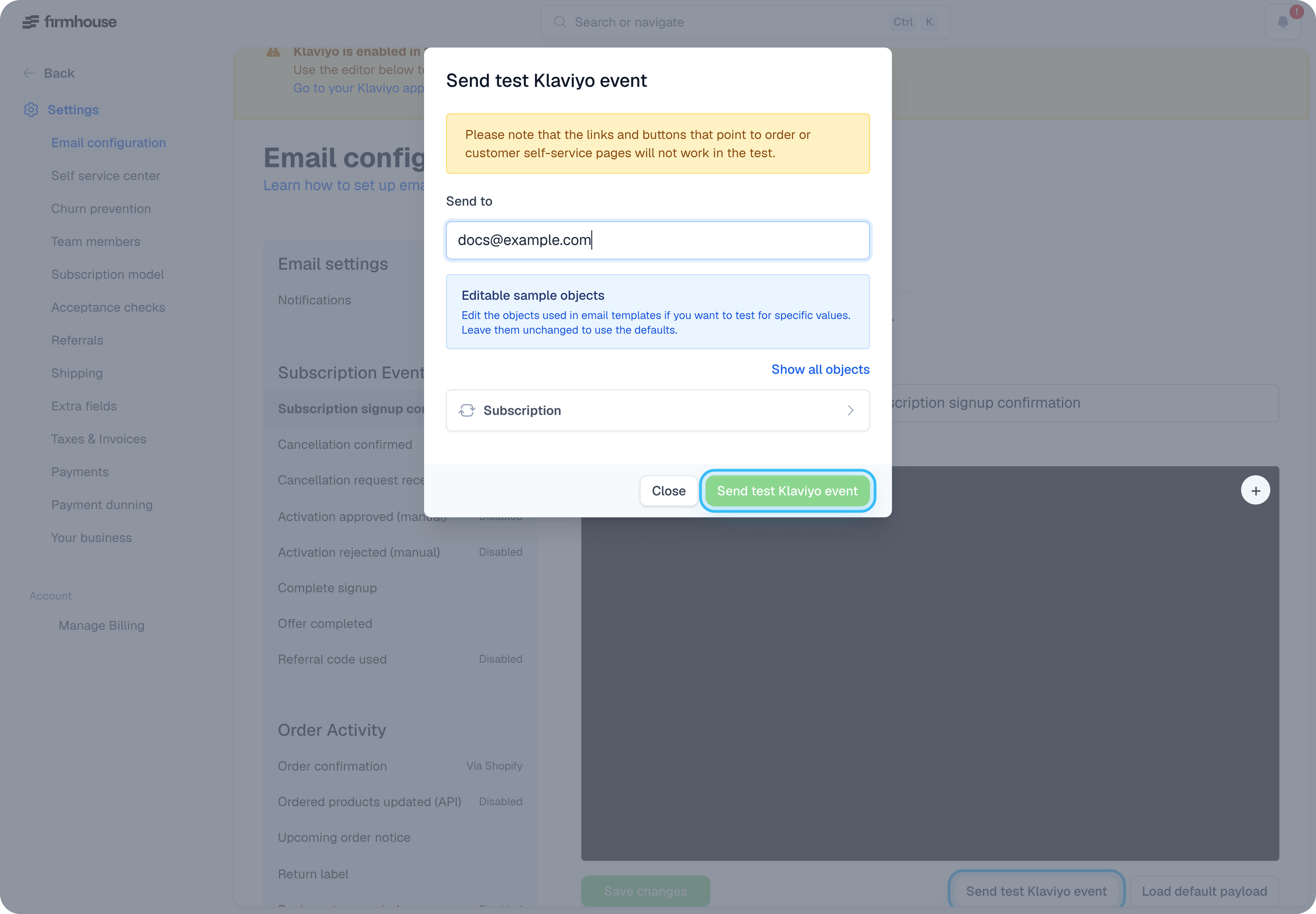
Creating Klaviyo Flows
Once your event payloads are configured in Firmhouse, it’s time to build the corresponding Klaviyo flows so your customers can receive their emails.Create Klaviyo Metrics
Each event and payload in Firmhouse will have a corresponding metric and mailing flow in Klaviyo. The easiest way to create the metrics is by sending a test event from Firmhouse to Klaviyo. Open your Firmhouse Email configuration page, select one of the templates, and click on Send test event to Klaviyo.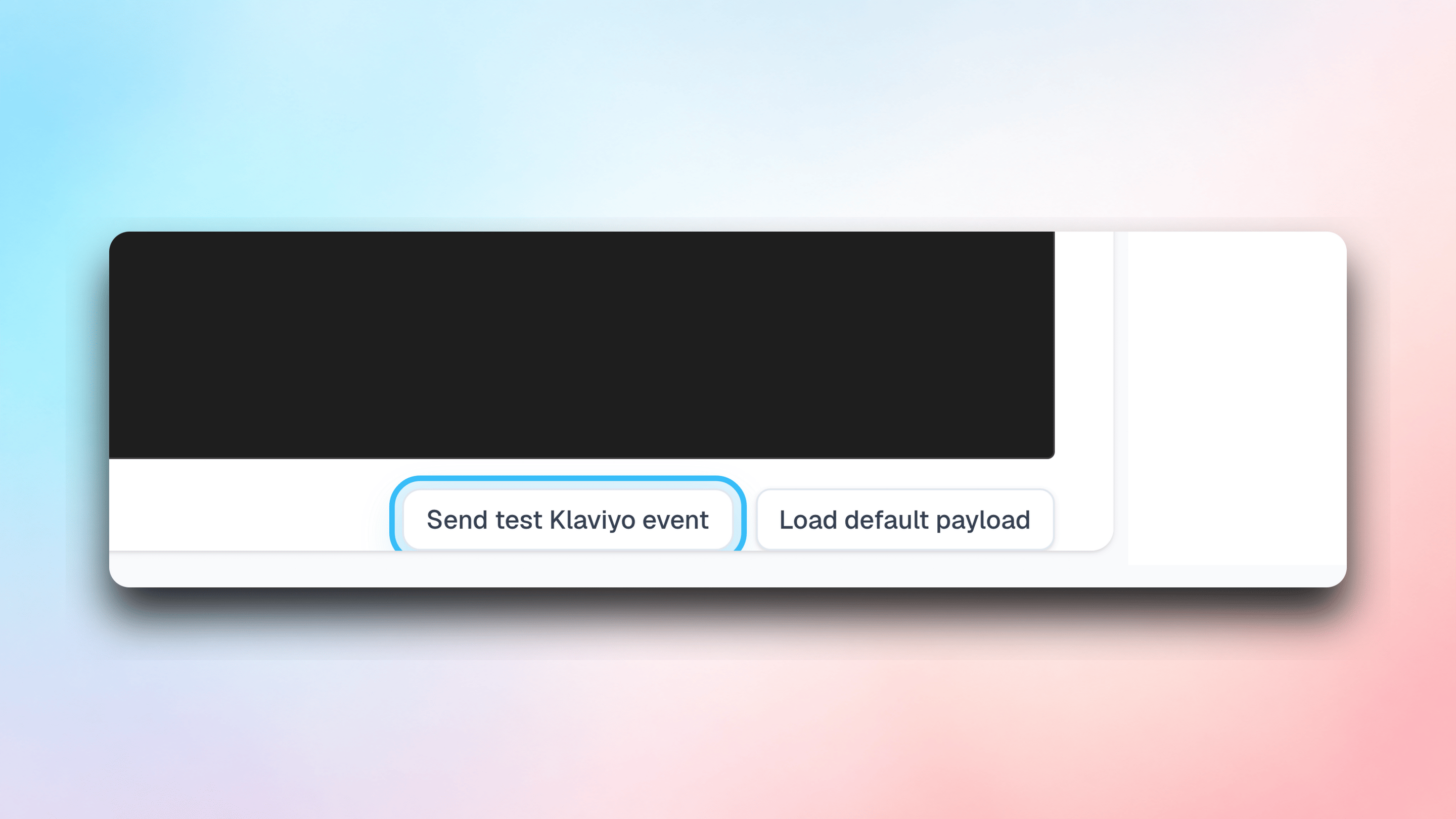
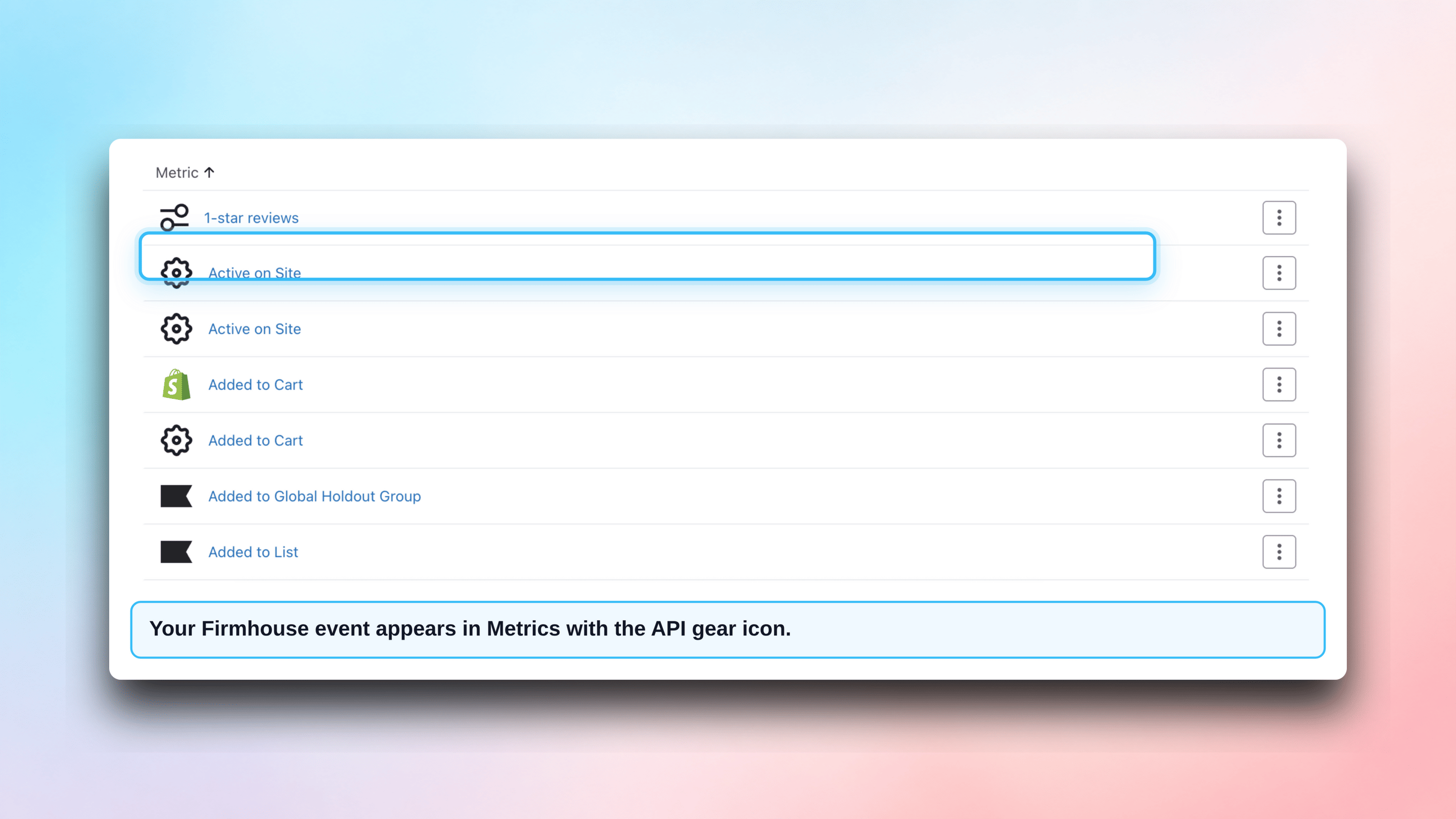
Create a New Flow
In your Klaviyo dashboard, navigate to Flows and select “Create flow”. You’ll need to select Build your own and provide a relevant name.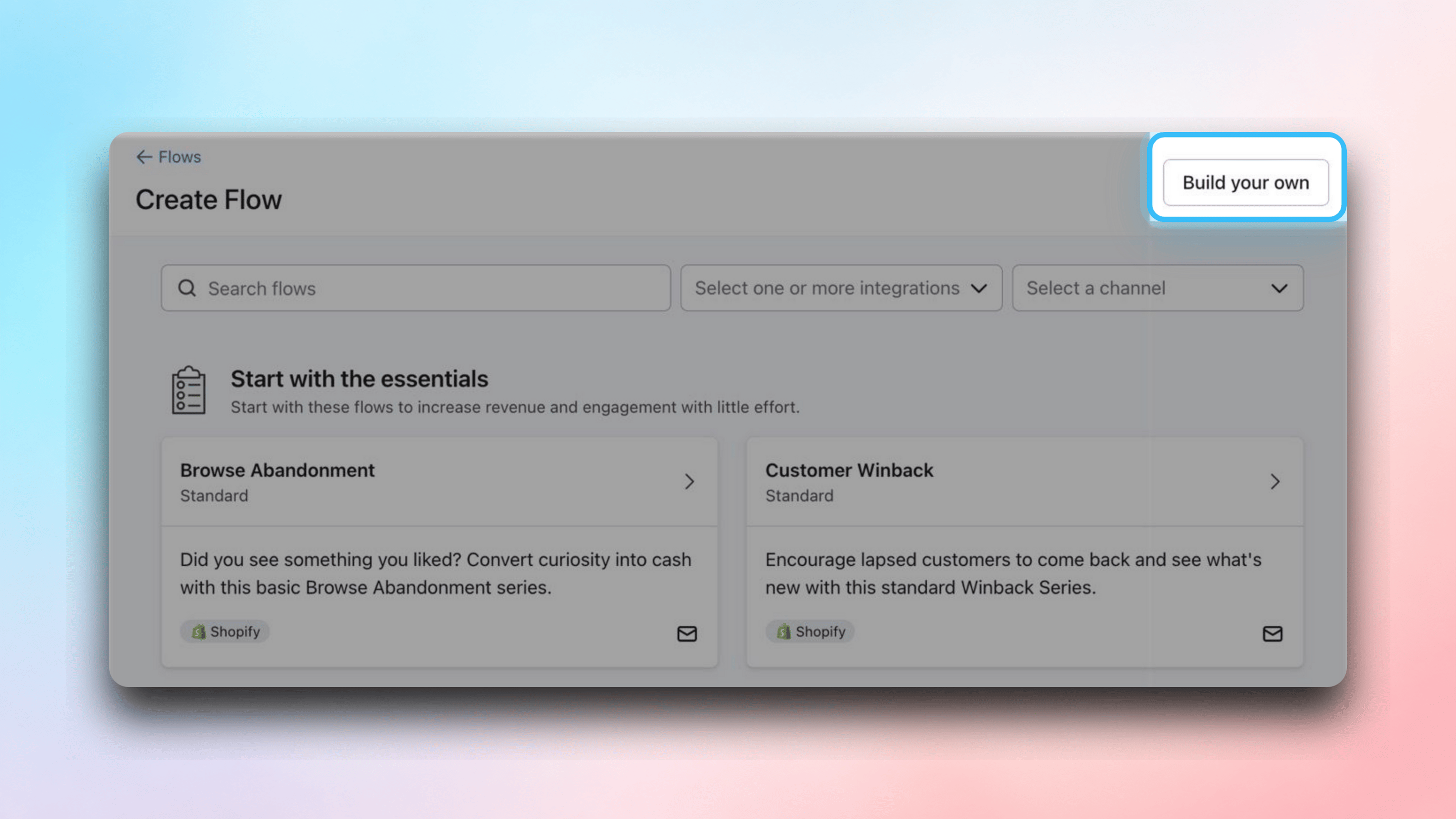
Configure the Flow Trigger
Link your new metric to this flow. You will find the metric in Your metrics section on the right side of the screen: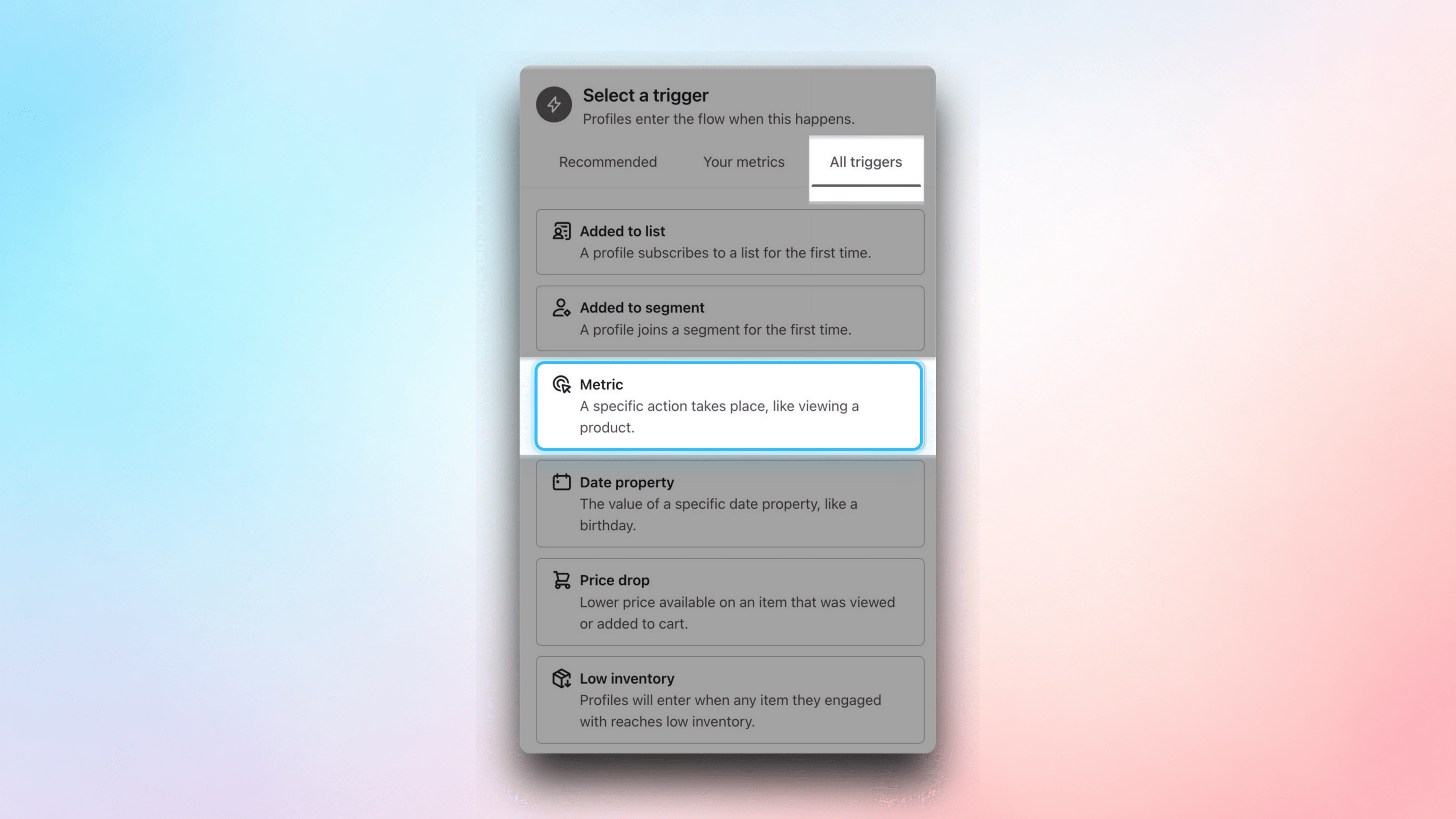
Add an Email to Your Flow
Drag and drop the email block from the left-hand menu and link it to your trigger.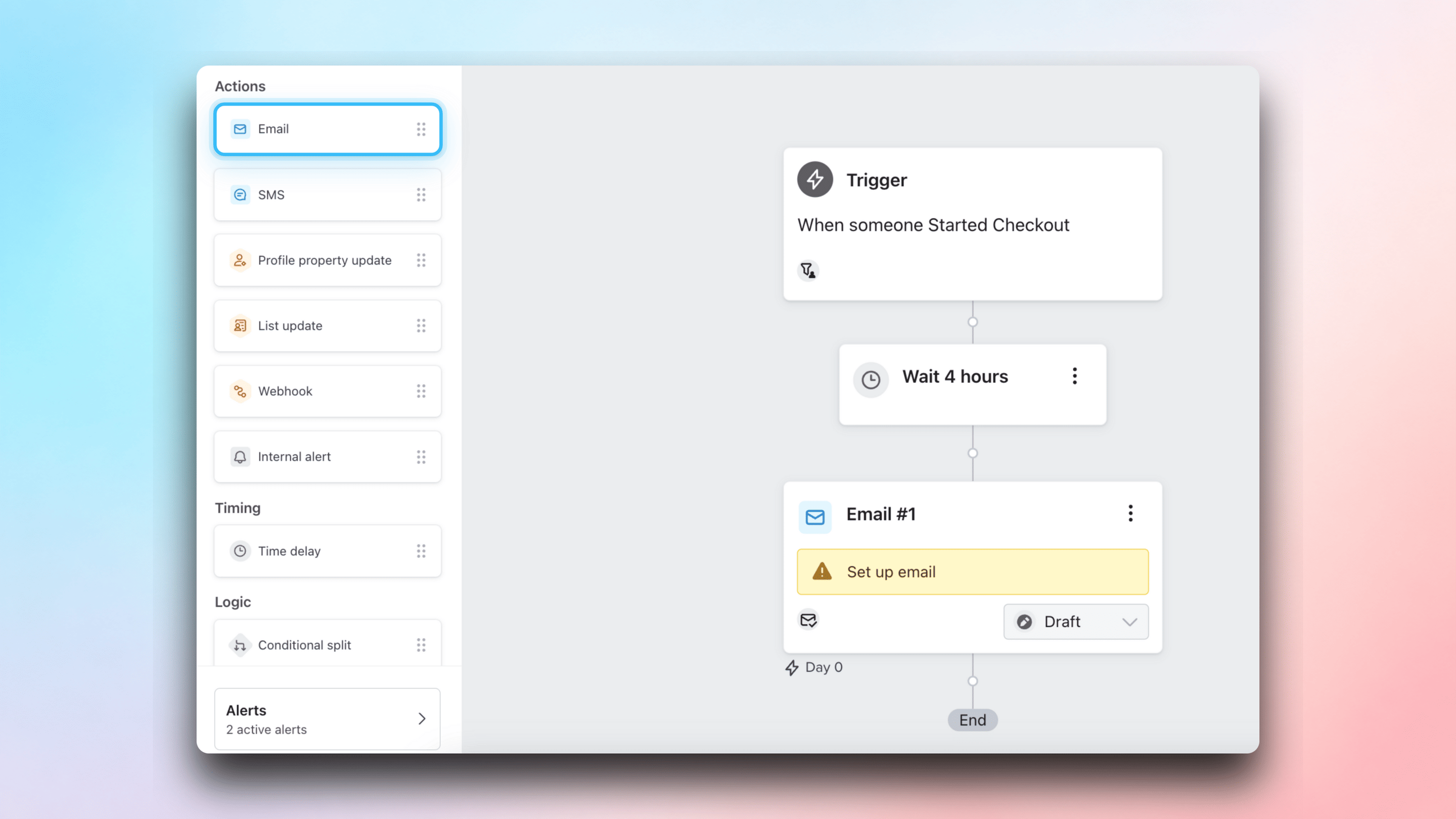
- Email name - an internal value to help identify the template
- Subject line - the subject customers will see in their inbox
- Preview text - the preview text customers will see
- Skip recently emailed profiles - make sure to disable this so all emails get sent
- Template - select or build your email template
Customize the Email Template
Select a template from the Klaviyo library or create your own. Klaviyo will open the email editor so you can adjust the content. Add your own images, branding and copy to make it your own.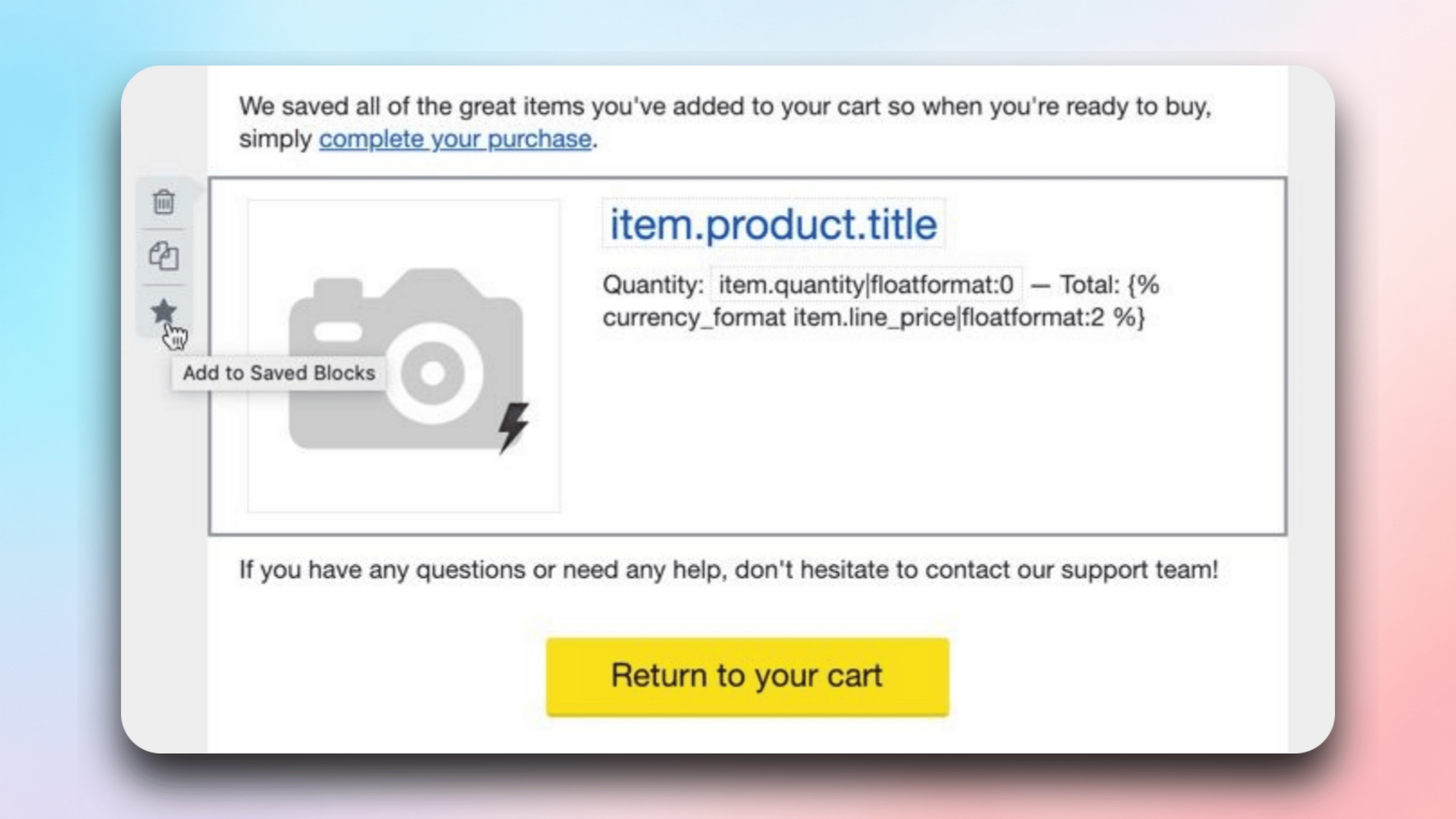
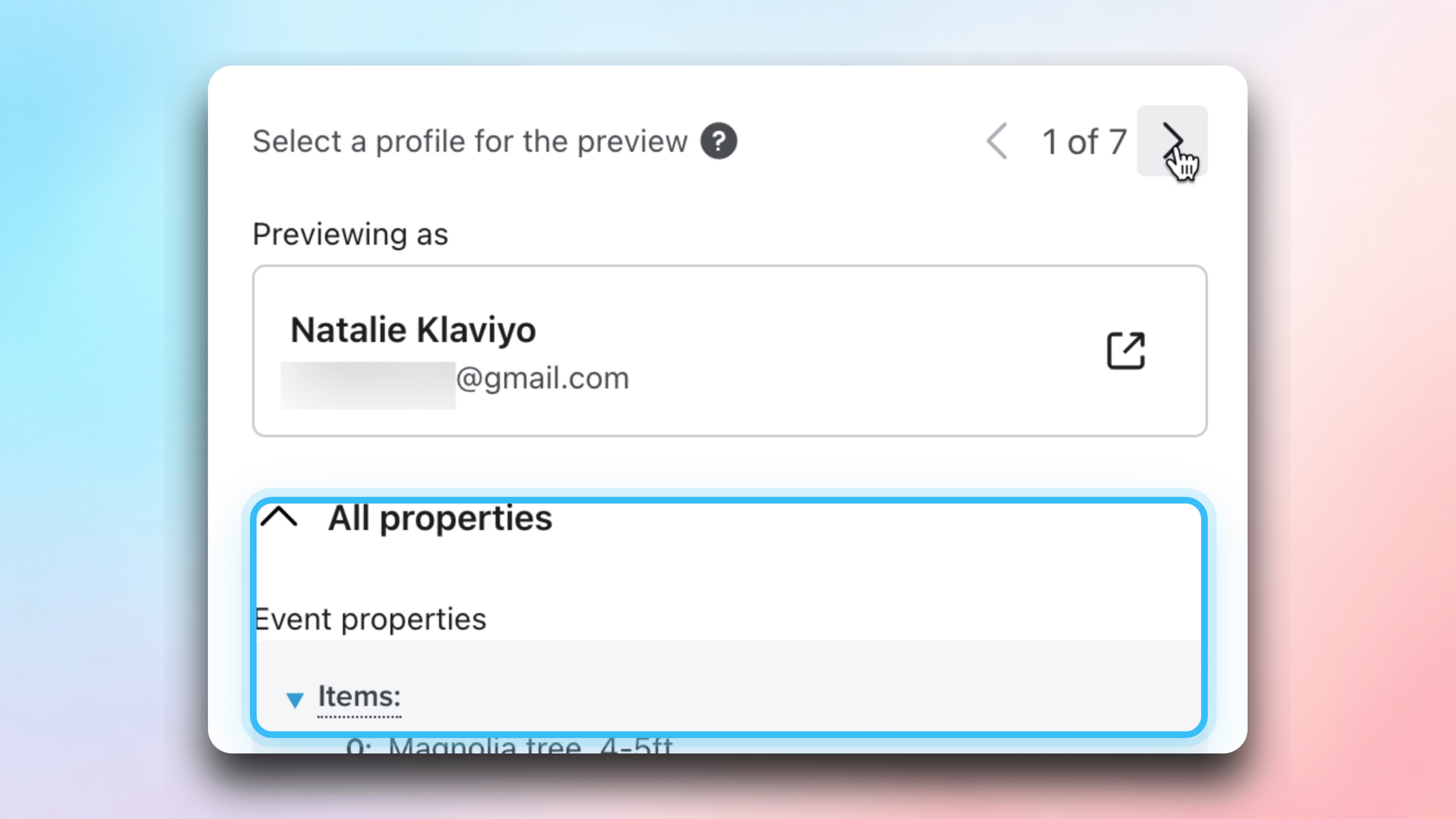
Insert Simple Values
To make the email more personable, copy values from your trigger and paste them into the email template. For example, use the name property on the first email line.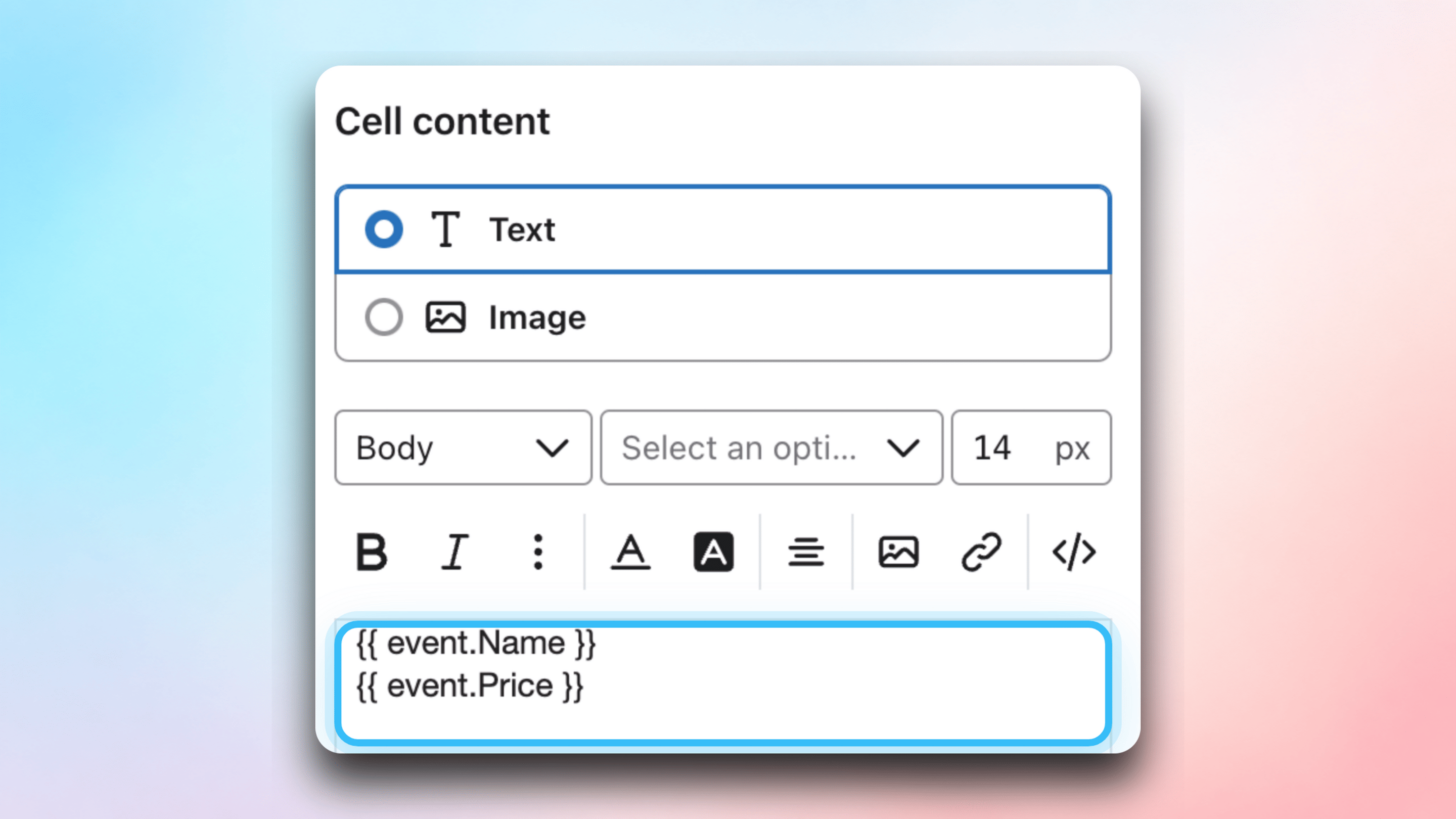
Use URLs
Add buttons that send customers to the Self Service Center using the SelfServiceCenterUrl property: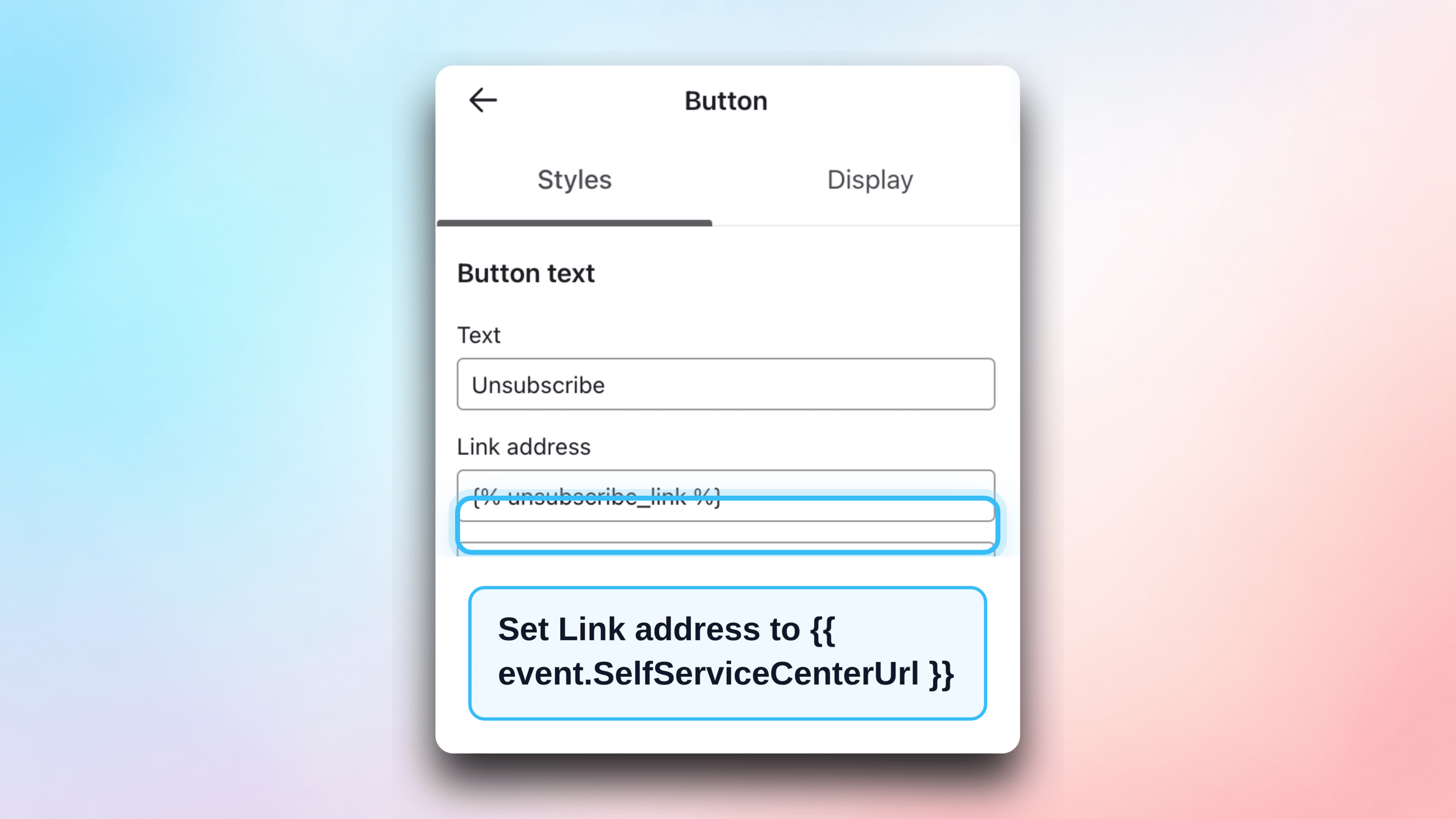
Parse Event Property Lists
For complex properties like product lists, use the Content repeat function in Klaviyo to loop over all items.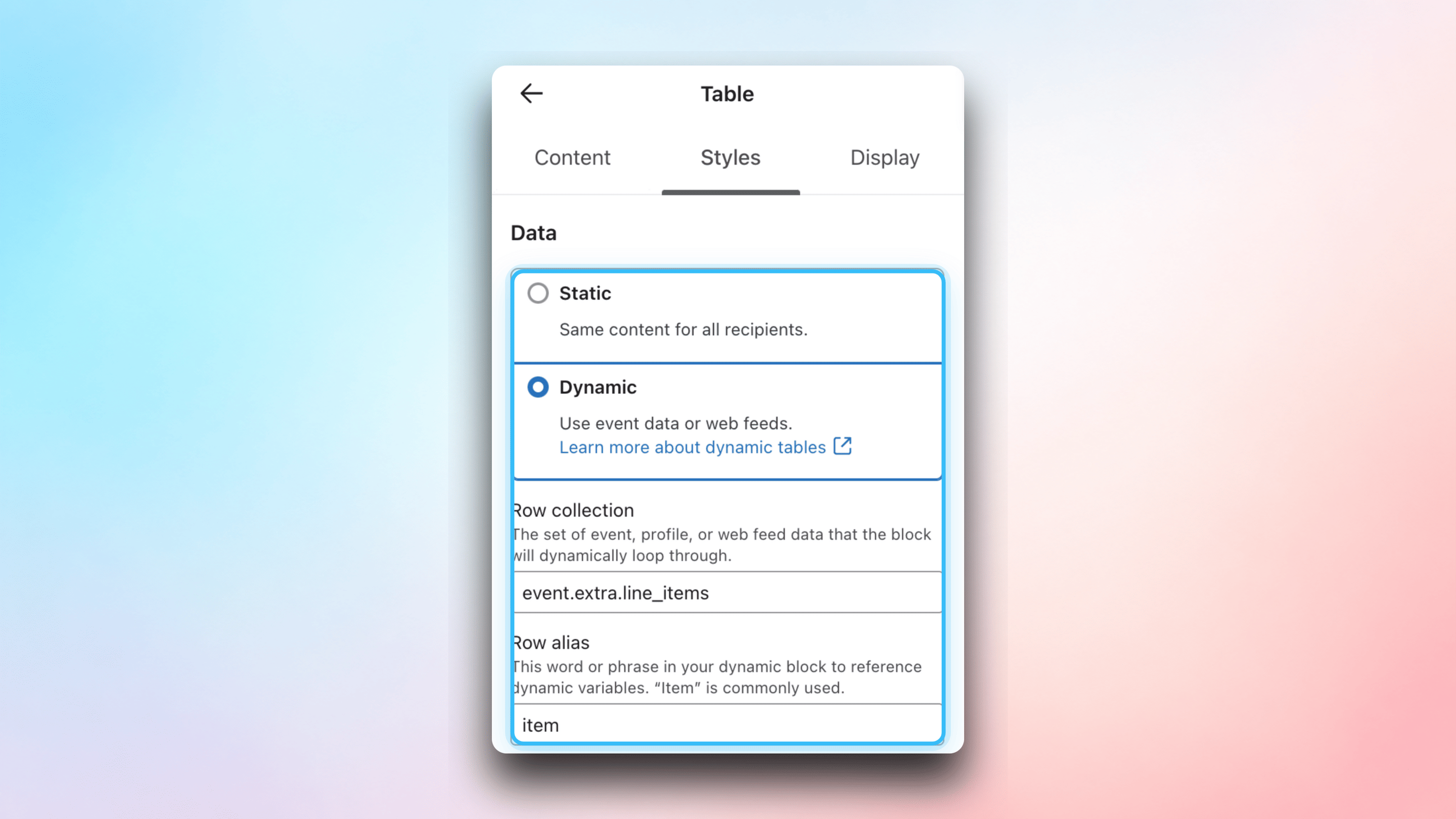
Go Live
Set Your Flow to Live
Once you’ve finished editing your template, change the status of the email or use the Review and turn on feature to let the flow be triggered by all events sent from Firmhouse.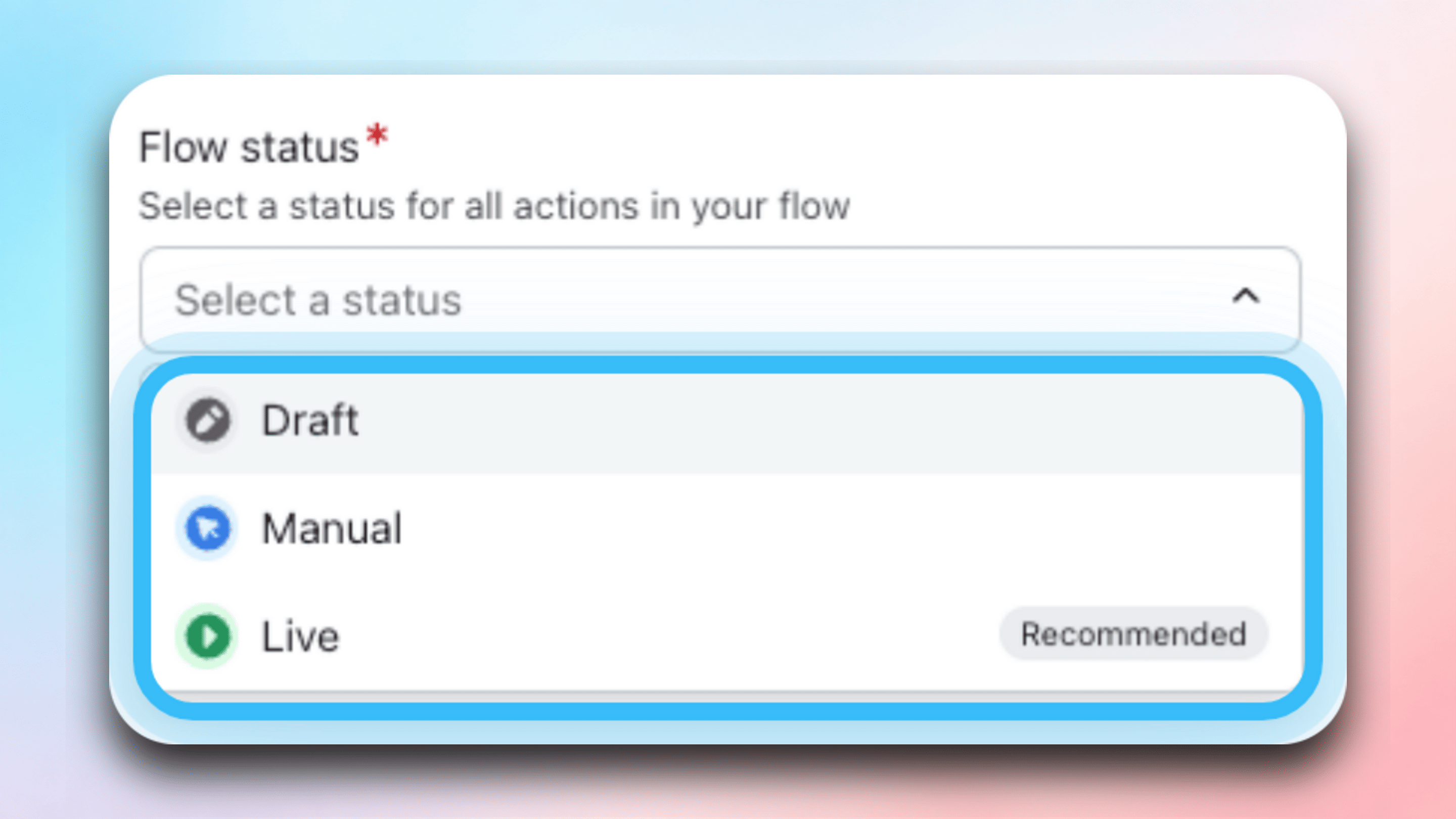
Change the Communication Channel
When you’re ready to complete the switch, go to Settings > Subscription model > Notification services and change the channel to Klaviyo. Scroll down and click Update project.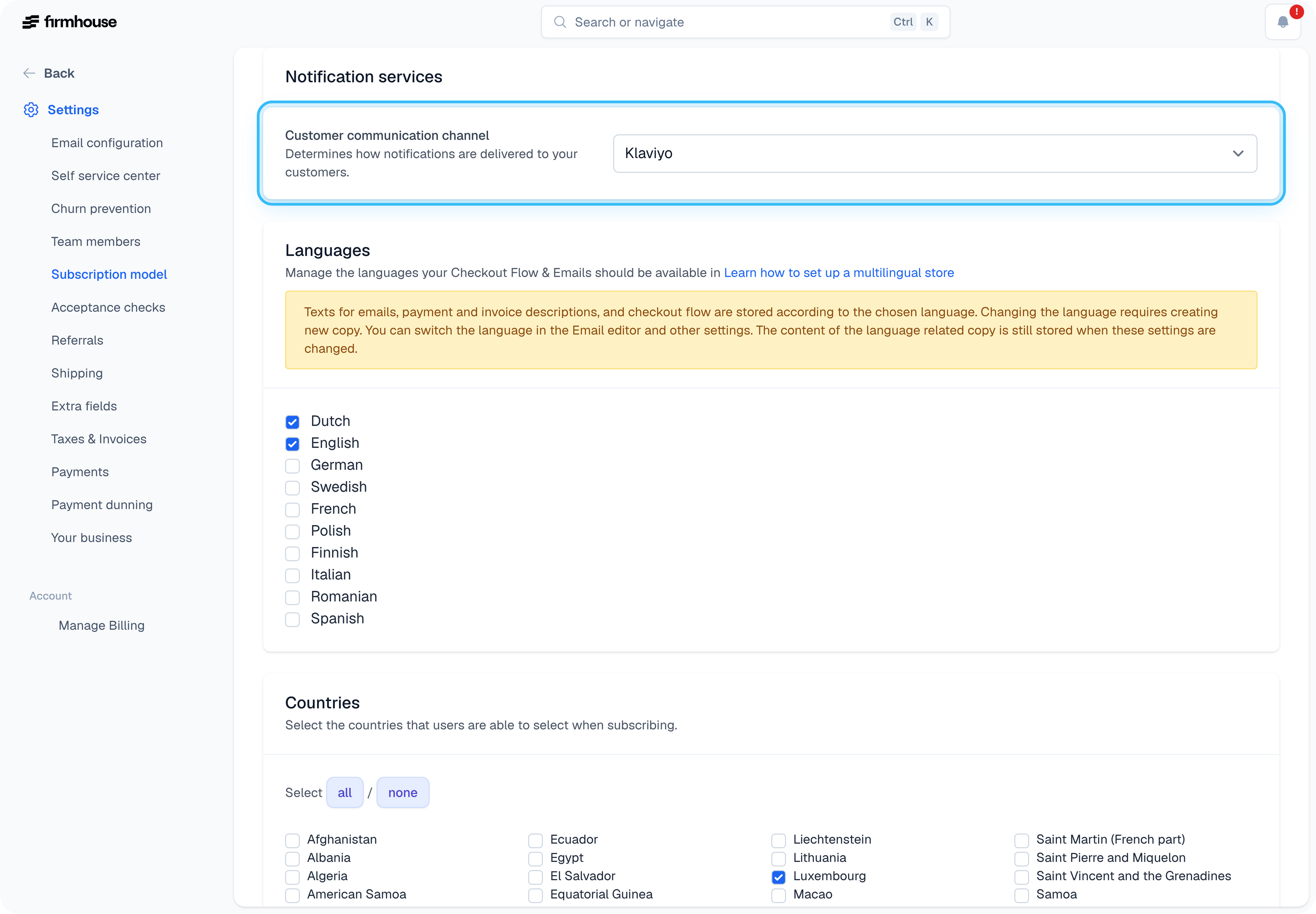
Important: Mark Firmhouse Flows as Transactional
Klaviyo is primarily used to send marketing emails and allows subscribers to unsubscribe. An unwanted side-effect is that it can prevent transactional emails from being sent. To ensure all Firmhouse transactional emails are delivered, contact Klaviyo support and ask them to mark the flows containing Firmhouse emails as transactional. See this Klaviyo help article for more information.Troubleshooting
If events don’t arrive in Klaviyo, the most likely cause is a problem with the JSON formatting of the template. This should show up as an error in your project Notifications. Try an online JSON validator to highlight where the problem is.Example email templates
The following examples contain JSON payloads that can be sent to Klaviyo instead of email. See Getting started with Klaviyo for a new OAuth connection. Existing transactional payloads also work with OAuth. You can extend these examples yourself using the Liquid tags Firmhouse provides.Confirmation email
Upcoming order notice
outofstock field and the HasOutOfStockProducts flag are only true when Shopify stock levels are enforced, so Klaviyo flows can branch on them to warn customers about products that would cause their renewal to be skipped.
subscription.next_upcoming_products also includes active Next order only products. Their shipmentdate is empty because they inherit the next order’s shipment date. After the order containing them is created, they are removed from the subscription and no longer appear in this collection.
The per-product replaceurl field links straight to the swap flow for that product in the customer portal. Piped through ssc_hotlink, it logs the customer in automatically, so one click in the Klaviyo email takes them to picking a replacement product. The hotlink is valid for one week from the moment the event is sent.
Cancellation initiation email
Cancellation confirmation email
Billing cycle notification
Failed payment
Manual charge notification
Outstanding invoices
statusCode is stable across subscription locales and is intended for conditions or merchant-owned translations in Klaviyo. statusTranslated is display text localized using the subscription’s locale.
Invoice reminder
Self service center login
Additional Resources
- Available Liquid tags to provide dynamic content to Klaviyo