

Enabling the feature
Before you can configure snoozing and skipping, you need to enable the Order Preview in Self Service Center feature from the New Features menu in your Firmhouse Portal. This will make the order preview widget in SSC visible to your customers and the snooze/skip options available in your Self Service Center configuration.- In the Firmhouse Portal, go to New Features in the sidebar.
- Find Order Preview in Self Service Center and enable it.
- Once enabled, proceed to configure the snooze and skip settings as described below.
How does snoozing and skipping work?
Snoozing and skipping applies to all products scheduled to be shipped in the upcoming order moment. Products with a different shipment date than the earliest upcoming order are not impacted. Customers have two options to postpone their upcoming order:- Snooze the upcoming order date for 1 week
- Skip the next order they would normally get according to their regular order schedule
- Product A with frequency “every 2 weeks” and upcoming shipment date of 30 December 2024
- Product B with frequency “every 4 weeks” and upcoming shipment date of 30 December 2024
- Product C with frequency “every quarter” and upcoming shipment date of 5 January 2025
Enable snoozing and skipping for the My Account
Steps
- From the sidebar in Firmhouse Portal go to Settings > Self Service Center.
- Scroll down to the Settings area and enable Can snooze and skip orders.
- Click Update project.
Add snooze and skip hot-links to emails
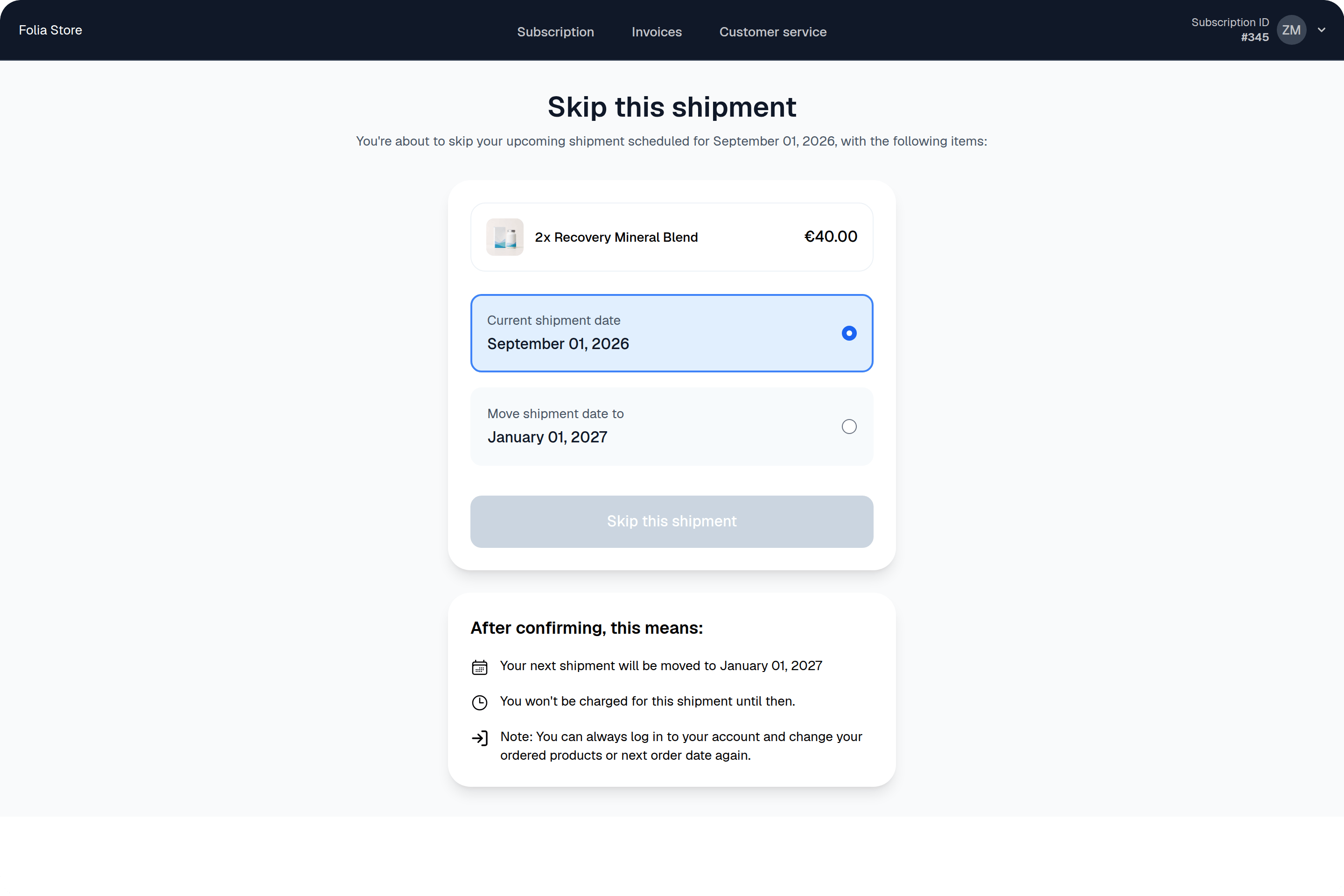
You can include the following special hot-link Liquid tags in your email templates or Klaviyo payloads to let your customers immediately snooze or skip their upcoming order straight from their email. The links immediately open in special dedicated screens for snoozing and skipping the upcoming order: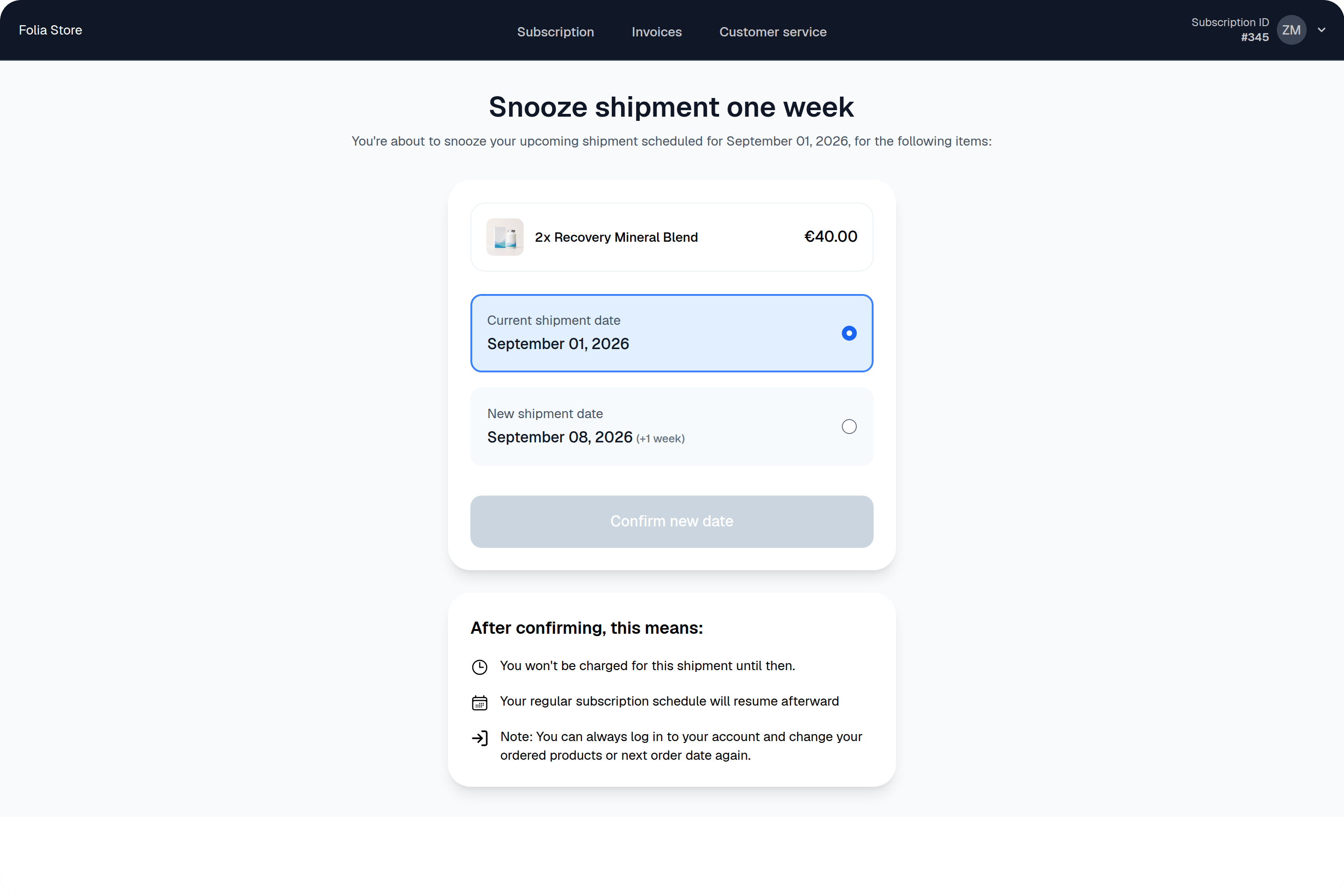
Offer custom snooze durations
Addsnooze_options to the upcoming-order snooze URL to let customers choose from your preferred delays. For example, offer 7, 14, or 28 days:
ssc_hotlink. This example starts from the Liquid URL above, which has no query string; use & instead of ? when extending a URL that already has query parameters.
The link opens a confirmation page with a date and duration for each option. Customers choose an option and confirm before the shipment changes.
Options are whole numbers of days from 1 to 365. Invalid values and duplicates are ignored, and only the first 10 distinct valid options are used, in the supplied order. Without valid options, the link offers the default seven-day delay. Durations are measured from the upcoming shipment date, not from the day the customer opens the link.
For Klaviyo payloads, use the same URL construction and apply json_escape after ssc_hotlink when inserting the URL into JSON. Test the rendered link before updating a live email flow.