

What’s new?
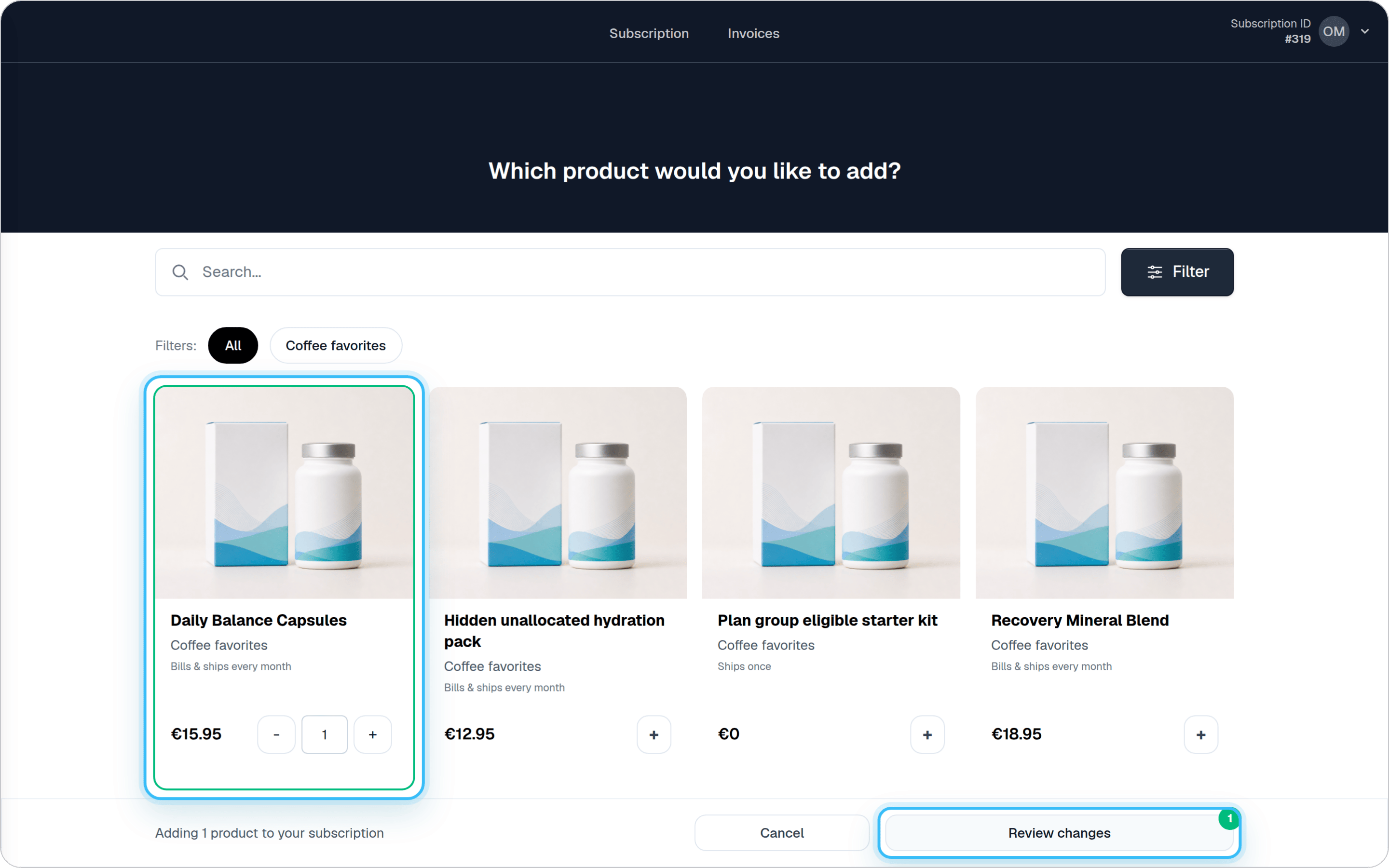
With the new add-products flow, customers can:- Browse the full product catalog available to them
- Search products by name
- Add multiple products and quantities in one session
- Review all changes on a clear confirmation screen
- See totals and the next shipment date before confirming
How it works for customers
Steps
- Customers click “Add a product to your subscription” in the Self Service Center.
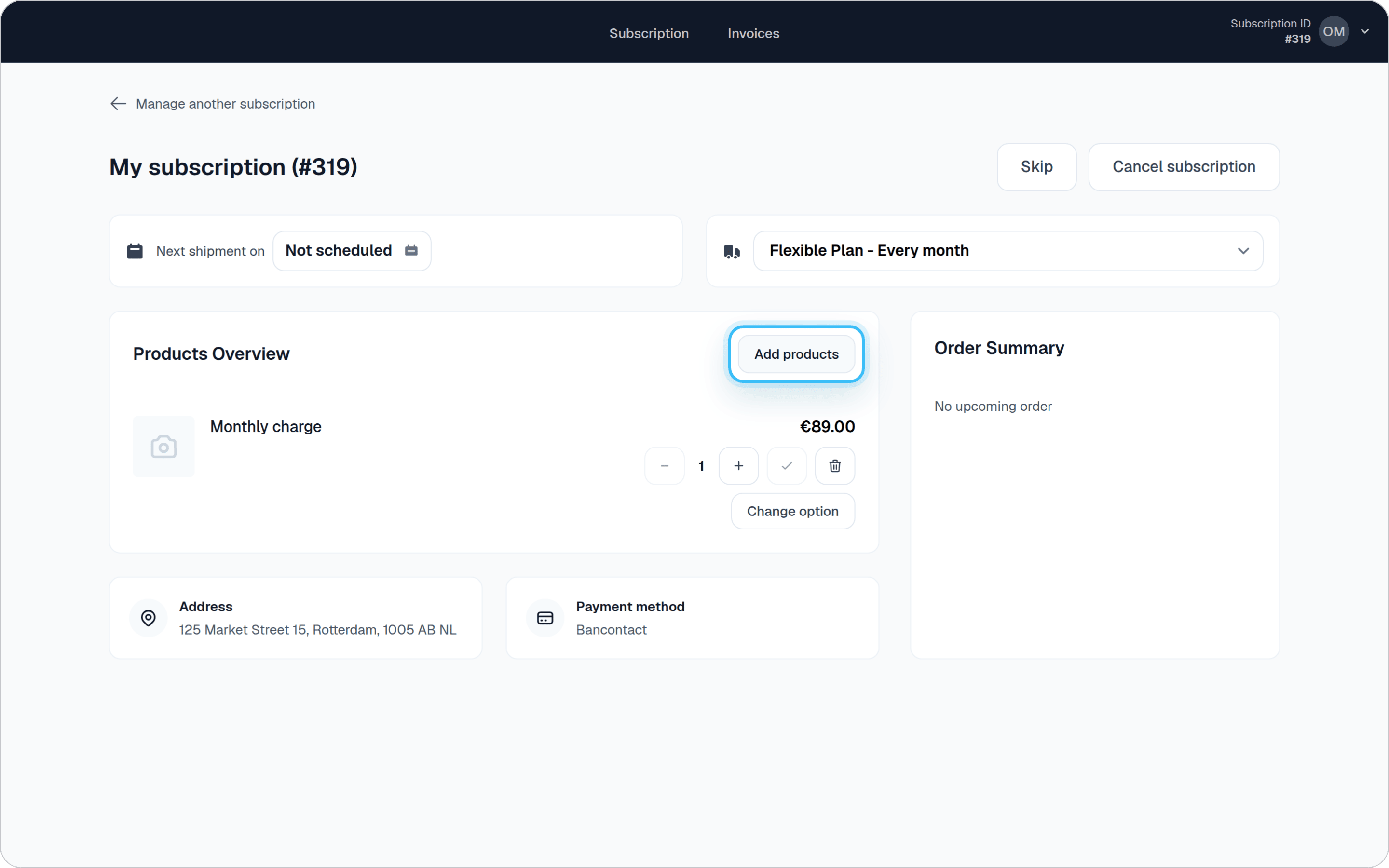
- They select one or more products and adjust quantities.
- A Review & Confirm screen shows:
- Which products will be added
- How they’ll be shipped (recurring or one-time)
- The total cost and next shipment date
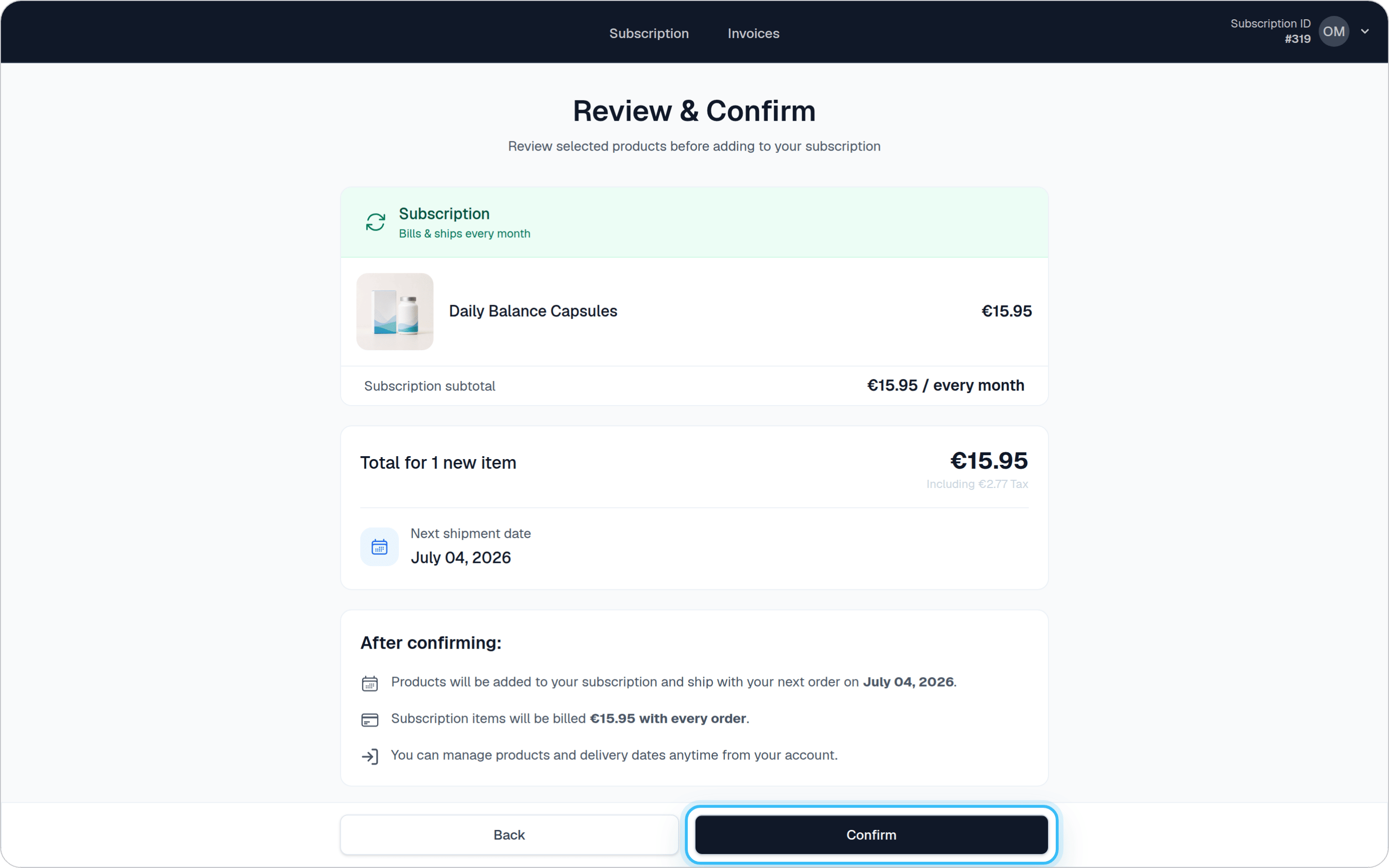
- After confirming, the products are added and the customer is returned to their dashboard.
Link to one product from Klaviyo
The Subscription activated and Order confirmed lifecycle events include an authenticatedadd_product_url. Append a product_gid to send the customer straight to one eligible product:
product_gid accepts either a Shopify variant GID (gid://shopify/ProductVariant/...) or a Firmhouse product GID (gid://firmhouse/Product/...). The customer opens a review page for that product and must confirm the addition before their subscription changes, so an email link scanner cannot add the product. The hotlink expires after one week by default.
The link is only generated when Customer Portal v2, New Add Products Flow in Self Service Center, and Allow customers to add products to their subscription are enabled. The product must also be available to that customer in the portal and compatible with their subscription. An ineligible product returns a not-found page.
Managing existing products
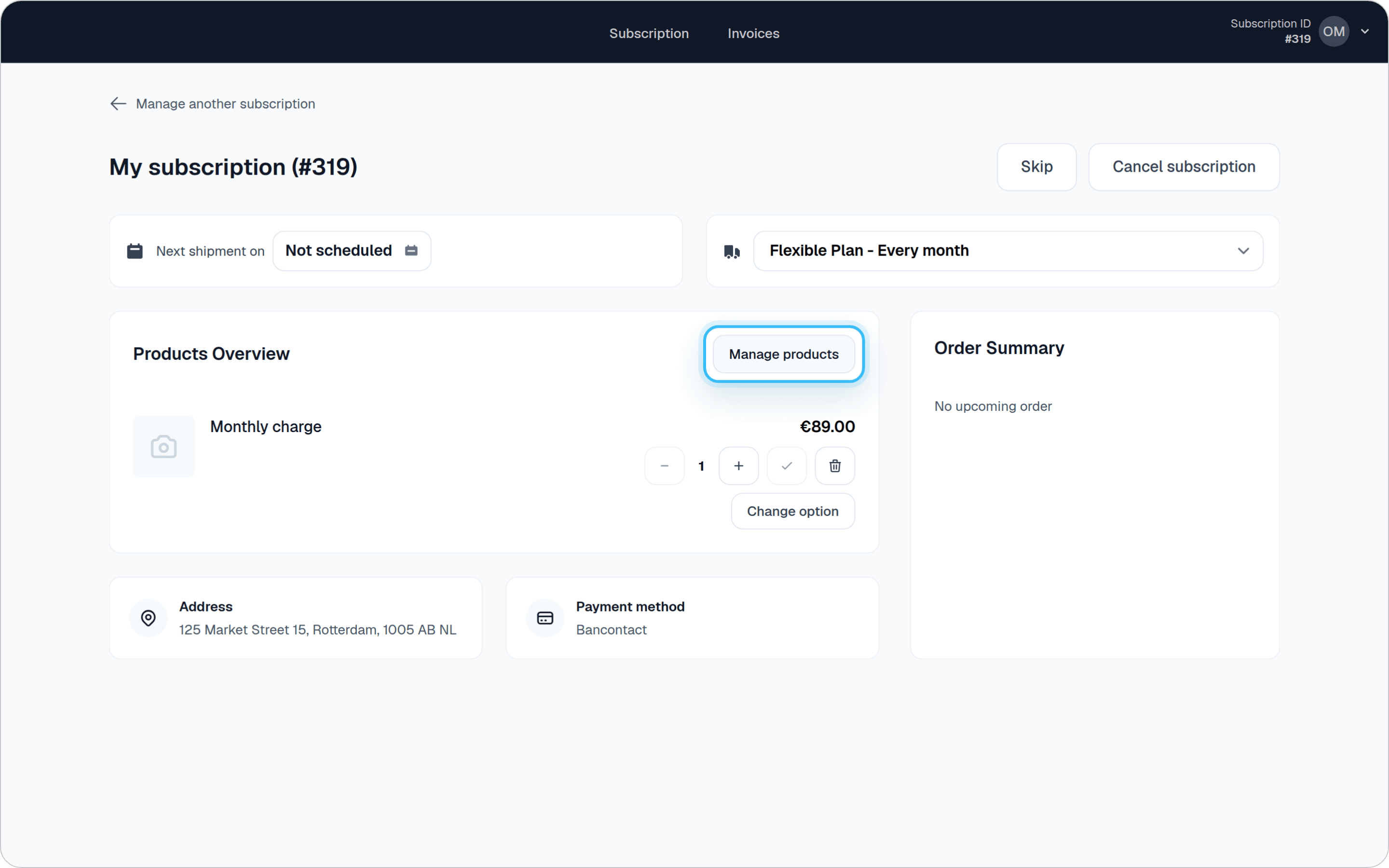
With the New Self Service Center enabled, customers with existing products on their subscription can also manage their current products using the same catalog interface. When customers click the “Manage products” button (available when they have active products), they see:- Their current products pre-selected with existing quantities
- The full product catalog to add more items
- The ability to adjust quantities or remove products
- A clear confirmation screen showing all changes
How to enable this feature
Steps
- Go to Portal > New Features
- Enable New Add Products Flow in Self Service Center toggle
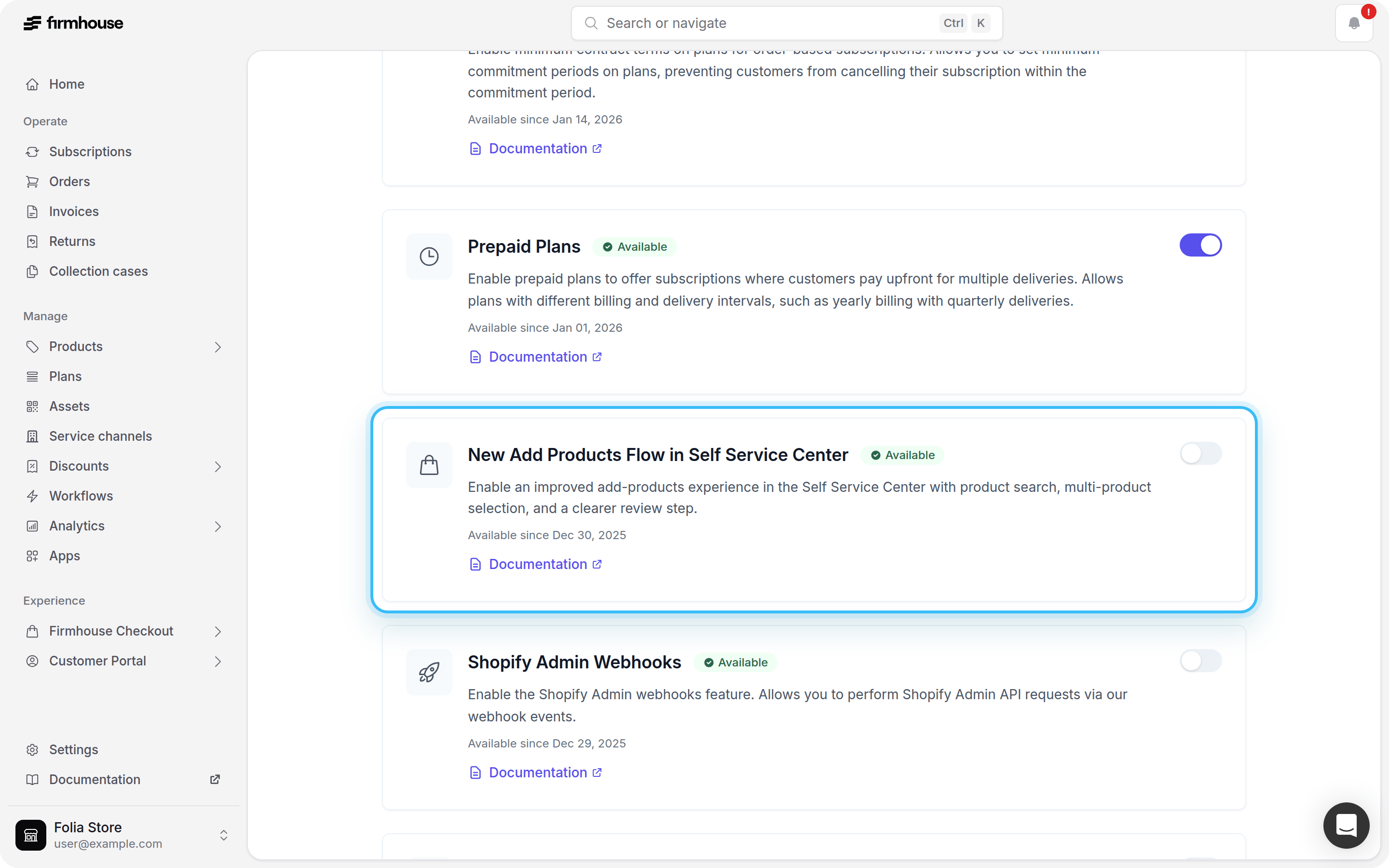
- Go to Portal > Settings > Self Service Center
- Enable Allow customers to add products to their subscription
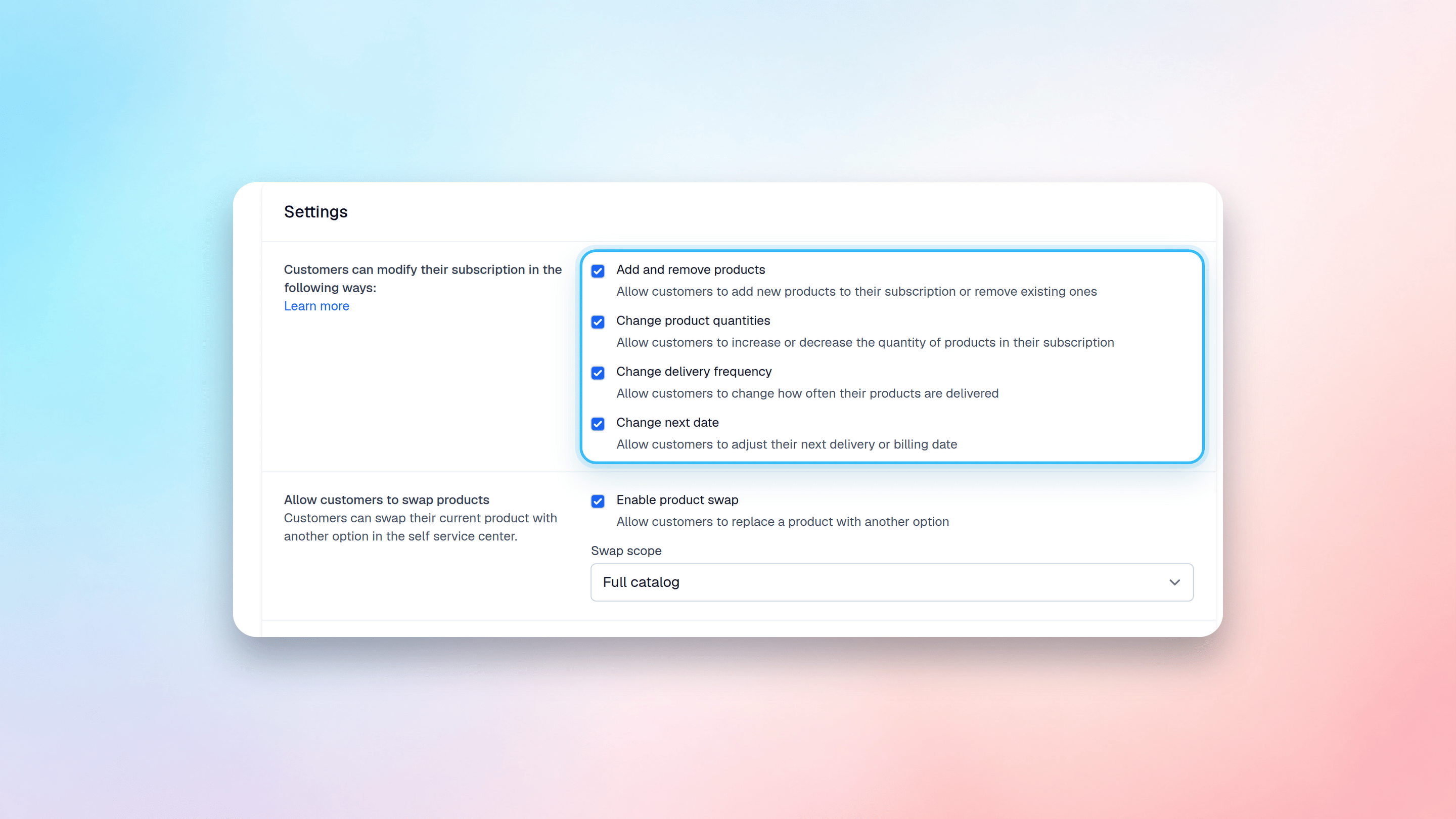
- Make sure products you want to offer are available in the SSC
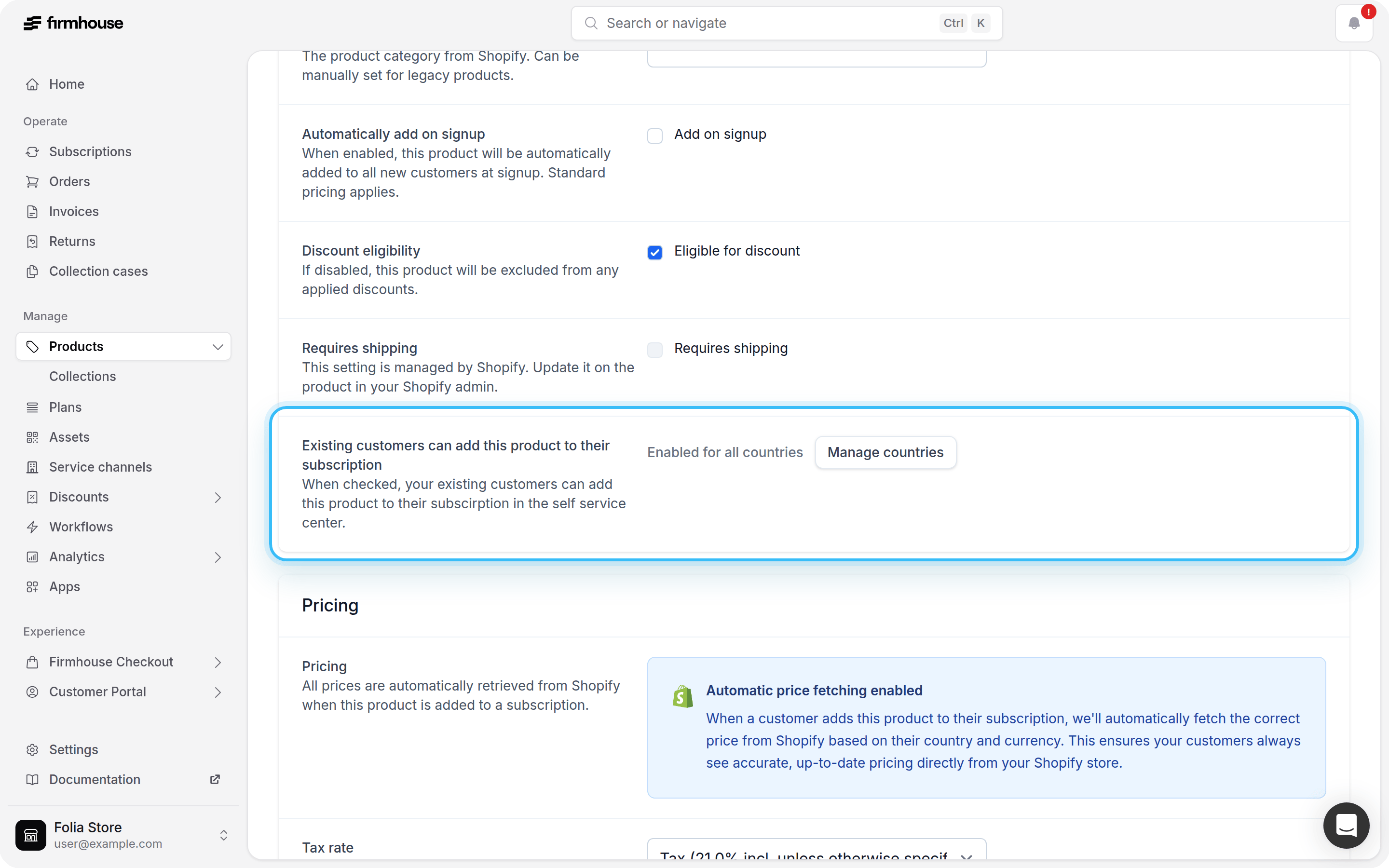
Using custom SSC code? Please review the new pages before enabling this feature. Our support team is happy to help if needed.
Why use this feature?
- Increase average order value by making it easy to add more products
- Reduce support requests by letting customers manage additions themselves
- Improve customer experience with a faster, clearer checkout-like flow
- Encourage experimentation, including one-time add-ons alongside subscriptions
Shopify Collections
Firmhouse automatically syncs Shopify product collections to keep your product organization in sync with Shopify. When collections are created or updated in Shopify, Firmhouse will:- Create collections in Firmhouse that match your Shopify collections
- Link products to their collections automatically
- Update collection names when they change in Shopify
- Remove products from collections when they’re removed in Shopify
- Delete empty collections automatically
- They are not in any synced Shopify collection
- They are only in collections where Allow ordering products from this collection is disabled
Enable in New Features
- Go to Portal > New Features
- Enable Shopify Product Collections
- Go to Products > Collections
- Enable Allow ordering products from this collection for the collections you want customers to order from
What’s coming next?
We’re continuing to improve this flow. Upcoming enhancements include:- More catalog browsing improvements