

You can test this feature worry-free! We’ve designed it so you can try it out without exposing it to all your customers. Enabling the feature doesn’t make it visible to everyone; you’ll need to confirm and save your settings at the end of the process. Take all the time you need to test!
Pre-requisites
Referral programs use regular Firmhouse discounts. You can connect percentage-based or fixed-amount discounts, depending on the incentive you want to offer. Referral discount codes only apply on first-time orders for the referee. Your customer (the referrer) gets the connected referrer discount on their next billing after a successful referral.Setting up Discounts for Referrals
With Referral programs, there are two parties: the referrer (your customer who gives out the referral code) and the referee (someone the customer knows who receives the referral code). We recommend setting up discounts for both parties, but you have the option to skip one of them.Setting up the Referrer Discount
Steps
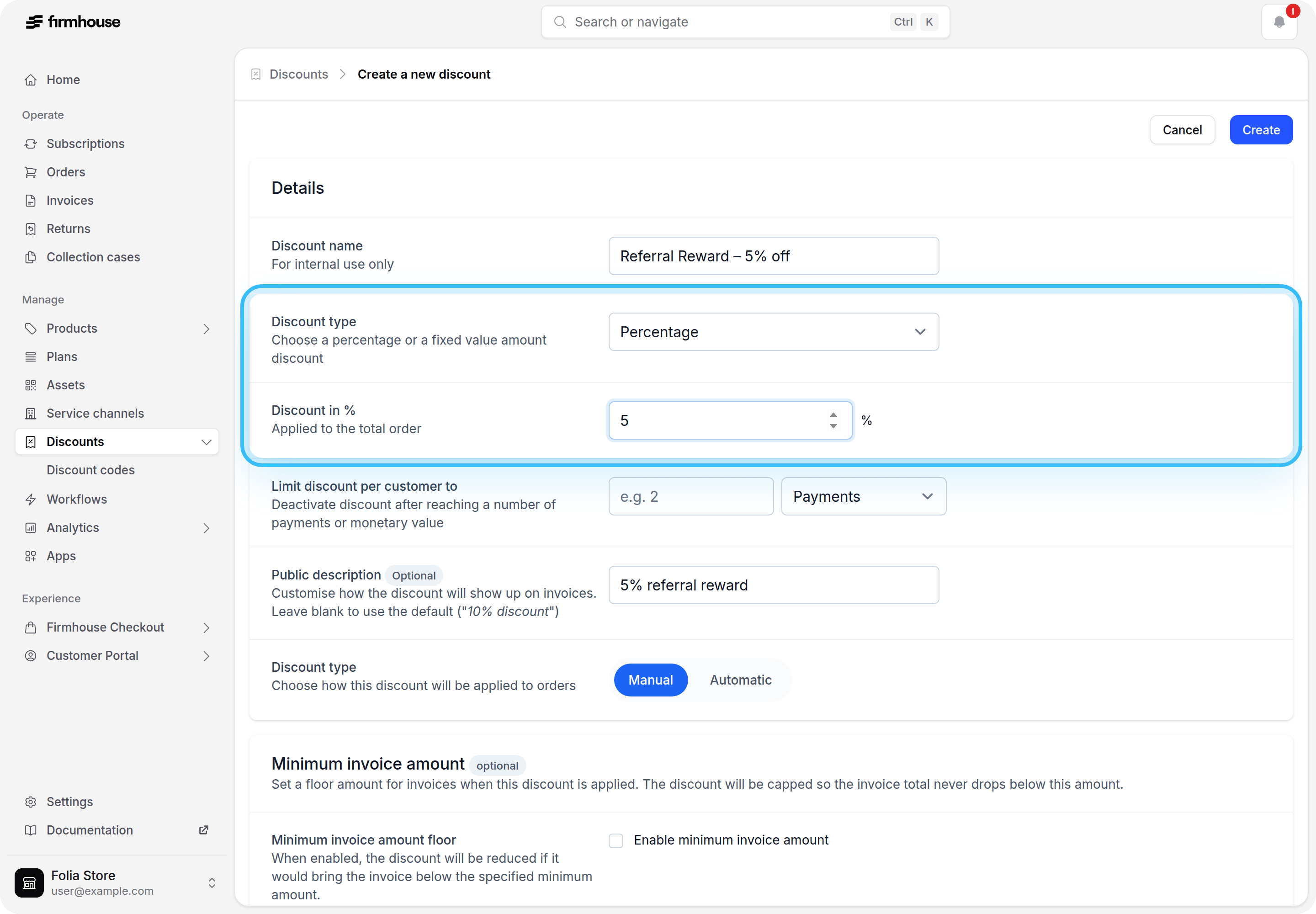
- Head over to Portal > Discounts and hit Create Discount. Give it something easily recognizable for you (like “Referral Reward”, you’ll need this later on!).
- Choose the discount type and amount that should be applied to the customer who referred another user on their next order. This can be a percentage discount or a fixed-amount discount.
- Be aware that what you fill in at “Public description” is visible on your customer’s invoice, so make it something user-friendly like “5% referral reward”.
- Leave “Automatically apply to all new customers” unchecked.
- Hit Create and the referrer discount has been created.
Setting up the Referee Discount
Steps
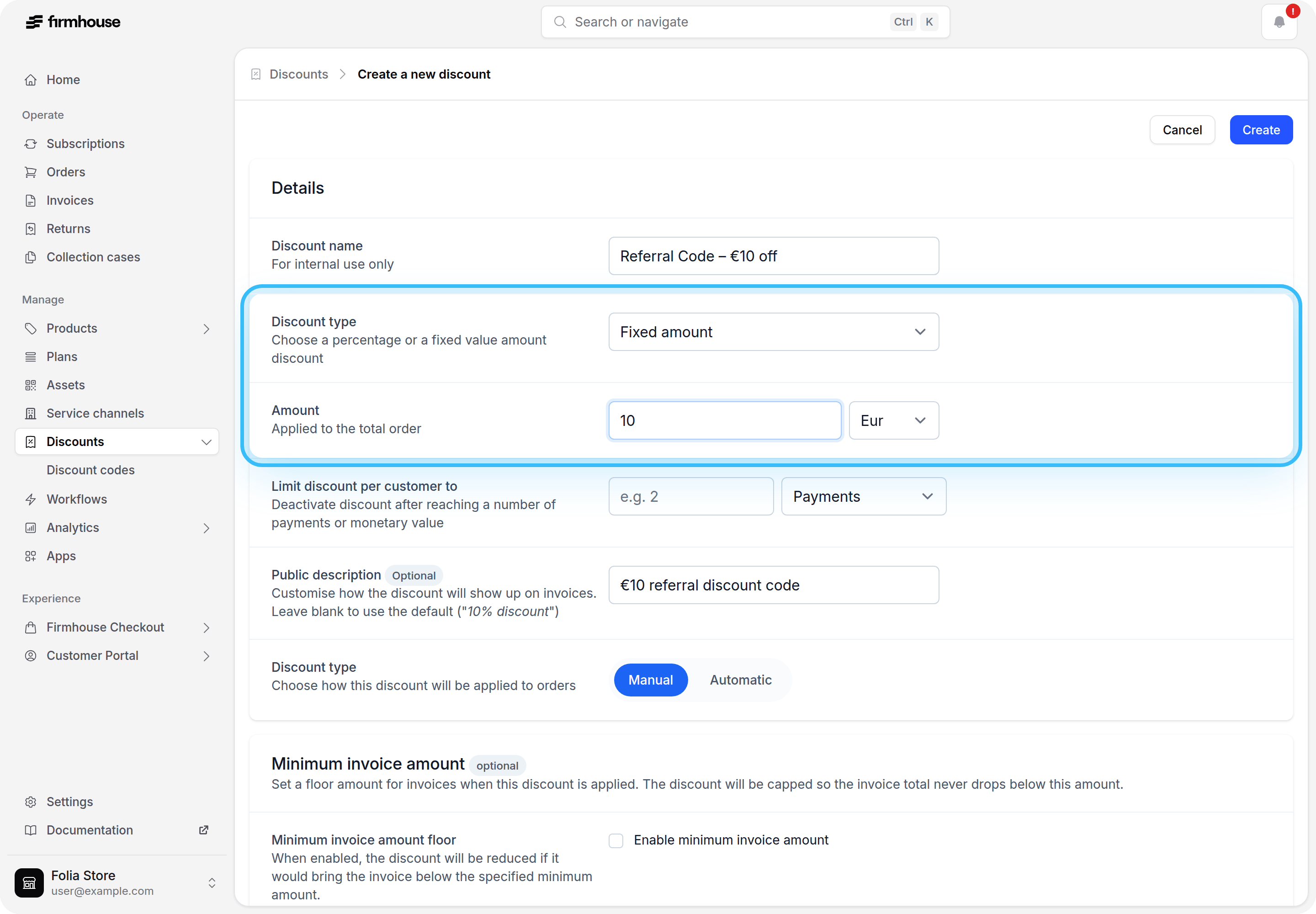
- Head over to Portal > Discounts and hit Create Discount. Give it something easily recognizable for you (like “Referral Code”, you’ll need this later on!).
- Choose the discount type and amount that should be applied to the referred customer on their first order. This can be a percentage discount or a fixed-amount discount.
- Be aware that what you fill in at “Public description” is visible on your customer’s invoice, so make it something user-friendly like “10% referral discount code”.
- Leave “Automatically apply to all new customers” unchecked.
- Hit Create and the referee discount has been created.
Enabling Referrals
Steps
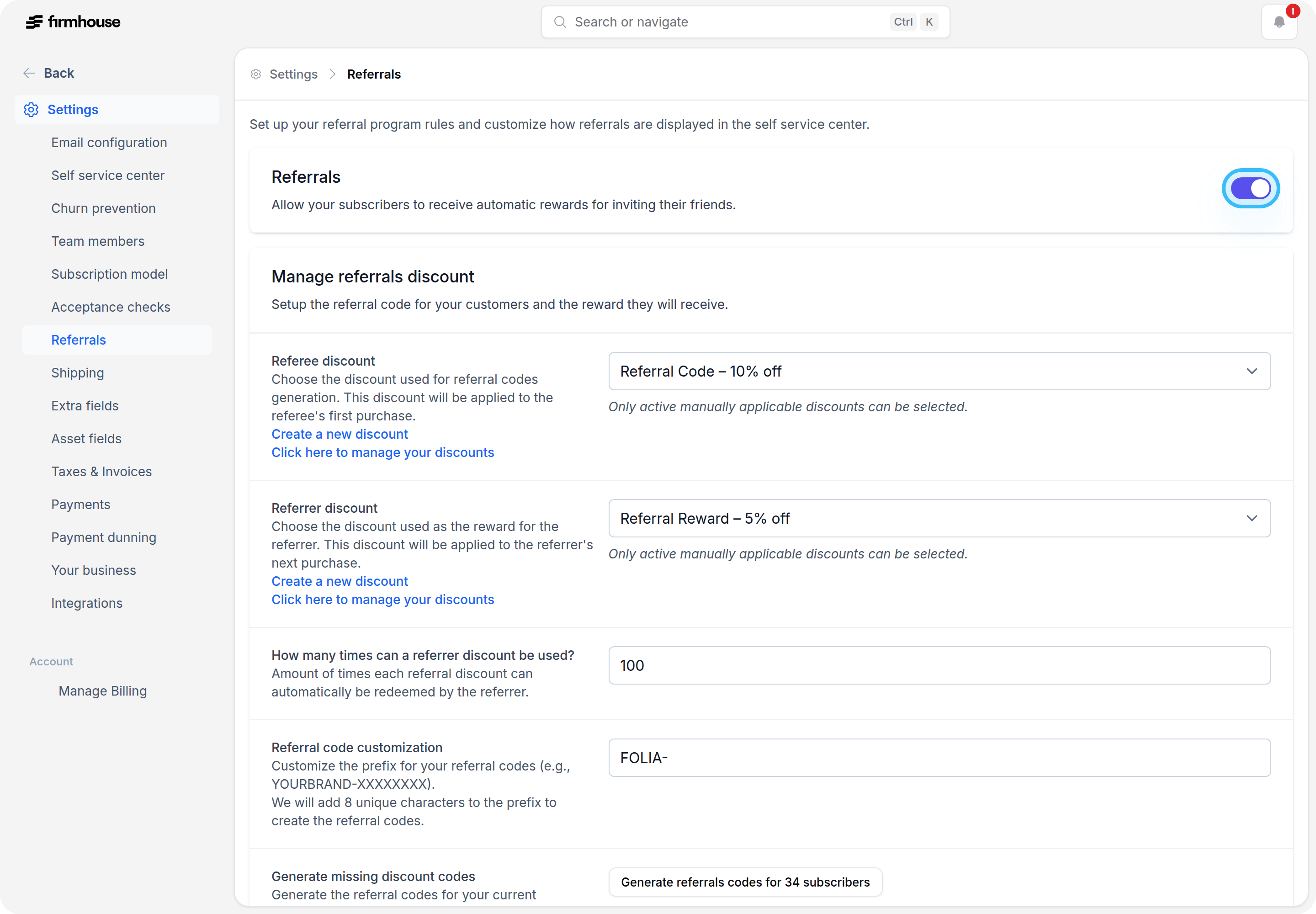
- You can find all settings for Referrals in Settings > Referrals. Enable the toggle to get started.
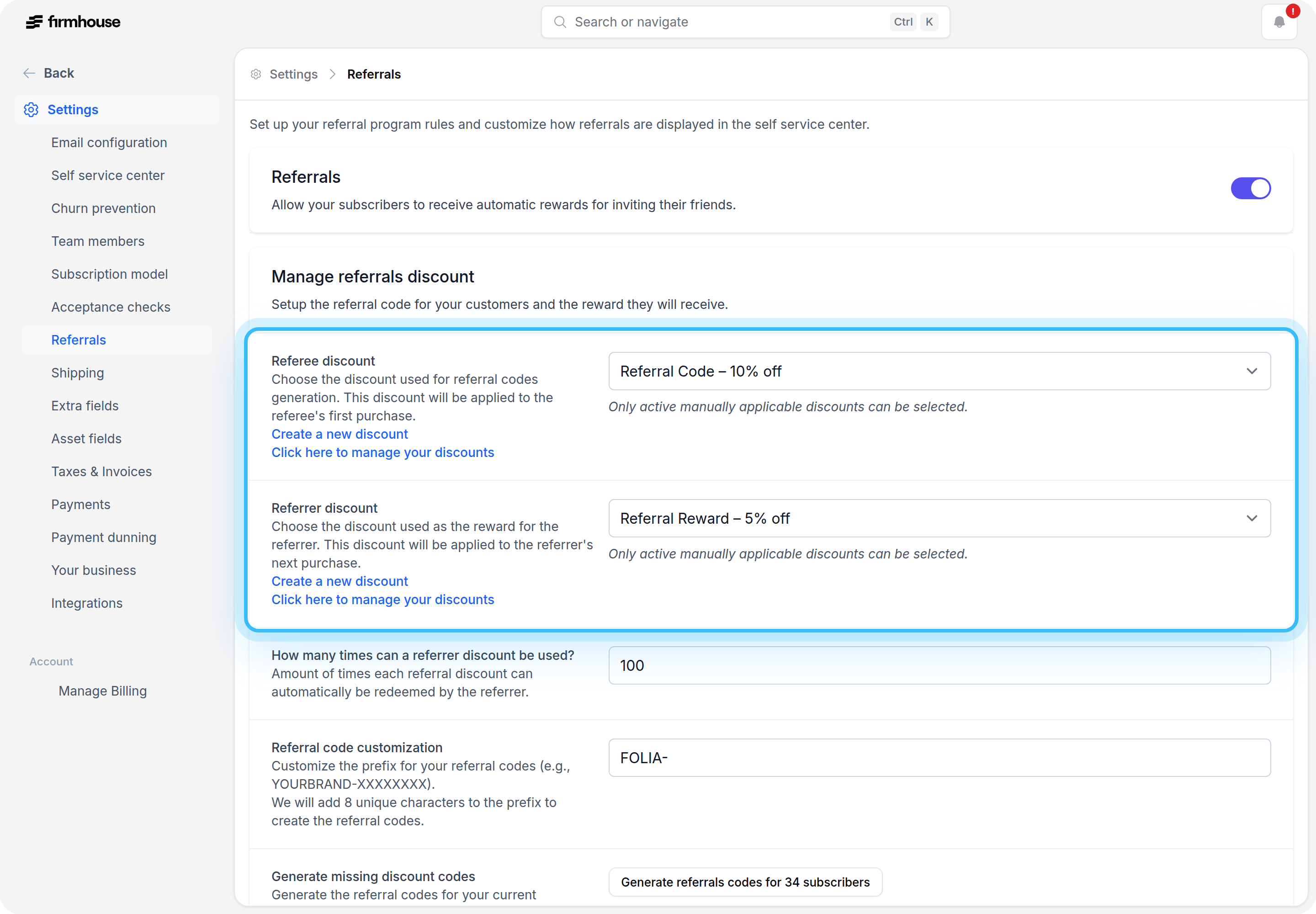
- Connect the Discounts - In this section, you can connect the discounts you created in the previous steps. You can also set a limit to how many times a referral discount can be used (in other words, how many people your subscribers can refer). There’s also an option to add a prefix to the referral codes. We recommend this to make the codes more recognizable. For now, do not press “Generate referral codes for X subscribers”.
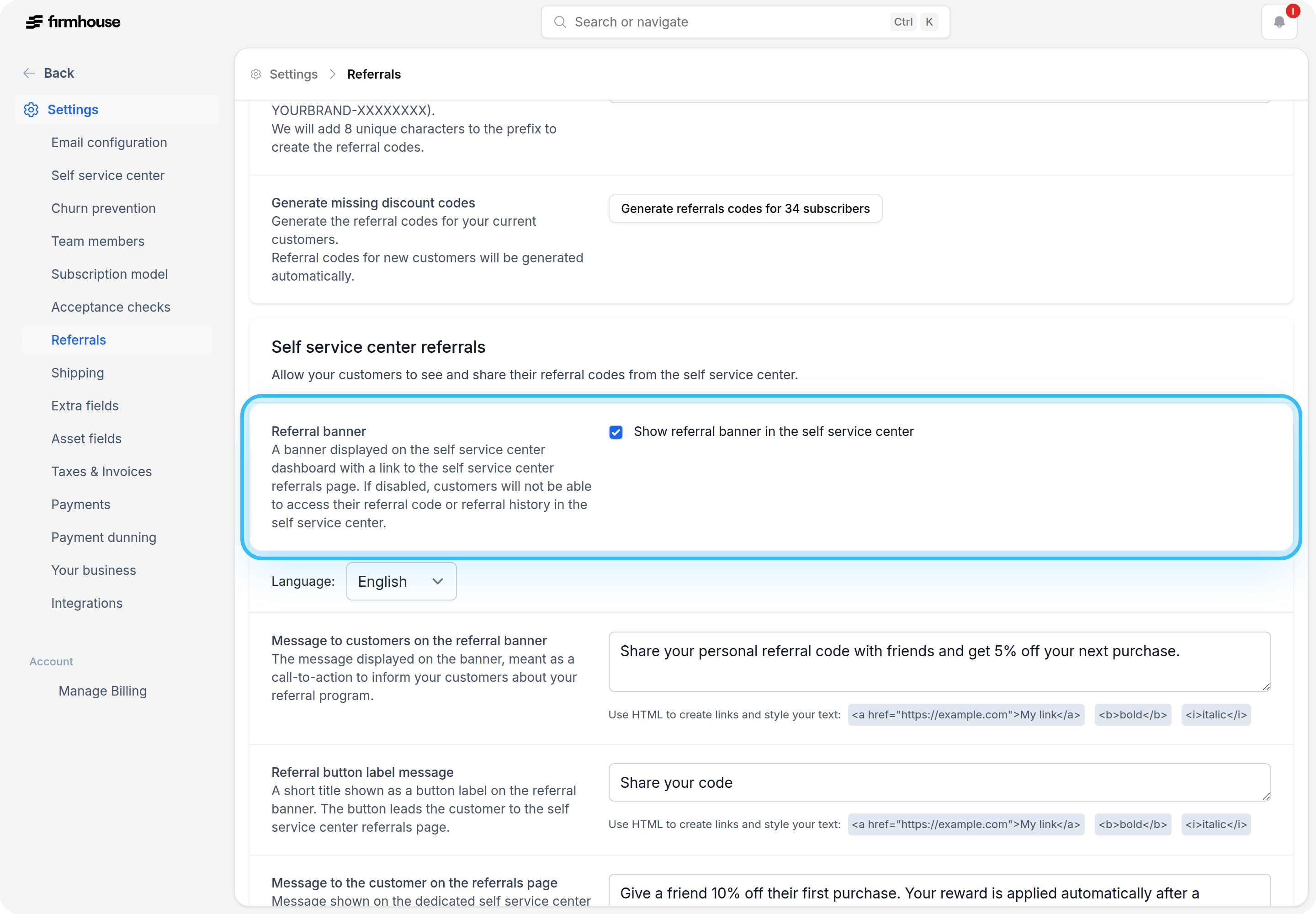
- Set up Referral Banner - This is a call-to-action banner that will show up in the Self Service Center. It will appear only if referral codes were generated for the customer. Scroll down in Settings > Referrals to enable it and to customize the text that customers will see. You can customize the banner to match your brand and style.
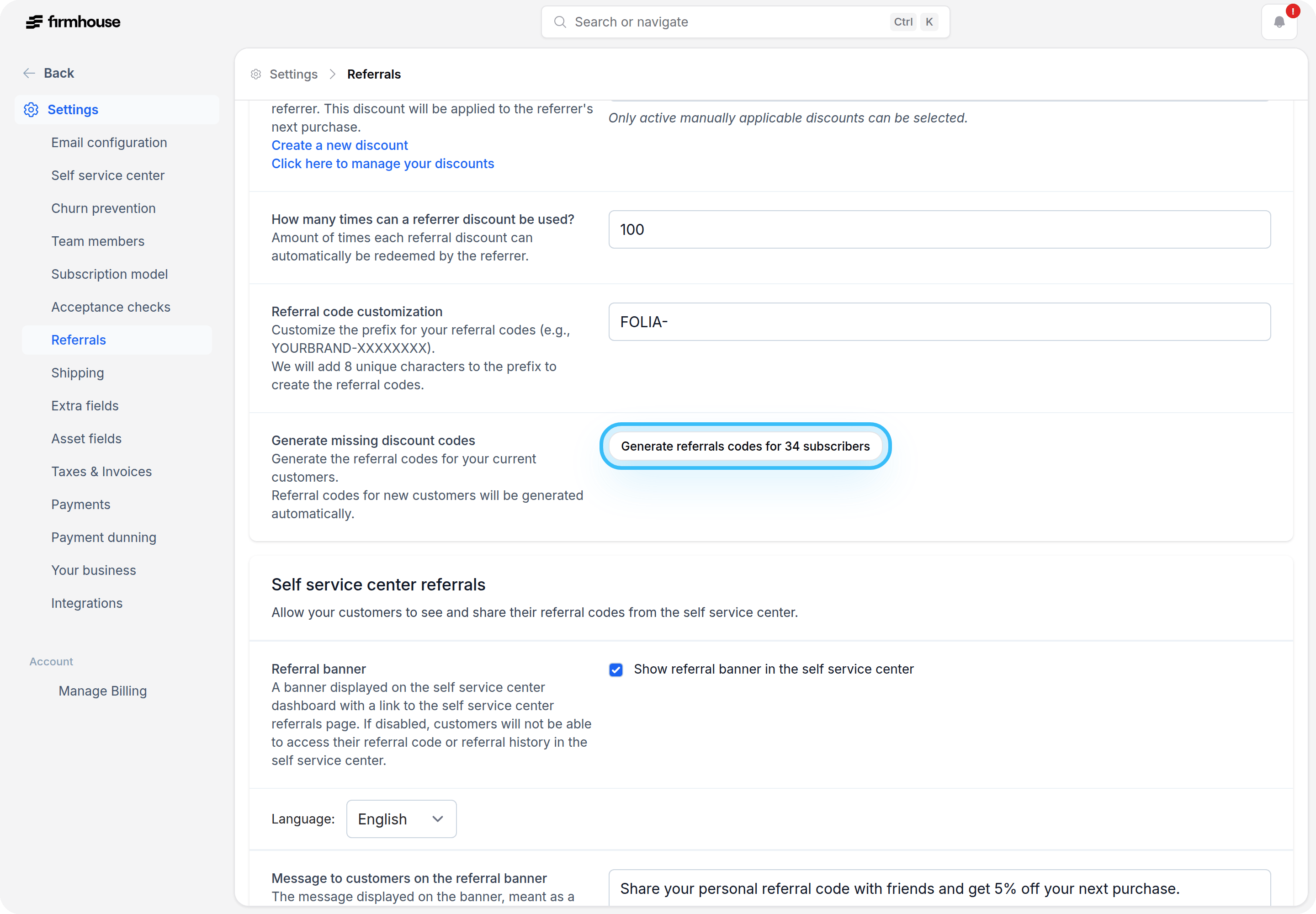
- Generate the codes - When you’re sure everything is set up and works as intended, it’s time to generate the codes.
Note: If you’re not ready to generate the codes yet, simply skip this and click Save. You can still adjust the selected discounts later. When you change the referee discount after referral codes were generated, Firmhouse can update the existing referral codes so they use the new discount.
Updating existing referral codes after changing the referee discount
When you change the referee discount in Settings > Referrals, Firmhouse shows the option to Update existing referral discount codes. Select this before saving if you want existing generated referral codes to use the newly selected referee discount. If you saved the settings without updating existing codes, go back to Settings > Referrals. When Firmhouse detects generated referral codes that still use a different referee discount, the Existing referral codes section appears. Click Update existing referral codes to start updating those codes in the background.Viewing the Referral Codes
After you save the Referral settings and click on the Generate button, the codes are generated in the background. If you have many customers, that may take a while. After a few minutes, you will see the codes in Portal > Discount Codes.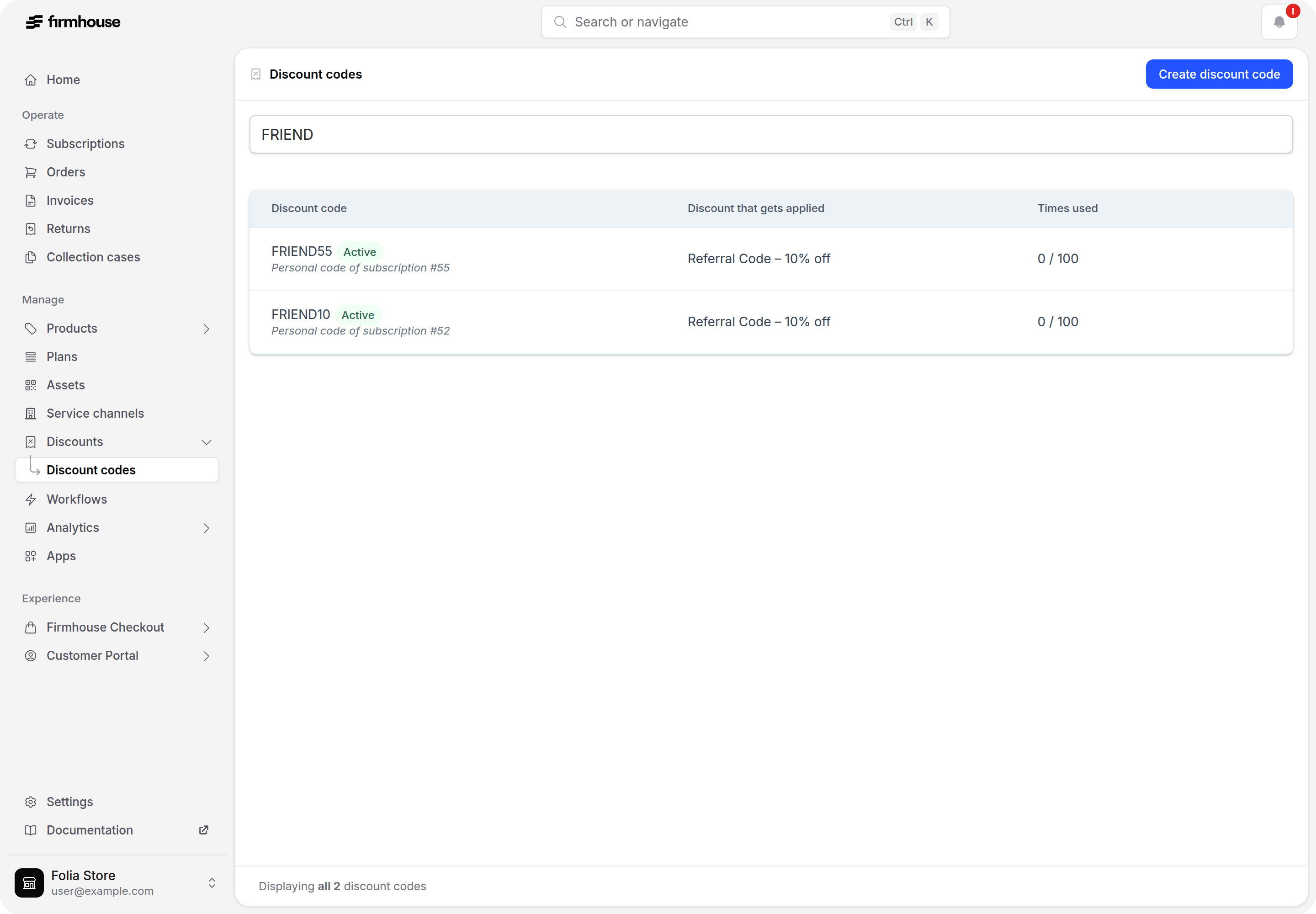
Running a temporary referral promotion
If you want to temporarily increase or change the referral reward, create a new discount for the promotion period and connect it in Settings > Referrals when the campaign starts. Do not edit an existing referral discount that is already in use. For example, if you normally reward referrers with 15% and want to run a one-month 30% campaign:- Create a new 30% referrer discount.
- Connect the new discount in Settings > Referrals when the campaign starts.
- Switch the referral settings back to the regular 15% discount when the campaign ends.