Creating a new tax rate
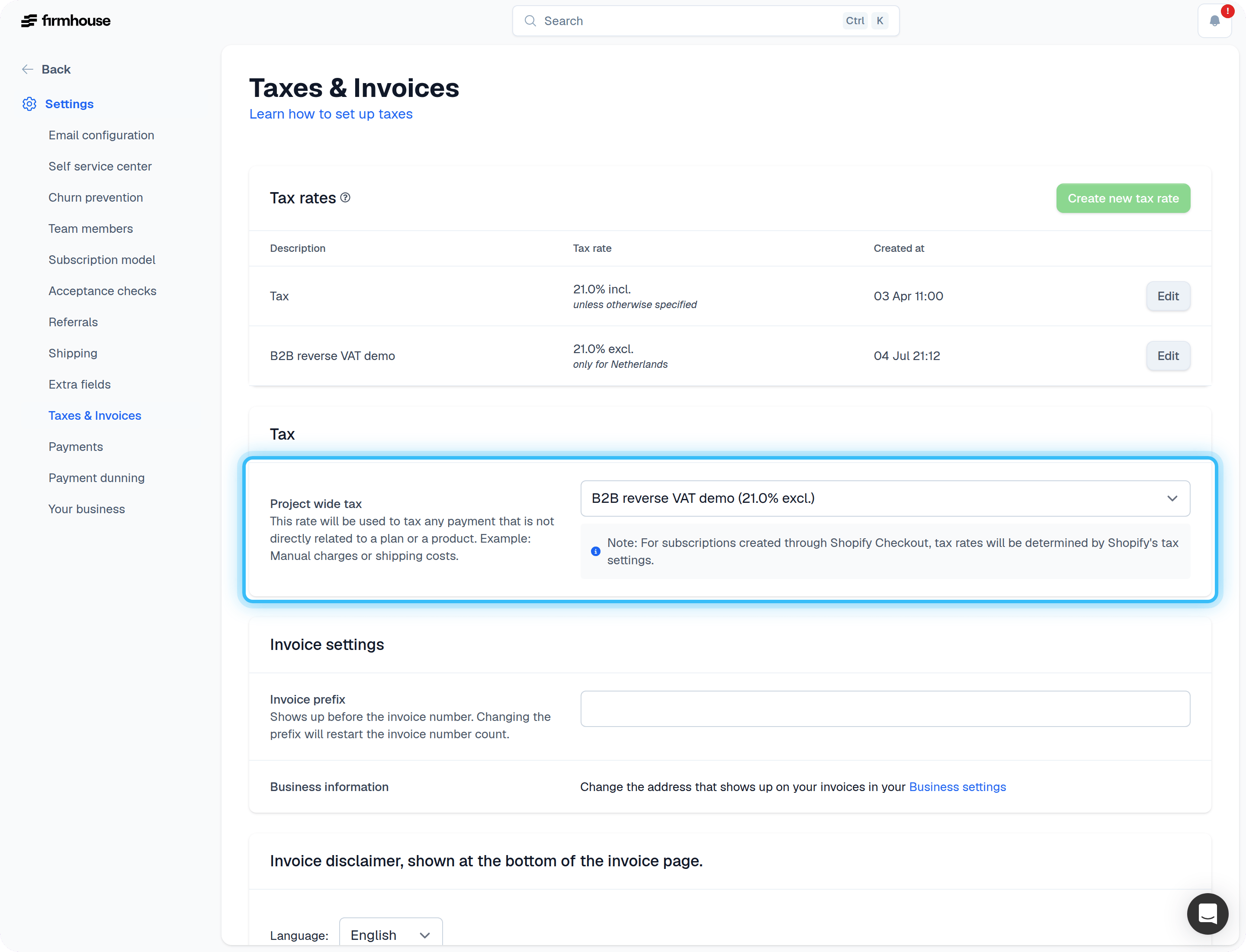
You will find your tax rates in Settings > Taxes & Invoices from the sidebar. This is where you can create new tax rates or edit existing ones.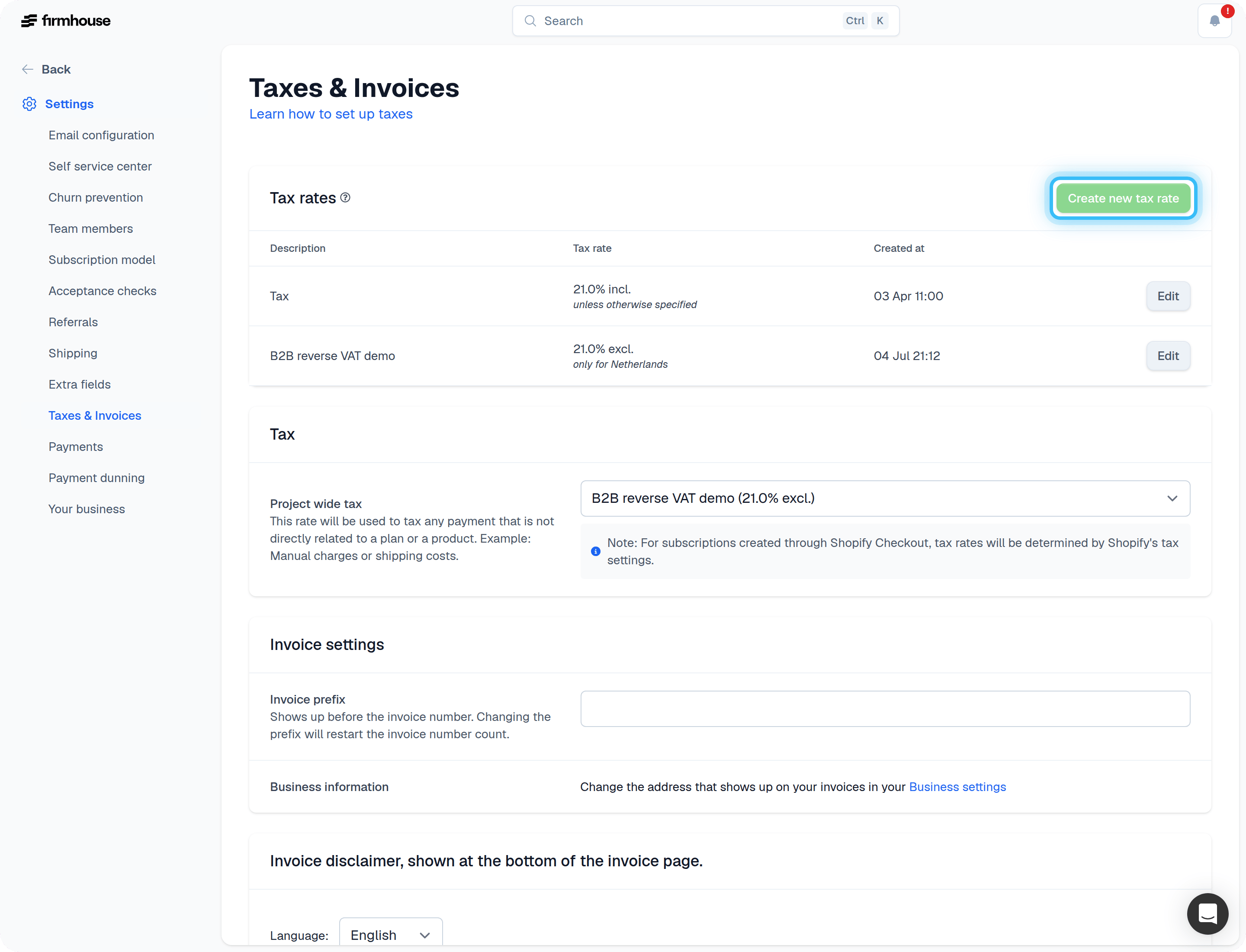
Tax types: Static, Dynamic, Exempt
When creating a new tax rate you have three options to choose from: Static: Allows you to set a fixed tax rate. This rate is always the same every time it is applied and will not change depending on the customer’s location or shipping country. Dynamic: Calculates tax based on the customer’s country. This allows you to specify different tax percentages for different countries, with a default rate for countries not explicitly configured. Exempt: No tax will be added. Use this instead of creating a 0% tax record when no tax needs to be calculated.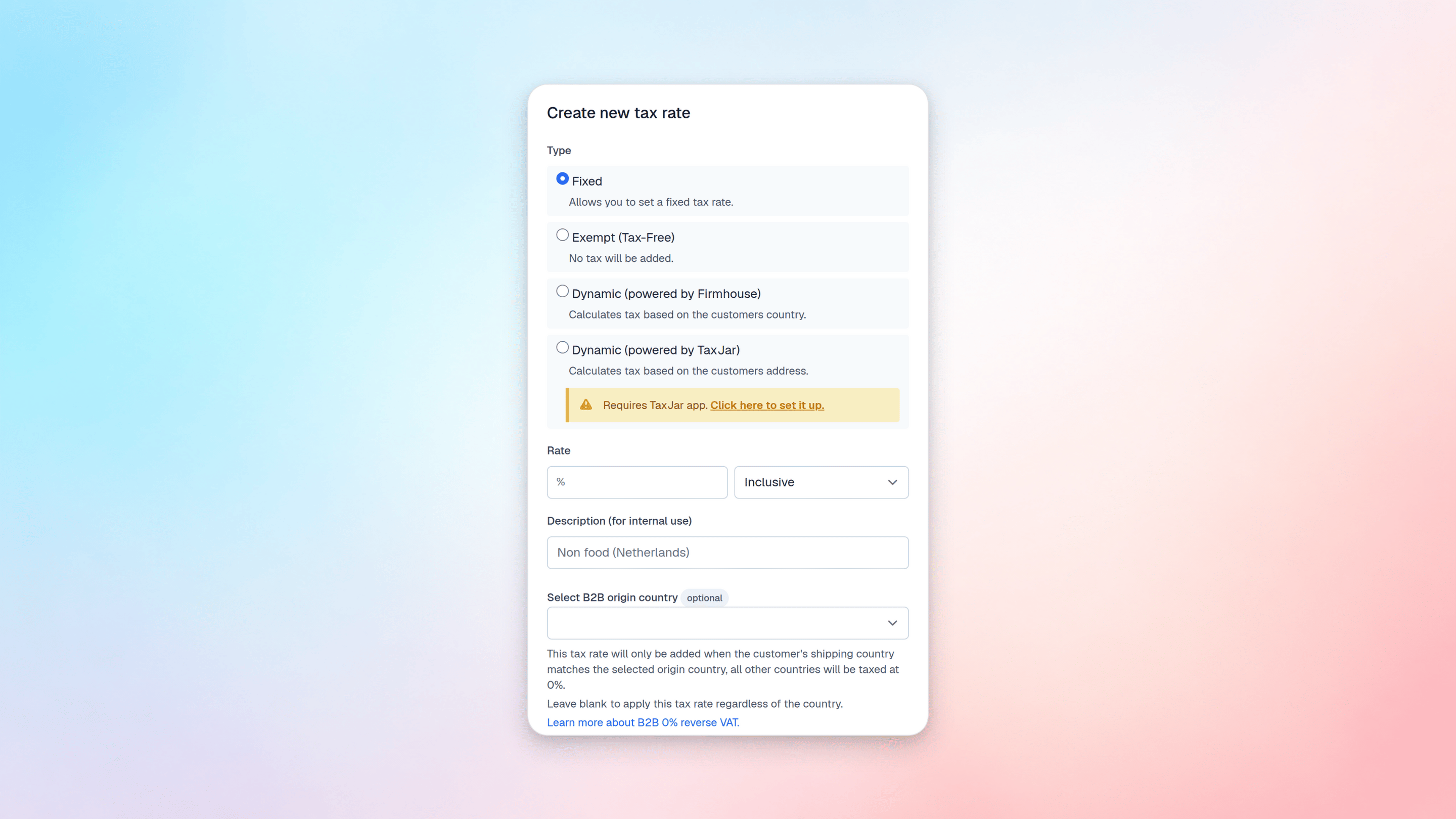
Treat price as inclusive or exclusive tax
A tax rate can be set to be treated as inclusive or exclusive. This setting can be used to treat the price you configure on your products, plans, or invoices as being exclusive or inclusive of tax already. Inclusive is typically chosen for selling to consumers: The price that the customer pays never changes, regardless of which tax rate is applied. Exclusive is typically used to sell to businesses. Or in countries where it’s common to list prices before sales tax is applied. The following example illustrates how the pricing differs, depending on whether the tax rate is set to be inclusive or exclusive of tax: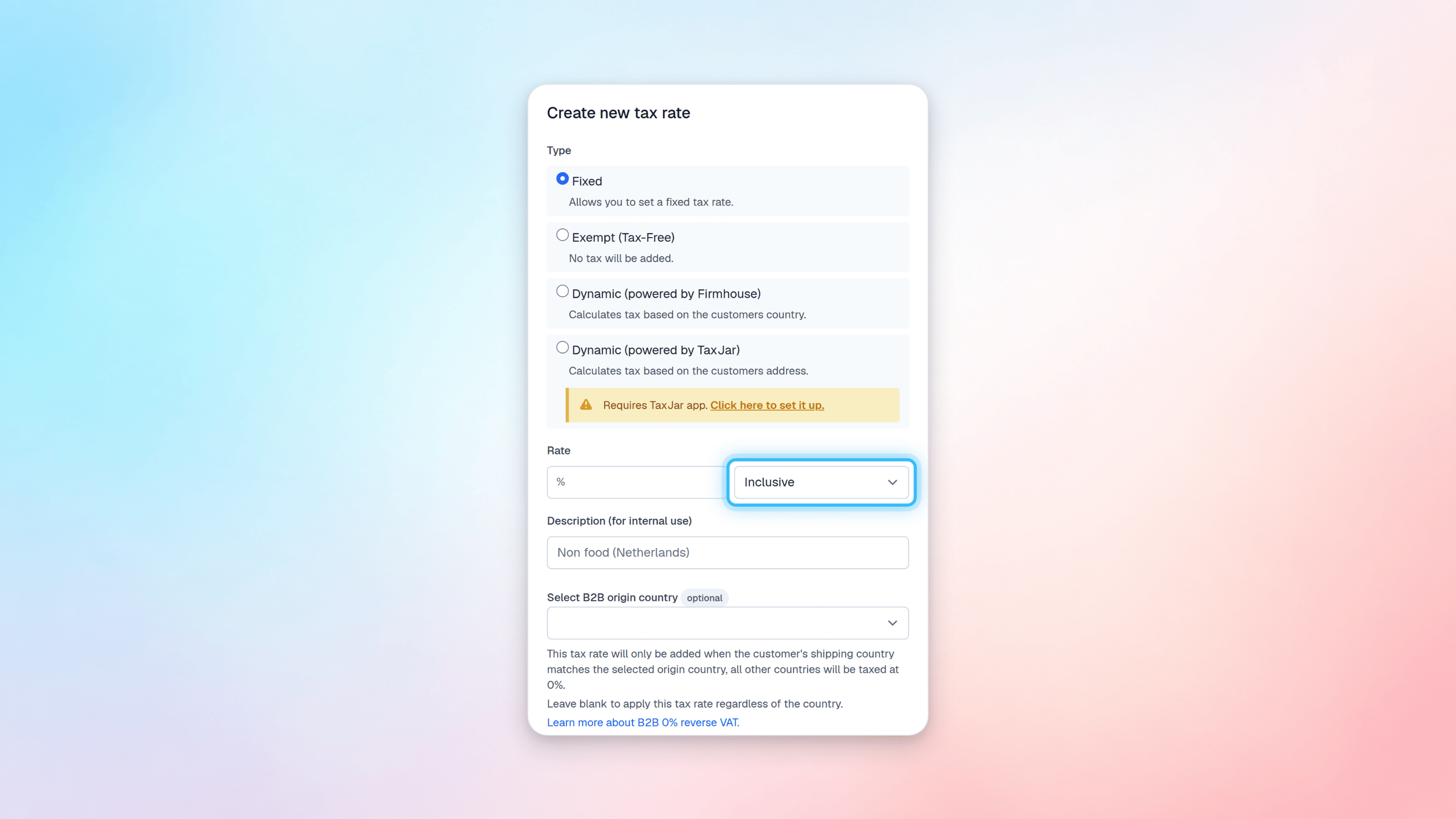
Configure the tax rates for plans and products
After creating a tax rate you can now configure them to be used for products and plans.Steps
- Go to your plans or products overview.
- Open the contextual menu.
- Choose edit on your plan or product.
- Scroll down to the Tax configuration under the Pricing section.
- Choose the appropriate tax rate from the dropdown.
- Save the Plan or Product.
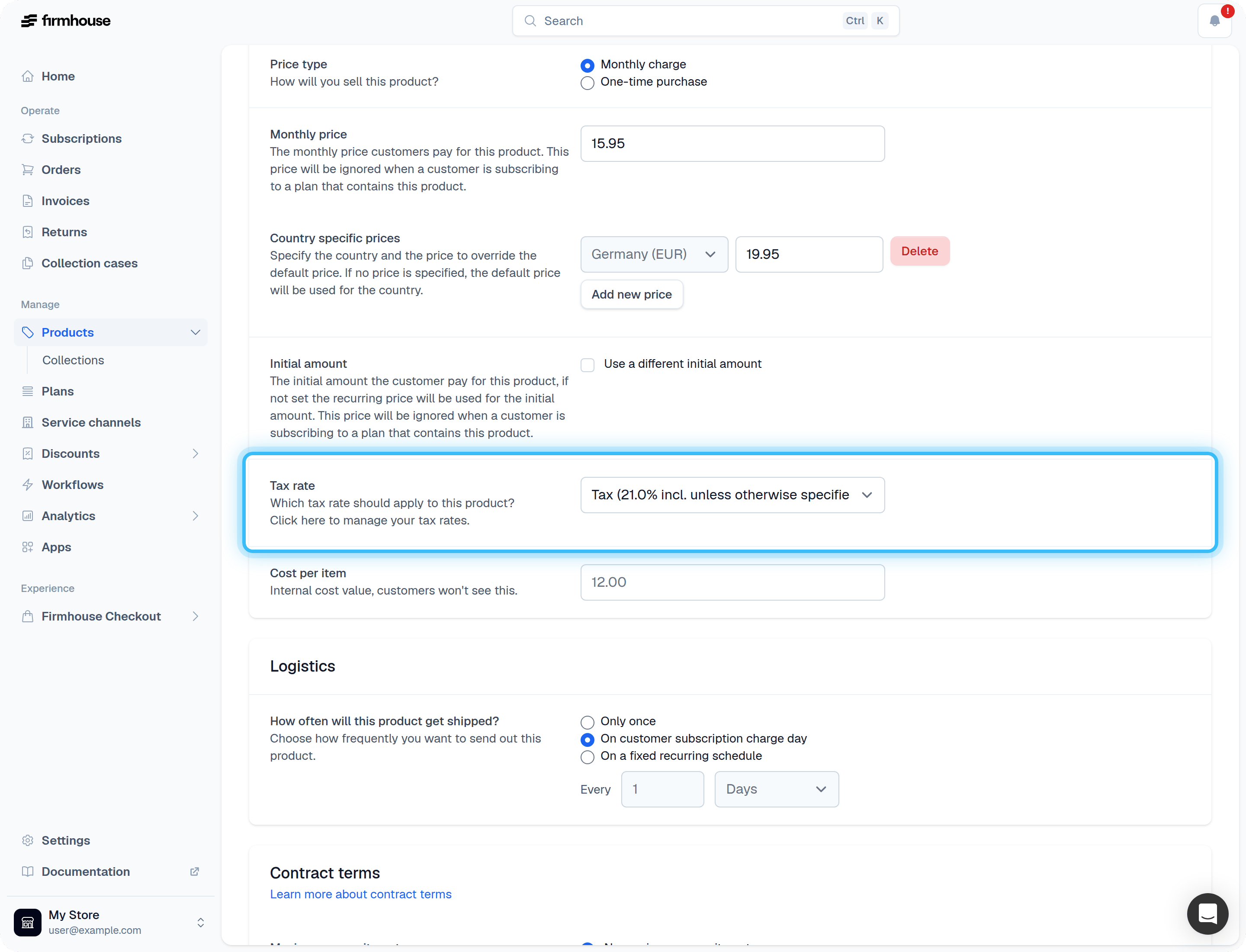
Setting a default tax rate for manual payments/invoices
You now know how to set tax rates for products/plans. But there will be payments unrelated to those, such as manual payments/invoices. These types of payments rely on the project-wide tax rate. Go to Settings > Tax & Invoices and scroll down to “Tax”. There you will find the setting to define which tax rate should apply to any other payments.