

Get in touch with our support if you’re interested in using Intrum’s services for your invoices.This article provides a brief overview of what the current Intrum integration supports and a few caveats with regards to data synchronisation and invoice statuses.
Connecting with Intrum via the app
After our support team has activated the Intrum app in your Firmhouse project you can configure and enable the integration.Steps
- In your Firmhouse project go to Apps in the main navigation.
- Find the Intrum app and click Configure.
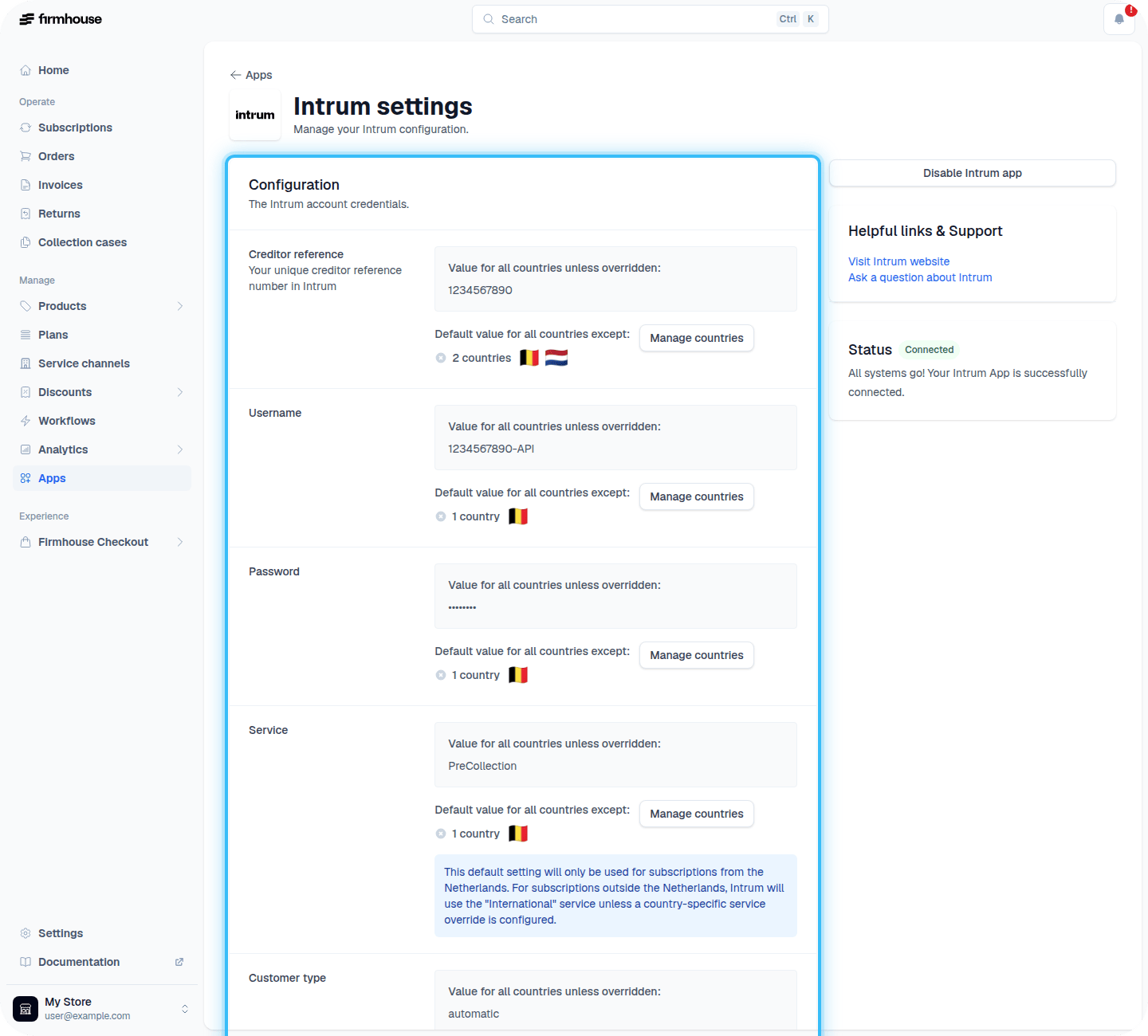
- In the Intrum app configuration, enter Creditor reference, Username, Password, Service, and Customer type. Creditor reference, Username, and Password are provided to you by Intrum or Firmhouse. For Service you need to choose the right service type:
- PreCollection means that Intrum will send the required legal reminders first before starting a collection case.
- Collection will immediately start a debt collection case by Intrum, assuming you yourself have sent out any required legal reminders to the customer yourself or via the Firmhouse email reminder flows.
- Choose International or Surveillance if you were instructed by Intrum to do so.
- Choose the setting from Customer type. This setting defines what kind of debt collection flow you want to run and if it is targeted at business customers or consumers. The legal requirements between business and consumers might differ. You can choose the option to Automatically recognize as well. Then Firmhouse will look if the Business Name and Customer Type = Business on the customer in Firmhouse.
- Click Save to apply the changes and enable the Intrum integration.
Enable due dates
The Intrum integration can only be used when Firmhouse is configured to set payment terms and due dates on invoices. You can configure and set payment terms via the following steps.Steps
- In your Firmhouse project, go to Settings > Payment dunning from the main menu.
- In the Invoice payment terms and reminders section enable and set the Due date and payment terms. Common payment terms are 14 days or 30 days.
- Click Save changes.
Enable automatic invoice sending in New Features
Automatic invoice sending is available after the Intrum app has been activated for your project.- In your Firmhouse project, open New Features.
- Enable Automatic Intrum Invoice Push.
- Go to Apps, find the Intrum app, and click Configure.
Configure automatic invoice sending
In the Automatic invoice push to Intrum section, enable Enable automatic invoice push and configure which invoices Firmhouse may send:- Send on weekdays controls which days the automatic job runs.
- Days overdue sets the minimum number of days an invoice must be overdue. This condition always applies.
- Minimum overdue invoices sets how many eligible invoices a subscription must have before Firmhouse starts a collection case. Set this to
0to disable the threshold. - Require completed reminders waits until all invoice reminders configured in Settings > Payment dunning were successfully sent. The most recent successful reminder must also be at least five days old.
- Filter by countries limits automatic sending to subscriptions in the selected countries.
- Invoice created after excludes older invoices from automatic sending.
- Push all overdue invoices includes other overdue invoices for the same subscription when at least one invoice meets the eligibility criteria.
Require successfully sent reminders
Enable Require completed reminders when Firmhouse must send your configured invoice reminders before an invoice is sent to Intrum. This option works together with Days overdue: an invoice must satisfy both conditions. Only successfully sent Firmhouse invoice reminder emails count. A skipped email does not count, and neither does a reminder handled only through a webhook. When Push all overdue invoices is enabled, every additional invoice must pass the same reminder check. Before enabling this option, configure and enable automatic invoice reminders under Settings > Payment dunning. If automatic invoice reminders are not enabled, this option does not add a reminder restriction.Older invoices may not have the delivery history required by this check. Use Invoice created after to choose a safe starting date for automatic collection, and review older invoices manually.
Using a custom Extra Field for phone number
Firmhouse offers a standard field as part of Checkout and the Customer data model that contains the phone number. The phone number in Firmhouse needs to conform to the international phone number format. However, due to historic reasons your (imported) data set might be different which prevents you from migrating the phone numbers from your database into the international phone number format. If so, you can import the phone number data into an Extra Field and set its Purpose to Phone number. This way when sending a collection case to Intrum we will use the custom Extra Field for the debtor’s phone number in case the primary standard Firmhouse field is empty.Sending invoices to Intrum
When an invoice stays unpaid and all configured reminders have been sent from Firmhouse, you can send an invoice for debt collection at Intrum. For older invoices without a complete reminder-delivery history, Send to Intrum becomes available after the expected reminder schedule has passed, followed by a five-day waiting period. If Firmhouse processed a reminder more recently, the five days start from that reminder instead.Steps
- In Firmhouse, find an invoice by going to the Invoices overview from the main sidebar, or by navigating to a Customer detail page and finding their Invoices.
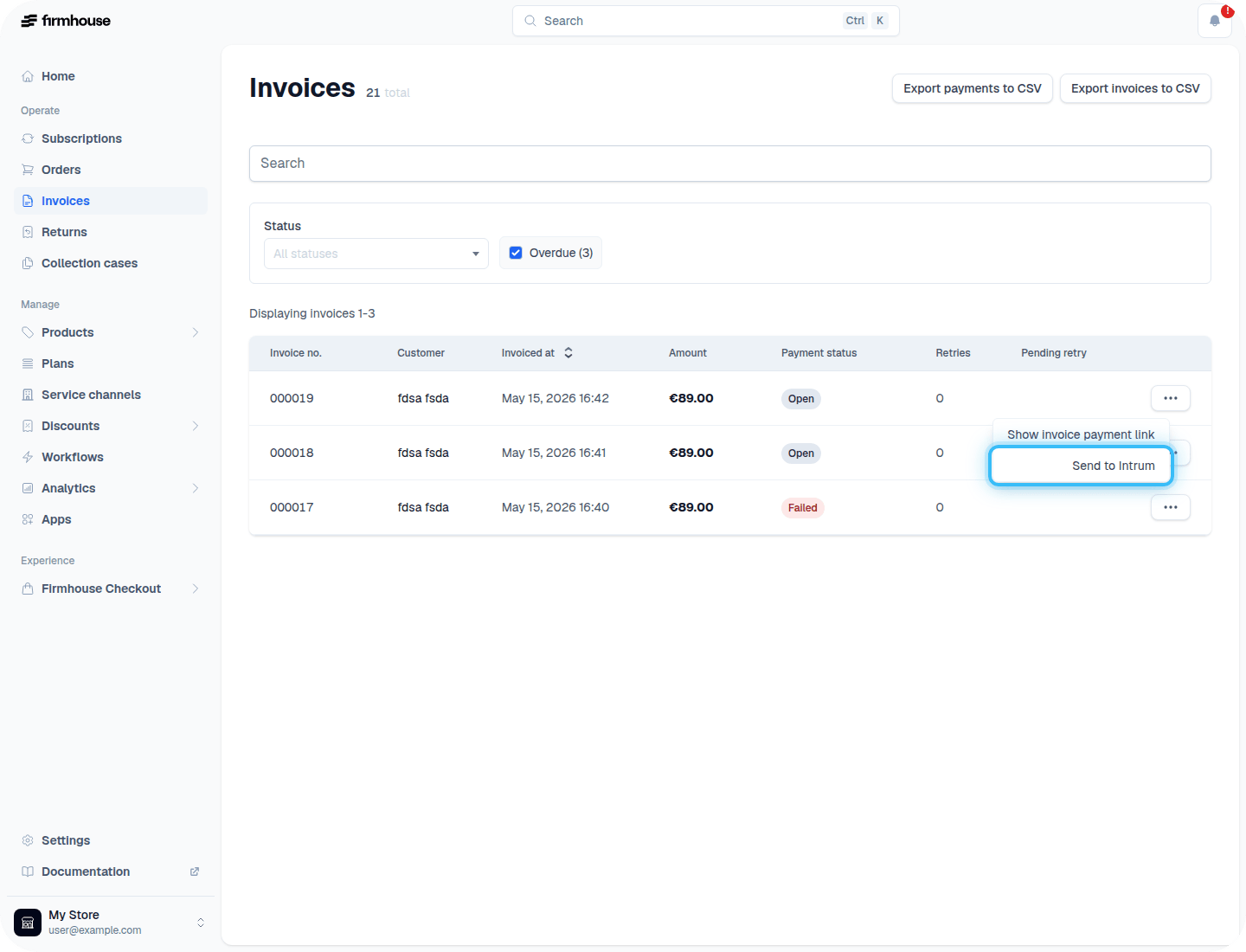
- On an invoice row, open the contextual menu […] and click Send to Intrum.
- You’ll get a confirmation dialog with details of the invoice. Check the details and click Send invoice to confirm and have the invoice sent to Intrum.
Accessing collection cases
After enabling the Intrum app a new Collection Cases menu item will appear in your Firmhouse project main navigation. From here you can view all open and closed collection cases. Firmhouse will only show the collection cases that have been initiated from Firmhouse. Click on a case to see the details and invoices, such as payment information and case status.Intrum may also provide reports and dashboards themselves for your business. Cases created outside of Firmhouse via Intrum directly will not show up in Firmhouse.