Price Changes for Shopify Checkout
For subscriptions created via Shopify Checkout, the price gets “locked” to the price that was active at the time of checkout. This means that when you update a product’s price, existing Shopify Checkout subscribers will continue to pay their original price. This locked price behavior ensures that customers who subscribed through Shopify Checkout maintain their original pricing terms, regardless of any subsequent price changes you make to the product.Batch Price Updates for Shopify Checkout Subscriptions
If you want to keep existing Shopify Checkout subscribers on their current prices, use Subscription Products to lock those prices in Firmhouse.- Go to Subscription Products.
- Select the products whose existing subscription prices should be locked.
- Use the batch action to lock the current prices for existing subscriptions.
effective_price_cents field selected.
Price Changes for Firmhouse Checkout
For subscriptions created via Firmhouse Checkout, product price changes affect all subscribers by default. Each subscription gets the new price when the product price changes. By default, Firmhouse takes the price of the underlying product for the billing cycle.Example
When a subscriber signs up for a monthly product at €25 on June 1st, their charge will be €25 on July 1st, August 1st, etc. This example excludes any discounts for clarity. As a merchant, you update the price to €28 on August 24th. Each signup and recurring billing charge from that day on will pay €28. So our subscriber paid €25 on August 1st and will pay €28 on September 1st, reflecting the updated price.Override the Product Price Per Subscription
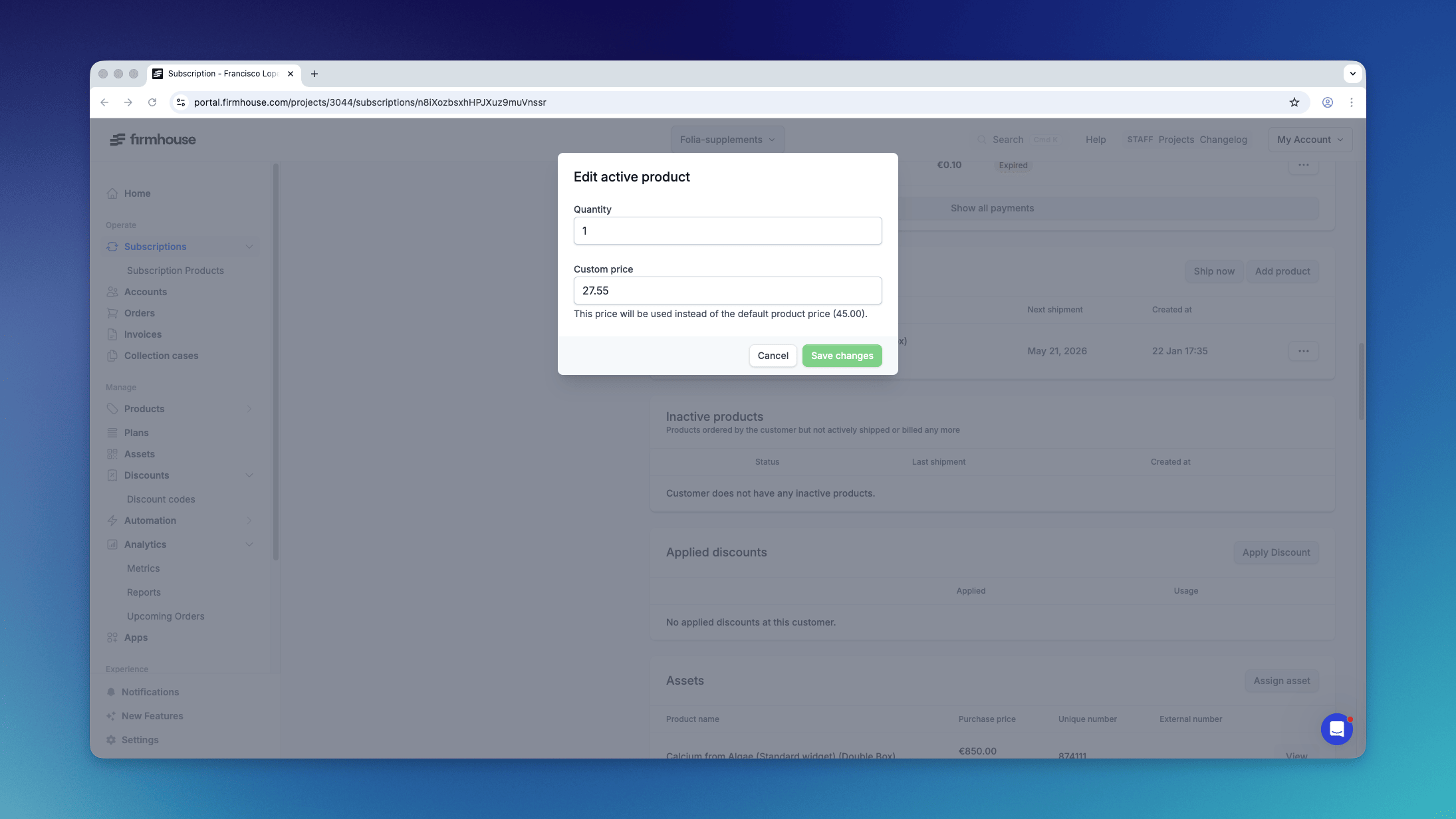
Regardless of checkout type, it’s possible to give certain subscribers a custom price for their products. For instance, if you want to “guarantee” that a subscriber will always pay the same price (for example €25). This is possible by setting a custom price in the portal, or by using the Firmhouse API when you create the subscription and setting thecustomPriceCents attribute with the createOrderedProduct mutation.
Steps
- Go to the subscription in the portal and find the Active products tab.
- Select the context menu (three dots) next to the product you’d like to edit.
- In the modal, find the Custom price element that allows you to define a price for this specific subscription.