Adding an asset
Steps
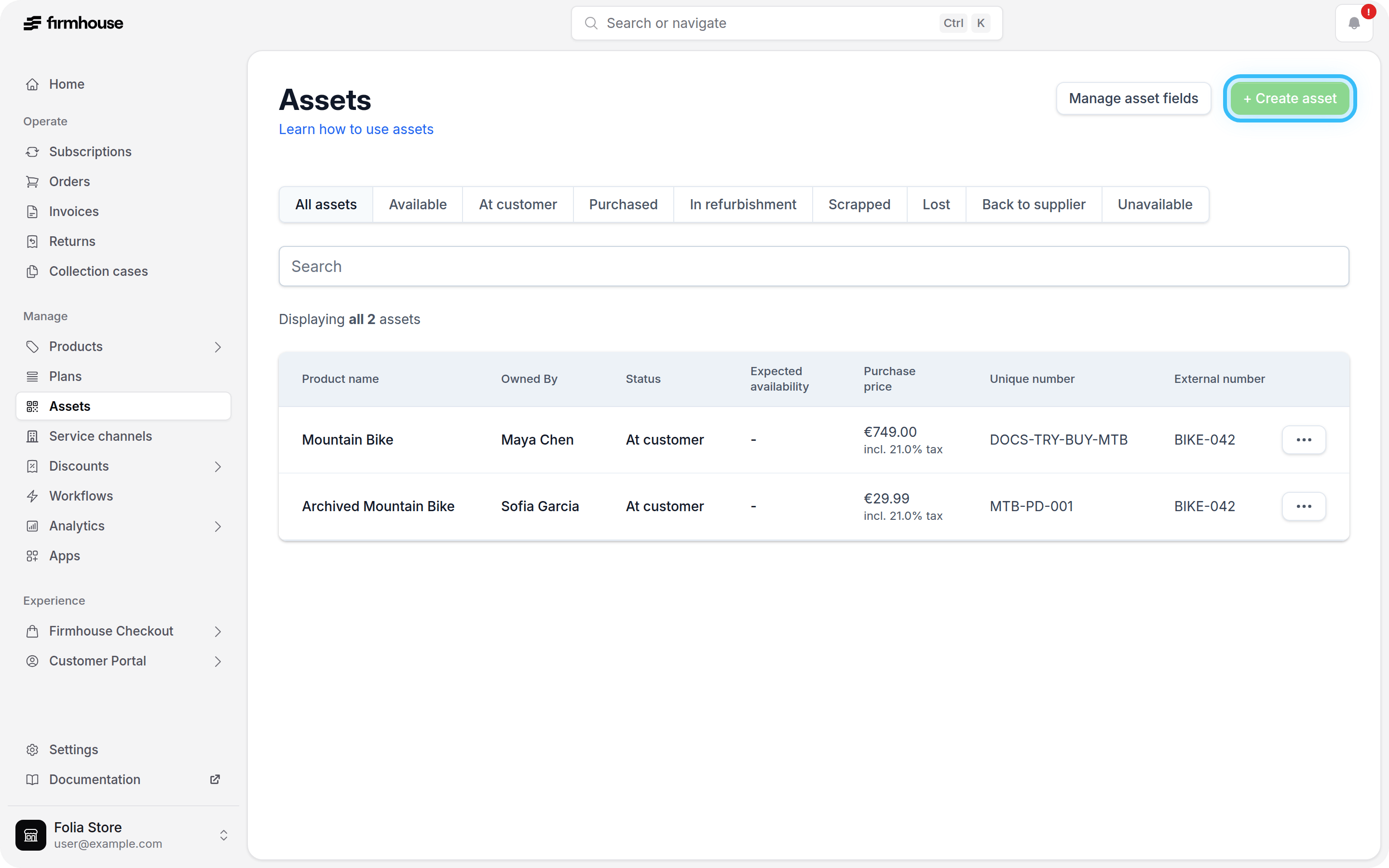
- In your Firmhouse project, go to Assets in the sidebar
- From the Assets overview, click New asset
- Choose the product, and specify an internal number, an external number, and any additional details
- Click Create
Edit an asset
After you’ve created assets, you can edit them to change any information about them.Steps
- In your Firmhouse project, go to Assets in the sidebar
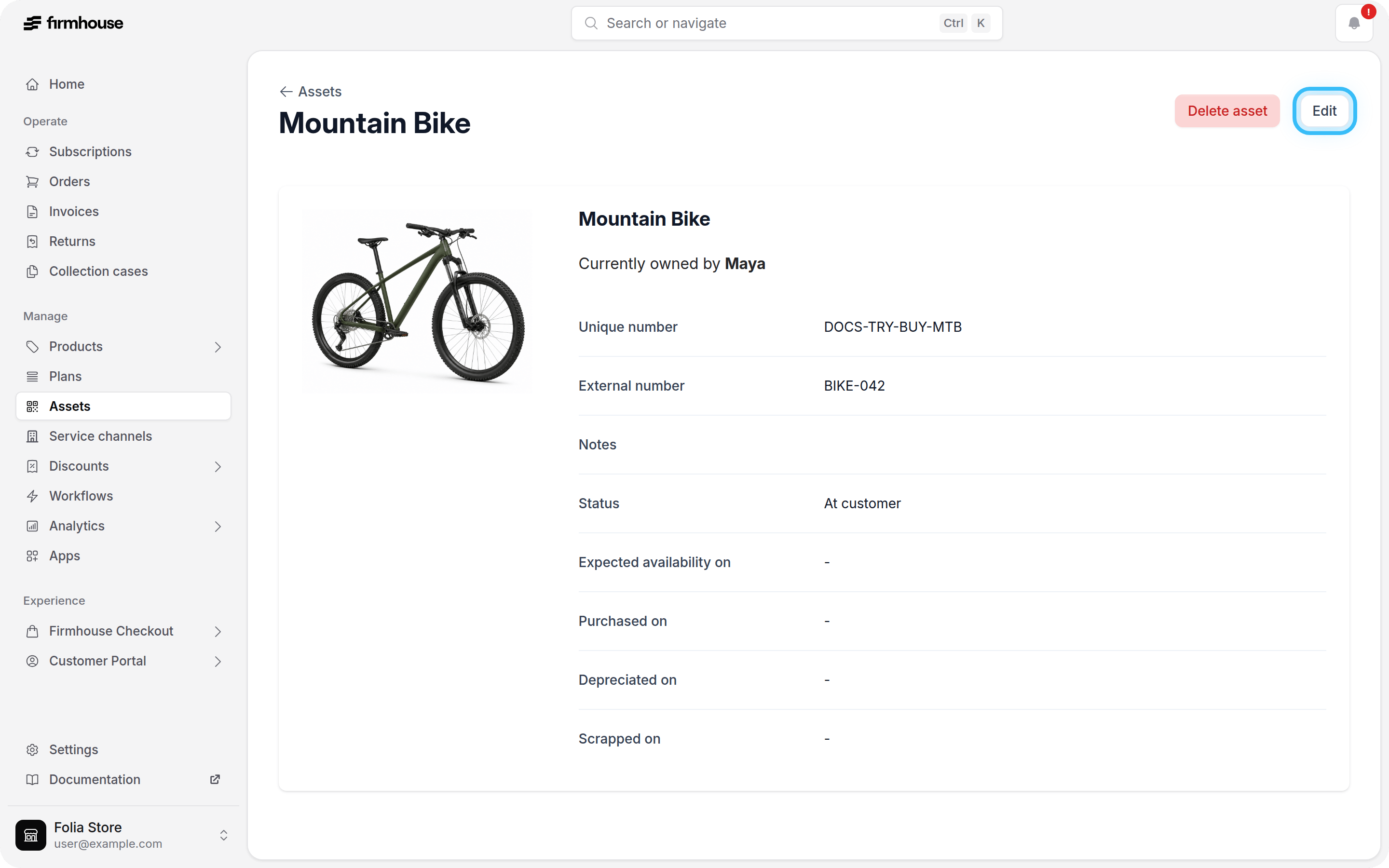
- Click the row of the asset you would like to edit
- On the asset detail page, click Edit in the top right
- Modify any information on the asset
- Click Update
Change an asset’s product through the API
Use the GraphQLupdateAsset mutation with productId to move an asset to another catalog product in the same project. This is useful when returned rental stock becomes refurbished and needs to be linked to a refurbished product.
You need a project API access token with write access. Include the asset ID, its internal number, and the target product ID:
productId is optional on updateAsset. Omit it when updating other asset details without changing the product. Supplying null does not remove the product; it returns a validation error.
Before reassigning an asset:
- Check that its internal and external numbers will be unique within the target product. You can supply new numbers in the same update if needed.
- Check its active ordered-product link, which identifies a product line on a customer’s subscription. If that line references a different catalog product from the target, reassignment returns a validation error. The mutation does not change subscription products or billing.
- For returned assets, call
unassignAssetorunassignAssetsto end customer ownership before changing the catalog product. Setting the status toin_refurbishmentalone does not end ownership. Returned ownership records and their historical ordered-product links are retained.
errors: []. An invalid target, number collision, or conflicting active ordered-product link returns asset: null and validation errors without saving any requested asset or custom-field changes. Also check top-level GraphQL errors for authorization failures and missing assets.
Delete an asset
You can delete assets from your project. When you delete an asset, it’s permanently removed from your Firmhouse project. Deleted assets can’t be restored. Keep in mind that when you delete an asset, any historic information about the asset is also permanently deleted from any reports or exports.Steps
- In your Firmhouse project, go to Assets in the sidebar
- Click the row of the asset you would like to delete
- On the asset detail page, click Edit in the top right
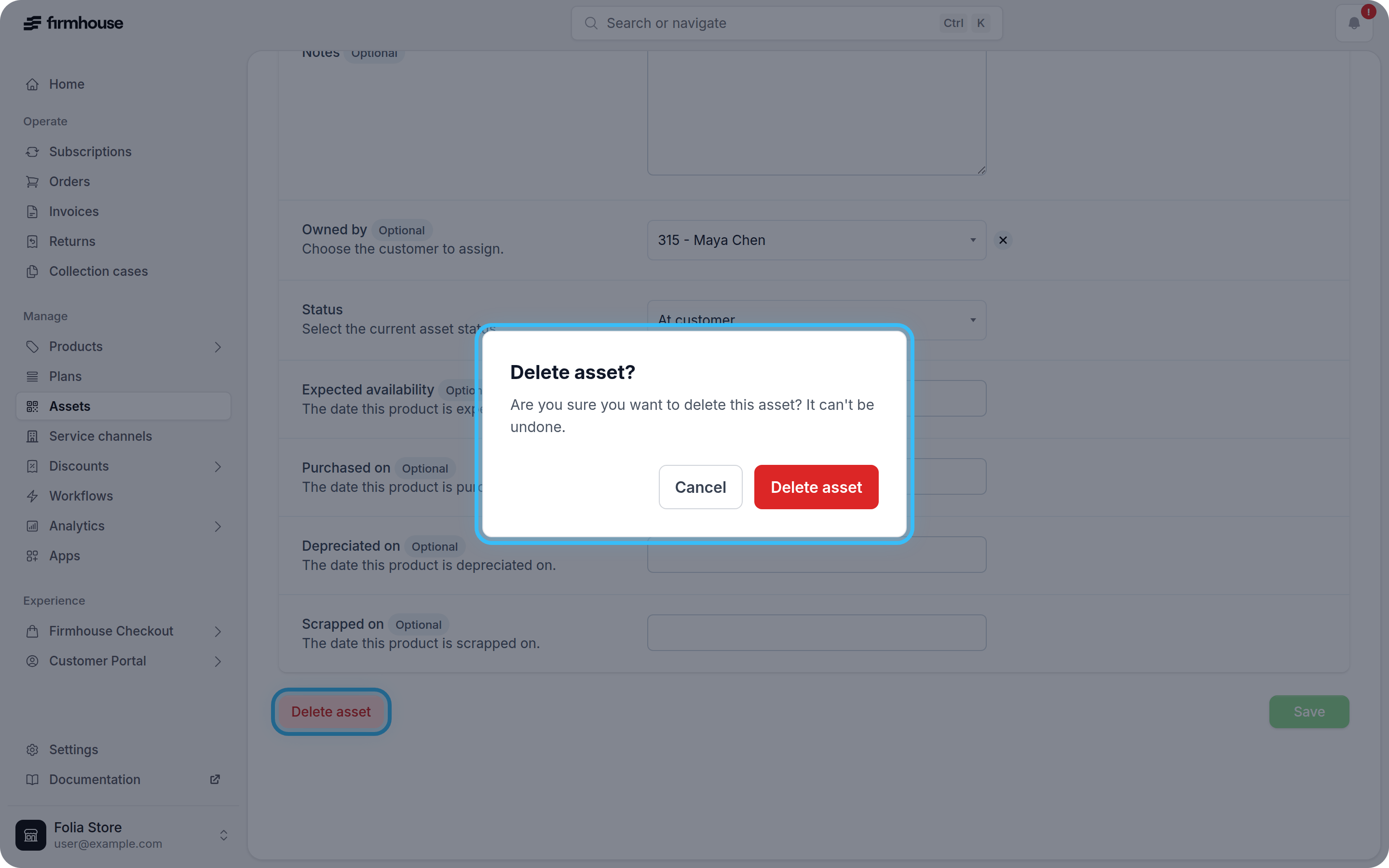
- Click Delete asset
- Confirm the deletion in the confirmation dialog