

Change the available languages
Steps
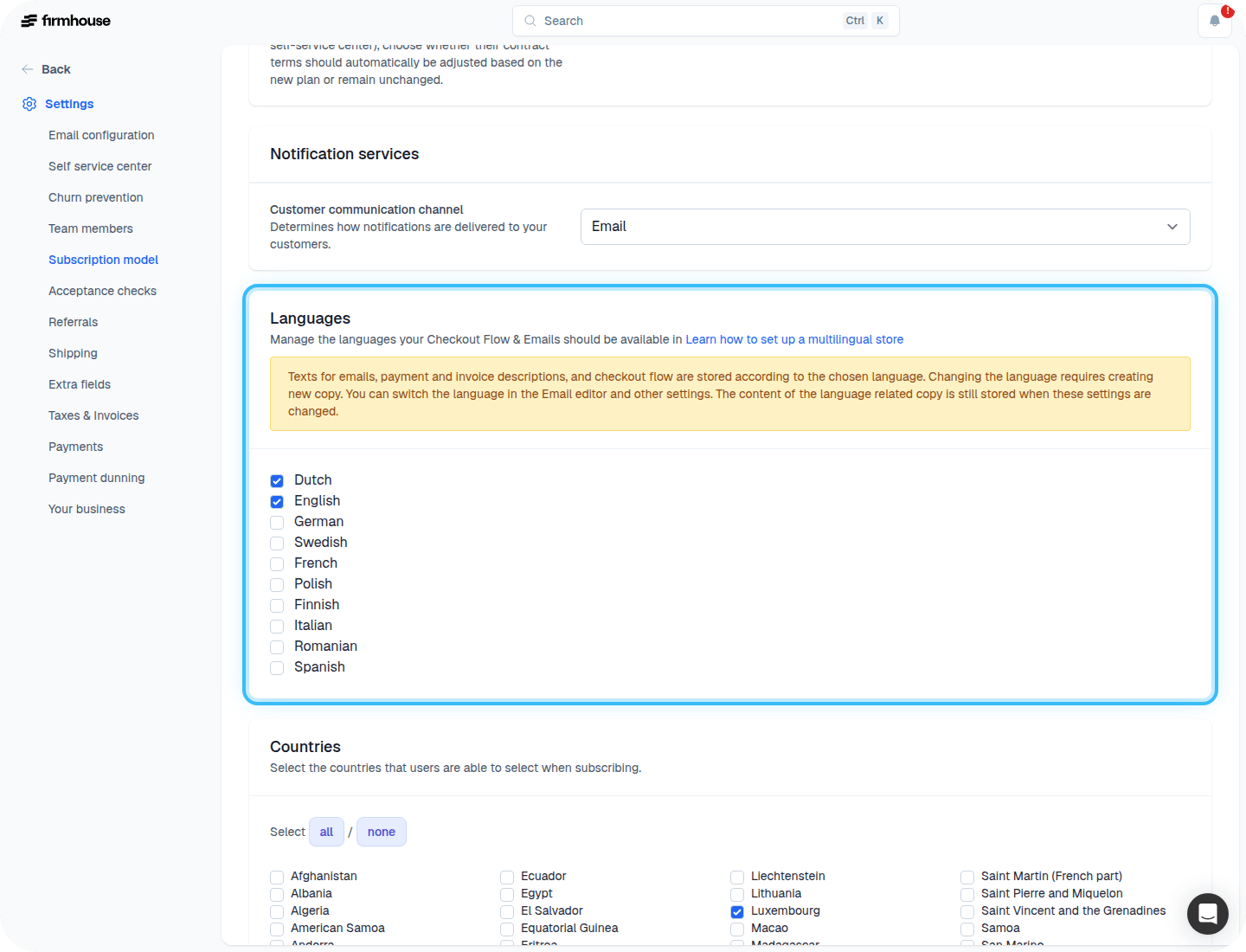
- Go to Settings > Subscription Model and scroll down to the Languages section.
- Select the languages you want to enable for your project by checking the appropriate boxes.
- Save your changes.
Adjust translations on your checkout flow
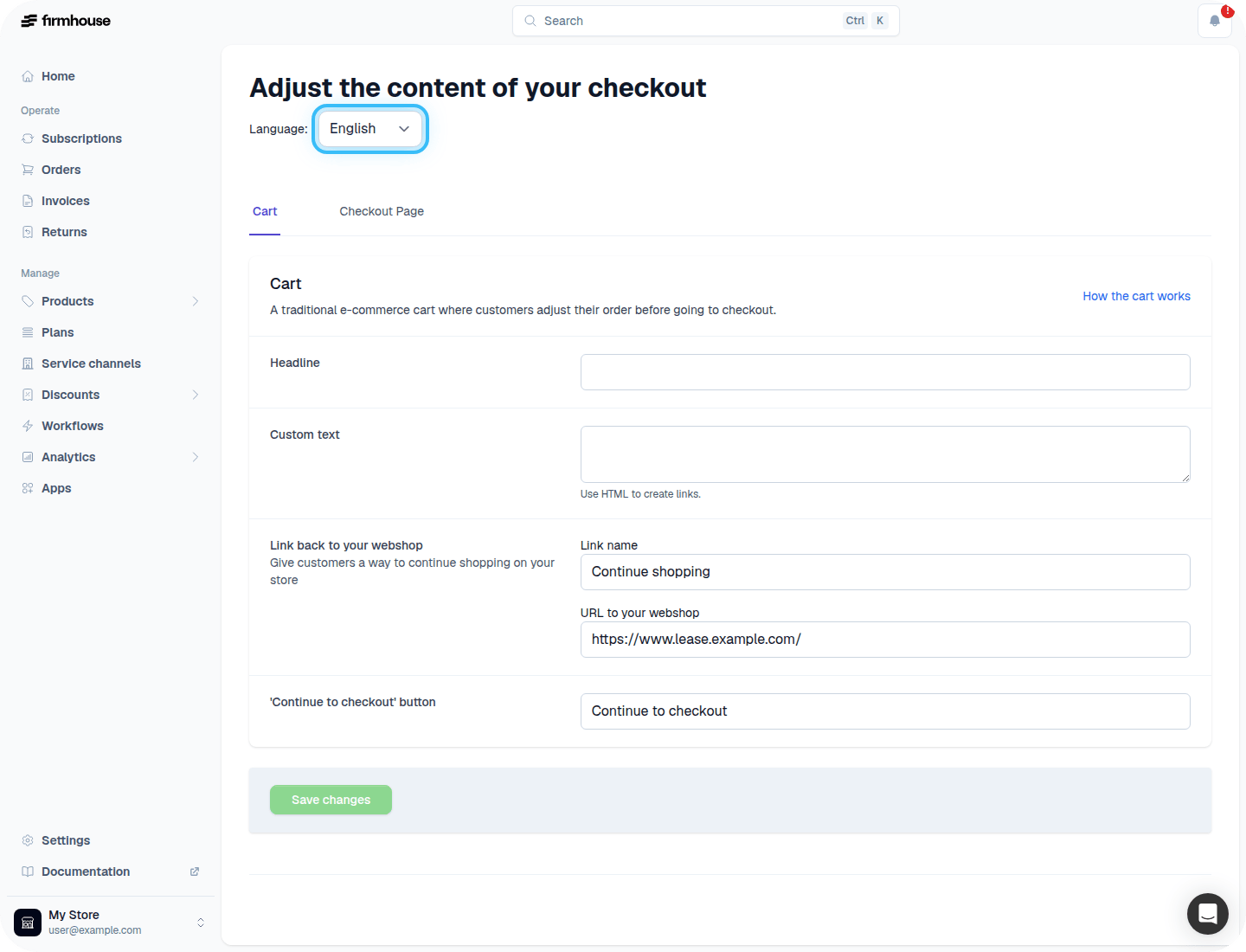
Most labels and buttons are automatically translated on your checkout flow. If you are using custom text, make sure to provide a translation for those as well. There is a language switcher at the top of the page that allows you to choose which language to edit the page in.Steps
- Go to Checkout > Adjust Content.
- Use the Language dropdown at the top to select the language you want to edit.
- Update any custom text fields with the appropriate translations.
- Click Save changes.
Translate your emails
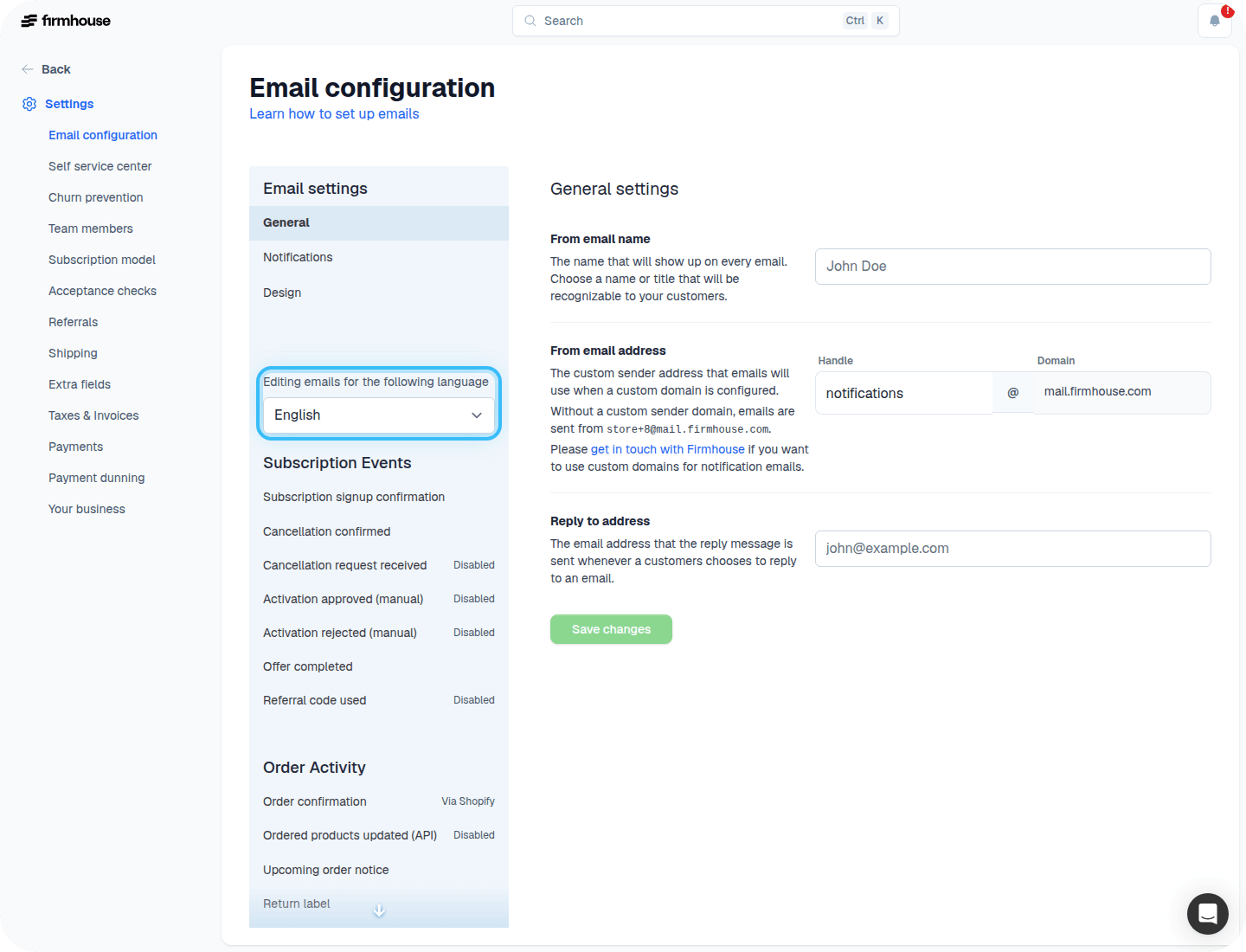
Emails are not automatically translated. You need to manually provide translations for each email template.Steps
- Go to Settings > Email configuration.
- On the left side, you will see a language switcher.
- Select the language you want to translate.
- Go through every relevant email and provide a translation for it.
- Save your changes.
Link your webshop to the correct checkout URL
This step is important if your webshop runs in multiple languages. You need to ensure that customers are directed to the checkout in their preferred language.Steps
- Go to Checkout > Adjust Content.
- Make sure you have selected the right language using the language switcher.
- Click on Preview Page to open the checkout in that language.
- Copy the URL from your browser.
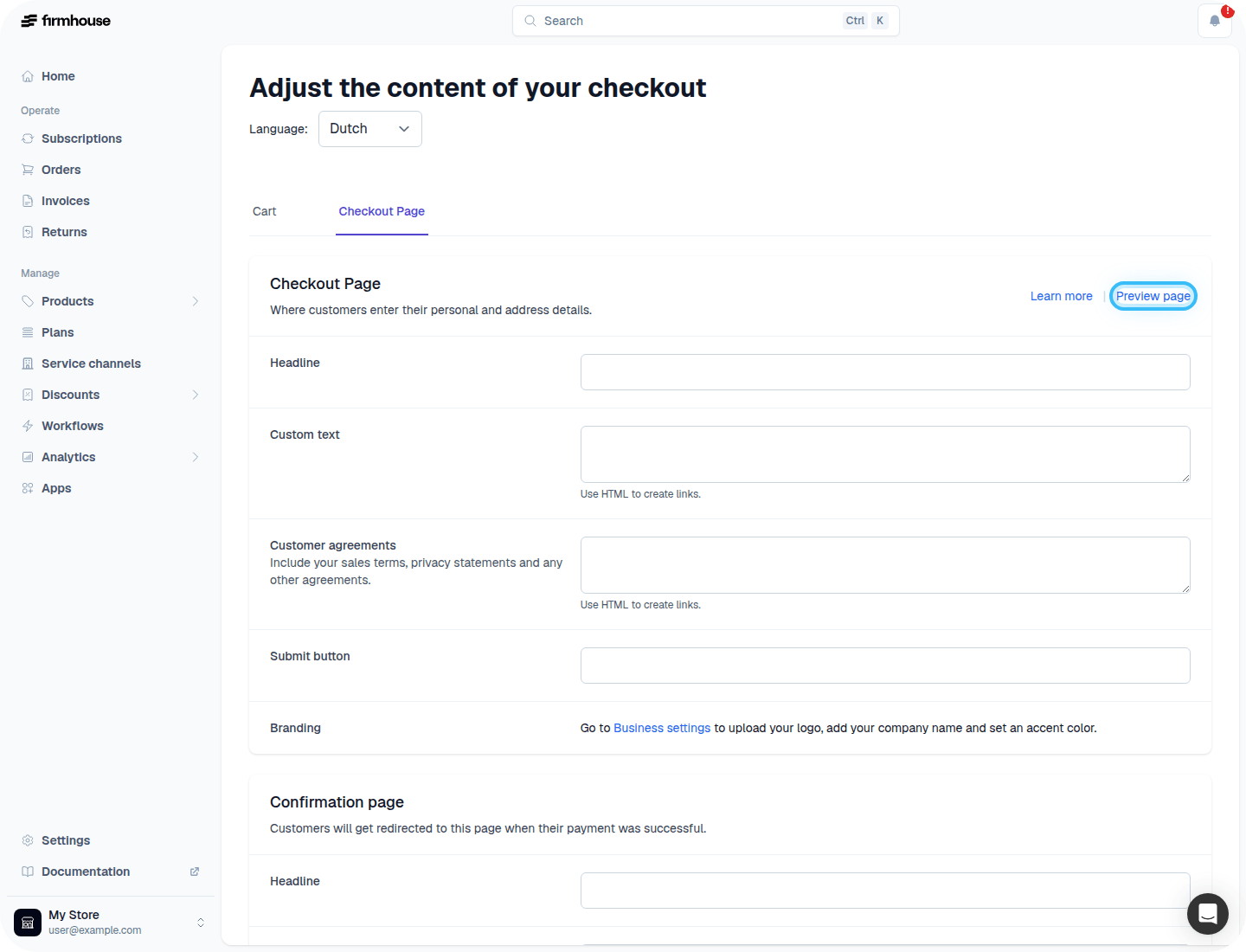
/nl/ means that this page is set to Dutch, /en/ would be English, and so on.
With this in mind, go through all existing links in your webshop that link to the Firmhouse checkout and adjust the URL so that it points to the right language for each version of your site.