

Note: Returns are not enabled by default. First enable Return Orders in Settings > New Features.If you offer a product rental subscription and a customer wants to cancel, you may want to get the product back. You can arrange this with Return Orders. This article explains where to view Return Orders and how to create them. For more information about returns, see these related articles:
Enable Return Orders
Enable return orders before using the flows in this article:- In your Firmhouse project, go to Settings > New Features.
- Find Return Orders.
- Click Enable.
Viewing Return Orders
To view all Return Orders for your project, click on Returns in the sidebar.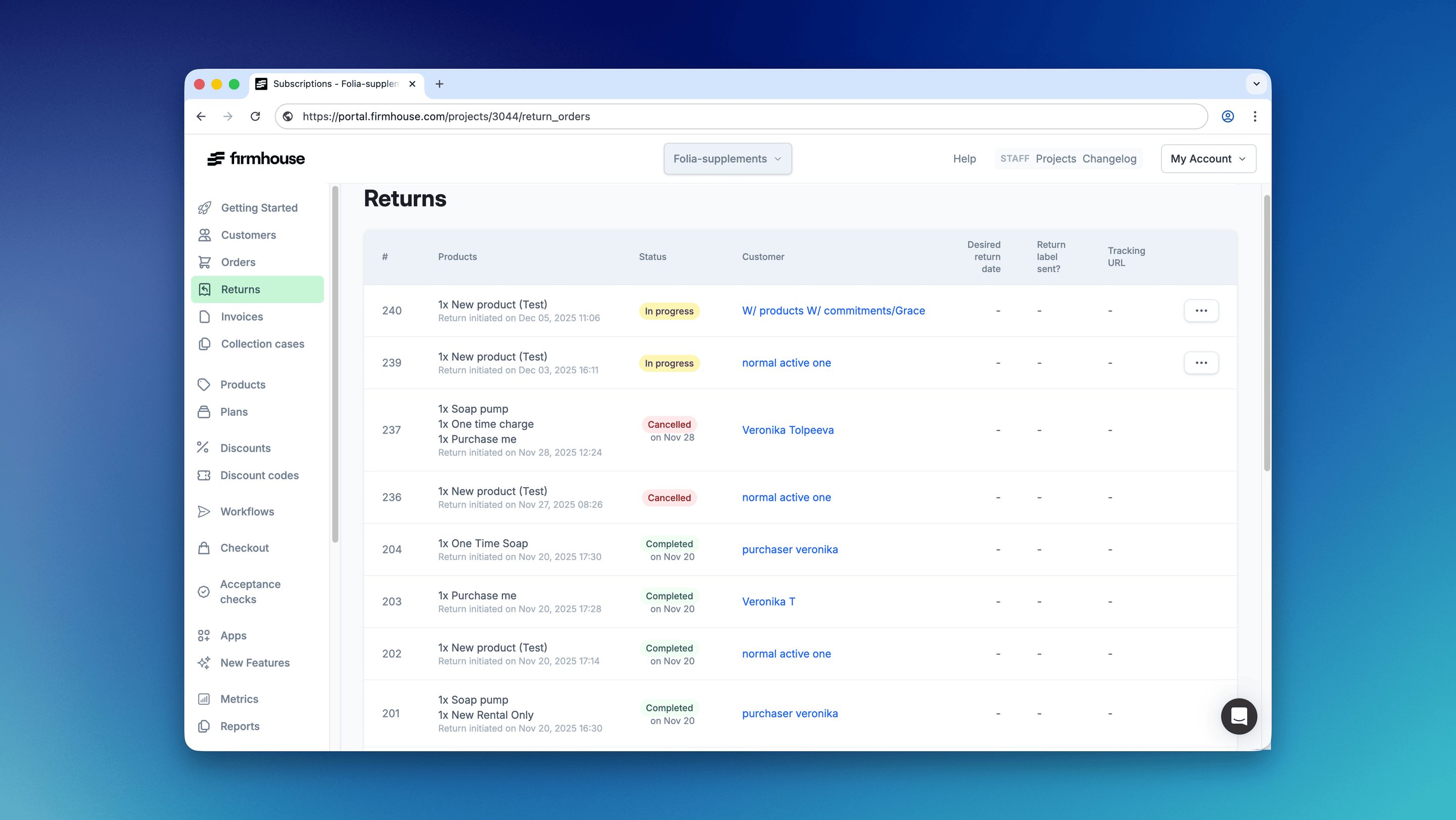
Creating Return Orders
There are three ways to create Return Orders:- Automatically when two-step cancellation is enabled and a subscription is cancelled
- Manually by you directly in the Firmhouse Portal or via the API
- Manually by the customer in the Self-Service Center
Automatic Returns on Cancellation
Automatic returns let Firmhouse create a Return Order for all active products on the subscription when a cancellation is initiated. For plan-based projects, automatic returns work together with two-step cancellation. You can find the two-step cancellation option in Settings > Subscription Model.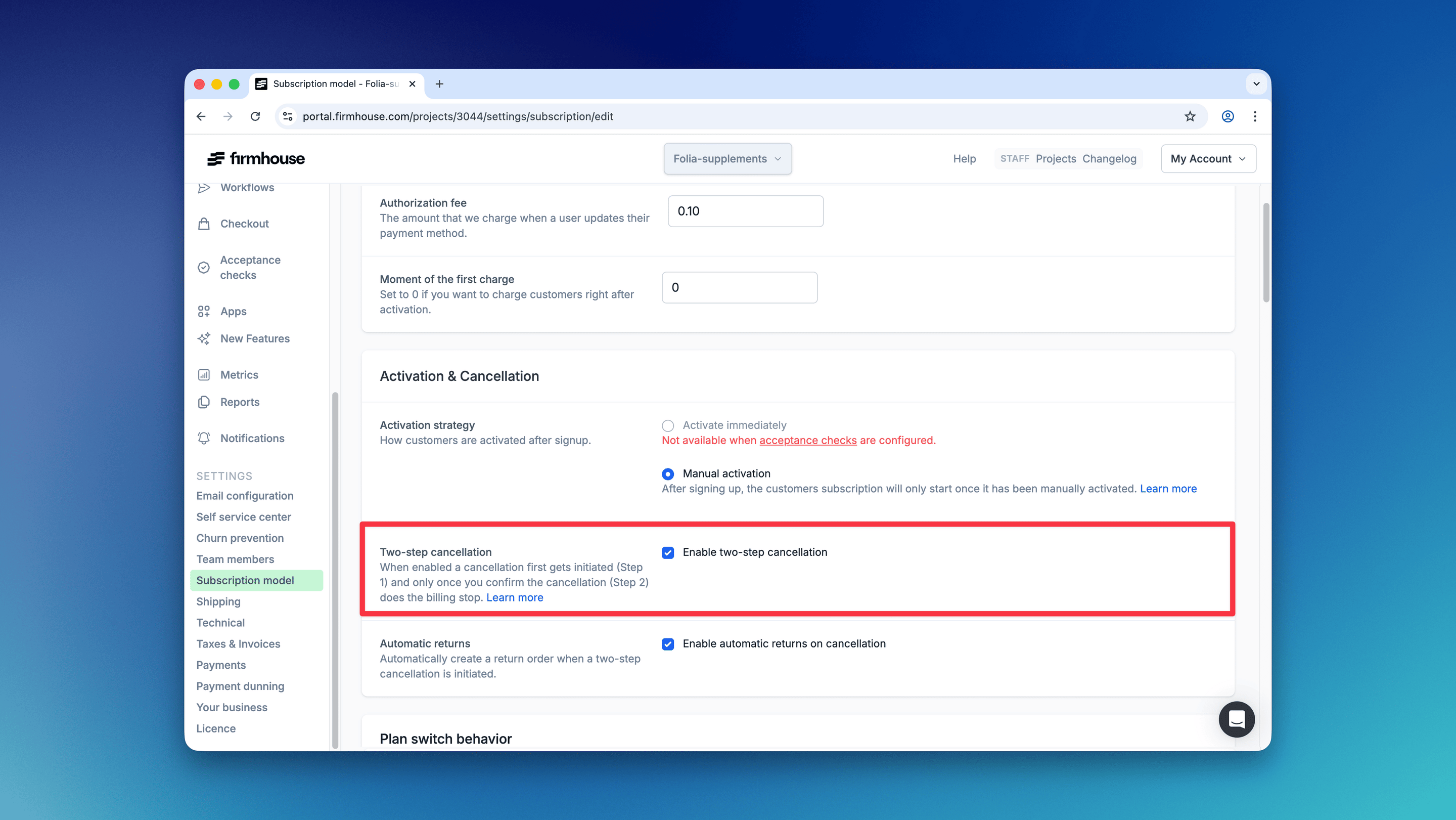
Manually Creating a Return Order via Portal
You can manually create a Return Order for specific products in a subscription. This is useful when your customer wants to cancel and return one product but wants to keep the rest of their subscription intact.Steps
- In your Firmhouse project, go to Customers and find the customer you want to generate a return order for.
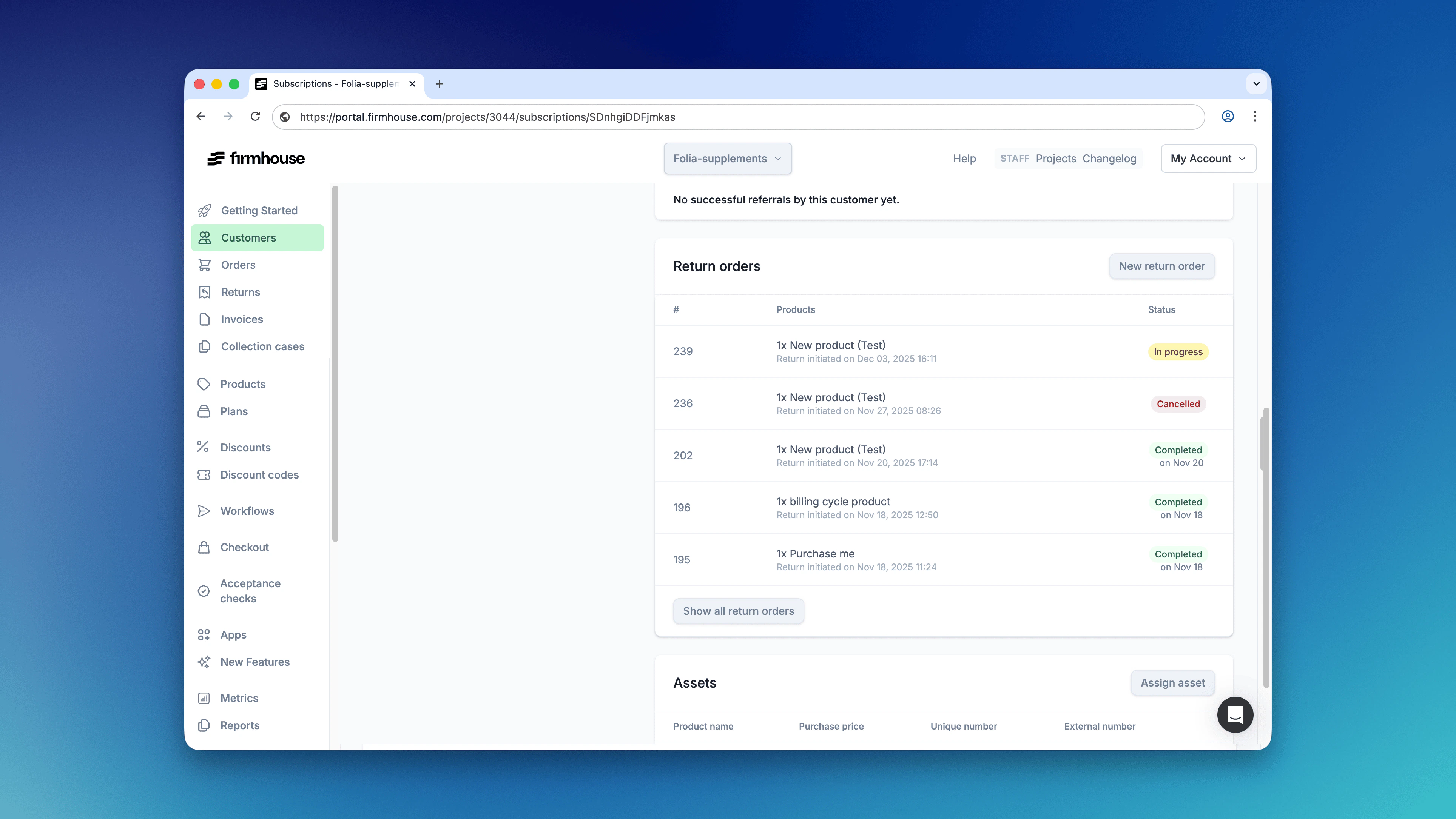
- On the details page of the customer, scroll down and click New return order in the Return orders section.
-
In the dialog that opens, check one or more products you want to initiate a return for. Optionally increase the quantity if the customer is subscribed to more of the same product.
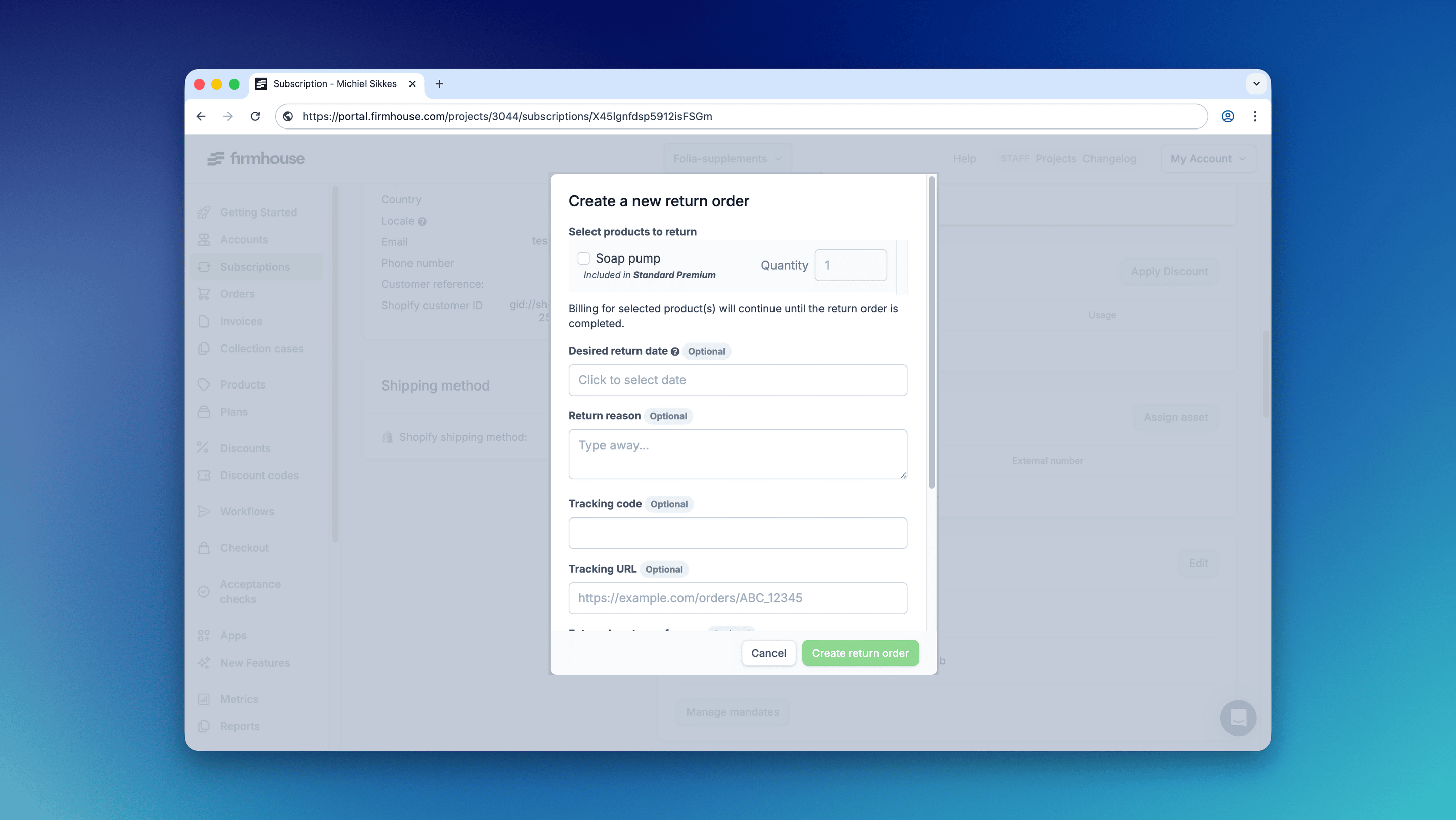
- Fill out any of the optional fields. These are useful if you want to use these fields in email communication towards the customer, or in an integration with a webhook or an external returns app.
- Click Create return order. You are now redirected to the created return order.