

Note: Depending on your project configuration, the sidebar may show this page as Subscriptions or Customers. The functionality is the same in both cases.
Adjust Products After a Plan Change
If a customer changed their plan (see Change the active plan of a subscription for more details), you may also want to adjust the products that came with that plan change.Steps
- Go to Customers and look for the customer
- Scroll down to the Active Products section
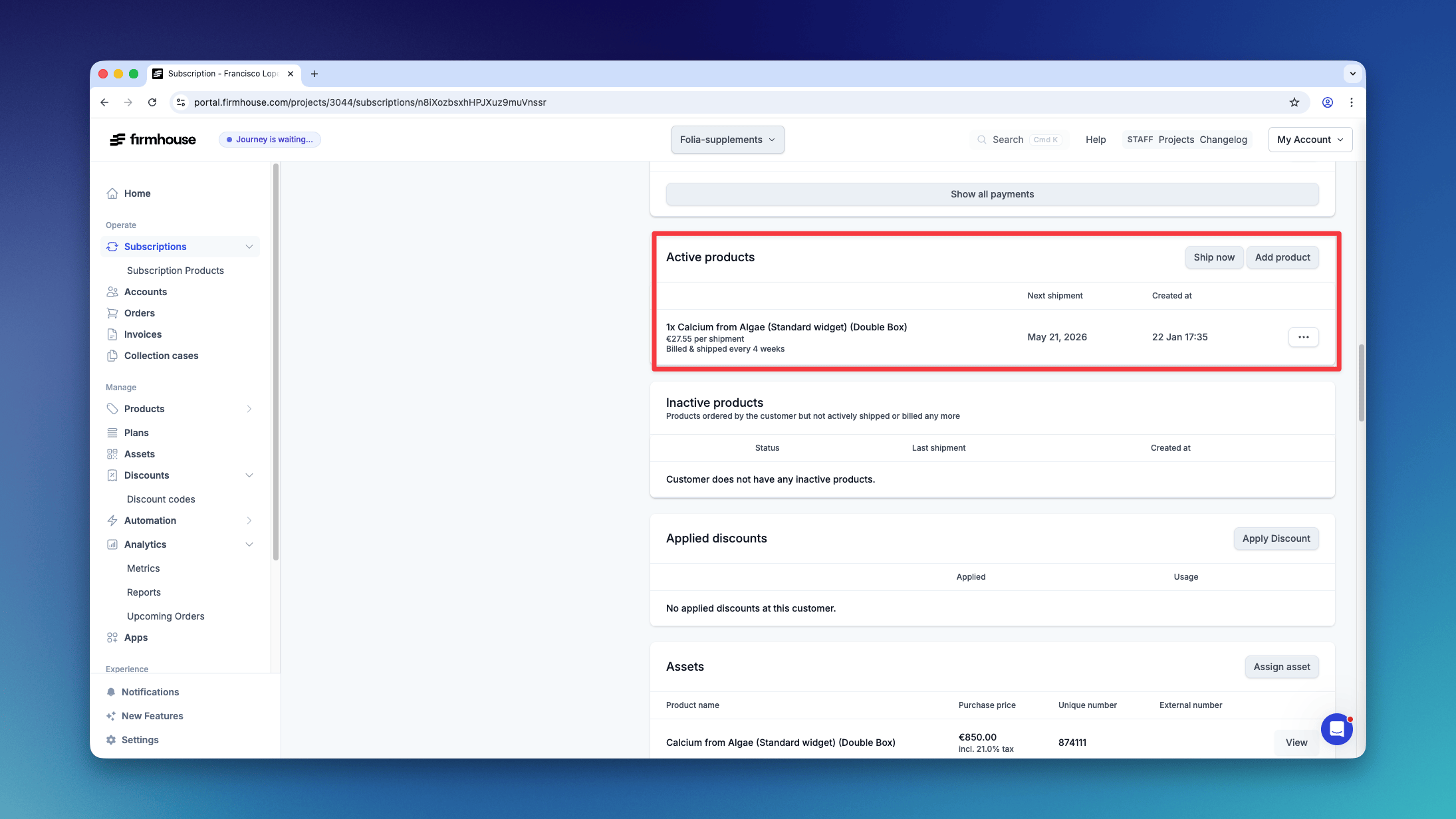
To Add a Product
- Click on Add product in the top right
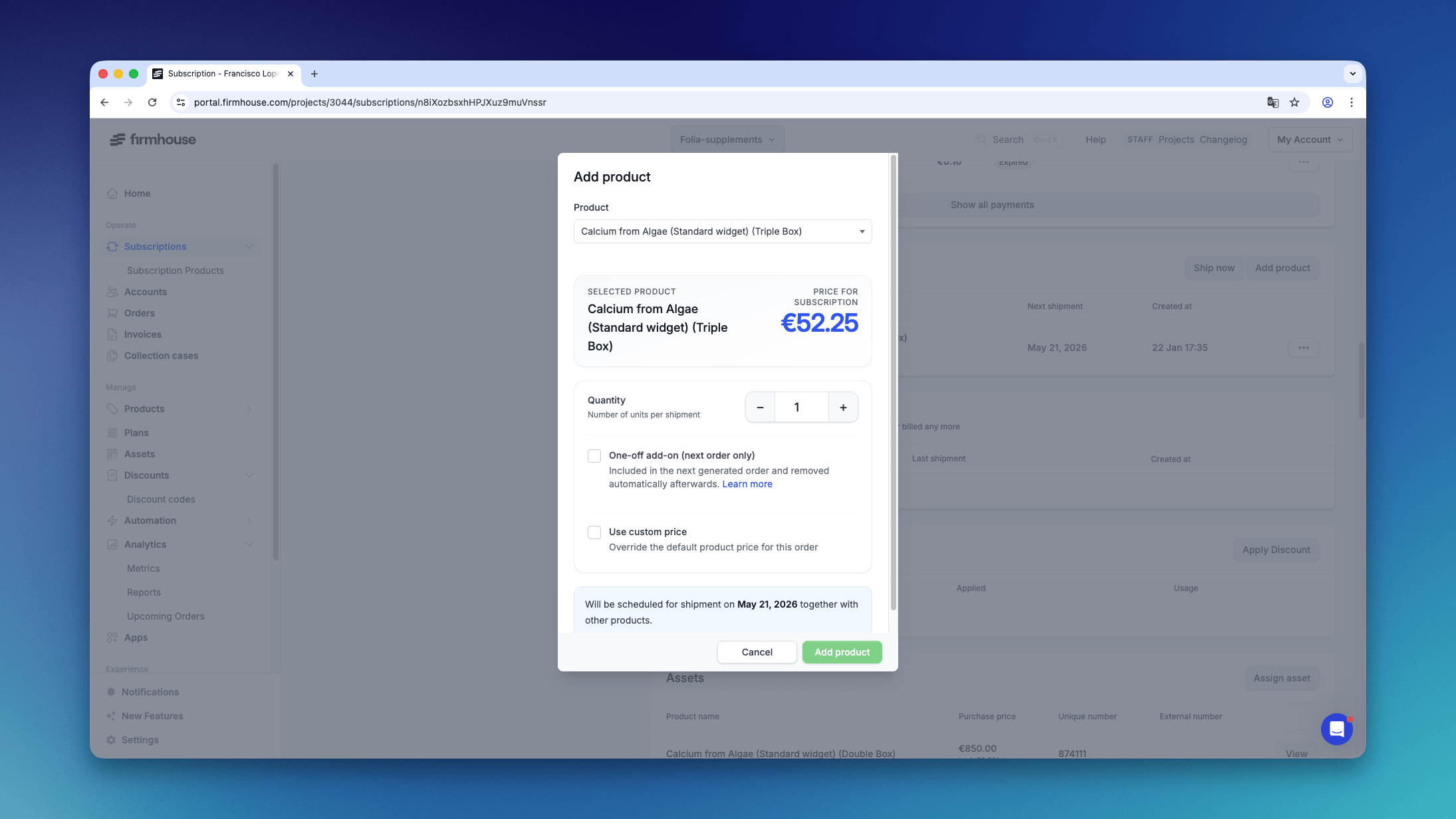
- Choose the product to add from the dropdown. You can search and select any available product in your project. Products that are not allocated to the subscription’s plan group are labeled “Not eligible for this subscription’s plan” in the search results. When you select such a product, a warning appears—you can still add it manually, but customers won’t be able to add it themselves in the Self Service Center. If you need to make the product available to customers, you can update the plan group eligibility for that product. When Treat out-of-stock Shopify products as unavailable for new orders is enabled, products with no Shopify stock remain available to staff in this dropdown and are labeled Out of stock. This lets you make an intentional exception for an existing subscription. Adding the product does not change its stock status: customers still cannot add or swap to it in the customer portal, and your configured unavailable-product order behavior still applies.
-
Under Product behavior, choose how the product should be added:
- Recurring product — Uses the product’s configured shipping schedule. When the selected product is configured as a one-time purchase, this option changes to One-time product and the product is billed and shipped once.
- Next order only — Ships once with the next order, then is automatically removed from the subscription.
- Already owned — Records a product the customer already owns, without future shipping or billing.
- Set the Quantity (number of units per shipment).
To Remove a Product
- Find the product under Active Products.
- Open the actions menu next to the product.
- Click Remove and confirm the removal.
Remove a Product Under Minimum Commitment
Before removing a product from a subscription with a minimum commitment, you may need to address the commitment for that individual product. First, check the product under Active Products.If You See a Minimum Commitment Label
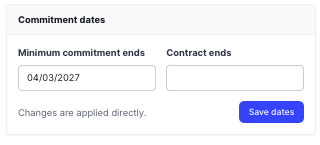
Click the Minimum commitment label next to the product.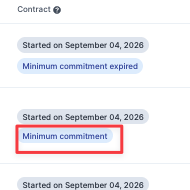
- Set Minimum commitment ends to a date in the past.
- Click Save dates.
- Open the product’s actions menu and click Remove.
If You Do Not See a Minimum Commitment Label
If the commitment is not shown next to the product in the overview:- Open the actions menu next to the product.
- Click Edit.
- Clear Enforce subscription commitments.
- Click Save changes.
- Open the actions menu again and click Remove.
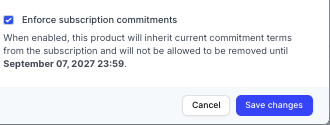
Note: The available option depends on your project and product configuration.Only change a product’s commitment when removing it is consistent with your agreement with the customer. To remove products from multiple subscriptions at once, use subscription product batch operations. Firmhouse uses the same removal checks as the single-subscription action.
To Mark a Product as Owned
For order-based subscriptions, you can mark ship-once one-time purchases as owned. You can also mark recurring products as owned when the subscription’s plan has a Shopify billing product. Use this when a customer keeps a rental, for example as a promotional gift, and should stop paying for it. A recurring rental’s minimum commitment must have ended before you can mark it as owned. If you agree to waive the remaining commitment, update it first using the steps above.- Find the product under Active Products.
- Open its actions menu and click Mark as owned.
- Confirm that the product should be excluded from future billing and shipping.