Pausing a subscription from the Portal
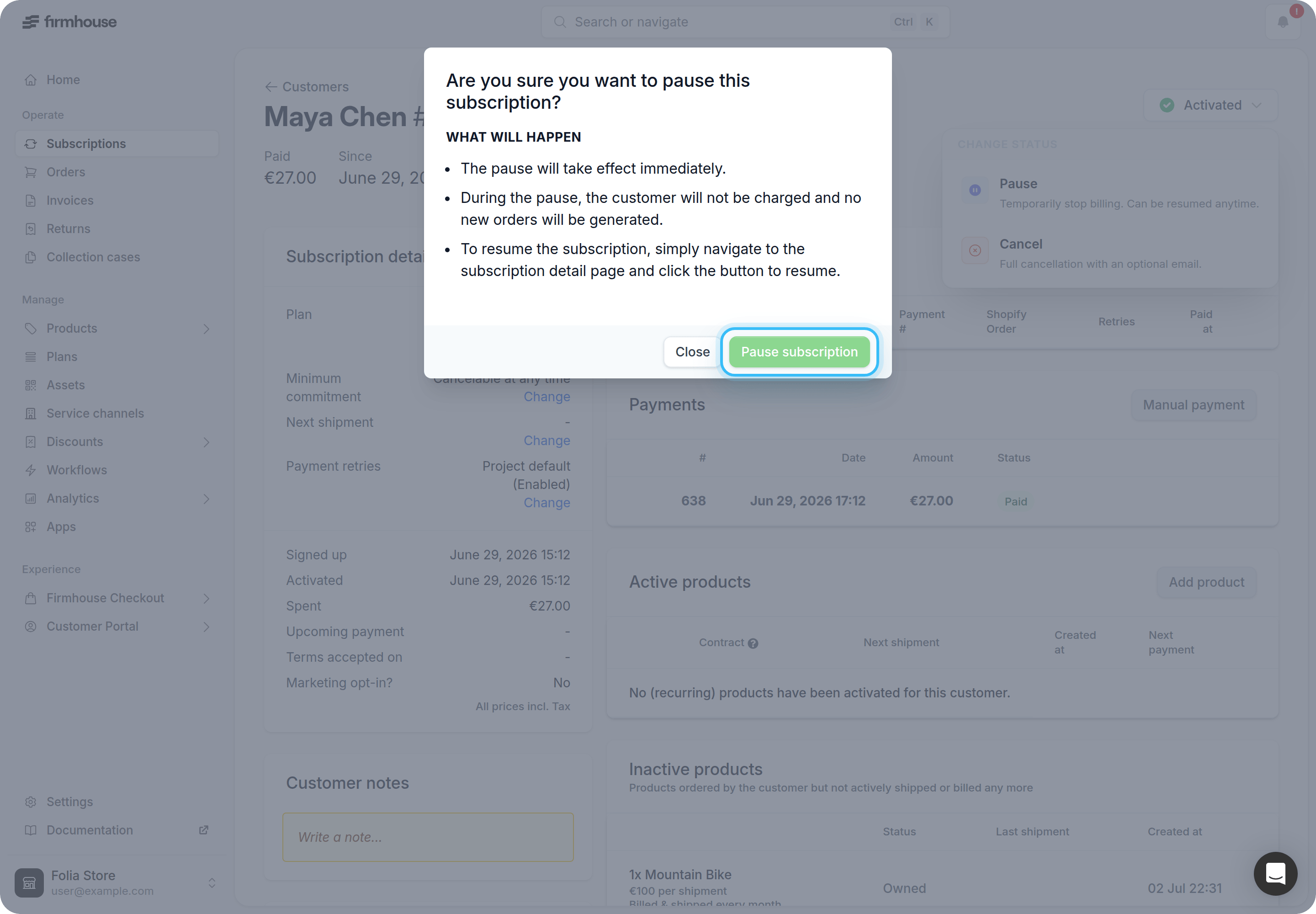
To pause an active subscription, navigate to the subscription page in the Firmhouse Portal and select the “Pause subscription” button in the top right of the screen.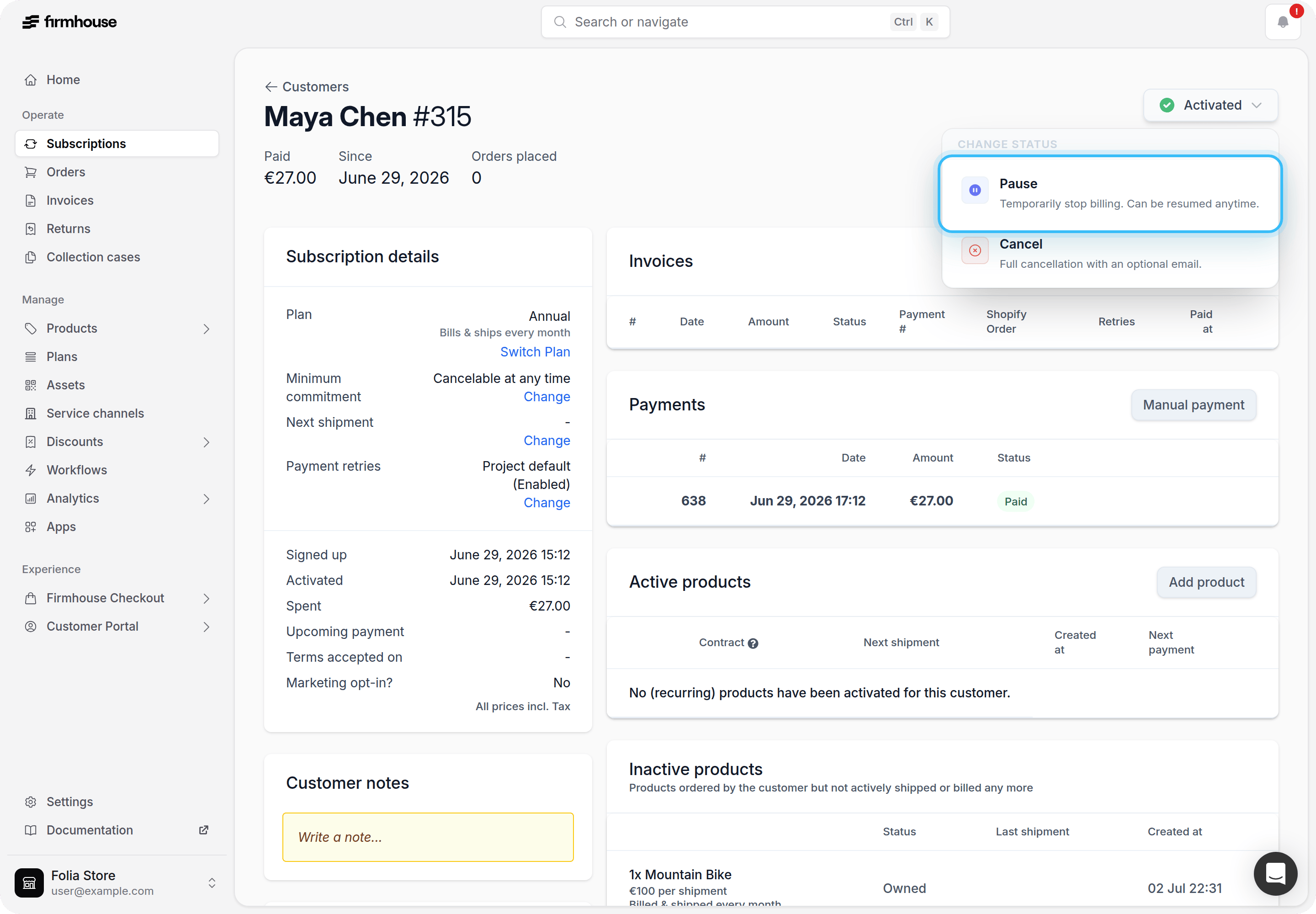
Resuming a paused subscription
When a subscription is paused, a blue bar indicates the paused state on the subscription page. A “Resume” button appears that opens a confirmation modal when clicked.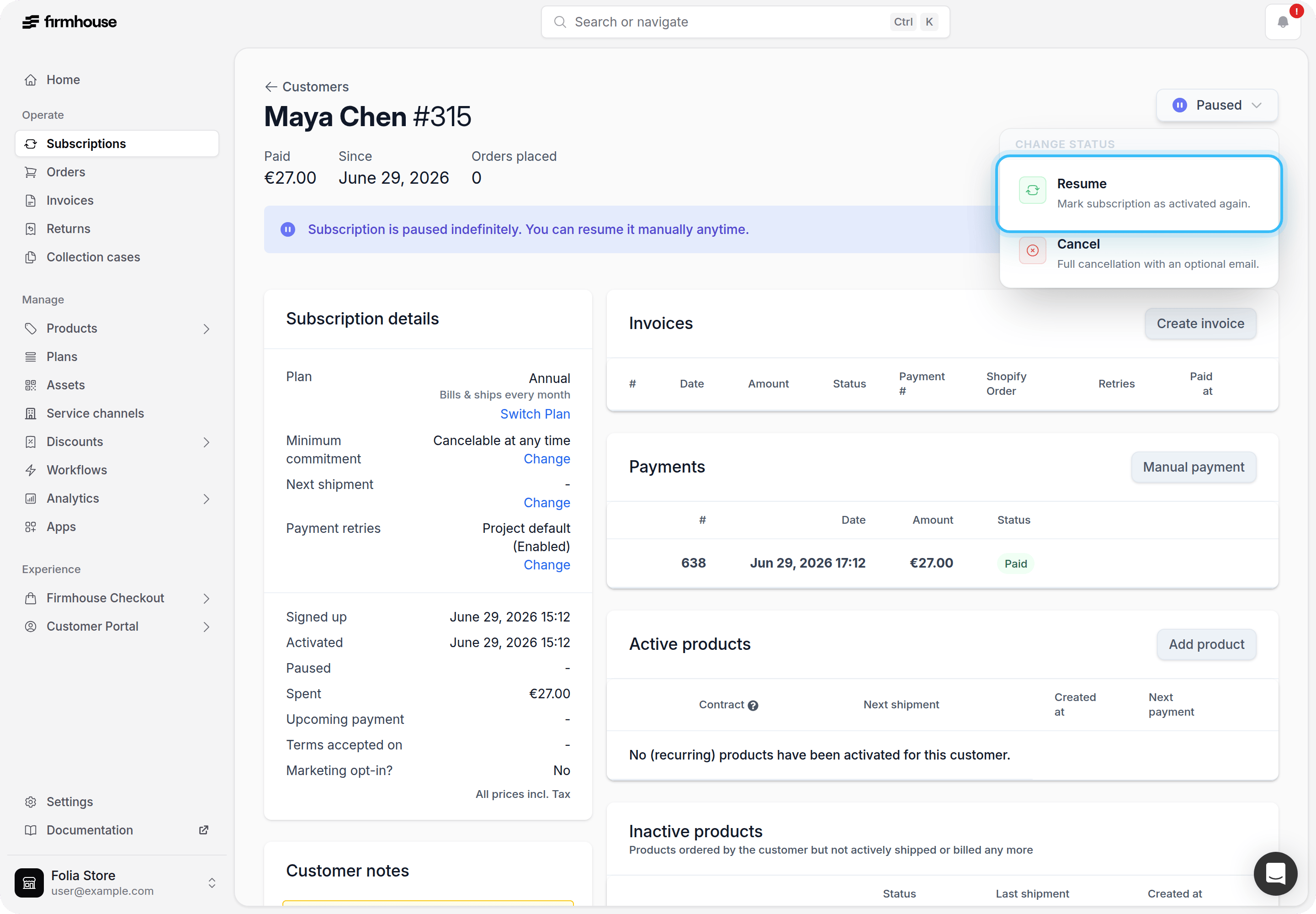
Pausing a subscription from the Self Service Center
This functionality is only available for smart Order-based projects.Steps
-
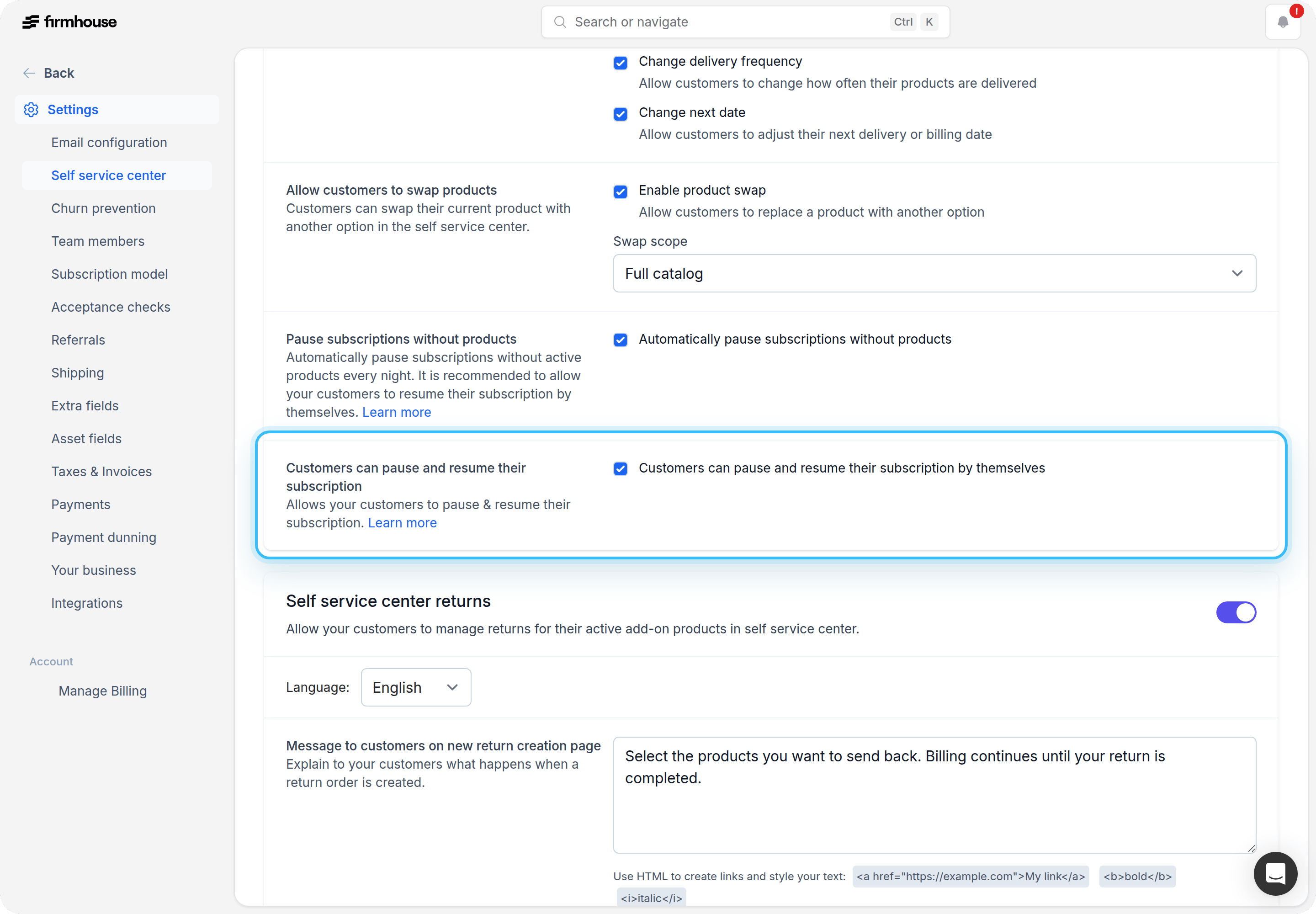
Enable the functionality for your customers by finding the Customers can pause and resume their subscription checkbox under Self service center settings.
-
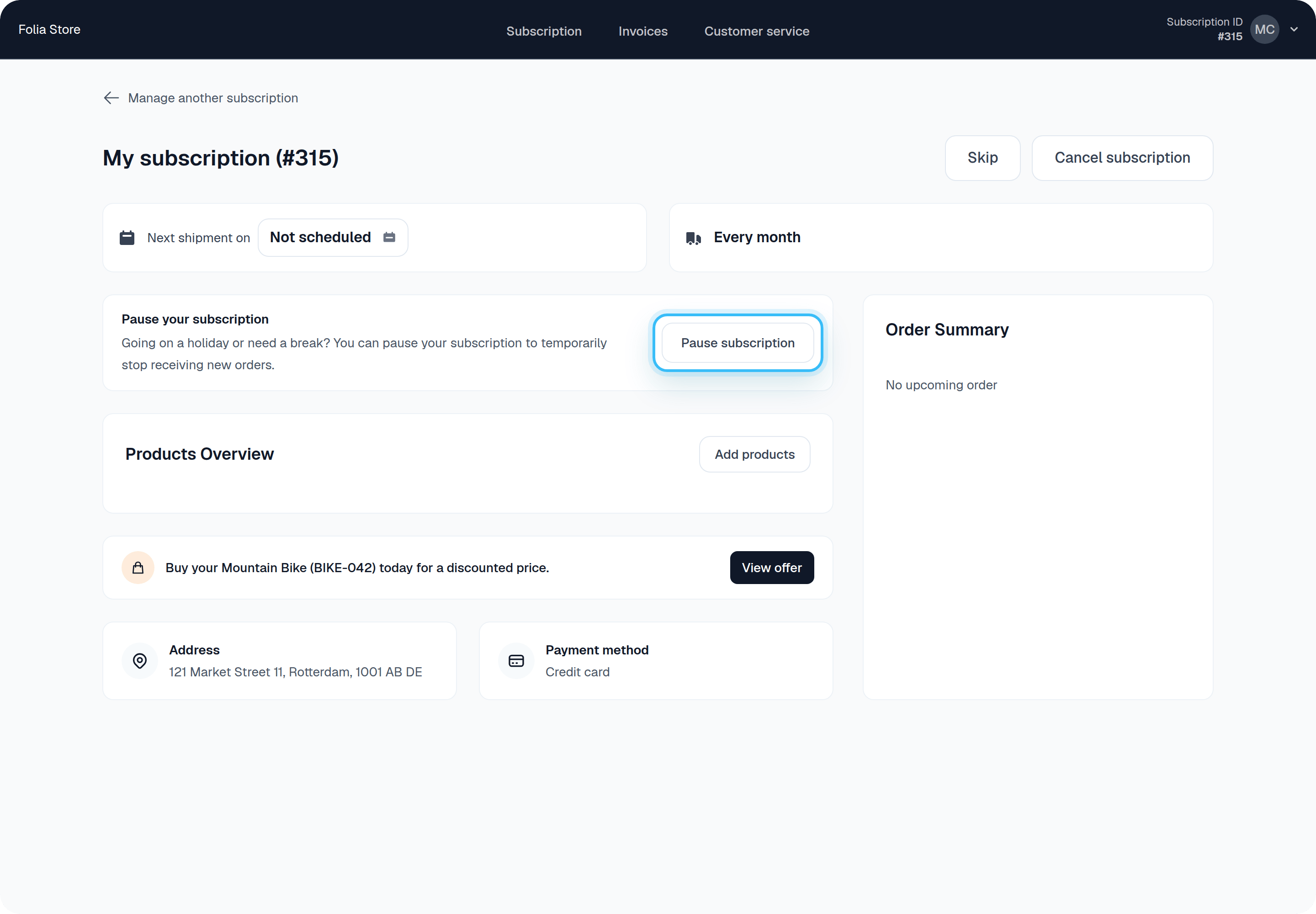
The next time the customer visits their Self-Service Center, they will see the option to pause their subscription.
-
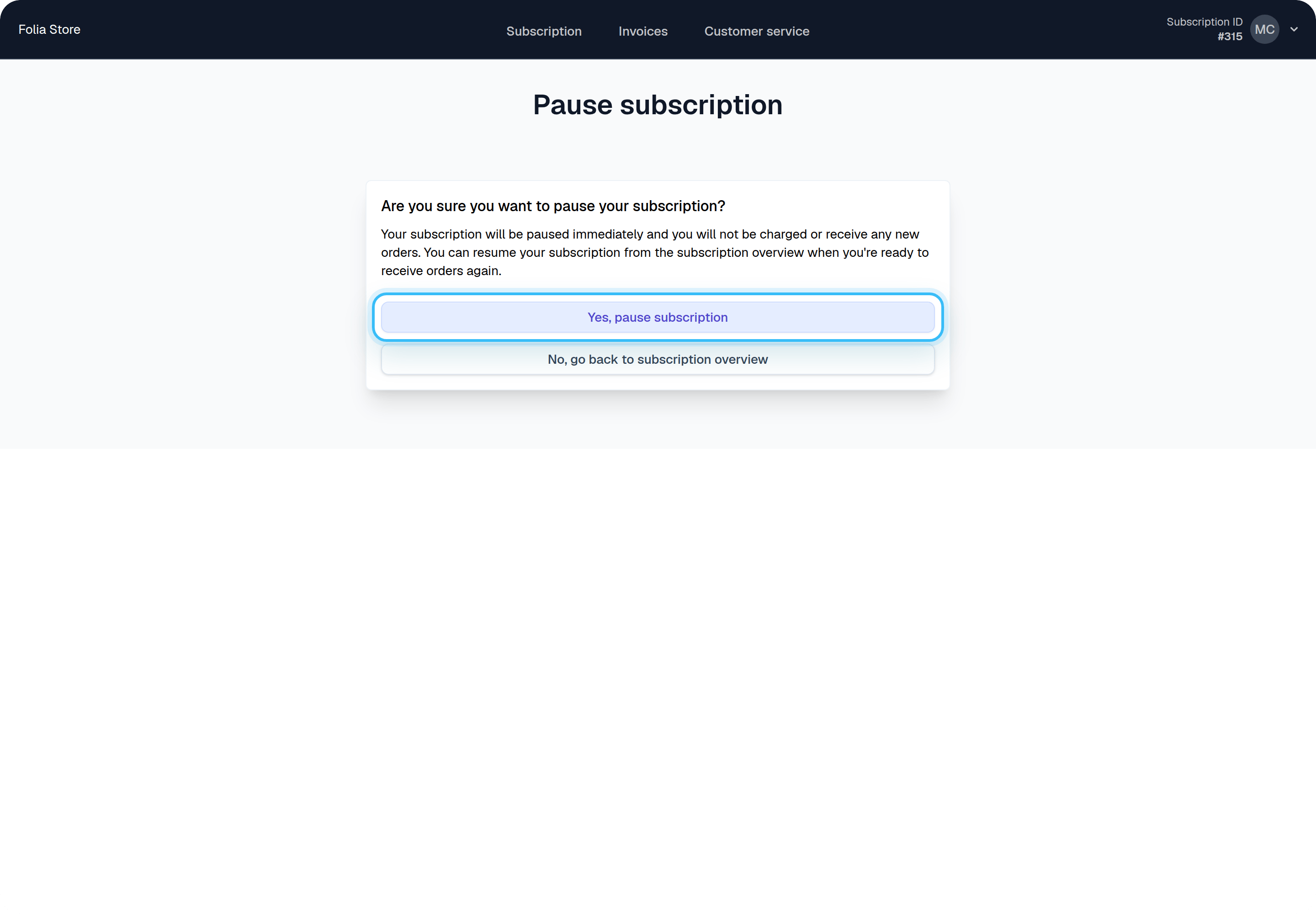
Once selected, they will be prompted to confirm pausing their subscription.
-
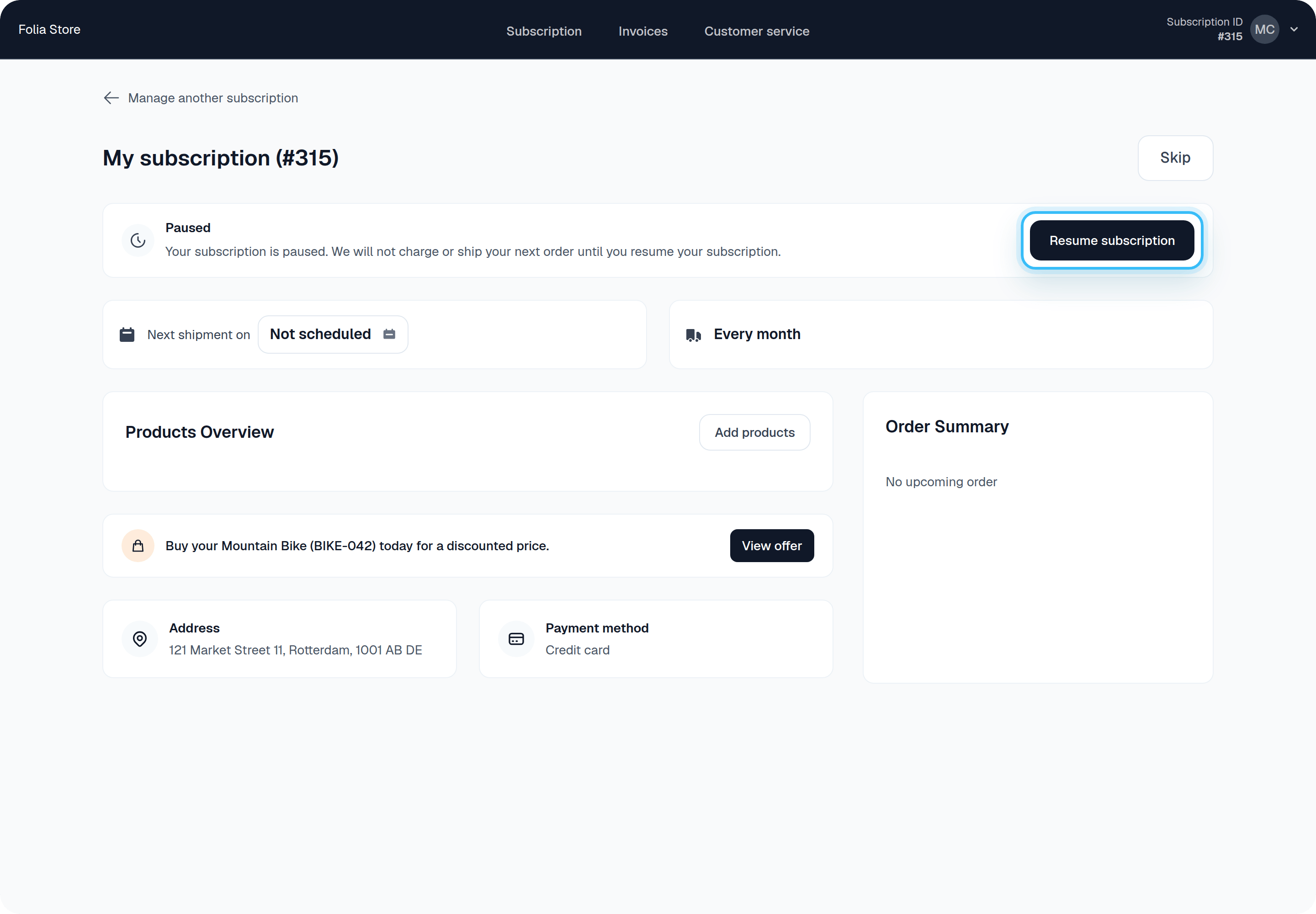
The subscription will be paused and the customer can return at any time to resume their subscription.
-
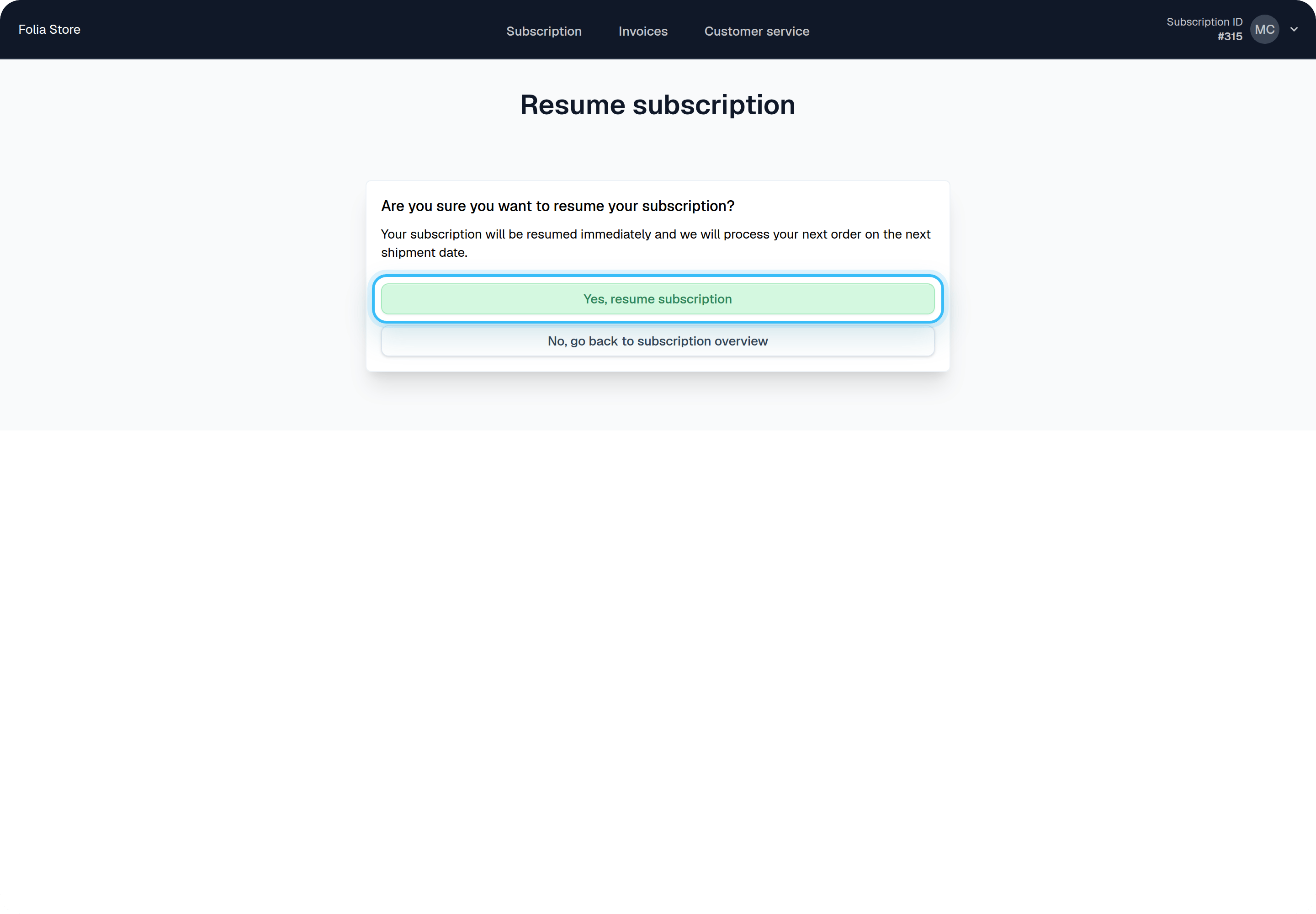
When the customer is ready to return, they can resume at any time. Clicking “Resume subscription” will show them when their subscription will be active again.
Automatically pausing subscriptions without active products
This functionality is only available for smart Order-based projects. When customers are enabled to manage their products by themselves, it’s possible for them to remove all active products from their subscription. In this case, the subscription remains active even though there are no products left or future shipments scheduled, which can clutter analytics and make subscription management harder. To prevent this, Firmhouse offers an option to automatically pause subscriptions without active products every night. This functionality is enabled by default for smart order-based projects created after November 13, 2024. For existing projects, you can opt-in and enable this functionality if you’d like to take advantage of it.Steps
-
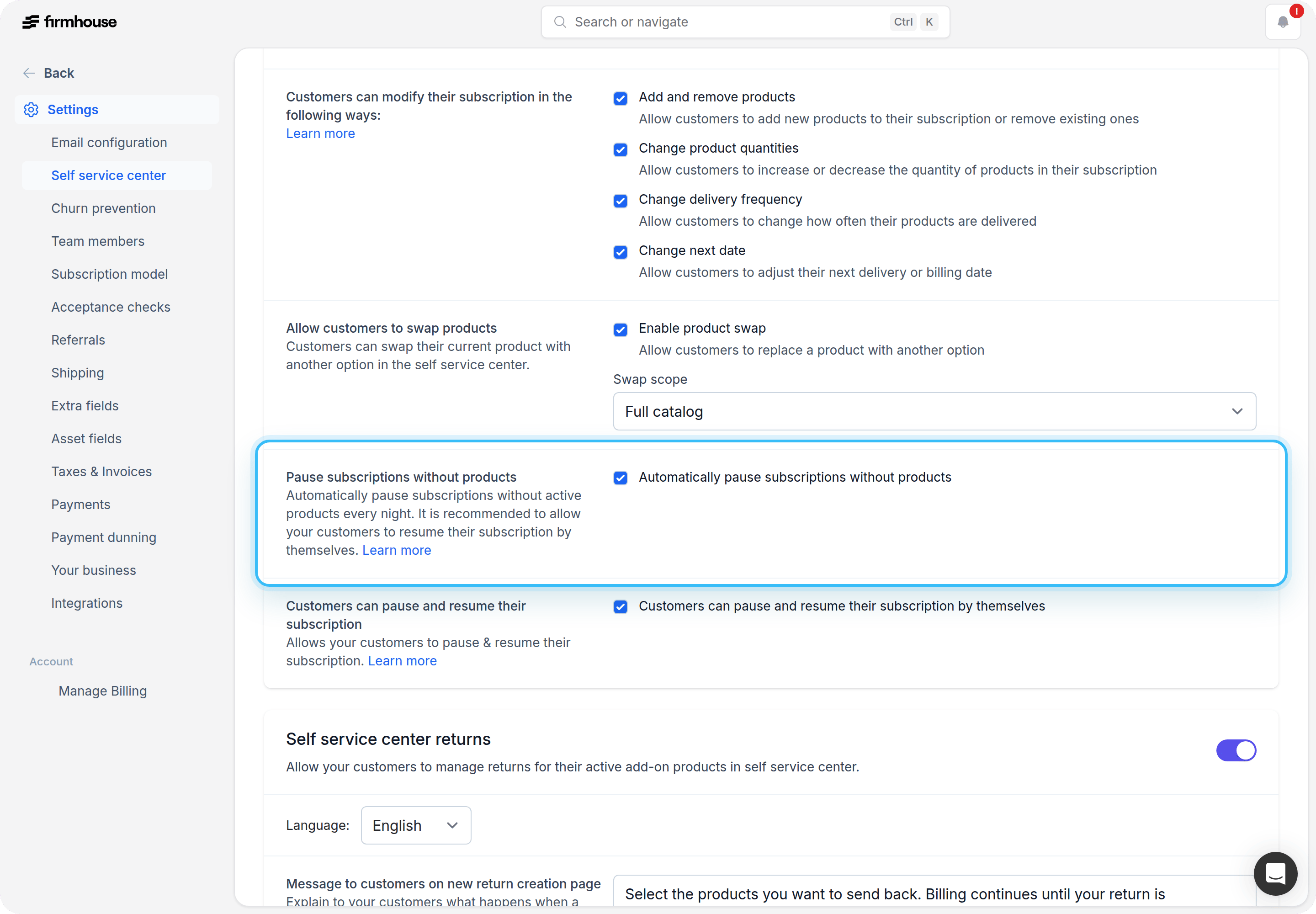
Find the Pause subscriptions without products checkbox under Self service center settings.
-
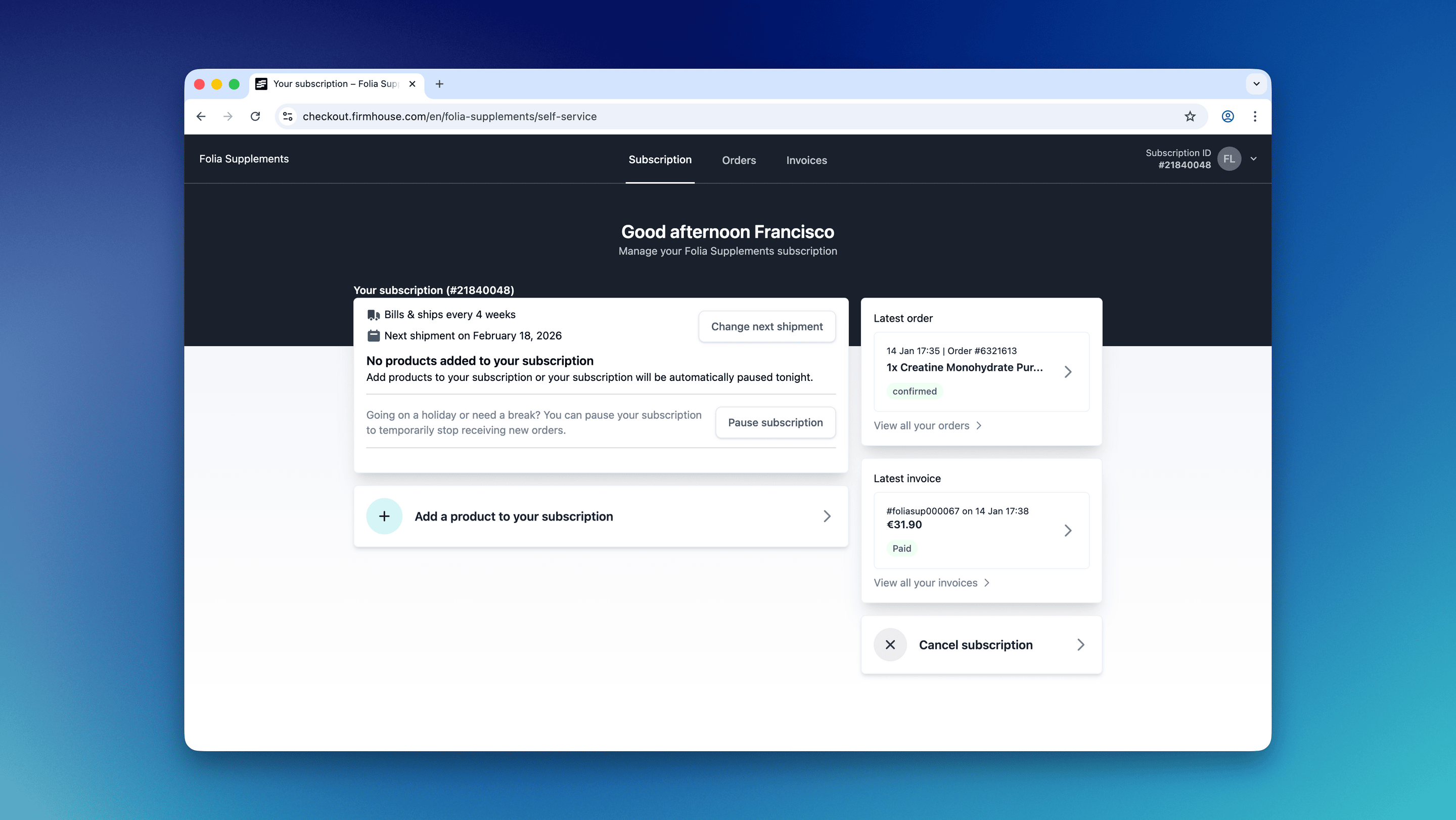
If auto-pausing is enabled, customers will see a message in their dashboard letting them know. If they add new products before the scheduled pause, the message will disappear and the subscription will remain active.
- Paused subscriptions can be resumed through the usual SSC resume flow, provided you have the pause/resume option enabled.
Pausing a subscription via API
Subscriptions can be paused via thepauseSubscription mutation. Please refer to the developer documentation for more details.
Billing and orders upon resuming a subscription
Once a subscription is paused, no orders or payments will be created. When the subscription is resumed, the next order will be scheduled while maintaining the original timeline, ensuring the schedule continues seamlessly.Notifications and events
Outgoing webhooks
You can take advantage of subscription paused and subscription resumed webhooks to set up additional automations.Email notifications
Project events email notifications
If you have set up an email to receive project email notifications, you will receive an email when a subscription gets paused.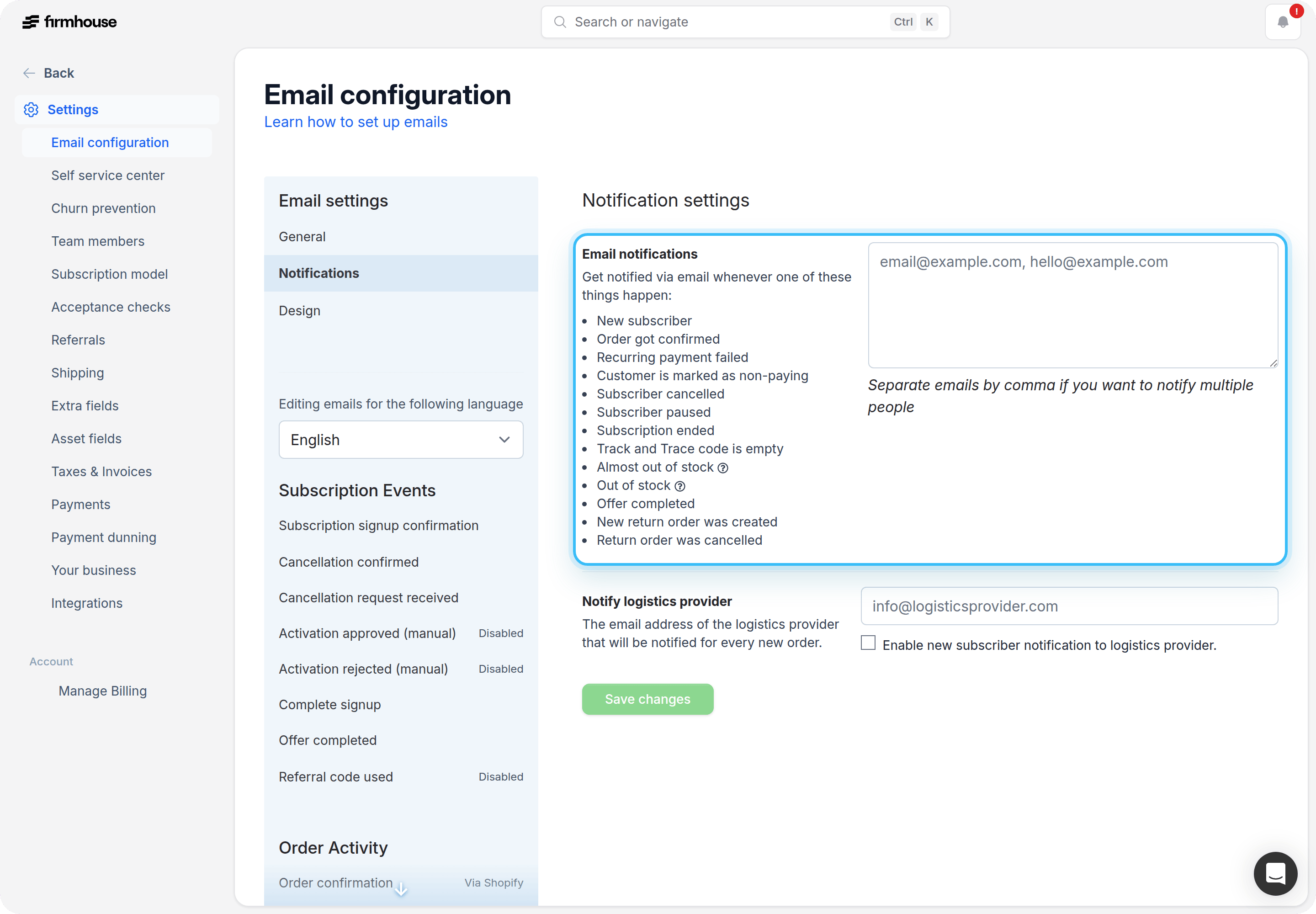
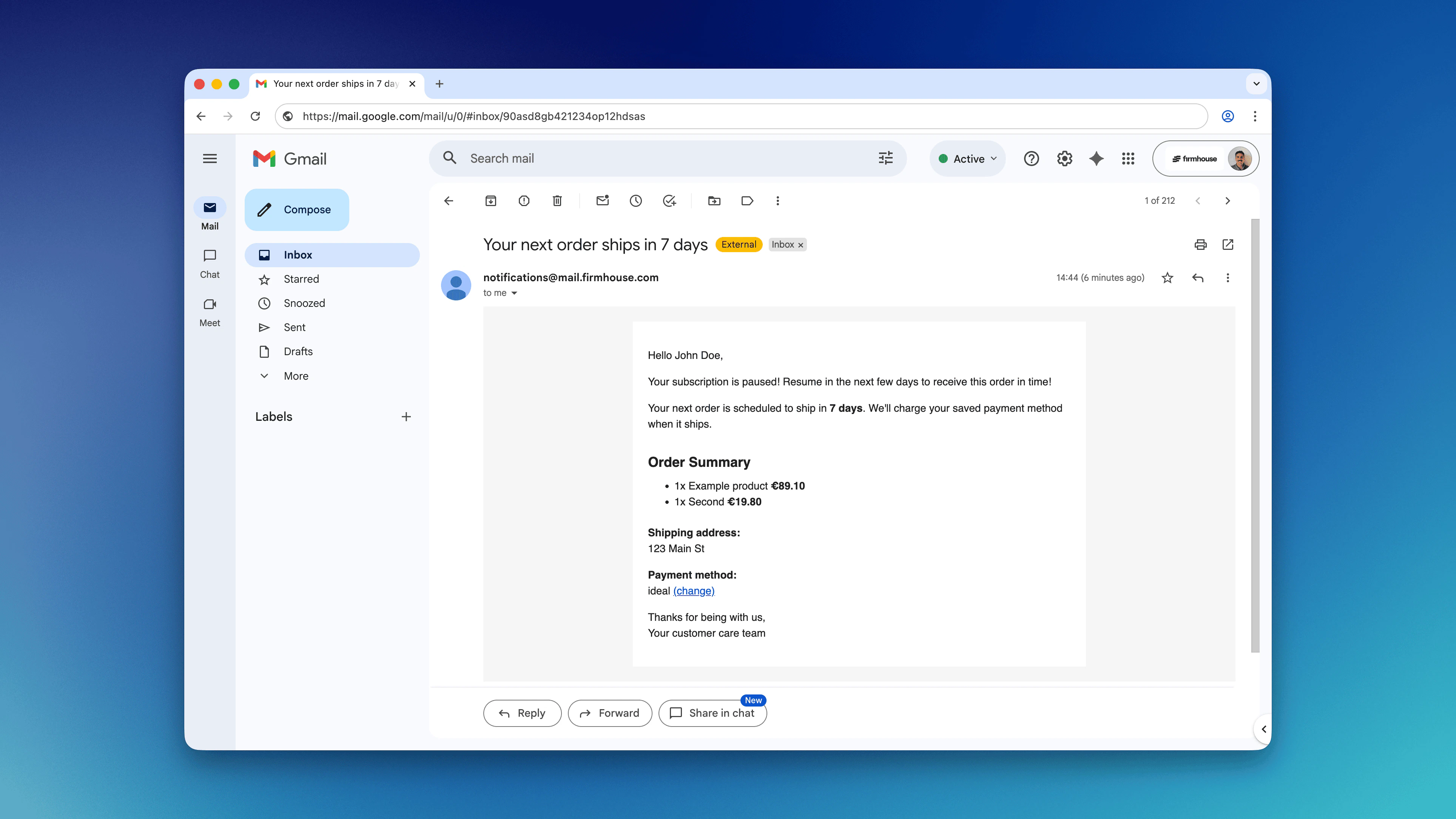
Upcoming order emails when paused
Upcoming order emails are also sent out to paused customers. You can use the{{subscription.status}} liquid tag to conditionally adjust the email content for this use case. For example: