

- the discount should only apply when a customer enters a code
- the discount should work on eligible subscription checkouts
- you want to control usage through a code instead of applying the discount automatically
Note: Tiered Discounts is a preview feature. The Firmhouse team must enable Tiered Discounts for your project.
1. Create a manual tiered discount
- Go to Discounts in your Firmhouse portal.
- Create a new Discount.
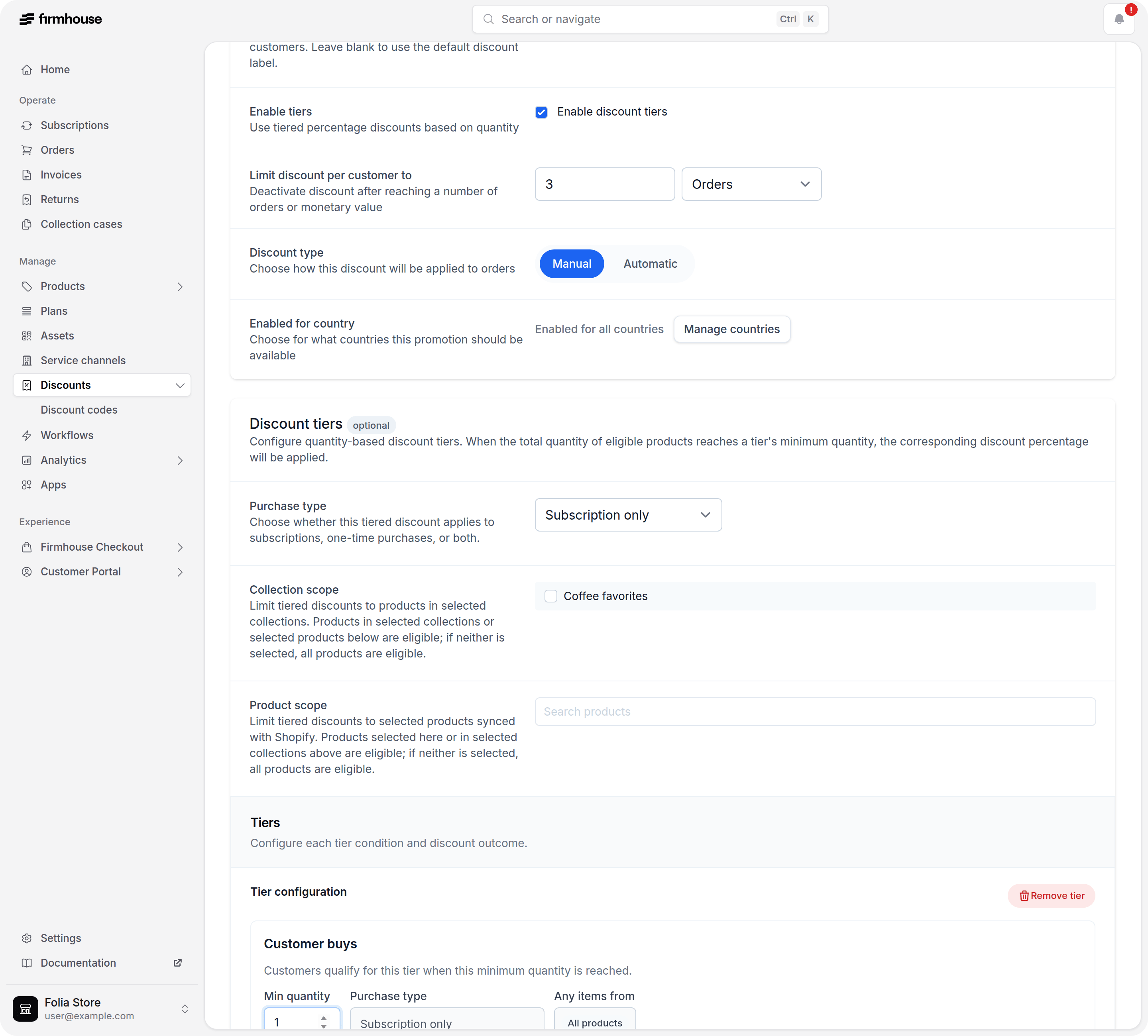
- Keep the discount set to Manual.
- Enable Enable discount tiers.
- Set Limit discount per customer to to the total number of orders for which the code should apply, including the signup order.
- Under Purchase type, choose Subscription only.
- Add a tier and set the Minimum quantity required for the cart to qualify.
- In Customer buys, optionally add a product or collection scope if only certain products should count toward the tier.
2. Configure what the customer receives
- In the tier, go to Customer gets.
- Click Edit on the discount row.
- Set the discount percentage you want to apply.
- Under Purchase type, choose Subscription only so the discount is only applied to subscription lines.
- If needed, use the Products or Collections fields to narrow which subscription products should actually receive the discount.
- Save the tier discount.
Important: The Customer buys section controls what qualifies the tier. The Products or Collections fields inside Edit tier discount control which item actually receives the discount.
3. Configure Shopify checkout behavior
- In the Shopify discounts section, enable Require selected plan if the discount should only apply to specific selling plans, then select the eligible plan or plans.
- In the Combines with section, enable Product discounts, Order discounts, or Shipping discounts if this discount should stack with other discounts in Shopify checkout.
4. Create the discount code
- Go to Discount Codes in your Firmhouse portal.
- Create a new discount code.
- Enter the code customers should use at checkout.
- Enter how many times the code can be used in Number of times this code can be used in total.
- Select the manual tiered discount you created.
- Save the discount code.
5. Confirm the discount is active
- Go back to Discounts.
- Open the tiered discount.
- Review the tier and Customer gets configuration.
- Confirm the discount is Active before sharing the code with customers.
6. Test the code in Shopify checkout
- Add the qualifying subscription products to the Shopify cart.
- Go to checkout.
- Enter the discount code.
- Confirm that the discount is applied to the eligible subscription line.
Troubleshooting
Shopify says the code is valid but not applicable
Check that:- the cart contains products that qualify for the tier
- the checkout is using a subscription configuration that matches the discount setup
- the Customer gets discount is set to Subscription only
- the discount is not limited to different products or collections than the ones in the cart
- the discount is not limited to different selling plans than the one used in checkout
- the discount is active in Firmhouse and Shopify
- the code is linked to the correct manual tiered discount