

Step 1: Add new metafield definitions for the B variant
In Shopify Admin, go to Settings > Custom data > Products and click Add definition. Create two new metafields for the B variant, similar to the original ones.Steps
-
Create a metafield for Featured Subscription Variants (B):
- Name:
Firmhouse: Featured Subscription Variants (B) - Namespace and Key:
firmhouse.featured_subscription_variants_b - Type: Product variant, List of variants
- Name:
-
Create a metafield for Featured One-Time Variants (B):
- Name:
Firmhouse: Featured One-Time Variants (B) - Namespace and Key:
firmhouse.featured_one_time_variants_b - Type: Product variant, List of variants
- Name:
Step 2: Set the featured variants on each product
Next, edit each product that will be part of the A/B test. In the product editor, scroll to Metafields.Steps
- For Subscription Variants (B): Click the entry next to Firmhouse: Featured Subscription Variants (B) and then Select variants. Pick which product variants to feature for subscriptions, and click Add to save.
- For One-Time Variants (B): Click the entry next to Firmhouse: Featured One-Time Variants (B) and select the variants to feature for one-time purchases.
- Repeat this for all products in the test.
Step 3: Create a new product template for variant B
In your theme, duplicate the existing product page template used for the Subscription First widget and assign your B-group products to this new template.Steps
- In the theme editor for the B template, add or select the Subscription First block.
- In the block’s Advanced settings (or Content settings), set the keys to your new metafield keys:
- Featured Subscription Variants Key:
featured_subscription_variants_b - Featured One Time Variants Key:
featured_one_time_variants_b
- Featured Subscription Variants Key:
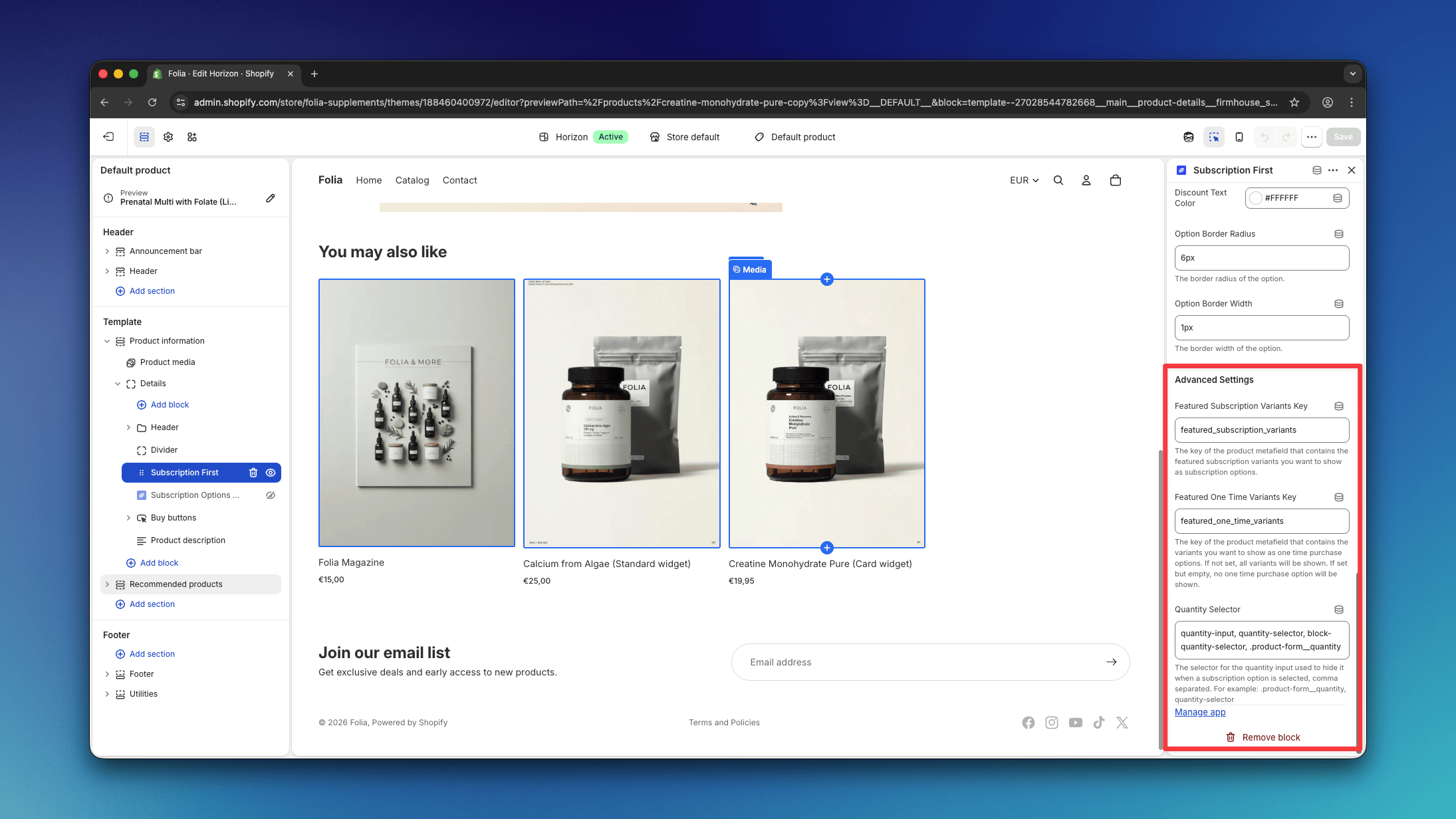
firmhouse. prefix.
These values link the widget to the B-variant metafields defined earlier. Save the template when done.
Step 4: Run a Template Test in ABConvert
Now use the ABConvert app to split traffic between template A and B.Steps
- Create a new Template Test: Go to Create New Test and choose Template Test.
- Configure the test: Give it a name and set the traffic split (for example, 50/50).
- Select templates: Choose your original product template as the control (A) and the new B template as the variant.
- Launch the test: Start the test to activate it.