

Getting Started
Setting up the Subscription First theme block involves a few more configuration steps than the more standard Subscription Options theme block. This article will guide you in setting up the basics and more advanced settings.Adding the Theme Block to Your Product Page
Steps
- Add the Subscription First theme block to your product page template. If you only want to sell certain products in a Subscription First fashion, you can create a new Product template and link the products you want to sell this way to use this specific template.
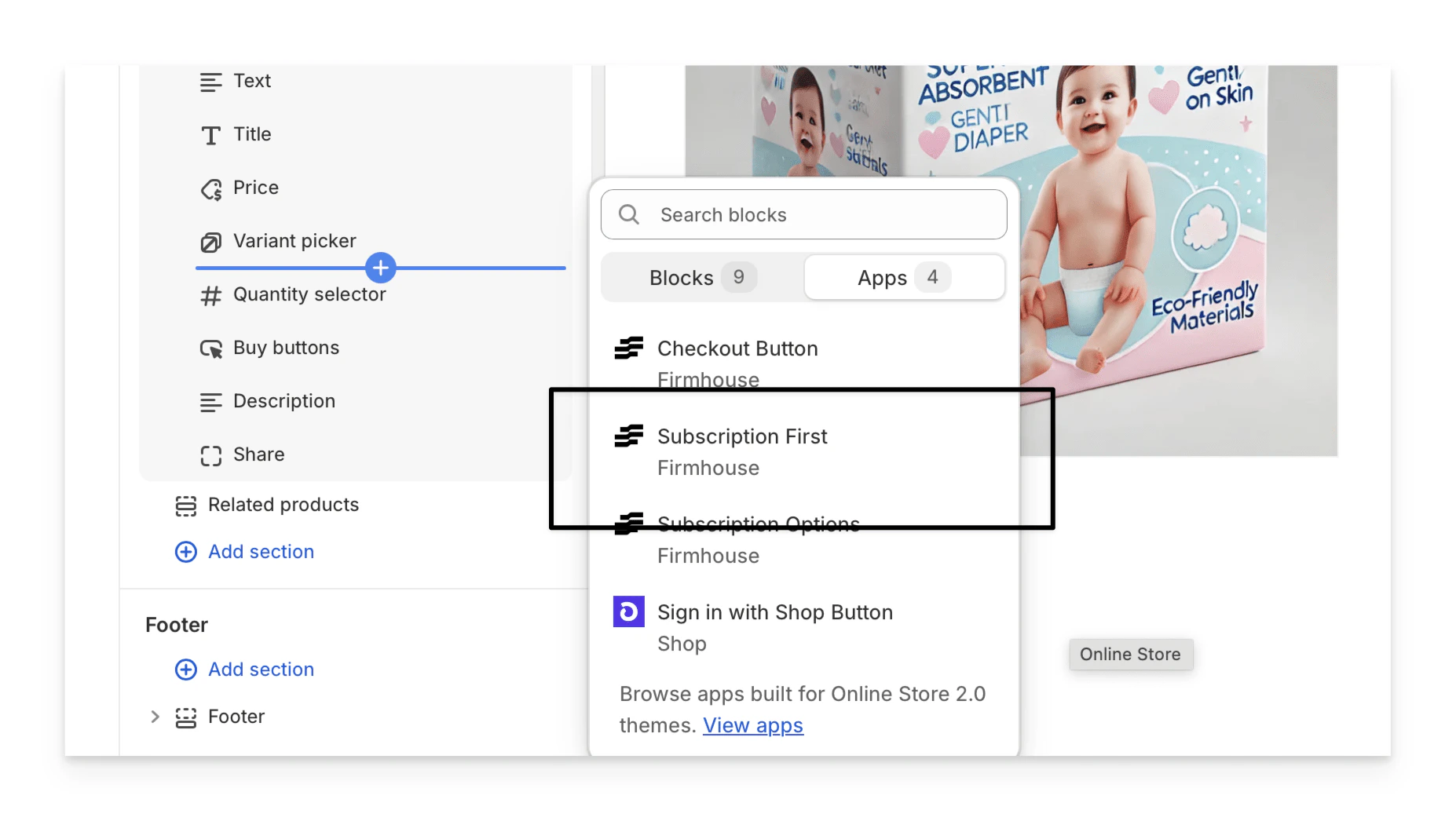
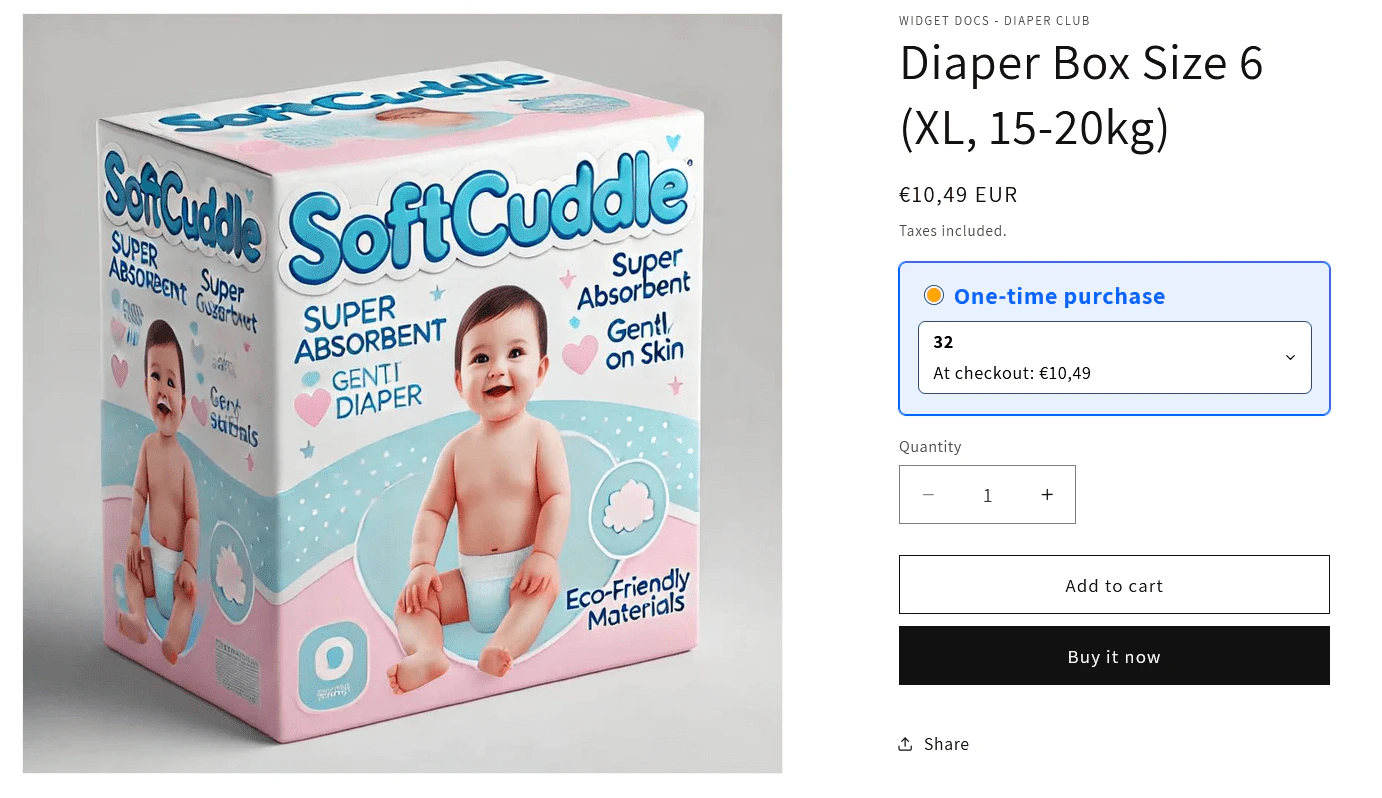
- Remove or hide the Variant picker as the variant selection is managed by the Subscription First widget now.
Creating a Product Metafield for Featured Subscription Variants
To have the right subscription schedules show up for each product, you need to define a Metafield.Steps
- In your Shopify admin, go to Settings > Custom Data > Products and click Add definition.
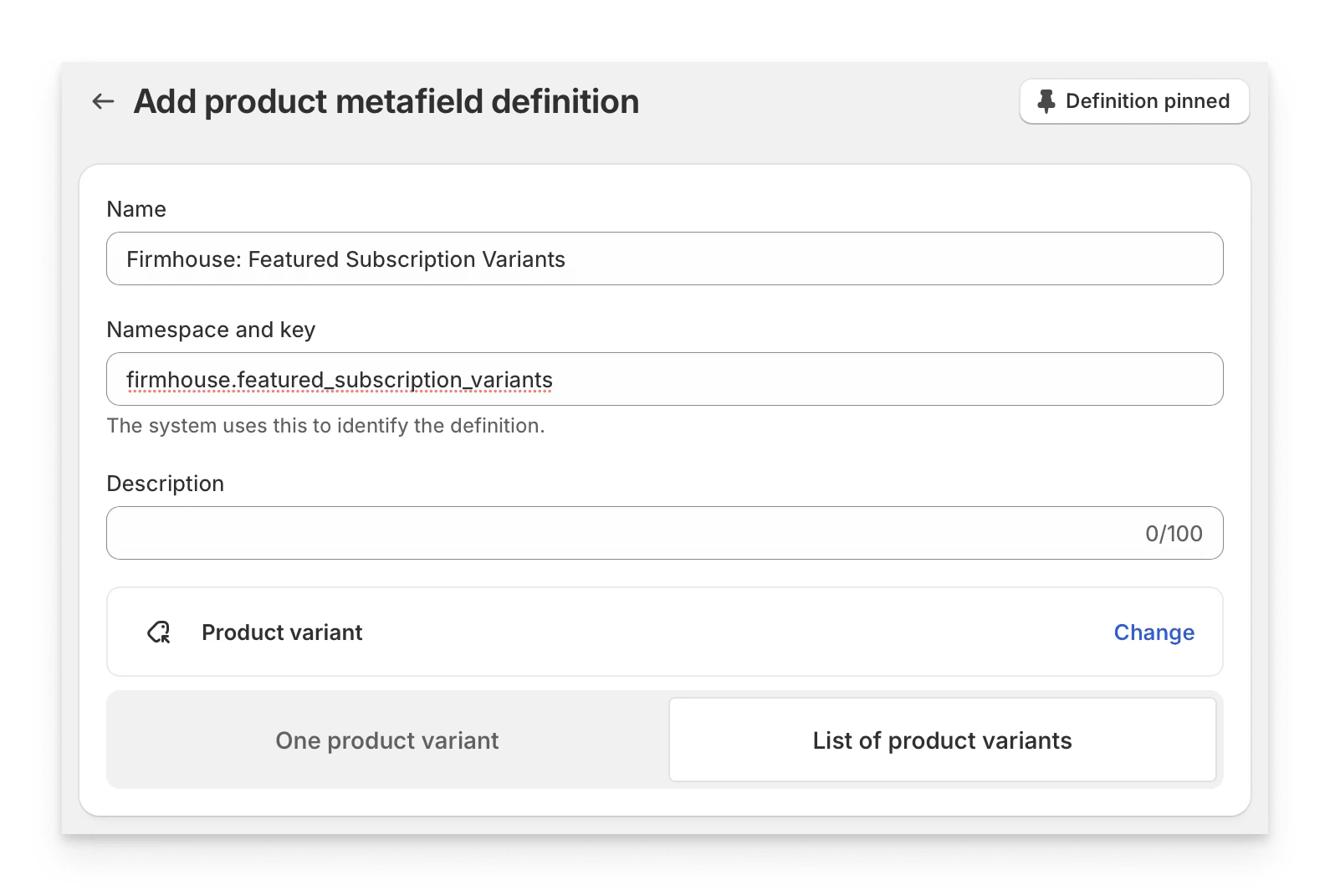
- Add the metafield with the following properties:
- Name: Firmhouse: Featured Subscription Variants
- Namespace and Key:
firmhouse.featured_subscription_variants - Select Type: Product Variant and then select List of product variants
Setting Subscription Variants on the Product
Now edit a Product in Shopify and select the variants that you want to show up as subscription options in the metafield. You will need to do this for every Product that you want to sell in a Subscription First way.Steps
- On the Product edit form, scroll down to Product metafields and click the entry area next to the label.
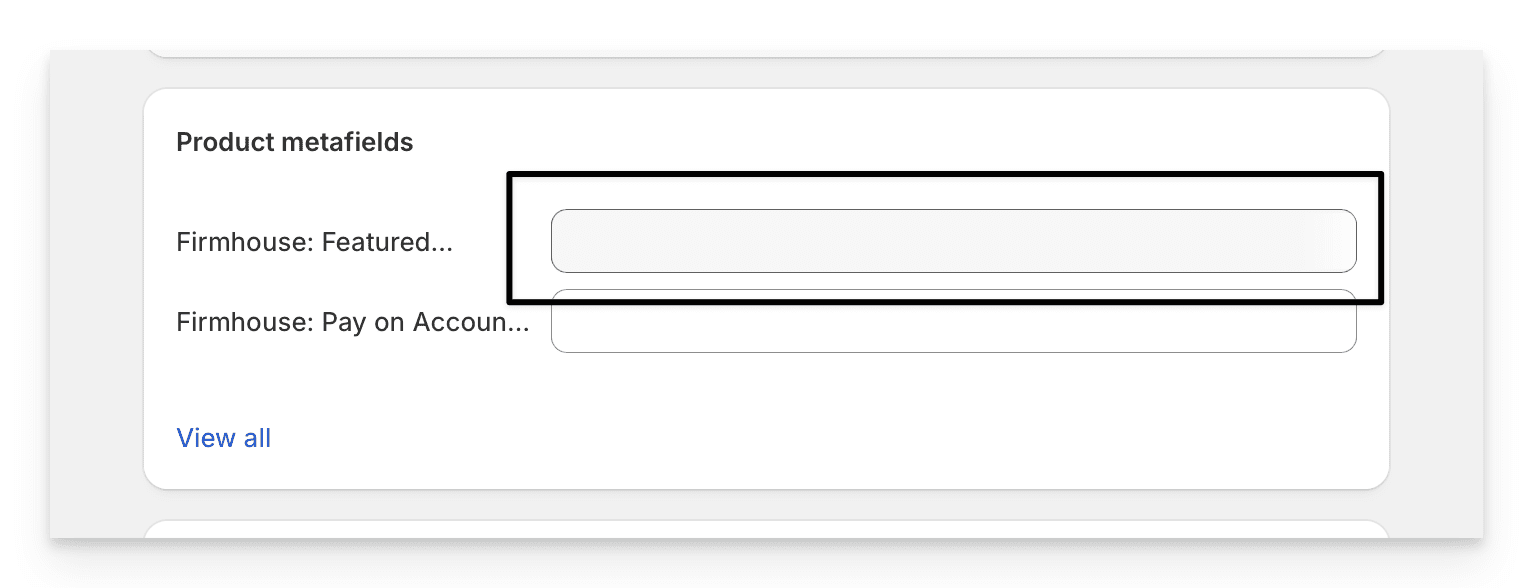
- Click Select variants.
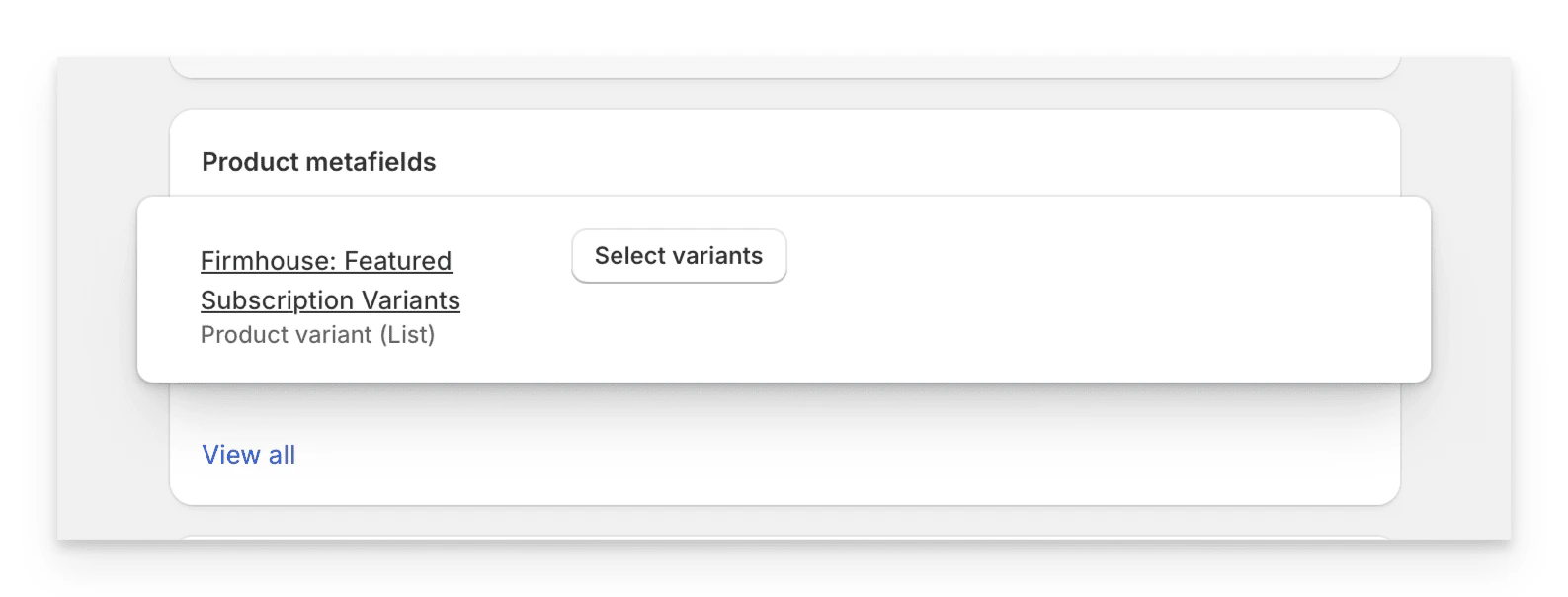
- In the dialog that shows up, find the product you are currently editing and select which variants you want to make available as subscription options.
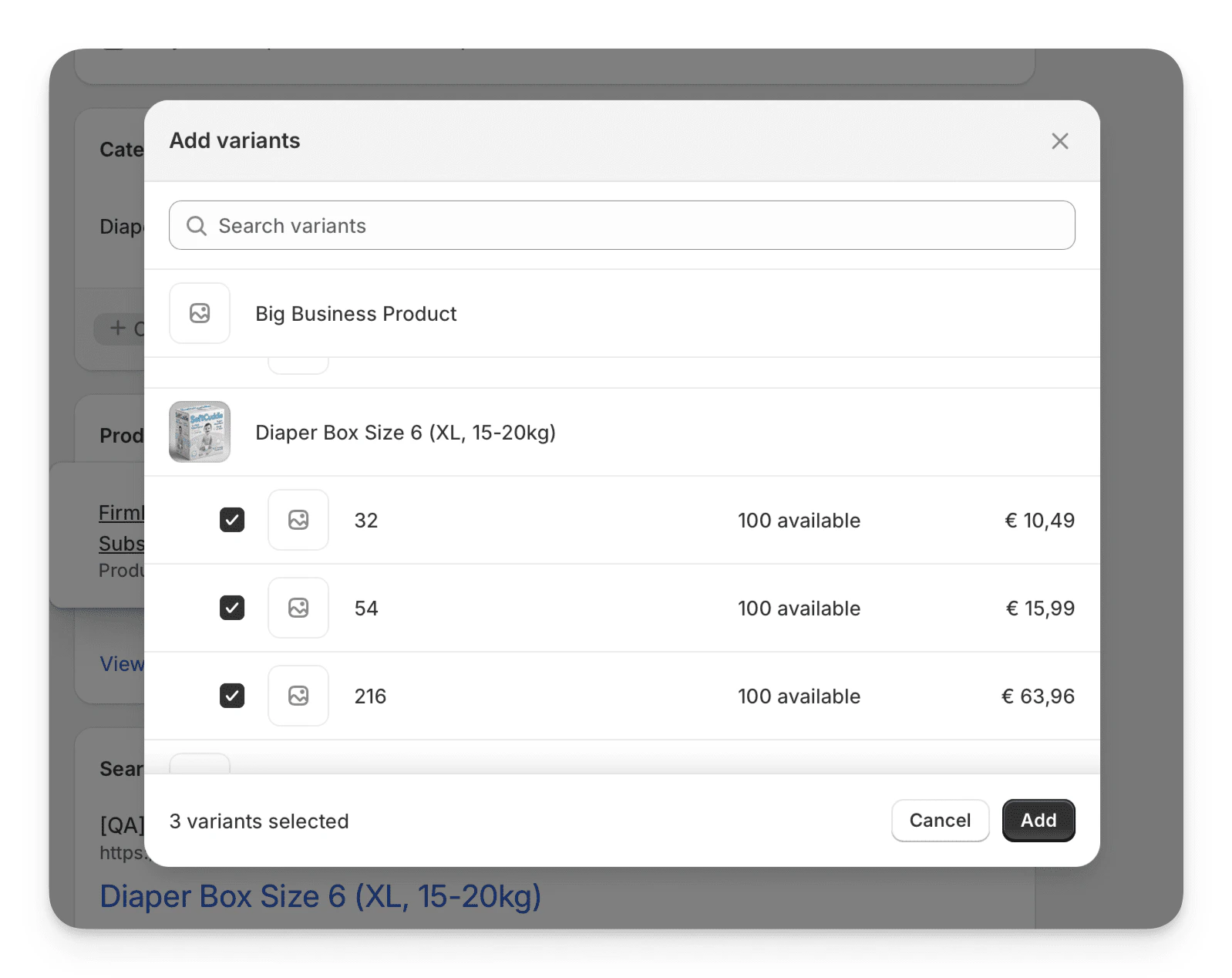
- Click Add and the subscription variants for your products are set.
Creating a Product Variant Metafield for Subscription Schedule
Now you need to create a metafield on Product Variant so that per variant you can set what the appropriate subscription schedule for that size option is.Steps
- In your Shopify admin, go to Settings > Custom Data > Variants and click Add definition.
- Add the metafield with the following properties:
- Name: Firmhouse Subscription Frequency
- Namespace and Key:
firmhouse.subscription_frequency - Select Type: Single line text
Setting the Subscription Frequency Per Variant
The last step for the basic setup is to set the subscription frequency you want to link to the appropriate size variant of your product. For example, the “Every 2 weeks” subscription schedule should be linked to the “54 units” diaper box, and the “Every 2 months” schedule should be linked to the “216 units” diaper box.Steps
- In Shopify, edit a product variant you want to assign to a subscription schedule.
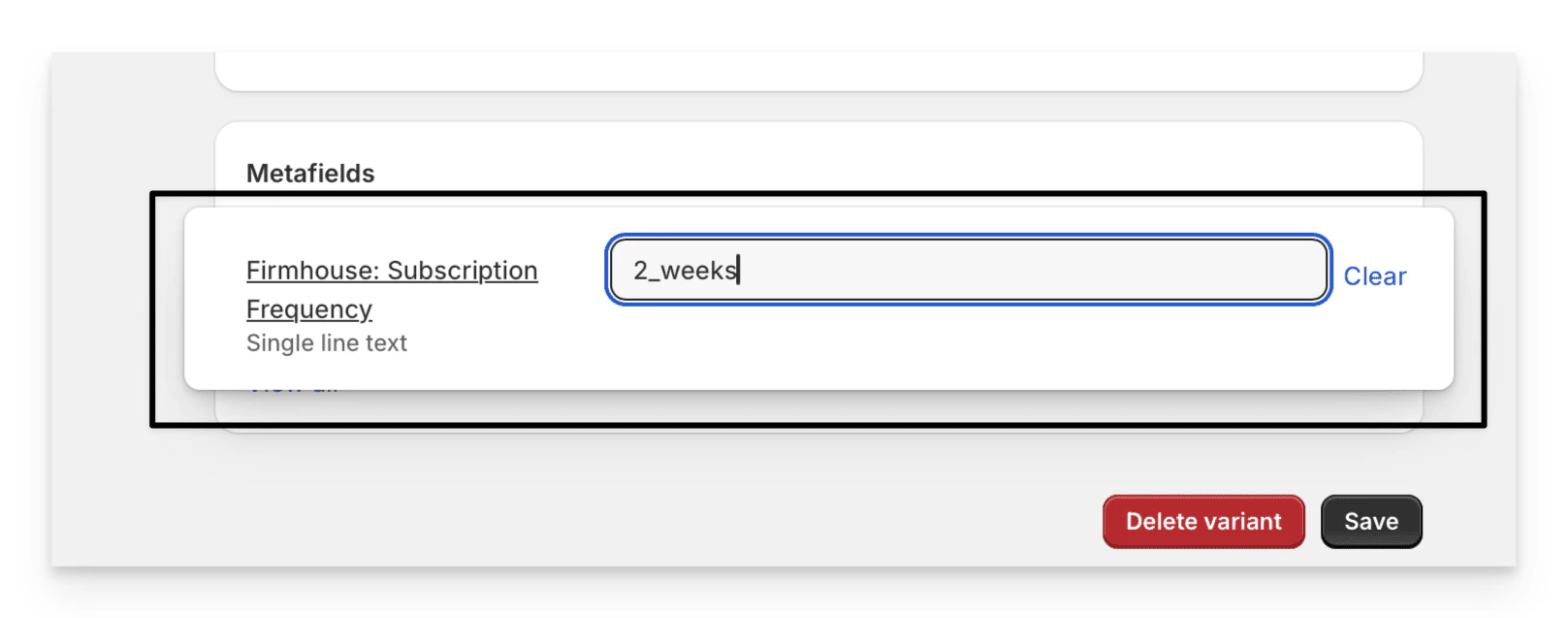
- Scroll down to Metafields and edit the Firmhouse: Subscription Frequency metafield.
- As the value, enter the subscription frequency in the following format:
<unit>_<period plural>, for example:2_weeksor1_months.
Matching Plans with Minimum Commitment (Optional)
If your selling plans include minimum commitment terms, you can make Subscription First match variants to the correct plans by configuring the minimum commitment metafield on the variant. Create this Product Variant metafield in Shopify:- Name: Firmhouse Minimum Commitment
- Namespace and Key:
firmhouse.min_commitment - Type: Single line text
<amount>_<unit plural> format as frequency values, for example: 1_months, 1_weeks, or 4_months.
When this value is set on a variant, Firmhouse uses the selling plan metadata minimum commitment to find a matching plan for that variant.
Configuring One-Time Purchase Options (Optional)
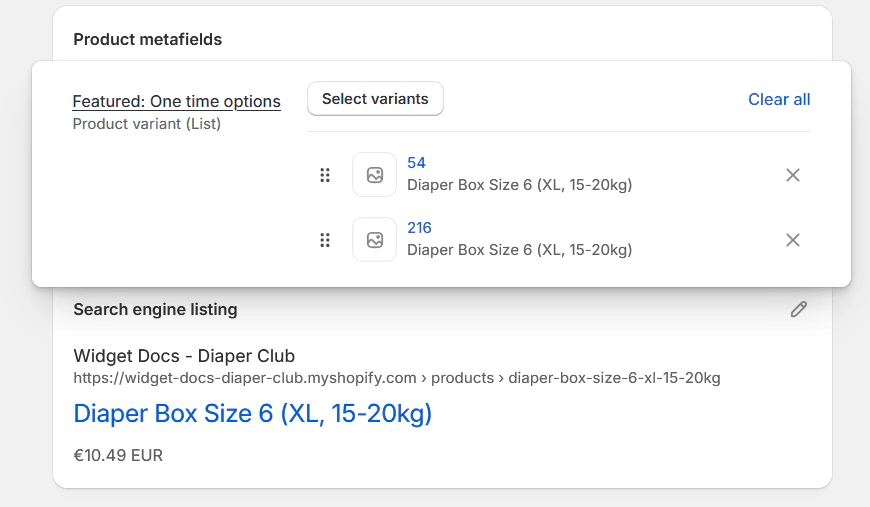
By default, all product variants will be available as one-time purchase options. However, you can control which variants appear in the one-time purchase dropdown by creating and configuring a Featured One-Time Variants metafield.Steps
- In your Shopify admin, go to Settings > Custom Data > Products and click Add definition.
- Add the metafield with the following properties:
- Name: Firmhouse: Featured One-Time Variants
- Namespace and Key:
firmhouse.featured_one_time_variants - Select Type: Product Variant and then select List of product variants
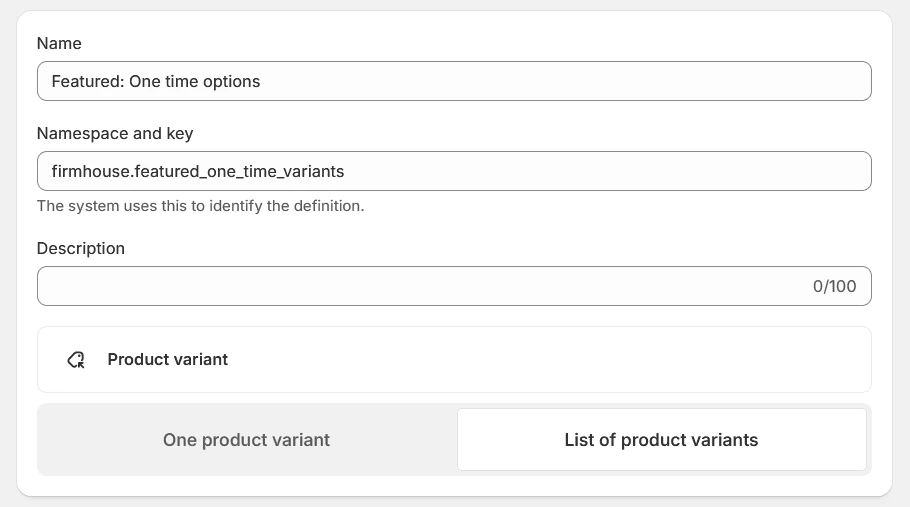
- Edit your product and select which variants should appear as one-time purchase options. If you don’t set this metafield, all variants will be available as one-time purchase options.
Making Your Subscription Options More Informative
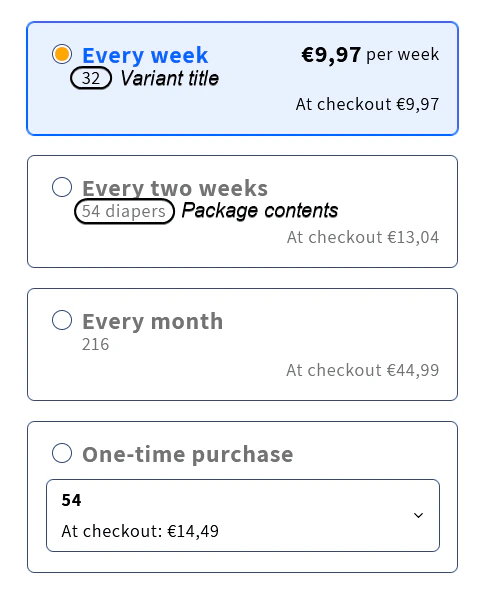
Here are some easy ways to give your customers more details about what they’re subscribing to.Tell Customers What’s in the Box
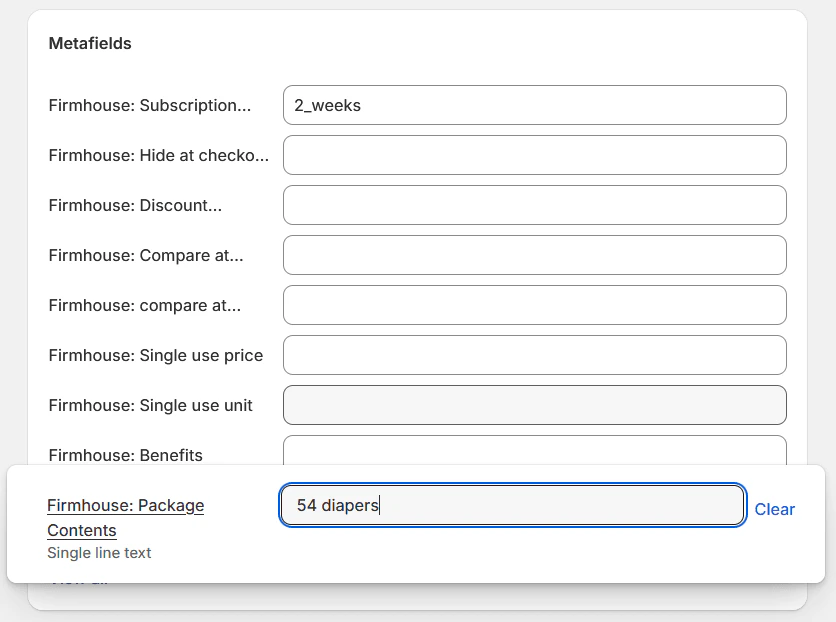
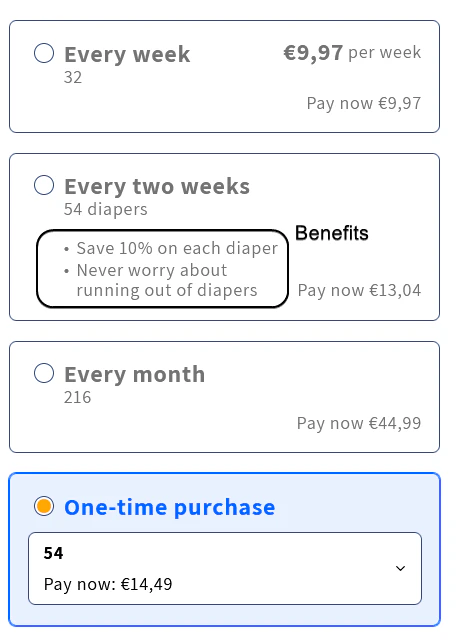
Create a simple variant metafield with the following properties:- Name: Firmhouse: Package Contents
- Namespace and Key:
firmhouse.package_contents - Type: Single line text
Highlight the Perks of Subscribing
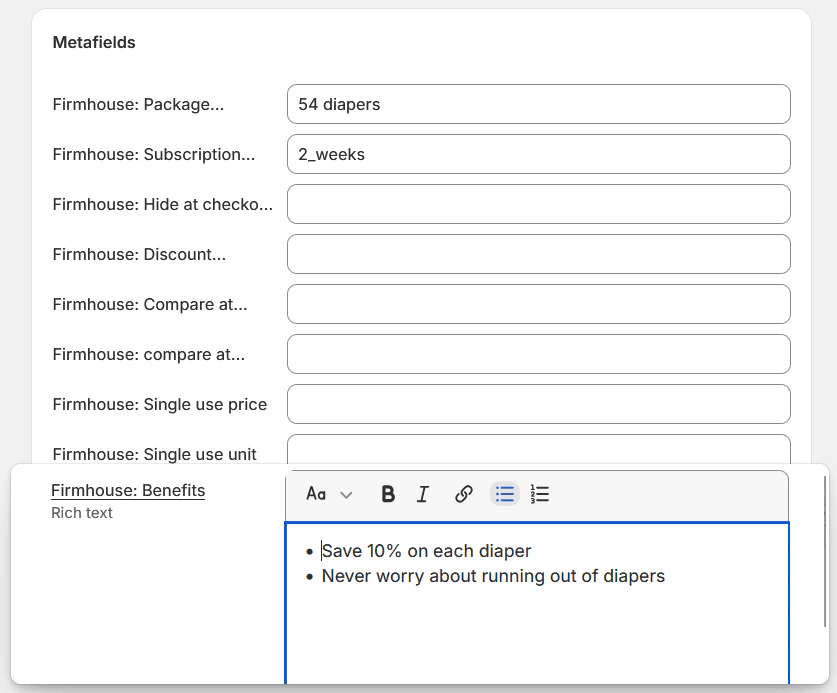
Create a variant metafield with the following properties:- Name: Firmhouse: Benefits
- Namespace and Key:
firmhouse.benefits - Type: Rich text
Show the Value with Per-Unit Pricing
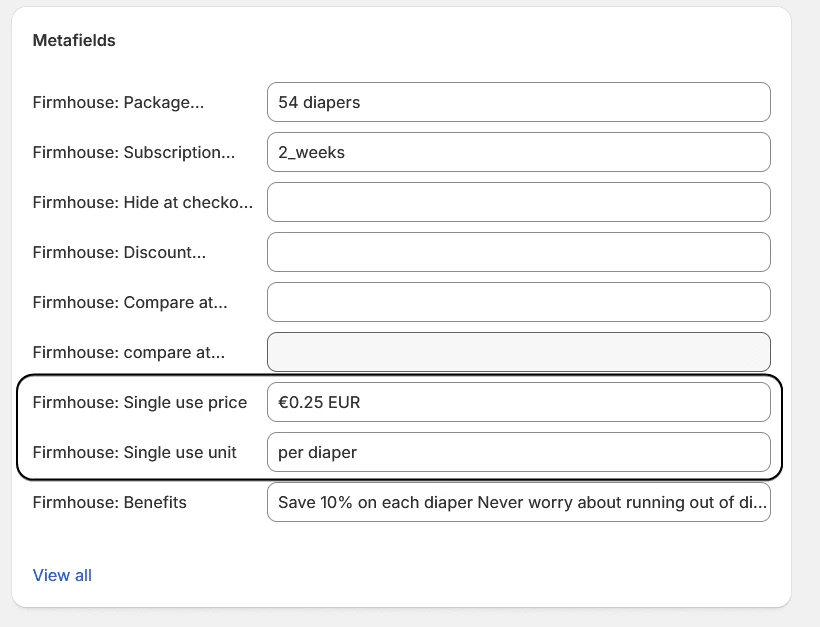
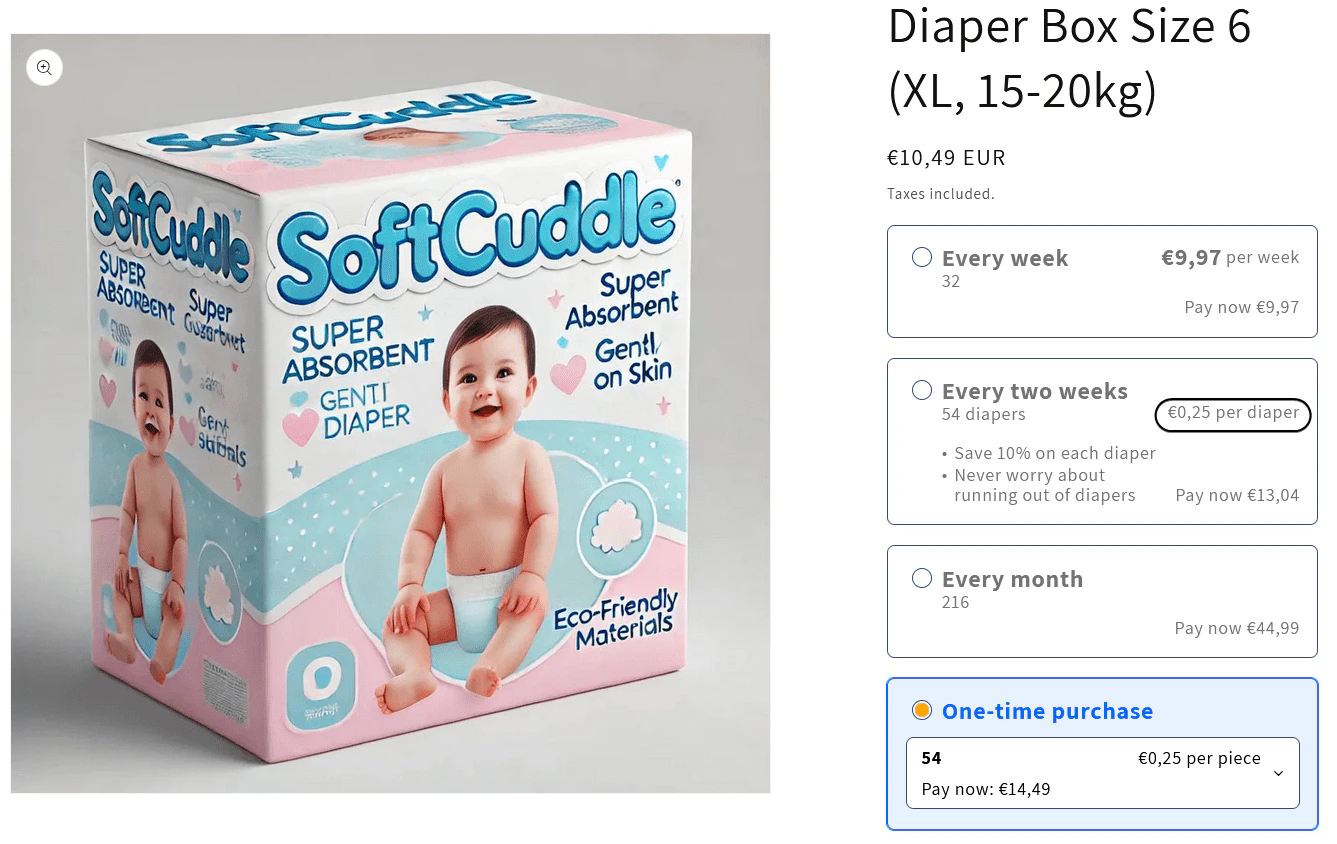
Set up these variant metafields: Single Use Price:- Name: Firmhouse: Single Use Price
- Namespace and Key:
firmhouse.single_use_price - Type: Money
- Name: Firmhouse: Single Use Unit
- Namespace and Key:
firmhouse.single_use_unit - Type: Single line text
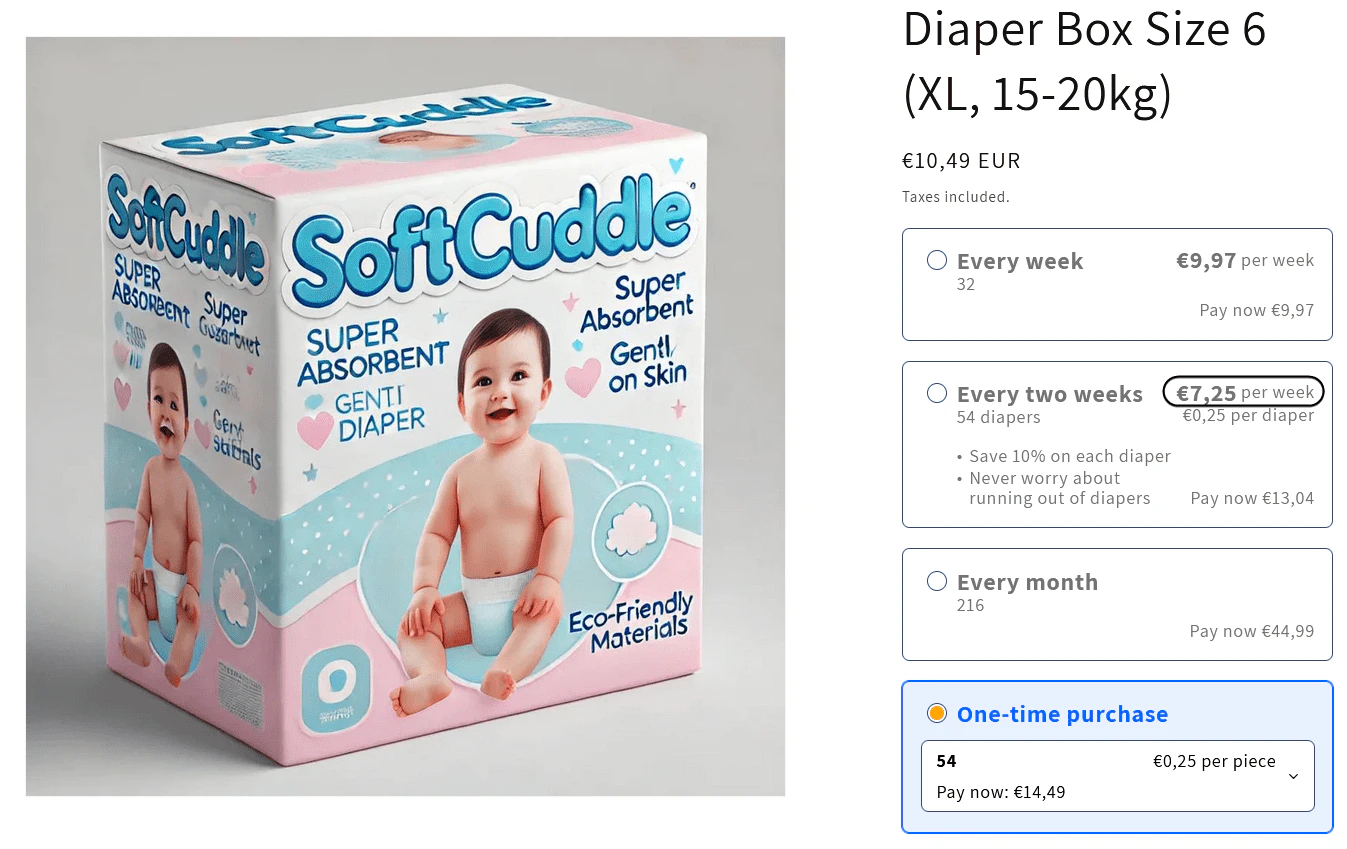
Display Monthly/Weekly Value
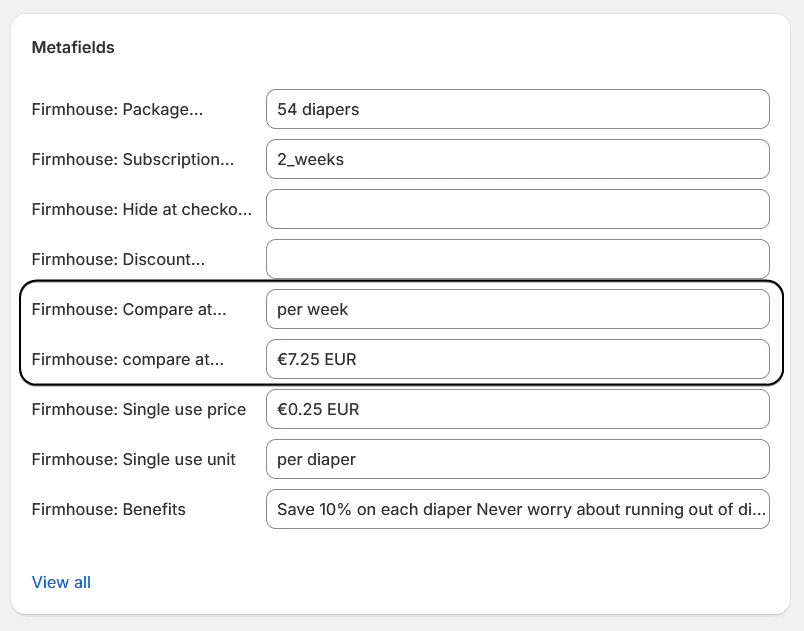
Create these variant metafields: Compare At Frequency Price:- Name: Firmhouse: Compare At Frequency Price
- Namespace and Key:
firmhouse.compare_at_frequency_price - Type: Money
- Name: Firmhouse: Compare At Frequency Period
- Namespace and Key:
firmhouse.compare_at_frequency_period - Type: Single line text
Show Off the Savings
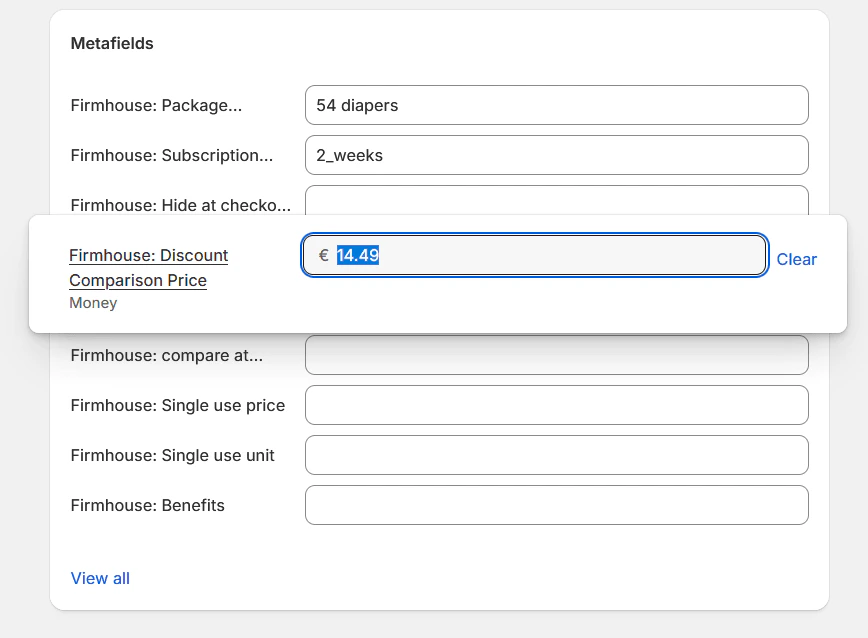
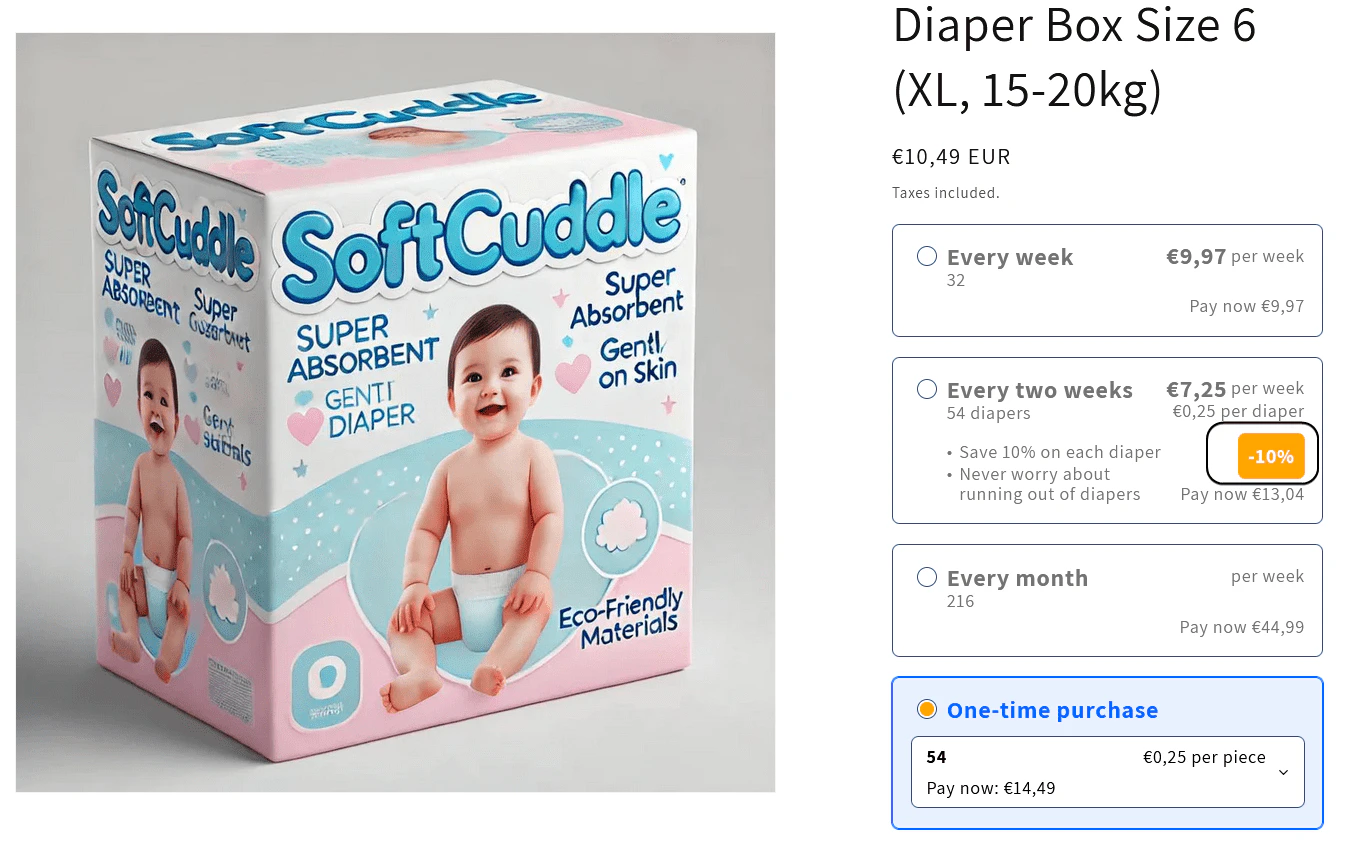
Create a variant metafield with the following properties:- Name: Firmhouse: Discount Comparison Price
- Namespace and Key:
firmhouse.discount_comparison_price - Type: Money
Keep It Clean by Hiding Checkout Prices
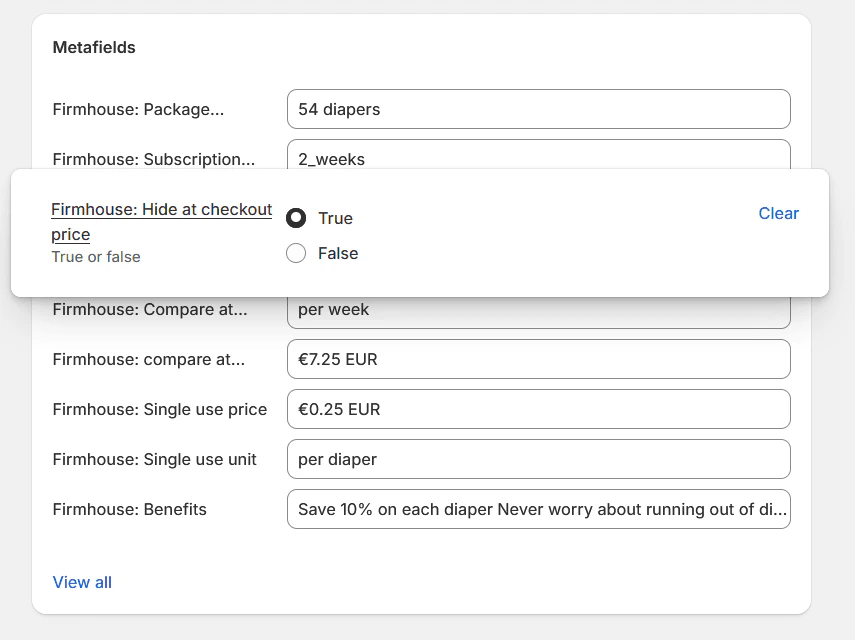
Create a variant metafield with the following properties:- Name: Firmhouse: Hide At Checkout Price
- Namespace and Key:
firmhouse.hide_at_checkout_price - Type: True or false
true if you want to hide the “At checkout” price on subscription options for a cleaner look.
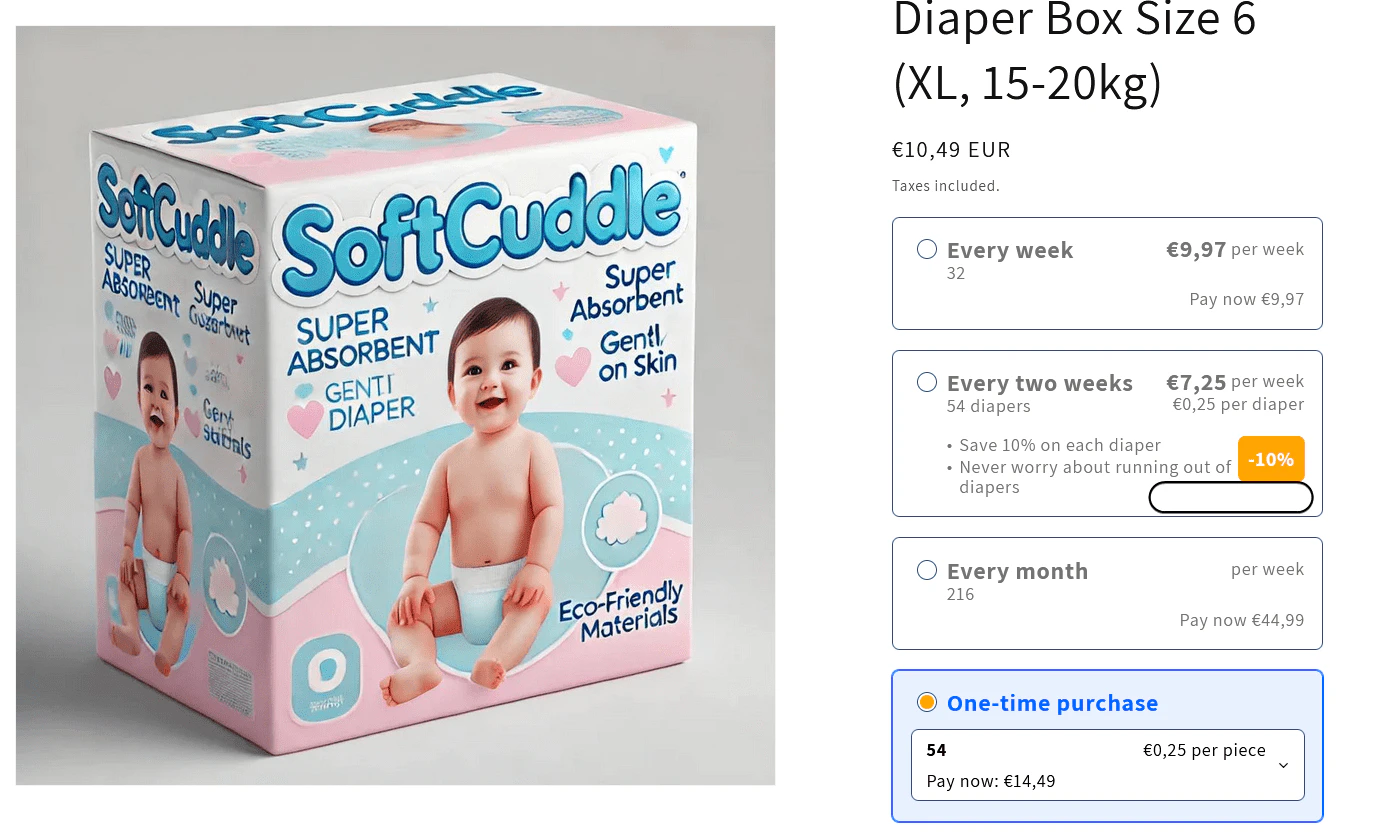
One-Time Purchase Per-Unit Pricing
To show different per-unit pricing for one-time purchases than for subscription options, create these variant metafields: One-Time Purchase Single Use Price:- Name: Firmhouse: One-Time Purchase Single Use Price
- Namespace and Key:
firmhouse.otp_single_use_price - Type: Money
- Name: Firmhouse: One-Time Purchase Single Use Unit
- Namespace and Key:
firmhouse.otp_single_use_unit - Type: Single line text
Customizing the Appearance and Behavior
The Subscription First theme block offers several customization options to match your store’s design and functionality needs. In the theme editor, select the Subscription First block and you’ll see these settings:Behavior Settings
- Hide Quantity for Subscriptions: When enabled, hides the quantity input for subscription options and always uses ‘1’ as the quantity (Optional)
- Hide One Time Select: Hides the one-time product selection until the option is chosen (Optional)
- Default to One Time Purchase: When enabled, the one-time purchase option will be selected by default instead of the first subscription option (Optional)
Content and Labels
- Preferred Option Label: Text to display on the badge for the preferred subscription option (Optional)
- At Checkout Label: Customize the “At checkout:” text that appears before the price (Default: “At checkout:”)
- One Time Purchase Label: Customize the text for the one-time purchase option (Optional)
Styling Options
The widget offers extensive styling options including base font size, option text color, option border color, option background color, selected option text color, selected option name text color, selected option background color, selected option border color, selected option border width, option hover border color, selected option radio color, preferred option badge text color, discount background color, discount text color, option border radius, and option border width. Aside from these settings you can always use custom CSS to customize the widget even more.Advanced Settings
- Featured Subscription Variants Key: The metafield key for subscription variants (Default:
featured_subscription_variants). If you would like to offer different variants for subscriptions on each market you can use a dynamic value here to use different metafields for each market. - Featured One Time Variants Key: The metafield key for one-time purchase variants (Default:
featured_one_time_variants). If you would like to offer different variants for subscriptions and one-time purchases in different markets, you can use dynamic values for both keys. - Quantity Selector: CSS selector for the quantity input to hide when subscription is selected (Default: “quantity-input, quantity-selector, block-quantity-selector, .product-form__quantity”)