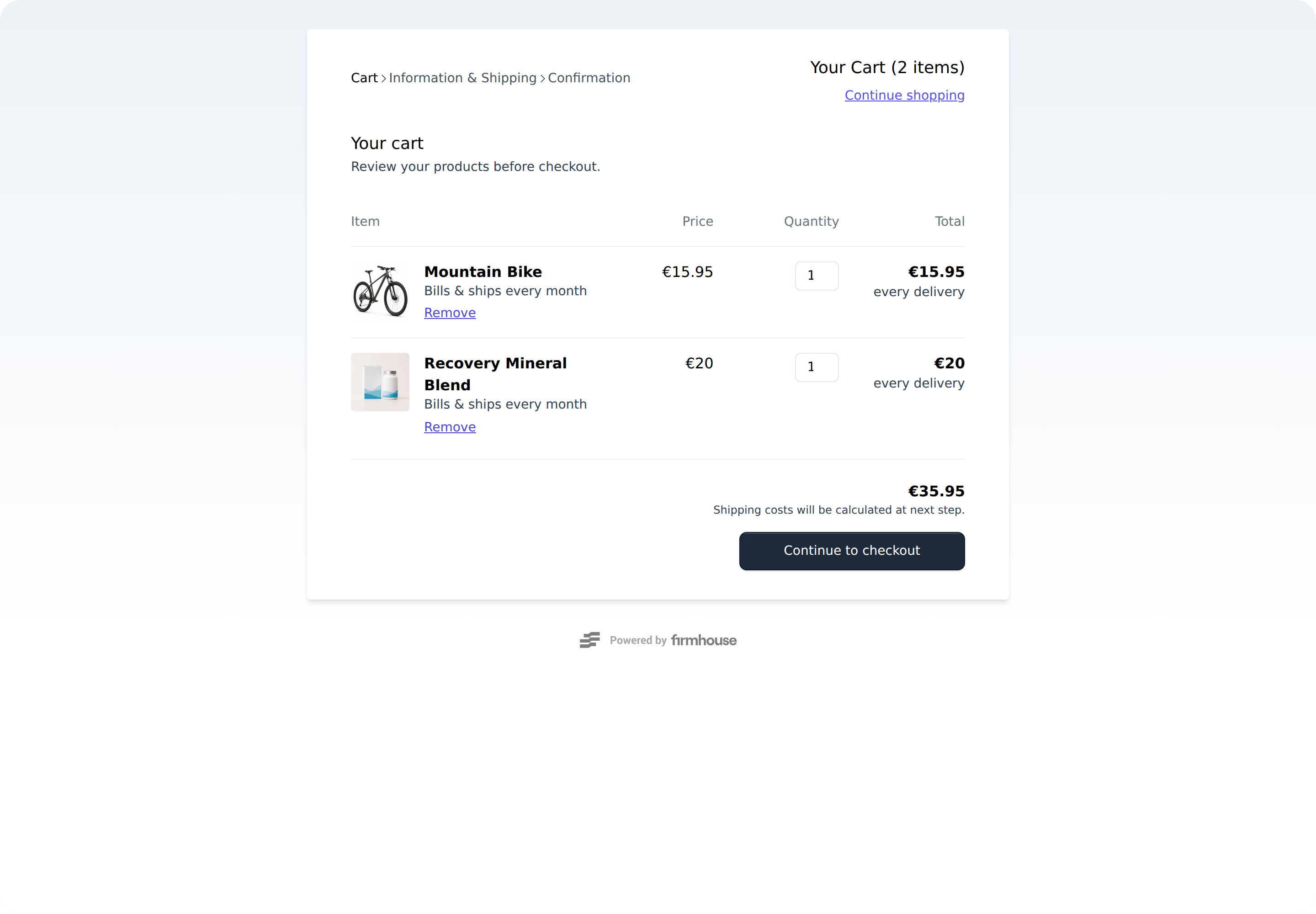
Enabling the cart
Steps
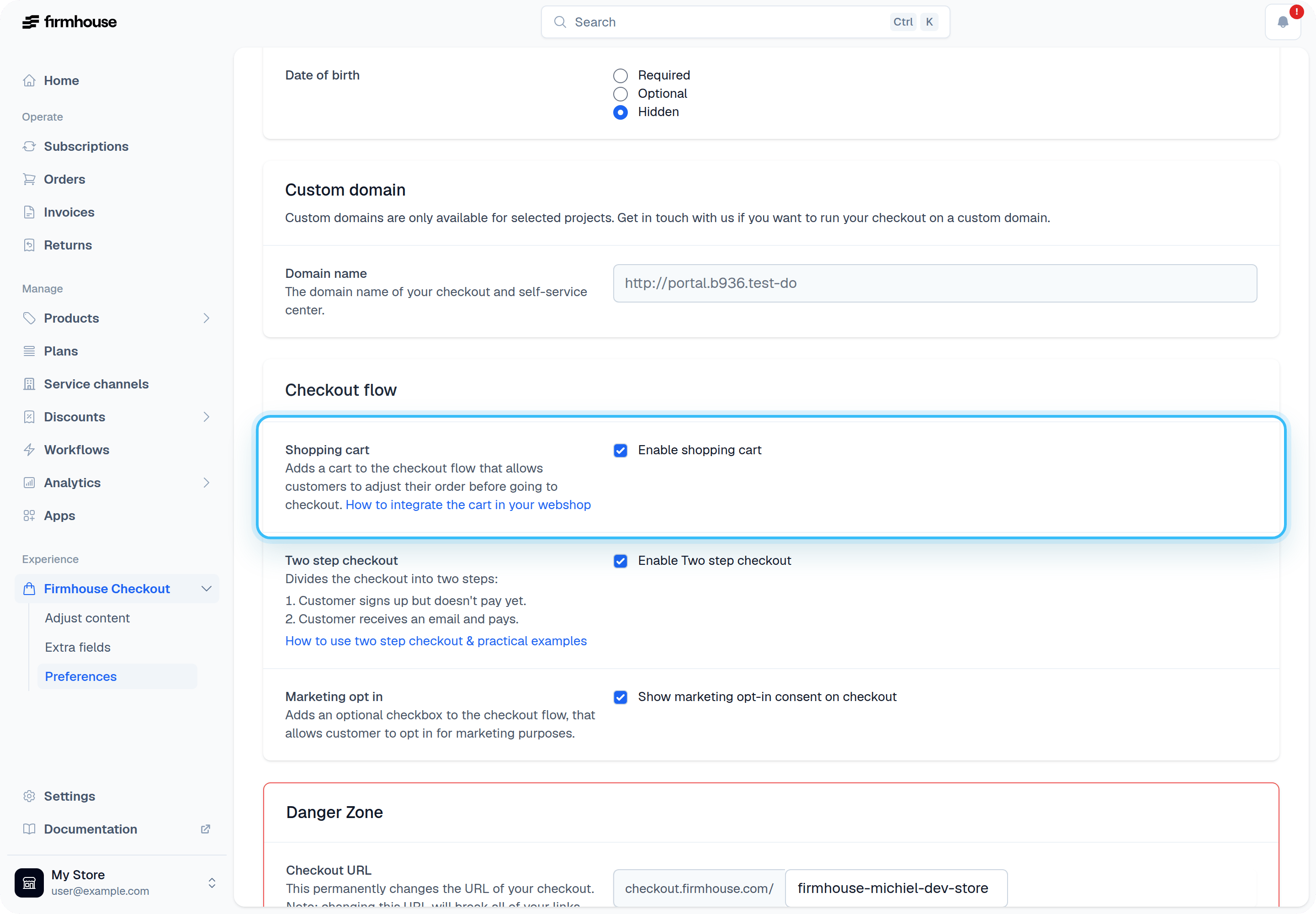
- Go to Checkout > Preferences and scroll down to Checkout Flow.
- Check the Enable shopping cart box.
- Click Update to save your project settings.
Integrating the cart into your store
The only thing left is to tell your web shop which product it should add to the cart when a customer clicks on your Buy button. You need to do this for every product in your shop, but it’s a one-time setup.Steps
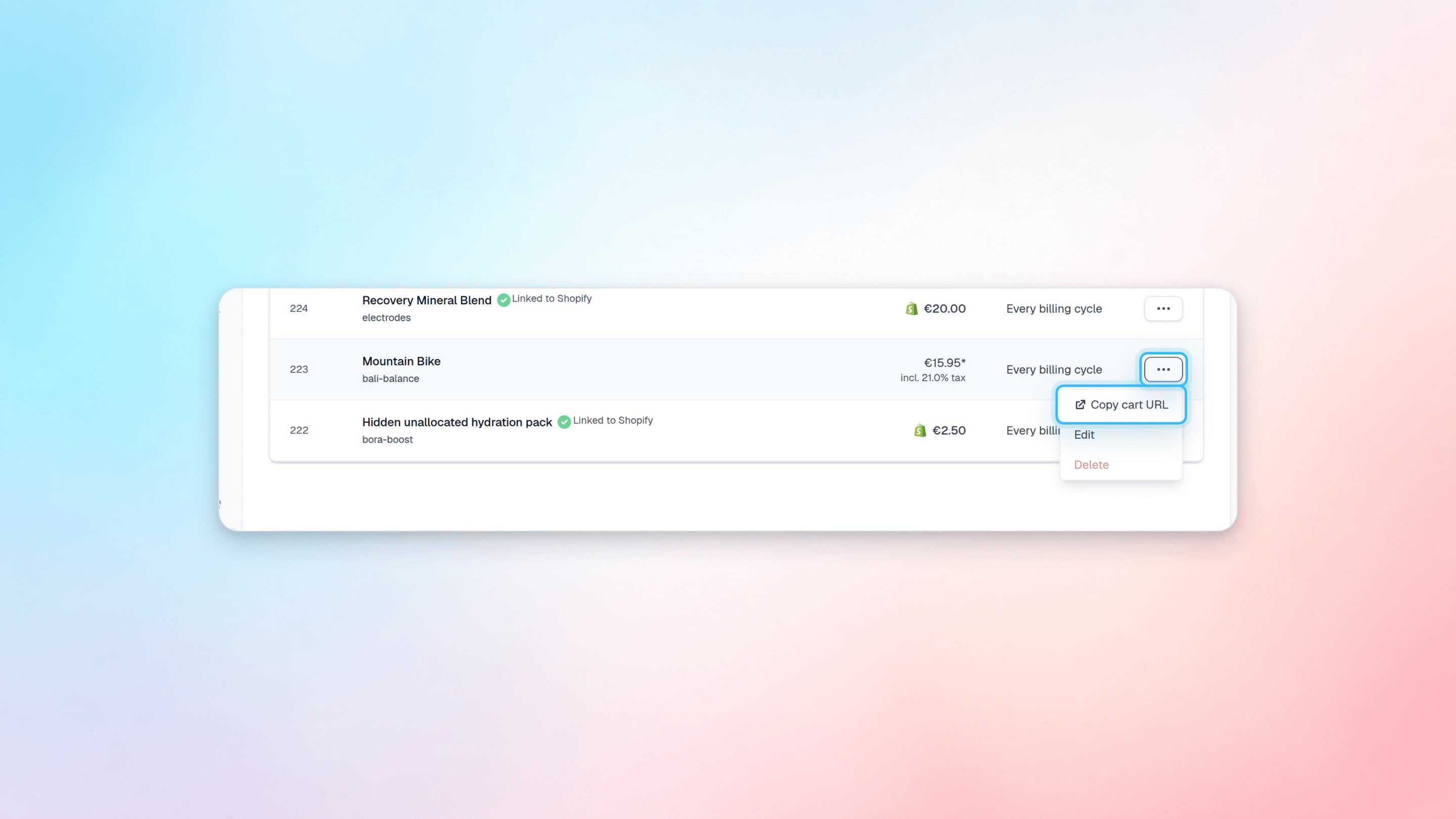
- Go to Products and locate the product you want to configure.
- Click on the three dots menu and select Copy cart URL.
- The URL is now copied to your clipboard.
- Go to your webshop and add that URL to your “Buy” button.
- Repeat the process for every product in your web store.
Configuring your cart
The cart works out of the box and doesn’t need any configuration. There are two things you can adjust however:- Where a customer goes after clicking on “Continue Shopping”
- The name of the button to go from Cart to Checkout
Steps
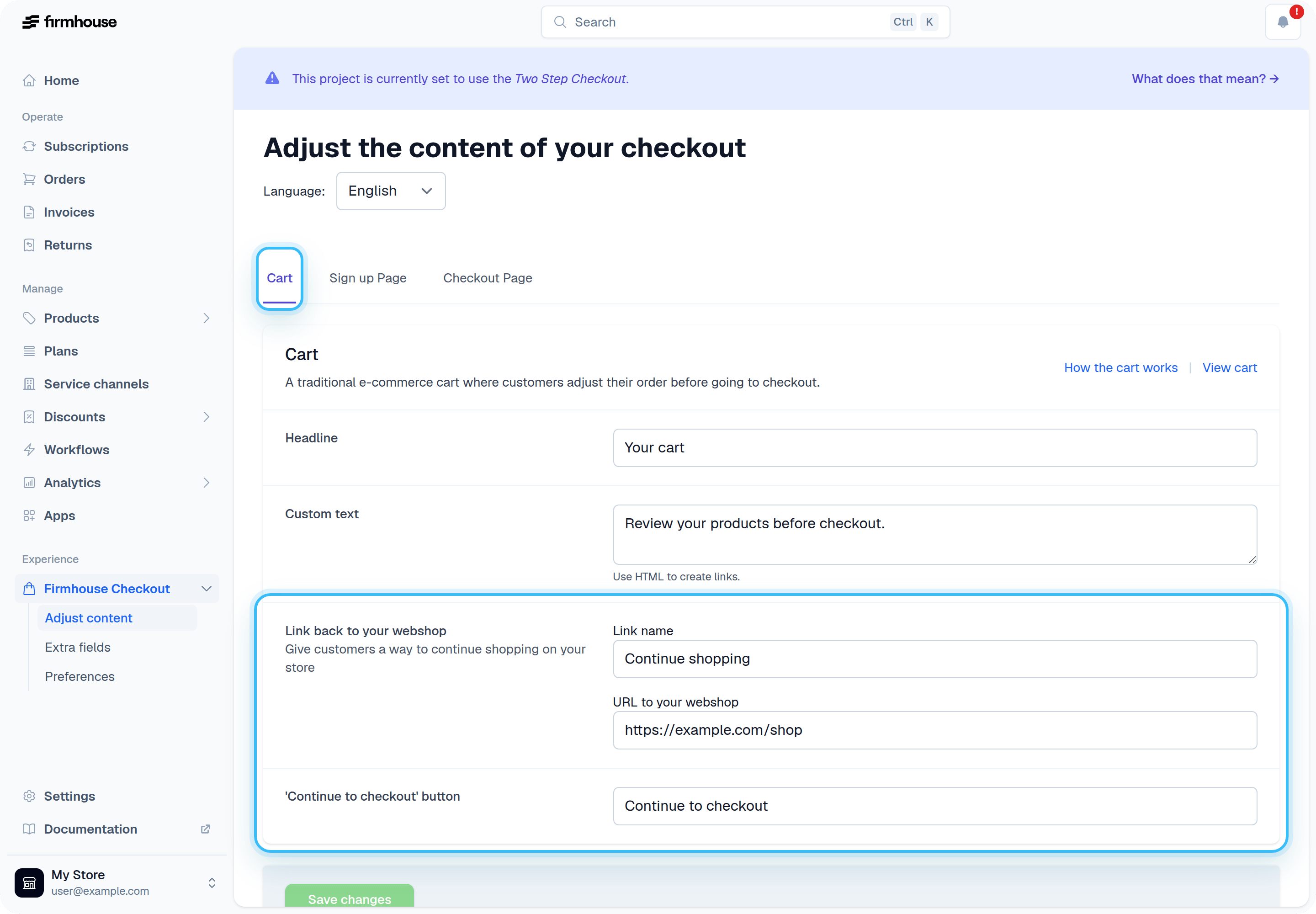
- Go to Checkout > Adjust Content.
- Click on the Cart tab.
- Configure the “Continue shopping” link and the “Continue to checkout” button text as needed.
- Click Save changes.