How in-store signup works
With the two step checkout signup strategy enabled:- The customer comes to the store to browse, get advice, and select the product they would like to get on a subscription
- On a shared computer or with help of a store employee, the customer enters their order details and confirms their subscription contract
- The customer receives a link via email to confirm their order and make their initial subscription payment
- Optional: Configured acceptance checks are performed
- The store receives the paid order confirmation and starts arranging delivery of the order
A note on acceptance checks
If you have acceptance checks enabled that are set to be performed at signup, these checks will be validated when a customer confirms their order on the second sign up step. The first order placement step will not perform any acceptance checks. In the case that a customer is rejected via acceptance checks, they will see a notice on the second step of the signup.Enabling two step checkout for your project
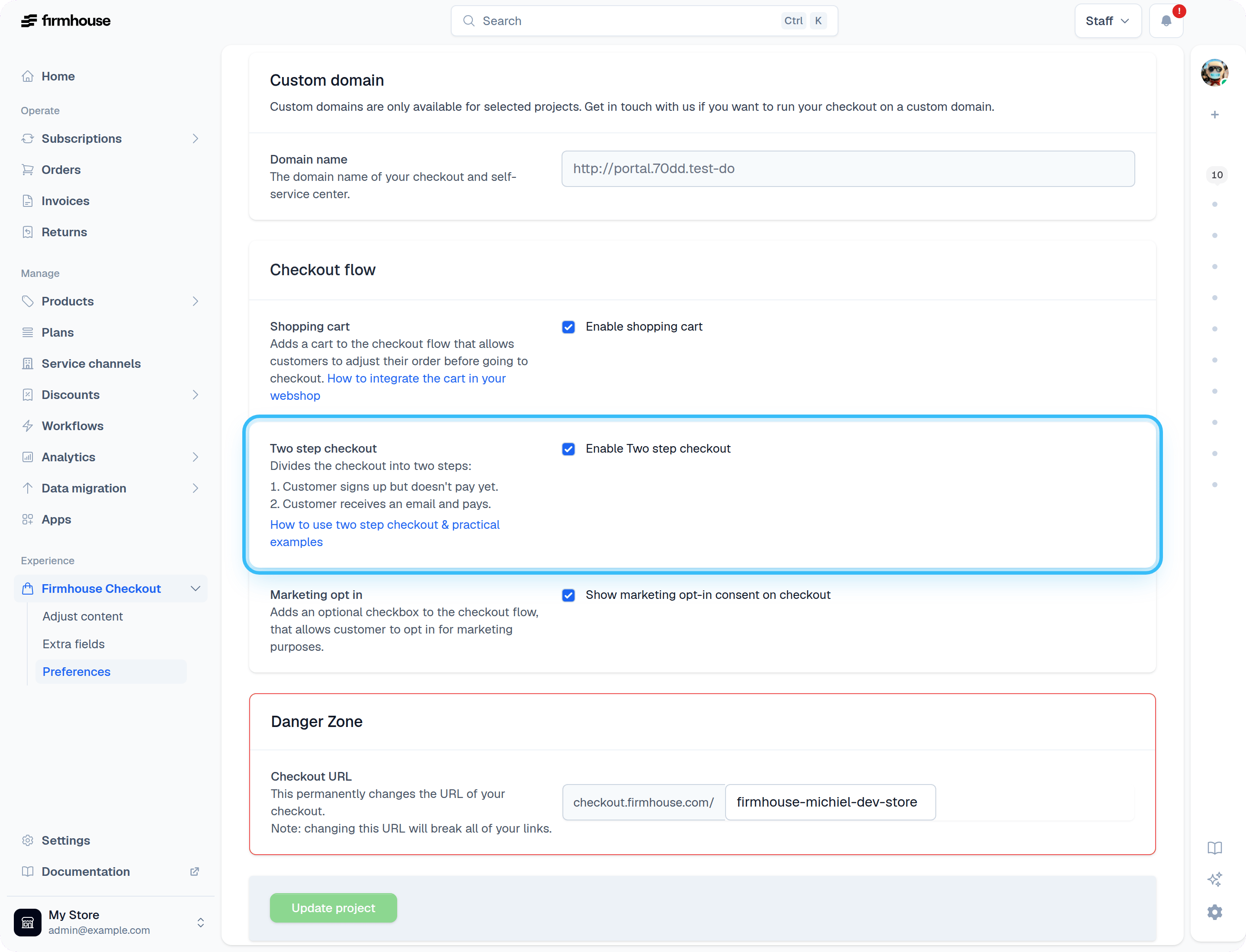
Enabling this signup strategy will switch your full project into two step checkout. In this mode, all customers that sign up will confirm and pay for their subscription via an email that gets sent to them. Changing the signup strategy can only be done by Project Managers.Steps
- In your Firmhouse project, go to Settings > Subscription Model in the sidebar
- In the section called Sign up strategy, check the Enable two step checkout flow option
- Scroll to the bottom of the screen and click Update project
Customise the complete signup email
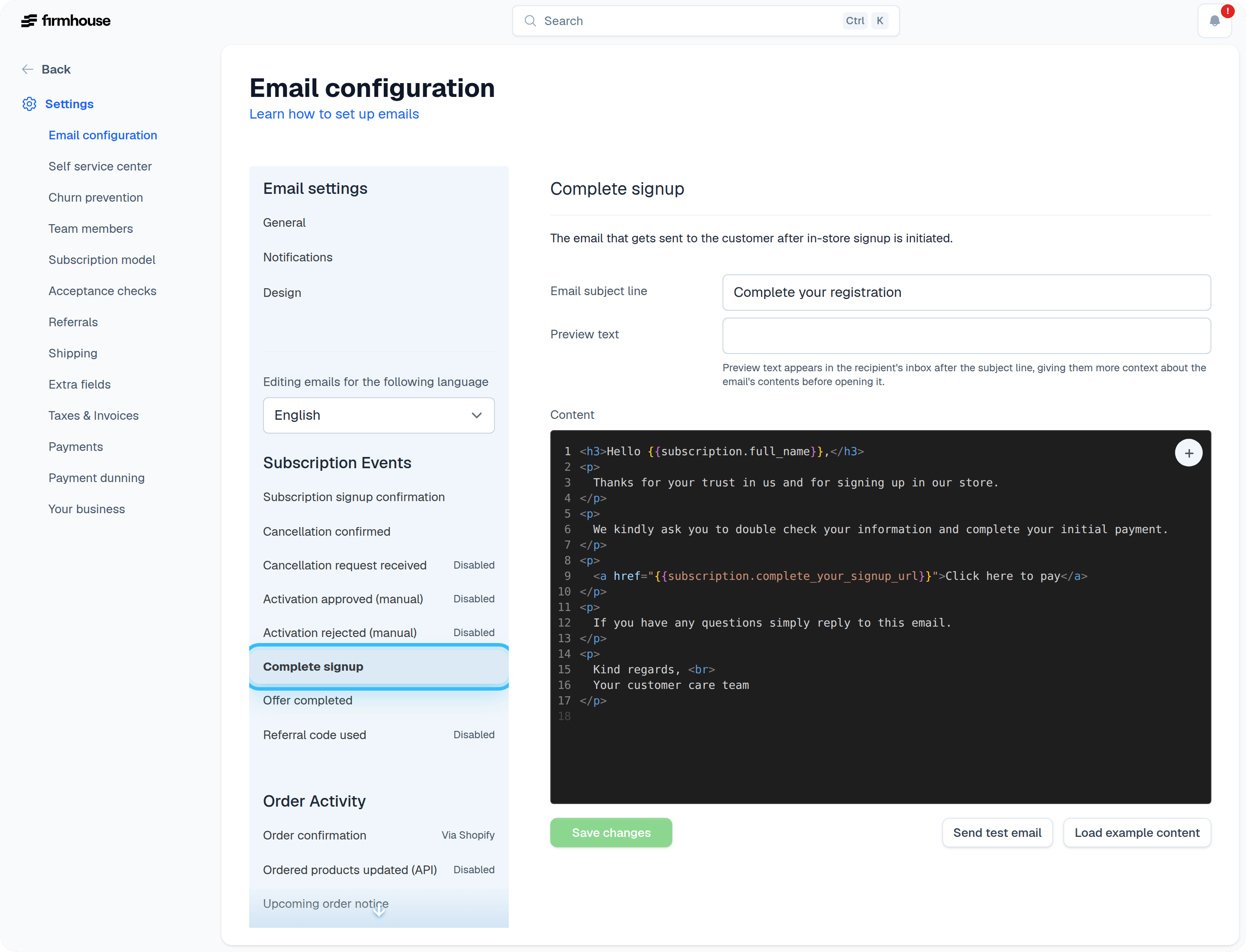
With the two step checkout signup strategy enabled, all new customers that sign up will first receive an email with a link to complete their signup. They can use that link to pay for their initial subscription term and accept their contract.Steps
- In your Firmhouse project, go to Settings > Email configuration in the sidebar
- Under Subscription lifecycle heading, click Complete signup
- Enter the Email subject line and Content of the email or use the Load example content
- Click Save
Customise the signup completion page
You can customise the copy of the page that customers will use to complete their signup and place their subscription order.Steps
- In your Firmhouse project, go to Checkout Flow in the sidebar
- Change any fields in the Payment flow section. You can use simple HTML tags if you want to link to external pages, email addresses, or phone numbers
- Click Update project
Viewing customers that did not complete their signup
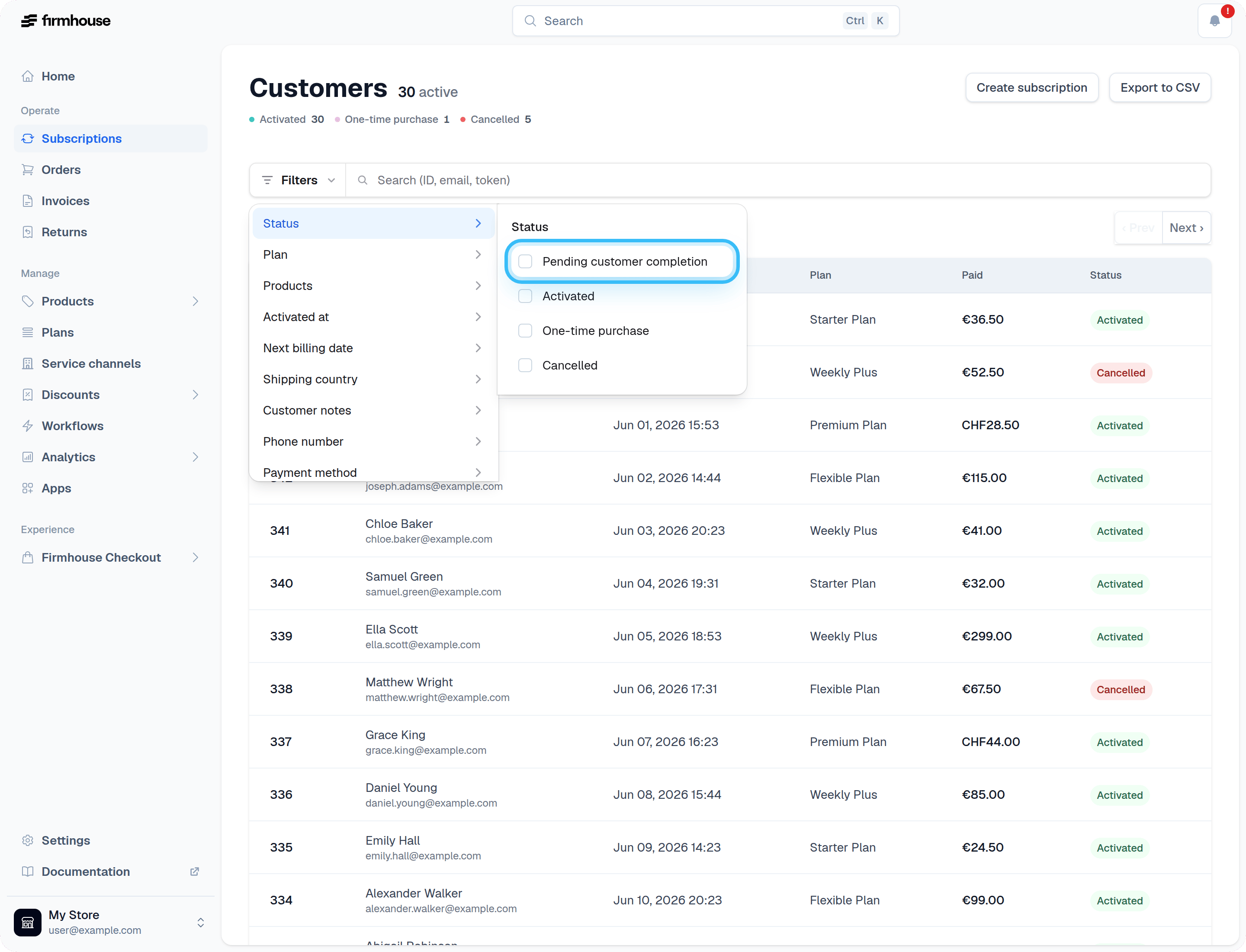
All customers that have signed up but have not yet finished their signup will be visible under a filter called Pending customer completion on the Customers overview.Steps
- In your Firmhouse project, go to Customers in the sidebar
- Click Pending customer completion from the filters bar
Finding the signup completion link for a customer
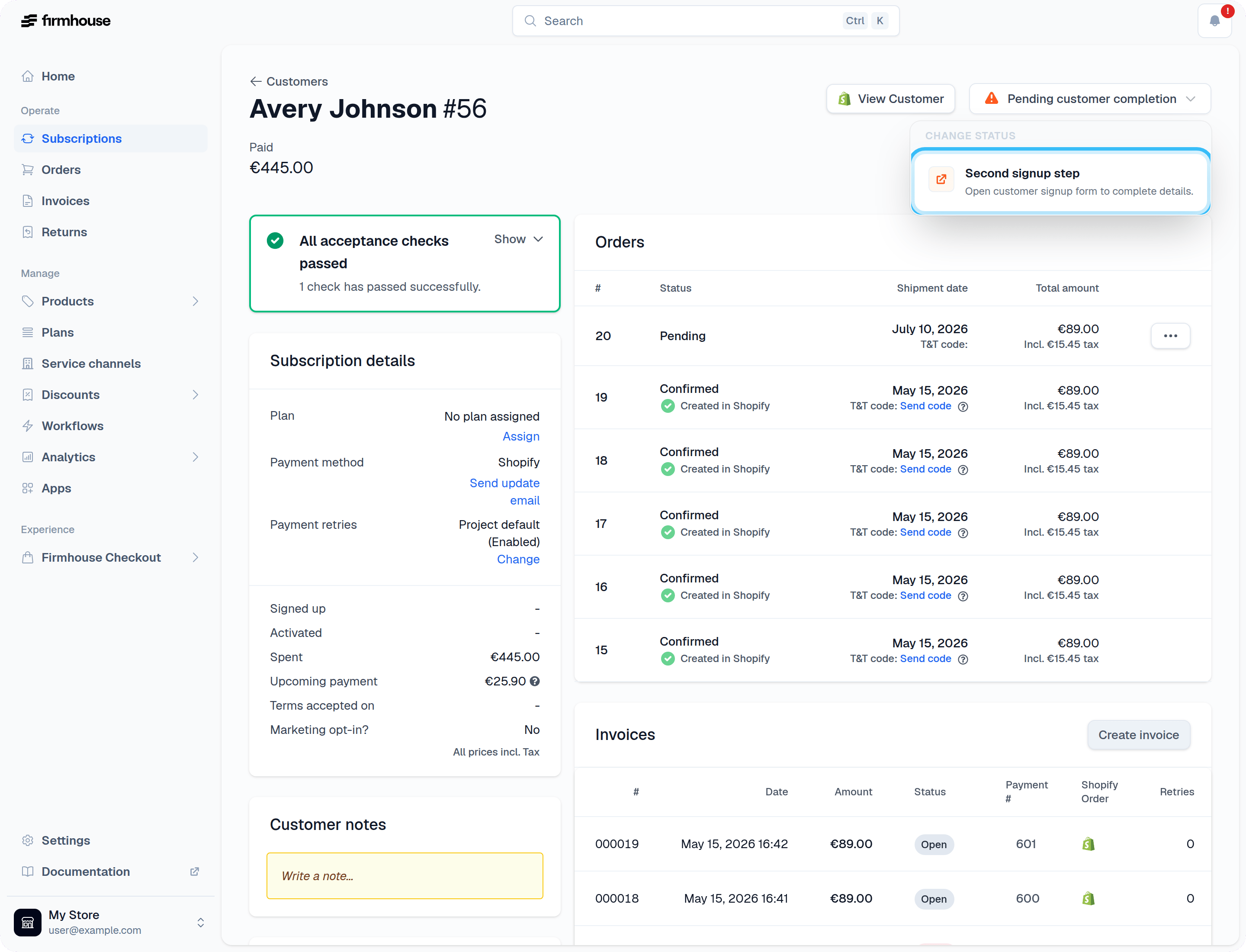
If you want to look up the signup completion link for a customer manually, you can do so from the customer detail page. This is useful if you want to remind a customer to complete their signup, or if a customer indicates they had problems receiving their email.Steps
- In your Firmhouse project, go to Customers in the sidebar
- Click Pending customer completion from the filters bar
- Click on the customer you would like to look up the link for
- Click Second signup step in the Subscription details section
- The page to complete the signup will open in your browser. You can now copy and paste the link from your browser